Shapiro Library


Introduction to Library Resources


     Emily Singley, Reference Librarian
How to login to the library

• https://my.snhu.edu
• Login using your MySNHU username and
  password
• Click on “Shapiro Library” to get to the
  library homepage
• Bookmark this page!
What you will find in the library

   • Journal articles
   • Books
   • E-books
   • Research Guides
   • Citation management
     (RefWorks)
   • Research help
     (Librarians!)
How to find scholarly journal
articles
• Go to the library home page
   https://my.snhu.edu/Academics/Library/Pages/default.aspx

• Click on “Find a database or electronic resource”
   http://libguides.snhu.edu/A-ZList

• Bookmark this page!

• Click on the “databases by subject A-G” tab

• Select “Education”

• Choose the database of your choice – Highly recommended: ERIC

• Search the database for articles on your topic
Database searching tips
   •   Look for an “Advanced search” option. In ERIC, it is
       directly under the search box.

   •   Use limiters to narrow your search effectively. Limit
       by peer-reviewed, by date, or even educational level.
       i.e: “elementary education”

   •   Use synonyms to find more on your topic. i.e: search
       not only “adolescent” but also “teenager” and “young
       adult.”

   •   Remember Boolean operators (AND, OR, NOT). i.e:
       mathematics and curriculum and elementary

   •   Use tricks like truncation (*), wildcards (? or !), and
       phrases (""). For example: disciplin* and class* and
       "high school"
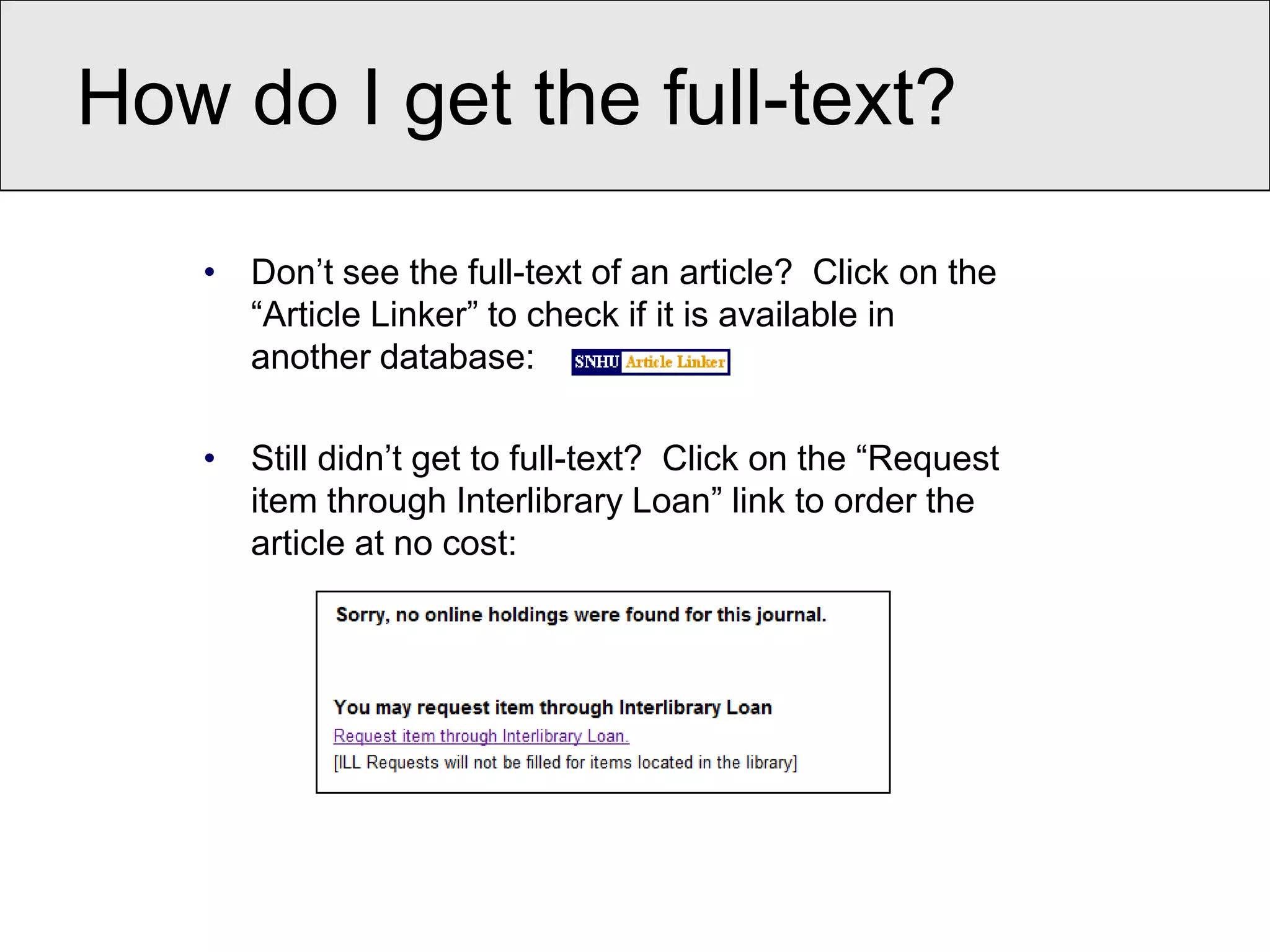
How do I get the full-text?

   • Don’t see the full-text of an article? Click on the
     “Article Linker” to check if it is available in
     another database:

   • Still didn’t get to full-text? Click on the “Request
     item through Interlibrary Loan” link to order the
     article at no cost:
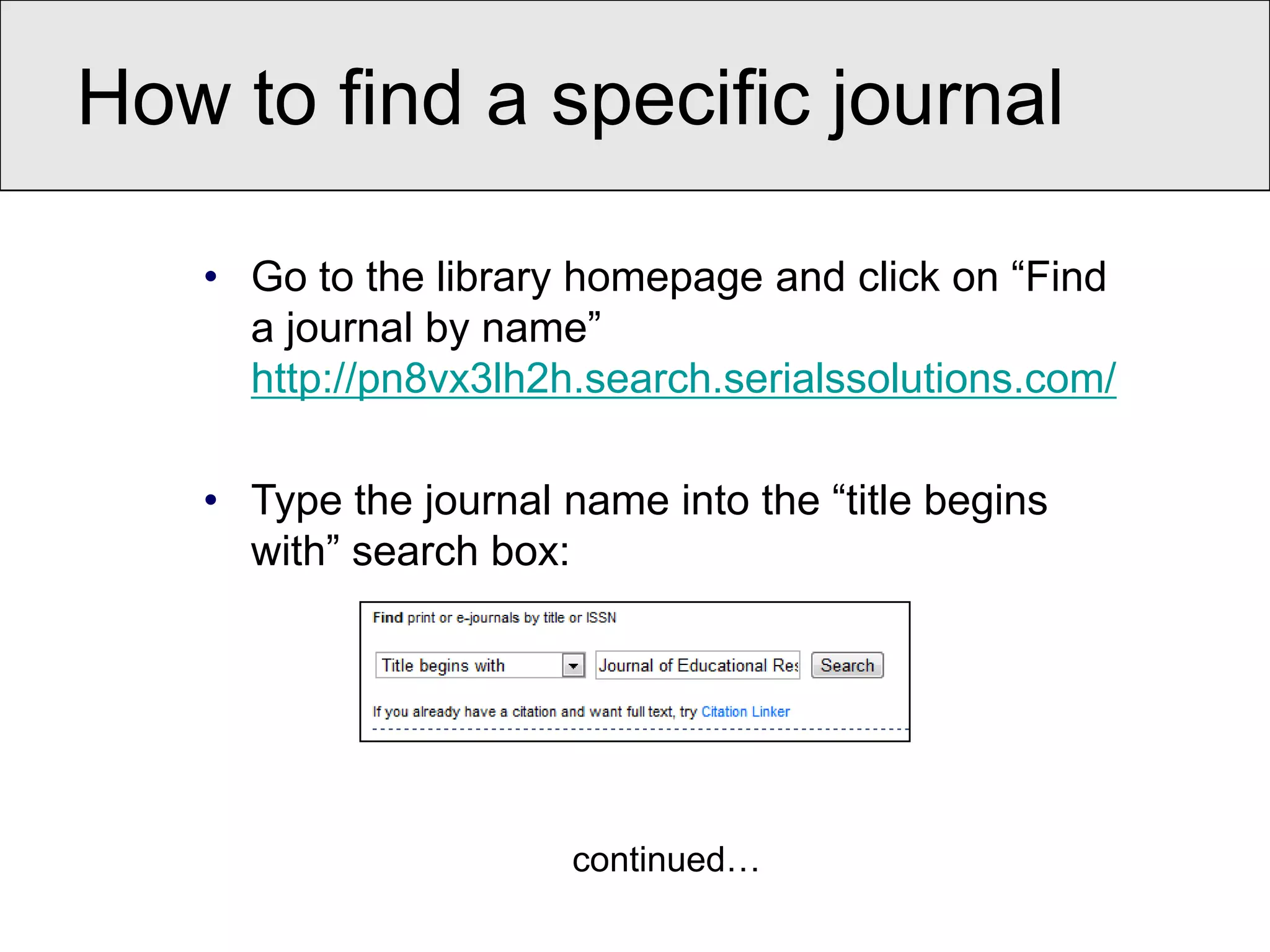
How to find a specific journal

   • Go to the library homepage and click on “Find
     a journal by name”
     http://pn8vx3lh2h.search.serialssolutions.com/

   • Type the journal name into the “title begins
     with” search box:


                       continued…
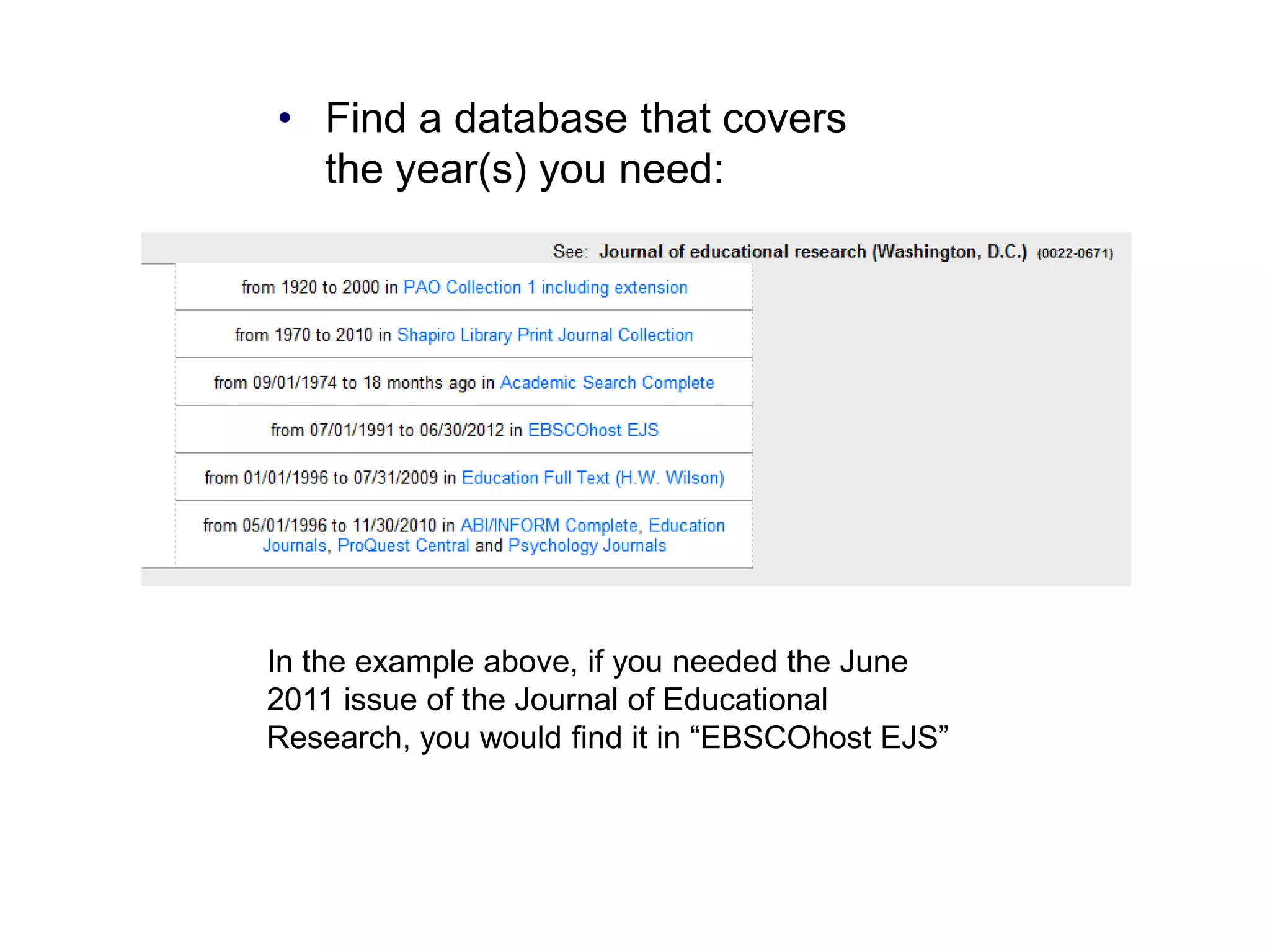
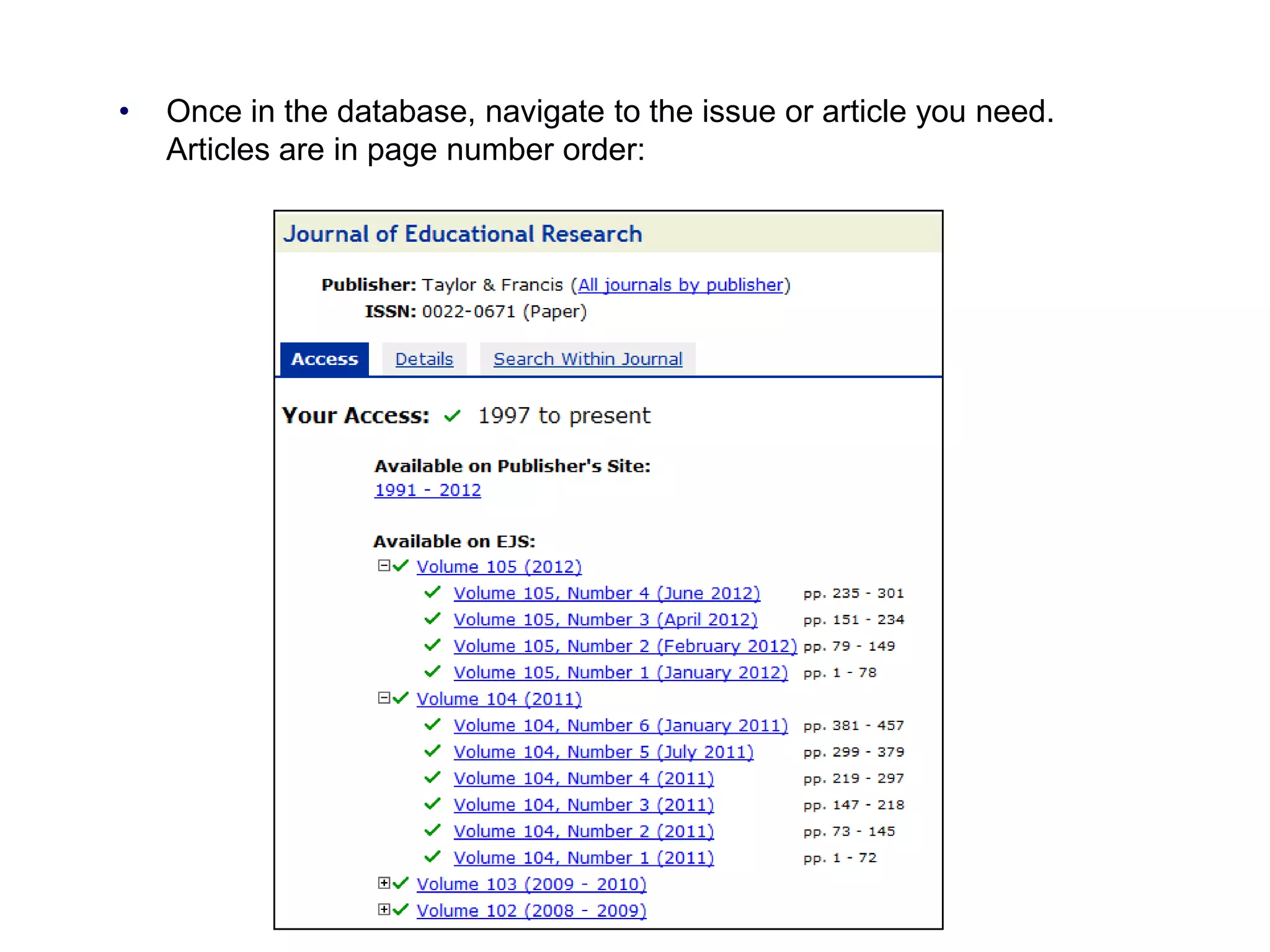
• Find a database that covers
  the year(s) you need:


In the example above, if you needed the June
2011 issue of the Journal of Educational
Research, you would find it in “EBSCOhost EJS”
•   Once in the database, navigate to the issue or article you need.
    Articles are in page number order:
How to find a specific article

   • Go to the library homepage and click on “Find a journal
     by name” http://pn8vx3lh2h.search.serialssolutions.com/

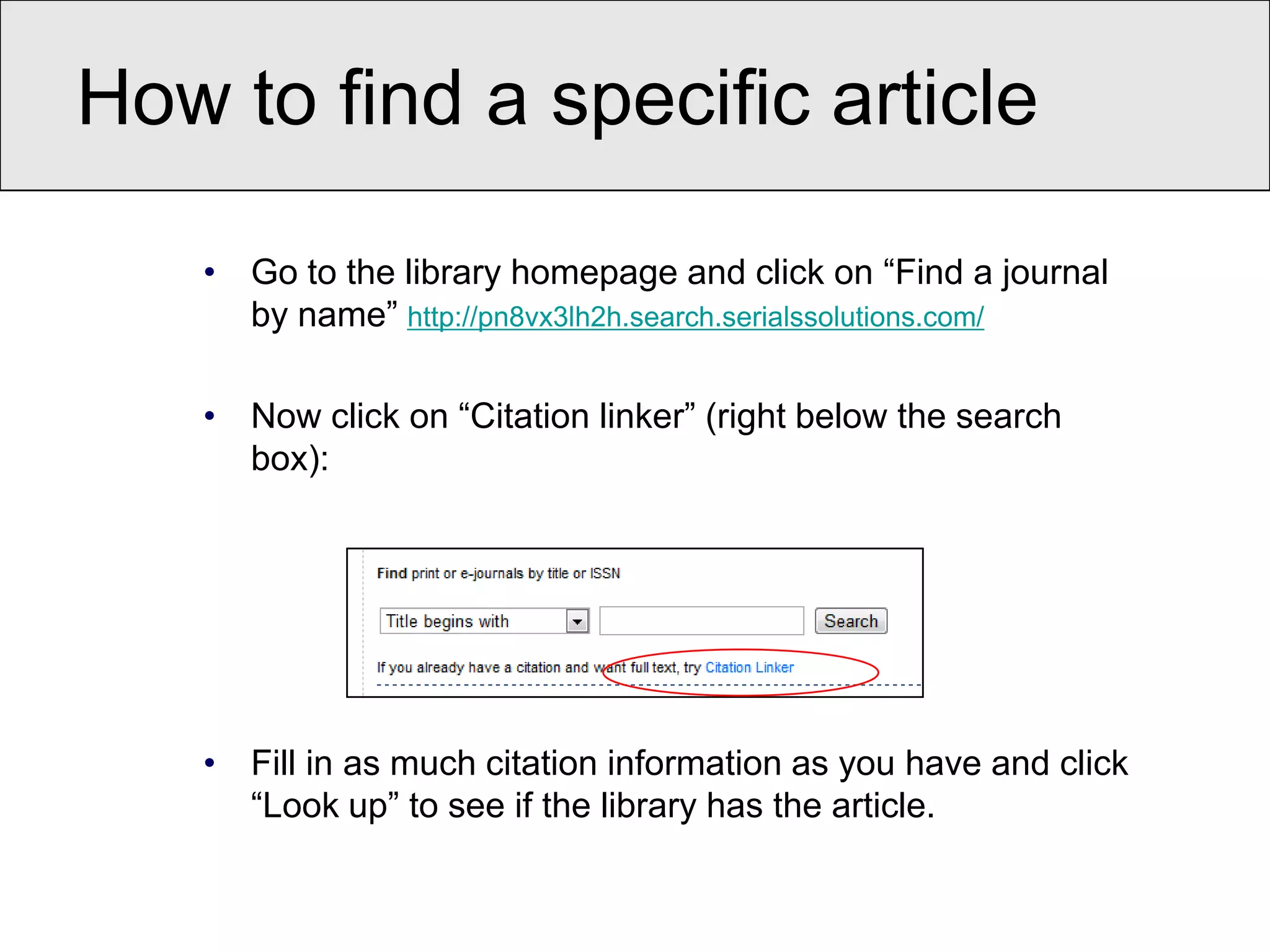
   • Now click on “Citation linker” (right below the search
     box):


   • Fill in as much citation information as you have and click
     “Look up” to see if the library has the article.
How to find books and e-
 books
• Click on the “Book catalog” tab on the library home page

• Put in your search terms – you can search by keyword, title, author,
  subject, and more.

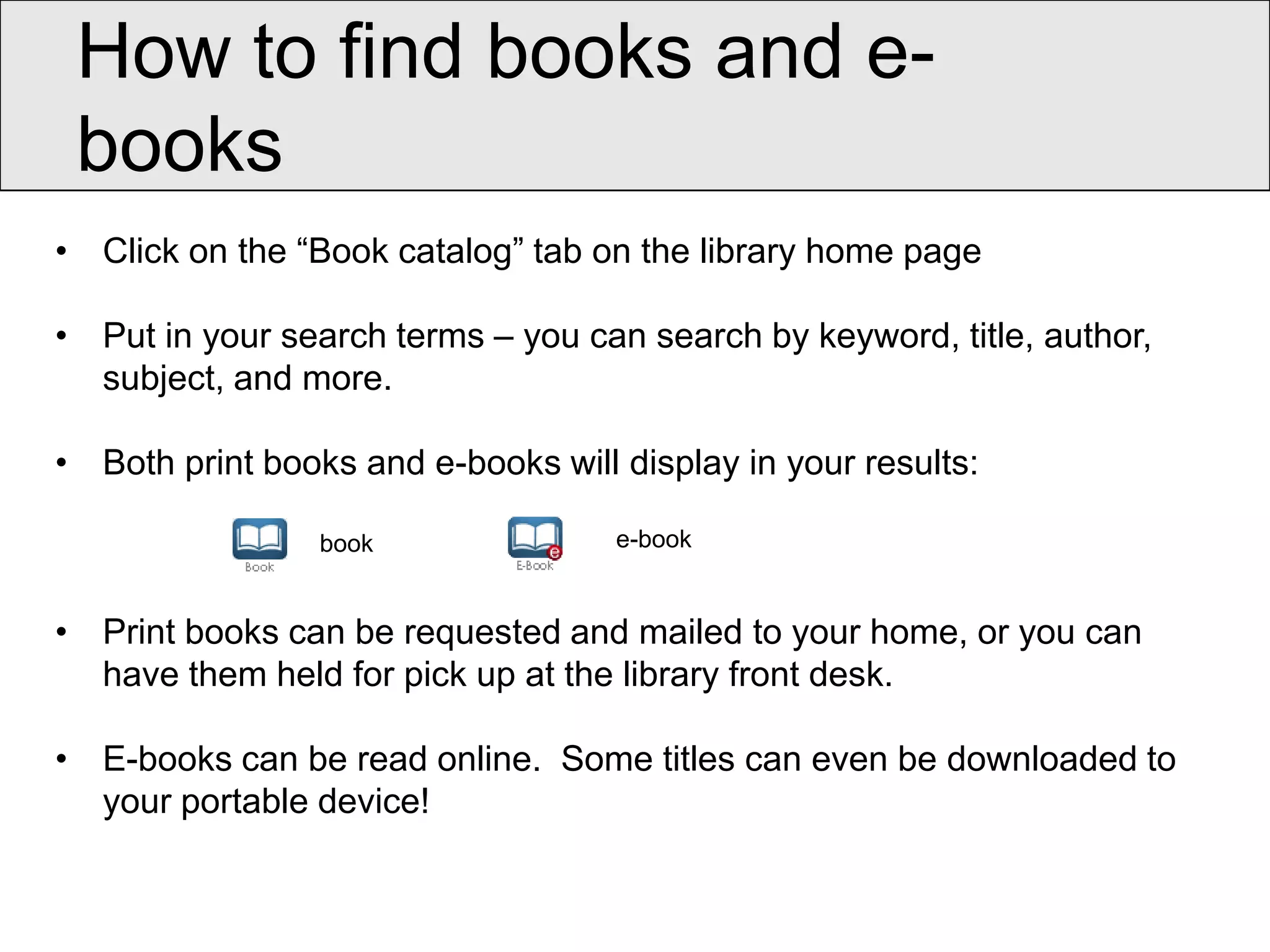
• Both print books and e-books will display in your results:

                 book               e-book


• Print books can be requested and mailed to your home, or you can
  have them held for pick up at the library front desk.

• E-books can be read online. Some titles can even be downloaded to
  your portable device!
How to request a print book
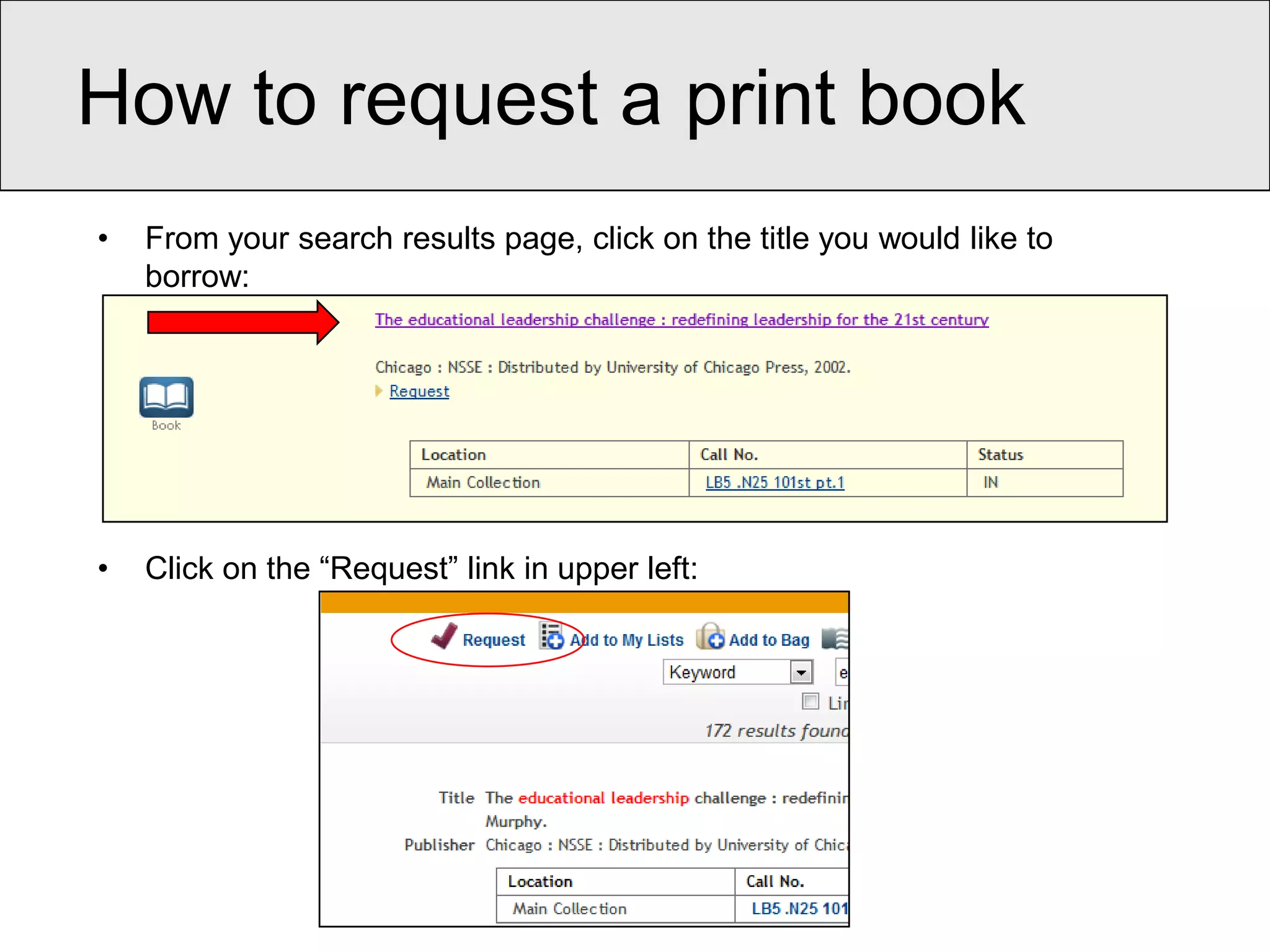
•   From your search results page, click on the title you would like to
    borrow:


•   Click on the “Request” link in upper left:
Requesting a book,
continued:

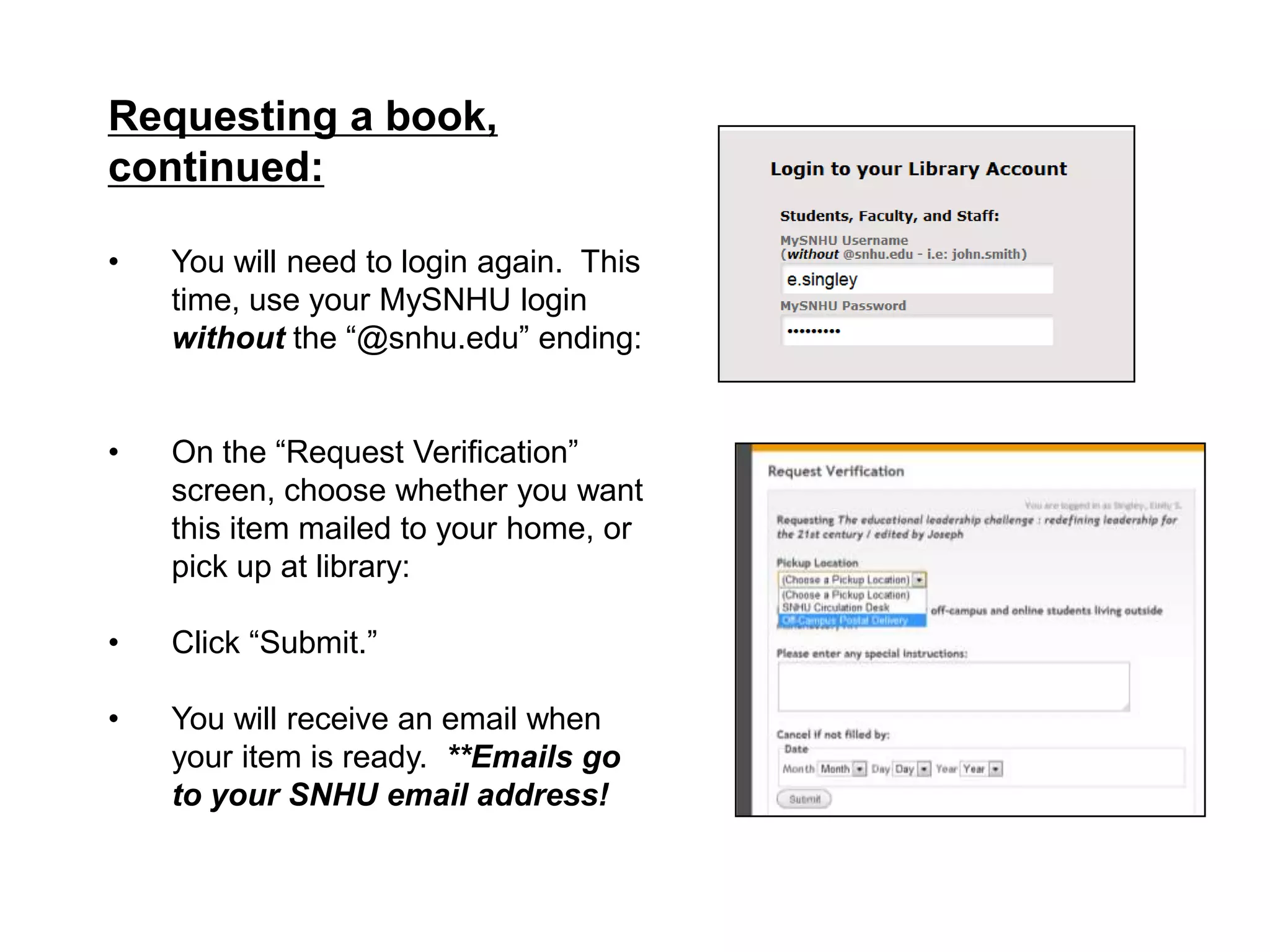
•   You will need to login again. This
    time, use your MySNHU login
    without the “@snhu.edu” ending:


•   On the “Request Verification”
    screen, choose whether you want
    this item mailed to your home, or
    pick up at library:

•   Click “Submit.”

•   You will receive an email when
    your item is ready. **Emails go
    to your SNHU email address!
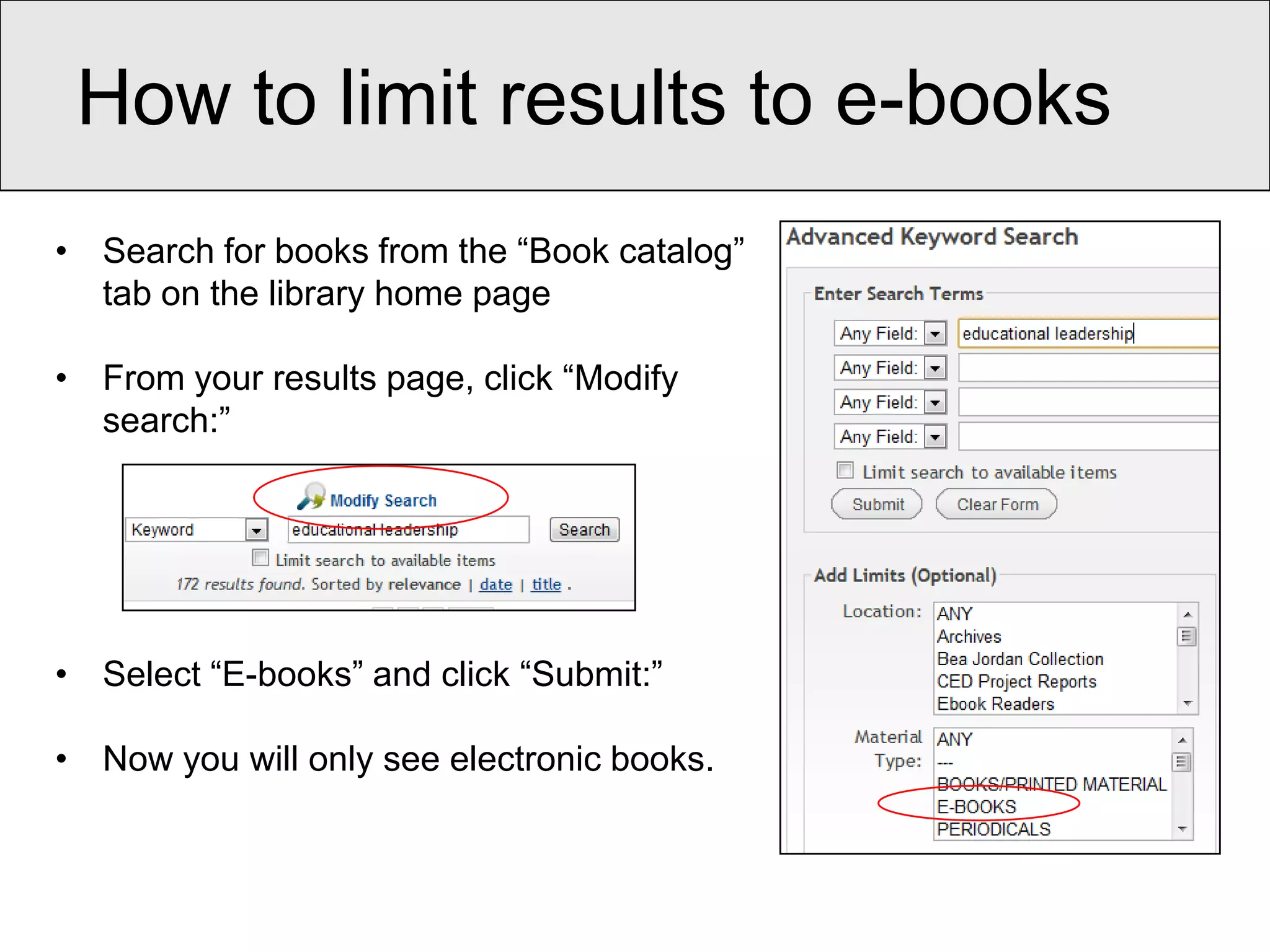
How to limit results to e-books
• Search for books from the “Book catalog”
  tab on the library home page

• From your results page, click “Modify
  search:”


• Select “E-books” and click “Submit:”

• Now you will only see electronic books.
Library Research Guides

  • Research guides are created by librarians.

  • They contain links to course and subject-specific
    resources.

  • They also have helpful documentation on how to
    use library resources, including video tutorials.

  • Check them out at: http://libguides.snhu.edu/

  • Ed.D. Educational Leadership Research Guide:
    http://libguides.snhu.edu/educational_leadership
Using RefWorks to manage
your citations
• RefWorks is a citation management tool

• Use it to save citations and create your bibliography

• Create an account at:
  http://www.refworks.com/refworks2/?r=authentication
  ::init&groupcode=RWSNHampU

• More info on the “Citing your Sources” Research
  Guide: http://libguides.snhu.edu/citation
Help with RefWorks:

• Contact SNHU Instructional Support:
      Email: instructionalsupport@snhu.edu
      MySNHU page:
      https://my.snhu.edu/OFFICES/ITS/IS/Pages/default.aspx

• RefWorks Help page:
  http://www.refworks.com/refworks2/help/RefWorks2.htm

• RefWorks video overview:
  http://www.youtube.com/watch?v=QcDdiI6mUyY&feature=yout
  u.be

• RefWorks Quickstart Guide:
  http://www.refworks.com/refworks2/help/RefWorks_QSG_EN_
  Dec11.pdf
Other (free) citation management tools:

• Mendeley http://www.mendeley.com/

• Zotero http://www.zotero.org/

• Connotea http://www.connotea.org/

• EasyBib http://www.easybib.com/

• CiteULike http://www.citeulike.org/

• And there are many more…..
Web searching using Google
Scholar
•   Use Google Scholar to search both Shapiro Library and scholarly
    web resources at the same time!

•   Go to http://scholar.google.com/

•   Set your “Library Links” to include Southern New Hampshire
    University

•   Now Google will show you when you have access to full-text
    through SNHU. Log into MySNHU and Google will even link you
    right to the article!

•   Video tutorial on how to set up your Library Links:
         http://www.youtube.com/watch?v=bROcWIcwTP4

•   Good Research Guide on “How to Google like a librarian:”
    http://libguides.snhu.edu/google
Some helpful links
 • Shapiro Library home page (must login to MySNHU)
       https://my.snhu.edu/Academics/Library/Pages/default.aspx

 • Educational Leadership Research Guide:
    http://libguides.snhu.edu/educational_leadership

 • Citing your sources research guide (includes RefWorks):
                 http://libguides.snhu.edu/citation

 • Library databases and electronic resources:
            http://libguides.snhu.edu/A-ZList

 • Off-campus library services guide:
   http://libguides.snhu.edu/OCLSinformation
        includes information on how to search for and request books,
        how to look up a journal, and more.
How to get help with research

• Call us during library hours: 603-626-9100 x2161

• Email us anytime: reference@snhu.edu

• Chat with us on the library home page:
  https://my.snhu.edu/Academics/Library/Pages/default.aspx

• Check out all our Research Guides: http://libguides.snhu.edu/
Emily Singley, Reference Librarian

      e.singley@snhu.edu

      603-668-2211 x2225


            Thanks!

Introduction to Shapiro Library Resources

  • 1.
    Shapiro Library Introduction toLibrary Resources Emily Singley, Reference Librarian
  • 2.
    How to loginto the library • https://my.snhu.edu • Login using your MySNHU username and password • Click on “Shapiro Library” to get to the library homepage • Bookmark this page!
  • 3.
    What you willfind in the library • Journal articles • Books • E-books • Research Guides • Citation management (RefWorks) • Research help (Librarians!)
  • 4.
    How to findscholarly journal articles • Go to the library home page https://my.snhu.edu/Academics/Library/Pages/default.aspx • Click on “Find a database or electronic resource” http://libguides.snhu.edu/A-ZList • Bookmark this page! • Click on the “databases by subject A-G” tab • Select “Education” • Choose the database of your choice – Highly recommended: ERIC • Search the database for articles on your topic
  • 5.
    Database searching tips • Look for an “Advanced search” option. In ERIC, it is directly under the search box. • Use limiters to narrow your search effectively. Limit by peer-reviewed, by date, or even educational level. i.e: “elementary education” • Use synonyms to find more on your topic. i.e: search not only “adolescent” but also “teenager” and “young adult.” • Remember Boolean operators (AND, OR, NOT). i.e: mathematics and curriculum and elementary • Use tricks like truncation (*), wildcards (? or !), and phrases (""). For example: disciplin* and class* and "high school"
  • 6.
    How do Iget the full-text? • Don’t see the full-text of an article? Click on the “Article Linker” to check if it is available in another database: • Still didn’t get to full-text? Click on the “Request item through Interlibrary Loan” link to order the article at no cost:
  • 7.
    How to finda specific journal • Go to the library homepage and click on “Find a journal by name” http://pn8vx3lh2h.search.serialssolutions.com/ • Type the journal name into the “title begins with” search box: continued…
  • 8.
    • Find adatabase that covers the year(s) you need: In the example above, if you needed the June 2011 issue of the Journal of Educational Research, you would find it in “EBSCOhost EJS”
  • 9.
    Once in the database, navigate to the issue or article you need. Articles are in page number order:
  • 10.
    How to finda specific article • Go to the library homepage and click on “Find a journal by name” http://pn8vx3lh2h.search.serialssolutions.com/ • Now click on “Citation linker” (right below the search box): • Fill in as much citation information as you have and click “Look up” to see if the library has the article.
  • 11.
    How to findbooks and e- books • Click on the “Book catalog” tab on the library home page • Put in your search terms – you can search by keyword, title, author, subject, and more. • Both print books and e-books will display in your results: book e-book • Print books can be requested and mailed to your home, or you can have them held for pick up at the library front desk. • E-books can be read online. Some titles can even be downloaded to your portable device!
  • 12.
    How to requesta print book • From your search results page, click on the title you would like to borrow: • Click on the “Request” link in upper left:
  • 13.
    Requesting a book, continued: • You will need to login again. This time, use your MySNHU login without the “@snhu.edu” ending: • On the “Request Verification” screen, choose whether you want this item mailed to your home, or pick up at library: • Click “Submit.” • You will receive an email when your item is ready. **Emails go to your SNHU email address!
  • 14.
    How to limitresults to e-books • Search for books from the “Book catalog” tab on the library home page • From your results page, click “Modify search:” • Select “E-books” and click “Submit:” • Now you will only see electronic books.
  • 15.
    Library Research Guides • Research guides are created by librarians. • They contain links to course and subject-specific resources. • They also have helpful documentation on how to use library resources, including video tutorials. • Check them out at: http://libguides.snhu.edu/ • Ed.D. Educational Leadership Research Guide: http://libguides.snhu.edu/educational_leadership
  • 16.
    Using RefWorks tomanage your citations • RefWorks is a citation management tool • Use it to save citations and create your bibliography • Create an account at: http://www.refworks.com/refworks2/?r=authentication ::init&groupcode=RWSNHampU • More info on the “Citing your Sources” Research Guide: http://libguides.snhu.edu/citation
  • 17.
    Help with RefWorks: •Contact SNHU Instructional Support: Email: instructionalsupport@snhu.edu MySNHU page: https://my.snhu.edu/OFFICES/ITS/IS/Pages/default.aspx • RefWorks Help page: http://www.refworks.com/refworks2/help/RefWorks2.htm • RefWorks video overview: http://www.youtube.com/watch?v=QcDdiI6mUyY&feature=yout u.be • RefWorks Quickstart Guide: http://www.refworks.com/refworks2/help/RefWorks_QSG_EN_ Dec11.pdf
  • 18.
    Other (free) citationmanagement tools: • Mendeley http://www.mendeley.com/ • Zotero http://www.zotero.org/ • Connotea http://www.connotea.org/ • EasyBib http://www.easybib.com/ • CiteULike http://www.citeulike.org/ • And there are many more…..
  • 19.
    Web searching usingGoogle Scholar • Use Google Scholar to search both Shapiro Library and scholarly web resources at the same time! • Go to http://scholar.google.com/ • Set your “Library Links” to include Southern New Hampshire University • Now Google will show you when you have access to full-text through SNHU. Log into MySNHU and Google will even link you right to the article! • Video tutorial on how to set up your Library Links: http://www.youtube.com/watch?v=bROcWIcwTP4 • Good Research Guide on “How to Google like a librarian:” http://libguides.snhu.edu/google
  • 20.
    Some helpful links • Shapiro Library home page (must login to MySNHU) https://my.snhu.edu/Academics/Library/Pages/default.aspx • Educational Leadership Research Guide: http://libguides.snhu.edu/educational_leadership • Citing your sources research guide (includes RefWorks): http://libguides.snhu.edu/citation • Library databases and electronic resources: http://libguides.snhu.edu/A-ZList • Off-campus library services guide: http://libguides.snhu.edu/OCLSinformation includes information on how to search for and request books, how to look up a journal, and more.
  • 21.
    How to gethelp with research • Call us during library hours: 603-626-9100 x2161 • Email us anytime: reference@snhu.edu • Chat with us on the library home page: https://my.snhu.edu/Academics/Library/Pages/default.aspx • Check out all our Research Guides: http://libguides.snhu.edu/
  • 22.
    Emily Singley, ReferenceLibrarian e.singley@snhu.edu 603-668-2211 x2225 Thanks!