HTML
Eng. Nada Bahaa Ibrahim
Introduction
HTML is the standard markup language for
Web pages.
With HTML you can create your own Website.
HTML is easy to learn - You will enjoy it!
Why HTML...
It is the foundational technology for the web since 1989.
Load fast.
Robust – even if the styles and scripts fail to load, the content will be
available.
Backward compatible.
Future-proof.
HTML Editors
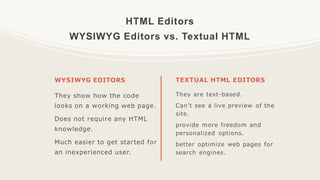
WYSIWYG Editors vs. Textual HTML
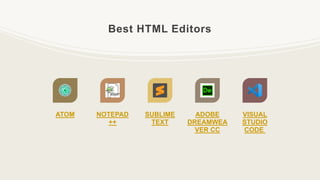
Best HTML Editors
ATOM NOTEPAD
++
SUBLIME
TEXT
ADOBE
DREAMWEA
VER CC
VISUAL
STUDIO
CODE
Let's Start
Basics
• HTML is Not Case Sensitive.
• All HTML documents must start with a
document type declaration: <!DOCTYPE
html>.
• The HTML document itself begins with
<html> and ends with </html>.
• The visible part of the HTML document is
between <body> and </body>.
• HTML headings are defined with the <h1>
to <h6> tags.
• HTML paragraphs are defined with the <p>
tag.
• HTML links are defined with the <a> tag.
• HTML images are defined with the <img>
tag.
HTML Elements
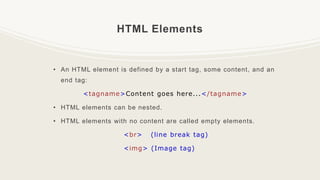
• An HTML element is defined by a start tag, some content, and an
end tag:
<tagname>Content goes here...</tagname>
• HTML elements can be nested.
• HTML elements with no content are called empty elements.
<br> (line break tag)
<img> (Image tag)
HTML Attributes
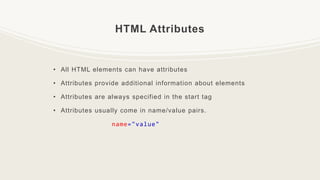
• All HTML elements can have attributes
• Attributes provide additional information about elements
• Attributes are always specified in the start tag
• Attributes usually come in name/value pairs.
name="value"
HTML Headings
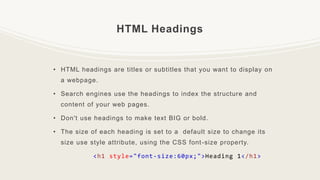
• HTML headings are titles or subtitles that you want to display on
a webpage.
• Search engines use the headings to index the structure and
content of your web pages.
• Don't use headings to make text BIG or bold.
• The size of each heading is set to a default size to change its
size use style attribute, using the CSS font-size property.
<h1 style="font-size:60px;">Heading 1</h1>
HTML Paragraphs
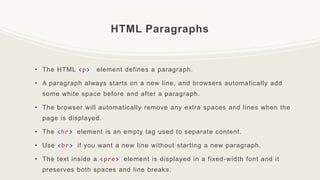
• The HTML <p> element defines a paragraph.
• A paragraph always starts on a new line, and browsers automatically add
some white space before and after a paragraph.
• The browser will automatically remove any extra spaces and lines when the
page is displayed.
• The <hr> element is an empty tag used to separate content.
• Use <br> if you want a new line without starting a new paragraph.
• The text inside a <pre> element is displayed in a fixed-width font and it
preserves both spaces and line breaks.
HTML Text Formatting
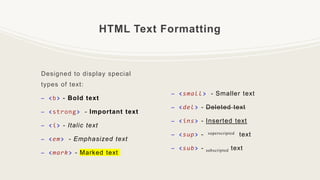
Designed to display special
types of text:
– <b> - Bold text
– <strong> - Important text
– <i> - Italic text
– <em> - Emphasized text
– <mark> - Marked text
– <small> - Smaller text
– <del> - Deleted text
– <ins> - Inserted text
– <sup> - superscripted text
– <sub> - subscripted text
HTML Comments
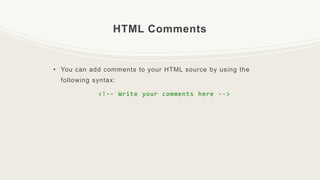
• You can add comments to your HTML source by using the
following syntax:
<!-- Write your comments here -->
HTML Links
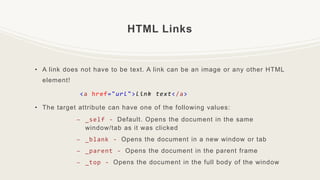
• A link does not have to be text. A link can be an image or any other HTML
element!
<a href="url">link text</a>
• The target attribute can have one of the following values:
– _self - Default. Opens the document in the same
window/tab as it was clicked
– _blank - Opens the document in a new window or tab
– _parent - Opens the document in the parent frame
– _top - Opens the document in the full body of the window
HTML Links
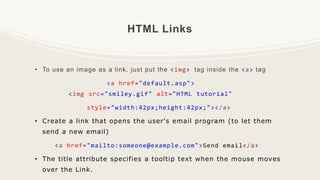
• To use an image as a link, just put the <img> tag inside the <a> tag
<a href="default.asp">
<img src="smiley.gif" alt="HTML tutorial"
style="width:42px;height:42px;"></a>
• Create a link that opens the user's email program (to let them
send a new email)
<a href="mailto:someone@example.com">Send email</a>
• The title attribute specifies a tooltip text when the mouse moves
over the Link.
HTML Head
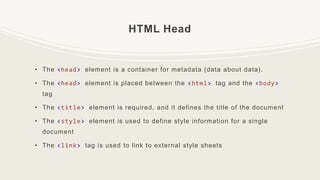
• The <head> element is a container for metadata (data about data).
• The <head> element is placed between the <html> tag and the <body>
tag
• The <title> element is required, and it defines the title of the document
• The <style> element is used to define style information for a single
document
• The <link> tag is used to link to external style sheets
HTML Head
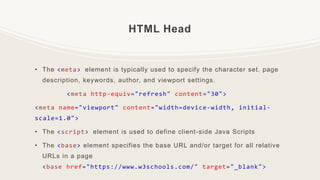
• The <meta> element is typically used to specify the character set, page
description, keywords, author, and viewport settings.
<meta http-equiv="refresh" content="30">
<meta name="viewport" content="width=device-width, initial-
scale=1.0">
• The <script> element is used to define client-side Java Scripts
• The <base> element specifies the base URL and/or target for all relative
URLs in a page
<base href="https://www.w3schools.com/" target="_blank">
HTML CSS
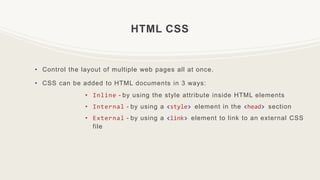
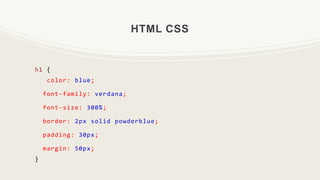
• Control the layout of multiple web pages all at once.
• CSS can be added to HTML documents in 3 ways:
• Inline - by using the style attribute inside HTML elements
• Internal - by using a <style> element in the <head> section
• External - by using a <link> element to link to an external CSS
file
HTML CSS
h1 {
color: blue;
font-family: verdana;
font-size: 300%;
border: 2px solid powderblue;
padding: 30px;
margin: 50px;
}
HTML Images
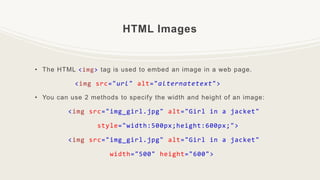
• The HTML <img> tag is used to embed an image in a web page.
<img src="url" alt="alternatetext">
• You can use 2 methods to specify the width and height of an image:
<img src="img_girl.jpg" alt="Girl in a jacket"
style="width:500px;height:600px;">
<img src="img_girl.jpg" alt="Girl in a jacket"
width="500" height="600">
HTML Images
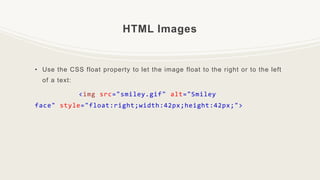
• Use the CSS float property to let the image float to the right or to the left
of a text:
<img src="smiley.gif" alt="Smiley
face" style="float:right;width:42px;height:42px;">
HTML Tables
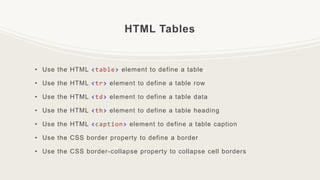
• Use the HTML <table> element to define a table
• Use the HTML <tr> element to define a table row
• Use the HTML <td> element to define a table data
• Use the HTML <th> element to define a table heading
• Use the HTML <caption> element to define a table caption
• Use the CSS border property to define a border
• Use the CSS border-collapse property to collapse cell borders
HTML Tables
• Use the CSS padding property to add padding to cells
• Use the CSS text-align property to align cell text
• Use the CSS border-spacing property to set the spacing between cells
• Use the colspan attribute to make a cell span many columns
• Use the rowspan attribute to make a cell span many rows
HTML Tables
• Use the id attribute to uniquely
define one table
<table id="t01">
<tr>
<th>Firstname</th>
<th>Lastname</th>
<th>Age</th>
</tr>
</table>
• #t01 tr:nth-child(even) {
background-color: #eee;
}
#t01 tr:nth-child(odd) {
background-color: #fff;
}
#t01 th {
color: white;
background-color: black;
}
HTML Unordered Lists
• Use the HTML <ul> element to define an unordered list
• Use the CSS list-style-type property to define the list item marker
• Use the HTML <li> element to define a list item
• Lists can be nested
• List items can contain other HTML elements
HTML Ordered Lists
• Use the HTML <ol> element to define an ordered list
• Use the HTML <li> element to define a list item
• Use the HTML type attribute to define the numbering type
• you can use the start attribute to start counting from a specified number
• Lists can be nested
• List items can contain other HTML elements
HTML Description Lists
• Use the HTML <dl> element to define description list
• Use the HTML <dt> element to define a list term
• Use the HTML <dd> element to define a description to a term
HTML Block and Inline Elements
• There are two display values: block and inline
• A block-level element always starts on a new line and takes up the full
width available
• An inline element does not start on a new line and it only takes up as
much width as necessary
• The <div> element is a block-level and is often used as a container for
other HTML elements
• The <span> element is an inline container used to mark up a part of a
text, or a part of a document
HTML Forms
• An HTML form is used to collect user input to a server for processing.
• The HTML <form> element is used to create an HTML form for user
input.
• Forms are formed of labels and input elements:
<label for="The id for input">First name:</label>
<input type="Type of the input element"
id=“the id of input element" name=“Name of input element">
HTML Forms
• The attributes of the HTML <form> element is:
• <form action="/action_page.php" target=“_blank"
method="get" autocomplete="on" novalidate>
• Elements of the form:
• <input>
• <label>
• <select>
• <option>
• <button>
• <fieldset>
• <legend>
• <datalist>
• <output>
• <optgroup>
• <textarea>
HTML Iframes
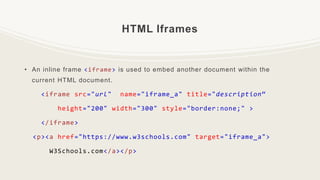
• An inline frame <iframe> is used to embed another document within the
current HTML document.
<iframe src="url" name="iframe_a" title="description“
height="200" width="300" style="border:none;" >
</iframe>
<p><a href="https://www.w3schools.com" target="iframe_a">
W3Schools.com</a></p>
References
• https://www.w3schools.com/html/def
ault.asp
• https://websitesetup.org/html-
tutorial-beginners/
• https://www.hostinger.com/tutorials/
best-html-editors

Lab1_HTML.pptx

  • 1.
  • 2.
    Introduction HTML is thestandard markup language for Web pages. With HTML you can create your own Website. HTML is easy to learn - You will enjoy it!
  • 3.
    Why HTML... It isthe foundational technology for the web since 1989. Load fast. Robust – even if the styles and scripts fail to load, the content will be available. Backward compatible. Future-proof.
  • 4.
  • 5.
    Best HTML Editors ATOMNOTEPAD ++ SUBLIME TEXT ADOBE DREAMWEA VER CC VISUAL STUDIO CODE
  • 6.
  • 7.
    Basics • HTML isNot Case Sensitive. • All HTML documents must start with a document type declaration: <!DOCTYPE html>. • The HTML document itself begins with <html> and ends with </html>. • The visible part of the HTML document is between <body> and </body>. • HTML headings are defined with the <h1> to <h6> tags. • HTML paragraphs are defined with the <p> tag. • HTML links are defined with the <a> tag. • HTML images are defined with the <img> tag.
  • 8.
    HTML Elements • AnHTML element is defined by a start tag, some content, and an end tag: <tagname>Content goes here...</tagname> • HTML elements can be nested. • HTML elements with no content are called empty elements. <br> (line break tag) <img> (Image tag)
  • 9.
    HTML Attributes • AllHTML elements can have attributes • Attributes provide additional information about elements • Attributes are always specified in the start tag • Attributes usually come in name/value pairs. name="value"
  • 10.
    HTML Headings • HTMLheadings are titles or subtitles that you want to display on a webpage. • Search engines use the headings to index the structure and content of your web pages. • Don't use headings to make text BIG or bold. • The size of each heading is set to a default size to change its size use style attribute, using the CSS font-size property. <h1 style="font-size:60px;">Heading 1</h1>
  • 11.
    HTML Paragraphs • TheHTML <p> element defines a paragraph. • A paragraph always starts on a new line, and browsers automatically add some white space before and after a paragraph. • The browser will automatically remove any extra spaces and lines when the page is displayed. • The <hr> element is an empty tag used to separate content. • Use <br> if you want a new line without starting a new paragraph. • The text inside a <pre> element is displayed in a fixed-width font and it preserves both spaces and line breaks.
  • 12.
    HTML Text Formatting Designedto display special types of text: – <b> - Bold text – <strong> - Important text – <i> - Italic text – <em> - Emphasized text – <mark> - Marked text – <small> - Smaller text – <del> - Deleted text – <ins> - Inserted text – <sup> - superscripted text – <sub> - subscripted text
  • 13.
    HTML Comments • Youcan add comments to your HTML source by using the following syntax: <!-- Write your comments here -->
  • 14.
    HTML Links • Alink does not have to be text. A link can be an image or any other HTML element! <a href="url">link text</a> • The target attribute can have one of the following values: – _self - Default. Opens the document in the same window/tab as it was clicked – _blank - Opens the document in a new window or tab – _parent - Opens the document in the parent frame – _top - Opens the document in the full body of the window
  • 15.
    HTML Links • Touse an image as a link, just put the <img> tag inside the <a> tag <a href="default.asp"> <img src="smiley.gif" alt="HTML tutorial" style="width:42px;height:42px;"></a> • Create a link that opens the user's email program (to let them send a new email) <a href="mailto:someone@example.com">Send email</a> • The title attribute specifies a tooltip text when the mouse moves over the Link.
  • 16.
    HTML Head • The<head> element is a container for metadata (data about data). • The <head> element is placed between the <html> tag and the <body> tag • The <title> element is required, and it defines the title of the document • The <style> element is used to define style information for a single document • The <link> tag is used to link to external style sheets
  • 17.
    HTML Head • The<meta> element is typically used to specify the character set, page description, keywords, author, and viewport settings. <meta http-equiv="refresh" content="30"> <meta name="viewport" content="width=device-width, initial- scale=1.0"> • The <script> element is used to define client-side Java Scripts • The <base> element specifies the base URL and/or target for all relative URLs in a page <base href="https://www.w3schools.com/" target="_blank">
  • 18.
    HTML CSS • Controlthe layout of multiple web pages all at once. • CSS can be added to HTML documents in 3 ways: • Inline - by using the style attribute inside HTML elements • Internal - by using a <style> element in the <head> section • External - by using a <link> element to link to an external CSS file
  • 19.
    HTML CSS h1 { color:blue; font-family: verdana; font-size: 300%; border: 2px solid powderblue; padding: 30px; margin: 50px; }
  • 20.
    HTML Images • TheHTML <img> tag is used to embed an image in a web page. <img src="url" alt="alternatetext"> • You can use 2 methods to specify the width and height of an image: <img src="img_girl.jpg" alt="Girl in a jacket" style="width:500px;height:600px;"> <img src="img_girl.jpg" alt="Girl in a jacket" width="500" height="600">
  • 21.
    HTML Images • Usethe CSS float property to let the image float to the right or to the left of a text: <img src="smiley.gif" alt="Smiley face" style="float:right;width:42px;height:42px;">
  • 22.
    HTML Tables • Usethe HTML <table> element to define a table • Use the HTML <tr> element to define a table row • Use the HTML <td> element to define a table data • Use the HTML <th> element to define a table heading • Use the HTML <caption> element to define a table caption • Use the CSS border property to define a border • Use the CSS border-collapse property to collapse cell borders
  • 23.
    HTML Tables • Usethe CSS padding property to add padding to cells • Use the CSS text-align property to align cell text • Use the CSS border-spacing property to set the spacing between cells • Use the colspan attribute to make a cell span many columns • Use the rowspan attribute to make a cell span many rows
  • 24.
    HTML Tables • Usethe id attribute to uniquely define one table <table id="t01"> <tr> <th>Firstname</th> <th>Lastname</th> <th>Age</th> </tr> </table> • #t01 tr:nth-child(even) { background-color: #eee; } #t01 tr:nth-child(odd) { background-color: #fff; } #t01 th { color: white; background-color: black; }
  • 25.
    HTML Unordered Lists •Use the HTML <ul> element to define an unordered list • Use the CSS list-style-type property to define the list item marker • Use the HTML <li> element to define a list item • Lists can be nested • List items can contain other HTML elements
  • 26.
    HTML Ordered Lists •Use the HTML <ol> element to define an ordered list • Use the HTML <li> element to define a list item • Use the HTML type attribute to define the numbering type • you can use the start attribute to start counting from a specified number • Lists can be nested • List items can contain other HTML elements
  • 27.
    HTML Description Lists •Use the HTML <dl> element to define description list • Use the HTML <dt> element to define a list term • Use the HTML <dd> element to define a description to a term
  • 28.
    HTML Block andInline Elements • There are two display values: block and inline • A block-level element always starts on a new line and takes up the full width available • An inline element does not start on a new line and it only takes up as much width as necessary • The <div> element is a block-level and is often used as a container for other HTML elements • The <span> element is an inline container used to mark up a part of a text, or a part of a document
  • 29.
    HTML Forms • AnHTML form is used to collect user input to a server for processing. • The HTML <form> element is used to create an HTML form for user input. • Forms are formed of labels and input elements: <label for="The id for input">First name:</label> <input type="Type of the input element" id=“the id of input element" name=“Name of input element">
  • 30.
    HTML Forms • Theattributes of the HTML <form> element is: • <form action="/action_page.php" target=“_blank" method="get" autocomplete="on" novalidate> • Elements of the form: • <input> • <label> • <select> • <option> • <button> • <fieldset> • <legend> • <datalist> • <output> • <optgroup> • <textarea>
  • 31.
    HTML Iframes • Aninline frame <iframe> is used to embed another document within the current HTML document. <iframe src="url" name="iframe_a" title="description“ height="200" width="300" style="border:none;" > </iframe> <p><a href="https://www.w3schools.com" target="iframe_a"> W3Schools.com</a></p>
  • 32.