BY:SURBHI SAROHA
HTML
Basics
1
HTML FILE
2
 HTML is a format that tells a computer how to
display a web page. The documents themselves
are plain text files with special "tags" or codes
that a web browser uses to interpret and display
information on your computer screen.
 HTML stands for Hyper Text Markup Language
 An HTML file is a text file containing small markup
tags.
 The markup tags tell the Web browser how to
display the page .
 An HTML file must have an htm or html file
extension.
Example
3
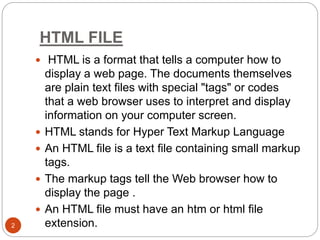
 <html>
 <head>
 <title>My First Webpage</title>
 </head>
 <body>
 This is my first homepage. <b>This text is
bold</b>
 </body>
 </html>
HTM or HTML Extension?
4
 When you save an HTML file, you can use either
the .htm or the .html extension.
 The .htm extension comes from the past when
some of the commonly used software only
allowed three letter extensions.
 It is perfectly safe to use either .html or .htm, but
be consistent. mypage.htm and mypage.html
are treated as different files by the browser.
HTML Tags
5
 HTML tags are used to mark-up HTML elements
 HTML tags are surrounded by the two characters
< and >
 The surrounding characters are called angle
brackets
 HTML tags normally come in pairs like <b> and
</b>
 The first tag in a pair is the start tag, the second
tag is the end tag
 The text between the start and end tags is the
element content
 HTML tags are not case sensitive, <b> means the
Logical vs. Physical Tags
6
 In HTML there are both logical tags and physical
tags.
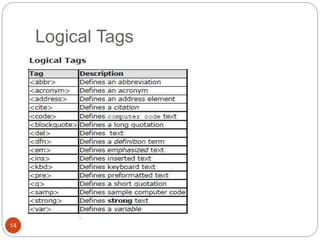
 Logical tags are designed to describe (to the
browser) the enclosed text's meaning.
 An example of a logical tag is the <strong>
</strong> tag. By placing text in between these
tags you are telling the browser that the text has
some greater importance. By default all browsers
make the text appear bold when in between the
<strong> and </strong> tags.
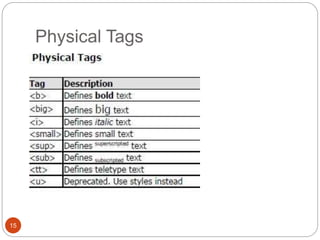
 Physical tags on the other hand provide specific
instructions on how to display the text they
enclose.
Cont…
7
 Examples of physical tags include:
 <b>: Makes the text bold.
 <big>: Makes the text usually one size bigger
than what's around it.
 <i>: Makes text italic.
Nested Tags
8
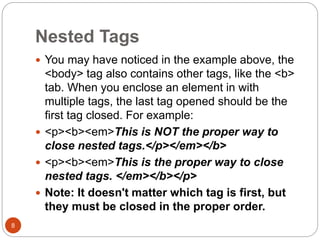
 You may have noticed in the example above, the
<body> tag also contains other tags, like the <b>
tab. When you enclose an element in with
multiple tags, the last tag opened should be the
first tag closed. For example:
 <p><b><em>This is NOT the proper way to
close nested tags.</p></em></b>
 <p><b><em>This is the proper way to close
nested tags. </em></b></p>
 Note: It doesn't matter which tag is first, but
they must be closed in the proper order.
Tag Attributes
9
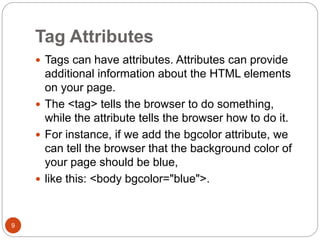
 Tags can have attributes. Attributes can provide
additional information about the HTML elements
on your page.
 The <tag> tells the browser to do something,
while the attribute tells the browser how to do it.
 For instance, if we add the bgcolor attribute, we
can tell the browser that the background color of
your page should be blue,
 like this: <body bgcolor="blue">.
Basic HTML Tags
10
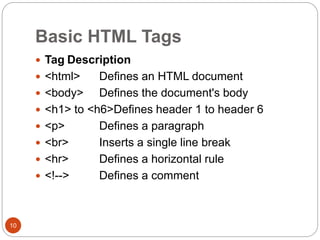
 Tag Description
 <html> Defines an HTML document
 <body> Defines the document's body
 <h1> to <h6>Defines header 1 to header 6
 <p> Defines a paragraph
 <br> Inserts a single line break
 <hr> Defines a horizontal rule
 <!--> Defines a comment
Headings
11
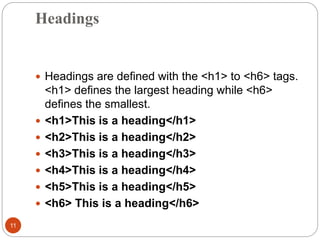
 Headings are defined with the <h1> to <h6> tags.
<h1> defines the largest heading while <h6>
defines the smallest.
 <h1>This is a heading</h1>
 <h2>This is a heading</h2>
 <h3>This is a heading</h3>
 <h4>This is a heading</h4>
 <h5>This is a heading</h5>
 <h6> This is a heading</h6>
Paragraphs
12
 Paragraphs are defined with the <p> tag.
 Think of a paragraph as a block of text. You can
use the align attribute with a paragraph tag as
well.
 <p align="left">This is a paragraph</p>
 <p align="center">this is another paragraph</p>
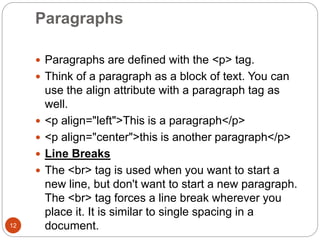
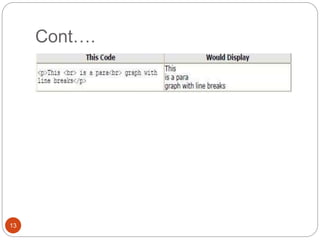
 Line Breaks
 The <br> tag is used when you want to start a
new line, but don't want to start a new paragraph.
The <br> tag forces a line break wherever you
place it. It is similar to single spacing in a
document.
Cont….
13
Logical Tags
14
Physical Tags
15
HTML Colors
16
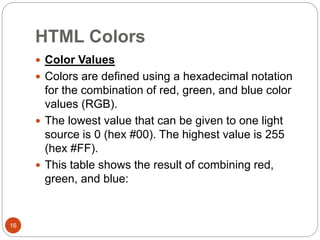
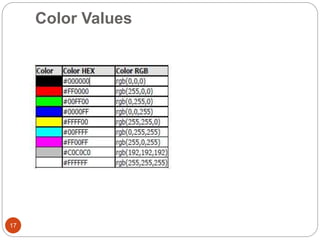
 Color Values
 Colors are defined using a hexadecimal notation
for the combination of red, green, and blue color
values (RGB).
 The lowest value that can be given to one light
source is 0 (hex #00). The highest value is 255
(hex #FF).
 This table shows the result of combining red,
green, and blue:
Color Values
17
Color Names
18
Cont….
19
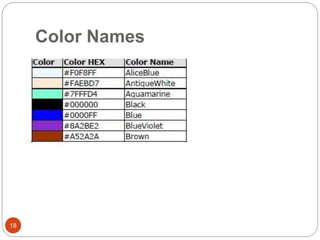
 Note: Only 16 color names are supported by
the W3C HTML 4.0 standard (aqua, black,
blue, fuchsia, gray, green, lime, maroon, navy,
olive, purple, red, silver, teal, white, and
yellow). For all other colors you should use
the Color HEX value.
HTML Lists
20
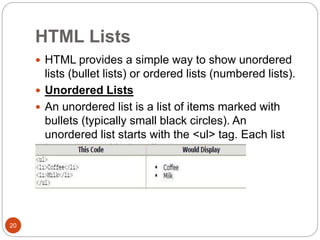
 HTML provides a simple way to show unordered
lists (bullet lists) or ordered lists (numbered lists).
 Unordered Lists
 An unordered list is a list of items marked with
bullets (typically small black circles). An
unordered list starts with the <ul> tag. Each list
item starts with the <li> tag.
Ordered Lists
21
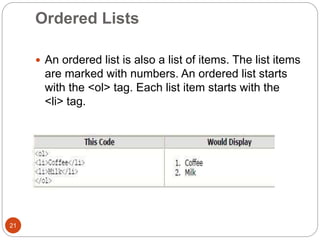
 An ordered list is also a list of items. The list items
are marked with numbers. An ordered list starts
with the <ol> tag. Each list item starts with the
<li> tag.
Definition Lists
22
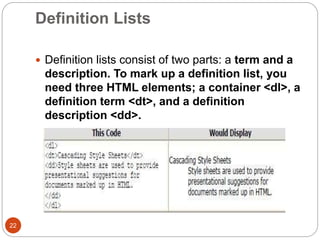
 Definition lists consist of two parts: a term and a
description. To mark up a definition list, you
need three HTML elements; a container <dl>, a
definition term <dt>, and a definition
description <dd>.
Example
23
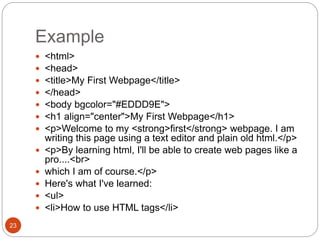
 <html>
 <head>
 <title>My First Webpage</title>
 </head>
 <body bgcolor="#EDDD9E">
 <h1 align="center">My First Webpage</h1>
 <p>Welcome to my <strong>first</strong> webpage. I am
writing this page using a text editor and plain old html.</p>
 <p>By learning html, I'll be able to create web pages like a
pro....<br>
 which I am of course.</p>
 Here's what I've learned:
 <ul>
 <li>How to use HTML tags</li>
Example
24
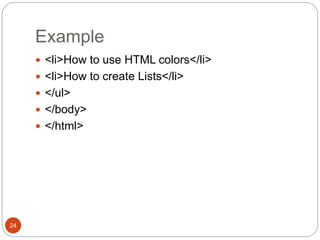
 <li>How to use HTML colors</li>
 <li>How to create Lists</li>
 </ul>
 </body>
 </html>
HTML Links
25
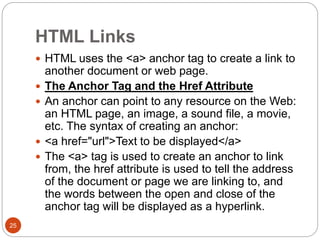
 HTML uses the <a> anchor tag to create a link to
another document or web page.
 The Anchor Tag and the Href Attribute
 An anchor can point to any resource on the Web:
an HTML page, an image, a sound file, a movie,
etc. The syntax of creating an anchor:
 <a href="url">Text to be displayed</a>
 The <a> tag is used to create an anchor to link
from, the href attribute is used to tell the address
of the document or page we are linking to, and
the words between the open and close of the
anchor tag will be displayed as a hyperlink.
HTML Images
26
 The Image Tag and the Src Attribute
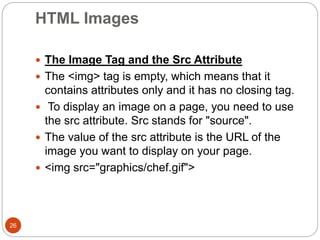
 The <img> tag is empty, which means that it
contains attributes only and it has no closing tag.
 To display an image on a page, you need to use
the src attribute. Src stands for "source".
 The value of the src attribute is the URL of the
image you want to display on your page.
 <img src="graphics/chef.gif">
Example
27
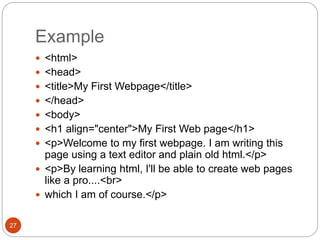
 <html>
 <head>
 <title>My First Webpage</title>
 </head>
 <body>
 <h1 align="center">My First Web page</h1>
 <p>Welcome to my first webpage. I am writing this
page using a text editor and plain old html.</p>
 <p>By learning html, I'll be able to create web pages
like a pro....<br>
 which I am of course.</p>
Cont….
28
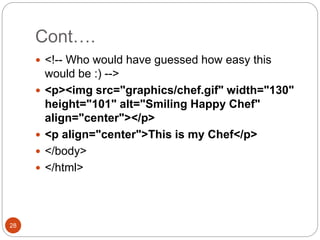
 <!-- Who would have guessed how easy this
would be :) -->
 <p><img src="graphics/chef.gif" width="130"
height="101" alt="Smiling Happy Chef"
align="center"></p>
 <p align="center">This is my Chef</p>
 </body>
 </html>
Tables
29
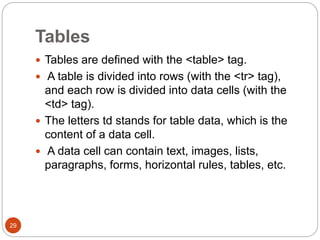
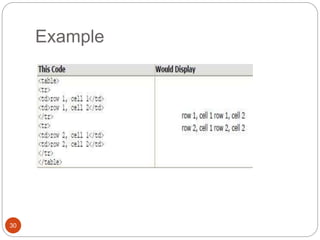
 Tables are defined with the <table> tag.
 A table is divided into rows (with the <tr> tag),
and each row is divided into data cells (with the
<td> tag).
 The letters td stands for table data, which is the
content of a data cell.
 A data cell can contain text, images, lists,
paragraphs, forms, horizontal rules, tables, etc.
Example
30
Tables and the Border Attribute
31
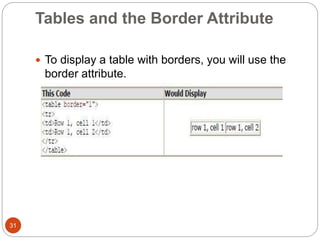
 To display a table with borders, you will use the
border attribute.
Headings in a Table
32
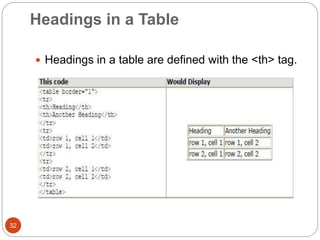
 Headings in a table are defined with the <th> tag.
Cell Padding and Spacing
33
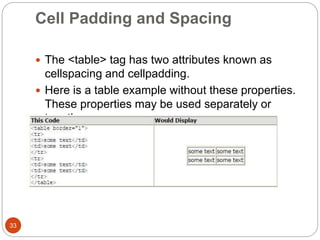
 The <table> tag has two attributes known as
cellspacing and cellpadding.
 Here is a table example without these properties.
These properties may be used separately or
together.
Cont….
34
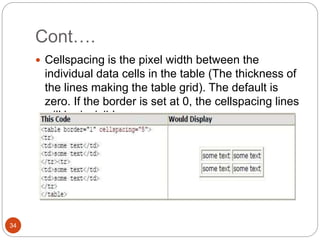
 Cellspacing is the pixel width between the
individual data cells in the table (The thickness of
the lines making the table grid). The default is
zero. If the border is set at 0, the cellspacing lines
will be invisible.
Cont….
35
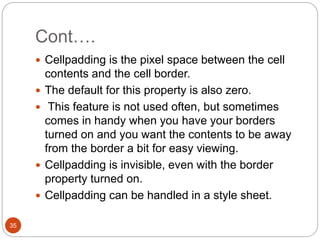
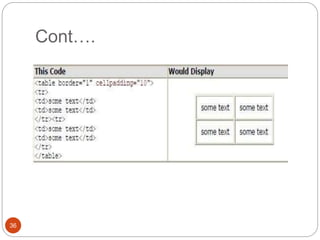
 Cellpadding is the pixel space between the cell
contents and the cell border.
 The default for this property is also zero.
 This feature is not used often, but sometimes
comes in handy when you have your borders
turned on and you want the contents to be away
from the border a bit for easy viewing.
 Cellpadding is invisible, even with the border
property turned on.
 Cellpadding can be handled in a style sheet.
Cont….
36
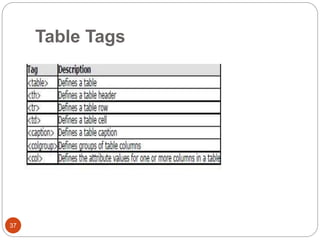
Table Tags
37
DHTML
38
 DHTML stands for Dynamic Hypertext Markup
language i.e., Dynamic HTML.
 Dynamic HTML is not a markup or programming
language but it is a term that combines the
features of various web development
technologies for creating the web pages dynamic
and interactive.
 The DHTML application was introduced by
Microsoft with the release of the 4th version of IE
(Internet Explorer) in 1997.
Components of Dynamic HTML
39
 DHTML consists of the following four components or
languages:
 HTML 4.0
 CSS
 JavaScript
 DOM.
 HTML 4.0
 HTML is a client-side markup language, which is a
core component of the DHTML. It defines the
structure of a web page with various defined basic
elements or tags.
 CSS
 CSS stands for Cascading Style Sheet, which allows
the web users or developers for controlling the style
and layout of the HTML elements on the web pages.
Cont….
40
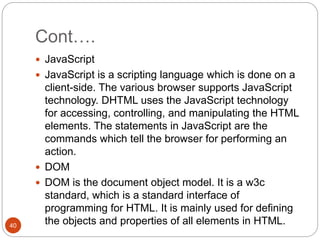
 JavaScript
 JavaScript is a scripting language which is done on a
client-side. The various browser supports JavaScript
technology. DHTML uses the JavaScript technology
for accessing, controlling, and manipulating the HTML
elements. The statements in JavaScript are the
commands which tell the browser for performing an
action.
 DOM
 DOM is the document object model. It is a w3c
standard, which is a standard interface of
programming for HTML. It is mainly used for defining
the objects and properties of all elements in HTML.
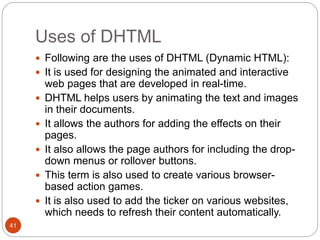
Uses of DHTML
41
 Following are the uses of DHTML (Dynamic HTML):
 It is used for designing the animated and interactive
web pages that are developed in real-time.
 DHTML helps users by animating the text and images
in their documents.
 It allows the authors for adding the effects on their
pages.
 It also allows the page authors for including the drop-
down menus or rollover buttons.
 This term is also used to create various browser-
based action games.
 It is also used to add the ticker on various websites,
which needs to refresh their content automatically.
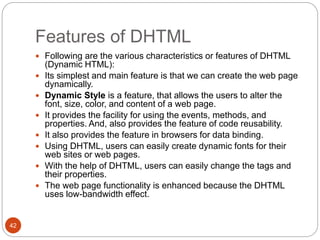
Features of DHTML
42
 Following are the various characteristics or features of DHTML
(Dynamic HTML):
 Its simplest and main feature is that we can create the web page
dynamically.
 Dynamic Style is a feature, that allows the users to alter the
font, size, color, and content of a web page.
 It provides the facility for using the events, methods, and
properties. And, also provides the feature of code reusability.
 It also provides the feature in browsers for data binding.
 Using DHTML, users can easily create dynamic fonts for their
web sites or web pages.
 With the help of DHTML, users can easily change the tags and
their properties.
 The web page functionality is enhanced because the DHTML
uses low-bandwidth effect.
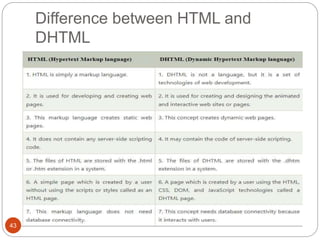
Difference between HTML and
DHTML
43
Thank you 
44

HTML and DHTML

  • 1.
  • 2.
    HTML FILE 2  HTMLis a format that tells a computer how to display a web page. The documents themselves are plain text files with special "tags" or codes that a web browser uses to interpret and display information on your computer screen.  HTML stands for Hyper Text Markup Language  An HTML file is a text file containing small markup tags.  The markup tags tell the Web browser how to display the page .  An HTML file must have an htm or html file extension.
  • 3.
    Example 3  <html>  <head> <title>My First Webpage</title>  </head>  <body>  This is my first homepage. <b>This text is bold</b>  </body>  </html>
  • 4.
    HTM or HTMLExtension? 4  When you save an HTML file, you can use either the .htm or the .html extension.  The .htm extension comes from the past when some of the commonly used software only allowed three letter extensions.  It is perfectly safe to use either .html or .htm, but be consistent. mypage.htm and mypage.html are treated as different files by the browser.
  • 5.
    HTML Tags 5  HTMLtags are used to mark-up HTML elements  HTML tags are surrounded by the two characters < and >  The surrounding characters are called angle brackets  HTML tags normally come in pairs like <b> and </b>  The first tag in a pair is the start tag, the second tag is the end tag  The text between the start and end tags is the element content  HTML tags are not case sensitive, <b> means the
  • 6.
    Logical vs. PhysicalTags 6  In HTML there are both logical tags and physical tags.  Logical tags are designed to describe (to the browser) the enclosed text's meaning.  An example of a logical tag is the <strong> </strong> tag. By placing text in between these tags you are telling the browser that the text has some greater importance. By default all browsers make the text appear bold when in between the <strong> and </strong> tags.  Physical tags on the other hand provide specific instructions on how to display the text they enclose.
  • 7.
    Cont… 7  Examples ofphysical tags include:  <b>: Makes the text bold.  <big>: Makes the text usually one size bigger than what's around it.  <i>: Makes text italic.
  • 8.
    Nested Tags 8  Youmay have noticed in the example above, the <body> tag also contains other tags, like the <b> tab. When you enclose an element in with multiple tags, the last tag opened should be the first tag closed. For example:  <p><b><em>This is NOT the proper way to close nested tags.</p></em></b>  <p><b><em>This is the proper way to close nested tags. </em></b></p>  Note: It doesn't matter which tag is first, but they must be closed in the proper order.
  • 9.
    Tag Attributes 9  Tagscan have attributes. Attributes can provide additional information about the HTML elements on your page.  The <tag> tells the browser to do something, while the attribute tells the browser how to do it.  For instance, if we add the bgcolor attribute, we can tell the browser that the background color of your page should be blue,  like this: <body bgcolor="blue">.
  • 10.
    Basic HTML Tags 10 Tag Description  <html> Defines an HTML document  <body> Defines the document's body  <h1> to <h6>Defines header 1 to header 6  <p> Defines a paragraph  <br> Inserts a single line break  <hr> Defines a horizontal rule  <!--> Defines a comment
  • 11.
    Headings 11  Headings aredefined with the <h1> to <h6> tags. <h1> defines the largest heading while <h6> defines the smallest.  <h1>This is a heading</h1>  <h2>This is a heading</h2>  <h3>This is a heading</h3>  <h4>This is a heading</h4>  <h5>This is a heading</h5>  <h6> This is a heading</h6>
  • 12.
    Paragraphs 12  Paragraphs aredefined with the <p> tag.  Think of a paragraph as a block of text. You can use the align attribute with a paragraph tag as well.  <p align="left">This is a paragraph</p>  <p align="center">this is another paragraph</p>  Line Breaks  The <br> tag is used when you want to start a new line, but don't want to start a new paragraph. The <br> tag forces a line break wherever you place it. It is similar to single spacing in a document.
  • 13.
  • 14.
  • 15.
  • 16.
    HTML Colors 16  ColorValues  Colors are defined using a hexadecimal notation for the combination of red, green, and blue color values (RGB).  The lowest value that can be given to one light source is 0 (hex #00). The highest value is 255 (hex #FF).  This table shows the result of combining red, green, and blue:
  • 17.
  • 18.
  • 19.
    Cont…. 19  Note: Only16 color names are supported by the W3C HTML 4.0 standard (aqua, black, blue, fuchsia, gray, green, lime, maroon, navy, olive, purple, red, silver, teal, white, and yellow). For all other colors you should use the Color HEX value.
  • 20.
    HTML Lists 20  HTMLprovides a simple way to show unordered lists (bullet lists) or ordered lists (numbered lists).  Unordered Lists  An unordered list is a list of items marked with bullets (typically small black circles). An unordered list starts with the <ul> tag. Each list item starts with the <li> tag.
  • 21.
    Ordered Lists 21  Anordered list is also a list of items. The list items are marked with numbers. An ordered list starts with the <ol> tag. Each list item starts with the <li> tag.
  • 22.
    Definition Lists 22  Definitionlists consist of two parts: a term and a description. To mark up a definition list, you need three HTML elements; a container <dl>, a definition term <dt>, and a definition description <dd>.
  • 23.
    Example 23  <html>  <head> <title>My First Webpage</title>  </head>  <body bgcolor="#EDDD9E">  <h1 align="center">My First Webpage</h1>  <p>Welcome to my <strong>first</strong> webpage. I am writing this page using a text editor and plain old html.</p>  <p>By learning html, I'll be able to create web pages like a pro....<br>  which I am of course.</p>  Here's what I've learned:  <ul>  <li>How to use HTML tags</li>
  • 24.
    Example 24  <li>How touse HTML colors</li>  <li>How to create Lists</li>  </ul>  </body>  </html>
  • 25.
    HTML Links 25  HTMLuses the <a> anchor tag to create a link to another document or web page.  The Anchor Tag and the Href Attribute  An anchor can point to any resource on the Web: an HTML page, an image, a sound file, a movie, etc. The syntax of creating an anchor:  <a href="url">Text to be displayed</a>  The <a> tag is used to create an anchor to link from, the href attribute is used to tell the address of the document or page we are linking to, and the words between the open and close of the anchor tag will be displayed as a hyperlink.
  • 26.
    HTML Images 26  TheImage Tag and the Src Attribute  The <img> tag is empty, which means that it contains attributes only and it has no closing tag.  To display an image on a page, you need to use the src attribute. Src stands for "source".  The value of the src attribute is the URL of the image you want to display on your page.  <img src="graphics/chef.gif">
  • 27.
    Example 27  <html>  <head> <title>My First Webpage</title>  </head>  <body>  <h1 align="center">My First Web page</h1>  <p>Welcome to my first webpage. I am writing this page using a text editor and plain old html.</p>  <p>By learning html, I'll be able to create web pages like a pro....<br>  which I am of course.</p>
  • 28.
    Cont…. 28  <!-- Whowould have guessed how easy this would be :) -->  <p><img src="graphics/chef.gif" width="130" height="101" alt="Smiling Happy Chef" align="center"></p>  <p align="center">This is my Chef</p>  </body>  </html>
  • 29.
    Tables 29  Tables aredefined with the <table> tag.  A table is divided into rows (with the <tr> tag), and each row is divided into data cells (with the <td> tag).  The letters td stands for table data, which is the content of a data cell.  A data cell can contain text, images, lists, paragraphs, forms, horizontal rules, tables, etc.
  • 30.
  • 31.
    Tables and theBorder Attribute 31  To display a table with borders, you will use the border attribute.
  • 32.
    Headings in aTable 32  Headings in a table are defined with the <th> tag.
  • 33.
    Cell Padding andSpacing 33  The <table> tag has two attributes known as cellspacing and cellpadding.  Here is a table example without these properties. These properties may be used separately or together.
  • 34.
    Cont…. 34  Cellspacing isthe pixel width between the individual data cells in the table (The thickness of the lines making the table grid). The default is zero. If the border is set at 0, the cellspacing lines will be invisible.
  • 35.
    Cont…. 35  Cellpadding isthe pixel space between the cell contents and the cell border.  The default for this property is also zero.  This feature is not used often, but sometimes comes in handy when you have your borders turned on and you want the contents to be away from the border a bit for easy viewing.  Cellpadding is invisible, even with the border property turned on.  Cellpadding can be handled in a style sheet.
  • 36.
  • 37.
  • 38.
    DHTML 38  DHTML standsfor Dynamic Hypertext Markup language i.e., Dynamic HTML.  Dynamic HTML is not a markup or programming language but it is a term that combines the features of various web development technologies for creating the web pages dynamic and interactive.  The DHTML application was introduced by Microsoft with the release of the 4th version of IE (Internet Explorer) in 1997.
  • 39.
    Components of DynamicHTML 39  DHTML consists of the following four components or languages:  HTML 4.0  CSS  JavaScript  DOM.  HTML 4.0  HTML is a client-side markup language, which is a core component of the DHTML. It defines the structure of a web page with various defined basic elements or tags.  CSS  CSS stands for Cascading Style Sheet, which allows the web users or developers for controlling the style and layout of the HTML elements on the web pages.
  • 40.
    Cont…. 40  JavaScript  JavaScriptis a scripting language which is done on a client-side. The various browser supports JavaScript technology. DHTML uses the JavaScript technology for accessing, controlling, and manipulating the HTML elements. The statements in JavaScript are the commands which tell the browser for performing an action.  DOM  DOM is the document object model. It is a w3c standard, which is a standard interface of programming for HTML. It is mainly used for defining the objects and properties of all elements in HTML.
  • 41.
    Uses of DHTML 41 Following are the uses of DHTML (Dynamic HTML):  It is used for designing the animated and interactive web pages that are developed in real-time.  DHTML helps users by animating the text and images in their documents.  It allows the authors for adding the effects on their pages.  It also allows the page authors for including the drop- down menus or rollover buttons.  This term is also used to create various browser- based action games.  It is also used to add the ticker on various websites, which needs to refresh their content automatically.
  • 42.
    Features of DHTML 42 Following are the various characteristics or features of DHTML (Dynamic HTML):  Its simplest and main feature is that we can create the web page dynamically.  Dynamic Style is a feature, that allows the users to alter the font, size, color, and content of a web page.  It provides the facility for using the events, methods, and properties. And, also provides the feature of code reusability.  It also provides the feature in browsers for data binding.  Using DHTML, users can easily create dynamic fonts for their web sites or web pages.  With the help of DHTML, users can easily change the tags and their properties.  The web page functionality is enhanced because the DHTML uses low-bandwidth effect.
  • 43.
  • 44.