Learning Outcomes
• To create a game using scratch software.
• To use scripts.
• To understand basic concept in
programming.
Keywords
• Iteration – forever loop
• Selection – forever if
• Variables
Following instructions
• Backward 2
• Forward 2
• Turn 180
• Hands up
• Hands down
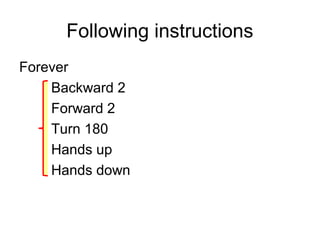
Following instructions
Forever
Backward 2
Forward 2
Turn 180
Hands up
Hands down
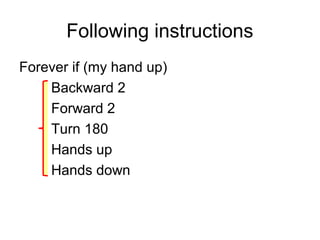
Following instructions
Forever if (my hand up)
Backward 2
Forward 2
Turn 180
Hands up
Hands down
Where to open the task
•P:ICT folderYear 7
ICTTopic 6 Game
onLesson 4
•Makingagame.ppt
Plenary
•P:ICT folderYear 7
ICTTopic 6 Game
onLesson 4
•Complete the
plenary.doc
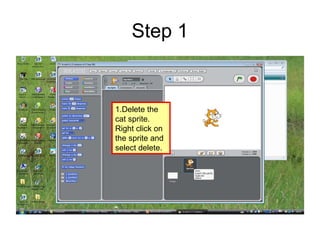
Step 1
1.Delete the
cat sprite.
Right click on
the sprite and
select delete.
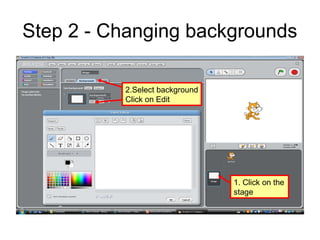
Step 2 - Changing backgrounds
1. Click on the
stage
2.Select background
Click on Edit
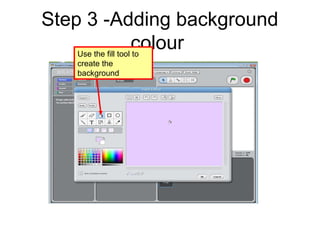
Step 3 -Adding background
colourUse the fill tool to
create the
background
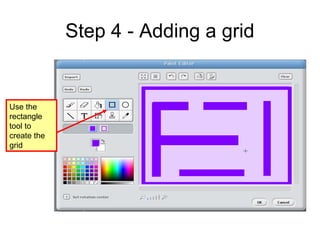
Step 4 - Adding a grid
Use the
rectangle
tool to
create the
grid
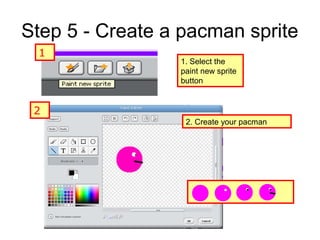
Step 5 - Create a pacman sprite
1. Select the
paint new sprite
button
2. Create your pacman
2
1
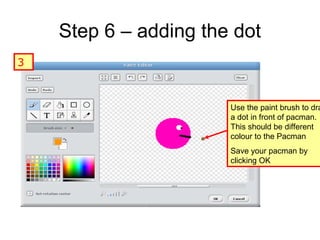
Step 6 – adding the dot
Use the paint brush to dra
a dot in front of pacman.
This should be different
colour to the Pacman
Save your pacman by
clicking OK
3
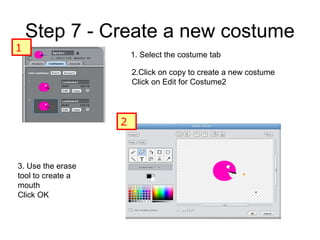
Step 7 - Create a new costume
2.Click on copy to create a new costume
Click on Edit for Costume2
3. Use the erase
tool to create a
mouth
Click OK
1
2
1. Select the costume tab
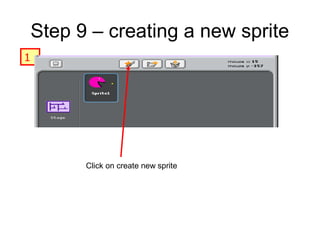
Step 9 – creating a new sprite
Click on create new sprite
1
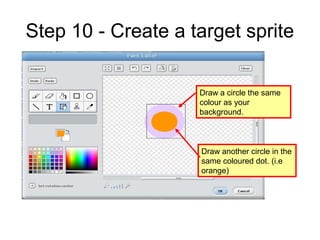
Step 10 - Create a target sprite
Draw a circle the same
colour as your
background.
Draw another circle in the
same coloured dot. (i.e
orange)
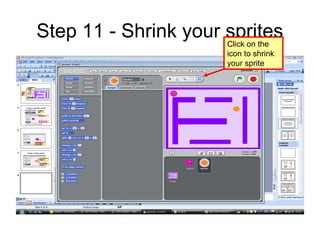
Step 11 - Shrink your spritesClick on the
icon to shrink
your sprite
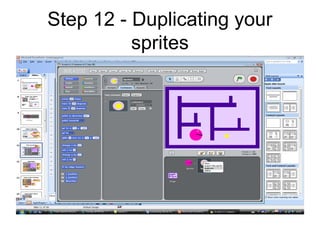
Step 12 - Duplicating your
sprites
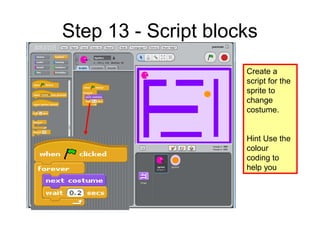
Step 13 - Script blocks
Create a
script for the
sprite to
change
costume.
Hint Use the
colour
coding to
help you
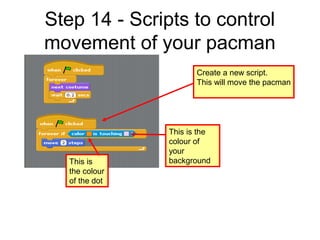
Step 14 - Scripts to control
movement of your pacman
Create a new script.
This will move the pacman
This is
the colour
of the dot
This is the
colour of
your
background
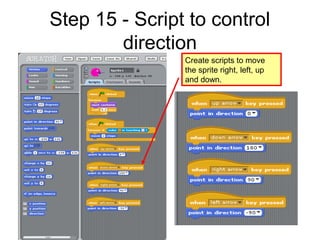
Step 15 - Script to control
direction
Create scripts to move
the sprite right, left, up
and down.
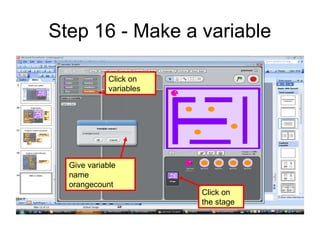
Step 16 - Make a variable
Click on
the stage
Click on
variables
Give variable
name
orangecount
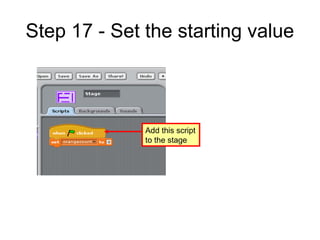
Step 17 - Set the starting value
Add this script
to the stage
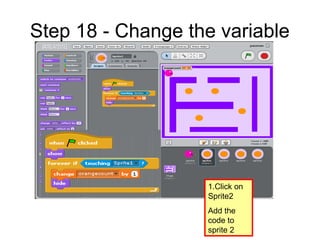
Step 18 - Change the variable
1.Click on
Sprite2
Add the
code to
sprite 2
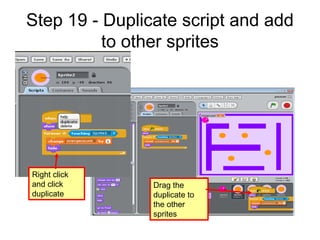
Step 19 - Duplicate script and add
to other sprites
Right click
and click
duplicate
Drag the
duplicate to
the other
sprites
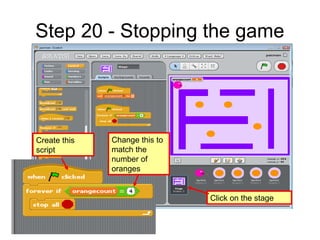
Step 20 - Stopping the game
Click on the stage
Create this
script
Change this to
match the
number of
oranges
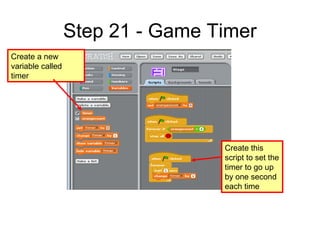
Step 21 - Game Timer
Create a new
variable called
timer
Create this
script to set the
timer to go up
by one second
each time
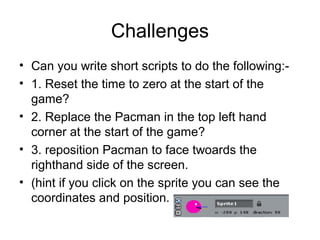
Challenges
• Can you write short scripts to do the following:-
• 1. Reset the time to zero at the start of the
game?
• 2. Replace the Pacman in the top left hand
corner at the start of the game?
• 3. reposition Pacman to face twoards the
righthand side of the screen.
• (hint if you click on the sprite you can see the
coordinates and position.
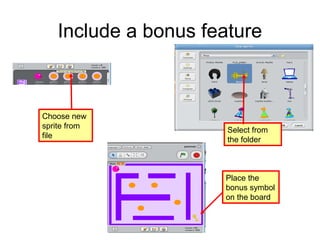
Include a bonus feature
Choose new
sprite from
file
Select from
the folder
Place the
bonus symbol
on the board
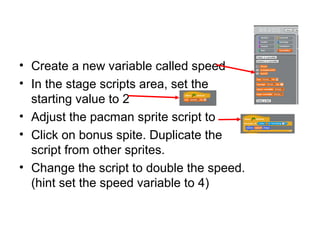
• Create a new variable called speed
• In the stage scripts area, set the
starting value to 2
• Adjust the pacman sprite script to
• Click on bonus spite. Duplicate the
script from other sprites.
• Change the script to double the speed.
(hint set the speed variable to 4)
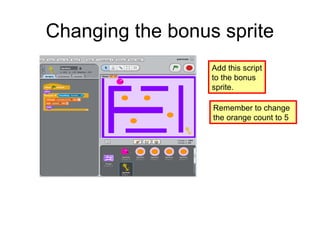
Changing the bonus sprite
Add this script
to the bonus
sprite.
Remember to change
the orange count to 5
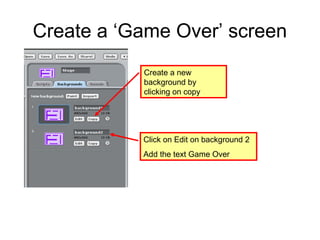
Create a ‘Game Over’ screen
Create a new
background by
clicking on copy
Click on Edit on background 2
Add the text Game Over
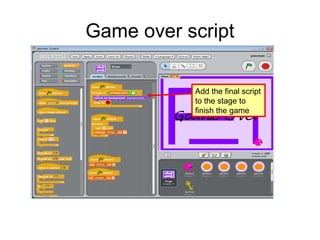
Game over script
Add the final script
to the stage to
finish the game
plenary
• Write down what you have done today on
your game.
• Write down what scripts you have used an
try to explain how one of them works.

Makingagame in scratch

  • 1.
    Learning Outcomes • Tocreate a game using scratch software. • To use scripts. • To understand basic concept in programming.
  • 2.
    Keywords • Iteration –forever loop • Selection – forever if • Variables
  • 3.
    Following instructions • Backward2 • Forward 2 • Turn 180 • Hands up • Hands down
  • 4.
  • 5.
    Following instructions Forever if(my hand up) Backward 2 Forward 2 Turn 180 Hands up Hands down
  • 6.
    Where to openthe task •P:ICT folderYear 7 ICTTopic 6 Game onLesson 4 •Makingagame.ppt
  • 7.
    Plenary •P:ICT folderYear 7 ICTTopic6 Game onLesson 4 •Complete the plenary.doc
  • 8.
    Step 1 1.Delete the catsprite. Right click on the sprite and select delete.
  • 9.
    Step 2 -Changing backgrounds 1. Click on the stage 2.Select background Click on Edit
  • 10.
    Step 3 -Addingbackground colourUse the fill tool to create the background
  • 11.
    Step 4 -Adding a grid Use the rectangle tool to create the grid
  • 12.
    Step 5 -Create a pacman sprite 1. Select the paint new sprite button 2. Create your pacman 2 1
  • 13.
    Step 6 –adding the dot Use the paint brush to dra a dot in front of pacman. This should be different colour to the Pacman Save your pacman by clicking OK 3
  • 14.
    Step 7 -Create a new costume 2.Click on copy to create a new costume Click on Edit for Costume2 3. Use the erase tool to create a mouth Click OK 1 2 1. Select the costume tab
  • 15.
    Step 9 –creating a new sprite Click on create new sprite 1
  • 16.
    Step 10 -Create a target sprite Draw a circle the same colour as your background. Draw another circle in the same coloured dot. (i.e orange)
  • 17.
    Step 11 -Shrink your spritesClick on the icon to shrink your sprite
  • 18.
    Step 12 -Duplicating your sprites
  • 19.
    Step 13 -Script blocks Create a script for the sprite to change costume. Hint Use the colour coding to help you
  • 20.
    Step 14 -Scripts to control movement of your pacman Create a new script. This will move the pacman This is the colour of the dot This is the colour of your background
  • 21.
    Step 15 -Script to control direction Create scripts to move the sprite right, left, up and down.
  • 22.
    Step 16 -Make a variable Click on the stage Click on variables Give variable name orangecount
  • 23.
    Step 17 -Set the starting value Add this script to the stage
  • 24.
    Step 18 -Change the variable 1.Click on Sprite2 Add the code to sprite 2
  • 25.
    Step 19 -Duplicate script and add to other sprites Right click and click duplicate Drag the duplicate to the other sprites
  • 26.
    Step 20 -Stopping the game Click on the stage Create this script Change this to match the number of oranges
  • 27.
    Step 21 -Game Timer Create a new variable called timer Create this script to set the timer to go up by one second each time
  • 28.
    Challenges • Can youwrite short scripts to do the following:- • 1. Reset the time to zero at the start of the game? • 2. Replace the Pacman in the top left hand corner at the start of the game? • 3. reposition Pacman to face twoards the righthand side of the screen. • (hint if you click on the sprite you can see the coordinates and position.
  • 29.
    Include a bonusfeature Choose new sprite from file Select from the folder Place the bonus symbol on the board
  • 30.
    • Create anew variable called speed • In the stage scripts area, set the starting value to 2 • Adjust the pacman sprite script to • Click on bonus spite. Duplicate the script from other sprites. • Change the script to double the speed. (hint set the speed variable to 4)
  • 31.
    Changing the bonussprite Add this script to the bonus sprite. Remember to change the orange count to 5
  • 32.
    Create a ‘GameOver’ screen Create a new background by clicking on copy Click on Edit on background 2 Add the text Game Over
  • 33.
    Game over script Addthe final script to the stage to finish the game
  • 34.
    plenary • Write downwhat you have done today on your game. • Write down what scripts you have used an try to explain how one of them works.