“Intro to Development Sites
and Site Migration”


Rick Radko          WordCamp Toronto Developers
r3df.com                   November 3rd, 2012
A little bit about me

Rick Radko – R-Cubed Design Forge
   Software, web and app designer/developer.
   Creating custom web sites since 1996.
   Artistic and creative engineer.
   Co-organizer of: The Ottawa WordPress Group.
   If you have questions or need help, contact me
    at: wpinfo@r3df.com.

Slides are posted at:
   http://www.slideshare.net/r3df
© 2012 Rick Radko, r3df.com                          1
Why a “Dev” site?

A development “Dev” site:
   Safe place to work that won’t disturb a live site.
   A site where it does not matter if you:
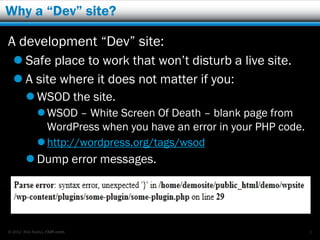
         WSOD the site.
              WSOD – White Screen Of Death – blank page from
               WordPress when you have an error in your PHP code.
              http://wordpress.org/tags/wsod
         Dump error messages.


© 2012 Rick Radko, r3df.com                                         2
Why a “Dev” site? Continued…

   Safely test, add and remove plugins and themes
         Plugins and themes can have conflicts with other
          plugins/themes or some versions of WordPress.
         Many plugins and themes don’t clean up after
          themselves and leave junk in your database.

   Public dev sites:
         Can be used for client review/demo before going
          live.
         Allow clients to add content before the site is live.


© 2012 Rick Radko, r3df.com                                       3
Creating a Dev site for WordPress

WordPress needs a web server with PHP and
MySQL to run.
   2 common options for a dev site server:
         Hosted:
              On a sub-domain of the live site.
              On an alternate domain.
              Or a sub-domain on another site (like yours).
         “Local” web server on your pc or laptop.

   May use both local and hosted in the process of a
    site’s development.
© 2012 Rick Radko, r3df.com                                    4
Hosted dev sites

Hosted dev sites:
   Easy for users (clients) to make updates on.
   Public, but can be protected.
   Requires an internet connection.
         Constantly moving files across the net: slow.
   Uses existing facilities. (Nothing to set-up)
   Domain can be:
         A spare domain.
         A subdomain on the client site.
         A subdomain on your site subdomain.

© 2012 Rick Radko, r3df.com                               5
A hosted example

Let’s create a dev site that:
   Is a copy or “clone” of an existing site.
   Is hosted.
   Will be on a subdomain of the existing site.

Creating a dev site like this:
   Normally takes about 10-15 minutes.
   Is one of the easiest dev setups to create:
         Copying the files and database is local to the server.


© 2012 Rick Radko, r3df.com                                    6
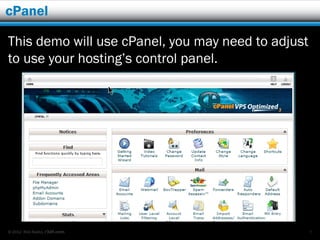
cPanel

This demo will use cPanel, you may need to adjust
to use your hosting’s control panel.


© 2012 Rick Radko, r3df.com                         7
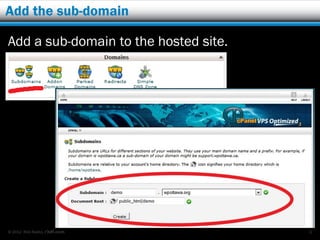
Add the sub-domain

Add a sub-domain to the hosted site.


© 2012 Rick Radko, r3df.com            8
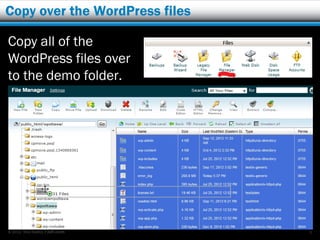
Copy over the WordPress files

Copy all of the
WordPress files over
to the demo folder.


© 2012 Rick Radko, r3df.com     9
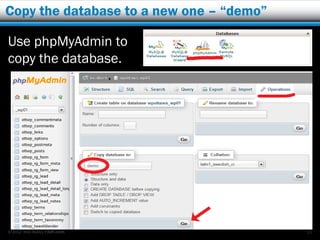
Copy the database to a new one – “demo”

Use phpMyAdmin to
copy the database.


© 2012 Rick Radko, r3df.com               10
Fix up three things

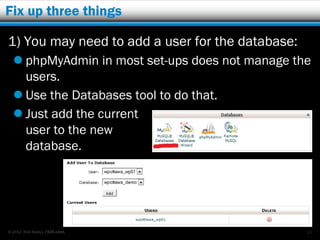
1) You may need to add a user for the database:
   phpMyAdmin in most set-ups does not manage the
    users.
   Use the Databases tool to do that.
   Just add the current
    user to the new
    database.


© 2012 Rick Radko, r3df.com                       11
Add all privileges

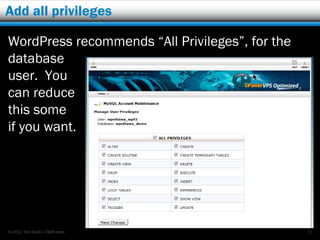
WordPress recommends “All Privileges”, for the
database
user. You
can reduce
this some
if you want.


© 2012 Rick Radko, r3df.com                      12
Update the config.php file

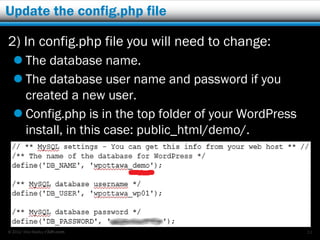
2) In config.php file you will need to change:
   The database name.
   The database user name and password if you
    created a new user.
   Config.php is in the top folder of your WordPress
    install, in this case: public_html/demo/.


© 2012 Rick Radko, r3df.com                             13
Update the database – if needed

3) Update the database (if the domain changed).
   The database is full of links and settings with the
    site domain. If the domain changes:
         Links, including the menus, will take you to the
          original site.
         You won’t be able to login to admin, you will go to
          the original site.
   Despite what a lot of tutorials say, DO NOT do a
        search and replace in MySQL, or any text search
        and replace on an SQL dump.
         If you are lucky you may get away with it, but you will
          more likely break serialized data representations.
© 2012 Rick Radko, r3df.com                                     14
Use a script

The codex page: http://codex.wordpress.org/
Moving_WordPress has some lengthy discussion
on the topic of moving sites, but just use the script
mentioned in the change URL section.
    searchreplacedb2.php
    http://interconnectit.com/124/search-and-
     replace-for-wordpress-databases/
    It’s easy to use, and does the job in one step.
    Is aware of serialization, even recursive (nested)
     serialization.

© 2012 Rick Radko, r3df.com                               15
Run searchreplacedb2.php

To use searchreplacedb2.php
   Upload searchreplacedb2.php to the top level
    WordPress folder, public_html/demo in this case.
   Enter searchreplacedb2.php in the URL of your
    browser, in this case:
    demo.wpottawa.org/searchreplacedb2.php


© 2012 Rick Radko, r3df.com                            16
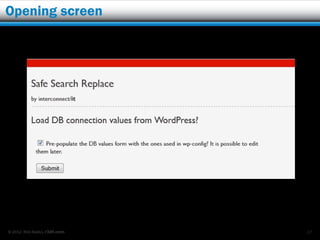
Opening screen


© 2012 Rick Radko, r3df.com   17
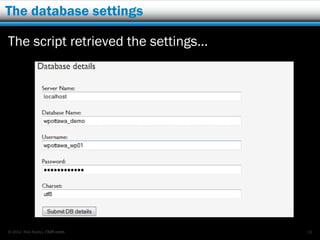
The database settings

The script retrieved the settings…


© 2012 Rick Radko, r3df.com          18
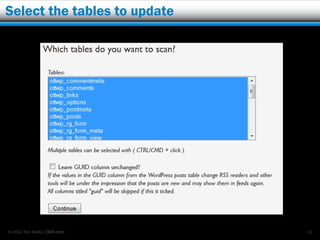
Select the tables to update


© 2012 Rick Radko, r3df.com   19
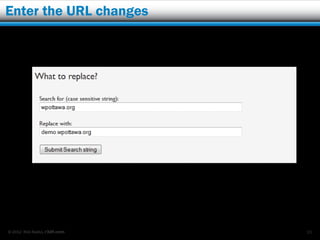
Enter the URL changes


© 2012 Rick Radko, r3df.com   20
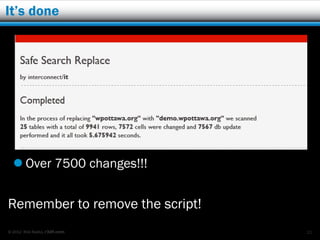
It’s done


   Over 7500 changes!!!


Remember to remove the script!
© 2012 Rick Radko, r3df.com      21
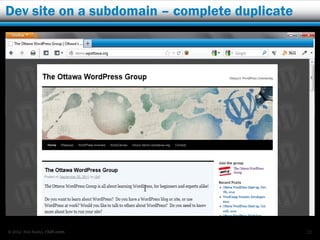
Dev site on a subdomain – complete duplicate


© 2012 Rick Radko, r3df.com                    22
The site is public

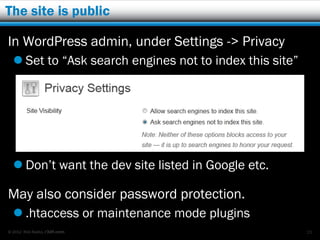
In WordPress admin, under Settings -> Privacy
   Set to “Ask search engines not to index this site”


   Don’t want the dev site listed in Google etc.

May also consider password protection.
   .htaccess or maintenance mode plugins
© 2012 Rick Radko, r3df.com                              23
Copying the site back

Same process to copy a revised dev site back.
   Beware: the original site may change after the
    copy to dev.
         Post/page etc. updates – easy to restrict
         Comments – no control
   May need to do a database merge to
    accommodate changes.


© 2012 Rick Radko, r3df.com                           24
“Local” web servers

“Local” web server on your pc/laptop.
   Fast, no internet lag, no FTP’ing of files.
         All work is local on the computer.
         Easier to integrate IDE.
   No internet connection needed to use it.
         Can work anywhere you that you can take your
          computer. (airplane, remote locations)
   Usually private.
   Need to install a web server


© 2012 Rick Radko, r3df.com                              25
Local servers – web server stack

WAMP stack
   Windows, Apache, MySQL, PHP
LAMP stack
   Linux, Apache, MySQL, PHP
MAMP stack
   Mac, Apache, MySQL, PHP

*Apache is a web server


© 2012 Rick Radko, r3df.com        26
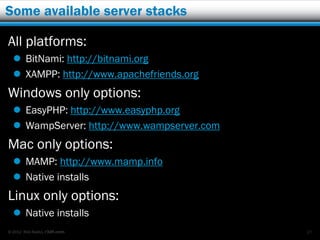
Some available server stacks

All platforms:
   BitNami: http://bitnami.org
   XAMPP: http://www.apachefriends.org
Windows only options:
   EasyPHP: http://www.easyphp.org
   WampServer: http://www.wampserver.com
Mac only options:
   MAMP: http://www.mamp.info
   Native installs
Linux only options:
   Native installs
© 2012 Rick Radko, r3df.com                 27
BitNami

BitNami
   Available for all platforms
   Easiest to install:
         If you use the WordPress version.
         http://bitnami.org/stack/wordpress
   Production ready versions
   Virtual machine versions
   Cloud deployment (amazon)


© 2012 Rick Radko, r3df.com                    28
Information

BitNami install tutorial on wordpress.org:
   Bit out of date, but still good
         http://codex.wordpress.org/BitNami


BitNami FAQ:
   More detailed:
         http://wiki.bitnami.org/Applications/BitNami_Word
          press


© 2012 Rick Radko, r3df.com                                   29
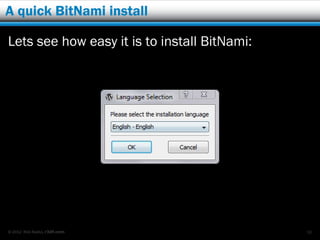
A quick BitNami install

Lets see how easy it is to install BitNami:


© 2012 Rick Radko, r3df.com                   30
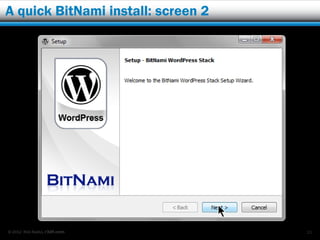
A quick BitNami install: screen 2


© 2012 Rick Radko, r3df.com         31
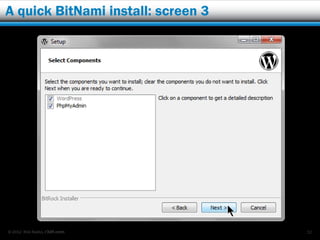
A quick BitNami install: screen 3


© 2012 Rick Radko, r3df.com         32
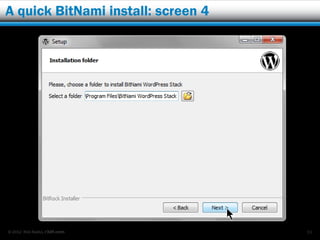
A quick BitNami install: screen 4


© 2012 Rick Radko, r3df.com         33
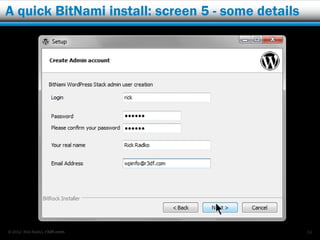
A quick BitNami install: screen 5 - some details


© 2012 Rick Radko, r3df.com                        34
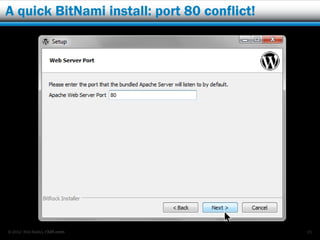
A quick BitNami install: port 80 conflict!


© 2012 Rick Radko, r3df.com                  35
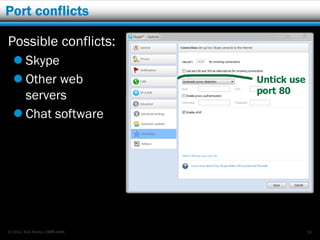
Port conflicts

Possible conflicts:
   Skype
   Other web
    servers
   Chat software


© 2012 Rick Radko, r3df.com   36
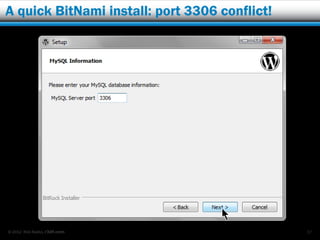
A quick BitNami install: port 3306 conflict!


© 2012 Rick Radko, r3df.com                    37
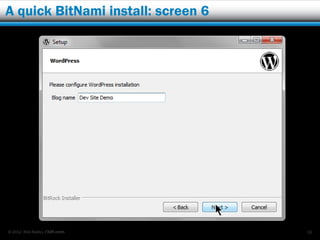
A quick BitNami install: screen 6


© 2012 Rick Radko, r3df.com         38
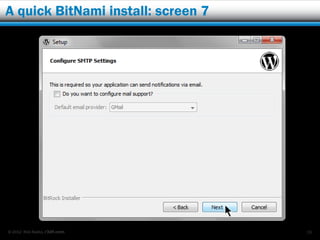
A quick BitNami install: screen 7


© 2012 Rick Radko, r3df.com         39
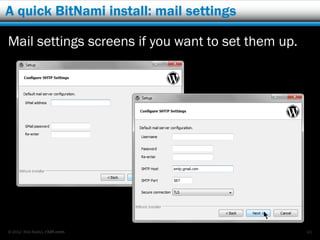
A quick BitNami install: mail settings

Mail settings screens if you want to set them up.


© 2012 Rick Radko, r3df.com                         40
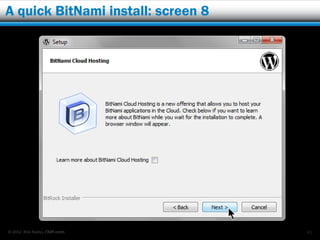
A quick BitNami install: screen 8


© 2012 Rick Radko, r3df.com         41
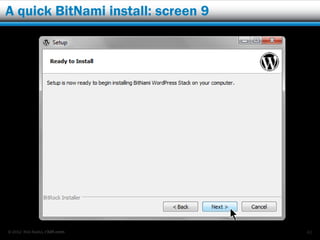
A quick BitNami install: screen 9


© 2012 Rick Radko, r3df.com         42
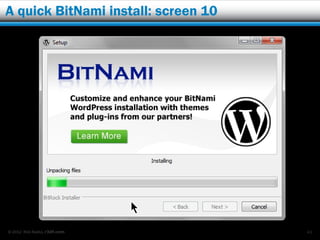
A quick BitNami install: screen 10


© 2012 Rick Radko, r3df.com          43
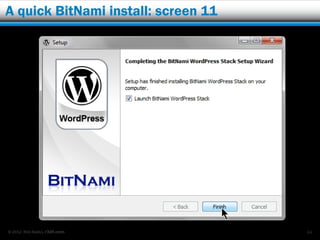
A quick BitNami install: screen 11


© 2012 Rick Radko, r3df.com          44
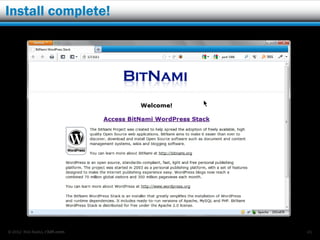
Install complete!


© 2012 Rick Radko, r3df.com   45
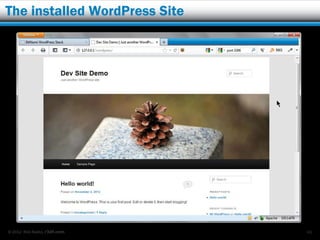
The installed WordPress Site


© 2012 Rick Radko, r3df.com    46
XAMPP

XAMPP
   Available for all platforms
         http://www.apachefriends.org/en/xampp.html
   Easy to install (not as easy as BitNami)
         More tends to go wrong during installs.
   Mimics common server setups
   NOT production ready (security)


© 2012 Rick Radko, r3df.com                            47
Installing XAMPP

Detailed install instructions are available for
Windows, Mac and Linux at:
   http://www.apachefriends.org/en/xampp-windows.html
   http://www.apachefriends.org/en/xampp-macosx.html
   http://www.apachefriends.org/en/xampp-linux.html


There is also a version for memory sticks:
   http://www.apachefriends.org/en/xampp-windows.html#646


© 2012 Rick Radko, r3df.com                                  48
Manual WordPress install

If you don’t know how to install WordPress using
the .zip copied from wordpress.org, you should
learn.
   Most of the web server stacks do not include
    WordPress.
   If you want more than one WordPress site on
    BitNami you will also need to do WordPress
    installs.

See codex for help with a WordPress install:
http://codex.wordpress.org/Installing_WordPress
© 2012 Rick Radko, r3df.com                        49
An additional note on scripted installs

A native install allows you to tweak settings like
the table prefix, which you can’t with a scripted
install (Fantastico, Simplescripts etc.).
   Installer applications:
         may add files to your site for “internal” tracking.
         may not install the latest version of WordPress.
         usually use default database settings for names and
          table prefixes – security weakness.


© 2012 Rick Radko, r3df.com                                 50
Installing WordPress

The most complicated thing to installing
WordPress is setting up the database.
   It’s not that hard.
   Lots of tutorials online.
   On hosted servers you can use GUI tools like
    cPanel.
   On a local server you can use phpMyAdmin
         Hosted installs usually have the DB management in
          phpMyAdmin disabled.


© 2012 Rick Radko, r3df.com                               51
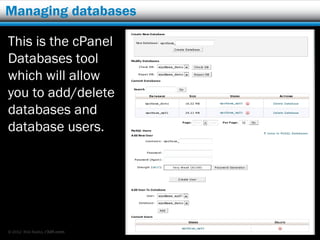
Managing databases

This is the cPanel
Databases tool
which will allow
you to add/delete
databases and
database users.


© 2012 Rick Radko, r3df.com   52
More installing WordPress

The other question is where to put the files?
On local servers the htdocs folder is the default. But
where is it?
         Depends on the install:
           apache/htdocs is a common default
         BitNami default windows:
           C:Program FilesBitNami WordPress
            Stackapache2htdocs
           Note: the WordPress “module” we installed in the demo is
            in a special location: C:Program FilesBitNami WordPress
            Stackapps.
Hosted servers:
  public_html
© 2012 Rick Radko, r3df.com                                         53
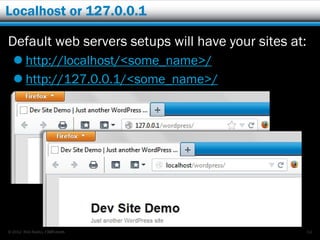
Localhost or 127.0.0.1

Default web servers setups will have your sites at:
   http://localhost/<some_name>/
   http://127.0.0.1/<some_name>/


© 2012 Rick Radko, r3df.com                           54
Localhost or 127.0.0.1

While this works most of the time:
   Some things can have issues with the localhost or
    127.0.0.1 address as they expect a domain name.
   It’s not very nice for using as a set-up when you
    have lots of sites.
         Wouldn’t http://dev.site.demo be nicer than
          http://127.0.0.1/wordpress/?
         Or how about http://client_domain.local instead of
          http://localhost/clent_domain/wordpress/?


© 2012 Rick Radko, r3df.com                                    55
Virtual hosts

Virtual host – vhosts are a web server feature that
lets you set up nice names “virtual host names”
for your websites.
   http://httpd.apache.org/docs/2.2/vhosts/

To get vhosts working you need to tell apache you
want to use them.
   Find the apache/conf/ folder in your server install.
   Open the httpd.conf file. (use a plain-text or
    programming editor)

© 2012 Rick Radko, r3df.com                            56
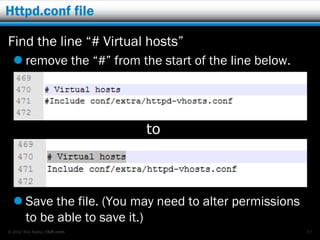
Httpd.conf file

Find the line “# Virtual hosts”
   remove the “#” from the start of the line below.


                              to


   Save the file. (You may need to alter permissions
    to be able to save it.)
© 2012 Rick Radko, r3df.com                             57
Vhosts file

In the apache/conf/ folder you should also find the
folder “extra” -> apache/conf/extra/
  That is where you will find the file:
         httpd-vhosts.conf
   Open that file.

Look for a line near the top like:
   NameVirtualHost *:80
   Make sure there are no “#”s in-front of it.


© 2012 Rick Radko, r3df.com                           58
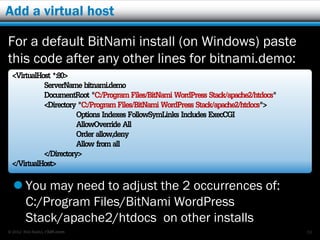
Add a virtual host

For a default BitNami install (on Windows) paste
this code after any other lines for bitnami.demo:
 <VirtualHost *:80>
           ServerName bitnami.demo
           DocumentRoot "C:/Program Files/BitNami WordPress Stack/apache2/htdocs"
           <Directory "C:/Program Files/BitNami WordPress Stack/apache2/htdocs">
                      Options Indexes FollowSymLinks Includes ExecCGI
                      AllowOverride All
                      Order allow,deny
                      Allow from all
           </Directory>
 </VirtualHost>
   You may need to adjust the 2 occurrences of:
    C:/Program Files/BitNami WordPress
    Stack/apache2/htdocs on other installs
© 2012 Rick Radko, r3df.com                                                         59
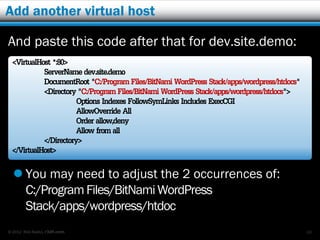
Add another virtual host

And paste this code after that for dev.site.demo:
 <VirtualHost *:80>
           ServerName dev.site.demo
           DocumentRoot "C:/Program Files/BitNami WordPress Stack/apps/wordpress/htdocs"
           <Directory "C:/Program Files/BitNami WordPress Stack/apps/wordpress/htdocs">
                      Options Indexes FollowSymLinks Includes ExecCGI
                      AllowOverride All
                      Order allow,deny
                      Allow from all
           </Directory>
 </VirtualHost>
   You may need to adjust the 2 occurrences of:
    C:/Program Files/BitNami WordPress
    Stack/apps/wordpress/htdoc
© 2012 Rick Radko, r3df.com                                                                60
Save and restart Apache

Save the vhosts file. (You may need to alter
permissions to be able to save it.)

You will need to restart Apache to get the settings to
take effect.


© 2012 Rick Radko, r3df.com                              61
Hosts files

To final step to make this work is to add the virtual
host to the “hosts” files on your computer
   There is a chart on Wikipedia that provides
    common host files locations (dependent on your
    operating system)
         http://en.wikipedia.org/wiki/Hosts_(file)


© 2012 Rick Radko, r3df.com                           62
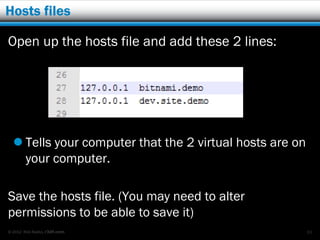
Hosts files

Open up the hosts file and add these 2 lines:


   Tells your computer that the 2 virtual hosts are on
    your computer.

Save the hosts file. (You may need to alter
permissions to be able to save it)
© 2012 Rick Radko, r3df.com                               63
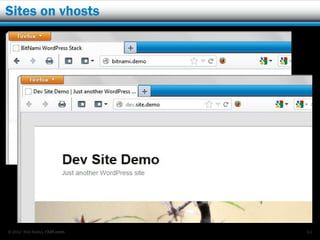
Sites on vhosts


© 2012 Rick Radko, r3df.com   64
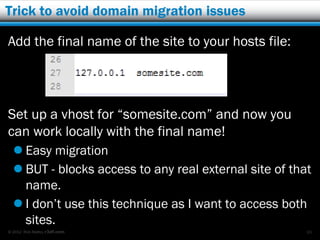
Trick to avoid domain migration issues

Add the final name of the site to your hosts file:


Set up a vhost for “somesite.com” and now you
can work locally with the final name!
   Easy migration
   BUT - blocks access to any real external site of that
    name.
   I don’t use this technique as I want to access both
    sites.
© 2012 Rick Radko, r3df.com                             65
Migration review

We did a migration in our first example and there
we saw that it is just a few steps:
   1. Copy files.
              Local copy or FTP to another server, does not matter.
   2. Copy the database.
              To move servers you will need to do an SQL dump/export
               and then an import on the new server.
   3. Clean-up a few things.
              Database user.
              Database settings in wp-config.
              URL’s - be aware of serialization.
That’s all there is to migration!
© 2012 Rick Radko, r3df.com                                             66
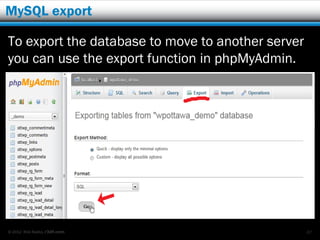
MySQL export

To export the database to move to another server
you can use the export function in phpMyAdmin.


© 2012 Rick Radko, r3df.com                        67
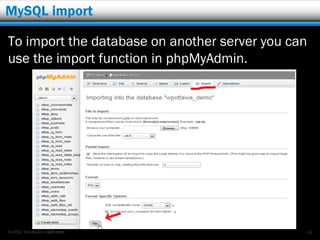
MySQL import

To import the database on another server you can
use the import function in phpMyAdmin.


© 2012 Rick Radko, r3df.com                    68
Backup scripts

Many of the backup and maintenance scripts:
   Backup Buddy,
   InfiniteWP,
   ManageWP,
  + many others
will do site migrations.

Make sure any one you use mentions serialization.


© 2012 Rick Radko, r3df.com                     69
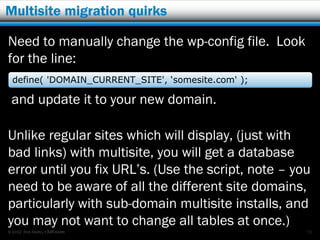
Multisite migration quirks

Need to manually change the wp-config file. Look
for the line:
  define( 'DOMAIN_CURRENT_SITE', ‘somesite.com' );

 and update it to your new domain.

Unlike regular sites which will display, (just with
bad links) with multisite, you will get a database
error until you fix URL’s. (Use the script, note – you
need to be aware of all the different site domains,
particularly with sub-domain multisite installs, and
you may not want to change all tables at once.)
© 2012 Rick Radko, r3df.com                          70
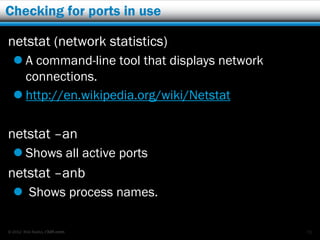
Checking for ports in use

netstat (network statistics)
   A command-line tool that displays network
    connections.
   http://en.wikipedia.org/wiki/Netstat

netstat –an
   Shows all active ports
netstat –anb
   Shows process names.

© 2012 Rick Radko, r3df.com                     71
Contact


Rick Radko
  email: wpinfo@r3df.com
   twitter: @r3designforge


Slides at:
   www.slideshare.net/r3df


© 2012 Rick Radko, r3df.com   72

Intro to development sites and site migration

  • 1.
    “Intro to DevelopmentSites and Site Migration” Rick Radko WordCamp Toronto Developers r3df.com November 3rd, 2012
  • 2.
    A little bitabout me Rick Radko – R-Cubed Design Forge  Software, web and app designer/developer.  Creating custom web sites since 1996.  Artistic and creative engineer.  Co-organizer of: The Ottawa WordPress Group.  If you have questions or need help, contact me at: wpinfo@r3df.com. Slides are posted at:  http://www.slideshare.net/r3df © 2012 Rick Radko, r3df.com 1
  • 3.
    Why a “Dev”site? A development “Dev” site:  Safe place to work that won’t disturb a live site.  A site where it does not matter if you:  WSOD the site.  WSOD – White Screen Of Death – blank page from WordPress when you have an error in your PHP code.  http://wordpress.org/tags/wsod  Dump error messages. © 2012 Rick Radko, r3df.com 2
  • 4.
    Why a “Dev”site? Continued…  Safely test, add and remove plugins and themes  Plugins and themes can have conflicts with other plugins/themes or some versions of WordPress.  Many plugins and themes don’t clean up after themselves and leave junk in your database.  Public dev sites:  Can be used for client review/demo before going live.  Allow clients to add content before the site is live. © 2012 Rick Radko, r3df.com 3
  • 5.
    Creating a Devsite for WordPress WordPress needs a web server with PHP and MySQL to run.  2 common options for a dev site server:  Hosted:  On a sub-domain of the live site.  On an alternate domain.  Or a sub-domain on another site (like yours).  “Local” web server on your pc or laptop.  May use both local and hosted in the process of a site’s development. © 2012 Rick Radko, r3df.com 4
  • 6.
    Hosted dev sites Hosteddev sites:  Easy for users (clients) to make updates on.  Public, but can be protected.  Requires an internet connection.  Constantly moving files across the net: slow.  Uses existing facilities. (Nothing to set-up)  Domain can be:  A spare domain.  A subdomain on the client site.  A subdomain on your site subdomain. © 2012 Rick Radko, r3df.com 5
  • 7.
    A hosted example Let’screate a dev site that:  Is a copy or “clone” of an existing site.  Is hosted.  Will be on a subdomain of the existing site. Creating a dev site like this:  Normally takes about 10-15 minutes.  Is one of the easiest dev setups to create:  Copying the files and database is local to the server. © 2012 Rick Radko, r3df.com 6
  • 8.
    cPanel This demo willuse cPanel, you may need to adjust to use your hosting’s control panel. © 2012 Rick Radko, r3df.com 7
  • 9.
    Add the sub-domain Adda sub-domain to the hosted site. © 2012 Rick Radko, r3df.com 8
  • 10.
    Copy over theWordPress files Copy all of the WordPress files over to the demo folder. © 2012 Rick Radko, r3df.com 9
  • 11.
    Copy the databaseto a new one – “demo” Use phpMyAdmin to copy the database. © 2012 Rick Radko, r3df.com 10
  • 12.
    Fix up threethings 1) You may need to add a user for the database:  phpMyAdmin in most set-ups does not manage the users.  Use the Databases tool to do that.  Just add the current user to the new database. © 2012 Rick Radko, r3df.com 11
  • 13.
    Add all privileges WordPressrecommends “All Privileges”, for the database user. You can reduce this some if you want. © 2012 Rick Radko, r3df.com 12
  • 14.
    Update the config.phpfile 2) In config.php file you will need to change:  The database name.  The database user name and password if you created a new user.  Config.php is in the top folder of your WordPress install, in this case: public_html/demo/. © 2012 Rick Radko, r3df.com 13
  • 15.
    Update the database– if needed 3) Update the database (if the domain changed).  The database is full of links and settings with the site domain. If the domain changes:  Links, including the menus, will take you to the original site.  You won’t be able to login to admin, you will go to the original site.  Despite what a lot of tutorials say, DO NOT do a search and replace in MySQL, or any text search and replace on an SQL dump.  If you are lucky you may get away with it, but you will more likely break serialized data representations. © 2012 Rick Radko, r3df.com 14
  • 16.
    Use a script Thecodex page: http://codex.wordpress.org/ Moving_WordPress has some lengthy discussion on the topic of moving sites, but just use the script mentioned in the change URL section.  searchreplacedb2.php  http://interconnectit.com/124/search-and- replace-for-wordpress-databases/  It’s easy to use, and does the job in one step.  Is aware of serialization, even recursive (nested) serialization. © 2012 Rick Radko, r3df.com 15
  • 17.
    Run searchreplacedb2.php To usesearchreplacedb2.php  Upload searchreplacedb2.php to the top level WordPress folder, public_html/demo in this case.  Enter searchreplacedb2.php in the URL of your browser, in this case: demo.wpottawa.org/searchreplacedb2.php © 2012 Rick Radko, r3df.com 16
  • 18.
    Opening screen © 2012Rick Radko, r3df.com 17
  • 19.
    The database settings Thescript retrieved the settings… © 2012 Rick Radko, r3df.com 18
  • 20.
    Select the tablesto update © 2012 Rick Radko, r3df.com 19
  • 21.
    Enter the URLchanges © 2012 Rick Radko, r3df.com 20
  • 22.
    It’s done  Over 7500 changes!!! Remember to remove the script! © 2012 Rick Radko, r3df.com 21
  • 23.
    Dev site ona subdomain – complete duplicate © 2012 Rick Radko, r3df.com 22
  • 24.
    The site ispublic In WordPress admin, under Settings -> Privacy  Set to “Ask search engines not to index this site”  Don’t want the dev site listed in Google etc. May also consider password protection.  .htaccess or maintenance mode plugins © 2012 Rick Radko, r3df.com 23
  • 25.
    Copying the siteback Same process to copy a revised dev site back.  Beware: the original site may change after the copy to dev.  Post/page etc. updates – easy to restrict  Comments – no control  May need to do a database merge to accommodate changes. © 2012 Rick Radko, r3df.com 24
  • 26.
    “Local” web servers “Local”web server on your pc/laptop.  Fast, no internet lag, no FTP’ing of files.  All work is local on the computer.  Easier to integrate IDE.  No internet connection needed to use it.  Can work anywhere you that you can take your computer. (airplane, remote locations)  Usually private.  Need to install a web server © 2012 Rick Radko, r3df.com 25
  • 27.
    Local servers –web server stack WAMP stack  Windows, Apache, MySQL, PHP LAMP stack  Linux, Apache, MySQL, PHP MAMP stack  Mac, Apache, MySQL, PHP *Apache is a web server © 2012 Rick Radko, r3df.com 26
  • 28.
    Some available serverstacks All platforms:  BitNami: http://bitnami.org  XAMPP: http://www.apachefriends.org Windows only options:  EasyPHP: http://www.easyphp.org  WampServer: http://www.wampserver.com Mac only options:  MAMP: http://www.mamp.info  Native installs Linux only options:  Native installs © 2012 Rick Radko, r3df.com 27
  • 29.
    BitNami BitNami Available for all platforms  Easiest to install:  If you use the WordPress version.  http://bitnami.org/stack/wordpress  Production ready versions  Virtual machine versions  Cloud deployment (amazon) © 2012 Rick Radko, r3df.com 28
  • 30.
    Information BitNami install tutorialon wordpress.org:  Bit out of date, but still good  http://codex.wordpress.org/BitNami BitNami FAQ:  More detailed:  http://wiki.bitnami.org/Applications/BitNami_Word press © 2012 Rick Radko, r3df.com 29
  • 31.
    A quick BitNamiinstall Lets see how easy it is to install BitNami: © 2012 Rick Radko, r3df.com 30
  • 32.
    A quick BitNamiinstall: screen 2 © 2012 Rick Radko, r3df.com 31
  • 33.
    A quick BitNamiinstall: screen 3 © 2012 Rick Radko, r3df.com 32
  • 34.
    A quick BitNamiinstall: screen 4 © 2012 Rick Radko, r3df.com 33
  • 35.
    A quick BitNamiinstall: screen 5 - some details © 2012 Rick Radko, r3df.com 34
  • 36.
    A quick BitNamiinstall: port 80 conflict! © 2012 Rick Radko, r3df.com 35
  • 37.
    Port conflicts Possible conflicts:  Skype  Other web servers  Chat software © 2012 Rick Radko, r3df.com 36
  • 38.
    A quick BitNamiinstall: port 3306 conflict! © 2012 Rick Radko, r3df.com 37
  • 39.
    A quick BitNamiinstall: screen 6 © 2012 Rick Radko, r3df.com 38
  • 40.
    A quick BitNamiinstall: screen 7 © 2012 Rick Radko, r3df.com 39
  • 41.
    A quick BitNamiinstall: mail settings Mail settings screens if you want to set them up. © 2012 Rick Radko, r3df.com 40
  • 42.
    A quick BitNamiinstall: screen 8 © 2012 Rick Radko, r3df.com 41
  • 43.
    A quick BitNamiinstall: screen 9 © 2012 Rick Radko, r3df.com 42
  • 44.
    A quick BitNamiinstall: screen 10 © 2012 Rick Radko, r3df.com 43
  • 45.
    A quick BitNamiinstall: screen 11 © 2012 Rick Radko, r3df.com 44
  • 46.
    Install complete! © 2012Rick Radko, r3df.com 45
  • 47.
    The installed WordPressSite © 2012 Rick Radko, r3df.com 46
  • 48.
    XAMPP XAMPP Available for all platforms  http://www.apachefriends.org/en/xampp.html  Easy to install (not as easy as BitNami)  More tends to go wrong during installs.  Mimics common server setups  NOT production ready (security) © 2012 Rick Radko, r3df.com 47
  • 49.
    Installing XAMPP Detailed installinstructions are available for Windows, Mac and Linux at:  http://www.apachefriends.org/en/xampp-windows.html  http://www.apachefriends.org/en/xampp-macosx.html  http://www.apachefriends.org/en/xampp-linux.html There is also a version for memory sticks:  http://www.apachefriends.org/en/xampp-windows.html#646 © 2012 Rick Radko, r3df.com 48
  • 50.
    Manual WordPress install Ifyou don’t know how to install WordPress using the .zip copied from wordpress.org, you should learn.  Most of the web server stacks do not include WordPress.  If you want more than one WordPress site on BitNami you will also need to do WordPress installs. See codex for help with a WordPress install: http://codex.wordpress.org/Installing_WordPress © 2012 Rick Radko, r3df.com 49
  • 51.
    An additional noteon scripted installs A native install allows you to tweak settings like the table prefix, which you can’t with a scripted install (Fantastico, Simplescripts etc.).  Installer applications:  may add files to your site for “internal” tracking.  may not install the latest version of WordPress.  usually use default database settings for names and table prefixes – security weakness. © 2012 Rick Radko, r3df.com 50
  • 52.
    Installing WordPress The mostcomplicated thing to installing WordPress is setting up the database.  It’s not that hard.  Lots of tutorials online.  On hosted servers you can use GUI tools like cPanel.  On a local server you can use phpMyAdmin  Hosted installs usually have the DB management in phpMyAdmin disabled. © 2012 Rick Radko, r3df.com 51
  • 53.
    Managing databases This isthe cPanel Databases tool which will allow you to add/delete databases and database users. © 2012 Rick Radko, r3df.com 52
  • 54.
    More installing WordPress Theother question is where to put the files? On local servers the htdocs folder is the default. But where is it?  Depends on the install:  apache/htdocs is a common default  BitNami default windows:  C:Program FilesBitNami WordPress Stackapache2htdocs  Note: the WordPress “module” we installed in the demo is in a special location: C:Program FilesBitNami WordPress Stackapps. Hosted servers:  public_html © 2012 Rick Radko, r3df.com 53
  • 55.
    Localhost or 127.0.0.1 Defaultweb servers setups will have your sites at:  http://localhost/<some_name>/  http://127.0.0.1/<some_name>/ © 2012 Rick Radko, r3df.com 54
  • 56.
    Localhost or 127.0.0.1 Whilethis works most of the time:  Some things can have issues with the localhost or 127.0.0.1 address as they expect a domain name.  It’s not very nice for using as a set-up when you have lots of sites.  Wouldn’t http://dev.site.demo be nicer than http://127.0.0.1/wordpress/?  Or how about http://client_domain.local instead of http://localhost/clent_domain/wordpress/? © 2012 Rick Radko, r3df.com 55
  • 57.
    Virtual hosts Virtual host– vhosts are a web server feature that lets you set up nice names “virtual host names” for your websites.  http://httpd.apache.org/docs/2.2/vhosts/ To get vhosts working you need to tell apache you want to use them.  Find the apache/conf/ folder in your server install.  Open the httpd.conf file. (use a plain-text or programming editor) © 2012 Rick Radko, r3df.com 56
  • 58.
    Httpd.conf file Find theline “# Virtual hosts”  remove the “#” from the start of the line below. to  Save the file. (You may need to alter permissions to be able to save it.) © 2012 Rick Radko, r3df.com 57
  • 59.
    Vhosts file In theapache/conf/ folder you should also find the folder “extra” -> apache/conf/extra/  That is where you will find the file:  httpd-vhosts.conf  Open that file. Look for a line near the top like:  NameVirtualHost *:80  Make sure there are no “#”s in-front of it. © 2012 Rick Radko, r3df.com 58
  • 60.
    Add a virtualhost For a default BitNami install (on Windows) paste this code after any other lines for bitnami.demo: <VirtualHost *:80> ServerName bitnami.demo DocumentRoot "C:/Program Files/BitNami WordPress Stack/apache2/htdocs" <Directory "C:/Program Files/BitNami WordPress Stack/apache2/htdocs"> Options Indexes FollowSymLinks Includes ExecCGI AllowOverride All Order allow,deny Allow from all </Directory> </VirtualHost>  You may need to adjust the 2 occurrences of: C:/Program Files/BitNami WordPress Stack/apache2/htdocs on other installs © 2012 Rick Radko, r3df.com 59
  • 61.
    Add another virtualhost And paste this code after that for dev.site.demo: <VirtualHost *:80> ServerName dev.site.demo DocumentRoot "C:/Program Files/BitNami WordPress Stack/apps/wordpress/htdocs" <Directory "C:/Program Files/BitNami WordPress Stack/apps/wordpress/htdocs"> Options Indexes FollowSymLinks Includes ExecCGI AllowOverride All Order allow,deny Allow from all </Directory> </VirtualHost>  You may need to adjust the 2 occurrences of: C:/Program Files/BitNami WordPress Stack/apps/wordpress/htdoc © 2012 Rick Radko, r3df.com 60
  • 62.
    Save and restartApache Save the vhosts file. (You may need to alter permissions to be able to save it.) You will need to restart Apache to get the settings to take effect. © 2012 Rick Radko, r3df.com 61
  • 63.
    Hosts files To finalstep to make this work is to add the virtual host to the “hosts” files on your computer  There is a chart on Wikipedia that provides common host files locations (dependent on your operating system)  http://en.wikipedia.org/wiki/Hosts_(file) © 2012 Rick Radko, r3df.com 62
  • 64.
    Hosts files Open upthe hosts file and add these 2 lines:  Tells your computer that the 2 virtual hosts are on your computer. Save the hosts file. (You may need to alter permissions to be able to save it) © 2012 Rick Radko, r3df.com 63
  • 65.
    Sites on vhosts ©2012 Rick Radko, r3df.com 64
  • 66.
    Trick to avoiddomain migration issues Add the final name of the site to your hosts file: Set up a vhost for “somesite.com” and now you can work locally with the final name!  Easy migration  BUT - blocks access to any real external site of that name.  I don’t use this technique as I want to access both sites. © 2012 Rick Radko, r3df.com 65
  • 67.
    Migration review We dida migration in our first example and there we saw that it is just a few steps: 1. Copy files.  Local copy or FTP to another server, does not matter. 2. Copy the database.  To move servers you will need to do an SQL dump/export and then an import on the new server. 3. Clean-up a few things.  Database user.  Database settings in wp-config.  URL’s - be aware of serialization. That’s all there is to migration! © 2012 Rick Radko, r3df.com 66
  • 68.
    MySQL export To exportthe database to move to another server you can use the export function in phpMyAdmin. © 2012 Rick Radko, r3df.com 67
  • 69.
    MySQL import To importthe database on another server you can use the import function in phpMyAdmin. © 2012 Rick Radko, r3df.com 68
  • 70.
    Backup scripts Many ofthe backup and maintenance scripts:  Backup Buddy,  InfiniteWP,  ManageWP, + many others will do site migrations. Make sure any one you use mentions serialization. © 2012 Rick Radko, r3df.com 69
  • 71.
    Multisite migration quirks Needto manually change the wp-config file. Look for the line: define( 'DOMAIN_CURRENT_SITE', ‘somesite.com' ); and update it to your new domain. Unlike regular sites which will display, (just with bad links) with multisite, you will get a database error until you fix URL’s. (Use the script, note – you need to be aware of all the different site domains, particularly with sub-domain multisite installs, and you may not want to change all tables at once.) © 2012 Rick Radko, r3df.com 70
  • 72.
    Checking for portsin use netstat (network statistics)  A command-line tool that displays network connections.  http://en.wikipedia.org/wiki/Netstat netstat –an  Shows all active ports netstat –anb  Shows process names. © 2012 Rick Radko, r3df.com 71
  • 73.
    Contact Rick Radko email: wpinfo@r3df.com  twitter: @r3designforge Slides at:  www.slideshare.net/r3df © 2012 Rick Radko, r3df.com 72