DESIGN FOR TEST
C#/MEF/WinForms/Balsamiq/Figma
Exploring the use of software design as the basis of the
production of appropriate tests. This Article sets out an
exploration of this theme. We do this via a PoC application
which consumes designs from WinForms, Balsamiq and
Figma sources. These design statements are augmented
prior to the AI-supported generation step.
D. Harrison
December 2025
Table of
CONTENTS
Introduction.............................................................................1
The Overall Concept .................................................................1
Sample Design Statements........................................................3
Test Studio Application Overview................................................5
Configuration...........................................................................7
MEF Parts ................................................................................9
Setting the Narrative .............................................................. 13
Finalising the Request ............................................................. 17
Saving Designs ...................................................................... 19
Iterative Solution ................................................................... 21
Other Design Sources ............................................................. 24
Remarks ............................................................................... 40
Appendix – Balsamiq Design Data ............................................ 42
Appendix – Figma Design Data................................................. 46
INTRODUCTION
Over the past year or so, the Test Automation space has seen several tools
appear that use AI in the production of test assets. For example, Autify Nexus1
The offerings that have appeared use some sort of “natural language” to direct
the production process. In the case of Autify Nexus the production is
Playwright2 code.
It is the purpose of this article to explore the use of AI tooling in the production
of tests, but not from a separate language or manual recording, but from an
augmented design statement of the target software itself.
It is not the intention to present a finished, production-ready application or
process, but instead a consistent PoC-level tool3 that shows what might be
possible and that prompts thoughts in the reader as to what further possibilities
lie just over the horizon.
THE OVERALL CONCEPT
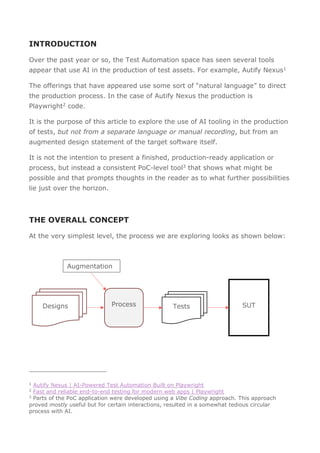
At the very simplest level, the process we are exploring looks as shown below:
Designs
1
Autify Nexus | AI-Powered Test Automation Built on Playwright
2
Fast and reliable end-to-end testing for modern web apps | Playwright
3
Parts of the PoC application were developed using a Vibe Coding approach. This approach
proved mostly useful but for certain interactions, resulted in a somewhat tedious circular
process with AI.
Tests SUT
Process
Augmentation
2
This setup looks straightforward, right? But, as always its in the details where
the challenges lie.
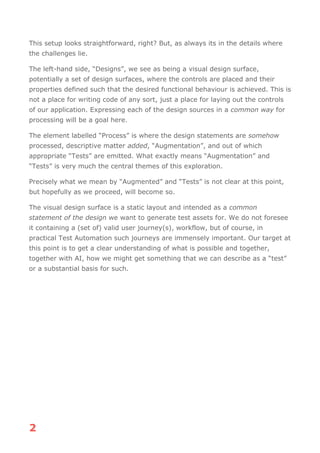
The left-hand side, “Designs”, we see as being a visual design surface,
potentially a set of design surfaces, where the controls are placed and their
properties defined such that the desired functional behaviour is achieved. This is
not a place for writing code of any sort, just a place for laying out the controls
of our application. Expressing each of the design sources in a common way for
processing will be a goal here.
The element labelled “Process” is where the design statements are somehow
processed, descriptive matter added, “Augmentation”, and out of which
appropriate “Tests” are emitted. What exactly means “Augmentation” and
“Tests” is very much the central themes of this exploration.
Precisely what we mean by “Augmented” and “Tests” is not clear at this point,
but hopefully as we proceed, will become so.
The visual design surface is a static layout and intended as a common
statement of the design we want to generate test assets for. We do not foresee
it containing a (set of) valid user journey(s), workflow, but of course, in
practical Test Automation such journeys are immensely important. Our target at
this point is to get a clear understanding of what is possible and together,
together with AI, how we might get something that we can describe as a “test”
or a substantial basis for such.
3
SAMPLE DESIGN STATEMENTS
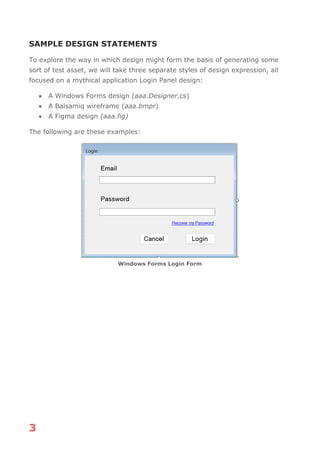
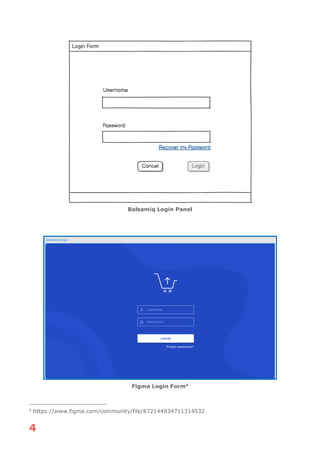
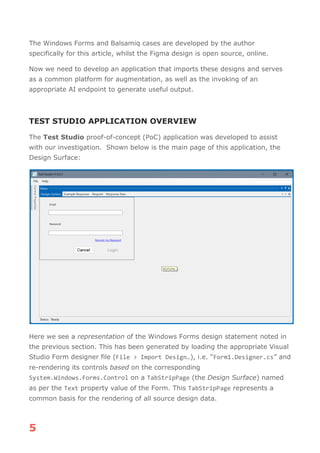
To explore the way in which design might form the basis of generating some
sort of test asset, we will take three separate styles of design expression, all
focused on a mythical application Login Panel design:
• A Windows Forms design (aaa.Designer.cs)
• A Balsamiq wireframe (aaa.bmpr)
• A Figma design (aaa.fig)
The following are these examples:
Windows Forms Login Form
4
Balsamiq Login Panel
Figma Login Form4
4
https://www.figma.com/community/file/872144934711314532
5
The Windows Forms and Balsamiq cases are developed by the author
specifically for this article, whilst the Figma design is open source, online.
Now we need to develop an application that imports these designs and serves
as a common platform for augmentation, as well as the invoking of an
appropriate AI endpoint to generate useful output.
TEST STUDIO APPLICATION OVERVIEW
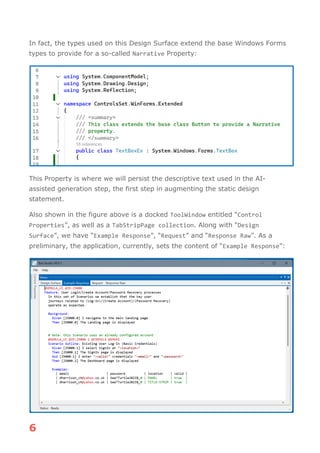
The Test Studio proof-of-concept (PoC) application was developed to assist
with our investigation. Shown below is the main page of this application, the
Design Surface:
Here we see a representation of the Windows Forms design statement noted in
the previous section. This has been generated by loading the appropriate Visual
Studio Form designer file (File > Import Design…), i.e. “Form1.Designer.cs” and
re-rendering its controls based on the corresponding
System.Windows.Forms.Control on a TabStripPage (the Design Surface) named
as per the Text property value of the Form. This TabStripPage represents a
common basis for the rendering of all source design data.
6
In fact, the types used on this Design Surface extend the base Windows Forms
types to provide for a so-called Narrative Property:
This Property is where we will persist the descriptive text used in the AI-
assisted generation step, the first step in augmenting the static design
statement.
Also shown in the figure above is a docked ToolWindow entitled “Control
Properties”, as well as a TabStripPage collection. Along with “Design
Surface”, we have “Example Response”, “Request” and “Response Raw”. As a
preliminary, the application, currently, sets the content of “Example Response”:
7
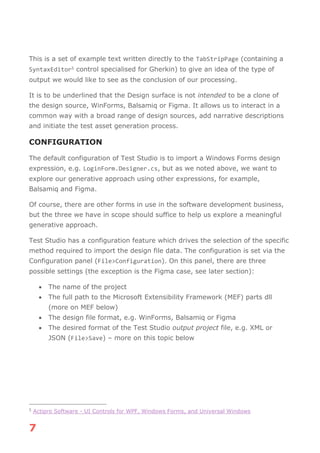
This is a set of example text written directly to the TabStripPage (containing a
SyntaxEditor5 control specialised for Gherkin) to give an idea of the type of
output we would like to see as the conclusion of our processing.
It is to be underlined that the Design surface is not intended to be a clone of
the design source, WinForms, Balsamiq or Figma. It allows us to interact in a
common way with a broad range of design sources, add narrative descriptions
and initiate the test asset generation process.
CONFIGURATION
The default configuration of Test Studio is to import a Windows Forms design
expression, e.g. LoginForm.Designer.cs, but as we noted above, we want to
explore our generative approach using other expressions, for example,
Balsamiq and Figma.
Of course, there are other forms in use in the software development business,
but the three we have in scope should suffice to help us explore a meaningful
generative approach.
Test Studio has a configuration feature which drives the selection of the specific
method required to import the design file data. The configuration is set via the
Configuration panel (File>Configuration). On this panel, there are three
possible settings (the exception is the Figma case, see later section):
• The name of the project
• The full path to the Microsoft Extensibility Framework (MEF) parts dll
(more on MEF below)
• The design file format, e.g. WinForms, Balsamiq or Figma
• The desired format of the Test Studio output project file, e.g. XML or
JSON (File>Save) – more on this topic below
5
Actipro Software - UI Controls for WPF, Windows Forms, and Universal Windows
8
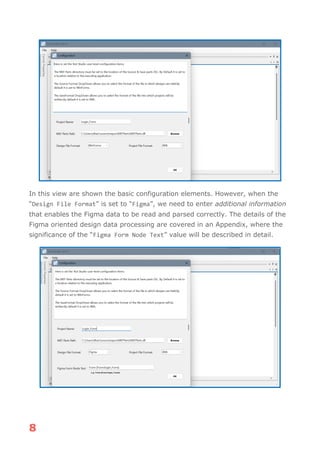
In this view are shown the basic configuration elements. However, when the
“Design File Format” is set to “Figma”, we need to enter additional information
that enables the Figma data to be read and parsed correctly. The details of the
Figma oriented design data processing are covered in an Appendix, where the
significance of the “Figma Form Node Text” value will be described in detail.
9
MEF PARTS
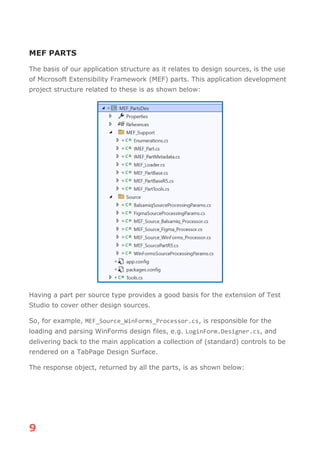
The basis of our application structure as it relates to design sources, is the use
of Microsoft Extensibility Framework (MEF) parts. This application development
project structure related to these is as shown below:
Having a part per source type provides a good basis for the extension of Test
Studio to cover other design sources.
So, for example, MEF_Source_WinForms_Processor.cs, is responsible for the
loading and parsing WinForms design files, e.g. LoginForm.Designer.cs, and
delivering back to the main application a collection of (standard) controls to be
rendered on a TabPage Design Surface.
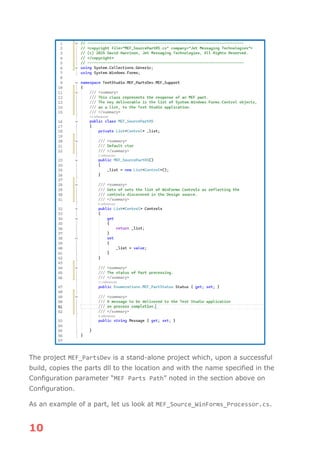
The response object, returned by all the parts, is as shown below:
10
The project MEF_PartsDev is a stand-alone project which, upon a successful
build, copies the parts dll to the location and with the name specified in the
Configuration parameter “MEF Parts Path” noted in the section above on
Configuration.
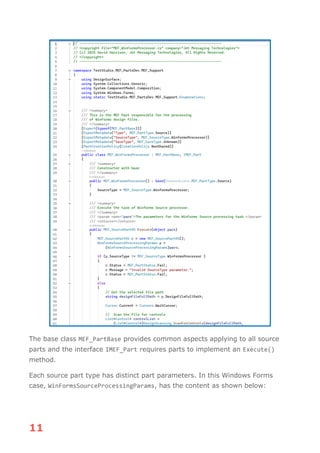
As an example of a part, let us look at MEF_Source_WinForms_Processor.cs.
11
The base class MEF_PartBase provides common aspects applying to all source
parts and the interface IMEF_Part requires parts to implement an Execute()
method.
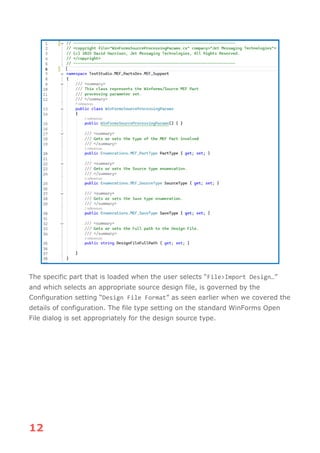
Each source part type has distinct part parameters. In this Windows Forms
case, WinFormsSourceProcessingParams, has the content as shown below:
12
The specific part that is loaded when the user selects “File>Import Design…”
and which selects an appropriate source design file, is governed by the
Configuration setting “Design File Format” as seen earlier when we covered the
details of configuration. The file type setting on the standard WinForms Open
File dialog is set appropriately for the design source type.
13
SETTING THE NARRATIVE
The key to our overall processing of designs to something useful in testing, is
the augmentation of the design with textual matter that describes notable
features and factors. The starting point for this augmentation is the descriptive
matter we add to the individual controls of the Design Surface.
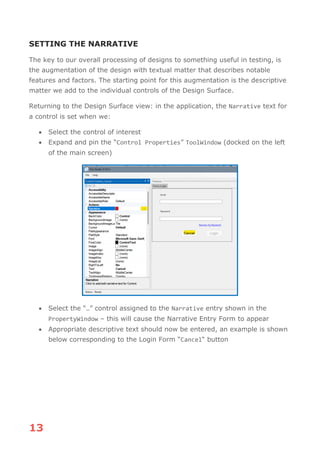
Returning to the Design Surface view: in the application, the Narrative text for
a control is set when we:
• Select the control of interest
• Expand and pin the “Control Properties” ToolWindow (docked on the left
of the main screen)
• Select the “…” control assigned to the Narrative entry shown in the
PropertyWindow – this will cause the Narrative Entry Form to appear
• Appropriate descriptive text should now be entered, an example is shown
below corresponding to the Login Form “Cancel“ button
14
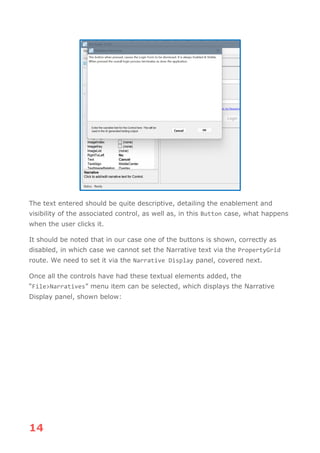
The text entered should be quite descriptive, detailing the enablement and
visibility of the associated control, as well as, in this Button case, what happens
when the user clicks it.
It should be noted that in our case one of the buttons is shown, correctly as
disabled, in which case we cannot set the Narrative text via the PropertyGrid
route. We need to set it via the Narrative Display panel, covered next.
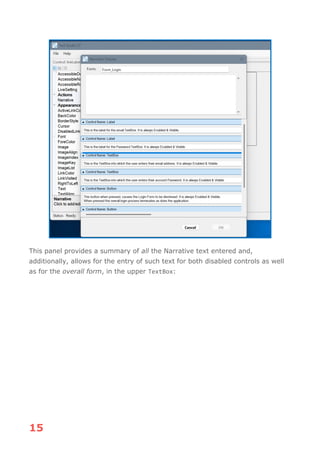
Once all the controls have had these textual elements added, the
“File>Narratives” menu item can be selected, which displays the Narrative
Display panel, shown below:
15
This panel provides a summary of all the Narrative text entered and,
additionally, allows for the entry of such text for both disabled controls as well
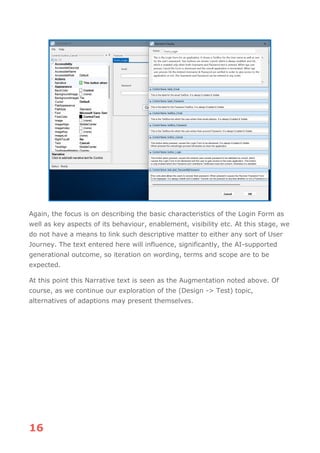
as for the overall form, in the upper TextBox:
16
Again, the focus is on describing the basic characteristics of the Login Form as
well as key aspects of its behaviour, enablement, visibility etc. At this stage, we
do not have a means to link such descriptive matter to either any sort of User
Journey. The text entered here will influence, significantly, the AI-supported
generational outcome, so iteration on wording, terms and scope are to be
expected.
At this point this Narrative text is seen as the Augmentation noted above. Of
course, as we continue our exploration of the (Design -> Test) topic,
alternatives of adaptions may present themselves.
17
FINALISING THE REQUEST
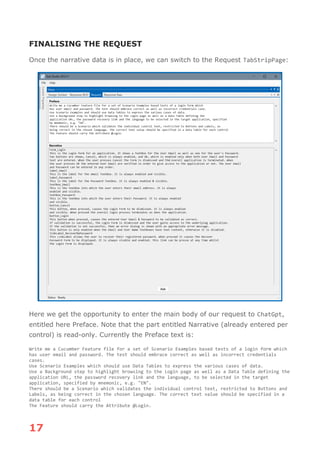
Once the narrative data is in place, we can switch to the Request TabStripPage:
Here we get the opportunity to enter the main body of our request to ChatGpt,
entitled here Preface. Note that the part entitled Narrative (already entered per
control) is read-only. Currently the Preface text is:
Write me a Cucumber Feature file for a set of Scenario Examples based tests of a login form which
has user email and password. The test should embrace correct as well as incorrect credentials
cases.
Use Scenario Examples which should use Data Tables to express the various cases of data.
Use a Background step to highlight browsing to the Login page as well as a Data Table defining the
application URL, the password recovery link and the language, to be selected in the target
application, specified by mnemonic, e.g. "EN".
There should be a Scenario which validates the individual control text, restricted to Buttons and
Labels, as being correct in the chosen language. The correct text value should be specified in a
data table for each control
The Feature should carry the Attribute @Login.
18
As with all requests to an AI service, we need to be quite expressive in what we
want it to produce. We should also expect that it will make mistakes.
It is here on the Request TabStripPage that we will iterate on the details of our
request to obtain the outcome that makes sense.
At the base of this panel is the Ask button which initiates the request to the
configured API endpoint, in our case ChatGpt.
19
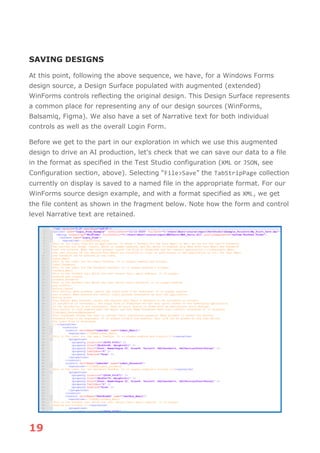
SAVING DESIGNS
At this point, following the above sequence, we have, for a Windows Forms
design source, a Design Surface populated with augmented (extended)
WinForms controls reflecting the original design. This Design Surface represents
a common place for representing any of our design sources (WinForms,
Balsamiq, Figma). We also have a set of Narrative text for both individual
controls as well as the overall Login Form.
Before we get to the part in our exploration in which we use this augmented
design to drive an AI production, let's check that we can save our data to a file
in the format as specified in the Test Studio configuration (XML or JSON, see
Configuration section, above). Selecting “File>Save” the TabStripPage collection
currently on display is saved to a named file in the appropriate format. For our
WinForms source design example, and with a format specified as XML, we get
the file content as shown in the fragment below. Note how the form and control
level Narrative text are retained.
20
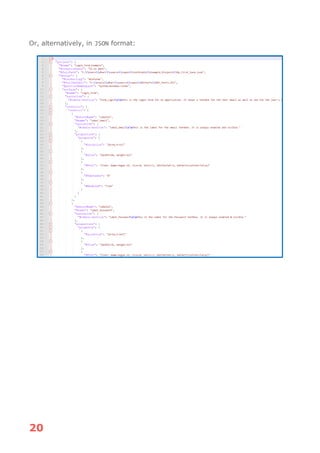
Or, alternatively, in JSON format:
21
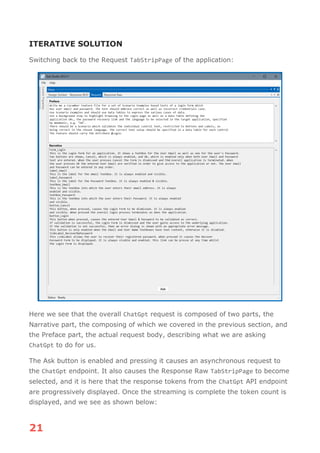
ITERATIVE SOLUTION
Switching back to the Request TabStripPage of the application:
Here we see that the overall ChatGpt request is composed of two parts, the
Narrative part, the composing of which we covered in the previous section, and
the Preface part, the actual request body, describing what we are asking
ChatGpt to do for us.
The Ask button is enabled and pressing it causes an asynchronous request to
the ChatGpt endpoint. It also causes the Response Raw TabStripPage to become
selected, and it is here that the response tokens from the ChatGpt API endpoint
are progressively displayed. Once the streaming is complete the token count is
displayed, and we see as shown below:
22
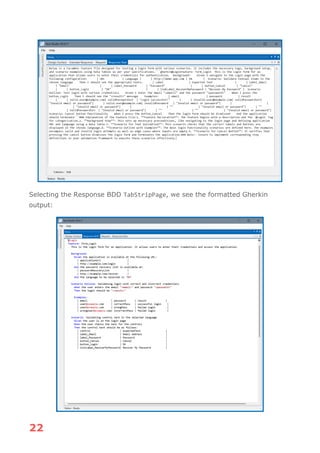
Selecting the Response BDD TabStripPage, we see the formatted Gherkin
output:
23
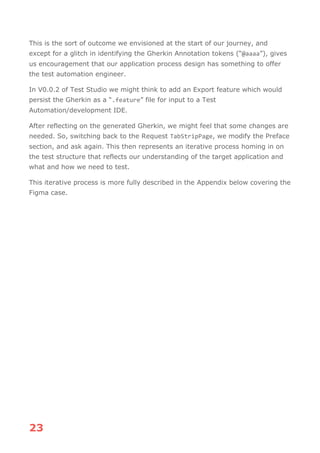
This is the sort of outcome we envisioned at the start of our journey, and
except for a glitch in identifying the Gherkin Annotation tokens (“@aaaa”), gives
us encouragement that our application process design has something to offer
the test automation engineer.
In V0.0.2 of Test Studio we might think to add an Export feature which would
persist the Gherkin as a “.feature” file for input to a Test
Automation/development IDE.
After reflecting on the generated Gherkin, we might feel that some changes are
needed. So, switching back to the Request TabStripPage, we modify the Preface
section, and ask again. This then represents an iterative process homing in on
the test structure that reflects our understanding of the target application and
what and how we need to test.
This iterative process is more fully described in the Appendix below covering the
Figma case.
24
OTHER DESIGN SOURCES
As noted in the opening section, we want to evaluate our PoC application with
other design sources, specifically, Balsamiq and Figma.
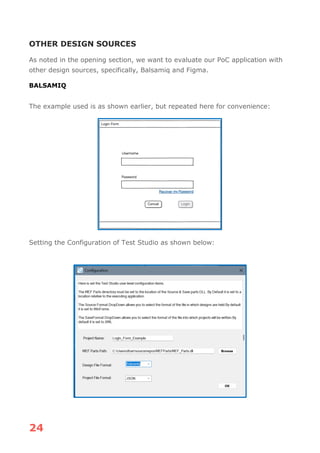
BALSAMIQ
The example used is as shown earlier, but repeated here for convenience:
Setting the Configuration of Test Studio as shown below:
25
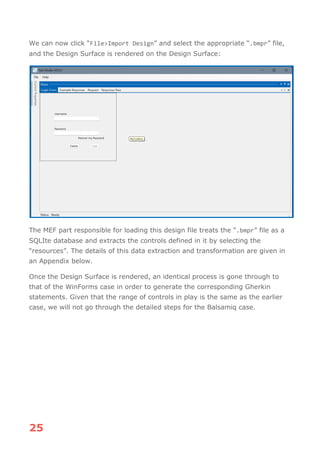
We can now click “File>Import Design” and select the appropriate “.bmpr” file,
and the Design Surface is rendered on the Design Surface:
The MEF part responsible for loading this design file treats the “.bmpr” file as a
SQLIte database and extracts the controls defined in it by selecting the
“resources”. The details of this data extraction and transformation are given in
an Appendix below.
Once the Design Surface is rendered, an identical process is gone through to
that of the WinForms case in order to generate the corresponding Gherkin
statements. Given that the range of controls in play is the same as the earlier
case, we will not go through the detailed steps for the Balsamiq case.
26
FIGMA
The last design statement we will look at is that of Figma6
As we shall see, uploading a Figma design into our application and rendering it
on our “standard” Design Surface presents several challenges compared to how
this process worked in the two previous cases.
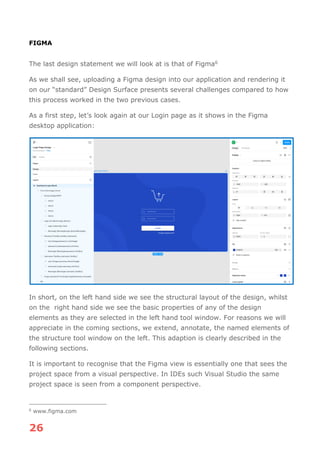
As a first step, let’s look again at our Login page as it shows in the Figma
desktop application:
In short, on the left hand side we see the structural layout of the design, whilst
on the right hand side we see the basic properties of any of the design
elements as they are selected in the left hand tool window. For reasons we will
appreciate in the coming sections, we extend, annotate, the named elements of
the structure tool window on the left. This adaption is clearly described in the
following sections.
It is important to recognise that the Figma view is essentially one that sees the
project space from a visual perspective. In IDEs such Visual Studio the same
project space is seen from a component perspective.
6
www.figma.com
27
So, for example we see in the Figma project structure a “text box” containing a
“rectangle”, a “button” containing a “rectangle” and so on. These subtleties
need to be dealt with as part of our process of transforming the Figma world on
to our generic Design Surface.
FIGMA DESIGN STRUCTURE
Let us go through the sections of the structure and see their equivalence on the
design. The naming convention of the highlighted node text is:
figma-design-name [winforms-type-short-name:winforms-identifier-name]
This text adaptation is vital to our overall process.
28
1. Form [Form:login_Form]
This represents the surrounding container of all the elements of the
design, the form:
2. Group [Image:SKIP]
This part of the design we don’t see as relevant to the test automation
solution, thus it is marked with the special winforms-identifier-name of
“SKIP”. No processing, transformation will happen when we encounter this
section in the Figma design data.
3. Login btn [Button:login_Button]
This represents the action button which actions the login process. In the
design it also plays the role of a container, enclosing the elements (login
[Label:login_Text]) and (Rectangle [Rectangle:login_ButtonRectangle]).
29
The “Label” represents the label of the login button, whilst the “Rectangle”
represents its bounding box.
4. Password [TextBox:textbox_Password]
This component is the text box into which password is to be entered. Just
as in the case of the login button, this component acts as container for
other parts, in this case; (lock [Image:password_LockImage]), (password
[Label:password_HintText]) and (Rectangle
[Rectangle:password_TextBox]). The image element operates as a fixed
graphic, whilst the “password” text appears to operate as a hint text; it is
shown when the enclosing text box has no containing text but has its
visibility set to false when the user enters any characters. S in the case of
the button, the “Rectangle” plays the role of a bounding box for the
TextBox itself.
5. Username [TextBox:username_TextBox]
This is the TextBox into which the user enters there username. Its
structure is the same as that of the “textbox_Password”, it has a small
graphic item, an enclosing “Rectangle” and hint text.
6. Forgot password? [LinkLabel:forgotPassword_LinkLabel]
This element acts as a password recovery link.
30
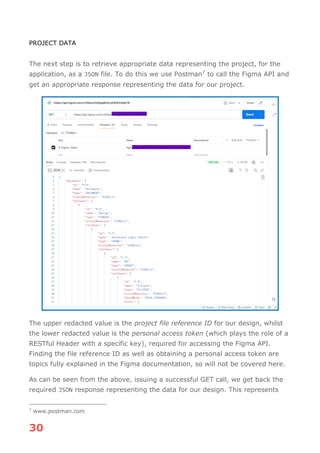
PROJECT DATA
The next step is to retrieve appropriate data representing the project, for the
application, as a JSON file. To do this we use Postman7 to call the Figma API and
get an appropriate response representing the data for our project.
The upper redacted value is the project file reference ID for our design, whilst
the lower redacted value is the personal access token (which plays the role of a
RESTful Header with a specific key), required for accessing the Figma API.
Finding the file reference ID as well as obtaining a personal access token are
topics fully explained in the Figma documentation, so will not be covered here.
As can be seen from the above, issuing a successful GET call, we get back the
required JSON response representing the data for our design. This represents
7
www.postman.com
31
the data we need to process to render the Figma design on our generic
(WinForms) design surface.
Currently we save this data in a file with the naming convention:
figma-file-prefix.json
where figma-file-prefix is the name prefix of the file we elect to open when we
select a “.fig” file from “File>Import Design”. So in the current case, the file
that is sought is:
Login Page design (Community).json
This reading of the design data from a file is very much a stop-gap approach.
For a solid solution fit for “production” we should prefer to use the Figma
RESTful API. This approach is set out in an Appendix.
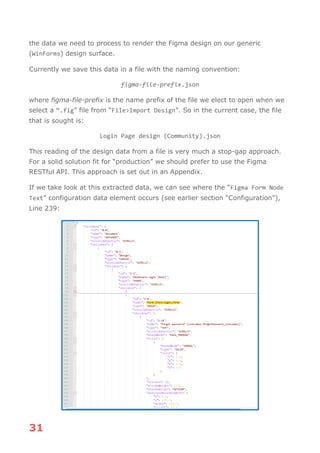
If we take look at this extracted data, we can see where the “Figma Form Node
Text” configuration data element occurs (see earlier section “Configuration”),
Line 239:
32
It’s this second child element below the “root” that the visual design we see in
the Figma application begins and the required data we want, begins.
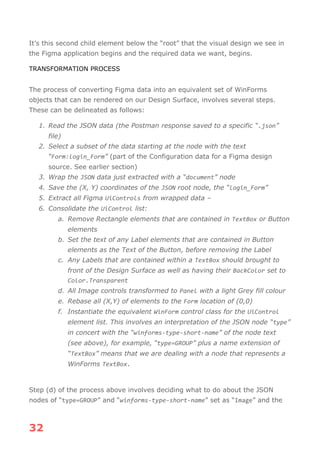
TRANSFORMATION PROCESS
The process of converting Figma data into an equivalent set of WinForms
objects that can be rendered on our Design Surface, involves several steps.
These can be delineated as follows:
1. Read the JSON data (the Postman response saved to a specific “.json”
file)
2. Select a subset of the data starting at the node with the text
“Form:login_Form” (part of the Configuration data for a Figma design
source. See earlier section)
3. Wrap the JSON data just extracted with a “document” node
4. Save the (X, Y) coordinates of the JSON root node, the “login_Form”
5. Extract all Figma UiControls from wrapped data –
6. Consolidate the UiControl list:
a. Remove Rectangle elements that are contained in TextBox or Button
elements
b. Set the text of any Label elements that are contained in Button
elements as the Text of the Button, before removing the Label
c. Any Labels that are contained within a TextBox should brought to
front of the Design Surface as well as having their BackColor set to
Color.Transparent
d. All Image controls transformed to Panel with a light Grey fill colour
e. Rebase all (X,Y) of elements to the Form location of (0,0)
f. Instantiate the equivalent WinForm control class for the UiControl
element list. This involves an interpretation of the JSON node “type”
in concert with the “winforms-type-short-name” of the node text
(see above), for example, “type=GROUP” plus a name extension of
“TextBox” means that we are dealing with a node that represents a
WinForms TextBox.
Step (d) of the process above involves deciding what to do about the JSON
nodes of “type=GROUP” and “winforms-type-short-name” set as “Image” and the
33
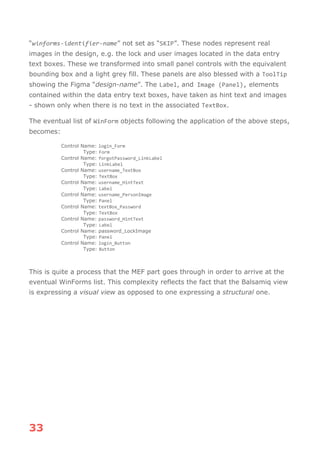
“winforms-identifier-name” not set as “SKIP”. These nodes represent real
images in the design, e.g. the lock and user images located in the data entry
text boxes. These we transformed into small panel controls with the equivalent
bounding box and a light grey fill. These panels are also blessed with a ToolTip
showing the Figma “design-name”. The Label, and Image (Panel), elements
contained within the data entry text boxes, have taken as hint text and images
- shown only when there is no text in the associated TextBox.
The eventual list of WinForm objects following the application of the above steps,
becomes:
Control Name: login_Form
Type: Form
Control Name: forgotPassword_LinkLabel
Type: LinkLabel
Control Name: username_TextBox
Type: TextBox
Control Name: username_HintText
Type: Label
Control Name: username_PersonImage
Type: Panel
Control Name: textBox_Password
Type: TextBox
Control Name: password_HintText
Type: Label
Control Name: password_LockImage
Type: Panel
Control Name: login_Button
Type: Button
This is quite a process that the MEF part goes through in order to arrive at the
eventual WinForms list. This complexity reflects the fact that the Balsamiq view
is expressing a visual view as opposed to one expressing a structural one.
34
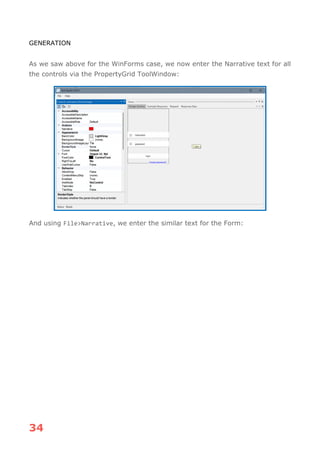
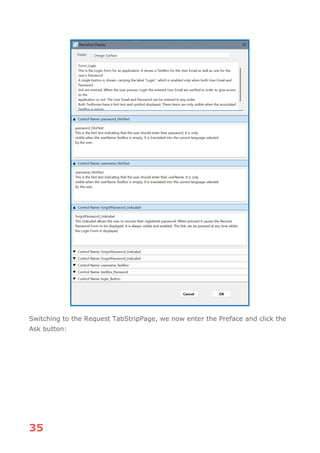
GENERATION
As we saw above for the WinForms case, we now enter the Narrative text for all
the controls via the PropertyGrid ToolWindow:
And using File>Narrative, we enter the similar text for the Form:
35
Switching to the Request TabStripPage, we now enter the Preface and click the
Ask button:
36
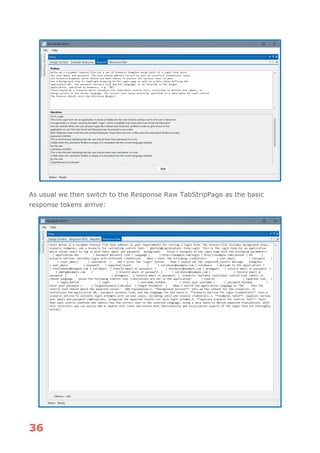
As usual we then switch to the Response Raw TabStripPage as the basic
response tokens arrive:
37
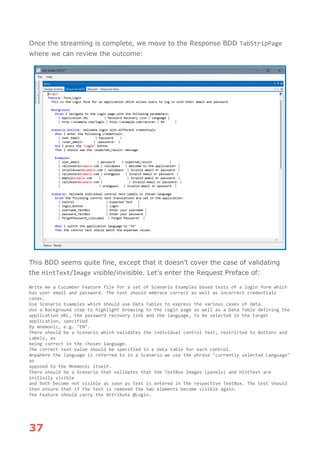
Once the streaming is complete, we move to the Response BDD TabStripPage
where we can review the outcome:
This BDD seems quite fine, except that it doesn’t cover the case of validating
the HintText/Image visible/invisible. Let’s enter the Request Preface of:
Write me a Cucumber Feature file for a set of Scenario Examples based tests of a login form which
has user email and password. The test should embrace correct as well as incorrect credentials
cases.
Use Scenario Examples which should use Data Tables to express the various cases of data.
Use a Background step to highlight browsing to the Login page as well as a Data Table defining the
application URL, the password recovery link and the language, to be selected in the target
application, specified
by mnemonic, e.g. "EN".
There should be a Scenario which validates the individual control text, restricted to Buttons and
Labels, as
being correct in the chosen language.
The correct text value should be specified in a data table for each control.
Anywhere the language is referred to in a Scenario we use the phrase "currently selected Language"
as
opposed to the Mnemonic itself.
There should be a Scenario that validates that the TextBox Images (panels) and HintText are
initially visible
and both become not visible as soon as text is entered in the respective TextBox. The test should
then ensure that if the text is removed the two elements become visible again.
The Feature should carry the Attribute @Login.
38
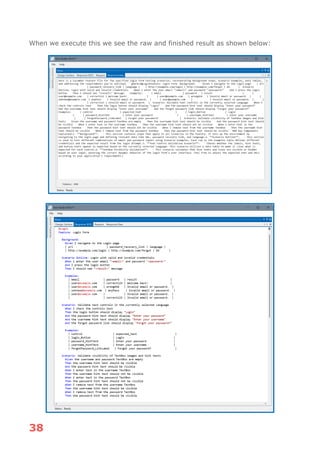
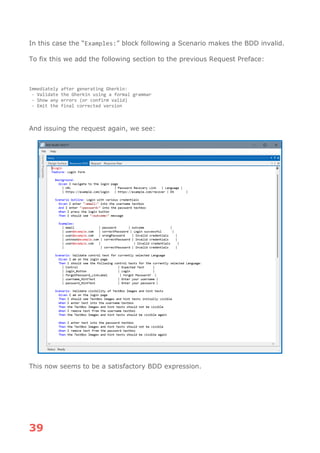
When we execute this we see the raw and finished result as shown below:
39
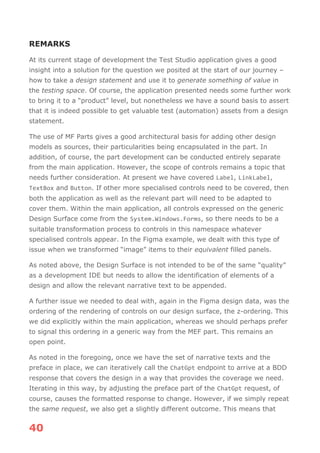
In this case the “Examples:” block following a Scenario makes the BDD invalid.
To fix this we add the following section to the previous Request Preface:
Immediately after generating Gherkin:
- Validate the Gherkin using a formal grammar
- Show any errors (or confirm valid)
- Emit the final corrected version
And issuing the request again, we see:
This now seems to be a satisfactory BDD expression.
40
REMARKS
At its current stage of development the Test Studio application gives a good
insight into a solution for the question we posited at the start of our journey –
how to take a design statement and use it to generate something of value in
the testing space. Of course, the application presented needs some further work
to bring it to a “product” level, but nonetheless we have a sound basis to assert
that it is indeed possible to get valuable test (automation) assets from a design
statement.
The use of MF Parts gives a good architectural basis for adding other design
models as sources, their particularities being encapsulated in the part. In
addition, of course, the part development can be conducted entirely separate
from the main application. However, the scope of controls remains a topic that
needs further consideration. At present we have covered Label, LinkLabel,
TextBox and Button. If other more specialised controls need to be covered, then
both the application as well as the relevant part will need to be adapted to
cover them. Within the main application, all controls expressed on the generic
Design Surface come from the System.Windows.Forms, so there needs to be a
suitable transformation process to controls in this namespace whatever
specialised controls appear. In the Figma example, we dealt with this type of
issue when we transformed “image” items to their equivalent filled panels.
As noted above, the Design Surface is not intended to be of the same “quality”
as a development IDE but needs to allow the identification of elements of a
design and allow the relevant narrative text to be appended.
A further issue we needed to deal with, again in the Figma design data, was the
ordering of the rendering of controls on our design surface, the z-ordering. This
we did explicitly within the main application, whereas we should perhaps prefer
to signal this ordering in a generic way from the MEF part. This remains an
open point.
As noted in the foregoing, once we have the set of narrative texts and the
preface in place, we can iteratively call the ChatGpt endpoint to arrive at a BDD
response that covers the design in a way that provides the coverage we need.
Iterating in this way, by adjusting the preface part of the ChatGpt request, of
course, causes the formatted response to change. However, if we simply repeat
the same request, we also get a slightly different outcome. This means that
41
once we have a request/response that gives us the coverage that we want and
we start to develop the code-behind of the BDD in our chosen development
IDE, we need to “freeze” the request/response within Test Studio.
At this v0.0.1 of Test Studio, there remains some topics that need to be
addressed, they are:
1. Improve the Gherkin language tokenizer of the “Response BDD”
TabStripPage.
The current language model seems to have difficulty in two areas:
(1) alignment of the statement trailing pipe (“|”) symbols
(2) the correct colouring of statement text involving the “@” symbol
(it’s not a Gherkin attribute).
2. Add a standard block of text at the end of all Prefaces that enforces
ChatGpt checking of the generated Gherkin (see earlier Figma section).
This appending would happen internal to the application without any
action on the part of the user.
3. Finalise the Reading/writing of complete design projects
4. Implement the Figma API design data retrieval. This would need the
acquisition of a paid licence. As part of this implementation we should
implement a caching approach for API responses within the Figma MEF
part.
5. Implement an Export function for the generated BDD to a “.feature” file.
The current application is built using the (WinForms/Microsoft) Tech Stack.
However, Test Studio could be expressed, alternatively, as a Web application.
Exploring this option is left for another day.
Happy testing & see you soon 😊
42
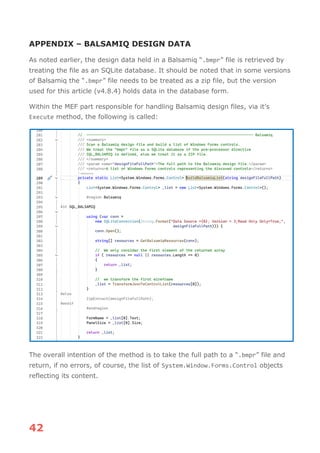
APPENDIX – BALSAMIQ DESIGN DATA
As noted earlier, the design data held in a Balsamiq “.bmpr” file is retrieved by
treating the file as an SQLite database. It should be noted that in some versions
of Balsamiq the “.bmpr” file needs to be treated as a zip file, but the version
used for this article (v4.8.4) holds data in the database form.
Within the MEF part responsible for handling Balsamiq design files, via it’s
Execute method, the following is called:
The overall intention of the method is to take the full path to a “.bmpr” file and
return, if no errors, of course, the list of System.Window.Forms.Control objects
reflecting its content.
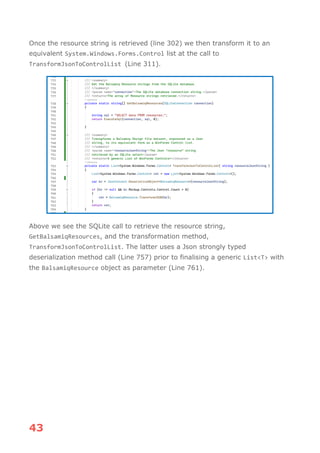
43
Once the resource string is retrieved (line 302) we then transform it to an
equivalent System.Windows.Forms.Control list at the call to
TransformJsonToControlList (Line 311).
Above we see the SQLite call to retrieve the resource string,
GetBalsamiqResources, and the transformation method,
TransformJsonToControlList. The latter uses a Json strongly typed
deserialization method call (Line 757) prior to finalising a generic List<T> with
the BalsamiqResource object as parameter (Line 761).
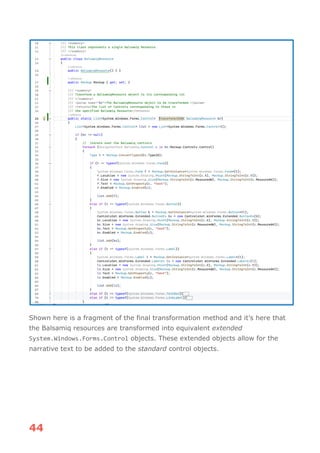
44
Shown here is a fragment of the final transformation method and it’s here that
the Balsamiq resources are transformed into equivalent extended
System.Windows.Forms.Control objects. These extended objects allow for the
narrative text to be added to the standard control objects.
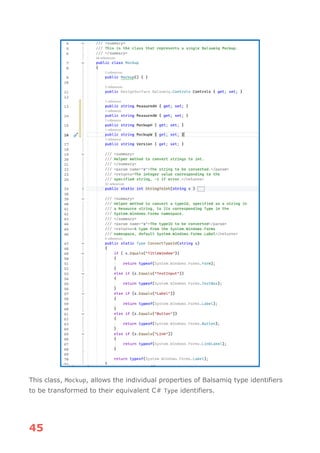
45
This class, Mockup, allows the individual properties of Balsamiq type identifiers
to be transformed to their equivalent C# Type identifiers.
46
APPENDIX – FIGMA DESIGN DATA
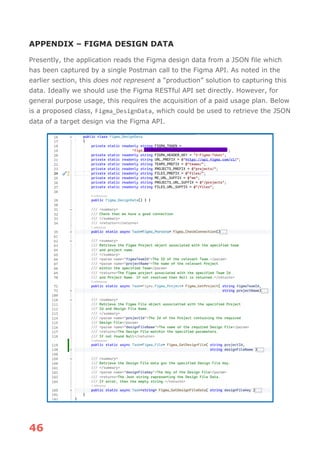
Presently, the application reads the Figma design data from a JSON file which
has been captured by a single Postman call to the Figma API. As noted in the
earlier section, this does not represent a “production” solution to capturing this
data. Ideally we should use the Figma RESTful API set directly. However, for
general purpose usage, this requires the acquisition of a paid usage plan. Below
is a proposed class, Figma_DesignData, which could be used to retrieve the JSON
data of a target design via the Figma API.
47
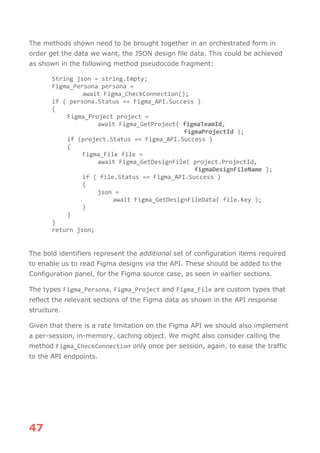
The methods shown need to be brought together in an orchestrated form in
order get the data we want, the JSON design file data. This could be achieved
as shown in the following method pseudocode fragment:
String json = string.Empty;
Figma_Persona persona =
await Figma_CheckConnection();
if ( persona.Status == Figma_API.Success )
{
Figma_Project project =
await Figma_GetProject( figmaTeamId,
figmaProjectId );
if (project.Status == Figma_API.Success )
{
Figma_File file =
await Figma_GetDesignFile( project.ProjectId,
figmaDesignFileName );
if ( file.Status == Figma_API.Success )
{
json =
await Figma_GetDesignFileData( file.Key );
}
}
}
return json;
The bold identifiers represent the additional set of configuration items required
to enable us to read Figma designs via the API. These should be added to the
Configuration panel, for the Figma source case, as seen in earlier sections.
The types Figma_Persona, Figma_Project and Figma_File are custom types that
reflect the relevant sections of the Figma data as shown in the API response
structure.
Given that there is a rate limitation on the Figma API we should also implement
a per-session, in-memory, caching object. We might also consider calling the
method Figma_CheckConnection only once per session, again, to ease the traffic
to the API endpoints.

Design For Test - Getting Test Automation value from Design Expressions.

  • 1.
    DESIGN FOR TEST C#/MEF/WinForms/Balsamiq/Figma Exploringthe use of software design as the basis of the production of appropriate tests. This Article sets out an exploration of this theme. We do this via a PoC application which consumes designs from WinForms, Balsamiq and Figma sources. These design statements are augmented prior to the AI-supported generation step. D. Harrison December 2025
  • 2.
    Table of CONTENTS Introduction.............................................................................1 The OverallConcept .................................................................1 Sample Design Statements........................................................3 Test Studio Application Overview................................................5 Configuration...........................................................................7 MEF Parts ................................................................................9 Setting the Narrative .............................................................. 13 Finalising the Request ............................................................. 17 Saving Designs ...................................................................... 19 Iterative Solution ................................................................... 21 Other Design Sources ............................................................. 24 Remarks ............................................................................... 40 Appendix – Balsamiq Design Data ............................................ 42 Appendix – Figma Design Data................................................. 46
  • 3.
    INTRODUCTION Over the pastyear or so, the Test Automation space has seen several tools appear that use AI in the production of test assets. For example, Autify Nexus1 The offerings that have appeared use some sort of “natural language” to direct the production process. In the case of Autify Nexus the production is Playwright2 code. It is the purpose of this article to explore the use of AI tooling in the production of tests, but not from a separate language or manual recording, but from an augmented design statement of the target software itself. It is not the intention to present a finished, production-ready application or process, but instead a consistent PoC-level tool3 that shows what might be possible and that prompts thoughts in the reader as to what further possibilities lie just over the horizon. THE OVERALL CONCEPT At the very simplest level, the process we are exploring looks as shown below: Designs 1 Autify Nexus | AI-Powered Test Automation Built on Playwright 2 Fast and reliable end-to-end testing for modern web apps | Playwright 3 Parts of the PoC application were developed using a Vibe Coding approach. This approach proved mostly useful but for certain interactions, resulted in a somewhat tedious circular process with AI. Tests SUT Process Augmentation
  • 4.
    2 This setup looksstraightforward, right? But, as always its in the details where the challenges lie. The left-hand side, “Designs”, we see as being a visual design surface, potentially a set of design surfaces, where the controls are placed and their properties defined such that the desired functional behaviour is achieved. This is not a place for writing code of any sort, just a place for laying out the controls of our application. Expressing each of the design sources in a common way for processing will be a goal here. The element labelled “Process” is where the design statements are somehow processed, descriptive matter added, “Augmentation”, and out of which appropriate “Tests” are emitted. What exactly means “Augmentation” and “Tests” is very much the central themes of this exploration. Precisely what we mean by “Augmented” and “Tests” is not clear at this point, but hopefully as we proceed, will become so. The visual design surface is a static layout and intended as a common statement of the design we want to generate test assets for. We do not foresee it containing a (set of) valid user journey(s), workflow, but of course, in practical Test Automation such journeys are immensely important. Our target at this point is to get a clear understanding of what is possible and together, together with AI, how we might get something that we can describe as a “test” or a substantial basis for such.
  • 5.
    3 SAMPLE DESIGN STATEMENTS Toexplore the way in which design might form the basis of generating some sort of test asset, we will take three separate styles of design expression, all focused on a mythical application Login Panel design: • A Windows Forms design (aaa.Designer.cs) • A Balsamiq wireframe (aaa.bmpr) • A Figma design (aaa.fig) The following are these examples: Windows Forms Login Form
  • 6.
    4 Balsamiq Login Panel FigmaLogin Form4 4 https://www.figma.com/community/file/872144934711314532
  • 7.
    5 The Windows Formsand Balsamiq cases are developed by the author specifically for this article, whilst the Figma design is open source, online. Now we need to develop an application that imports these designs and serves as a common platform for augmentation, as well as the invoking of an appropriate AI endpoint to generate useful output. TEST STUDIO APPLICATION OVERVIEW The Test Studio proof-of-concept (PoC) application was developed to assist with our investigation. Shown below is the main page of this application, the Design Surface: Here we see a representation of the Windows Forms design statement noted in the previous section. This has been generated by loading the appropriate Visual Studio Form designer file (File > Import Design…), i.e. “Form1.Designer.cs” and re-rendering its controls based on the corresponding System.Windows.Forms.Control on a TabStripPage (the Design Surface) named as per the Text property value of the Form. This TabStripPage represents a common basis for the rendering of all source design data.
  • 8.
    6 In fact, thetypes used on this Design Surface extend the base Windows Forms types to provide for a so-called Narrative Property: This Property is where we will persist the descriptive text used in the AI- assisted generation step, the first step in augmenting the static design statement. Also shown in the figure above is a docked ToolWindow entitled “Control Properties”, as well as a TabStripPage collection. Along with “Design Surface”, we have “Example Response”, “Request” and “Response Raw”. As a preliminary, the application, currently, sets the content of “Example Response”:
  • 9.
    7 This is aset of example text written directly to the TabStripPage (containing a SyntaxEditor5 control specialised for Gherkin) to give an idea of the type of output we would like to see as the conclusion of our processing. It is to be underlined that the Design surface is not intended to be a clone of the design source, WinForms, Balsamiq or Figma. It allows us to interact in a common way with a broad range of design sources, add narrative descriptions and initiate the test asset generation process. CONFIGURATION The default configuration of Test Studio is to import a Windows Forms design expression, e.g. LoginForm.Designer.cs, but as we noted above, we want to explore our generative approach using other expressions, for example, Balsamiq and Figma. Of course, there are other forms in use in the software development business, but the three we have in scope should suffice to help us explore a meaningful generative approach. Test Studio has a configuration feature which drives the selection of the specific method required to import the design file data. The configuration is set via the Configuration panel (File>Configuration). On this panel, there are three possible settings (the exception is the Figma case, see later section): • The name of the project • The full path to the Microsoft Extensibility Framework (MEF) parts dll (more on MEF below) • The design file format, e.g. WinForms, Balsamiq or Figma • The desired format of the Test Studio output project file, e.g. XML or JSON (File>Save) – more on this topic below 5 Actipro Software - UI Controls for WPF, Windows Forms, and Universal Windows
  • 10.
    8 In this vieware shown the basic configuration elements. However, when the “Design File Format” is set to “Figma”, we need to enter additional information that enables the Figma data to be read and parsed correctly. The details of the Figma oriented design data processing are covered in an Appendix, where the significance of the “Figma Form Node Text” value will be described in detail.
  • 11.
    9 MEF PARTS The basisof our application structure as it relates to design sources, is the use of Microsoft Extensibility Framework (MEF) parts. This application development project structure related to these is as shown below: Having a part per source type provides a good basis for the extension of Test Studio to cover other design sources. So, for example, MEF_Source_WinForms_Processor.cs, is responsible for the loading and parsing WinForms design files, e.g. LoginForm.Designer.cs, and delivering back to the main application a collection of (standard) controls to be rendered on a TabPage Design Surface. The response object, returned by all the parts, is as shown below:
  • 12.
    10 The project MEF_PartsDevis a stand-alone project which, upon a successful build, copies the parts dll to the location and with the name specified in the Configuration parameter “MEF Parts Path” noted in the section above on Configuration. As an example of a part, let us look at MEF_Source_WinForms_Processor.cs.
  • 13.
    11 The base classMEF_PartBase provides common aspects applying to all source parts and the interface IMEF_Part requires parts to implement an Execute() method. Each source part type has distinct part parameters. In this Windows Forms case, WinFormsSourceProcessingParams, has the content as shown below:
  • 14.
    12 The specific partthat is loaded when the user selects “File>Import Design…” and which selects an appropriate source design file, is governed by the Configuration setting “Design File Format” as seen earlier when we covered the details of configuration. The file type setting on the standard WinForms Open File dialog is set appropriately for the design source type.
  • 15.
    13 SETTING THE NARRATIVE Thekey to our overall processing of designs to something useful in testing, is the augmentation of the design with textual matter that describes notable features and factors. The starting point for this augmentation is the descriptive matter we add to the individual controls of the Design Surface. Returning to the Design Surface view: in the application, the Narrative text for a control is set when we: • Select the control of interest • Expand and pin the “Control Properties” ToolWindow (docked on the left of the main screen) • Select the “…” control assigned to the Narrative entry shown in the PropertyWindow – this will cause the Narrative Entry Form to appear • Appropriate descriptive text should now be entered, an example is shown below corresponding to the Login Form “Cancel“ button
  • 16.
    14 The text enteredshould be quite descriptive, detailing the enablement and visibility of the associated control, as well as, in this Button case, what happens when the user clicks it. It should be noted that in our case one of the buttons is shown, correctly as disabled, in which case we cannot set the Narrative text via the PropertyGrid route. We need to set it via the Narrative Display panel, covered next. Once all the controls have had these textual elements added, the “File>Narratives” menu item can be selected, which displays the Narrative Display panel, shown below:
  • 17.
    15 This panel providesa summary of all the Narrative text entered and, additionally, allows for the entry of such text for both disabled controls as well as for the overall form, in the upper TextBox:
  • 18.
    16 Again, the focusis on describing the basic characteristics of the Login Form as well as key aspects of its behaviour, enablement, visibility etc. At this stage, we do not have a means to link such descriptive matter to either any sort of User Journey. The text entered here will influence, significantly, the AI-supported generational outcome, so iteration on wording, terms and scope are to be expected. At this point this Narrative text is seen as the Augmentation noted above. Of course, as we continue our exploration of the (Design -> Test) topic, alternatives of adaptions may present themselves.
  • 19.
    17 FINALISING THE REQUEST Oncethe narrative data is in place, we can switch to the Request TabStripPage: Here we get the opportunity to enter the main body of our request to ChatGpt, entitled here Preface. Note that the part entitled Narrative (already entered per control) is read-only. Currently the Preface text is: Write me a Cucumber Feature file for a set of Scenario Examples based tests of a login form which has user email and password. The test should embrace correct as well as incorrect credentials cases. Use Scenario Examples which should use Data Tables to express the various cases of data. Use a Background step to highlight browsing to the Login page as well as a Data Table defining the application URL, the password recovery link and the language, to be selected in the target application, specified by mnemonic, e.g. "EN". There should be a Scenario which validates the individual control text, restricted to Buttons and Labels, as being correct in the chosen language. The correct text value should be specified in a data table for each control The Feature should carry the Attribute @Login.
  • 20.
    18 As with allrequests to an AI service, we need to be quite expressive in what we want it to produce. We should also expect that it will make mistakes. It is here on the Request TabStripPage that we will iterate on the details of our request to obtain the outcome that makes sense. At the base of this panel is the Ask button which initiates the request to the configured API endpoint, in our case ChatGpt.
  • 21.
    19 SAVING DESIGNS At thispoint, following the above sequence, we have, for a Windows Forms design source, a Design Surface populated with augmented (extended) WinForms controls reflecting the original design. This Design Surface represents a common place for representing any of our design sources (WinForms, Balsamiq, Figma). We also have a set of Narrative text for both individual controls as well as the overall Login Form. Before we get to the part in our exploration in which we use this augmented design to drive an AI production, let's check that we can save our data to a file in the format as specified in the Test Studio configuration (XML or JSON, see Configuration section, above). Selecting “File>Save” the TabStripPage collection currently on display is saved to a named file in the appropriate format. For our WinForms source design example, and with a format specified as XML, we get the file content as shown in the fragment below. Note how the form and control level Narrative text are retained.
  • 22.
  • 23.
    21 ITERATIVE SOLUTION Switching backto the Request TabStripPage of the application: Here we see that the overall ChatGpt request is composed of two parts, the Narrative part, the composing of which we covered in the previous section, and the Preface part, the actual request body, describing what we are asking ChatGpt to do for us. The Ask button is enabled and pressing it causes an asynchronous request to the ChatGpt endpoint. It also causes the Response Raw TabStripPage to become selected, and it is here that the response tokens from the ChatGpt API endpoint are progressively displayed. Once the streaming is complete the token count is displayed, and we see as shown below:
  • 24.
    22 Selecting the ResponseBDD TabStripPage, we see the formatted Gherkin output:
  • 25.
    23 This is thesort of outcome we envisioned at the start of our journey, and except for a glitch in identifying the Gherkin Annotation tokens (“@aaaa”), gives us encouragement that our application process design has something to offer the test automation engineer. In V0.0.2 of Test Studio we might think to add an Export feature which would persist the Gherkin as a “.feature” file for input to a Test Automation/development IDE. After reflecting on the generated Gherkin, we might feel that some changes are needed. So, switching back to the Request TabStripPage, we modify the Preface section, and ask again. This then represents an iterative process homing in on the test structure that reflects our understanding of the target application and what and how we need to test. This iterative process is more fully described in the Appendix below covering the Figma case.
  • 26.
    24 OTHER DESIGN SOURCES Asnoted in the opening section, we want to evaluate our PoC application with other design sources, specifically, Balsamiq and Figma. BALSAMIQ The example used is as shown earlier, but repeated here for convenience: Setting the Configuration of Test Studio as shown below:
  • 27.
    25 We can nowclick “File>Import Design” and select the appropriate “.bmpr” file, and the Design Surface is rendered on the Design Surface: The MEF part responsible for loading this design file treats the “.bmpr” file as a SQLIte database and extracts the controls defined in it by selecting the “resources”. The details of this data extraction and transformation are given in an Appendix below. Once the Design Surface is rendered, an identical process is gone through to that of the WinForms case in order to generate the corresponding Gherkin statements. Given that the range of controls in play is the same as the earlier case, we will not go through the detailed steps for the Balsamiq case.
  • 28.
    26 FIGMA The last designstatement we will look at is that of Figma6 As we shall see, uploading a Figma design into our application and rendering it on our “standard” Design Surface presents several challenges compared to how this process worked in the two previous cases. As a first step, let’s look again at our Login page as it shows in the Figma desktop application: In short, on the left hand side we see the structural layout of the design, whilst on the right hand side we see the basic properties of any of the design elements as they are selected in the left hand tool window. For reasons we will appreciate in the coming sections, we extend, annotate, the named elements of the structure tool window on the left. This adaption is clearly described in the following sections. It is important to recognise that the Figma view is essentially one that sees the project space from a visual perspective. In IDEs such Visual Studio the same project space is seen from a component perspective. 6 www.figma.com
  • 29.
    27 So, for examplewe see in the Figma project structure a “text box” containing a “rectangle”, a “button” containing a “rectangle” and so on. These subtleties need to be dealt with as part of our process of transforming the Figma world on to our generic Design Surface. FIGMA DESIGN STRUCTURE Let us go through the sections of the structure and see their equivalence on the design. The naming convention of the highlighted node text is: figma-design-name [winforms-type-short-name:winforms-identifier-name] This text adaptation is vital to our overall process.
  • 30.
    28 1. Form [Form:login_Form] Thisrepresents the surrounding container of all the elements of the design, the form: 2. Group [Image:SKIP] This part of the design we don’t see as relevant to the test automation solution, thus it is marked with the special winforms-identifier-name of “SKIP”. No processing, transformation will happen when we encounter this section in the Figma design data. 3. Login btn [Button:login_Button] This represents the action button which actions the login process. In the design it also plays the role of a container, enclosing the elements (login [Label:login_Text]) and (Rectangle [Rectangle:login_ButtonRectangle]).
  • 31.
    29 The “Label” representsthe label of the login button, whilst the “Rectangle” represents its bounding box. 4. Password [TextBox:textbox_Password] This component is the text box into which password is to be entered. Just as in the case of the login button, this component acts as container for other parts, in this case; (lock [Image:password_LockImage]), (password [Label:password_HintText]) and (Rectangle [Rectangle:password_TextBox]). The image element operates as a fixed graphic, whilst the “password” text appears to operate as a hint text; it is shown when the enclosing text box has no containing text but has its visibility set to false when the user enters any characters. S in the case of the button, the “Rectangle” plays the role of a bounding box for the TextBox itself. 5. Username [TextBox:username_TextBox] This is the TextBox into which the user enters there username. Its structure is the same as that of the “textbox_Password”, it has a small graphic item, an enclosing “Rectangle” and hint text. 6. Forgot password? [LinkLabel:forgotPassword_LinkLabel] This element acts as a password recovery link.
  • 32.
    30 PROJECT DATA The nextstep is to retrieve appropriate data representing the project, for the application, as a JSON file. To do this we use Postman7 to call the Figma API and get an appropriate response representing the data for our project. The upper redacted value is the project file reference ID for our design, whilst the lower redacted value is the personal access token (which plays the role of a RESTful Header with a specific key), required for accessing the Figma API. Finding the file reference ID as well as obtaining a personal access token are topics fully explained in the Figma documentation, so will not be covered here. As can be seen from the above, issuing a successful GET call, we get back the required JSON response representing the data for our design. This represents 7 www.postman.com
  • 33.
    31 the data weneed to process to render the Figma design on our generic (WinForms) design surface. Currently we save this data in a file with the naming convention: figma-file-prefix.json where figma-file-prefix is the name prefix of the file we elect to open when we select a “.fig” file from “File>Import Design”. So in the current case, the file that is sought is: Login Page design (Community).json This reading of the design data from a file is very much a stop-gap approach. For a solid solution fit for “production” we should prefer to use the Figma RESTful API. This approach is set out in an Appendix. If we take look at this extracted data, we can see where the “Figma Form Node Text” configuration data element occurs (see earlier section “Configuration”), Line 239:
  • 34.
    32 It’s this secondchild element below the “root” that the visual design we see in the Figma application begins and the required data we want, begins. TRANSFORMATION PROCESS The process of converting Figma data into an equivalent set of WinForms objects that can be rendered on our Design Surface, involves several steps. These can be delineated as follows: 1. Read the JSON data (the Postman response saved to a specific “.json” file) 2. Select a subset of the data starting at the node with the text “Form:login_Form” (part of the Configuration data for a Figma design source. See earlier section) 3. Wrap the JSON data just extracted with a “document” node 4. Save the (X, Y) coordinates of the JSON root node, the “login_Form” 5. Extract all Figma UiControls from wrapped data – 6. Consolidate the UiControl list: a. Remove Rectangle elements that are contained in TextBox or Button elements b. Set the text of any Label elements that are contained in Button elements as the Text of the Button, before removing the Label c. Any Labels that are contained within a TextBox should brought to front of the Design Surface as well as having their BackColor set to Color.Transparent d. All Image controls transformed to Panel with a light Grey fill colour e. Rebase all (X,Y) of elements to the Form location of (0,0) f. Instantiate the equivalent WinForm control class for the UiControl element list. This involves an interpretation of the JSON node “type” in concert with the “winforms-type-short-name” of the node text (see above), for example, “type=GROUP” plus a name extension of “TextBox” means that we are dealing with a node that represents a WinForms TextBox. Step (d) of the process above involves deciding what to do about the JSON nodes of “type=GROUP” and “winforms-type-short-name” set as “Image” and the
  • 35.
    33 “winforms-identifier-name” not setas “SKIP”. These nodes represent real images in the design, e.g. the lock and user images located in the data entry text boxes. These we transformed into small panel controls with the equivalent bounding box and a light grey fill. These panels are also blessed with a ToolTip showing the Figma “design-name”. The Label, and Image (Panel), elements contained within the data entry text boxes, have taken as hint text and images - shown only when there is no text in the associated TextBox. The eventual list of WinForm objects following the application of the above steps, becomes: Control Name: login_Form Type: Form Control Name: forgotPassword_LinkLabel Type: LinkLabel Control Name: username_TextBox Type: TextBox Control Name: username_HintText Type: Label Control Name: username_PersonImage Type: Panel Control Name: textBox_Password Type: TextBox Control Name: password_HintText Type: Label Control Name: password_LockImage Type: Panel Control Name: login_Button Type: Button This is quite a process that the MEF part goes through in order to arrive at the eventual WinForms list. This complexity reflects the fact that the Balsamiq view is expressing a visual view as opposed to one expressing a structural one.
  • 36.
    34 GENERATION As we sawabove for the WinForms case, we now enter the Narrative text for all the controls via the PropertyGrid ToolWindow: And using File>Narrative, we enter the similar text for the Form:
  • 37.
    35 Switching to theRequest TabStripPage, we now enter the Preface and click the Ask button:
  • 38.
    36 As usual wethen switch to the Response Raw TabStripPage as the basic response tokens arrive:
  • 39.
    37 Once the streamingis complete, we move to the Response BDD TabStripPage where we can review the outcome: This BDD seems quite fine, except that it doesn’t cover the case of validating the HintText/Image visible/invisible. Let’s enter the Request Preface of: Write me a Cucumber Feature file for a set of Scenario Examples based tests of a login form which has user email and password. The test should embrace correct as well as incorrect credentials cases. Use Scenario Examples which should use Data Tables to express the various cases of data. Use a Background step to highlight browsing to the Login page as well as a Data Table defining the application URL, the password recovery link and the language, to be selected in the target application, specified by mnemonic, e.g. "EN". There should be a Scenario which validates the individual control text, restricted to Buttons and Labels, as being correct in the chosen language. The correct text value should be specified in a data table for each control. Anywhere the language is referred to in a Scenario we use the phrase "currently selected Language" as opposed to the Mnemonic itself. There should be a Scenario that validates that the TextBox Images (panels) and HintText are initially visible and both become not visible as soon as text is entered in the respective TextBox. The test should then ensure that if the text is removed the two elements become visible again. The Feature should carry the Attribute @Login.
  • 40.
    38 When we executethis we see the raw and finished result as shown below:
  • 41.
    39 In this casethe “Examples:” block following a Scenario makes the BDD invalid. To fix this we add the following section to the previous Request Preface: Immediately after generating Gherkin: - Validate the Gherkin using a formal grammar - Show any errors (or confirm valid) - Emit the final corrected version And issuing the request again, we see: This now seems to be a satisfactory BDD expression.
  • 42.
    40 REMARKS At its currentstage of development the Test Studio application gives a good insight into a solution for the question we posited at the start of our journey – how to take a design statement and use it to generate something of value in the testing space. Of course, the application presented needs some further work to bring it to a “product” level, but nonetheless we have a sound basis to assert that it is indeed possible to get valuable test (automation) assets from a design statement. The use of MF Parts gives a good architectural basis for adding other design models as sources, their particularities being encapsulated in the part. In addition, of course, the part development can be conducted entirely separate from the main application. However, the scope of controls remains a topic that needs further consideration. At present we have covered Label, LinkLabel, TextBox and Button. If other more specialised controls need to be covered, then both the application as well as the relevant part will need to be adapted to cover them. Within the main application, all controls expressed on the generic Design Surface come from the System.Windows.Forms, so there needs to be a suitable transformation process to controls in this namespace whatever specialised controls appear. In the Figma example, we dealt with this type of issue when we transformed “image” items to their equivalent filled panels. As noted above, the Design Surface is not intended to be of the same “quality” as a development IDE but needs to allow the identification of elements of a design and allow the relevant narrative text to be appended. A further issue we needed to deal with, again in the Figma design data, was the ordering of the rendering of controls on our design surface, the z-ordering. This we did explicitly within the main application, whereas we should perhaps prefer to signal this ordering in a generic way from the MEF part. This remains an open point. As noted in the foregoing, once we have the set of narrative texts and the preface in place, we can iteratively call the ChatGpt endpoint to arrive at a BDD response that covers the design in a way that provides the coverage we need. Iterating in this way, by adjusting the preface part of the ChatGpt request, of course, causes the formatted response to change. However, if we simply repeat the same request, we also get a slightly different outcome. This means that
  • 43.
    41 once we havea request/response that gives us the coverage that we want and we start to develop the code-behind of the BDD in our chosen development IDE, we need to “freeze” the request/response within Test Studio. At this v0.0.1 of Test Studio, there remains some topics that need to be addressed, they are: 1. Improve the Gherkin language tokenizer of the “Response BDD” TabStripPage. The current language model seems to have difficulty in two areas: (1) alignment of the statement trailing pipe (“|”) symbols (2) the correct colouring of statement text involving the “@” symbol (it’s not a Gherkin attribute). 2. Add a standard block of text at the end of all Prefaces that enforces ChatGpt checking of the generated Gherkin (see earlier Figma section). This appending would happen internal to the application without any action on the part of the user. 3. Finalise the Reading/writing of complete design projects 4. Implement the Figma API design data retrieval. This would need the acquisition of a paid licence. As part of this implementation we should implement a caching approach for API responses within the Figma MEF part. 5. Implement an Export function for the generated BDD to a “.feature” file. The current application is built using the (WinForms/Microsoft) Tech Stack. However, Test Studio could be expressed, alternatively, as a Web application. Exploring this option is left for another day. Happy testing & see you soon 😊
  • 44.
    42 APPENDIX – BALSAMIQDESIGN DATA As noted earlier, the design data held in a Balsamiq “.bmpr” file is retrieved by treating the file as an SQLite database. It should be noted that in some versions of Balsamiq the “.bmpr” file needs to be treated as a zip file, but the version used for this article (v4.8.4) holds data in the database form. Within the MEF part responsible for handling Balsamiq design files, via it’s Execute method, the following is called: The overall intention of the method is to take the full path to a “.bmpr” file and return, if no errors, of course, the list of System.Window.Forms.Control objects reflecting its content.
  • 45.
    43 Once the resourcestring is retrieved (line 302) we then transform it to an equivalent System.Windows.Forms.Control list at the call to TransformJsonToControlList (Line 311). Above we see the SQLite call to retrieve the resource string, GetBalsamiqResources, and the transformation method, TransformJsonToControlList. The latter uses a Json strongly typed deserialization method call (Line 757) prior to finalising a generic List<T> with the BalsamiqResource object as parameter (Line 761).
  • 46.
    44 Shown here isa fragment of the final transformation method and it’s here that the Balsamiq resources are transformed into equivalent extended System.Windows.Forms.Control objects. These extended objects allow for the narrative text to be added to the standard control objects.
  • 47.
    45 This class, Mockup,allows the individual properties of Balsamiq type identifiers to be transformed to their equivalent C# Type identifiers.
  • 48.
    46 APPENDIX – FIGMADESIGN DATA Presently, the application reads the Figma design data from a JSON file which has been captured by a single Postman call to the Figma API. As noted in the earlier section, this does not represent a “production” solution to capturing this data. Ideally we should use the Figma RESTful API set directly. However, for general purpose usage, this requires the acquisition of a paid usage plan. Below is a proposed class, Figma_DesignData, which could be used to retrieve the JSON data of a target design via the Figma API.
  • 49.
    47 The methods shownneed to be brought together in an orchestrated form in order get the data we want, the JSON design file data. This could be achieved as shown in the following method pseudocode fragment: String json = string.Empty; Figma_Persona persona = await Figma_CheckConnection(); if ( persona.Status == Figma_API.Success ) { Figma_Project project = await Figma_GetProject( figmaTeamId, figmaProjectId ); if (project.Status == Figma_API.Success ) { Figma_File file = await Figma_GetDesignFile( project.ProjectId, figmaDesignFileName ); if ( file.Status == Figma_API.Success ) { json = await Figma_GetDesignFileData( file.Key ); } } } return json; The bold identifiers represent the additional set of configuration items required to enable us to read Figma designs via the API. These should be added to the Configuration panel, for the Figma source case, as seen in earlier sections. The types Figma_Persona, Figma_Project and Figma_File are custom types that reflect the relevant sections of the Figma data as shown in the API response structure. Given that there is a rate limitation on the Figma API we should also implement a per-session, in-memory, caching object. We might also consider calling the method Figma_CheckConnection only once per session, again, to ease the traffic to the API endpoints.