SMART 102: The Notebook 10 Software
     Please sign in on this slide using your
      finger or the pens located just below.


                                               1
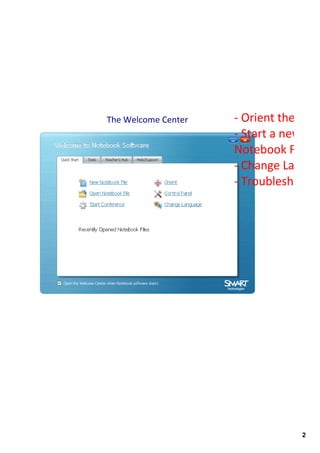
The Welcome Center   ‐ Orient the Boar
                     ‐ Start a new or s
                     Notebook File
                     ‐ Change Languag
                     ‐ Troubleshoot


                                  2
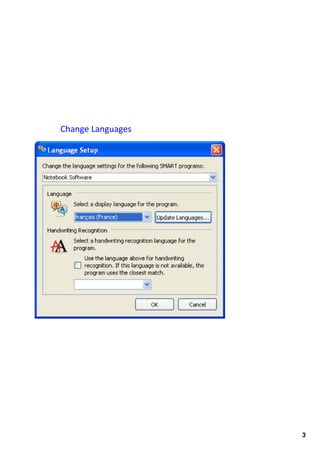
Change Languages


                   3
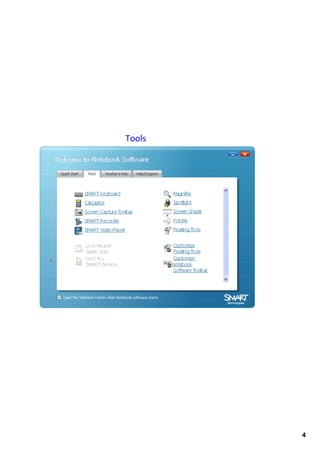
Tools


        4
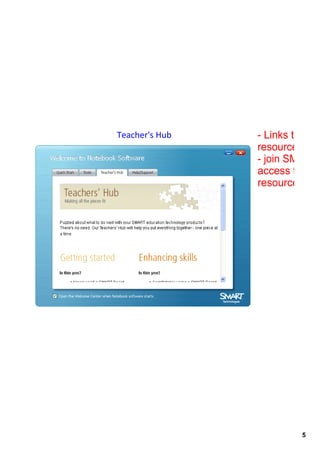
Teacher's Hub   ­ Links to onlin
                resources and
                ­ join SMART 
                access teache
                resources


                          5
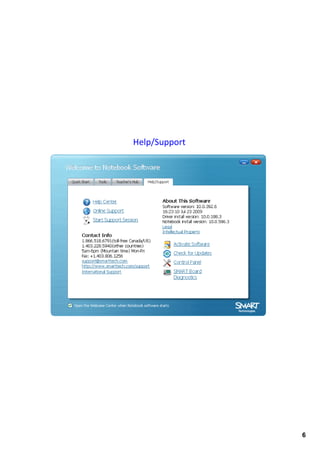
Help/Support


               6
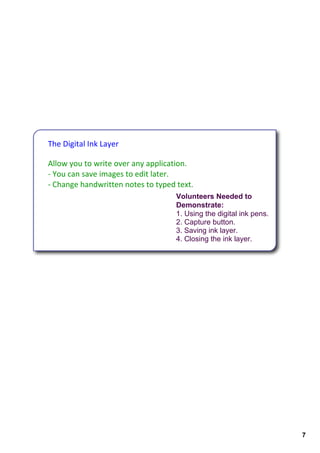
The Digital Ink Layer

Allow you to write over any application.
‐ You can save images to edit later. 
‐ Change handwritten notes to typed text.
                                    Volunteers Needed to 
                                    Demonstrate:
                                    1. Using the digital ink pens.
                                    2. Capture button.
                                    3. Saving ink layer. 
                                    4. Closing the ink layer.


                                                                     7
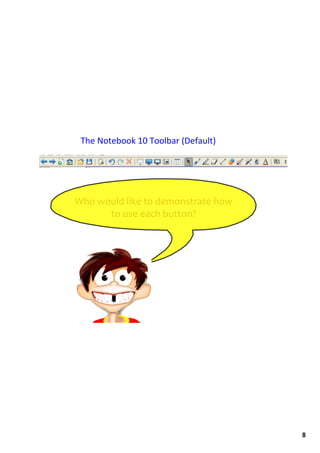
The Notebook 10 Toolbar (Default)


Who would like to demonstrate how 
      to use each button?


                                     8
Object Box ­          anything you select inside the work area is an object 
including writing, typed text, and clip art

To Access:
1. Click on object. 
2. Click on drop­down box in upper­right hand corner.
Or
1. Right­click over object with your mouse.


              Key Features:
              • clone ­ make a copy of an object, text, or picture by 
              right­clicking and selecting clone. 
              • infinite clone ­ make a copy of an object, text, or 
              picture so you can move it but it will always leave an 
              original behind. EXAMPLE: Useful for creating a word 
              bank where you want students to be able to use words as 
              many times as they like 
              • lock ­ lock objects in place to avoid movement
              • group ­ draw a box around objects to group them 
              together.
              • flip ­ mirror image in opposite direction
              • order ­ change layers of objects
              • link ­ link objects to webpages, pages in a file, and files 
              on the computer.
              • properties ­ change line, text, and color styles


                                                                               9
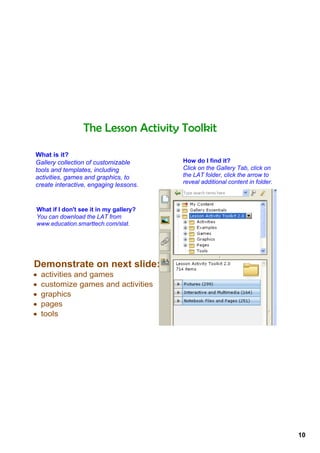
The Lesson Activity Toolkit

What is it?
Gallery collection of customizable      How do I find it?
tools and templates, including          Click on the Gallery Tab, click on 
activities, games and graphics, to      the LAT folder, click the arrow to 
create interactive, engaging lessons.   reveal additional content in folder.


What if I don't see it in my gallery?
You can download the LAT from 
www.education.smarttech.com/slat.


Demonstrate on next slide:
•   activities and games
•   customize games and activities
•   graphics
•   pages
•   tools


                                                                               10
11
12
Now it's your turn...
On several of the next pages you are 
going to perform many of the design 
techniques that can be used when 
creating lesson activities. 


                                        13
Setting up your page
1. Add a new page.
2. Change the background color
3. Add a title to your page while 
customizing your text.


                                     14
Add an image from the gallery to match this background. 


                                                           15
Draw a shape and fill it with a color or pattern.


                                                    16
Locking and Grouping ‐ Type text, draw an image, or drag an 
 object from gallery and lock multiple images in place. Then group 
your objects together. Try some of the object drop‐down features.


                                                                      17
Convert Writing to Text ‐ Write some words on the board, right‐
click on writing, and select from the list that appears to be correct 
                                word. 


                                                                         18
Cloning ‐ Select an object from the gallery or create one, right‐click 
 on object, and select infinite cloner from drop‐down menu. Clone 
                            mulitple times


                                                                          19
Link ‐ Create or select an object and link to external webpage.


                                                                  20
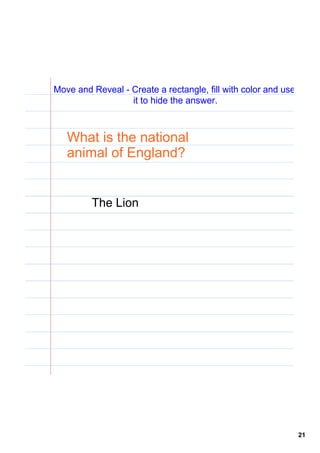
Move and Reveal ­ Create a rectangle, fill with color and use 
                  it to hide the answer.


   What is the national 
   animal of England?


         The Lion


                                                                 21
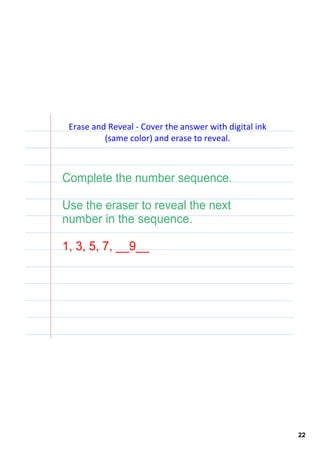
Erase and Reveal ‐ Cover the answer with digital ink 
          (same color) and erase to reveal.


Complete the number sequence.

Use the eraser to reveal the next 
number in the sequence.

1, 3, 5, 7, __9__


                                                         22
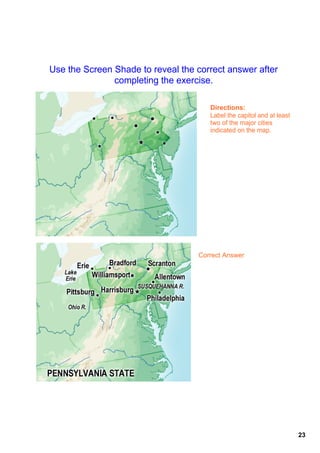
Use the Screen Shade to reveal the correct answer after 
               completing the exercise. 

                                       Directions:
                                       Label the capitol and at least 
                                       two of the major cities 
                                       indicated on the map.


                                    Correct Answer


                                                                         23
Capturing Information ‐ Using the Screen Capture tool, find an 
         image on the web and paste it to this slide.


                                                                  24
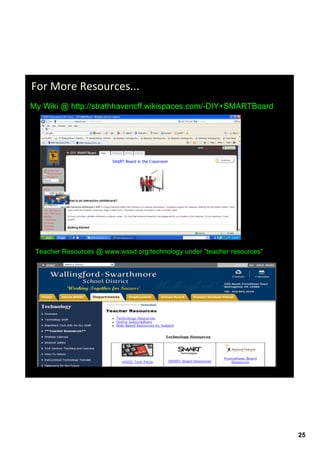
For More Resources...
My Wiki @ http://strathhavencff.wikispaces.com/­DIY+SMARTBoard


 Teacher Resources @ www.wssd.org/technology under "teacher resources"


                                                                         25

Smart notebook presenation