
Summer Tech:
Manage your
Time with
Outlook/Calendar
Objectives
• How to get started with the calendar
• How create a meeting and set
meeting reminders
• How to check availability and
schedule a meeting in Classroom A or
Admin
• How to share your calendar and set
privacy
• How to publish your calendar to the
web
• How to create ToDO lists
• Tips for syncing your calendar to
Google calendar and using mobile
Some useful things to do
with the calendar:
• Set recurring events – birthdays,
bill payments, regular meetings -
-appear on the date every year.
• Set reminders for regular duties
like monthly statistics, end of
the year deadlines, etc.
• See when others are available
before you schedule a meeting.
• Schedule classroom and meeting
spaces within the libraries.
• Share your calendar.
Outlook Calendar
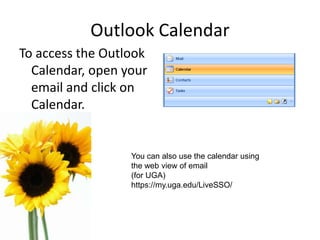
To access the Outlook
Calendar, open your
email and click on
Calendar.
You can also use the calendar using
the web view of email
(for UGA)
https://my.uga.edu/LiveSSO/
Calendar navigation
• Views: Day, week, month
• Details: low, medium, high
• Go to a particular day, see event
• Toolbar/Navigation: hide, popout
• Outlook today: Day at a glance
• Search calendar
Top menu toolbar
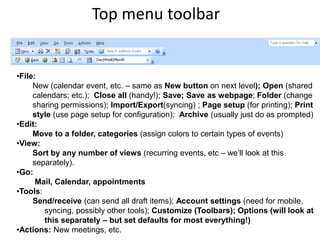
•File:
New (calendar event, etc. – same as New button on next level); Open (shared
calendars; etc.); Close all (handy!); Save; Save as webpage; Folder (change
sharing permissions); Import/Export(syncing) ; Page setup (for printing); Print
style (use page setup for configuration); Archive (usually just do as prompted)
•Edit:
Move to a folder, categories (assign colors to certain types of events)
•View:
Sort by any number of views (recurring events, etc – we’ll look at this
separately).
•Go:
Mail, Calendar, appointments
•Tools:
Send/receive (can send all draft items); Account settings (need for mobile,
syncing, possibly other tools); Customize (Toolbars); Options (will look at
this separately – but set defaults for most everything!)
•Actions: New meetings, etc.
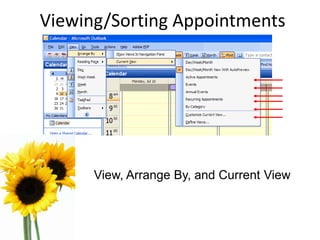
Viewing/Sorting Appointments
View, Arrange By, and Current View
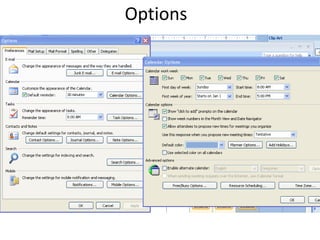
Options
Navigation toolbar
•Hide/popout navigation using
arrows
•Top menu
•Change display of calendar
•Schedule (New)
•Print calendar
•Cancel
•Set colors for events
•Search for contacts; search
calendar
•BOLD dates = scheduled
•Share calendars
•See shared calendars
•Publish out to the web
•Work with contacts, mail,
and tasks
Meetings vs. appointments – which to
use?
• Appointments:
– Generally do not involve other people, although you can invite
others
– Do not workspaces
• Meetings
– Can involve others ; responses will appear in your inbox
– Schedule a meeting room
– Has a scheduling assistant to help you see who is available
– Have a virtual workspace
• Events
– Typically last 24 hours or longer
The main difference is how much options you
need; meetings will guide you through the
process of setting up a meeting with others;
appointments will not; otherwise very similar
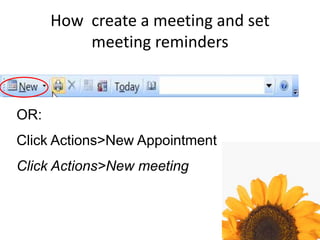
How create a meeting and set
meeting reminders
OR:
Click Actions>New Appointment
Click Actions>New meeting
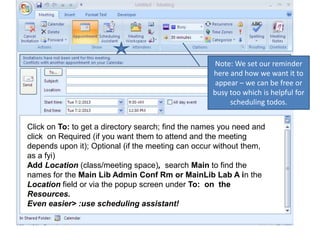
Click on To: to get a directory search; find the names you need and
click on Required (if you want them to attend and the meeting
depends upon it); Optional (if the meeting can occur without them,
as a fyi)
Add Location (class/meeting space), search Main to find the
names for the Main Lib Admin Conf Rm or MainLib Lab A in the
Location field or via the popup screen under To: on the
Resources.
Even easier> :use scheduling assistant!
Note: We set our reminder
here and how we want it to
appear – we can be free or
busy too which is helpful for
scheduling todos.
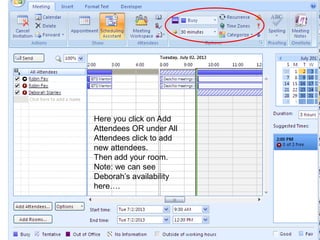
Here you click on Add
Attendees OR under All
Attendees click to add
new attendees.
Then add your room.
Note: we can see
Deborah’s availability
here….
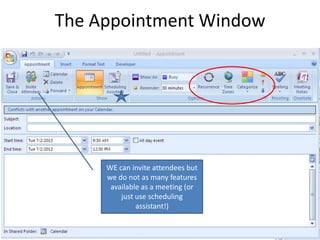
The Appointment Window
WE can invite attendees but
we do not as many features
available as a meeting (or
just use scheduling
assistant!)
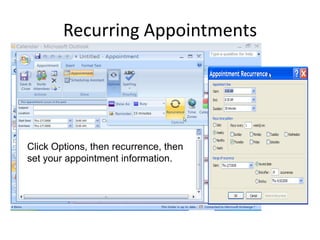
Recurring Appointments
Click Options, then recurrence, then
set your appointment information.
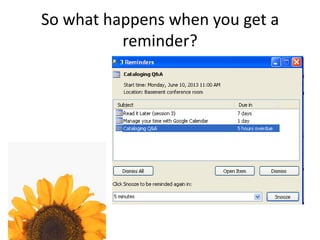
So what happens when you get a
reminder?
Practice
1. Create a new meeting called
Holiday meetup - for July 4.
Assign it to a category. Invite
me.
2. Navigate between the
calendar views to see how
the appointment is
displayed.
Checking availability
• How to check availability and schedule a
meeting in Classroom A or Admin
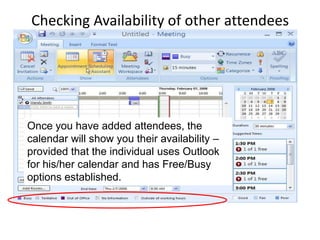
Checking Availability of other attendees
Once you have added attendees, the
calendar will show you their availability –
provided that the individual uses Outlook
for his/her calendar and has Free/Busy
options established.
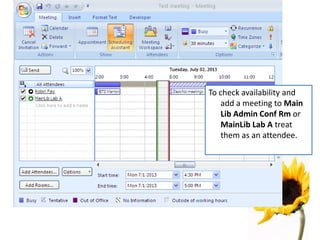
To check availability and
add a meeting to Main
Lib Admin Conf Rm or
MainLib Lab A treat
them as an attendee.
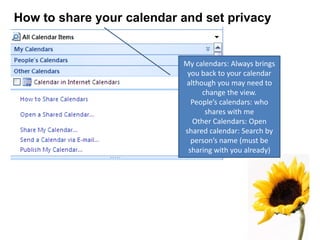
How to share your calendar and set privacy
My calendars: Always brings
you back to your calendar
although you may need to
change the view.
People’s calendars: who
shares with me
Other Calendars: Open
shared calendar: Search by
person’s name (must be
sharing with you already)
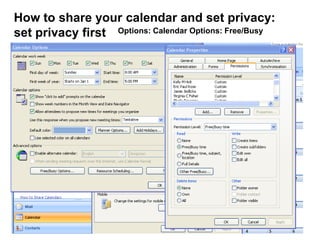
How to share your calendar and set privacy:
set privacy first Options: Calendar Options: Free/Busy
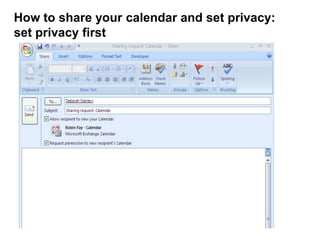
How to share your calendar and set privacy:
set privacy first
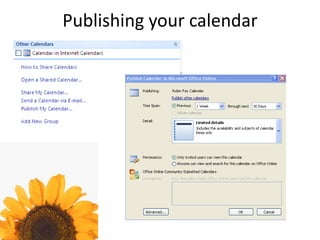
Publishing your calendar
Mobile & Sync with Google Calendar
Instructions are here for android:
http://wiki.eits.uga.edu/help/index.php/Setting_Up_an_Android_Device_for_UGAMail
Instructions are here for Iphone:
http://wiki.eits.uga.edu/help/index.php/Setting_Up_iPhone_4_for_UGAMail
Sync with Google Calendar
•You will need Microsoft
Exchange if you do not have it
(System support request)
•For the purposes of setting up
sync with Google, outlook is
email even if you only sync your
calendar
•Info here about Google Sync
•http://support.google.com/a/bin/
answer.py?hl=en&answer=2716
936
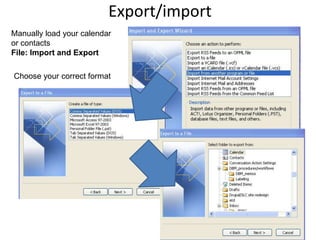
Export/import
Manually load your calendar
or contacts
File: Import and Export
Choose your correct format
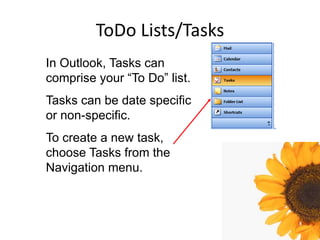
ToDo Lists/Tasks
In Outlook, Tasks can
comprise your “To Do” list.
Tasks can be date specific
or non-specific.
To create a new task,
choose Tasks from the
Navigation menu.
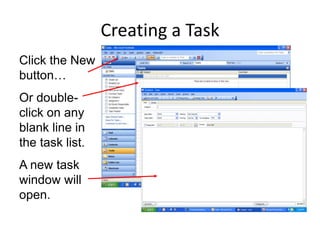
Creating a Task
Click the New
button…
Or double-
click on any
blank line in
the task list.
A new task
window will
open.
New Task
Let’s explore this screen.
You’ll find it similar to
appointments and other
Outlook functions.
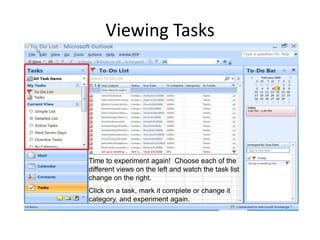
Viewing Tasks
Time to experiment again! Choose each of the
different views on the left and watch the task list
change on the right.
Click on a task, mark it complete or change it
category, and experiment again.
Practice & Help
Summer Tech:
Manage your
Time with
Outlook/Calendar

Getting started with outlook calendar

  • 1.
    Summer Tech: Manage your Timewith Outlook/Calendar
  • 2.
    Objectives • How toget started with the calendar • How create a meeting and set meeting reminders • How to check availability and schedule a meeting in Classroom A or Admin • How to share your calendar and set privacy • How to publish your calendar to the web • How to create ToDO lists • Tips for syncing your calendar to Google calendar and using mobile
  • 3.
    Some useful thingsto do with the calendar: • Set recurring events – birthdays, bill payments, regular meetings - -appear on the date every year. • Set reminders for regular duties like monthly statistics, end of the year deadlines, etc. • See when others are available before you schedule a meeting. • Schedule classroom and meeting spaces within the libraries. • Share your calendar.
  • 4.
    Outlook Calendar To accessthe Outlook Calendar, open your email and click on Calendar. You can also use the calendar using the web view of email (for UGA) https://my.uga.edu/LiveSSO/
  • 5.
    Calendar navigation • Views:Day, week, month • Details: low, medium, high • Go to a particular day, see event • Toolbar/Navigation: hide, popout • Outlook today: Day at a glance • Search calendar
  • 6.
    Top menu toolbar •File: New(calendar event, etc. – same as New button on next level); Open (shared calendars; etc.); Close all (handy!); Save; Save as webpage; Folder (change sharing permissions); Import/Export(syncing) ; Page setup (for printing); Print style (use page setup for configuration); Archive (usually just do as prompted) •Edit: Move to a folder, categories (assign colors to certain types of events) •View: Sort by any number of views (recurring events, etc – we’ll look at this separately). •Go: Mail, Calendar, appointments •Tools: Send/receive (can send all draft items); Account settings (need for mobile, syncing, possibly other tools); Customize (Toolbars); Options (will look at this separately – but set defaults for most everything!) •Actions: New meetings, etc.
  • 7.
  • 8.
  • 9.
    Navigation toolbar •Hide/popout navigationusing arrows •Top menu •Change display of calendar •Schedule (New) •Print calendar •Cancel •Set colors for events •Search for contacts; search calendar •BOLD dates = scheduled •Share calendars •See shared calendars •Publish out to the web •Work with contacts, mail, and tasks
  • 10.
    Meetings vs. appointments– which to use? • Appointments: – Generally do not involve other people, although you can invite others – Do not workspaces • Meetings – Can involve others ; responses will appear in your inbox – Schedule a meeting room – Has a scheduling assistant to help you see who is available – Have a virtual workspace • Events – Typically last 24 hours or longer The main difference is how much options you need; meetings will guide you through the process of setting up a meeting with others; appointments will not; otherwise very similar
  • 11.
    How create ameeting and set meeting reminders OR: Click Actions>New Appointment Click Actions>New meeting
  • 12.
    Click on To:to get a directory search; find the names you need and click on Required (if you want them to attend and the meeting depends upon it); Optional (if the meeting can occur without them, as a fyi) Add Location (class/meeting space), search Main to find the names for the Main Lib Admin Conf Rm or MainLib Lab A in the Location field or via the popup screen under To: on the Resources. Even easier> :use scheduling assistant! Note: We set our reminder here and how we want it to appear – we can be free or busy too which is helpful for scheduling todos.
  • 13.
    Here you clickon Add Attendees OR under All Attendees click to add new attendees. Then add your room. Note: we can see Deborah’s availability here….
  • 14.
    The Appointment Window WEcan invite attendees but we do not as many features available as a meeting (or just use scheduling assistant!)
  • 15.
    Recurring Appointments Click Options,then recurrence, then set your appointment information.
  • 16.
    So what happenswhen you get a reminder?
  • 17.
    Practice 1. Create anew meeting called Holiday meetup - for July 4. Assign it to a category. Invite me. 2. Navigate between the calendar views to see how the appointment is displayed.
  • 18.
    Checking availability • Howto check availability and schedule a meeting in Classroom A or Admin
  • 19.
    Checking Availability ofother attendees Once you have added attendees, the calendar will show you their availability – provided that the individual uses Outlook for his/her calendar and has Free/Busy options established.
  • 20.
    To check availabilityand add a meeting to Main Lib Admin Conf Rm or MainLib Lab A treat them as an attendee.
  • 21.
    How to shareyour calendar and set privacy My calendars: Always brings you back to your calendar although you may need to change the view. People’s calendars: who shares with me Other Calendars: Open shared calendar: Search by person’s name (must be sharing with you already)
  • 22.
    How to shareyour calendar and set privacy: set privacy first Options: Calendar Options: Free/Busy
  • 23.
    How to shareyour calendar and set privacy: set privacy first
  • 24.
  • 25.
    Mobile & Syncwith Google Calendar Instructions are here for android: http://wiki.eits.uga.edu/help/index.php/Setting_Up_an_Android_Device_for_UGAMail Instructions are here for Iphone: http://wiki.eits.uga.edu/help/index.php/Setting_Up_iPhone_4_for_UGAMail Sync with Google Calendar •You will need Microsoft Exchange if you do not have it (System support request) •For the purposes of setting up sync with Google, outlook is email even if you only sync your calendar •Info here about Google Sync •http://support.google.com/a/bin/ answer.py?hl=en&answer=2716 936
  • 26.
    Export/import Manually load yourcalendar or contacts File: Import and Export Choose your correct format
  • 27.
    ToDo Lists/Tasks In Outlook,Tasks can comprise your “To Do” list. Tasks can be date specific or non-specific. To create a new task, choose Tasks from the Navigation menu.
  • 28.
    Creating a Task Clickthe New button… Or double- click on any blank line in the task list. A new task window will open.
  • 29.
    New Task Let’s explorethis screen. You’ll find it similar to appointments and other Outlook functions.
  • 30.
    Viewing Tasks Time toexperiment again! Choose each of the different views on the left and watch the task list change on the right. Click on a task, mark it complete or change it category, and experiment again.
  • 31.
  • 32.
    Summer Tech: Manage your Timewith Outlook/Calendar