Installing and Configuring a DHCP Server on Windows 2016
Complete Lab (V1.0)
Ahmed Abdelwahed
Microsoft Certified Trainer
Ahmed_abdulwahed@outlook.com
Installing and Configuring a DHCP Server on Windows 2016
http://www.mycertprofile.com/Profile/3992184764
Contents
Lab Objective.............................................................................................................................................................................3
Install DHCP role........................................................................................................................................................................3
DHCP Post Installation Configuration....................................................................................................................................6
DHCP Authorization...........................................................................................................................................................6
Configuring DHCP......................................................................................................................................................................9
Create and configure new scope...........................................................................................................................................9
Test DHCP functionality from Windows Client (Windows 10)............................................................................................14
How DHCP client obtain automatic IP address (DORA)...................................................................................................14
DHCP Scope Options ...............................................................................................................................................................15
Address leases.....................................................................................................................................................................15
DHCP Exclusion....................................................................................................................................................................15
DHCP Reservation................................................................................................................................................................16
DHCP Filter ..........................................................................................................................................................................18
Scope and Server options....................................................................................................................................................19
DHCP Classes .......................................................................................................................................................................21
Testing DHCP Class..............................................................................................................................................................26
DHCP Statistics ....................................................................................................................................................................27
DHCP Advanced Options .........................................................................................................................................................29
Integration with DNS...........................................................................................................................................................29
Conflict detection................................................................................................................................................................30
DHCP Maintenance .................................................................................................................................................................31
Installing and Configuring a DHCP Server on Windows 2016
http://www.mycertprofile.com/Profile/3992184764
Lab Objective
Dynamic Host Configuration Protocol (DHCP) automatically provide TCP/IP configuration including IP
address, subnet mask, DG, DNS server and other parameters. This lab provides the required knowledge
to install and manage the DHCP Server.
Install DHCP role
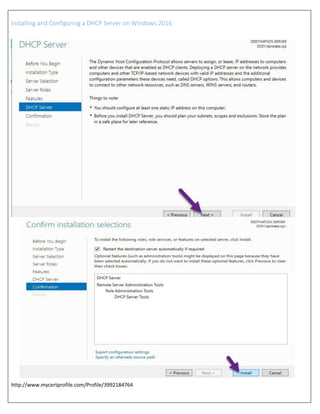
We can install DHCP server role through server manager then add roles or from the PowerShell, follow
all the instructions in the figures below:
- First option from PowerShell
- Second from Server Manager
Installing and Configuring a DHCP Server on Windows 2016
http://www.mycertprofile.com/Profile/3992184764
Installing and Configuring a DHCP Server on Windows 2016
http://www.mycertprofile.com/Profile/3992184764
Installing and Configuring a DHCP Server on Windows 2016
http://www.mycertprofile.com/Profile/3992184764
DHCP Post Installation Configuration
DHCP Authorization
Installing and Configuring a DHCP Server on Windows 2016
http://www.mycertprofile.com/Profile/3992184764
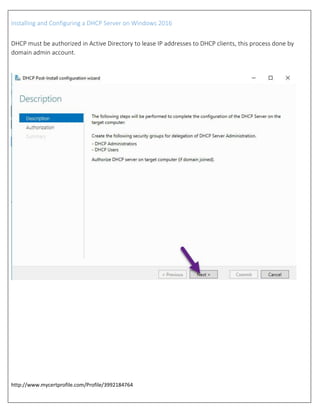
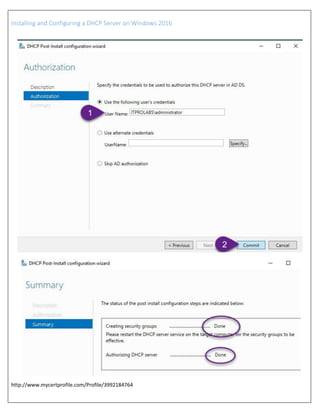
DHCP must be authorized in Active Directory to lease IP addresses to DHCP clients, this process done by
domain admin account.
Installing and Configuring a DHCP Server on Windows 2016
http://www.mycertprofile.com/Profile/3992184764
Installing and Configuring a DHCP Server on Windows 2016
http://www.mycertprofile.com/Profile/3992184764
Configuring DHCP
Create and configure new scope
DHCP scope, is a valid range of IP addresses that DHCP server lease to clients, to add and configure scope options follow
instructions as explained in the figures below. Run dhcpmgmt.msc to access DHCP wizard.
Note: you can change IP address range after scope created, but can’t ever change subnet mask.
Installing and Configuring a DHCP Server on Windows 2016
http://www.mycertprofile.com/Profile/3992184764
Exclusions, you can remove an IP address or range of IP addresses from the pool of addresses that
DHCP server leased, so you can assign it in static way.
By default, DHCP leases set to 8 days, you can increase or decrease it according your requirement.
Installing and Configuring a DHCP Server on Windows 2016
http://www.mycertprofile.com/Profile/3992184764
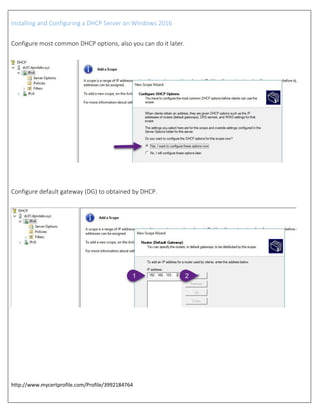
Configure most common DHCP options, also you can do it later.
Configure default gateway (DG) to obtained by DHCP.
Installing and Configuring a DHCP Server on Windows 2016
http://www.mycertprofile.com/Profile/3992184764
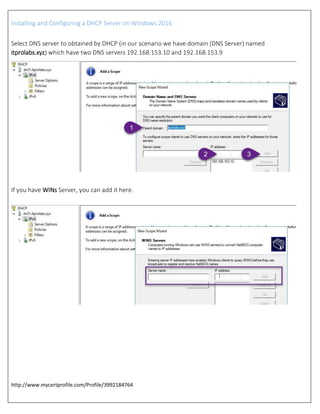
Select DNS server to obtained by DHCP (in our scenario we have domain (DNS Server) named
itprolabs.xyz) which have two DNS servers 192.168.153.10 and 192.168.153.9
If you have WINs Server, you can add it here.
Installing and Configuring a DHCP Server on Windows 2016
http://www.mycertprofile.com/Profile/3992184764
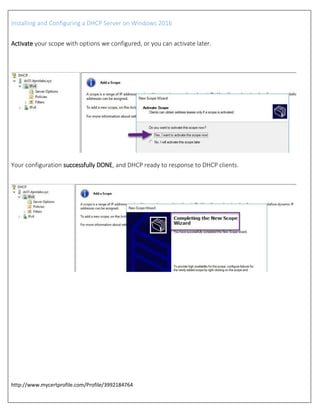
Activate your scope with options we configured, or you can activate later.
Your configuration successfully DONE, and DHCP ready to response to DHCP clients.
Installing and Configuring a DHCP Server on Windows 2016
http://www.mycertprofile.com/Profile/3992184764
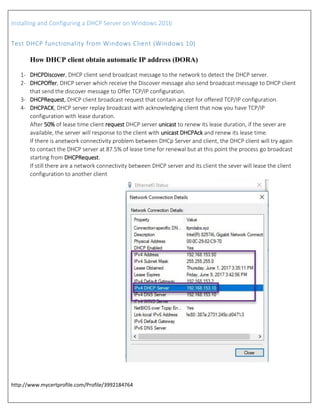
Test DHCP functionality from Windows Client (Windows 10)
How DHCP client obtain automatic IP address (DORA)
1- DHCPDiscover, DHCP client send broadcast message to the network to detect the DHCP server.
2- DHCPOffer, DHCP server which receive the Discover message also send broadcast message to DHCP client
that send the discover message to Offer TCP/IP configuration.
3- DHCPRequest, DHCP client broadcast request that contain accept for offered TCP/IP configuration.
4- DHCPACK, DHCP server replay broadcast with acknowledging client that now you have TCP/IP
configuration with lease duration.
After 50% of lease time client request DHCP server unicast to renew its lease duration, if the sever are
available, the server will response to the client with unicast DHCPAck and renew its lease time.
If there is anetwork connectivity problem between DHCp Server and client, the DHCP client will try again
to contact the DHCP server at 87.5% of lease time for renewal but at this point the process go broadcast
starting from DHCPRequest.
If still there are a network connectivity between DHCP server and its client the sever will lease the client
configuration to another client
Installing and Configuring a DHCP Server on Windows 2016
http://www.mycertprofile.com/Profile/3992184764
DHCP Scope Options
Address leases
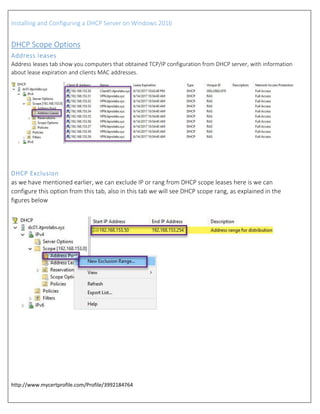
Address leases tab show you computers that obtained TCP/IP configuration from DHCP server, with information
about lease expiration and clients MAC addresses.
DHCP Exclusion
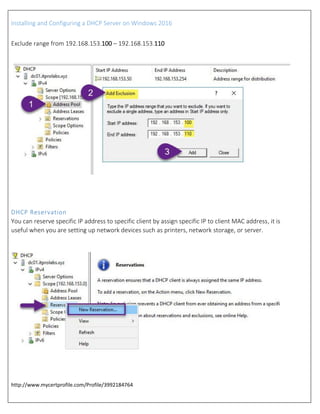
as we have mentioned earlier, we can exclude IP or rang from DHCP scope leases here is we can
configure this option from this tab, also in this tab we will see DHCP scope rang, as explained in the
figures below
Installing and Configuring a DHCP Server on Windows 2016
http://www.mycertprofile.com/Profile/3992184764
Exclude range from 192.168.153.100 – 192.168.153.110
DHCP Reservation
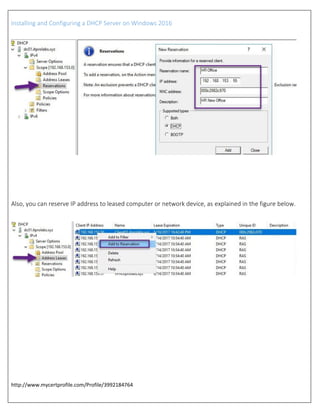
You can reserve specific IP address to specific client by assign specific IP to client MAC address, it is
useful when you are setting up network devices such as printers, network storage, or server.
Installing and Configuring a DHCP Server on Windows 2016
http://www.mycertprofile.com/Profile/3992184764
Also, you can reserve IP address to leased computer or network device, as explained in the figure below.
Installing and Configuring a DHCP Server on Windows 2016
http://www.mycertprofile.com/Profile/3992184764
DHCP Filter
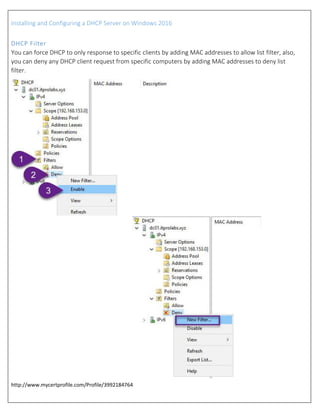
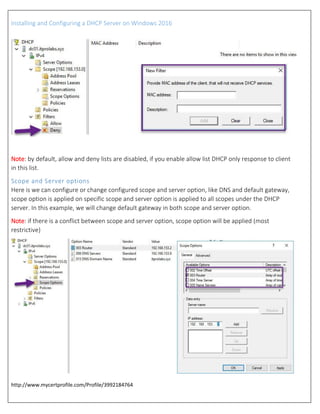
You can force DHCP to only response to specific clients by adding MAC addresses to allow list filter, also,
you can deny any DHCP client request from specific computers by adding MAC addresses to deny list
filter.
Installing and Configuring a DHCP Server on Windows 2016
http://www.mycertprofile.com/Profile/3992184764
Note: by default, allow and deny lists are disabled, if you enable allow list DHCP only response to client
in this list.
Scope and Server options
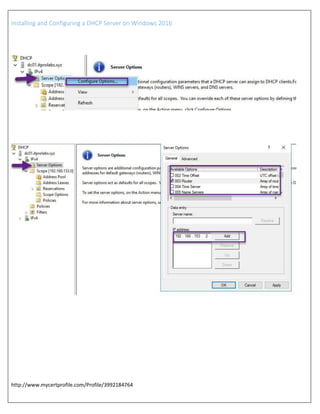
Here is we can configure or change configured scope and server option, like DNS and default gateway,
scope option is applied on specific scope and server option is applied to all scopes under the DHCP
server. In this example, we will change default gateway in both scope and server option.
Note: if there is a conflict between scope and server option, scope option will be applied (most
restrictive)
Installing and Configuring a DHCP Server on Windows 2016
http://www.mycertprofile.com/Profile/3992184764
Installing and Configuring a DHCP Server on Windows 2016
http://www.mycertprofile.com/Profile/3992184764
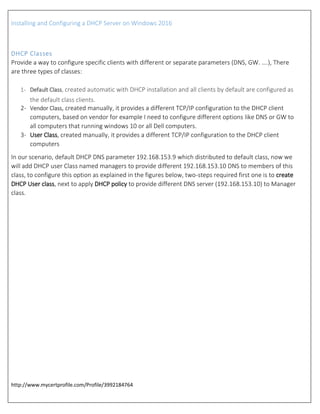
DHCP Classes
Provide a way to configure specific clients with different or separate parameters (DNS, GW. ….), There
are three types of classes:
1- Default Class, created automatic with DHCP installation and all clients by default are configured as
the default class clients.
2- Vendor Class, created manually, it provides a different TCP/IP configuration to the DHCP client
computers, based on vendor for example I need to configure different options like DNS or GW to
all computers that running windows 10 or all Dell computers.
3- User Class, created manually, it provides a different TCP/IP configuration to the DHCP client
computers
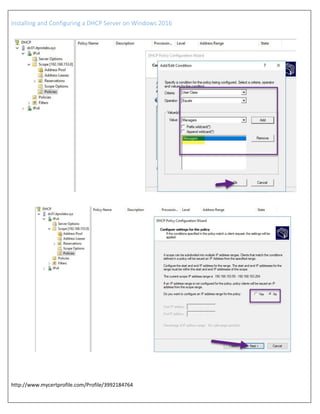
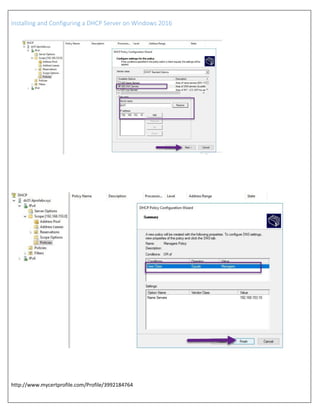
In our scenario, default DHCP DNS parameter 192.168.153.9 which distributed to default class, now we
will add DHCP user Class named managers to provide different 192.168.153.10 DNS to members of this
class, to configure this option as explained in the figures below, two-steps required first one is to create
DHCP User class, next to apply DHCP policy to provide different DNS server (192.168.153.10) to Manager
class.
Installing and Configuring a DHCP Server on Windows 2016
http://www.mycertprofile.com/Profile/3992184764
Installing and Configuring a DHCP Server on Windows 2016
http://www.mycertprofile.com/Profile/3992184764
Installing and Configuring a DHCP Server on Windows 2016
http://www.mycertprofile.com/Profile/3992184764
Installing and Configuring a DHCP Server on Windows 2016
http://www.mycertprofile.com/Profile/3992184764
Installing and Configuring a DHCP Server on Windows 2016
http://www.mycertprofile.com/Profile/3992184764
Testing DHCP Class
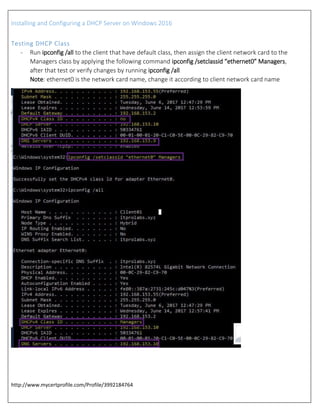
- Run ipconfig /all to the client that have default class, then assign the client network card to the
Managers class by applying the following command ipconfig /setclassid “ethernet0” Managers,
after that test or verify changes by running ipconfig /all
Note: ethernet0 is the network card name, change it according to client network card name
Installing and Configuring a DHCP Server on Windows 2016
http://www.mycertprofile.com/Profile/3992184764
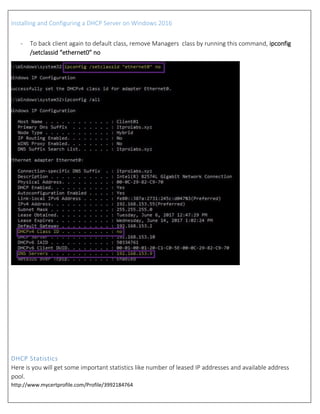
- To back client again to default class, remove Managers class by running this command, ipconfig
/setclassid “ethernet0” no
DHCP Statistics
Here is you will get some important statistics like number of leased IP addresses and available address
pool.
Installing and Configuring a DHCP Server on Windows 2016
http://www.mycertprofile.com/Profile/3992184764
Installing and Configuring a DHCP Server on Windows 2016
http://www.mycertprofile.com/Profile/3992184764
DHCP Advanced Options
Integration with DNS
When the client obtains IP address from the DHCP server there is an option to allow DHCP to add A DNS
record for this client in DNS server.
Installing and Configuring a DHCP Server on Windows 2016
http://www.mycertprofile.com/Profile/3992184764
Conflict detection
There is an option to allow DHCP server to trying to detect IP address conflict before it leased to client
Installing and Configuring a DHCP Server on Windows 2016
http://www.mycertprofile.com/Profile/3992184764
DHCP Maintenance
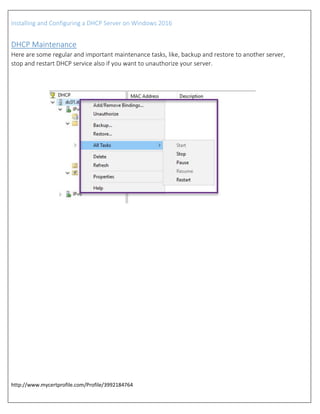
Here are some regular and important maintenance tasks, like, backup and restore to another server,
stop and restart DHCP service also if you want to unauthorize your server.

Installing and configuring a dhcp on windows server 2016 step by step

  • 1.
    Installing and Configuringa DHCP Server on Windows 2016 Complete Lab (V1.0) Ahmed Abdelwahed Microsoft Certified Trainer Ahmed_abdulwahed@outlook.com
  • 2.
    Installing and Configuringa DHCP Server on Windows 2016 http://www.mycertprofile.com/Profile/3992184764 Contents Lab Objective.............................................................................................................................................................................3 Install DHCP role........................................................................................................................................................................3 DHCP Post Installation Configuration....................................................................................................................................6 DHCP Authorization...........................................................................................................................................................6 Configuring DHCP......................................................................................................................................................................9 Create and configure new scope...........................................................................................................................................9 Test DHCP functionality from Windows Client (Windows 10)............................................................................................14 How DHCP client obtain automatic IP address (DORA)...................................................................................................14 DHCP Scope Options ...............................................................................................................................................................15 Address leases.....................................................................................................................................................................15 DHCP Exclusion....................................................................................................................................................................15 DHCP Reservation................................................................................................................................................................16 DHCP Filter ..........................................................................................................................................................................18 Scope and Server options....................................................................................................................................................19 DHCP Classes .......................................................................................................................................................................21 Testing DHCP Class..............................................................................................................................................................26 DHCP Statistics ....................................................................................................................................................................27 DHCP Advanced Options .........................................................................................................................................................29 Integration with DNS...........................................................................................................................................................29 Conflict detection................................................................................................................................................................30 DHCP Maintenance .................................................................................................................................................................31
  • 3.
    Installing and Configuringa DHCP Server on Windows 2016 http://www.mycertprofile.com/Profile/3992184764 Lab Objective Dynamic Host Configuration Protocol (DHCP) automatically provide TCP/IP configuration including IP address, subnet mask, DG, DNS server and other parameters. This lab provides the required knowledge to install and manage the DHCP Server. Install DHCP role We can install DHCP server role through server manager then add roles or from the PowerShell, follow all the instructions in the figures below: - First option from PowerShell - Second from Server Manager
  • 4.
    Installing and Configuringa DHCP Server on Windows 2016 http://www.mycertprofile.com/Profile/3992184764
  • 5.
    Installing and Configuringa DHCP Server on Windows 2016 http://www.mycertprofile.com/Profile/3992184764
  • 6.
    Installing and Configuringa DHCP Server on Windows 2016 http://www.mycertprofile.com/Profile/3992184764 DHCP Post Installation Configuration DHCP Authorization
  • 7.
    Installing and Configuringa DHCP Server on Windows 2016 http://www.mycertprofile.com/Profile/3992184764 DHCP must be authorized in Active Directory to lease IP addresses to DHCP clients, this process done by domain admin account.
  • 8.
    Installing and Configuringa DHCP Server on Windows 2016 http://www.mycertprofile.com/Profile/3992184764
  • 9.
    Installing and Configuringa DHCP Server on Windows 2016 http://www.mycertprofile.com/Profile/3992184764 Configuring DHCP Create and configure new scope DHCP scope, is a valid range of IP addresses that DHCP server lease to clients, to add and configure scope options follow instructions as explained in the figures below. Run dhcpmgmt.msc to access DHCP wizard. Note: you can change IP address range after scope created, but can’t ever change subnet mask.
  • 10.
    Installing and Configuringa DHCP Server on Windows 2016 http://www.mycertprofile.com/Profile/3992184764 Exclusions, you can remove an IP address or range of IP addresses from the pool of addresses that DHCP server leased, so you can assign it in static way. By default, DHCP leases set to 8 days, you can increase or decrease it according your requirement.
  • 11.
    Installing and Configuringa DHCP Server on Windows 2016 http://www.mycertprofile.com/Profile/3992184764 Configure most common DHCP options, also you can do it later. Configure default gateway (DG) to obtained by DHCP.
  • 12.
    Installing and Configuringa DHCP Server on Windows 2016 http://www.mycertprofile.com/Profile/3992184764 Select DNS server to obtained by DHCP (in our scenario we have domain (DNS Server) named itprolabs.xyz) which have two DNS servers 192.168.153.10 and 192.168.153.9 If you have WINs Server, you can add it here.
  • 13.
    Installing and Configuringa DHCP Server on Windows 2016 http://www.mycertprofile.com/Profile/3992184764 Activate your scope with options we configured, or you can activate later. Your configuration successfully DONE, and DHCP ready to response to DHCP clients.
  • 14.
    Installing and Configuringa DHCP Server on Windows 2016 http://www.mycertprofile.com/Profile/3992184764 Test DHCP functionality from Windows Client (Windows 10) How DHCP client obtain automatic IP address (DORA) 1- DHCPDiscover, DHCP client send broadcast message to the network to detect the DHCP server. 2- DHCPOffer, DHCP server which receive the Discover message also send broadcast message to DHCP client that send the discover message to Offer TCP/IP configuration. 3- DHCPRequest, DHCP client broadcast request that contain accept for offered TCP/IP configuration. 4- DHCPACK, DHCP server replay broadcast with acknowledging client that now you have TCP/IP configuration with lease duration. After 50% of lease time client request DHCP server unicast to renew its lease duration, if the sever are available, the server will response to the client with unicast DHCPAck and renew its lease time. If there is anetwork connectivity problem between DHCp Server and client, the DHCP client will try again to contact the DHCP server at 87.5% of lease time for renewal but at this point the process go broadcast starting from DHCPRequest. If still there are a network connectivity between DHCP server and its client the sever will lease the client configuration to another client
  • 15.
    Installing and Configuringa DHCP Server on Windows 2016 http://www.mycertprofile.com/Profile/3992184764 DHCP Scope Options Address leases Address leases tab show you computers that obtained TCP/IP configuration from DHCP server, with information about lease expiration and clients MAC addresses. DHCP Exclusion as we have mentioned earlier, we can exclude IP or rang from DHCP scope leases here is we can configure this option from this tab, also in this tab we will see DHCP scope rang, as explained in the figures below
  • 16.
    Installing and Configuringa DHCP Server on Windows 2016 http://www.mycertprofile.com/Profile/3992184764 Exclude range from 192.168.153.100 – 192.168.153.110 DHCP Reservation You can reserve specific IP address to specific client by assign specific IP to client MAC address, it is useful when you are setting up network devices such as printers, network storage, or server.
  • 17.
    Installing and Configuringa DHCP Server on Windows 2016 http://www.mycertprofile.com/Profile/3992184764 Also, you can reserve IP address to leased computer or network device, as explained in the figure below.
  • 18.
    Installing and Configuringa DHCP Server on Windows 2016 http://www.mycertprofile.com/Profile/3992184764 DHCP Filter You can force DHCP to only response to specific clients by adding MAC addresses to allow list filter, also, you can deny any DHCP client request from specific computers by adding MAC addresses to deny list filter.
  • 19.
    Installing and Configuringa DHCP Server on Windows 2016 http://www.mycertprofile.com/Profile/3992184764 Note: by default, allow and deny lists are disabled, if you enable allow list DHCP only response to client in this list. Scope and Server options Here is we can configure or change configured scope and server option, like DNS and default gateway, scope option is applied on specific scope and server option is applied to all scopes under the DHCP server. In this example, we will change default gateway in both scope and server option. Note: if there is a conflict between scope and server option, scope option will be applied (most restrictive)
  • 20.
    Installing and Configuringa DHCP Server on Windows 2016 http://www.mycertprofile.com/Profile/3992184764
  • 21.
    Installing and Configuringa DHCP Server on Windows 2016 http://www.mycertprofile.com/Profile/3992184764 DHCP Classes Provide a way to configure specific clients with different or separate parameters (DNS, GW. ….), There are three types of classes: 1- Default Class, created automatic with DHCP installation and all clients by default are configured as the default class clients. 2- Vendor Class, created manually, it provides a different TCP/IP configuration to the DHCP client computers, based on vendor for example I need to configure different options like DNS or GW to all computers that running windows 10 or all Dell computers. 3- User Class, created manually, it provides a different TCP/IP configuration to the DHCP client computers In our scenario, default DHCP DNS parameter 192.168.153.9 which distributed to default class, now we will add DHCP user Class named managers to provide different 192.168.153.10 DNS to members of this class, to configure this option as explained in the figures below, two-steps required first one is to create DHCP User class, next to apply DHCP policy to provide different DNS server (192.168.153.10) to Manager class.
  • 22.
    Installing and Configuringa DHCP Server on Windows 2016 http://www.mycertprofile.com/Profile/3992184764
  • 23.
    Installing and Configuringa DHCP Server on Windows 2016 http://www.mycertprofile.com/Profile/3992184764
  • 24.
    Installing and Configuringa DHCP Server on Windows 2016 http://www.mycertprofile.com/Profile/3992184764
  • 25.
    Installing and Configuringa DHCP Server on Windows 2016 http://www.mycertprofile.com/Profile/3992184764
  • 26.
    Installing and Configuringa DHCP Server on Windows 2016 http://www.mycertprofile.com/Profile/3992184764 Testing DHCP Class - Run ipconfig /all to the client that have default class, then assign the client network card to the Managers class by applying the following command ipconfig /setclassid “ethernet0” Managers, after that test or verify changes by running ipconfig /all Note: ethernet0 is the network card name, change it according to client network card name
  • 27.
    Installing and Configuringa DHCP Server on Windows 2016 http://www.mycertprofile.com/Profile/3992184764 - To back client again to default class, remove Managers class by running this command, ipconfig /setclassid “ethernet0” no DHCP Statistics Here is you will get some important statistics like number of leased IP addresses and available address pool.
  • 28.
    Installing and Configuringa DHCP Server on Windows 2016 http://www.mycertprofile.com/Profile/3992184764
  • 29.
    Installing and Configuringa DHCP Server on Windows 2016 http://www.mycertprofile.com/Profile/3992184764 DHCP Advanced Options Integration with DNS When the client obtains IP address from the DHCP server there is an option to allow DHCP to add A DNS record for this client in DNS server.
  • 30.
    Installing and Configuringa DHCP Server on Windows 2016 http://www.mycertprofile.com/Profile/3992184764 Conflict detection There is an option to allow DHCP server to trying to detect IP address conflict before it leased to client
  • 31.
    Installing and Configuringa DHCP Server on Windows 2016 http://www.mycertprofile.com/Profile/3992184764 DHCP Maintenance Here are some regular and important maintenance tasks, like, backup and restore to another server, stop and restart DHCP service also if you want to unauthorize your server.