INFORMATICA POWERCENTER/ POWERMART DESIGNER
DESIGNER WORKSPACE Designer Windows are: Navigator Workspace Status bar Output Instance Data Target Data
DESIGNER TOOLS Source Analyzer - To import or create source definitions for flat file, XML, Cobol, ERP, and relational sources Warehouse Designer - To import or create target definitions Transformation Developer - To create reusable transformations Mapplet Designer - To create mapplets Mapping Designer - To create mappings
SOURCE ANALYZER The following types of source definitions can be imported or created or modified in the Source Analyzer:  Relational Sources – Tables, Views, Synonyms Files – Fixed-Width or Delimited Flat Files, COBOL Files  Microsoft Excel Sources XML Sources – XML Files, DTD Files, XML Schema Files Data models using MX Data Model PowerPlug SAP R/3, SAP BW, Siebel, IBM MQ Series by using PowerConnect
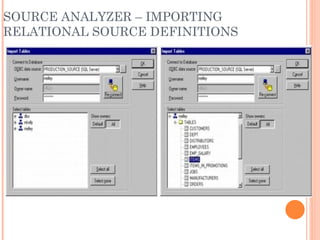
SOURCE ANALYZER – IMPORTING RELATIONAL SOURCE DEFINITIONS Can import relational source definitions from database tables, views, and synonyms When you import a source definition, you import the following source metadata:  Source name  Database location  Column names  Data types  Key constraints
SOURCE ANALYZER – IMPORTING RELATIONAL SOURCE DEFINITIONS
SOURCE ANALYZER – FLAT FILE SOURCES When you create a flat file source definition, you must define the properties of the file The Source Analyzer provides a Flat File Wizard to prompt you for the following file properties:  File name and location  File type  Column names and data types  Column size and null characters for fixed-width files  Delimiter type, quote character, and escape character for delimited files
SOURCE ANALYZER – FLAT FILE SOURCES Delimited flat files features: They are always character oriented and line sequential The column precision is always measured in characters, and each row ends with a newline character Fixed width flat files features: They are byte-oriented, which means that the field lengths are measured in bytes They can also be line sequential, which means each row ends with a newline character
SOURCE ANALYZER – FLAT FILE SOURCES You can edit the following flat file properties in the Source Analyzer:  Table name, business purpose, owner, and description  File type  Delimiter type, quote character, and escape character for delimited files  Column names and datatypes  Comments
WAREHOUSE DESIGNER Can create target definitions in the Warehouse Designer for file and relational sources Can Create definitions in the following ways:  Import the definition for an existing target - Import the target definition from a relational target Create a target definition based on a source definition: Relational source definition  Flat file source definition  COBOL source definition  Manually create a target definition
WAREHOUSE DESIGNER In addition to creating target definitions, you can perform the following tasks in the Warehouse Designer:  Edit target definitions - When you change target definitions, the Designer propagates the changes to any mapping using that target Create relational tables in the target database - If the target tables do not exist in the target database, you can generate and execute the necessary SQL code to create the target table Preview relational target data - You can preview the data of relational target definitions in the Designer
WAREHOUSE DESIGNER – CREATE/EDIT TARGET DEFINITIONS
WAREHOUSE DESIGNER When you import a target definition, the Designer imports the following target details:  Target name  Database location Column names  Datatypes  Key constraints  Key Relationships
TRANSFORMATIONS A transformation is a repository object that generates, modifies, or passes data Transformations can be active or passive An active transformation can change the number of rows that pass through it A passive transformation does not change the number of rows that pass through it Transformations can be connected to the data flow, or they can be unconnected
TRANSFORMATIONS Transformation Types: Advanced External Procedure - Calls a procedure in a shared library or in the COM layer of Windows NT Aggregator - Performs aggregate calculations ERP Source Qualifier - Represents the rows that the Informatica Server reads from an ERP source when it runs a session Expression - Calculates a value External Procedure - Calls a procedure in a shared library or in the COM layer of Windows NT
TRANSFORMATIONS Transformation Types Continued… Filter - Filters records Input - Defines mapplet input rows. Available only in the Mapplet Designer Joiner - Joins records from different databases or flat file systems Lookup - Looks up values Normalizer - Normalizes records, including those read from COBOL sources
TRANSFORMATIONS Transformation Types Continued… Output - Defines mapplet output rows. Available only in the Mapplet Designer Rank - Limits records to a top or bottom range Router - Routes data into multiple transformations based on a group expression Sequence Generator - Generates primary keys Source Qualifier - Represents the rows that the Informatica Server reads from a relational or flat file source when it runs a session
TRANSFORMATIONS Transformation Types Continued… Stored Procedure - Calls a stored procedure Update Strategy - Determines whether to insert, delete, update, or reject records XML Source Qualifier - Represents the rows that the Informatica Server reads from an XML source when it runs a session
TRANSFORMATIONS – PORT DEFAULT VALUES Can specify a default value for a transformation port with which Nulls and errors will be overwritten Without Intervention: Input ports - Null values are passed without changes Output ports - Transformation errors are rejected, sending input rows to session log With Intervention: Input ports - Null values will be changed as specified Output ports - Upon transformation error, the specified default value will be used
AGGREGATOR TRANSFORMATION  Performs aggregate calculations Components of the Aggregator Transformation  Aggregate expression Group by port Sorted Input option Aggregate cache The Aggregator is an active and connected transformation
AGGREGATOR TRANSFORMATION To configure ports in the Aggregator transformation you can:  Enter an aggregate expression in any output port, using conditional clauses or non-aggregate functions in the port  Create multiple aggregate output ports Configure any input, input/output, output, or variable port as a Group By port, and use non-aggregate expressions in the port
AGGREGATOR TRANSFORMATION The following aggregate functions can be used within an Aggregator transformation: AVG, COUNT, FIRST, LAST, MAX , MEDIAN  MIN, PERCENTILE, STDDEV, SUM, VARIANCE
EXPRESSION TRANSFORMATION Can use the Expression transformation to  perform any non-aggregate calculations Calculate values in a single row test conditional statements before you output the results to target tables or other transformations Ports that must be included in an Expression Transformation: Input or input/output ports for each value used in the calculation Output port for the expression
EXPRESSION TRANSFORMATION can create any number of output ports in the transformation
FILTER TRANSFORMATION All ports in a Filter transformation are input/output Only rows that meet the condition pass through it Does not allow setting output default values
JOINER TRANSFORMATION Joins two related heterogeneous sources residing in different locations or file systems Can be used to join Two relational tables existing in separate databases  Two flat files in potentially different file systems  Two instances of the same XML source  A relational table and a flat file source  A relational table and an XML source
JOINER TRANSFORMATION Use the Joiner transformation to join two sources with at least one matching port It uses a condition that matches one or more pairs of ports between the two sources Requires two input transformations from two separate data flows It supports the following join types Normal (Default)  Master Outer  Detail Outer  Full Outer
JOINER TRANSFORMATION It can not be used in the following situations:  Both input pipelines originate from the same Source Qualifier transformation Both input pipelines originate from the same Normalizer transformation  Both input pipelines originate from the same Joiner transformation  Either input pipelines contains an Update Strategy transformation Either input pipelines contains a Sequence Generator transformation
LOOKUP TRANSFORMATION Used to look up data in a relational table, view, or synonym It compares Lookup transformation port values to lookup table column values based on the lookup condition Can use the Lookup transformation to perform many tasks, including:  Get a related value Update slowly changing dimension tables
LOOKUP TRANSFORMATION Can configure the transformation to be connected or unconnected, cached or uncached Cached or uncached Lookups: Sometimes you can improve session performance by caching the lookup table If you cache the lookup table, you can choose to use a dynamic or static cache By default, the lookup cache remains static and does not change during the session With a dynamic cache, the Informatica Server inserts rows into the cache during the session This enables you to look up values in the target and insert them if they do not exist
LOOKUP TRANSFORMATION Some of the Lookup Transformation Properties: Lookup SQL Override  Lookup Table Name  Lookup Caching Enabled  Lookup Condition Location Information
LOOKUP TRANSFORMATION You might want to configure the transformation to use a dynamic cache when the target table is also the lookup table. When you use a dynamic cache, the Informatica Server inserts rows into the cache as it passes rows to the target.
LOOKUP TRANSFORMATION Connected Lookup Transformation Receives input values directly from another transformation in the pipeline For each input row, the Informatica Server queries the lookup table or cache based on the lookup ports and the condition in the transformation If the transformation is uncached or uses a static cache, the Informatica Server returns values from the lookup query Passes return values from the query to the next transformation
LOOKUP TRANSFORMATION Unconnected Lookup Transformation exists separate from the pipeline in the mapping You write an expression using the :LKP reference qualifier to call the lookup within another transformation Some common uses for unconnected lookups include:  Testing the results of a lookup in an expression  Filtering records based on the lookup results  Marking records for update based on the result of a lookup (for example, updating slowly changing dimension tables)  Calling the same lookup multiple times in one mapping
LOOKUP TRANSFORMATION With unconnected Lookups, you can pass multiple input values into the transformation, but only one column of data out of the transformation Use the return port to specify the return value in an unconnected lookup transformation
RANK TRANSFORMATION Allows to select only the top or bottom rank of data, not just one value Can use it to return  the largest or smallest numeric value in a port or group the strings at the top or the bottom of a session sort order During the session, the Informatica Server caches input data until it can perform the rank calculations Can select only one port to define a rank
RANK TRANSFORMATION When you create a Rank transformation, you can configure the following properties:  Enter a cache directory Select the top or bottom rank Select the input/output port that contains values used to determine the rank. You can select only one port to define a rank Select the number of rows falling within a rank Define groups for ranks
RANK TRANSFORMATION Rank Transformation Ports: Variable port - Can use to store values or calculations to use in an expression Rank port - Use to designate the column for which you want to rank values
ROUTER TRANSFORMATION It  is similar to a Filter transformation  A Filter transformation tests data for one condition and drops the rows of data that do not meet the condition A Router transformation tests data for one or more conditions and gives you the option to route rows of data that do not meet any of the conditions to a default output group If you need to test the same input data based on multiple conditions, use a Router Transformation in a mapping instead of creating multiple Filter transformations to perform the same task
COMPARING ROUTER & FILTER TRANSFORMATIONS
ROUTER TRANSFORMATION It has the following types of groups:  Input  Output  There are two types of output groups:  User-defined groups  Default group  Create one user-defined group for each condition that you want to specify
ROUTER TRANSFORMATION Can enter any expression that returns a single value in a group filter condition or can also specify a constant for the condition  A group filter condition returns TRUE or FALSE for each row that passes through the transformation, depending on whether a row satisfies the specified condition
ROUTER TRANSFORMATION
SEQUENCE GENERATOR TRANSFORMATION  Generates numeric values It can be used to create unique primary key values replace missing primary keys cycle through a sequential range of numbers It provides two output ports: NEXTVAL and CURRVAL These ports can not be edited or deleted Can not add ports to the sequence generator transformation
SEQUENCE GENERATOR TRANSFORMATION When NEXTVAL is connected to the input port of another transformation, the Informatica Server generates a sequence of numbers Properties of Sequence Generator Transformation: Start Value Increment By End Value  Current Value Cycle  Number of Cached Values  Reset
SEQUENCE GENERATOR TRANSFORMATION You connect the NEXTVAL port to a downstream transformation to generate the sequence based on the Current Value and Increment By properties You typically only connect the CURRVAL port when the NEXTVAL port is already connected to a downstream transformation
SOURCE QUALIFIER TRANSFORMATION Can use the Source Qualifier to perform the following tasks:  Join data originating from the same source database Filter records when the Informatica Server reads source data Specify an outer join rather than the default inner join Specify sorted ports Select only distinct values from the source Create a custom query to issue a special SELECT statement for the Informatica Server to read source data
SOURCE QUALIFIER TRANSFORMATION For relational sources, the Informatica Server generates a query for each Source Qualifier when it runs a session The Informatica Server reads only those columns in Source Qualifier that are connected to another transformation
SOURCE QUALIFIER TRANSFORMATION Can use the Source Qualifier transformation to perform an outer join of two sources in the same database The Informatica Server supports two kinds of outer joins:  Left - Informatica Server returns all rows for the table to the left of the join syntax and the rows from both tables that meet the join condition Right - Informatica Server returns all rows for the table to the right of the join syntax and the rows from both tables that meet the join condition With an outer join, you can generate the same results as a master outer or detail outer join in the Joiner transformation
SOURCE QUALIFIER TRANSFORMATION Properties that can be configured, are: SQL Query  User-Defined Join Source Filter Number of Sorted Ports  Select Distinct Tracing Level
STORED PROCEDURE TRANSFORMATION A Stored Procedure transformation is  an important tool for populating and maintaining databases used to call a stored procedure The stored procedure must exist in the database before creating a Stored Procedure transformation One of the most useful features of stored procedures is the ability to send data to the stored procedure, and receive data from the stored procedure
STORED PROCEDURE TRANSFORMATION There are three types of data that pass between the Informatica Server and the stored procedure: Input/Output parameters - For many stored procedures, you provide a value and receive a value in return Return values - Most databases provide a return value after running a stored procedure Status codes - Status codes provide error handling for the Informatica Server during a session
STORED PROCEDURE TRANSFORMATION The following list describes the options for running a Stored Procedure transformation:  Normal - During a session, the stored procedure runs where the transformation exists in the mapping on a row-by-row basis Pre-load of the Source - Before the session retrieves data from the source, the stored procedure runs Post-load of the Source - After the session retrieves data from the source, the stored procedure runs Pre-load of the Target - Before the session sends data to the target, the stored procedure runs Post-load of the Target - After the session sends data to the target, the stored procedure runs
STORED PROCEDURE TRANSFORMATION Can set up the Stored Procedure transformation in one of two modes, either connected or unconnected The flow of data through a mapping in connected mode also passes through the Stored Procedure transformation Cannot run the same instance of a Stored Procedure transformation in both connected and unconnected mode in a mapping. You must create different instances of the transformation
STORED PROCEDURE TRANSFORMATION The unconnected Stored Procedure transformation is not connected directly to the flow of the mapping It either runs before or after the session, or is called by an expression in another transformation in the mapping
UPDATE STRATEGY TRANSFORMATION  It determines whether to insert, update, delete or reject records Can configure the Update Strategy transformation to either pass rejected rows to the next transformation or drop them Update strategy can be set at two different levels: Within a session - When you configure a session, you can instruct the Informatica Server to either treat all records in the same way or use instructions coded into the session mapping to flag records for different database operations Within a mapping - it can be used to flag records for insert, delete, update, or reject
UPDATE STRATEGY TRANSFORMATION The most important feature of this transformation is its update strategy expression This expression is used to flag individual records for insert, delete, update, or reject The Informatica Server treats any other value as an insert
TRANSFORMATION LANGUAGE The designer provides a transformation language to help you write expressions to transform source data With the transformation language, you can create a transformation expression that takes the data from a port and changes it Can write expressions in the following transformations:  Aggregator  Expression  Filter  Rank  Router  Update Strategy
TRANSFORMATION LANGUAGE It includes the following components:  Functions - Over 60 SQL-like functions  Operators Constants Mapping parameters and variables
TRANSFORMATION LANGUAGE Expressions can consist of any combination of the following components:  Ports (input, input/output, variable)  String literals, numeric literals  Constants  Functions  Mapping parameters and mapping variables  Operators
MAPPING   Sample Mapping
MAPPING The Designer allows you to copy mappings:  Within a folder  To another folder in the same repository When you copy a mapping, the Designer creates a copy of each component in the mapping The Designer allows you to export a mapping to an XML file and import a mapping from an XML file Can debug a valid mapping to gain troubleshooting information about data and error conditions
MAPPING - VALIDATION The Designer marks a mapping valid for the following reasons:  Connection validation - Required ports are connected and that all connections are valid Expression validation - All expressions are valid  Object validation - The independent object definition matches the instance in the mapping
MAPPING - VALIDATION
MAPPING WIZARD The Designer provides two mapping wizards Getting Started Wizard  Slowly Changing Dimensions Wizard  Both wizards are designed to create mappings for loading and maintaining star schemas, a series of dimensions related to a central fact table The Getting Started Wizard can create two types of mappings:  Simple Pass Through Slowly Growing Target
MAPPING WIZARD The Simple Pass Through mapping inserts all source rows Use it to load tables when you do not need to keep historical data in the target table If source rows already exist in the target, truncate or drop the existing target before running the session In the Simple Pass Through mapping, all rows are current
MAPPING WIZARD The Slowly Changing Dimensions Wizard can create the following types of mapping: Type 1 Dimension mapping Type 2 Dimension/Version Data mapping Type 2 Dimension/Flag Current mapping Type 2 Dimension/Effective Date Range mapping Type 3 Dimension mapping Can use the following sources with a mapping wizard:  Flat file  Relational  ERP  Shortcut to a flat file, relational, or ERP sources
MAPPING WIZARD The Slowly Growing Target mapping performs the following:  Selects all rows  Caches the existing target as a lookup table  Compares logical key columns in the source against corresponding columns in the target lookup table  Filters out existing rows  Generates a primary key for new rows  Inserts new rows to the target
MAPPING WIZARD The Type 1 Dimension mapping filters source rows based on user-defined comparisons and inserts only those found to be new dimensions to the target Rows containing changes to existing dimensions are updated in the target by overwriting the existing dimension In the Type 1 Dimension mapping, all rows contain current dimension data
MAPPING WIZARD The Type 1 Dimension mapping performs the following:  Selects all rows  Caches the existing target as a lookup table  Compares logical key columns in the source against corresponding columns in the target lookup table  Compares source columns against corresponding target columns if key columns match  Flags new rows and changed rows  Creates two data flows: one for new rows, one for changed rows  Generates a primary key for new rows  Inserts new rows to the target  Updates changed rows in the target, overwriting existing rows
MAPPING WIZARD The Type 2 Dimension/Version Data mapping filters source rows based on user-defined comparisons and inserts both new and changed dimensions into the target Changes are tracked in the target table by versioning the primary key and creating a version number for each dimension in the table In the Type 2 Dimension/Version Data target, the current version of a dimension has the highest version number and the highest incremented primary key of the dimension
MAPPING WIZARD The Type 2 Dimension/Version Data mapping performs the following:  Selects all rows  Caches the existing target as a lookup table  Compares logical key columns in the source against corresponding columns in the target lookup table  Compares source columns against corresponding target columns if key columns match  Flags new rows and changed rows  Creates two data flows: one for new rows, one for changed rows  Generates a primary key and version number for new rows  Inserts new rows to the target  Increments the primary key and version number for changed rows  Inserts changed rows in the target
MAPPING WIZARD The Type 2 Dimension/Flag Current mapping filters source rows based on user-defined comparisons and inserts both new and changed dimensions into the target Changes are tracked in the target table by flagging the current version of each dimension and versioning the primary key
MAPPING WIZARD The Type 2 Dimension/Flag Current mapping performs the following:  Selects all rows  Caches the existing target as a lookup table  Compares logical key columns in the source against corresponding columns in the target lookup table  Compares source columns against corresponding target columns if key columns match  Flags new rows and changed rows  Creates two data flows: one for new rows, one for changed rows  Generates a primary key and current flag for new rows  Inserts new rows to the target
MAPPING WIZARD The Type 2 Dimension/Flag Current mapping performs the following continued… Increments the existing primary key and sets the current flag for changed rows  Inserts changed rows in the target  Updates existing versions of the changed rows in the target, resetting the current flag to indicate the row is no longer current
MAPPING WIZARD The Type 3 Dimension mapping filters source rows based on user-defined comparisons and inserts only those found to be new dimensions to the target Rows containing changes to existing dimensions are updated in the target When updating an existing dimension, the Informatica Server saves existing data in different columns of the same row and replaces the existing data with the updates
MAPPING WIZARD The Type 3 Dimension mapping performs the following:  Selects all rows  Caches the existing target as a lookup table  Compares logical key columns in the source against corresponding columns in the target lookup table  Compares source columns against corresponding target columns if key columns match  Flags new rows and changed rows  Creates two data flows: one for new rows, one for updating changed rows  Generates a primary key and optionally notes the effective date for new rows
MAPPING WIZARD The Type 3 Dimension mapping performs the following continued… Inserts new rows to the target  Writes previous values for each changed row into  previous  columns and replaces previous values with updated values  Optionally uses the system date to note the effective date for inserted and updated values  Updates changed rows in the target
MAPPING PARAMETERS It represents a constant value that can be defined before running a session It retains the same value throughout the entire session Can declare and use the parameter in a mapping or mapplet The value of the parameter should be defined in a parameter file for the session During the session, the Informatica Server evaluates all references to the parameter
MAPPING VARIABLE It represents a value that can change through  session Can declare the parameter in a mapping or mapplet and then use a variable function in the mapping to automatically change the value of the variable At the beginning of a session, the Informatica Server evaluates references to a variable to its start value At the end of a successful session, the Informatica Server saves the final value of the variable to the repository Can override the saved value by defining the start value of the variable in a parameter file for the session
DEBUGGER  Can debug a valid mapping to gain troubleshooting information about data and error conditions To debug a mapping, you configure and run the Debugger from within the Mapping Designer When you run the Debugger, it pauses at breakpoints and allows you to view and edit transformation output data After you save a mapping, you can run some initial tests with a debug session before you configure and run a session in the Server Manager
DEBUGGER
DEBUGGER Can Use the following process to debug a mapping:  Create breakpoints Configure the Debugger Run the Debugger Monitor the Debugger Debug log Session log Target window Instance window Modify data and breakpoints A breakpoint can consist of an instance name, a breakpoint type, and a condition
DEBUGGER After you set the instance name, breakpoint type, and optional data condition, you can view each parameter in the Breakpoints section of the Breakpoint Editor
DEBUGGER After initialization, the Debugger moves in and out of running and paused states based on breakpoints and commands The Debugger can be in one of the following states:  Initializing - The Designer connects to the Informatica Server Running - The Informatica Server processes the data Paused - The Informatica Server encounters a break and pauses the Debugger While the Debugger pauses, you can review and modify transformation output data
MAPPLET A mapplet is a reusable object that represents a set of transformations It allows to reuse transformation logic and can contain as many transformations as needed Mapplets can:  Include source definitions Accept data from sources in a mapping Include multiple transformations Pass data to multiple pipelines Contain unused ports
MAPPLET For example, the mapplet in the figure above, contains a set of transformations with reusable logic The mapplet uses a series of Lookup transformations to determine if dimension data exists for each input row The Update Strategy transformation flags rows differently depending on the look up results
MAPPLET A mapplet can contain transformations, reusable transformations, and shortcuts to transformations Each mapplet must include the following:  One Input transformation, Source Qualifier, or ERP Source Qualifier transformation At least one Output transformation A Mapplet should contain exactly one of the following:  Input transformation with at least one port connected to a transformation in the mapplet  Source Qualifier transformation with at least one port connected to a source definition ERP Source Qualifier transformation with at least one port connected to a source definition
SAMPLE MAPPLET IN A MAPPING
MAPPLET The Designer does not support the following objects in a mapplet:  COBOL source definitions  Joiner transformations  Normalizer transformations  Non-reusable Sequence Generator transformations  Pre- or post-session stored procedures  Target definitions  PowerMart 3.5-style LOOKUP functions  XML source definitions  IBM MQ source definitions
MAPPLET Source data for a mapplet can originate from one of two places:  Sources within the mapplet Sources outside the mapplet A mapplet can be connected to sources in a mapping by creating mapplet input ports By adding an Input transformation to the mapplet, input ports can be created Ports in an Input transformation cannot be connected directly to an Output transformation and each port in it  can be connected to only one transformation
MAPPLET For example, in the figure, the mapplet uses the Input transformation IN_CustID_FirstLastName to define mapplet input ports. The Input transformation is connected to one transformation, EXP_WorkaroundLookup, which passes data to two separate transformations
MAPPLET To create mapplet output ports, you add Output transformations to the mapplet Each port in an Output transformation connected to another transformation in the mapplet becomes a mapplet output port Each Output transformation in a mapplet represents a group of mapplet output ports, or output group Each output group can pass data to a single pipeline in the mapping To pass data from a mapplet to more than one pipeline, create an Output transformation for each pipeline
MAPPLET For example, in the figure above, the mapplet contains three Output transformations to allow the mapplet to connect to three different pipelines in a mapping. Notice the Output transformation OUT_UpdateChanges contains an unconnected port named LAST_NAME
MAPPLET
BUSINESS COMPONENTS  They allow to organize, group, and display sources and mapplets in a single location in a repository folder They let you access data from all operational systems within your organization through source and mapplet groupings representing business entities They let you view your sources and mapplets in a meaningful way using hierarchies and directories
BUSINESS COMPONENTS A business component is a reference to any of the following objects:  Source  Mapplet  Shortcut to a source  Shortcut to a mapplet  The Designer creates a business component when you drag any source or mapplet into any directory of the business component tree Can use the same source or mapplet multiple times in the business component tree
BUSINESS COMPONENTS
BUSINESS COMPONENTS Since business components are references to another object, you can edit the object from its original location or from the business components directory Can create business components from sources or mapplets within the repository by creating a local shortcut can create business components from sources or mapplets across repositories by creating a global shortcut
CUBES AND DIMENSIONS Can create multi-dimensional metadata through the Designer by defining Cubes and Dimensions Can create and edit cubes and dimensions through Warehouse Designer interface A Dimension is a set of level properties that describe a specific aspect of a business, used for analyzing the factual measures of one or more cubes which use that dimension A Cube is a set of related factual measures, aggregates, and dimensions for a specific dimensional analysis problem. Example: regional product sales

Informatica Designer Module

  • 1.
  • 2.
    DESIGNER WORKSPACE DesignerWindows are: Navigator Workspace Status bar Output Instance Data Target Data
  • 3.
    DESIGNER TOOLS SourceAnalyzer - To import or create source definitions for flat file, XML, Cobol, ERP, and relational sources Warehouse Designer - To import or create target definitions Transformation Developer - To create reusable transformations Mapplet Designer - To create mapplets Mapping Designer - To create mappings
  • 4.
    SOURCE ANALYZER Thefollowing types of source definitions can be imported or created or modified in the Source Analyzer: Relational Sources – Tables, Views, Synonyms Files – Fixed-Width or Delimited Flat Files, COBOL Files Microsoft Excel Sources XML Sources – XML Files, DTD Files, XML Schema Files Data models using MX Data Model PowerPlug SAP R/3, SAP BW, Siebel, IBM MQ Series by using PowerConnect
  • 5.
    SOURCE ANALYZER –IMPORTING RELATIONAL SOURCE DEFINITIONS Can import relational source definitions from database tables, views, and synonyms When you import a source definition, you import the following source metadata: Source name Database location Column names Data types Key constraints
  • 6.
    SOURCE ANALYZER –IMPORTING RELATIONAL SOURCE DEFINITIONS
  • 7.
    SOURCE ANALYZER –FLAT FILE SOURCES When you create a flat file source definition, you must define the properties of the file The Source Analyzer provides a Flat File Wizard to prompt you for the following file properties: File name and location File type Column names and data types Column size and null characters for fixed-width files Delimiter type, quote character, and escape character for delimited files
  • 8.
    SOURCE ANALYZER –FLAT FILE SOURCES Delimited flat files features: They are always character oriented and line sequential The column precision is always measured in characters, and each row ends with a newline character Fixed width flat files features: They are byte-oriented, which means that the field lengths are measured in bytes They can also be line sequential, which means each row ends with a newline character
  • 9.
    SOURCE ANALYZER –FLAT FILE SOURCES You can edit the following flat file properties in the Source Analyzer: Table name, business purpose, owner, and description File type Delimiter type, quote character, and escape character for delimited files Column names and datatypes Comments
  • 10.
    WAREHOUSE DESIGNER Cancreate target definitions in the Warehouse Designer for file and relational sources Can Create definitions in the following ways: Import the definition for an existing target - Import the target definition from a relational target Create a target definition based on a source definition: Relational source definition Flat file source definition COBOL source definition Manually create a target definition
  • 11.
    WAREHOUSE DESIGNER Inaddition to creating target definitions, you can perform the following tasks in the Warehouse Designer: Edit target definitions - When you change target definitions, the Designer propagates the changes to any mapping using that target Create relational tables in the target database - If the target tables do not exist in the target database, you can generate and execute the necessary SQL code to create the target table Preview relational target data - You can preview the data of relational target definitions in the Designer
  • 12.
    WAREHOUSE DESIGNER –CREATE/EDIT TARGET DEFINITIONS
  • 13.
    WAREHOUSE DESIGNER Whenyou import a target definition, the Designer imports the following target details: Target name Database location Column names Datatypes Key constraints Key Relationships
  • 14.
    TRANSFORMATIONS A transformationis a repository object that generates, modifies, or passes data Transformations can be active or passive An active transformation can change the number of rows that pass through it A passive transformation does not change the number of rows that pass through it Transformations can be connected to the data flow, or they can be unconnected
  • 15.
    TRANSFORMATIONS Transformation Types:Advanced External Procedure - Calls a procedure in a shared library or in the COM layer of Windows NT Aggregator - Performs aggregate calculations ERP Source Qualifier - Represents the rows that the Informatica Server reads from an ERP source when it runs a session Expression - Calculates a value External Procedure - Calls a procedure in a shared library or in the COM layer of Windows NT
  • 16.
    TRANSFORMATIONS Transformation TypesContinued… Filter - Filters records Input - Defines mapplet input rows. Available only in the Mapplet Designer Joiner - Joins records from different databases or flat file systems Lookup - Looks up values Normalizer - Normalizes records, including those read from COBOL sources
  • 17.
    TRANSFORMATIONS Transformation TypesContinued… Output - Defines mapplet output rows. Available only in the Mapplet Designer Rank - Limits records to a top or bottom range Router - Routes data into multiple transformations based on a group expression Sequence Generator - Generates primary keys Source Qualifier - Represents the rows that the Informatica Server reads from a relational or flat file source when it runs a session
  • 18.
    TRANSFORMATIONS Transformation TypesContinued… Stored Procedure - Calls a stored procedure Update Strategy - Determines whether to insert, delete, update, or reject records XML Source Qualifier - Represents the rows that the Informatica Server reads from an XML source when it runs a session
  • 19.
    TRANSFORMATIONS – PORTDEFAULT VALUES Can specify a default value for a transformation port with which Nulls and errors will be overwritten Without Intervention: Input ports - Null values are passed without changes Output ports - Transformation errors are rejected, sending input rows to session log With Intervention: Input ports - Null values will be changed as specified Output ports - Upon transformation error, the specified default value will be used
  • 20.
    AGGREGATOR TRANSFORMATION Performs aggregate calculations Components of the Aggregator Transformation Aggregate expression Group by port Sorted Input option Aggregate cache The Aggregator is an active and connected transformation
  • 21.
    AGGREGATOR TRANSFORMATION Toconfigure ports in the Aggregator transformation you can: Enter an aggregate expression in any output port, using conditional clauses or non-aggregate functions in the port Create multiple aggregate output ports Configure any input, input/output, output, or variable port as a Group By port, and use non-aggregate expressions in the port
  • 22.
    AGGREGATOR TRANSFORMATION Thefollowing aggregate functions can be used within an Aggregator transformation: AVG, COUNT, FIRST, LAST, MAX , MEDIAN MIN, PERCENTILE, STDDEV, SUM, VARIANCE
  • 23.
    EXPRESSION TRANSFORMATION Canuse the Expression transformation to perform any non-aggregate calculations Calculate values in a single row test conditional statements before you output the results to target tables or other transformations Ports that must be included in an Expression Transformation: Input or input/output ports for each value used in the calculation Output port for the expression
  • 24.
    EXPRESSION TRANSFORMATION cancreate any number of output ports in the transformation
  • 25.
    FILTER TRANSFORMATION Allports in a Filter transformation are input/output Only rows that meet the condition pass through it Does not allow setting output default values
  • 26.
    JOINER TRANSFORMATION Joinstwo related heterogeneous sources residing in different locations or file systems Can be used to join Two relational tables existing in separate databases Two flat files in potentially different file systems Two instances of the same XML source A relational table and a flat file source A relational table and an XML source
  • 27.
    JOINER TRANSFORMATION Usethe Joiner transformation to join two sources with at least one matching port It uses a condition that matches one or more pairs of ports between the two sources Requires two input transformations from two separate data flows It supports the following join types Normal (Default) Master Outer Detail Outer Full Outer
  • 28.
    JOINER TRANSFORMATION Itcan not be used in the following situations: Both input pipelines originate from the same Source Qualifier transformation Both input pipelines originate from the same Normalizer transformation Both input pipelines originate from the same Joiner transformation Either input pipelines contains an Update Strategy transformation Either input pipelines contains a Sequence Generator transformation
  • 29.
    LOOKUP TRANSFORMATION Usedto look up data in a relational table, view, or synonym It compares Lookup transformation port values to lookup table column values based on the lookup condition Can use the Lookup transformation to perform many tasks, including: Get a related value Update slowly changing dimension tables
  • 30.
    LOOKUP TRANSFORMATION Canconfigure the transformation to be connected or unconnected, cached or uncached Cached or uncached Lookups: Sometimes you can improve session performance by caching the lookup table If you cache the lookup table, you can choose to use a dynamic or static cache By default, the lookup cache remains static and does not change during the session With a dynamic cache, the Informatica Server inserts rows into the cache during the session This enables you to look up values in the target and insert them if they do not exist
  • 31.
    LOOKUP TRANSFORMATION Someof the Lookup Transformation Properties: Lookup SQL Override Lookup Table Name Lookup Caching Enabled Lookup Condition Location Information
  • 32.
    LOOKUP TRANSFORMATION Youmight want to configure the transformation to use a dynamic cache when the target table is also the lookup table. When you use a dynamic cache, the Informatica Server inserts rows into the cache as it passes rows to the target.
  • 33.
    LOOKUP TRANSFORMATION ConnectedLookup Transformation Receives input values directly from another transformation in the pipeline For each input row, the Informatica Server queries the lookup table or cache based on the lookup ports and the condition in the transformation If the transformation is uncached or uses a static cache, the Informatica Server returns values from the lookup query Passes return values from the query to the next transformation
  • 34.
    LOOKUP TRANSFORMATION UnconnectedLookup Transformation exists separate from the pipeline in the mapping You write an expression using the :LKP reference qualifier to call the lookup within another transformation Some common uses for unconnected lookups include: Testing the results of a lookup in an expression Filtering records based on the lookup results Marking records for update based on the result of a lookup (for example, updating slowly changing dimension tables) Calling the same lookup multiple times in one mapping
  • 35.
    LOOKUP TRANSFORMATION Withunconnected Lookups, you can pass multiple input values into the transformation, but only one column of data out of the transformation Use the return port to specify the return value in an unconnected lookup transformation
  • 36.
    RANK TRANSFORMATION Allowsto select only the top or bottom rank of data, not just one value Can use it to return the largest or smallest numeric value in a port or group the strings at the top or the bottom of a session sort order During the session, the Informatica Server caches input data until it can perform the rank calculations Can select only one port to define a rank
  • 37.
    RANK TRANSFORMATION Whenyou create a Rank transformation, you can configure the following properties: Enter a cache directory Select the top or bottom rank Select the input/output port that contains values used to determine the rank. You can select only one port to define a rank Select the number of rows falling within a rank Define groups for ranks
  • 38.
    RANK TRANSFORMATION RankTransformation Ports: Variable port - Can use to store values or calculations to use in an expression Rank port - Use to designate the column for which you want to rank values
  • 39.
    ROUTER TRANSFORMATION It is similar to a Filter transformation A Filter transformation tests data for one condition and drops the rows of data that do not meet the condition A Router transformation tests data for one or more conditions and gives you the option to route rows of data that do not meet any of the conditions to a default output group If you need to test the same input data based on multiple conditions, use a Router Transformation in a mapping instead of creating multiple Filter transformations to perform the same task
  • 40.
    COMPARING ROUTER &FILTER TRANSFORMATIONS
  • 41.
    ROUTER TRANSFORMATION Ithas the following types of groups: Input Output There are two types of output groups: User-defined groups Default group Create one user-defined group for each condition that you want to specify
  • 42.
    ROUTER TRANSFORMATION Canenter any expression that returns a single value in a group filter condition or can also specify a constant for the condition A group filter condition returns TRUE or FALSE for each row that passes through the transformation, depending on whether a row satisfies the specified condition
  • 43.
  • 44.
    SEQUENCE GENERATOR TRANSFORMATION Generates numeric values It can be used to create unique primary key values replace missing primary keys cycle through a sequential range of numbers It provides two output ports: NEXTVAL and CURRVAL These ports can not be edited or deleted Can not add ports to the sequence generator transformation
  • 45.
    SEQUENCE GENERATOR TRANSFORMATIONWhen NEXTVAL is connected to the input port of another transformation, the Informatica Server generates a sequence of numbers Properties of Sequence Generator Transformation: Start Value Increment By End Value Current Value Cycle Number of Cached Values Reset
  • 46.
    SEQUENCE GENERATOR TRANSFORMATIONYou connect the NEXTVAL port to a downstream transformation to generate the sequence based on the Current Value and Increment By properties You typically only connect the CURRVAL port when the NEXTVAL port is already connected to a downstream transformation
  • 47.
    SOURCE QUALIFIER TRANSFORMATIONCan use the Source Qualifier to perform the following tasks: Join data originating from the same source database Filter records when the Informatica Server reads source data Specify an outer join rather than the default inner join Specify sorted ports Select only distinct values from the source Create a custom query to issue a special SELECT statement for the Informatica Server to read source data
  • 48.
    SOURCE QUALIFIER TRANSFORMATIONFor relational sources, the Informatica Server generates a query for each Source Qualifier when it runs a session The Informatica Server reads only those columns in Source Qualifier that are connected to another transformation
  • 49.
    SOURCE QUALIFIER TRANSFORMATIONCan use the Source Qualifier transformation to perform an outer join of two sources in the same database The Informatica Server supports two kinds of outer joins: Left - Informatica Server returns all rows for the table to the left of the join syntax and the rows from both tables that meet the join condition Right - Informatica Server returns all rows for the table to the right of the join syntax and the rows from both tables that meet the join condition With an outer join, you can generate the same results as a master outer or detail outer join in the Joiner transformation
  • 50.
    SOURCE QUALIFIER TRANSFORMATIONProperties that can be configured, are: SQL Query User-Defined Join Source Filter Number of Sorted Ports Select Distinct Tracing Level
  • 51.
    STORED PROCEDURE TRANSFORMATIONA Stored Procedure transformation is an important tool for populating and maintaining databases used to call a stored procedure The stored procedure must exist in the database before creating a Stored Procedure transformation One of the most useful features of stored procedures is the ability to send data to the stored procedure, and receive data from the stored procedure
  • 52.
    STORED PROCEDURE TRANSFORMATIONThere are three types of data that pass between the Informatica Server and the stored procedure: Input/Output parameters - For many stored procedures, you provide a value and receive a value in return Return values - Most databases provide a return value after running a stored procedure Status codes - Status codes provide error handling for the Informatica Server during a session
  • 53.
    STORED PROCEDURE TRANSFORMATIONThe following list describes the options for running a Stored Procedure transformation: Normal - During a session, the stored procedure runs where the transformation exists in the mapping on a row-by-row basis Pre-load of the Source - Before the session retrieves data from the source, the stored procedure runs Post-load of the Source - After the session retrieves data from the source, the stored procedure runs Pre-load of the Target - Before the session sends data to the target, the stored procedure runs Post-load of the Target - After the session sends data to the target, the stored procedure runs
  • 54.
    STORED PROCEDURE TRANSFORMATIONCan set up the Stored Procedure transformation in one of two modes, either connected or unconnected The flow of data through a mapping in connected mode also passes through the Stored Procedure transformation Cannot run the same instance of a Stored Procedure transformation in both connected and unconnected mode in a mapping. You must create different instances of the transformation
  • 55.
    STORED PROCEDURE TRANSFORMATIONThe unconnected Stored Procedure transformation is not connected directly to the flow of the mapping It either runs before or after the session, or is called by an expression in another transformation in the mapping
  • 56.
    UPDATE STRATEGY TRANSFORMATION It determines whether to insert, update, delete or reject records Can configure the Update Strategy transformation to either pass rejected rows to the next transformation or drop them Update strategy can be set at two different levels: Within a session - When you configure a session, you can instruct the Informatica Server to either treat all records in the same way or use instructions coded into the session mapping to flag records for different database operations Within a mapping - it can be used to flag records for insert, delete, update, or reject
  • 57.
    UPDATE STRATEGY TRANSFORMATIONThe most important feature of this transformation is its update strategy expression This expression is used to flag individual records for insert, delete, update, or reject The Informatica Server treats any other value as an insert
  • 58.
    TRANSFORMATION LANGUAGE Thedesigner provides a transformation language to help you write expressions to transform source data With the transformation language, you can create a transformation expression that takes the data from a port and changes it Can write expressions in the following transformations: Aggregator Expression Filter Rank Router Update Strategy
  • 59.
    TRANSFORMATION LANGUAGE Itincludes the following components: Functions - Over 60 SQL-like functions Operators Constants Mapping parameters and variables
  • 60.
    TRANSFORMATION LANGUAGE Expressionscan consist of any combination of the following components: Ports (input, input/output, variable) String literals, numeric literals Constants Functions Mapping parameters and mapping variables Operators
  • 61.
    MAPPING Sample Mapping
  • 62.
    MAPPING The Designerallows you to copy mappings: Within a folder To another folder in the same repository When you copy a mapping, the Designer creates a copy of each component in the mapping The Designer allows you to export a mapping to an XML file and import a mapping from an XML file Can debug a valid mapping to gain troubleshooting information about data and error conditions
  • 63.
    MAPPING - VALIDATIONThe Designer marks a mapping valid for the following reasons: Connection validation - Required ports are connected and that all connections are valid Expression validation - All expressions are valid Object validation - The independent object definition matches the instance in the mapping
  • 64.
  • 65.
    MAPPING WIZARD TheDesigner provides two mapping wizards Getting Started Wizard Slowly Changing Dimensions Wizard Both wizards are designed to create mappings for loading and maintaining star schemas, a series of dimensions related to a central fact table The Getting Started Wizard can create two types of mappings: Simple Pass Through Slowly Growing Target
  • 66.
    MAPPING WIZARD TheSimple Pass Through mapping inserts all source rows Use it to load tables when you do not need to keep historical data in the target table If source rows already exist in the target, truncate or drop the existing target before running the session In the Simple Pass Through mapping, all rows are current
  • 67.
    MAPPING WIZARD TheSlowly Changing Dimensions Wizard can create the following types of mapping: Type 1 Dimension mapping Type 2 Dimension/Version Data mapping Type 2 Dimension/Flag Current mapping Type 2 Dimension/Effective Date Range mapping Type 3 Dimension mapping Can use the following sources with a mapping wizard: Flat file Relational ERP Shortcut to a flat file, relational, or ERP sources
  • 68.
    MAPPING WIZARD TheSlowly Growing Target mapping performs the following: Selects all rows Caches the existing target as a lookup table Compares logical key columns in the source against corresponding columns in the target lookup table Filters out existing rows Generates a primary key for new rows Inserts new rows to the target
  • 69.
    MAPPING WIZARD TheType 1 Dimension mapping filters source rows based on user-defined comparisons and inserts only those found to be new dimensions to the target Rows containing changes to existing dimensions are updated in the target by overwriting the existing dimension In the Type 1 Dimension mapping, all rows contain current dimension data
  • 70.
    MAPPING WIZARD TheType 1 Dimension mapping performs the following: Selects all rows Caches the existing target as a lookup table Compares logical key columns in the source against corresponding columns in the target lookup table Compares source columns against corresponding target columns if key columns match Flags new rows and changed rows Creates two data flows: one for new rows, one for changed rows Generates a primary key for new rows Inserts new rows to the target Updates changed rows in the target, overwriting existing rows
  • 71.
    MAPPING WIZARD TheType 2 Dimension/Version Data mapping filters source rows based on user-defined comparisons and inserts both new and changed dimensions into the target Changes are tracked in the target table by versioning the primary key and creating a version number for each dimension in the table In the Type 2 Dimension/Version Data target, the current version of a dimension has the highest version number and the highest incremented primary key of the dimension
  • 72.
    MAPPING WIZARD TheType 2 Dimension/Version Data mapping performs the following: Selects all rows Caches the existing target as a lookup table Compares logical key columns in the source against corresponding columns in the target lookup table Compares source columns against corresponding target columns if key columns match Flags new rows and changed rows Creates two data flows: one for new rows, one for changed rows Generates a primary key and version number for new rows Inserts new rows to the target Increments the primary key and version number for changed rows Inserts changed rows in the target
  • 73.
    MAPPING WIZARD TheType 2 Dimension/Flag Current mapping filters source rows based on user-defined comparisons and inserts both new and changed dimensions into the target Changes are tracked in the target table by flagging the current version of each dimension and versioning the primary key
  • 74.
    MAPPING WIZARD TheType 2 Dimension/Flag Current mapping performs the following: Selects all rows Caches the existing target as a lookup table Compares logical key columns in the source against corresponding columns in the target lookup table Compares source columns against corresponding target columns if key columns match Flags new rows and changed rows Creates two data flows: one for new rows, one for changed rows Generates a primary key and current flag for new rows Inserts new rows to the target
  • 75.
    MAPPING WIZARD TheType 2 Dimension/Flag Current mapping performs the following continued… Increments the existing primary key and sets the current flag for changed rows Inserts changed rows in the target Updates existing versions of the changed rows in the target, resetting the current flag to indicate the row is no longer current
  • 76.
    MAPPING WIZARD TheType 3 Dimension mapping filters source rows based on user-defined comparisons and inserts only those found to be new dimensions to the target Rows containing changes to existing dimensions are updated in the target When updating an existing dimension, the Informatica Server saves existing data in different columns of the same row and replaces the existing data with the updates
  • 77.
    MAPPING WIZARD TheType 3 Dimension mapping performs the following: Selects all rows Caches the existing target as a lookup table Compares logical key columns in the source against corresponding columns in the target lookup table Compares source columns against corresponding target columns if key columns match Flags new rows and changed rows Creates two data flows: one for new rows, one for updating changed rows Generates a primary key and optionally notes the effective date for new rows
  • 78.
    MAPPING WIZARD TheType 3 Dimension mapping performs the following continued… Inserts new rows to the target Writes previous values for each changed row into previous columns and replaces previous values with updated values Optionally uses the system date to note the effective date for inserted and updated values Updates changed rows in the target
  • 79.
    MAPPING PARAMETERS Itrepresents a constant value that can be defined before running a session It retains the same value throughout the entire session Can declare and use the parameter in a mapping or mapplet The value of the parameter should be defined in a parameter file for the session During the session, the Informatica Server evaluates all references to the parameter
  • 80.
    MAPPING VARIABLE Itrepresents a value that can change through session Can declare the parameter in a mapping or mapplet and then use a variable function in the mapping to automatically change the value of the variable At the beginning of a session, the Informatica Server evaluates references to a variable to its start value At the end of a successful session, the Informatica Server saves the final value of the variable to the repository Can override the saved value by defining the start value of the variable in a parameter file for the session
  • 81.
    DEBUGGER Candebug a valid mapping to gain troubleshooting information about data and error conditions To debug a mapping, you configure and run the Debugger from within the Mapping Designer When you run the Debugger, it pauses at breakpoints and allows you to view and edit transformation output data After you save a mapping, you can run some initial tests with a debug session before you configure and run a session in the Server Manager
  • 82.
  • 83.
    DEBUGGER Can Usethe following process to debug a mapping: Create breakpoints Configure the Debugger Run the Debugger Monitor the Debugger Debug log Session log Target window Instance window Modify data and breakpoints A breakpoint can consist of an instance name, a breakpoint type, and a condition
  • 84.
    DEBUGGER After youset the instance name, breakpoint type, and optional data condition, you can view each parameter in the Breakpoints section of the Breakpoint Editor
  • 85.
    DEBUGGER After initialization,the Debugger moves in and out of running and paused states based on breakpoints and commands The Debugger can be in one of the following states: Initializing - The Designer connects to the Informatica Server Running - The Informatica Server processes the data Paused - The Informatica Server encounters a break and pauses the Debugger While the Debugger pauses, you can review and modify transformation output data
  • 86.
    MAPPLET A mappletis a reusable object that represents a set of transformations It allows to reuse transformation logic and can contain as many transformations as needed Mapplets can: Include source definitions Accept data from sources in a mapping Include multiple transformations Pass data to multiple pipelines Contain unused ports
  • 87.
    MAPPLET For example,the mapplet in the figure above, contains a set of transformations with reusable logic The mapplet uses a series of Lookup transformations to determine if dimension data exists for each input row The Update Strategy transformation flags rows differently depending on the look up results
  • 88.
    MAPPLET A mappletcan contain transformations, reusable transformations, and shortcuts to transformations Each mapplet must include the following: One Input transformation, Source Qualifier, or ERP Source Qualifier transformation At least one Output transformation A Mapplet should contain exactly one of the following: Input transformation with at least one port connected to a transformation in the mapplet Source Qualifier transformation with at least one port connected to a source definition ERP Source Qualifier transformation with at least one port connected to a source definition
  • 89.
  • 90.
    MAPPLET The Designerdoes not support the following objects in a mapplet: COBOL source definitions Joiner transformations Normalizer transformations Non-reusable Sequence Generator transformations Pre- or post-session stored procedures Target definitions PowerMart 3.5-style LOOKUP functions XML source definitions IBM MQ source definitions
  • 91.
    MAPPLET Source datafor a mapplet can originate from one of two places: Sources within the mapplet Sources outside the mapplet A mapplet can be connected to sources in a mapping by creating mapplet input ports By adding an Input transformation to the mapplet, input ports can be created Ports in an Input transformation cannot be connected directly to an Output transformation and each port in it can be connected to only one transformation
  • 92.
    MAPPLET For example,in the figure, the mapplet uses the Input transformation IN_CustID_FirstLastName to define mapplet input ports. The Input transformation is connected to one transformation, EXP_WorkaroundLookup, which passes data to two separate transformations
  • 93.
    MAPPLET To createmapplet output ports, you add Output transformations to the mapplet Each port in an Output transformation connected to another transformation in the mapplet becomes a mapplet output port Each Output transformation in a mapplet represents a group of mapplet output ports, or output group Each output group can pass data to a single pipeline in the mapping To pass data from a mapplet to more than one pipeline, create an Output transformation for each pipeline
  • 94.
    MAPPLET For example,in the figure above, the mapplet contains three Output transformations to allow the mapplet to connect to three different pipelines in a mapping. Notice the Output transformation OUT_UpdateChanges contains an unconnected port named LAST_NAME
  • 95.
  • 96.
    BUSINESS COMPONENTS They allow to organize, group, and display sources and mapplets in a single location in a repository folder They let you access data from all operational systems within your organization through source and mapplet groupings representing business entities They let you view your sources and mapplets in a meaningful way using hierarchies and directories
  • 97.
    BUSINESS COMPONENTS Abusiness component is a reference to any of the following objects: Source Mapplet Shortcut to a source Shortcut to a mapplet The Designer creates a business component when you drag any source or mapplet into any directory of the business component tree Can use the same source or mapplet multiple times in the business component tree
  • 98.
  • 99.
    BUSINESS COMPONENTS Sincebusiness components are references to another object, you can edit the object from its original location or from the business components directory Can create business components from sources or mapplets within the repository by creating a local shortcut can create business components from sources or mapplets across repositories by creating a global shortcut
  • 100.
    CUBES AND DIMENSIONSCan create multi-dimensional metadata through the Designer by defining Cubes and Dimensions Can create and edit cubes and dimensions through Warehouse Designer interface A Dimension is a set of level properties that describe a specific aspect of a business, used for analyzing the factual measures of one or more cubes which use that dimension A Cube is a set of related factual measures, aggregates, and dimensions for a specific dimensional analysis problem. Example: regional product sales

Editor's Notes

  • #6 You can import relational source definitions from database tables, views, and synonyms. When you import a source definition, you import the above mentioned source metadata. To import a source definition, you must be able to connect to the source database from the client machine using a properly configured ODBC data source or gateway. You may also require read permission on the database object.
  • #7 To import a source definition: In the Source Analyzer, choose Sources-Import from Database. Select the ODBC data source used to connect to the source database. If you need to create or modify an ODBC data source, click the Browse button to open the ODBC Administrator. Create the appropriate data source and click OK. Select the new ODBC data source. Enter a database username and password to connect to the database. Note: The username must have the appropriate database permissions to view the object. You may need to specify the owner name for database objects you want to use as sources. Click Connect. If no table names appear or if the table you want to import does not appear, click All. Drill down through the list of sources to find the source you want to import. Select the relational object or objects you want to import. You can hold down the Shift key to select blocks of record sources within one folder, or hold down the Ctrl key to make non-consecutive selections within a folder. You can also select all tables within a folder by selecting the folder and clicking the Select All button. Use the Select None button to clear all highlighted selections.
  • #8 When you create a flat file source definition, you must define the properties of the file. The Source Analyzer provides a Flat File Wizard to prompt you for the above mentioned file properties. You can import fixed-width and delimited flat file source definitions that do not contain binary data. When importing the definition, the source file must be in a directory local to the client machine. In addition, the Informatica Server must be able to access all source files during the session.
  • #11 You can create the overall relationship, called a schema , as well as the target definitions, through wizards in the Designer. The Cubes and Dimensions Wizards follow common principles of data warehouse design to simplify the process of designing related targets.
  • #12 Some changes to target definitions can invalidate mappings. If the changes invalidate the mapping, you must open and edit the mapping. If the invalidated mapping is used in a session, you must validate the session. You can preview the data of relational target definitions in the Designer. This feature saves you time because you can browse the target data before you run a session or build a mapping. Edit target definitions to add comments or key relationships, or update them to reflect changed target definitions. When you change target definitions, the Designer propagates the changes to any mapping using that target
  • #14 Database location - You specify the database location when you import a relational source. You can specify a different location when you configure a session. Column names - After importing a relational target definition, you can enter table and column business names, and manually define key relationships. Datatypes - The Designer imports the native datatype for each column. Key constraints - The constraints in the target definition can be critical, since they may prevent you from moving data into the target if the Informatica Server violates a constraint during a session Key Relationships - You can customize the Warehouse Designer to automatically create primary-foreign key relationships
  • #20 Can specify default values with Constant data value Constant expression Built-in functions with constant parameters
  • #21 The Informatica Server performs aggregate calculations as it reads, and stores necessary data group and row data in an aggregate cache Aggregate expression - Entered in an output port, can include non-aggregate expressions and conditional clauses Group by port - Indicates how to create groups. can be any input, input/output, output, or variable port Sorted Input option - Use to improve session performance. To use Sorted Input, you must pass data to the Aggregator transformation sorted by group by port, in ascending or descending order Aggregate cache - Aggregator stores data in the aggregate cache until it completes aggregate calculations. It stores group values in an index cache and row data in data cache
  • #22 You can configure ports in an Aggregator transformation by the above mentioned ways. Use variable ports for local variables Create connections to other transformations as you enter an expression When using the transformation language to create aggregate expressions, you can use conditional clauses to filter records, providing more flexibility than SQL language. After you create a session that includes an Aggregator transformation, you can enable the session option, Incremental Aggregation. When the Informatica Server performs incremental aggregation, it passes new source data through the mapping and uses historical cache data to perform new aggregation calculations incrementally.
  • #24 You can enter multiple expressions in a single Expression transformation. As long as you enter only one expression for each output port, you can create any number of output ports in the transformation. In this way, you can use one Expression transformation rather than creating separate transformations for each calculation that requires the same set of data.
  • #26 As an active transformation, the Filter transformation may change the number of rows passed through it. A filter condition returns TRUE or FALSE for each row that passes through the transformation, depending on whether a row meets the specified condition. Only rows that return TRUE pass through this transformation. Discarded rows do not appear in the session log or reject files. To maximize session performance, include the Filter transformation as close to the sources in the mapping as possible. Rather than passing rows you plan to discard through the mapping, you then filter out unwanted data early in the flow of data from sources to targets. You cannot concatenate ports from more than one transformation into the Filter transformation. The input ports for the filter must come from a single transformation. The Filter transformation does not allow setting output default values.
  • #28 Allows to join sources that contain binary data To join more than two sources in a mapping, add additional Joiner transformations An input transformation is any transformation connected to the input ports of the current transformation. Specify one of the sources as the master source, and the other as the detail source. This is specified on the Properties tab in the transformation by clicking the M column. When you add the ports of a transformation to a Joiner transformation, the ports from the first source are automatically set as detail sources. Adding the ports from the second transformation automatically sets them as master sources. The master/detail relation determines how the join treats data from those sources based on the type of join. For example, you might want to join a flat file with in-house customer IDs and a relational database table that contains user-defined customer IDs. You could import the flat file into a temporary database table, then perform the join in the database. However, if you use the Joiner transformation, there is no need to import or create temporary tables.
  • #29 There are some limitations on the data flows you connect to the Joiner transformation
  • #30 Can configure the lookup transformation to be connected or unconnected, cached or uncached
  • #31 Connected and unconnected transformations receive input and send output in different ways. Sometimes you can improve session performance by caching the lookup table. If you cache the lookup table, you can choose to use a dynamic or static cache. By default, the lookup cache remains static and does not change during the session. With a dynamic cache, the Informatica Server inserts rows into the cache during the session. Informatica recommends that you cache the target table as the lookup. This enables you to look up values in the target and insert them if they do not exist.
  • #32 Lookup SQL Override - Overrides the default SQL statement to query the lookup table Lookup Table Name - Specifies the name of the table from which the transformation looks up and caches values Lookup Caching Enabled - Indicates whether the Lookup transformation caches lookup values during the session Lookup Condition - Displays the lookup condition you set in the Condition tab Location Information - Specifies the database containing the lookup table Lookup Policy on Multiple Match - Determines what happens when the Lookup transformation finds multiple rows that match the lookup condition You can import a lookup table from the mapping source or target database, or you can import a lookup table from any database that both the Informatica Server and Client machine can connect to. If your mapping includes heterogeneous joins, you can use any of the mapping sources or mapping targets as the lookup table. The lookup table can be a single table, or you can join multiple tables in the same database using a lookup query override. The Informatica Server queries the lookup table or an in-memory cache of the table for all incoming rows into the Lookup transformation. Connect to the database to import the lookup table definition. The Informatica Sever can connect to a lookup table using a native database driver or an ODBC driver. However, the native database drivers improve session performance.
  • #33 The Informatica Server builds the cache when it processes the first request lookup request. It queries the cache based on the lookup condition for each row that passes into the transformation. When the Informatica Server receives a new row (a row that is not in the cache), it inserts the row into the cache. You can configure the transformation to insert rows into the cache based on input ports or generated sequence IDs. The Informatica Server flags the row as new. When the Informatica Server receives an existing row (a row that is in the cache), it flags the row as existing. The Informatica Server does not insert the row into the cache. Use a Router or Filter transformation with the dynamic Lookup transformation to route new rows to the cached target table. You can route existing rows to another target table, or you can drop them. When you partition a source that uses a dynamic lookup cache, the Informatica Server creates one memory cache and one disk cache for each transformation.
  • #36 If you call the unconnected Lookup from an update strategy or filter expression, you are generally checking for null values. In this case, the return port can be anything. If, however, you call the Lookup from an expression performing a calculation, the return value needs to be the value you want to include in the calculation.
  • #37 The Rank transformation differs from the transformation functions MAX and MIN, in that it allows you to select a group of top or bottom values, not just one value. For example, you can use Rank to select the top 10 salespersons in a given territory. Or, to generate a financial report, you might also use a Rank transformation to identify the three departments with the lowest expenses in salaries and overhead. While the SQL language provides many functions designed to handle groups of data, identifying top or bottom strata within a set of rows is not possible using standard SQL functions. Allows to create local variables and write non-aggregate expressions
  • #38 During a session, the Informatica Server compares an input row with rows in the data cache. If the input row out-ranks a stored row, the Informatica Server replaces the stored row with the input row. If the Rank transformation is configured to rank across multiple groups, the Informatica Server ranks incrementally for each group it finds.
  • #39 Variable ports cannot be input or output ports. They pass data within the transformation only. You can designate only one Rank port in a Rank transformation. The Rank port is an input/output port. You must link the Rank port to another transformation
  • #40 The Router transformation is more efficient when you design a mapping and when you run a session For example, to test data based on three conditions, you only need one Router transformation instead of three filter transformations to perform this task. Likewise, when you use a Router transformation in a mapping, the Informatica Server processes the incoming data only once. When you use multiple Filter transformations in a mapping, the Informatica Server processes the incoming data for each transformation
  • #42 You create a user-defined group to test a condition based on incoming data. A user-defined group consists of output ports and a group filter condition. The Designer allows you to create and edit user-defined groups on the Groups tab. Create one user-defined group for each condition that you want to specify.
  • #43 Zero (0) is the equivalent of FALSE, and any non-zero value is the equivalent of TRUE In some cases, you might want to test data based on one or more group filter conditions. For example, you have customers from nine different countries, and you want to perform different calculations on the data from only three countries. You might want to use a Router transformation in a mapping to filter this data to three different Expression transformations. There is no group filter condition associated with the default group. However, you can create an Expression transformation to perform a calculation based on the data from the other six countries.
  • #45 The Informatica Server generates a value each time a row enters a connected transformation, even if that value is not used. When NEXTVAL is connected to the input port of another transformation, the Informatica Server generates a sequence of numbers. When CURRVAL is connected to the input port of another transformation, the Informatica Server generates the NEXTVAL value plus one.
  • #46 Start Value - The start value of the generated sequence that you want the Informatica Server to use if you use the Cycle option. If you select Cycle, the Informatica Server cycles back to this value when it reaches the End Value.The default value is 0 for both standard and reusable Sequence Generators. Increment By - The difference between two consecutive values from the NEXTVAL port.The default value is 1 for both standard and reusable Sequence Generators. End Value - The maximum value the Informatica Server generates. If the Informatica Server reaches this value during the session and the sequence is not configured to cycle, it fails the session. Current Value - The current value of the sequence. Enter the value you want the Informatica Server to use as the first value in the sequence. If the Number of Cached Values is set to 0, the Informatica Server updates Current Value to reflect the last-generated value for the session plus one, and then uses the updated Current Value as the basis for the next session run. However, if you use the Reset option, the Informatica Server resets this value to its original value after each session. Note: If you edit this setting, you reset the sequence to the new setting. (If you reset Current Value to 10, and the increment is 1, the next time the session runs, the Informatica Server generates a first value of 10.) Cycle - If selected, the Informatica Server automatically cycles through the sequence range. Otherwise, the Informatica Server stops the sequence at the configured End Value. Number of Cached Values - The number of sequential values the Informatica Server caches at a time. Use this option when multiple sessions use the same reusable Sequence Generator at the same time to ensure each session receives unique values. The Informatica Server updates the repository as it caches each value. When set to 0, the Informatica Server does not cache values. The default value for a standard Sequence Generator is 0.The default value for a reusable Sequence Generator is 1,000. Reset - If selected, the Informatica Server generates values based on the original Current Value for each session using the Sequence Generator. Otherwise, the Informatica Server updates Current Value to reflect the last-generated value for the session plus one, and then uses the updated Current Value as the basis for the next session run.This option is disabled for reusable Sequence Generators. Tracing Level - Level of detail about the transformation that the Informatica Server writes into the session log.
  • #47 Connect NEXTVAL to multiple transformations to generate unique values for each row in each transformation. For example, you might connect NEXTVAL to two target tables in a mapping to generate unique primary key values. The Informatica Server creates a column of unique primary key values for each target table. If you want the same generated value to go to more than one target that receives data from a single preceding transformation, you can connect a Sequence Generator to that preceding transformation. This allows the Informatica Server to pass unique values to the transformation, then route rows from the transformation to targets.
  • #48 The Source Qualifier displays the transformation datatypes. The transformation datatypes in the Source Qualifier determine how the source database binds data when you import it. Do not alter the datatypes in the Source Qualifier. If the datatypes in the source definition and Source Qualifier do not match, the Designer marks the mapping invalid when you save it.
  • #49 In the mapping shown above, although there are many columns in the source definition, only three columns are connected to another transformation. In this case, the Informatica Server generates a default query that selects only those three columns: SELECT CUSTOMERS.CUSTOMER_ID, CUSTOMERS.COMPANY, CUSTOMERS.FIRST_NAME FROM CUSTOMERS When generating the default query, the Designer delimits table and field names containing the slash character (/) with double quotes.
  • #50 When the Informatica Server performs an outer join, it returns all rows from one source table and rows from the second source table that match the join condition Use an outer join when you want to join two tables and return all rows from one of the tables. For example, you might perform an outer join when you want to join a table of registered customers with a monthly purchases table to determine registered customer activity. Using an outer join, you can join the registered customer table with the monthly purchases table and return all rows in the registered customer table, including customers who did not make purchases in the last month. If you perform a normal join, the Informatica Server returns only registered customers who made purchases during the month, and only purchases made by registered customers.
  • #51 SQL Query - Defines a custom query that replaces the default query the Informatica Server uses to read data from sources represented in this Source Qualifier User-Defined Join - Specifies the condition used to join data from multiple sources represented in the same Source Qualifier transformation Source Filter - Specifies the filter condition the Informatica Server applies when querying records Number of Sorted Ports - Indicates the number of columns used when sorting records queried from relational sources Select Distinct - Specifies if you want to select only unique records Tracing Level - Sets the amount of detail included in the session log when you run a session containing this transformation
  • #52 Limitations exist on passing data, depending on the database implementation Stored procedures are stored and run within the database. Not all databases support stored procedures, and database implementations vary widely on their syntax. You might use stored procedures to: Drop and recreate indexes. Check the status of a target database before moving records into it. Determine if enough space exists in a database. Perform a specialized calculation. Database developers and programmers use stored procedures for various tasks within databases, since stored procedures allow greater flexibility than SQL statements. Stored procedures also provide error handling and logging necessary for mission critical tasks. Developers create stored procedures in the database using the client tools provided with the database.
  • #53 The stored procedure issues a status code that notifies whether or not the stored procedure completed successfully
  • #54 You can run several Stored Procedure transformations in different modes in the same mapping. For example, a pre-load source stored procedure can check table integrity, a normal stored procedure can populate the table, and a post-load stored procedure can rebuild indexes in the database. However, you cannot run the same instance of a Stored Procedure transformation in both connected and unconnected mode in a mapping. You must create different instances of the transformation. If the mapping calls more than one source or target pre- or post-load stored procedure in a mapping, the Informatica Server executes the stored procedures in the execution order that you specify in the mapping.
  • #57 It determines how to handle changes to existing records When you design your data warehouse, you need to decide what type of information to store in targets. As part of your target table design, you need to determine whether to maintain all the historic data or just the most recent changes. For example, you might have a target table, T_CUSTOMERS, that contains customer data. When a customer address changes, you may want to save the original address in the table, instead of updating that portion of the customer record. In this case, you would create a new record containing the updated address, and preserve the original record with the old customer address. This illustrates how you might store historical information in a target table. However, if you want the T_CUSTOMERS table to be a snapshot of current customer data, you would update the existing customer record and lose the original address.
  • #58 The Update Strategy transformation is frequently the first transformation in a mapping, before data reaches a target table. You can use the Update Strategy transformation to determine how to flag that record. Later, when you configure a session based on this transformation, you can determine what to do with records flagged for insert, delete, or update. The Informatica Server writes all data flagged for reject to the session reject file. By default, the Informatica Server forwards rejected rows to the next transformation. The Informatica Server flags the rows for reject and writes them to the session reject file. If you do not select Forward Rejected Rows, the Informatica Server drops rejected rows and writes them to the session log file. Frequently, the update strategy expression uses the IIF or DECODE function from the transformation language to test each record to see if it meets a particular condition. If it does, you can then assign each record a numeric code to flag it for a particular database operation. For example, the following IIF statement flags a record for reject if the entry date is after the apply date. Otherwise, it flags the record for update: IIF( ( ENTRY_DATE > APPLY_DATE), DD_REJECT, DD_UPDATE )
  • #60 Mapping parameters and variables. Create mapping parameters for use within a mapping or mapplet to reference values that remain constant throughout a session, such as a state sales tax rate. Create mapping variables in mapplets or mappings to write expressions referencing values that change from session to session. See “Mapping Parameters and Variables” in the Designer Guide for details. Local and system variables - Use built-in variables to write expressions that reference value that vary, such as the system date Return values - You can also write expressions that include the return values from Lookup, Stored Procedure, and External Procedure transformations
  • #61 You can pass a value from a port, literal string or number, variable, Lookup transformation, Stored Procedure transformation, External Procedure transformation, or the results of another expression. Separate each argument in a function with a comma. Except for literals, the transformation language is not case-sensitive. Except for literals, the Designer and Informatica Server ignore spaces. The colon (:), comma (,), and period (.) have special meaning and should be used only to specify syntax. The Informatica Server treats a dash (-) as a minus operator. If you pass a literal value to a function, enclose literal strings within single quotation marks. Do not use quotation marks for literal numbers. The Informatica Server treats any string value enclosed in single quotation marks as a character string. When you pass a mapping parameter or variable to a function within an expression, do not use quotation marks to designate mapping parameters or variables. Do not use quotation marks to designate ports. You can nest multiple functions within an expression (except aggregate functions, which allow only one nested aggregate function). The Informatica Server evaluates the expression starting with the innermost function.
  • #63 To debug a mapping, you configure and run the Debugger from within the Mapping Designer. When you run the Debugger, it pauses at breakpoints and allows you to view and edit transformation output data. When you copy a mapping, the Designer creates a copy of each component in the mapping, if the component does not already exist If any of the mapping components already exist, the Designer prompts you to rename, replace, or reuse those components before you continue
  • #64 The Designer marks a mapping invalid when it detects errors that will prevent the Informatica Server from executing the mapping The Designer performs connection validation each time you connect ports in a mapping and each time you validate or save a mapping. At least one mapplet input port and output port is connected to the mapping. If the mapplet includes a Source Qualifier that uses a SQL override, the Designer prompts you to connect all mapplet output ports to the mapping. You can validate an expression in a transformation while you are developing a mapping. If you did not correct the errors, the Designer writes the error messages in the Output window when you save or validate the mapping. When you validate or save a mapping, the Designer verifies that the definitions of the independent objects, such as sources or mapplets, match the instance in the mapping. If any of the objects change while you configure the mapping, the mapping might contain errors.
  • #66 Getting Started Wizard - Creates mappings to load static fact and dimension tables, as well as slowly growing dimension tables Slowly Changing Dimensions Wizard - Creates mappings to load slowly changing dimension tables based on the amount of historical dimension data you want to keep and the method you choose to handle historical dimension data Simple Pass Through. Loads a static fact or dimension table by inserting all rows. Use this mapping when you want to drop all existing data from your table before loading new data. Slowly Growing Target. Loads a slowly growing fact or dimension table by inserting new rows. Use this mapping to load new data when existing data does not require updates.
  • #67 For example, you might have a vendor dimension table that remains the same for a year. At the end of the year, you reload the table to reflect new vendor contracts and contact information. If this information changes dramatically and you do not want to keep historical information, you can drop the existing dimension table and use the Simple Pass Through mapping to reload the entire table. If the information changes only incrementally, you might prefer to update the existing table using the Type 1 Dimension mapping created by the Slowly Changing Dimensions Wizard.
  • #68 Can not use COBOL or XML sources with the wizards Type 1 Dimension mapping. Loads a slowly changing dimension table by inserting new dimensions and overwriting existing dimensions. Use this mapping when you do not want a history of previous dimension data. Type 2 Dimension/Version Data mapping. Loads a slowly changing dimension table by inserting new and changed dimensions using a version number and incremented primary key to track changes. Use this mapping when you want to keep a full history of dimension data and to track the progression of changes. Type 2 Dimension/Flag Current mapping. Loads a slowly changing dimension table by inserting new and changed dimensions using a flag to mark current dimension data and an incremented primary key to track changes. Use this mapping when you want to keep a full history of dimension data, tracking the progression of changes while flagging only the current dimension. Type 2 Dimension/Effective Date Range mapping. Loads a slowly changing dimension table by inserting new and changed dimensions using a date range to define current dimension data. Use this mapping when you want to keep a full history of dimension data, tracking changes with an exact effective date range. Type 3 Dimension mapping. Loads a slowly changing dimension table by inserting new dimensions and updating values in existing dimensions. Use this mapping when you want to keep the current and previous dimension values in your dimension table.
  • #69 The Slowly Growing Target mapping filters source rows based on user-defined comparisons, and then inserts only those found to be new to the target. Use the Slowly Growing Target mapping to determine which source rows are new and to load them to an existing target table. In the Slowly Growing Target mapping, all rows are current. Use the Slowly Growing Target mapping to load a slowly growing fact or dimension table, one in which existing data does not require updates. For example, you have a site code dimension table that contains only a store name and a corresponding site code that you update only after your company opens a new store. Although listed stores might close, you want to keep the store code and name in the dimension for historical analysis. With the Slowly Growing Target mapping, you can load new source rows to the site code dimension table without deleting historical sites.
  • #80 For example, you want to use the same session to extract transaction records for each of your customers individually. Instead of creating a separate mapping for each customer account, you can create a mapping parameter to represent a single customer account. Then you can use the parameter in a source filter to extract only data for that customer account. Before running the session, you enter the value of the parameter in the parameter file. To reuse the same mapping to extract records for other customer accounts, you can enter a new value for the parameter in the parameter file and run the session. Or you can create a parameter file for each customer account and start the session with a different parameter file each time using pmcmd . By using a parameter file, you reduce the overhead of creating multiple mappings and sessions to extract transaction records for different customer accounts.
  • #81 Use mapping variables to perform automatic incremental reads of a source. For example, suppose the customer accounts in the mapping parameter example, above, are numbered from 001 to 065, incremented by one. Instead of creating a mapping parameter, you can create a mapping variable with an initial value of 001. In the mapping, use a variable function to increase the variable value by one. The first time the Informatica Server runs the session, it extracts the records for customer account 001. At the end of the session, it increments the variable by one and saves that value to the repository. The next time the Informatica Server runs the session, it automatically extracts the records for the next customer account, 002. It also increments the variable value so the next session extracts and looks up data for customer account 003.
  • #82 If a session fails or if you receive unexpected results in your target, you can run the Debugger against the session You might also want to run the Debugger against a session if you want the Informatica Server to process the configured session properties
  • #84 Can create data or error breakpoints for transformations or for global conditions Cannot create breakpoints for mapplet Input and Output transformations Create breakpoints. You create breakpoints in a mapping where you want the Informatica Server to evaluate data and error conditions. Configure the Debugger. Use the Debugger Wizard to configure the Debugger for the mapping. You can choose to run the Debugger against an existing session or you can create a debug session. When you run the Debugger against an existing session, the Informatica Server runs the session in debug mode. When you create a debug session, you configure a subset of session properties within the Debugger Wizard, such as source and target location. You can also choose to load or discard target data. Run the Debugger. Run the Debugger from within the Mapping Designer. When you run the Debugger the Designer connects to the Informatica Server. The Informatica Server initializes the Debugger and runs session. The Informatica Server reads the breakpoints and pauses the Debugger when the breakpoints evaluate to true. Monitor the Debugger. While you run the Debugger, you can monitor the target data, transformation and mapplet output data, the debug log, and the session log. When you run the Debugger, the Designer displays the following windows: Debug log. View messages from the Debugger. Session log. View session log. Target window. View target data. Instance window. View transformation data. Modify data and breakpoints. When the Debugger pauses, you can modify data and see the effect on transformations, mapplets, and targets as the data moves through the pipeline. You can also modify breakpoint information.
  • #86 The type of information that you monitor and the tasks that you perform can vary depending on the Debugger state. For example, you can monitor logs in all three Debugger states, but you can only modify data when the Debugger is in the paused state
  • #87 After you save a mapplet, you can use it in a mapping to represent the transformations within the mapplet. When you use a mapplet in a mapping, you use an instance of the mapplet. Like a reusable transformation, any changes made to the mapplet are automatically inherited by all instances of the mapplet. Can use it in a mapping to represent the transformations within the mapplet
  • #89 Apply the following rules while designing mapplets: Use only reusable Sequence Generators Do not use pre- or post-session stored procedures in a mapplet Use exactly one of the following in a mapplet: Source Qualifier transformation ERP Source Qualifier transformation Input transformation Use at least one Output transformation in a mapplet
  • #92 When you use an Input transformation in a mapplet, you must connect at least one port in the Input transformation to another transformation in the mapplet Sources within the mapplet. Mapplet input can originate from within the mapplet if you include one or more source definitions in the mapplet. When you use more than one source definition in a mapplet, you must connect the sources to a single Source Qualifier or ERP Source Qualifier transformation. When you use the mapplet in a mapping, the mapplet provides source data for the mapping. Sources outside the mapplet. Mapplet input can originate from outside a mapplet if you include an Input transformation to define mapplet input ports. When you use the mapplet in a mapping, data passes through the mapplet as part of the mapping pipeline.
  • #94 Each mapplet must contain at least one Output transformation, and at least one port in the Output transformation must be connected within the mapplet
  • #97 For example, you can create groups of source tables that you call Purchase Orders and Payment Vouchers. You can then organize the appropriate source definitions into logical groups and add descriptive names for them.