LEARNING
OBJECTIVES
This Photo byUnknown Author is licensed under CC BY-NC
Create portable bootable devices in
accordance with software
manufacturer instruction
Prepare customized installers in
accordance with software utilization
guide and end user agreement
4.
Step 1: Runcommand-prompt in Administrator
mode. There are two ways to do the same:
BOOTABLE DEVICE
Steps to Create a Bootable USB Using CMD
5.
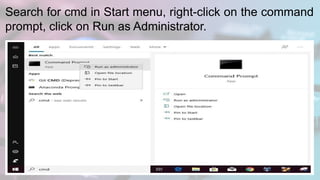
Search for cmdin Start menu, right-click on the command
prompt, click on Run as Administrator.
6.
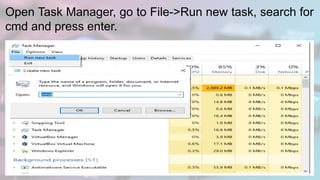
Open Task Manager,go to File->Run new task, search for
cmd and press enter.
7.
Step 2: Connectthe USB device to the computer that is
to be made bootable.
Step 3: Type the command ‘diskpart’ and then press
Enter.
8.
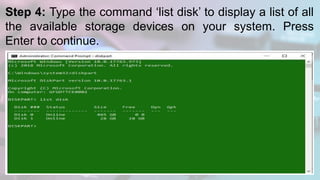
Step 4: Typethe command ‘list disk’ to display a list of all
the available storage devices on your system. Press
Enter to continue.
9.
Step 5: Selectthe disk that is your pen drive. Generally, it is marked as
Disk 1, it might vary system to system. Make sure not to select any
other available disk as it will get formatted. To choose the disk, type the
command ‘select disk 1’ and press Enter.
10.
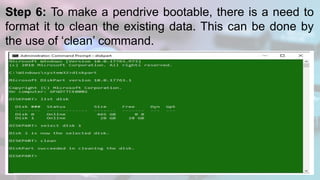
Step 6: Tomake a pendrive bootable, there is a need to
format it to clean the existing data. This can be done by
the use of ‘clean’ command.
11.
Step 7: Typethe command ‘create partition primary’ and
press Enter. This will make the disk primary and ready to
be made bootable.
12.
Step 8: Tochoose the partition created as primary, type
the command ‘select partition 1’ and press Enter.
13.
Step 9: Beforemaking the disk bootable, there is a need to
format it as NTFS because Windows uses NTFS file system for
storage. This can be done with the use of command ‘format=fs
NTFS’ and press Enter.
14.
Step 10: Typethe command ‘active’ and press Enter. This
will mark the primary bootable partition as Active.
15.
Step 11: Typethe command ‘exit’ to exit DISKPART
and press Enter.
16.
Now close thecommand prompt window.
Step 12: Now copy all the data from the
OS(Windows/Linux/etc.) installation disk to your
USB drive that is just been made bootable.
Now, this Pendrive can be used to install the
desired Operating System on any computer.
BOOTABLE DEVICE
Direction: Enumerate thesteps in making
bootable device using CMD/Diskpart. Write
your answers on your notebook. (12pts)
Write your answers on your notebook.
What I have learned
Direction: Arrange thesteps in making a bootable device
using CMD/Diskpart. Write your answers on your
notebook.
1. In this step you will type the command ‘list disk’ to
display a list of all the available storage devices on your
system. Press Enter to continue.
2. In this step you will run command-prompt in
Administrator mode. 3. In this step you will type the
command ‘diskpart’ and then press Enter.
Assessment
23.
4. In thisstep you will select the disk that is your pen drive.
5. In this step you will type the command ‘active’ and press
Enter.
6. In this step you will now copy all the data from the
OS(Windows/Linux/etc.) installation disk to your USB drive
that is just been made bootable.
7. In this step you will connect the USB device to the
computer that is to be made bootable.
Assessment
24.
8. In thisstep you will make a pendrive bootable, there is a need
to format it to clean the existing data.
9. In this step you will type the command ‘exit’ to exit DISKPART
and press Enter.
10. To choose the partition created as primary, type the command
‘select partition 1’ and press Enter.
11. In this step you will type the command ‘create partition primary
and press Enter.
12. In this step there is a need to format it as NTFS because
Windows uses NTFS file system for storage.
Assessment