Forecast HR Cost Using Time Series
Modelling (ARIMA)
HR Cost
• HR cost is a key component of HR accounting.
• HR cost is mainly incurred from expenses related to salary, incentive,
reimbursements, insurance, and fixed and miscellaneous costs.
• This includes total cost per hired employee across an entire company, the total
compensation per employee, and the total recruitment expenditures for every
new hire across a particular time frame, expenses on job boards to draw
useful conclusions, salary of recruiters, funds required to establish an
employer brand like attending recruiting events, content writing, designing
posters and videos, social media, cost for partnerships with universities and
institutions, cost of external recruiting agencies, recruiting technology costs
like video interviewing tools, coding assessment tools.
Time Series Modeling
• Forecasting helps to formulate strategies in various businesses and, hence, is a basic need to
help managerial decision-making. Managers have to take decision in the face of uncertainty
without knowing what would happen.
• Forecasting can be obtained by different methods, including qualitative models and
quantitative models.
• Quantitative models include time series models and causal models.
• Causal models are used when one variable is dependent on the values of other variables.
• Time series data provide important information related to time and time series models attempt
to predict the forecast demand (future values) using the past demand values (historical data).
• Time series is a series of data points in which each data point is associated with a timestamp.
They play a major role in understanding a lot of details on specific factors with respect to time.
For example, stock price at different points of time on a given day, amount of sales in a region at
different months of the year
The forecasting function helps to create four types of model:
1. AR (autoregressive): A model that uses the dependent relationship between
an observation and some number of lagged observations.
2. I (integrated): The use of differencing of raw observations (e.g., subtracting
an observation from an observation at the previous time step) in order to
make the time series stationary.
3. MA (moving average): A model that uses the dependency between an
observation and a residual error from a moving average model applied to
lagged observations.
4. ARIMA (autoregressive integrated moving average): A model that has all the
above features. Each of these components are explicitly specified in the
model as a parameter. A standard notation is used for ARIMA(a, d, m) where
the parameters are substituted with integer values to quickly indicate the
specific ARIMA model being used.
• Step 1: Define the model by calling ARIMA() and passing in the a, d, and m
parameters.
• ARIMA=(a, d, m)
where –
• ‘a’ denotes the number of AR (autoregressive) terms, the number of lag
observations included in the model, also called the lag order. For example,
if a is 4, the predictor for y(t) will be y(t-1), y(t-2), y(t-3), and y(t-4).
• ‘d’ denotes the number of times that the raw observations are differenced,
also called the degree of differencing, number of differences, or the
number of non-seasonal differences.
• ‘m’ denotes the size of the moving average window, also called the order
of moving average.
Steps: SPSS (I)
1) Data Define Date and time  Choose appropriate format as per
given data (in this data it is year,month format)  enter the first
year and first month as given in the data  click Ok
2) New columns of year, month and date are created
Steps: SPSS (II) – check if data is stationary
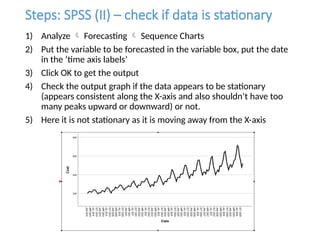
1) Analyze  Forecasting  Sequence Charts
2) Put the variable to be forecasted in the variable box, put the date
in the ‘time axis labels’
3) Click OK to get the output
4) Check the output graph if the data appears to be stationary
(appears consistent along the X-axis and also shouldn’t have too
many peaks upward or downward) or not.
5) Here it is not stationary as it is moving away from the X-axis
Steps: SPSS (II) – check for autocorrelation
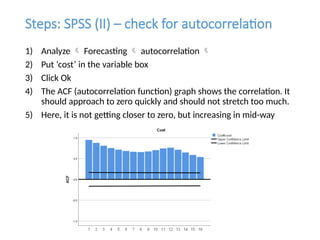
1) Analyze  Forecasting  autocorrelation 
2) Put ‘cost’ in the variable box
3) Click Ok
4) The ACF (autocorrelation function) graph shows the correlation. It
should approach to zero quickly and should not stretch too much.
5) Here, it is not getting closer to zero, but increasing in mid-way
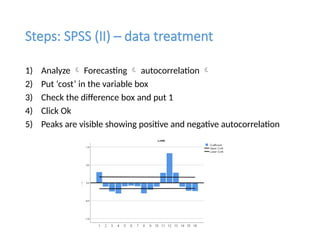
Steps: SPSS (II) – data treatment
1) Analyze  Forecasting  autocorrelation 
2) Put ‘cost’ in the variable box
3) Check the difference box and put 1
4) Click Ok
5) Peaks are visible showing positive and negative autocorrelation
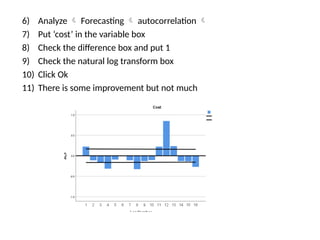
6) Analyze  Forecasting  autocorrelation 
7) Put ‘cost’ in the variable box
8) Check the difference box and put 1
9) Check the natural log transform box
10) Click Ok
11) There is some improvement but not much
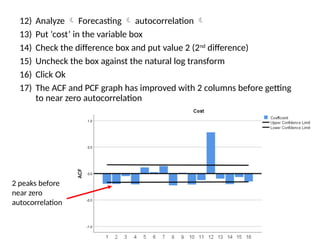
12) Analyze  Forecasting  autocorrelation 
13) Put ‘cost’ in the variable box
14) Check the difference box and put value 2 (2nd
difference)
15) Uncheck the box against the natural log transform
16) Click Ok
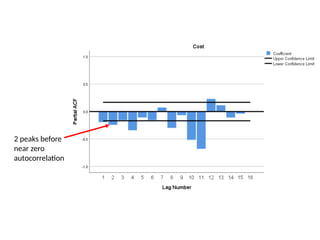
17) The ACF and PCF graph has improved with 2 columns before getting
to near zero autocorrelation
2 peaks before
near zero
autocorrelation
2 peaks before
near zero
autocorrelation
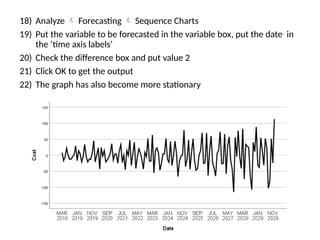
18) Analyze  Forecasting  Sequence Charts
19) Put the variable to be forecasted in the variable box, put the date in
the ‘time axis labels’
20) Check the difference box and put value 2
21) Click OK to get the output
22) The graph has also become more stationary
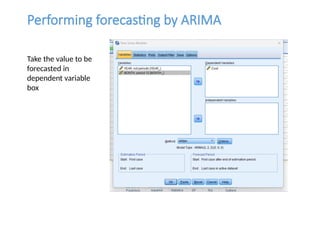
Performing forecasting by ARIMA
Take the value to be
forecasted in
dependent variable
box
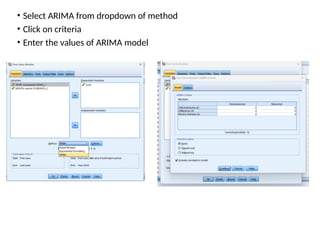
• Select ARIMA from dropdown of method
• Click on criteria
• Enter the values of ARIMA model
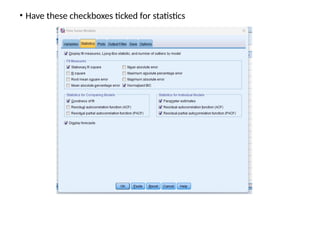
• Have these checkboxes ticked for statistics
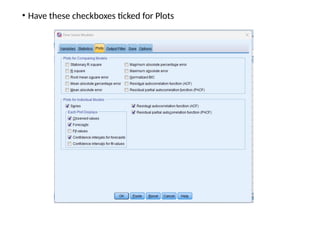
• Have these checkboxes ticked for Plots
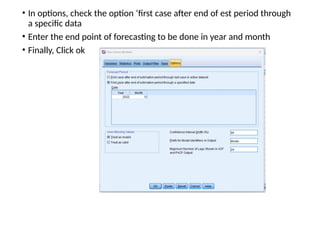
• In options, check the option ‘first case after end of est period through
a specific data
• Enter the end point of forecasting to be done in year and month
• Finally, Click ok
Results
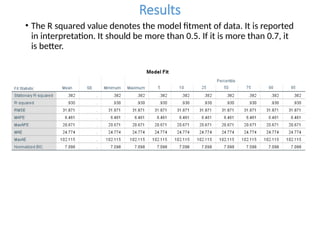
• The R squared value denotes the model fitment of data. It is reported
in interpretation. It should be more than 0.5. If it is more than 0.7, it
is better.
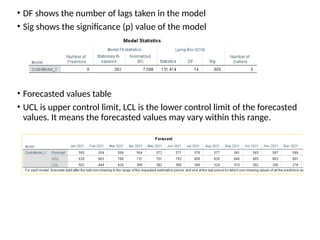
• DF shows the number of lags taken in the model
• Sig shows the significance (p) value of the model
• Forecasted values table
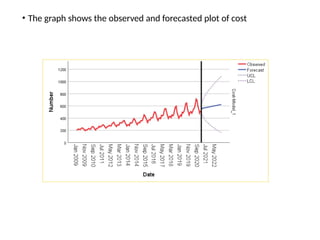
• UCL is upper control limit, LCL is the lower control limit of the forecasted
values. It means the forecasted values may vary within this range.
• The graph shows the observed and forecasted plot of cost

HR Cost Forecasting using ARIMA modelling

  • 1.
    Forecast HR CostUsing Time Series Modelling (ARIMA)
  • 2.
    HR Cost • HRcost is a key component of HR accounting. • HR cost is mainly incurred from expenses related to salary, incentive, reimbursements, insurance, and fixed and miscellaneous costs. • This includes total cost per hired employee across an entire company, the total compensation per employee, and the total recruitment expenditures for every new hire across a particular time frame, expenses on job boards to draw useful conclusions, salary of recruiters, funds required to establish an employer brand like attending recruiting events, content writing, designing posters and videos, social media, cost for partnerships with universities and institutions, cost of external recruiting agencies, recruiting technology costs like video interviewing tools, coding assessment tools.
  • 3.
    Time Series Modeling •Forecasting helps to formulate strategies in various businesses and, hence, is a basic need to help managerial decision-making. Managers have to take decision in the face of uncertainty without knowing what would happen. • Forecasting can be obtained by different methods, including qualitative models and quantitative models. • Quantitative models include time series models and causal models. • Causal models are used when one variable is dependent on the values of other variables. • Time series data provide important information related to time and time series models attempt to predict the forecast demand (future values) using the past demand values (historical data). • Time series is a series of data points in which each data point is associated with a timestamp. They play a major role in understanding a lot of details on specific factors with respect to time. For example, stock price at different points of time on a given day, amount of sales in a region at different months of the year
  • 4.
    The forecasting functionhelps to create four types of model: 1. AR (autoregressive): A model that uses the dependent relationship between an observation and some number of lagged observations. 2. I (integrated): The use of differencing of raw observations (e.g., subtracting an observation from an observation at the previous time step) in order to make the time series stationary. 3. MA (moving average): A model that uses the dependency between an observation and a residual error from a moving average model applied to lagged observations. 4. ARIMA (autoregressive integrated moving average): A model that has all the above features. Each of these components are explicitly specified in the model as a parameter. A standard notation is used for ARIMA(a, d, m) where the parameters are substituted with integer values to quickly indicate the specific ARIMA model being used.
  • 5.
    • Step 1:Define the model by calling ARIMA() and passing in the a, d, and m parameters. • ARIMA=(a, d, m) where – • ‘a’ denotes the number of AR (autoregressive) terms, the number of lag observations included in the model, also called the lag order. For example, if a is 4, the predictor for y(t) will be y(t-1), y(t-2), y(t-3), and y(t-4). • ‘d’ denotes the number of times that the raw observations are differenced, also called the degree of differencing, number of differences, or the number of non-seasonal differences. • ‘m’ denotes the size of the moving average window, also called the order of moving average.
  • 6.
    Steps: SPSS (I) 1)Data Define Date and time  Choose appropriate format as per given data (in this data it is year,month format)  enter the first year and first month as given in the data  click Ok 2) New columns of year, month and date are created
  • 7.
    Steps: SPSS (II)– check if data is stationary 1) Analyze  Forecasting  Sequence Charts 2) Put the variable to be forecasted in the variable box, put the date in the ‘time axis labels’ 3) Click OK to get the output 4) Check the output graph if the data appears to be stationary (appears consistent along the X-axis and also shouldn’t have too many peaks upward or downward) or not. 5) Here it is not stationary as it is moving away from the X-axis
  • 8.
    Steps: SPSS (II)– check for autocorrelation 1) Analyze  Forecasting  autocorrelation  2) Put ‘cost’ in the variable box 3) Click Ok 4) The ACF (autocorrelation function) graph shows the correlation. It should approach to zero quickly and should not stretch too much. 5) Here, it is not getting closer to zero, but increasing in mid-way
  • 9.
    Steps: SPSS (II)– data treatment 1) Analyze  Forecasting  autocorrelation  2) Put ‘cost’ in the variable box 3) Check the difference box and put 1 4) Click Ok 5) Peaks are visible showing positive and negative autocorrelation
  • 10.
    6) Analyze Forecasting  autocorrelation  7) Put ‘cost’ in the variable box 8) Check the difference box and put 1 9) Check the natural log transform box 10) Click Ok 11) There is some improvement but not much
  • 11.
    12) Analyze Forecasting  autocorrelation  13) Put ‘cost’ in the variable box 14) Check the difference box and put value 2 (2nd difference) 15) Uncheck the box against the natural log transform 16) Click Ok 17) The ACF and PCF graph has improved with 2 columns before getting to near zero autocorrelation 2 peaks before near zero autocorrelation
  • 12.
    2 peaks before nearzero autocorrelation
  • 13.
    18) Analyze Forecasting  Sequence Charts 19) Put the variable to be forecasted in the variable box, put the date in the ‘time axis labels’ 20) Check the difference box and put value 2 21) Click OK to get the output 22) The graph has also become more stationary
  • 14.
    Performing forecasting byARIMA Take the value to be forecasted in dependent variable box
  • 15.
    • Select ARIMAfrom dropdown of method • Click on criteria • Enter the values of ARIMA model
  • 16.
    • Have thesecheckboxes ticked for statistics
  • 17.
    • Have thesecheckboxes ticked for Plots
  • 18.
    • In options,check the option ‘first case after end of est period through a specific data • Enter the end point of forecasting to be done in year and month • Finally, Click ok
  • 19.
    Results • The Rsquared value denotes the model fitment of data. It is reported in interpretation. It should be more than 0.5. If it is more than 0.7, it is better.
  • 20.
    • DF showsthe number of lags taken in the model • Sig shows the significance (p) value of the model • Forecasted values table • UCL is upper control limit, LCL is the lower control limit of the forecasted values. It means the forecasted values may vary within this range.
  • 21.
    • The graphshows the observed and forecasted plot of cost