Patch Management User Guide
HP-UX 11.x Systems
*5991-4825*
Part number: 5991-4825
published March 2006
Edition: 6
© Copyright 2004 - 2006 Hewlett-Packard Development Company, L.P.
Legal Notices
Confidential computer software. Valid license from HP required for possession, use or copying. Consistent with FAR 12.211 and 12.212, Commercial
Computer Software, Computer Software Documentation, and Technical Data for Commercial Items are licensed to the U.S. Government under
vendor's standard commercial license.
The information contained herein is subject to change without notice. The only warranties for HP products and services are set forth in the express
warranty statements accompanying such products and services. Nothing herein should be construed as constituting an additional warranty. HP shall
not be liable for technical or editorial errors or omissions contained herein.
Acknowledgments
Adobe and Acrobat are trademarks of Adobe Systems Incorporated.
Intel and Itanium are trademarks or registered trademarks of Intel Corporation or its subsidiaries in the United States and other countries.
Microsoft and Windows are U.S. registered trademarks of Microsoft Corporation.
Java, the coffee cup logo, and all Java based marks are trademarks or registered trademarks of Sun Microsystems, Inc. in the U.S. or other countries.
UNIX is a registered trademark of The Open Group.
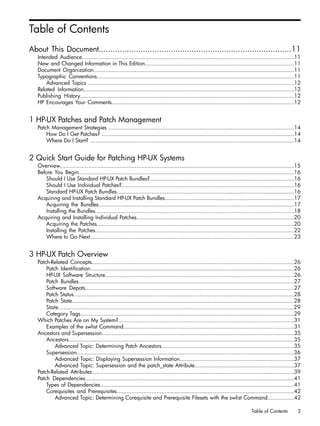
Table of Contents
About This Document...................................................................................11
Intended Audience................................................................................................................................11
New and Changed Information in This Edition..........................................................................................11
Document Organization.........................................................................................................................11
Typographic Conventions.......................................................................................................................11
Advanced Topics ............................................................................................................................12
Related Information...............................................................................................................................12
Publishing History.................................................................................................................................12
HP Encourages Your Comments..............................................................................................................12
1 HP-UX Patches and Patch Management
Patch Management Strategies ................................................................................................................14
How Do I Get Patches? ....................................................................................................................14
Where Do I Start? ...........................................................................................................................14
2 Quick Start Guide for Patching HP-UX Systems
Overview.............................................................................................................................................15
Before You Begin..................................................................................................................................16
Should I Use Standard HP-UX Patch Bundles?.......................................................................................16
Should I Use Individual Patches?........................................................................................................16
Standard HP-UX Patch Bundles...........................................................................................................16
Acquiring and Installing Standard HP-UX Patch Bundles..............................................................................17
Acquiring the Bundles......................................................................................................................17
Installing the Bundles........................................................................................................................18
Acquiring and Installing Individual Patches...............................................................................................20
Acquiring the Patches.......................................................................................................................20
Installing the Patches........................................................................................................................22
Where to Go Next...........................................................................................................................23
3 HP-UX Patch Overview
Patch-Related Concepts..........................................................................................................................26
Patch Identification...........................................................................................................................26
HP-UX Software Structure..................................................................................................................26
Patch Bundles..................................................................................................................................27
Software Depots..............................................................................................................................27
Patch Status.....................................................................................................................................28
Patch State......................................................................................................................................28
State..............................................................................................................................................29
Category Tags.................................................................................................................................29
Which Patches Are on My System?..........................................................................................................31
Examples of the swlist Command.......................................................................................................31
Ancestors and Supersession....................................................................................................................35
Ancestors........................................................................................................................................35
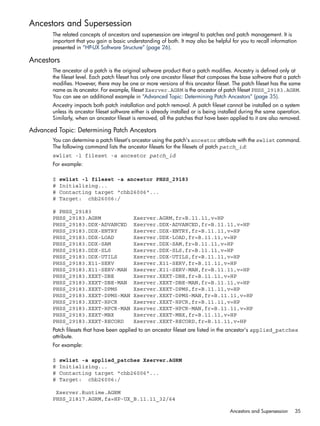
Advanced Topic: Determining Patch Ancestors................................................................................35
Supersession...................................................................................................................................36
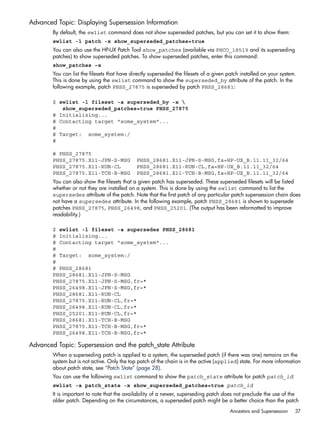
Advanced Topic: Displaying Supersession Information.....................................................................37
Advanced Topic: Supersession and the patch_state Attribute............................................................37
Patch-Related Attributes..........................................................................................................................39
Patch Dependencies..............................................................................................................................41
Types of Dependencies.....................................................................................................................41
Corequisites and Prerequisites...........................................................................................................42
Advanced Topic: Determining Corequisite and Prerequisite Filesets with the swlist Command................42
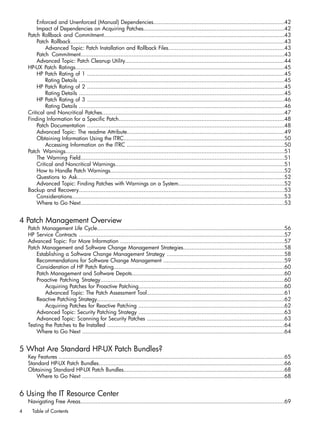
Table of Contents 3
Enforced and Unenforced (Manual) Dependencies...............................................................................42
Impact of Dependencies on Acquiring Patches.....................................................................................42
Patch Rollback and Commitment.............................................................................................................43
Patch Rollback.................................................................................................................................43
Advanced Topic: Patch Installation and Rollback Files......................................................................43
Patch Commitment...........................................................................................................................43
Advanced Topic: Patch Cleanup Utility................................................................................................44
HP-UX Patch Ratings..............................................................................................................................45
HP Patch Rating of 1 .......................................................................................................................45
Rating Details ............................................................................................................................45
HP Patch Rating of 2 .......................................................................................................................45
Rating Details ............................................................................................................................45
HP Patch Rating of 3 .......................................................................................................................46
Rating Details ............................................................................................................................46
Critical and Noncritical Patches..............................................................................................................47
Finding Information for a Specific Patch....................................................................................................48
Patch Documentation .......................................................................................................................48
Advanced Topic: The readme Attribute...............................................................................................49
Obtaining Information Using the ITRC.................................................................................................50
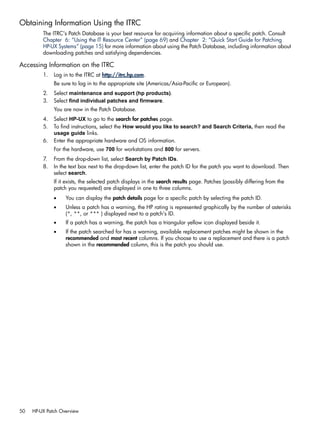
Accessing Information on the ITRC ...............................................................................................50
Patch Warnings....................................................................................................................................51
The Warning Field...........................................................................................................................51
Critical and Noncritical Warnings......................................................................................................51
How to Handle Patch Warnings.........................................................................................................52
Questions to Ask.............................................................................................................................52
Advanced Topic: Finding Patches with Warnings on a System................................................................52
Backup and Recovery............................................................................................................................53
Considerations................................................................................................................................53
Where to Go Next...........................................................................................................................53
4 Patch Management Overview
Patch Management Life Cycle.................................................................................................................56
HP Service Contracts ............................................................................................................................57
Advanced Topic: For More Information ...................................................................................................57
Patch Management and Software Change Management Strategies.............................................................58
Establishing a Software Change Management Strategy .......................................................................58
Recommendations for Software Change Management .........................................................................59
Consideration of HP Patch Rating.......................................................................................................60
Patch Management and Software Depots............................................................................................60
Proactive Patching Strategy...............................................................................................................60
Acquiring Patches for Proactive Patching........................................................................................60
Advanced Topic: The Patch Assessment Tool...................................................................................61
Reactive Patching Strategy.................................................................................................................62
Acquiring Patches for Reactive Patching ........................................................................................62
Advanced Topic: Security Patching Strategy ........................................................................................63
Advanced Topic: Scanning for Security Patches ...................................................................................63
Testing the Patches to Be Installed ...........................................................................................................64
Where to Go Next ..........................................................................................................................64
5 What Are Standard HP-UX Patch Bundles?
Key Features ........................................................................................................................................65
Standard HP-UX Patch Bundles................................................................................................................66
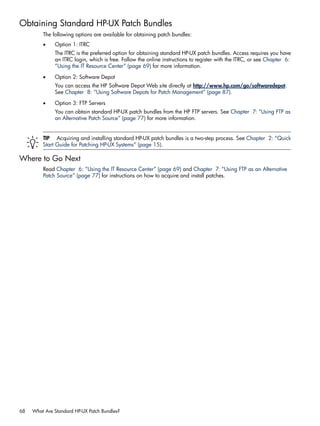
Obtaining Standard HP-UX Patch Bundles.................................................................................................68
Where to Go Next ..........................................................................................................................68
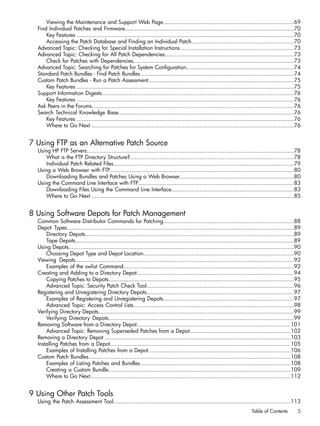
6 Using the IT Resource Center
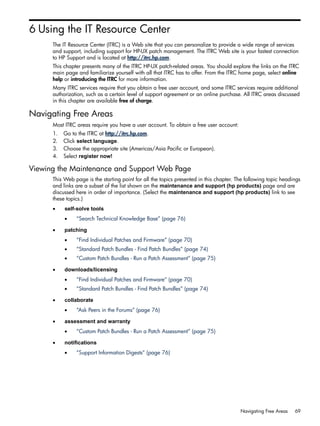
Navigating Free Areas...........................................................................................................................69
4 Table of Contents
Viewing the Maintenance and Support Web Page...............................................................................69
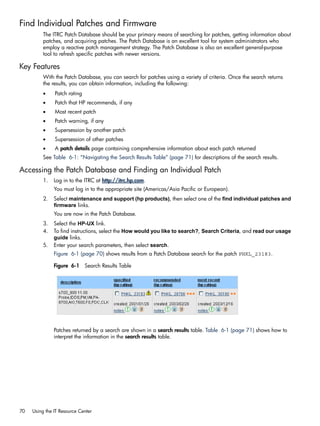
Find Individual Patches and Firmware......................................................................................................70
Key Features ...................................................................................................................................70
Accessing the Patch Database and Finding an Individual Patch..............................................................70
Advanced Topic: Checking for Special Installation Instructions.....................................................................73
Advanced Topic: Checking for All Patch Dependencies..............................................................................73
Check for Patches with Dependencies.................................................................................................73
Advanced Topic: Searching for Patches for System Configuration.................................................................74
Standard Patch Bundles - Find Patch Bundles.............................................................................................74
Custom Patch Bundles - Run a Patch Assessment........................................................................................75
Key Features ...................................................................................................................................75
Support Information Digests....................................................................................................................76
Key Features ...................................................................................................................................76
Ask Peers in the Forums..........................................................................................................................76
Search Technical Knowledge Base..........................................................................................................76
Key Features ...................................................................................................................................76
Where to Go Next ..........................................................................................................................76
7 Using FTP as an Alternative Patch Source
Using HP FTP Servers.............................................................................................................................78
What is the FTP Directory Structure?...................................................................................................78
Individual Patch Related Files.............................................................................................................79
Using a Web Browser with FTP...............................................................................................................80
Downloading Bundles and Patches Using a Web Browser.....................................................................80
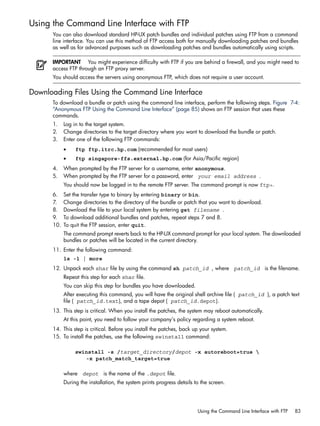
Using the Command Line Interface with FTP..............................................................................................83
Downloading Files Using the Command Line Interface..........................................................................83
Where to Go Next ..........................................................................................................................85
8 Using Software Depots for Patch Management
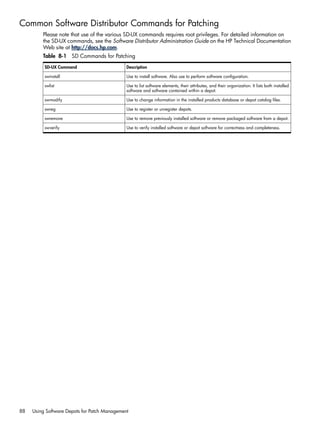
Common Software Distributor Commands for Patching...............................................................................88
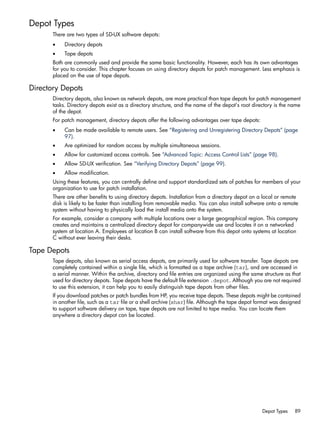
Depot Types.........................................................................................................................................89
Directory Depots..............................................................................................................................89
Tape Depots....................................................................................................................................89
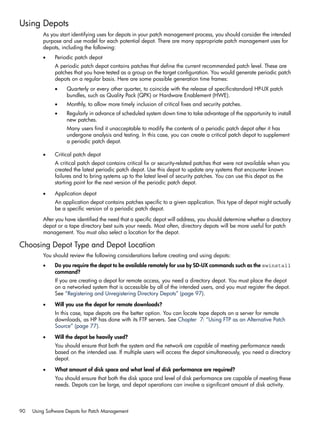
Using Depots........................................................................................................................................90
Choosing Depot Type and Depot Location...........................................................................................90
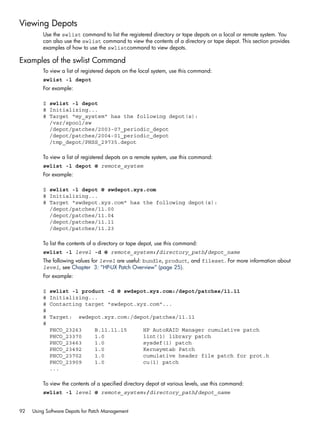
Viewing Depots....................................................................................................................................92
Examples of the swlist Command.......................................................................................................92
Creating and Adding to a Directory Depot...............................................................................................94
Copying Patches to Depots................................................................................................................95
Advanced Topic: Security Patch Check Tool.........................................................................................96
Registering and Unregistering Directory Depots.........................................................................................97
Examples of Registering and Unregistering Depots...............................................................................97
Advanced Topic: Access Control Lists.................................................................................................98
Verifying Directory Depots......................................................................................................................99
Verifying Directory Depots................................................................................................................99
Removing Software from a Directory Depot.............................................................................................101
Advanced Topic: Removing Superseded Patches from a Depot.............................................................102
Removing a Directory Depot ................................................................................................................103
Installing Patches from a Depot.............................................................................................................105
Examples of Installing Patches from a Depot......................................................................................106
Custom Patch Bundles..........................................................................................................................108
Examples of Listing Patches and Bundles...........................................................................................108
Creating a Custom Bundle..............................................................................................................109
Where to Go Next.........................................................................................................................112
9 Using Other Patch Tools
Using the Patch Assessment Tool...........................................................................................................113
Table of Contents 5
Using the Patch Assessment Tool......................................................................................................114
Using the Security Patch Check Tool......................................................................................................116
Accessing a Security Catalog..........................................................................................................116
Manual Download of Security Catalog........................................................................................116
Automatic Download of Security Catalog.....................................................................................118
Running Security Patch Check on a Software Depot ...........................................................................119
Where to Go Next ........................................................................................................................121
A Other Resources.....................................................................................123
Glossary..................................................................................................125
Index.......................................................................................................127
6 Table of Contents
List of Figures
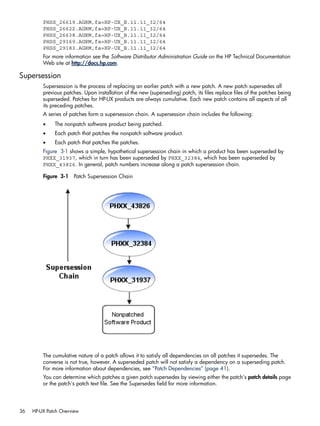
3-1 Patch Supersession Chain.....................................................................................................................36
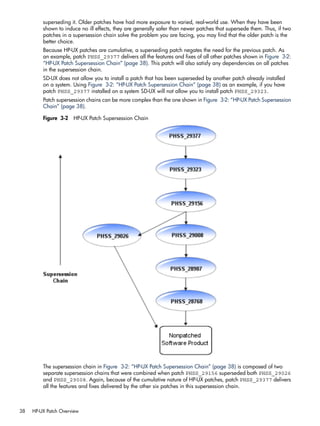
3-2 HP-UX Patch Supersession Chain............................................................................................................38
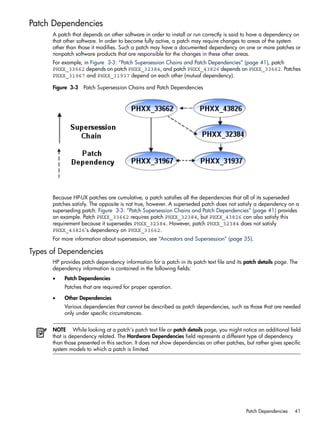
3-3 Patch Supersession Chains and Patch Dependencies.................................................................................41
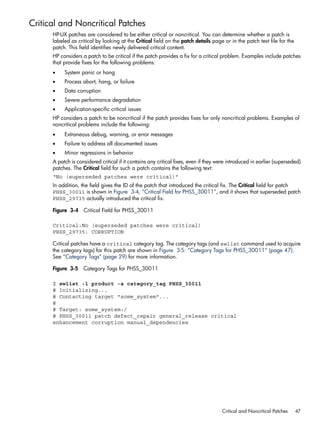
3-4 Critical Field for PHSS_30011...............................................................................................................47
3-5 Category Tags for PHSS_30011............................................................................................................47
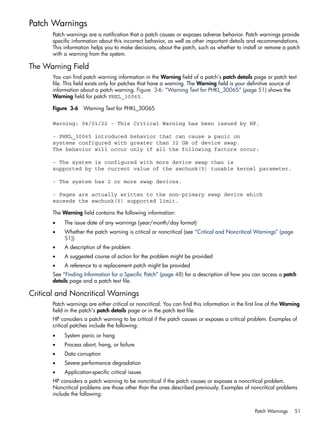
3-6 Warning Text for PHKL_30065..............................................................................................................51
6-1 Search Results Table.............................................................................................................................70
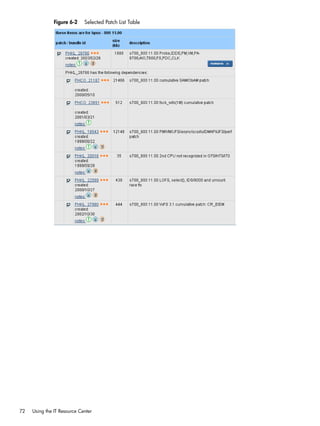
6-2 Selected Patch List Table........................................................................................................................72
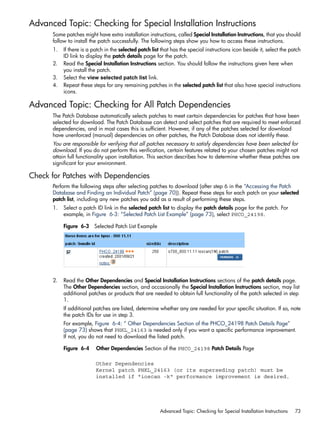
6-3 Selected Patch List Example...................................................................................................................73
6-4 Other Dependencies Section of the PHCO_24198 Patch Details Page.........................................................73
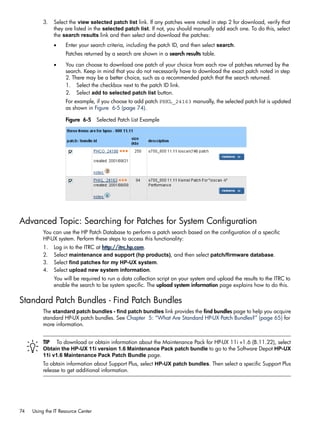
6-5 Selected Patch List Example...................................................................................................................74
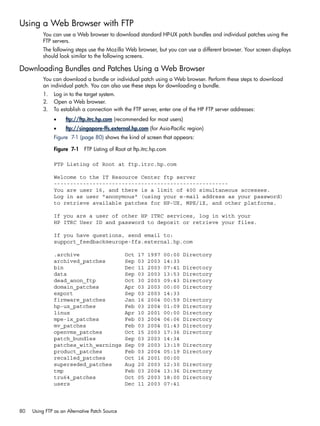
7-1 FTP Listing of Root at ftp.itrc.hp.com........................................................................................................80
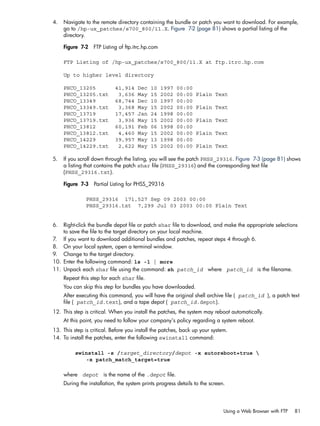
7-2 FTP Listing of ftp.itrc.hp.com..................................................................................................................81
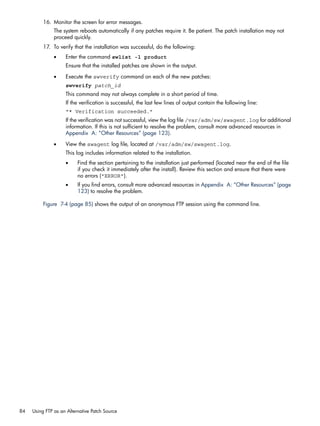
7-3 Partial Listing for PHSS_29316...............................................................................................................81
7-4 Anonymous FTP Using the Command Line Interface..................................................................................85
7
8
List of Tables
2-1 Standard HP-UX Patch Bundle Names.....................................................................................................16
3-1 Variations of the swlist Command...........................................................................................................34
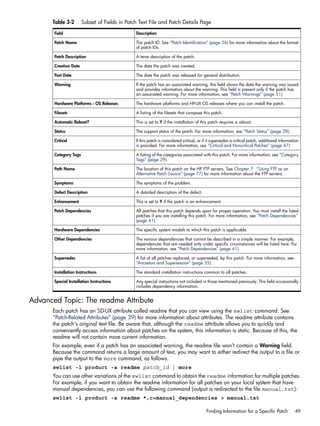
3-2 Subset of Fields in Patch Text File and Patch Details Page ..........................................................................49
4-1 Operational Factor and Patch Management Strategy Matrix......................................................................59
4-2 Recommendations Based on Strategy.....................................................................................................59
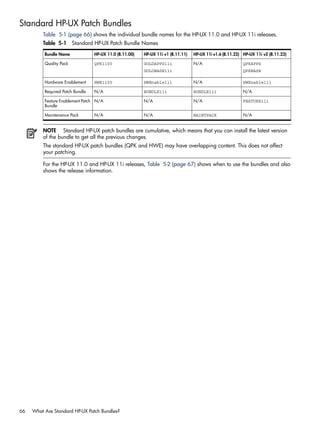
5-1 Standard HP-UX Patch Bundle Names.....................................................................................................66
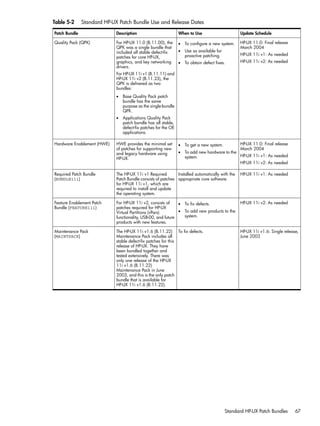
5-2 Standard HP-UX Patch Bundle Use and Release Dates...............................................................................67
6-1 Navigating the Search Results Table.......................................................................................................71
8-1 SD Commands for Patching...................................................................................................................88
A-1 Patch Information on HP FTP Servers ....................................................................................................123
A-2 Patch Information on HP Web Sites .....................................................................................................123
A-3 Patch Information on Non-HP Web Sites ..............................................................................................123
9
10
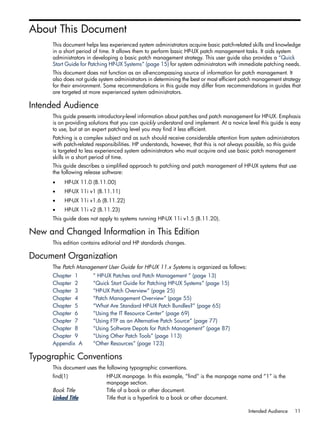
About This Document
This document helps less experienced system administrators acquire basic patch-related skills and knowledge
in a short period of time. It allows them to perform basic HP-UX patch management tasks. It aids system
administrators in developing a basic patch management strategy. This user guide also provides a “Quick
Start Guide for Patching HP-UX Systems” (page 15) for system administrators with immediate patching needs.
This document does not function as an all-encompassing source of information for patch management. It
also does not guide system administrators in determining the best or most efficient patch management strategy
for their environment. Some recommendations in this guide may differ from recommendations in guides that
are targeted at more experienced system administrators.
Intended Audience
This guide presents introductory-level information about patches and patch management for HP-UX. Emphasis
is on providing solutions that you can quickly understand and implement. At a novice level this guide is easy
to use, but at an expert patching level you may find it less efficient.
Patching is a complex subject and as such should receive considerable attention from system administrators
with patch-related responsibilities. HP understands, however, that this is not always possible, so this guide
is targeted to less experienced system administrators who must acquire and use basic patch management
skills in a short period of time.
This guide describes a simplified approach to patching and patch management of HP-UX systems that use
the following release software:
• HP-UX 11.0 (B.11.00)
• HP-UX 11i v1 (B.11.11)
• HP-UX 11i v1.6 (B.11.22)
• HP-UX 11i v2 (B.11.23)
This guide does not apply to systems running HP-UX 11i v1.5 (B.11.20).
New and Changed Information in This Edition
This edition contains editorial and HP standards changes.
Document Organization
The Patch Management User Guide for HP-UX 11.x Systems is organized as follows:
Chapter 1 “ HP-UX Patches and Patch Management ” (page 13)
Chapter 2 “Quick Start Guide for Patching HP-UX Systems” (page 15)
Chapter 3 “HP-UX Patch Overview” (page 25)
Chapter 4 “Patch Management Overview” (page 55)
Chapter 5 “What Are Standard HP-UX Patch Bundles?” (page 65)
Chapter 6 “Using the IT Resource Center” (page 69)
Chapter 7 “Using FTP as an Alternative Patch Source” (page 77)
Chapter 8 “Using Software Depots for Patch Management” (page 87)
Chapter 9 “Using Other Patch Tools” (page 113)
Appendix A “Other Resources” (page 123)
Typographic Conventions
This document uses the following typographic conventions.
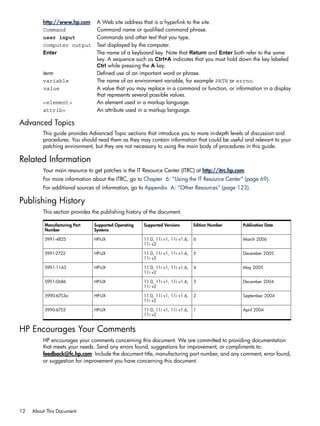
find(1) HP-UX manpage. In this example, “find” is the manpage name and “1” is the
manpage section.
Book Title Title of a book or other document.
Linked Title Title that is a hyperlink to a book or other document.
Intended Audience 11
http://www.hp.com A Web site address that is a hyperlink to the site.
Command Command name or qualified command phrase.
user input Commands and other text that you type.
computer output Text displayed by the computer.
Enter The name of a keyboard key. Note that Return and Enter both refer to the same
key. A sequence such as Ctrl+A indicates that you must hold down the key labeled
Ctrl while pressing the A key.
term Defined use of an important word or phrase.
variable The name of an environment variable, for example PATH or errno.
value A value that you may replace in a command or function, or information in a display
that represents several possible values.
<element> An element used in a markup language.
attrib= An attribute used in a markup language.
Advanced Topics
This guide provides Advanced Topic sections that introduce you to more in-depth levels of discussion and
procedures. You should read them as they may contain information that could be useful and relevant to your
patching environment, but they are not necessary to using the main body of procedures in this guide.
Related Information
Your main resource to get patches is the IT Resource Center (ITRC) at http://itrc.hp.com.
For more information about the ITRC, go to Chapter 6: “Using the IT Resource Center” (page 69).
For additional sources of information, go to Appendix A: “Other Resources” (page 123).
Publishing History
This section provides the publishing history of the document.
Publication DateEdition NumberSupported VersionsSupported Operating
Systems
Manufacturing Part
Number
March 2006611.0, 11i v1, 11i v1.6,
11i v2
HP-UX5991-4825
December 2005511.0, 11i v1, 11i v1.6,
11i v2
HP-UX5991-2722
May 2005411.0, 11i v1, 11i v1.6,
11i v2
HP-UX5991-1163
December 2004311.0, 11i v1, 11i v1.6,
11i v2
HP-UX5991-0686
September 2004211.0, 11i v1, 11i v1.6,
11i v2
HP-UX5990-6753a
April 2004111.0, 11i v1, 11i v1.6,
11i v2
HP-UX5990-6753
HP Encourages Your Comments
HP encourages your comments concerning this document. We are committed to providing documentation
that meets your needs. Send any errors found, suggestions for improvement, or compliments to:
feedback@fc.hp.com. Include the document title, manufacturing part number, and any comment, error found,
or suggestion for improvement you have concerning this document.
12 About This Document
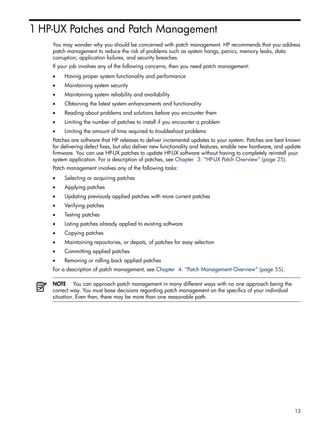
1 HP-UX Patches and Patch Management
You may wonder why you should be concerned with patch management. HP recommends that you address
patch management to reduce the risk of problems such as system hangs, panics, memory leaks, data
corruption, application failures, and security breaches.
If your job involves any of the following concerns, then you need patch management:
• Having proper system functionality and performance
• Maintaining system security
• Maintaining system reliability and availability
• Obtaining the latest system enhancements and functionality
• Reading about problems and solutions before you encounter them
• Limiting the number of patches to install if you encounter a problem
• Limiting the amount of time required to troubleshoot problems
Patches are software that HP releases to deliver incremental updates to your system. Patches are best known
for delivering defect fixes, but also deliver new functionality and features, enable new hardware, and update
firmware. You can use HP-UX patches to update HP-UX software without having to completely reinstall your
system application. For a description of patches, see Chapter 3: “HP-UX Patch Overview” (page 25).
Patch management involves any of the following tasks:
• Selecting or acquiring patches
• Applying patches
• Updating previously applied patches with more current patches
• Verifying patches
• Testing patches
• Listing patches already applied to existing software
• Copying patches
• Maintaining repositories, or depots, of patches for easy selection
• Committing applied patches
• Removing or rolling back applied patches
For a description of patch management, see Chapter 4: “Patch Management Overview” (page 55).
NOTE You can approach patch management in many different ways with no one approach being the
correct way. You must base decisions regarding patch management on the specifics of your individual
situation. Even then, there may be more than one reasonable path.
13
Patch Management Strategies
This guide addresses two basic patch management strategies. Most customers use a combination of both
strategies:
• Proactive: Patching regularly to avoid problems
• Reactive: Patching after a problem occurs
No matter what strategy or combination of strategies you adopt, keep in mind that any change to a system,
including change incurred during the process of patch management, risks the introduction of new problems
to your system. This guide discusses some steps that you can take to mitigate the risk associated with patching
your system.
How Do I Get Patches?
HP provides numerous ways for you to acquire patches, ensuring that people with different goals and different
levels of expertise can find a patch source to fit their needs. You can obtain patches individually or in groups
of related patches known as patch bundles.
This guide discusses the following HP-UX patch sources:
• IT Resource Center (ITRC) Web site: http://itrc.hp.com
• Software Depot Web site: http://www.hp.com/go/softwaredepot
• HP FTP Servers
ftp://ftp.itrc.hp.com
ftp://singapore-ffs.external.hp.com
• Patch Tools
“Using the Patch Assessment Tool” (page 113)
“Using the Security Patch Check Tool” (page 116)
Where Do I Start?
If you have immediate patching needs, see Chapter 2: “Quick Start Guide for Patching HP-UX Systems”
(page 15).
If you want to learn about your patching options, read all chapters in this guide, and then choose the resource
that best meets your needs.
14 HP-UX Patches and Patch Management
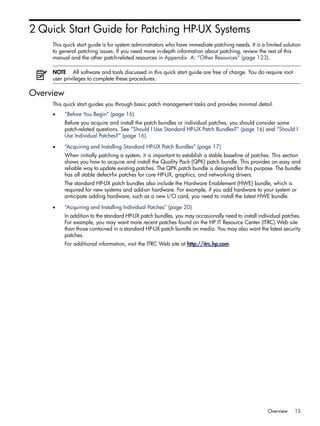
2 Quick Start Guide for Patching HP-UX Systems
This quick start guide is for system administrators who have immediate patching needs. It is a limited solution
to general patching issues. If you need more in-depth information about patching, review the rest of this
manual and the other patch-related resources in Appendix A: “Other Resources” (page 123).
NOTE All software and tools discussed in this quick start guide are free of charge. You do require root
user privileges to complete these procedures.
Overview
This quick start guides you through basic patch management tasks and provides minimal detail.
• “Before You Begin” (page 16)
Before you acquire and install the patch bundles or individual patches, you should consider some
patch-related questions. See “Should I Use Standard HP-UX Patch Bundles?” (page 16) and “Should I
Use Individual Patches?” (page 16).
• “Acquiring and Installing Standard HP-UX Patch Bundles” (page 17)
When initially patching a system, it is important to establish a stable baseline of patches. This section
shows you how to acquire and install the Quality Pack (QPK) patch bundle. This provides an easy and
reliable way to update existing patches. The QPK patch bundle is designed for this purpose. The bundle
has all stable defect-fix patches for core HP-UX, graphics, and networking drivers.
The standard HP-UX patch bundles also include the Hardware Enablement (HWE) bundle, which is
required for new systems and add-on hardware. For example, if you add hardware to your system or
anticipate adding hardware, such as a new I/O card, you need to install the latest HWE bundle.
• “Acquiring and Installing Individual Patches” (page 20)
In addition to the standard HP-UX patch bundles, you may occasionally need to install individual patches.
For example, you may want more recent patches found on the HP IT Resource Center (ITRC) Web site
than those contained in a standard HP-UX patch bundle on media. You may also want the latest security
patches.
For additional information, visit the ITRC Web site at http://itrc.hp.com.
Overview 15
Before You Begin
The following sections contain questions that you should review before you begin the quick start procedures.
Should I Use Standard HP-UX Patch Bundles?
Before you acquire and install standard HP-UX patch bundles, consider the following questions:
• Is this a new system?
• Do you want to establish a baseline of patches?
• Do you want to update the existing baseline of patches?
• Are you adding new hardware to the system?
If you answer yes to any of these questions, then you should continue with “Acquiring and Installing Standard
HP-UX Patch Bundles” (page 17).
Should I Use Individual Patches?
Before you acquire and install individual patches, consider the following question:
Do you need to add individual patches to the system?
If you answer yes to this question, then you should continue with “Acquiring and Installing Individual Patches”
(page 20).
NOTE In addition to the information in this guide, you should review the release notes for the product you
are patching.
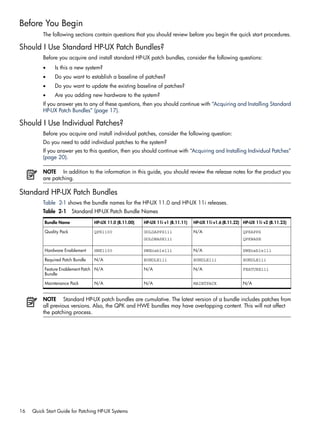
Standard HP-UX Patch Bundles
Table 2-1 shows the bundle names for the HP-UX 11.0 and HP-UX 11i releases.
Table 2-1 Standard HP-UX Patch Bundle Names
HP-UX 11i v2 (B.11.23)HP-UX 11i v1.6 (B.11.22)HP-UX 11i v1 (B.11.11)HP-UX 11.0 (B.11.00)Bundle Name
QPKAPPS
QPKBASE
N/AGOLDAPPS11i
GOLDBASE11i
QPK1100Quality Pack
HWEnable11iN/AHWEnable11iHWE1100Hardware Enablement
BUNDLE11iBUNDLE11iBUNDLE11iN/ARequired Patch Bundle
FEATURE11iN/AN/AN/AFeature Enablement Patch
Bundle
N/AMAINTPACKN/AN/AMaintenance Pack
NOTE Standard HP-UX patch bundles are cumulative. The latest version of a bundle includes patches from
all previous versions. Also, the QPK and HWE bundles may have overlapping content. This will not affect
the patching process.
16 Quick Start Guide for Patching HP-UX Systems
Acquiring and Installing Standard HP-UX Patch Bundles
The standard HP-UX patch bundles provide recommended sets of HP-UX system patches, which you should
use for proactive patching. This section details how to acquire and install the Quality Pack (QPK) patch
bundle and the Hardware Enablement (HWE) bundle. You can, however, use the steps to install any of the
standard HP-UX patch bundles.
If you have a new system and need to establish a patch baseline or want to update the existing patch base,
then you would install the QPK patch bundle. If you are adding new hardware to your system, then you
would install the HWE bundle. If you are unsure of which patch bundles or patches to install on your system,
installing both the QPK and HWE bundles represents an excellent starting point for your patch management
program.
Acquiring the Bundles
To obtain the QPK and HWE bundles from the Web, perform the following steps:
1. Log in to the target system.
2. Determine the operating system release by entering this command: uname -r
Record the information. You will use this information in step 8.
3. Be sure that you are logged in as a user with write permissions to the download directory that you plan
to use.
These instructions assume you are using the /tmp directory.
4. Log in to the ITRC at http://itrc.hp.com.
Be sure to log in to the appropriate site (Americas/Asia-Pacific or European).
5. Select maintenance and support (hp products).
6. Select standard patch bundles - find patch bundles.
7. Select HP-UX patch bundles.
8. Select the most recent release name for your operating system (by release date).
9. Select the bundle link.
HP highly recommends that you download the following bundles. They are cumulative, choose the latest:
• Hardware Enablement bundle
For new hardware, install this bundle.
• Quality Pack patch bundle
For defect fixes, install this bundle.
The bundle's main page displays:
• Each patch contained in the bundle.
If the bundle contains patches with warnings, which are notifications of known problems, they are
listed near the top of the page.
• All patch identifications (IDs) are linked to the patch database on the ITRC, and provide detailed
patch information.
• In the right-hand navigation menu under documentation, you can access the readme file for the
bundle by using the bundle readme link. Review the readme for critical installation information.
10. Ensure all items are checked. Select add to selected patch list.
If you see additional patches, the ITRC selected them to replace patches with warnings.
11. Review your choices to ensure all items are checked. Select download selected.
The download patches page is displayed.
Acquiring and Installing Standard HP-UX Patch Bundles 17
12. Under the heading download items in one operation, select a download server and a format option
(HP recommends the gzip package). Choose a zip package only if you are certain that your HP-UX
system can unpack a .zip file.
You can use the program locating commands whereis(1) and which(1) to make sure you have the
appropriate software. For example, use whereis gzip to determine if the program is installed and
use which gzip to determine if the program is in your path.
13. Select download. Make the appropriate selections (based on the browser you are using) to save the
selected bundle to the /tmp/tmpdepot directory on the target system.
14. Record the name of the file being downloaded.
The following section refers to the file as patches.xxx .
Installing the Bundles
To install the downloaded bundle, repeat the following steps for each bundle.
1. Log in to the target system.
2. Unpack the downloaded file patches.xxx by using one of these commands:
• If the downloaded file is patches.tgz:
gunzip -c patches.tgz | tar xvf -
• If the downloaded file is patches.tar: tar -xfv patches.tar
• If the downloaded file is patches.zip: unzip patches.zip
You must have an installed application that can unpack a .zip file. Not all HP-UX systems have
such an application. If you do not have a system that can unpack a .zip file, then you would
need to use a system that does, then transfer the unpacked files to the target system.
You can use the program locating commands whereis(1) and which(1) to make sure you have the
appropriate software. For example, use whereis gzip to determine if the program is installed
and use which gzip to determine if the program is in your path.
3. As root, run the create_depot_hp-ux_11 script.
4. Verify the download by entering this command:
swverify -d * @ /tmp/tmpdepot/depot
You will see the message "* Verification succeeded."
5. Find the bundle names: swlist -d @ /tmp/tmpdepot/depot
6. Record all bundle names.
The bundle name is the first word of each line under the Bundle(s) heading.
7. This step is critical. When you install a QPK or HWE bundle, the system reboots automatically. Before
you install a bundle (step 9), you need to follow your company's policy regarding a system reboot.
8. This step is critical. Before you install the bundle, back up your system.
9. Install the bundles:
swinstall -s /tmp/tmpdepot/depot -x autoreboot=true 
-x patch_match_target=true
During the installation, the system prints progress details to the screen.
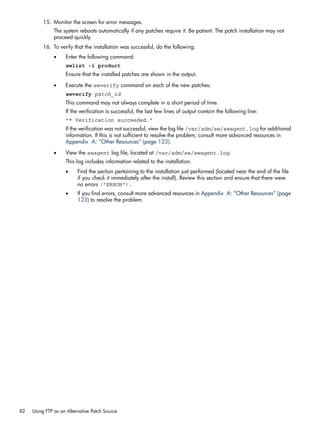
10. Monitor the screen for error messages.
The system reboots automatically as part of the installation process.
11. Verify that the installation was successful:
• Repeat the swlist command for each bundle name you recorded in step 6:
swlist -l bundle bundle_name
18 Quick Start Guide for Patching HP-UX Systems
Ensure that the bundle is shown in the output.
• Repeat the swverify command for each bundle name you recorded in step 6:
swverify bundle_name
• This command may not always complete in a short amount of time.
• If the verification is successful, the last few lines of output contain the line "* Verification
succeeded."
• If the verification was not successful, view the log file /var/adm/sw/swagent.log for
additional information related to the swverify failure. If this is not sufficient to resolve the
problem, consult more advanced resources in Appendix A: “Other Resources” (page 123).
• View the swagent log file, located at /var/adm/sw/swagent.log. This log includes information
related to the installation.
• Find the section pertaining to the installation just performed (located near the end of the file
if you check it immediately after the install). Review this section and make sure that there were
no errors ("ERROR").
• If you find errors, consult more advanced resources in Appendix A: “Other Resources” (page
123) to resolve the problem.
Acquiring and Installing Standard HP-UX Patch Bundles 19
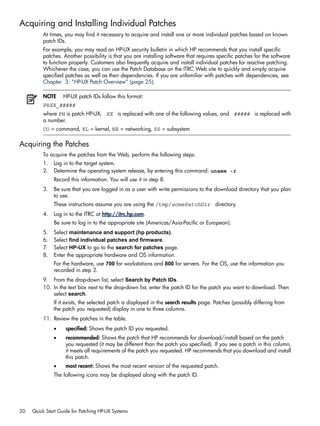
Acquiring and Installing Individual Patches
At times, you may find it necessary to acquire and install one or more individual patches based on known
patch IDs.
For example, you may read an HP-UX security bulletin in which HP recommends that you install specific
patches. Another possibility is that you are installing software that requires specific patches for the software
to function properly. Customers also frequently acquire and install individual patches for reactive patching.
Whichever the case, you can use the Patch Database on the ITRC Web site to quickly and simply acquire
specified patches as well as their dependencies. If you are unfamiliar with patches with dependencies, see
Chapter 3: “HP-UX Patch Overview” (page 25).
NOTE HP-UX patch IDs follow this format:
PHXX_#####
where PH is patch HP-UX, XX is replaced with one of the following values, and ##### is replaced with
a number.
CO = command, KL = kernel, NE = networking, SS = subsystem
Acquiring the Patches
To acquire the patches from the Web, perform the following steps:
1. Log in to the target system.
2. Determine the operating system release, by entering this command: uname -r
Record this information. You will use it in step 8.
3. Be sure that you are logged in as a user with write permissions to the download directory that you plan
to use.
These instructions assume you are using the /tmp/somePatchDir directory.
4. Log in to the ITRC at http://itrc.hp.com.
Be sure to log in to the appropriate site (Americas/Asia-Pacific or European).
5. Select maintenance and support (hp products).
6. Select find individual patches and firmware.
7. Select HP-UX to go to the search for patches page.
8. Enter the appropriate hardware and OS information.
For the hardware, use 700 for workstations and 800 for servers. For the OS, use the information you
recorded in step 2.
9. From the drop-down list, select Search by Patch IDs.
10. In the text box next to the drop-down list, enter the patch ID for the patch you want to download. Then
select search.
If it exists, the selected patch is displayed in the search results page. Patches (possibly differing from
the patch you requested) display in one to three columns.
11. Review the patches in the table.
• specified: Shows the patch ID you requested.
• recommended: Shows the patch that HP recommends for download/install based on the patch
you requested (it may be different than the patch you specified). If you see a patch in this column,
it meets all requirements of the patch you requested. HP recommends that you download and install
this patch.
• most recent: Shows the most recent version of the requested patch.
The following icons may be displayed along with the patch ID.
20 Quick Start Guide for Patching HP-UX Systems
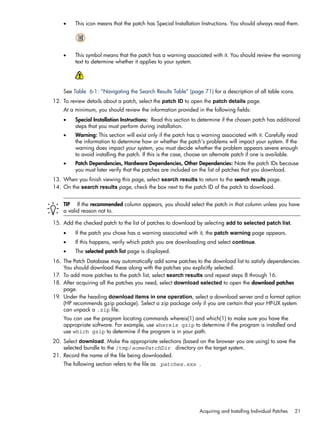
• This icon means that the patch has Special Installation Instructions. You should always read them.
• This symbol means that the patch has a warning associated with it. You should review the warning
text to determine whether it applies to your system.
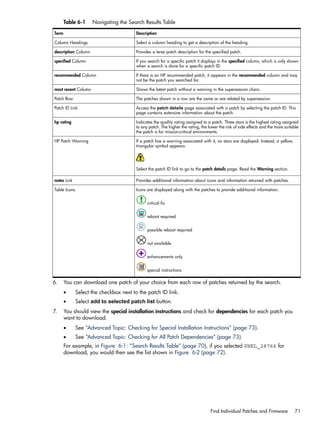
See Table 6-1: “Navigating the Search Results Table” (page 71) for a description of all table icons.
12. To review details about a patch, select the patch ID to open the patch details page.
At a minimum, you should review the information provided in the following fields:
• Special Installation Instructions: Read this section to determine if the chosen patch has additional
steps that you must perform during installation.
• Warning: This section will exist only if the patch has a warning associated with it. Carefully read
the information to determine how or whether the patch's problems will impact your system. If the
warning does impact your system, you must decide whether the problem appears severe enough
to avoid installing the patch. If this is the case, choose an alternate patch if one is available.
• Patch Dependencies, Hardware Dependencies, Other Dependencies: Note the patch IDs because
you must later verify that the patches are included on the list of patches that you download.
13. When you finish viewing this page, select search results to return to the search results page.
14. On the search results page, check the box next to the patch ID of the patch to download.
TIP If the recommended column appears, you should select the patch in that column unless you have
a valid reason not to.
15. Add the checked patch to the list of patches to download by selecting add to selected patch list.
• If the patch you chose has a warning associated with it, the patch warning page appears.
• If this happens, verify which patch you are downloading and select continue.
• The selected patch list page is displayed.
16. The Patch Database may automatically add some patches to the download list to satisfy dependencies.
You should download these along with the patches you explicitly selected.
17. To add more patches to the patch list, select search results and repeat steps 8 through 16.
18. After acquiring all the patches you need, select download selected to open the download patches
page.
19. Under the heading download items in one operation, select a download server and a format option
(HP recommends gzip package). Select a zip package only if you are certain that your HP-UX system
can unpack a .zip file.
You can use the program locating commands whereis(1) and which(1) to make sure you have the
appropriate software. For example, use whereis gzip to determine if the program is installed and
use which gzip to determine if the program is in your path.
20. Select download. Make the appropriate selections (based on the browser you are using) to save the
selected bundle to the /tmp/somePatchDir directory on the target system.
21. Record the name of the file being downloaded.
The following section refers to the file as patches.xxx .
Acquiring and Installing Individual Patches 21
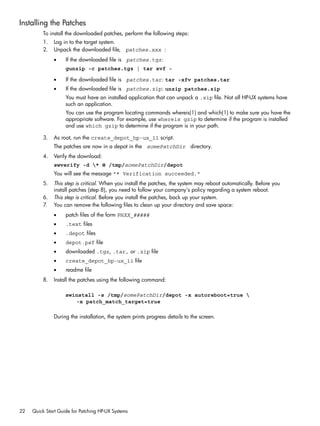
Installing the Patches
To install the downloaded patches, perform the following steps:
1. Log in to the target system.
2. Unpack the downloaded file, patches.xxx :
• If the downloaded file is patches.tgz:
gunzip -c patches.tgz | tar xvf -
• If the downloaded file is patches.tar: tar -xfv patches.tar
• If the downloaded file is patches.zip: unzip patches.zip
You must have an installed application that can unpack a .zip file. Not all HP-UX systems have
such an application.
You can use the program locating commands whereis(1) and which(1) to make sure you have the
appropriate software. For example, use whereis gzip to determine if the program is installed
and use which gzip to determine if the program is in your path.
3. As root, run the create_depot_hp-ux_11 script.
The patches are now in a depot in the somePatchDir directory.
4. Verify the download:
swverify -d * @ /tmp/somePatchDir/depot
You will see the message "* Verification succeeded."
5. This step is critical. When you install the patches, the system may reboot automatically. Before you
install patches (step 8), you need to follow your company's policy regarding a system reboot.
6. This step is critical. Before you install the patches, back up your system.
7. You can remove the following files to clean up your directory and save space:
• patch files of the form PHXX_#####
• .text files
• .depot files
• depot.psf file
• downloaded .tgz, .tar, or .zip file
• create_depot_hp-ux_11 file
• readme file
8. Install the patches using the following command:
swinstall -s /tmp/somePatchDir/depot -x autoreboot=true 
-x patch_match_target=true
During the installation, the system prints progress details to the screen.
22 Quick Start Guide for Patching HP-UX Systems
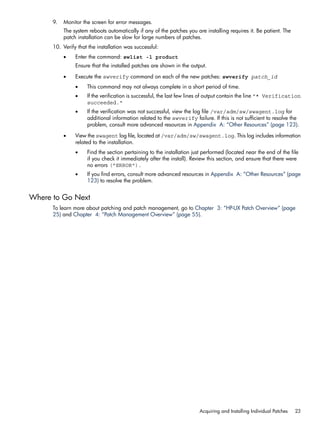
9. Monitor the screen for error messages.
The system reboots automatically if any of the patches you are installing requires it. Be patient. The
patch installation can be slow for large numbers of patches.
10. Verify that the installation was successful:
• Enter the command: swlist -l product
Ensure that the installed patches are shown in the output.
• Execute the swverify command on each of the new patches: swverify patch_id
• This command may not always complete in a short period of time.
• If the verification is successful, the last few lines of output contain the line "* Verification
succeeded."
• If the verification was not successful, view the log file /var/adm/sw/swagent.log for
additional information related to the swverify failure. If this is not sufficient to resolve the
problem, consult more advanced resources in Appendix A: “Other Resources” (page 123).
• View the swagent log file, located at /var/adm/sw/swagent.log. This log includes information
related to the installation.
• Find the section pertaining to the installation just performed (located near the end of the file
if you check it immediately after the install). Review this section, and ensure that there were
no errors ("ERROR").
• If you find errors, consult more advanced resources in Appendix A: “Other Resources” (page
123) to resolve the problem.
Where to Go Next
To learn more about patching and patch management, go to Chapter 3: “HP-UX Patch Overview” (page
25) and Chapter 4: “Patch Management Overview” (page 55).
Acquiring and Installing Individual Patches 23
24
3 HP-UX Patch Overview
This chapter provides the following information about patching:
• “Patch-Related Concepts” (page 26)
• “Which Patches Are on My System?” (page 31)
• “Ancestors and Supersession” (page 35)
• “Patch-Related Attributes” (page 39)
• “Patch Dependencies” (page 41)
• “Patch Rollback and Commitment” (page 43)
• “HP-UX Patch Ratings” (page 45)
• “Critical and Noncritical Patches” (page 47)
• “Finding Information for a Specific Patch” (page 48)
• “Patch Warnings” (page 51)
• “Backup and Recovery” (page 53)
25
Patch-Related Concepts
Although patches are best known for delivering defect fixes, they can also deliver new functionality and
features, enable new hardware, and update firmware. You should review the following patch-related concepts:
• “Patch Identification” (page 26)
• “HP-UX Software Structure” (page 26)
• “Patch Bundles” (page 27)
• “Software Depots” (page 27)
• “Patch Status” (page 28)
• “Patch State” (page 28)
• “State” (page 29)
• “Category Tags” (page 29)
Patch Identification
HP assigns each HP-UX patch a unique identification or patch ID. Each HP-UX patch ID has the form
PHXX_#####, where:
• PH is an abbreviation for patch HP-UX
• XX is replaced with one of the following values for the HP-UX area being patched:
• CO = command patches
• KL = kernel patches
• NE = network patches
• SS = patches related to all other subsystems
• ##### is replaced with a unique four- or five-digit number.
In general, the numeric portion of the patch ID is higher for more recently released patches.
HP-UX Software Structure
To understand some of the topics presented in this chapter, you should have a basic understanding of the
structure of HP-UX software. Patches are part of this software structure. You will also need to use Software
Distributor.
The following list provides an overview of the Software Distributor for HP-UX (SD-UX) software objects that
compose HP-UX software.
• Fileset
• A fileset is a grouping of one or more files contained in a product. A fileset groups a subset of a
product's files into a manageable unit.
• Filesets include the files and control scripts that make up a product. For more information about
control scripts, see the Software Distributor Administration Guide on the HP Technical Documentation
Web site at http://docs.hp.com.
• Filesets must exist within a product.
• Although a patch has a unique name, the names of the filesets contained in a patch match the
corresponding base filesets that they patch.
26 HP-UX Patch Overview
• Product
• A product is a software object that is packaged and distributed for users to acquire and install.
• Products are composed of one or more filesets and may additionally contain one or more control
scripts.
• A product can exist either within a bundle or as its own entity.
• Bundle
• A bundle is an encapsulation of products into a single software object.
• Bundles are optional software objects.
• Product objects are included in a bundle by reference only.
• If the products within the bundle are all patches, the bundle is known as a patch bundle.
For more information about these software objects, see the Software Distributor Administration Guide on the
HP Technical Documentation Web site at http://docs.hp.com.
Patch Bundles
Patch bundles play an important role in patch management. A patch bundle is a collection of patches that
have been grouped into a single software object to meet a specific need. Many HP-UX users find that
acquiring and installing these bundles, as opposed to acquiring and installing patches individually, simplifies
the patch management process.
Your first encounter with patch bundles might be with the standard HP-UX patch bundles. These bundles
contain patches that HP has assembled to meet a specific need. For example, the basic purpose of Quality
Pack patch bundles is to deliver defect-fix patches for proactive maintenance. HP releases updated versions
of the bundles on a regular schedule and tests them to ensure a high level of reliability. Using standard
HP-UX patch bundles can be a less error-prone and more efficient way to patch a system than acquiring and
installing individual patches. For more information, see Chapter 5: “What Are Standard HP-UX Patch
Bundles?” (page 65).
Patch bundles also make it easier for you to determine the current level of patches on a system. For example,
there could be hundreds of individual patches contained in an installed bundle, but the swlist command
lists, by default, only the bundle name rather than each individual patch contained in the bundle. For example,
if you installed the December 2003 Quality Pack patch bundles on an HP-UX 11i v1 (B.11.11) system,
output for the bundles would be similar to the following:
GOLDAPPS11i B.11.11.0312.4 Gold Applications Patches for HP-UX 11i v1,
December 2003
GOLDBASE11i B.11.11.0312.4 Gold Base Patches for HP-UX 11i v1,
December 2003
For more information about listing the products on a system, see “Which Patches Are on My System?” (page
31).
You may also find yourself working with patch bundles if you use the IT Resource Center Patch Assessment
Tool, which allows you to create your own custom patch bundles. For more information, see Chapter 9:
“Using Other Patch Tools” (page 113).
Software Depots
Software depots, or simply depots, are an integral part of patch management. A depot is a special type of
file or directory that has been formatted for use by SD-UX as a software repository. In the general case,
depots contain a diverse array of software products. A depot can exist as a directory tree on a SD-UX file
system or on CD or DVD media, and it can exist as a tape archive (tar) archive on serial media (tape). All
depots share a single logical format, independent of the type of media on which the depot resides. Depots
can reside on a local or remote system. You can package software directly into a depot or copy packaged
software into the depot from elsewhere. This guide focuses on depots as repositories for patches and patch
bundles. Such depots can be referred to as patch depots.
Patch-Related Concepts 27
Patch depots are a very effective mechanism for managing patches. You can create your own custom patch
depots to meet various patch management needs. You can also create special depots to be located on a
patch server that acts as a source for patch or bundle installations on other systems.
HP uses patch depots to deliver patches and patch bundles. For more information about depots, see
Chapter 8: “Using Software Depots for Patch Management” (page 87).
Patch Status
Patches have an associated status. The initial value of a patch's status does not change, but over the life of
the patch modifiers may be added (as described in this section). You can find the value for a patch's status
in the status field. This field is in the patch’s patch details page on the ITRC and in the patch text file. To
obtain the most up-to-date values for patch status, use the patch details page. A patch status has the following
values and modifiers to describe it.
Initial values for patch status include the following:
• General Release (GR)
HP has approved GR patches for widespread use.
• Special Release (SR)
HP intends an SR patch for limited distribution. It is available only through special channels.
Modifiers for patch status values include the following:
• Superseded
Indicates that the patch has been replaced by a newer patch. For more information about supersession,
see “Ancestors and Supersession” (page 35).
Results in the additional patch status values General Superseded and Special Superseded.
• With Warnings
Indicates that the patch has an associated warning. For more information about warnings, see “Patch
Warnings” (page 51).
Results in the additional patch status values General Release With Warnings and Special
Release With Warnings.
Most patches have a status of General Release or General Superseded.
Patch State
A patch that has been installed on a target system is assigned an attribute called patch_state that provides
information about a patch. For example, the patch_state tells you whether the patch has been committed
or superseded. For more information about attributes, see “Patch-Related Attributes” (page 39).
There are four values for patch_state:
• applied
The patch is currently active on the system and is the most recent member of its supersession chain to
have been loaded.
• committed
The patch's rollback files have been deleted, or the patch was installed without saving rollback files.
The patch cannot be directly removed from the system. For more information about patch rollback, see
“Patch Rollback and Commitment” (page 43).
• superseded
The patch has been superseded by another patch that has been installed on the system. For more
information about supersession, see “Ancestors and Supersession” (page 35).
• committed/superseded
The patch has been committed and superseded by another patch installed on the system.
28 HP-UX Patch Overview
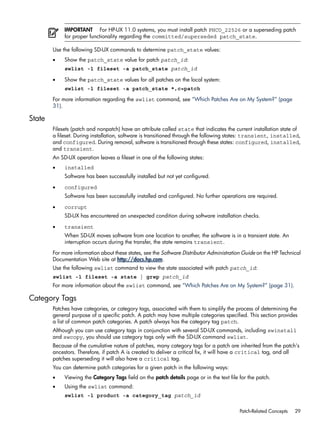
IMPORTANT For HP-UX 11.0 systems, you must install patch PHCO_22526 or a superseding patch
for proper functionality regarding the committed/superseded patch_state.
Use the following SD-UX commands to determine patch_state values:
• Show the patch_state value for patch patch_id:
swlist -l fileset -a patch_state patch_id
• Show the patch_state values for all patches on the local system:
swlist -l fileset -a patch_state *,c=patch
For more information regarding the swlist command, see “Which Patches Are on My System?” (page
31).
State
Filesets (patch and nonpatch) have an attribute called state that indicates the current installation state of
a fileset. During installation, software is transitioned through the following states: transient, installed,
and configured. During removal, software is transitioned through these states: configured, installed,
and transient.
An SD-UX operation leaves a fileset in one of the following states:
• installed
Software has been successfully installed but not yet configured.
• configured
Software has been successfully installed and configured. No further operations are required.
• corrupt
SD-UX has encountered an unexpected condition during software installation checks.
• transient
When SD-UX moves software from one location to another, the software is in a transient state. An
interruption occurs during the transfer, the state remains transient.
For more information about these states, see the Software Distributor Administration Guide on the HP Technical
Documentation Web site at http://docs.hp.com.
Use the following swlist command to view the state associated with patch patch_id:
swlist -l fileset -a state | grep patch_id
For more information about the swlist command, see “Which Patches Are on My System?” (page 31).
Category Tags
Patches have categories, or category tags, associated with them to simplify the process of determining the
general purpose of a specific patch. A patch may have multiple categories specified. This section provides
a list of common patch categories. A patch always has the category tag patch.
Although you can use category tags in conjunction with several SD-UX commands, including swinstall
and swcopy, you should use category tags only with the SD-UX command swlist.
Because of the cumulative nature of patches, many category tags for a patch are inherited from the patch's
ancestors. Therefore, if patch A is created to deliver a critical fix, it will have a critical tag, and all
patches superseding it will also have a critical tag.
You can determine patch categories for a given patch in the following ways:
• Viewing the Category Tags field on the patch details page or in the text file for the patch.
• Using the swlist command:
swlist -l product -a category_tag patch_id
Patch-Related Concepts 29
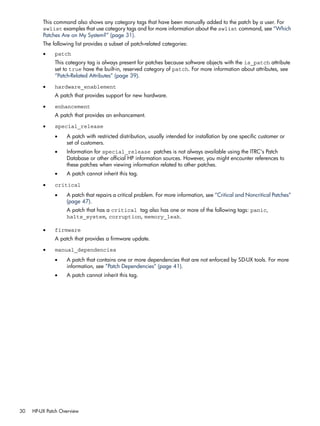
This command also shows any category tags that have been manually added to the patch by a user. For
swlist examples that use category tags and for more information about the swlist command, see “Which
Patches Are on My System?” (page 31).
The following list provides a subset of patch-related categories:
• patch
This category tag is always present for patches because software objects with the is_patch attribute
set to true have the built-in, reserved category of patch. For more information about attributes, see
“Patch-Related Attributes” (page 39).
• hardware_enablement
A patch that provides support for new hardware.
• enhancement
A patch that provides an enhancement.
• special_release
• A patch with restricted distribution, usually intended for installation by one specific customer or
set of customers.
• Information for special_release patches is not always available using the ITRC's Patch
Database or other official HP information sources. However, you might encounter references to
these patches when viewing information related to other patches.
• A patch cannot inherit this tag.
• critical
• A patch that repairs a critical problem. For more information, see “Critical and Noncritical Patches”
(page 47).
A patch that has a critical tag also has one or more of the following tags: panic,
halts_system, corruption, memory_leak.
• firmware
A patch that provides a firmware update.
• manual_dependencies
• A patch that contains one or more dependencies that are not enforced by SD-UX tools. For more
information, see “Patch Dependencies” (page 41).
• A patch cannot inherit this tag.
30 HP-UX Patch Overview
Which Patches Are on My System?
SD-UX is included with the HP-UX operating system and provides a powerful set of tools for centralized HP-UX
software management. Many SD-UX commands start with sw; for example: swlist, swinstall, swreg,
swremove, swcopy, and swverify. For more information about SD-UX, see the Software Distributor
Administration Guide on the HP Technical Documentation Web site at http://docs.hp.com.
The swlist command can be invaluable in determining which patches and patch bundles are on your
HP-UX system. You can use the swlist command to display information about software products that are
installed on a local or remote host, or that are stored in a local or remote depot. You can use the various
command arguments and options to customize the information returned. See the swlist(1M) manpage.
This section presents some examples of swlist to display information about patches, bundles, and depots.
NOTE For brevity and improved readability, some lines of SD-UX command output have been shortened
or removed.
Examples of the swlist Command
If you use swlist with no arguments, you get a default listing of all top-level software installed on your
local host. You will see output similar to the following:
$ swlist
# Initializing...
# Contacting target "some_system"...
#
# Target: some_system:/
# Bundle(s):
BUNDLE11i B.11.11.0102.2 Required Patch Bundle for HP-UX 11i, February 2001
GOLDAPPS11i B.11.11.0312.4 Gold Applications Patches for HP-UX 11i v1, Dec 2003
GOLDBASE11i B.11.11.0312.4 Gold Base Patches for HP-UX 11i v1, December 2003
HWEnable11i B.11.11.0309.4 Hardware Enablement Patches for HP-UX 11i, Sep 2003
MOZILLA 1.4.0.00.00 Mozilla 1.4 for HP-UX
T1471AA A.03.50.000 HP-UX Secure Shell
# Product(s) not contained in a Bundle:
PHCO_28848 1.0 Software Distributor Cumulative Patch
PHCO_29010 1.0 shar(1) patch
PHCO_29495 1.0 libc cumulative patch
PHSS_28677 1.0 CDE Applications Periodic Patch
vim 5.8 Vi IMproved
The swlist command has many arguments. This chapter considers only the following arguments and
operands:
swlist [ -d ] [ -l level ] [ -a attribute ] [ -s source ] [ software_selections ] [ -x
option=value ] [ @ target_selections ]
• -d
Directs the swlist command to operate on a software depot rather than on software currently installed
on the system. When you use this argument, you must also use the @ target_selections argument
to specify the depot.
• -l level
• Lists all software objects down to the specified level. The following is a partial list of supported
level values:
• depot: Lists products available from a depot.
• bundle: Shows only bundles.
• product: Shows only products.
Which Patches Are on My System? 31
• patch: Shows all applied patches.
• fileset: Shows products and filesets.
• file: Shows products, filesets, files, and numbers (used in software licensing).
• category: Shows all categories of available patches for patches that have included category
objects in their definition.
• Specifies multiple values for level :
-l bundle -l product: Shows bundles and the products they contain.
• -a attribute
Specifies one or more attributes to display. For more information about attributes, see “Patch-Related
Attributes” (page 39).
• -s source
Specifies the software source to list. Use this argument as an alternative way to list a depot.
• software_selections
• Specifies software objects to be listed.
• Applies only if the level is bundle, product, fileset, file, or patch.
• Use wildcards [ ], *, ? in the specification of the software_selections if you want
to make multiple selections. For example:
• A specification of bun[12] selects software bun1 and bun2.
• A specification of * selects all software.
• Views the manpages for sd(5) using the command: man 5 sd
• -x option=value
• Sets the option to specified value.
• The default behavior of the swlist command is to show only the latest patches installed on a
system. It does not show patches that have been superseded. To list superseded patches, set the
show_superseded_patches option to true:
swlist -x show_superseded_patches=true
• Specifies multiple -x options if needed.
• @ target_selections
• Specifies the target of the command. You can tell the swlist command to operate on a system
other than the local host or on a depot. For example, to specify the swlist command operate
on the system host1:
swlist @ host1
• Operates on the software depot depot1 located in directory some_directory on the local
host:
swlist @ /some_directory/depot1
• Operates on the depot depot2 located in directory some_directory on the system host1:
swlist @ host1:/some_directory/depot2
For a complete list of swlist arguments, consult the swlist(1M) manpage or the Software Distributor
Administration Guide on the HP Technical Documentation Web site at http://docs.hp.com.
To filter the output to display only patches, you can use the -l argument in combination with a software
selection using the category tag patch:
32 HP-UX Patch Overview
$ swlist -l product *,c=patch
# Initializing...
# Contacting target "some_system"...
#
# Target: some_system:/
PHCO_28848 1.0 Software Distributor Cumulative Patch
PHCO_29010 1.0 shar(1) patch
PHCO_29495 1.0 libc cumulative patch
PHSS_28677 1.0 CDE Applications Periodic Patch
...
The following command shows patches that have a manual_dependencies category tag:
$ swlist -l product *,c=manual_dependencies
# Initializing...
# Contacting target "chb26006"...
#
# Target: chb26006:/
PHCO_24198 1.0 ioscan(1M) patch
PHCO_25831 1.0 SCSI Ultra160 driver Online Addition script
PHCO_25841 1.0 Add Rock Ridge extension to mount_cdfs(1M)
PHCO_26252 1.0 mount_vxfs(1M) cumulative patch
...
The following command shows bundles on the system specified:
$ swlist -l bundle @ some_system
# Initializing...
# Contacting target "some_system"...
#
# Target: some_system:/
BUNDLE11i B.11.11.0102.2 Required Patch Bundle for HP-UX 11i, Feb 2001
GOLDAPPS11i B.11.11.0312.4 Gold Applications Patches for HP-UX 11i v1, Dec 2003
GOLDBASE11i B.11.11.0312.4 Gold Base Patches for HP-UX 11i v1, Dec 2003
HWEnable11i B.11.11.0309.4 Hardware Enablement Patches for HP-UX 11i, Sep 2003
MOZILLA 1.4.0.00.00 Mozilla 1.4 for HP-UX
T1471AA A.03.50.000 HP-UX Secure Shell
Table 3-1: “Variations of the swlist Command” (page 34) lists numerous swlist command variations that
you may find useful. These examples can also help you learn how to combine various swlist arguments.
Which Patches Are on My System? 33
Table 3-1 Variations of the swlist Command
Descriptionswlist Commands
Displays the registered depots located on your local system.swlist -l depot
Displays the registered depots located on the system some_host.swlist -l depot @ some_host
Alternates commands that list the products stored in the software
depot /some_directory/some_depot on the system
some_host.
swlist -d -l product @ 
some_host:/some_directory/some_depot
swlist -l product -s 
some_host:/some_directory/some_depot
Lists all patches in the depot /some_directory/some_depot
on the system some_host.
swlist -d -l product *,c=patch @ 
some_host:/some_directory/some_depot
Lists all category tags associated with the contents of the depot
/some_directory/some_depot on the system some_host.
swlist -d -l category @ 
some_host:/some_directory/some_depot
Displays the readme documentation for patch patch_id.swlist -a readme -l product patch_id
Displays the readme documentation for all patches installed on
the local system which contain critical functionality.
swlist -a readme -l product *,c=critical
Lists the products contained in bundle some_bundle.swlist -l product some_bundle
Lists the category tags for patch patch_id.swlist -l product -a category_tag patch_id
Lists the patches installed on the local system and their
corresponding category tags.
swlist -l product -a category_tag *,c=patch
34 HP-UX Patch Overview
Ancestors and Supersession
The related concepts of ancestors and supersession are integral to patches and patch management. It is
important that you gain a basic understanding of both. It may also be helpful for you to recall information
presented in “HP-UX Software Structure” (page 26).
Ancestors
The ancestor of a patch is the original software product that a patch modifies. Ancestry is defined only at
the fileset level. Each patch fileset has only one ancestor fileset that composes the base software that a patch
modifies. However, there may be one or more versions of this ancestor fileset. The patch fileset has the same
name as its ancestor. For example, fileset Xserver.AGRM is the ancestor of patch fileset PHSS_29183.AGRM.
You can see an additional example in “Advanced Topic: Determining Patch Ancestors” (page 35).
Ancestry impacts both patch installation and patch removal. A patch fileset cannot be installed on a system
unless its ancestor fileset software either is already installed or is being installed during the same operation.
Similarly, when an ancestor fileset is removed, all the patches that have been applied to it are also removed.
Advanced Topic: Determining Patch Ancestors
You can determine a patch fileset's ancestor using the patch's ancestor attribute with the swlist command.
The following command lists the ancestor filesets for the filesets of patch patch_id:
swlist -l fileset -a ancestor patch_id
For example:
$ swlist -l fileset -a ancestor PHSS_29183
# Initializing...
# Contacting target "chb26006"...
# Target: chb26006:/
# PHSS_29183
PHSS_29183.AGRM Xserver.AGRM,fr=B.11.11,v=HP
PHSS_29183.DDX-ADVANCED Xserver.DDX-ADVANCED,fr=B.11.11,v=HP
PHSS_29183.DDX-ENTRY Xserver.DDX-ENTRY,fr=B.11.11,v=HP
PHSS_29183.DDX-LOAD Xserver.DDX-LOAD,fr=B.11.11,v=HP
PHSS_29183.DDX-SAM Xserver.DDX-SAM,fr=B.11.11,v=HP
PHSS_29183.DDX-SLS Xserver.DDX-SLS,fr=B.11.11,v=HP
PHSS_29183.DDX-UTILS Xserver.DDX-UTILS,fr=B.11.11,v=HP
PHSS_29183.X11-SERV Xserver.X11-SERV,fr=B.11.11,v=HP
PHSS_29183.X11-SERV-MAN Xserver.X11-SERV-MAN,fr=B.11.11,v=HP
PHSS_29183.XEXT-DBE Xserver.XEXT-DBE,fr=B.11.11,v=HP
PHSS_29183.XEXT-DBE-MAN Xserver.XEXT-DBE-MAN,fr=B.11.11,v=HP
PHSS_29183.XEXT-DPMS Xserver.XEXT-DPMS,fr=B.11.11,v=HP
PHSS_29183.XEXT-DPMS-MAN Xserver.XEXT-DPMS-MAN,fr=B.11.11,v=HP
PHSS_29183.XEXT-HPCR Xserver.XEXT-HPCR,fr=B.11.11,v=HP
PHSS_29183.XEXT-HPCR-MAN Xserver.XEXT-HPCR-MAN,fr=B.11.11,v=HP
PHSS_29183.XEXT-MBX Xserver.XEXT-MBX,fr=B.11.11,v=HP
PHSS_29183.XEXT-RECORD Xserver.XEXT-RECORD,fr=B.11.11,v=HP
Patch filesets that have been applied to an ancestor fileset are listed in the ancestor's applied_patches
attribute.
For example:
$ swlist -a applied_patches Xserver.AGRM
# Initializing...
# Contacting target "chb26006"...
# Target: chb26006:/
Xserver.Runtime.AGRM
PHSS_21817.AGRM,fa=HP-UX_B.11.11_32/64
Ancestors and Supersession 35
PHSS_26619.AGRM,fa=HP-UX_B.11.11_32/64
PHSS_26622.AGRM,fa=HP-UX_B.11.11_32/64
PHSS_26638.AGRM,fa=HP-UX_B.11.11_32/64
PHSS_29169.AGRM,fa=HP-UX_B.11.11_32/64
PHSS_29183.AGRM,fa=HP-UX_B.11.11_32/64
For more information see the Software Distributor Administration Guide on the HP Technical Documentation
Web site at http://docs.hp.com.
Supersession
Supersession is the process of replacing an earlier patch with a new patch. A new patch supersedes all
previous patches. Upon installation of the new (superseding) patch, its files replace files of the patches being
superseded. Patches for HP-UX products are always cumulative. Each new patch contains all aspects of all
its preceding patches.
A series of patches form a supersession chain. A supersession chain includes the following:
• The nonpatch software product being patched.
• Each patch that patches the nonpatch software product.
• Each patch that patches the patches.
Figure 3-1 shows a simple, hypothetical supersession chain in which a product has been superseded by
PHXX_31937, which in turn has been superseded by PHXX_32384, which has been superseded by
PHXX_43826. In general, patch numbers increase along a patch supersession chain.
Figure 3-1 Patch Supersession Chain
The cumulative nature of a patch allows it to satisfy all dependencies on all patches it supersedes. The
converse is not true, however. A superseded patch will not satisfy a dependency on a superseding patch.
For more information about dependencies, see “Patch Dependencies” (page 41).
You can determine which patches a given patch supersedes by viewing either the patch's patch details page
or the patch's patch text file. See the Supersedes field for more information.
36 HP-UX Patch Overview
Advanced Topic: Displaying Supersession Information
By default, the swlist command does not show superseded patches, but you can set it to show them:
swlist -l patch -x show_superseded_patches=true
You can also use the HP-UX Patch Tool show_patches (available via PHCO_18519 and its superseding
patches) to show superseded patches. To show superseded patches, enter this command:
show_patches –s
You can list the filesets that have directly superseded the filesets of a given patch installed on your system.
This is done by using the swlist command to show the superseded_by attribute of the patch. In the
following example, patch PHSS_27875 is superseded by patch PHSS_28681:
$ swlist -l fileset -a superseded_by -x 
show_superseded_patches=true PHSS_27875
# Initializing...
# Contacting target "some_system"...
#
# Target: some_system:/
#
# PHSS_27875
PHSS_27875.X11-JPN-S-MSG PHSS_28681.X11-JPN-S-MSG,fa=HP-UX_B.11.11_32/64
PHSS_27875.X11-RUN-CL PHSS_28681.X11-RUN-CL,fa=HP-UX_B.11.11_32/64
PHSS_27875.X11-TCH-B-MSG PHSS_28681.X11-TCH-B-MSG,fa=HP-UX_B.11.11_32/64
You can also show the filesets that a given patch has superseded. These superseded filesets will be listed
whether or not they are installed on a system. This is done by using the swlist command to list the
supersedes attribute of the patch. Note that the first patch of any particular patch supersession chain does
not have a supersedes attribute. In the following example, patch PHSS_28681 is shown to supersede
patches PHSS_27875, PHSS_26498, and PHSS_25201. (The output has been reformatted to improve
readability.)
$ swlist -l fileset -a supersedes PHSS_28681
# Initializing...
# Contacting target "some_system"...
#
# Target: some_system:/
#
# PHSS_28681
PHSS_28681.X11-JPN-S-MSG
PHSS_27875.X11-JPN-S-MSG,fr=*
PHSS_26498.X11-JPN-S-MSG,fr=*
PHSS_28681.X11-RUN-CL
PHSS_27875.X11-RUN-CL,fr=*
PHSS_26498.X11-RUN-CL,fr=*
PHSS_25201.X11-RUN-CL,fr=*
PHSS_28681.X11-TCH-B-MSG
PHSS_27875.X11-TCH-B-MSG,fr=*
PHSS_26498.X11-TCH-B-MSG,fr=*
Advanced Topic: Supersession and the patch_state Attribute
When a superseding patch is applied to a system, the superseded patch (if there was one) remains on the
system but is not active. Only the top patch of the chain is in the active (applied) state. For more information
about patch state, see “Patch State” (page 28).
You can use the following swlist command to show the patch_state attribute for patch patch_id:
swlist -a patch_state -x show_superseded_patches=true patch_id
It is important to note that the availability of a newer, superseding patch does not preclude the use of the
older patch. Depending on the circumstances, a superseded patch might be a better choice than the patch
Ancestors and Supersession 37
superseding it. Older patches have had more exposure to varied, real-world use. When they have been
shown to induce no ill effects, they are generally safer than newer patches that supersede them. Thus, if two
patches in a supersession chain solve the problem you are facing, you may find that the older patch is the
better choice.
Because HP-UX patches are cumulative, a superseding patch negates the need for the previous patch. As
an example, patch PHSS_29377 delivers all the features and fixes of all other patches shown in Figure 3-2:
“HP-UX Patch Supersession Chain” (page 38). This patch will also satisfy any dependencies on all patches
in the supersession chain.
SD-UX does not allow you to install a patch that has been superseded by another patch already installed
on a system. Using Figure 3-2: “HP-UX Patch Supersession Chain” (page 38) as an example, if you have
patch PHSS_29377 installed on a system SD-UX will not allow you to install patch PHSS_29323.
Patch supersession chains can be more complex than the one shown in Figure 3-2: “HP-UX Patch Supersession
Chain” (page 38).
Figure 3-2 HP-UX Patch Supersession Chain
The supersession chain in Figure 3-2: “HP-UX Patch Supersession Chain” (page 38) is composed of two
separate supersession chains that were combined when patch PHSS_29156 superseded both PHSS_29026
and PHSS_29008. Again, because of the cumulative nature of HP-UX patches, patch PHSS_29377 delivers
all the features and fixes delivered by the other six patches in this supersession chain.
38 HP-UX Patch Overview
Patch-Related Attributes
Each of the SD-UX objects described in “HP-UX Software Structure” (page 26) has a set of properties known
as attributes that provide information about the object's characteristics. For patches, these attributes control
aspects of patch behavior and define patch properties and relationships. (See “State” (page 29) and “Patch
State” (page 28).)
For information about how you can use attributes with the swlist command, see “Which Patches Are on
My System?” (page 31).
The following list describes a subset of available attributes:
• ancestor
• Applies to filesets.
• Identifies the fileset that must be on the system for the patch to be installable.
• category_tag
• Applies to products or filesets.
• Provides a label for a fileset or product. Several tags are defined during patch creation; users can
create others with the swmodify command.
• See “Category Tags” (page 29).
• is_patch
• Applies to both patch products and filesets.
• When set to true, is_patch enables patch behavior.
• is_reboot
• Applies to filesets.
• When set to true, is_reboot indicates that installation of the fileset will cause the system to
reboot.
• patch_state
• Applies to patch filesets.
• Records the condition of patches.
• See “Patch State” (page 28).
• readme
• Applies to products.
• Contains the patch's original text file.
• software_spec
• Applies to bundles, products, or filesets.
• Contains the fully qualified identifier for the bundle, product, or fileset. Uniquely identifies a specific
instance of a software object.
• state
• Applies to filesets.
• Provides useful information about the installation state of software.
• See “State” (page 29).
Patch-Related Attributes 39
• supersedes
• Applies to patch filesets.
• Lists all prior filesets that a patch fileset supersedes.
• See “Ancestors and Supersession” (page 35).
• superseded_by
• Applies to patch filesets.
• Records the software specification of the fileset that superseded the fileset on a given system. This
attribute is set only for installed patch filesets, and never in software depots.
• See “Ancestors and Supersession” (page 35).
You can show these attributes with the swlist command using the -a attribute argument, replacing
attribute with one of the previously listed attributes. For more information about the swlist command,
see “Which Patches Are on My System?” (page 31).
40 HP-UX Patch Overview
Patch Dependencies
A patch that depends on other software in order to install or run correctly is said to have a dependency on
that other software. In order to become fully active, a patch may require changes to areas of the system
other than those it modifies. Such a patch may have a documented dependency on one or more patches or
nonpatch software products that are responsible for the changes in these other areas.
For example, in Figure 3-3: “Patch Supersession Chains and Patch Dependencies” (page 41), patch
PHXX_33662 depends on patch PHXX_32384, and patch PHXX_43826 depends on PHXX_33662. Patches
PHXX_31967 and PHXX_31937 depend on each other (mutual dependency).
Figure 3-3 Patch Supersession Chains and Patch Dependencies
Because HP-UX patches are cumulative, a patch satisfies all the dependencies that all of its superseded
patches satisfy. The opposite is not true, however. A superseded patch does not satisfy a dependency on a
superseding patch. Figure 3-3: “Patch Supersession Chains and Patch Dependencies” (page 41) provides
an example. Patch PHXX_33662 requires patch PHXX_32384, but PHXX_43826 can also satisfy this
requirement because it supersedes PHXX_32384. However, patch PHXX_32384 does not satisfy
PHXX_43826's dependency on PHXX_33662.
For more information about supersession, see “Ancestors and Supersession” (page 35).
Types of Dependencies
HP provides patch dependency information for a patch in its patch text file and its patch details page. The
dependency information is contained in the following fields:
• Patch Dependencies
Patches that are required for proper operation.
• Other Dependencies
Various dependencies that cannot be described as patch dependencies, such as those that are needed
only under specific circumstances.
NOTE While looking at a patch's patch text file or patch details page, you might notice an additional field
that is dependency related. The Hardware Dependencies field represents a different type of dependency
than those presented in this section. It does not show dependencies on other patches, but rather gives specific
system models to which a patch is limited.
Patch Dependencies 41
Corequisites and Prerequisites
The following is a list of the most common dependency requisite types:
• A corequisite is a dependency in which one fileset requires that another fileset be installed or configured
at the same time. For example, if fileset A requires that fileset B be installed at the same time, fileset B
is a corequisite for fileset A.
• A prerequisite is a dependency in which one fileset requires another fileset to be installed or configured
before the first fileset can be installed or configured. For example, fileset C may require that fileset D
be installed before fileset C can be installed. Therefore, fileset D is a prerequisite for fileset C.
Advanced Topic: Determining Corequisite and Prerequisite Filesets with the swlist Command
You can use the following command to determine the dependent filesets. Replace dependency_type with
either corequisite or prerequisite, as appropriate.
swlist -vl fileset -a dependency_type fileset
For example:
$ swlist -vl fileset -a corequisite PHSS_29964.DCEC-ENG-A-MAN
# Initializing...
# Contacting target "some_system"...
# PHSS_29964.DCEC-ENG-A-MAN
fileset
corequisites PHCO_24400.CORE-SHLIBS,fa=HP-UX_B.11.11_32/64
Enforced and Unenforced (Manual) Dependencies
A patch's dependency upon another patch will either be enforced or unenforced by SD-UX. Starting with
HP-UX 11i v1 (B.11.11), SD-UX install commands supported the use of requisites for enforcing dependencies.
Prior to HP-UX 11i v1, users had to maintain dependencies manually.
• Enforced dependencies
Dependencies that are registered using corequisite or prerequisite attributes and managed by SD-UX.
• Unenforced dependencies (also known as manual dependencies)
Dependencies that SD-UX does not register as requisites and thus cannot enforce when performing
patch installation. You can identify these types of dependencies by checking the manual_dependency
category tag. The user must ensure that the required patches are installed to satisfy these manual
dependencies.
Impact of Dependencies on Acquiring Patches
HP strongly recommends that you use the ITRC as your primary source for acquiring patches. If you acquire
individual patches using the ITRC's Patch Database, the patches required to meet the dependencies of these
patches are automatically selected for download along with the patches you selected manually. The analysis
performed by the Patch Database to select these patches takes into account supersession and patch warnings.
Unless you have a specific reason to do otherwise, you should download these automatically selected patches
along with the patches you explicitly selected. This automatic selection of patches represents one of the many
time-saving features provided by the ITRC.
For a description of how to identify and acquire the additional patches that may be needed to satisfy
dependencies, see “Advanced Topic: Checking for All Patch Dependencies” (page 73).
NOTE If you download patches from sources other than the ITRC, such as an HP FTP server, you are
completely responsible for identifying and downloading the patches required to satisfy all dependencies.
Standard HP-UX patch bundles, such as the Quality Pack, do not require users to perform any dependency
analysis. All patches required to satisfy all dependencies are included in the bundles. Using standard HP-UX
patch bundles increases confidence that you have obtained and installed all necessary patches to satisfy all
dependencies.
42 HP-UX Patch Overview
Patch Rollback and Commitment
This section describes patch rollback and commitment.
Patch Rollback
You may occasionally want to remove a patch and restore the system to its prepatched state. This process
is known as patch rollback. For example, if you installed a patch that resulted in unacceptable system
behavior, you might choose to roll back this patch. However, rollback is possible only if certain files were
saved as part of the patch installation process. During patch installation, the default behavior is to save
copies of all files that are replaced by the new patch before the new versions of these files are loaded. These
saved files are called rollback files and are the key to making patch rollback possible. When you roll back
a patch, these rollback files are restored to the system. You should override the default behavior only if you
have a complete understanding of the patch rollback process.
You cannot roll back a patch unless one of the following is true:
• Rollback files corresponding to the patch are available for reinstallation.
• Base software modified by the patch is removed at the same time (removing the base software also
removes the patches associated with that software).
• For superseded patches, you must first roll back the superseding patch.
You can use the swremove command to roll back a patch. Use the following command to roll back the
patch patch_id:
swremove patch_id
As is true for many SD-UX commands, you can add the -p argument to execute the command in preview-only
mode. This mode allows you to view output from the command without actual changes occurring. You initially
should execute the command in preview mode:
swremove –p patch_id
Advanced Topic: Patch Installation and Rollback Files
When installing patches, you can explicitly specify that rollback files not be saved. To do this, you add the
–x patch_save_files=false option to the swinstall command:
>% swinstall –s /tmp/tmpdepot/depot –x autoreboot=true 
-x patch_match_target=true –x patch_save_files=false
Only use the false option if you will never remove a patch under any circumstances.
Patch Commitment
Allowing for patch rollback does come at a cost, because the files required for patch rollback consume disk
space. If disk space is an issue on a system, you can commit your patches; a process that deletes the
associated rollback files, thereby freeing disk space. If disk space is not an issue on a system, you should
avoid committing the patches, and leave rollback files in place. If any patch in a supersession chain is
committed, all prior patches in the chain lose the ability to be restored, and the save area disk space for
those patches will also be reclaimed.
Do not undertake patch commitment without serious consideration of the consequences. When you commit
a patch, simple rollback of the patch is no longer possible. Because of this, you should carefully select which
patches should be committed. Good candidates include patches that were thoroughly tested in your
environment prior to installation, and patches that have been installed on the system for a significant period
of time and have not resulted in unwarranted conditions. Other good candidates are patches that have been
superseded multiple times. You should also consider a patch's warning status and its HP rating before
committing the patch.
To commit an individual patch, execute the SD-UX command swmodify on the patch with the
patch_commit=true option. To commit the patch patch_id, enter this command:
Patch Rollback and Commitment 43
swmodify -x patch_commit=true patch_id
You can add the -p argument to this command so it will be executed in preview-only mode.
Advanced Topic: Patch Cleanup Utility
The patch utility called cleanup allows you to commit all patches that have been superseded a specified
number of times. You can execute this command in preview mode in order to see what effect the command
will have without actually making any changes. You should always use the preview mode first. This is
accomplished by including the -p argument. The command has the following format:
cleanup [-p] -c number
The cleanup utility is delivered by the following patches (and their superseding patches):·
• PHCO_27779 (HP-UX 11.0, B.11.00)
• PHCO_27780 (HP-UX 11i v1, B.11.11)
For example, the following command will execute in preview mode. When executed without the -p option,
the command causes all patches superseded three or more times to be committed. The patches to be committed
are shown in the output of the command.
$ cleanup -p -c3
### Cleanup program started at 04/13/04 07:17:40
Preview mode enabled. No modifications will be made.
Commit patches superseded at least 3 time(s) on 'some_system'.
Obtaining superseded patch information...done.
The following patches superseded at least 3 time(s) can be committed:
Superseded # Times Superseded Disk Space in /var/adm/sw/save Superseded By
========== ================== ============================== =============
PHKL_23313 3 66560 bytes PHKL_26519
PHKL_26233 3 180224 bytes PHKL_28267
PHNE_23288 3 59392 bytes PHNE_23645
PHNE_26388 4 6581248 bytes PHNE_28103
PHNE_28103 3 6694912 bytes PHNE_28983
PHSS_21817 5 12379136 bytes PHSS_26619
PHSS_26492 3 8761344 bytes PHSS_27872
PHSS_26619 4 14969856 bytes PHSS_26622
PHSS_26622 3 27064320 bytes PHSS_26638
All information has been logged to /var/adm/cleanup.log.
### Cleanup program completed at 04/13/04 07:17:40
44 HP-UX Patch Overview
HP-UX Patch Ratings
HP-UX patches have a corresponding quality rating called the HP rating. HP assigns a patch rating of 1
(numeral or star) to each HP-UX patch when it is released. Over time, HP may update the rating value to 2
or 3 (numeral or stars) to convey increased confidence in the patch. The higher the rating, the lower the risk
of side effects and the more suitable the patch is for mission-critical environments.
You can use the ITRC's Patch Database to find the rating value for a specific patch. The ITRC graphically
represents a patch's rating by displaying one to three stars beside the patch ID in the results of a patch
search. “Obtaining Information Using the ITRC” (page 50) provides details on how to do this.
If HP learns of a problem caused by or exposed by an HP-UX patch, HP issues a patch warning describing
the problem and ceases recommending the patch, but does not change the patch rating. If a patch has a
warning associated with it, you will no longer be able to view the rating on the ITRC's patch database. For
more information on patch warnings, see “Patch Warnings” (page 51).
The following rating related information pertains only to patches that have no associated warnings.
HP Patch Rating of 1
Although these patches have passed rigorous prerelease testing, HP recommends that you use these patches
only if all of the following conditions are true:
• If you are in a reactive patching situation.
• The highest-rated patch that addresses the problem is rated 1.
• You cannot wait for the patch to increase to a higher rating.
Whenever possible, you should wait until the patch gains more exposure and achieves a rating of 2 or 3.
For more information on reactive and proactive patching, see Chapter 4: “Patch Management Overview”
(page 55).
Rating Details
The following list provides more details about patch ratings of 1:
• Upon release, patches are assigned a rating of 1.
• These patches have successfully completed internal testing by HP.
• Because they are new, these patches have an inherent level of risk associated with them that you may
find unacceptable. However, they are made available in case you are willing to accept the increased
risk because the patch resolves a specific issue on a system.
• If you choose to use one of these patches, you should evaluate and test it carefully prior to deployment
on a system.
HP Patch Rating of 2
HP recommends that you use patches rated 2 for both proactive and reactive patching and when a patch
rated 3 is not available.
Patches rated 1 may be upgraded to a rating of 2 on any given day (based on the amount of customer
exposure). Therefore, if you chose to defer patch installation to wait for a patch rating to be upgraded to a
rating of 2, you can check for this upgrade on a daily basis.
Rating Details
The following list provides more details on patch ratings of 2:
• These patches have met minimum criteria based on the number of days available to customers and the
number of times downloaded with no problems reported.
• These patches may appear in the recommended column of the ITRC's Patch Database patch search
results page (provided they have no associated patch warnings).
HP-UX Patch Ratings 45
HP Patch Rating of 3
Rating 3 is the highest rating HP assigns to a patch. These patches represent the lowest level of risk. HP
recommends you use patches rated 3 whenever possible for both proactive and reactive patching.
If you are waiting for a specific patch to reach a rating of 3, check the patch quarterly to determine whether
it has been promoted from a rating of 2 to a rating of 3.
Rating Details
The following list provides more details on patch ratings of 3:
• These patches have passed more levels of testing than patches rated 1 or 2.
• These patches may appear in the recommended column of the ITRC's Patch Database patch search
results page (provided they have no associated patch warnings).
46 HP-UX Patch Overview
Critical and Noncritical Patches
HP-UX patches are considered to be either critical or noncritical. You can determine whether a patch is
labeled as critical by looking at the Critical field on the patch details page or in the patch text file for the
patch. This field identifies newly delivered critical content.
HP considers a patch to be critical if the patch provides a fix for a critical problem. Examples include patches
that provide fixes for the following problems:
• System panic or hang
• Process abort, hang, or failure
• Data corruption
• Severe performance degradation
• Application-specific critical issues
HP considers a patch to be noncritical if the patch provides fixes for only noncritical problems. Examples of
noncritical problems include the following:
• Extraneous debug, warning, or error messages
• Failure to address all documented issues
• Minor regressions in behavior
A patch is considered critical if it contains any critical fixes, even if they were introduced in earlier (superseded)
patches. The Critical field for such a patch contains the following text:
“No (superseded patches were critical)”
In addition, the field gives the ID of the patch that introduced the critical fix. The Critical field for patch
PHSS_30011 is shown in Figure 3-4, “Critical Field for PHSS_30011”, and it shows that superseded patch
PHSS_29735 actually introduced the critical fix.
Figure 3-4 Critical Field for PHSS_30011
Critical:No (superseded patches were critical)
PHSS_29735: CORRUPTION
Critical patches have a critical category tag. The category tags (and swlist command used to acquire
the category tags) for this patch are shown in Figure 3-5: “Category Tags for PHSS_30011” (page 47).
See “Category Tags” (page 29) for more information.
Figure 3-5 Category Tags for PHSS_30011
$ swlist -l product -a category_tag PHSS_30011
# Initializing...
# Contacting target "some_system"...
#
# Target: some_system:/
# PHSS_30011 patch defect_repair general_release critical
enhancement corruption manual_dependencies
Critical and Noncritical Patches 47
Finding Information for a Specific Patch
The best place to obtain information about a specific patch is the patch's patch details page on the ITRC.
Patch Documentation
All patches have a patch details page, a patch text file, and readme information. The patch details page
should be your first choice for obtaining information because it contains the most up-to-date information
available. This is not always true for the patch text file or the patch readme.
You can find the documentation at the following resources:
• See Chapter 6: “Using the IT Resource Center” (page 69). For the patch details page, go to the ITRC
Web site at htttp://itrc.hp.com.
• The patch text file will be in the downloaded file after you download a patch from the FTP servers or
from the ITRC. See Chapter 6: “Using the IT Resource Center” (page 69), and Chapter 7: “Using FTP
as an Alternative Patch Source” (page 77).
• The patch readme will be on the system after you install the patch.
The patch details page and the patch text file contain the same fields and provide detailed information about
a patch. Table 3-2: “Subset of Fields in Patch Text File and Patch Details Page ” (page 49) shows a subset
of these fields.
48 HP-UX Patch Overview
Table 3-2 Subset of Fields in Patch Text File and Patch Details Page
DescriptionField
The patch ID. See “Patch Identification” (page 26) for more information about the format
of patch IDs.
Patch Name
A terse description of the patch.Patch Description
The date the patch was created.Creation Date
The date the patch was released for general distribution.Post Date
If the patch has an associated warning, this field shows the date the warning was issued
and provides information about the warning. This field is present only if the patch has
an associated warning. For more information, see “Patch Warnings” (page 51).
Warning
The hardware platforms and HP-UX OS releases where you can install the patch.Hardware Platforms - OS Releases
A listing of the filesets that compose this patch.Filesets
This is set to Y if the installation of this patch requires a reboot.Automatic Reboot?
The support status of the patch. For more information, see “Patch Status” (page 28).Status
If this patch is considered critical, or if it supersedes a critical patch, additional information
is provided. For more information, see “Critical and Noncritical Patches” (page 47).
Critical
A listing of the categories associated with this patch. For more information, see “Category
Tags” (page 29).
Category Tags
The location of this patch on the HP FTP servers. See Chapter 7: “Using FTP as an
Alternative Patch Source” (page 77) for more information about the FTP servers.
Path Name
The symptoms of the problem.Symptoms
A detailed description of the defect.Defect Description
This is set to Y if the patch is an enhancement.Enhancement
All patches that this patch depends upon for proper operation. You must install the listed
patches if you are installing this patch. For more information, see “Patch Dependencies”
(page 41).
Patch Dependencies
The specific system models to which this patch is applicable.Hardware Dependencies
The various dependencies that cannot be described in a simple manner. For example,
dependencies that are needed only under specific circumstances will be listed here. For
more information, see “Patch Dependencies” (page 41).
Other Dependencies
A list of all patches replaced, or superseded, by this patch. For more information, see
“Ancestors and Supersession” (page 35).
Supersedes
The standard installation instructions common to all patches.Installation Instructions
Any special instructions not included in those mentioned previously. This field occasionally
includes dependency information.
Special Installation Instructions
Advanced Topic: The readme Attribute
Each patch has an SD-UX attribute called readme that you can view using the swlist command. See
“Patch-Related Attributes” (page 39) for more information about attributes. The readme attribute contains
the patch's original text file. Be aware that, although the readme attribute allows you to quickly and
conveniently access information about patches on the system, this information is static. Because of this, the
readme will not contain more current information.
For example, even if a patch has an associated warning, the readme file won’t contain a Warning field.
Because the command returns a large amount of text, you may want to either redirect the output to a file or
pipe the output to the more command, as follows:
swlist -l product -a readme patch_id | more
You can use other variations of the swlist command to obtain the readme information for multiple patches.
For example, if you want to obtain the readme information for all patches on your local system that have
manual dependencies, you can use the following command (output is redirected to the file manual.txt):
swlist -l product -a readme *,c=manual_dependencies > manual.txt
Finding Information for a Specific Patch 49
Obtaining Information Using the ITRC
The ITRC's Patch Database is your best resource for acquiring information about a specific patch. Consult
Chapter 6: “Using the IT Resource Center” (page 69) and Chapter 2: “Quick Start Guide for Patching
HP-UX Systems” (page 15) for more information about using the Patch Database, including information about
downloading patches and satisfying dependencies.
Accessing Information on the ITRC
1. Log in to the ITRC at http://itrc.hp.com.
Be sure to log in to the appropriate site (Americas/Asia-Pacific or European).
2. Select maintenance and support (hp products).
3. Select find individual patches and firmware.
You are now in the Patch Database.
4. Select HP-UX to go to the search for patches page.
5. To find instructions, select the How would you like to search? and Search Criteria, then read the
usage guide links.
6. Enter the appropriate hardware and OS information.
For the hardware, use 700 for workstations and 800 for servers.
7. From the drop-down list, select Search by Patch IDs.
8. In the text box next to the drop-down list, enter the patch ID for the patch you want to download. Then
select search.
If it exists, the selected patch displays in the search results page. Patches (possibly differing from the
patch you requested) are displayed in one to three columns.
• You can display the patch details page for a specific patch by selecting the patch ID.
• Unless a patch has a warning, the HP rating is represented graphically by the number of asterisks
(*, **, or *** ) displayed next to a patch's ID.
• If a patch has a warning, the patch has a triangular yellow icon displayed beside it.
• If the patch searched for has a warning, available replacement patches might be shown in the
recommended and most recent columns. If you choose to use a replacement and there is a patch
shown in the recommended column, this is the patch you should use.
50 HP-UX Patch Overview
Patch Warnings
Patch warnings are a notification that a patch causes or exposes adverse behavior. Patch warnings provide
specific information about this incorrect behavior, as well as other important details and recommendations.
This information helps you to make decisions, about the patch, such as whether to install or remove a patch
with a warning from the system.
The Warning Field
You can find patch warning information in the Warning field of a patch's patch details page or patch text
file. This field exists only for patches that have a warning. The Warning field is your definitive source of
information about a patch warning. Figure 3-6: “Warning Text for PHKL_30065” (page 51) shows the
Warning field for patch PHKL_30065.
Figure 3-6 Warning Text for PHKL_30065
Warning: 04/01/22 - This Critical Warning has been issued by HP.
- PHKL_30065 introduced behavior that can cause a panic on
systems configured with greater than 32 GB of device swap.
The behavior will occur only if all the following factors occur:
- The system is configured with more device swap than is
supported by the current value of the swchunk(5) tunable kernel parameter.
- The system has 2 or more swap devices.
- Pages are actually written to the non-primary swap device which
exceeds the swchunk(5) supported limit.
The Warning field contains the following information:
• The issue date of any warnings (year/month/day format)
• Whether the patch warning is critical or noncritical (see “Critical and Noncritical Warnings” (page
51))
• A description of the problem
• A suggested course of action for the problem might be provided
• A reference to a replacement patch might be provided
See “Finding Information for a Specific Patch” (page 48) for a description of how you can access a patch
details page and a patch text file.
Critical and Noncritical Warnings
Patch warnings are either critical or noncritical. You can find this information in the first line of the Warning
field in the patch's patch details page or in the patch text file.
HP considers a patch warning to be critical if the patch causes or exposes a critical problem. Examples of
critical patches include the following:
• System panic or hang
• Process abort, hang, or failure
• Data corruption
• Severe performance degradation
• Application-specific critical issues
HP considers a patch warning to be noncritical if the patch causes or exposes a noncritical problem.
Noncritical problems are those other than the ones described previously. Examples of noncritical problems
include the following:
Patch Warnings 51
• Extraneous debug, warning, or error messages
• Failure to address all documented issues
• Minor regressions in behavior
How to Handle Patch Warnings
Your initial response to a warning for a patch on your system should be to carefully read the associated
warning text and research the issue to gain a complete understanding of how or if the warning will impact
the system.
Because of the number and complexity of the factors involved, there is no single correct way of dealing with
a patch with a warning. The following items show some possible courses of action:
• In some cases, such as if you encounter a critical problem on the system, immediate removal of the
patch may be necessary.
• In many cases, removal and replacement can wait until the next scheduled maintenance window.
• In other cases, such as when the problem does not affect your hardware or software configuration,
there is no need for you to take any action. In fact, HP discourages unnecessary change because it
can cause down time and because there is always some risk when making a change to the system.
Questions to Ask
If you must deal with a patch that has a warning, consider the following questions in deciding whether or
not to use, or continue to use, the patch:
• Is the system environment susceptible to the problem?
A patch with a warning may not cause problems for every customer. Exposure depends on the system-use
models, and whether you have any of the affected configurations. Figure 3-6: “Warning Text for
PHKL_30065” (page 51) is a good example of this situation. Unless the system is configured with
greater than 32 GB of device swap and meets all the other conditions listed, the patch warning given
for patch PHKL_30065 will have no impact on the system.
• Is a replacement patch available, and, if so, is its HP rating acceptable for the system?
A replacement patch may be available. You can use the ITRC Patch Database to attempt to locate such
a patch. Simply search using the explicit patch ID of the patch that has a warning. If there is a
replacement patch, it will be displayed in the search results page. If a replacement patch exists, you
must take into account its advantages and disadvantages. This includes consideration of the patch's
HP rating. See “HP-UX Patch Ratings” (page 45).
After answering the previous two questions, you must consider the following questions in order to develop
an appropriate course of action for your situation:
• What is the severity of the problem associated with the patch?
• If the patch is already on the system, has it caused any problems?
• What is your tolerance for down time if a reboot is necessary?
• What is the timing of the next maintenance window?
• What are your company's system administration policies?
As a final point, if you choose to remove a patch with a warning from your system, make sure that the patch
is not contained in any of your depots used for patch installations. For more information about patch depots,
see Chapter 8: “Using Software Depots for Patch Management” (page 87).
Advanced Topic: Finding Patches with Warnings on a System
HP provides the Security Patch Check Tool at no charge. The primary purpose of this tool is to allow you to
generate a report of recommended security patches based an analysis of the filesets and patches installed
on the system. However, the Security Patch Check Tool also reports any patches with warnings that are
present on the system. See Chapter 9: “Using Other Patch Tools” (page 113).
52 HP-UX Patch Overview
You can download the HP Security Patch Check Tool from the Software Depot Home Web site at
http://www.hp.com/go/softwaredepot.
You can find more information about the Security Patch Check Tool by searching for the Security Patch Check
FAQ on the HP Technical Documentation Web site at http://docs.hp.com.
Backup and Recovery
Always perform a backup of the system before making patch-related system changes. You should have a
backup in the event that unacceptable behavior occurs as a result of patching.
This section provides some resources that you can investigate for recovery strategies. It does not provide the
details needed for recovering from patch-related problems.
• HP Ignite-UX (IUX)
• IUX is a set of tools that you can use for system installation, recovery, and duplication.
• The make_net_recovery and make_tape_recovery features of IUX can be good starting
points for investigating IUX recovery tools.
• See the Ignite-UX: Summary page for more information about IUX.
• Data Protector is an HP product that you can use for data protection and disaster recovery.
For more information, see the HP OpenView Storage Data Protector Web site at
http://h18006.www1.hp.com/products/storage/software/dataprotector/index.html.
Considerations
• You should have a detailed recovery plan formulated before you install any patches.
• You should know how long the system can be down for patch installation, and set aside a portion of
that time for recovery in case it is required.
• When patching critical systems, some customers have a redundant environment in place to take over
in the event that anything goes wrong with the production system.
• If you install patches with patch rollback files, then patch rollback will be an option if there are problems
with the patch installation. See “Patch Rollback and Commitment” (page 43).
Where to Go Next
Read more about patch management in Chapter 4: “Patch Management Overview” (page 55).
Backup and Recovery 53
54
4 Patch Management Overview
Patch management is a process used to ensure that the appropriate patches are installed on a system. Patch
management is becoming increasingly important for users of all types of systems, from desktop systems to
mission-critical servers.
Industry experience has shown that failures in patch management can lead to financial loss, loss of data,
exploitation of security vulnerabilities, and other negative consequences. Problems such as these can damage
an organization's reputation, and can even result in legal consequences. Because of this, many organizations
are finding that having a robust patch management process in place is no longer optional. Additionally,
many of these organizations require their overall patching strategy to include a proactive patching component
similar to the one presented in this chapter.
Although patch management should be a topic of concern to all users, a robust patch management strategy
is especially important if your environment includes any of the following:
• Mission-critical systems
Can lessen your exposure to a variety of risks.
• Large number of systems
Can result in more efficient and effective patching.
This chapter presents some basic patch management strategies and concepts. Some of the concepts are
general in nature, whereas others are specific to patching HP-UX systems.
55
Patch Management Life Cycle
The following list presents the primary functions of a patch management life cycle:
1. Following a formal patch management strategy.
You should develop and follow a formal patch management strategy, incorporating the appropriate
concepts to meet your availability needs. Ideally, your strategy should include proactive patching,
reactive patching, and a separate plan for security patches. These topics are described later in this
chapter.
2. Identifying and acquiring patches.
First, determine which patches you need in various circumstances:
• If you encounter a problem, you must determine which patches you need to resolve it.
• Monitor your systems regularly to determine whether there are security patches or critical patches
available for your system, or whether warnings have been issued against installed patches.
• The Security Patch Check Tool can help you identify security patches applicable to your
systems, as well as patches installed on your system that have an associated warning. For
more information, see Chapter 9: “Using Other Patch Tools” (page 113).
• If you download patches using the HP IT Resource Center (ITRC), you will be sent an email
notification if a warning is issued against any patch you downloaded. For more information,
see Chapter 6: “Using the IT Resource Center” (page 69).
• Determine whether the patches chosen for installation require additional patches or other software
to satisfy dependencies. The ITRC Patch Database can help you with this task.
Second, use standard HP-UX patch bundles as your starting point:
• HP provides standard HP-UX patch bundles including the Quality Pack (QPK) and Hardware
Enablement (HWE) patch bundles. The QPK consists of defect fixes and the HWE consists of
patches that are required for new hardware products. These bundles generally consist of all
recommended patches. This provides a convenient and timesaving starting point to acquire patches.
Simply download the bundles from the ITRC or your latest HP media.
• If you have constructed a list of patch needs, compare that with the patches in your selected
bundles. If you are missing patches from your list, obtain them individually using the ITRC Patch
Database.
• For more information about standard HP-UX patch bundles, see Chapter 5: “What Are Standard
HP-UX Patch Bundles?” (page 65).
3. Deploying patches.
• Patch testing.
You should install the patches on one or more levels of preproduction systems and perform testing.
Testing is discussed in more detail later in this chapter.
• Planning deployment.
Determine the details regarding how the installation of the patches will occur on production systems.
The frequency and timing of patch installation maintenance windows must be chosen to meet with
your particular system down time limitations and your need to install the new patches. You might
choose the timing of patching to coincide with your current maintenance windows. However, for
reactive patching, you may be required to use unscheduled maintenance. For proactive patching,
common intervals are quarterly, every other quarter, and yearly. You should also consider the
availability of new patches and, if you are using standard HP-UX patch bundles, you will likely
want to choose a schedule that in some way coincides with the release dates of new bundles.
Some specific criteria to consider when plannning your change:
• Backup of your system.
• System down time.
56 Patch Management Overview
• When are your maintenance windows? What length of time are they?
• In the event of patches causing negative side effects, what steps will you take to back out
changes, and how long will it take to execute these steps?
• Installing patches.
• Review Special Installation Instructions.
Prior to beginning the process of patch installation, review the patches to be installed to find
any associated Special Installation Instructions.
• Install patches on your systems.
• Verify patches.
Verify that the patches installed correctly and that the patch had the desired effect.
• Recover disk space.
If disk space is an issue, you may find that you need to commit patches. This process recovers
disk space consumed by files that were saved to allow patch rollback. Your organization
should develop a formal plan to determine when and how patches should be committed. See
Chapter 3: “HP-UX Patch Overview” (page 25) for more information.
4. Tracking the patch levels of your systems. (Patch level refers to the set of active patches on the system.)
You should know the patch levels of each of your systems.
• Patch level is important when determining which patches are needed on each system.
• You need to know the patch levels of your systems when interpreting patch testing results.
• If you need to open a support call, you may be asked for the current patch level to aid in
troubleshooting.
You should keep all similarly configured production systems at the same patch level.
5. Managing patch-related changes to systems.
• You may find it helpful to log all patch-related system changes.
• You may find it helpful to document the results of patch testing and installation.
• Many customers find it helpful to have a formal change-request process associated with their patch
management process.
HP Service Contracts
If you would like assistance with your patch management work, you can purchase a Mission Critical level
HP service contract. This entitles you to a proactive service called patch analysis. In patch analysis, an HP
support engineer furnishes you with a custom list of recommended patches. At the Mission Critical (highest)
contract level, your assigned HP engineer even helps you define a patch management strategy based on
the software change management principles defined in this chapter. For more information, visit the HP
Software Support Services Web site at http://www.hp.com/hps/software.
Advanced Topic: For More Information
If you want additional patch management information, see the following white papers:
• Patching Usage Models
• Patching Mission Critical Systems
Both are available on the HP Technical Documentation Web site at http://docs.hp.com.
HP Service Contracts 57
Patch Management and Software Change Management Strategies
Patch management is a complex topic. Because of the complexity, there is not one right way to perform
patch management. If you ask 10 patching experts to describe their approach to patch management, you
will likely get 10 different answers. You must determine which approach to patch management works best
in your situation based on your particular environment and your constraints.
This section discusses software change management and recommendations, as well as the three basic patch
management strategies among others:
• Proactive patch management strategy
• Reactive patch management strategy
• Security patch management strategy (Advanced Topic)
You may find that one of these strategies is a good fit for your organization. In most cases, a customized
combination works well. For example, you could choose a reactive patching strategy for most patching, but
proactively patch your most update-sensitive areas. Security patch strategies often do not fit within the
proactive or reactive strategies. In these cases, you need to follow a different strategy. Again, there is more
than one path to creating an acceptable patch management strategy.
Establishing a Software Change Management Strategy
This section outlines a set of patch management strategies based on use and tolerance for down time. There
is always a risk that software patches that have been successfully tested in a controlled environment will
cause problems when applied to a new configuration. For this reason, it is important to limit the number of
changes made to a target system.
The first step in defining your strategy is to determine what level of software change management you want
to implement. HP has developed three strategies for dealing with software change management in mission
critical environments. These strategies are based on operational requirements. The same concepts apply just
as well to non-mission critical environments.
The following are three strategies for software change management. These strategies are described in
Table 4-1: “Operational Factor and Patch Management Strategy Matrix” (page 59):
• Restrictive
• Conservative
• Innovative
The process of selecting an appropriate software change management strategy seeks to align behavior with
the key business objectives of the systems involved. The goals of evaluating an operation and choosing an
appropriate strategy include:
• Reduced risk
• Increased system and application availability
• Reduced maintenance time
There are four operational factors that should determine your appropriate strategy:
• New features
Do you need to introduce new operating system or application features into the operating environment?
• Unplanned down time
What is your tolerance for the operation being unavailable outside the scheduled maintenance windows?
• Impact on core business
How are business functions affected by down time?
• Self-maintenance
This is an indication of whether or not all system planning and maintenance activities are performed
inhouse without vendor or third-party involvement.
58 Patch Management Overview
Table 4-1 Operational Factor and Patch Management Strategy Matrix
Self-MaintenanceImpact on Core BusinessUnplanned Down timeNew FeaturesPatch Management
Strategy
NoHighUnacceptableNoRestrictive
NoMediumUnacceptableNoConservative
YesLowAcceptableYesInnovative
Recommendations for Software Change Management
The following are recommendations for software change management that correspond to each software
change strategy. They cover the following five areas:
• Operating System and Applications
Includes versions of the operating system as well as the applications running in the environment.
• Proactive Patching
Includes all patching activities for which no symptoms or problems are currently evident.
• Reactive Patching
Performed in response to a visible system problem.
• Change Management
Covers all processes and standards used to manage data center operations.
• Test Environment
Includes systems, software, and equipment used to support the production operations. The test
environment is used to evaluate changes before they are put into production.
Table 4-2: “Recommendations Based on Strategy” (page 59) offers recommendations to help you implement
your chosen software change management strategy.
Table 4-2 Recommendations Based on Strategy
Test EnvironmentChange ManagementReactive PatchingProactive PatchingOS & ApplicationsStrategy
Dedicated equipment
that matches
production
environment,
including simulated
loads.
Formal plan with
explicit roles and
responsibilities.
Prepared plan to
back out changes, if
necessary.
Documented disaster
recovery plan that is
updated and tested
at least yearly.
Make fewest
changes possible to
restore function.
Perform full
diagnostic analysis
before attempting a
solution.
Use only thoroughly
tested patches with
the highest level of
exposure.
Stable release,
available for one
year or more.
Restrictive
Dedicated equipment
that matches
production
environment.
Formal plan with
explicit roles and
responsibilities.
Prepared plan to
back out changes, if
necessary.
Make fewest
changes possible to
restore function.
Perform full
diagnostic analysis
before attempting a
solution.
Use only thoroughly
tested patches with
substantial exposure.
Stable release,
available for six
months or more.
Conservative
Test or development
equipment or off
hours on production
environment.
Established roles and
responsibilities.
Focus on restoration
of function.
Limit number of
concurrent
changes.
Carefully review
patches for risks and
benefits.
Stable release,
available for two
months or more.
Innovative
Patch Management and Software Change Management Strategies 59
Consideration of HP Patch Rating
Regardless of the type of patching strategy you choose to implement, you should include a policy detailing
when it is appropriate to select patches for each HP patch rating. Based on rating alone, it is always
appropriate to select a patch rating of 3, but under what circumstances will you allow patches rated 2 or 1
to be installed?
For more information about HP patch ratings, see “HP-UX Patch Ratings” (page 45).
Patch Management and Software Depots
Users with multiple systems generally find that, regardless of the type of patching strategy they choose to
implement, patch management is best accomplished by managing patches in centralized software depots.
You should maintain one depot for each set of similarly configured systems. You then use these depots as
your patch source for all patch installations. In this way, you can maintain the same patch level on all your
systems with less overall effort. Using depots also minimizes reboots when you install new patches. You
should be able to install the entire content of a single depot with only a single reboot.
For more information about these Software Distributor for HP-UX (SD-UX) software depots, see Chapter 8:
“Using Software Depots for Patch Management” (page 87).
Proactive Patching Strategy
The goal of a proactive patching strategy is problem prevention. Many patches that provide defect fixes are
released long before you need them on your system. The crux of proactive patching is identifying these
patches and applying them in a safe manner. By definition, your starting point for proactive patching should
be a system you believe to be functioning normally. Most proactive patching can be scheduled and carefully
controlled. This is one of the benefits of this approach.
As compared with the reactive patching strategy (see the following section), proactive patching generally
creates more system change and requires regularly scheduled patch installation maintenance windows.
Although the system down time associated with patch installation is a disadvantage of proactive patching,
HP highly recommends a proactive patching as the strategy of choice.
The following benefits can be achieved by implementing a proactive patch management strategy:
• Problem avoidance
• Reduced risk
• Reduced unplanned down time
• Enhanced functionality and tools
• Increased time for testing
Because proactive patching involves installation of patches before a problem occurs, this strategy allows
more time to complete sufficient testing than does reactive patching.
Acquiring Patches for Proactive Patching
Although patching is not a one-size-fits-all process, the following generic recommended strategy embodies
many of our customers' best practices:
1. Identify the patches to acquire. You can identify and track these on an ongoing basis, or you can engage
in patch analysis that targets a specific proactive patching cycle.
2. Acquire the latest Quality Pack (QPK) patch bundle and, if you are planning any hardware changes,
the latest Hardware Enablement (HWE) patch bundle.
3. Determine whether the patches included in the standard HP-UX patch bundles cover your entire list of
identified patches. Use the ITRC Patch Database to acquire any missing patches.
4. Scan the patches for warnings, and run the Security Patch Check Tool.
5. Create one depot for the acquired patches and copy them into it. You can choose to copy the latest
Operating Environment (OE) products to the depot.
6. Test the depot content.
7. Create a deployment plan and roll out the new depot within your maintenance window.
The following details apply to acquiring the latest QPK and HWE patch bundles:
60 Patch Management Overview
• The QPK bundle is an excellent vehicle for proactive patching and was created for this purpose. The
HWE bundle contains patches required by new hardware products that HP has released. To enable
or preenable support for new hardware, you should select this bundle. Please note that new HP-UX
core enhancements are introduced as part of the Software Pack (SPK). If you want to install one of these
new features, search for the Software Pack documentation on the HP Technical Documentation Web
site at http://docs.hp.com.
• All the standard HP-UX patch bundles can be downloaded from the ITRC and are available on media
from HP. For more information, see Chapter 5: “What Are Standard HP-UX Patch Bundles?” (page
65).
• If you have a support contract at the Mission Critical level, you are entitled to a regular customer patch
analysis from HP. This analysis results in the creation of custom patch bundles for your distinct computing
environments.
Use the ITRC Patch Database Tool to acquire any patches that you have not yet obtained. Compare the
entire list of patches that you identified specifically for your environment with the content of your patch
bundles.
• If you are missing just a few patches, use the ITRC Patch Database to acquire them. For more information
about using the ITRC, see Chapter 6: “Using the IT Resource Center” (page 69).
• If you are missing numerous patches, you might prefer to use the ITRC Patch Assessment Tool to acquire
them. See “Advanced Topic: The Patch Assessment Tool” (page 61).
The following details apply to patches with warnings, and security patches.
• Although HP attempts to include only the highest-quality patches in the standard HP-UX patch bundles,
occasionally a warning is issued for a patch in one of those bundles. You can review individual patch
bundles for warnings using the ITRC Patch Bundles page.
• You can acquire more up-to-date patches individually. Security patches are good examples of patches
that you might obtain individually rather than as a part of a bundle. The Security Patch Check Tool can
help you identify any security patches missing from your system. The ITRC should be your primary
resource for downloading these individual patches.
Advanced Topic: The Patch Assessment Tool
HP provides the Patch Assessment Tool, which you can access using the ITRC. Many HP-UX users find this
tool to be especially well suited to acquiring patches for proactive patching.
With the Patch Assessment Tool, you can create a customized profile that selects patches that are of interest
to you. For example, your choices include any or all of the following:
• All applicable patches
• Security patches
• Patches that provide critical fixes
• Updates for installed patches
• The latest Quality Pack patch bundle
• Replacement patches for patches with critical warnings
• Replacement patches for patches with any warnings
• Patches in a specific patch set. For example:
• Omniback patch set
• Oracle™ patch set
• Java™ 1.4 patch set
For information about the Patch Assessment Tool, see Chapter 9: “Using Other Patch Tools” (page 113).
Patch Management and Software Change Management Strategies 61
Reactive Patching Strategy
Reactive patching involves installing patches to restore system functionality after a problem occurs. The goal
of reactive patching is to fix the problem as quickly as possible and with as little user disruption as possible.
Because reactive patching is so disruptive, typically only the most critical problems: panics, failures, and
corruption are reactively patched. Your action depends on the software change management strategy you
use. The closer you are to a restrictive strategy (“Recommendations for Software Change Management ”
(page 59)), the fewer critical problems you need to reactively fix.
More granular changes are generally safer. While proactive patching usually involves the installation of
many patches at one time, reactive patching involves installing only the patches believed to be necessary.
Another difference between these two approaches is that reactive patching is likely to be performed under
greater pressure and urgency than proactive patching. Even customers who typically use a proactive patch
strategy may at times find it necessary to patch reactively.
The following are benefits of reactive patching:
• Timely problem resolution
• Controlled, minimal changes
Acquiring Patches for Reactive Patching
The easiest way to identify your required patch is to call the HP Response Center. This works only if you
have the appropriate support contract. Alternatively, you can carefully research the problem using resources
such as the ITRC. The ITRC's self-solve tools links, such as the search technical knowledge base and the
navigate knowledge trees can help with that query. For more information, see Chapter 6: “Using the IT
Resource Center” (page 69).
Next, using the ITRC Patch Database, you must identify the patches needed to resolve the problem. For
reactive patch management, patch acquisition and installation should be strictly limited to the smallest set
of patches believed to provide a solution to a current system problem. Do not use the unplanned down time
as an opportunity to make unrelated changes. This is especially true for mission-critical systems.
Once you know what patches are needed to solve the problem, you must determine when to patch your
system. In making this decision, you should consider the following factors:
• Severity of the problem
• Frequency of occurrence
• Availability of system down time for patching
Reactive patching has some important disadvantages as compared with proactive patching. The process of
identifying a problem fix can be made more difficult as your system falls further behind the most recent patch
levels available. In addition, the required patch will likely contain much more new content than if you had
performed frequent proactive updates. You might also find it difficult to perform adequate testing in reactive
patching situations, and this could lead to the introduction of additional problems.
Follow these steps to patch your system reactively:
1. Isolate the problem and identify the patches with the highest HP rating that represent a potential fix.
2. Acquire the needed patches and any patches needed to satisfy dependencies.
3. If you have a patch depot, add these patches to it and use this as your test base.
4. Test the patch. In some cases the problem is so serious (such as a when a critical system is down), that
you might need to omit the test step. This is especially true if it takes a long time to replicate the problem,
or if the configuration is difficult to replicate. If you choose to omit testing, do so only with the knowledge
of the risks you might incur.
5. Determine a suitable time to install the patches.
6. Install the patches.
If you have multiple, similarly configured systems and you need to patch one of them reactively, consider
patching the remaining systems as soon as it is reasonably possible. This is because it is likely that your
other systems will suffer the same problems at some future point. Additionally, there are benefits to maintain
the same patch level on similar systems.
62 Patch Management Overview
Advanced Topic: Security Patching Strategy
Security patching requires both urgency and a need to be proactive. It does not fit neatly into the proactive
or reactive patching strategies. At times, you might need to apply security patches proactively prior to the
next scheduled patch installation maintenance window.
When you use the ITRC to acquire patches, it is safe practice to obtain patches listed as recommended.
Because of the urgency associated with security fixes, there are many instances when a security patch is too
new to have this rating. However, many customers give a new security fix priority over an older patch
recommended by the ITRC. Because most patches that fix a security problem fix only a single problem, this
practice is not as risky as it may seem.
Advanced Topic: Scanning for Security Patches
You can use the Security Patch Check Tool to identify security patches for proactive installation. Many
customers run this tool on a regular basis. This tool also identifies any patches on your system that have an
associated warning. For more information about the Security Patch Check Tool, see Chapter 9: “Using
Other Patch Tools” (page 113).
Patch Management and Software Change Management Strategies 63
Testing the Patches to Be Installed
The single most important action that can ensure the success of a software patch is to first test the changes
in a nonproduction environment. Every environment is unique, and patch testing can uncover potential
problems unique to the environment in which the patches will be installed. If you test thoroughly, you can
reduce the chance of encountering problems with new patches.
The level of testing you can perform depends in part on the patch management strategy you choose. For
example, because proactive patching involves installing patches before a problem occurs, it allows more
time than reactive patching to complete a sufficient level of patch testing.
HP subjects all General Release (GR) and Special Release (SR) HP-UX patches to extensive
testing. See Chapter 3: “HP-UX Patch Overview” (page 25) for more information about GR and SR patches.
However, it is impossible to test all possible permutations of all patches on all possible hardware
configurations. Therefore, prior to deploying the patches on production systems, you should test the set of
patches you intend to install in a test environment that closely simulates your production configuration. Even
if you are deploying a standard HP-UX patch bundle, you should still perform testing. Deploying any patch
without first testing it in your environment increases your system's exposure to risk.
The following is an outline of a basic patch test scenario:
1. The patches to be installed are identified and acquired.
2. The acquired patches are installed on a test system and tested to a standard that your organization
considers acceptable. Many organizations break this step into multiple levels of testing to accomplish
distinct goals. If testing results in unsatisfactory results, you must perform an investigation to identify the
root cause of the problem before proceeding.
3. The tested patches are installed on production systems.
The success of your testing approach relies heavily on how closely the configuration of your test environment
matches the configuration of the production systems on which the tested patches will be installed. Within
your hardware limits, it is a best practice to duplicate your production environment as closely as possible.
Ideally, you have a test system that is identical to the production system on which patches are to be installed,
and you have sufficient time available to test all patches prior to deploying them. This situation allows you
to perform very effective testing to verify that the patches to be installed will not result in unexpected or
undesirable system behavior.
Many customers have a two- or three-tiered approach to testing. Patches are initially installed on a system
that is often referred to as the development system. These types of systems are used for local development.
In a three-tiered system, after certain organization-specific rules have been met, the patches are installed on
another system that is often referred to as the test system. The patches must then meet another set of
organization-specific rules. For example, many customers require that the patches be installed on the test
system for some specified period of time with no problems. The amount of time varies widely and can be
as short as a week. However, for many customers, one to three months is considered a reasonable timeframe
for testing. Once these rules have been satisfied, the patches are installed on one or more production systems.
Customers who initially install the patches on only a subset of their production systems typically monitor these
systems for several weeks prior to installing the patches on the remaining production systems. For reactive
patching, the longer testing time frames are usually not reasonable and a stripped-down approach to testing
is usually required.
Where to Go Next
Now that you have a strong understanding of patch management strategies, you should read Chapter 5:
“What Are Standard HP-UX Patch Bundles?” (page 65).
64 Patch Management Overview
5 What Are Standard HP-UX Patch Bundles?
Patches can be grouped into collections known as patch bundles, or simply bundles. HP provides a number
of prepackaged, standard HP-UX patch bundles that you can install as a unit. This chapter shows you how
to obtain standard HP-UX patch bundles. Table 5-1: “Standard HP-UX Patch Bundle Names” (page 66)
shows the QPK and other standard patch bundles. HP tests these bundles rigorously to ensure a high level
of reliability and updates many of them periodically. Using standard patch bundles can be a less risky and
more efficient way to patch a system than installing patches individually.
HP recommends that you use standard HP-UX patch bundles for proactive patching, regardless of whether
you have a support contract.
NOTE Please note the following change:
For the HP-UX 11.0 (B.11.00) and HP-UX 11i v1 (B.11.11) releases, HP delivers standard HP-UX patch
bundles and diagnostic tools on Support Plus media, ITRC, Software Depot, and FTP servers.
For the HP-UX 11i v2 (B.11.23) release, HP delivers standard HP-UX patch bundles on OE media, ITRC,
Software Depot, and FTP servers. See Table 5-2: “Standard HP-UX Patch Bundle Use and Release Dates”
(page 67).
Key Features
Standard HP-UX patch bundles can be a very useful part of a proactive patch management strategy for the
following reasons:
• The bundles save you time during patching and reduce the risk of errors.
• HP tests all patches in the bundle as a group.
• The bundles provide an easy way to standardize the level of patches on your systems.
• The bundles provide a solution commonly used by other customers.
• HP performs all dependency analysis to ensure standard HP-UX patch bundles contain all patches
necessary to meet dependencies.
• Unlike installing multiple patches individually, which may require a reboot for each patch, installation
of a bundle never requires more than one system reboot.
• You can use bundles to create standard patch depots for easy deployment to multiple systems.
• The bundles provide a convenient way to track patches on your system.
• ITRC provides support for standard HP-UX patch bundles.
Key Features 65
Standard HP-UX Patch Bundles
Table 5-1 (page 66) shows the individual bundle names for the HP-UX 11.0 and HP-UX 11i releases.
Table 5-1 Standard HP-UX Patch Bundle Names
HP-UX 11i v2 (B.11.23)HP-UX 11i v1.6 (B.11.22)HP-UX 11i v1 (B.11.11)HP-UX 11.0 (B.11.00)Bundle Name
QPKAPPS
QPKBASE
N/AGOLDAPPS11i
GOLDBASE11i
QPK1100Quality Pack
HWEnable11iN/AHWEnable11iHWE1100Hardware Enablement
N/ABUNDLE11iBUNDLE11iN/ARequired Patch Bundle
FEATURE11iN/AN/AN/AFeature Enablement Patch
Bundle
N/AMAINTPACKN/AN/AMaintenance Pack
NOTE Standard HP-UX patch bundles are cumulative, which means that you can install the latest version
of the bundle to get all the previous changes.
The standard HP-UX patch bundles (QPK and HWE) may have overlapping content. This does not affect
your patching.
For the HP-UX 11.0 and HP-UX 11i releases, Table 5-2 (page 67) shows when to use the bundles and also
shows the release information.
66 What Are Standard HP-UX Patch Bundles?
Table 5-2 Standard HP-UX Patch Bundle Use and Release Dates
Update ScheduleWhen to UseDescriptionPatch Bundle
HP-UX 11.0: Final release
March 2004
HP-UX 11i v1: As needed
HP-UX 11i v2: As needed
For HP-UX 11.0 (B.11.00), the
QPK was a single bundle that
included all stable defect-fix
patches for core HP-UX,
graphics, and key networking
drivers.
For HP-UX 11i v1 (B.11.11) and
HP-UX 11i v2 (B.11.23), the
QPK is delivered as two
bundles:
Quality Pack (QPK) • To configure a new system.
• Use as available for
proactive patching.
• To obtain defect fixes.
• Base Quality Pack patch
bundle has the same
purpose as the single-bundle
QPK.
• Applications Quality Pack
patch bundle has all stable,
defect-fix patches for the OE
applications.
HP-UX 11.0: Final release
March 2004
HP-UX 11i v1: As needed
HP-UX 11i v2: As needed
HWE provides the minimal set
of patches for supporting new
and legacy hardware using
HP-UX.
Hardware Enablement (HWE) • To get a new system.
• To add new hardware to the
system.
HP-UX 11i v1: As neededInstalled automatically with the
appropriate core software.
The HP-UX 11i v1 Required
Patch Bundle consists of patches
for HP-UX 11i v1, which are
required to install and update
the operating system.
Required Patch Bundle
(BUNDLE11i)
HP-UX 11i v2: As neededFor HP-UX 11i v2, consists of
patches required for HP-UX
Virtual Partitions (vPars)
functionality, USB-00, and future
products with new features.
Feature Enablement Patch
Bundle (FEATURE11i)
• To fix defects.
• To add new products to the
system.
HP-UX 11i v1.6: Single release,
June 2003
To fix defects.The HP-UX 11i v1.6 (B.11.22)
Maintenance Pack includes all
stable defect-fix patches for this
release of HP-UX. They have
been bundled together and
tested extensively. There was
only one release of the HP-UX
11i v1.6 (B.11.22)
Maintenance Pack in June
2003, and this is the only patch
bundle that is available for
HP-UX 11i v1.6 (B.11.22).
Maintenance Pack
(MAINTPACK)
Standard HP-UX Patch Bundles 67
Obtaining Standard HP-UX Patch Bundles
The following options are available for obtaining patch bundles:
• Option 1: ITRC
The ITRC is the preferred option for obtaining standard HP-UX patch bundles. Access requires you have
an ITRC login, which is free. Follow the online instructions to register with the ITRC, or see Chapter 6:
“Using the IT Resource Center” (page 69) for more information.
• Option 2: Software Depot
You can access the HP Software Depot Web site directly at http://www.hp.com/go/softwaredepot.
See Chapter 8: “Using Software Depots for Patch Management” (page 87).
• Option 3: FTP Servers
You can obtain standard HP-UX patch bundles from the HP FTP servers. See Chapter 7: “Using FTP as
an Alternative Patch Source” (page 77) for more information.
TIP Acquiring and installing standard HP-UX patch bundles is a two-step process. See Chapter 2: “Quick
Start Guide for Patching HP-UX Systems” (page 15).
Where to Go Next
Read Chapter 6: “Using the IT Resource Center” (page 69) and Chapter 7: “Using FTP as an Alternative
Patch Source” (page 77) for instructions on how to acquire and install patches.
68 What Are Standard HP-UX Patch Bundles?
6 Using the IT Resource Center
The IT Resource Center (ITRC) is a Web site that you can personalize to provide a wide range of services
and support, including support for HP-UX patch management. The ITRC Web site is your fastest connection
to HP Support and is located at http://itrc.hp.com.
This chapter presents many of the ITRC HP-UX patch-related areas. You should explore the links on the ITRC
main page and familiarize yourself with all that ITRC has to offer. From the ITRC home page, select online
help or introducing the ITRC for more information.
Many ITRC services require that you obtain a free user account, and some ITRC services require additional
authorization, such as a certain level of support agreement or an online purchase. All ITRC areas discussed
in this chapter are available free of charge.
Navigating Free Areas
Most ITRC areas require you have a user account. To obtain a free user account:
1. Go to the ITRC at http://itrc.hp.com.
2. Click select language.
3. Choose the appropriate site (Americas/Asia Pacific or European).
4. Select register now!
Viewing the Maintenance and Support Web Page
This Web page is the starting point for all the topics presented in this chapter. The following topic headings
and links are a subset of the list shown on the maintenance and support (hp products) page and are
discussed here in order of importance. (Select the maintenance and support (hp products) link to see
these topics.)
• self-solve tools
• “Search Technical Knowledge Base” (page 76)
• patching
• “Find Individual Patches and Firmware” (page 70)
• “Standard Patch Bundles - Find Patch Bundles” (page 74)
• “Custom Patch Bundles - Run a Patch Assessment” (page 75)
• downloads/licensing
• “Find Individual Patches and Firmware” (page 70)
• “Standard Patch Bundles - Find Patch Bundles” (page 74)
• collaborate
• “Ask Peers in the Forums” (page 76)
• assessment and warranty
• “Custom Patch Bundles - Run a Patch Assessment” (page 75)
• notifications
• “Support Information Digests” (page 76)
Navigating Free Areas 69
Find Individual Patches and Firmware
The ITRC Patch Database should be your primary means of searching for patches, getting information about
patches, and acquiring patches. The Patch Database is an excellent tool for system administrators who
employ a reactive patch management strategy. The Patch Database is also an excellent general-purpose
tool to refresh specific patches with newer versions.
Key Features
With the Patch Database, you can search for patches using a variety of criteria. Once the search returns
the results, you can obtain information, including the following:
• Patch rating
• Patch that HP recommends, if any
• Most recent patch
• Patch warning, if any
• Supersession by another patch
• Supersession of other patches
• A patch details page containing comprehensive information about each patch returned
See Table 6-1: “Navigating the Search Results Table” (page 71) for descriptions of the search results.
Accessing the Patch Database and Finding an Individual Patch
1. Log in to the ITRC at http://itrc.hp.com.
You must log in to the appropriate site (Americas/Asia Pacific or European).
2. Select maintenance and support (hp products), then select one of the find individual patches and
firmware links.
You are now in the Patch Database.
3. Select the HP-UX link.
4. To find instructions, select the How would you like to search?, Search Criteria, and read our usage
guide links.
5. Enter your search parameters, then select search.
Figure 6-1 (page 70) shows results from a Patch Database search for the patch PHKL_23183.
Figure 6-1 Search Results Table
Patches returned by a search are shown in a search results table. Table 6-1 (page 71) shows how to
interpret the information in the search results table.
70 Using the IT Resource Center
Table 6-1 Navigating the Search Results Table
DescriptionTerm
Select a column heading to get a description of the heading.Column Headings
Provides a terse patch description for the specified patch.description Column
If you search for a specific patch it displays in the specified column, which is only shown
when a search is done for a specific patch ID.
specified Column
If there is an HP recommended patch, it appears in the recommended column and may
not be the patch you searched for.
recommended Column
Shows the latest patch without a warning in the supersession chain.most recent Column
The patches shown in a row are the same or are related by supersession.Patch Row
Access the patch details page associated with a patch by selecting the patch ID. This
page contains extensive information about the patch.
Patch ID Link
Indicates the quality rating assigned to a patch. Three stars is the highest rating assigned
to any patch. The higher the rating, the lower the risk of side effects and the more suitable
the patch is for mission-critical environments.
hp rating
If a patch has a warning associated with it, no stars are displayed. Instead, a yellow,
triangular symbol appears:
Select the patch ID link to go to the patch details page. Read the Warning section.
HP Patch Warning
Provides additional information about icons and information returned with patches.notes Link
Icons are displayed along with the patches to provide additional information.
critical fix
reboot required
possible reboot required
not available
enhancements only
special instructions
Table Icons
6. You can download one patch of your choice from each row of patches returned by the search.
• Select the checkbox next to the patch ID link.
• Select add to selected patch list button.
7. You should view the special installation instructions and check for dependencies for each patch you
want to download.
• See “Advanced Topic: Checking for Special Installation Instructions” (page 73).
• See “Advanced Topic: Checking for All Patch Dependencies” (page 73).
For example, in Figure 6-1: “Search Results Table” (page 70), if you selected PHKL_28766 for
download, you would then see the list shown in Figure 6-2 (page 72).
Find Individual Patches and Firmware 71
Figure 6-2 Selected Patch List Table
72 Using the IT Resource Center
Advanced Topic: Checking for Special Installation Instructions
Some patches might have extra installation instructions, called Special Installation Instructions, that you should
follow to install the patch successfully. The following steps show you how to access these instructions.
1. If there is a patch in the selected patch list that has the special instructions icon beside it, select the patch
ID link to display the patch details page for the patch.
2. Read the Special Installation Instructions section. You should follow the instructions given here when
you install the patch.
3. Select the view selected patch list link.
4. Repeat these steps for any remaining patches in the selected patch list that also have special instructions
icons.
Advanced Topic: Checking for All Patch Dependencies
The Patch Database automatically selects patches to meet certain dependencies for patches that have been
selected for download. The Patch Database can detect and select patches that are required to meet enforced
dependencies, and in most cases this is sufficient. However, if any of the patches selected for download
have unenforced (manual) dependencies on other patches, the Patch Database does not identify these.
You are responsible for verifying that all patches necessary to satisfy dependencies have been selected for
download. If you do not perform this verification, certain features related to your chosen patches might not
attain full functionality upon installation. This section describes how to determine whether these patches are
significant for your environment.
Check for Patches with Dependencies
Perform the following steps after selecting patches to download (after step 6 in the “Accessing the Patch
Database and Finding an Individual Patch” (page 70)). Repeat these steps for each patch on your selected
patch list, including any new patches you add as a result of performing these steps.
1. Select a patch ID link in the selected patch list to display the patch details page for the patch. For
example, in Figure 6-3: “Selected Patch List Example” (page 73), select PHCO_24198.
Figure 6-3 Selected Patch List Example
2. Read the Other Dependencies and Special Installation Instructions sections of the patch details page.
The Other Dependencies section, and occasionally the Special Installation Instructions section, may list
additional patches or products that are needed to obtain full functionality of the patch selected in step
1.
If additional patches are listed, determine whether any are needed for your specific situation. If so, note
the patch IDs for use in step 3.
For example, Figure 6-4: “ Other Dependencies Section of the PHCO_24198 Patch Details Page”
(page 73) shows that PHKL_24163 is needed only if you want a specific performance improvement.
If not, you do not need to download the listed patch.
Figure 6-4 Other Dependencies Section of the PHCO_24198 Patch Details Page
Other Dependencies
Kernel patch PHKL_24163 (or its superseding patch) must be
installed if "ioscan -k" performance improvement is desired.
Advanced Topic: Checking for Special Installation Instructions 73
3. Select the view selected patch list link. If any patches were noted in step 2 for download, verify that
they are listed in the selected patch list. If not, you should manually add each one. To do this, select
the search results link and then select and download the patches:
• Enter your search criteria, including the patch ID, and then select search.
Patches returned by a search are shown in a search results table.
• You can choose to download one patch of your choice from each row of patches returned by the
search. Keep in mind that you do not necessarily have to download the exact patch noted in step
2. There may be a better choice, such as a recommended patch that the search returned.
1. Select the checkbox next to the patch ID link.
2. Select add to selected patch list button.
For example, if you choose to add patch PHKL_24163 manually, the selected patch list is updated
as shown in Figure 6-5 (page 74).
Figure 6-5 Selected Patch List Example
Advanced Topic: Searching for Patches for System Configuration
You can use the HP Patch Database to perform a patch search based on the configuration of a specific
HP-UX system. Perform these steps to access this functionality:
1. Log in to the ITRC at http://itrc.hp.com.
2. Select maintenance and support (hp products), and then select patch/firmware database.
3. Select find patches for my HP-UX system.
4. Select upload new system information.
You will be required to run a data collection script on your system and upload the results to the ITRC to
enable the search to be system specific. The upload system information page explains how to do this.
Standard Patch Bundles - Find Patch Bundles
The standard patch bundles - find patch bundles link provides the find bundles page to help you acquire
standard HP-UX patch bundles. See Chapter 5: “What Are Standard HP-UX Patch Bundles?” (page 65) for
more information.
TIP To download or obtain information about the Maintenance Pack for HP-UX 11i v1.6 (B.11.22), select
Obtain the HP-UX 11i version 1.6 Maintenance Pack patch bundle to go to the Software Depot HP-UX
11i v1.6 Maintenance Pack Patch Bundle page.
To obtain information about Support Plus, select HP-UX patch bundles. Then select a specific Support Plus
release to get additional information.
74 Using the IT Resource Center
Custom Patch Bundles - Run a Patch Assessment
The Patch Assessment Tool allows you to create custom patch bundles specific to your environment. This
Web-based tool replaces the Custom Patch Manager Tool. The Patch Assessment Tool can be valuable for
system administrators employing a proactive patch management strategy.
Key Features
The following are key features of the Patch Assessment Tool.
• The patch assessment profile gives you control over which patches are recommended. You can specify
various options, including the following:
• Select or deselect patches that provide critical fixes.
• Select or deselect patches that fix security vulnerabilities.
• Include sets of patches that pertain to specific applications.
• Select or deselect replacement (or superseding) patches for patches already on your system that
have noncritical or critical warnings.
• Require that a specific patch be included in the assessment.
• Conflict analysis is done automatically.
• Dependency analysis is done automatically for all patches. However, it finds only enforced dependencies;
it does not find unenforced (manual) dependencies.
• Assessment results include information about why patches are recommended.
• You can download recommended patches in tar, zip, or gzip format, or you can download a script
that will FTP the patches.
You can use the program locating commands whereis(1) and which(1) to make sure you have the
appropriate software. For example, use whereis gzip to determine if the program is installed and
use which gzip to determine if the program is in your path.
To access the Patch Assessment Tool:
1. Log in to the ITRC at http://itrc.hp.com.
2. Select maintenance and support (hp products), and then select custom patch bundles - run a
patch assessment.
TIP On the run a patch assessment page, useful links has good information about the Patch Assessment
Tool.
Custom Patch Bundles - Run a Patch Assessment 75
Support Information Digests
The ITRC provides Subscriber's Choice, the home for digest subscriptions.
Key Features
Digest subscriptions allow you to do the following:
• Stay up to date with the latest support information from HP via e-mail.
• Select your areas of interest and receive the appropriate digests from HP.
To access the ITRC driver and support alerts/notifications sign-up page:
1. Log in to the ITRC at http://itrc.hp.com.
2. Select maintenance and support (hp products).
3. Under notifications, select support information digests.
Ask Peers in the Forums
The ITRC forums are gathering places for IT professionals. You can use the forums to solve problems, exchange
ideas, and learn from peers who also use the ITRC. HP engineers may participate in all of these forums to
share their advice; however, these forums are intended primarily as a peer-to-peer resource.
To access patch-specific issues in the ITRC forums:
1. Log in to the ITRC at http://itrc.hp.com.
2. Select maintenance and support (hp products).
3. Under collaborate, select ask your peers in the forums.
4. Select HP-UX and patches.
5. From the patches page, you can read previously posted questions and replies, or you can post a question
or reply of your own.
Search Technical Knowledge Base
This functionality allows you to search across the HP technical knowledge base for answers to your
support-related questions and for technical support documents to solve problems. This interface makes it easy
for you to narrow your searches to documents which pertain to a particular product area or platform by
using predefined categories. Additionally, you can limit searches to particular document types. For information
about this page, select the help link.
Key Features
The Technical Knowledge Base helps you to do the following:
• Solve problems yourself with timely technical support information.
• Search the HP Technical Knowledge Base for technical documents, including patch information, security
bulletins, and service requests related to HP-UX and a variety of other areas.
• Retrieve a specific document using its document identification (ID).
To access the technical knowledge page:
1. Log in to the ITRC at http://itrc.hp.com.
2. Select maintenance and support (hp products).
3. Under self-solve tools, select search technical knowledge base.
Where to Go Next
Read Chapter 7: “Using FTP as an Alternative Patch Source” (page 77) for instructions about how to acquire
patches.
76 Using the IT Resource Center
7 Using FTP as an Alternative Patch Source
This chapter, presents File Transfer Protocol (FTP) as an alternative means for you to acquire patch bundles
and individual patches. For newer HP-UX system administrators, you will find using the ITRC a very complete
and much simpler method. As you will see in this chapter, however, the FTP method does have some unique
benefits.
There are two methods for obtaining patches by FTP:
1. Using a Web browser to access the FTP servers.
This is the easiest and most user-friendly method to FTP files.
2. Using a command line interface to access the FTP servers.
• This is a more powerful FTP method, but requires you to know the FTP commands.
• FTP using a command line interface gives you more advanced features such as automated file
download using scripts.
The instructions in this chapter assume you have access to FTP and a Web browser on the HP-UX system
that is the final destination of the files to download. This is referred to as the target system. You will download
the files using this system.
If this is not the case, simply download the files using a system other than the target system and then transfer
the files to the target system. This intermediate system does not have to be an HP-UX system or even a UNIX™
system. For example, you could use a Web browser on a PC to download a patch to the PC using FTP and
then transfer that patch to the target system using Secure Shell (SSH).
77
Using HP FTP Servers
HP provides two servers for FTP access to standard HP-UX patch bundles and individual patches:
• ftp://ftp.itrc.hp.com
Recommended for most users.
• ftp://singapore-ffs.external.hp.com
Recommended for users in the Asia/Pacific region.
What is the FTP Directory Structure?
The two FTP servers have the following HP-UX patch management related directories.
Some of the directories have a file named catalog that contains a listing and description of the patches
or bundles in the directory.
1. /patch_bundles/hp-ux/
• Contains standard HP-UX patch bundles.
• The patch bundles are available for at least one year.
• If you are new to patching, use the patch bundles.
• Navigate to the directory containing the desired bundle type based on directory name:
• The GOLD and QPK directories contain Quality Pack patch bundles.
• The HWE directory contains Hardware Enablement bundles.
• The SPECIAL directory contains special bundles, such as BUNDLE11i and MAINTPACK.
• The RELEASE directory contains documentation associated with bundles, such as read before
installing (RBI) booklets and user guides.
See Figure 7-1: “FTP Listing of Root at ftp.itrc.hp.com” (page 80) and Figure 7-2: “FTP Listing
of ftp.itrc.hp.com” (page 81) for more information.
2. /hp-ux_patches/
• Begin your search here when looking for individual patches.
• Contains current HP-UX patches. These patches do not have associated patch warnings, have not
been superseded, and have not been archived.
• To find a patch for your system, select the subdirectories that correspond to your hardware type
and OS version.
• If you are looking for a specific patch and cannot find it here, it may be located in one of the
directories described in items 3, 4, or 5.
3. /superseded_patches/hp-ux_patches/
• Contains HP-UX patches that have been superseded.
• To find a patch for your system, select the subdirectories that correspond to your hardware type
and OS version.
4. /patches_with_warnings/hp-ux_patches/
• Contains HP-UX patches that have associated warnings.
• To find a patch for your system, select the subdirectories that correspond to your hardware type
and OS version.
• The recalled_patches directory is linked to the patches_with_warnings directory.
78 Using FTP as an Alternative Patch Source
5. /archived_patches/hp-ux_patches/
• Contains HP-UX patches that have been archived (HP-UX versions 9.x and earlier).
• To find a patch for your system, select the subdirectories that correspond to your hardware type
and OS version.
• The archived_patches directory is linked to the /data/archived_patches directory.
6. /export/patches/
This directory contains useful information. Examples of directory content include the following:
• The file hp-ux_patch_sums, which contains HP-UX Patch Checksum Information.
• The file hp-ux_obs_patch_list, which contains the HP-UX Patch Replacement List that you
can use to determine whether a patch has been replaced by another patch. However, you should
use the ITRC to find replacement patches because it provides more complete information than is
contained in this file.
• Files used by the Security Patch Check Tool.
Individual Patch Related Files
For the bundle directory described previously in item 1, there are two files for each bundle:
• The bundles are contained in tape depots having the filename format bundle_name.depot.
• Each bundle has a corresponding text file that has the filename format bundle_name.txt. These
are also referred to as bundle readme files.
The patch bundle readme files provide detailed information about the associated patch bundle. For
some bundles, the bundle name, operating system version, and bundle release date are embedded in
the file name. For example, the tape depot file GOLDQPK11i_B.11.11.0312.4.depot contains the
December 2003 release of the Quality Pack bundles for HP-UX 11i v1 (B.11.11).
Each patch in the directories described in items 2 through 5 has two files:
• A patch text file
The patch text file has the filename format patch_id.txt and contains detailed patch information
similar to that found in the ITRC patch details pages (as discussed in “Find Individual Patches and
Firmware” (page 70)). Remember to review the text file for essential information, such as special
installation instructions and other dependencies. See Chapter 6: “Using the IT Resource Center” (page
69) for an example of a Special Installation Instructions section and an Other Dependencies section.
• A shell archive (shar) file
The shar file has the same name as its corresponding patch and contains the actual patch software.
Using HP FTP Servers 79
Using a Web Browser with FTP
You can use a Web browser to download standard HP-UX patch bundles and individual patches using the
FTP servers.
The following steps use the Mozilla Web browser, but you can use a different browser. Your screen displays
should look similar to the following screens.
Downloading Bundles and Patches Using a Web Browser
You can download a bundle or individual patch using a Web browser. Perform these steps to download
an individual patch. You can also use these steps for downloading a bundle.
1. Log in to the target system.
2. Open a Web browser.
3. To establish a connection with the FTP server, enter one of the HP FTP server addresses:
• ftp://ftp.itrc.hp.com (recommended for most users)
• ftp://singapore-ffs.external.hp.com (for Asia-Pacific region)
Figure 7-1 (page 80) shows the kind of screen that appears:
Figure 7-1 FTP Listing of Root at ftp.itrc.hp.com
FTP Listing of Root at ftp.itrc.hp.com
Welcome to the IT Resource Center ftp server
------------------------------------------------------
You are user 16, and there is a limit of 400 simultaneous accesses.
Log in as user "anonymous" (using your e-mail address as your password)
to retrieve available patches for HP-UX, MPE/iX, and other platforms.
If you are a user of other HP ITRC services, log in with your
HP ITRC User ID and password to deposit or retrieve your files.
If you have questions, send email to:
support_feedback@europe-ffs.external.hp.com
.archive Oct 17 1997 00:00 Directory
archived_patches Sep 03 2003 14:33
bin Dec 11 2003 07:41 Directory
data Sep 03 2003 13:53 Directory
dead_anon_ftp Oct 30 2003 09:43 Directory
domain_patches Apr 03 2003 00:00 Directory
export Sep 03 2003 14:33
firmware_patches Jan 16 2004 00:59 Directory
hp-ux_patches Feb 03 2004 01:09 Directory
linux Apr 10 2001 00:00 Directory
mpe-ix_patches Feb 03 2004 06:06 Directory
mv_patches Feb 03 2004 01:43 Directory
openvms_patches Oct 15 2003 17:36 Directory
patch_bundles Sep 03 2003 14:34
patches_with_warnings Sep 09 2003 13:19 Directory
product_patches Feb 03 2004 05:19 Directory
recalled_patches Oct 16 2001 00:00
superseded_patches Aug 20 2003 12:30 Directory
tmp Feb 03 2004 13:36 Directory
tru64_patches Oct 05 2003 18:00 Directory
users Dec 11 2003 07:41
80 Using FTP as an Alternative Patch Source
4. Navigate to the remote directory containing the bundle or patch you want to download. For example,
go to /hp-ux_patches/s700_800/11.X. Figure 7-2 (page 81) shows a partial listing of the
directory.
Figure 7-2 FTP Listing of ftp.itrc.hp.com
FTP Listing of /hp-ux_patches/s700_800/11.X at ftp.itrc.hp.com
Up to higher level directory
PHCO_13205 41,914 Dec 10 1997 00:00
PHCO_13205.txt 3,636 May 15 2002 00:00 Plain Text
PHCO_13349 68,744 Dec 10 1997 00:00
PHCO_13349.txt 3,368 May 15 2002 00:00 Plain Text
PHCO_13719 17,457 Jan 24 1998 00:00
PHCO_13719.txt 3,936 May 15 2002 00:00 Plain Text
PHCO_13812 60,191 Feb 06 1998 00:00
PHCO_13812.txt 4,460 May 15 2002 00:00 Plain Text
PHCO_14229 39,957 May 13 1998 00:00
PHCO_14229.txt 2,622 May 15 2002 00:00 Plain Text
5. If you scroll down through the listing, you will see the patch PHSS_29316. Figure 7-3 (page 81) shows
a listing that contains the patch shar file (PHSS_29316) and the corresponding text file
(PHSS_29316.txt).
Figure 7-3 Partial Listing for PHSS_29316
PHSS_29316 171,527 Sep 09 2003 00:00
PHSS_29316.txt 7,299 Jul 03 2003 00:00 Plain Text
6. Right-click the bundle depot file or patch shar file to download, and make the appropriate selections
to save the file to the target directory on your local machine.
7. If you want to download additional bundles and patches, repeat steps 4 through 6.
8. On your local system, open a terminal window.
9. Change to the target directory.
10. Enter the following command: ls -l | more
11. Unpack each shar file using the command: sh patch_id where patch_id is the filename.
Repeat this step for each shar file.
You can skip this step for bundles you have downloaded.
After executing this command, you will have the original shell archive file ( patch_id ), a patch text
file ( patch_id.text), and a tape depot ( patch_id.depot).
12. This step is critical. When you install the patches, the system may reboot automatically.
At this point, you need to follow your company's policy regarding a system reboot.
13. This step is critical. Before you install the patches, back up your system.
14. To install the patches, enter the following swinstall command:
swinstall -s /target_directory/depot -x autoreboot=true 
-x patch_match_target=true
where depot is the name of the .depot file.
During the installation, the system prints progress details to the screen.
Using a Web Browser with FTP 81
15. Monitor the screen for error messages.
The system reboots automatically if any patches require it. Be patient. The patch installation may not
proceed quickly.
16. To verify that the installation was successful, do the following:
• Enter the following command:
swlist -l product
Ensure that the installed patches are shown in the output.
• Execute the swverify command on each of the new patches:
swverify patch_id
This command may not always complete in a short period of time.
If the verification is successful, the last few lines of output contain the following line:
"* Verification succeeded."
If the verification was not successful, view the log file /var/adm/sw/swagent.log for additional
information. If this is not sufficient to resolve the problem, consult more advanced resources in
Appendix A: “Other Resources” (page 123).
• View the swagent log file, located at /var/adm/sw/swagent.log.
This log includes information related to the installation.
• Find the section pertaining to the installation just performed (located near the end of the file
if you check it immediately after the install). Review this section and ensure that there were
no errors ("ERROR").
• If you find errors, consult more advanced resources in Appendix A: “Other Resources” (page
123) to resolve the problem.
82 Using FTP as an Alternative Patch Source
Using the Command Line Interface with FTP
You can also download standard HP-UX patch bundles and individual patches using FTP from a command
line interface. You can use this method of FTP access both for manually downloading patches and bundles
as well as for advanced purposes such as downloading patches and bundles automatically using scripts.
IMPORTANT You might experience difficulty with FTP if you are behind a firewall, and you might need to
access FTP through an FTP proxy server.
You should access the servers using anonymous FTP, which does not require a user account.
Downloading Files Using the Command Line Interface
To download a bundle or patch using the command line interface, perform the following steps. Figure 7-4:
“Anonymous FTP Using the Command Line Interface” (page 85) shows an FTP session that uses these
commands.
1. Log in to the target system.
2. Change directories to the target directory where you want to download the bundle or patch.
3. Enter one of the following FTP commands:
• ftp ftp.itrc.hp.com (recommended for most users)
• ftp singapore-ffs.external.hp.com (for Asia/Pacific region)
4. When prompted by the FTP server for a username, enter anonymous.
5. When prompted by the FTP server for a password, enter your email address .
You should now be logged in to the remote FTP server. The command prompt is now ftp>.
6. Set the transfer type to binary by entering binary or bin.
7. Change directories to the directory of the bundle or patch that you want to download.
8. Download the file to your local system by entering get filename .
9. To download additional bundles and patches, repeat steps 7 and 8.
10. To quit the FTP session, enter quit.
The command prompt reverts back to the HP-UX command prompt for your local system. The downloaded
bundles or patches will be located in the current directory.
11. Enter the following command:
ls -l | more
12. Unpack each shar file by using the command sh patch_id , where patch_id is the filename.
Repeat this step for each shar file.
You can skip this step for bundles you have downloaded.
After executing this command, you will have the original shell archive file ( patch_id ), a patch text
file ( patch_id.text), and a tape depot ( patch_id.depot).
13. This step is critical. When you install the patches, the system may reboot automatically.
At this point, you need to follow your company's policy regarding a system reboot.
14. This step is critical. Before you install the patches, back up your system.
15. To install the patches, use the following swinstall command:
swinstall -s /target_directory/depot -x autoreboot=true 
-x patch_match_target=true
where depot is the name of the .depot file.
During the installation, the system prints progress details to the screen.
Using the Command Line Interface with FTP 83
16. Monitor the screen for error messages.
The system reboots automatically if any patches require it. Be patient. The patch installation may not
proceed quickly.
17. To verify that the installation was successful, do the following:
• Enter the command swlist -l product
Ensure that the installed patches are shown in the output.
• Execute the swverify command on each of the new patches:
swverify patch_id
This command may not always complete in a short period of time.
If the verification is successful, the last few lines of output contain the following line:
"* Verification succeeded."
If the verification was not successful, view the log file /var/adm/sw/swagent.log for additional
information. If this is not sufficient to resolve the problem, consult more advanced resources in
Appendix A: “Other Resources” (page 123).
• View the swagent log file, located at /var/adm/sw/swagent.log.
This log includes information related to the installation.
• Find the section pertaining to the installation just performed (located near the end of the file
if you check it immediately after the install). Review this section and ensure that there were
no errors ("ERROR").
• If you find errors, consult more advanced resources in Appendix A: “Other Resources” (page
123) to resolve the problem.
Figure 7-4 (page 85) shows the output of an anonymous FTP session using the command line.
84 Using FTP as an Alternative Patch Source
Figure 7-4 Anonymous FTP Using the Command Line Interface
autgr_57> cd target_dir
autgr_57> ftp ftp.itrc.hp.com
Connected to ftp.itrc.hp.com (192.151.52.14).
220-
220-Welcome to the IT Resource Center ftp server
220-------------------------------------------------------
220-
220-You are user 13, and there is a limit of 400 simultaneous accesses.
220-
220-Log in as user "anonymous" (using your e-mail address as your password)
220-to retrieve available patches for HP-UX, MPE/iX, and other platforms.
220-
220-If you are a user of other HP ITRC services, log in with your
220-HP ITRC User ID and password to deposit or retrieve your files.
220-
220-If you have questions, send email to:
220-
220-support_feedback@europe-ffs.external.hp.com
220-
220 i3107ffs FTP server (HP ASL ftpd, version(322)) ready.
Name (ftp.itrc.hp.com:richardm): anonymous
331 Guest login ok, send your complete e-mail address as password.
Password:
230 Guest login ok, access restrictions apply.
Remote system type is UNIX.
Using binary mode to transfer files.
ftp> bin
200 Type set to I.
ftp> cd hp-ux_patches/s700_800/11.X
250 CWD command successful.
ftp> get PHSS_29316
local: PHSS_29316 remote: PHSS_29316
227 Entering Passive Mode (192,151,52,14,14,70)
150 Opening BINARY mode data connection for PHSS_29316 (171527 bytes).
226 Transfer complete.
171527 bytes received in 0.635 secs (2.6e+02 Kbytes/sec)
ftp> quit
221 Goodbye.
autgr_57> ls -l
total 336
-rw-r--r-- 1 rar users 171527 Sep 9 2003 PHSS_29316
autgr_57> sh PHSS_29316
x - PHSS_29316.text
x - PHSS_29316.depot [non-ascii]
autgr_57> ls
PHSS_29316 PHSS_29316.depot PHSS_29316.text
Where to Go Next
Read Chapter 8: “Using Software Depots for Patch Management” (page 87) for more instructions about
how to use software depots.
Using the Command Line Interface with FTP 85
86
8 Using Software Depots for Patch Management
A software depot, or simply depot, is a special type of file or directory formatted for use by Software
Distributor for HP-UX (SD-UX). Depots can contain a variety of software products. This chapter focuses
specifically on depots as repositories for patches and patch bundles. These depots are commonly referred
to as patch depots.
Common uses for patch depots include the following:
• Patch depots are an extremely effective mechanism for managing patches. They can be especially
beneficial in managing patches for groups of systems.
• Patch depots can be used as a single source of patches. This helps you to install all patches in a single
installation session.
• Depots are used for software delivery. When you download patches or patch bundles from HP, you
receive either a depot or a file that contains a depot.
• Patch depots can be transferred using email or file transfer protocol (FTP).
Patch depots are an extremely useful patch management tool for systems whose patching you manage as
a group. For these groups, you can use patch depots to centrally manage tasks such as defining, testing,
and updating patch configurations. First, you create a separate centralized depot for each group; then you
manage the patches in each depot rather than on each individual system. These centralized depots, which
can be accessed remotely, are used as the single patch source for patch installations on all systems in the
corresponding group. This allows you to maintain the same patch level (set of active patches) on all your
systems with less overall effort.
Another benefit of using depots is that they minimize the number of reboots required during patch installation.
If you place all the patches to install into a single depot, you will be able to install the entire contents of the
depot onto a system with a single reboot.
For information about depots beyond the scope of this guide, see the Software Distributor Administration
Guide on the HP Technical Documentation Web site at http://docs.hp.com.
87
Common Software Distributor Commands for Patching
Please note that use of the various SD-UX commands requires root privileges. For detailed information on
the SD-UX commands, see the Software Distributor Administration Guide on the HP Technical Documentation
Web site at http://docs.hp.com.
Table 8-1 SD Commands for Patching
DescriptionSD-UX Command
Use to install software. Also use to perform software configuration.swinstall
Use to list software elements, their attributes, and their organization. It lists both installed
software and software contained within a depot.
swlist
Use to change information in the installed products database or depot catalog files.swmodify
Use to register or unregister depots.swreg
Use to remove previously installed software or remove packaged software from a depot.swremove
Use to verify installed software or depot software for correctness and completeness.swverify
88 Using Software Depots for Patch Management
Depot Types
There are two types of SD-UX software depots:
• Directory depots
• Tape depots
Both are commonly used and provide the same basic functionality. However, each has its own advantages
for you to consider. This chapter focuses on using directory depots for patch management. Less emphasis is
placed on the use of tape depots.
Directory Depots
Directory depots, also known as network depots, are more practical than tape depots for patch management
tasks. Directory depots exist as a directory structure, and the name of the depot's root directory is the name
of the depot.
For patch management, directory depots offer the following advantages over tape depots:
• Can be made available to remote users. See “Registering and Unregistering Directory Depots” (page
97).
• Are optimized for random access by multiple simultaneous sessions.
• Allow for customized access controls. See “Advanced Topic: Access Control Lists” (page 98).
• Allow SD-UX verification. See “Verifying Directory Depots” (page 99).
• Allow modification.
Using these features, you can centrally define and support standardized sets of patches for members of your
organization to use for patch installation.
There are other benefits to using directory depots. Installation from a directory depot on a local or remote
disk is likely to be faster than installing from removable media. You can also install software onto a remote
system without having to physically load the install media onto the system.
For example, consider a company with multiple locations over a large geographical region. This company
creates and maintains a centralized directory depot for companywide use and locates it on a networked
system at location A. Employees at location B can install software from this depot onto systems at location
C without ever leaving their desks.
Tape Depots
Tape depots, also known as serial access depots, are primarily used for software transfer. Tape depots are
completely contained within a single file, which is formatted as a tape archive (tar), and are accessed in
a serial manner. Within the archive, directory and file entries are organized using the same structure as that
used for directory depots. Tape depots have the default file extension .depot. Although you are not required
to use this extension, it can help you to easily distinguish tape depots from other files.
If you download patches or patch bundles from HP, you receive tape depots. These depots might be contained
in another file, such as a tar file or a shell archive (shar) file. Although the tape depot format was designed
to support software delivery on tape, tape depots are not limited to tape media. You can locate them
anywhere a directory depot can be located.
Depot Types 89
Using Depots
As you start identifying uses for depots in your patch management process, you should consider the intended
purpose and use model for each potential depot. There are many appropriate patch management uses for
depots, including the following:
• Periodic patch depot
A periodic patch depot contains patches that define the current recommended patch level. These are
patches that you have tested as a group on the target configuration. You would generate periodic patch
depots on a regular basis. Here are some possible generation time frames:
• Quarterly or every other quarter, to coincide with the release of specific-standard HP-UX patch
bundles, such as Quality Pack (QPK) or Hardware Enablement (HWE).
• Monthly, to allow more timely inclusion of critical fixes and security patches.
• Regularly in advance of scheduled system down time to take advantage of the opportunity to install
new patches.
Many users find it unacceptable to modify the contents of a periodic patch depot after it has
undergone analysis and testing. In this case, you can create a critical patch depot to supplement
a periodic patch depot.
• Critical patch depot
A critical patch depot contains critical fix or security-related patches that were not available when you
created the latest periodic patch depot. Use this depot to update any systems that encounter known
failures and to bring systems up to the latest level of security patches. You can use this depot as the
starting point for the next version of the periodic patch depot.
• Application depot
An application depot contains patches specific to a given application. This type of depot might actually
be a specific version of a periodic patch depot.
After you have identified the need that a specific depot will address, you should determine whether a directory
depot or a tape directory best suits your needs. Most often, directory depots will be more useful for patch
management. You must also select a location for the depot.
Choosing Depot Type and Depot Location
You should review the following considerations before creating and using depots:
• Do you require the depot to be available remotely for use by SD-UX commands such as the swinstall
command?
If you are creating a depot for remote access, you need a directory depot. You must place the depot
on a networked system that is accessible by all of the intended users, and you must register the depot.
See “Registering and Unregistering Directory Depots” (page 97).
• Will you use the depot for remote downloads?
In this case, tape depots are the better option. You can locate tape depots on a server for remote
downloads, as HP has done with its FTP servers. See Chapter 7: “Using FTP as an Alternative Patch
Source” (page 77).
• Will the depot be heavily used?
You should ensure that both the system and the network are capable of meeting performance needs
based on the intended use. If multiple users will access the depot simultaneously, you need a directory
depot.
• What amount of disk space and what level of disk performance are required?
You should ensure that both the disk space and level of disk performance are capable of meeting these
needs. Depots can be large, and depot operations can involve a significant amount of disk activity.
90 Using Software Depots for Patch Management
• Is the availability of the depot critical?
If the answer to this question is yes, you should consider high-availability storage solutions such as disk
arrays or mirroring.
• Does your organization need a heightened level of security?
If the answer to this question is yes, you should give additional consideration to safeguarding the depot.
Access Control Lists (ACLs) can play a role in depot security. See “Advanced Topic: Access Control
Lists” (page 98). In many cases, users of depots install software from the depot as the root user. Therefore,
any compromise of software in a depot could lead to a security breach.
Although overlooked at times, a well-conceived depot-naming scheme can be very helpful. This is especially
true if you have multiple depots, and is even more important if multiple users will access the depots.
• You should combine all the patches needed for a given purpose into a single depot.
• Your depot should include all products (including patches) necessary to meet the dependencies of
patches in your depot.
• You can help limit risk by making only the necessary changes to your depot.
• You can reduce the size of a depot by removing superseded patches. See “Advanced Topic: Removing
Superseded Patches from a Depot” (page 102).
Using Depots 91
Viewing Depots
Use the swlist command to list the registered directory or tape depots on a local or remote system. You
can also use the swlist command to view the contents of a directory or tape depot. This section provides
examples of how to use the swlistcommand to view depots.
Examples of the swlist Command
To view a list of registered depots on the local system, use this command:
swlist -l depot
For example:
$ swlist -l depot
# Initializing...
# Target "my_system" has the following depot(s):
/var/spool/sw
/depot/patches/2003-07_periodic_depot
/depot/patches/2004-01_periodic_depot
/tmp_depot/PHSS_29735.depot
To view a list of registered depots on a remote system, use this command:
swlist -l depot @ remote_system
For example:
$ swlist -l depot @ swdepot.xyz.com
# Initializing...
# Target "swdepot.xyz.com" has the following depot(s):
/depot/patches/11.00
/depot/patches/11.04
/depot/patches/11.11
/depot/patches/11.23
To list the contents of a directory or tape depot, use this command:
swlist -l level -d @ remote_system:/directory_path/depot_name
The following values for level are useful: bundle, product, and fileset. For more information about
level, see Chapter 3: “HP-UX Patch Overview” (page 25).
For example:
$ swlist -l product -d @ swdepot.xyz.com:/depot/patches/11.11
# Initializing...
# Contacting target "swdepot.xyz.com"...
#
# Target: swdepot.xyz.com:/depot/patches/11.11
#
PHCO_23263 B.11.11.15 HP AutoRAID Manager cumulative patch
PHCO_23370 1.0 lint(1) library patch
PHCO_23463 1.0 sysdef(1) patch
PHCO_23492 1.0 Kernsymtab Patch
PHCO_23702 1.0 cumulative header file patch for prot.h
PHCO_23909 1.0 cu(1) patch
...
To view the contents of a specified directory depot at various levels, use this command:
swlist -l level @ remote_system:/directory_path/depot_name
92 Using Software Depots for Patch Management
The following values for level are useful: bundle, product, and fileset. This command does not
work for a tape depot.
For example:
$ swlist -l product @ swdepot.xyz.com:/depot/patches/1123.depot
# Initializing...
# Contacting target "swdepot.xyz.com"...
#
# Target: swdepot.xyz.com:/depot/patches/1123.depot
#
PHCO_29605 1.0 VxVM 3.5~IA.004 Command Patch 01
PHCO_29793 1.0 audisp(1M) patch
PHCO_29957 1.0 libc cumulative patch
PHCO_30027 1.0 Release notes document
...
For more information about the swlist command, see the Software Distributor Administration Guide on
the HP Technical Documentation Web site at http://docs.hp.com.
Viewing Depots 93
Creating and Adding to a Directory Depot
You can use the swcopy command to create a directory depot from an existing tape or directory depot.
Software objects from the source depot are copied into the target directory. By default, the swcopy command
automatically registers newly created directory depots for use by Software Distributor.
The swcopy command has many possible arguments. For information, consult the swinstall(1M) manpage
or the Software Distributor Administration Guide on the HP Technical Documentation Web site at
http://docs.hp.com.
In this chapter, consider only the following command arguments:
swcopy [ -p ] -s [ source_system:] /directory_path/source_depot software_selections
@ [ target_system:] /directory_path/target_depot
The swcopy arguments are as follows:
• -p
• Executes in preview mode when given the optional -p command line argument.
• Does not perform the software copy. It shows what the output from executing the command will
be.
• Results in the creation of the root directory for the depot as well as a catalog directory and a
swagent.log file. The log file contains useful information, including disk space analysis. The
command output includes instructions for viewing the information in the log file. These instructions
are similar to the following:
NOTE: More information may be found in the agent logfile
using the command "swjob -a log target_system-1234
@ target_system:/some_directory/target_depot".
• -s [source_system:]/directory_path/source_depot
• Specifies the tape or directory depot from which patches will be copied.
• Include the name of the source_system to specify a system other than the local one.
• Use the appropriate path and depot name of the depot on the media to copy from a depot located
on media, such as CD or DVD.
• software_selections
• Specifies the software to be copied.
• Replace software_selections with a wildcard to copy multiple products to the target depot
with one command. For example:
• * selects everything from the source depot.
• *,c=patch selects all patches from the source depot.
• PHXX_12345 selects patch PHXX_12345 from the source depot.
• @ [target_system:]/directory_path/target_depot
• Specifies the depot directory into which the selected patches will be copied.
• Include the name of the target_system to specify a system other than the local one.
• If this target does not exist and you execute the swcopy command as a user with appropriate
permissions, the target is created. If you do not have the required permissions, the command
generates an error message that provides information about actions you can take to resolve the
problem.
94 Using Software Depots for Patch Management
Copying Patches to Depots
The following example shows how to copy patch PHCO_27780 from a remote directory depot to a local
directory depot. The process creates the local depot. The following values are specified in the command
line:
• source_system: remote_system
• source_depot: /depot/patches/11.11/
• target_system: my_system
• target_depot: /my_depots/new_directory_depot/
1. List the registered depots on the local system before copying the patch:
$ swlist -l depot
# Initializing...
# Target "my_system" has the following depot(s):
/var/spool/sw
The target_depot /my_depots/new_directory_depot/ does not yet exist.
2. List the registered depots on the remote system:
$ swlist -l depot @ remote_system
# Initializing...
# Target "remote_system" has the following depot(s):
/depot/patches/11.00
/depot/patches/11.04
/depot/patches/11.11
/depot/patches/11.23
Note the source_depot.
3. Show the contents of the source_depot /depot/patches/11.11/:
$ swlist -l product @ remote_system:/depot/patches/11.11
# Initializing...
# Contacting target "remote_system"...
#
# Target: remote_system:/depot/patches/11.11
#
...
PHCO_27752 1.0 audevent(1M) cumulative patch
PHCO_27758 1.0 gsp parser & DIMM labels
PHCO_27780 1.0 HP-UX Patch Tools
PHCO_27781 1.0 su(1) cumulative patch
PHCO_27828 1.0 ups_mond(1M) cumulative patch
...
Note the patch to be copied into the target_depot.
4. Execute the swcopy command in preview mode by including the –p argument:
$ swcopy -p -s remote_system:/depot/patches/11.11 PHCO_27780 
@ /my_depots/new_directory_depot
The swcopy command generates a log file. The swcopy output contains a swjob command.
5. Use the swjob command to read the log file. This command also verifies that there is sufficient disk
space for the copy.
$ swjob -a log my_sys-0827 @ my_system:/my_depots/new_directory_depot
Creating and Adding to a Directory Depot 95
6. Read the log file.
7. Execute the swcopy command without the preview argument:
$ swcopy -s remote_system:/depot/patches/11.11 PHCO_27780 
@ /my_depots/new_directory_depot
8. Show the registered depots on the local system again:
$ swlist -l depot
# Initializing...
# Target "my_system" has the following depot(s):
/var/spool/sw
/my_depots/new_directory_depot
The newly created depot is listed.
9. Show the contents of the new depot:
$ swlist -l product -d @ /my_depots/new_directory_depot
# Initializing...
# Contacting target "my_system"...
#
# Target: my_system:/my_depots/new_directory_depot
#
PHCO_27780 1.0 HP-UX Patch Tools
Note that PHCO_27780 is present.
Advanced Topic: Security Patch Check Tool
After you create or modify a depot, you can run the Security Patch Check Tool on the depot to analyze the
patches in the depot. This tool is available for free download from the Software Depot Web site at
http://www.hp.com/go/softwaredepot.
The Security Patch Check Tool identifies two classes of patches that you should investigate before continuing
with patch installation:
• Patches in the depot that have been the subject of patch warnings.
• Patches not in the depot that are recommended to improve system security.
For information, see Chapter 9: “Using Other Patch Tools” (page 113), the security_patch_check(1m) manpage,
and the Security Patch Check FAQ on the HP Technical Documentation Web site at http://docs.hp.com.
96 Using Software Depots for Patch Management
Registering and Unregistering Directory Depots
You must register a directory depot if you want its contents to be available for remote access by SD-UX
commands across a network. Conversely, you may have to restrict remote access to a specific directory
depot.
For example, you may be in the process of creating a directory depot to use for patch installation on
production systems. Prior to completing testing on the depot, you do not want users to perform any installations
from this depot; therefore, you need to restrict access to the depot. In this case, you simply unregister the
depot to prevent remote access. You can also register or unregister tape depots, but you cannot use a
registered tape depot as a software source for remote systems.
NOTE
Registered depots on a network server are both visible and accessible to remote systems. These depots
can be used as a software source for remote systems.
•
• Unregistered depots on a network server are neither visible nor accessible to remote systems. These
depots cannot be used as a software source for remote systems.
Depots can be registered or unregistered in the following ways:
• The swreg command explicitly registers or unregisters depots.
• The swcopy command automatically registers newly created depots.
• The swremove command automatically unregisters a depot after removing all the software contained
in the depot.
If you have a depot that you want other users to access, you must register it. You should do this only if you
intend the depot to be used as a software source for remote systems.
Depot registration is not required for access from the local host. Registration also is not required for using
the swlist command remotely to view depot contents. For additional details about the swreg command,
see the swreg(1M) manpage and the Software Distributor Administration Guide on the HP Technical
Documentation Web site at http://docs.hp.com.
Examples of Registering and Unregistering Depots
To register a depot, use this command:
swreg -l depot directory_path_to_depot
For example:
$ swreg -l depot /depot/patches/2003-07_periodic_depot/
======= 05/05/04 09:55:53 MDT BEGIN swreg SESSION (non-interactive)
* Session started for user "some_user@my_system".
* Beginning Selection
* Targets: my_system
* Objects: /depot/patches/2003-07_periodic_depot/
* Selection succeeded.
======= 05/05/04 09:55:53 MDT END swreg SESSION (non-interactive)
To unregister a depot, use this command:
swreg –u -l depot directory_path_to_depot
For example:
$ swreg -u -l depot /depot/patches/2003-07_periodic_depot/
======= 05/05/04 09:40:17 MDT BEGIN swreg SESSION (non-interactive)
* Session started for user "some_user@my_system".
* Beginning Selection
Registering and Unregistering Directory Depots 97
* Targets: my_system
* Objects: /depot/patches/2003-07_periodic_depot
* Selection succeeded.
======= 05/05/04 09:40:17 MDT END swreg SESSION (non-interactive)
Advanced Topic: Access Control Lists
If you require finer control over directory depot access, you should familiarize yourself with Access Control
Lists (ACLs) and the swacl command. You can use ACLs to grant a variety of access rights to certain systems
or users. For more information, see the Software Distributor Administration Guide on the HP Technical
Documentation Web site at http://docs.hp.com.
98 Using Software Depots for Patch Management
Verifying Directory Depots
You can use the swverify command to verify the contents of a directory depot. Tape depots are not valid
targets for the swverify command.
Depot verification does the following:
• Verifies that all dependencies can be met. For more information about dependencies, see Chapter 3:
“HP-UX Patch Overview” (page 25).
• Reports missing files.
• Checks file attributes, including permissions, file types, size, checksum, mtime, and major and minor
attributes.
If a depot fails verification, it may still be usable for your needs. You must read the swverify output to
determine the cause and the implications of the failure.
The format of the swverify command is as follows:
swverify -d software_selection @ depot_location
The swverify command has many arguments. For information, consult swverify(1M) and the Software
Distributor Administration Guide on the HP Technical Documentation Web site at http://docs.hp.com.
This chapter discusses the following command arguments:
• -d
Directs the swverify command to operate on a directory depot rather than on software currently
installed on the system.
When you use this argument, you must also use the @ depot_location argument to specify the
depot.
• software_selection
Specifies the software to be verified.
To verify multiple products, replace software_selection with a wildcard. For example:
• * selects everything from the source depot.
• *,c=patch selects all patches from the source depot.
• PHXX_12345 selects patch PHXX_12345 from the source depot.
• @ depot_location
Specifies the directory depot that contains the software to be verified.
Verifying Directory Depots
The following example verifies the directory depot /my_depots/new_directory_depot. The verification
was successful, as indicated by the output “Verification succeeded”.
$ swverify -d * @ /my_depots/new_directory_depot
======= 05/03/04 12:28:51 MDT BEGIN swverify SESSION
(non-interactive) (jobid=my_system-0831)
* Session started for user "some_user@my_system".
* Beginning Selection
* Target connection succeeded for
"my_system:/my_depots/new_directory_depot".
* Software selections: PHCO_27780.CMDS-AUX,r=1.0,
a=HP-UX_B.11.11_32/64,v=HP,fr=1.0,fa=HP-UX_B.11.11_32/64
* Selection succeeded.
* Beginning Analysis
* Session selections have been saved in the file
"/.sw/sessions/swverify.last".
Verifying Directory Depots 99
* The analysis phase succeeded for
"my_system:/my_depots/new_directory_depot".
* Verification succeeded.
NOTE: More information may be found in the agent logfile using the command
"swjob -a log my_system-0831 @ my_system:/my_depots/new_directory_depot".
======= 05/03/04 12:28:51 MDT END swverify SESSION (non-interactive)
(jobid=my_system-0831)
The following example verifies the directory depot /my_depots/PHSS_30278_depot/. This depot contains
one patch, PHSS_30278. This patch is dependent on patch PHSS_29657, which is not included in the
depot. Because of this, the verification failed. The command output indicates how you can obtain more
information about the failure. In this case, if patch PHSS_29657 is already installed on the target system,
you can use depot PHSS_30278_depot for installation of patch PHSS_30278, even though the depot
failed verification.
$ swverify -d * @ /my_depots/PHSS_30278_depot
======= 05/03/04 13:04:00 MDT BEGIN swverify SESSION
(non-interactive) (jobid=my_system-0841)
* Session started for user "some_user@my_system".
* Beginning Selection
* Target connection succeeded for
"my_system:/my_depots/PHSS_30278_depot".
NOTE: The software "PHSS_30278" was successfully marked, but it depends
on the following software items which could not be found in the source.
However, these items may already be in the target. This will be checked
during the Analysis Phase: PHSS_29657.LANG-AUX,fa=HP-UX_B.11.23_IA
* Software selections:
PHSS_30278.F90-JPN-E-MAN,r=1.0,a=HP-UX_B.11.23_IA/PA,
v=HP,fr=1.0, fa=HP-UX_B.11.23_IA/PA
PHSS_30278.F90-JPN-S-MAN,r=1.0,a=HP-UX_B.11.23_IA/PA,
v=HP,fr=1.0, fa=HP-UX_B.11.23_IA/PA
PHSS_30278.F90-RELNOTES,r=1.0,a=HP-UX_B.11.23_IA/PA,
v=HP,fr=1.0, fa=HP-UX_B.11.23_IA
PHSS_30278.FORT90-MAN,r=1.0,a=HP-UX_B.11.23_IA/PA,
v=HP,fr=1.0, fa=HP-UX_B.11.23_IA/PA
PHSS_30278.FORT90-PRG,r=1.0,a=HP-UX_B.11.23_IA/PA,
v=HP,fr=1.0, fa=HP-UX_B.11.23_IA
* Selection succeeded.
* Beginning Analysis
* Session selections have been saved in the file
"/.sw/sessions/swverify.last".
ERROR: "my_system:/my_depots/PHSS_30278_depot": The software
dependencies for 1 products or filesets cannot be resolved.
* The analysis phase failed for
"my_system:/my_depots/PHSS_30278_depot".
* Verification had errors.
NOTE: More information may be found in the agent logfile using the
command "swjob -a log my_system-0841 @
my_system:/my_depots/PHSS_30278_depot".
======= 05/03/04 13:04:01 MDT END swverify SESSION (non-interactive)
(jobid=my_system-0841)
100 Using Software Depots for Patch Management
Removing Software from a Directory Depot
If you need to remove patches from a directory depot, you can do so by using the swremove command.
swremove [ -p ] -d patch_to_remove @ [ target_system:] /some_directory/target_depot
A basic description of these swremove arguments follows:
• -p
Executes the command in preview mode.
• -d
Operates on a depot rather than on installed software.
• patch_to_remove
• Specifies the patches to be removed.
• Replace with a wildcard to remove multiple patches with one command. For example:
• • * selects everything from the source depot.
• *,c=patch selects all patches from the source depot.
• PHXX_12345 selects patch PHXX_12345 from the source depot.
• @ [target_system:]/some_directory/target_depot
• Include target_system if you want to specify a system other than the local one.
• Use to specify the directory depot from which the selected patches will be removed.
The success or failure of the command is indicated in the output, which also details how to get more
information.
It is good practice to unregister a depot that has been made available for remote use prior to modifying the
depot. When you have completed depot modifications, reregister the depot to make it available again.
The following example shows how to remove patch PHCO_27780 from directory depot
/my_depots/new_directory_depot on system named my_system:
$ swremove -d PHCO_27780 @ my_system:/my_depots/new_directory_depot
======= 05/03/04 13:25:01 MDT BEGIN swremove SESSION
(non-interactive) (jobid=my_system-0843)
* Session started for user "some_user@my_system".
* Beginning Selection
* Target connection succeeded for
"my_system:/my_depots/new_directory_depot".
* Software selections:
PHCO_27780.CMDS-AUX,r=1.0,a=HP-UX_B.11.11_32/64,
v=HP,fr=1.0, fa=HP-UX_B.11.11_32/64
* Selection succeeded.
* Beginning Analysis
* Session selections have been saved in the file
"/.sw/sessions/swremove.last".
* The analysis phase succeeded for
"my_system:/my_depots/new_directory_depot".
* Analysis succeeded.
* Beginning Execution
* The execution phase succeeded for
"my_system:/my_depots/new_directory_depot".
* Execution succeeded.
Removing Software from a Directory Depot 101
NOTE: More information may be found in the agent logfile using the
command "swjob -a log my_system-0843 @
my_system:/my_depots/new_directory_depot".
======= 05/03/04 13:25:02 MDT END swremove SESSION (non-interactive)
(jobid=my_system-0843)
Advanced Topic: Removing Superseded Patches from a Depot
If you have a depot that you are using for patch installation that contains both superseded patches and
corresponding superseding patches, the superseded patches will never be installed and are a waste of disk
space. There is a patch utility called cleanup that you can use to remove all patches from a software depot
if they have been superseded by patches that are also available in the depot. This command works only for
directory depots, not tape depots.
The cleanup utility is delivered by the following patches (and their superseding patches):
• PHCO_27779 (HP-UX 11.0, B.11.00)
• PHCO_27780 (HP-UX 11i v1, B.11.11)
To execute cleanup on the depot some_depot, you can use the following command:
cleanup [-p] -d /some_directory/some_depot
If you use the -p option, the command executes in preview mode. You will be able to see what changes
will be made without any changes actually occurring. HP recommends that you always execute the command
in preview mode first.
For additional information and command options, see the cleanup(1M) manpage.
The following example shows how to use the cleanup command to remove superseded patches from the
depot /my_depots/patch_depot.
• Use the swlist command to show the contents of depot /my_depots/patch_depot. The depot
contains two patches: PHCO_24630 and PHCO_27780. The patch PHCO_27780 supersedes
PHCO_24630.
$ swlist -l product @ /my_depots/patch_depot
# Initializing...
# Contacting target "my_system"...
#
# Target: my_system:/my_depots/patch_depot
#
PHCO_24630 1.0 HP-UX Patch Tools
PHCO_27780 1.0 HP-UX Patch Tools
• Use the cleanup command in preview mode to see what changes will occur without actually making
any changes. The command output shows that patch PHCO_24630 will be removed because the
cleanup command removes superseded patches; the output states “PHCO_24630 superseded by
PHCO_27780”.
$ /usr/sbin/cleanup -p -d /my_depots/patch_depot
### Cleanup program started at 05/04/04 07:48:27
Preview mode enabled. No modifications will be made.
Cleanup of depot '/my_depots/patch_depot'.
Obtaining the list of patches in the depot:
/my_depots/patch_depot ...done.
Obtaining the list of superseded 11.X patches in the depot:
/my_depots/patch_depot ...The following superseded patches
exist in the depot:
====================================================
PHCO_24630 superseded by PHCO_27780
102 Using Software Depots for Patch Management
All information has been logged to /var/adm/cleanup.log.
### Cleanup program completed at 05/04/04 07:48:27
• Run the cleanup command:
$ /usr/sbin/cleanup -d /my_depots/patch_depot
### Cleanup program started at 05/04/04 07:50:39
Cleanup of depot '/my_depots/patch_depot'.
Obtaining the list of patches in the depot:
/my_depots/patch_depot ...done.
Obtaining the list of superseded 11.X patches in the depot:
/my_depots/patch_depot ...The following superseded patches
exist in the depot:
====================================================
PHCO_24630 superseded by PHCO_27780
Please be patient; this may take several minutes.
Removing superseded 11.X patches from depot:
/my_depots/patch_depot ...done.
The superseded 11.X patches have been removed from the depot:
/my_depots/patch_depot.
All information has been logged to /var/adm/cleanup.log.
### Cleanup program completed at 05/04/04 07:50:39
• Use the swlist command to show the contents of depot /my_depots/patch_depot. The depot
now contains only one patch: PHCO_27780
$ swlist -l product @ /my_depots/patch_depot
# Initializing...
# Contacting target "my_system"...
#
# Target: my_system:/my_depots/patch_depot
#
PHCO_27780 1.0 HP-UX Patch Tools
Removing a Directory Depot
The method of depot removal described here is a two-step process. First, ensure that the depot is unregistered
by using the swreg command . Second, complete the depot removal by manually removing the depot's root
directory.
The following example shows how to remove directory depot /my_depots/PHCO_27780_depot on local
system my_system.
1. Use the following swreg command to unregister the depot:
$ swreg -u -l depot /my_depots/PHCO_27780_depot
======= 08/06/04 14:10:35 MDT BEGIN swreg SESSION
(non-interactive)
* Session started for user "root@my_system".
* Beginning Selection
* Targets: my_system
* Objects: /my_depots/PHCO_27780_depot
* Selection succeeded.
Removing a Directory Depot 103
======= 08/06/04 14:10:36 MDT END swreg SESSION
(non-interactive)
2. Manually remove the depot's root directory and contents:
$ rm -r /my_depots/PHCO_27780_depot/
104 Using Software Depots for Patch Management
Installing Patches from a Depot
To install patches from a directory or tape depot, use the swinstall command .
• For additional information about the swinstall command, see the swinstall(1M) manpage and the
Software Distributor Administration Guide on the HP Technical Documentation Web site at
http://docs.hp.com.
• For more information about installing patches, see Chapter 2: “Quick Start Guide for Patching HP-UX
Systems” (page 15).
When you run the swinstall command, the output tells you the success or failure of the command and
how to get additional information. Prior to actually installing patches, you should run the swinstall
command in preview mode by including the -p argument.
Although the swinstall command takes many arguments, the following are pertinent to this discussion:
swinstall [ -p ] -s source_system:/some_directory/source_depot -x autoreboot=true -x
patch_match_target=true software_selections [@ target_selections ]
A basic description of these swinstall arguments follows:
• -p
Executes the command in preview mode. When executed in preview mode, the swinstall command
does not perform the software installation. Rather, this argument shows what the output from executing
the command would be if the patch were installed.
Creates a log file that contains information such as disk space requirements and use. The command
output includes instructions for viewing the log file. The instructions are similar to the following:
NOTE: More information may be found in the agent
logfile using the command
"swjob -a log some_system-1251 @ some_system:/".
• -s source_system:/some_directory/source_depot
Specifies the tape or directory depot from which patches will be installed. For a tape depot, this must
refer to a local depot.
To install from a depot located on media, such as CD or DVD, use the appropriate path and depot
name of the depot on the media.
• -x autoreboot=true
Instructs the swinstall command to reboot the system when required.
• -x patch_match_target=true
Selects for installation only those patches that correspond to products installed on the target system.
• software_selections
Specifies the software to be installed. If you use the -x patch_match_target=true option, you
do not need to specify a software selection.
To install multiple products to the target depot with one command, replace software_selections
with a wildcard. For example:
Installing Patches from a Depot 105
• * selects everything from the source depot.
• *,c=patch selects all patches from the source depot.
• PHXX_12345 selects patch PHXX_12345 from the source depot.
• @ target_selections
Specifies the system on which the specified software is to be installed. Use this optional argument if the
target system is not the local system.
CAUTION Before you install any patches, you should back up your system.
On the previous page, the swinstall command with the arguments includes the autoreboot=true
argument. If the Automatic Reboot field of a patch's patch details page or in the patch text file is set to true
when you use the swinstall command to install patches then the target system will automatically reboot.
A brief warning is given just prior to system reboot, but the system goes down immediately after the warning
is issued. Therefore, it is very important that, prior to installing any patches that require a system reboot, you
follow your company's policy regarding a system reboot.
For information, see the Software Distributor Administration Guide and the swinstall(1M) manpage on the
HP Technical Documentation Web site at http://docs.hp.com.
Examples of Installing Patches from a Depot
To install all applicable patches in the directory depot /my_depots/depot on the local system, use this
command:.
$ swinstall -s /my_depots/depot 
-x autoreboot=true -x patch_match_target=true
======= 05/03/04 14:07:16 MDT BEGIN swinstall SESSION
(non-interactive) (jobid=my_system-0856)
* Session started for user "some_user@my_system".
* Beginning Selection
* Target connection succeeded for "my_system:/".
* Source connection succeeded for "my_system:/my_depots/depot".
* Source: /my_depots/depot
* Targets: my_system:/
* Software selections:
PHSS_30501.AGRM,l=/,r=B.11.11.22,
a=HP-UX_B.11.11_32/64,v=HP,fr=B.11.11.22,
fa=HP-UX_B.11.11_32/64
...
PHSS_30501.XEXT-RECORD,l=/,r=B.11.11.22,
a=HP-UX_B.11.11_32/64,v=HP,
fr=B.11.11.22,fa=HP-UX_B.11.11_32/64
* Selection succeeded.
* Beginning Analysis
* Session selections have been saved in the file
"/.sw/sessions/swinstall.last".
* The analysis phase succeeded for "my_system:/".
* Analysis succeeded.
NOTE: More information may be found in the agent logfile using the
command "swjob -a log my_system-0856 @ my_system:/".
106 Using Software Depots for Patch Management
======= 05/03/04 14:07:22 MDT END swinstall SESSION
(non-interactive) (jobid=my_system-0856)
To select and install specific patches from a depot, use this command:
swinstall -x autoreboot=true -s depot software_selections
Use the software_selections argument to specify which software to install. Using wildcards, you can
select multiple products for installation. For example:
• * selects everything from the source depot.
• *,c=patch selects all patches from the source depot.
• PHXX_12345 selects patch PHXX_12345 from the source depot.
To install a single patch, PHCO_28175, from directory depot /my_depots/a_depot, use this command:
For example:
$ swinstall -x autoreboot=true -s /my_depots/a_depot PHCO_28175
======= 05/03/04 14:22:52 MDT BEGIN swinstall SESSION
(non-interactive) (jobid=my_system-0864)
* Session started for user "some_user@my_system".
* Beginning Selection
* Target connection succeeded for "my_system:/".
* Source connection succeeded for
"my_system:/my_depots/a_depot".
NOTE: The patch match operation failed to find patches for target
software on "my_system" which passed the filter.
* Source: /my_depots/a_depot
* Targets: my_system:/
* Software selections:
PHCO_28175.CORE-ENG-A-MAN,r=1.0,a=HP-UX_B.11.11_32/64,v=HP,
fr=1.0,fa=HP-UX_B.11.11_32/64
* Selection succeeded.
* Beginning Analysis and Execution
* Session selections have been saved in the file
"/.sw/sessions/swinstall.last".
* The analysis phase succeeded for "my_system:/".
* The execution phase succeeded for "my_system:/".
* Analysis and Execution succeeded.
NOTE: More information may be found in the agent logfile using the
command "swjob -a log my_system-0864 @ my_system:/".
======= 05/03/04 14:23:38 MDT END swinstall SESSION (non-interactive)
(jobid= my_system-0864)
Installing Patches from a Depot 107
Custom Patch Bundles
Although bundles are not directly related to depots, they can be helpful when you use them in combination
with directory depots for patch management. Bundles allow you to group sets of related patches. A bundle
can be more recognizable than a group of individual patches when located in a depot or installed on a
system. For more information about bundles, see Chapter 3: “HP-UX Patch Overview” (page 25).
Creating your own custom bundles is not difficult; however, to use the method presented here, you must
have HP Ignite-UX (IUX) installed on your system. IUX is an HP-UX administration toolset that helps with the
following tasks:
• Installing HP-UX
• Creating custom install configurations or golden images
• Recovering HP-UX clients remotely
• Creating custom recovery media
• Managing and monitoring multiple client installation sessions
For more information about IUX, see the Ignite-UX Administration Guide, which is available on the HP
Technical Documentation Web site at http://docs.hp.com.
You can also visit the HP Ignite-UX Summary Web page at http://docs.hp.com/en/IUX.
You can use IUX to create custom bundles from patches that you have placed in a temporary depot. You
can then move this bundle to a permanent depot, such as a periodic depot, for installation purposes. HP
recommends custom bundle creation when you have a group of closely related patches that you want to
place in a depot with other patches. This is advantageous for the following reasons:
• When you list the contents of the depot, you see the bundle rather than the individual patches.
• If you choose to install only this group of patches, you simply select the bundle for installation.
• After installing a bundle, when you use the swlist command to list the patches on a system you will
see the bundle rather than the individual patches contained in the bundle.
Suppose you have a group of 10 patches related to software application XYZ for the first quarter of 2005.
You can create a bundle of these patches and name it 2005_Q1_APP_XYZ. You can then place this bundle
in your periodic patch depot. When you use the swlist command to list the contents of the depot, the
bundle name shows up instead of the 10 individual patches. This can be very helpful when the swlist
command returns a large list, because your bundle is more visible than the individual patches.
Examples of Listing Patches and Bundles
The following two examples show swlist command output after the group of 10 related patches described
previously were added to a depot and installed on a system. Note that it is time consuming and tedious to
determine if all 10 patches are listed because they are interspersed among all the other patches in the output.
For example:
#
# Bundle(s):
#
SOME_BUNDLE_001 rev bundle description
SOME_BUNDLE_002 rev bundle description
#
# Product(s) not contained in a Bundle:
#
SOME_PATCH_001 rev patch description
INDIVIDUAL_XYZ_PATCH_001 rev patch description
SOME_PATCH_002 rev patch description
SOME_PATCH_003 rev patch description
SOME_PATCH_004 rev patch description
INDIVIDUAL_XYZ_PATCH_002 rev patch description
108 Using Software Depots for Patch Management
...
SOME_PATCH_067 rev patch description
SOME_PATCH_068 rev patch description
SOME_PATCH_069 rev patch description
INDIVIDUAL_XYZ_PATCH_010 rev patch description
...
SOME_PATCH_134 rev patch description
INDIVIDUAL_XYZ_PATCH_015 rev patch description
SOME_PATCH_135 rev patch description
SOME_PATCH_136 rev patch description
...
If you bundle the patches into a bundle called 2005_Q1_APP_XYZ_BUNDLE, it is much easier to determine
if the patches are included in the swlist output.
#
# Bundle(s):
#
SOME_BUNDLE_001 rev bundle description
SOME_BUNDLE_002 rev bundle description
2005_Q1_APP_X_BUNDLE rev bundle description
#
# Product(s) not contained in a Bundle:
#
SOME_PATCH_001 rev patch description
SOME_PATCH_002 rev patch description
...
Creating a Custom Bundle
The following example shows how to create a custom bundle. Before you do so, for example, perform an
assessment to determine which patches to add to the periodic patch depot /my_depots/periodic_depot/.
For this example, the following patches will be added to the periodic patch depot:
• PHCO_24587
• PHCO_25130
• PHCO_28175
• PHCO_28830
Next, download the patches and create a temporary depot (/my_depots/temporary_depot/) containing
the patches. Finally, perform the following steps to create a custom bundle containing these patches, and
copy the bundle to a periodic patch depot. The name of the new bundle is PATCH_ASSESSMENT_05042005.
Note that 05042005 represents the date on which the patch assessment was performed.
1. List the patches in the temporary depot /my_depots/temporary_depot/, which contains the patches
identified by the patch assessment.
$ swlist -d @ /my_depots/temporary_depot/
# Initializing...
# Contacting target "my_system"...
# Target: my_system:/my_depots/temporary_depot/
#
# No Bundle(s) on my_system:/my_depots/temporary_depot/
# Product(s):
#
PHCO_24587 1.0 psrset(1M) man page patch
PHCO_25130 1.0 vPar manpage cumulative patch
Custom Patch Bundles 109
PHCO_28175 1.0 vPar commands man pages patch
PHCO_28830 1.0 security(4) man page cumulative patch
2. Create a bundle containing these four patches. The following command creates a bundle in the temporary
depot named PATCH_ASSESSMENT_05042005 with a title of “May 04, 2005: HP-UX 11.11
Patch Assessment Patches” and a revision of 1.0.
$ make_bundles -B 
-n PATCH_ASSESSMENT_05042005 
-t "May 04, 2005: HP-UX 11.11 Patch Assessment Patches" 
-r 1.0 
/my_depots/temporary_depot/
3. List the contents of the temporary depot. Note the presence of the newly created bundle.
$ swlist -d @ /my_depots/temporary_depot/
# Initializing...
# Contacting target "my_system"...
# Target: my_system:/my_depots/temporary_depot/
#
# Bundle(s):
#
PATCH_ASSESSMENT_05042005 1.0 May 04, 2005:
HP-UX 11.11 Patch Assessment Patches
4. Preview copying the bundle (using the -p argument) from the temporary depot to the periodic depot.
Review the output generated by this command.
$ swcopy -p -s my_system:/my_depots/temporary_depot/ PATCH_ASSESSMENT_05042005 
@ my_system:/my_depots/periodic_depot/
======= 05/04/05 14:25:00 MDT BEGIN swcopy SESSION (non-interactive)
(jobid=my_system-1132)
* Session started for user "some_user@my_system".
* Beginning Selection
* "my_system:/my_depots/periodic_depot/": This target does not exist
and will be created.
* Source connection succeeded for "my_system:/my_depots/temporary_depot/".
* Source: my_system:/my_depots/temporary_depot/
* Targets: my_system:/my_depots/periodic_depot/
* Software selections:
PATCH_ASSESSMENT_05042005,r=1.0,a=HP-UX_B.11.11_32/64
PHCO_24587.ADMN-ENG-A-MAN,r=1.0,a=HP-UX_B.11.11_32/64,v=HP,
fr=1.0,fa=HP-UX_B.11.11_32/64
PHCO_25130.CORE-ENG-A-MAN,r=1.0,a=HP-UX_B.11.11_32/64,v=HP,
fr=1.0,fa=HP-UX_B.11.11_32/64
PHCO_28175.CORE-ENG-A-MAN,r=1.0,a=HP-UX_B.11.11_32/64,v=HP,
fr=1.0,fa=HP-UX_B.11.11_32/64
PHCO_28830.ADMN-ENG-A-MAN,r=1.0,a=HP-UX_B.11.11_32/64,v=HP,
fr=1.0,fa=HP-UX_B.11.11_32/64
PHCO_28830.CORE-ENG-A-MAN,r=1.0,a=HP-UX_B.11.11_32/64,v=HP,
fr=1.0,fa=HP-UX_B.11.11_32/64
PHCO_28830.PAUX-ENG-A-MAN,r=1.0,a=HP-UX_B.11.11_32/64,v=HP,
fr=1.0,fa=HP-UX_B.11.11_32/64
PHCO_28830.SEC-ENG-A-MAN,r=1.0,a=HP-UX_B.11.11_32/64,v=HP,
110 Using Software Depots for Patch Management
fr=1.0,fa=HP-UX_B.11.11_32/64
* Selection succeeded.
* Beginning Analysis
* Session selections have been saved in the file
"/.sw/sessions/swcopy.last".
* The analysis phase succeeded for
"my_system:/my_depots/periodic_depot/".
* Analysis succeeded.
NOTE: More information may be found in the agent logfile using the
command "swjob -a log my_system-1132 @
my_system:/my_depots/periodic_depot/".
======= 05/04/05 14:25:01 MDT END swcopy SESSION (non-interactive)
(jobid=my_system-1132)
ity(4) man page cumulative patch
5. Copy the bundle from the temporary depot to the periodic depot.
$ swcopy -s my_system:/my_depots/temporary_depot/ PATCH_ASSESSMENT_05042004 
@ my_system:/my_depots/periodic_depot/
======= 05/04/04 14:25:20 MDT BEGIN swcopy SESSION (non-interactive)
(jobid=my_system-1133)
* Session started for user "some_user@my_system".
* Beginning Selection
* "my_system:/my_depots/periodic_depot/": This target does
not exist and will be created.
* Source connection succeeded for "my_system:/my_depots/temporary_depot/"
* Source: my_system:/my_depots/temporary_depot/
* Targets: my_system:/my_depots/periodic_depot/
* Software selections:
PATCH_ASSESSMENT_05042004,r=1.0,a=HP-UX_B.11.11_32/64
PHCO_24587.ADMN-ENG-A-MAN,r=1.0,a=HP-UX_B.11.11_32/64,v=HP,
fr=1.0,fa=HP-UX_B.11.11_32/64
PHCO_25130.CORE-ENG-A-MAN,r=1.0,a=HP-UX_B.11.11_32/64,v=HP,
fr=1.0,fa=HP-UX_B.11.11_32/64
PHCO_28175.CORE-ENG-A-MAN,r=1.0,a=HP-UX_B.11.11_32/64,v=HP,
fr=1.0,fa=HP-UX_B.11.11_32/64
PHCO_28830.ADMN-ENG-A-MAN,r=1.0,a=HP-UX_B.11.11_32/64,v=HP,
fr=1.0,fa=HP-UX_B.11.11_32/64
PHCO_28830.CORE-ENG-A-MAN,r=1.0,a=HP-UX_B.11.11_32/64,v=HP,
fr=1.0,fa=HP-UX_B.11.11_32/64
PHCO_28830.PAUX-ENG-A-MAN,r=1.0,a=HP-UX_B.11.11_32/64,v=HP,
fr=1.0,fa=HP-UX_B.11.11_32/64
PHCO_28830.SEC-ENG-A-MAN,r=1.0,a=HP-UX_B.11.11_32/64,v=HP,
fr=1.0,fa=HP-UX_B.11.11_32/64
* Selection succeeded.
* Beginning Analysis and Execution
* Session selections have been saved in the file
"/.sw/sessions/swcopy.last".
* The analysis phase succeeded for
"my_system:/my_depots/periodic_depot/".
* The execution phase succeeded for
"my_system:/my_depots/periodic_depot/".
Custom Patch Bundles 111
* Analysis and Execution succeeded.
NOTE: More information may be found in the agent logfile using the
command "swjob -a log my_system-1133 @
my_system:/my_depots/periodic_depot/".
======= 05/04/04 14:25:22 MDT END swcopy SESSION (non-interactive)
(jobid=my_system-1133)
6. The periodic depot now contains the newly created bundle.
$ swlist -d @ /my_depots/periodic_depot/
# Initializing...
# Contacting target "my_system"...
# Target: my_system:/my_depots/periodic_depot/
#
# Bundle(s):
#
PATCH_ASSESSMENT_05042004 1.0 May 04, 2004: HP-UX 11.11 Patch
Assessment Patches
7. Finally, remove the temporary depot.
$ swreg –u -l depot my_system:/my_depots/temporary_depot/
$ rm -r /my_depots/temporary_depot/
Where to Go Next
Read Chapter 9: “Using Other Patch Tools” (page 113), which contains instructions on how to use the Patch
Assessment Tool and Security Patch Check Tool. These tools can make patching and patch management
easier in your environment.
112 Using Software Depots for Patch Management
9 Using Other Patch Tools
This chapter describes how to use the following tools:
• “Using the Patch Assessment Tool” (page 113)
• “Using the Security Patch Check Tool” (page 116)
Using the Patch Assessment Tool
You can use the Patch Assessment Tool to create custom patch bundles for individual HP-UX systems and for
multiple systems that you manage as a group. The Patch Assessment Tool simplifies the bundle creation
process by guiding you through system-based patch analysis and selection. HP's Web-based Patch Assessment
Tool is available at no charge on the IT Resource Center (ITRC) Web site at http://itrc.hp.com.
The Patch Assessment Tool replaces the Custom Patch Manager (CPM) Tool.
In addition to creating custom bundles, you can also use the Patch Assessment Tool to do the following:
• Ensure that your system meets HP's recommended patch configuration.
• Ensure that all applicable security patches are installed on your system.
• Identify and acquire replacement patches for patches with warnings installed on your system.
If you are implementing a proactive patch management strategy, the Patch Assessment Tool can be useful
as your primary method of patch selection. See Chapter 4: “Patch Management Overview” (page 55) for
more information about proactive patching.
Benefits of using the Patch Assessment Tool to select and acquire patches include the following:
• The assessment returns a set of patches customized to your needs based on your input.
• The tool automatically checks your selected patches against each other as well as against patches
currently installed on your system to detect conflicts and dependencies.
• The assessment results include information detailing why each patch was recommended.
• You can request application-specific patch sets.
• You can request the latest Quality Pack (QPK) bundle and any additional patches you need.
• You can download recommended patches as a tar, zip, or gzip package.
You can use the program locating commands whereis(1) and which(1) to make sure you have the
appropriate software. For example, use whereis gzip to determine if the program is installed and
use which gzip to determine if the program is in your path.
To access the Patch Assessment Tool main Web page, perform these steps:
1. Log in to the ITRC at http://itrc.hp.com.
Please note that you need to log in to the appropriate site (Americas/Asia-Pacific or European).
2. Select maintenance and support (hp products).
3. Select custom patch bundles - run a patch assessment.
The run a patch assessment page is displayed.
Using the Patch Assessment Tool 113
4. You can access information regarding use of the Patch Assessment Tool, including how to complete the
tasks in the previous list, by going to useful links on the run a patch assessment page. Some links include
the following topics:
• running a patch assessment
• configuring an assessment profile
• interpreting assessment results
5. To run an assessment, you must complete the following tasks. The following items represent an outline
of these tasks; for procedures you can use the useful links in the previous step or “Using the Patch
Assessment Tool” (page 114).
• Download a collection script to the system to be analyzed.
• Run the collection script.
The collection script creates a file called hostname.fs, where hostname is the result of the
uname -n command. This file contains information about what software, patches, and patch
bundles are installed on the system.
• Upload hostname.fs to the Patch Assessment site.
• Choose an assessment profile.
The assessment profile specifies what rules the tool should use when determining which patches
and patch bundles to select for your system. You can choose the default HP recommended
assessment profile or you can create a custom assessment profile. A custom profile allows you to
do the following:
• A custom profile allows you to choose a patch strategy.
• A custom profile allows you to specify that the assessment select patches for any of the
following:
• Latest QPK patch bundle
• Security patches
• Replacements for installed patches with critical warnings
• Replacements for installed patches with any warnings
• Critical fixes
• Updates for patches already installed
• Miscellaneous patches for the specific operating system of the system being assessed
• Miscellaneous patches for the specific hardware model of the system being assessed
• Application-specific patch sets
• All applicable patches
Using the Patch Assessment Tool
The following example shows the steps to follow for creating a custom patch assessment profile and for
running a patch assessment using this profile. The example assumes you are accessing the ITRC from the
system to be analyzed. If this is not the case, you can still use the Patch Assessment Tool, but you must perform
intermediate steps to transfer files from and to the system you are using to access the ITRC and the system
to be analyzed.
1. Open a browser window on the target system.
2. Log in to the IT Resource Center at http://itrc.hp.com.
3. Select maintenance and support (hp products).
4. Select custom patch bundles - run a patch assessment.
The run a patch assessment page is displayed. This is the home page for the Patch Assessment Tool.
You can see that no system information has been uploaded.
114 Using Other Patch Tools
5. Select upload new system information.
The upload system information page appears.
6. Select cpm_collect.sh, and download the collection script to the target system.
7. Run the data collection script, cpm_collect.sh, on the target system.
This creates an output file with a .fs extension. For example:
$ ./cpm_collect.sh
Copyright (c) Hewlett-Packard 1994-2003. All Rights Reserved.
collect.sh version: A.03.12
This script collects installed patches, aggregates, products,
and filesets from your system and packages them in a file
for transfer to the Response Center. The output file of this
script, known as a PSIFILE, will be in the format <hostname>.fs.
Creating list of patches in ./superpook.fs...
Creating list of patch aggregates in ./superpook.fs...
Creating list of products and filesets in ./superpook.fs...
The file ./superpook.fs has been created.
8. In the browser window that you opened in step 1, click the Browse button and select the output file.
9. Select submit to upload the file.
The name of the new system appears.
10. Select the create new assessment profile link to open the assessment profile page.
11. Create and customize the assessment profile. After making your selections, click the save button.
12. Select the newly created profile and click the display candidate patches button.
This produces the patch assessment results.
13. Review the patches in the patch assessment results and place a check mark next to the patches you
want to download.
Each patch you check has text that details the reason for its selection.
14. Select add to selected patch list.
The selected patch list appears.
15. Review the list.
Additional patches that are needed to satisfy dependencies of your selected patches will appear in this
list.
16. Select download selected.
The download patches page appears.
17. Select the desired download format, and then click the download button to download the bundle to
the target system.
When the download is complete, the selected patches will be on your system and ready for the installation
process.
Using the Patch Assessment Tool 115
Using the Security Patch Check Tool
You can use the Security Patch Check Tool to analyze an HP-UX 11.x system and a software depot. The tool
will determine which minimal security patches, updates, and manual actions have yet to be applied to the
system, and generate a report listing the patches and actions recommended to become compliant with HP
security bulletins. The tool also identifies patches with warnings present on the system or in the depot.
Using the Security Patch Check Tool can help you efficiently improve system security by determining if you
have relevant security patches on your system. However, using this tool does not guarantee system security.
HP's Security Patch Check Tool is available at no charge from the Software Depot Web site at
http://www.hp.com/go/softwaredepot.
NOTE The Security Patch Check Tool works with the HP-UX 11.0 and HP-UX 11i operating systems. It does
not analyze operating systems and products that are obsolete or unsupported.
In addition, some products require manual actions to resolve security issues. All HP-UX customers should
subscribe to the HP-UX security bulletin mailing list on the ITRC to ensure they are notified of security patches,
updates, or required manual actions.
The following sources of additional tool information are available:
• Security Patch Check FAQ on the HP Technical Documentation Web site at http://docs.hp.com.
• The security_patch_check(1M) manpage for information about updates, removals, and manual actions.
HP recommends that you review this manpage for the latest functionality and options.
Accessing a Security Catalog
When the Security Patch Check Tool analyzes your system (or depot), it compares the patches on your system
(or in your depot) to a copy of the HP security catalog that is either on your system or downloaded from HP
via the Internet. You can either direct the tool to perform the catalog update automatically when it runs or
you can download it manually. HP updates this catalog nightly.
Manual Download of Security Catalog
To download the security catalog manually, perform these steps:
1. You can acquire the security catalog from the IT Resource Center (ITRC) using a Web browser or from
an FTP server:
ftp://ftp.itrc.hp.com/export/patches/security_catalog.gz
2. After you have acquired the file, you must uncompress it by entering the following command:
gunzip security_catalog.gz
You can use the program locating commands whereis(1) and which(1) to make sure you have the
appropriate software. For example, use whereis gzip to determine if the program is installed and
use which gzip to determine if the program is in your path.
3. Move the file to its final location on your system and note this location for use when running the tool.
4. To manually update the local copy of the security catalog and run the tool on the local system, use the
following command:
security_patch_check -c /path_to_catalog
Where /path_to_catalog is the path to the security catalog.
The following is an example of running the tool with the –c option.
$ security_patch_check -c /some_path/security_catalog
*** BEGINNING OF SECURITY PATCH CHECK REPORT ***
Report generated by: /opt/sec_mgmt/spc/bin/security_patch_check.pl,
run as user
Analyzed localhost (HP-UX 11.11) from nina
Security catalog: ./security_catalog
116 Using Other Patch Tools
Security catalog created on: Sun Nov 28 23:30:13 2004
Time of analysis: Mon Nov 29 13:53:17 2004
List of recommended actions for most secure system:
# Recommended Bull Cnt Spec Reboot PDep Description
---------------------------------------------------------------------------
1 MANUAL_ACTION 16 1st man ? ? Patch sums and the
MD5 program
2 MANUAL_ACTION 111 1st man ? ? Sec. Vulnerability with
Ignite on Trusted systems
3 MANUAL_ACTION 150 1st man ? ? check swacl settings
4 CIFS-Server 157 1st man ? ? edit smb.conf to remove
macro "%m"
5 CIFS-Server 164 1st man ? ? ensure "passwd program"
option is set to
/bin/passwd %u
6 MANUAL_ACTION 188r1 1st man ? ? Sec. Vulnerability in
JAVA Web Start
7 MANUAL_ACTION 205r1 1st man ? ? RFC 1948 ISN randomization
is now available.
8 MANUAL_ACTION 231 1st man ? ? Change insecure
permissions in /etc/dt
9 MANUAL_ACTION 239r1 1st man ? ? Affected versions and the
corresponding fixes are
listed elsewhere in
this bulletin.
10 InternetSrvcs 246r5 1st man ? ? Modify
/etc/mail/sendmail.cf
11 InternetSrvcs 253r8 1st man ? ? Modify
/etc/mail/sendmail.cf
12 InternetSrvcs 266r4 1st man ? ? See MANUAL ACTIONS
section of bulletin
13 InternetSrvcs 281r8 1st man ? ? modify
/etc/mail/sendmail.cf
14 OS-Core 304 1st man ? ? unpack patches using
the new procedure.
15 OBAM 1047 1st man ? ? disable the OBAM web
administration interface
16 PHCO_28848 293r1 2nd No No No Software Distributor
Cumulative
17 PHNE_27796 209r16 1st Yes No Yes libnss_dns DNS backend
18 PHSS_23067 137r3 1st No No No OnlineDiag/Support
Tool Manager
19 PHSS_30478 1018 1st No No No X11 Font Library
20 PHSS_30789 1038 3rd Yes No Yes CDE Applications
Periodic
21 PHSS_30871 1018 1st No Yes No Xserver cumulative
22 PHSS_31988 1088 3rd No No No X Font Server
23 PRM-Sw-Lib 1065 1st upd ? ? install revision
C.02.02 or subsequent
24 CIFS-Server 1086 7th upd ? ? install revision
A.01.11.03 or subsequent
-----------------------------------------------------*** END OF REPORT ***
NOTE: Security bulletins can be found ordered by Document ID at
http://itrc.hp.com/cki/bin/doc.pl/screen=ckiSecurityBulletin
Using the Security Patch Check Tool 117
Automatic Download of Security Catalog
To download the security catalog automatically, perform these steps:
1. If both of the following are true, you must first set the environment variable (ftp_proxy or the
https_proxy), to indicate the proxy server for the local subnet:
• You can choose to have the tool download the catalog automatically when it runs.
• Your system is behind a proxy-type firewall.
The environment variable (either ftp_proxy or https_proxy) tells the Security Patch Check Tool
how to perform file transfers from behind the firewall.
Use one of the following command formats to set the variable:
export <ftp|http|https>_proxy=protocol://address:port
where:
• protocol is the method your proxy server uses: https, http, or ftp.
• address is the address of your proxy server.
• port is the port used by your proxy server, usually 8088.
For example, export https_proxy=https://myproxy.my:port.
2. To update the local copy of the security catalog automatically and run the tool on the local system, use
the following command:
security_patch_check -r
The –r option specifies that the tool should automatically download and use the latest security catalog
when analyzing your system.
The following example runs the tool with the –r option"
$ security_patch_check -r
NOTE: Downloading from https://itrc.hp.com.
NOTE: Downloading /export/patches/security_catalog.gz.
NOTE: /export/patches/security_catalog.gz downloaded to ./security_catalog2.gz successfully.
NOTE: HP has issued Non-Critical warnings for the active patch PHCO_19292 on
the target system. Its record, including the Warn field, is available from
/home/myuser/security_catalog2, through the Patch Database area of the
ITRC or by using the -m flag (security_patch_check -m ...).
NOTE: HP has issued Non-Critical warnings for the active patch PHCO_20443 on the
target system. Its record, including the Warn field, is available from
/home/myuser/security_catalog2, through the Patch Database area of the ITRC or by
using the -m flag (security_patch_check -m ...).
WARNING: HP has issued Critical warnings for the patch PHNE_17027 and it was
found on the target. Unfortunately, security_patch_check was unable to determine
if the patch is superseded or active on the target. You will need to determine for
yourself if you want to keep the patch, remove it from the system, or discover
if it has been superseded by some other patch on the system. You can check
its status with:
swlist -a patch_state PHNE_17027
or more accurately, with
/usr/contrib/bin/check_patches
(delivered in a patch for each OS, log onto http://itrc.hp.com to find it)
*** BEGINNING OF SECURITY PATCH CHECK REPORT ***
Report generated by: ./security_patch_check.pl, run as myuser Analyzed localhost (HP-UX 11.00) from myhost
Security catalog: /home/myuser/security_catalog2
118 Using Other Patch Tools
Security catalog created on: Fri Apr 9 11:55:08 2004
Time of analysis: Fri Apr 16 15:17:35 2004
List of recommended actions for most secure system:
# Recommended Bull Cnt Spec Reboot PDep Descriptio
-------------------------------------------------------------------------------------
1 MANUAL_ACTION 2r1 1st man ? ? Java(TM) Secure Socket Extension (JSSE) may
2 MANUAL_ACTION 16 1st man ? ? Patch sums and the MD5 program
3 MANUAL_ACTION 26r1 1st man ? ? Preparing Your HP-UX System for SATAN
4 MANUAL_ACTION 65 1st man ? ? Security Advisory in Netscape shipped with HP-UX
...
15 InternetSrvcs 246r5 1st man ? ? Modify /etc/mail/sendmail.cf
16 InternetSrvcs 253r8 1st man ? ? Modify /etc/mail/sendmail.cf
17 PHSS_29201 263r1 1st man ? ? None
18 WUFTP-26 277r1 1st man ? ? WU-FTPD 2.6.1 from software.hp.com
...
77 PHSS_30010 309 12th Yes No Yes s700_800 11.00 CDE Runtime
Running Security Patch Check on a Software Depot
Running the Security Patch Check Tool on a depot can be especially helpful for depots that you are unfamiliar
to you.
To run the tool on a software depot, use one of the following swlist command formats:
• With the –r option
swlist -l fileset -a supersedes -a revision -a software_spec -a state 
-d @ /path_to_depot | security_patch_check - -r –a –s 11.xx
• With the –c option
swlist -l fileset -a supersedes -a revision -a software_spec -a state 
-d @ /path_to_depot | security_patch_check - –a –s 11.xx 
-c /path_to_catalog
where:
• /path_to_depot is the path to the depot to be analyzed.
• /path_to_catalog is the path to the security catalog you downloaded.
• 11.xx is the version of HP-UX that the system is running.
The following example runs the tool on a software depot using the –c option:
$ security_patch_check -c /some_path/security_catalog
NOTE: For information regarding secure catalog download, see the
security_patch_check install instructions for details:
http://software.hp.com/portal/swdepot/displayInstallInfo.do?
productNumber=B6834AA
NOTE: Downloading from
http://itrc.hp.com/service/patch/securityPatchCatalog.do?
Using the Security Patch Check Tool 119
item=security_catalog2.gz.
NOTE: http://itrc.hp.com/service/patch/securityPatchCatalog.do? 
item=security_catalog2.gz
downloaded to ./security_catalog.gz successfully.
NOTE: The security catalog was successfully downloaded to "./security_catalog".
*** BEGINNING OF SECURITY PATCH CHECK REPORT ***
Report generated by: /opt/sec_mgmt/spc/bin/security_patch_check.pl, run as user
Analyzed localhost (HP-UX 11.11) from nina
Security catalog: ./security_catalog
Security catalog created on: Sun Nov 28 23:30:13 2004
Time of analysis: Mon Nov 29 13:53:17 2004
List of recommended actions for most secure system:
# Recommended Bull Cnt Spec Reboot PDep Description
--------------------------------------------------------------------------------------
1 MANUAL_ACTION 16 1st man ? ? Patch sums and the MD5 program
2 MANUAL_ACTION 111 1st man ? ? Sec. Vulnerability with Ignite
on Trusted systems
3 MANUAL_ACTION 150 1st man ? ? check swacl settings
4 CIFS-Server 157 1st man ? ? edit smb.conf to remove macro "%m"
5 CIFS-Server 164 1st man ? ? ensure "passwd program" option
is set to /bin/passwd %u
6 MANUAL_ACTION 188r1 1st man ? ? Sec. Vulnerability in JAVA Web Start
7 MANUAL_ACTION 205r1 1st man ? ? RFC 1948 ISN randomization is
now available.
8 MANUAL_ACTION 231 1st man ? ? Change insecure permissions in /etc/dt
9 MANUAL_ACTION 239r1 1st man ? ? Affected versions and the
corresponding fixes are
listed elsewhere in
this bulletin.
10 InternetSrvcs 246r5 1st man ? ? Modify /etc/mail/sendmail.cf
11 InternetSrvcs 253r8 1st man ? ? Modify /etc/mail/sendmail.cf
12 InternetSrvcs 266r4 1st man ? ? See MANUAL ACTIONS section of bulletin
13 InternetSrvcs 281r8 1st man ? ? modify /etc/mail/sendmail.cf
14 OS-Core 304 1st man ? ? unpack patches using the new procedure.
15 OBAM 1047 1st man ? ? disable the OBAM web administration
interface
16 PHCO_28848 293r1 2nd No No No Software Distributor Cumulative
17 PHNE_27796 209r16 1st Yes No Yes libnss_dns DNS backend
18 PHSS_23067 137r3 1st No No No OnlineDiag/Support Tool Manager
19 PHSS_30478 1018 1st No No No X11 Font Library
20 PHSS_30789 1038 3rd Yes No Yes CDE Applications Periodic
21 PHSS_30871 1018 1st No Yes No Xserver cumulative
22 PHSS_31988 1088 3rd No No No X Font Server
23 PRM-Sw-Lib 1065 1st upd ? ? install revision C.02.02 or subsequent
24 CIFS-Server 1086 7th upd ? ? install revision A.01.11.03
or subsequent
---------------------------------------------------------*** END OF REPORT ***
NOTE: Security bulletins can be found ordered by Document ID at
http://itrc.hp.com/cki/bin/doc.pl/screen=ckiSecurityBulletin
120 Using Other Patch Tools
NOTE The Security Patch Check Tool offers the option of flagging bulletin revisions in order to filter Security
Patch Check output that pertains to manual actions you have already completed. See the ignore file in the
security_patch_check(1M) manpage.
Where to Go Next
Now that you have a stronger understanding of patching and patch management, you should use the ITRC
frequently to monitor your patch environment.
Using the Security Patch Check Tool 121
122
Appendix A Other Resources
This appendix lists patch-related resources that you might find useful.
• Table A-1: Patch Information on HP FTP Servers
• Table A-2: Patch Information on HP Web Sites
• Table A-3: Patch Information on Non-HP Web Sites
Table A-1 Patch Information on HP FTP Servers
LocationDescription
ftp://ftp.itrc.hp.comRecommended for most users
ftp://singapore-ffs.external.hp.comRecommended for Asia/Pacific users
Table A-2 Patch Information on HP Web Sites
LocationDescription
http://www.hp.comHome Page
http://www.hp.com/go/softwaredepotSoftware Depot
http://docs.hp.comTechnical Documentation
• Patch Management User Guide for HP-UX 11.x Systems
• Ignite-UX Administration Guide
• Security Patch Check FAQ
• Software Distributor Administration Guide
• Support Plus User Guide
• Read Before Installing Support Plus
• Using HP-UX
http://unix.hp.com/operatingHP-UX 11i features and news
http://docs.hp.com/en/IUXIgnite-UX
http://itrc.hp.comIT Resource Center (ITRC)
http://www.hp.comSoftware Distributor
http://itrc.hp.comSupport Plus
http://docs.hp.com/hpux/diagSystem diagnostic and monitoring tools
http://www.hp.com/go/softwaredepot
Check the HP product Web site.
Updates for some HP software and products
Table A-3 Patch Information on Non-HP Web Sites
LocationDescription
http://www.dutchworks.nl/htbin/hpsysadminhpux-admin mailing list
Provides discussion forum for HP-UX system administration.
http://www.hpuseradvocacy.orgHP User Advocacy
http://hpux.cs.utah.edu
http://hpux.its.tudelft.nl
http://hpux.connect.org.uk
HP-UX Porting and Archive Centre
Makes public domain, freeware, and Open Source software more
readily available to users of HP-UX systems.
123
124
Glossary
This glossary defines key terms related to patching that are used in this book. HP recommends
the Software Distributor Administration Guide at http://docs.hp.com for additional terms.
ancestor An ancestor of a patch is the preexisting software that is being modified or replaced by the patch.
applied One of four possible states in which a patch is first installed. When a patch is installed, by default
it has the patch_state of applied. Other patch states include committed,
committed/superseded, and superseded.
base software The software that will be modified by a patch.
bundle An encapsulation of products, subproducts, and filesets into a single software object. Bundles
are a convenient way to group software objects for easy selection. When a bundle is specified
in a Software Distributor operation, all products or filesets contained in that bundle are included
in the operation. If the filesets within the bundle are patches, this is known as a patch bundle.
See Also patch bundle.
catalog, catalog
directory
An area within a depot that contains all the information needed by SD-UX to define the
organization and contents of the products stored in the depot. The catalog (or catalog directory)
includes a global index file and a directory of information for each product version in the depot.
category tags See patch category.
committed The patch state in which the patch is applied and rollback files have been deleted.
committed/
superseded
A patch state in which the patch is both committed and superseded.
See Also superseded .
control script An optional script that is run during software installation, software removal, or software
configuration.
corequisite A dependency in which a fileset requires that another fileset be installed or configured at the
same time. For example, if fileset A requires that fileset B is installed at the same time, fileset B
is a corequisite.
See Also dependency, prerequisite.
cumulative patch Each new patch contains all aspects of all its preceding patches. Patches for HP-UX products are
always cumulative.
dependency A relationship between filesets in which one requires another in a specific manner. For example,
before fileset A can be installed, it may require fileset B to be installed. SD-UX supports corequisite
and prerequisite dependencies.
See Also dependent.
dependent A fileset that has a dependency on another fileset. For example, if fileset A depends on fileset B,
then B is dependent or has a dependency on A.
depot A repository of software products and a catalog, organized so that SD-UX commands use it as
a software source. The contents of a depot reside in a directory structure with a single, common
root.
depot source See depot.
directory depot The directory on a target host in which a depot is located. The default is /var/spool/sw.
fileset A grouping of one or more files contained in a product or subproduct. A fileset groups a subset
of a product's files into a manageable unit. Most Software Distributor operations are performed
on filesets.
Ignite-UX An application that facilitates installing and configuring HP-UX systems. Ignite-UX provides a
toolset used on HP-UX for doing cold installs and system recovery. It uses SD for doing
package-based installs, and can also use golden images for supplying software.
installed product A product that has been installed on a host so that its files can be used by end users. Contrasts
with a product residing in a depot on a host's file system. Sometimes referred to as an available
product.
125
Installed Products
Database (IPD)
Describes the products that are installed on any given host (or within an alternate root). Installed
product information is created by the swinstall command, and managed by the swmodify
command. The contents of an IPD reside in a directory structure with a single common root.
IPD See Installed Products Database.
IUX See Ignite-UX.
object The pieces of software that SD-UX packages, distributes, installs, and manages. There are three
classes of objects: software (installed on target roots or available in depots), containers (depot,
roots, alternate roots), and jobs.
patch Software designed to update specific bundles, products, subproducts, filesets, or files on your
system. By definition, patch software is packaged with the is_patch attribute set to true.
patch bundle Is a collection of patches that have been grouped into a single software object (bundle) to meet
a specific need.
See Also bundle.
patch category Patches have categories, or category tags, associated with them to simplify the process of
determining the general purpose of a specific patch.
patch rollback The process of removing a patch from the system and restoring the system to the prepatched state.
patch warning Is a notification that a patch causes or exposes adverse behavior. Patch warnings provide specific
information about this incorrect behavior, as well as other important details and recommendations.
prerequisite A dependency in which one fileset requires another fileset to be installed or configured before
the first fileset can be installed or configured. For example, fileset A might require that fileset B
is installed before fileset A can be installed. Therefore, fileset B is a prerequisite for fileset A.
See Also dependency, corequisite.
product directory The root directory of a product object, in which most of its files are contained. You can change
(relocate) the default product directory when you install a locatable product.
rollback See patch rollback.
SD See Software Distributor.
SD-UX HP-UX software management commands. These commands are referred to as SD-UX (Software
Distributor-HP-UX).
See Also Software Distributor.
serial depot See tape depot.
software depot An SD format structure that contains one or more software products that can be installed on other
systems or copied to other depots.
Software
Distributor
The native toolset used on HP-UX for managing software packages.
software object The objects packaged, distributed, installed, or managed by SD. A software object can be a file,
fileset, bundle, or product. Most operations are performed on filesets.
subproduct A subset or partitioning of a software product. A subproduct is an optional component of a
product and contains one or more filesets.
superseded The state in which a patch is applied but is then replaced by a superseding patch. Other patch
states include applied and committed.
superseding patch A patch that supersedes all previous patches to a given fileset.
tape depot A software depot stored in tape archive (tar) format. Within the archive, directory and file entries
are organized using the same structure as any other SD-UX format depot.
warning See patch warning.
126 Glossary
Index
A
about this document, 11
Access Control Lists, 98
advanced topic
patch dependencies, 73
patches, system configuration, 74
special installation instructions, 73
what is, 12
ancestors, 35
audience, 11
B
backup, 53
BUNDLE11i, 67
bundles
patch, 65
C
category tags, 29
cleanup, 44
comments to HP, 12
corequisites, 42
critical patches, 47
custom patch bundles, 108
D
depot
types, 89
depots
network, 87
registering, 97
removing software, 101
serial access, 89
software, 87
tape, 87
unregistering, 97
verifying, 99
viewing, 92
directory depots, 89
E
enforced dependencies, 42
F
Feature Enablement Patch Bundle, 67
FEATURE11i, 67
feedback to HP, 12
firmware, 70
FTP, 77
assumptions, 77
command line interface, 83
key features, 77
methods, 77
web browser, 80
FTP servers, 68, 123
directory structure, 78
use, 78
H
Hardware Enablement bundle, 67
HP
FTP servers, 123
web sites, 123
HWE, 67
I
individual patches
access, 70
acquire, 20
find, 70
install, 20
use, 16
introduction, 11
ITRC, 68–69
forums, 76
free areas, 69
Support Information Digests, 76
K
key features
FTP, 77
patch assessment tool, 75
patch database, 70
key goals
patch management, 11
patching, 11
M
Maintenance Pack, 67
MAINTPACK, 67
manual dependencies, 42
N
network
depots, 87
non-HP
web sites, 123
noncritical patches, 47
O
other dependencies, 73
overview
patch management, 55
P
patch
bundles, 27
cleanup utility, 44
commitment, 43
dependencies, 41
documentation, 48
127
identification, 26
management, 58
ratings, 45
related attributes, 39
related concepts, 26
rollback, 43
state, 28
status, 28
strategies, 14
warnings, 51
Patch Assessment Tool, 61, 113
patch assessment tool
key features, 75
patch bundles
acquire, 17
custom, 75
find, 74
install, 17
key features, 65
names, 16, 66
obtain, 68
release dates, 67
standard HP-UX, 65
use, 16, 67
patch database
access, 70
patch databse
key features, 70
patch dependencies, 73
check, 73
patch management
introduction, 11
key goals, 11
overview, 55
what is, 13
why use, 13
patch overview, 25
patch strategies
proactive, 14
reactive, 14
patch tools, 113
patches
acquire, 20
find, 70
how to get, 14
install, 20
use, 16
what is, 13
patches, system configuration
advanced topic, 74
patching
how to, 15
introduction, 11
key goals, 11
resources, 12
where to start, 14
prerequisites, 42
proactive
patch strategies, 14
proactive patching strategy, 60
Q
QPK, 67
Quality Pack patch bundle, 67
Quick Start Guide, 15
before you begin, 16
overview, 15
R
reactive
patch strategies, 14
reactive patching strategy, 62
readme attribute, 49
recovery, 53
Required Patch Bundle, 67
resources, 123
patching, 12
S
search results table, 70
navigate, 71
security, 63
Security Patch Check Tool, 96
security patch check tool, 116
selected patch list table, 72
serial access depots, 89
service and support, 12
service contracts, 57
software
change management, 58
depots, 27, 60, 87
structure, 26
software depot, 68
special installation instructions, 73
standard HP-UX patch bundles, 65
acquire, 17
find, 74
install, 17
names, 16, 66
obtaining, 68
release dates, 67
use, 16, 67
state, 29
strategies
patch, 14
supersession, 35
swlist examples, 31
T
tape
depots, 87, 89
Technical Knowledge Base, 76
tools, 113
U
unenforced dependencies, 42
128 Index
W
web sites
HP, 123
non-HP, 123
129

HP-UX - Patch Installation

  • 1.
    Patch Management UserGuide HP-UX 11.x Systems *5991-4825* Part number: 5991-4825 published March 2006 Edition: 6
  • 2.
    © Copyright 2004- 2006 Hewlett-Packard Development Company, L.P. Legal Notices Confidential computer software. Valid license from HP required for possession, use or copying. Consistent with FAR 12.211 and 12.212, Commercial Computer Software, Computer Software Documentation, and Technical Data for Commercial Items are licensed to the U.S. Government under vendor's standard commercial license. The information contained herein is subject to change without notice. The only warranties for HP products and services are set forth in the express warranty statements accompanying such products and services. Nothing herein should be construed as constituting an additional warranty. HP shall not be liable for technical or editorial errors or omissions contained herein. Acknowledgments Adobe and Acrobat are trademarks of Adobe Systems Incorporated. Intel and Itanium are trademarks or registered trademarks of Intel Corporation or its subsidiaries in the United States and other countries. Microsoft and Windows are U.S. registered trademarks of Microsoft Corporation. Java, the coffee cup logo, and all Java based marks are trademarks or registered trademarks of Sun Microsystems, Inc. in the U.S. or other countries. UNIX is a registered trademark of The Open Group.
  • 3.
    Table of Contents AboutThis Document...................................................................................11 Intended Audience................................................................................................................................11 New and Changed Information in This Edition..........................................................................................11 Document Organization.........................................................................................................................11 Typographic Conventions.......................................................................................................................11 Advanced Topics ............................................................................................................................12 Related Information...............................................................................................................................12 Publishing History.................................................................................................................................12 HP Encourages Your Comments..............................................................................................................12 1 HP-UX Patches and Patch Management Patch Management Strategies ................................................................................................................14 How Do I Get Patches? ....................................................................................................................14 Where Do I Start? ...........................................................................................................................14 2 Quick Start Guide for Patching HP-UX Systems Overview.............................................................................................................................................15 Before You Begin..................................................................................................................................16 Should I Use Standard HP-UX Patch Bundles?.......................................................................................16 Should I Use Individual Patches?........................................................................................................16 Standard HP-UX Patch Bundles...........................................................................................................16 Acquiring and Installing Standard HP-UX Patch Bundles..............................................................................17 Acquiring the Bundles......................................................................................................................17 Installing the Bundles........................................................................................................................18 Acquiring and Installing Individual Patches...............................................................................................20 Acquiring the Patches.......................................................................................................................20 Installing the Patches........................................................................................................................22 Where to Go Next...........................................................................................................................23 3 HP-UX Patch Overview Patch-Related Concepts..........................................................................................................................26 Patch Identification...........................................................................................................................26 HP-UX Software Structure..................................................................................................................26 Patch Bundles..................................................................................................................................27 Software Depots..............................................................................................................................27 Patch Status.....................................................................................................................................28 Patch State......................................................................................................................................28 State..............................................................................................................................................29 Category Tags.................................................................................................................................29 Which Patches Are on My System?..........................................................................................................31 Examples of the swlist Command.......................................................................................................31 Ancestors and Supersession....................................................................................................................35 Ancestors........................................................................................................................................35 Advanced Topic: Determining Patch Ancestors................................................................................35 Supersession...................................................................................................................................36 Advanced Topic: Displaying Supersession Information.....................................................................37 Advanced Topic: Supersession and the patch_state Attribute............................................................37 Patch-Related Attributes..........................................................................................................................39 Patch Dependencies..............................................................................................................................41 Types of Dependencies.....................................................................................................................41 Corequisites and Prerequisites...........................................................................................................42 Advanced Topic: Determining Corequisite and Prerequisite Filesets with the swlist Command................42 Table of Contents 3
  • 4.
    Enforced and Unenforced(Manual) Dependencies...............................................................................42 Impact of Dependencies on Acquiring Patches.....................................................................................42 Patch Rollback and Commitment.............................................................................................................43 Patch Rollback.................................................................................................................................43 Advanced Topic: Patch Installation and Rollback Files......................................................................43 Patch Commitment...........................................................................................................................43 Advanced Topic: Patch Cleanup Utility................................................................................................44 HP-UX Patch Ratings..............................................................................................................................45 HP Patch Rating of 1 .......................................................................................................................45 Rating Details ............................................................................................................................45 HP Patch Rating of 2 .......................................................................................................................45 Rating Details ............................................................................................................................45 HP Patch Rating of 3 .......................................................................................................................46 Rating Details ............................................................................................................................46 Critical and Noncritical Patches..............................................................................................................47 Finding Information for a Specific Patch....................................................................................................48 Patch Documentation .......................................................................................................................48 Advanced Topic: The readme Attribute...............................................................................................49 Obtaining Information Using the ITRC.................................................................................................50 Accessing Information on the ITRC ...............................................................................................50 Patch Warnings....................................................................................................................................51 The Warning Field...........................................................................................................................51 Critical and Noncritical Warnings......................................................................................................51 How to Handle Patch Warnings.........................................................................................................52 Questions to Ask.............................................................................................................................52 Advanced Topic: Finding Patches with Warnings on a System................................................................52 Backup and Recovery............................................................................................................................53 Considerations................................................................................................................................53 Where to Go Next...........................................................................................................................53 4 Patch Management Overview Patch Management Life Cycle.................................................................................................................56 HP Service Contracts ............................................................................................................................57 Advanced Topic: For More Information ...................................................................................................57 Patch Management and Software Change Management Strategies.............................................................58 Establishing a Software Change Management Strategy .......................................................................58 Recommendations for Software Change Management .........................................................................59 Consideration of HP Patch Rating.......................................................................................................60 Patch Management and Software Depots............................................................................................60 Proactive Patching Strategy...............................................................................................................60 Acquiring Patches for Proactive Patching........................................................................................60 Advanced Topic: The Patch Assessment Tool...................................................................................61 Reactive Patching Strategy.................................................................................................................62 Acquiring Patches for Reactive Patching ........................................................................................62 Advanced Topic: Security Patching Strategy ........................................................................................63 Advanced Topic: Scanning for Security Patches ...................................................................................63 Testing the Patches to Be Installed ...........................................................................................................64 Where to Go Next ..........................................................................................................................64 5 What Are Standard HP-UX Patch Bundles? Key Features ........................................................................................................................................65 Standard HP-UX Patch Bundles................................................................................................................66 Obtaining Standard HP-UX Patch Bundles.................................................................................................68 Where to Go Next ..........................................................................................................................68 6 Using the IT Resource Center Navigating Free Areas...........................................................................................................................69 4 Table of Contents
  • 5.
    Viewing the Maintenanceand Support Web Page...............................................................................69 Find Individual Patches and Firmware......................................................................................................70 Key Features ...................................................................................................................................70 Accessing the Patch Database and Finding an Individual Patch..............................................................70 Advanced Topic: Checking for Special Installation Instructions.....................................................................73 Advanced Topic: Checking for All Patch Dependencies..............................................................................73 Check for Patches with Dependencies.................................................................................................73 Advanced Topic: Searching for Patches for System Configuration.................................................................74 Standard Patch Bundles - Find Patch Bundles.............................................................................................74 Custom Patch Bundles - Run a Patch Assessment........................................................................................75 Key Features ...................................................................................................................................75 Support Information Digests....................................................................................................................76 Key Features ...................................................................................................................................76 Ask Peers in the Forums..........................................................................................................................76 Search Technical Knowledge Base..........................................................................................................76 Key Features ...................................................................................................................................76 Where to Go Next ..........................................................................................................................76 7 Using FTP as an Alternative Patch Source Using HP FTP Servers.............................................................................................................................78 What is the FTP Directory Structure?...................................................................................................78 Individual Patch Related Files.............................................................................................................79 Using a Web Browser with FTP...............................................................................................................80 Downloading Bundles and Patches Using a Web Browser.....................................................................80 Using the Command Line Interface with FTP..............................................................................................83 Downloading Files Using the Command Line Interface..........................................................................83 Where to Go Next ..........................................................................................................................85 8 Using Software Depots for Patch Management Common Software Distributor Commands for Patching...............................................................................88 Depot Types.........................................................................................................................................89 Directory Depots..............................................................................................................................89 Tape Depots....................................................................................................................................89 Using Depots........................................................................................................................................90 Choosing Depot Type and Depot Location...........................................................................................90 Viewing Depots....................................................................................................................................92 Examples of the swlist Command.......................................................................................................92 Creating and Adding to a Directory Depot...............................................................................................94 Copying Patches to Depots................................................................................................................95 Advanced Topic: Security Patch Check Tool.........................................................................................96 Registering and Unregistering Directory Depots.........................................................................................97 Examples of Registering and Unregistering Depots...............................................................................97 Advanced Topic: Access Control Lists.................................................................................................98 Verifying Directory Depots......................................................................................................................99 Verifying Directory Depots................................................................................................................99 Removing Software from a Directory Depot.............................................................................................101 Advanced Topic: Removing Superseded Patches from a Depot.............................................................102 Removing a Directory Depot ................................................................................................................103 Installing Patches from a Depot.............................................................................................................105 Examples of Installing Patches from a Depot......................................................................................106 Custom Patch Bundles..........................................................................................................................108 Examples of Listing Patches and Bundles...........................................................................................108 Creating a Custom Bundle..............................................................................................................109 Where to Go Next.........................................................................................................................112 9 Using Other Patch Tools Using the Patch Assessment Tool...........................................................................................................113 Table of Contents 5
  • 6.
    Using the PatchAssessment Tool......................................................................................................114 Using the Security Patch Check Tool......................................................................................................116 Accessing a Security Catalog..........................................................................................................116 Manual Download of Security Catalog........................................................................................116 Automatic Download of Security Catalog.....................................................................................118 Running Security Patch Check on a Software Depot ...........................................................................119 Where to Go Next ........................................................................................................................121 A Other Resources.....................................................................................123 Glossary..................................................................................................125 Index.......................................................................................................127 6 Table of Contents
  • 7.
    List of Figures 3-1Patch Supersession Chain.....................................................................................................................36 3-2 HP-UX Patch Supersession Chain............................................................................................................38 3-3 Patch Supersession Chains and Patch Dependencies.................................................................................41 3-4 Critical Field for PHSS_30011...............................................................................................................47 3-5 Category Tags for PHSS_30011............................................................................................................47 3-6 Warning Text for PHKL_30065..............................................................................................................51 6-1 Search Results Table.............................................................................................................................70 6-2 Selected Patch List Table........................................................................................................................72 6-3 Selected Patch List Example...................................................................................................................73 6-4 Other Dependencies Section of the PHCO_24198 Patch Details Page.........................................................73 6-5 Selected Patch List Example...................................................................................................................74 7-1 FTP Listing of Root at ftp.itrc.hp.com........................................................................................................80 7-2 FTP Listing of ftp.itrc.hp.com..................................................................................................................81 7-3 Partial Listing for PHSS_29316...............................................................................................................81 7-4 Anonymous FTP Using the Command Line Interface..................................................................................85 7
  • 8.
  • 9.
    List of Tables 2-1Standard HP-UX Patch Bundle Names.....................................................................................................16 3-1 Variations of the swlist Command...........................................................................................................34 3-2 Subset of Fields in Patch Text File and Patch Details Page ..........................................................................49 4-1 Operational Factor and Patch Management Strategy Matrix......................................................................59 4-2 Recommendations Based on Strategy.....................................................................................................59 5-1 Standard HP-UX Patch Bundle Names.....................................................................................................66 5-2 Standard HP-UX Patch Bundle Use and Release Dates...............................................................................67 6-1 Navigating the Search Results Table.......................................................................................................71 8-1 SD Commands for Patching...................................................................................................................88 A-1 Patch Information on HP FTP Servers ....................................................................................................123 A-2 Patch Information on HP Web Sites .....................................................................................................123 A-3 Patch Information on Non-HP Web Sites ..............................................................................................123 9
  • 10.
  • 11.
    About This Document Thisdocument helps less experienced system administrators acquire basic patch-related skills and knowledge in a short period of time. It allows them to perform basic HP-UX patch management tasks. It aids system administrators in developing a basic patch management strategy. This user guide also provides a “Quick Start Guide for Patching HP-UX Systems” (page 15) for system administrators with immediate patching needs. This document does not function as an all-encompassing source of information for patch management. It also does not guide system administrators in determining the best or most efficient patch management strategy for their environment. Some recommendations in this guide may differ from recommendations in guides that are targeted at more experienced system administrators. Intended Audience This guide presents introductory-level information about patches and patch management for HP-UX. Emphasis is on providing solutions that you can quickly understand and implement. At a novice level this guide is easy to use, but at an expert patching level you may find it less efficient. Patching is a complex subject and as such should receive considerable attention from system administrators with patch-related responsibilities. HP understands, however, that this is not always possible, so this guide is targeted to less experienced system administrators who must acquire and use basic patch management skills in a short period of time. This guide describes a simplified approach to patching and patch management of HP-UX systems that use the following release software: • HP-UX 11.0 (B.11.00) • HP-UX 11i v1 (B.11.11) • HP-UX 11i v1.6 (B.11.22) • HP-UX 11i v2 (B.11.23) This guide does not apply to systems running HP-UX 11i v1.5 (B.11.20). New and Changed Information in This Edition This edition contains editorial and HP standards changes. Document Organization The Patch Management User Guide for HP-UX 11.x Systems is organized as follows: Chapter 1 “ HP-UX Patches and Patch Management ” (page 13) Chapter 2 “Quick Start Guide for Patching HP-UX Systems” (page 15) Chapter 3 “HP-UX Patch Overview” (page 25) Chapter 4 “Patch Management Overview” (page 55) Chapter 5 “What Are Standard HP-UX Patch Bundles?” (page 65) Chapter 6 “Using the IT Resource Center” (page 69) Chapter 7 “Using FTP as an Alternative Patch Source” (page 77) Chapter 8 “Using Software Depots for Patch Management” (page 87) Chapter 9 “Using Other Patch Tools” (page 113) Appendix A “Other Resources” (page 123) Typographic Conventions This document uses the following typographic conventions. find(1) HP-UX manpage. In this example, “find” is the manpage name and “1” is the manpage section. Book Title Title of a book or other document. Linked Title Title that is a hyperlink to a book or other document. Intended Audience 11
  • 12.
    http://www.hp.com A Website address that is a hyperlink to the site. Command Command name or qualified command phrase. user input Commands and other text that you type. computer output Text displayed by the computer. Enter The name of a keyboard key. Note that Return and Enter both refer to the same key. A sequence such as Ctrl+A indicates that you must hold down the key labeled Ctrl while pressing the A key. term Defined use of an important word or phrase. variable The name of an environment variable, for example PATH or errno. value A value that you may replace in a command or function, or information in a display that represents several possible values. <element> An element used in a markup language. attrib= An attribute used in a markup language. Advanced Topics This guide provides Advanced Topic sections that introduce you to more in-depth levels of discussion and procedures. You should read them as they may contain information that could be useful and relevant to your patching environment, but they are not necessary to using the main body of procedures in this guide. Related Information Your main resource to get patches is the IT Resource Center (ITRC) at http://itrc.hp.com. For more information about the ITRC, go to Chapter 6: “Using the IT Resource Center” (page 69). For additional sources of information, go to Appendix A: “Other Resources” (page 123). Publishing History This section provides the publishing history of the document. Publication DateEdition NumberSupported VersionsSupported Operating Systems Manufacturing Part Number March 2006611.0, 11i v1, 11i v1.6, 11i v2 HP-UX5991-4825 December 2005511.0, 11i v1, 11i v1.6, 11i v2 HP-UX5991-2722 May 2005411.0, 11i v1, 11i v1.6, 11i v2 HP-UX5991-1163 December 2004311.0, 11i v1, 11i v1.6, 11i v2 HP-UX5991-0686 September 2004211.0, 11i v1, 11i v1.6, 11i v2 HP-UX5990-6753a April 2004111.0, 11i v1, 11i v1.6, 11i v2 HP-UX5990-6753 HP Encourages Your Comments HP encourages your comments concerning this document. We are committed to providing documentation that meets your needs. Send any errors found, suggestions for improvement, or compliments to: feedback@fc.hp.com. Include the document title, manufacturing part number, and any comment, error found, or suggestion for improvement you have concerning this document. 12 About This Document
  • 13.
    1 HP-UX Patchesand Patch Management You may wonder why you should be concerned with patch management. HP recommends that you address patch management to reduce the risk of problems such as system hangs, panics, memory leaks, data corruption, application failures, and security breaches. If your job involves any of the following concerns, then you need patch management: • Having proper system functionality and performance • Maintaining system security • Maintaining system reliability and availability • Obtaining the latest system enhancements and functionality • Reading about problems and solutions before you encounter them • Limiting the number of patches to install if you encounter a problem • Limiting the amount of time required to troubleshoot problems Patches are software that HP releases to deliver incremental updates to your system. Patches are best known for delivering defect fixes, but also deliver new functionality and features, enable new hardware, and update firmware. You can use HP-UX patches to update HP-UX software without having to completely reinstall your system application. For a description of patches, see Chapter 3: “HP-UX Patch Overview” (page 25). Patch management involves any of the following tasks: • Selecting or acquiring patches • Applying patches • Updating previously applied patches with more current patches • Verifying patches • Testing patches • Listing patches already applied to existing software • Copying patches • Maintaining repositories, or depots, of patches for easy selection • Committing applied patches • Removing or rolling back applied patches For a description of patch management, see Chapter 4: “Patch Management Overview” (page 55). NOTE You can approach patch management in many different ways with no one approach being the correct way. You must base decisions regarding patch management on the specifics of your individual situation. Even then, there may be more than one reasonable path. 13
  • 14.
    Patch Management Strategies Thisguide addresses two basic patch management strategies. Most customers use a combination of both strategies: • Proactive: Patching regularly to avoid problems • Reactive: Patching after a problem occurs No matter what strategy or combination of strategies you adopt, keep in mind that any change to a system, including change incurred during the process of patch management, risks the introduction of new problems to your system. This guide discusses some steps that you can take to mitigate the risk associated with patching your system. How Do I Get Patches? HP provides numerous ways for you to acquire patches, ensuring that people with different goals and different levels of expertise can find a patch source to fit their needs. You can obtain patches individually or in groups of related patches known as patch bundles. This guide discusses the following HP-UX patch sources: • IT Resource Center (ITRC) Web site: http://itrc.hp.com • Software Depot Web site: http://www.hp.com/go/softwaredepot • HP FTP Servers ftp://ftp.itrc.hp.com ftp://singapore-ffs.external.hp.com • Patch Tools “Using the Patch Assessment Tool” (page 113) “Using the Security Patch Check Tool” (page 116) Where Do I Start? If you have immediate patching needs, see Chapter 2: “Quick Start Guide for Patching HP-UX Systems” (page 15). If you want to learn about your patching options, read all chapters in this guide, and then choose the resource that best meets your needs. 14 HP-UX Patches and Patch Management
  • 15.
    2 Quick StartGuide for Patching HP-UX Systems This quick start guide is for system administrators who have immediate patching needs. It is a limited solution to general patching issues. If you need more in-depth information about patching, review the rest of this manual and the other patch-related resources in Appendix A: “Other Resources” (page 123). NOTE All software and tools discussed in this quick start guide are free of charge. You do require root user privileges to complete these procedures. Overview This quick start guides you through basic patch management tasks and provides minimal detail. • “Before You Begin” (page 16) Before you acquire and install the patch bundles or individual patches, you should consider some patch-related questions. See “Should I Use Standard HP-UX Patch Bundles?” (page 16) and “Should I Use Individual Patches?” (page 16). • “Acquiring and Installing Standard HP-UX Patch Bundles” (page 17) When initially patching a system, it is important to establish a stable baseline of patches. This section shows you how to acquire and install the Quality Pack (QPK) patch bundle. This provides an easy and reliable way to update existing patches. The QPK patch bundle is designed for this purpose. The bundle has all stable defect-fix patches for core HP-UX, graphics, and networking drivers. The standard HP-UX patch bundles also include the Hardware Enablement (HWE) bundle, which is required for new systems and add-on hardware. For example, if you add hardware to your system or anticipate adding hardware, such as a new I/O card, you need to install the latest HWE bundle. • “Acquiring and Installing Individual Patches” (page 20) In addition to the standard HP-UX patch bundles, you may occasionally need to install individual patches. For example, you may want more recent patches found on the HP IT Resource Center (ITRC) Web site than those contained in a standard HP-UX patch bundle on media. You may also want the latest security patches. For additional information, visit the ITRC Web site at http://itrc.hp.com. Overview 15
  • 16.
    Before You Begin Thefollowing sections contain questions that you should review before you begin the quick start procedures. Should I Use Standard HP-UX Patch Bundles? Before you acquire and install standard HP-UX patch bundles, consider the following questions: • Is this a new system? • Do you want to establish a baseline of patches? • Do you want to update the existing baseline of patches? • Are you adding new hardware to the system? If you answer yes to any of these questions, then you should continue with “Acquiring and Installing Standard HP-UX Patch Bundles” (page 17). Should I Use Individual Patches? Before you acquire and install individual patches, consider the following question: Do you need to add individual patches to the system? If you answer yes to this question, then you should continue with “Acquiring and Installing Individual Patches” (page 20). NOTE In addition to the information in this guide, you should review the release notes for the product you are patching. Standard HP-UX Patch Bundles Table 2-1 shows the bundle names for the HP-UX 11.0 and HP-UX 11i releases. Table 2-1 Standard HP-UX Patch Bundle Names HP-UX 11i v2 (B.11.23)HP-UX 11i v1.6 (B.11.22)HP-UX 11i v1 (B.11.11)HP-UX 11.0 (B.11.00)Bundle Name QPKAPPS QPKBASE N/AGOLDAPPS11i GOLDBASE11i QPK1100Quality Pack HWEnable11iN/AHWEnable11iHWE1100Hardware Enablement BUNDLE11iBUNDLE11iBUNDLE11iN/ARequired Patch Bundle FEATURE11iN/AN/AN/AFeature Enablement Patch Bundle N/AMAINTPACKN/AN/AMaintenance Pack NOTE Standard HP-UX patch bundles are cumulative. The latest version of a bundle includes patches from all previous versions. Also, the QPK and HWE bundles may have overlapping content. This will not affect the patching process. 16 Quick Start Guide for Patching HP-UX Systems
  • 17.
    Acquiring and InstallingStandard HP-UX Patch Bundles The standard HP-UX patch bundles provide recommended sets of HP-UX system patches, which you should use for proactive patching. This section details how to acquire and install the Quality Pack (QPK) patch bundle and the Hardware Enablement (HWE) bundle. You can, however, use the steps to install any of the standard HP-UX patch bundles. If you have a new system and need to establish a patch baseline or want to update the existing patch base, then you would install the QPK patch bundle. If you are adding new hardware to your system, then you would install the HWE bundle. If you are unsure of which patch bundles or patches to install on your system, installing both the QPK and HWE bundles represents an excellent starting point for your patch management program. Acquiring the Bundles To obtain the QPK and HWE bundles from the Web, perform the following steps: 1. Log in to the target system. 2. Determine the operating system release by entering this command: uname -r Record the information. You will use this information in step 8. 3. Be sure that you are logged in as a user with write permissions to the download directory that you plan to use. These instructions assume you are using the /tmp directory. 4. Log in to the ITRC at http://itrc.hp.com. Be sure to log in to the appropriate site (Americas/Asia-Pacific or European). 5. Select maintenance and support (hp products). 6. Select standard patch bundles - find patch bundles. 7. Select HP-UX patch bundles. 8. Select the most recent release name for your operating system (by release date). 9. Select the bundle link. HP highly recommends that you download the following bundles. They are cumulative, choose the latest: • Hardware Enablement bundle For new hardware, install this bundle. • Quality Pack patch bundle For defect fixes, install this bundle. The bundle's main page displays: • Each patch contained in the bundle. If the bundle contains patches with warnings, which are notifications of known problems, they are listed near the top of the page. • All patch identifications (IDs) are linked to the patch database on the ITRC, and provide detailed patch information. • In the right-hand navigation menu under documentation, you can access the readme file for the bundle by using the bundle readme link. Review the readme for critical installation information. 10. Ensure all items are checked. Select add to selected patch list. If you see additional patches, the ITRC selected them to replace patches with warnings. 11. Review your choices to ensure all items are checked. Select download selected. The download patches page is displayed. Acquiring and Installing Standard HP-UX Patch Bundles 17
  • 18.
    12. Under theheading download items in one operation, select a download server and a format option (HP recommends the gzip package). Choose a zip package only if you are certain that your HP-UX system can unpack a .zip file. You can use the program locating commands whereis(1) and which(1) to make sure you have the appropriate software. For example, use whereis gzip to determine if the program is installed and use which gzip to determine if the program is in your path. 13. Select download. Make the appropriate selections (based on the browser you are using) to save the selected bundle to the /tmp/tmpdepot directory on the target system. 14. Record the name of the file being downloaded. The following section refers to the file as patches.xxx . Installing the Bundles To install the downloaded bundle, repeat the following steps for each bundle. 1. Log in to the target system. 2. Unpack the downloaded file patches.xxx by using one of these commands: • If the downloaded file is patches.tgz: gunzip -c patches.tgz | tar xvf - • If the downloaded file is patches.tar: tar -xfv patches.tar • If the downloaded file is patches.zip: unzip patches.zip You must have an installed application that can unpack a .zip file. Not all HP-UX systems have such an application. If you do not have a system that can unpack a .zip file, then you would need to use a system that does, then transfer the unpacked files to the target system. You can use the program locating commands whereis(1) and which(1) to make sure you have the appropriate software. For example, use whereis gzip to determine if the program is installed and use which gzip to determine if the program is in your path. 3. As root, run the create_depot_hp-ux_11 script. 4. Verify the download by entering this command: swverify -d * @ /tmp/tmpdepot/depot You will see the message "* Verification succeeded." 5. Find the bundle names: swlist -d @ /tmp/tmpdepot/depot 6. Record all bundle names. The bundle name is the first word of each line under the Bundle(s) heading. 7. This step is critical. When you install a QPK or HWE bundle, the system reboots automatically. Before you install a bundle (step 9), you need to follow your company's policy regarding a system reboot. 8. This step is critical. Before you install the bundle, back up your system. 9. Install the bundles: swinstall -s /tmp/tmpdepot/depot -x autoreboot=true -x patch_match_target=true During the installation, the system prints progress details to the screen. 10. Monitor the screen for error messages. The system reboots automatically as part of the installation process. 11. Verify that the installation was successful: • Repeat the swlist command for each bundle name you recorded in step 6: swlist -l bundle bundle_name 18 Quick Start Guide for Patching HP-UX Systems
  • 19.
    Ensure that thebundle is shown in the output. • Repeat the swverify command for each bundle name you recorded in step 6: swverify bundle_name • This command may not always complete in a short amount of time. • If the verification is successful, the last few lines of output contain the line "* Verification succeeded." • If the verification was not successful, view the log file /var/adm/sw/swagent.log for additional information related to the swverify failure. If this is not sufficient to resolve the problem, consult more advanced resources in Appendix A: “Other Resources” (page 123). • View the swagent log file, located at /var/adm/sw/swagent.log. This log includes information related to the installation. • Find the section pertaining to the installation just performed (located near the end of the file if you check it immediately after the install). Review this section and make sure that there were no errors ("ERROR"). • If you find errors, consult more advanced resources in Appendix A: “Other Resources” (page 123) to resolve the problem. Acquiring and Installing Standard HP-UX Patch Bundles 19
  • 20.
    Acquiring and InstallingIndividual Patches At times, you may find it necessary to acquire and install one or more individual patches based on known patch IDs. For example, you may read an HP-UX security bulletin in which HP recommends that you install specific patches. Another possibility is that you are installing software that requires specific patches for the software to function properly. Customers also frequently acquire and install individual patches for reactive patching. Whichever the case, you can use the Patch Database on the ITRC Web site to quickly and simply acquire specified patches as well as their dependencies. If you are unfamiliar with patches with dependencies, see Chapter 3: “HP-UX Patch Overview” (page 25). NOTE HP-UX patch IDs follow this format: PHXX_##### where PH is patch HP-UX, XX is replaced with one of the following values, and ##### is replaced with a number. CO = command, KL = kernel, NE = networking, SS = subsystem Acquiring the Patches To acquire the patches from the Web, perform the following steps: 1. Log in to the target system. 2. Determine the operating system release, by entering this command: uname -r Record this information. You will use it in step 8. 3. Be sure that you are logged in as a user with write permissions to the download directory that you plan to use. These instructions assume you are using the /tmp/somePatchDir directory. 4. Log in to the ITRC at http://itrc.hp.com. Be sure to log in to the appropriate site (Americas/Asia-Pacific or European). 5. Select maintenance and support (hp products). 6. Select find individual patches and firmware. 7. Select HP-UX to go to the search for patches page. 8. Enter the appropriate hardware and OS information. For the hardware, use 700 for workstations and 800 for servers. For the OS, use the information you recorded in step 2. 9. From the drop-down list, select Search by Patch IDs. 10. In the text box next to the drop-down list, enter the patch ID for the patch you want to download. Then select search. If it exists, the selected patch is displayed in the search results page. Patches (possibly differing from the patch you requested) display in one to three columns. 11. Review the patches in the table. • specified: Shows the patch ID you requested. • recommended: Shows the patch that HP recommends for download/install based on the patch you requested (it may be different than the patch you specified). If you see a patch in this column, it meets all requirements of the patch you requested. HP recommends that you download and install this patch. • most recent: Shows the most recent version of the requested patch. The following icons may be displayed along with the patch ID. 20 Quick Start Guide for Patching HP-UX Systems
  • 21.
    • This iconmeans that the patch has Special Installation Instructions. You should always read them. • This symbol means that the patch has a warning associated with it. You should review the warning text to determine whether it applies to your system. See Table 6-1: “Navigating the Search Results Table” (page 71) for a description of all table icons. 12. To review details about a patch, select the patch ID to open the patch details page. At a minimum, you should review the information provided in the following fields: • Special Installation Instructions: Read this section to determine if the chosen patch has additional steps that you must perform during installation. • Warning: This section will exist only if the patch has a warning associated with it. Carefully read the information to determine how or whether the patch's problems will impact your system. If the warning does impact your system, you must decide whether the problem appears severe enough to avoid installing the patch. If this is the case, choose an alternate patch if one is available. • Patch Dependencies, Hardware Dependencies, Other Dependencies: Note the patch IDs because you must later verify that the patches are included on the list of patches that you download. 13. When you finish viewing this page, select search results to return to the search results page. 14. On the search results page, check the box next to the patch ID of the patch to download. TIP If the recommended column appears, you should select the patch in that column unless you have a valid reason not to. 15. Add the checked patch to the list of patches to download by selecting add to selected patch list. • If the patch you chose has a warning associated with it, the patch warning page appears. • If this happens, verify which patch you are downloading and select continue. • The selected patch list page is displayed. 16. The Patch Database may automatically add some patches to the download list to satisfy dependencies. You should download these along with the patches you explicitly selected. 17. To add more patches to the patch list, select search results and repeat steps 8 through 16. 18. After acquiring all the patches you need, select download selected to open the download patches page. 19. Under the heading download items in one operation, select a download server and a format option (HP recommends gzip package). Select a zip package only if you are certain that your HP-UX system can unpack a .zip file. You can use the program locating commands whereis(1) and which(1) to make sure you have the appropriate software. For example, use whereis gzip to determine if the program is installed and use which gzip to determine if the program is in your path. 20. Select download. Make the appropriate selections (based on the browser you are using) to save the selected bundle to the /tmp/somePatchDir directory on the target system. 21. Record the name of the file being downloaded. The following section refers to the file as patches.xxx . Acquiring and Installing Individual Patches 21
  • 22.
    Installing the Patches Toinstall the downloaded patches, perform the following steps: 1. Log in to the target system. 2. Unpack the downloaded file, patches.xxx : • If the downloaded file is patches.tgz: gunzip -c patches.tgz | tar xvf - • If the downloaded file is patches.tar: tar -xfv patches.tar • If the downloaded file is patches.zip: unzip patches.zip You must have an installed application that can unpack a .zip file. Not all HP-UX systems have such an application. You can use the program locating commands whereis(1) and which(1) to make sure you have the appropriate software. For example, use whereis gzip to determine if the program is installed and use which gzip to determine if the program is in your path. 3. As root, run the create_depot_hp-ux_11 script. The patches are now in a depot in the somePatchDir directory. 4. Verify the download: swverify -d * @ /tmp/somePatchDir/depot You will see the message "* Verification succeeded." 5. This step is critical. When you install the patches, the system may reboot automatically. Before you install patches (step 8), you need to follow your company's policy regarding a system reboot. 6. This step is critical. Before you install the patches, back up your system. 7. You can remove the following files to clean up your directory and save space: • patch files of the form PHXX_##### • .text files • .depot files • depot.psf file • downloaded .tgz, .tar, or .zip file • create_depot_hp-ux_11 file • readme file 8. Install the patches using the following command: swinstall -s /tmp/somePatchDir/depot -x autoreboot=true -x patch_match_target=true During the installation, the system prints progress details to the screen. 22 Quick Start Guide for Patching HP-UX Systems
  • 23.
    9. Monitor thescreen for error messages. The system reboots automatically if any of the patches you are installing requires it. Be patient. The patch installation can be slow for large numbers of patches. 10. Verify that the installation was successful: • Enter the command: swlist -l product Ensure that the installed patches are shown in the output. • Execute the swverify command on each of the new patches: swverify patch_id • This command may not always complete in a short period of time. • If the verification is successful, the last few lines of output contain the line "* Verification succeeded." • If the verification was not successful, view the log file /var/adm/sw/swagent.log for additional information related to the swverify failure. If this is not sufficient to resolve the problem, consult more advanced resources in Appendix A: “Other Resources” (page 123). • View the swagent log file, located at /var/adm/sw/swagent.log. This log includes information related to the installation. • Find the section pertaining to the installation just performed (located near the end of the file if you check it immediately after the install). Review this section, and ensure that there were no errors ("ERROR"). • If you find errors, consult more advanced resources in Appendix A: “Other Resources” (page 123) to resolve the problem. Where to Go Next To learn more about patching and patch management, go to Chapter 3: “HP-UX Patch Overview” (page 25) and Chapter 4: “Patch Management Overview” (page 55). Acquiring and Installing Individual Patches 23
  • 24.
  • 25.
    3 HP-UX PatchOverview This chapter provides the following information about patching: • “Patch-Related Concepts” (page 26) • “Which Patches Are on My System?” (page 31) • “Ancestors and Supersession” (page 35) • “Patch-Related Attributes” (page 39) • “Patch Dependencies” (page 41) • “Patch Rollback and Commitment” (page 43) • “HP-UX Patch Ratings” (page 45) • “Critical and Noncritical Patches” (page 47) • “Finding Information for a Specific Patch” (page 48) • “Patch Warnings” (page 51) • “Backup and Recovery” (page 53) 25
  • 26.
    Patch-Related Concepts Although patchesare best known for delivering defect fixes, they can also deliver new functionality and features, enable new hardware, and update firmware. You should review the following patch-related concepts: • “Patch Identification” (page 26) • “HP-UX Software Structure” (page 26) • “Patch Bundles” (page 27) • “Software Depots” (page 27) • “Patch Status” (page 28) • “Patch State” (page 28) • “State” (page 29) • “Category Tags” (page 29) Patch Identification HP assigns each HP-UX patch a unique identification or patch ID. Each HP-UX patch ID has the form PHXX_#####, where: • PH is an abbreviation for patch HP-UX • XX is replaced with one of the following values for the HP-UX area being patched: • CO = command patches • KL = kernel patches • NE = network patches • SS = patches related to all other subsystems • ##### is replaced with a unique four- or five-digit number. In general, the numeric portion of the patch ID is higher for more recently released patches. HP-UX Software Structure To understand some of the topics presented in this chapter, you should have a basic understanding of the structure of HP-UX software. Patches are part of this software structure. You will also need to use Software Distributor. The following list provides an overview of the Software Distributor for HP-UX (SD-UX) software objects that compose HP-UX software. • Fileset • A fileset is a grouping of one or more files contained in a product. A fileset groups a subset of a product's files into a manageable unit. • Filesets include the files and control scripts that make up a product. For more information about control scripts, see the Software Distributor Administration Guide on the HP Technical Documentation Web site at http://docs.hp.com. • Filesets must exist within a product. • Although a patch has a unique name, the names of the filesets contained in a patch match the corresponding base filesets that they patch. 26 HP-UX Patch Overview
  • 27.
    • Product • Aproduct is a software object that is packaged and distributed for users to acquire and install. • Products are composed of one or more filesets and may additionally contain one or more control scripts. • A product can exist either within a bundle or as its own entity. • Bundle • A bundle is an encapsulation of products into a single software object. • Bundles are optional software objects. • Product objects are included in a bundle by reference only. • If the products within the bundle are all patches, the bundle is known as a patch bundle. For more information about these software objects, see the Software Distributor Administration Guide on the HP Technical Documentation Web site at http://docs.hp.com. Patch Bundles Patch bundles play an important role in patch management. A patch bundle is a collection of patches that have been grouped into a single software object to meet a specific need. Many HP-UX users find that acquiring and installing these bundles, as opposed to acquiring and installing patches individually, simplifies the patch management process. Your first encounter with patch bundles might be with the standard HP-UX patch bundles. These bundles contain patches that HP has assembled to meet a specific need. For example, the basic purpose of Quality Pack patch bundles is to deliver defect-fix patches for proactive maintenance. HP releases updated versions of the bundles on a regular schedule and tests them to ensure a high level of reliability. Using standard HP-UX patch bundles can be a less error-prone and more efficient way to patch a system than acquiring and installing individual patches. For more information, see Chapter 5: “What Are Standard HP-UX Patch Bundles?” (page 65). Patch bundles also make it easier for you to determine the current level of patches on a system. For example, there could be hundreds of individual patches contained in an installed bundle, but the swlist command lists, by default, only the bundle name rather than each individual patch contained in the bundle. For example, if you installed the December 2003 Quality Pack patch bundles on an HP-UX 11i v1 (B.11.11) system, output for the bundles would be similar to the following: GOLDAPPS11i B.11.11.0312.4 Gold Applications Patches for HP-UX 11i v1, December 2003 GOLDBASE11i B.11.11.0312.4 Gold Base Patches for HP-UX 11i v1, December 2003 For more information about listing the products on a system, see “Which Patches Are on My System?” (page 31). You may also find yourself working with patch bundles if you use the IT Resource Center Patch Assessment Tool, which allows you to create your own custom patch bundles. For more information, see Chapter 9: “Using Other Patch Tools” (page 113). Software Depots Software depots, or simply depots, are an integral part of patch management. A depot is a special type of file or directory that has been formatted for use by SD-UX as a software repository. In the general case, depots contain a diverse array of software products. A depot can exist as a directory tree on a SD-UX file system or on CD or DVD media, and it can exist as a tape archive (tar) archive on serial media (tape). All depots share a single logical format, independent of the type of media on which the depot resides. Depots can reside on a local or remote system. You can package software directly into a depot or copy packaged software into the depot from elsewhere. This guide focuses on depots as repositories for patches and patch bundles. Such depots can be referred to as patch depots. Patch-Related Concepts 27
  • 28.
    Patch depots area very effective mechanism for managing patches. You can create your own custom patch depots to meet various patch management needs. You can also create special depots to be located on a patch server that acts as a source for patch or bundle installations on other systems. HP uses patch depots to deliver patches and patch bundles. For more information about depots, see Chapter 8: “Using Software Depots for Patch Management” (page 87). Patch Status Patches have an associated status. The initial value of a patch's status does not change, but over the life of the patch modifiers may be added (as described in this section). You can find the value for a patch's status in the status field. This field is in the patch’s patch details page on the ITRC and in the patch text file. To obtain the most up-to-date values for patch status, use the patch details page. A patch status has the following values and modifiers to describe it. Initial values for patch status include the following: • General Release (GR) HP has approved GR patches for widespread use. • Special Release (SR) HP intends an SR patch for limited distribution. It is available only through special channels. Modifiers for patch status values include the following: • Superseded Indicates that the patch has been replaced by a newer patch. For more information about supersession, see “Ancestors and Supersession” (page 35). Results in the additional patch status values General Superseded and Special Superseded. • With Warnings Indicates that the patch has an associated warning. For more information about warnings, see “Patch Warnings” (page 51). Results in the additional patch status values General Release With Warnings and Special Release With Warnings. Most patches have a status of General Release or General Superseded. Patch State A patch that has been installed on a target system is assigned an attribute called patch_state that provides information about a patch. For example, the patch_state tells you whether the patch has been committed or superseded. For more information about attributes, see “Patch-Related Attributes” (page 39). There are four values for patch_state: • applied The patch is currently active on the system and is the most recent member of its supersession chain to have been loaded. • committed The patch's rollback files have been deleted, or the patch was installed without saving rollback files. The patch cannot be directly removed from the system. For more information about patch rollback, see “Patch Rollback and Commitment” (page 43). • superseded The patch has been superseded by another patch that has been installed on the system. For more information about supersession, see “Ancestors and Supersession” (page 35). • committed/superseded The patch has been committed and superseded by another patch installed on the system. 28 HP-UX Patch Overview
  • 29.
    IMPORTANT For HP-UX11.0 systems, you must install patch PHCO_22526 or a superseding patch for proper functionality regarding the committed/superseded patch_state. Use the following SD-UX commands to determine patch_state values: • Show the patch_state value for patch patch_id: swlist -l fileset -a patch_state patch_id • Show the patch_state values for all patches on the local system: swlist -l fileset -a patch_state *,c=patch For more information regarding the swlist command, see “Which Patches Are on My System?” (page 31). State Filesets (patch and nonpatch) have an attribute called state that indicates the current installation state of a fileset. During installation, software is transitioned through the following states: transient, installed, and configured. During removal, software is transitioned through these states: configured, installed, and transient. An SD-UX operation leaves a fileset in one of the following states: • installed Software has been successfully installed but not yet configured. • configured Software has been successfully installed and configured. No further operations are required. • corrupt SD-UX has encountered an unexpected condition during software installation checks. • transient When SD-UX moves software from one location to another, the software is in a transient state. An interruption occurs during the transfer, the state remains transient. For more information about these states, see the Software Distributor Administration Guide on the HP Technical Documentation Web site at http://docs.hp.com. Use the following swlist command to view the state associated with patch patch_id: swlist -l fileset -a state | grep patch_id For more information about the swlist command, see “Which Patches Are on My System?” (page 31). Category Tags Patches have categories, or category tags, associated with them to simplify the process of determining the general purpose of a specific patch. A patch may have multiple categories specified. This section provides a list of common patch categories. A patch always has the category tag patch. Although you can use category tags in conjunction with several SD-UX commands, including swinstall and swcopy, you should use category tags only with the SD-UX command swlist. Because of the cumulative nature of patches, many category tags for a patch are inherited from the patch's ancestors. Therefore, if patch A is created to deliver a critical fix, it will have a critical tag, and all patches superseding it will also have a critical tag. You can determine patch categories for a given patch in the following ways: • Viewing the Category Tags field on the patch details page or in the text file for the patch. • Using the swlist command: swlist -l product -a category_tag patch_id Patch-Related Concepts 29
  • 30.
    This command alsoshows any category tags that have been manually added to the patch by a user. For swlist examples that use category tags and for more information about the swlist command, see “Which Patches Are on My System?” (page 31). The following list provides a subset of patch-related categories: • patch This category tag is always present for patches because software objects with the is_patch attribute set to true have the built-in, reserved category of patch. For more information about attributes, see “Patch-Related Attributes” (page 39). • hardware_enablement A patch that provides support for new hardware. • enhancement A patch that provides an enhancement. • special_release • A patch with restricted distribution, usually intended for installation by one specific customer or set of customers. • Information for special_release patches is not always available using the ITRC's Patch Database or other official HP information sources. However, you might encounter references to these patches when viewing information related to other patches. • A patch cannot inherit this tag. • critical • A patch that repairs a critical problem. For more information, see “Critical and Noncritical Patches” (page 47). A patch that has a critical tag also has one or more of the following tags: panic, halts_system, corruption, memory_leak. • firmware A patch that provides a firmware update. • manual_dependencies • A patch that contains one or more dependencies that are not enforced by SD-UX tools. For more information, see “Patch Dependencies” (page 41). • A patch cannot inherit this tag. 30 HP-UX Patch Overview
  • 31.
    Which Patches Areon My System? SD-UX is included with the HP-UX operating system and provides a powerful set of tools for centralized HP-UX software management. Many SD-UX commands start with sw; for example: swlist, swinstall, swreg, swremove, swcopy, and swverify. For more information about SD-UX, see the Software Distributor Administration Guide on the HP Technical Documentation Web site at http://docs.hp.com. The swlist command can be invaluable in determining which patches and patch bundles are on your HP-UX system. You can use the swlist command to display information about software products that are installed on a local or remote host, or that are stored in a local or remote depot. You can use the various command arguments and options to customize the information returned. See the swlist(1M) manpage. This section presents some examples of swlist to display information about patches, bundles, and depots. NOTE For brevity and improved readability, some lines of SD-UX command output have been shortened or removed. Examples of the swlist Command If you use swlist with no arguments, you get a default listing of all top-level software installed on your local host. You will see output similar to the following: $ swlist # Initializing... # Contacting target "some_system"... # # Target: some_system:/ # Bundle(s): BUNDLE11i B.11.11.0102.2 Required Patch Bundle for HP-UX 11i, February 2001 GOLDAPPS11i B.11.11.0312.4 Gold Applications Patches for HP-UX 11i v1, Dec 2003 GOLDBASE11i B.11.11.0312.4 Gold Base Patches for HP-UX 11i v1, December 2003 HWEnable11i B.11.11.0309.4 Hardware Enablement Patches for HP-UX 11i, Sep 2003 MOZILLA 1.4.0.00.00 Mozilla 1.4 for HP-UX T1471AA A.03.50.000 HP-UX Secure Shell # Product(s) not contained in a Bundle: PHCO_28848 1.0 Software Distributor Cumulative Patch PHCO_29010 1.0 shar(1) patch PHCO_29495 1.0 libc cumulative patch PHSS_28677 1.0 CDE Applications Periodic Patch vim 5.8 Vi IMproved The swlist command has many arguments. This chapter considers only the following arguments and operands: swlist [ -d ] [ -l level ] [ -a attribute ] [ -s source ] [ software_selections ] [ -x option=value ] [ @ target_selections ] • -d Directs the swlist command to operate on a software depot rather than on software currently installed on the system. When you use this argument, you must also use the @ target_selections argument to specify the depot. • -l level • Lists all software objects down to the specified level. The following is a partial list of supported level values: • depot: Lists products available from a depot. • bundle: Shows only bundles. • product: Shows only products. Which Patches Are on My System? 31
  • 32.
    • patch: Showsall applied patches. • fileset: Shows products and filesets. • file: Shows products, filesets, files, and numbers (used in software licensing). • category: Shows all categories of available patches for patches that have included category objects in their definition. • Specifies multiple values for level : -l bundle -l product: Shows bundles and the products they contain. • -a attribute Specifies one or more attributes to display. For more information about attributes, see “Patch-Related Attributes” (page 39). • -s source Specifies the software source to list. Use this argument as an alternative way to list a depot. • software_selections • Specifies software objects to be listed. • Applies only if the level is bundle, product, fileset, file, or patch. • Use wildcards [ ], *, ? in the specification of the software_selections if you want to make multiple selections. For example: • A specification of bun[12] selects software bun1 and bun2. • A specification of * selects all software. • Views the manpages for sd(5) using the command: man 5 sd • -x option=value • Sets the option to specified value. • The default behavior of the swlist command is to show only the latest patches installed on a system. It does not show patches that have been superseded. To list superseded patches, set the show_superseded_patches option to true: swlist -x show_superseded_patches=true • Specifies multiple -x options if needed. • @ target_selections • Specifies the target of the command. You can tell the swlist command to operate on a system other than the local host or on a depot. For example, to specify the swlist command operate on the system host1: swlist @ host1 • Operates on the software depot depot1 located in directory some_directory on the local host: swlist @ /some_directory/depot1 • Operates on the depot depot2 located in directory some_directory on the system host1: swlist @ host1:/some_directory/depot2 For a complete list of swlist arguments, consult the swlist(1M) manpage or the Software Distributor Administration Guide on the HP Technical Documentation Web site at http://docs.hp.com. To filter the output to display only patches, you can use the -l argument in combination with a software selection using the category tag patch: 32 HP-UX Patch Overview
  • 33.
    $ swlist -lproduct *,c=patch # Initializing... # Contacting target "some_system"... # # Target: some_system:/ PHCO_28848 1.0 Software Distributor Cumulative Patch PHCO_29010 1.0 shar(1) patch PHCO_29495 1.0 libc cumulative patch PHSS_28677 1.0 CDE Applications Periodic Patch ... The following command shows patches that have a manual_dependencies category tag: $ swlist -l product *,c=manual_dependencies # Initializing... # Contacting target "chb26006"... # # Target: chb26006:/ PHCO_24198 1.0 ioscan(1M) patch PHCO_25831 1.0 SCSI Ultra160 driver Online Addition script PHCO_25841 1.0 Add Rock Ridge extension to mount_cdfs(1M) PHCO_26252 1.0 mount_vxfs(1M) cumulative patch ... The following command shows bundles on the system specified: $ swlist -l bundle @ some_system # Initializing... # Contacting target "some_system"... # # Target: some_system:/ BUNDLE11i B.11.11.0102.2 Required Patch Bundle for HP-UX 11i, Feb 2001 GOLDAPPS11i B.11.11.0312.4 Gold Applications Patches for HP-UX 11i v1, Dec 2003 GOLDBASE11i B.11.11.0312.4 Gold Base Patches for HP-UX 11i v1, Dec 2003 HWEnable11i B.11.11.0309.4 Hardware Enablement Patches for HP-UX 11i, Sep 2003 MOZILLA 1.4.0.00.00 Mozilla 1.4 for HP-UX T1471AA A.03.50.000 HP-UX Secure Shell Table 3-1: “Variations of the swlist Command” (page 34) lists numerous swlist command variations that you may find useful. These examples can also help you learn how to combine various swlist arguments. Which Patches Are on My System? 33
  • 34.
    Table 3-1 Variationsof the swlist Command Descriptionswlist Commands Displays the registered depots located on your local system.swlist -l depot Displays the registered depots located on the system some_host.swlist -l depot @ some_host Alternates commands that list the products stored in the software depot /some_directory/some_depot on the system some_host. swlist -d -l product @ some_host:/some_directory/some_depot swlist -l product -s some_host:/some_directory/some_depot Lists all patches in the depot /some_directory/some_depot on the system some_host. swlist -d -l product *,c=patch @ some_host:/some_directory/some_depot Lists all category tags associated with the contents of the depot /some_directory/some_depot on the system some_host. swlist -d -l category @ some_host:/some_directory/some_depot Displays the readme documentation for patch patch_id.swlist -a readme -l product patch_id Displays the readme documentation for all patches installed on the local system which contain critical functionality. swlist -a readme -l product *,c=critical Lists the products contained in bundle some_bundle.swlist -l product some_bundle Lists the category tags for patch patch_id.swlist -l product -a category_tag patch_id Lists the patches installed on the local system and their corresponding category tags. swlist -l product -a category_tag *,c=patch 34 HP-UX Patch Overview
  • 35.
    Ancestors and Supersession Therelated concepts of ancestors and supersession are integral to patches and patch management. It is important that you gain a basic understanding of both. It may also be helpful for you to recall information presented in “HP-UX Software Structure” (page 26). Ancestors The ancestor of a patch is the original software product that a patch modifies. Ancestry is defined only at the fileset level. Each patch fileset has only one ancestor fileset that composes the base software that a patch modifies. However, there may be one or more versions of this ancestor fileset. The patch fileset has the same name as its ancestor. For example, fileset Xserver.AGRM is the ancestor of patch fileset PHSS_29183.AGRM. You can see an additional example in “Advanced Topic: Determining Patch Ancestors” (page 35). Ancestry impacts both patch installation and patch removal. A patch fileset cannot be installed on a system unless its ancestor fileset software either is already installed or is being installed during the same operation. Similarly, when an ancestor fileset is removed, all the patches that have been applied to it are also removed. Advanced Topic: Determining Patch Ancestors You can determine a patch fileset's ancestor using the patch's ancestor attribute with the swlist command. The following command lists the ancestor filesets for the filesets of patch patch_id: swlist -l fileset -a ancestor patch_id For example: $ swlist -l fileset -a ancestor PHSS_29183 # Initializing... # Contacting target "chb26006"... # Target: chb26006:/ # PHSS_29183 PHSS_29183.AGRM Xserver.AGRM,fr=B.11.11,v=HP PHSS_29183.DDX-ADVANCED Xserver.DDX-ADVANCED,fr=B.11.11,v=HP PHSS_29183.DDX-ENTRY Xserver.DDX-ENTRY,fr=B.11.11,v=HP PHSS_29183.DDX-LOAD Xserver.DDX-LOAD,fr=B.11.11,v=HP PHSS_29183.DDX-SAM Xserver.DDX-SAM,fr=B.11.11,v=HP PHSS_29183.DDX-SLS Xserver.DDX-SLS,fr=B.11.11,v=HP PHSS_29183.DDX-UTILS Xserver.DDX-UTILS,fr=B.11.11,v=HP PHSS_29183.X11-SERV Xserver.X11-SERV,fr=B.11.11,v=HP PHSS_29183.X11-SERV-MAN Xserver.X11-SERV-MAN,fr=B.11.11,v=HP PHSS_29183.XEXT-DBE Xserver.XEXT-DBE,fr=B.11.11,v=HP PHSS_29183.XEXT-DBE-MAN Xserver.XEXT-DBE-MAN,fr=B.11.11,v=HP PHSS_29183.XEXT-DPMS Xserver.XEXT-DPMS,fr=B.11.11,v=HP PHSS_29183.XEXT-DPMS-MAN Xserver.XEXT-DPMS-MAN,fr=B.11.11,v=HP PHSS_29183.XEXT-HPCR Xserver.XEXT-HPCR,fr=B.11.11,v=HP PHSS_29183.XEXT-HPCR-MAN Xserver.XEXT-HPCR-MAN,fr=B.11.11,v=HP PHSS_29183.XEXT-MBX Xserver.XEXT-MBX,fr=B.11.11,v=HP PHSS_29183.XEXT-RECORD Xserver.XEXT-RECORD,fr=B.11.11,v=HP Patch filesets that have been applied to an ancestor fileset are listed in the ancestor's applied_patches attribute. For example: $ swlist -a applied_patches Xserver.AGRM # Initializing... # Contacting target "chb26006"... # Target: chb26006:/ Xserver.Runtime.AGRM PHSS_21817.AGRM,fa=HP-UX_B.11.11_32/64 Ancestors and Supersession 35
  • 36.
    PHSS_26619.AGRM,fa=HP-UX_B.11.11_32/64 PHSS_26622.AGRM,fa=HP-UX_B.11.11_32/64 PHSS_26638.AGRM,fa=HP-UX_B.11.11_32/64 PHSS_29169.AGRM,fa=HP-UX_B.11.11_32/64 PHSS_29183.AGRM,fa=HP-UX_B.11.11_32/64 For more informationsee the Software Distributor Administration Guide on the HP Technical Documentation Web site at http://docs.hp.com. Supersession Supersession is the process of replacing an earlier patch with a new patch. A new patch supersedes all previous patches. Upon installation of the new (superseding) patch, its files replace files of the patches being superseded. Patches for HP-UX products are always cumulative. Each new patch contains all aspects of all its preceding patches. A series of patches form a supersession chain. A supersession chain includes the following: • The nonpatch software product being patched. • Each patch that patches the nonpatch software product. • Each patch that patches the patches. Figure 3-1 shows a simple, hypothetical supersession chain in which a product has been superseded by PHXX_31937, which in turn has been superseded by PHXX_32384, which has been superseded by PHXX_43826. In general, patch numbers increase along a patch supersession chain. Figure 3-1 Patch Supersession Chain The cumulative nature of a patch allows it to satisfy all dependencies on all patches it supersedes. The converse is not true, however. A superseded patch will not satisfy a dependency on a superseding patch. For more information about dependencies, see “Patch Dependencies” (page 41). You can determine which patches a given patch supersedes by viewing either the patch's patch details page or the patch's patch text file. See the Supersedes field for more information. 36 HP-UX Patch Overview
  • 37.
    Advanced Topic: DisplayingSupersession Information By default, the swlist command does not show superseded patches, but you can set it to show them: swlist -l patch -x show_superseded_patches=true You can also use the HP-UX Patch Tool show_patches (available via PHCO_18519 and its superseding patches) to show superseded patches. To show superseded patches, enter this command: show_patches –s You can list the filesets that have directly superseded the filesets of a given patch installed on your system. This is done by using the swlist command to show the superseded_by attribute of the patch. In the following example, patch PHSS_27875 is superseded by patch PHSS_28681: $ swlist -l fileset -a superseded_by -x show_superseded_patches=true PHSS_27875 # Initializing... # Contacting target "some_system"... # # Target: some_system:/ # # PHSS_27875 PHSS_27875.X11-JPN-S-MSG PHSS_28681.X11-JPN-S-MSG,fa=HP-UX_B.11.11_32/64 PHSS_27875.X11-RUN-CL PHSS_28681.X11-RUN-CL,fa=HP-UX_B.11.11_32/64 PHSS_27875.X11-TCH-B-MSG PHSS_28681.X11-TCH-B-MSG,fa=HP-UX_B.11.11_32/64 You can also show the filesets that a given patch has superseded. These superseded filesets will be listed whether or not they are installed on a system. This is done by using the swlist command to list the supersedes attribute of the patch. Note that the first patch of any particular patch supersession chain does not have a supersedes attribute. In the following example, patch PHSS_28681 is shown to supersede patches PHSS_27875, PHSS_26498, and PHSS_25201. (The output has been reformatted to improve readability.) $ swlist -l fileset -a supersedes PHSS_28681 # Initializing... # Contacting target "some_system"... # # Target: some_system:/ # # PHSS_28681 PHSS_28681.X11-JPN-S-MSG PHSS_27875.X11-JPN-S-MSG,fr=* PHSS_26498.X11-JPN-S-MSG,fr=* PHSS_28681.X11-RUN-CL PHSS_27875.X11-RUN-CL,fr=* PHSS_26498.X11-RUN-CL,fr=* PHSS_25201.X11-RUN-CL,fr=* PHSS_28681.X11-TCH-B-MSG PHSS_27875.X11-TCH-B-MSG,fr=* PHSS_26498.X11-TCH-B-MSG,fr=* Advanced Topic: Supersession and the patch_state Attribute When a superseding patch is applied to a system, the superseded patch (if there was one) remains on the system but is not active. Only the top patch of the chain is in the active (applied) state. For more information about patch state, see “Patch State” (page 28). You can use the following swlist command to show the patch_state attribute for patch patch_id: swlist -a patch_state -x show_superseded_patches=true patch_id It is important to note that the availability of a newer, superseding patch does not preclude the use of the older patch. Depending on the circumstances, a superseded patch might be a better choice than the patch Ancestors and Supersession 37
  • 38.
    superseding it. Olderpatches have had more exposure to varied, real-world use. When they have been shown to induce no ill effects, they are generally safer than newer patches that supersede them. Thus, if two patches in a supersession chain solve the problem you are facing, you may find that the older patch is the better choice. Because HP-UX patches are cumulative, a superseding patch negates the need for the previous patch. As an example, patch PHSS_29377 delivers all the features and fixes of all other patches shown in Figure 3-2: “HP-UX Patch Supersession Chain” (page 38). This patch will also satisfy any dependencies on all patches in the supersession chain. SD-UX does not allow you to install a patch that has been superseded by another patch already installed on a system. Using Figure 3-2: “HP-UX Patch Supersession Chain” (page 38) as an example, if you have patch PHSS_29377 installed on a system SD-UX will not allow you to install patch PHSS_29323. Patch supersession chains can be more complex than the one shown in Figure 3-2: “HP-UX Patch Supersession Chain” (page 38). Figure 3-2 HP-UX Patch Supersession Chain The supersession chain in Figure 3-2: “HP-UX Patch Supersession Chain” (page 38) is composed of two separate supersession chains that were combined when patch PHSS_29156 superseded both PHSS_29026 and PHSS_29008. Again, because of the cumulative nature of HP-UX patches, patch PHSS_29377 delivers all the features and fixes delivered by the other six patches in this supersession chain. 38 HP-UX Patch Overview
  • 39.
    Patch-Related Attributes Each ofthe SD-UX objects described in “HP-UX Software Structure” (page 26) has a set of properties known as attributes that provide information about the object's characteristics. For patches, these attributes control aspects of patch behavior and define patch properties and relationships. (See “State” (page 29) and “Patch State” (page 28).) For information about how you can use attributes with the swlist command, see “Which Patches Are on My System?” (page 31). The following list describes a subset of available attributes: • ancestor • Applies to filesets. • Identifies the fileset that must be on the system for the patch to be installable. • category_tag • Applies to products or filesets. • Provides a label for a fileset or product. Several tags are defined during patch creation; users can create others with the swmodify command. • See “Category Tags” (page 29). • is_patch • Applies to both patch products and filesets. • When set to true, is_patch enables patch behavior. • is_reboot • Applies to filesets. • When set to true, is_reboot indicates that installation of the fileset will cause the system to reboot. • patch_state • Applies to patch filesets. • Records the condition of patches. • See “Patch State” (page 28). • readme • Applies to products. • Contains the patch's original text file. • software_spec • Applies to bundles, products, or filesets. • Contains the fully qualified identifier for the bundle, product, or fileset. Uniquely identifies a specific instance of a software object. • state • Applies to filesets. • Provides useful information about the installation state of software. • See “State” (page 29). Patch-Related Attributes 39
  • 40.
    • supersedes • Appliesto patch filesets. • Lists all prior filesets that a patch fileset supersedes. • See “Ancestors and Supersession” (page 35). • superseded_by • Applies to patch filesets. • Records the software specification of the fileset that superseded the fileset on a given system. This attribute is set only for installed patch filesets, and never in software depots. • See “Ancestors and Supersession” (page 35). You can show these attributes with the swlist command using the -a attribute argument, replacing attribute with one of the previously listed attributes. For more information about the swlist command, see “Which Patches Are on My System?” (page 31). 40 HP-UX Patch Overview
  • 41.
    Patch Dependencies A patchthat depends on other software in order to install or run correctly is said to have a dependency on that other software. In order to become fully active, a patch may require changes to areas of the system other than those it modifies. Such a patch may have a documented dependency on one or more patches or nonpatch software products that are responsible for the changes in these other areas. For example, in Figure 3-3: “Patch Supersession Chains and Patch Dependencies” (page 41), patch PHXX_33662 depends on patch PHXX_32384, and patch PHXX_43826 depends on PHXX_33662. Patches PHXX_31967 and PHXX_31937 depend on each other (mutual dependency). Figure 3-3 Patch Supersession Chains and Patch Dependencies Because HP-UX patches are cumulative, a patch satisfies all the dependencies that all of its superseded patches satisfy. The opposite is not true, however. A superseded patch does not satisfy a dependency on a superseding patch. Figure 3-3: “Patch Supersession Chains and Patch Dependencies” (page 41) provides an example. Patch PHXX_33662 requires patch PHXX_32384, but PHXX_43826 can also satisfy this requirement because it supersedes PHXX_32384. However, patch PHXX_32384 does not satisfy PHXX_43826's dependency on PHXX_33662. For more information about supersession, see “Ancestors and Supersession” (page 35). Types of Dependencies HP provides patch dependency information for a patch in its patch text file and its patch details page. The dependency information is contained in the following fields: • Patch Dependencies Patches that are required for proper operation. • Other Dependencies Various dependencies that cannot be described as patch dependencies, such as those that are needed only under specific circumstances. NOTE While looking at a patch's patch text file or patch details page, you might notice an additional field that is dependency related. The Hardware Dependencies field represents a different type of dependency than those presented in this section. It does not show dependencies on other patches, but rather gives specific system models to which a patch is limited. Patch Dependencies 41
  • 42.
    Corequisites and Prerequisites Thefollowing is a list of the most common dependency requisite types: • A corequisite is a dependency in which one fileset requires that another fileset be installed or configured at the same time. For example, if fileset A requires that fileset B be installed at the same time, fileset B is a corequisite for fileset A. • A prerequisite is a dependency in which one fileset requires another fileset to be installed or configured before the first fileset can be installed or configured. For example, fileset C may require that fileset D be installed before fileset C can be installed. Therefore, fileset D is a prerequisite for fileset C. Advanced Topic: Determining Corequisite and Prerequisite Filesets with the swlist Command You can use the following command to determine the dependent filesets. Replace dependency_type with either corequisite or prerequisite, as appropriate. swlist -vl fileset -a dependency_type fileset For example: $ swlist -vl fileset -a corequisite PHSS_29964.DCEC-ENG-A-MAN # Initializing... # Contacting target "some_system"... # PHSS_29964.DCEC-ENG-A-MAN fileset corequisites PHCO_24400.CORE-SHLIBS,fa=HP-UX_B.11.11_32/64 Enforced and Unenforced (Manual) Dependencies A patch's dependency upon another patch will either be enforced or unenforced by SD-UX. Starting with HP-UX 11i v1 (B.11.11), SD-UX install commands supported the use of requisites for enforcing dependencies. Prior to HP-UX 11i v1, users had to maintain dependencies manually. • Enforced dependencies Dependencies that are registered using corequisite or prerequisite attributes and managed by SD-UX. • Unenforced dependencies (also known as manual dependencies) Dependencies that SD-UX does not register as requisites and thus cannot enforce when performing patch installation. You can identify these types of dependencies by checking the manual_dependency category tag. The user must ensure that the required patches are installed to satisfy these manual dependencies. Impact of Dependencies on Acquiring Patches HP strongly recommends that you use the ITRC as your primary source for acquiring patches. If you acquire individual patches using the ITRC's Patch Database, the patches required to meet the dependencies of these patches are automatically selected for download along with the patches you selected manually. The analysis performed by the Patch Database to select these patches takes into account supersession and patch warnings. Unless you have a specific reason to do otherwise, you should download these automatically selected patches along with the patches you explicitly selected. This automatic selection of patches represents one of the many time-saving features provided by the ITRC. For a description of how to identify and acquire the additional patches that may be needed to satisfy dependencies, see “Advanced Topic: Checking for All Patch Dependencies” (page 73). NOTE If you download patches from sources other than the ITRC, such as an HP FTP server, you are completely responsible for identifying and downloading the patches required to satisfy all dependencies. Standard HP-UX patch bundles, such as the Quality Pack, do not require users to perform any dependency analysis. All patches required to satisfy all dependencies are included in the bundles. Using standard HP-UX patch bundles increases confidence that you have obtained and installed all necessary patches to satisfy all dependencies. 42 HP-UX Patch Overview
  • 43.
    Patch Rollback andCommitment This section describes patch rollback and commitment. Patch Rollback You may occasionally want to remove a patch and restore the system to its prepatched state. This process is known as patch rollback. For example, if you installed a patch that resulted in unacceptable system behavior, you might choose to roll back this patch. However, rollback is possible only if certain files were saved as part of the patch installation process. During patch installation, the default behavior is to save copies of all files that are replaced by the new patch before the new versions of these files are loaded. These saved files are called rollback files and are the key to making patch rollback possible. When you roll back a patch, these rollback files are restored to the system. You should override the default behavior only if you have a complete understanding of the patch rollback process. You cannot roll back a patch unless one of the following is true: • Rollback files corresponding to the patch are available for reinstallation. • Base software modified by the patch is removed at the same time (removing the base software also removes the patches associated with that software). • For superseded patches, you must first roll back the superseding patch. You can use the swremove command to roll back a patch. Use the following command to roll back the patch patch_id: swremove patch_id As is true for many SD-UX commands, you can add the -p argument to execute the command in preview-only mode. This mode allows you to view output from the command without actual changes occurring. You initially should execute the command in preview mode: swremove –p patch_id Advanced Topic: Patch Installation and Rollback Files When installing patches, you can explicitly specify that rollback files not be saved. To do this, you add the –x patch_save_files=false option to the swinstall command: >% swinstall –s /tmp/tmpdepot/depot –x autoreboot=true -x patch_match_target=true –x patch_save_files=false Only use the false option if you will never remove a patch under any circumstances. Patch Commitment Allowing for patch rollback does come at a cost, because the files required for patch rollback consume disk space. If disk space is an issue on a system, you can commit your patches; a process that deletes the associated rollback files, thereby freeing disk space. If disk space is not an issue on a system, you should avoid committing the patches, and leave rollback files in place. If any patch in a supersession chain is committed, all prior patches in the chain lose the ability to be restored, and the save area disk space for those patches will also be reclaimed. Do not undertake patch commitment without serious consideration of the consequences. When you commit a patch, simple rollback of the patch is no longer possible. Because of this, you should carefully select which patches should be committed. Good candidates include patches that were thoroughly tested in your environment prior to installation, and patches that have been installed on the system for a significant period of time and have not resulted in unwarranted conditions. Other good candidates are patches that have been superseded multiple times. You should also consider a patch's warning status and its HP rating before committing the patch. To commit an individual patch, execute the SD-UX command swmodify on the patch with the patch_commit=true option. To commit the patch patch_id, enter this command: Patch Rollback and Commitment 43
  • 44.
    swmodify -x patch_commit=truepatch_id You can add the -p argument to this command so it will be executed in preview-only mode. Advanced Topic: Patch Cleanup Utility The patch utility called cleanup allows you to commit all patches that have been superseded a specified number of times. You can execute this command in preview mode in order to see what effect the command will have without actually making any changes. You should always use the preview mode first. This is accomplished by including the -p argument. The command has the following format: cleanup [-p] -c number The cleanup utility is delivered by the following patches (and their superseding patches):· • PHCO_27779 (HP-UX 11.0, B.11.00) • PHCO_27780 (HP-UX 11i v1, B.11.11) For example, the following command will execute in preview mode. When executed without the -p option, the command causes all patches superseded three or more times to be committed. The patches to be committed are shown in the output of the command. $ cleanup -p -c3 ### Cleanup program started at 04/13/04 07:17:40 Preview mode enabled. No modifications will be made. Commit patches superseded at least 3 time(s) on 'some_system'. Obtaining superseded patch information...done. The following patches superseded at least 3 time(s) can be committed: Superseded # Times Superseded Disk Space in /var/adm/sw/save Superseded By ========== ================== ============================== ============= PHKL_23313 3 66560 bytes PHKL_26519 PHKL_26233 3 180224 bytes PHKL_28267 PHNE_23288 3 59392 bytes PHNE_23645 PHNE_26388 4 6581248 bytes PHNE_28103 PHNE_28103 3 6694912 bytes PHNE_28983 PHSS_21817 5 12379136 bytes PHSS_26619 PHSS_26492 3 8761344 bytes PHSS_27872 PHSS_26619 4 14969856 bytes PHSS_26622 PHSS_26622 3 27064320 bytes PHSS_26638 All information has been logged to /var/adm/cleanup.log. ### Cleanup program completed at 04/13/04 07:17:40 44 HP-UX Patch Overview
  • 45.
    HP-UX Patch Ratings HP-UXpatches have a corresponding quality rating called the HP rating. HP assigns a patch rating of 1 (numeral or star) to each HP-UX patch when it is released. Over time, HP may update the rating value to 2 or 3 (numeral or stars) to convey increased confidence in the patch. The higher the rating, the lower the risk of side effects and the more suitable the patch is for mission-critical environments. You can use the ITRC's Patch Database to find the rating value for a specific patch. The ITRC graphically represents a patch's rating by displaying one to three stars beside the patch ID in the results of a patch search. “Obtaining Information Using the ITRC” (page 50) provides details on how to do this. If HP learns of a problem caused by or exposed by an HP-UX patch, HP issues a patch warning describing the problem and ceases recommending the patch, but does not change the patch rating. If a patch has a warning associated with it, you will no longer be able to view the rating on the ITRC's patch database. For more information on patch warnings, see “Patch Warnings” (page 51). The following rating related information pertains only to patches that have no associated warnings. HP Patch Rating of 1 Although these patches have passed rigorous prerelease testing, HP recommends that you use these patches only if all of the following conditions are true: • If you are in a reactive patching situation. • The highest-rated patch that addresses the problem is rated 1. • You cannot wait for the patch to increase to a higher rating. Whenever possible, you should wait until the patch gains more exposure and achieves a rating of 2 or 3. For more information on reactive and proactive patching, see Chapter 4: “Patch Management Overview” (page 55). Rating Details The following list provides more details about patch ratings of 1: • Upon release, patches are assigned a rating of 1. • These patches have successfully completed internal testing by HP. • Because they are new, these patches have an inherent level of risk associated with them that you may find unacceptable. However, they are made available in case you are willing to accept the increased risk because the patch resolves a specific issue on a system. • If you choose to use one of these patches, you should evaluate and test it carefully prior to deployment on a system. HP Patch Rating of 2 HP recommends that you use patches rated 2 for both proactive and reactive patching and when a patch rated 3 is not available. Patches rated 1 may be upgraded to a rating of 2 on any given day (based on the amount of customer exposure). Therefore, if you chose to defer patch installation to wait for a patch rating to be upgraded to a rating of 2, you can check for this upgrade on a daily basis. Rating Details The following list provides more details on patch ratings of 2: • These patches have met minimum criteria based on the number of days available to customers and the number of times downloaded with no problems reported. • These patches may appear in the recommended column of the ITRC's Patch Database patch search results page (provided they have no associated patch warnings). HP-UX Patch Ratings 45
  • 46.
    HP Patch Ratingof 3 Rating 3 is the highest rating HP assigns to a patch. These patches represent the lowest level of risk. HP recommends you use patches rated 3 whenever possible for both proactive and reactive patching. If you are waiting for a specific patch to reach a rating of 3, check the patch quarterly to determine whether it has been promoted from a rating of 2 to a rating of 3. Rating Details The following list provides more details on patch ratings of 3: • These patches have passed more levels of testing than patches rated 1 or 2. • These patches may appear in the recommended column of the ITRC's Patch Database patch search results page (provided they have no associated patch warnings). 46 HP-UX Patch Overview
  • 47.
    Critical and NoncriticalPatches HP-UX patches are considered to be either critical or noncritical. You can determine whether a patch is labeled as critical by looking at the Critical field on the patch details page or in the patch text file for the patch. This field identifies newly delivered critical content. HP considers a patch to be critical if the patch provides a fix for a critical problem. Examples include patches that provide fixes for the following problems: • System panic or hang • Process abort, hang, or failure • Data corruption • Severe performance degradation • Application-specific critical issues HP considers a patch to be noncritical if the patch provides fixes for only noncritical problems. Examples of noncritical problems include the following: • Extraneous debug, warning, or error messages • Failure to address all documented issues • Minor regressions in behavior A patch is considered critical if it contains any critical fixes, even if they were introduced in earlier (superseded) patches. The Critical field for such a patch contains the following text: “No (superseded patches were critical)” In addition, the field gives the ID of the patch that introduced the critical fix. The Critical field for patch PHSS_30011 is shown in Figure 3-4, “Critical Field for PHSS_30011”, and it shows that superseded patch PHSS_29735 actually introduced the critical fix. Figure 3-4 Critical Field for PHSS_30011 Critical:No (superseded patches were critical) PHSS_29735: CORRUPTION Critical patches have a critical category tag. The category tags (and swlist command used to acquire the category tags) for this patch are shown in Figure 3-5: “Category Tags for PHSS_30011” (page 47). See “Category Tags” (page 29) for more information. Figure 3-5 Category Tags for PHSS_30011 $ swlist -l product -a category_tag PHSS_30011 # Initializing... # Contacting target "some_system"... # # Target: some_system:/ # PHSS_30011 patch defect_repair general_release critical enhancement corruption manual_dependencies Critical and Noncritical Patches 47
  • 48.
    Finding Information fora Specific Patch The best place to obtain information about a specific patch is the patch's patch details page on the ITRC. Patch Documentation All patches have a patch details page, a patch text file, and readme information. The patch details page should be your first choice for obtaining information because it contains the most up-to-date information available. This is not always true for the patch text file or the patch readme. You can find the documentation at the following resources: • See Chapter 6: “Using the IT Resource Center” (page 69). For the patch details page, go to the ITRC Web site at htttp://itrc.hp.com. • The patch text file will be in the downloaded file after you download a patch from the FTP servers or from the ITRC. See Chapter 6: “Using the IT Resource Center” (page 69), and Chapter 7: “Using FTP as an Alternative Patch Source” (page 77). • The patch readme will be on the system after you install the patch. The patch details page and the patch text file contain the same fields and provide detailed information about a patch. Table 3-2: “Subset of Fields in Patch Text File and Patch Details Page ” (page 49) shows a subset of these fields. 48 HP-UX Patch Overview
  • 49.
    Table 3-2 Subsetof Fields in Patch Text File and Patch Details Page DescriptionField The patch ID. See “Patch Identification” (page 26) for more information about the format of patch IDs. Patch Name A terse description of the patch.Patch Description The date the patch was created.Creation Date The date the patch was released for general distribution.Post Date If the patch has an associated warning, this field shows the date the warning was issued and provides information about the warning. This field is present only if the patch has an associated warning. For more information, see “Patch Warnings” (page 51). Warning The hardware platforms and HP-UX OS releases where you can install the patch.Hardware Platforms - OS Releases A listing of the filesets that compose this patch.Filesets This is set to Y if the installation of this patch requires a reboot.Automatic Reboot? The support status of the patch. For more information, see “Patch Status” (page 28).Status If this patch is considered critical, or if it supersedes a critical patch, additional information is provided. For more information, see “Critical and Noncritical Patches” (page 47). Critical A listing of the categories associated with this patch. For more information, see “Category Tags” (page 29). Category Tags The location of this patch on the HP FTP servers. See Chapter 7: “Using FTP as an Alternative Patch Source” (page 77) for more information about the FTP servers. Path Name The symptoms of the problem.Symptoms A detailed description of the defect.Defect Description This is set to Y if the patch is an enhancement.Enhancement All patches that this patch depends upon for proper operation. You must install the listed patches if you are installing this patch. For more information, see “Patch Dependencies” (page 41). Patch Dependencies The specific system models to which this patch is applicable.Hardware Dependencies The various dependencies that cannot be described in a simple manner. For example, dependencies that are needed only under specific circumstances will be listed here. For more information, see “Patch Dependencies” (page 41). Other Dependencies A list of all patches replaced, or superseded, by this patch. For more information, see “Ancestors and Supersession” (page 35). Supersedes The standard installation instructions common to all patches.Installation Instructions Any special instructions not included in those mentioned previously. This field occasionally includes dependency information. Special Installation Instructions Advanced Topic: The readme Attribute Each patch has an SD-UX attribute called readme that you can view using the swlist command. See “Patch-Related Attributes” (page 39) for more information about attributes. The readme attribute contains the patch's original text file. Be aware that, although the readme attribute allows you to quickly and conveniently access information about patches on the system, this information is static. Because of this, the readme will not contain more current information. For example, even if a patch has an associated warning, the readme file won’t contain a Warning field. Because the command returns a large amount of text, you may want to either redirect the output to a file or pipe the output to the more command, as follows: swlist -l product -a readme patch_id | more You can use other variations of the swlist command to obtain the readme information for multiple patches. For example, if you want to obtain the readme information for all patches on your local system that have manual dependencies, you can use the following command (output is redirected to the file manual.txt): swlist -l product -a readme *,c=manual_dependencies > manual.txt Finding Information for a Specific Patch 49
  • 50.
    Obtaining Information Usingthe ITRC The ITRC's Patch Database is your best resource for acquiring information about a specific patch. Consult Chapter 6: “Using the IT Resource Center” (page 69) and Chapter 2: “Quick Start Guide for Patching HP-UX Systems” (page 15) for more information about using the Patch Database, including information about downloading patches and satisfying dependencies. Accessing Information on the ITRC 1. Log in to the ITRC at http://itrc.hp.com. Be sure to log in to the appropriate site (Americas/Asia-Pacific or European). 2. Select maintenance and support (hp products). 3. Select find individual patches and firmware. You are now in the Patch Database. 4. Select HP-UX to go to the search for patches page. 5. To find instructions, select the How would you like to search? and Search Criteria, then read the usage guide links. 6. Enter the appropriate hardware and OS information. For the hardware, use 700 for workstations and 800 for servers. 7. From the drop-down list, select Search by Patch IDs. 8. In the text box next to the drop-down list, enter the patch ID for the patch you want to download. Then select search. If it exists, the selected patch displays in the search results page. Patches (possibly differing from the patch you requested) are displayed in one to three columns. • You can display the patch details page for a specific patch by selecting the patch ID. • Unless a patch has a warning, the HP rating is represented graphically by the number of asterisks (*, **, or *** ) displayed next to a patch's ID. • If a patch has a warning, the patch has a triangular yellow icon displayed beside it. • If the patch searched for has a warning, available replacement patches might be shown in the recommended and most recent columns. If you choose to use a replacement and there is a patch shown in the recommended column, this is the patch you should use. 50 HP-UX Patch Overview
  • 51.
    Patch Warnings Patch warningsare a notification that a patch causes or exposes adverse behavior. Patch warnings provide specific information about this incorrect behavior, as well as other important details and recommendations. This information helps you to make decisions, about the patch, such as whether to install or remove a patch with a warning from the system. The Warning Field You can find patch warning information in the Warning field of a patch's patch details page or patch text file. This field exists only for patches that have a warning. The Warning field is your definitive source of information about a patch warning. Figure 3-6: “Warning Text for PHKL_30065” (page 51) shows the Warning field for patch PHKL_30065. Figure 3-6 Warning Text for PHKL_30065 Warning: 04/01/22 - This Critical Warning has been issued by HP. - PHKL_30065 introduced behavior that can cause a panic on systems configured with greater than 32 GB of device swap. The behavior will occur only if all the following factors occur: - The system is configured with more device swap than is supported by the current value of the swchunk(5) tunable kernel parameter. - The system has 2 or more swap devices. - Pages are actually written to the non-primary swap device which exceeds the swchunk(5) supported limit. The Warning field contains the following information: • The issue date of any warnings (year/month/day format) • Whether the patch warning is critical or noncritical (see “Critical and Noncritical Warnings” (page 51)) • A description of the problem • A suggested course of action for the problem might be provided • A reference to a replacement patch might be provided See “Finding Information for a Specific Patch” (page 48) for a description of how you can access a patch details page and a patch text file. Critical and Noncritical Warnings Patch warnings are either critical or noncritical. You can find this information in the first line of the Warning field in the patch's patch details page or in the patch text file. HP considers a patch warning to be critical if the patch causes or exposes a critical problem. Examples of critical patches include the following: • System panic or hang • Process abort, hang, or failure • Data corruption • Severe performance degradation • Application-specific critical issues HP considers a patch warning to be noncritical if the patch causes or exposes a noncritical problem. Noncritical problems are those other than the ones described previously. Examples of noncritical problems include the following: Patch Warnings 51
  • 52.
    • Extraneous debug,warning, or error messages • Failure to address all documented issues • Minor regressions in behavior How to Handle Patch Warnings Your initial response to a warning for a patch on your system should be to carefully read the associated warning text and research the issue to gain a complete understanding of how or if the warning will impact the system. Because of the number and complexity of the factors involved, there is no single correct way of dealing with a patch with a warning. The following items show some possible courses of action: • In some cases, such as if you encounter a critical problem on the system, immediate removal of the patch may be necessary. • In many cases, removal and replacement can wait until the next scheduled maintenance window. • In other cases, such as when the problem does not affect your hardware or software configuration, there is no need for you to take any action. In fact, HP discourages unnecessary change because it can cause down time and because there is always some risk when making a change to the system. Questions to Ask If you must deal with a patch that has a warning, consider the following questions in deciding whether or not to use, or continue to use, the patch: • Is the system environment susceptible to the problem? A patch with a warning may not cause problems for every customer. Exposure depends on the system-use models, and whether you have any of the affected configurations. Figure 3-6: “Warning Text for PHKL_30065” (page 51) is a good example of this situation. Unless the system is configured with greater than 32 GB of device swap and meets all the other conditions listed, the patch warning given for patch PHKL_30065 will have no impact on the system. • Is a replacement patch available, and, if so, is its HP rating acceptable for the system? A replacement patch may be available. You can use the ITRC Patch Database to attempt to locate such a patch. Simply search using the explicit patch ID of the patch that has a warning. If there is a replacement patch, it will be displayed in the search results page. If a replacement patch exists, you must take into account its advantages and disadvantages. This includes consideration of the patch's HP rating. See “HP-UX Patch Ratings” (page 45). After answering the previous two questions, you must consider the following questions in order to develop an appropriate course of action for your situation: • What is the severity of the problem associated with the patch? • If the patch is already on the system, has it caused any problems? • What is your tolerance for down time if a reboot is necessary? • What is the timing of the next maintenance window? • What are your company's system administration policies? As a final point, if you choose to remove a patch with a warning from your system, make sure that the patch is not contained in any of your depots used for patch installations. For more information about patch depots, see Chapter 8: “Using Software Depots for Patch Management” (page 87). Advanced Topic: Finding Patches with Warnings on a System HP provides the Security Patch Check Tool at no charge. The primary purpose of this tool is to allow you to generate a report of recommended security patches based an analysis of the filesets and patches installed on the system. However, the Security Patch Check Tool also reports any patches with warnings that are present on the system. See Chapter 9: “Using Other Patch Tools” (page 113). 52 HP-UX Patch Overview
  • 53.
    You can downloadthe HP Security Patch Check Tool from the Software Depot Home Web site at http://www.hp.com/go/softwaredepot. You can find more information about the Security Patch Check Tool by searching for the Security Patch Check FAQ on the HP Technical Documentation Web site at http://docs.hp.com. Backup and Recovery Always perform a backup of the system before making patch-related system changes. You should have a backup in the event that unacceptable behavior occurs as a result of patching. This section provides some resources that you can investigate for recovery strategies. It does not provide the details needed for recovering from patch-related problems. • HP Ignite-UX (IUX) • IUX is a set of tools that you can use for system installation, recovery, and duplication. • The make_net_recovery and make_tape_recovery features of IUX can be good starting points for investigating IUX recovery tools. • See the Ignite-UX: Summary page for more information about IUX. • Data Protector is an HP product that you can use for data protection and disaster recovery. For more information, see the HP OpenView Storage Data Protector Web site at http://h18006.www1.hp.com/products/storage/software/dataprotector/index.html. Considerations • You should have a detailed recovery plan formulated before you install any patches. • You should know how long the system can be down for patch installation, and set aside a portion of that time for recovery in case it is required. • When patching critical systems, some customers have a redundant environment in place to take over in the event that anything goes wrong with the production system. • If you install patches with patch rollback files, then patch rollback will be an option if there are problems with the patch installation. See “Patch Rollback and Commitment” (page 43). Where to Go Next Read more about patch management in Chapter 4: “Patch Management Overview” (page 55). Backup and Recovery 53
  • 54.
  • 55.
    4 Patch ManagementOverview Patch management is a process used to ensure that the appropriate patches are installed on a system. Patch management is becoming increasingly important for users of all types of systems, from desktop systems to mission-critical servers. Industry experience has shown that failures in patch management can lead to financial loss, loss of data, exploitation of security vulnerabilities, and other negative consequences. Problems such as these can damage an organization's reputation, and can even result in legal consequences. Because of this, many organizations are finding that having a robust patch management process in place is no longer optional. Additionally, many of these organizations require their overall patching strategy to include a proactive patching component similar to the one presented in this chapter. Although patch management should be a topic of concern to all users, a robust patch management strategy is especially important if your environment includes any of the following: • Mission-critical systems Can lessen your exposure to a variety of risks. • Large number of systems Can result in more efficient and effective patching. This chapter presents some basic patch management strategies and concepts. Some of the concepts are general in nature, whereas others are specific to patching HP-UX systems. 55
  • 56.
    Patch Management LifeCycle The following list presents the primary functions of a patch management life cycle: 1. Following a formal patch management strategy. You should develop and follow a formal patch management strategy, incorporating the appropriate concepts to meet your availability needs. Ideally, your strategy should include proactive patching, reactive patching, and a separate plan for security patches. These topics are described later in this chapter. 2. Identifying and acquiring patches. First, determine which patches you need in various circumstances: • If you encounter a problem, you must determine which patches you need to resolve it. • Monitor your systems regularly to determine whether there are security patches or critical patches available for your system, or whether warnings have been issued against installed patches. • The Security Patch Check Tool can help you identify security patches applicable to your systems, as well as patches installed on your system that have an associated warning. For more information, see Chapter 9: “Using Other Patch Tools” (page 113). • If you download patches using the HP IT Resource Center (ITRC), you will be sent an email notification if a warning is issued against any patch you downloaded. For more information, see Chapter 6: “Using the IT Resource Center” (page 69). • Determine whether the patches chosen for installation require additional patches or other software to satisfy dependencies. The ITRC Patch Database can help you with this task. Second, use standard HP-UX patch bundles as your starting point: • HP provides standard HP-UX patch bundles including the Quality Pack (QPK) and Hardware Enablement (HWE) patch bundles. The QPK consists of defect fixes and the HWE consists of patches that are required for new hardware products. These bundles generally consist of all recommended patches. This provides a convenient and timesaving starting point to acquire patches. Simply download the bundles from the ITRC or your latest HP media. • If you have constructed a list of patch needs, compare that with the patches in your selected bundles. If you are missing patches from your list, obtain them individually using the ITRC Patch Database. • For more information about standard HP-UX patch bundles, see Chapter 5: “What Are Standard HP-UX Patch Bundles?” (page 65). 3. Deploying patches. • Patch testing. You should install the patches on one or more levels of preproduction systems and perform testing. Testing is discussed in more detail later in this chapter. • Planning deployment. Determine the details regarding how the installation of the patches will occur on production systems. The frequency and timing of patch installation maintenance windows must be chosen to meet with your particular system down time limitations and your need to install the new patches. You might choose the timing of patching to coincide with your current maintenance windows. However, for reactive patching, you may be required to use unscheduled maintenance. For proactive patching, common intervals are quarterly, every other quarter, and yearly. You should also consider the availability of new patches and, if you are using standard HP-UX patch bundles, you will likely want to choose a schedule that in some way coincides with the release dates of new bundles. Some specific criteria to consider when plannning your change: • Backup of your system. • System down time. 56 Patch Management Overview
  • 57.
    • When areyour maintenance windows? What length of time are they? • In the event of patches causing negative side effects, what steps will you take to back out changes, and how long will it take to execute these steps? • Installing patches. • Review Special Installation Instructions. Prior to beginning the process of patch installation, review the patches to be installed to find any associated Special Installation Instructions. • Install patches on your systems. • Verify patches. Verify that the patches installed correctly and that the patch had the desired effect. • Recover disk space. If disk space is an issue, you may find that you need to commit patches. This process recovers disk space consumed by files that were saved to allow patch rollback. Your organization should develop a formal plan to determine when and how patches should be committed. See Chapter 3: “HP-UX Patch Overview” (page 25) for more information. 4. Tracking the patch levels of your systems. (Patch level refers to the set of active patches on the system.) You should know the patch levels of each of your systems. • Patch level is important when determining which patches are needed on each system. • You need to know the patch levels of your systems when interpreting patch testing results. • If you need to open a support call, you may be asked for the current patch level to aid in troubleshooting. You should keep all similarly configured production systems at the same patch level. 5. Managing patch-related changes to systems. • You may find it helpful to log all patch-related system changes. • You may find it helpful to document the results of patch testing and installation. • Many customers find it helpful to have a formal change-request process associated with their patch management process. HP Service Contracts If you would like assistance with your patch management work, you can purchase a Mission Critical level HP service contract. This entitles you to a proactive service called patch analysis. In patch analysis, an HP support engineer furnishes you with a custom list of recommended patches. At the Mission Critical (highest) contract level, your assigned HP engineer even helps you define a patch management strategy based on the software change management principles defined in this chapter. For more information, visit the HP Software Support Services Web site at http://www.hp.com/hps/software. Advanced Topic: For More Information If you want additional patch management information, see the following white papers: • Patching Usage Models • Patching Mission Critical Systems Both are available on the HP Technical Documentation Web site at http://docs.hp.com. HP Service Contracts 57
  • 58.
    Patch Management andSoftware Change Management Strategies Patch management is a complex topic. Because of the complexity, there is not one right way to perform patch management. If you ask 10 patching experts to describe their approach to patch management, you will likely get 10 different answers. You must determine which approach to patch management works best in your situation based on your particular environment and your constraints. This section discusses software change management and recommendations, as well as the three basic patch management strategies among others: • Proactive patch management strategy • Reactive patch management strategy • Security patch management strategy (Advanced Topic) You may find that one of these strategies is a good fit for your organization. In most cases, a customized combination works well. For example, you could choose a reactive patching strategy for most patching, but proactively patch your most update-sensitive areas. Security patch strategies often do not fit within the proactive or reactive strategies. In these cases, you need to follow a different strategy. Again, there is more than one path to creating an acceptable patch management strategy. Establishing a Software Change Management Strategy This section outlines a set of patch management strategies based on use and tolerance for down time. There is always a risk that software patches that have been successfully tested in a controlled environment will cause problems when applied to a new configuration. For this reason, it is important to limit the number of changes made to a target system. The first step in defining your strategy is to determine what level of software change management you want to implement. HP has developed three strategies for dealing with software change management in mission critical environments. These strategies are based on operational requirements. The same concepts apply just as well to non-mission critical environments. The following are three strategies for software change management. These strategies are described in Table 4-1: “Operational Factor and Patch Management Strategy Matrix” (page 59): • Restrictive • Conservative • Innovative The process of selecting an appropriate software change management strategy seeks to align behavior with the key business objectives of the systems involved. The goals of evaluating an operation and choosing an appropriate strategy include: • Reduced risk • Increased system and application availability • Reduced maintenance time There are four operational factors that should determine your appropriate strategy: • New features Do you need to introduce new operating system or application features into the operating environment? • Unplanned down time What is your tolerance for the operation being unavailable outside the scheduled maintenance windows? • Impact on core business How are business functions affected by down time? • Self-maintenance This is an indication of whether or not all system planning and maintenance activities are performed inhouse without vendor or third-party involvement. 58 Patch Management Overview
  • 59.
    Table 4-1 OperationalFactor and Patch Management Strategy Matrix Self-MaintenanceImpact on Core BusinessUnplanned Down timeNew FeaturesPatch Management Strategy NoHighUnacceptableNoRestrictive NoMediumUnacceptableNoConservative YesLowAcceptableYesInnovative Recommendations for Software Change Management The following are recommendations for software change management that correspond to each software change strategy. They cover the following five areas: • Operating System and Applications Includes versions of the operating system as well as the applications running in the environment. • Proactive Patching Includes all patching activities for which no symptoms or problems are currently evident. • Reactive Patching Performed in response to a visible system problem. • Change Management Covers all processes and standards used to manage data center operations. • Test Environment Includes systems, software, and equipment used to support the production operations. The test environment is used to evaluate changes before they are put into production. Table 4-2: “Recommendations Based on Strategy” (page 59) offers recommendations to help you implement your chosen software change management strategy. Table 4-2 Recommendations Based on Strategy Test EnvironmentChange ManagementReactive PatchingProactive PatchingOS & ApplicationsStrategy Dedicated equipment that matches production environment, including simulated loads. Formal plan with explicit roles and responsibilities. Prepared plan to back out changes, if necessary. Documented disaster recovery plan that is updated and tested at least yearly. Make fewest changes possible to restore function. Perform full diagnostic analysis before attempting a solution. Use only thoroughly tested patches with the highest level of exposure. Stable release, available for one year or more. Restrictive Dedicated equipment that matches production environment. Formal plan with explicit roles and responsibilities. Prepared plan to back out changes, if necessary. Make fewest changes possible to restore function. Perform full diagnostic analysis before attempting a solution. Use only thoroughly tested patches with substantial exposure. Stable release, available for six months or more. Conservative Test or development equipment or off hours on production environment. Established roles and responsibilities. Focus on restoration of function. Limit number of concurrent changes. Carefully review patches for risks and benefits. Stable release, available for two months or more. Innovative Patch Management and Software Change Management Strategies 59
  • 60.
    Consideration of HPPatch Rating Regardless of the type of patching strategy you choose to implement, you should include a policy detailing when it is appropriate to select patches for each HP patch rating. Based on rating alone, it is always appropriate to select a patch rating of 3, but under what circumstances will you allow patches rated 2 or 1 to be installed? For more information about HP patch ratings, see “HP-UX Patch Ratings” (page 45). Patch Management and Software Depots Users with multiple systems generally find that, regardless of the type of patching strategy they choose to implement, patch management is best accomplished by managing patches in centralized software depots. You should maintain one depot for each set of similarly configured systems. You then use these depots as your patch source for all patch installations. In this way, you can maintain the same patch level on all your systems with less overall effort. Using depots also minimizes reboots when you install new patches. You should be able to install the entire content of a single depot with only a single reboot. For more information about these Software Distributor for HP-UX (SD-UX) software depots, see Chapter 8: “Using Software Depots for Patch Management” (page 87). Proactive Patching Strategy The goal of a proactive patching strategy is problem prevention. Many patches that provide defect fixes are released long before you need them on your system. The crux of proactive patching is identifying these patches and applying them in a safe manner. By definition, your starting point for proactive patching should be a system you believe to be functioning normally. Most proactive patching can be scheduled and carefully controlled. This is one of the benefits of this approach. As compared with the reactive patching strategy (see the following section), proactive patching generally creates more system change and requires regularly scheduled patch installation maintenance windows. Although the system down time associated with patch installation is a disadvantage of proactive patching, HP highly recommends a proactive patching as the strategy of choice. The following benefits can be achieved by implementing a proactive patch management strategy: • Problem avoidance • Reduced risk • Reduced unplanned down time • Enhanced functionality and tools • Increased time for testing Because proactive patching involves installation of patches before a problem occurs, this strategy allows more time to complete sufficient testing than does reactive patching. Acquiring Patches for Proactive Patching Although patching is not a one-size-fits-all process, the following generic recommended strategy embodies many of our customers' best practices: 1. Identify the patches to acquire. You can identify and track these on an ongoing basis, or you can engage in patch analysis that targets a specific proactive patching cycle. 2. Acquire the latest Quality Pack (QPK) patch bundle and, if you are planning any hardware changes, the latest Hardware Enablement (HWE) patch bundle. 3. Determine whether the patches included in the standard HP-UX patch bundles cover your entire list of identified patches. Use the ITRC Patch Database to acquire any missing patches. 4. Scan the patches for warnings, and run the Security Patch Check Tool. 5. Create one depot for the acquired patches and copy them into it. You can choose to copy the latest Operating Environment (OE) products to the depot. 6. Test the depot content. 7. Create a deployment plan and roll out the new depot within your maintenance window. The following details apply to acquiring the latest QPK and HWE patch bundles: 60 Patch Management Overview
  • 61.
    • The QPKbundle is an excellent vehicle for proactive patching and was created for this purpose. The HWE bundle contains patches required by new hardware products that HP has released. To enable or preenable support for new hardware, you should select this bundle. Please note that new HP-UX core enhancements are introduced as part of the Software Pack (SPK). If you want to install one of these new features, search for the Software Pack documentation on the HP Technical Documentation Web site at http://docs.hp.com. • All the standard HP-UX patch bundles can be downloaded from the ITRC and are available on media from HP. For more information, see Chapter 5: “What Are Standard HP-UX Patch Bundles?” (page 65). • If you have a support contract at the Mission Critical level, you are entitled to a regular customer patch analysis from HP. This analysis results in the creation of custom patch bundles for your distinct computing environments. Use the ITRC Patch Database Tool to acquire any patches that you have not yet obtained. Compare the entire list of patches that you identified specifically for your environment with the content of your patch bundles. • If you are missing just a few patches, use the ITRC Patch Database to acquire them. For more information about using the ITRC, see Chapter 6: “Using the IT Resource Center” (page 69). • If you are missing numerous patches, you might prefer to use the ITRC Patch Assessment Tool to acquire them. See “Advanced Topic: The Patch Assessment Tool” (page 61). The following details apply to patches with warnings, and security patches. • Although HP attempts to include only the highest-quality patches in the standard HP-UX patch bundles, occasionally a warning is issued for a patch in one of those bundles. You can review individual patch bundles for warnings using the ITRC Patch Bundles page. • You can acquire more up-to-date patches individually. Security patches are good examples of patches that you might obtain individually rather than as a part of a bundle. The Security Patch Check Tool can help you identify any security patches missing from your system. The ITRC should be your primary resource for downloading these individual patches. Advanced Topic: The Patch Assessment Tool HP provides the Patch Assessment Tool, which you can access using the ITRC. Many HP-UX users find this tool to be especially well suited to acquiring patches for proactive patching. With the Patch Assessment Tool, you can create a customized profile that selects patches that are of interest to you. For example, your choices include any or all of the following: • All applicable patches • Security patches • Patches that provide critical fixes • Updates for installed patches • The latest Quality Pack patch bundle • Replacement patches for patches with critical warnings • Replacement patches for patches with any warnings • Patches in a specific patch set. For example: • Omniback patch set • Oracle™ patch set • Java™ 1.4 patch set For information about the Patch Assessment Tool, see Chapter 9: “Using Other Patch Tools” (page 113). Patch Management and Software Change Management Strategies 61
  • 62.
    Reactive Patching Strategy Reactivepatching involves installing patches to restore system functionality after a problem occurs. The goal of reactive patching is to fix the problem as quickly as possible and with as little user disruption as possible. Because reactive patching is so disruptive, typically only the most critical problems: panics, failures, and corruption are reactively patched. Your action depends on the software change management strategy you use. The closer you are to a restrictive strategy (“Recommendations for Software Change Management ” (page 59)), the fewer critical problems you need to reactively fix. More granular changes are generally safer. While proactive patching usually involves the installation of many patches at one time, reactive patching involves installing only the patches believed to be necessary. Another difference between these two approaches is that reactive patching is likely to be performed under greater pressure and urgency than proactive patching. Even customers who typically use a proactive patch strategy may at times find it necessary to patch reactively. The following are benefits of reactive patching: • Timely problem resolution • Controlled, minimal changes Acquiring Patches for Reactive Patching The easiest way to identify your required patch is to call the HP Response Center. This works only if you have the appropriate support contract. Alternatively, you can carefully research the problem using resources such as the ITRC. The ITRC's self-solve tools links, such as the search technical knowledge base and the navigate knowledge trees can help with that query. For more information, see Chapter 6: “Using the IT Resource Center” (page 69). Next, using the ITRC Patch Database, you must identify the patches needed to resolve the problem. For reactive patch management, patch acquisition and installation should be strictly limited to the smallest set of patches believed to provide a solution to a current system problem. Do not use the unplanned down time as an opportunity to make unrelated changes. This is especially true for mission-critical systems. Once you know what patches are needed to solve the problem, you must determine when to patch your system. In making this decision, you should consider the following factors: • Severity of the problem • Frequency of occurrence • Availability of system down time for patching Reactive patching has some important disadvantages as compared with proactive patching. The process of identifying a problem fix can be made more difficult as your system falls further behind the most recent patch levels available. In addition, the required patch will likely contain much more new content than if you had performed frequent proactive updates. You might also find it difficult to perform adequate testing in reactive patching situations, and this could lead to the introduction of additional problems. Follow these steps to patch your system reactively: 1. Isolate the problem and identify the patches with the highest HP rating that represent a potential fix. 2. Acquire the needed patches and any patches needed to satisfy dependencies. 3. If you have a patch depot, add these patches to it and use this as your test base. 4. Test the patch. In some cases the problem is so serious (such as a when a critical system is down), that you might need to omit the test step. This is especially true if it takes a long time to replicate the problem, or if the configuration is difficult to replicate. If you choose to omit testing, do so only with the knowledge of the risks you might incur. 5. Determine a suitable time to install the patches. 6. Install the patches. If you have multiple, similarly configured systems and you need to patch one of them reactively, consider patching the remaining systems as soon as it is reasonably possible. This is because it is likely that your other systems will suffer the same problems at some future point. Additionally, there are benefits to maintain the same patch level on similar systems. 62 Patch Management Overview
  • 63.
    Advanced Topic: SecurityPatching Strategy Security patching requires both urgency and a need to be proactive. It does not fit neatly into the proactive or reactive patching strategies. At times, you might need to apply security patches proactively prior to the next scheduled patch installation maintenance window. When you use the ITRC to acquire patches, it is safe practice to obtain patches listed as recommended. Because of the urgency associated with security fixes, there are many instances when a security patch is too new to have this rating. However, many customers give a new security fix priority over an older patch recommended by the ITRC. Because most patches that fix a security problem fix only a single problem, this practice is not as risky as it may seem. Advanced Topic: Scanning for Security Patches You can use the Security Patch Check Tool to identify security patches for proactive installation. Many customers run this tool on a regular basis. This tool also identifies any patches on your system that have an associated warning. For more information about the Security Patch Check Tool, see Chapter 9: “Using Other Patch Tools” (page 113). Patch Management and Software Change Management Strategies 63
  • 64.
    Testing the Patchesto Be Installed The single most important action that can ensure the success of a software patch is to first test the changes in a nonproduction environment. Every environment is unique, and patch testing can uncover potential problems unique to the environment in which the patches will be installed. If you test thoroughly, you can reduce the chance of encountering problems with new patches. The level of testing you can perform depends in part on the patch management strategy you choose. For example, because proactive patching involves installing patches before a problem occurs, it allows more time than reactive patching to complete a sufficient level of patch testing. HP subjects all General Release (GR) and Special Release (SR) HP-UX patches to extensive testing. See Chapter 3: “HP-UX Patch Overview” (page 25) for more information about GR and SR patches. However, it is impossible to test all possible permutations of all patches on all possible hardware configurations. Therefore, prior to deploying the patches on production systems, you should test the set of patches you intend to install in a test environment that closely simulates your production configuration. Even if you are deploying a standard HP-UX patch bundle, you should still perform testing. Deploying any patch without first testing it in your environment increases your system's exposure to risk. The following is an outline of a basic patch test scenario: 1. The patches to be installed are identified and acquired. 2. The acquired patches are installed on a test system and tested to a standard that your organization considers acceptable. Many organizations break this step into multiple levels of testing to accomplish distinct goals. If testing results in unsatisfactory results, you must perform an investigation to identify the root cause of the problem before proceeding. 3. The tested patches are installed on production systems. The success of your testing approach relies heavily on how closely the configuration of your test environment matches the configuration of the production systems on which the tested patches will be installed. Within your hardware limits, it is a best practice to duplicate your production environment as closely as possible. Ideally, you have a test system that is identical to the production system on which patches are to be installed, and you have sufficient time available to test all patches prior to deploying them. This situation allows you to perform very effective testing to verify that the patches to be installed will not result in unexpected or undesirable system behavior. Many customers have a two- or three-tiered approach to testing. Patches are initially installed on a system that is often referred to as the development system. These types of systems are used for local development. In a three-tiered system, after certain organization-specific rules have been met, the patches are installed on another system that is often referred to as the test system. The patches must then meet another set of organization-specific rules. For example, many customers require that the patches be installed on the test system for some specified period of time with no problems. The amount of time varies widely and can be as short as a week. However, for many customers, one to three months is considered a reasonable timeframe for testing. Once these rules have been satisfied, the patches are installed on one or more production systems. Customers who initially install the patches on only a subset of their production systems typically monitor these systems for several weeks prior to installing the patches on the remaining production systems. For reactive patching, the longer testing time frames are usually not reasonable and a stripped-down approach to testing is usually required. Where to Go Next Now that you have a strong understanding of patch management strategies, you should read Chapter 5: “What Are Standard HP-UX Patch Bundles?” (page 65). 64 Patch Management Overview
  • 65.
    5 What AreStandard HP-UX Patch Bundles? Patches can be grouped into collections known as patch bundles, or simply bundles. HP provides a number of prepackaged, standard HP-UX patch bundles that you can install as a unit. This chapter shows you how to obtain standard HP-UX patch bundles. Table 5-1: “Standard HP-UX Patch Bundle Names” (page 66) shows the QPK and other standard patch bundles. HP tests these bundles rigorously to ensure a high level of reliability and updates many of them periodically. Using standard patch bundles can be a less risky and more efficient way to patch a system than installing patches individually. HP recommends that you use standard HP-UX patch bundles for proactive patching, regardless of whether you have a support contract. NOTE Please note the following change: For the HP-UX 11.0 (B.11.00) and HP-UX 11i v1 (B.11.11) releases, HP delivers standard HP-UX patch bundles and diagnostic tools on Support Plus media, ITRC, Software Depot, and FTP servers. For the HP-UX 11i v2 (B.11.23) release, HP delivers standard HP-UX patch bundles on OE media, ITRC, Software Depot, and FTP servers. See Table 5-2: “Standard HP-UX Patch Bundle Use and Release Dates” (page 67). Key Features Standard HP-UX patch bundles can be a very useful part of a proactive patch management strategy for the following reasons: • The bundles save you time during patching and reduce the risk of errors. • HP tests all patches in the bundle as a group. • The bundles provide an easy way to standardize the level of patches on your systems. • The bundles provide a solution commonly used by other customers. • HP performs all dependency analysis to ensure standard HP-UX patch bundles contain all patches necessary to meet dependencies. • Unlike installing multiple patches individually, which may require a reboot for each patch, installation of a bundle never requires more than one system reboot. • You can use bundles to create standard patch depots for easy deployment to multiple systems. • The bundles provide a convenient way to track patches on your system. • ITRC provides support for standard HP-UX patch bundles. Key Features 65
  • 66.
    Standard HP-UX PatchBundles Table 5-1 (page 66) shows the individual bundle names for the HP-UX 11.0 and HP-UX 11i releases. Table 5-1 Standard HP-UX Patch Bundle Names HP-UX 11i v2 (B.11.23)HP-UX 11i v1.6 (B.11.22)HP-UX 11i v1 (B.11.11)HP-UX 11.0 (B.11.00)Bundle Name QPKAPPS QPKBASE N/AGOLDAPPS11i GOLDBASE11i QPK1100Quality Pack HWEnable11iN/AHWEnable11iHWE1100Hardware Enablement N/ABUNDLE11iBUNDLE11iN/ARequired Patch Bundle FEATURE11iN/AN/AN/AFeature Enablement Patch Bundle N/AMAINTPACKN/AN/AMaintenance Pack NOTE Standard HP-UX patch bundles are cumulative, which means that you can install the latest version of the bundle to get all the previous changes. The standard HP-UX patch bundles (QPK and HWE) may have overlapping content. This does not affect your patching. For the HP-UX 11.0 and HP-UX 11i releases, Table 5-2 (page 67) shows when to use the bundles and also shows the release information. 66 What Are Standard HP-UX Patch Bundles?
  • 67.
    Table 5-2 StandardHP-UX Patch Bundle Use and Release Dates Update ScheduleWhen to UseDescriptionPatch Bundle HP-UX 11.0: Final release March 2004 HP-UX 11i v1: As needed HP-UX 11i v2: As needed For HP-UX 11.0 (B.11.00), the QPK was a single bundle that included all stable defect-fix patches for core HP-UX, graphics, and key networking drivers. For HP-UX 11i v1 (B.11.11) and HP-UX 11i v2 (B.11.23), the QPK is delivered as two bundles: Quality Pack (QPK) • To configure a new system. • Use as available for proactive patching. • To obtain defect fixes. • Base Quality Pack patch bundle has the same purpose as the single-bundle QPK. • Applications Quality Pack patch bundle has all stable, defect-fix patches for the OE applications. HP-UX 11.0: Final release March 2004 HP-UX 11i v1: As needed HP-UX 11i v2: As needed HWE provides the minimal set of patches for supporting new and legacy hardware using HP-UX. Hardware Enablement (HWE) • To get a new system. • To add new hardware to the system. HP-UX 11i v1: As neededInstalled automatically with the appropriate core software. The HP-UX 11i v1 Required Patch Bundle consists of patches for HP-UX 11i v1, which are required to install and update the operating system. Required Patch Bundle (BUNDLE11i) HP-UX 11i v2: As neededFor HP-UX 11i v2, consists of patches required for HP-UX Virtual Partitions (vPars) functionality, USB-00, and future products with new features. Feature Enablement Patch Bundle (FEATURE11i) • To fix defects. • To add new products to the system. HP-UX 11i v1.6: Single release, June 2003 To fix defects.The HP-UX 11i v1.6 (B.11.22) Maintenance Pack includes all stable defect-fix patches for this release of HP-UX. They have been bundled together and tested extensively. There was only one release of the HP-UX 11i v1.6 (B.11.22) Maintenance Pack in June 2003, and this is the only patch bundle that is available for HP-UX 11i v1.6 (B.11.22). Maintenance Pack (MAINTPACK) Standard HP-UX Patch Bundles 67
  • 68.
    Obtaining Standard HP-UXPatch Bundles The following options are available for obtaining patch bundles: • Option 1: ITRC The ITRC is the preferred option for obtaining standard HP-UX patch bundles. Access requires you have an ITRC login, which is free. Follow the online instructions to register with the ITRC, or see Chapter 6: “Using the IT Resource Center” (page 69) for more information. • Option 2: Software Depot You can access the HP Software Depot Web site directly at http://www.hp.com/go/softwaredepot. See Chapter 8: “Using Software Depots for Patch Management” (page 87). • Option 3: FTP Servers You can obtain standard HP-UX patch bundles from the HP FTP servers. See Chapter 7: “Using FTP as an Alternative Patch Source” (page 77) for more information. TIP Acquiring and installing standard HP-UX patch bundles is a two-step process. See Chapter 2: “Quick Start Guide for Patching HP-UX Systems” (page 15). Where to Go Next Read Chapter 6: “Using the IT Resource Center” (page 69) and Chapter 7: “Using FTP as an Alternative Patch Source” (page 77) for instructions on how to acquire and install patches. 68 What Are Standard HP-UX Patch Bundles?
  • 69.
    6 Using theIT Resource Center The IT Resource Center (ITRC) is a Web site that you can personalize to provide a wide range of services and support, including support for HP-UX patch management. The ITRC Web site is your fastest connection to HP Support and is located at http://itrc.hp.com. This chapter presents many of the ITRC HP-UX patch-related areas. You should explore the links on the ITRC main page and familiarize yourself with all that ITRC has to offer. From the ITRC home page, select online help or introducing the ITRC for more information. Many ITRC services require that you obtain a free user account, and some ITRC services require additional authorization, such as a certain level of support agreement or an online purchase. All ITRC areas discussed in this chapter are available free of charge. Navigating Free Areas Most ITRC areas require you have a user account. To obtain a free user account: 1. Go to the ITRC at http://itrc.hp.com. 2. Click select language. 3. Choose the appropriate site (Americas/Asia Pacific or European). 4. Select register now! Viewing the Maintenance and Support Web Page This Web page is the starting point for all the topics presented in this chapter. The following topic headings and links are a subset of the list shown on the maintenance and support (hp products) page and are discussed here in order of importance. (Select the maintenance and support (hp products) link to see these topics.) • self-solve tools • “Search Technical Knowledge Base” (page 76) • patching • “Find Individual Patches and Firmware” (page 70) • “Standard Patch Bundles - Find Patch Bundles” (page 74) • “Custom Patch Bundles - Run a Patch Assessment” (page 75) • downloads/licensing • “Find Individual Patches and Firmware” (page 70) • “Standard Patch Bundles - Find Patch Bundles” (page 74) • collaborate • “Ask Peers in the Forums” (page 76) • assessment and warranty • “Custom Patch Bundles - Run a Patch Assessment” (page 75) • notifications • “Support Information Digests” (page 76) Navigating Free Areas 69
  • 70.
    Find Individual Patchesand Firmware The ITRC Patch Database should be your primary means of searching for patches, getting information about patches, and acquiring patches. The Patch Database is an excellent tool for system administrators who employ a reactive patch management strategy. The Patch Database is also an excellent general-purpose tool to refresh specific patches with newer versions. Key Features With the Patch Database, you can search for patches using a variety of criteria. Once the search returns the results, you can obtain information, including the following: • Patch rating • Patch that HP recommends, if any • Most recent patch • Patch warning, if any • Supersession by another patch • Supersession of other patches • A patch details page containing comprehensive information about each patch returned See Table 6-1: “Navigating the Search Results Table” (page 71) for descriptions of the search results. Accessing the Patch Database and Finding an Individual Patch 1. Log in to the ITRC at http://itrc.hp.com. You must log in to the appropriate site (Americas/Asia Pacific or European). 2. Select maintenance and support (hp products), then select one of the find individual patches and firmware links. You are now in the Patch Database. 3. Select the HP-UX link. 4. To find instructions, select the How would you like to search?, Search Criteria, and read our usage guide links. 5. Enter your search parameters, then select search. Figure 6-1 (page 70) shows results from a Patch Database search for the patch PHKL_23183. Figure 6-1 Search Results Table Patches returned by a search are shown in a search results table. Table 6-1 (page 71) shows how to interpret the information in the search results table. 70 Using the IT Resource Center
  • 71.
    Table 6-1 Navigatingthe Search Results Table DescriptionTerm Select a column heading to get a description of the heading.Column Headings Provides a terse patch description for the specified patch.description Column If you search for a specific patch it displays in the specified column, which is only shown when a search is done for a specific patch ID. specified Column If there is an HP recommended patch, it appears in the recommended column and may not be the patch you searched for. recommended Column Shows the latest patch without a warning in the supersession chain.most recent Column The patches shown in a row are the same or are related by supersession.Patch Row Access the patch details page associated with a patch by selecting the patch ID. This page contains extensive information about the patch. Patch ID Link Indicates the quality rating assigned to a patch. Three stars is the highest rating assigned to any patch. The higher the rating, the lower the risk of side effects and the more suitable the patch is for mission-critical environments. hp rating If a patch has a warning associated with it, no stars are displayed. Instead, a yellow, triangular symbol appears: Select the patch ID link to go to the patch details page. Read the Warning section. HP Patch Warning Provides additional information about icons and information returned with patches.notes Link Icons are displayed along with the patches to provide additional information. critical fix reboot required possible reboot required not available enhancements only special instructions Table Icons 6. You can download one patch of your choice from each row of patches returned by the search. • Select the checkbox next to the patch ID link. • Select add to selected patch list button. 7. You should view the special installation instructions and check for dependencies for each patch you want to download. • See “Advanced Topic: Checking for Special Installation Instructions” (page 73). • See “Advanced Topic: Checking for All Patch Dependencies” (page 73). For example, in Figure 6-1: “Search Results Table” (page 70), if you selected PHKL_28766 for download, you would then see the list shown in Figure 6-2 (page 72). Find Individual Patches and Firmware 71
  • 72.
    Figure 6-2 SelectedPatch List Table 72 Using the IT Resource Center
  • 73.
    Advanced Topic: Checkingfor Special Installation Instructions Some patches might have extra installation instructions, called Special Installation Instructions, that you should follow to install the patch successfully. The following steps show you how to access these instructions. 1. If there is a patch in the selected patch list that has the special instructions icon beside it, select the patch ID link to display the patch details page for the patch. 2. Read the Special Installation Instructions section. You should follow the instructions given here when you install the patch. 3. Select the view selected patch list link. 4. Repeat these steps for any remaining patches in the selected patch list that also have special instructions icons. Advanced Topic: Checking for All Patch Dependencies The Patch Database automatically selects patches to meet certain dependencies for patches that have been selected for download. The Patch Database can detect and select patches that are required to meet enforced dependencies, and in most cases this is sufficient. However, if any of the patches selected for download have unenforced (manual) dependencies on other patches, the Patch Database does not identify these. You are responsible for verifying that all patches necessary to satisfy dependencies have been selected for download. If you do not perform this verification, certain features related to your chosen patches might not attain full functionality upon installation. This section describes how to determine whether these patches are significant for your environment. Check for Patches with Dependencies Perform the following steps after selecting patches to download (after step 6 in the “Accessing the Patch Database and Finding an Individual Patch” (page 70)). Repeat these steps for each patch on your selected patch list, including any new patches you add as a result of performing these steps. 1. Select a patch ID link in the selected patch list to display the patch details page for the patch. For example, in Figure 6-3: “Selected Patch List Example” (page 73), select PHCO_24198. Figure 6-3 Selected Patch List Example 2. Read the Other Dependencies and Special Installation Instructions sections of the patch details page. The Other Dependencies section, and occasionally the Special Installation Instructions section, may list additional patches or products that are needed to obtain full functionality of the patch selected in step 1. If additional patches are listed, determine whether any are needed for your specific situation. If so, note the patch IDs for use in step 3. For example, Figure 6-4: “ Other Dependencies Section of the PHCO_24198 Patch Details Page” (page 73) shows that PHKL_24163 is needed only if you want a specific performance improvement. If not, you do not need to download the listed patch. Figure 6-4 Other Dependencies Section of the PHCO_24198 Patch Details Page Other Dependencies Kernel patch PHKL_24163 (or its superseding patch) must be installed if "ioscan -k" performance improvement is desired. Advanced Topic: Checking for Special Installation Instructions 73
  • 74.
    3. Select theview selected patch list link. If any patches were noted in step 2 for download, verify that they are listed in the selected patch list. If not, you should manually add each one. To do this, select the search results link and then select and download the patches: • Enter your search criteria, including the patch ID, and then select search. Patches returned by a search are shown in a search results table. • You can choose to download one patch of your choice from each row of patches returned by the search. Keep in mind that you do not necessarily have to download the exact patch noted in step 2. There may be a better choice, such as a recommended patch that the search returned. 1. Select the checkbox next to the patch ID link. 2. Select add to selected patch list button. For example, if you choose to add patch PHKL_24163 manually, the selected patch list is updated as shown in Figure 6-5 (page 74). Figure 6-5 Selected Patch List Example Advanced Topic: Searching for Patches for System Configuration You can use the HP Patch Database to perform a patch search based on the configuration of a specific HP-UX system. Perform these steps to access this functionality: 1. Log in to the ITRC at http://itrc.hp.com. 2. Select maintenance and support (hp products), and then select patch/firmware database. 3. Select find patches for my HP-UX system. 4. Select upload new system information. You will be required to run a data collection script on your system and upload the results to the ITRC to enable the search to be system specific. The upload system information page explains how to do this. Standard Patch Bundles - Find Patch Bundles The standard patch bundles - find patch bundles link provides the find bundles page to help you acquire standard HP-UX patch bundles. See Chapter 5: “What Are Standard HP-UX Patch Bundles?” (page 65) for more information. TIP To download or obtain information about the Maintenance Pack for HP-UX 11i v1.6 (B.11.22), select Obtain the HP-UX 11i version 1.6 Maintenance Pack patch bundle to go to the Software Depot HP-UX 11i v1.6 Maintenance Pack Patch Bundle page. To obtain information about Support Plus, select HP-UX patch bundles. Then select a specific Support Plus release to get additional information. 74 Using the IT Resource Center
  • 75.
    Custom Patch Bundles- Run a Patch Assessment The Patch Assessment Tool allows you to create custom patch bundles specific to your environment. This Web-based tool replaces the Custom Patch Manager Tool. The Patch Assessment Tool can be valuable for system administrators employing a proactive patch management strategy. Key Features The following are key features of the Patch Assessment Tool. • The patch assessment profile gives you control over which patches are recommended. You can specify various options, including the following: • Select or deselect patches that provide critical fixes. • Select or deselect patches that fix security vulnerabilities. • Include sets of patches that pertain to specific applications. • Select or deselect replacement (or superseding) patches for patches already on your system that have noncritical or critical warnings. • Require that a specific patch be included in the assessment. • Conflict analysis is done automatically. • Dependency analysis is done automatically for all patches. However, it finds only enforced dependencies; it does not find unenforced (manual) dependencies. • Assessment results include information about why patches are recommended. • You can download recommended patches in tar, zip, or gzip format, or you can download a script that will FTP the patches. You can use the program locating commands whereis(1) and which(1) to make sure you have the appropriate software. For example, use whereis gzip to determine if the program is installed and use which gzip to determine if the program is in your path. To access the Patch Assessment Tool: 1. Log in to the ITRC at http://itrc.hp.com. 2. Select maintenance and support (hp products), and then select custom patch bundles - run a patch assessment. TIP On the run a patch assessment page, useful links has good information about the Patch Assessment Tool. Custom Patch Bundles - Run a Patch Assessment 75
  • 76.
    Support Information Digests TheITRC provides Subscriber's Choice, the home for digest subscriptions. Key Features Digest subscriptions allow you to do the following: • Stay up to date with the latest support information from HP via e-mail. • Select your areas of interest and receive the appropriate digests from HP. To access the ITRC driver and support alerts/notifications sign-up page: 1. Log in to the ITRC at http://itrc.hp.com. 2. Select maintenance and support (hp products). 3. Under notifications, select support information digests. Ask Peers in the Forums The ITRC forums are gathering places for IT professionals. You can use the forums to solve problems, exchange ideas, and learn from peers who also use the ITRC. HP engineers may participate in all of these forums to share their advice; however, these forums are intended primarily as a peer-to-peer resource. To access patch-specific issues in the ITRC forums: 1. Log in to the ITRC at http://itrc.hp.com. 2. Select maintenance and support (hp products). 3. Under collaborate, select ask your peers in the forums. 4. Select HP-UX and patches. 5. From the patches page, you can read previously posted questions and replies, or you can post a question or reply of your own. Search Technical Knowledge Base This functionality allows you to search across the HP technical knowledge base for answers to your support-related questions and for technical support documents to solve problems. This interface makes it easy for you to narrow your searches to documents which pertain to a particular product area or platform by using predefined categories. Additionally, you can limit searches to particular document types. For information about this page, select the help link. Key Features The Technical Knowledge Base helps you to do the following: • Solve problems yourself with timely technical support information. • Search the HP Technical Knowledge Base for technical documents, including patch information, security bulletins, and service requests related to HP-UX and a variety of other areas. • Retrieve a specific document using its document identification (ID). To access the technical knowledge page: 1. Log in to the ITRC at http://itrc.hp.com. 2. Select maintenance and support (hp products). 3. Under self-solve tools, select search technical knowledge base. Where to Go Next Read Chapter 7: “Using FTP as an Alternative Patch Source” (page 77) for instructions about how to acquire patches. 76 Using the IT Resource Center
  • 77.
    7 Using FTPas an Alternative Patch Source This chapter, presents File Transfer Protocol (FTP) as an alternative means for you to acquire patch bundles and individual patches. For newer HP-UX system administrators, you will find using the ITRC a very complete and much simpler method. As you will see in this chapter, however, the FTP method does have some unique benefits. There are two methods for obtaining patches by FTP: 1. Using a Web browser to access the FTP servers. This is the easiest and most user-friendly method to FTP files. 2. Using a command line interface to access the FTP servers. • This is a more powerful FTP method, but requires you to know the FTP commands. • FTP using a command line interface gives you more advanced features such as automated file download using scripts. The instructions in this chapter assume you have access to FTP and a Web browser on the HP-UX system that is the final destination of the files to download. This is referred to as the target system. You will download the files using this system. If this is not the case, simply download the files using a system other than the target system and then transfer the files to the target system. This intermediate system does not have to be an HP-UX system or even a UNIX™ system. For example, you could use a Web browser on a PC to download a patch to the PC using FTP and then transfer that patch to the target system using Secure Shell (SSH). 77
  • 78.
    Using HP FTPServers HP provides two servers for FTP access to standard HP-UX patch bundles and individual patches: • ftp://ftp.itrc.hp.com Recommended for most users. • ftp://singapore-ffs.external.hp.com Recommended for users in the Asia/Pacific region. What is the FTP Directory Structure? The two FTP servers have the following HP-UX patch management related directories. Some of the directories have a file named catalog that contains a listing and description of the patches or bundles in the directory. 1. /patch_bundles/hp-ux/ • Contains standard HP-UX patch bundles. • The patch bundles are available for at least one year. • If you are new to patching, use the patch bundles. • Navigate to the directory containing the desired bundle type based on directory name: • The GOLD and QPK directories contain Quality Pack patch bundles. • The HWE directory contains Hardware Enablement bundles. • The SPECIAL directory contains special bundles, such as BUNDLE11i and MAINTPACK. • The RELEASE directory contains documentation associated with bundles, such as read before installing (RBI) booklets and user guides. See Figure 7-1: “FTP Listing of Root at ftp.itrc.hp.com” (page 80) and Figure 7-2: “FTP Listing of ftp.itrc.hp.com” (page 81) for more information. 2. /hp-ux_patches/ • Begin your search here when looking for individual patches. • Contains current HP-UX patches. These patches do not have associated patch warnings, have not been superseded, and have not been archived. • To find a patch for your system, select the subdirectories that correspond to your hardware type and OS version. • If you are looking for a specific patch and cannot find it here, it may be located in one of the directories described in items 3, 4, or 5. 3. /superseded_patches/hp-ux_patches/ • Contains HP-UX patches that have been superseded. • To find a patch for your system, select the subdirectories that correspond to your hardware type and OS version. 4. /patches_with_warnings/hp-ux_patches/ • Contains HP-UX patches that have associated warnings. • To find a patch for your system, select the subdirectories that correspond to your hardware type and OS version. • The recalled_patches directory is linked to the patches_with_warnings directory. 78 Using FTP as an Alternative Patch Source
  • 79.
    5. /archived_patches/hp-ux_patches/ • ContainsHP-UX patches that have been archived (HP-UX versions 9.x and earlier). • To find a patch for your system, select the subdirectories that correspond to your hardware type and OS version. • The archived_patches directory is linked to the /data/archived_patches directory. 6. /export/patches/ This directory contains useful information. Examples of directory content include the following: • The file hp-ux_patch_sums, which contains HP-UX Patch Checksum Information. • The file hp-ux_obs_patch_list, which contains the HP-UX Patch Replacement List that you can use to determine whether a patch has been replaced by another patch. However, you should use the ITRC to find replacement patches because it provides more complete information than is contained in this file. • Files used by the Security Patch Check Tool. Individual Patch Related Files For the bundle directory described previously in item 1, there are two files for each bundle: • The bundles are contained in tape depots having the filename format bundle_name.depot. • Each bundle has a corresponding text file that has the filename format bundle_name.txt. These are also referred to as bundle readme files. The patch bundle readme files provide detailed information about the associated patch bundle. For some bundles, the bundle name, operating system version, and bundle release date are embedded in the file name. For example, the tape depot file GOLDQPK11i_B.11.11.0312.4.depot contains the December 2003 release of the Quality Pack bundles for HP-UX 11i v1 (B.11.11). Each patch in the directories described in items 2 through 5 has two files: • A patch text file The patch text file has the filename format patch_id.txt and contains detailed patch information similar to that found in the ITRC patch details pages (as discussed in “Find Individual Patches and Firmware” (page 70)). Remember to review the text file for essential information, such as special installation instructions and other dependencies. See Chapter 6: “Using the IT Resource Center” (page 69) for an example of a Special Installation Instructions section and an Other Dependencies section. • A shell archive (shar) file The shar file has the same name as its corresponding patch and contains the actual patch software. Using HP FTP Servers 79
  • 80.
    Using a WebBrowser with FTP You can use a Web browser to download standard HP-UX patch bundles and individual patches using the FTP servers. The following steps use the Mozilla Web browser, but you can use a different browser. Your screen displays should look similar to the following screens. Downloading Bundles and Patches Using a Web Browser You can download a bundle or individual patch using a Web browser. Perform these steps to download an individual patch. You can also use these steps for downloading a bundle. 1. Log in to the target system. 2. Open a Web browser. 3. To establish a connection with the FTP server, enter one of the HP FTP server addresses: • ftp://ftp.itrc.hp.com (recommended for most users) • ftp://singapore-ffs.external.hp.com (for Asia-Pacific region) Figure 7-1 (page 80) shows the kind of screen that appears: Figure 7-1 FTP Listing of Root at ftp.itrc.hp.com FTP Listing of Root at ftp.itrc.hp.com Welcome to the IT Resource Center ftp server ------------------------------------------------------ You are user 16, and there is a limit of 400 simultaneous accesses. Log in as user "anonymous" (using your e-mail address as your password) to retrieve available patches for HP-UX, MPE/iX, and other platforms. If you are a user of other HP ITRC services, log in with your HP ITRC User ID and password to deposit or retrieve your files. If you have questions, send email to: support_feedback@europe-ffs.external.hp.com .archive Oct 17 1997 00:00 Directory archived_patches Sep 03 2003 14:33 bin Dec 11 2003 07:41 Directory data Sep 03 2003 13:53 Directory dead_anon_ftp Oct 30 2003 09:43 Directory domain_patches Apr 03 2003 00:00 Directory export Sep 03 2003 14:33 firmware_patches Jan 16 2004 00:59 Directory hp-ux_patches Feb 03 2004 01:09 Directory linux Apr 10 2001 00:00 Directory mpe-ix_patches Feb 03 2004 06:06 Directory mv_patches Feb 03 2004 01:43 Directory openvms_patches Oct 15 2003 17:36 Directory patch_bundles Sep 03 2003 14:34 patches_with_warnings Sep 09 2003 13:19 Directory product_patches Feb 03 2004 05:19 Directory recalled_patches Oct 16 2001 00:00 superseded_patches Aug 20 2003 12:30 Directory tmp Feb 03 2004 13:36 Directory tru64_patches Oct 05 2003 18:00 Directory users Dec 11 2003 07:41 80 Using FTP as an Alternative Patch Source
  • 81.
    4. Navigate tothe remote directory containing the bundle or patch you want to download. For example, go to /hp-ux_patches/s700_800/11.X. Figure 7-2 (page 81) shows a partial listing of the directory. Figure 7-2 FTP Listing of ftp.itrc.hp.com FTP Listing of /hp-ux_patches/s700_800/11.X at ftp.itrc.hp.com Up to higher level directory PHCO_13205 41,914 Dec 10 1997 00:00 PHCO_13205.txt 3,636 May 15 2002 00:00 Plain Text PHCO_13349 68,744 Dec 10 1997 00:00 PHCO_13349.txt 3,368 May 15 2002 00:00 Plain Text PHCO_13719 17,457 Jan 24 1998 00:00 PHCO_13719.txt 3,936 May 15 2002 00:00 Plain Text PHCO_13812 60,191 Feb 06 1998 00:00 PHCO_13812.txt 4,460 May 15 2002 00:00 Plain Text PHCO_14229 39,957 May 13 1998 00:00 PHCO_14229.txt 2,622 May 15 2002 00:00 Plain Text 5. If you scroll down through the listing, you will see the patch PHSS_29316. Figure 7-3 (page 81) shows a listing that contains the patch shar file (PHSS_29316) and the corresponding text file (PHSS_29316.txt). Figure 7-3 Partial Listing for PHSS_29316 PHSS_29316 171,527 Sep 09 2003 00:00 PHSS_29316.txt 7,299 Jul 03 2003 00:00 Plain Text 6. Right-click the bundle depot file or patch shar file to download, and make the appropriate selections to save the file to the target directory on your local machine. 7. If you want to download additional bundles and patches, repeat steps 4 through 6. 8. On your local system, open a terminal window. 9. Change to the target directory. 10. Enter the following command: ls -l | more 11. Unpack each shar file using the command: sh patch_id where patch_id is the filename. Repeat this step for each shar file. You can skip this step for bundles you have downloaded. After executing this command, you will have the original shell archive file ( patch_id ), a patch text file ( patch_id.text), and a tape depot ( patch_id.depot). 12. This step is critical. When you install the patches, the system may reboot automatically. At this point, you need to follow your company's policy regarding a system reboot. 13. This step is critical. Before you install the patches, back up your system. 14. To install the patches, enter the following swinstall command: swinstall -s /target_directory/depot -x autoreboot=true -x patch_match_target=true where depot is the name of the .depot file. During the installation, the system prints progress details to the screen. Using a Web Browser with FTP 81
  • 82.
    15. Monitor thescreen for error messages. The system reboots automatically if any patches require it. Be patient. The patch installation may not proceed quickly. 16. To verify that the installation was successful, do the following: • Enter the following command: swlist -l product Ensure that the installed patches are shown in the output. • Execute the swverify command on each of the new patches: swverify patch_id This command may not always complete in a short period of time. If the verification is successful, the last few lines of output contain the following line: "* Verification succeeded." If the verification was not successful, view the log file /var/adm/sw/swagent.log for additional information. If this is not sufficient to resolve the problem, consult more advanced resources in Appendix A: “Other Resources” (page 123). • View the swagent log file, located at /var/adm/sw/swagent.log. This log includes information related to the installation. • Find the section pertaining to the installation just performed (located near the end of the file if you check it immediately after the install). Review this section and ensure that there were no errors ("ERROR"). • If you find errors, consult more advanced resources in Appendix A: “Other Resources” (page 123) to resolve the problem. 82 Using FTP as an Alternative Patch Source
  • 83.
    Using the CommandLine Interface with FTP You can also download standard HP-UX patch bundles and individual patches using FTP from a command line interface. You can use this method of FTP access both for manually downloading patches and bundles as well as for advanced purposes such as downloading patches and bundles automatically using scripts. IMPORTANT You might experience difficulty with FTP if you are behind a firewall, and you might need to access FTP through an FTP proxy server. You should access the servers using anonymous FTP, which does not require a user account. Downloading Files Using the Command Line Interface To download a bundle or patch using the command line interface, perform the following steps. Figure 7-4: “Anonymous FTP Using the Command Line Interface” (page 85) shows an FTP session that uses these commands. 1. Log in to the target system. 2. Change directories to the target directory where you want to download the bundle or patch. 3. Enter one of the following FTP commands: • ftp ftp.itrc.hp.com (recommended for most users) • ftp singapore-ffs.external.hp.com (for Asia/Pacific region) 4. When prompted by the FTP server for a username, enter anonymous. 5. When prompted by the FTP server for a password, enter your email address . You should now be logged in to the remote FTP server. The command prompt is now ftp>. 6. Set the transfer type to binary by entering binary or bin. 7. Change directories to the directory of the bundle or patch that you want to download. 8. Download the file to your local system by entering get filename . 9. To download additional bundles and patches, repeat steps 7 and 8. 10. To quit the FTP session, enter quit. The command prompt reverts back to the HP-UX command prompt for your local system. The downloaded bundles or patches will be located in the current directory. 11. Enter the following command: ls -l | more 12. Unpack each shar file by using the command sh patch_id , where patch_id is the filename. Repeat this step for each shar file. You can skip this step for bundles you have downloaded. After executing this command, you will have the original shell archive file ( patch_id ), a patch text file ( patch_id.text), and a tape depot ( patch_id.depot). 13. This step is critical. When you install the patches, the system may reboot automatically. At this point, you need to follow your company's policy regarding a system reboot. 14. This step is critical. Before you install the patches, back up your system. 15. To install the patches, use the following swinstall command: swinstall -s /target_directory/depot -x autoreboot=true -x patch_match_target=true where depot is the name of the .depot file. During the installation, the system prints progress details to the screen. Using the Command Line Interface with FTP 83
  • 84.
    16. Monitor thescreen for error messages. The system reboots automatically if any patches require it. Be patient. The patch installation may not proceed quickly. 17. To verify that the installation was successful, do the following: • Enter the command swlist -l product Ensure that the installed patches are shown in the output. • Execute the swverify command on each of the new patches: swverify patch_id This command may not always complete in a short period of time. If the verification is successful, the last few lines of output contain the following line: "* Verification succeeded." If the verification was not successful, view the log file /var/adm/sw/swagent.log for additional information. If this is not sufficient to resolve the problem, consult more advanced resources in Appendix A: “Other Resources” (page 123). • View the swagent log file, located at /var/adm/sw/swagent.log. This log includes information related to the installation. • Find the section pertaining to the installation just performed (located near the end of the file if you check it immediately after the install). Review this section and ensure that there were no errors ("ERROR"). • If you find errors, consult more advanced resources in Appendix A: “Other Resources” (page 123) to resolve the problem. Figure 7-4 (page 85) shows the output of an anonymous FTP session using the command line. 84 Using FTP as an Alternative Patch Source
  • 85.
    Figure 7-4 AnonymousFTP Using the Command Line Interface autgr_57> cd target_dir autgr_57> ftp ftp.itrc.hp.com Connected to ftp.itrc.hp.com (192.151.52.14). 220- 220-Welcome to the IT Resource Center ftp server 220------------------------------------------------------- 220- 220-You are user 13, and there is a limit of 400 simultaneous accesses. 220- 220-Log in as user "anonymous" (using your e-mail address as your password) 220-to retrieve available patches for HP-UX, MPE/iX, and other platforms. 220- 220-If you are a user of other HP ITRC services, log in with your 220-HP ITRC User ID and password to deposit or retrieve your files. 220- 220-If you have questions, send email to: 220- 220-support_feedback@europe-ffs.external.hp.com 220- 220 i3107ffs FTP server (HP ASL ftpd, version(322)) ready. Name (ftp.itrc.hp.com:richardm): anonymous 331 Guest login ok, send your complete e-mail address as password. Password: 230 Guest login ok, access restrictions apply. Remote system type is UNIX. Using binary mode to transfer files. ftp> bin 200 Type set to I. ftp> cd hp-ux_patches/s700_800/11.X 250 CWD command successful. ftp> get PHSS_29316 local: PHSS_29316 remote: PHSS_29316 227 Entering Passive Mode (192,151,52,14,14,70) 150 Opening BINARY mode data connection for PHSS_29316 (171527 bytes). 226 Transfer complete. 171527 bytes received in 0.635 secs (2.6e+02 Kbytes/sec) ftp> quit 221 Goodbye. autgr_57> ls -l total 336 -rw-r--r-- 1 rar users 171527 Sep 9 2003 PHSS_29316 autgr_57> sh PHSS_29316 x - PHSS_29316.text x - PHSS_29316.depot [non-ascii] autgr_57> ls PHSS_29316 PHSS_29316.depot PHSS_29316.text Where to Go Next Read Chapter 8: “Using Software Depots for Patch Management” (page 87) for more instructions about how to use software depots. Using the Command Line Interface with FTP 85
  • 86.
  • 87.
    8 Using SoftwareDepots for Patch Management A software depot, or simply depot, is a special type of file or directory formatted for use by Software Distributor for HP-UX (SD-UX). Depots can contain a variety of software products. This chapter focuses specifically on depots as repositories for patches and patch bundles. These depots are commonly referred to as patch depots. Common uses for patch depots include the following: • Patch depots are an extremely effective mechanism for managing patches. They can be especially beneficial in managing patches for groups of systems. • Patch depots can be used as a single source of patches. This helps you to install all patches in a single installation session. • Depots are used for software delivery. When you download patches or patch bundles from HP, you receive either a depot or a file that contains a depot. • Patch depots can be transferred using email or file transfer protocol (FTP). Patch depots are an extremely useful patch management tool for systems whose patching you manage as a group. For these groups, you can use patch depots to centrally manage tasks such as defining, testing, and updating patch configurations. First, you create a separate centralized depot for each group; then you manage the patches in each depot rather than on each individual system. These centralized depots, which can be accessed remotely, are used as the single patch source for patch installations on all systems in the corresponding group. This allows you to maintain the same patch level (set of active patches) on all your systems with less overall effort. Another benefit of using depots is that they minimize the number of reboots required during patch installation. If you place all the patches to install into a single depot, you will be able to install the entire contents of the depot onto a system with a single reboot. For information about depots beyond the scope of this guide, see the Software Distributor Administration Guide on the HP Technical Documentation Web site at http://docs.hp.com. 87
  • 88.
    Common Software DistributorCommands for Patching Please note that use of the various SD-UX commands requires root privileges. For detailed information on the SD-UX commands, see the Software Distributor Administration Guide on the HP Technical Documentation Web site at http://docs.hp.com. Table 8-1 SD Commands for Patching DescriptionSD-UX Command Use to install software. Also use to perform software configuration.swinstall Use to list software elements, their attributes, and their organization. It lists both installed software and software contained within a depot. swlist Use to change information in the installed products database or depot catalog files.swmodify Use to register or unregister depots.swreg Use to remove previously installed software or remove packaged software from a depot.swremove Use to verify installed software or depot software for correctness and completeness.swverify 88 Using Software Depots for Patch Management
  • 89.
    Depot Types There aretwo types of SD-UX software depots: • Directory depots • Tape depots Both are commonly used and provide the same basic functionality. However, each has its own advantages for you to consider. This chapter focuses on using directory depots for patch management. Less emphasis is placed on the use of tape depots. Directory Depots Directory depots, also known as network depots, are more practical than tape depots for patch management tasks. Directory depots exist as a directory structure, and the name of the depot's root directory is the name of the depot. For patch management, directory depots offer the following advantages over tape depots: • Can be made available to remote users. See “Registering and Unregistering Directory Depots” (page 97). • Are optimized for random access by multiple simultaneous sessions. • Allow for customized access controls. See “Advanced Topic: Access Control Lists” (page 98). • Allow SD-UX verification. See “Verifying Directory Depots” (page 99). • Allow modification. Using these features, you can centrally define and support standardized sets of patches for members of your organization to use for patch installation. There are other benefits to using directory depots. Installation from a directory depot on a local or remote disk is likely to be faster than installing from removable media. You can also install software onto a remote system without having to physically load the install media onto the system. For example, consider a company with multiple locations over a large geographical region. This company creates and maintains a centralized directory depot for companywide use and locates it on a networked system at location A. Employees at location B can install software from this depot onto systems at location C without ever leaving their desks. Tape Depots Tape depots, also known as serial access depots, are primarily used for software transfer. Tape depots are completely contained within a single file, which is formatted as a tape archive (tar), and are accessed in a serial manner. Within the archive, directory and file entries are organized using the same structure as that used for directory depots. Tape depots have the default file extension .depot. Although you are not required to use this extension, it can help you to easily distinguish tape depots from other files. If you download patches or patch bundles from HP, you receive tape depots. These depots might be contained in another file, such as a tar file or a shell archive (shar) file. Although the tape depot format was designed to support software delivery on tape, tape depots are not limited to tape media. You can locate them anywhere a directory depot can be located. Depot Types 89
  • 90.
    Using Depots As youstart identifying uses for depots in your patch management process, you should consider the intended purpose and use model for each potential depot. There are many appropriate patch management uses for depots, including the following: • Periodic patch depot A periodic patch depot contains patches that define the current recommended patch level. These are patches that you have tested as a group on the target configuration. You would generate periodic patch depots on a regular basis. Here are some possible generation time frames: • Quarterly or every other quarter, to coincide with the release of specific-standard HP-UX patch bundles, such as Quality Pack (QPK) or Hardware Enablement (HWE). • Monthly, to allow more timely inclusion of critical fixes and security patches. • Regularly in advance of scheduled system down time to take advantage of the opportunity to install new patches. Many users find it unacceptable to modify the contents of a periodic patch depot after it has undergone analysis and testing. In this case, you can create a critical patch depot to supplement a periodic patch depot. • Critical patch depot A critical patch depot contains critical fix or security-related patches that were not available when you created the latest periodic patch depot. Use this depot to update any systems that encounter known failures and to bring systems up to the latest level of security patches. You can use this depot as the starting point for the next version of the periodic patch depot. • Application depot An application depot contains patches specific to a given application. This type of depot might actually be a specific version of a periodic patch depot. After you have identified the need that a specific depot will address, you should determine whether a directory depot or a tape directory best suits your needs. Most often, directory depots will be more useful for patch management. You must also select a location for the depot. Choosing Depot Type and Depot Location You should review the following considerations before creating and using depots: • Do you require the depot to be available remotely for use by SD-UX commands such as the swinstall command? If you are creating a depot for remote access, you need a directory depot. You must place the depot on a networked system that is accessible by all of the intended users, and you must register the depot. See “Registering and Unregistering Directory Depots” (page 97). • Will you use the depot for remote downloads? In this case, tape depots are the better option. You can locate tape depots on a server for remote downloads, as HP has done with its FTP servers. See Chapter 7: “Using FTP as an Alternative Patch Source” (page 77). • Will the depot be heavily used? You should ensure that both the system and the network are capable of meeting performance needs based on the intended use. If multiple users will access the depot simultaneously, you need a directory depot. • What amount of disk space and what level of disk performance are required? You should ensure that both the disk space and level of disk performance are capable of meeting these needs. Depots can be large, and depot operations can involve a significant amount of disk activity. 90 Using Software Depots for Patch Management
  • 91.
    • Is theavailability of the depot critical? If the answer to this question is yes, you should consider high-availability storage solutions such as disk arrays or mirroring. • Does your organization need a heightened level of security? If the answer to this question is yes, you should give additional consideration to safeguarding the depot. Access Control Lists (ACLs) can play a role in depot security. See “Advanced Topic: Access Control Lists” (page 98). In many cases, users of depots install software from the depot as the root user. Therefore, any compromise of software in a depot could lead to a security breach. Although overlooked at times, a well-conceived depot-naming scheme can be very helpful. This is especially true if you have multiple depots, and is even more important if multiple users will access the depots. • You should combine all the patches needed for a given purpose into a single depot. • Your depot should include all products (including patches) necessary to meet the dependencies of patches in your depot. • You can help limit risk by making only the necessary changes to your depot. • You can reduce the size of a depot by removing superseded patches. See “Advanced Topic: Removing Superseded Patches from a Depot” (page 102). Using Depots 91
  • 92.
    Viewing Depots Use theswlist command to list the registered directory or tape depots on a local or remote system. You can also use the swlist command to view the contents of a directory or tape depot. This section provides examples of how to use the swlistcommand to view depots. Examples of the swlist Command To view a list of registered depots on the local system, use this command: swlist -l depot For example: $ swlist -l depot # Initializing... # Target "my_system" has the following depot(s): /var/spool/sw /depot/patches/2003-07_periodic_depot /depot/patches/2004-01_periodic_depot /tmp_depot/PHSS_29735.depot To view a list of registered depots on a remote system, use this command: swlist -l depot @ remote_system For example: $ swlist -l depot @ swdepot.xyz.com # Initializing... # Target "swdepot.xyz.com" has the following depot(s): /depot/patches/11.00 /depot/patches/11.04 /depot/patches/11.11 /depot/patches/11.23 To list the contents of a directory or tape depot, use this command: swlist -l level -d @ remote_system:/directory_path/depot_name The following values for level are useful: bundle, product, and fileset. For more information about level, see Chapter 3: “HP-UX Patch Overview” (page 25). For example: $ swlist -l product -d @ swdepot.xyz.com:/depot/patches/11.11 # Initializing... # Contacting target "swdepot.xyz.com"... # # Target: swdepot.xyz.com:/depot/patches/11.11 # PHCO_23263 B.11.11.15 HP AutoRAID Manager cumulative patch PHCO_23370 1.0 lint(1) library patch PHCO_23463 1.0 sysdef(1) patch PHCO_23492 1.0 Kernsymtab Patch PHCO_23702 1.0 cumulative header file patch for prot.h PHCO_23909 1.0 cu(1) patch ... To view the contents of a specified directory depot at various levels, use this command: swlist -l level @ remote_system:/directory_path/depot_name 92 Using Software Depots for Patch Management
  • 93.
    The following valuesfor level are useful: bundle, product, and fileset. This command does not work for a tape depot. For example: $ swlist -l product @ swdepot.xyz.com:/depot/patches/1123.depot # Initializing... # Contacting target "swdepot.xyz.com"... # # Target: swdepot.xyz.com:/depot/patches/1123.depot # PHCO_29605 1.0 VxVM 3.5~IA.004 Command Patch 01 PHCO_29793 1.0 audisp(1M) patch PHCO_29957 1.0 libc cumulative patch PHCO_30027 1.0 Release notes document ... For more information about the swlist command, see the Software Distributor Administration Guide on the HP Technical Documentation Web site at http://docs.hp.com. Viewing Depots 93
  • 94.
    Creating and Addingto a Directory Depot You can use the swcopy command to create a directory depot from an existing tape or directory depot. Software objects from the source depot are copied into the target directory. By default, the swcopy command automatically registers newly created directory depots for use by Software Distributor. The swcopy command has many possible arguments. For information, consult the swinstall(1M) manpage or the Software Distributor Administration Guide on the HP Technical Documentation Web site at http://docs.hp.com. In this chapter, consider only the following command arguments: swcopy [ -p ] -s [ source_system:] /directory_path/source_depot software_selections @ [ target_system:] /directory_path/target_depot The swcopy arguments are as follows: • -p • Executes in preview mode when given the optional -p command line argument. • Does not perform the software copy. It shows what the output from executing the command will be. • Results in the creation of the root directory for the depot as well as a catalog directory and a swagent.log file. The log file contains useful information, including disk space analysis. The command output includes instructions for viewing the information in the log file. These instructions are similar to the following: NOTE: More information may be found in the agent logfile using the command "swjob -a log target_system-1234 @ target_system:/some_directory/target_depot". • -s [source_system:]/directory_path/source_depot • Specifies the tape or directory depot from which patches will be copied. • Include the name of the source_system to specify a system other than the local one. • Use the appropriate path and depot name of the depot on the media to copy from a depot located on media, such as CD or DVD. • software_selections • Specifies the software to be copied. • Replace software_selections with a wildcard to copy multiple products to the target depot with one command. For example: • * selects everything from the source depot. • *,c=patch selects all patches from the source depot. • PHXX_12345 selects patch PHXX_12345 from the source depot. • @ [target_system:]/directory_path/target_depot • Specifies the depot directory into which the selected patches will be copied. • Include the name of the target_system to specify a system other than the local one. • If this target does not exist and you execute the swcopy command as a user with appropriate permissions, the target is created. If you do not have the required permissions, the command generates an error message that provides information about actions you can take to resolve the problem. 94 Using Software Depots for Patch Management
  • 95.
    Copying Patches toDepots The following example shows how to copy patch PHCO_27780 from a remote directory depot to a local directory depot. The process creates the local depot. The following values are specified in the command line: • source_system: remote_system • source_depot: /depot/patches/11.11/ • target_system: my_system • target_depot: /my_depots/new_directory_depot/ 1. List the registered depots on the local system before copying the patch: $ swlist -l depot # Initializing... # Target "my_system" has the following depot(s): /var/spool/sw The target_depot /my_depots/new_directory_depot/ does not yet exist. 2. List the registered depots on the remote system: $ swlist -l depot @ remote_system # Initializing... # Target "remote_system" has the following depot(s): /depot/patches/11.00 /depot/patches/11.04 /depot/patches/11.11 /depot/patches/11.23 Note the source_depot. 3. Show the contents of the source_depot /depot/patches/11.11/: $ swlist -l product @ remote_system:/depot/patches/11.11 # Initializing... # Contacting target "remote_system"... # # Target: remote_system:/depot/patches/11.11 # ... PHCO_27752 1.0 audevent(1M) cumulative patch PHCO_27758 1.0 gsp parser & DIMM labels PHCO_27780 1.0 HP-UX Patch Tools PHCO_27781 1.0 su(1) cumulative patch PHCO_27828 1.0 ups_mond(1M) cumulative patch ... Note the patch to be copied into the target_depot. 4. Execute the swcopy command in preview mode by including the –p argument: $ swcopy -p -s remote_system:/depot/patches/11.11 PHCO_27780 @ /my_depots/new_directory_depot The swcopy command generates a log file. The swcopy output contains a swjob command. 5. Use the swjob command to read the log file. This command also verifies that there is sufficient disk space for the copy. $ swjob -a log my_sys-0827 @ my_system:/my_depots/new_directory_depot Creating and Adding to a Directory Depot 95
  • 96.
    6. Read thelog file. 7. Execute the swcopy command without the preview argument: $ swcopy -s remote_system:/depot/patches/11.11 PHCO_27780 @ /my_depots/new_directory_depot 8. Show the registered depots on the local system again: $ swlist -l depot # Initializing... # Target "my_system" has the following depot(s): /var/spool/sw /my_depots/new_directory_depot The newly created depot is listed. 9. Show the contents of the new depot: $ swlist -l product -d @ /my_depots/new_directory_depot # Initializing... # Contacting target "my_system"... # # Target: my_system:/my_depots/new_directory_depot # PHCO_27780 1.0 HP-UX Patch Tools Note that PHCO_27780 is present. Advanced Topic: Security Patch Check Tool After you create or modify a depot, you can run the Security Patch Check Tool on the depot to analyze the patches in the depot. This tool is available for free download from the Software Depot Web site at http://www.hp.com/go/softwaredepot. The Security Patch Check Tool identifies two classes of patches that you should investigate before continuing with patch installation: • Patches in the depot that have been the subject of patch warnings. • Patches not in the depot that are recommended to improve system security. For information, see Chapter 9: “Using Other Patch Tools” (page 113), the security_patch_check(1m) manpage, and the Security Patch Check FAQ on the HP Technical Documentation Web site at http://docs.hp.com. 96 Using Software Depots for Patch Management
  • 97.
    Registering and UnregisteringDirectory Depots You must register a directory depot if you want its contents to be available for remote access by SD-UX commands across a network. Conversely, you may have to restrict remote access to a specific directory depot. For example, you may be in the process of creating a directory depot to use for patch installation on production systems. Prior to completing testing on the depot, you do not want users to perform any installations from this depot; therefore, you need to restrict access to the depot. In this case, you simply unregister the depot to prevent remote access. You can also register or unregister tape depots, but you cannot use a registered tape depot as a software source for remote systems. NOTE Registered depots on a network server are both visible and accessible to remote systems. These depots can be used as a software source for remote systems. • • Unregistered depots on a network server are neither visible nor accessible to remote systems. These depots cannot be used as a software source for remote systems. Depots can be registered or unregistered in the following ways: • The swreg command explicitly registers or unregisters depots. • The swcopy command automatically registers newly created depots. • The swremove command automatically unregisters a depot after removing all the software contained in the depot. If you have a depot that you want other users to access, you must register it. You should do this only if you intend the depot to be used as a software source for remote systems. Depot registration is not required for access from the local host. Registration also is not required for using the swlist command remotely to view depot contents. For additional details about the swreg command, see the swreg(1M) manpage and the Software Distributor Administration Guide on the HP Technical Documentation Web site at http://docs.hp.com. Examples of Registering and Unregistering Depots To register a depot, use this command: swreg -l depot directory_path_to_depot For example: $ swreg -l depot /depot/patches/2003-07_periodic_depot/ ======= 05/05/04 09:55:53 MDT BEGIN swreg SESSION (non-interactive) * Session started for user "some_user@my_system". * Beginning Selection * Targets: my_system * Objects: /depot/patches/2003-07_periodic_depot/ * Selection succeeded. ======= 05/05/04 09:55:53 MDT END swreg SESSION (non-interactive) To unregister a depot, use this command: swreg –u -l depot directory_path_to_depot For example: $ swreg -u -l depot /depot/patches/2003-07_periodic_depot/ ======= 05/05/04 09:40:17 MDT BEGIN swreg SESSION (non-interactive) * Session started for user "some_user@my_system". * Beginning Selection Registering and Unregistering Directory Depots 97
  • 98.
    * Targets: my_system *Objects: /depot/patches/2003-07_periodic_depot * Selection succeeded. ======= 05/05/04 09:40:17 MDT END swreg SESSION (non-interactive) Advanced Topic: Access Control Lists If you require finer control over directory depot access, you should familiarize yourself with Access Control Lists (ACLs) and the swacl command. You can use ACLs to grant a variety of access rights to certain systems or users. For more information, see the Software Distributor Administration Guide on the HP Technical Documentation Web site at http://docs.hp.com. 98 Using Software Depots for Patch Management
  • 99.
    Verifying Directory Depots Youcan use the swverify command to verify the contents of a directory depot. Tape depots are not valid targets for the swverify command. Depot verification does the following: • Verifies that all dependencies can be met. For more information about dependencies, see Chapter 3: “HP-UX Patch Overview” (page 25). • Reports missing files. • Checks file attributes, including permissions, file types, size, checksum, mtime, and major and minor attributes. If a depot fails verification, it may still be usable for your needs. You must read the swverify output to determine the cause and the implications of the failure. The format of the swverify command is as follows: swverify -d software_selection @ depot_location The swverify command has many arguments. For information, consult swverify(1M) and the Software Distributor Administration Guide on the HP Technical Documentation Web site at http://docs.hp.com. This chapter discusses the following command arguments: • -d Directs the swverify command to operate on a directory depot rather than on software currently installed on the system. When you use this argument, you must also use the @ depot_location argument to specify the depot. • software_selection Specifies the software to be verified. To verify multiple products, replace software_selection with a wildcard. For example: • * selects everything from the source depot. • *,c=patch selects all patches from the source depot. • PHXX_12345 selects patch PHXX_12345 from the source depot. • @ depot_location Specifies the directory depot that contains the software to be verified. Verifying Directory Depots The following example verifies the directory depot /my_depots/new_directory_depot. The verification was successful, as indicated by the output “Verification succeeded”. $ swverify -d * @ /my_depots/new_directory_depot ======= 05/03/04 12:28:51 MDT BEGIN swverify SESSION (non-interactive) (jobid=my_system-0831) * Session started for user "some_user@my_system". * Beginning Selection * Target connection succeeded for "my_system:/my_depots/new_directory_depot". * Software selections: PHCO_27780.CMDS-AUX,r=1.0, a=HP-UX_B.11.11_32/64,v=HP,fr=1.0,fa=HP-UX_B.11.11_32/64 * Selection succeeded. * Beginning Analysis * Session selections have been saved in the file "/.sw/sessions/swverify.last". Verifying Directory Depots 99
  • 100.
    * The analysisphase succeeded for "my_system:/my_depots/new_directory_depot". * Verification succeeded. NOTE: More information may be found in the agent logfile using the command "swjob -a log my_system-0831 @ my_system:/my_depots/new_directory_depot". ======= 05/03/04 12:28:51 MDT END swverify SESSION (non-interactive) (jobid=my_system-0831) The following example verifies the directory depot /my_depots/PHSS_30278_depot/. This depot contains one patch, PHSS_30278. This patch is dependent on patch PHSS_29657, which is not included in the depot. Because of this, the verification failed. The command output indicates how you can obtain more information about the failure. In this case, if patch PHSS_29657 is already installed on the target system, you can use depot PHSS_30278_depot for installation of patch PHSS_30278, even though the depot failed verification. $ swverify -d * @ /my_depots/PHSS_30278_depot ======= 05/03/04 13:04:00 MDT BEGIN swverify SESSION (non-interactive) (jobid=my_system-0841) * Session started for user "some_user@my_system". * Beginning Selection * Target connection succeeded for "my_system:/my_depots/PHSS_30278_depot". NOTE: The software "PHSS_30278" was successfully marked, but it depends on the following software items which could not be found in the source. However, these items may already be in the target. This will be checked during the Analysis Phase: PHSS_29657.LANG-AUX,fa=HP-UX_B.11.23_IA * Software selections: PHSS_30278.F90-JPN-E-MAN,r=1.0,a=HP-UX_B.11.23_IA/PA, v=HP,fr=1.0, fa=HP-UX_B.11.23_IA/PA PHSS_30278.F90-JPN-S-MAN,r=1.0,a=HP-UX_B.11.23_IA/PA, v=HP,fr=1.0, fa=HP-UX_B.11.23_IA/PA PHSS_30278.F90-RELNOTES,r=1.0,a=HP-UX_B.11.23_IA/PA, v=HP,fr=1.0, fa=HP-UX_B.11.23_IA PHSS_30278.FORT90-MAN,r=1.0,a=HP-UX_B.11.23_IA/PA, v=HP,fr=1.0, fa=HP-UX_B.11.23_IA/PA PHSS_30278.FORT90-PRG,r=1.0,a=HP-UX_B.11.23_IA/PA, v=HP,fr=1.0, fa=HP-UX_B.11.23_IA * Selection succeeded. * Beginning Analysis * Session selections have been saved in the file "/.sw/sessions/swverify.last". ERROR: "my_system:/my_depots/PHSS_30278_depot": The software dependencies for 1 products or filesets cannot be resolved. * The analysis phase failed for "my_system:/my_depots/PHSS_30278_depot". * Verification had errors. NOTE: More information may be found in the agent logfile using the command "swjob -a log my_system-0841 @ my_system:/my_depots/PHSS_30278_depot". ======= 05/03/04 13:04:01 MDT END swverify SESSION (non-interactive) (jobid=my_system-0841) 100 Using Software Depots for Patch Management
  • 101.
    Removing Software froma Directory Depot If you need to remove patches from a directory depot, you can do so by using the swremove command. swremove [ -p ] -d patch_to_remove @ [ target_system:] /some_directory/target_depot A basic description of these swremove arguments follows: • -p Executes the command in preview mode. • -d Operates on a depot rather than on installed software. • patch_to_remove • Specifies the patches to be removed. • Replace with a wildcard to remove multiple patches with one command. For example: • • * selects everything from the source depot. • *,c=patch selects all patches from the source depot. • PHXX_12345 selects patch PHXX_12345 from the source depot. • @ [target_system:]/some_directory/target_depot • Include target_system if you want to specify a system other than the local one. • Use to specify the directory depot from which the selected patches will be removed. The success or failure of the command is indicated in the output, which also details how to get more information. It is good practice to unregister a depot that has been made available for remote use prior to modifying the depot. When you have completed depot modifications, reregister the depot to make it available again. The following example shows how to remove patch PHCO_27780 from directory depot /my_depots/new_directory_depot on system named my_system: $ swremove -d PHCO_27780 @ my_system:/my_depots/new_directory_depot ======= 05/03/04 13:25:01 MDT BEGIN swremove SESSION (non-interactive) (jobid=my_system-0843) * Session started for user "some_user@my_system". * Beginning Selection * Target connection succeeded for "my_system:/my_depots/new_directory_depot". * Software selections: PHCO_27780.CMDS-AUX,r=1.0,a=HP-UX_B.11.11_32/64, v=HP,fr=1.0, fa=HP-UX_B.11.11_32/64 * Selection succeeded. * Beginning Analysis * Session selections have been saved in the file "/.sw/sessions/swremove.last". * The analysis phase succeeded for "my_system:/my_depots/new_directory_depot". * Analysis succeeded. * Beginning Execution * The execution phase succeeded for "my_system:/my_depots/new_directory_depot". * Execution succeeded. Removing Software from a Directory Depot 101
  • 102.
    NOTE: More informationmay be found in the agent logfile using the command "swjob -a log my_system-0843 @ my_system:/my_depots/new_directory_depot". ======= 05/03/04 13:25:02 MDT END swremove SESSION (non-interactive) (jobid=my_system-0843) Advanced Topic: Removing Superseded Patches from a Depot If you have a depot that you are using for patch installation that contains both superseded patches and corresponding superseding patches, the superseded patches will never be installed and are a waste of disk space. There is a patch utility called cleanup that you can use to remove all patches from a software depot if they have been superseded by patches that are also available in the depot. This command works only for directory depots, not tape depots. The cleanup utility is delivered by the following patches (and their superseding patches): • PHCO_27779 (HP-UX 11.0, B.11.00) • PHCO_27780 (HP-UX 11i v1, B.11.11) To execute cleanup on the depot some_depot, you can use the following command: cleanup [-p] -d /some_directory/some_depot If you use the -p option, the command executes in preview mode. You will be able to see what changes will be made without any changes actually occurring. HP recommends that you always execute the command in preview mode first. For additional information and command options, see the cleanup(1M) manpage. The following example shows how to use the cleanup command to remove superseded patches from the depot /my_depots/patch_depot. • Use the swlist command to show the contents of depot /my_depots/patch_depot. The depot contains two patches: PHCO_24630 and PHCO_27780. The patch PHCO_27780 supersedes PHCO_24630. $ swlist -l product @ /my_depots/patch_depot # Initializing... # Contacting target "my_system"... # # Target: my_system:/my_depots/patch_depot # PHCO_24630 1.0 HP-UX Patch Tools PHCO_27780 1.0 HP-UX Patch Tools • Use the cleanup command in preview mode to see what changes will occur without actually making any changes. The command output shows that patch PHCO_24630 will be removed because the cleanup command removes superseded patches; the output states “PHCO_24630 superseded by PHCO_27780”. $ /usr/sbin/cleanup -p -d /my_depots/patch_depot ### Cleanup program started at 05/04/04 07:48:27 Preview mode enabled. No modifications will be made. Cleanup of depot '/my_depots/patch_depot'. Obtaining the list of patches in the depot: /my_depots/patch_depot ...done. Obtaining the list of superseded 11.X patches in the depot: /my_depots/patch_depot ...The following superseded patches exist in the depot: ==================================================== PHCO_24630 superseded by PHCO_27780 102 Using Software Depots for Patch Management
  • 103.
    All information hasbeen logged to /var/adm/cleanup.log. ### Cleanup program completed at 05/04/04 07:48:27 • Run the cleanup command: $ /usr/sbin/cleanup -d /my_depots/patch_depot ### Cleanup program started at 05/04/04 07:50:39 Cleanup of depot '/my_depots/patch_depot'. Obtaining the list of patches in the depot: /my_depots/patch_depot ...done. Obtaining the list of superseded 11.X patches in the depot: /my_depots/patch_depot ...The following superseded patches exist in the depot: ==================================================== PHCO_24630 superseded by PHCO_27780 Please be patient; this may take several minutes. Removing superseded 11.X patches from depot: /my_depots/patch_depot ...done. The superseded 11.X patches have been removed from the depot: /my_depots/patch_depot. All information has been logged to /var/adm/cleanup.log. ### Cleanup program completed at 05/04/04 07:50:39 • Use the swlist command to show the contents of depot /my_depots/patch_depot. The depot now contains only one patch: PHCO_27780 $ swlist -l product @ /my_depots/patch_depot # Initializing... # Contacting target "my_system"... # # Target: my_system:/my_depots/patch_depot # PHCO_27780 1.0 HP-UX Patch Tools Removing a Directory Depot The method of depot removal described here is a two-step process. First, ensure that the depot is unregistered by using the swreg command . Second, complete the depot removal by manually removing the depot's root directory. The following example shows how to remove directory depot /my_depots/PHCO_27780_depot on local system my_system. 1. Use the following swreg command to unregister the depot: $ swreg -u -l depot /my_depots/PHCO_27780_depot ======= 08/06/04 14:10:35 MDT BEGIN swreg SESSION (non-interactive) * Session started for user "root@my_system". * Beginning Selection * Targets: my_system * Objects: /my_depots/PHCO_27780_depot * Selection succeeded. Removing a Directory Depot 103
  • 104.
    ======= 08/06/04 14:10:36MDT END swreg SESSION (non-interactive) 2. Manually remove the depot's root directory and contents: $ rm -r /my_depots/PHCO_27780_depot/ 104 Using Software Depots for Patch Management
  • 105.
    Installing Patches froma Depot To install patches from a directory or tape depot, use the swinstall command . • For additional information about the swinstall command, see the swinstall(1M) manpage and the Software Distributor Administration Guide on the HP Technical Documentation Web site at http://docs.hp.com. • For more information about installing patches, see Chapter 2: “Quick Start Guide for Patching HP-UX Systems” (page 15). When you run the swinstall command, the output tells you the success or failure of the command and how to get additional information. Prior to actually installing patches, you should run the swinstall command in preview mode by including the -p argument. Although the swinstall command takes many arguments, the following are pertinent to this discussion: swinstall [ -p ] -s source_system:/some_directory/source_depot -x autoreboot=true -x patch_match_target=true software_selections [@ target_selections ] A basic description of these swinstall arguments follows: • -p Executes the command in preview mode. When executed in preview mode, the swinstall command does not perform the software installation. Rather, this argument shows what the output from executing the command would be if the patch were installed. Creates a log file that contains information such as disk space requirements and use. The command output includes instructions for viewing the log file. The instructions are similar to the following: NOTE: More information may be found in the agent logfile using the command "swjob -a log some_system-1251 @ some_system:/". • -s source_system:/some_directory/source_depot Specifies the tape or directory depot from which patches will be installed. For a tape depot, this must refer to a local depot. To install from a depot located on media, such as CD or DVD, use the appropriate path and depot name of the depot on the media. • -x autoreboot=true Instructs the swinstall command to reboot the system when required. • -x patch_match_target=true Selects for installation only those patches that correspond to products installed on the target system. • software_selections Specifies the software to be installed. If you use the -x patch_match_target=true option, you do not need to specify a software selection. To install multiple products to the target depot with one command, replace software_selections with a wildcard. For example: Installing Patches from a Depot 105
  • 106.
    • * selectseverything from the source depot. • *,c=patch selects all patches from the source depot. • PHXX_12345 selects patch PHXX_12345 from the source depot. • @ target_selections Specifies the system on which the specified software is to be installed. Use this optional argument if the target system is not the local system. CAUTION Before you install any patches, you should back up your system. On the previous page, the swinstall command with the arguments includes the autoreboot=true argument. If the Automatic Reboot field of a patch's patch details page or in the patch text file is set to true when you use the swinstall command to install patches then the target system will automatically reboot. A brief warning is given just prior to system reboot, but the system goes down immediately after the warning is issued. Therefore, it is very important that, prior to installing any patches that require a system reboot, you follow your company's policy regarding a system reboot. For information, see the Software Distributor Administration Guide and the swinstall(1M) manpage on the HP Technical Documentation Web site at http://docs.hp.com. Examples of Installing Patches from a Depot To install all applicable patches in the directory depot /my_depots/depot on the local system, use this command:. $ swinstall -s /my_depots/depot -x autoreboot=true -x patch_match_target=true ======= 05/03/04 14:07:16 MDT BEGIN swinstall SESSION (non-interactive) (jobid=my_system-0856) * Session started for user "some_user@my_system". * Beginning Selection * Target connection succeeded for "my_system:/". * Source connection succeeded for "my_system:/my_depots/depot". * Source: /my_depots/depot * Targets: my_system:/ * Software selections: PHSS_30501.AGRM,l=/,r=B.11.11.22, a=HP-UX_B.11.11_32/64,v=HP,fr=B.11.11.22, fa=HP-UX_B.11.11_32/64 ... PHSS_30501.XEXT-RECORD,l=/,r=B.11.11.22, a=HP-UX_B.11.11_32/64,v=HP, fr=B.11.11.22,fa=HP-UX_B.11.11_32/64 * Selection succeeded. * Beginning Analysis * Session selections have been saved in the file "/.sw/sessions/swinstall.last". * The analysis phase succeeded for "my_system:/". * Analysis succeeded. NOTE: More information may be found in the agent logfile using the command "swjob -a log my_system-0856 @ my_system:/". 106 Using Software Depots for Patch Management
  • 107.
    ======= 05/03/04 14:07:22MDT END swinstall SESSION (non-interactive) (jobid=my_system-0856) To select and install specific patches from a depot, use this command: swinstall -x autoreboot=true -s depot software_selections Use the software_selections argument to specify which software to install. Using wildcards, you can select multiple products for installation. For example: • * selects everything from the source depot. • *,c=patch selects all patches from the source depot. • PHXX_12345 selects patch PHXX_12345 from the source depot. To install a single patch, PHCO_28175, from directory depot /my_depots/a_depot, use this command: For example: $ swinstall -x autoreboot=true -s /my_depots/a_depot PHCO_28175 ======= 05/03/04 14:22:52 MDT BEGIN swinstall SESSION (non-interactive) (jobid=my_system-0864) * Session started for user "some_user@my_system". * Beginning Selection * Target connection succeeded for "my_system:/". * Source connection succeeded for "my_system:/my_depots/a_depot". NOTE: The patch match operation failed to find patches for target software on "my_system" which passed the filter. * Source: /my_depots/a_depot * Targets: my_system:/ * Software selections: PHCO_28175.CORE-ENG-A-MAN,r=1.0,a=HP-UX_B.11.11_32/64,v=HP, fr=1.0,fa=HP-UX_B.11.11_32/64 * Selection succeeded. * Beginning Analysis and Execution * Session selections have been saved in the file "/.sw/sessions/swinstall.last". * The analysis phase succeeded for "my_system:/". * The execution phase succeeded for "my_system:/". * Analysis and Execution succeeded. NOTE: More information may be found in the agent logfile using the command "swjob -a log my_system-0864 @ my_system:/". ======= 05/03/04 14:23:38 MDT END swinstall SESSION (non-interactive) (jobid= my_system-0864) Installing Patches from a Depot 107
  • 108.
    Custom Patch Bundles Althoughbundles are not directly related to depots, they can be helpful when you use them in combination with directory depots for patch management. Bundles allow you to group sets of related patches. A bundle can be more recognizable than a group of individual patches when located in a depot or installed on a system. For more information about bundles, see Chapter 3: “HP-UX Patch Overview” (page 25). Creating your own custom bundles is not difficult; however, to use the method presented here, you must have HP Ignite-UX (IUX) installed on your system. IUX is an HP-UX administration toolset that helps with the following tasks: • Installing HP-UX • Creating custom install configurations or golden images • Recovering HP-UX clients remotely • Creating custom recovery media • Managing and monitoring multiple client installation sessions For more information about IUX, see the Ignite-UX Administration Guide, which is available on the HP Technical Documentation Web site at http://docs.hp.com. You can also visit the HP Ignite-UX Summary Web page at http://docs.hp.com/en/IUX. You can use IUX to create custom bundles from patches that you have placed in a temporary depot. You can then move this bundle to a permanent depot, such as a periodic depot, for installation purposes. HP recommends custom bundle creation when you have a group of closely related patches that you want to place in a depot with other patches. This is advantageous for the following reasons: • When you list the contents of the depot, you see the bundle rather than the individual patches. • If you choose to install only this group of patches, you simply select the bundle for installation. • After installing a bundle, when you use the swlist command to list the patches on a system you will see the bundle rather than the individual patches contained in the bundle. Suppose you have a group of 10 patches related to software application XYZ for the first quarter of 2005. You can create a bundle of these patches and name it 2005_Q1_APP_XYZ. You can then place this bundle in your periodic patch depot. When you use the swlist command to list the contents of the depot, the bundle name shows up instead of the 10 individual patches. This can be very helpful when the swlist command returns a large list, because your bundle is more visible than the individual patches. Examples of Listing Patches and Bundles The following two examples show swlist command output after the group of 10 related patches described previously were added to a depot and installed on a system. Note that it is time consuming and tedious to determine if all 10 patches are listed because they are interspersed among all the other patches in the output. For example: # # Bundle(s): # SOME_BUNDLE_001 rev bundle description SOME_BUNDLE_002 rev bundle description # # Product(s) not contained in a Bundle: # SOME_PATCH_001 rev patch description INDIVIDUAL_XYZ_PATCH_001 rev patch description SOME_PATCH_002 rev patch description SOME_PATCH_003 rev patch description SOME_PATCH_004 rev patch description INDIVIDUAL_XYZ_PATCH_002 rev patch description 108 Using Software Depots for Patch Management
  • 109.
    ... SOME_PATCH_067 rev patchdescription SOME_PATCH_068 rev patch description SOME_PATCH_069 rev patch description INDIVIDUAL_XYZ_PATCH_010 rev patch description ... SOME_PATCH_134 rev patch description INDIVIDUAL_XYZ_PATCH_015 rev patch description SOME_PATCH_135 rev patch description SOME_PATCH_136 rev patch description ... If you bundle the patches into a bundle called 2005_Q1_APP_XYZ_BUNDLE, it is much easier to determine if the patches are included in the swlist output. # # Bundle(s): # SOME_BUNDLE_001 rev bundle description SOME_BUNDLE_002 rev bundle description 2005_Q1_APP_X_BUNDLE rev bundle description # # Product(s) not contained in a Bundle: # SOME_PATCH_001 rev patch description SOME_PATCH_002 rev patch description ... Creating a Custom Bundle The following example shows how to create a custom bundle. Before you do so, for example, perform an assessment to determine which patches to add to the periodic patch depot /my_depots/periodic_depot/. For this example, the following patches will be added to the periodic patch depot: • PHCO_24587 • PHCO_25130 • PHCO_28175 • PHCO_28830 Next, download the patches and create a temporary depot (/my_depots/temporary_depot/) containing the patches. Finally, perform the following steps to create a custom bundle containing these patches, and copy the bundle to a periodic patch depot. The name of the new bundle is PATCH_ASSESSMENT_05042005. Note that 05042005 represents the date on which the patch assessment was performed. 1. List the patches in the temporary depot /my_depots/temporary_depot/, which contains the patches identified by the patch assessment. $ swlist -d @ /my_depots/temporary_depot/ # Initializing... # Contacting target "my_system"... # Target: my_system:/my_depots/temporary_depot/ # # No Bundle(s) on my_system:/my_depots/temporary_depot/ # Product(s): # PHCO_24587 1.0 psrset(1M) man page patch PHCO_25130 1.0 vPar manpage cumulative patch Custom Patch Bundles 109
  • 110.
    PHCO_28175 1.0 vParcommands man pages patch PHCO_28830 1.0 security(4) man page cumulative patch 2. Create a bundle containing these four patches. The following command creates a bundle in the temporary depot named PATCH_ASSESSMENT_05042005 with a title of “May 04, 2005: HP-UX 11.11 Patch Assessment Patches” and a revision of 1.0. $ make_bundles -B -n PATCH_ASSESSMENT_05042005 -t "May 04, 2005: HP-UX 11.11 Patch Assessment Patches" -r 1.0 /my_depots/temporary_depot/ 3. List the contents of the temporary depot. Note the presence of the newly created bundle. $ swlist -d @ /my_depots/temporary_depot/ # Initializing... # Contacting target "my_system"... # Target: my_system:/my_depots/temporary_depot/ # # Bundle(s): # PATCH_ASSESSMENT_05042005 1.0 May 04, 2005: HP-UX 11.11 Patch Assessment Patches 4. Preview copying the bundle (using the -p argument) from the temporary depot to the periodic depot. Review the output generated by this command. $ swcopy -p -s my_system:/my_depots/temporary_depot/ PATCH_ASSESSMENT_05042005 @ my_system:/my_depots/periodic_depot/ ======= 05/04/05 14:25:00 MDT BEGIN swcopy SESSION (non-interactive) (jobid=my_system-1132) * Session started for user "some_user@my_system". * Beginning Selection * "my_system:/my_depots/periodic_depot/": This target does not exist and will be created. * Source connection succeeded for "my_system:/my_depots/temporary_depot/". * Source: my_system:/my_depots/temporary_depot/ * Targets: my_system:/my_depots/periodic_depot/ * Software selections: PATCH_ASSESSMENT_05042005,r=1.0,a=HP-UX_B.11.11_32/64 PHCO_24587.ADMN-ENG-A-MAN,r=1.0,a=HP-UX_B.11.11_32/64,v=HP, fr=1.0,fa=HP-UX_B.11.11_32/64 PHCO_25130.CORE-ENG-A-MAN,r=1.0,a=HP-UX_B.11.11_32/64,v=HP, fr=1.0,fa=HP-UX_B.11.11_32/64 PHCO_28175.CORE-ENG-A-MAN,r=1.0,a=HP-UX_B.11.11_32/64,v=HP, fr=1.0,fa=HP-UX_B.11.11_32/64 PHCO_28830.ADMN-ENG-A-MAN,r=1.0,a=HP-UX_B.11.11_32/64,v=HP, fr=1.0,fa=HP-UX_B.11.11_32/64 PHCO_28830.CORE-ENG-A-MAN,r=1.0,a=HP-UX_B.11.11_32/64,v=HP, fr=1.0,fa=HP-UX_B.11.11_32/64 PHCO_28830.PAUX-ENG-A-MAN,r=1.0,a=HP-UX_B.11.11_32/64,v=HP, fr=1.0,fa=HP-UX_B.11.11_32/64 PHCO_28830.SEC-ENG-A-MAN,r=1.0,a=HP-UX_B.11.11_32/64,v=HP, 110 Using Software Depots for Patch Management
  • 111.
    fr=1.0,fa=HP-UX_B.11.11_32/64 * Selection succeeded. *Beginning Analysis * Session selections have been saved in the file "/.sw/sessions/swcopy.last". * The analysis phase succeeded for "my_system:/my_depots/periodic_depot/". * Analysis succeeded. NOTE: More information may be found in the agent logfile using the command "swjob -a log my_system-1132 @ my_system:/my_depots/periodic_depot/". ======= 05/04/05 14:25:01 MDT END swcopy SESSION (non-interactive) (jobid=my_system-1132) ity(4) man page cumulative patch 5. Copy the bundle from the temporary depot to the periodic depot. $ swcopy -s my_system:/my_depots/temporary_depot/ PATCH_ASSESSMENT_05042004 @ my_system:/my_depots/periodic_depot/ ======= 05/04/04 14:25:20 MDT BEGIN swcopy SESSION (non-interactive) (jobid=my_system-1133) * Session started for user "some_user@my_system". * Beginning Selection * "my_system:/my_depots/periodic_depot/": This target does not exist and will be created. * Source connection succeeded for "my_system:/my_depots/temporary_depot/" * Source: my_system:/my_depots/temporary_depot/ * Targets: my_system:/my_depots/periodic_depot/ * Software selections: PATCH_ASSESSMENT_05042004,r=1.0,a=HP-UX_B.11.11_32/64 PHCO_24587.ADMN-ENG-A-MAN,r=1.0,a=HP-UX_B.11.11_32/64,v=HP, fr=1.0,fa=HP-UX_B.11.11_32/64 PHCO_25130.CORE-ENG-A-MAN,r=1.0,a=HP-UX_B.11.11_32/64,v=HP, fr=1.0,fa=HP-UX_B.11.11_32/64 PHCO_28175.CORE-ENG-A-MAN,r=1.0,a=HP-UX_B.11.11_32/64,v=HP, fr=1.0,fa=HP-UX_B.11.11_32/64 PHCO_28830.ADMN-ENG-A-MAN,r=1.0,a=HP-UX_B.11.11_32/64,v=HP, fr=1.0,fa=HP-UX_B.11.11_32/64 PHCO_28830.CORE-ENG-A-MAN,r=1.0,a=HP-UX_B.11.11_32/64,v=HP, fr=1.0,fa=HP-UX_B.11.11_32/64 PHCO_28830.PAUX-ENG-A-MAN,r=1.0,a=HP-UX_B.11.11_32/64,v=HP, fr=1.0,fa=HP-UX_B.11.11_32/64 PHCO_28830.SEC-ENG-A-MAN,r=1.0,a=HP-UX_B.11.11_32/64,v=HP, fr=1.0,fa=HP-UX_B.11.11_32/64 * Selection succeeded. * Beginning Analysis and Execution * Session selections have been saved in the file "/.sw/sessions/swcopy.last". * The analysis phase succeeded for "my_system:/my_depots/periodic_depot/". * The execution phase succeeded for "my_system:/my_depots/periodic_depot/". Custom Patch Bundles 111
  • 112.
    * Analysis andExecution succeeded. NOTE: More information may be found in the agent logfile using the command "swjob -a log my_system-1133 @ my_system:/my_depots/periodic_depot/". ======= 05/04/04 14:25:22 MDT END swcopy SESSION (non-interactive) (jobid=my_system-1133) 6. The periodic depot now contains the newly created bundle. $ swlist -d @ /my_depots/periodic_depot/ # Initializing... # Contacting target "my_system"... # Target: my_system:/my_depots/periodic_depot/ # # Bundle(s): # PATCH_ASSESSMENT_05042004 1.0 May 04, 2004: HP-UX 11.11 Patch Assessment Patches 7. Finally, remove the temporary depot. $ swreg –u -l depot my_system:/my_depots/temporary_depot/ $ rm -r /my_depots/temporary_depot/ Where to Go Next Read Chapter 9: “Using Other Patch Tools” (page 113), which contains instructions on how to use the Patch Assessment Tool and Security Patch Check Tool. These tools can make patching and patch management easier in your environment. 112 Using Software Depots for Patch Management
  • 113.
    9 Using OtherPatch Tools This chapter describes how to use the following tools: • “Using the Patch Assessment Tool” (page 113) • “Using the Security Patch Check Tool” (page 116) Using the Patch Assessment Tool You can use the Patch Assessment Tool to create custom patch bundles for individual HP-UX systems and for multiple systems that you manage as a group. The Patch Assessment Tool simplifies the bundle creation process by guiding you through system-based patch analysis and selection. HP's Web-based Patch Assessment Tool is available at no charge on the IT Resource Center (ITRC) Web site at http://itrc.hp.com. The Patch Assessment Tool replaces the Custom Patch Manager (CPM) Tool. In addition to creating custom bundles, you can also use the Patch Assessment Tool to do the following: • Ensure that your system meets HP's recommended patch configuration. • Ensure that all applicable security patches are installed on your system. • Identify and acquire replacement patches for patches with warnings installed on your system. If you are implementing a proactive patch management strategy, the Patch Assessment Tool can be useful as your primary method of patch selection. See Chapter 4: “Patch Management Overview” (page 55) for more information about proactive patching. Benefits of using the Patch Assessment Tool to select and acquire patches include the following: • The assessment returns a set of patches customized to your needs based on your input. • The tool automatically checks your selected patches against each other as well as against patches currently installed on your system to detect conflicts and dependencies. • The assessment results include information detailing why each patch was recommended. • You can request application-specific patch sets. • You can request the latest Quality Pack (QPK) bundle and any additional patches you need. • You can download recommended patches as a tar, zip, or gzip package. You can use the program locating commands whereis(1) and which(1) to make sure you have the appropriate software. For example, use whereis gzip to determine if the program is installed and use which gzip to determine if the program is in your path. To access the Patch Assessment Tool main Web page, perform these steps: 1. Log in to the ITRC at http://itrc.hp.com. Please note that you need to log in to the appropriate site (Americas/Asia-Pacific or European). 2. Select maintenance and support (hp products). 3. Select custom patch bundles - run a patch assessment. The run a patch assessment page is displayed. Using the Patch Assessment Tool 113
  • 114.
    4. You canaccess information regarding use of the Patch Assessment Tool, including how to complete the tasks in the previous list, by going to useful links on the run a patch assessment page. Some links include the following topics: • running a patch assessment • configuring an assessment profile • interpreting assessment results 5. To run an assessment, you must complete the following tasks. The following items represent an outline of these tasks; for procedures you can use the useful links in the previous step or “Using the Patch Assessment Tool” (page 114). • Download a collection script to the system to be analyzed. • Run the collection script. The collection script creates a file called hostname.fs, where hostname is the result of the uname -n command. This file contains information about what software, patches, and patch bundles are installed on the system. • Upload hostname.fs to the Patch Assessment site. • Choose an assessment profile. The assessment profile specifies what rules the tool should use when determining which patches and patch bundles to select for your system. You can choose the default HP recommended assessment profile or you can create a custom assessment profile. A custom profile allows you to do the following: • A custom profile allows you to choose a patch strategy. • A custom profile allows you to specify that the assessment select patches for any of the following: • Latest QPK patch bundle • Security patches • Replacements for installed patches with critical warnings • Replacements for installed patches with any warnings • Critical fixes • Updates for patches already installed • Miscellaneous patches for the specific operating system of the system being assessed • Miscellaneous patches for the specific hardware model of the system being assessed • Application-specific patch sets • All applicable patches Using the Patch Assessment Tool The following example shows the steps to follow for creating a custom patch assessment profile and for running a patch assessment using this profile. The example assumes you are accessing the ITRC from the system to be analyzed. If this is not the case, you can still use the Patch Assessment Tool, but you must perform intermediate steps to transfer files from and to the system you are using to access the ITRC and the system to be analyzed. 1. Open a browser window on the target system. 2. Log in to the IT Resource Center at http://itrc.hp.com. 3. Select maintenance and support (hp products). 4. Select custom patch bundles - run a patch assessment. The run a patch assessment page is displayed. This is the home page for the Patch Assessment Tool. You can see that no system information has been uploaded. 114 Using Other Patch Tools
  • 115.
    5. Select uploadnew system information. The upload system information page appears. 6. Select cpm_collect.sh, and download the collection script to the target system. 7. Run the data collection script, cpm_collect.sh, on the target system. This creates an output file with a .fs extension. For example: $ ./cpm_collect.sh Copyright (c) Hewlett-Packard 1994-2003. All Rights Reserved. collect.sh version: A.03.12 This script collects installed patches, aggregates, products, and filesets from your system and packages them in a file for transfer to the Response Center. The output file of this script, known as a PSIFILE, will be in the format <hostname>.fs. Creating list of patches in ./superpook.fs... Creating list of patch aggregates in ./superpook.fs... Creating list of products and filesets in ./superpook.fs... The file ./superpook.fs has been created. 8. In the browser window that you opened in step 1, click the Browse button and select the output file. 9. Select submit to upload the file. The name of the new system appears. 10. Select the create new assessment profile link to open the assessment profile page. 11. Create and customize the assessment profile. After making your selections, click the save button. 12. Select the newly created profile and click the display candidate patches button. This produces the patch assessment results. 13. Review the patches in the patch assessment results and place a check mark next to the patches you want to download. Each patch you check has text that details the reason for its selection. 14. Select add to selected patch list. The selected patch list appears. 15. Review the list. Additional patches that are needed to satisfy dependencies of your selected patches will appear in this list. 16. Select download selected. The download patches page appears. 17. Select the desired download format, and then click the download button to download the bundle to the target system. When the download is complete, the selected patches will be on your system and ready for the installation process. Using the Patch Assessment Tool 115
  • 116.
    Using the SecurityPatch Check Tool You can use the Security Patch Check Tool to analyze an HP-UX 11.x system and a software depot. The tool will determine which minimal security patches, updates, and manual actions have yet to be applied to the system, and generate a report listing the patches and actions recommended to become compliant with HP security bulletins. The tool also identifies patches with warnings present on the system or in the depot. Using the Security Patch Check Tool can help you efficiently improve system security by determining if you have relevant security patches on your system. However, using this tool does not guarantee system security. HP's Security Patch Check Tool is available at no charge from the Software Depot Web site at http://www.hp.com/go/softwaredepot. NOTE The Security Patch Check Tool works with the HP-UX 11.0 and HP-UX 11i operating systems. It does not analyze operating systems and products that are obsolete or unsupported. In addition, some products require manual actions to resolve security issues. All HP-UX customers should subscribe to the HP-UX security bulletin mailing list on the ITRC to ensure they are notified of security patches, updates, or required manual actions. The following sources of additional tool information are available: • Security Patch Check FAQ on the HP Technical Documentation Web site at http://docs.hp.com. • The security_patch_check(1M) manpage for information about updates, removals, and manual actions. HP recommends that you review this manpage for the latest functionality and options. Accessing a Security Catalog When the Security Patch Check Tool analyzes your system (or depot), it compares the patches on your system (or in your depot) to a copy of the HP security catalog that is either on your system or downloaded from HP via the Internet. You can either direct the tool to perform the catalog update automatically when it runs or you can download it manually. HP updates this catalog nightly. Manual Download of Security Catalog To download the security catalog manually, perform these steps: 1. You can acquire the security catalog from the IT Resource Center (ITRC) using a Web browser or from an FTP server: ftp://ftp.itrc.hp.com/export/patches/security_catalog.gz 2. After you have acquired the file, you must uncompress it by entering the following command: gunzip security_catalog.gz You can use the program locating commands whereis(1) and which(1) to make sure you have the appropriate software. For example, use whereis gzip to determine if the program is installed and use which gzip to determine if the program is in your path. 3. Move the file to its final location on your system and note this location for use when running the tool. 4. To manually update the local copy of the security catalog and run the tool on the local system, use the following command: security_patch_check -c /path_to_catalog Where /path_to_catalog is the path to the security catalog. The following is an example of running the tool with the –c option. $ security_patch_check -c /some_path/security_catalog *** BEGINNING OF SECURITY PATCH CHECK REPORT *** Report generated by: /opt/sec_mgmt/spc/bin/security_patch_check.pl, run as user Analyzed localhost (HP-UX 11.11) from nina Security catalog: ./security_catalog 116 Using Other Patch Tools
  • 117.
    Security catalog createdon: Sun Nov 28 23:30:13 2004 Time of analysis: Mon Nov 29 13:53:17 2004 List of recommended actions for most secure system: # Recommended Bull Cnt Spec Reboot PDep Description --------------------------------------------------------------------------- 1 MANUAL_ACTION 16 1st man ? ? Patch sums and the MD5 program 2 MANUAL_ACTION 111 1st man ? ? Sec. Vulnerability with Ignite on Trusted systems 3 MANUAL_ACTION 150 1st man ? ? check swacl settings 4 CIFS-Server 157 1st man ? ? edit smb.conf to remove macro "%m" 5 CIFS-Server 164 1st man ? ? ensure "passwd program" option is set to /bin/passwd %u 6 MANUAL_ACTION 188r1 1st man ? ? Sec. Vulnerability in JAVA Web Start 7 MANUAL_ACTION 205r1 1st man ? ? RFC 1948 ISN randomization is now available. 8 MANUAL_ACTION 231 1st man ? ? Change insecure permissions in /etc/dt 9 MANUAL_ACTION 239r1 1st man ? ? Affected versions and the corresponding fixes are listed elsewhere in this bulletin. 10 InternetSrvcs 246r5 1st man ? ? Modify /etc/mail/sendmail.cf 11 InternetSrvcs 253r8 1st man ? ? Modify /etc/mail/sendmail.cf 12 InternetSrvcs 266r4 1st man ? ? See MANUAL ACTIONS section of bulletin 13 InternetSrvcs 281r8 1st man ? ? modify /etc/mail/sendmail.cf 14 OS-Core 304 1st man ? ? unpack patches using the new procedure. 15 OBAM 1047 1st man ? ? disable the OBAM web administration interface 16 PHCO_28848 293r1 2nd No No No Software Distributor Cumulative 17 PHNE_27796 209r16 1st Yes No Yes libnss_dns DNS backend 18 PHSS_23067 137r3 1st No No No OnlineDiag/Support Tool Manager 19 PHSS_30478 1018 1st No No No X11 Font Library 20 PHSS_30789 1038 3rd Yes No Yes CDE Applications Periodic 21 PHSS_30871 1018 1st No Yes No Xserver cumulative 22 PHSS_31988 1088 3rd No No No X Font Server 23 PRM-Sw-Lib 1065 1st upd ? ? install revision C.02.02 or subsequent 24 CIFS-Server 1086 7th upd ? ? install revision A.01.11.03 or subsequent -----------------------------------------------------*** END OF REPORT *** NOTE: Security bulletins can be found ordered by Document ID at http://itrc.hp.com/cki/bin/doc.pl/screen=ckiSecurityBulletin Using the Security Patch Check Tool 117
  • 118.
    Automatic Download ofSecurity Catalog To download the security catalog automatically, perform these steps: 1. If both of the following are true, you must first set the environment variable (ftp_proxy or the https_proxy), to indicate the proxy server for the local subnet: • You can choose to have the tool download the catalog automatically when it runs. • Your system is behind a proxy-type firewall. The environment variable (either ftp_proxy or https_proxy) tells the Security Patch Check Tool how to perform file transfers from behind the firewall. Use one of the following command formats to set the variable: export <ftp|http|https>_proxy=protocol://address:port where: • protocol is the method your proxy server uses: https, http, or ftp. • address is the address of your proxy server. • port is the port used by your proxy server, usually 8088. For example, export https_proxy=https://myproxy.my:port. 2. To update the local copy of the security catalog automatically and run the tool on the local system, use the following command: security_patch_check -r The –r option specifies that the tool should automatically download and use the latest security catalog when analyzing your system. The following example runs the tool with the –r option" $ security_patch_check -r NOTE: Downloading from https://itrc.hp.com. NOTE: Downloading /export/patches/security_catalog.gz. NOTE: /export/patches/security_catalog.gz downloaded to ./security_catalog2.gz successfully. NOTE: HP has issued Non-Critical warnings for the active patch PHCO_19292 on the target system. Its record, including the Warn field, is available from /home/myuser/security_catalog2, through the Patch Database area of the ITRC or by using the -m flag (security_patch_check -m ...). NOTE: HP has issued Non-Critical warnings for the active patch PHCO_20443 on the target system. Its record, including the Warn field, is available from /home/myuser/security_catalog2, through the Patch Database area of the ITRC or by using the -m flag (security_patch_check -m ...). WARNING: HP has issued Critical warnings for the patch PHNE_17027 and it was found on the target. Unfortunately, security_patch_check was unable to determine if the patch is superseded or active on the target. You will need to determine for yourself if you want to keep the patch, remove it from the system, or discover if it has been superseded by some other patch on the system. You can check its status with: swlist -a patch_state PHNE_17027 or more accurately, with /usr/contrib/bin/check_patches (delivered in a patch for each OS, log onto http://itrc.hp.com to find it) *** BEGINNING OF SECURITY PATCH CHECK REPORT *** Report generated by: ./security_patch_check.pl, run as myuser Analyzed localhost (HP-UX 11.00) from myhost Security catalog: /home/myuser/security_catalog2 118 Using Other Patch Tools
  • 119.
    Security catalog createdon: Fri Apr 9 11:55:08 2004 Time of analysis: Fri Apr 16 15:17:35 2004 List of recommended actions for most secure system: # Recommended Bull Cnt Spec Reboot PDep Descriptio ------------------------------------------------------------------------------------- 1 MANUAL_ACTION 2r1 1st man ? ? Java(TM) Secure Socket Extension (JSSE) may 2 MANUAL_ACTION 16 1st man ? ? Patch sums and the MD5 program 3 MANUAL_ACTION 26r1 1st man ? ? Preparing Your HP-UX System for SATAN 4 MANUAL_ACTION 65 1st man ? ? Security Advisory in Netscape shipped with HP-UX ... 15 InternetSrvcs 246r5 1st man ? ? Modify /etc/mail/sendmail.cf 16 InternetSrvcs 253r8 1st man ? ? Modify /etc/mail/sendmail.cf 17 PHSS_29201 263r1 1st man ? ? None 18 WUFTP-26 277r1 1st man ? ? WU-FTPD 2.6.1 from software.hp.com ... 77 PHSS_30010 309 12th Yes No Yes s700_800 11.00 CDE Runtime Running Security Patch Check on a Software Depot Running the Security Patch Check Tool on a depot can be especially helpful for depots that you are unfamiliar to you. To run the tool on a software depot, use one of the following swlist command formats: • With the –r option swlist -l fileset -a supersedes -a revision -a software_spec -a state -d @ /path_to_depot | security_patch_check - -r –a –s 11.xx • With the –c option swlist -l fileset -a supersedes -a revision -a software_spec -a state -d @ /path_to_depot | security_patch_check - –a –s 11.xx -c /path_to_catalog where: • /path_to_depot is the path to the depot to be analyzed. • /path_to_catalog is the path to the security catalog you downloaded. • 11.xx is the version of HP-UX that the system is running. The following example runs the tool on a software depot using the –c option: $ security_patch_check -c /some_path/security_catalog NOTE: For information regarding secure catalog download, see the security_patch_check install instructions for details: http://software.hp.com/portal/swdepot/displayInstallInfo.do? productNumber=B6834AA NOTE: Downloading from http://itrc.hp.com/service/patch/securityPatchCatalog.do? Using the Security Patch Check Tool 119
  • 120.
    item=security_catalog2.gz. NOTE: http://itrc.hp.com/service/patch/securityPatchCatalog.do? item=security_catalog2.gz downloadedto ./security_catalog.gz successfully. NOTE: The security catalog was successfully downloaded to "./security_catalog". *** BEGINNING OF SECURITY PATCH CHECK REPORT *** Report generated by: /opt/sec_mgmt/spc/bin/security_patch_check.pl, run as user Analyzed localhost (HP-UX 11.11) from nina Security catalog: ./security_catalog Security catalog created on: Sun Nov 28 23:30:13 2004 Time of analysis: Mon Nov 29 13:53:17 2004 List of recommended actions for most secure system: # Recommended Bull Cnt Spec Reboot PDep Description -------------------------------------------------------------------------------------- 1 MANUAL_ACTION 16 1st man ? ? Patch sums and the MD5 program 2 MANUAL_ACTION 111 1st man ? ? Sec. Vulnerability with Ignite on Trusted systems 3 MANUAL_ACTION 150 1st man ? ? check swacl settings 4 CIFS-Server 157 1st man ? ? edit smb.conf to remove macro "%m" 5 CIFS-Server 164 1st man ? ? ensure "passwd program" option is set to /bin/passwd %u 6 MANUAL_ACTION 188r1 1st man ? ? Sec. Vulnerability in JAVA Web Start 7 MANUAL_ACTION 205r1 1st man ? ? RFC 1948 ISN randomization is now available. 8 MANUAL_ACTION 231 1st man ? ? Change insecure permissions in /etc/dt 9 MANUAL_ACTION 239r1 1st man ? ? Affected versions and the corresponding fixes are listed elsewhere in this bulletin. 10 InternetSrvcs 246r5 1st man ? ? Modify /etc/mail/sendmail.cf 11 InternetSrvcs 253r8 1st man ? ? Modify /etc/mail/sendmail.cf 12 InternetSrvcs 266r4 1st man ? ? See MANUAL ACTIONS section of bulletin 13 InternetSrvcs 281r8 1st man ? ? modify /etc/mail/sendmail.cf 14 OS-Core 304 1st man ? ? unpack patches using the new procedure. 15 OBAM 1047 1st man ? ? disable the OBAM web administration interface 16 PHCO_28848 293r1 2nd No No No Software Distributor Cumulative 17 PHNE_27796 209r16 1st Yes No Yes libnss_dns DNS backend 18 PHSS_23067 137r3 1st No No No OnlineDiag/Support Tool Manager 19 PHSS_30478 1018 1st No No No X11 Font Library 20 PHSS_30789 1038 3rd Yes No Yes CDE Applications Periodic 21 PHSS_30871 1018 1st No Yes No Xserver cumulative 22 PHSS_31988 1088 3rd No No No X Font Server 23 PRM-Sw-Lib 1065 1st upd ? ? install revision C.02.02 or subsequent 24 CIFS-Server 1086 7th upd ? ? install revision A.01.11.03 or subsequent ---------------------------------------------------------*** END OF REPORT *** NOTE: Security bulletins can be found ordered by Document ID at http://itrc.hp.com/cki/bin/doc.pl/screen=ckiSecurityBulletin 120 Using Other Patch Tools
  • 121.
    NOTE The SecurityPatch Check Tool offers the option of flagging bulletin revisions in order to filter Security Patch Check output that pertains to manual actions you have already completed. See the ignore file in the security_patch_check(1M) manpage. Where to Go Next Now that you have a stronger understanding of patching and patch management, you should use the ITRC frequently to monitor your patch environment. Using the Security Patch Check Tool 121
  • 122.
  • 123.
    Appendix A OtherResources This appendix lists patch-related resources that you might find useful. • Table A-1: Patch Information on HP FTP Servers • Table A-2: Patch Information on HP Web Sites • Table A-3: Patch Information on Non-HP Web Sites Table A-1 Patch Information on HP FTP Servers LocationDescription ftp://ftp.itrc.hp.comRecommended for most users ftp://singapore-ffs.external.hp.comRecommended for Asia/Pacific users Table A-2 Patch Information on HP Web Sites LocationDescription http://www.hp.comHome Page http://www.hp.com/go/softwaredepotSoftware Depot http://docs.hp.comTechnical Documentation • Patch Management User Guide for HP-UX 11.x Systems • Ignite-UX Administration Guide • Security Patch Check FAQ • Software Distributor Administration Guide • Support Plus User Guide • Read Before Installing Support Plus • Using HP-UX http://unix.hp.com/operatingHP-UX 11i features and news http://docs.hp.com/en/IUXIgnite-UX http://itrc.hp.comIT Resource Center (ITRC) http://www.hp.comSoftware Distributor http://itrc.hp.comSupport Plus http://docs.hp.com/hpux/diagSystem diagnostic and monitoring tools http://www.hp.com/go/softwaredepot Check the HP product Web site. Updates for some HP software and products Table A-3 Patch Information on Non-HP Web Sites LocationDescription http://www.dutchworks.nl/htbin/hpsysadminhpux-admin mailing list Provides discussion forum for HP-UX system administration. http://www.hpuseradvocacy.orgHP User Advocacy http://hpux.cs.utah.edu http://hpux.its.tudelft.nl http://hpux.connect.org.uk HP-UX Porting and Archive Centre Makes public domain, freeware, and Open Source software more readily available to users of HP-UX systems. 123
  • 124.
  • 125.
    Glossary This glossary defineskey terms related to patching that are used in this book. HP recommends the Software Distributor Administration Guide at http://docs.hp.com for additional terms. ancestor An ancestor of a patch is the preexisting software that is being modified or replaced by the patch. applied One of four possible states in which a patch is first installed. When a patch is installed, by default it has the patch_state of applied. Other patch states include committed, committed/superseded, and superseded. base software The software that will be modified by a patch. bundle An encapsulation of products, subproducts, and filesets into a single software object. Bundles are a convenient way to group software objects for easy selection. When a bundle is specified in a Software Distributor operation, all products or filesets contained in that bundle are included in the operation. If the filesets within the bundle are patches, this is known as a patch bundle. See Also patch bundle. catalog, catalog directory An area within a depot that contains all the information needed by SD-UX to define the organization and contents of the products stored in the depot. The catalog (or catalog directory) includes a global index file and a directory of information for each product version in the depot. category tags See patch category. committed The patch state in which the patch is applied and rollback files have been deleted. committed/ superseded A patch state in which the patch is both committed and superseded. See Also superseded . control script An optional script that is run during software installation, software removal, or software configuration. corequisite A dependency in which a fileset requires that another fileset be installed or configured at the same time. For example, if fileset A requires that fileset B is installed at the same time, fileset B is a corequisite. See Also dependency, prerequisite. cumulative patch Each new patch contains all aspects of all its preceding patches. Patches for HP-UX products are always cumulative. dependency A relationship between filesets in which one requires another in a specific manner. For example, before fileset A can be installed, it may require fileset B to be installed. SD-UX supports corequisite and prerequisite dependencies. See Also dependent. dependent A fileset that has a dependency on another fileset. For example, if fileset A depends on fileset B, then B is dependent or has a dependency on A. depot A repository of software products and a catalog, organized so that SD-UX commands use it as a software source. The contents of a depot reside in a directory structure with a single, common root. depot source See depot. directory depot The directory on a target host in which a depot is located. The default is /var/spool/sw. fileset A grouping of one or more files contained in a product or subproduct. A fileset groups a subset of a product's files into a manageable unit. Most Software Distributor operations are performed on filesets. Ignite-UX An application that facilitates installing and configuring HP-UX systems. Ignite-UX provides a toolset used on HP-UX for doing cold installs and system recovery. It uses SD for doing package-based installs, and can also use golden images for supplying software. installed product A product that has been installed on a host so that its files can be used by end users. Contrasts with a product residing in a depot on a host's file system. Sometimes referred to as an available product. 125
  • 126.
    Installed Products Database (IPD) Describesthe products that are installed on any given host (or within an alternate root). Installed product information is created by the swinstall command, and managed by the swmodify command. The contents of an IPD reside in a directory structure with a single common root. IPD See Installed Products Database. IUX See Ignite-UX. object The pieces of software that SD-UX packages, distributes, installs, and manages. There are three classes of objects: software (installed on target roots or available in depots), containers (depot, roots, alternate roots), and jobs. patch Software designed to update specific bundles, products, subproducts, filesets, or files on your system. By definition, patch software is packaged with the is_patch attribute set to true. patch bundle Is a collection of patches that have been grouped into a single software object (bundle) to meet a specific need. See Also bundle. patch category Patches have categories, or category tags, associated with them to simplify the process of determining the general purpose of a specific patch. patch rollback The process of removing a patch from the system and restoring the system to the prepatched state. patch warning Is a notification that a patch causes or exposes adverse behavior. Patch warnings provide specific information about this incorrect behavior, as well as other important details and recommendations. prerequisite A dependency in which one fileset requires another fileset to be installed or configured before the first fileset can be installed or configured. For example, fileset A might require that fileset B is installed before fileset A can be installed. Therefore, fileset B is a prerequisite for fileset A. See Also dependency, corequisite. product directory The root directory of a product object, in which most of its files are contained. You can change (relocate) the default product directory when you install a locatable product. rollback See patch rollback. SD See Software Distributor. SD-UX HP-UX software management commands. These commands are referred to as SD-UX (Software Distributor-HP-UX). See Also Software Distributor. serial depot See tape depot. software depot An SD format structure that contains one or more software products that can be installed on other systems or copied to other depots. Software Distributor The native toolset used on HP-UX for managing software packages. software object The objects packaged, distributed, installed, or managed by SD. A software object can be a file, fileset, bundle, or product. Most operations are performed on filesets. subproduct A subset or partitioning of a software product. A subproduct is an optional component of a product and contains one or more filesets. superseded The state in which a patch is applied but is then replaced by a superseding patch. Other patch states include applied and committed. superseding patch A patch that supersedes all previous patches to a given fileset. tape depot A software depot stored in tape archive (tar) format. Within the archive, directory and file entries are organized using the same structure as any other SD-UX format depot. warning See patch warning. 126 Glossary
  • 127.
    Index A about this document,11 Access Control Lists, 98 advanced topic patch dependencies, 73 patches, system configuration, 74 special installation instructions, 73 what is, 12 ancestors, 35 audience, 11 B backup, 53 BUNDLE11i, 67 bundles patch, 65 C category tags, 29 cleanup, 44 comments to HP, 12 corequisites, 42 critical patches, 47 custom patch bundles, 108 D depot types, 89 depots network, 87 registering, 97 removing software, 101 serial access, 89 software, 87 tape, 87 unregistering, 97 verifying, 99 viewing, 92 directory depots, 89 E enforced dependencies, 42 F Feature Enablement Patch Bundle, 67 FEATURE11i, 67 feedback to HP, 12 firmware, 70 FTP, 77 assumptions, 77 command line interface, 83 key features, 77 methods, 77 web browser, 80 FTP servers, 68, 123 directory structure, 78 use, 78 H Hardware Enablement bundle, 67 HP FTP servers, 123 web sites, 123 HWE, 67 I individual patches access, 70 acquire, 20 find, 70 install, 20 use, 16 introduction, 11 ITRC, 68–69 forums, 76 free areas, 69 Support Information Digests, 76 K key features FTP, 77 patch assessment tool, 75 patch database, 70 key goals patch management, 11 patching, 11 M Maintenance Pack, 67 MAINTPACK, 67 manual dependencies, 42 N network depots, 87 non-HP web sites, 123 noncritical patches, 47 O other dependencies, 73 overview patch management, 55 P patch bundles, 27 cleanup utility, 44 commitment, 43 dependencies, 41 documentation, 48 127
  • 128.
    identification, 26 management, 58 ratings,45 related attributes, 39 related concepts, 26 rollback, 43 state, 28 status, 28 strategies, 14 warnings, 51 Patch Assessment Tool, 61, 113 patch assessment tool key features, 75 patch bundles acquire, 17 custom, 75 find, 74 install, 17 key features, 65 names, 16, 66 obtain, 68 release dates, 67 standard HP-UX, 65 use, 16, 67 patch database access, 70 patch databse key features, 70 patch dependencies, 73 check, 73 patch management introduction, 11 key goals, 11 overview, 55 what is, 13 why use, 13 patch overview, 25 patch strategies proactive, 14 reactive, 14 patch tools, 113 patches acquire, 20 find, 70 how to get, 14 install, 20 use, 16 what is, 13 patches, system configuration advanced topic, 74 patching how to, 15 introduction, 11 key goals, 11 resources, 12 where to start, 14 prerequisites, 42 proactive patch strategies, 14 proactive patching strategy, 60 Q QPK, 67 Quality Pack patch bundle, 67 Quick Start Guide, 15 before you begin, 16 overview, 15 R reactive patch strategies, 14 reactive patching strategy, 62 readme attribute, 49 recovery, 53 Required Patch Bundle, 67 resources, 123 patching, 12 S search results table, 70 navigate, 71 security, 63 Security Patch Check Tool, 96 security patch check tool, 116 selected patch list table, 72 serial access depots, 89 service and support, 12 service contracts, 57 software change management, 58 depots, 27, 60, 87 structure, 26 software depot, 68 special installation instructions, 73 standard HP-UX patch bundles, 65 acquire, 17 find, 74 install, 17 names, 16, 66 obtaining, 68 release dates, 67 use, 16, 67 state, 29 strategies patch, 14 supersession, 35 swlist examples, 31 T tape depots, 87, 89 Technical Knowledge Base, 76 tools, 113 U unenforced dependencies, 42 128 Index
  • 129.