HOW TO USE
ÇANKAYA UNIVERSITY ACADEMIC ENGLISH UNIT
2015 FALL SEMESTER
ENG221 Section 5
Çağrı Erişen
1. WHAT DOES TURNITIN MEAN?
• Actually, it is not turnitin. It is turn it in.
• ‘Turn in’ is a phrasal verb. It means submit.
• The ‘it’ between turn and in refers to assignment.
• Therefore, turn it in means submit your assignment.
2. HOW TO CREATE A STUDENT ACCOUNT
ON TURNITIN
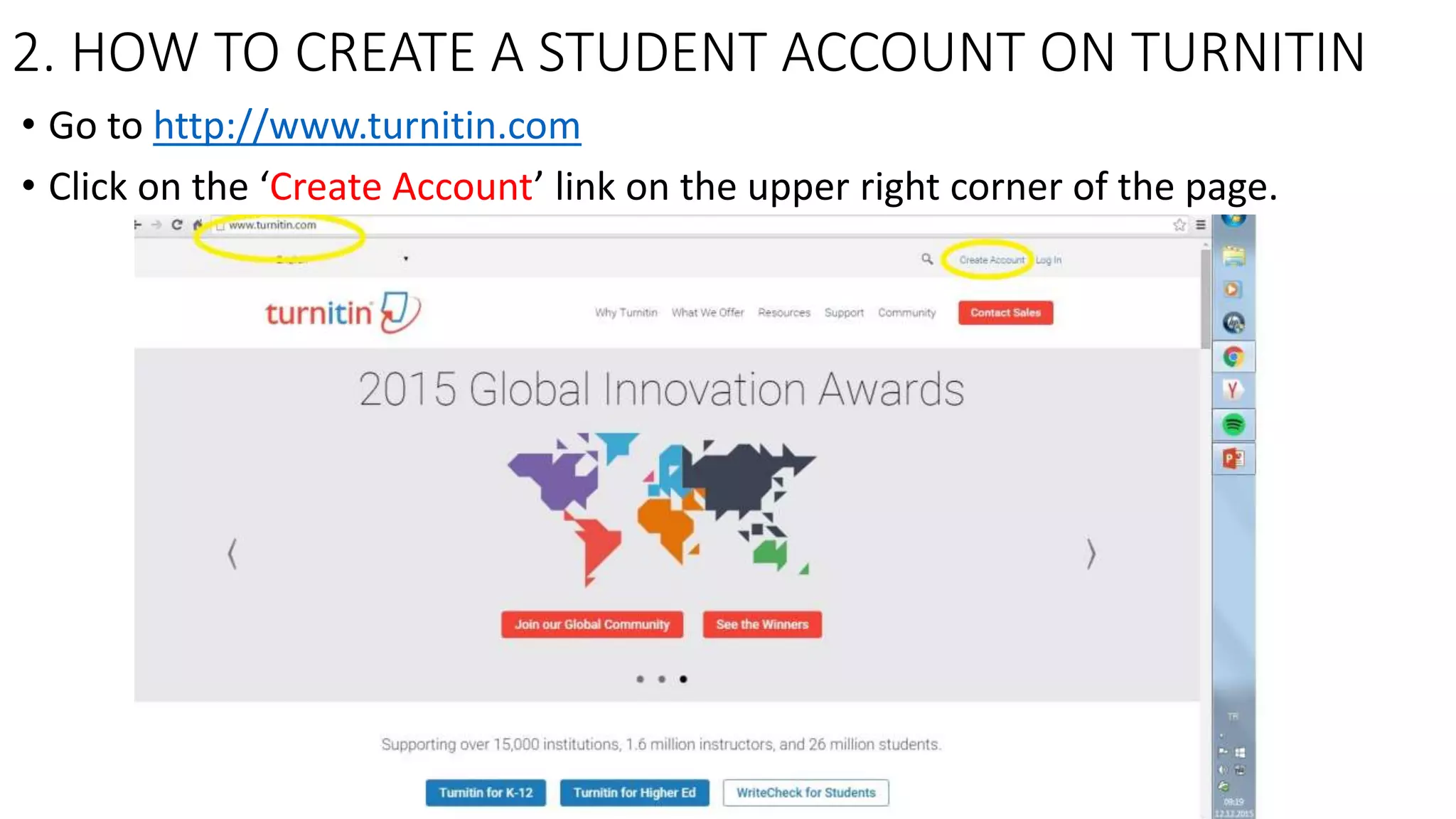
2. HOW TO CREATE A STUDENT ACCOUNT ON TURNITIN
• Go to http://www.turnitin.com
• Click on the ‘Create Account’ link on the upper right corner of the page.
2. HOW TO CREATE A STUDENT ACCOUNT ON TURNITIN
• On the new page, first enter
your Çankaya Student e-mail
address.
• Then, write a password. Your
password must contain at
least one letter and at least
one number.
• Thirdly, click on the student
link down below.
2. HOW TO CREATE A STUDENT
ACCOUNT ON TURNITIN
• In this new screen, first enter your Class ID;
this is 11279924 for our section.
• Secondly, enter your Class enrollment
password; this is R2D2C3PO for our section.
(The O at the end is the O of Octopus; it is
not a zero)
• Later, enter your name, surname and
Çankaya student e-mail address.
• Scroll down to the lower part of the page.
2. HOW TO CREATE A STUDENT ACCOUNT ON TURNITIN
• In the lower part of the page, you
must enter your password. This
must be THE SAME PASSWORD as
the one that you entered in the
previous page.
• Later, you write that password
AGAIN to confirm it.
• If you want, you can settle a secret
question and its answer to remind
you your password.
• Don’t forget to click on I Agree –
Create Profile at the bottom of the
page. Your account is created.
3. HOW TO UPLOAD YOUR PAPER ON TURNITIN
You will get this screen when you log in to Turnitin. Click on your class name.
3. HOW TO UPLOAD YOUR PAPER ON TURNITIN
When you click on your class name, you will get this screen. Click on Submit.
3. HOW TO UPLOAD YOUR PAPER ON TURNITIN
• When you click on
Submit, you will
get this screen.
Your first name and
last name will
already be there in
the relevant boxes.
• Write ‘FINAL
PAPER’ in the
Submission title
box.
3. HOW TO UPLOAD YOUR
PAPER ON TURNITIN
• Open your Final
Paper assignment
on Microsoft Word.
• Select the whole
text, right click on
it and copy it.
3. HOW TO UPLOAD YOUR PAPER ON TURNITIN
• Go back to the
Turnitin page.
• Right click on the
empty box under
the title Cut and
paste your paper.
• Click on Paste.
3. HOW TO UPLOAD YOUR PAPER ON TURNITIN
• The text of your
final paper will
appear in the box.
• Click on Upload.
3. HOW TO UPLOAD YOUR PAPER ON TURNITIN
• When you upload your paper, you will get this screen. You may need the
Submission ID later; so take a note of it.
3. HOW TO UPLOAD YOUR PAPER ON TURNITIN
• It may take the system 15-30 minutes to process your essay and generate an
originality report. So, log out of Turnitin, go and get a cup of coffee to relax while
you’re waiting 
4. WHAT TO DO AFTER THE UPLOAD
• When you log back into Turnitin, go to your class page and you will get this
screen.
• Under the Similarty title, you will see your plagiarism rate. A green bar means
good news  Click on the percentage to see your detailed report.
4. WHAT TO DO AFTER THE UPLOAD
• When you click on the
percentage, you will get a
window like this.
• Here, you can see the
plagiarised sections of your
paper. You can also see
where those sections are
plagiarized from.
• In this example, there is
only 1 plagiarised part and
the plagiarism rate is only
5%, which is good news.
5. WHAT IF MY PLAGIARISM RATE IS OVER 30% OR IF I
NOTICE MISTAKES IN MY PAPER AFTER I UPLOAD IT?
5. WHAT IF MY PLAGIARISM RATE IS OVER 30% OR IF I
NOTICE MISTAKES IN MY PAPER AFTER I UPLOAD IT?
• You can resubmit your paper any time until the due date (December 25).
• Simply, open your essay on Microsoft Word, make the necessary changes and/or
corrections, save it and exit.
• After you upload an assignment, you will notice that the Submit button on our
class page will have changed to Resubmit. Click on Resubmit. When you do that,
a dialog box will appear on top of the page. Click OK in that box.
5. WHAT IF MY PLAGIARISM RATE IS OVER 30% OR IF I
NOTICE MISTAKES IN MY PAPER AFTER I UPLOAD IT?
• When you click on
Resubmit, you will get this
screen.
• Choose the file of the final
version of your essay from
the relavant location. This
is just like attaching a
document to an e-mail.
• When you choose the file,
click on Upload.
5. WHAT IF MY PLAGIARISM RATE IS OVER 30% OR IF I
NOTICE MISTAKES IN MY PAPER AFTER I UPLOAD IT?
• Later, the system will give
you an image of your file
and ask you to confirm that
it is really the file that you
have uploaded. In most
cases, this step is non-
problematic. Click on
Confirm.
• In the next page, the
system will tell you that
you have uploaded the
faile successfully.
5. WHAT IF MY PLAGIARISM RATE IS OVER 30% OR IF I
NOTICE MISTAKES IN MY PAPER AFTER I UPLOAD IT?
• When you resubmit an assignment, the new originality check report will
not be ready before 24 hours, so don’t wait for it at your computer.
GOOD LUCK TO YOU ALL!..

How to use turnitin

  • 1.
    HOW TO USE ÇANKAYAUNIVERSITY ACADEMIC ENGLISH UNIT 2015 FALL SEMESTER ENG221 Section 5 Çağrı Erişen
  • 2.
    1. WHAT DOESTURNITIN MEAN? • Actually, it is not turnitin. It is turn it in. • ‘Turn in’ is a phrasal verb. It means submit. • The ‘it’ between turn and in refers to assignment. • Therefore, turn it in means submit your assignment.
  • 3.
    2. HOW TOCREATE A STUDENT ACCOUNT ON TURNITIN
  • 4.
    2. HOW TOCREATE A STUDENT ACCOUNT ON TURNITIN • Go to http://www.turnitin.com • Click on the ‘Create Account’ link on the upper right corner of the page.
  • 5.
    2. HOW TOCREATE A STUDENT ACCOUNT ON TURNITIN • On the new page, first enter your Çankaya Student e-mail address. • Then, write a password. Your password must contain at least one letter and at least one number. • Thirdly, click on the student link down below.
  • 6.
    2. HOW TOCREATE A STUDENT ACCOUNT ON TURNITIN • In this new screen, first enter your Class ID; this is 11279924 for our section. • Secondly, enter your Class enrollment password; this is R2D2C3PO for our section. (The O at the end is the O of Octopus; it is not a zero) • Later, enter your name, surname and Çankaya student e-mail address. • Scroll down to the lower part of the page.
  • 7.
    2. HOW TOCREATE A STUDENT ACCOUNT ON TURNITIN • In the lower part of the page, you must enter your password. This must be THE SAME PASSWORD as the one that you entered in the previous page. • Later, you write that password AGAIN to confirm it. • If you want, you can settle a secret question and its answer to remind you your password. • Don’t forget to click on I Agree – Create Profile at the bottom of the page. Your account is created.
  • 8.
    3. HOW TOUPLOAD YOUR PAPER ON TURNITIN
  • 9.
    3. HOW TOUPLOAD YOUR PAPER ON TURNITIN You will get this screen when you log in to Turnitin. Click on your class name.
  • 10.
    3. HOW TOUPLOAD YOUR PAPER ON TURNITIN When you click on your class name, you will get this screen. Click on Submit.
  • 11.
    3. HOW TOUPLOAD YOUR PAPER ON TURNITIN • When you click on Submit, you will get this screen. Your first name and last name will already be there in the relevant boxes. • Write ‘FINAL PAPER’ in the Submission title box.
  • 12.
    3. HOW TOUPLOAD YOUR PAPER ON TURNITIN • Open your Final Paper assignment on Microsoft Word. • Select the whole text, right click on it and copy it.
  • 13.
    3. HOW TOUPLOAD YOUR PAPER ON TURNITIN • Go back to the Turnitin page. • Right click on the empty box under the title Cut and paste your paper. • Click on Paste.
  • 14.
    3. HOW TOUPLOAD YOUR PAPER ON TURNITIN • The text of your final paper will appear in the box. • Click on Upload.
  • 15.
    3. HOW TOUPLOAD YOUR PAPER ON TURNITIN • When you upload your paper, you will get this screen. You may need the Submission ID later; so take a note of it.
  • 16.
    3. HOW TOUPLOAD YOUR PAPER ON TURNITIN • It may take the system 15-30 minutes to process your essay and generate an originality report. So, log out of Turnitin, go and get a cup of coffee to relax while you’re waiting 
  • 17.
    4. WHAT TODO AFTER THE UPLOAD
  • 18.
    4. WHAT TODO AFTER THE UPLOAD • When you log back into Turnitin, go to your class page and you will get this screen. • Under the Similarty title, you will see your plagiarism rate. A green bar means good news  Click on the percentage to see your detailed report.
  • 19.
    4. WHAT TODO AFTER THE UPLOAD • When you click on the percentage, you will get a window like this. • Here, you can see the plagiarised sections of your paper. You can also see where those sections are plagiarized from. • In this example, there is only 1 plagiarised part and the plagiarism rate is only 5%, which is good news.
  • 20.
    5. WHAT IFMY PLAGIARISM RATE IS OVER 30% OR IF I NOTICE MISTAKES IN MY PAPER AFTER I UPLOAD IT?
  • 21.
    5. WHAT IFMY PLAGIARISM RATE IS OVER 30% OR IF I NOTICE MISTAKES IN MY PAPER AFTER I UPLOAD IT? • You can resubmit your paper any time until the due date (December 25). • Simply, open your essay on Microsoft Word, make the necessary changes and/or corrections, save it and exit. • After you upload an assignment, you will notice that the Submit button on our class page will have changed to Resubmit. Click on Resubmit. When you do that, a dialog box will appear on top of the page. Click OK in that box.
  • 22.
    5. WHAT IFMY PLAGIARISM RATE IS OVER 30% OR IF I NOTICE MISTAKES IN MY PAPER AFTER I UPLOAD IT? • When you click on Resubmit, you will get this screen. • Choose the file of the final version of your essay from the relavant location. This is just like attaching a document to an e-mail. • When you choose the file, click on Upload.
  • 23.
    5. WHAT IFMY PLAGIARISM RATE IS OVER 30% OR IF I NOTICE MISTAKES IN MY PAPER AFTER I UPLOAD IT? • Later, the system will give you an image of your file and ask you to confirm that it is really the file that you have uploaded. In most cases, this step is non- problematic. Click on Confirm. • In the next page, the system will tell you that you have uploaded the faile successfully.
  • 24.
    5. WHAT IFMY PLAGIARISM RATE IS OVER 30% OR IF I NOTICE MISTAKES IN MY PAPER AFTER I UPLOAD IT? • When you resubmit an assignment, the new originality check report will not be ready before 24 hours, so don’t wait for it at your computer.
  • 25.
    GOOD LUCK TOYOU ALL!..