How Do You Embed flickr?   Flickr is an online program that allows you to upload pictures and videos. Wouldn’t it be cool if you could incorporate your favorite pics and vids into your blog? Well there actually is a way to do that, and flickr makes it easy for you to do. I will show you the easy steps to incorporate your flickr pictures into your blog. The blue arrows will guide you!
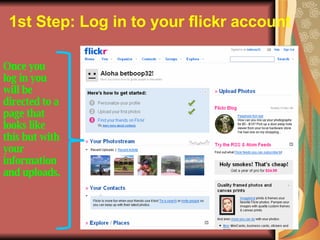
1st Step: Log in to your flickr account   Once you log in you will be directed to a page that looks like this but with your information and uploads.
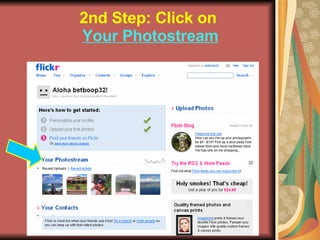
2nd Step: Click on   Your Photostream
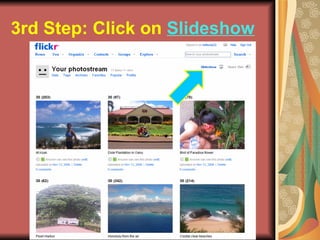
3rd Step: Click on  Slideshow
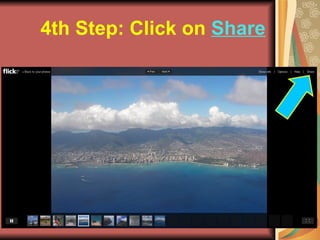
4th Step: Click on  Share
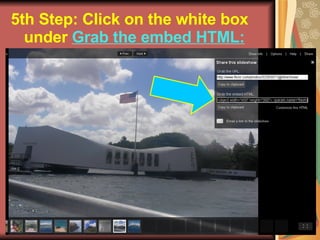
5th Step: Click on the white box  under  Grab the embed HTML:
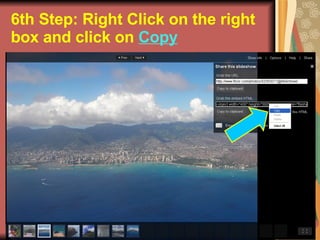
6th Step: Right Click on the right box and click on  Copy
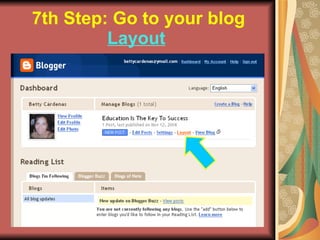
7th Step: Go to your blog  Layout
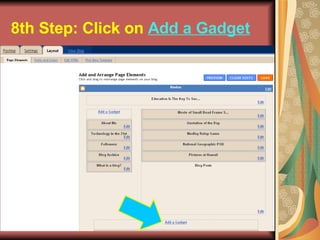
8th Step: Click on  Add a Gadget
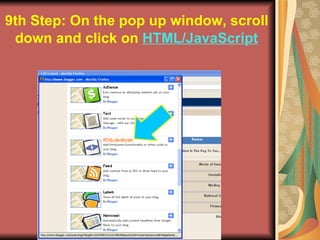
9th Step: On the pop up window, scroll  down and click on  HTML/JavaScript
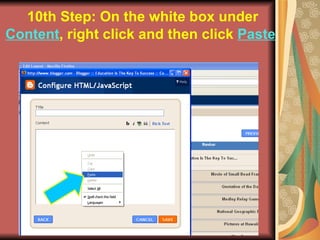
10th Step: On the white box under  Content , right click and then click  Paste
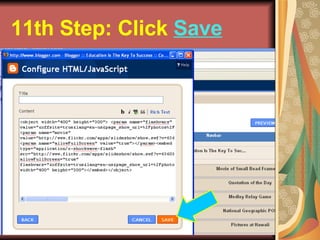
11th Step: Click  Save
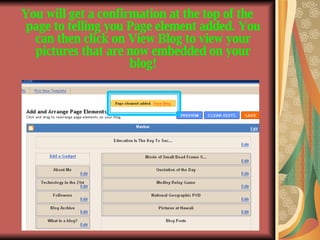
You will get a confirmation at the top of the page to telling you Page element added. You can then click on View Blog to view your pictures that are now embedded on your blog!
CONGRATULATIONS! YOU DID IT!!

Flckr

  • 1.
    How Do YouEmbed flickr? Flickr is an online program that allows you to upload pictures and videos. Wouldn’t it be cool if you could incorporate your favorite pics and vids into your blog? Well there actually is a way to do that, and flickr makes it easy for you to do. I will show you the easy steps to incorporate your flickr pictures into your blog. The blue arrows will guide you!
  • 2.
    1st Step: Login to your flickr account Once you log in you will be directed to a page that looks like this but with your information and uploads.
  • 3.
    2nd Step: Clickon Your Photostream
  • 4.
    3rd Step: Clickon Slideshow
  • 5.
  • 6.
    5th Step: Clickon the white box under Grab the embed HTML:
  • 7.
    6th Step: RightClick on the right box and click on Copy
  • 8.
    7th Step: Goto your blog Layout
  • 9.
    8th Step: Clickon Add a Gadget
  • 10.
    9th Step: Onthe pop up window, scroll down and click on HTML/JavaScript
  • 11.
    10th Step: Onthe white box under Content , right click and then click Paste
  • 12.
  • 13.
    You will geta confirmation at the top of the page to telling you Page element added. You can then click on View Blog to view your pictures that are now embedded on your blog!
  • 14.