 Prevents plagiarism
 Allows for better reviewing and
grading
 Tracks your progress
 Turnitin helps to ensure originality in student writing
by comparing papers with over 150 million assignments
and billions of web pages. It will begin by comparing your
paper with papers from other Molloy students.
 It tells the professor the percentage of the student’s
assignment that was found in these other papers and can
also show them the original work where the lifted section
was found. The professor always has final say over the
analysis of your paper.
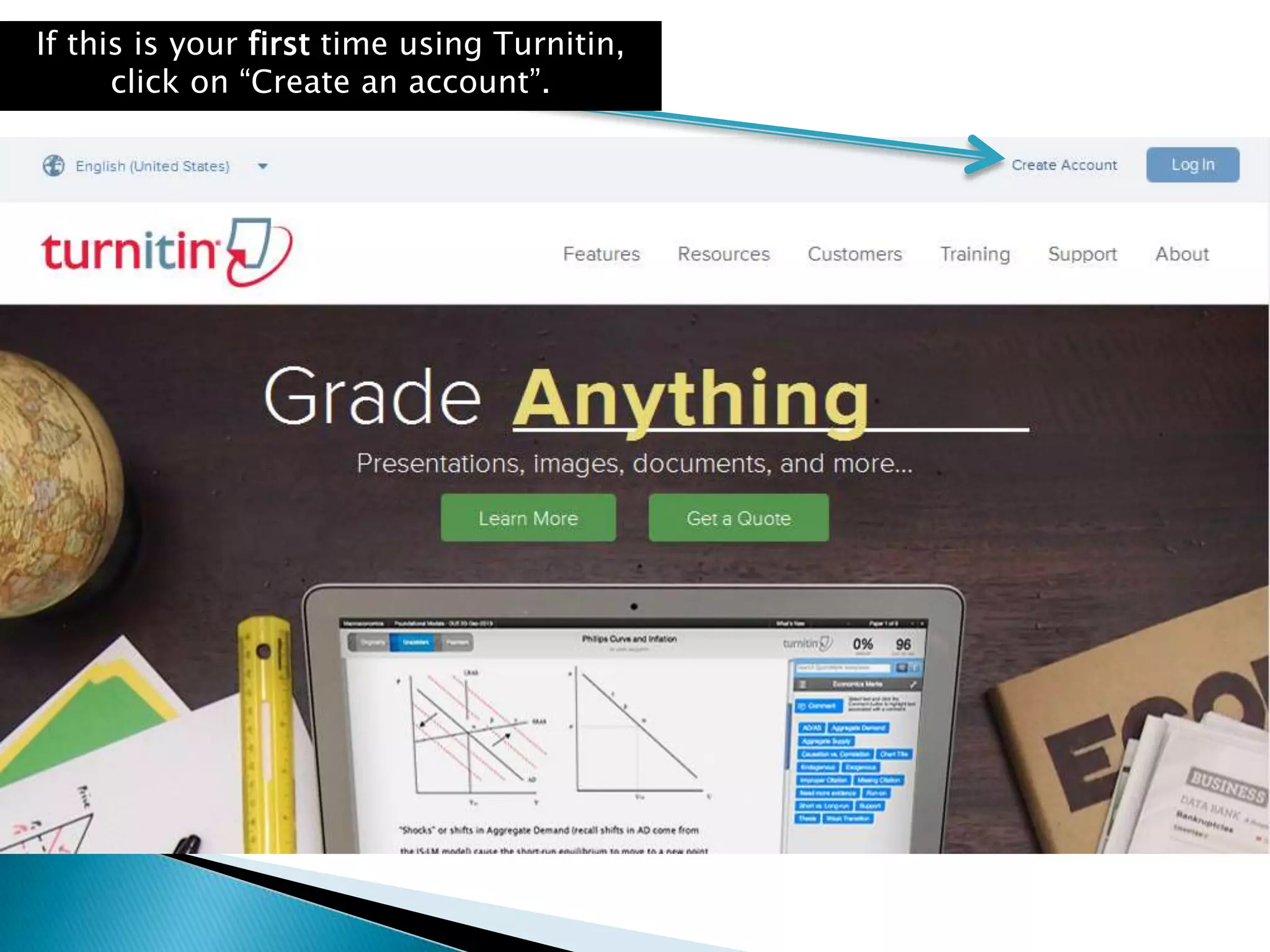
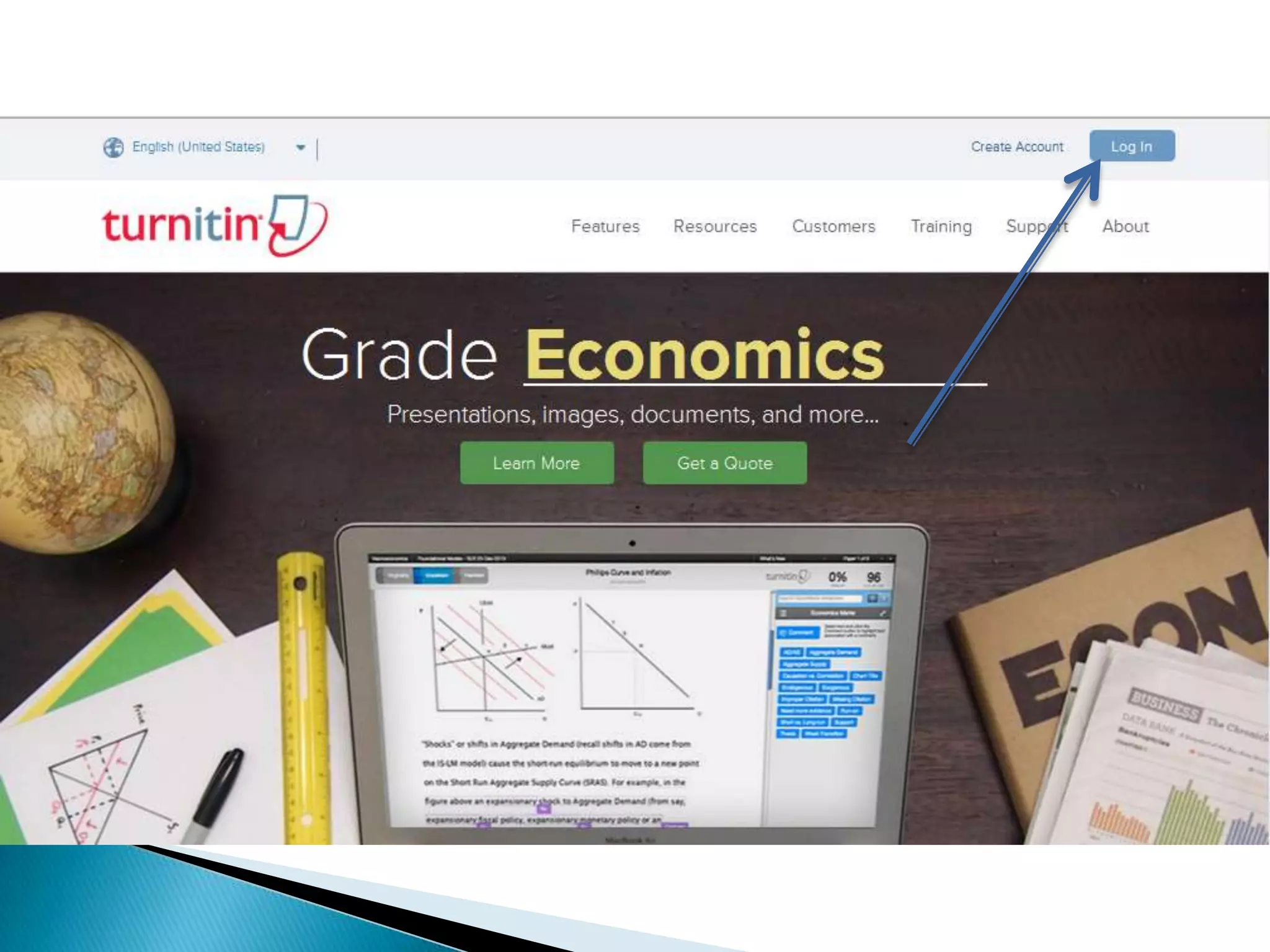
If this is your first time using Turnitin,
click on “Create an account”.
First time users click here
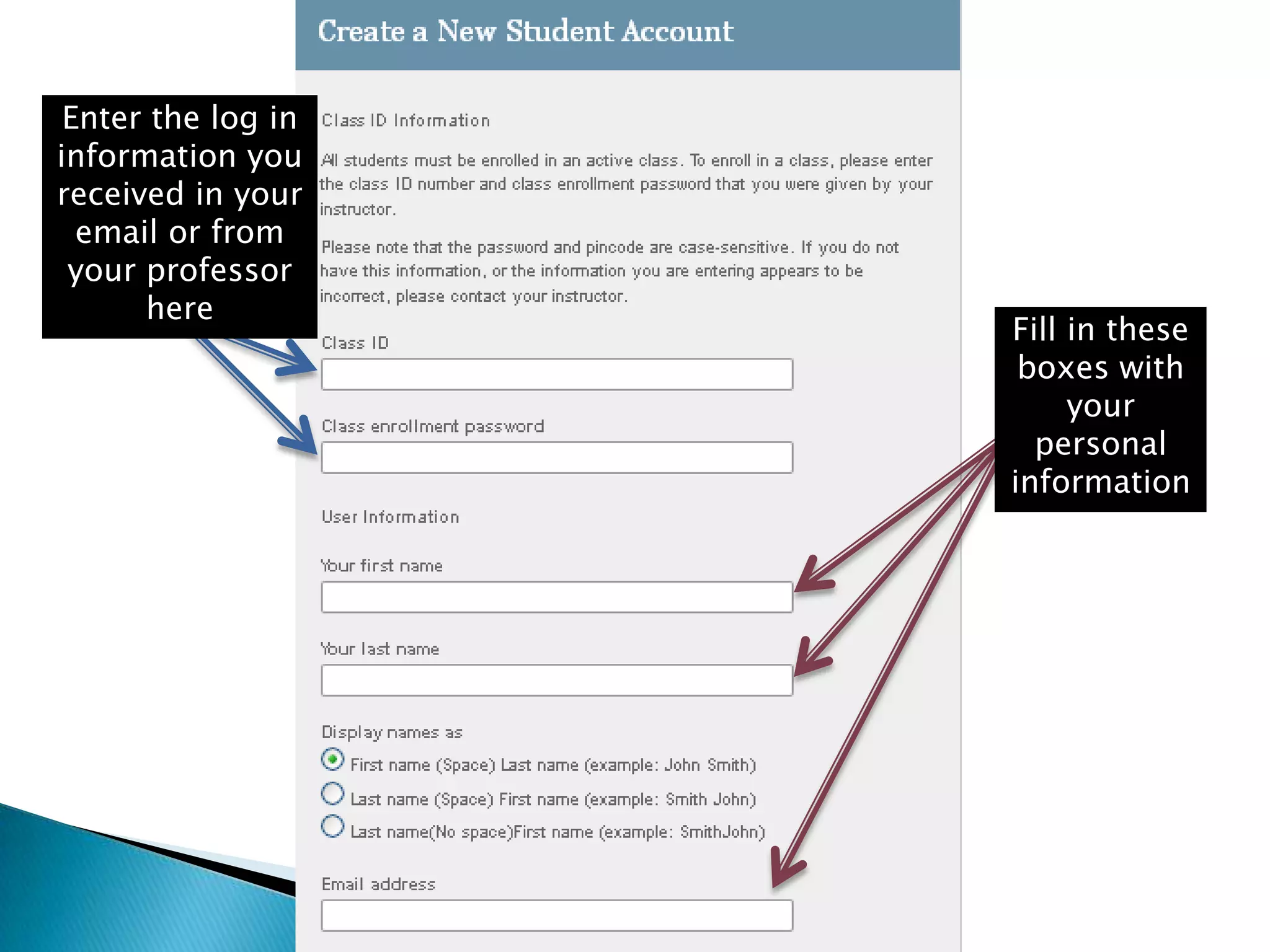
Enter the log in
information you
received in your
email or from
your professor
here
Fill in these
boxes with
your
personal
information
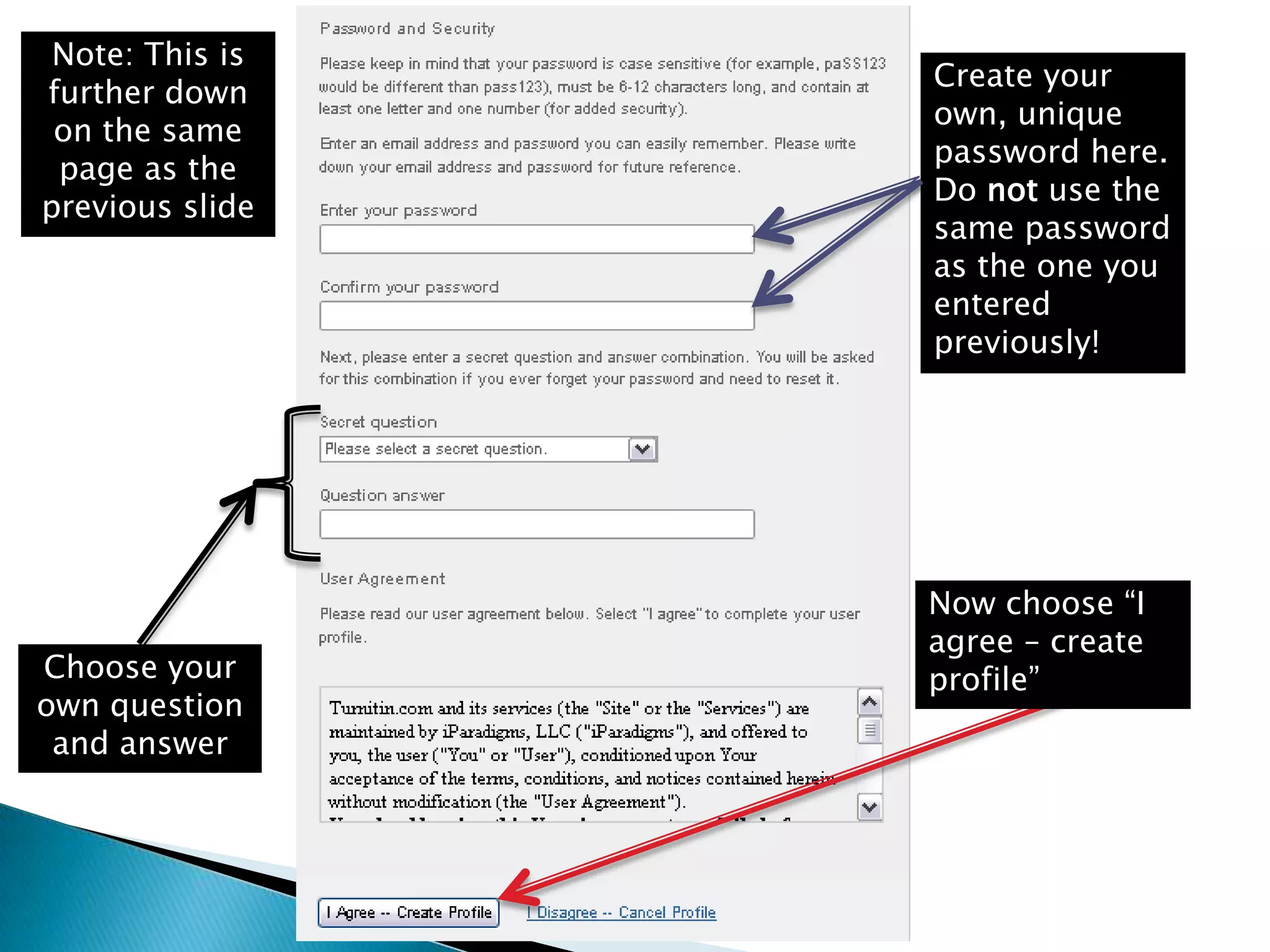
Note: This is
further down
on the same
page as the
previous slide
Create your
own, unique
password here.
Do not use the
same password
as the one you
entered
previously!
Choose your
own question
and answer
Now choose “I
agree – create
profile”
If you have registered successfully, you will
receive a confirmation email similar to this
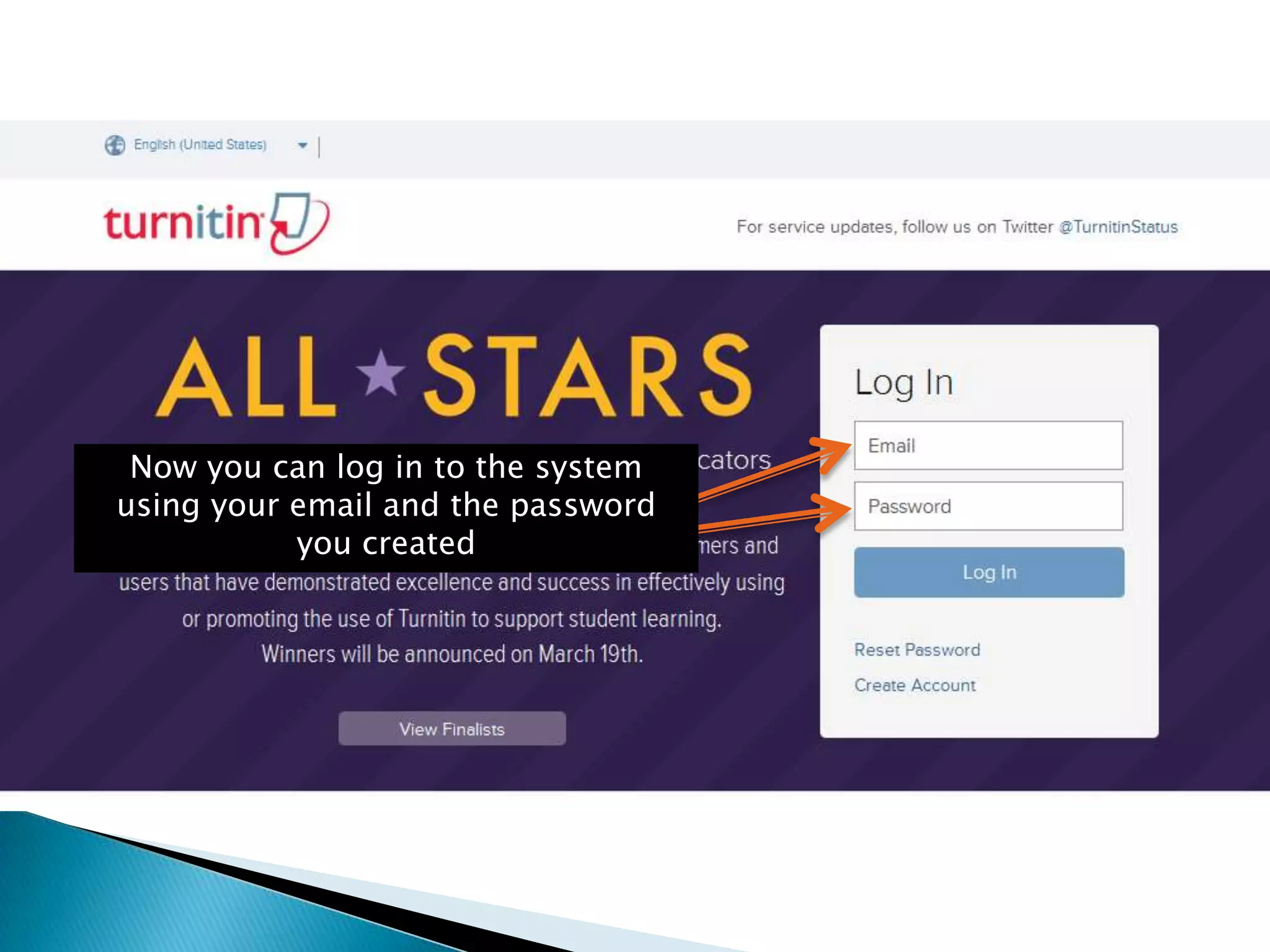
Now you can log in to the system
using your email and the password
you created
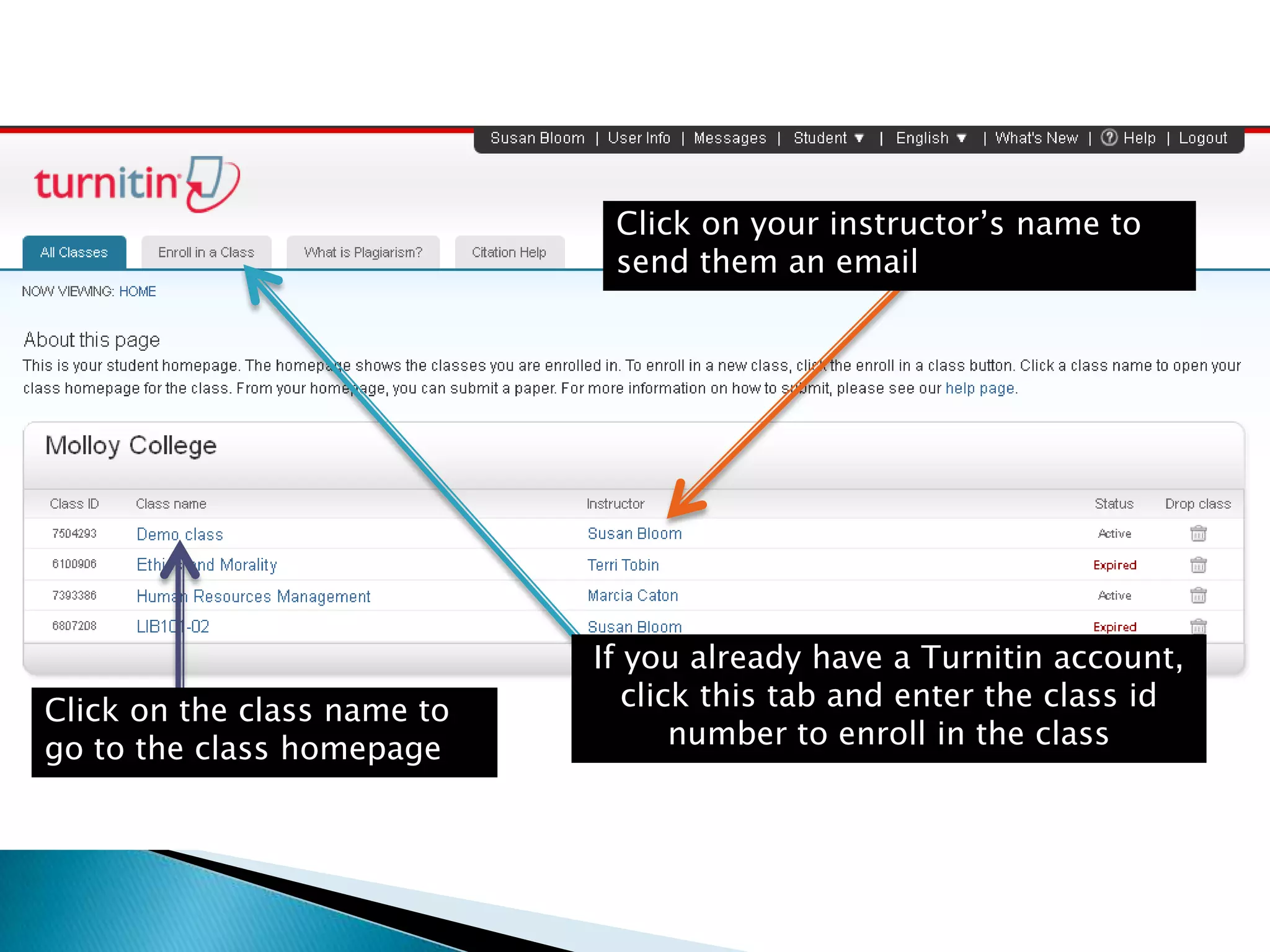
Click on the class name to
go to the class homepage
Click on your instructor’s name to
send them an email
If you already have a Turnitin account,
click this tab and enter the class id
number to enroll in the class
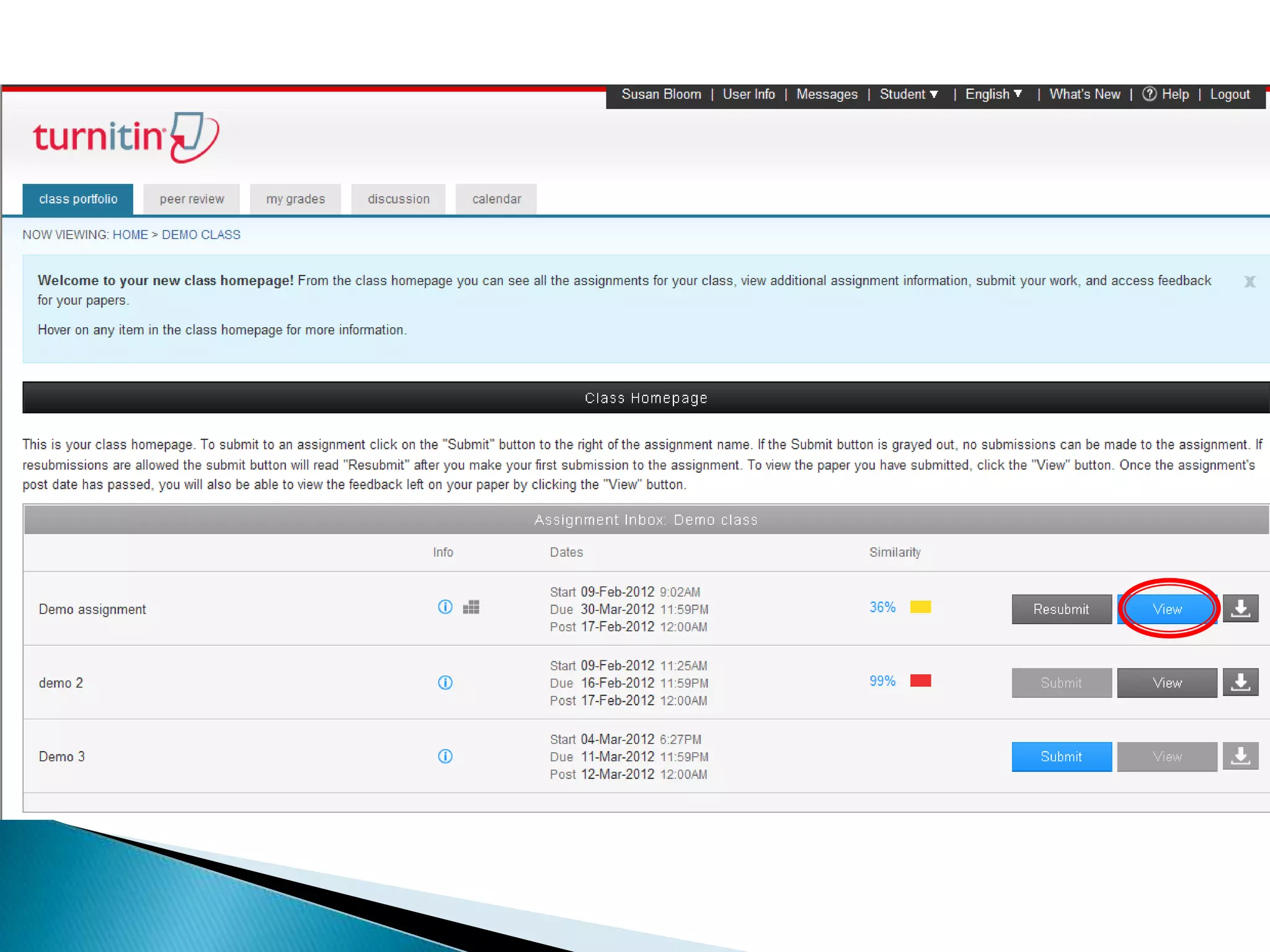
If this is your first time handing in an
assignment, click on the “submit” button
Click “view” to see
notes from your
teacher and the
originality report
If your professor has added a rubric,
click here to see it
Choose this icon to download
your original paper
If your instructor
has any additional
information for the
assignment, you
can find it here
If your professor allows you to
resubmit your paper, check the
“resubmit” button. Note: This will
depend on the individual professor
Choose whether
you will upload
your paper or
cut and paste it.
Note: If you
choose to cut
and paste,
formatting may
be affected.
You can upload a
file that was
saved on your
computer, from
Dropbox, or
from Google
Drive
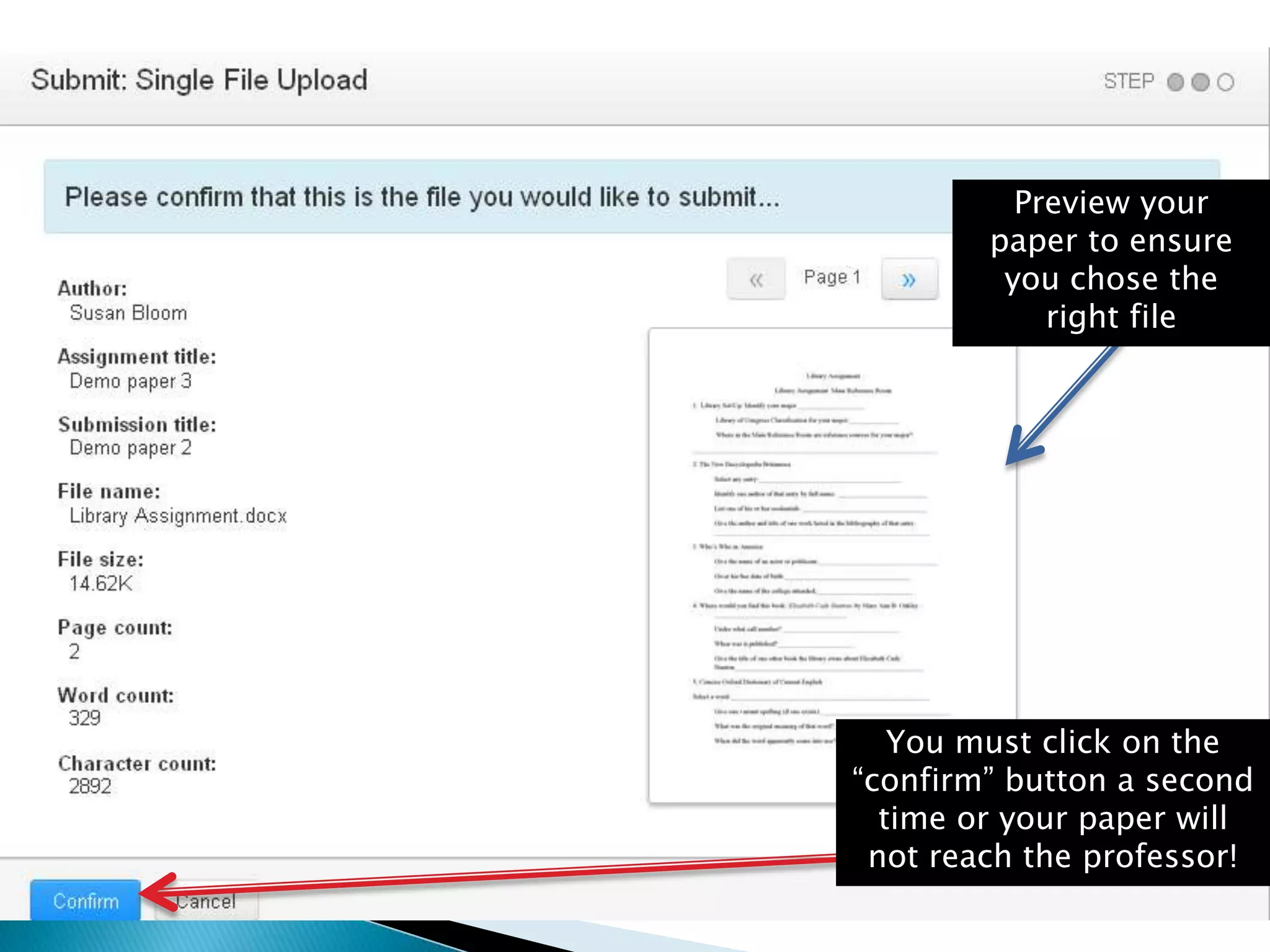
Preview your
paper to ensure
you chose the
right file
You must click on the
“confirm” button a second
time or your paper will
not reach the professor!
Click here
to see the
originality
report
The system
lets you and
your
professor
see what is
a match and
where it
found the
match
The number on the left corresponds with
the original source number on the right
Click on the arrow to see
specifics of a particular match
When you click on the arrow, the matching
section is displayed in red
Choose “full source
view” to see the
matching section
in the original
document
This feature allows your professors to
grade your work and make comments
digitally. Depending on your professor, this
may mean you can get feedback on your
papers earlier.
Comments
in purple
are
generated
by the
system
Comments in
blue are
from your
professor
Hover over GradeMark icons
to see what your professor
has to say or a definition of
the abbreviation
Your professor
may add longer
comments in this
field
The system allows for easy writing workshops. Your
professor may assign you a paper from another student
(may be anonymous) to review and comment on. Sometimes
your professor will also post questions for you to answer.
Your review may have your name attached or it may be
nameless. The comments look the same and feature the
same options as GradeMark, they are just created by a peer
instead of a professor.

Updated student Turnitin

  • 2.
     Prevents plagiarism Allows for better reviewing and grading  Tracks your progress
  • 3.
     Turnitin helpsto ensure originality in student writing by comparing papers with over 150 million assignments and billions of web pages. It will begin by comparing your paper with papers from other Molloy students.  It tells the professor the percentage of the student’s assignment that was found in these other papers and can also show them the original work where the lifted section was found. The professor always has final say over the analysis of your paper.
  • 4.
    If this isyour first time using Turnitin, click on “Create an account”.
  • 5.
    First time usersclick here
  • 6.
    Enter the login information you received in your email or from your professor here Fill in these boxes with your personal information
  • 7.
    Note: This is furtherdown on the same page as the previous slide Create your own, unique password here. Do not use the same password as the one you entered previously! Choose your own question and answer Now choose “I agree – create profile”
  • 8.
    If you haveregistered successfully, you will receive a confirmation email similar to this
  • 10.
    Now you canlog in to the system using your email and the password you created
  • 11.
    Click on theclass name to go to the class homepage Click on your instructor’s name to send them an email If you already have a Turnitin account, click this tab and enter the class id number to enroll in the class
  • 12.
    If this isyour first time handing in an assignment, click on the “submit” button Click “view” to see notes from your teacher and the originality report If your professor has added a rubric, click here to see it Choose this icon to download your original paper If your instructor has any additional information for the assignment, you can find it here If your professor allows you to resubmit your paper, check the “resubmit” button. Note: This will depend on the individual professor
  • 13.
    Choose whether you willupload your paper or cut and paste it. Note: If you choose to cut and paste, formatting may be affected. You can upload a file that was saved on your computer, from Dropbox, or from Google Drive
  • 14.
    Preview your paper toensure you chose the right file You must click on the “confirm” button a second time or your paper will not reach the professor!
  • 18.
    Click here to seethe originality report The system lets you and your professor see what is a match and where it found the match The number on the left corresponds with the original source number on the right Click on the arrow to see specifics of a particular match
  • 19.
    When you clickon the arrow, the matching section is displayed in red Choose “full source view” to see the matching section in the original document
  • 20.
    This feature allowsyour professors to grade your work and make comments digitally. Depending on your professor, this may mean you can get feedback on your papers earlier.
  • 21.
    Comments in purple are generated by the system Commentsin blue are from your professor Hover over GradeMark icons to see what your professor has to say or a definition of the abbreviation Your professor may add longer comments in this field
  • 22.
    The system allowsfor easy writing workshops. Your professor may assign you a paper from another student (may be anonymous) to review and comment on. Sometimes your professor will also post questions for you to answer. Your review may have your name attached or it may be nameless. The comments look the same and feature the same options as GradeMark, they are just created by a peer instead of a professor.