Personalized
Emails
Send personalized emails
directly from Personyze.
EASY SETUP
Setting up Personyze to send from your own
email address is easy, there's a simple email
verification, and then you're ready to go.
RICH FEATURE SET
Email drip/workflow functionality
Wide variety of email algorithms
Products like those you viewed
Accessories to your recent purchase
Newest from your favorite topic/author
Most popular this week
Dynamic variables like first name, account
info, company name, etc.
Personyze email broadcasting includes:
REAL-TIME RECOMMENDATIONS
Each visitor sees the recommendation that's
most relevant for them based on their most
recent product or content interactions.
Why use
personalized
emails?
Read more details on how to
execute an email campaign here
Note: Email broadcasting requires a paid
account, not available with the free trial
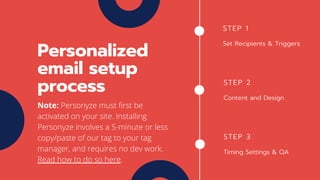
STEP 1
Set Recipients & Triggers
Personalized
email setup
process STEP 2
Content and Design
STEP 3
Timing Settings & QA
Note: Personyze must first be
activated on your site. Installing
Personyze involves a 5-minute or less
copy/paste of our tag to your tag
manager, and requires no dev work.
Read how to do so here.
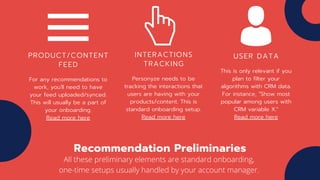
PRODUCT/CONTENT
FEED
For any recommendations to
work, you'll need to have
your feed uploaded/synced.
This will usually be a part of
your onboarding.
Read more here
Recommendation Preliminaries
INTERACTIONS
TRACKING
Personyze needs to be
tracking the interactions that
users are having with your
products/content. This is
standard onboarding setup.
Read more here
USER DATA
This is only relevant if you
plan to filter your
algorithms with CRM data.
For instance, "Show most
popular among users with
CRM variable X."
Read more here
All these preliminary elements are standard onboarding,
one-time setups usually handled by your account manager.
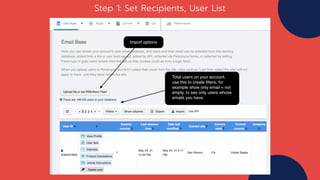
Step 1: Set Recipients, User List
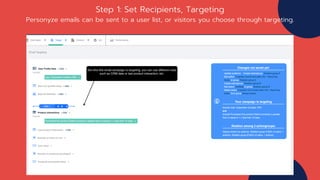
Personyze emails can be sent to a user list, or visitors you choose through targeting.
Step 1: Set Recipients, Targeting
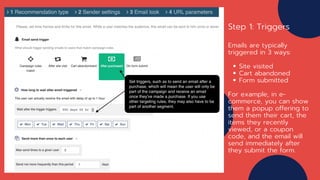
Site visited
Cart abandoned
Form submitted
For example, in e-
commerce, you can show
them a popup offering to
send them their cart, the
items they recently
viewed, or a coupon
code, and the email will
send immediately after
they submit the form.
Step 1: Triggers
Emails are typically
triggered in 3 ways:
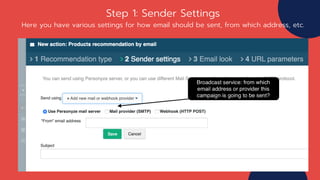
Step 1: Sender Settings
Here you have various settings for how email should be sent, from which address, etc.
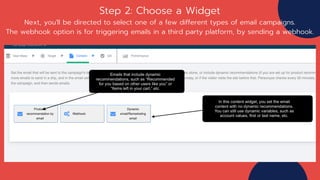
Step 2: Choose a Widget
Next, you'll be directed to select one of a few different types of email campaigns.
The webhook option is for triggering emails in a third party platform, by sending a webhook.
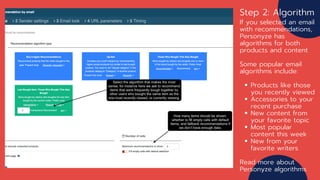
Products like those
you recently viewed
Accessories to your
recent purchase
New content from
your favorite topic
Most popular
content this week
New from your
favorite writers
Step 2: Algorithm
If you selected an email
with recommendations,
Personyze has
algorithms for both
products and content
Some popular email
algorithms include:
Read more about
Personyze algorithms
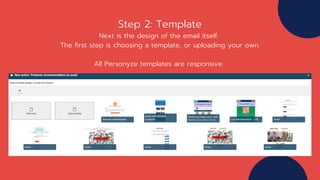
Step 2: Template
Next is the design of the email itself.
The first step is choosing a template, or uploading your own.
All Personyze templates are responsive.
Step 2: Email Design
Use our HTML editor to edit one of our templates, or your own design.
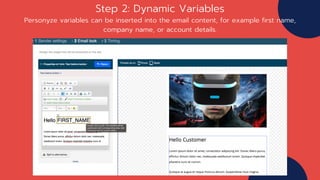
Step 2: Dynamic Variables
Personyze variables can be inserted into the email content, for example first name,
company name, or account details.
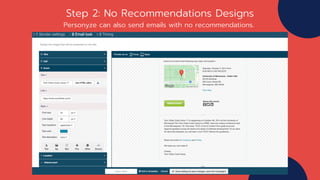
Step 2: No Recommendations Designs
Personyze can also send emails with no recommendations.
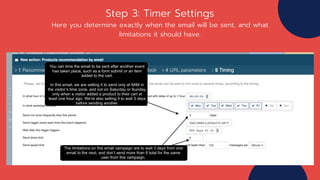
Step 3: Timer Settings
Here you determine exactly when the email will be sent, and what
limitations it should have.
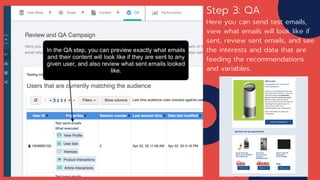
Step 3: QA
Here you can send test emails,
view what emails will look like if
sent, review sent emails, and see
the interests and data that are
feeding the recommendations
and variables.
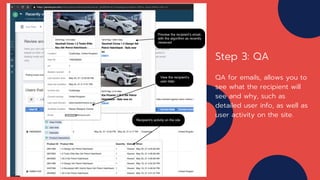
Step 3: QA
QA for emails, allows you to
see what the recipient will
see and why, such as
detailed user info, as well as
user activity on the site.
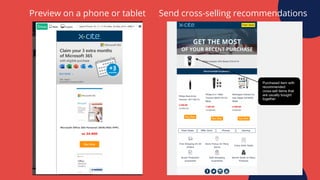
Preview on a phone or tablet Send cross-selling recommendations
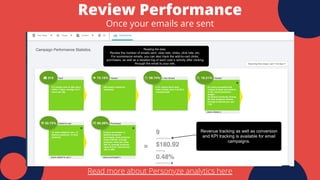
Review Performance
Once your emails are sent
Read more about Personyze analytics here
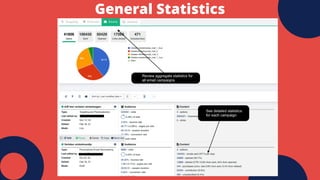
General Statistics
It's as simple
as that!
OR SIMPLY EMAIL:
SUPPORT@PERSONYZE.COM
IF YOU'D LIKE HELP WITH
YOUR PERSONALIZED
EMAILS, LET YOUR
ACCOUNT MANAGER KNOW.
THANKS FOR VIEWING
OUR PRESENTATION

Personalized Emails in Personyze

  • 1.
  • 2.
    EASY SETUP Setting upPersonyze to send from your own email address is easy, there's a simple email verification, and then you're ready to go. RICH FEATURE SET Email drip/workflow functionality Wide variety of email algorithms Products like those you viewed Accessories to your recent purchase Newest from your favorite topic/author Most popular this week Dynamic variables like first name, account info, company name, etc. Personyze email broadcasting includes: REAL-TIME RECOMMENDATIONS Each visitor sees the recommendation that's most relevant for them based on their most recent product or content interactions. Why use personalized emails? Read more details on how to execute an email campaign here Note: Email broadcasting requires a paid account, not available with the free trial
  • 3.
    STEP 1 Set Recipients& Triggers Personalized email setup process STEP 2 Content and Design STEP 3 Timing Settings & QA Note: Personyze must first be activated on your site. Installing Personyze involves a 5-minute or less copy/paste of our tag to your tag manager, and requires no dev work. Read how to do so here.
  • 4.
    PRODUCT/CONTENT FEED For any recommendationsto work, you'll need to have your feed uploaded/synced. This will usually be a part of your onboarding. Read more here Recommendation Preliminaries INTERACTIONS TRACKING Personyze needs to be tracking the interactions that users are having with your products/content. This is standard onboarding setup. Read more here USER DATA This is only relevant if you plan to filter your algorithms with CRM data. For instance, "Show most popular among users with CRM variable X." Read more here All these preliminary elements are standard onboarding, one-time setups usually handled by your account manager.
  • 5.
    Step 1: SetRecipients, User List
  • 6.
    Personyze emails canbe sent to a user list, or visitors you choose through targeting. Step 1: Set Recipients, Targeting
  • 7.
    Site visited Cart abandoned Formsubmitted For example, in e- commerce, you can show them a popup offering to send them their cart, the items they recently viewed, or a coupon code, and the email will send immediately after they submit the form. Step 1: Triggers Emails are typically triggered in 3 ways:
  • 8.
    Step 1: SenderSettings Here you have various settings for how email should be sent, from which address, etc.
  • 9.
    Step 2: Choosea Widget Next, you'll be directed to select one of a few different types of email campaigns. The webhook option is for triggering emails in a third party platform, by sending a webhook.
  • 10.
    Products like those yourecently viewed Accessories to your recent purchase New content from your favorite topic Most popular content this week New from your favorite writers Step 2: Algorithm If you selected an email with recommendations, Personyze has algorithms for both products and content Some popular email algorithms include: Read more about Personyze algorithms
  • 11.
    Step 2: Template Nextis the design of the email itself. The first step is choosing a template, or uploading your own. All Personyze templates are responsive.
  • 12.
    Step 2: EmailDesign Use our HTML editor to edit one of our templates, or your own design.
  • 13.
    Step 2: DynamicVariables Personyze variables can be inserted into the email content, for example first name, company name, or account details.
  • 14.
    Step 2: NoRecommendations Designs Personyze can also send emails with no recommendations.
  • 15.
    Step 3: TimerSettings Here you determine exactly when the email will be sent, and what limitations it should have.
  • 16.
    Step 3: QA Hereyou can send test emails, view what emails will look like if sent, review sent emails, and see the interests and data that are feeding the recommendations and variables.
  • 17.
    Step 3: QA QAfor emails, allows you to see what the recipient will see and why, such as detailed user info, as well as user activity on the site.
  • 18.
    Preview on aphone or tablet Send cross-selling recommendations
  • 19.
    Review Performance Once youremails are sent Read more about Personyze analytics here
  • 20.
  • 21.
    It's as simple asthat! OR SIMPLY EMAIL: SUPPORT@PERSONYZE.COM IF YOU'D LIKE HELP WITH YOUR PERSONALIZED EMAILS, LET YOUR ACCOUNT MANAGER KNOW. THANKS FOR VIEWING OUR PRESENTATION