Asana
evelynjara.com
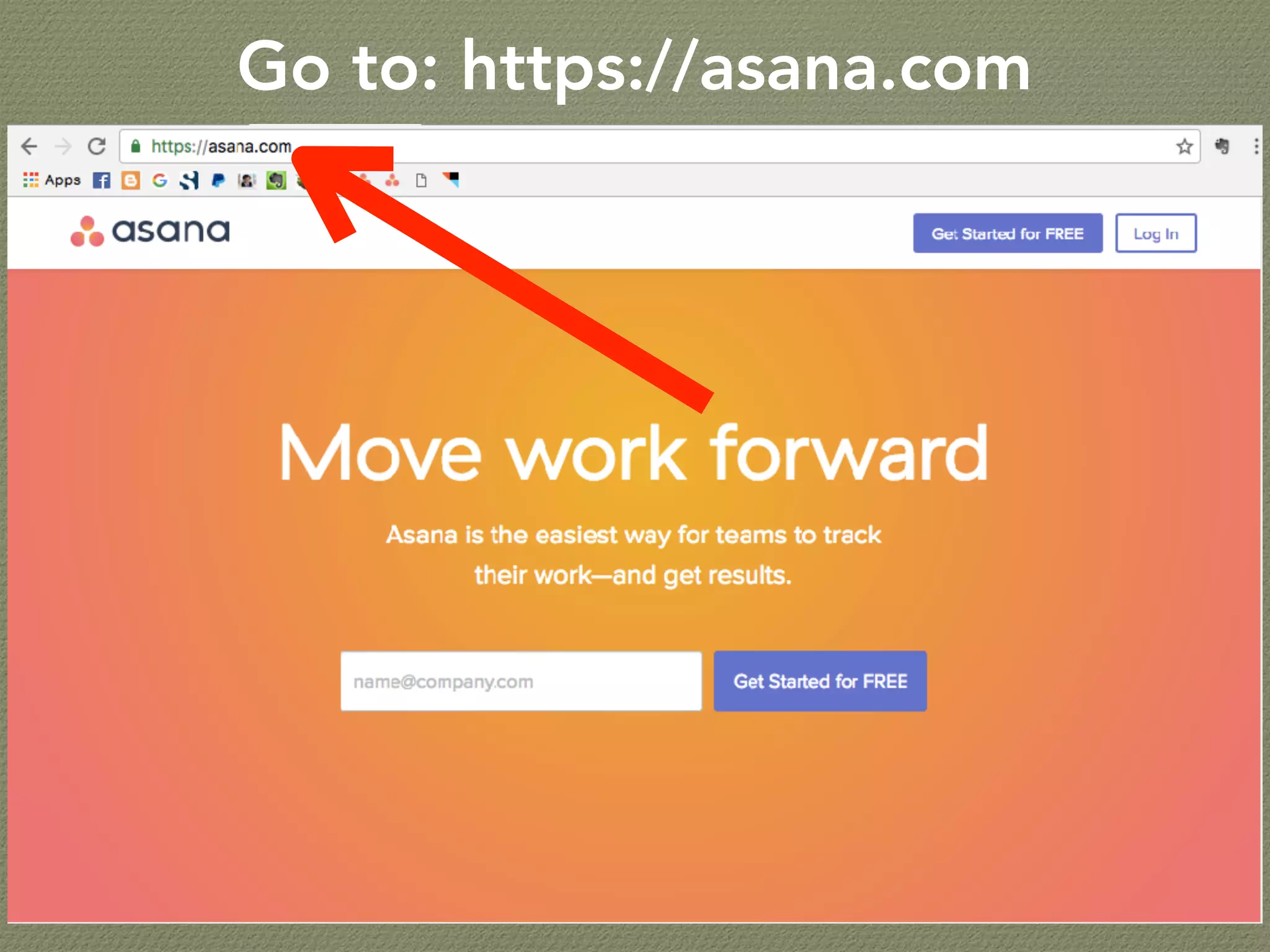
Go to: https://asana.com
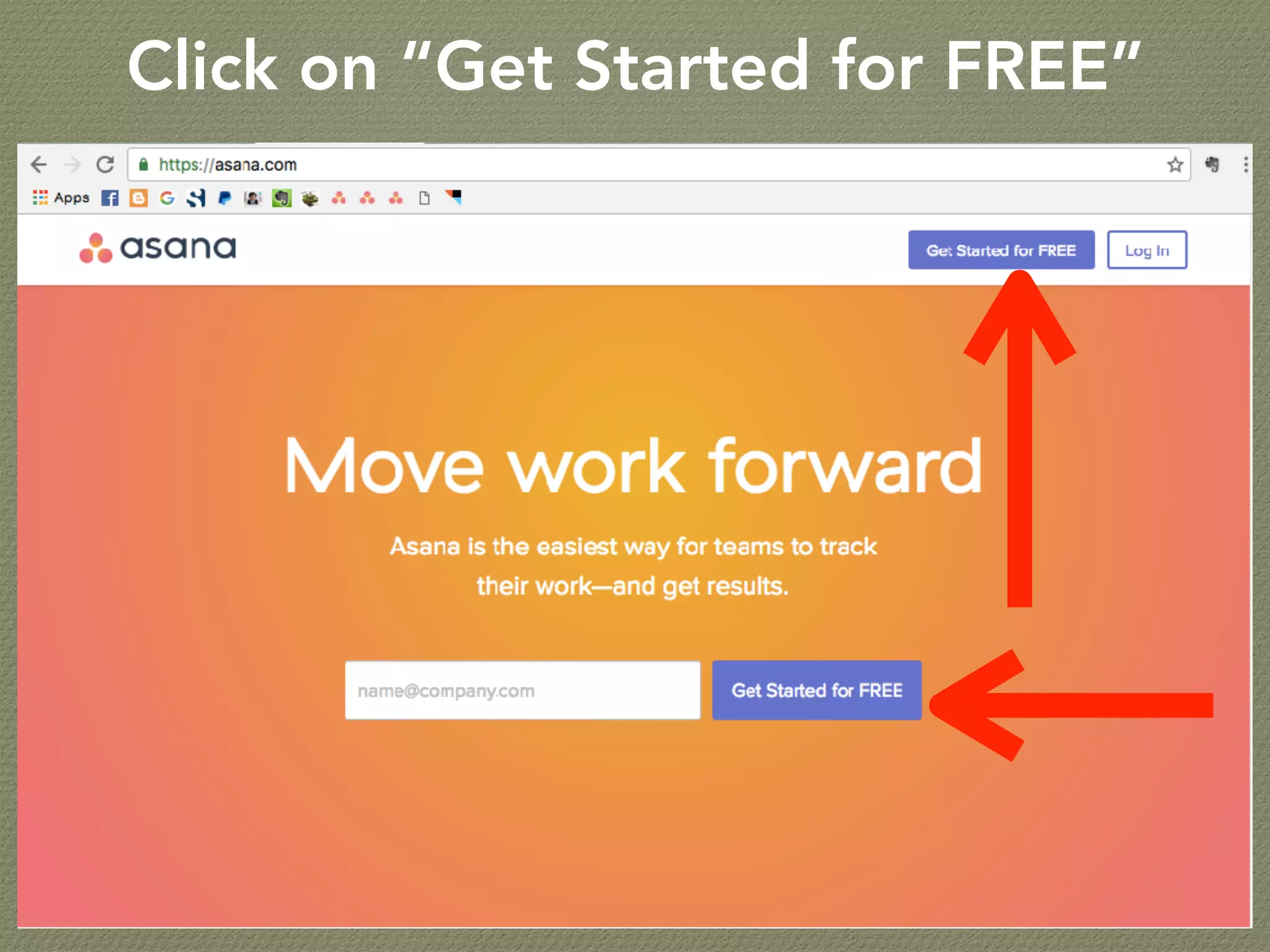
Click on “Get Started for FREE”
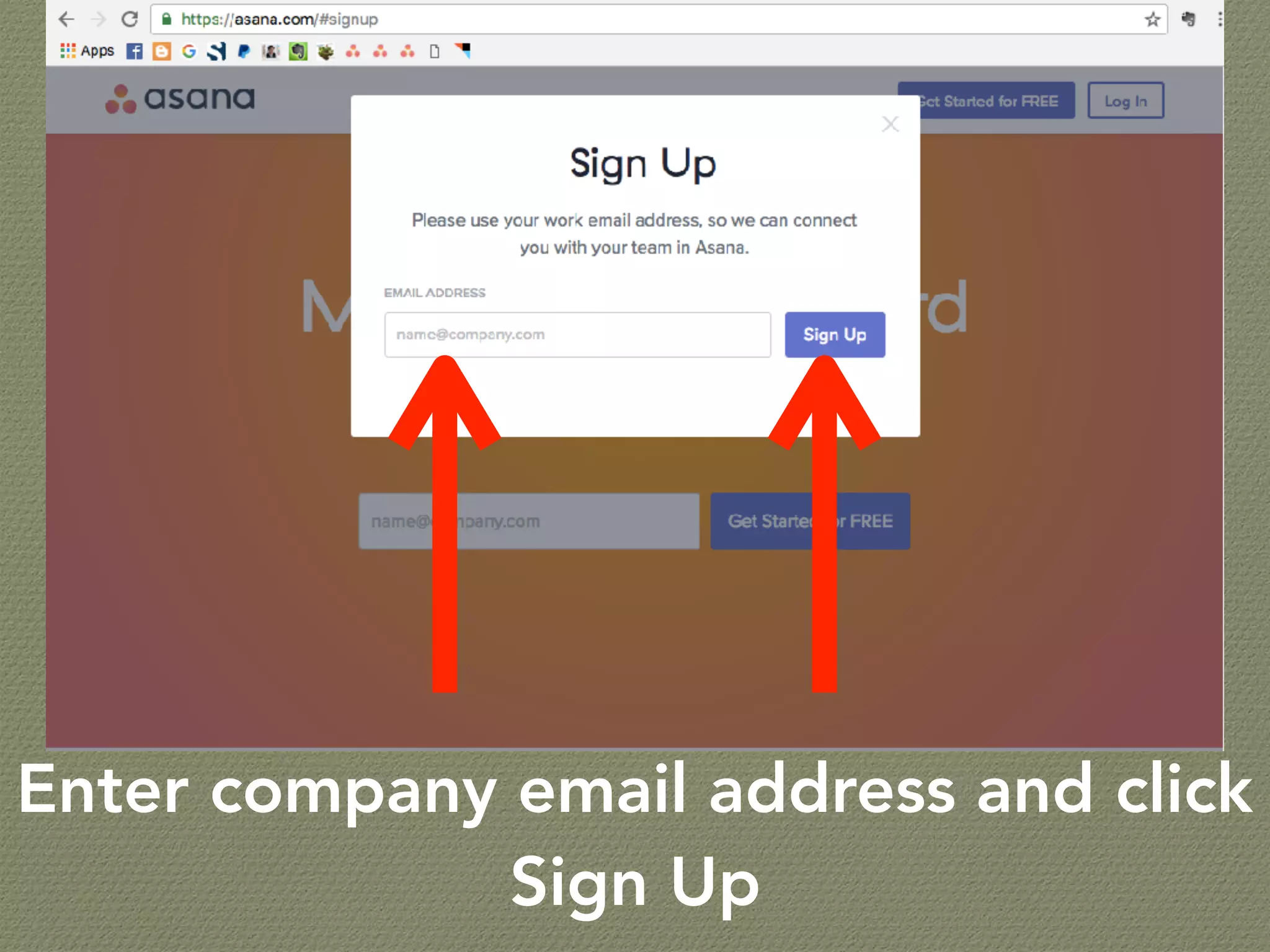
Enter company email address and click
Sign Up
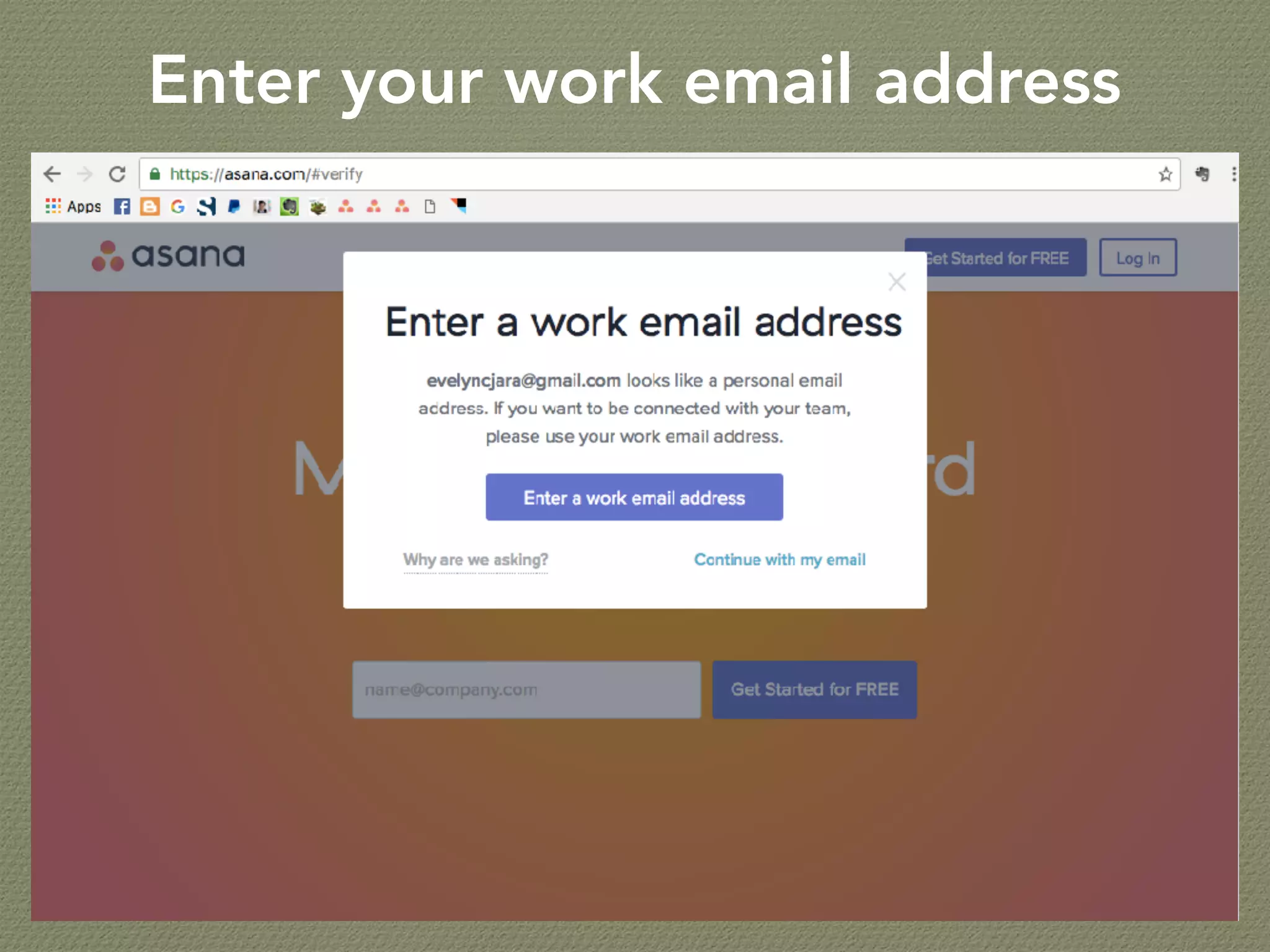
Enter your work email address
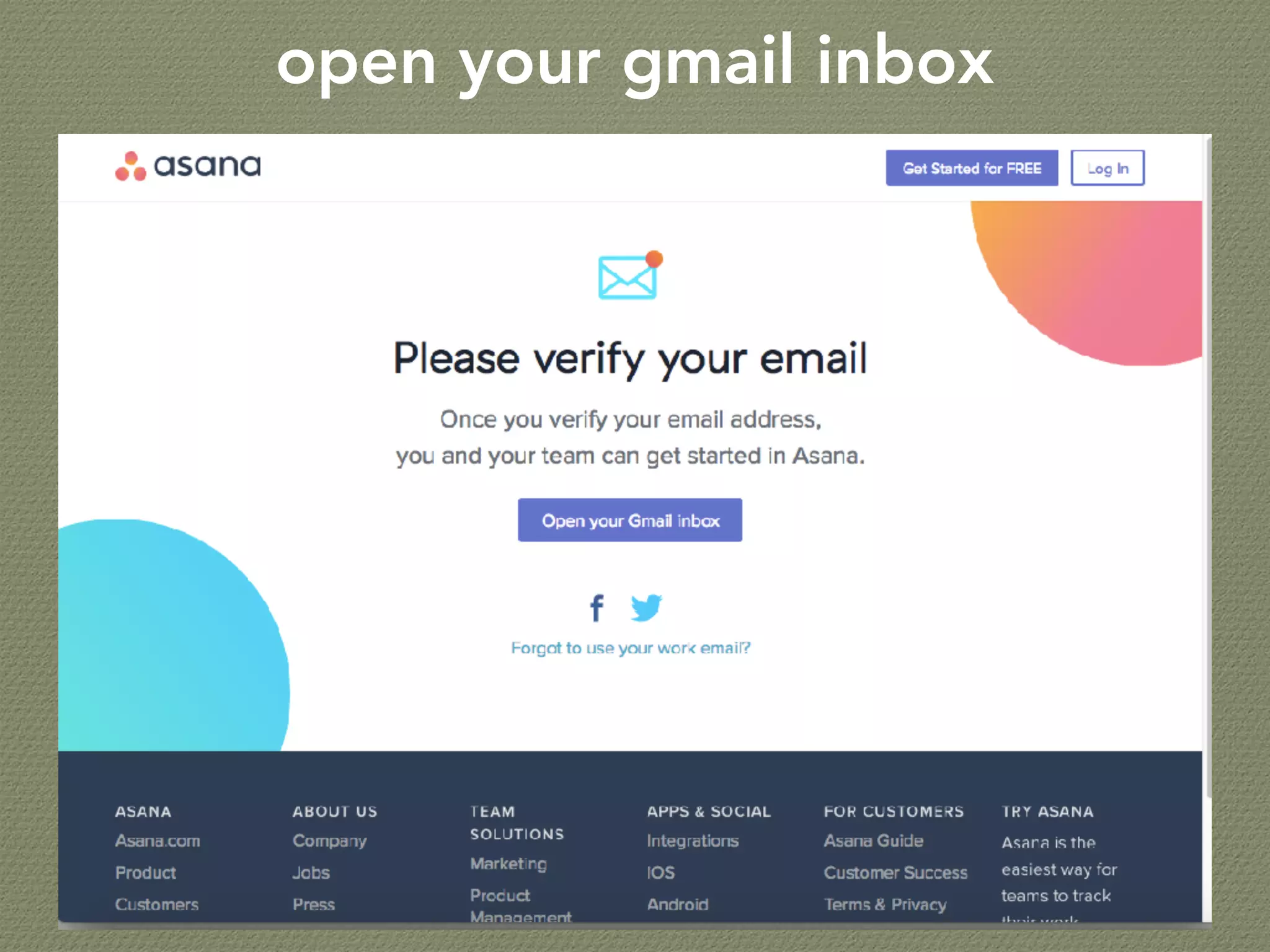
open your gmail inbox
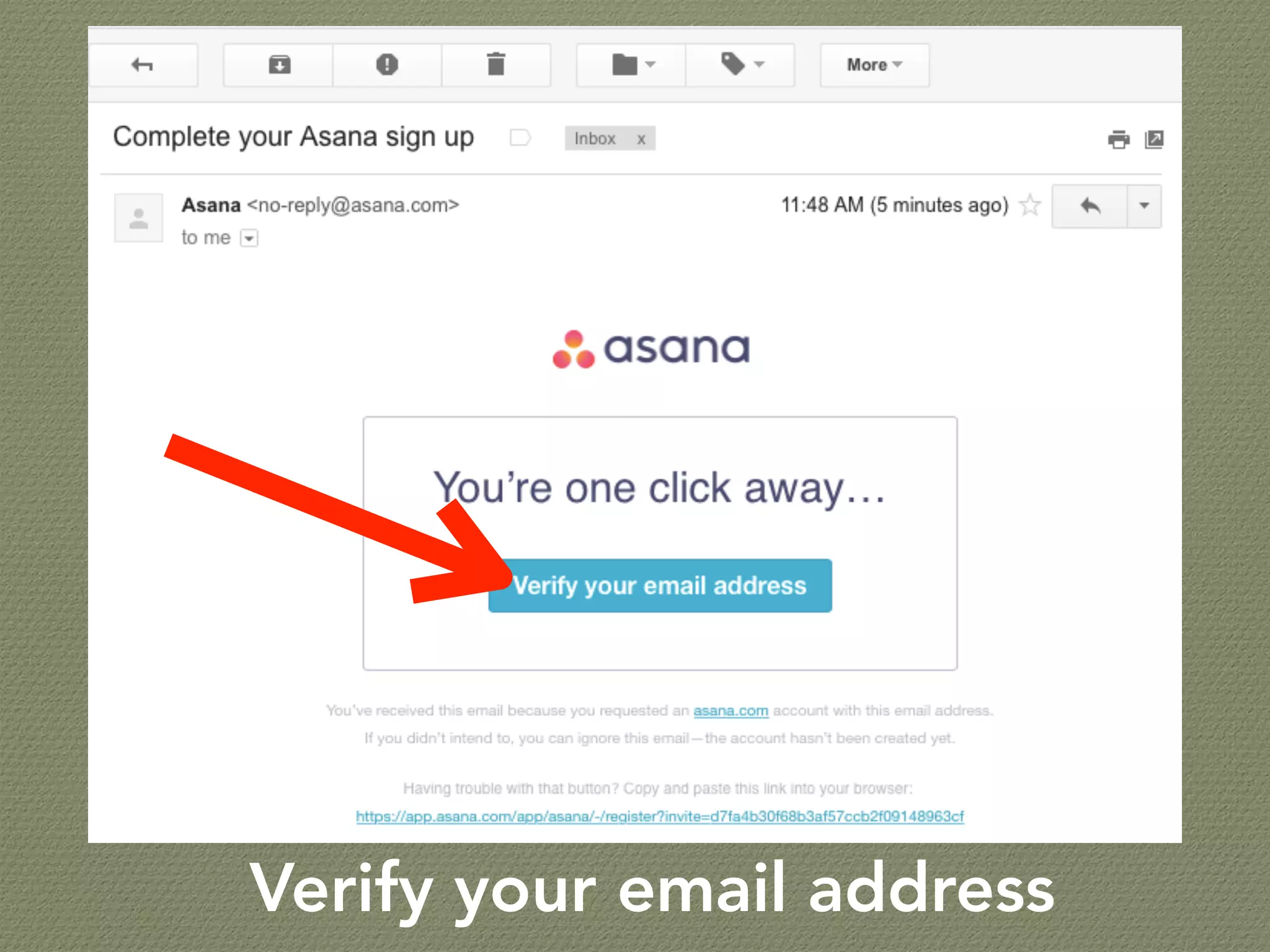
Verify your email address
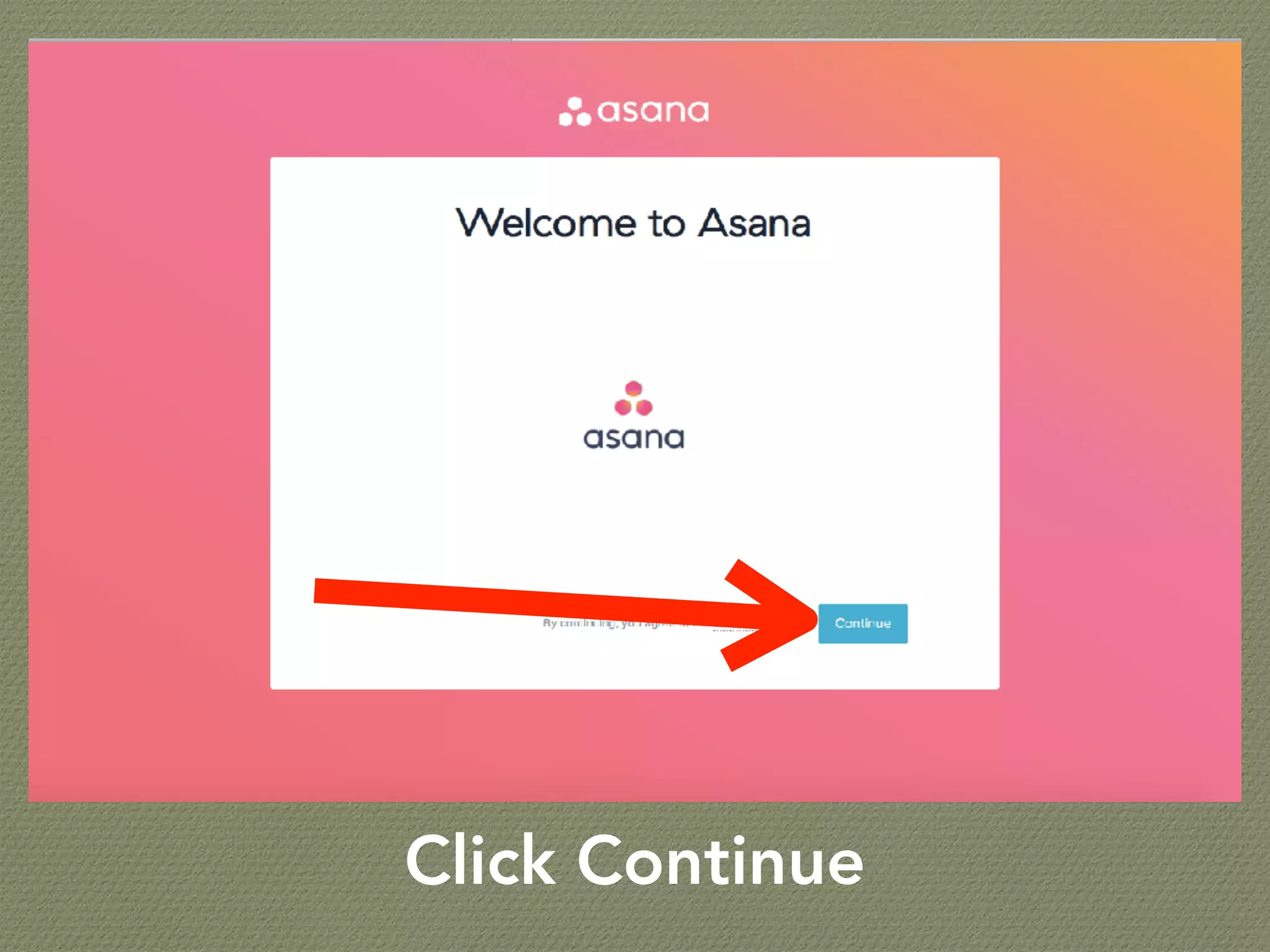
Click Continue
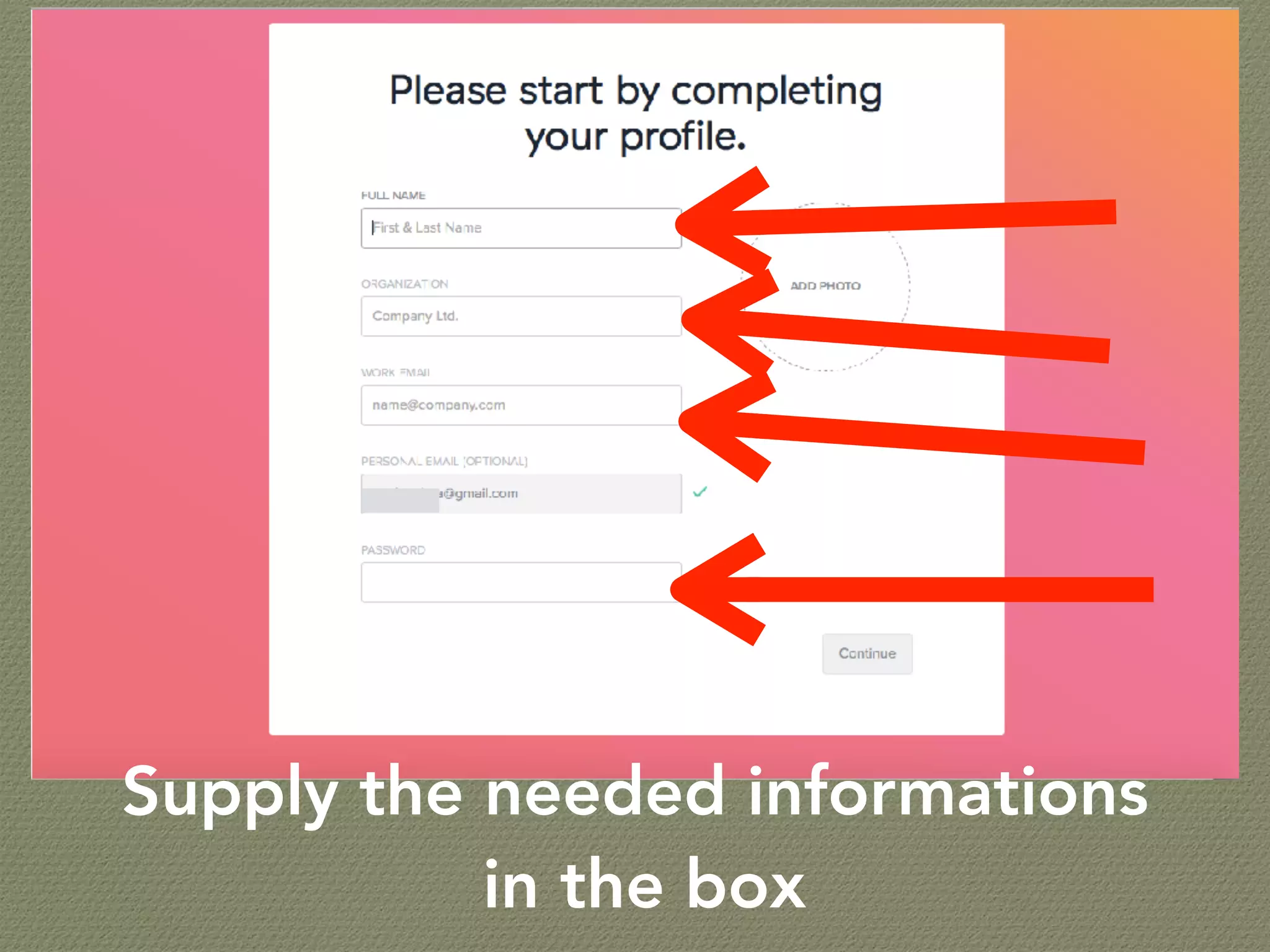
Supply the needed informations
in the box
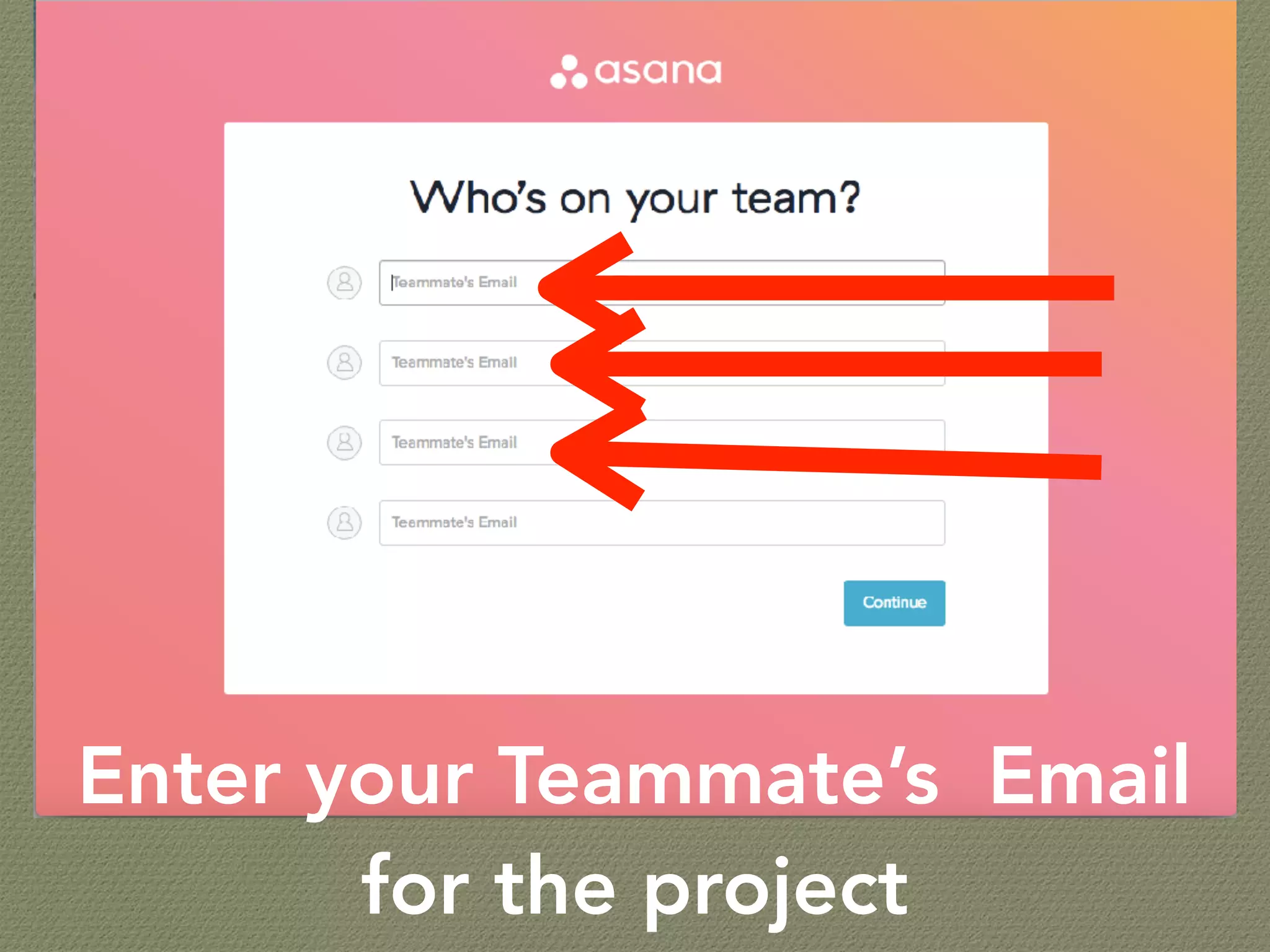
Enter your Teammate’s Email
for the project
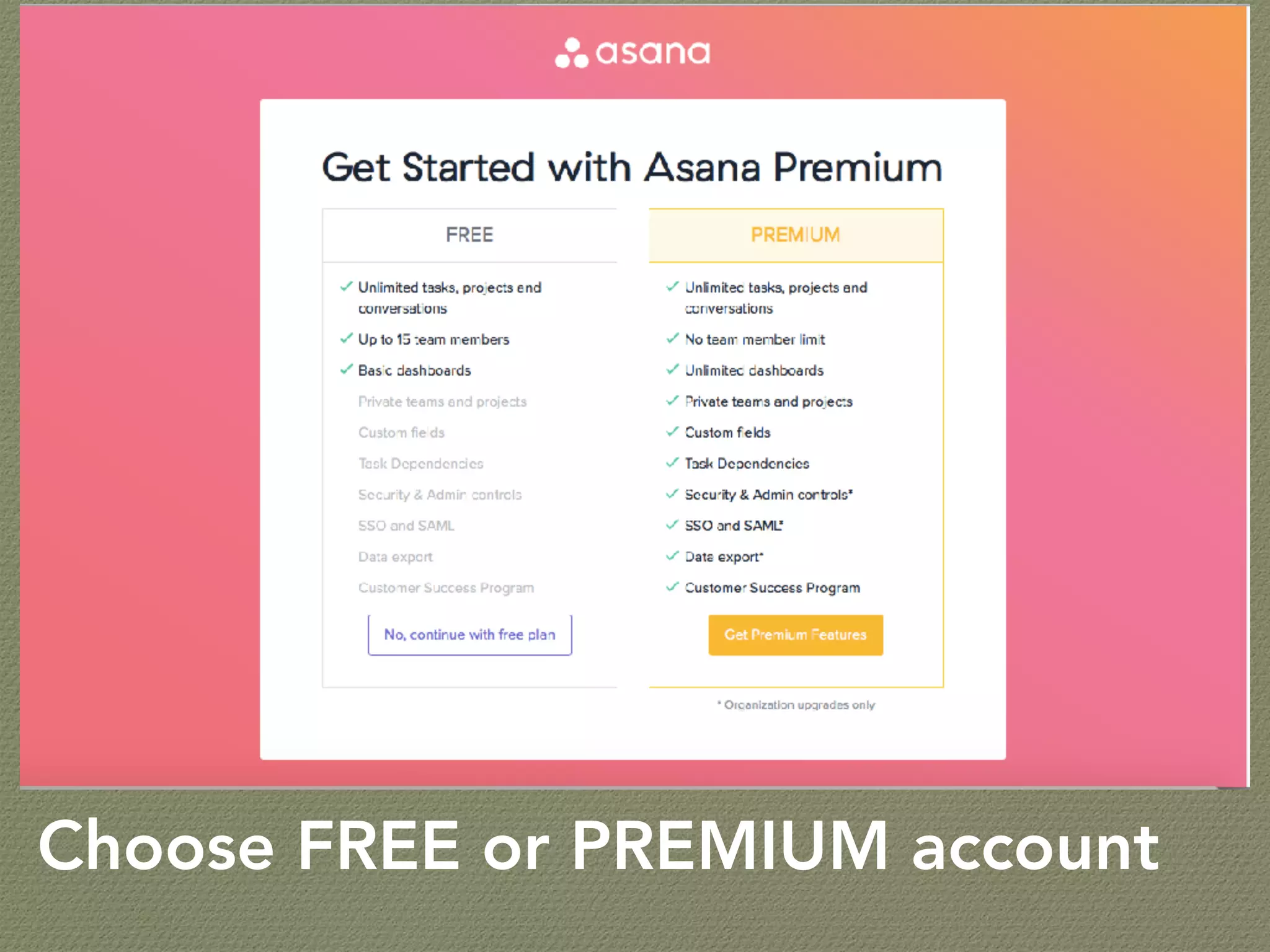
Choose FREE or PREMIUM account
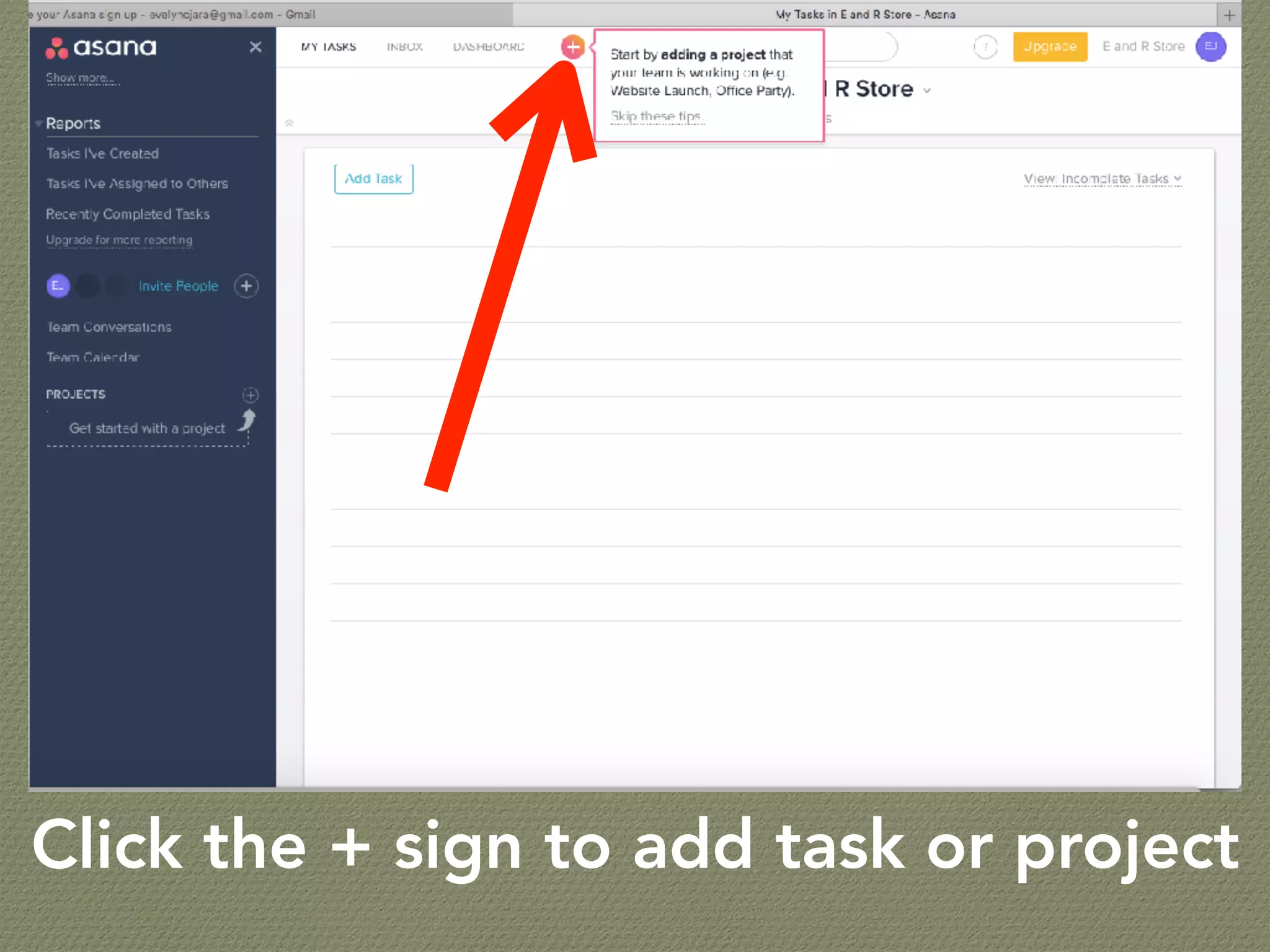
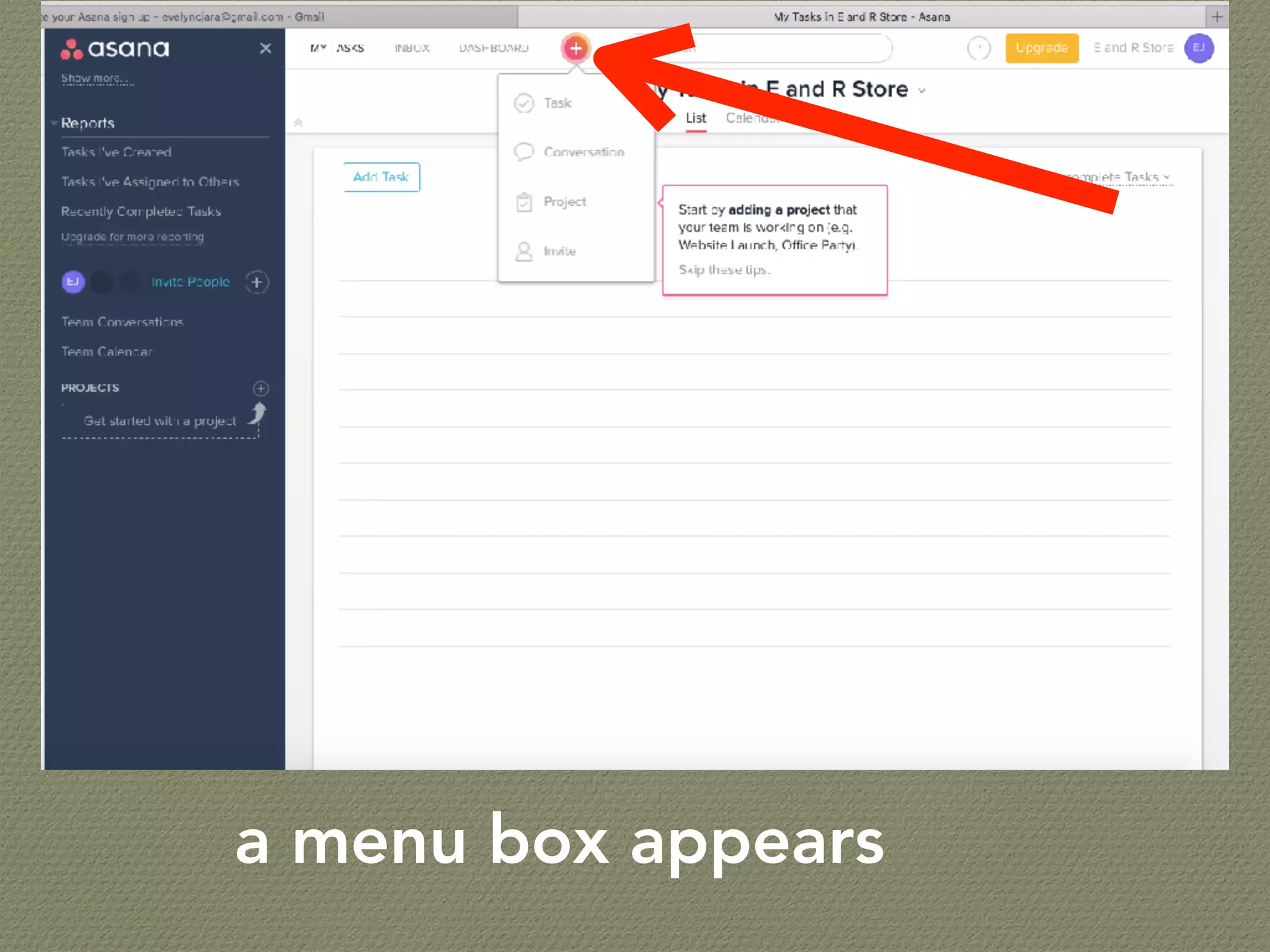
Click the + sign to add task or project
a menu box appears
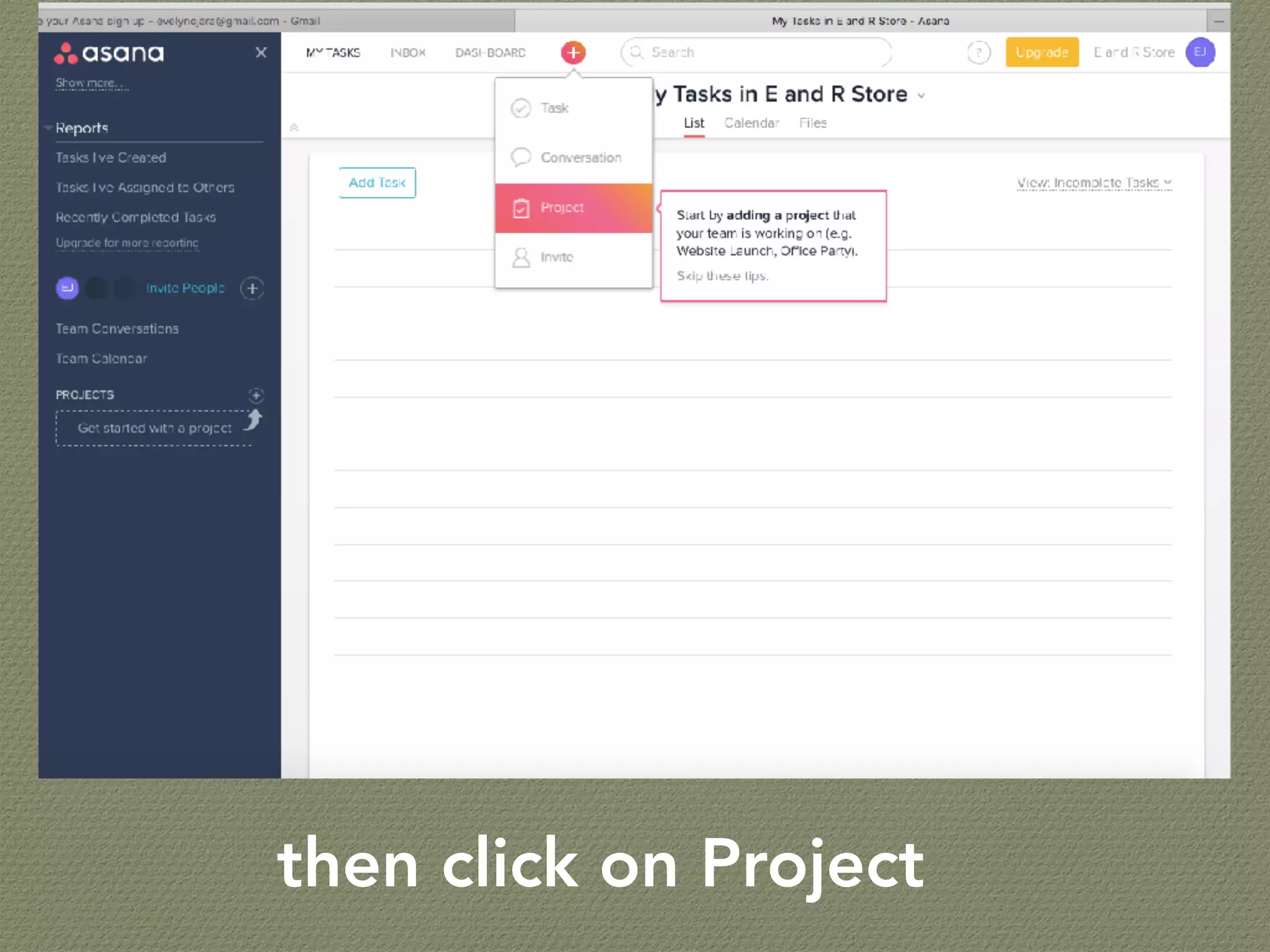
then click on Project
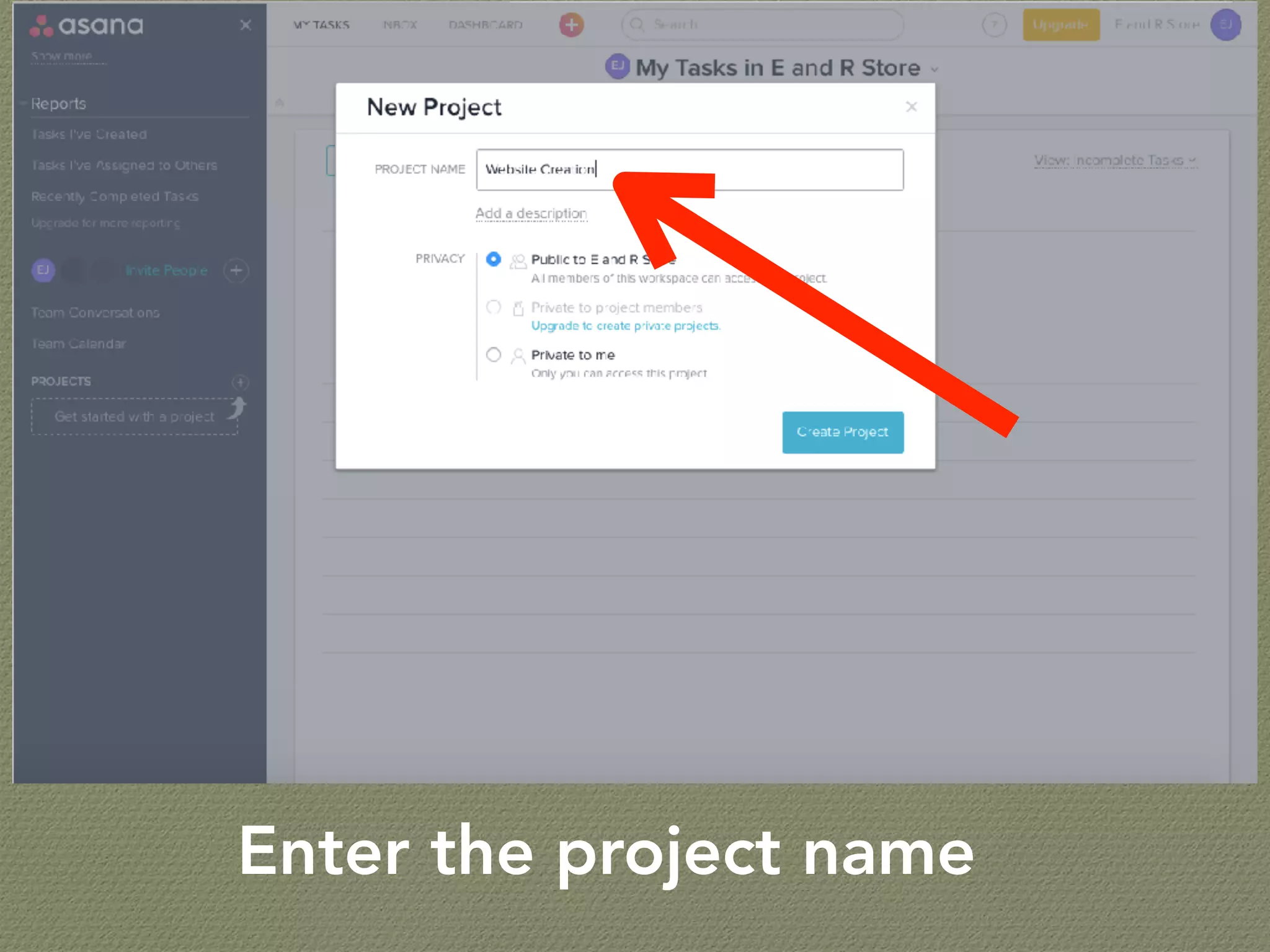
Enter the project name
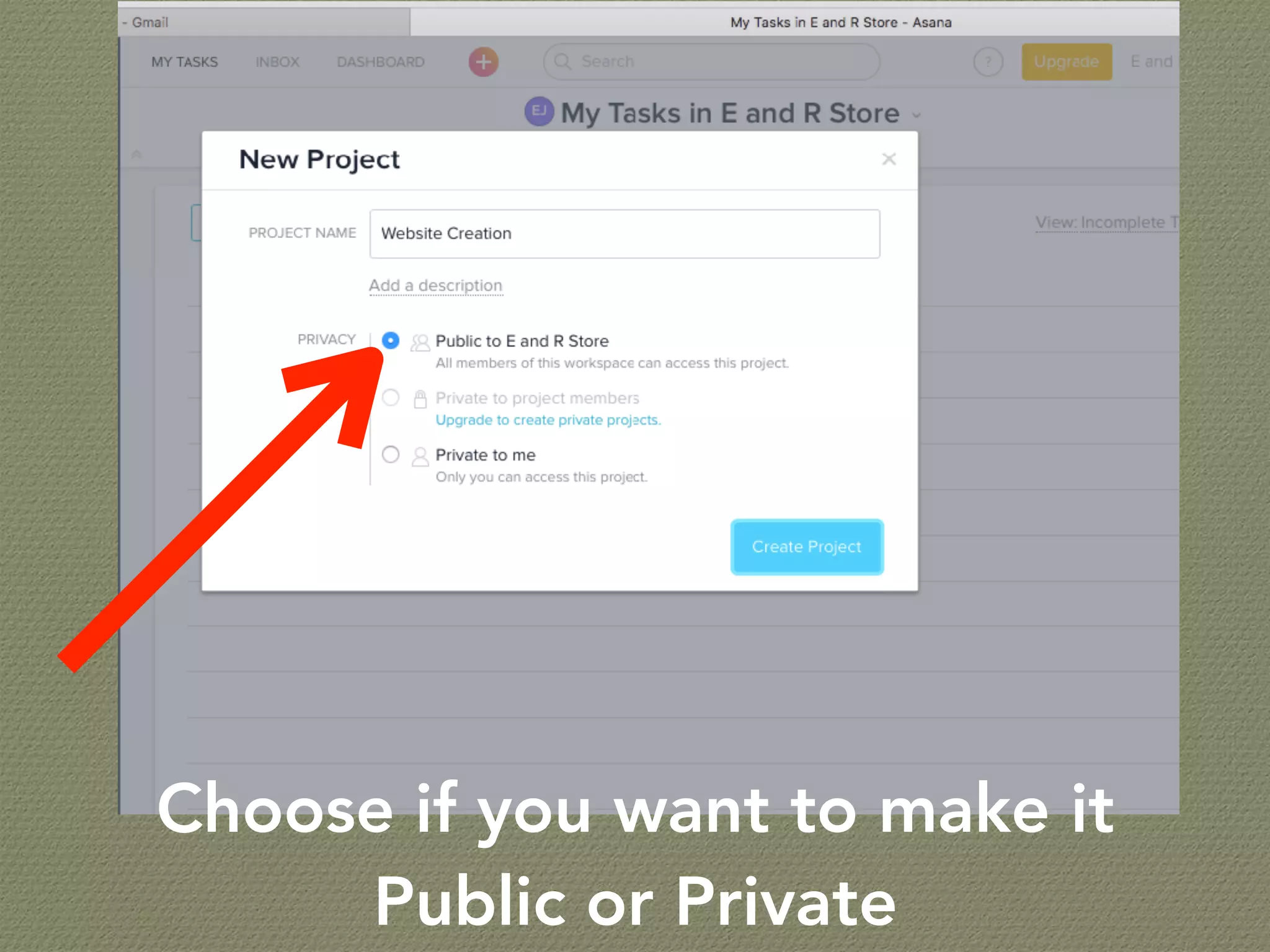
Choose if you want to make it
Public or Private
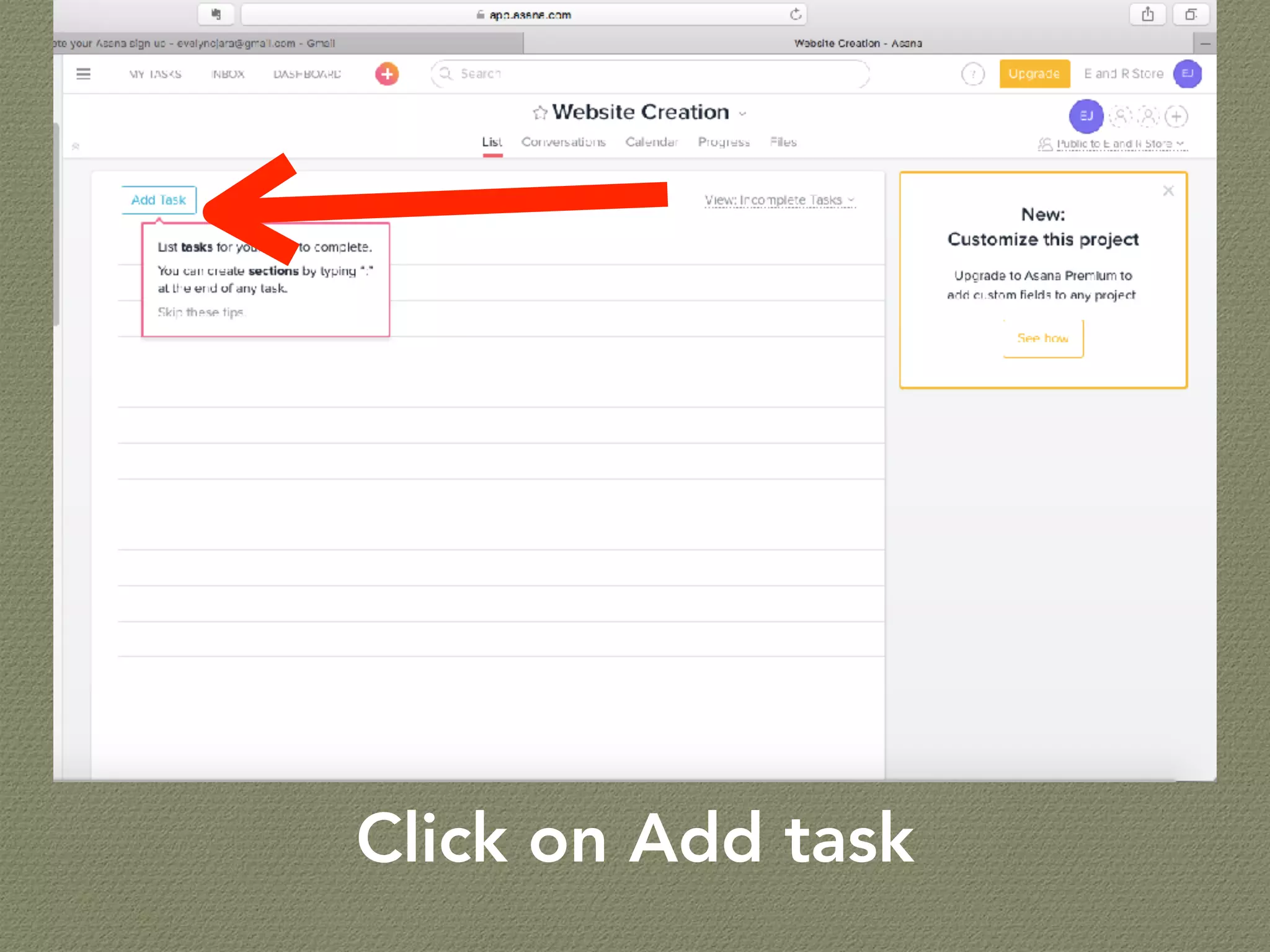
Click on Add task
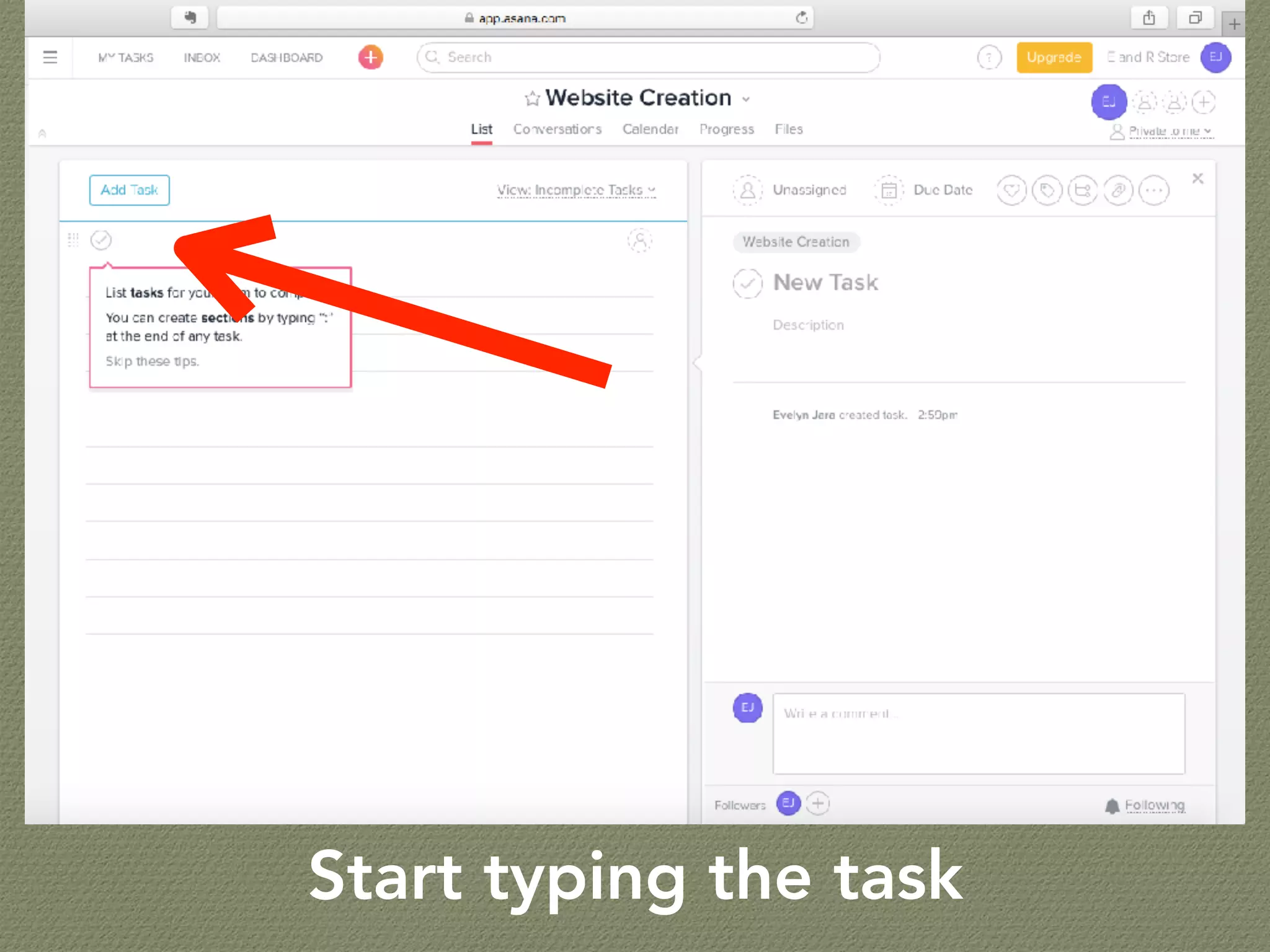
Start typing the task
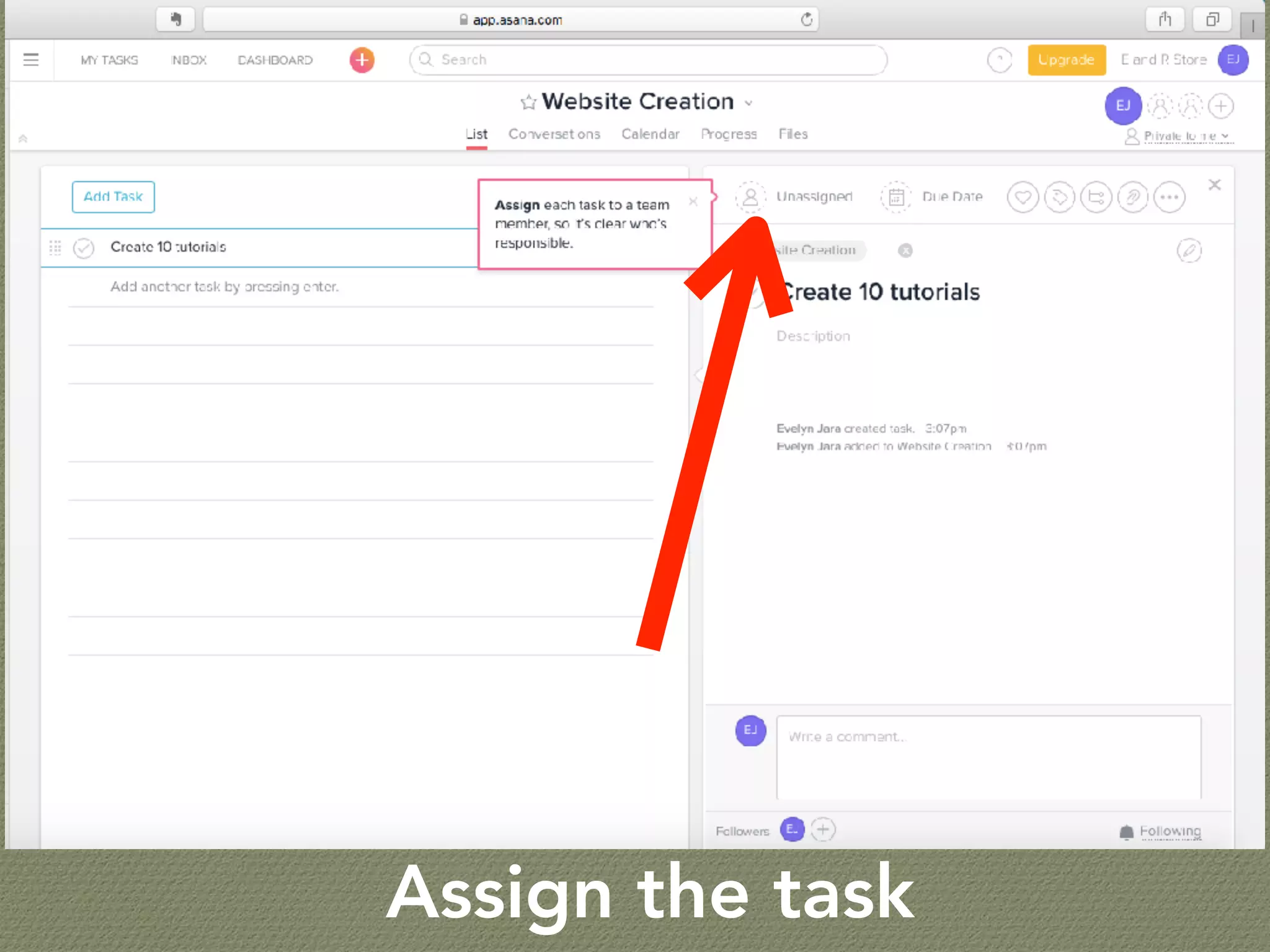
Assign the task
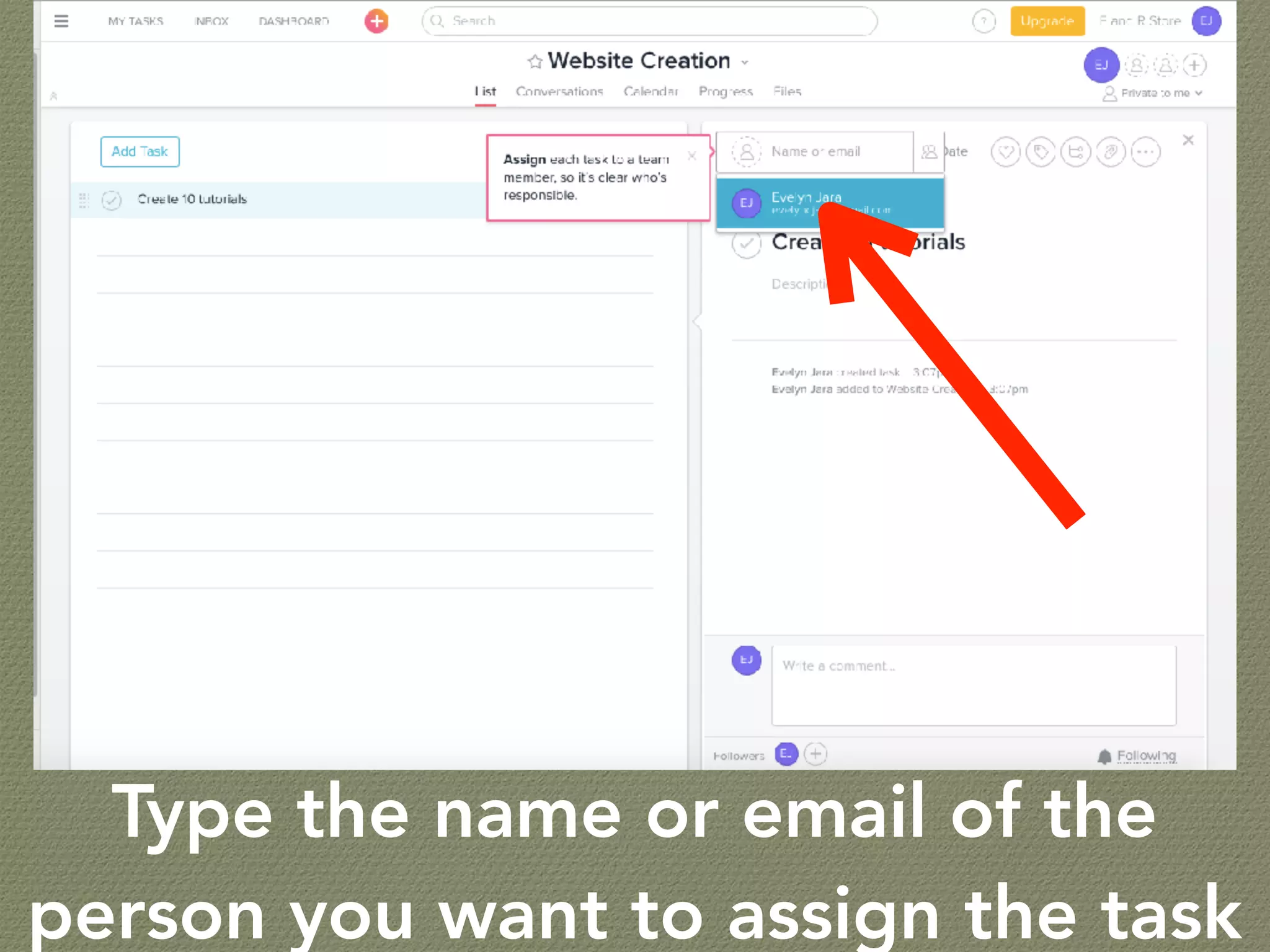
Type the name or email of the
person you want to assign the task
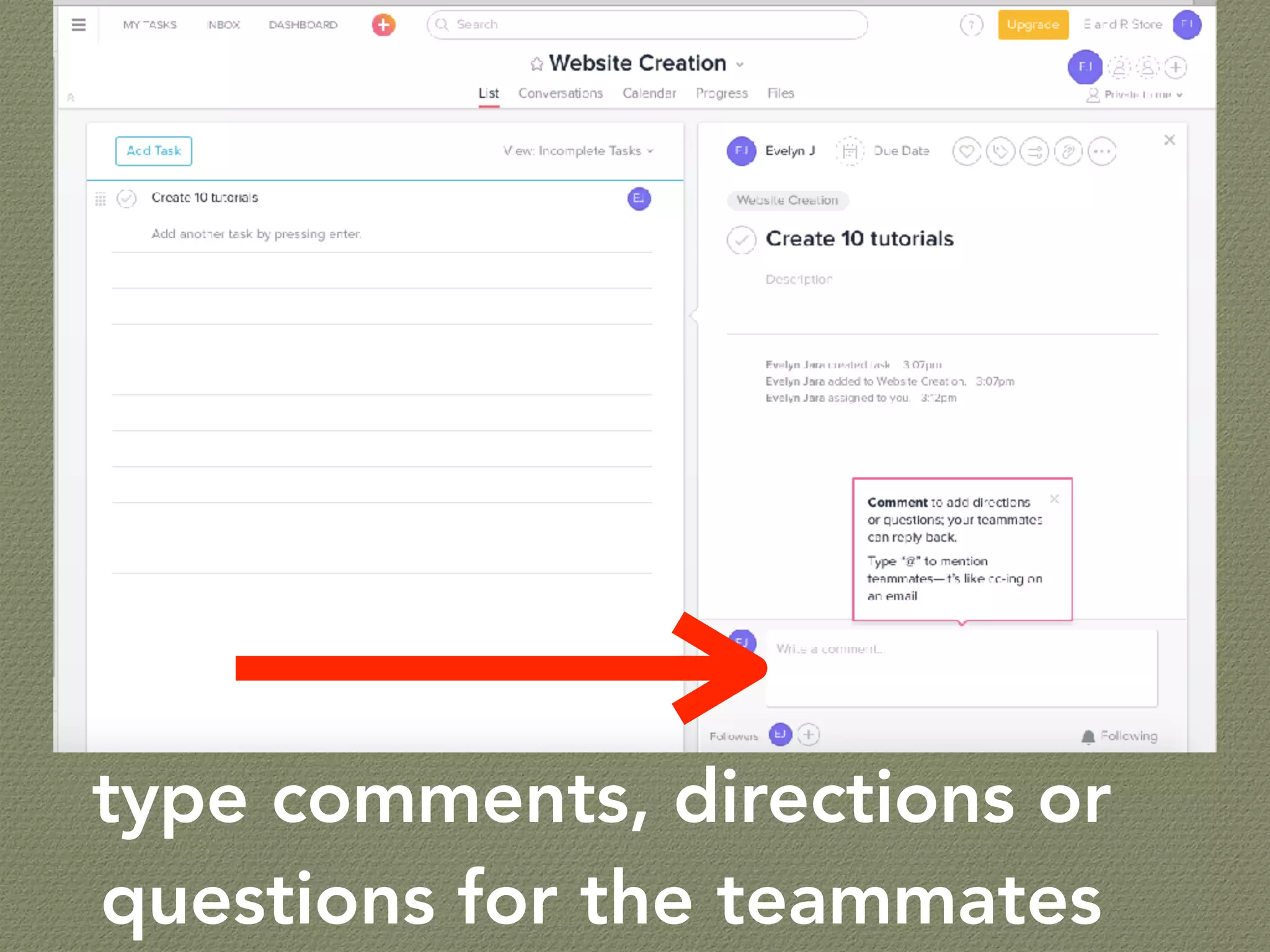
type comments, directions or
questions for the teammates
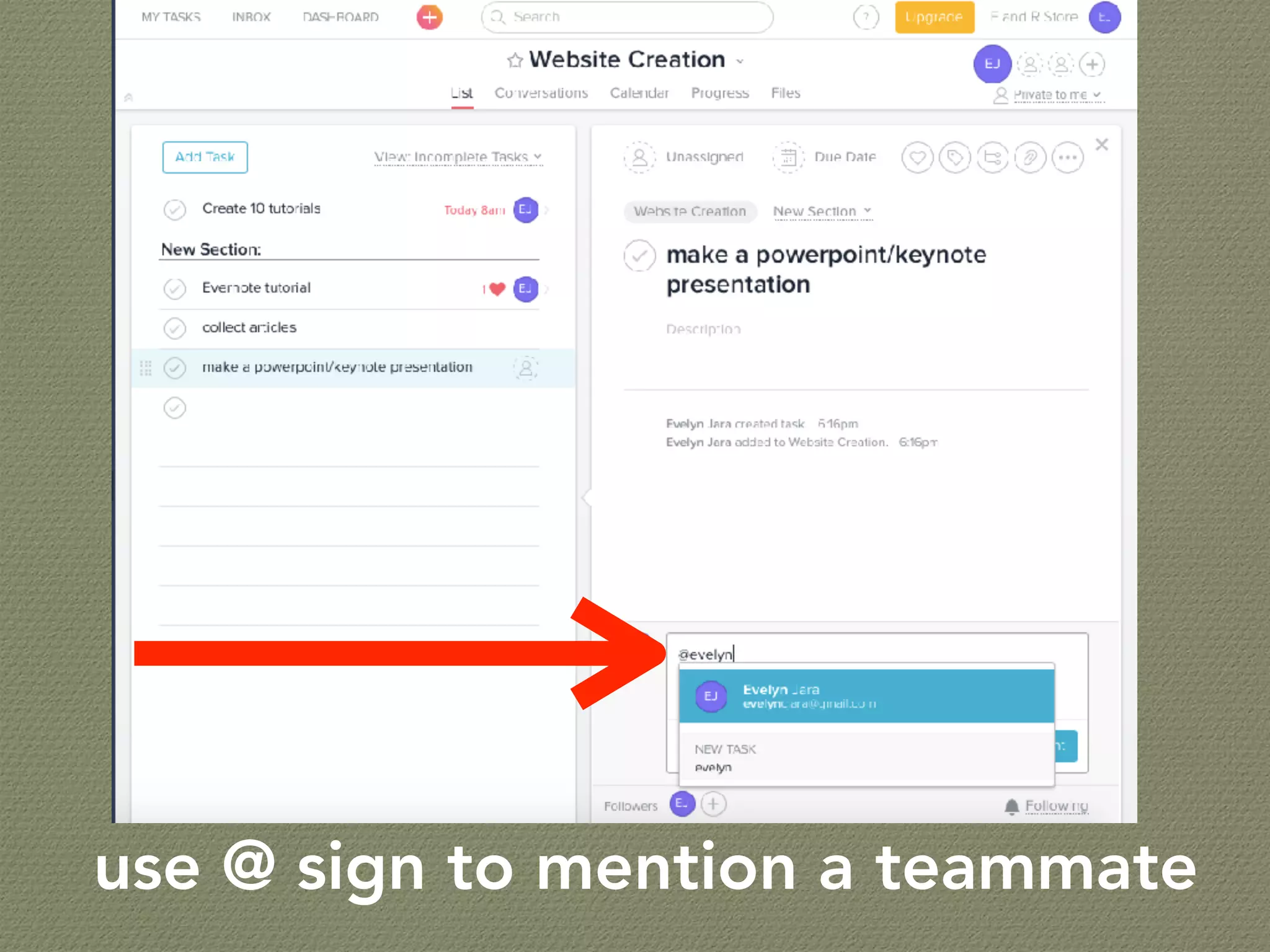
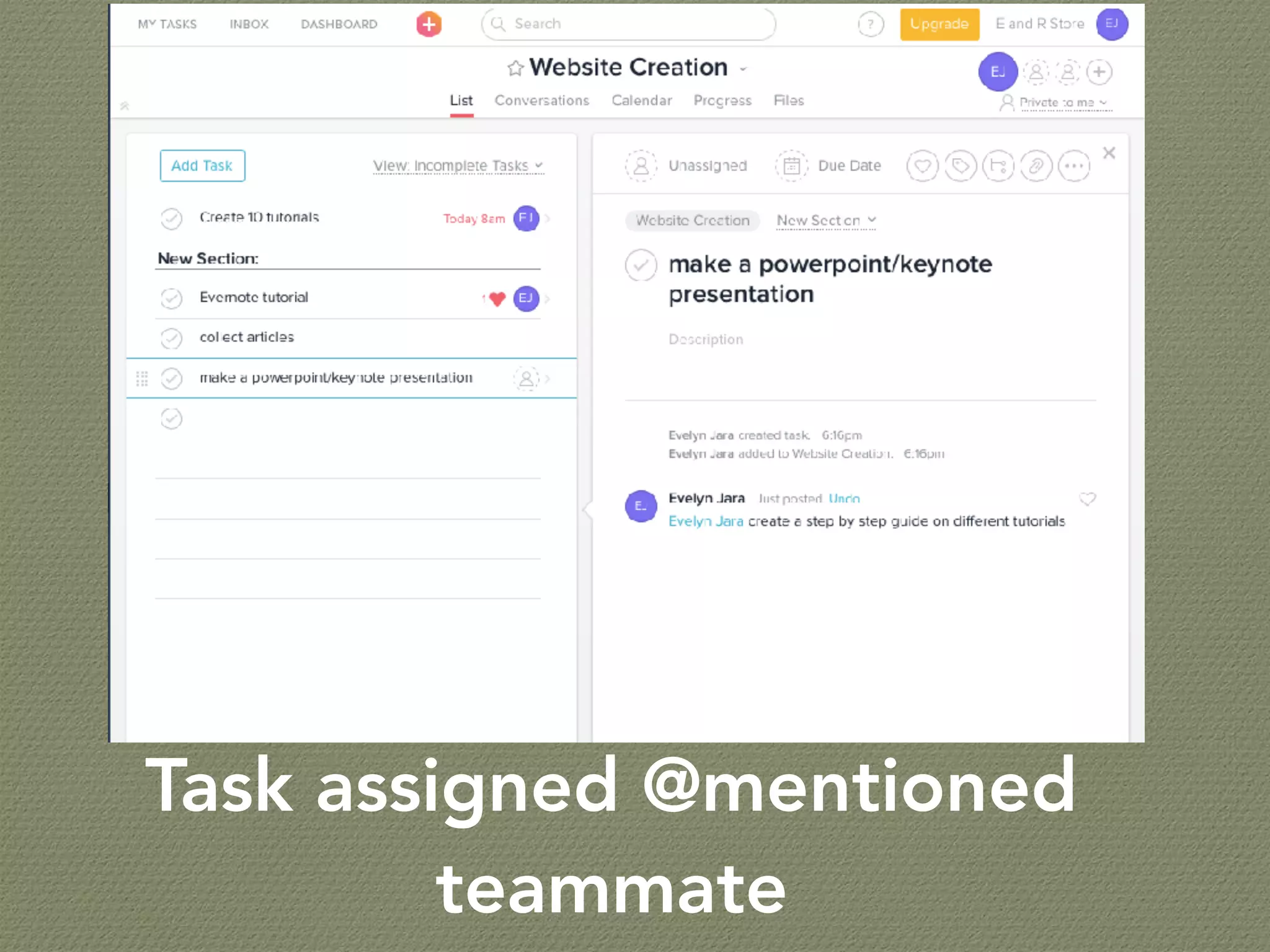
use @ sign to mention a teammate
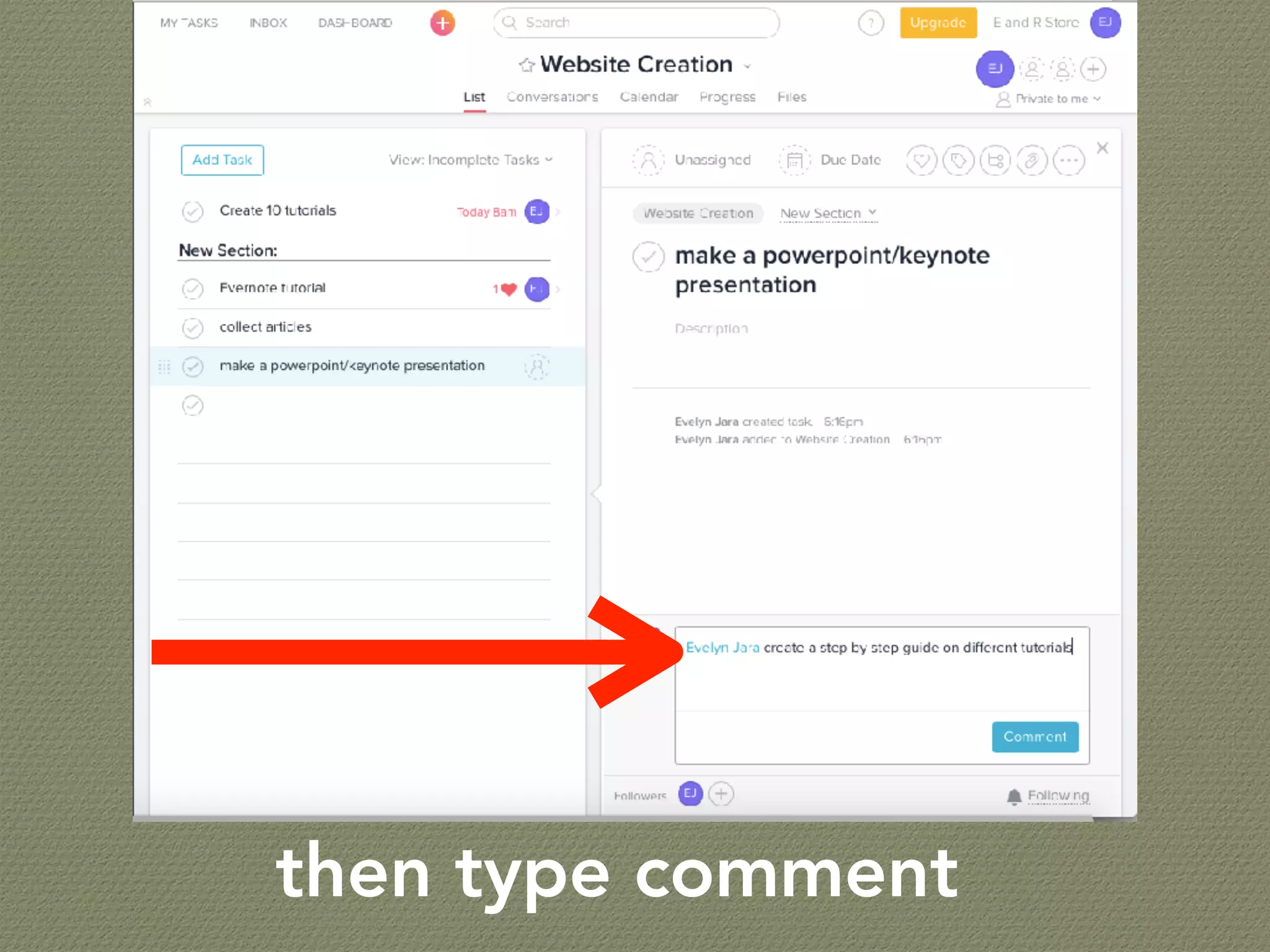
then type comment
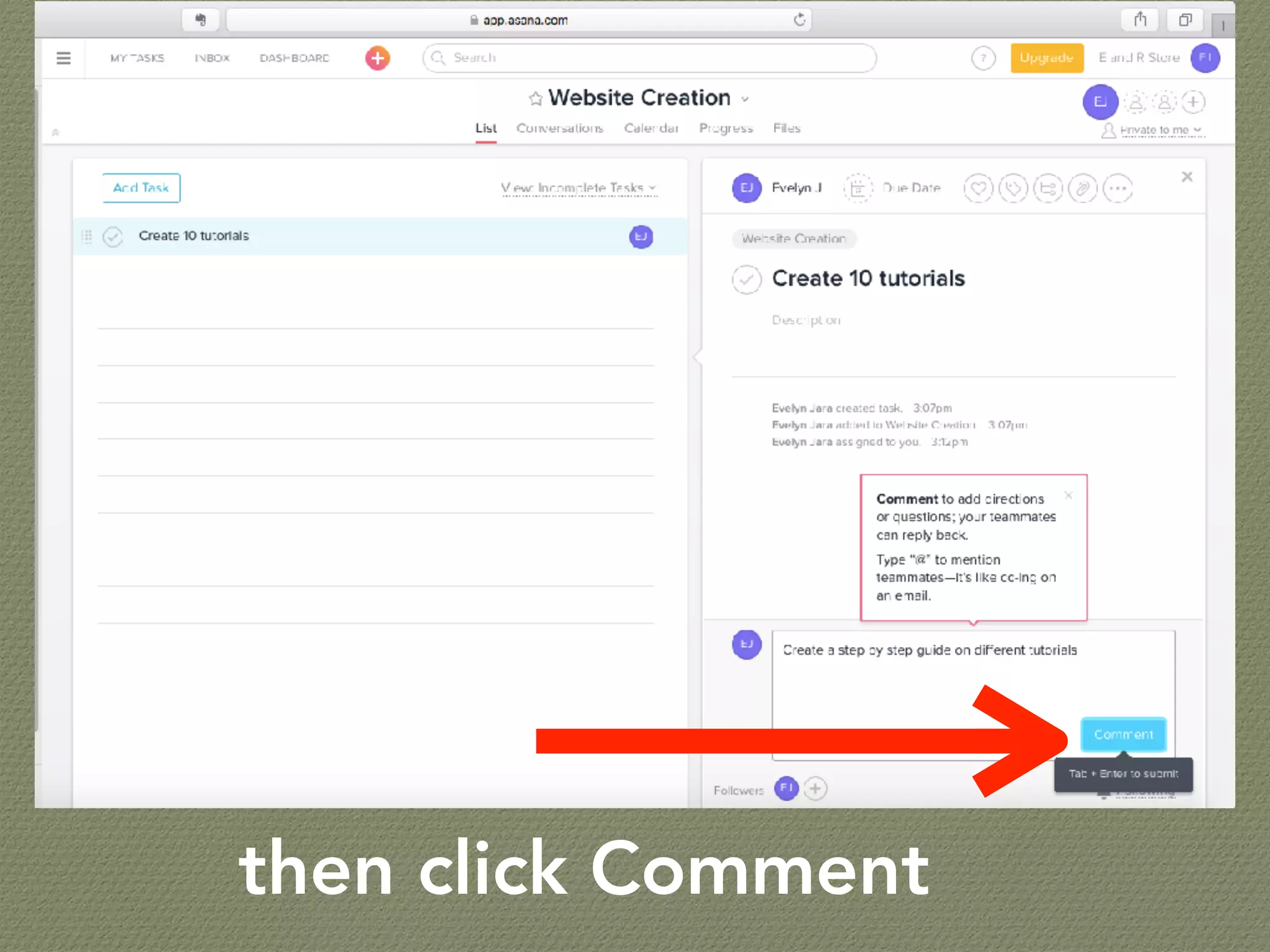
then click Comment
Task assigned @mentioned
teammate
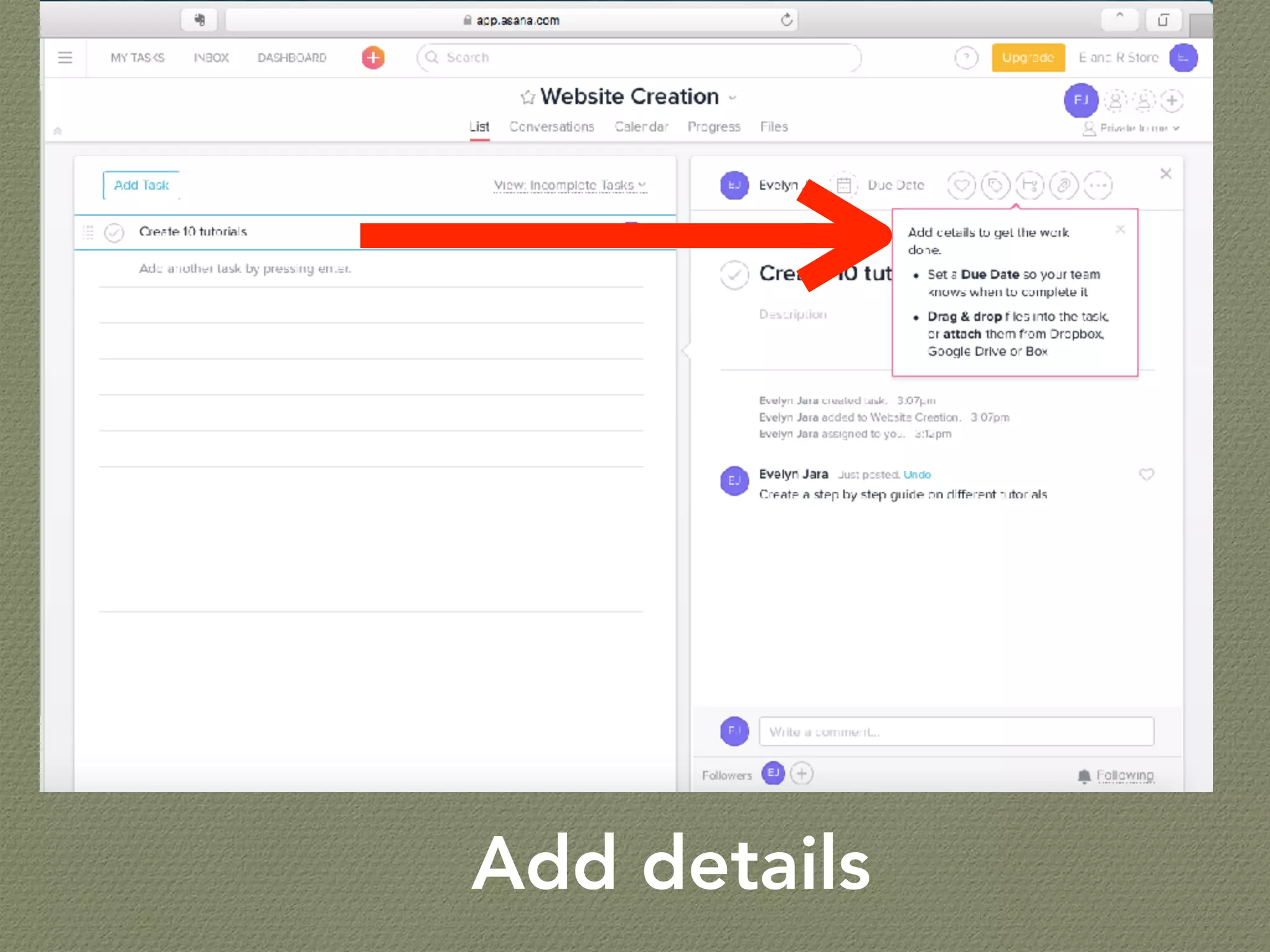
Add details
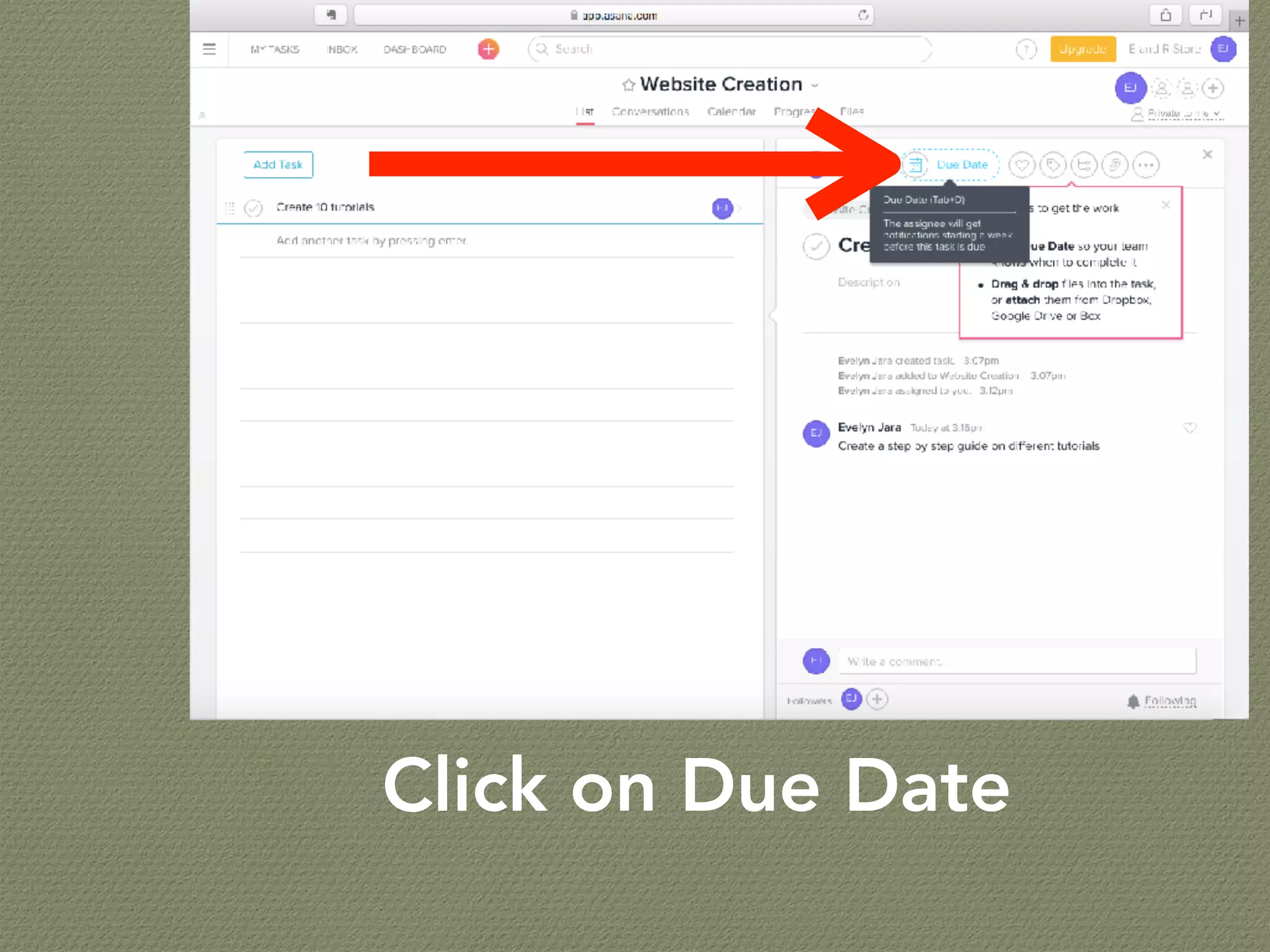
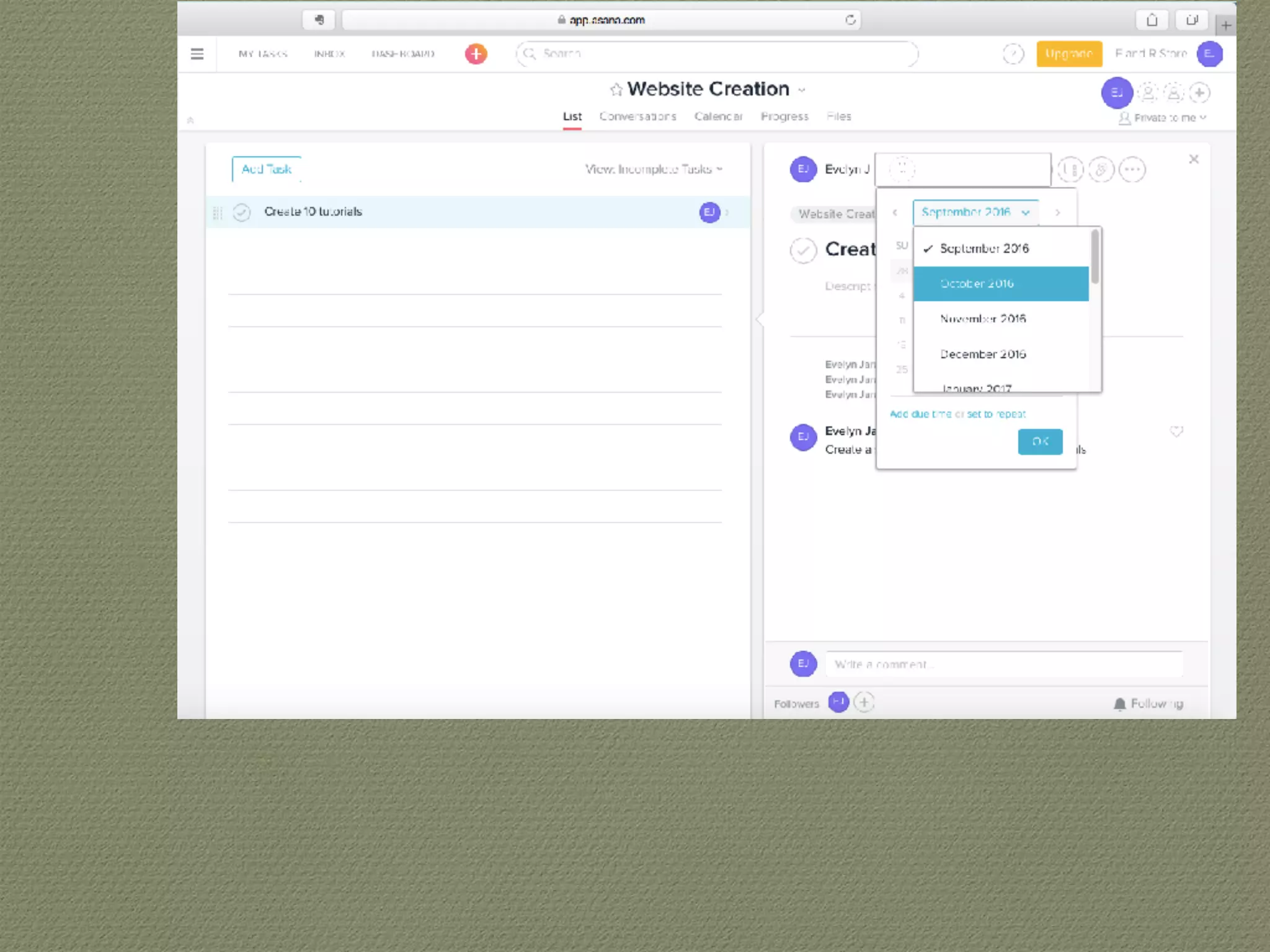
Click on Due Date
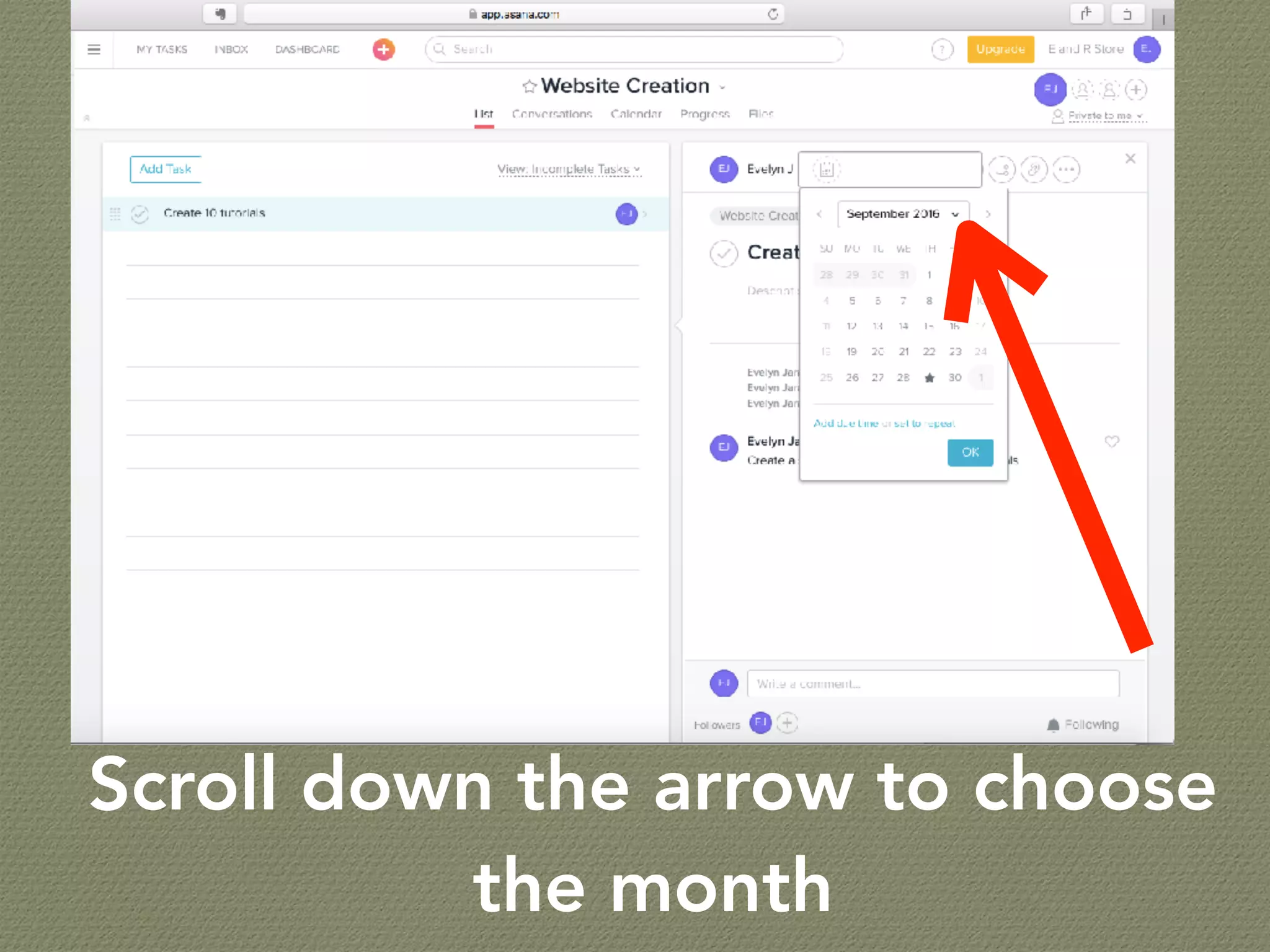
Scroll down the arrow to choose
the month
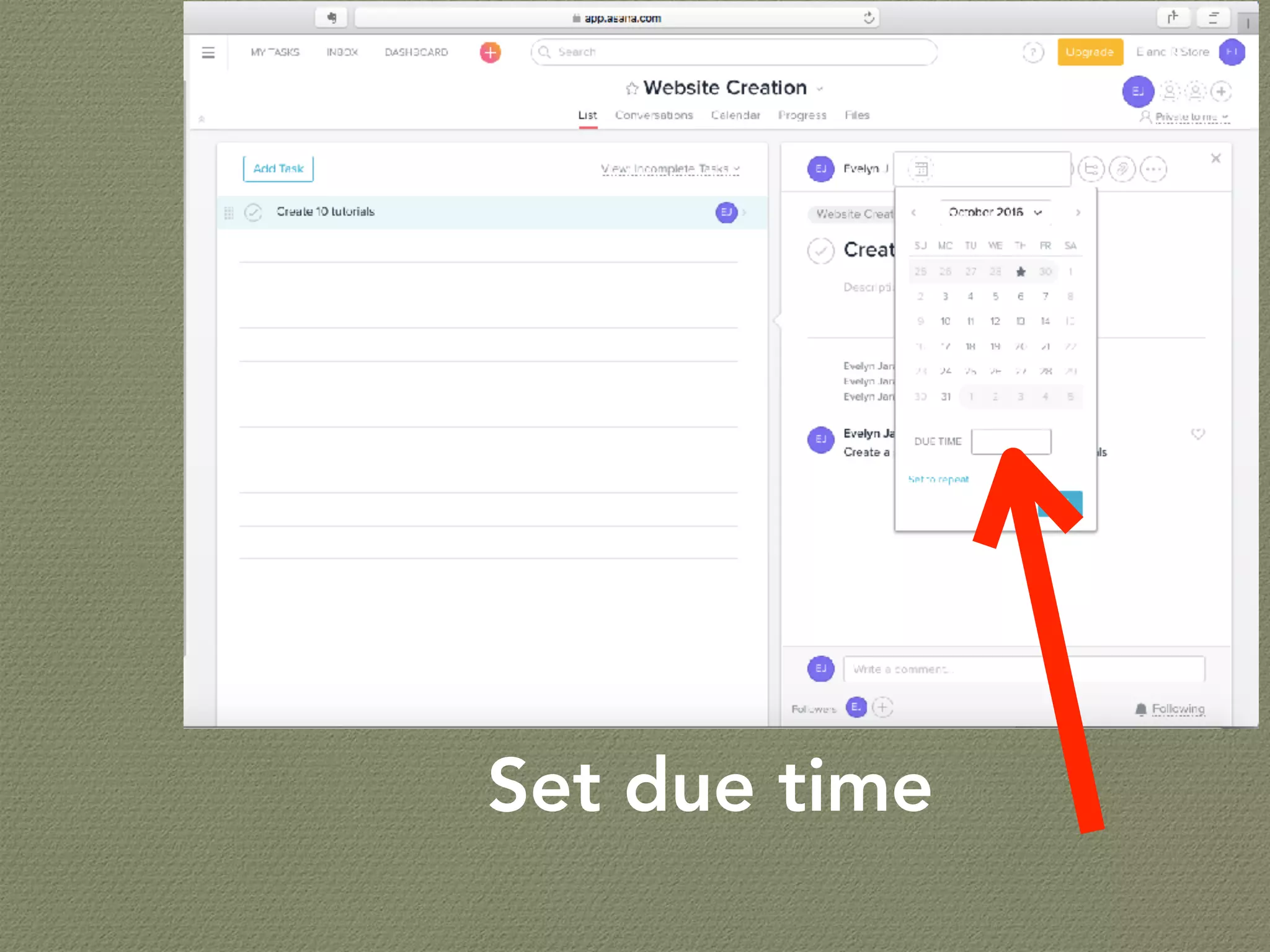
Set due time
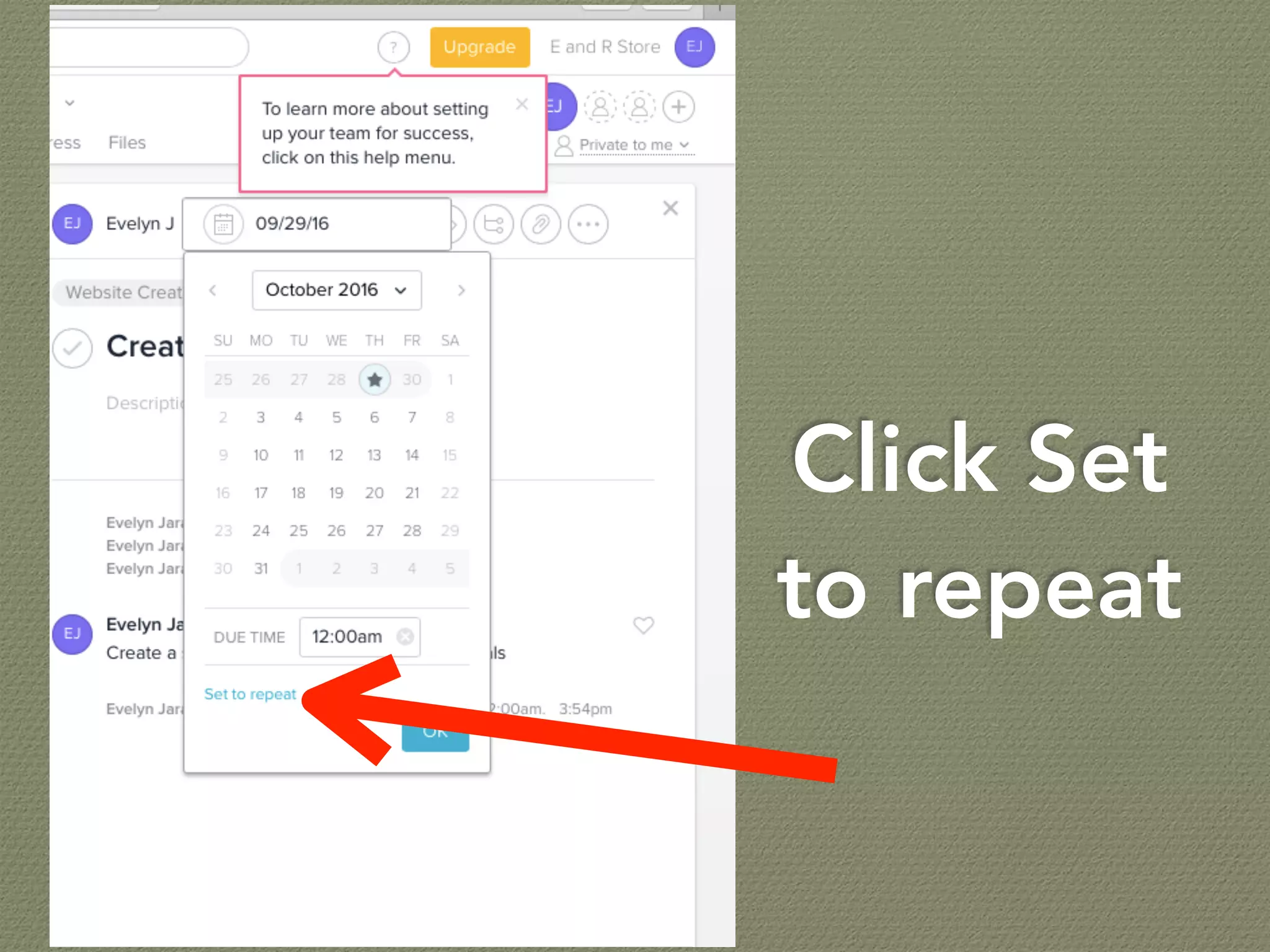
Click Set
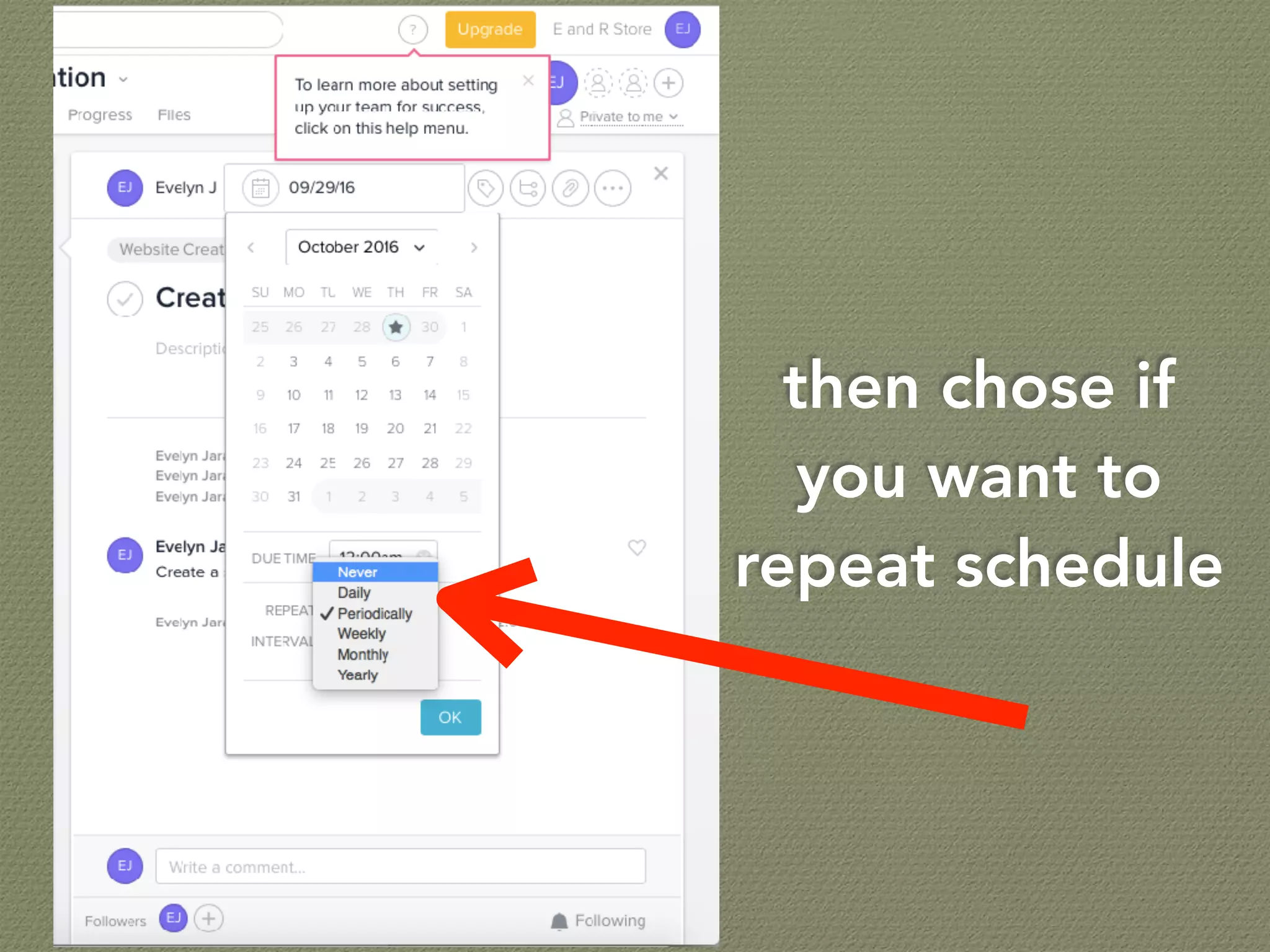
to repeat
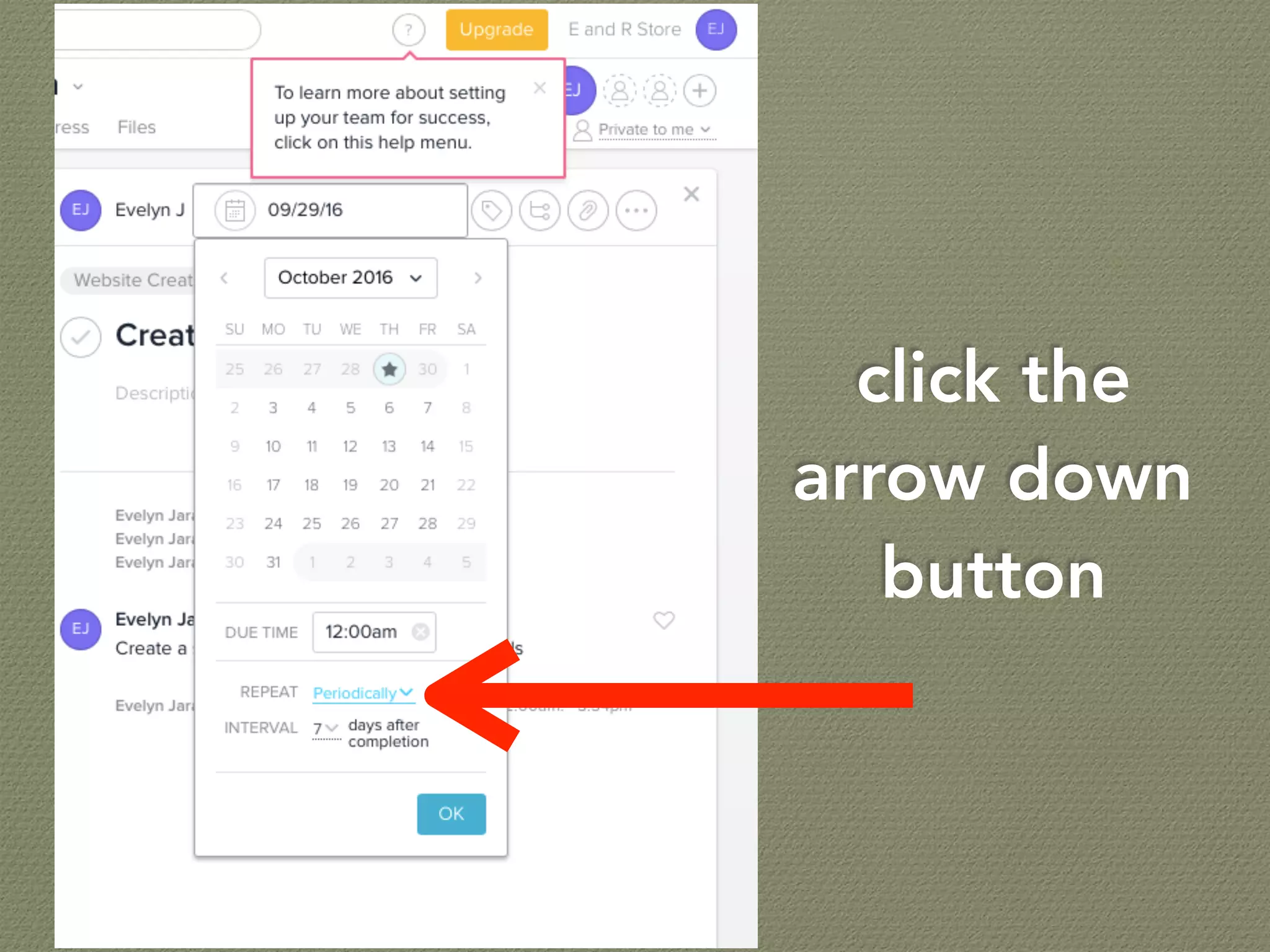
click the
arrow down
button
then chose if
you want to
repeat schedule
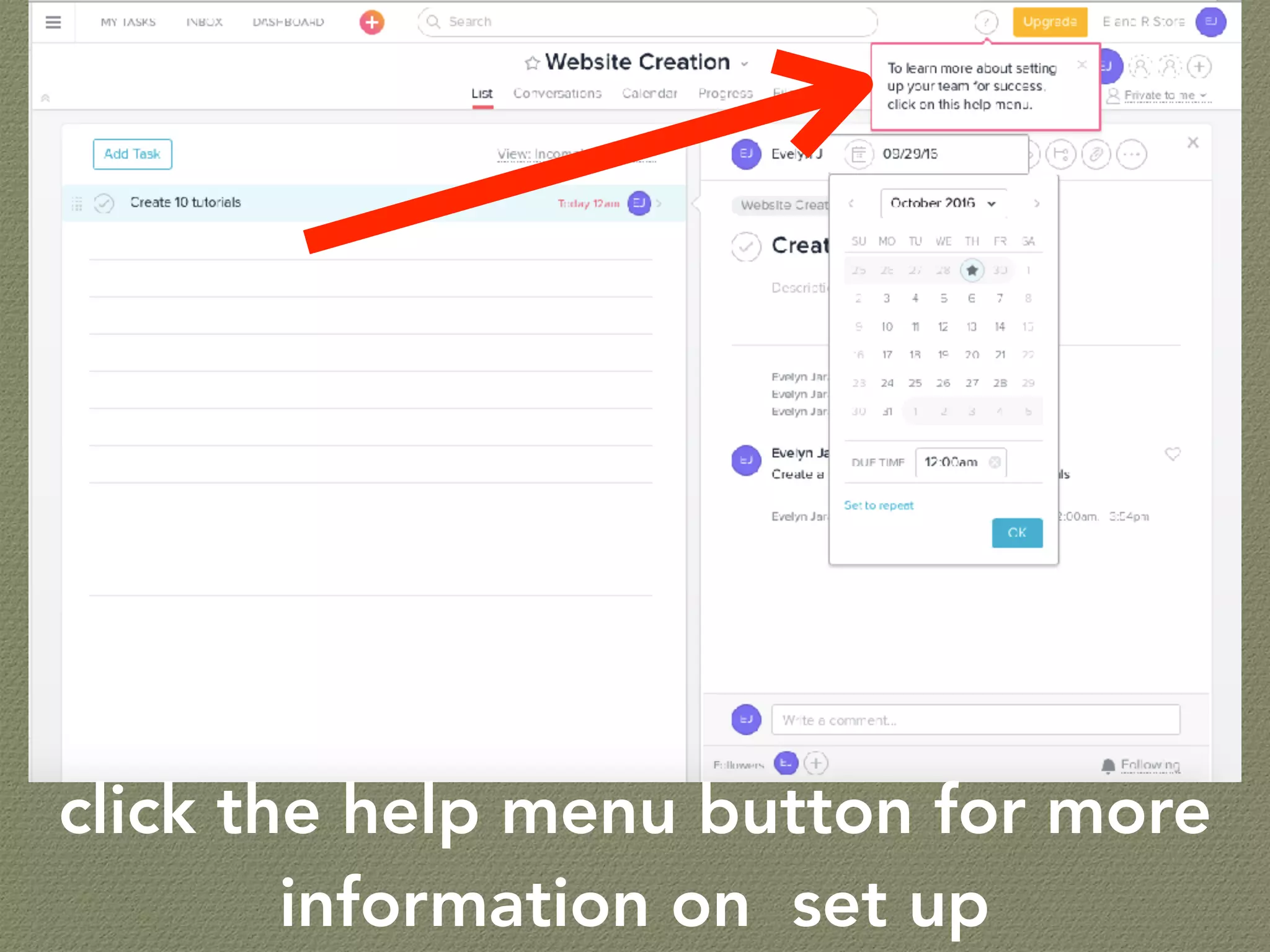
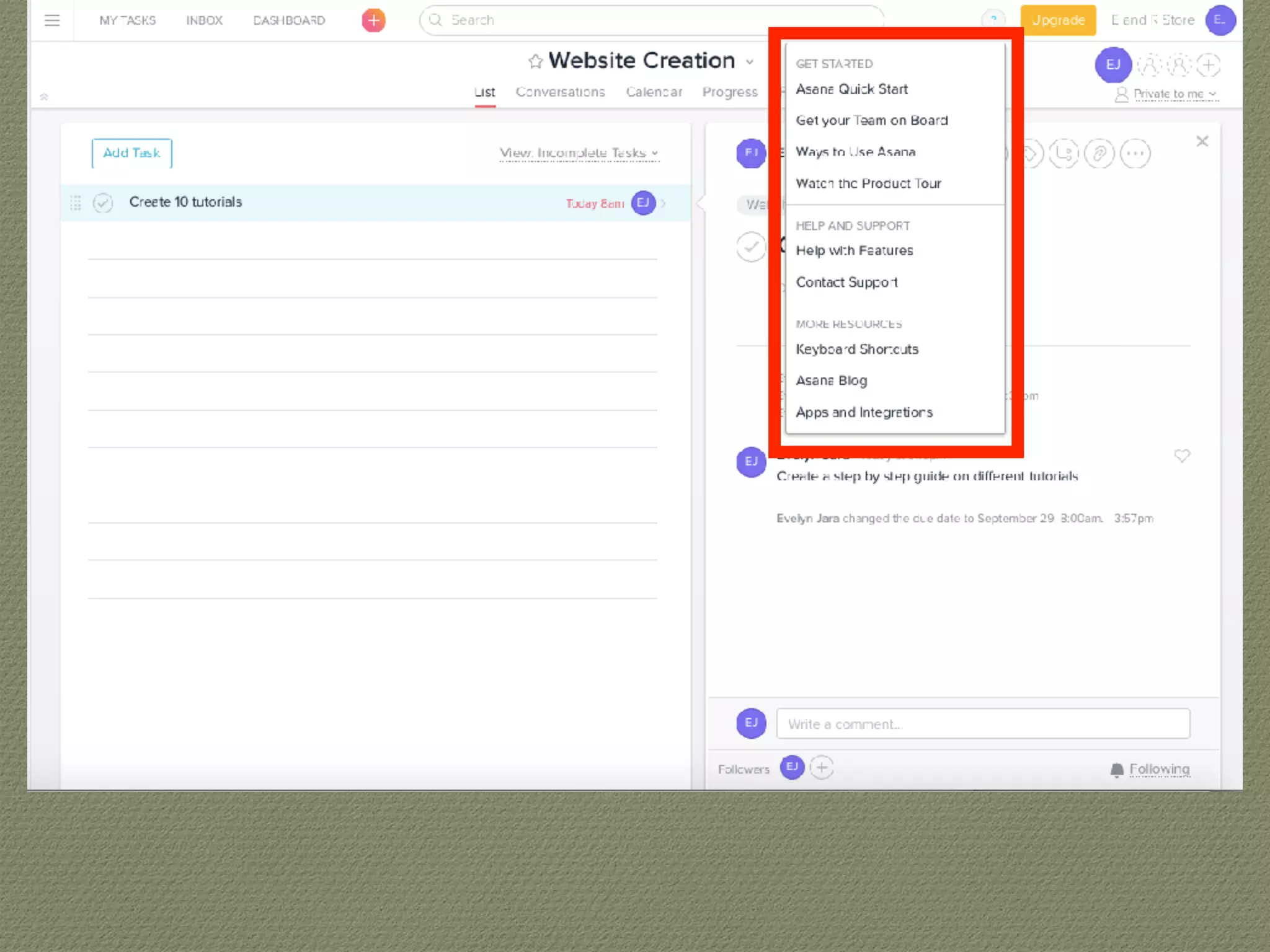
click the help menu button for more
information on set up
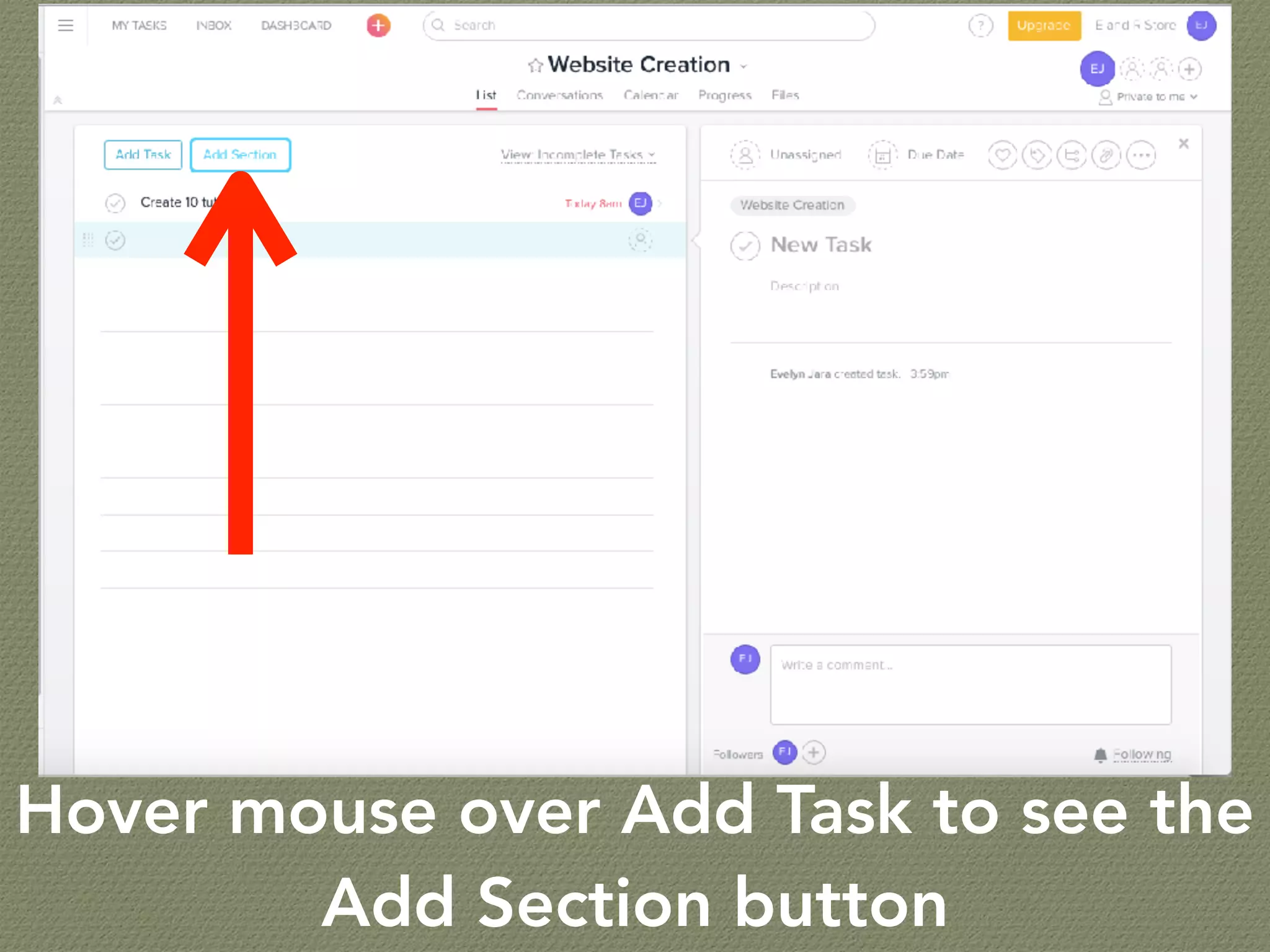
Hover mouse over Add Task to see the
Add Section button
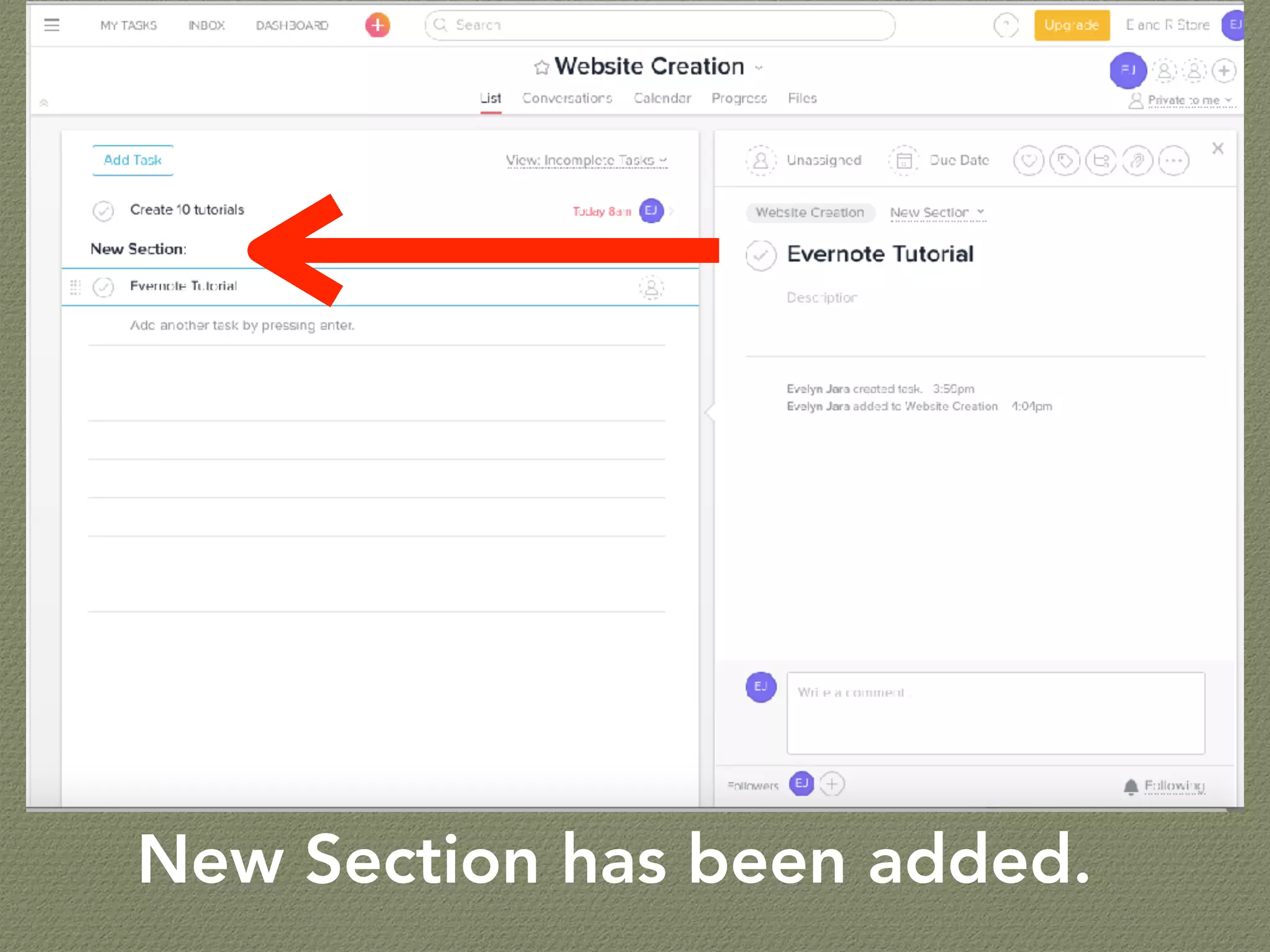
New Section has been added.
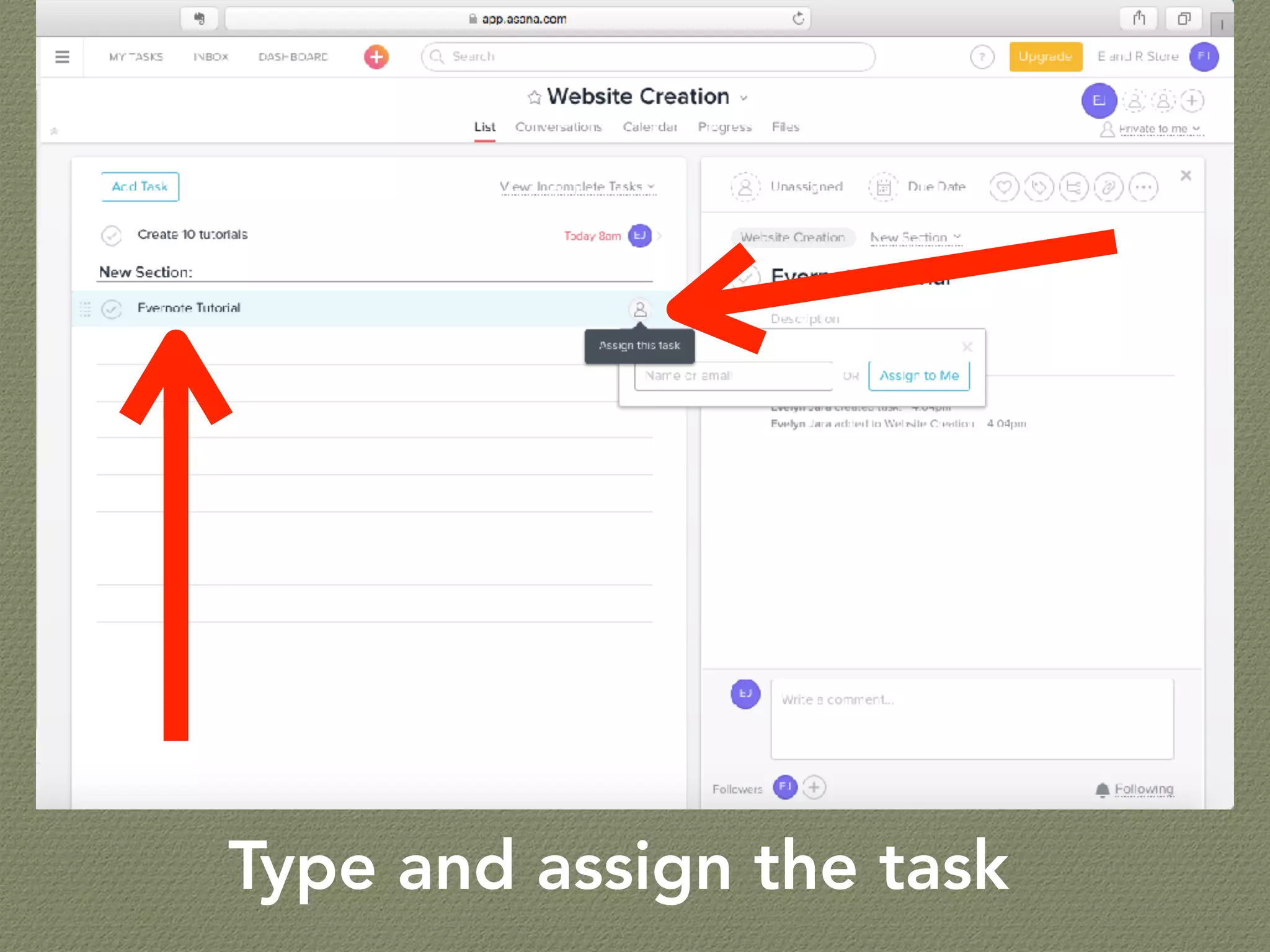
Type and assign the task
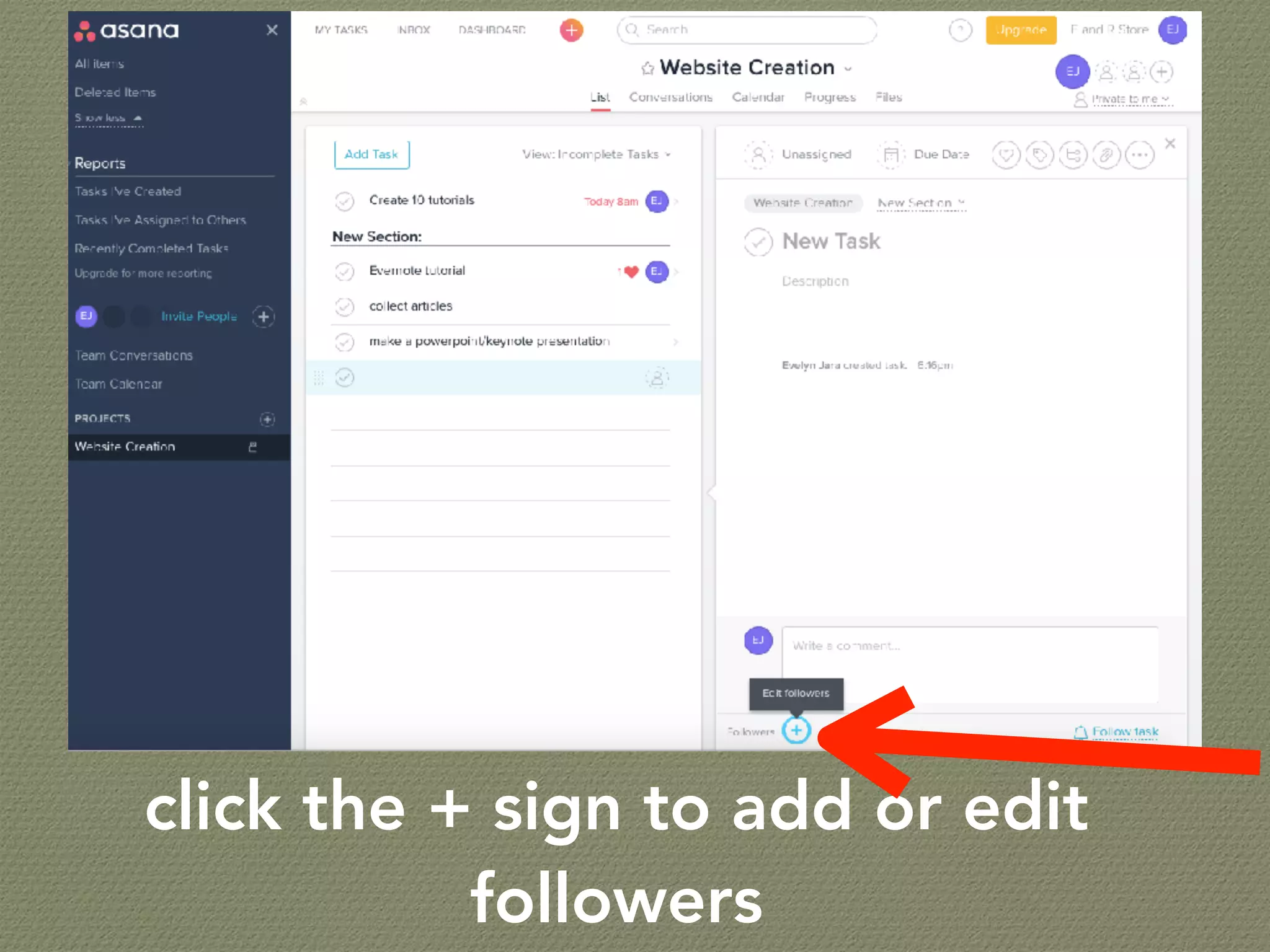
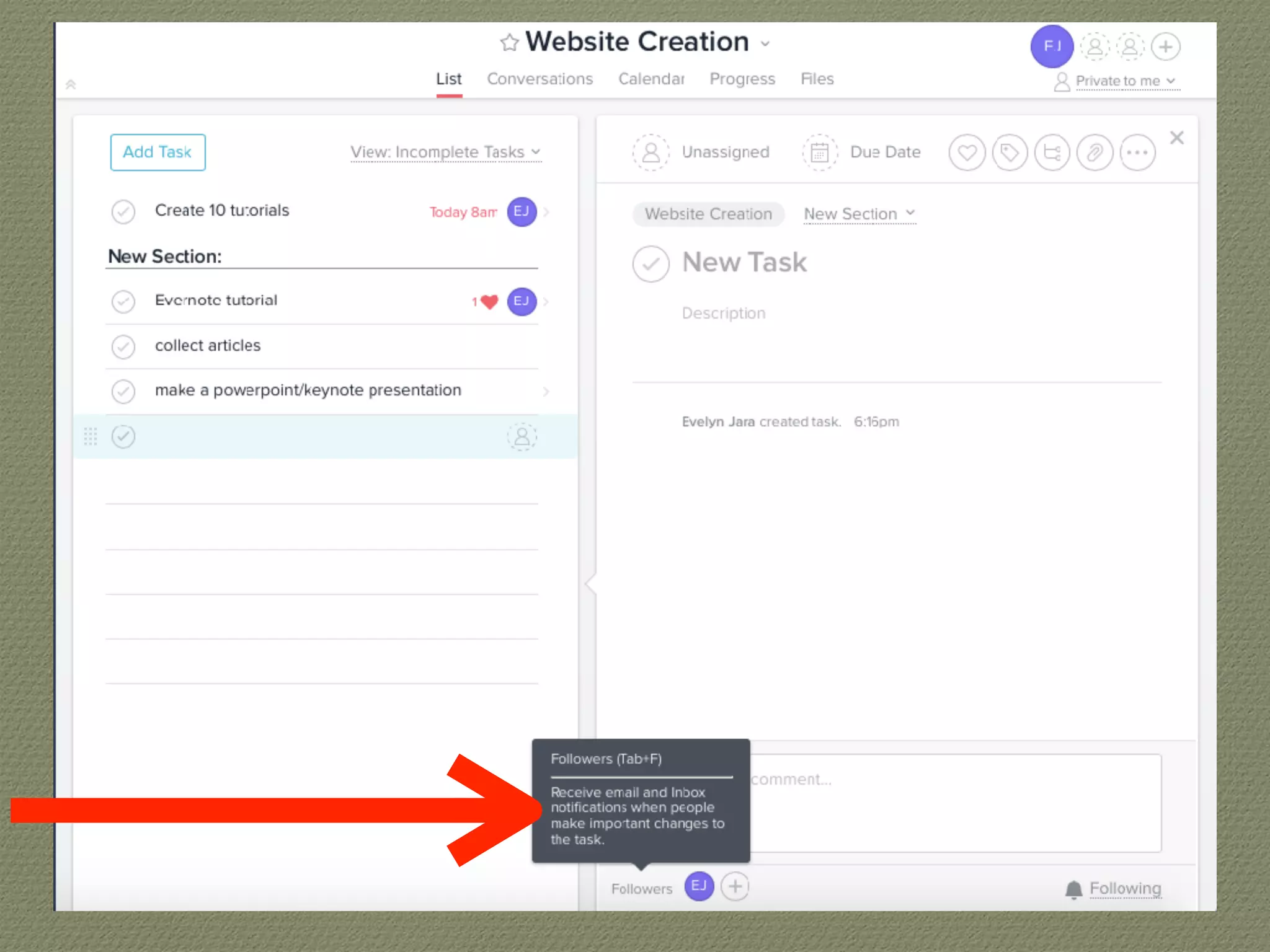
click the + sign to add or edit
followers
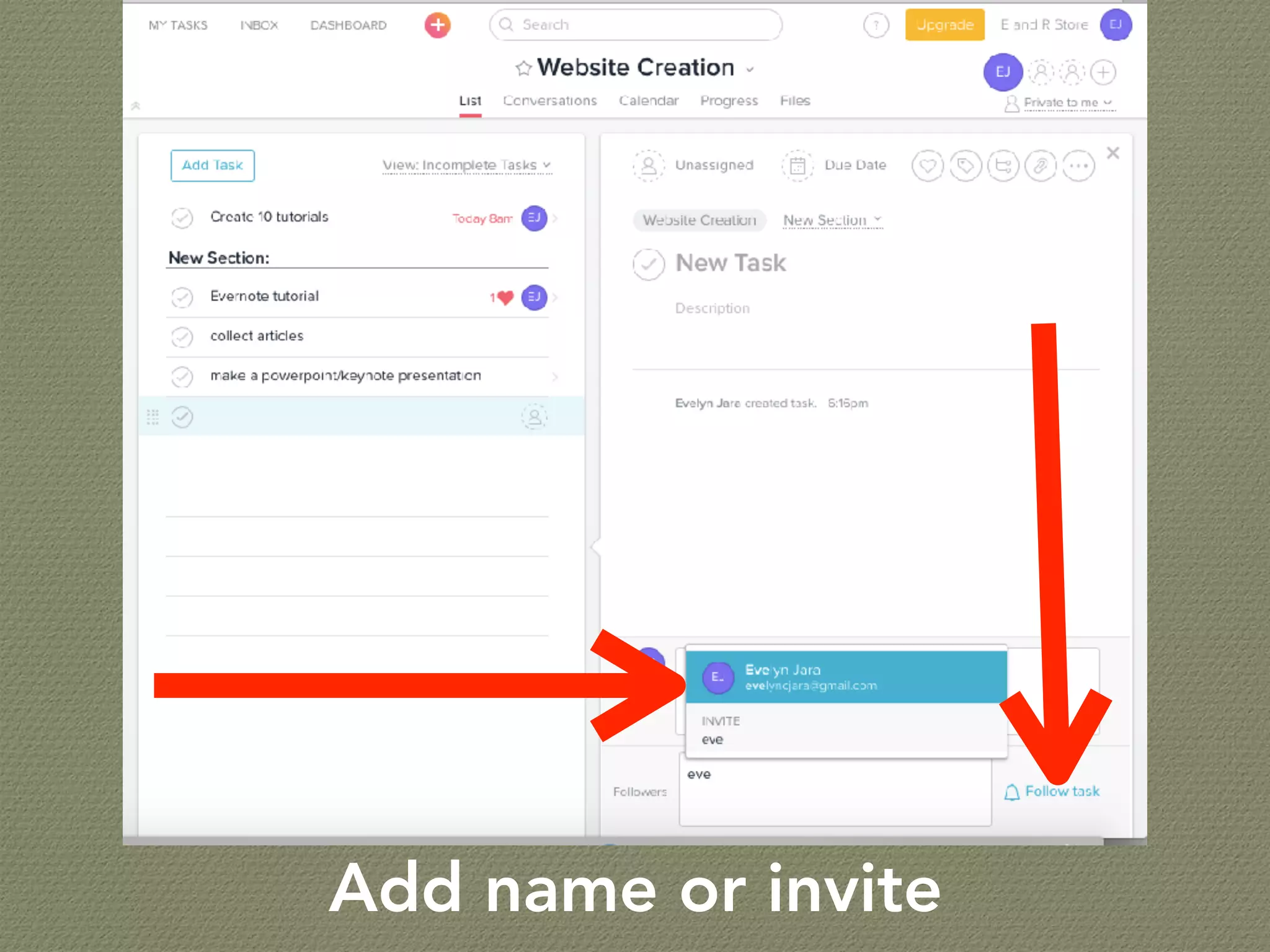
Add name or invite
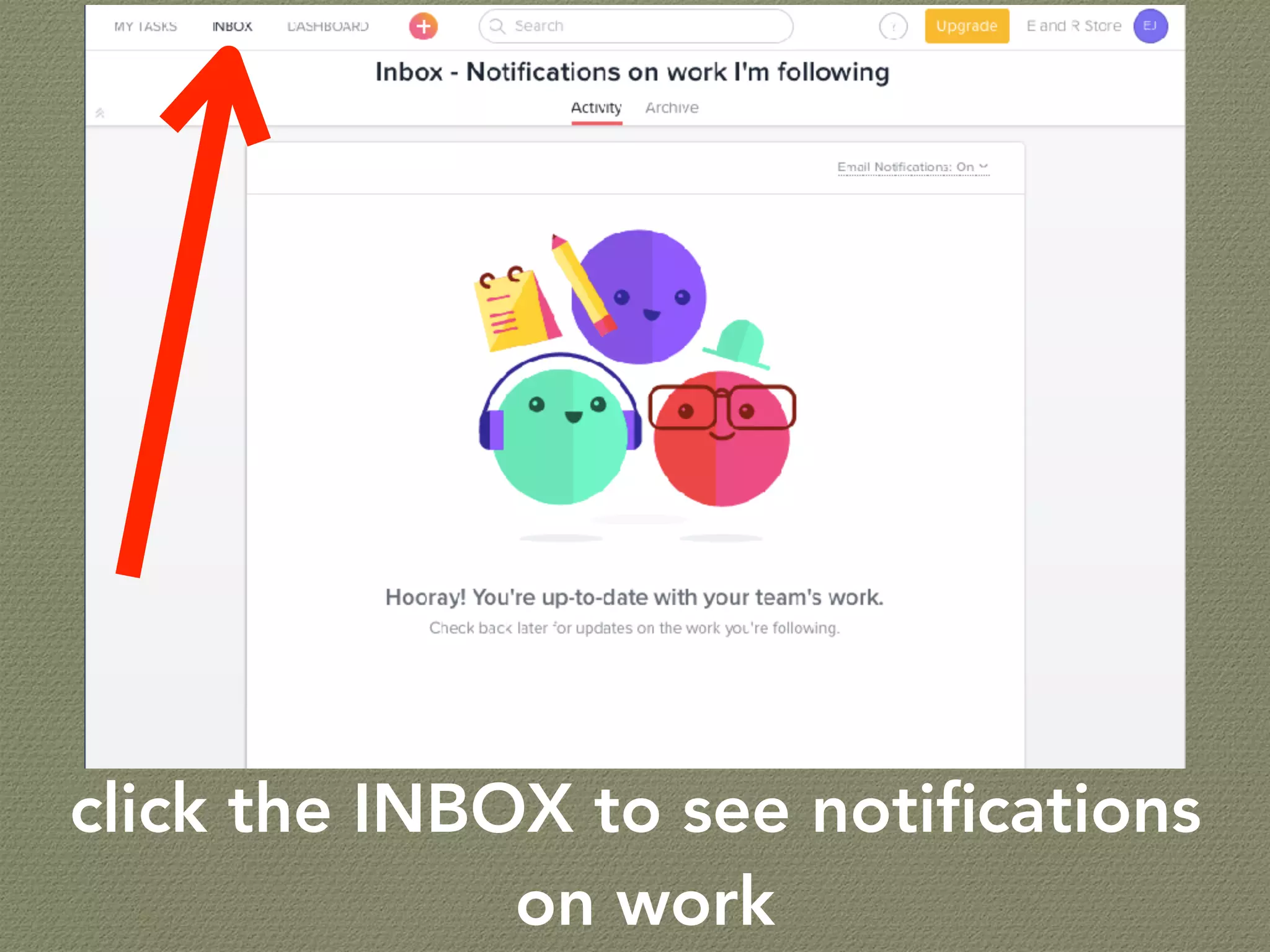
click the INBOX to see notifications
on work
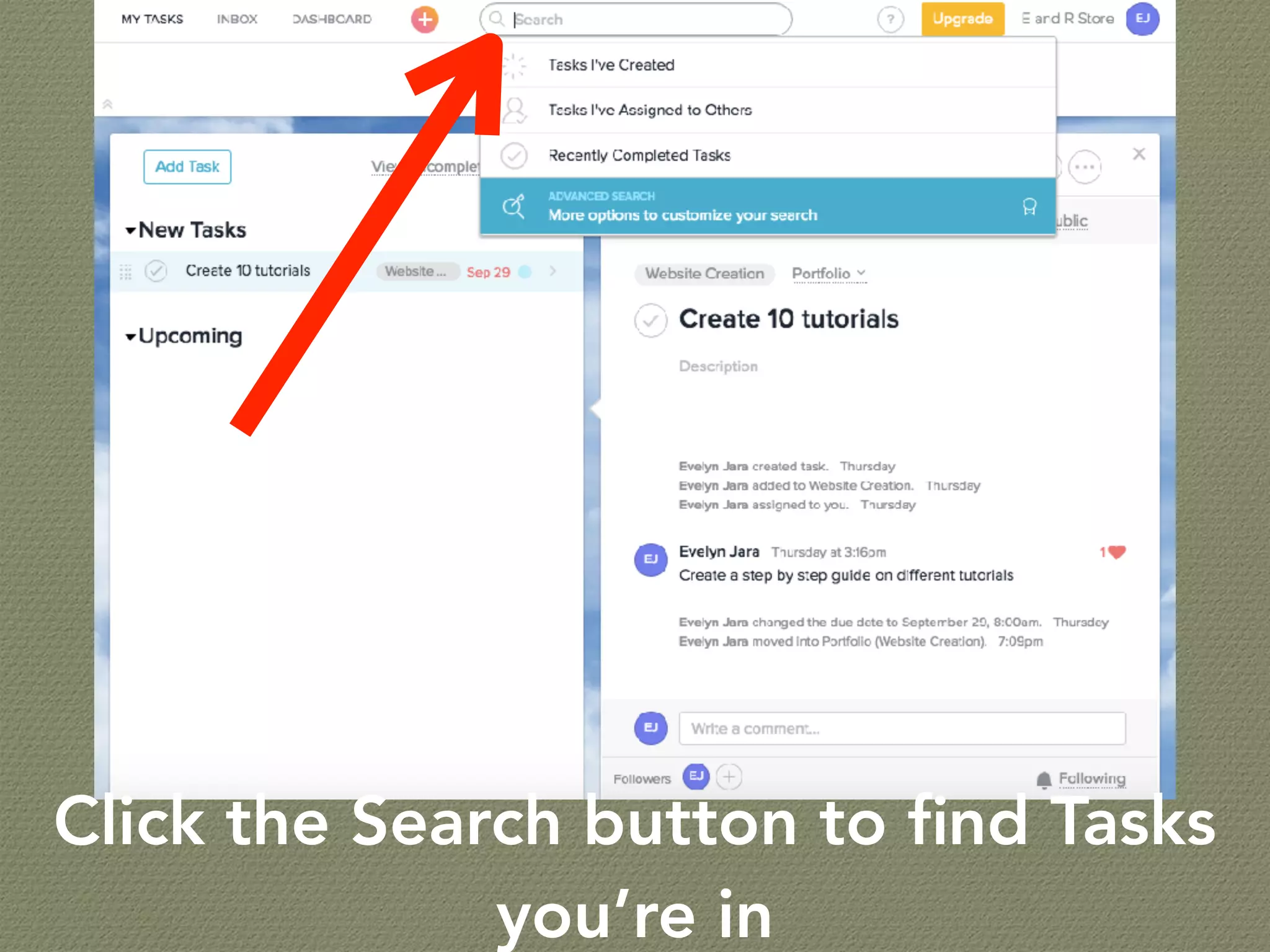
Click the Search button to find Tasks
you’re in
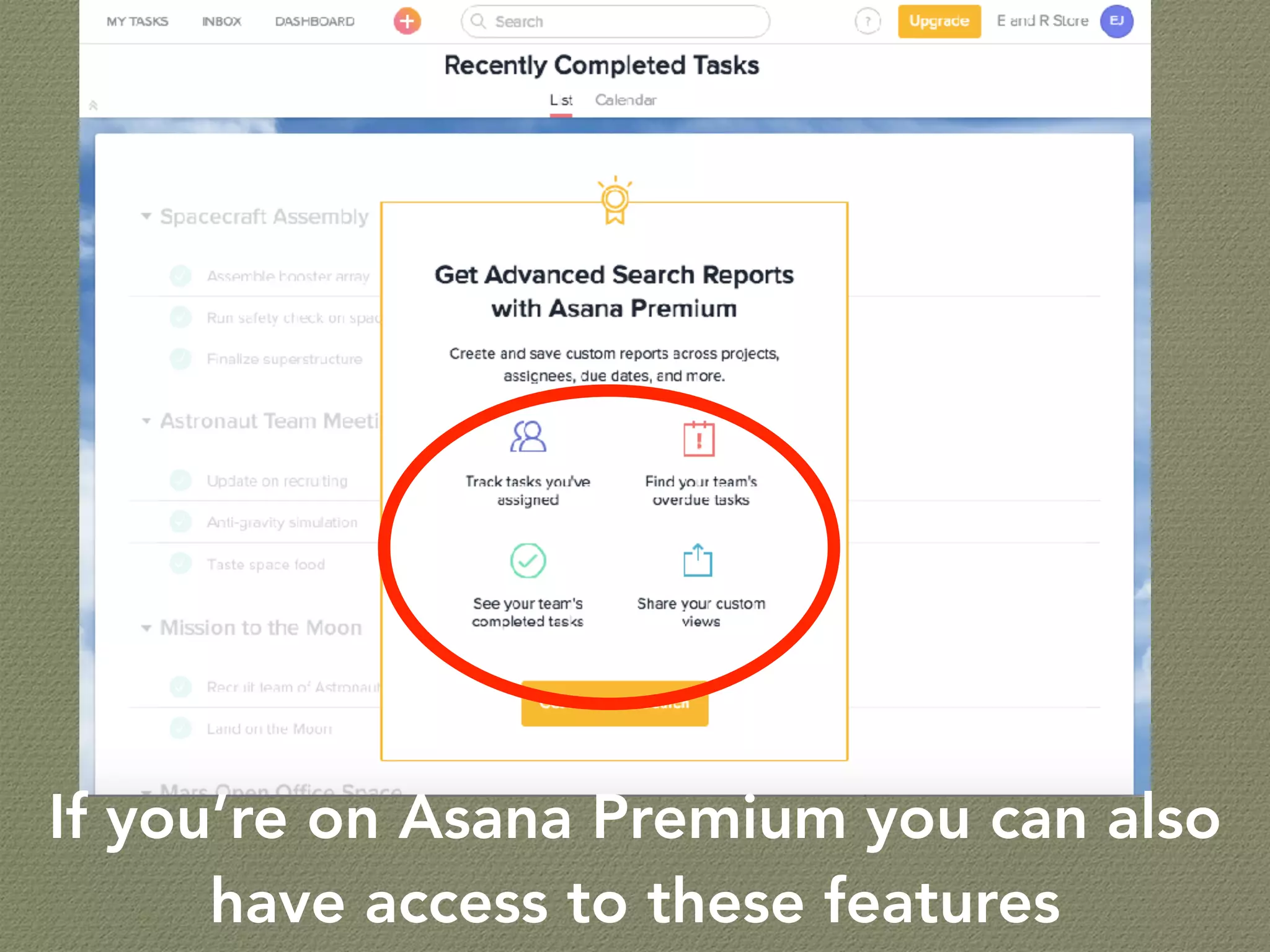
If you’re on Asana Premium you can also
have access to these features
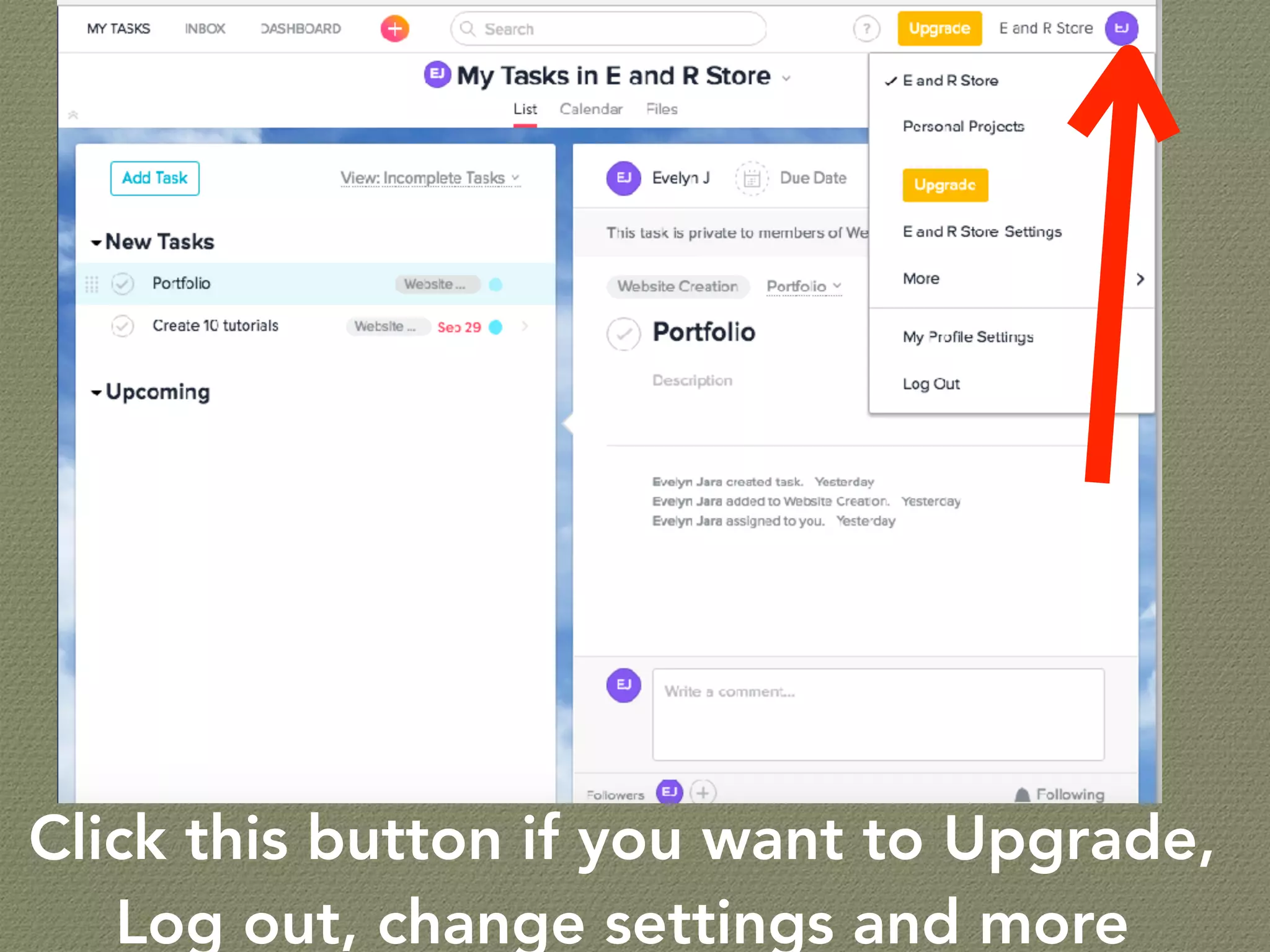
Click this button if you want to Upgrade,
Log out, change settings and more
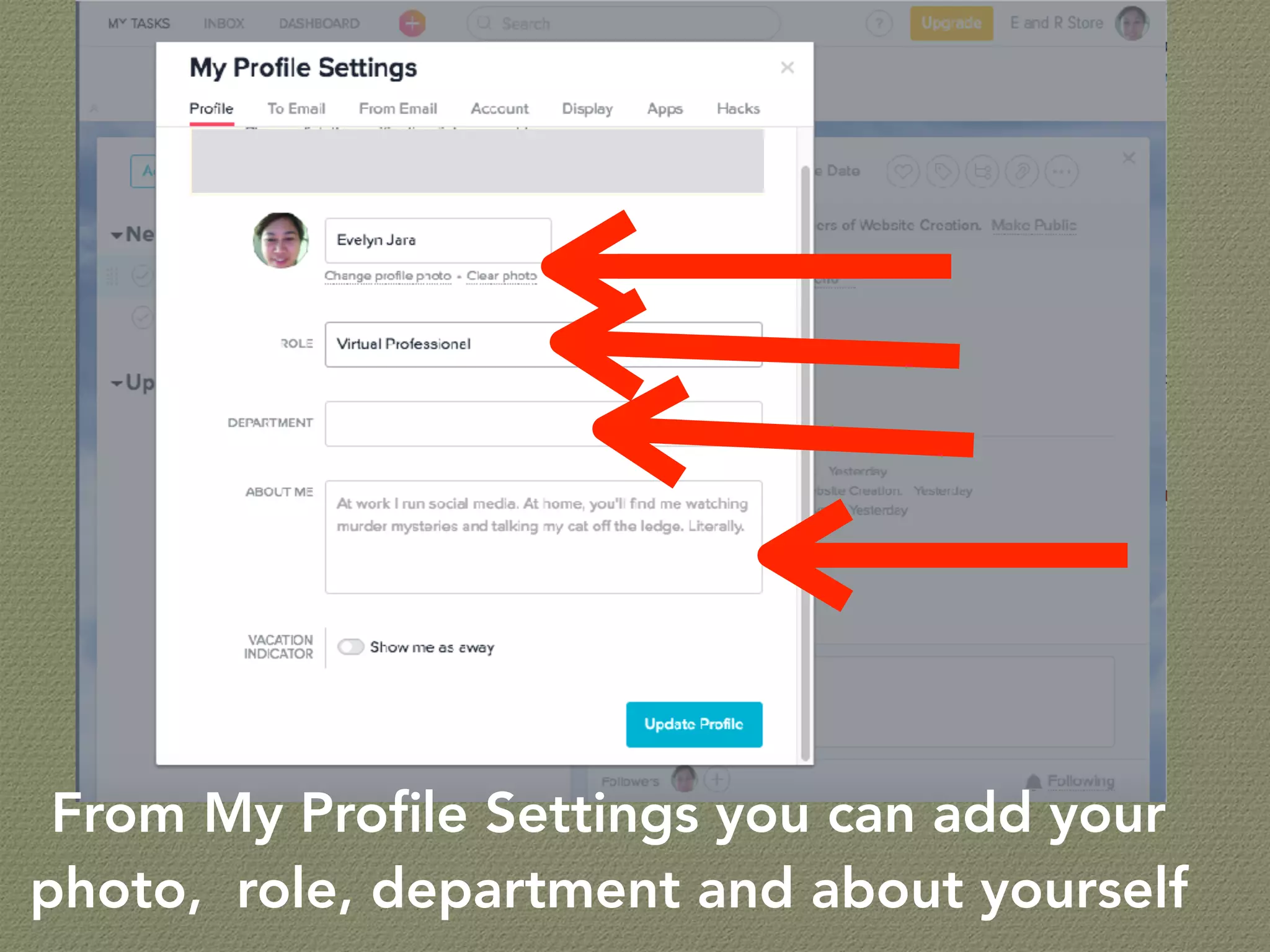
From My Profile Settings you can add your
photo, role, department and about yourself
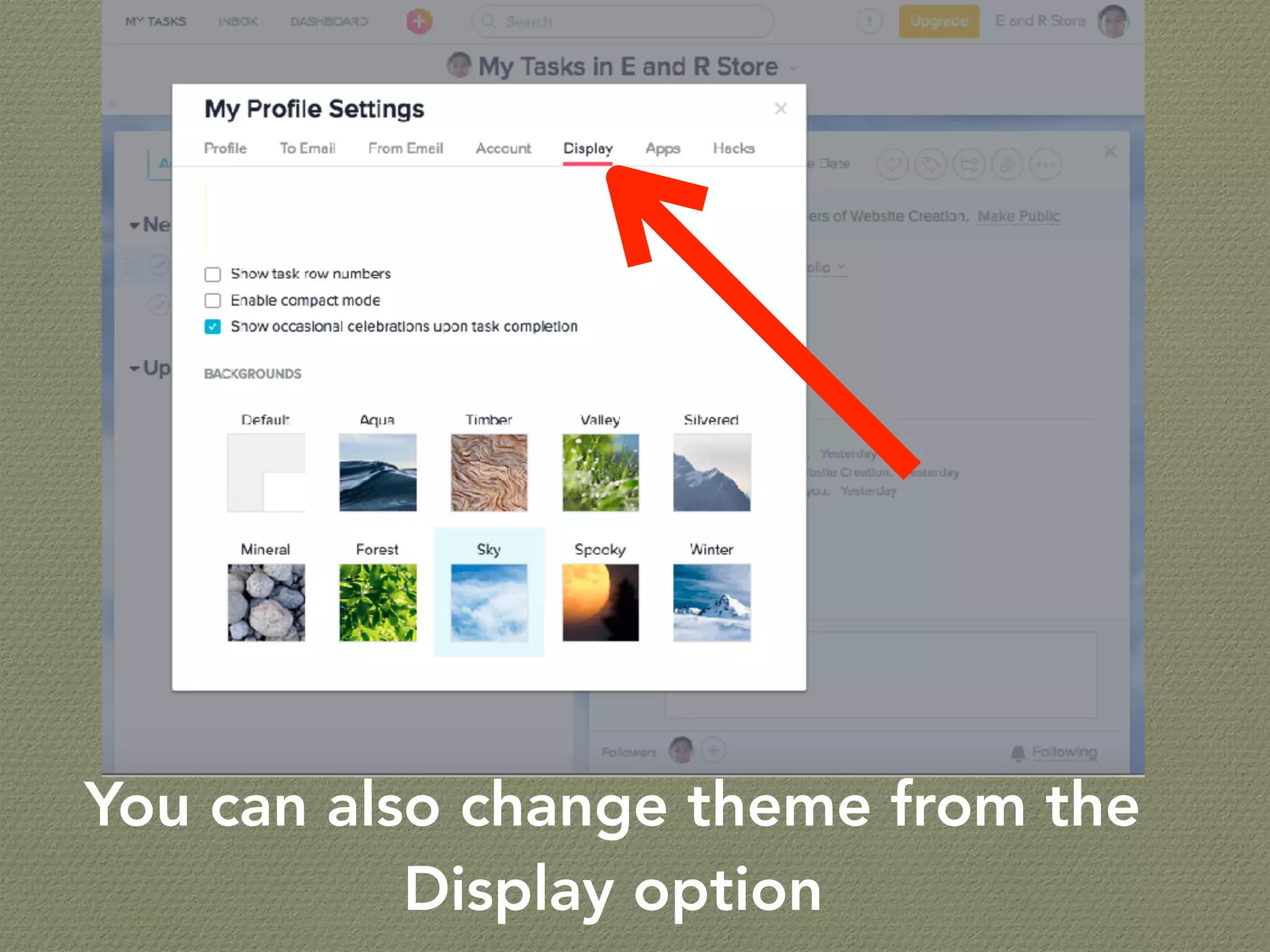
You can also change theme from the
Display option
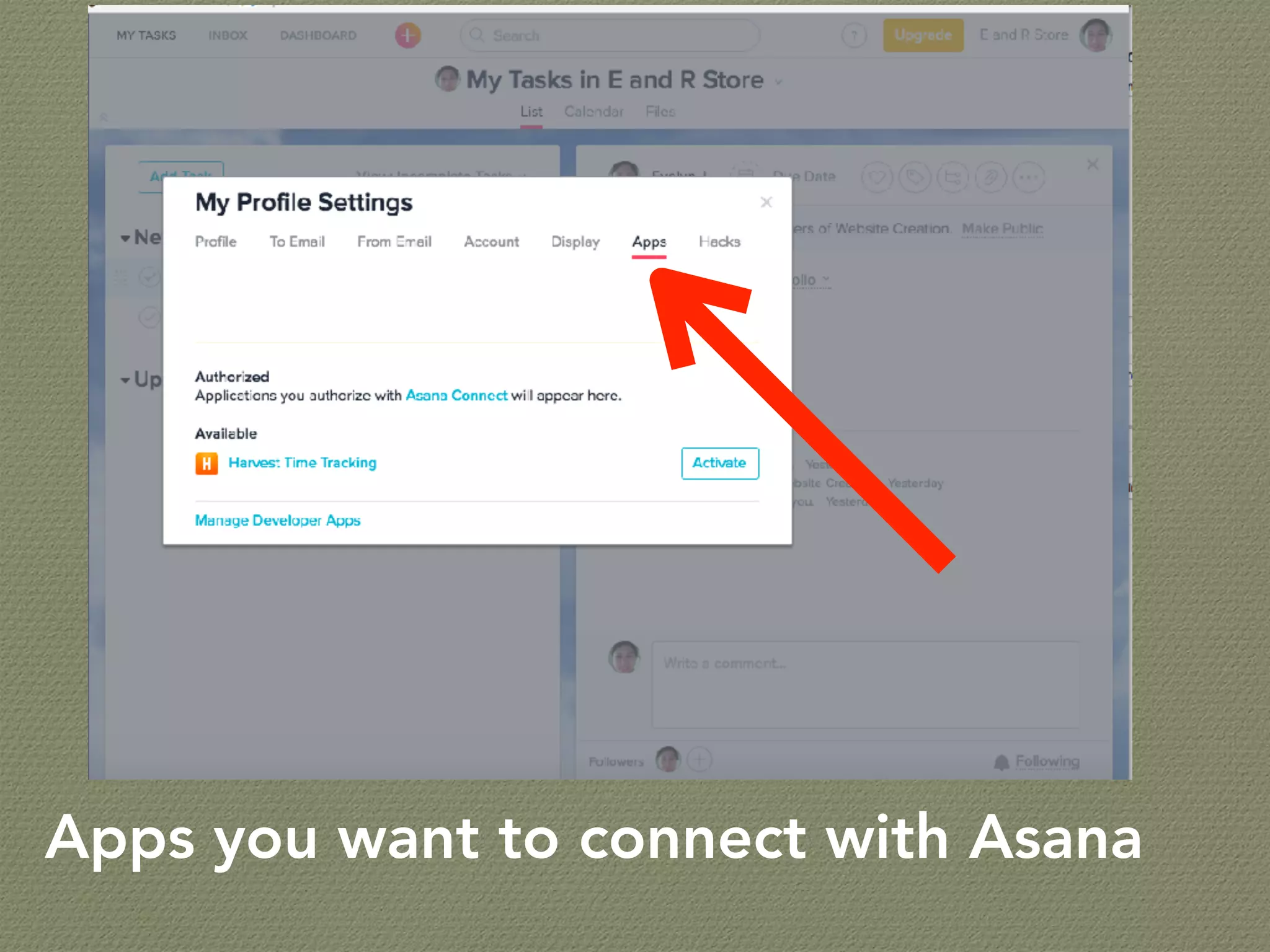
Apps you want to connect with Asana
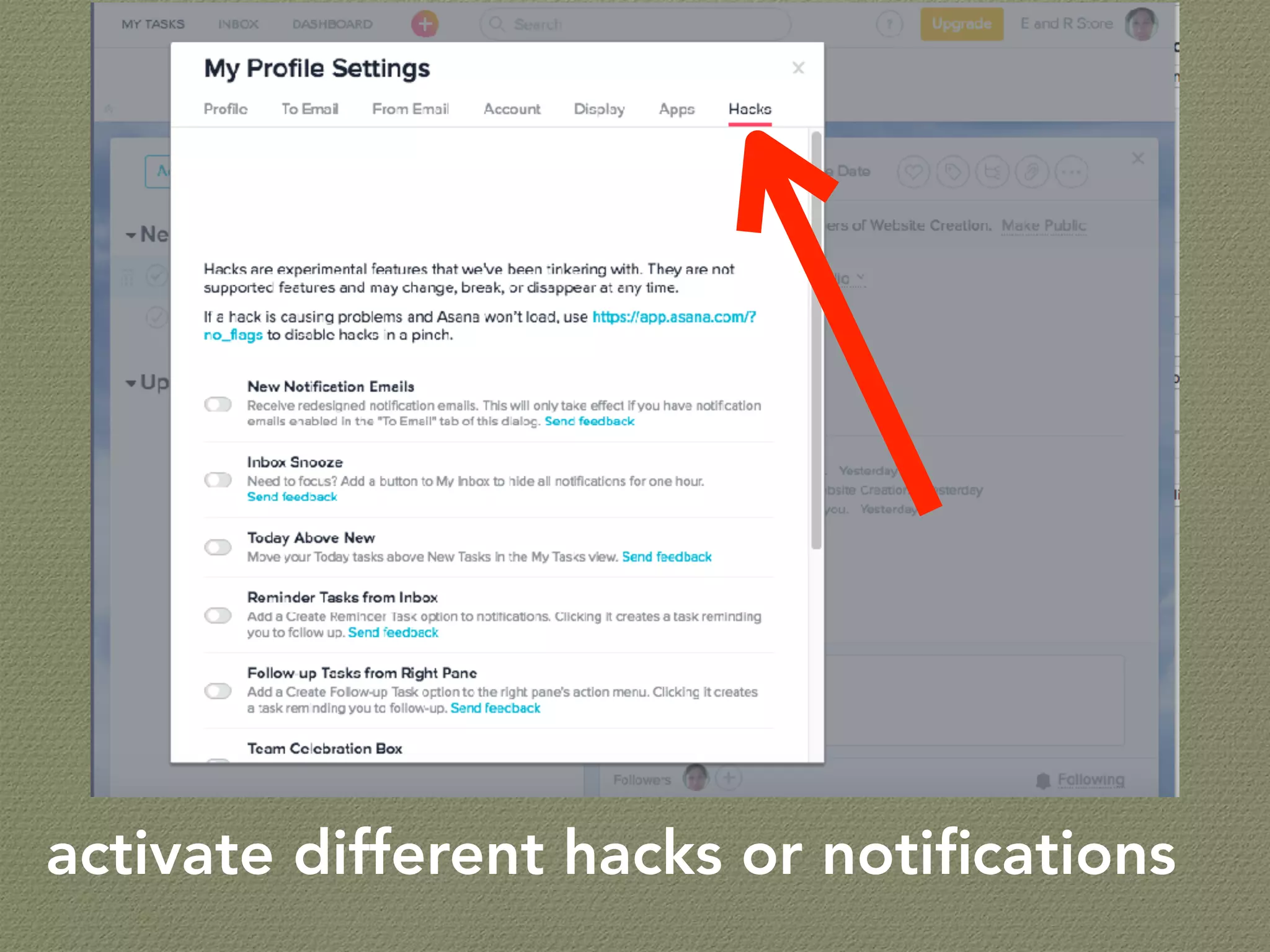
activate different hacks or notifications
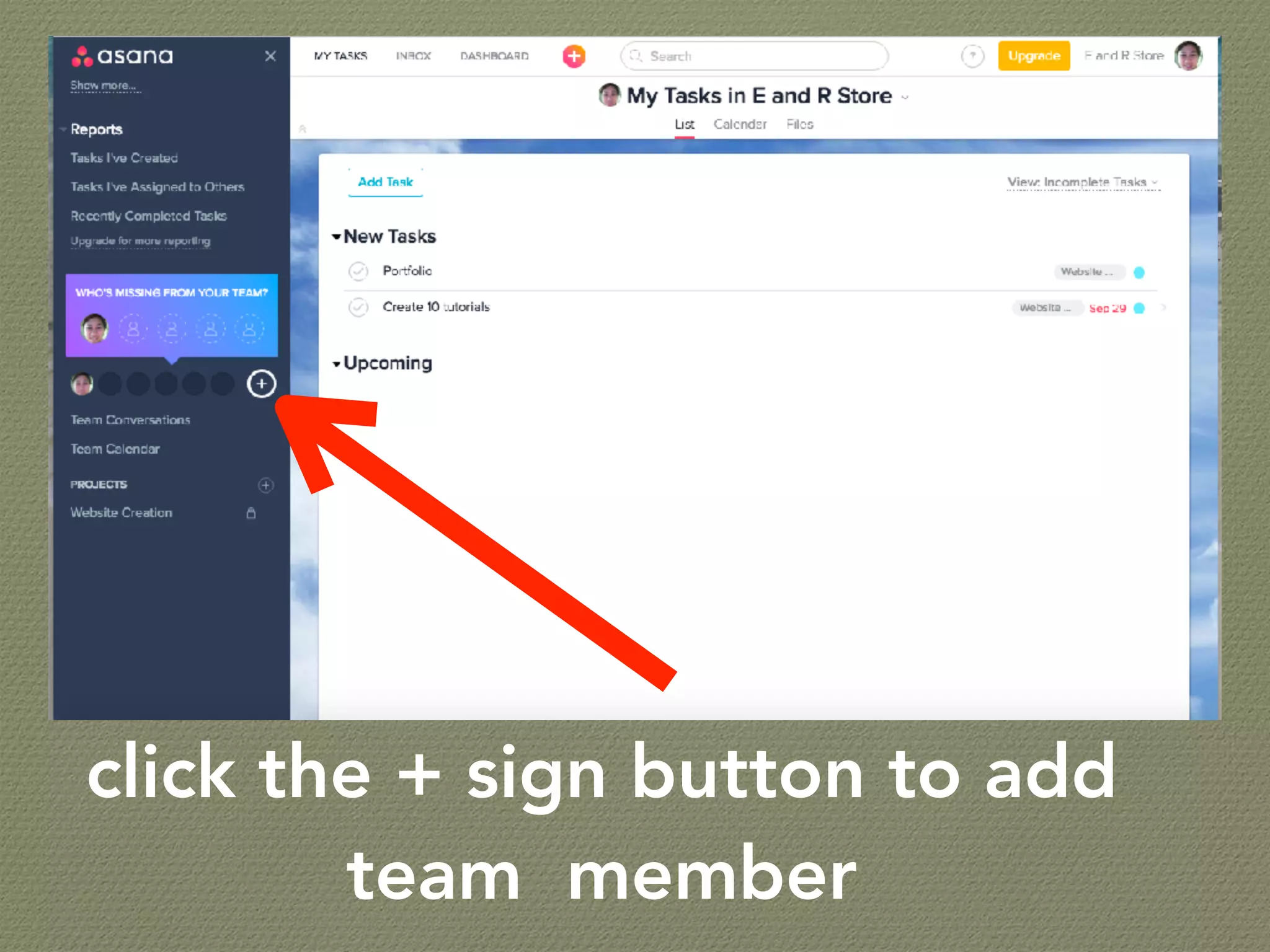
click the + sign button to add
team member
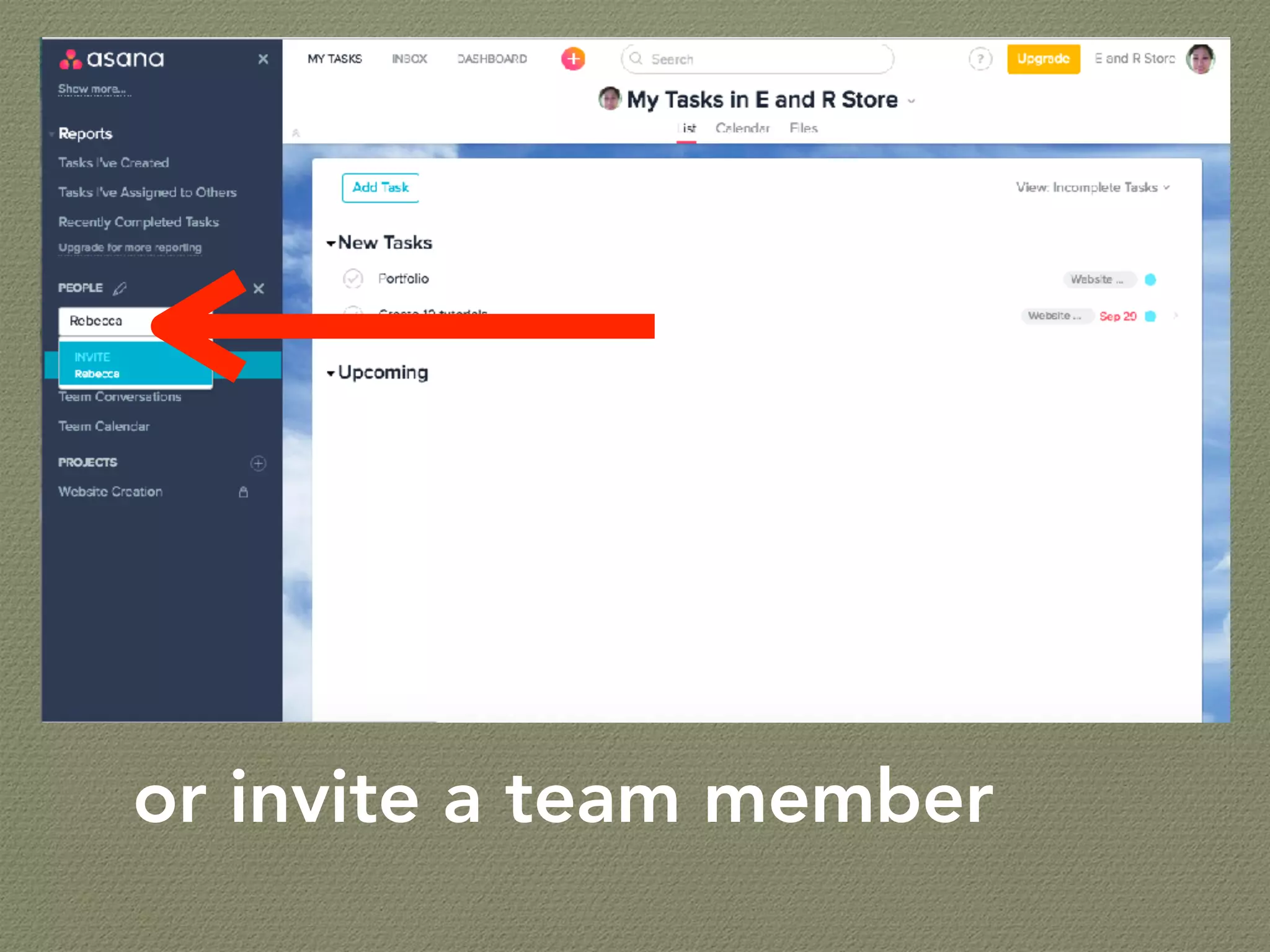
or invite a team member
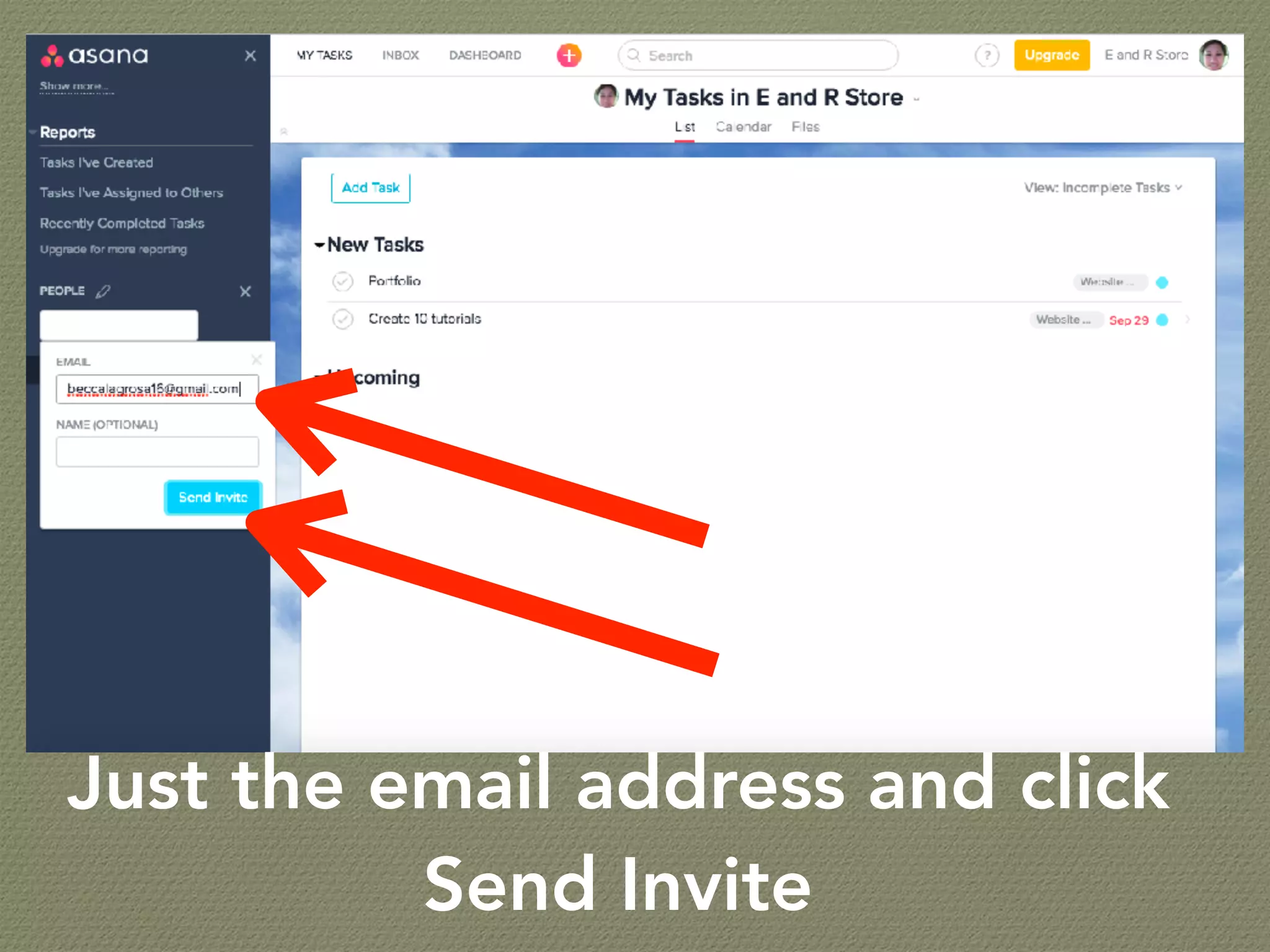
Just the email address and click
Send Invite
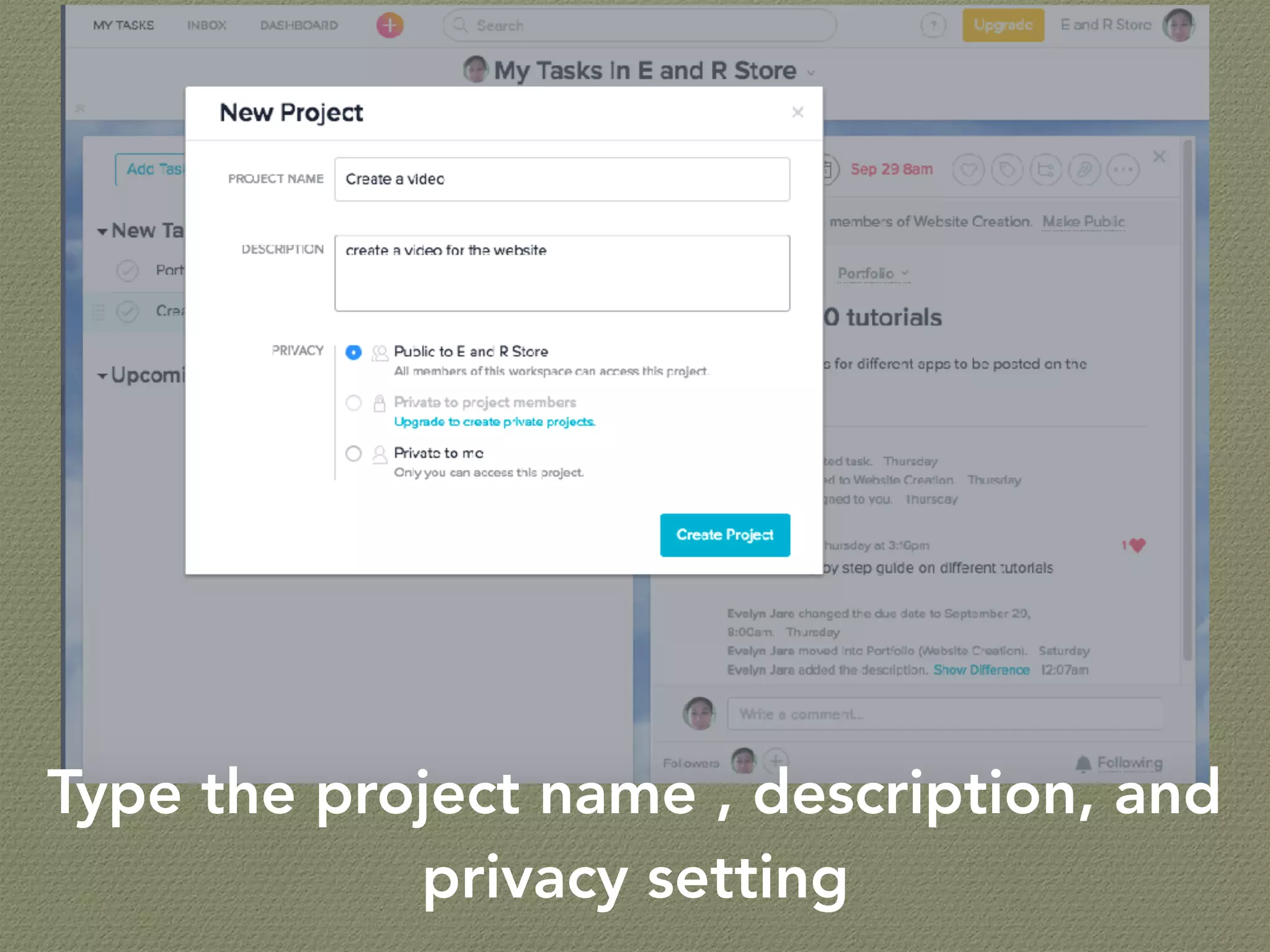
click the + button to add project
Type the project name , description, and
privacy setting
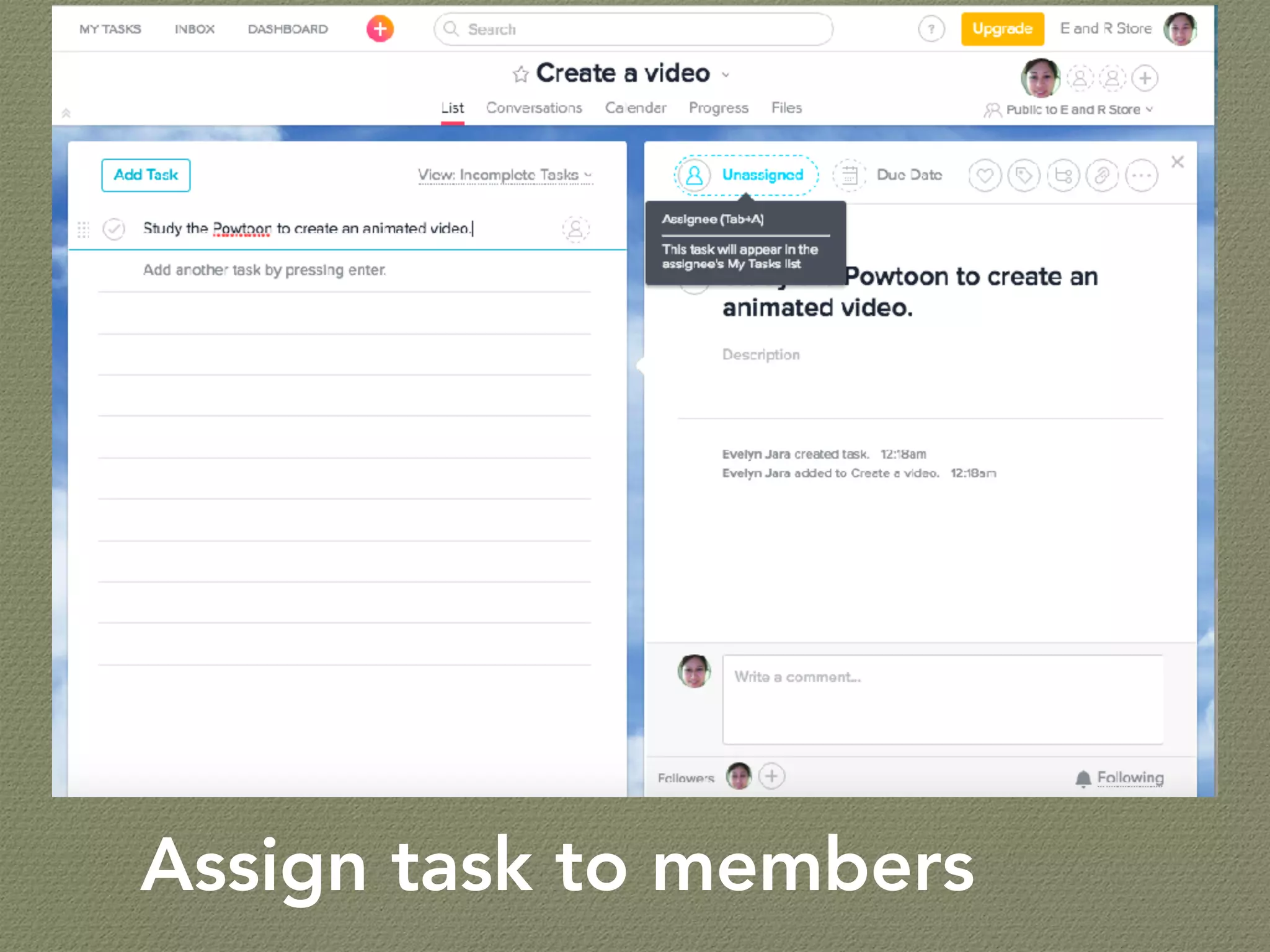
Assign task to members
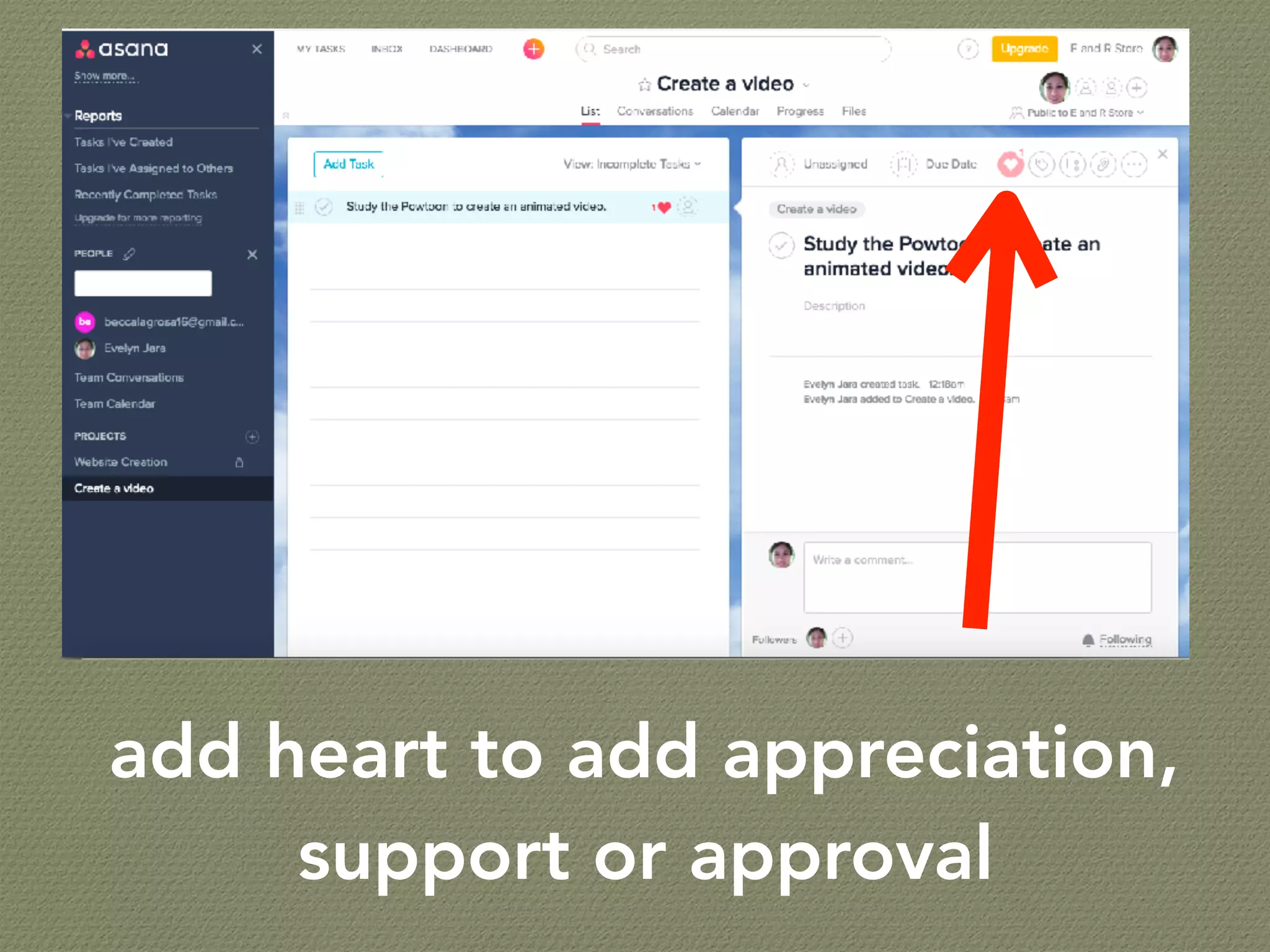
add heart to add appreciation,
support or approval
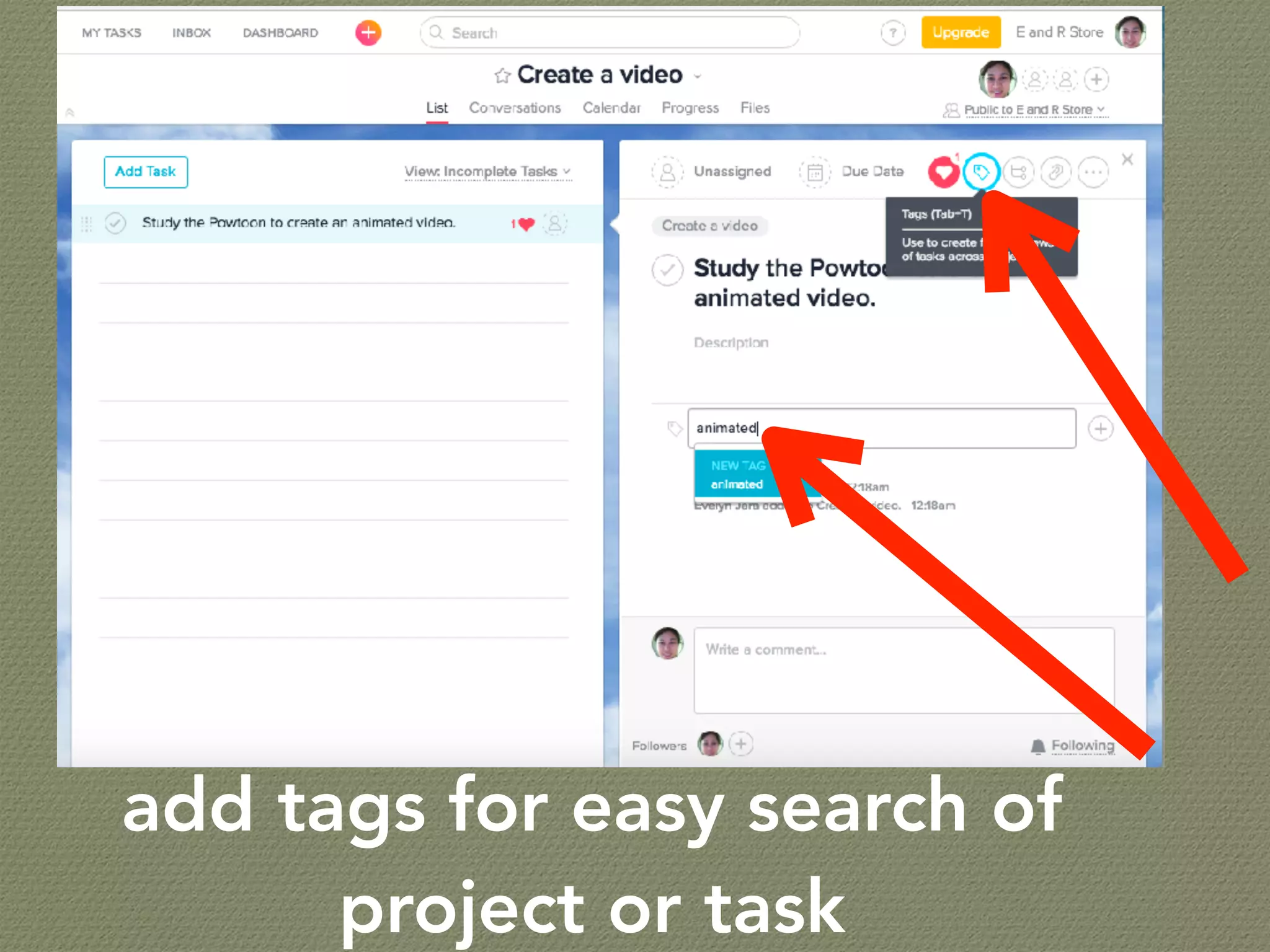
add tags for easy search of
project or task
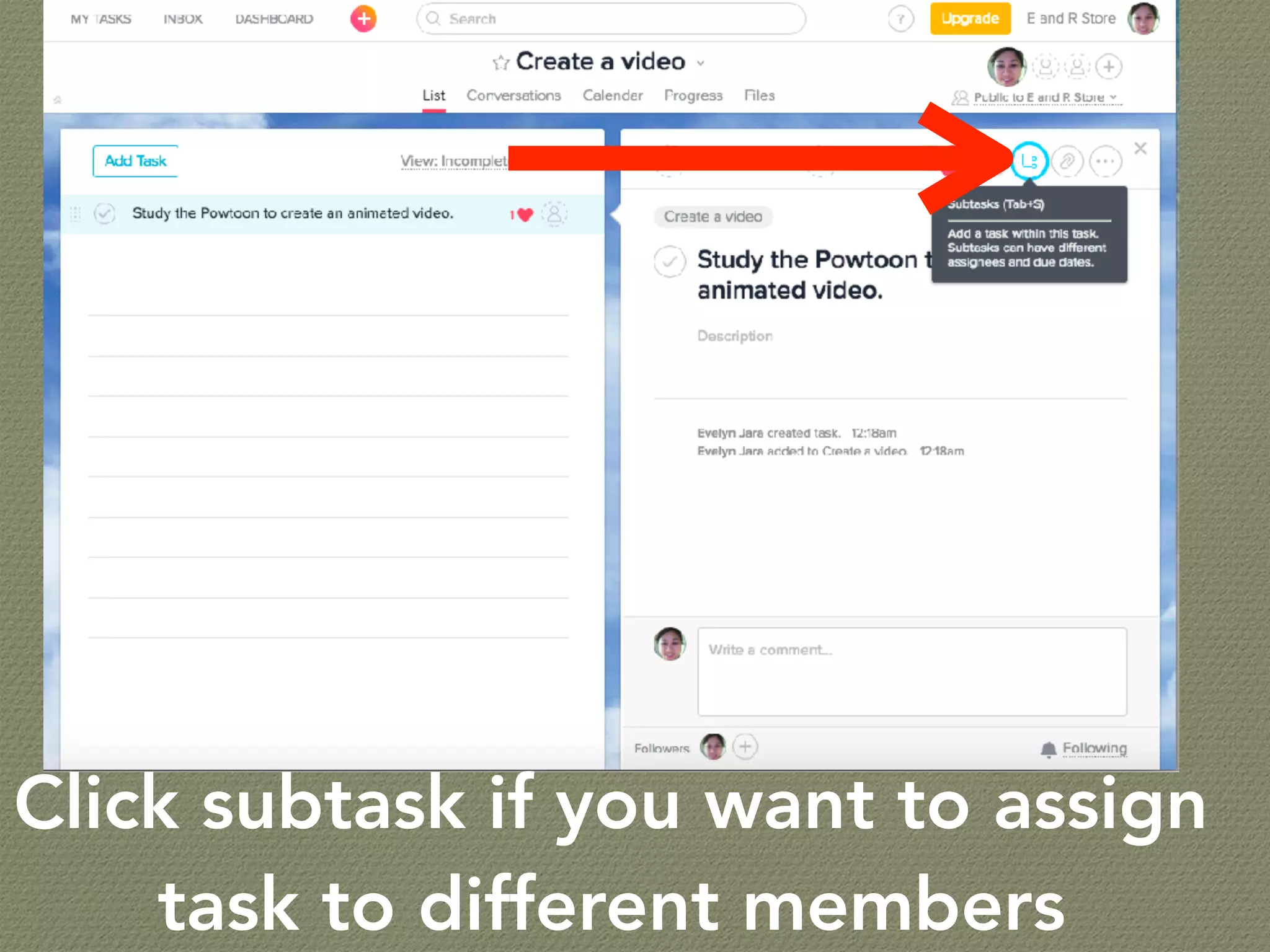
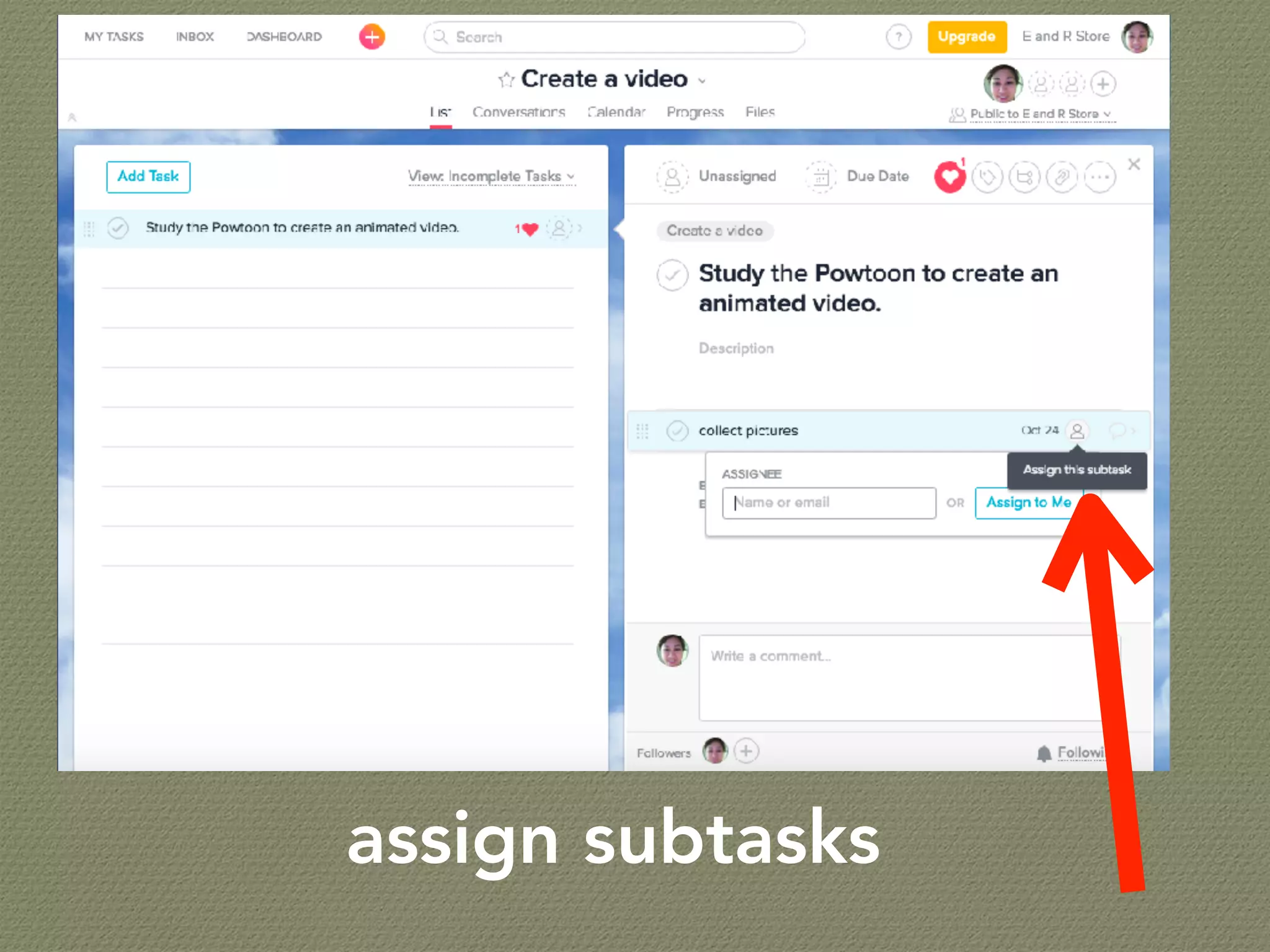
Click subtask if you want to assign
task to different members
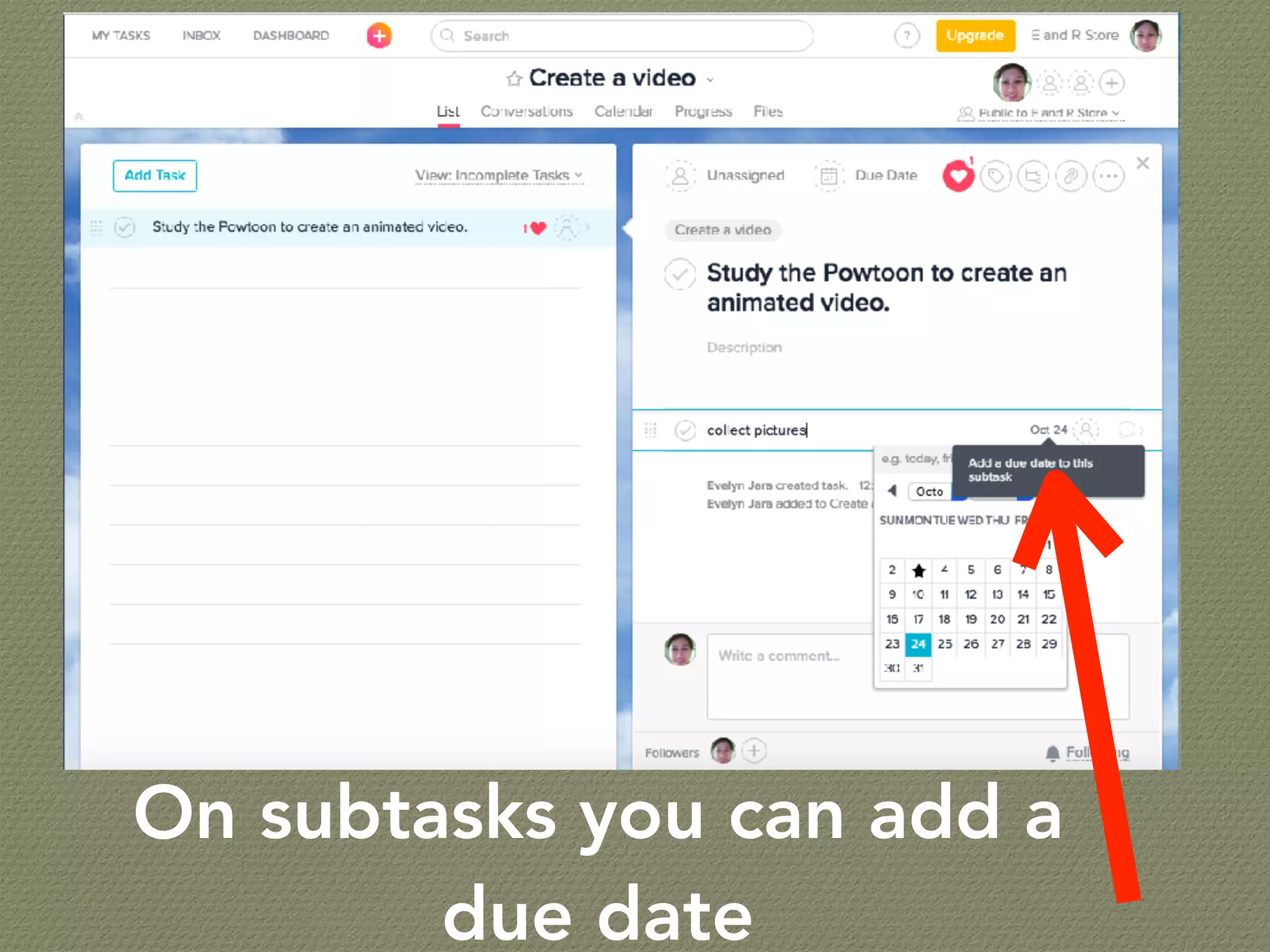
On subtasks you can add a
due date
assign subtasks
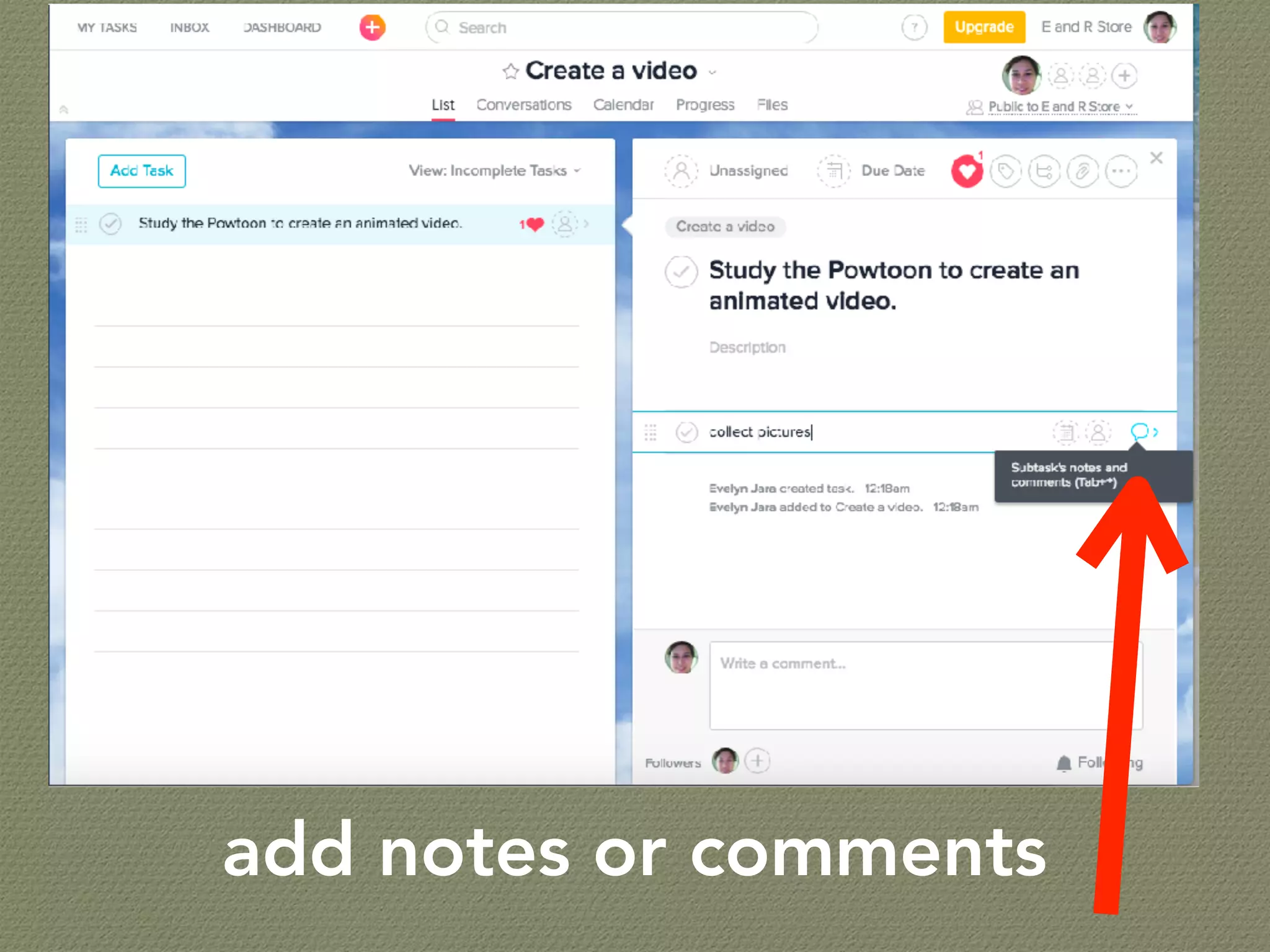
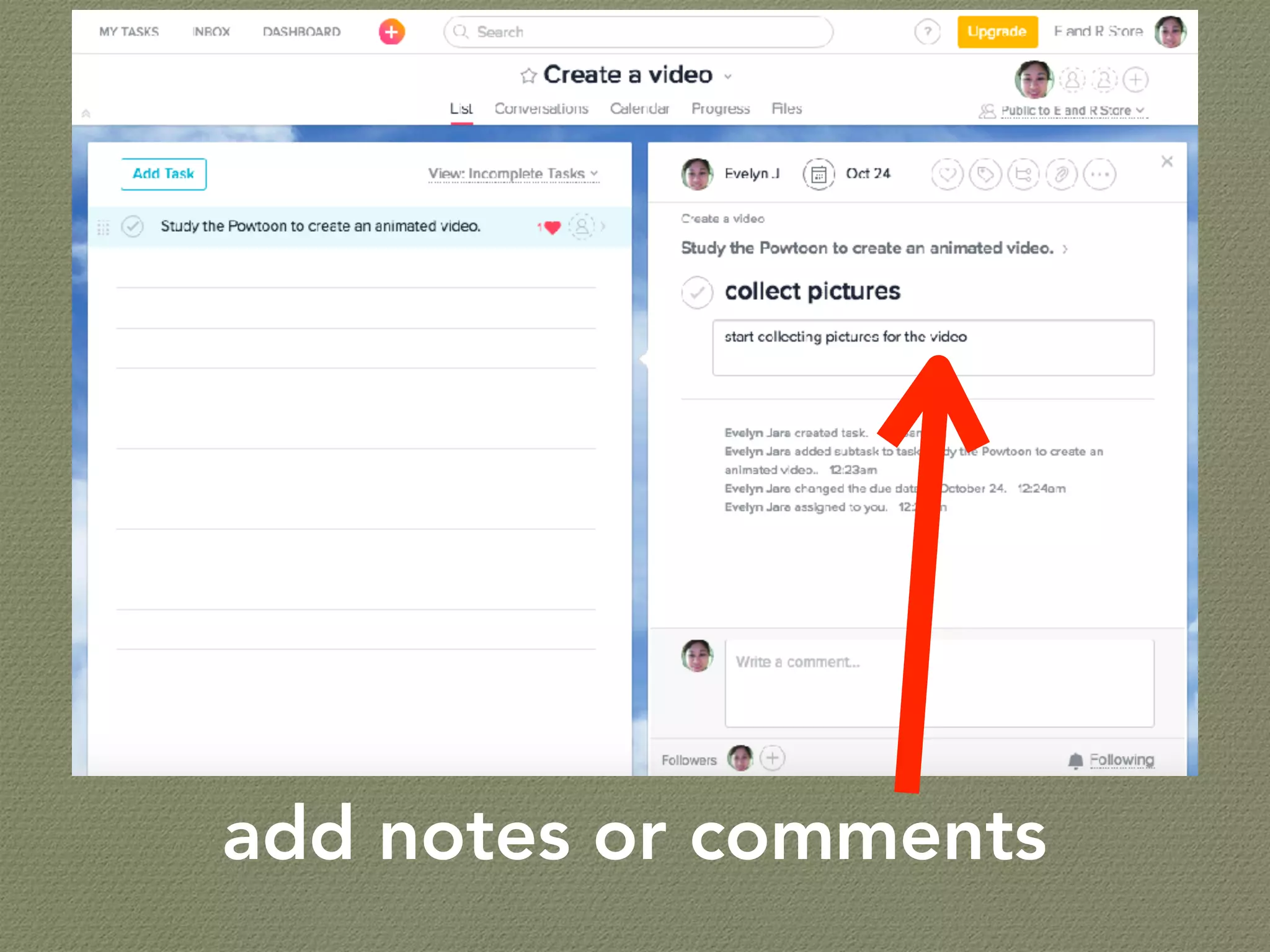
add notes or comments
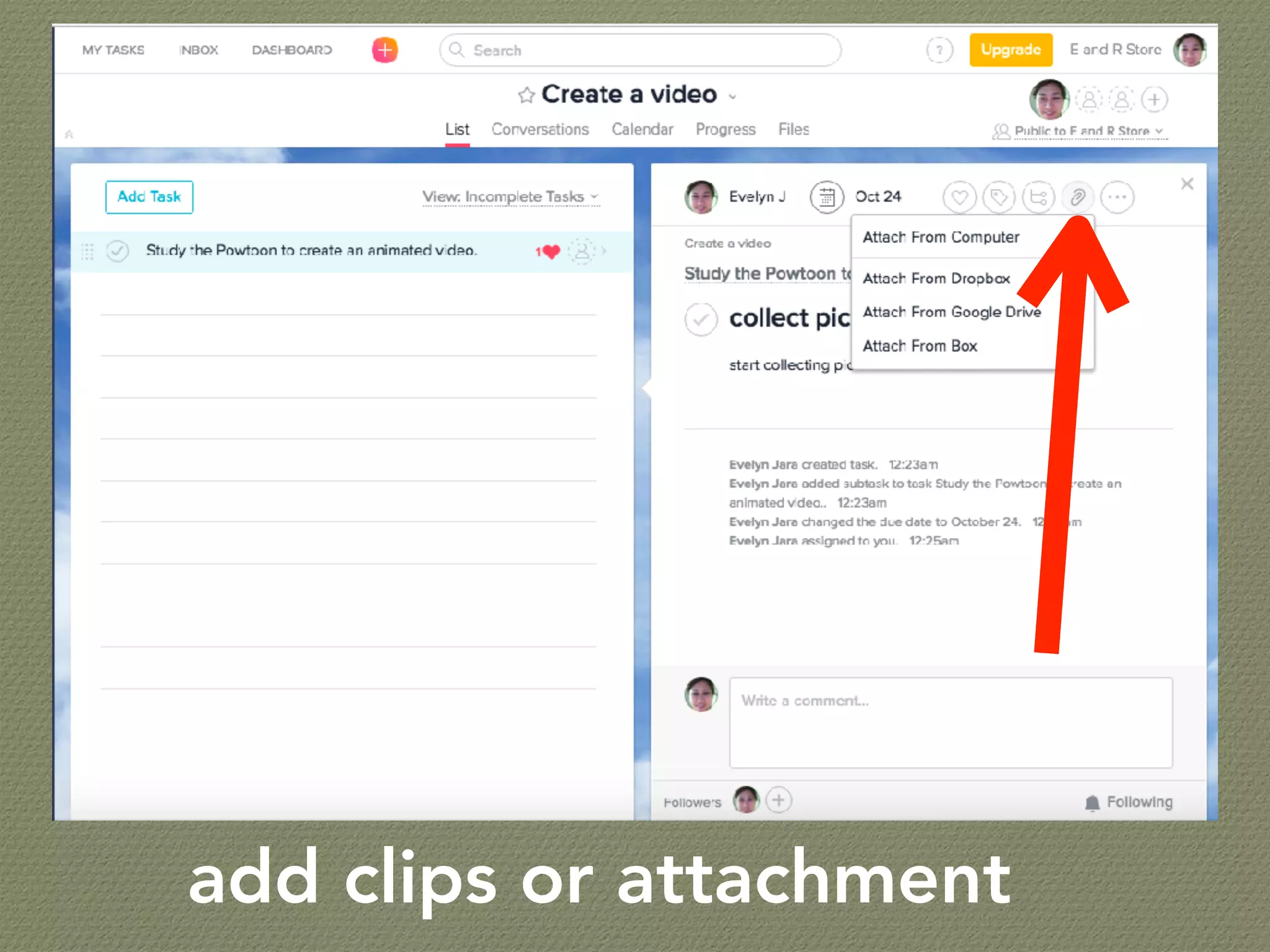
add clips or attachment
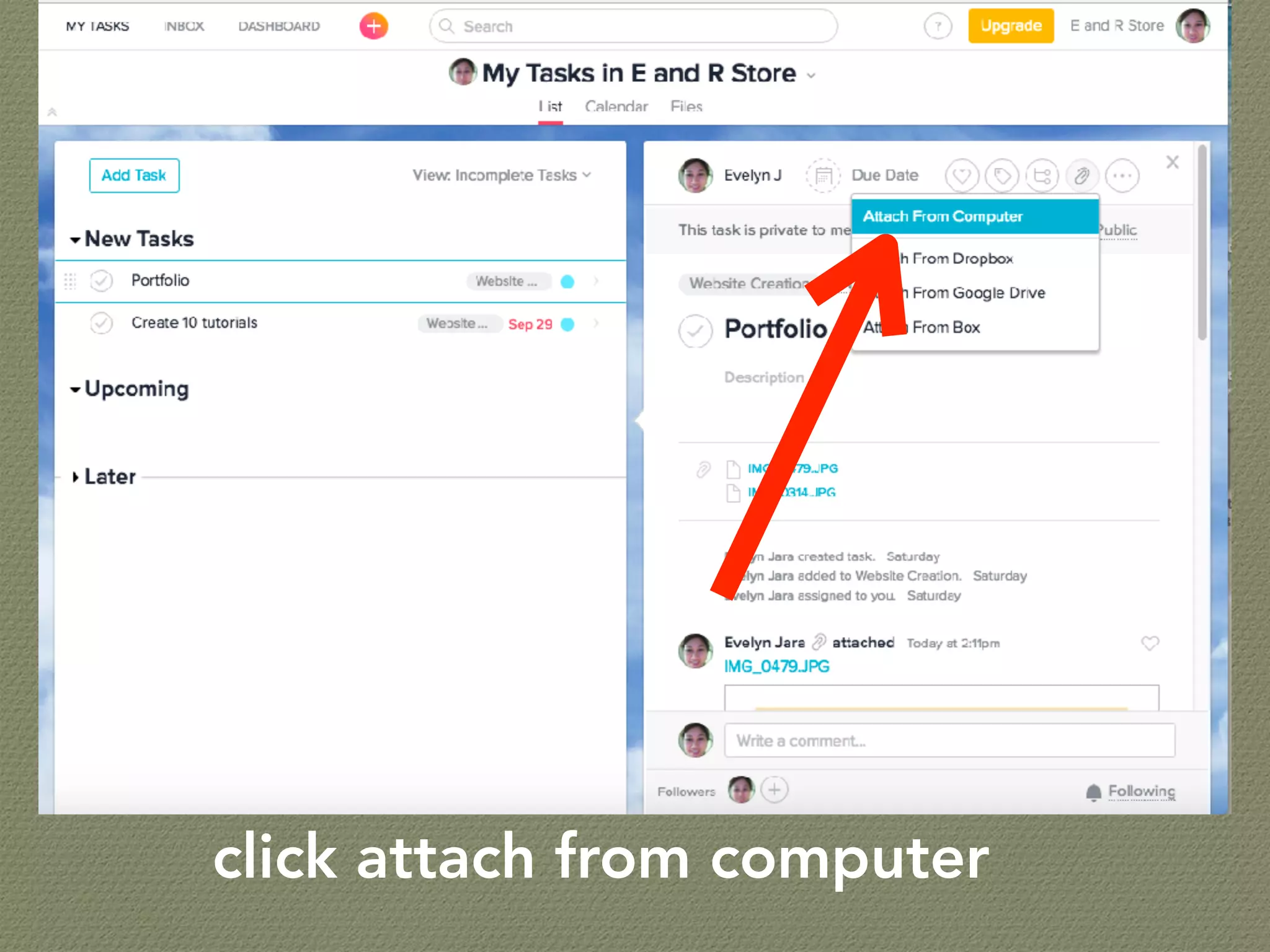
click attach from computer
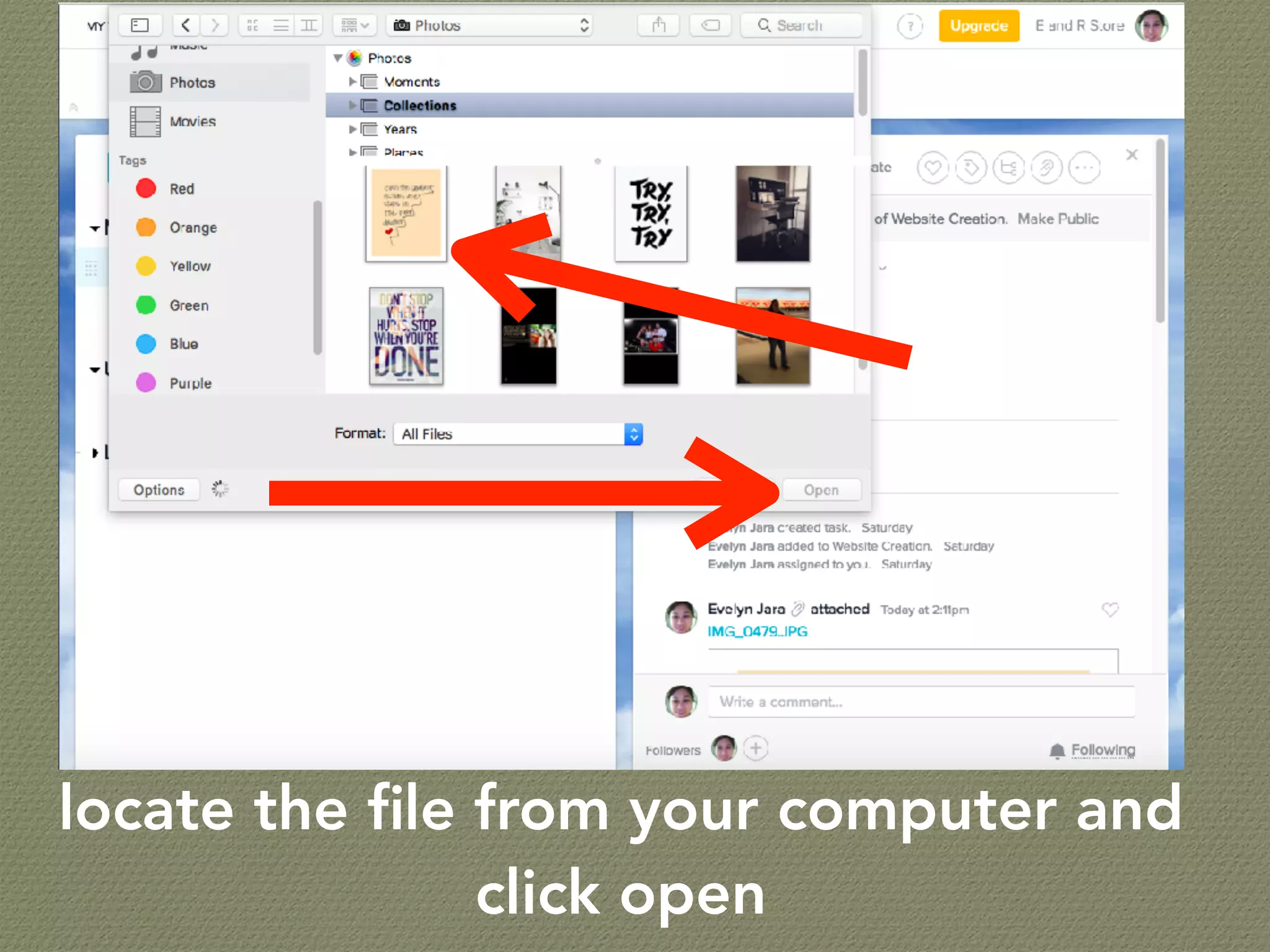
locate the file from your computer and
click open
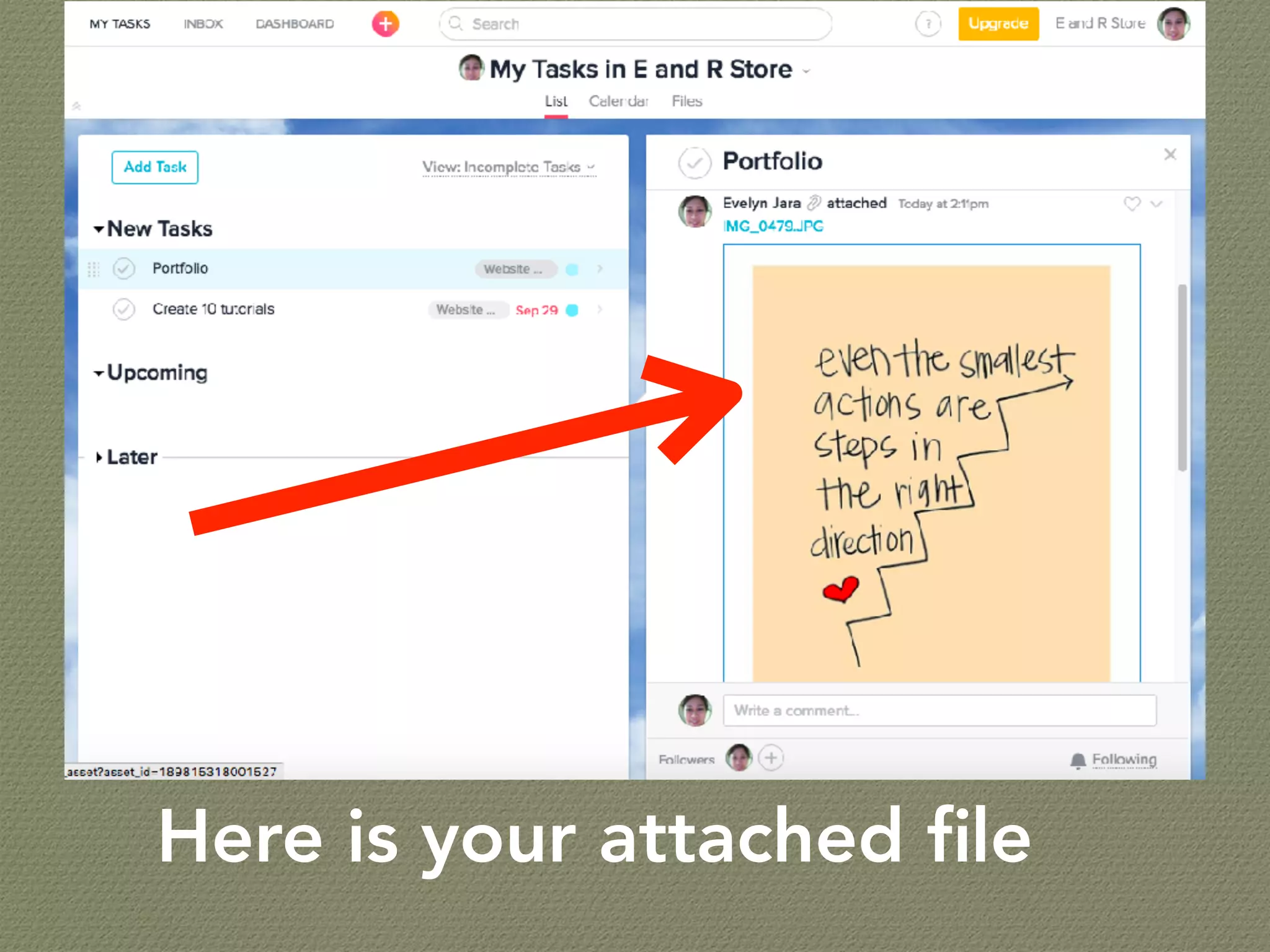
Here is your attached file
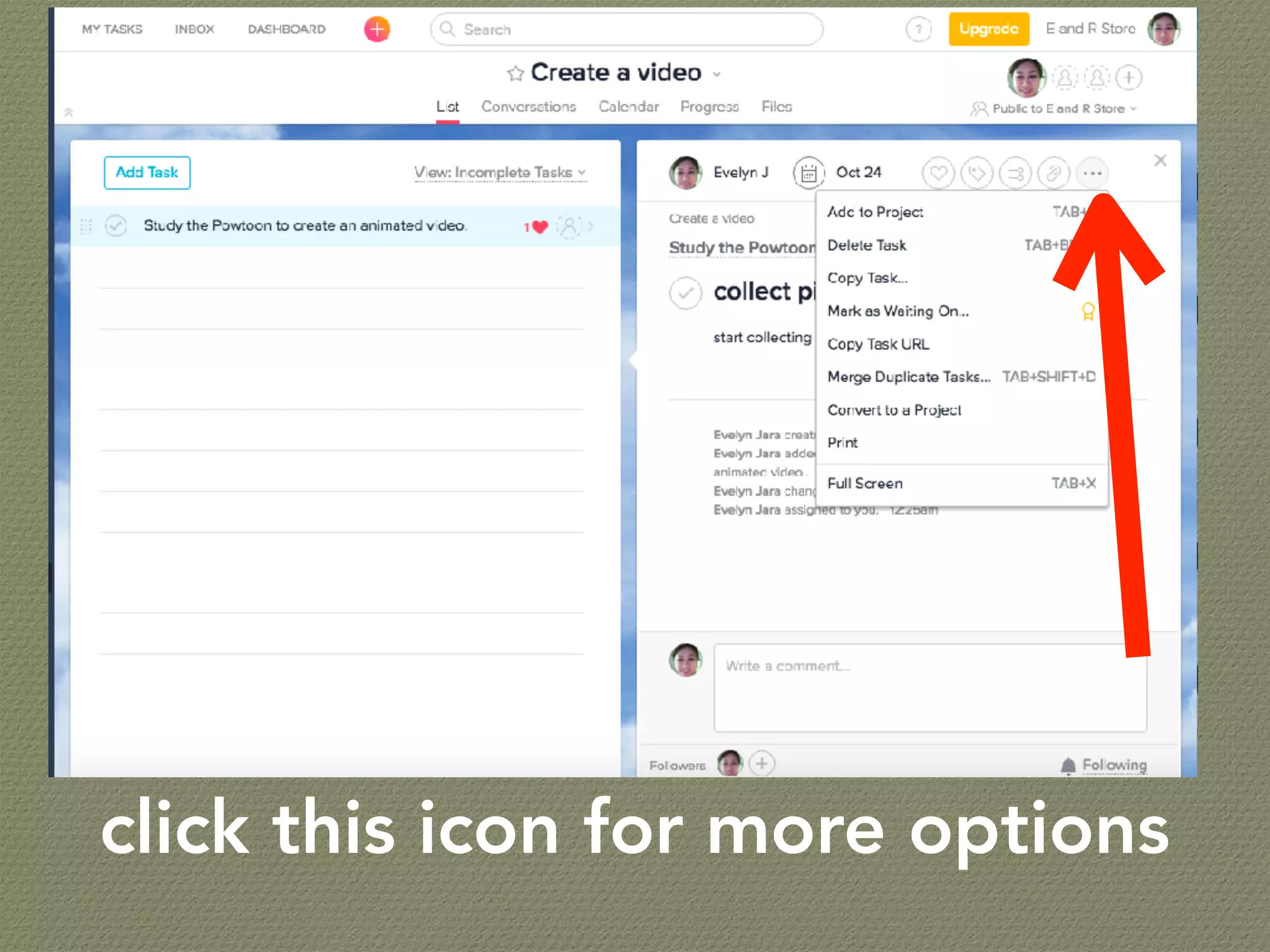
click this icon for more options
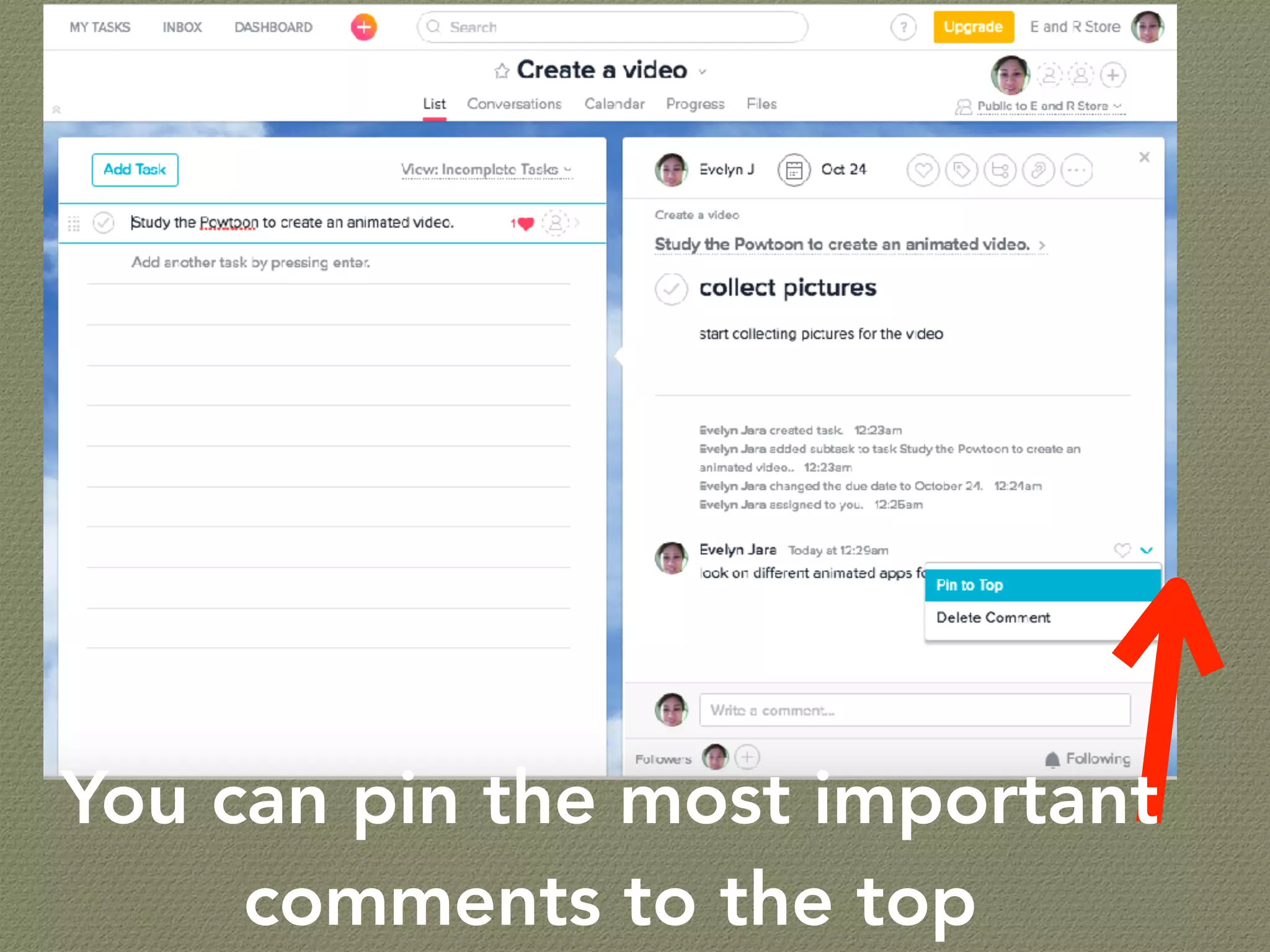
You can pin the most important
comments to the top
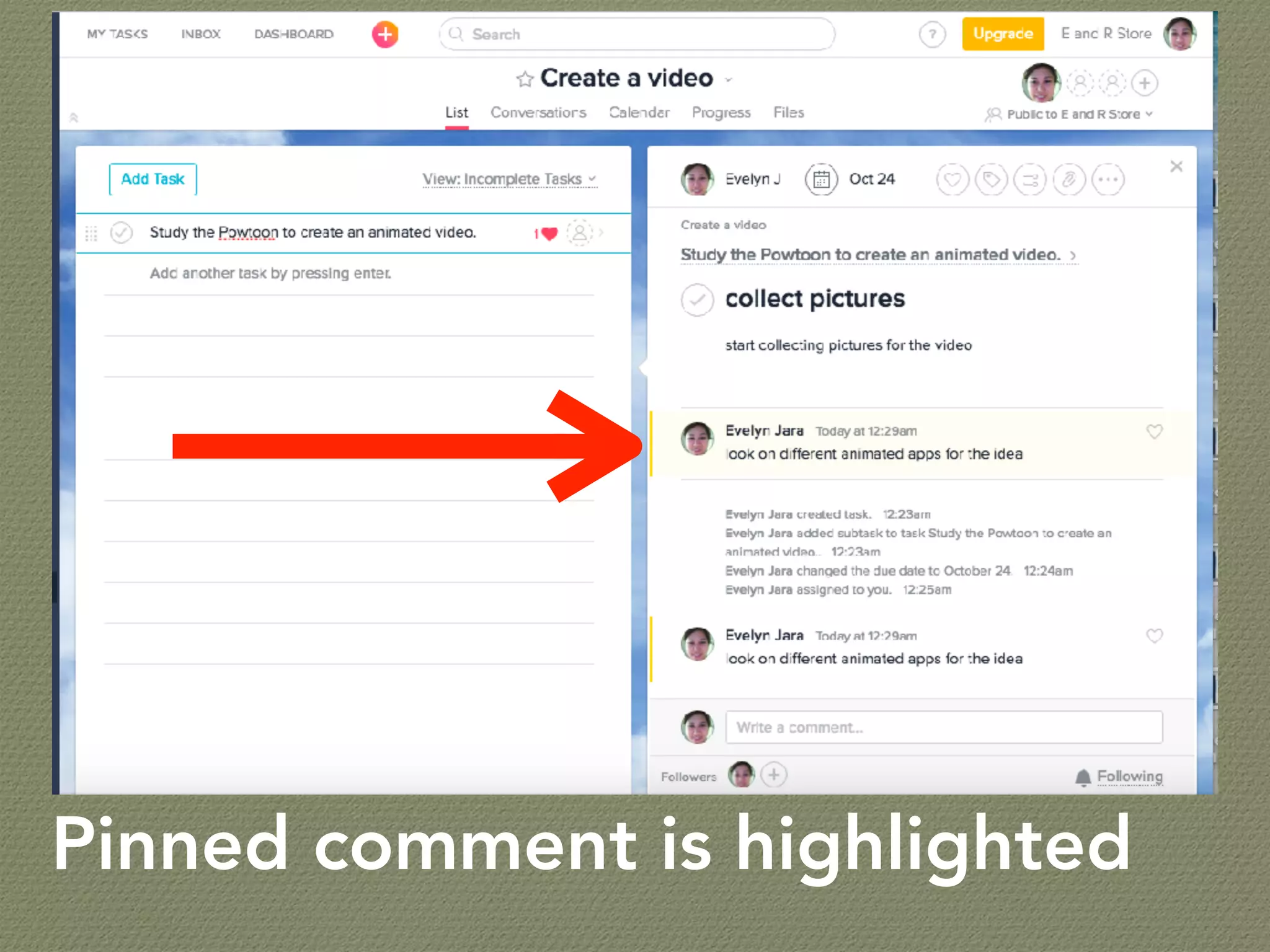
Pinned comment is highlighted
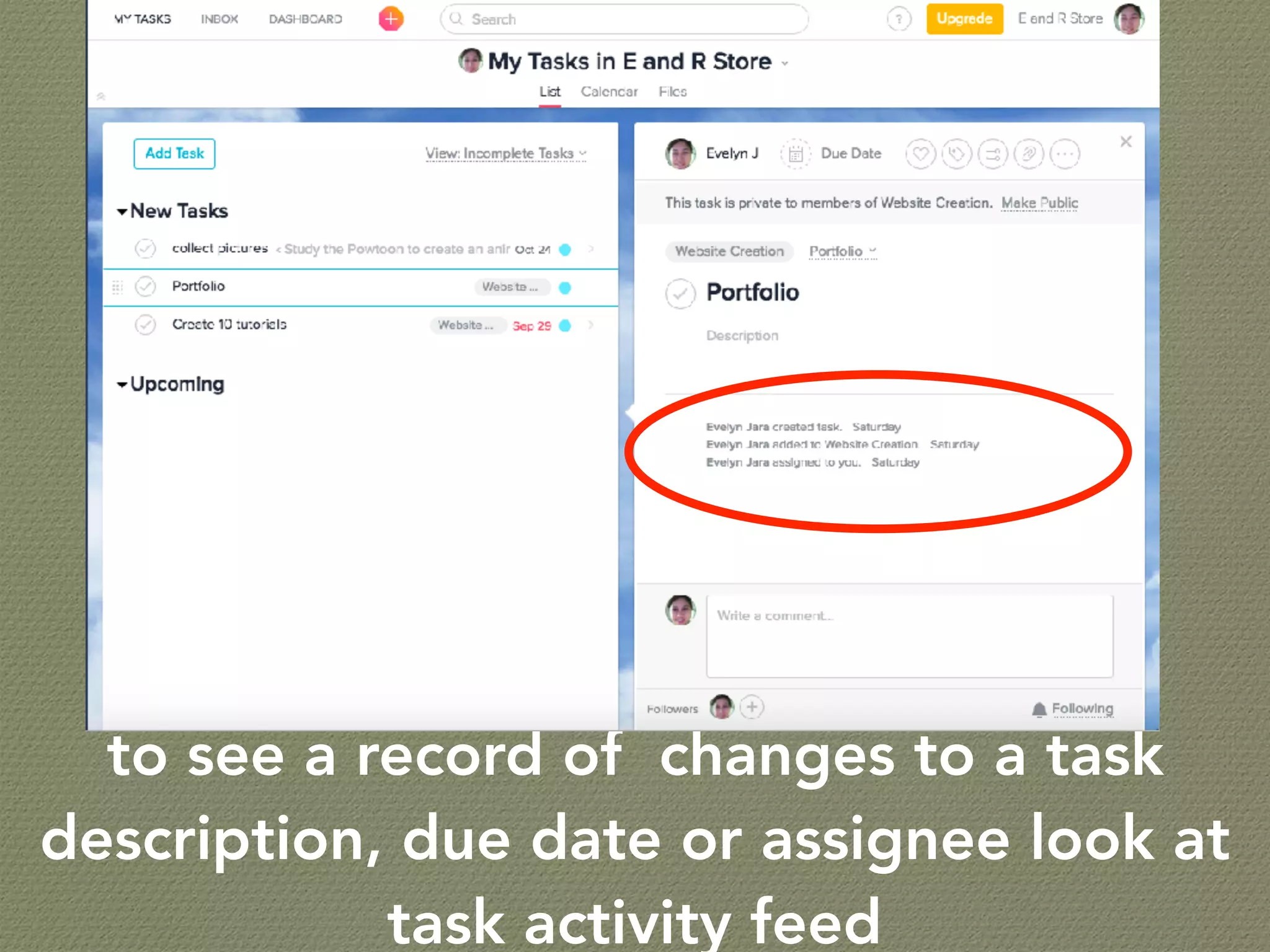
to see a record of changes to a task
description, due date or assignee look at
task activity feed
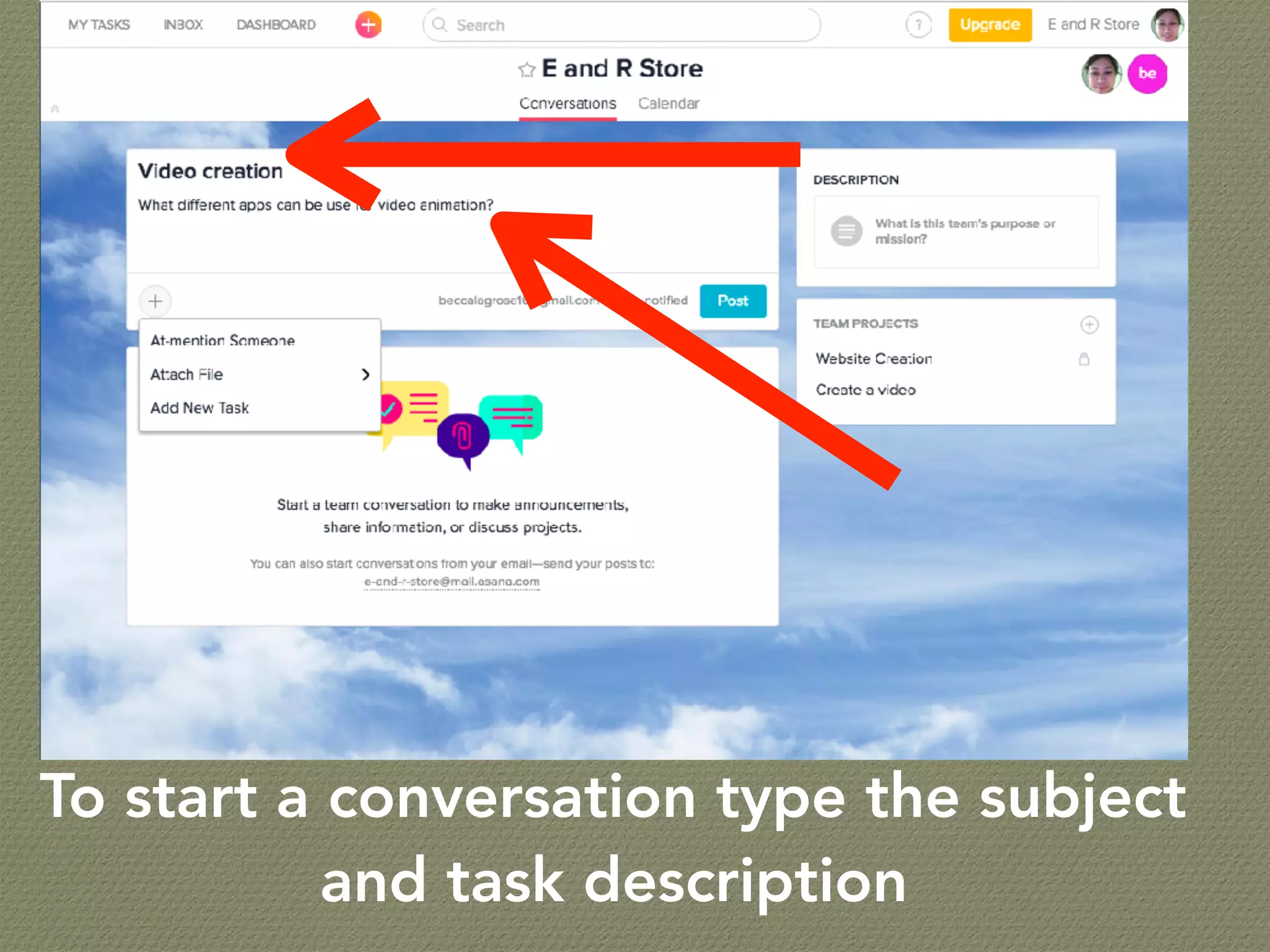
To start a conversation type the subject
and task description
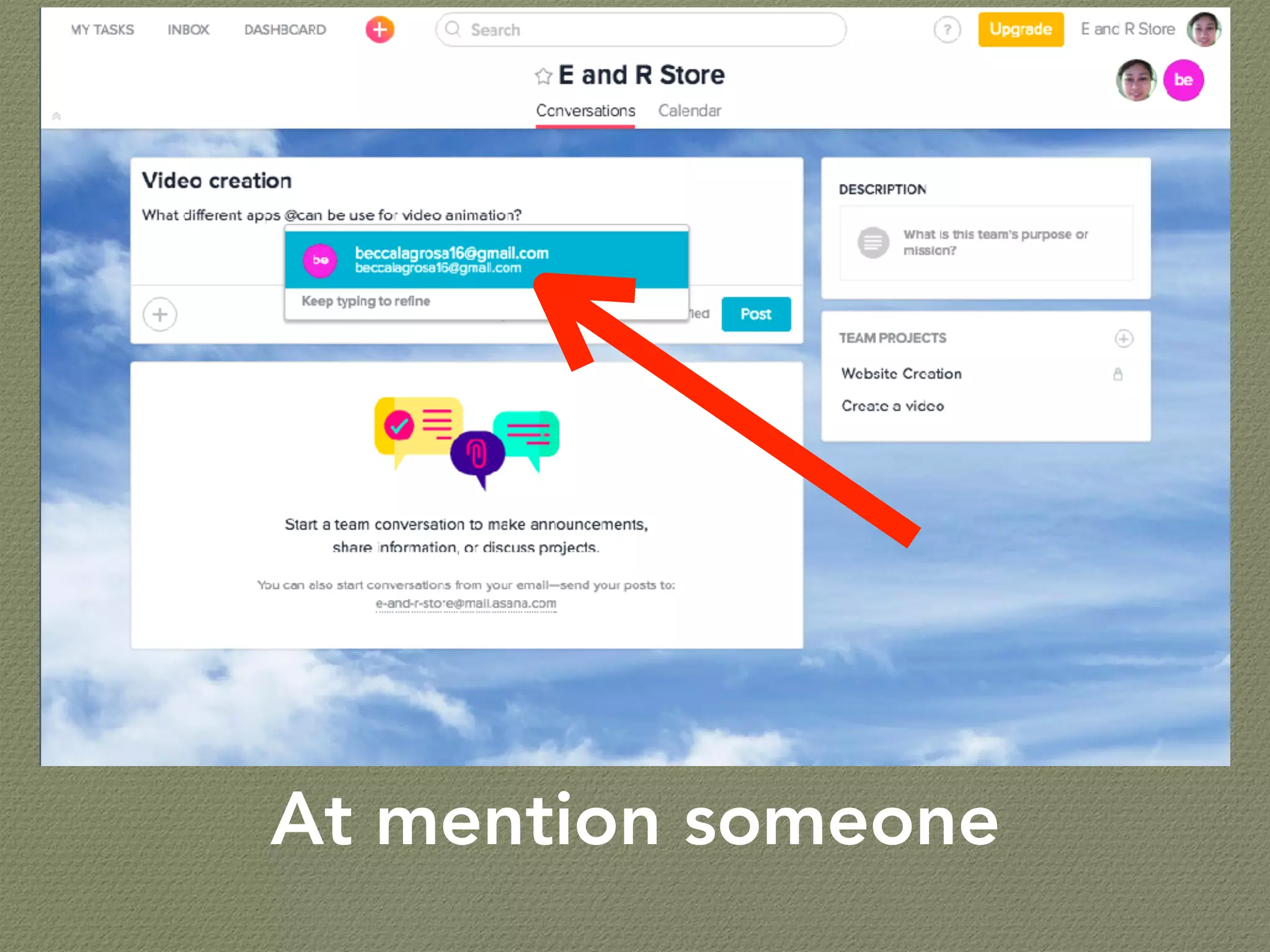
At mention someone
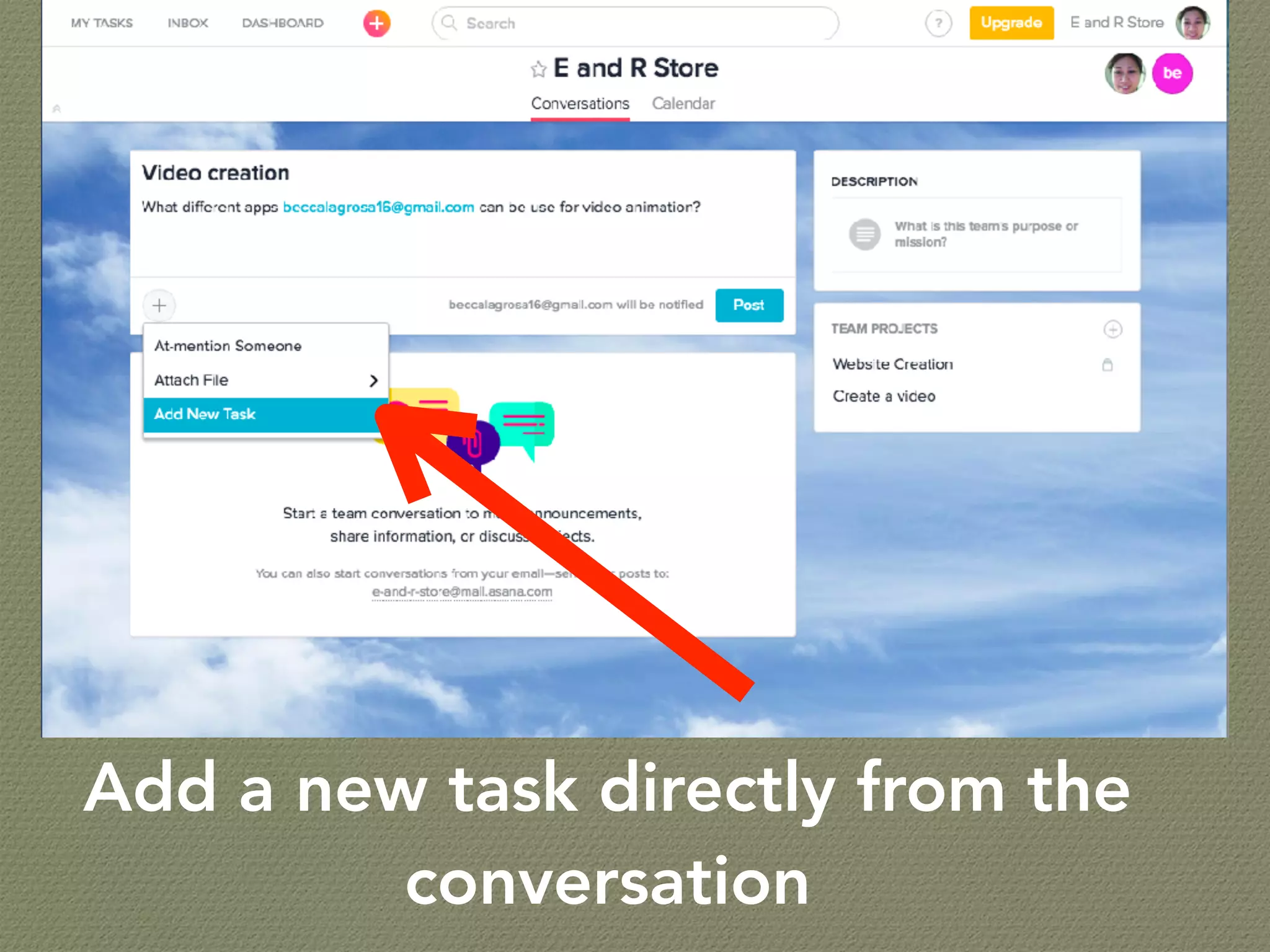
Add a new task directly from the
conversation
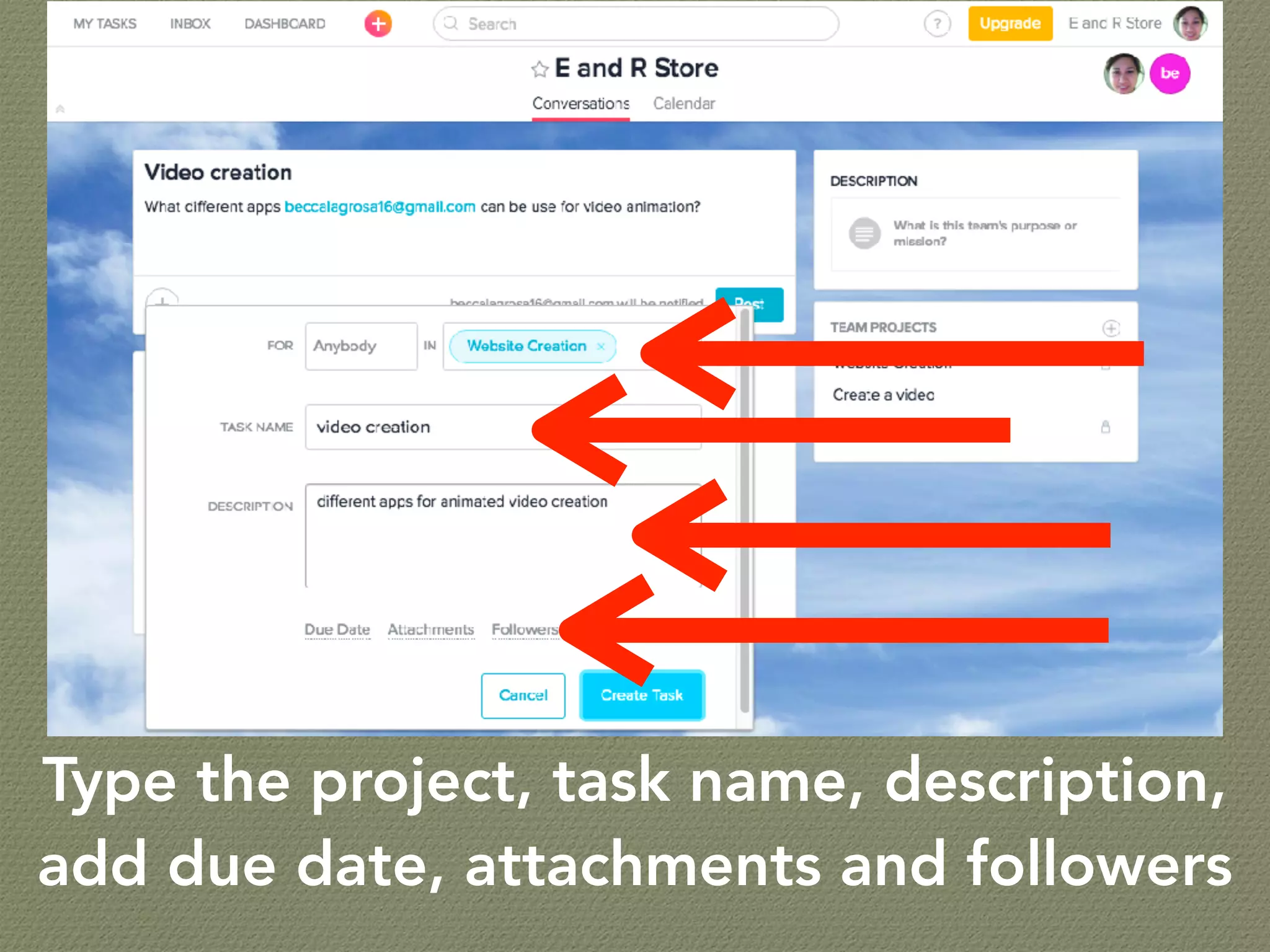
Type the project, task name, description,
add due date, attachments and followers
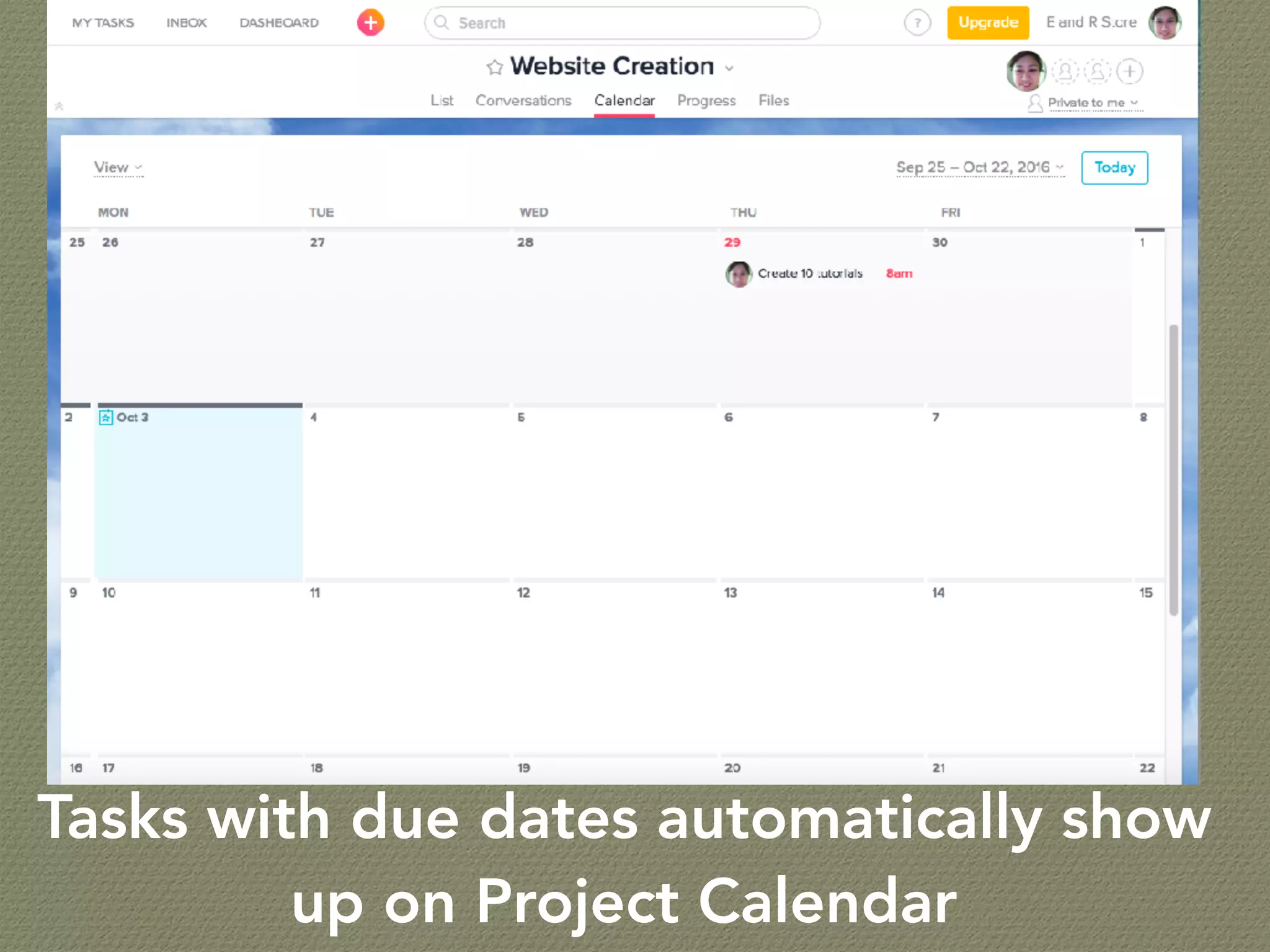
Tasks with due dates automatically show
up on Project Calendar
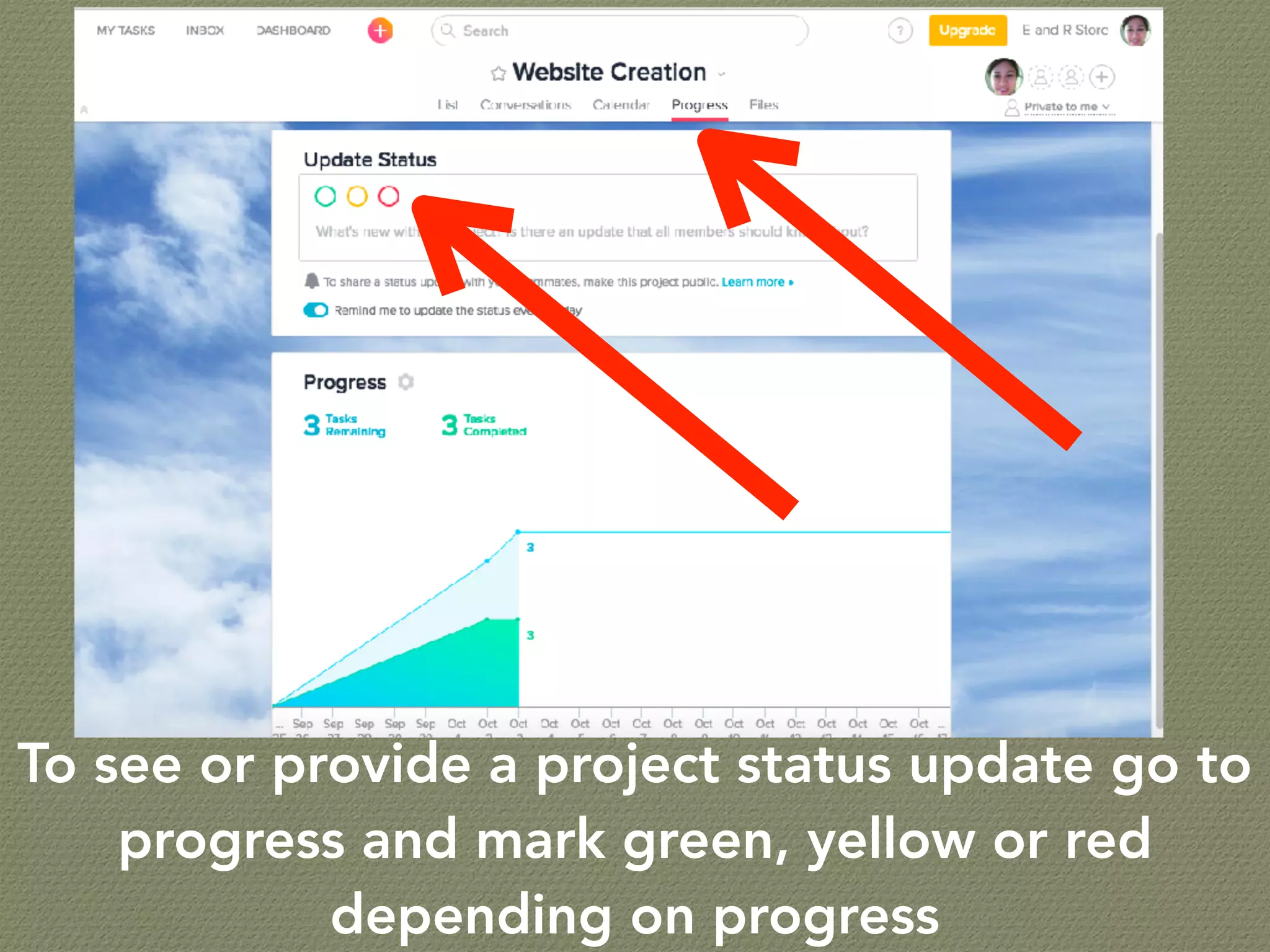
To see or provide a project status update go to
progress and mark green, yellow or red
depending on progress
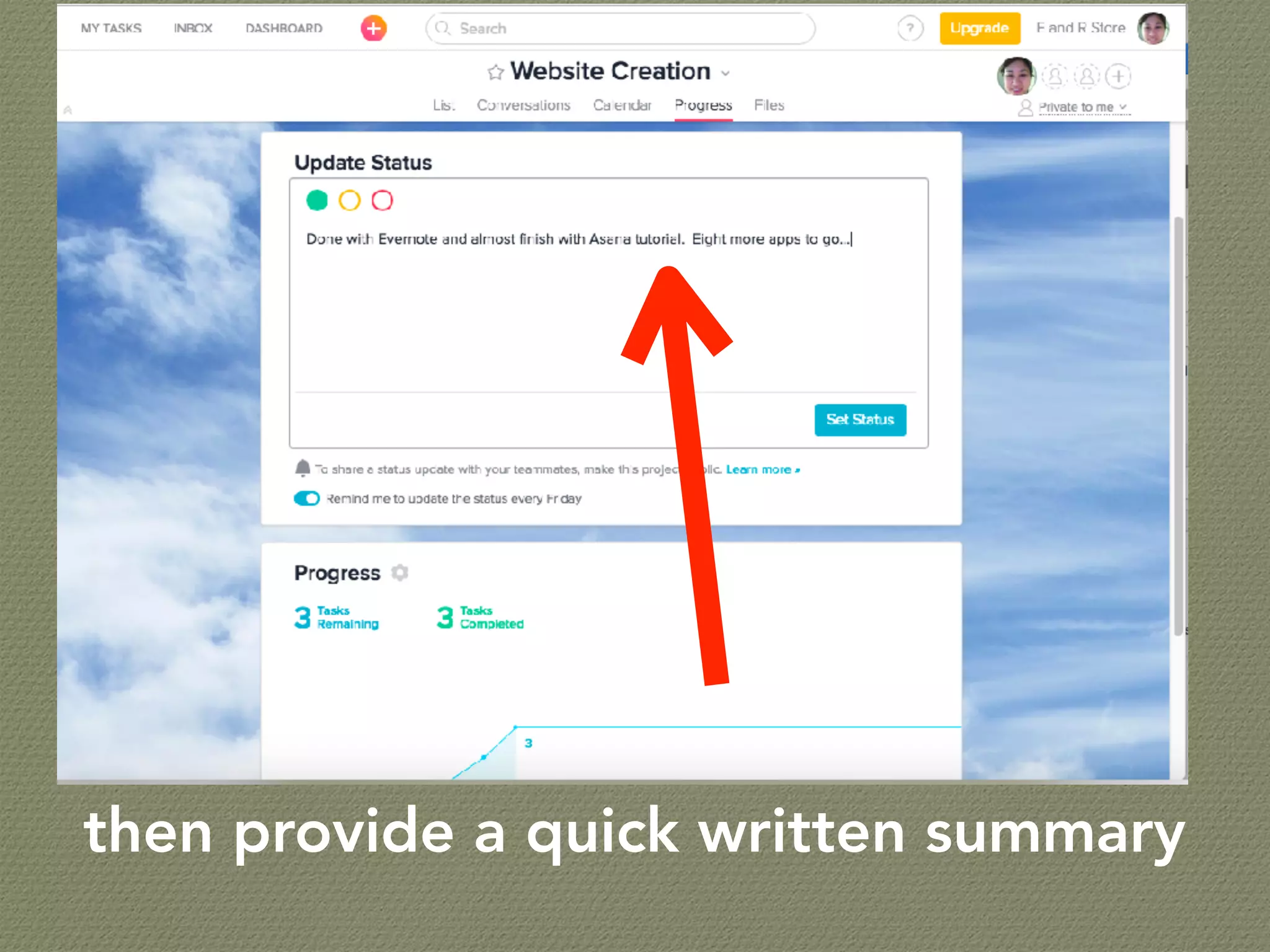
then provide a quick written summary
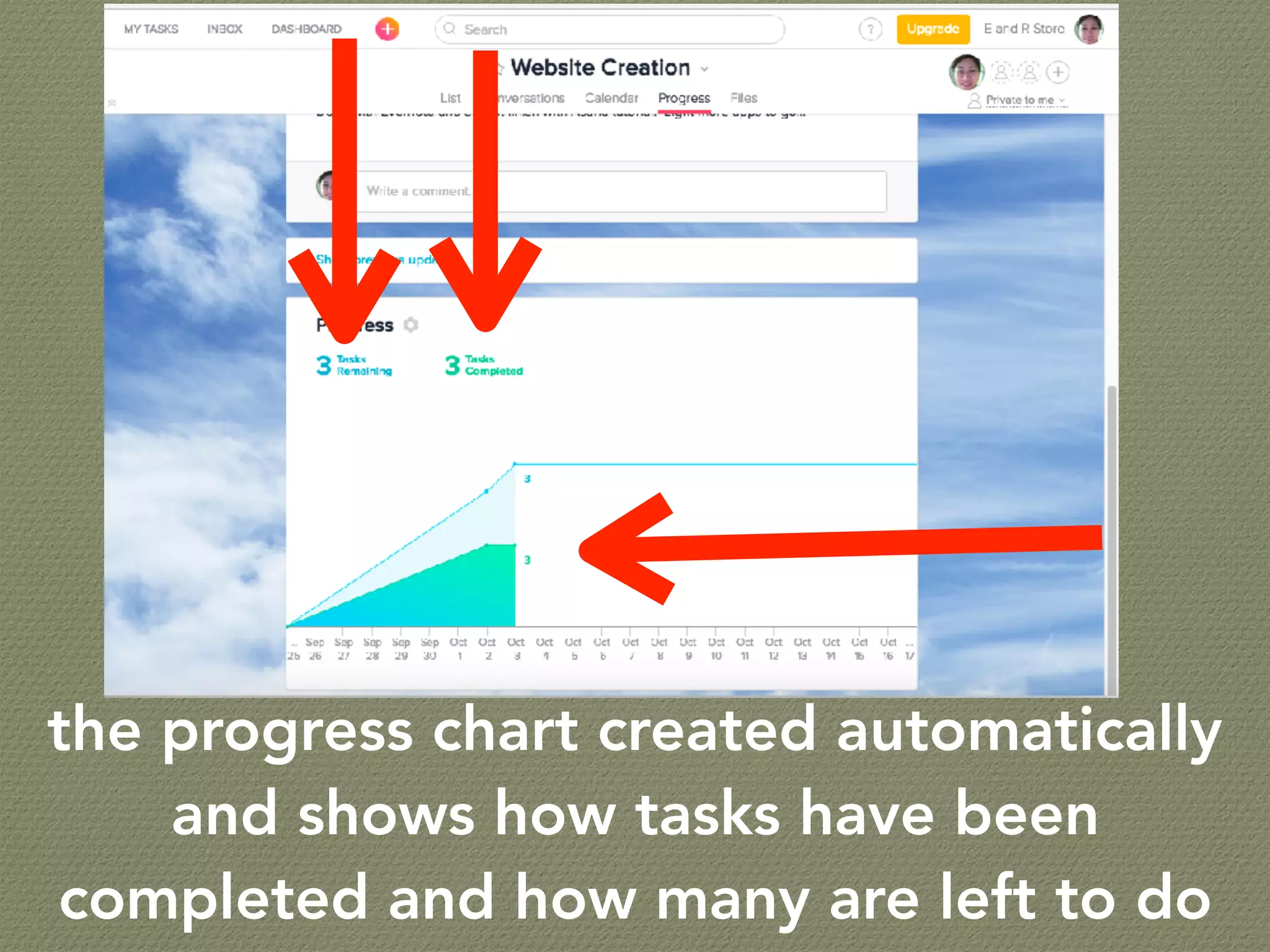
the progress chart created automatically
and shows how tasks have been
completed and how many are left to do
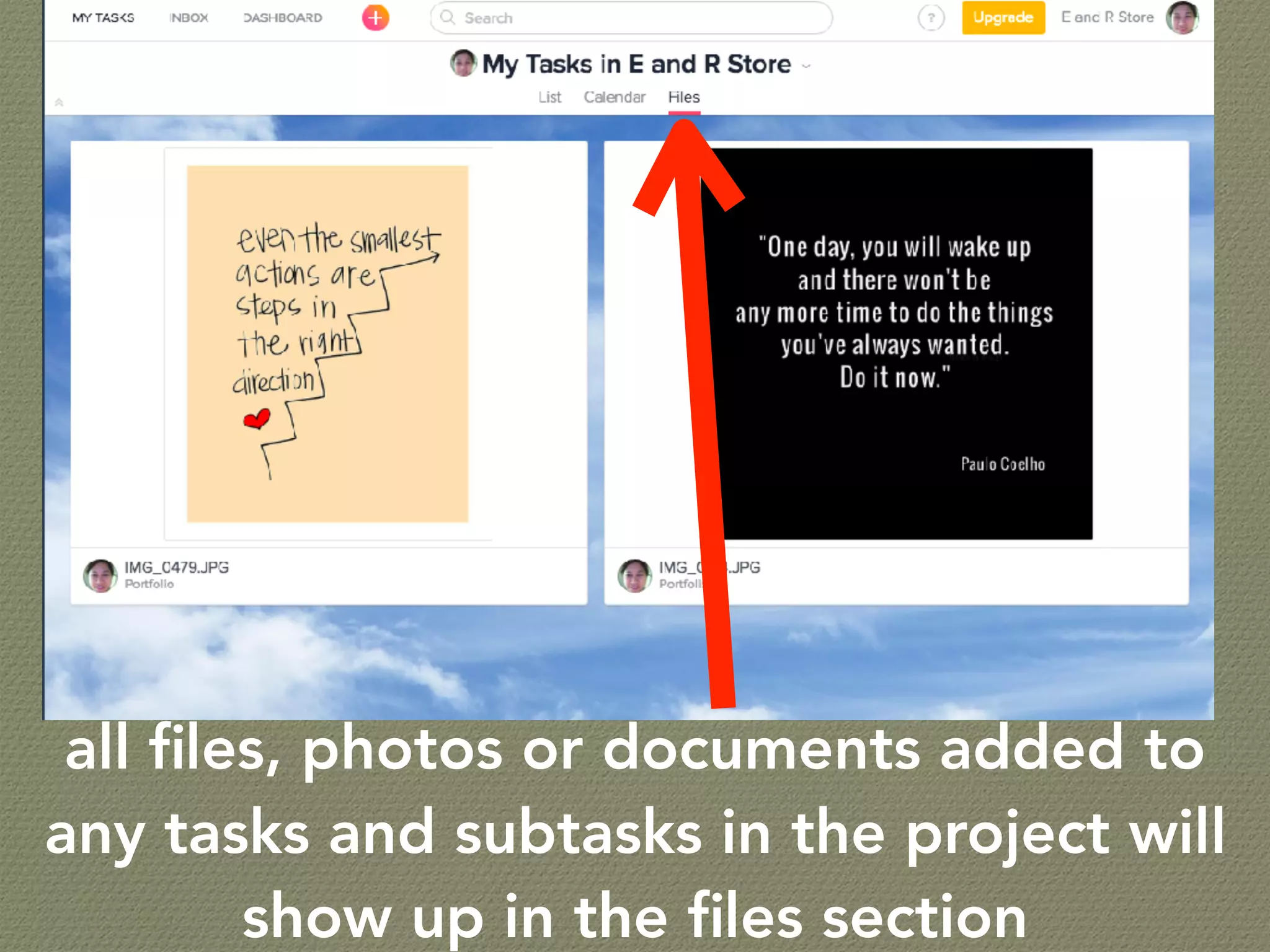
all files, photos or documents added to
any tasks and subtasks in the project will
show up in the files section
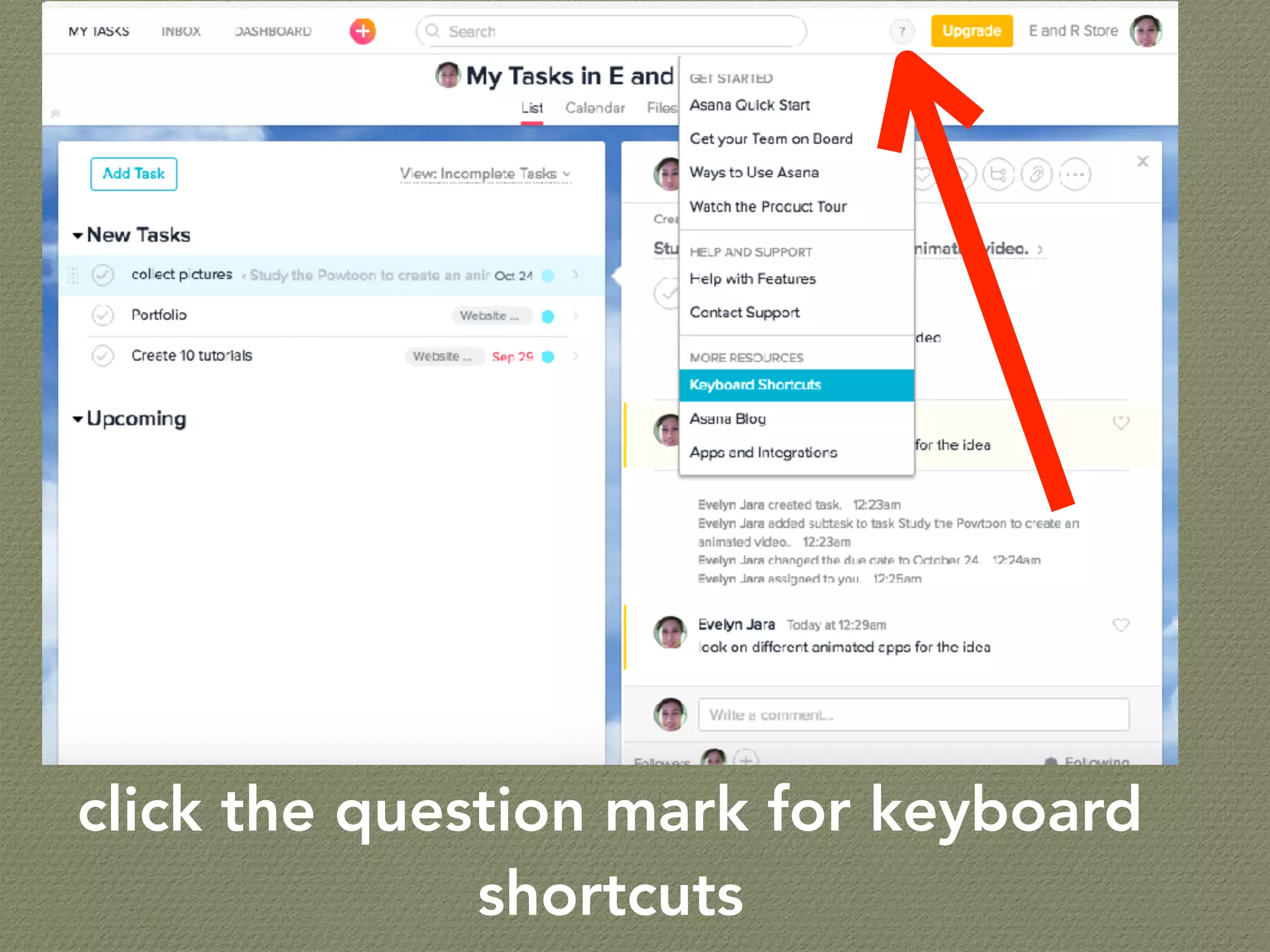
click the question mark for keyboard
shortcuts
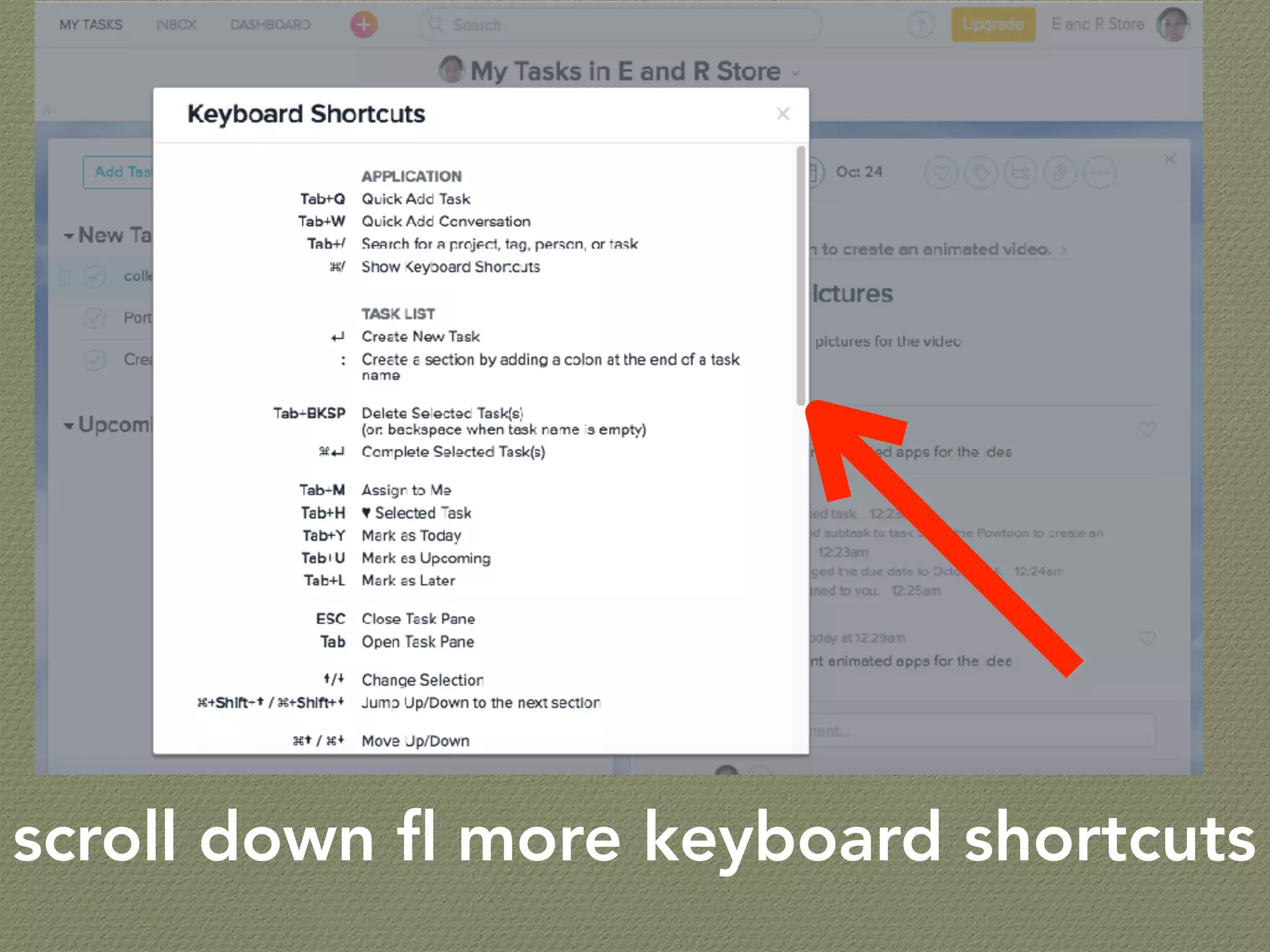
scroll down fl more keyboard shortcuts
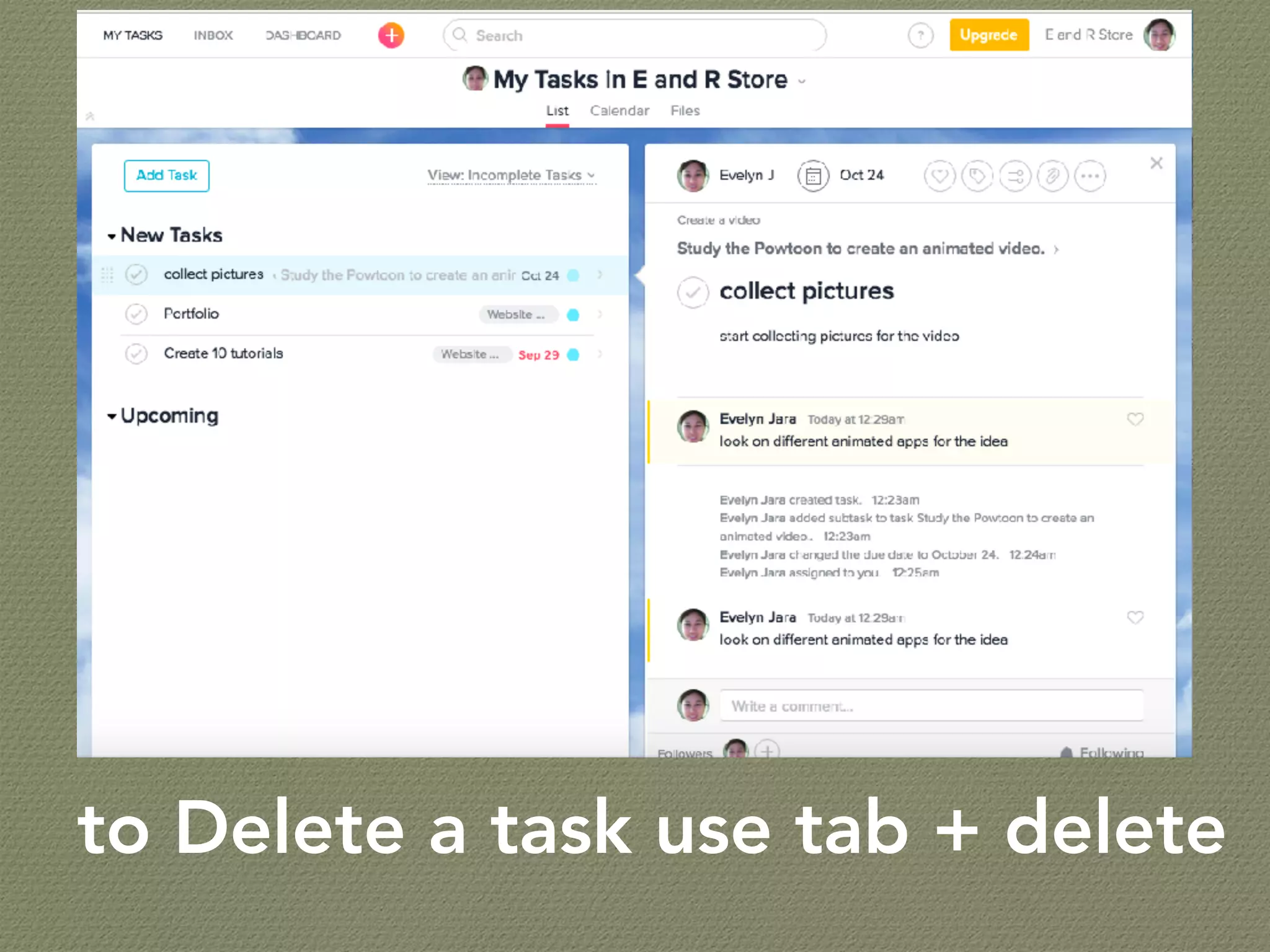
to Delete a task use tab + delete
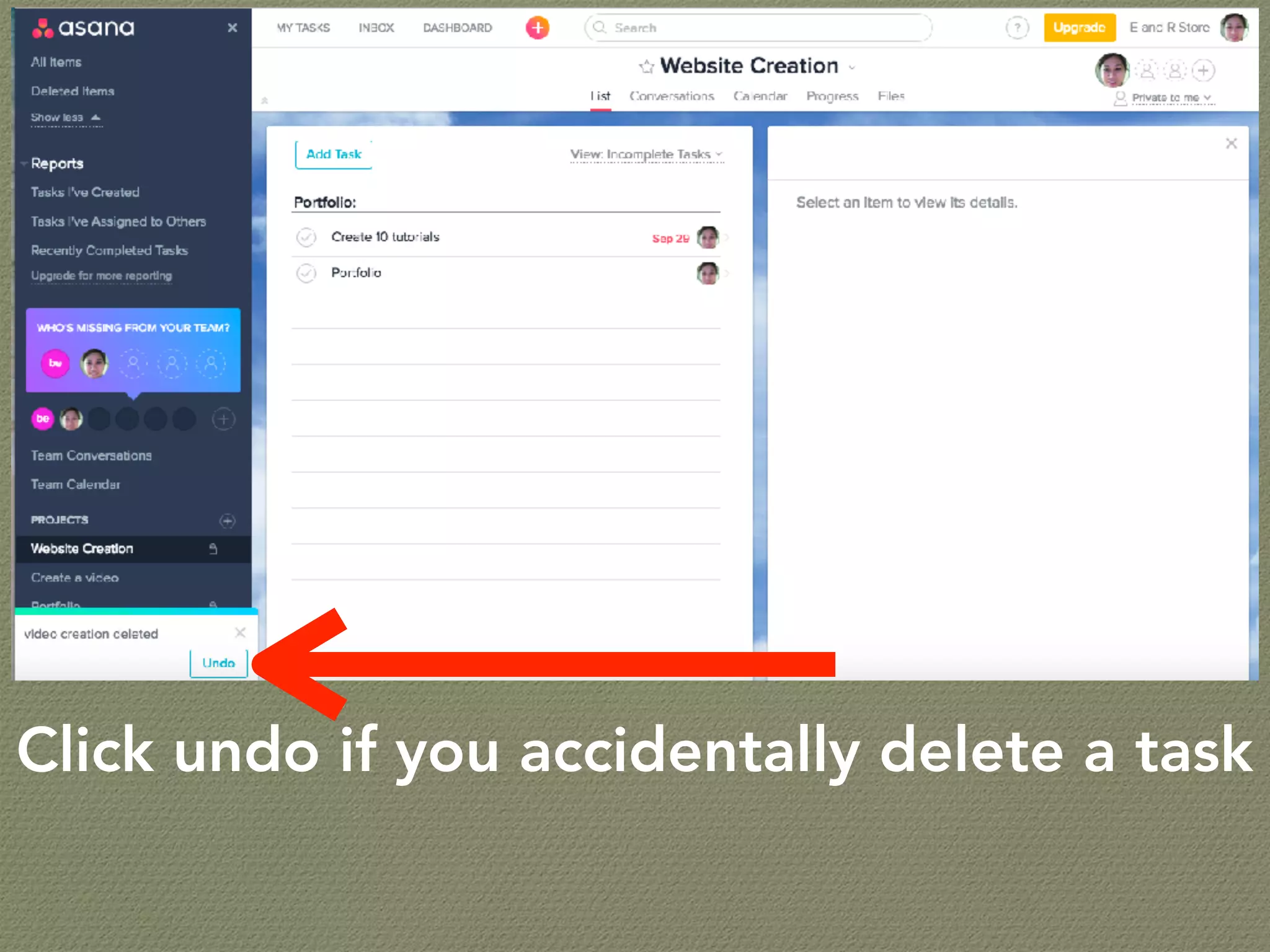
Click undo if you accidentally delete a task
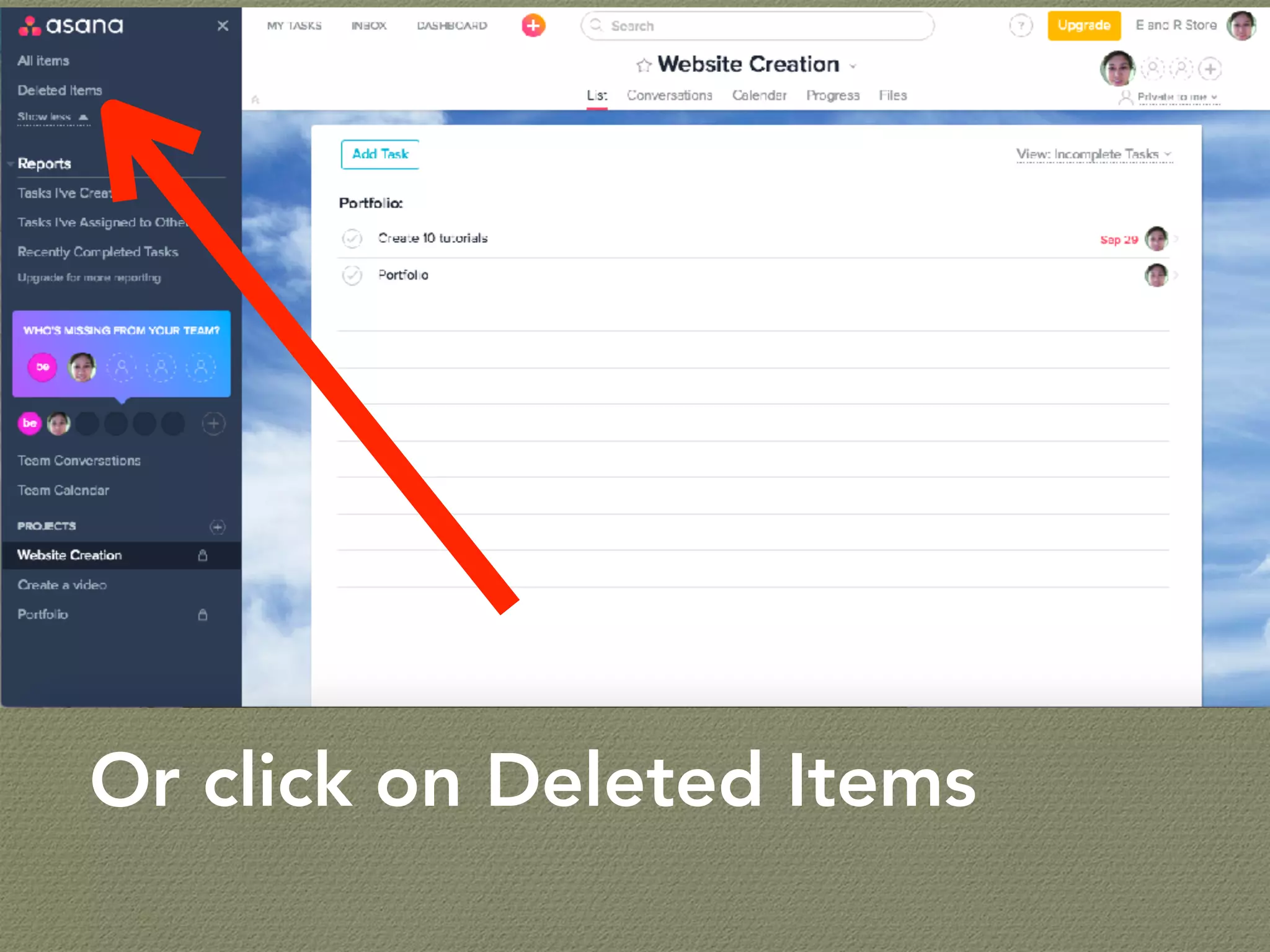
Or click on Deleted Items
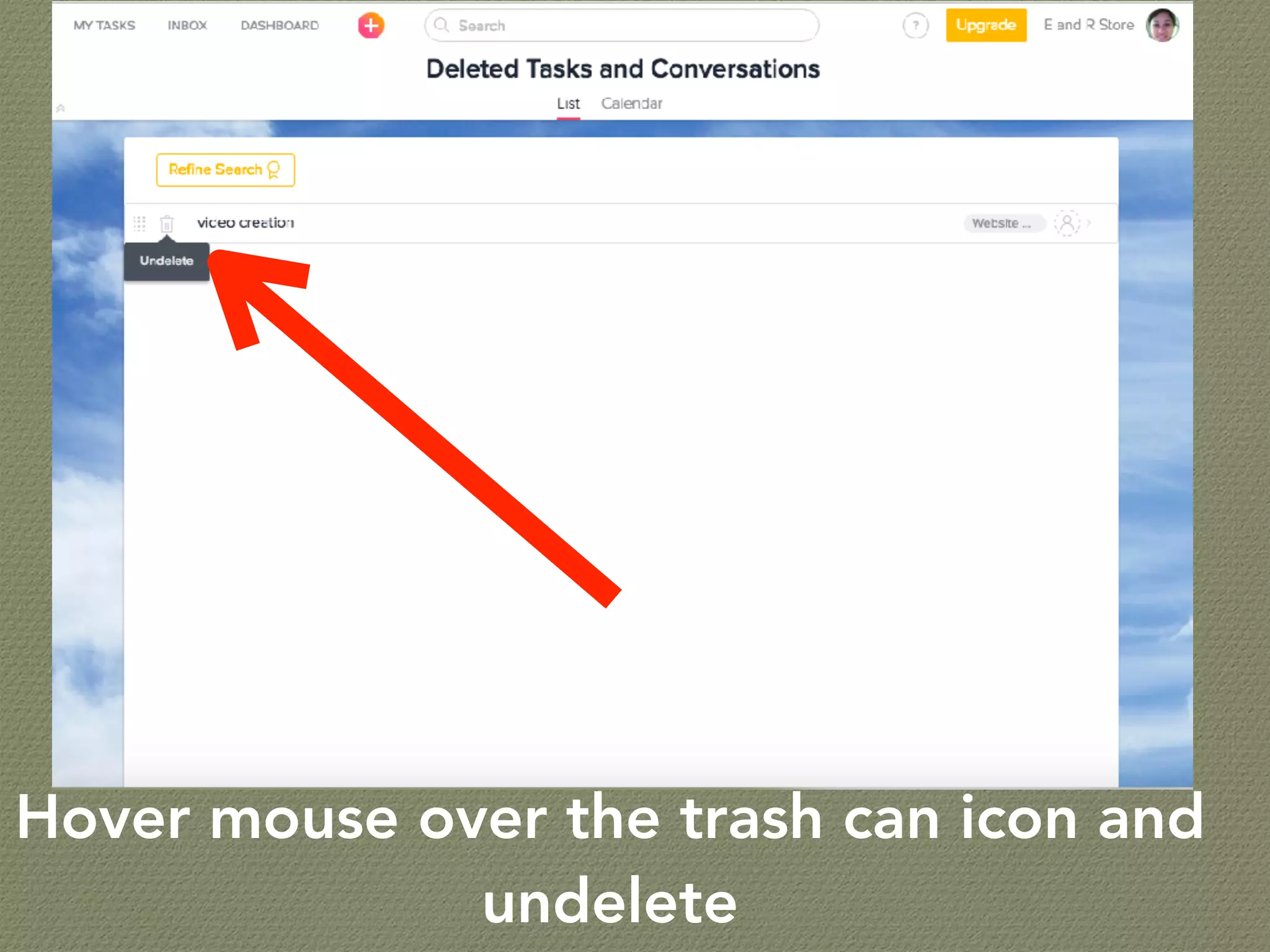
Hover mouse over the trash can icon and
undelete
How to use asana-
created templates?
Creating a project
from quick add
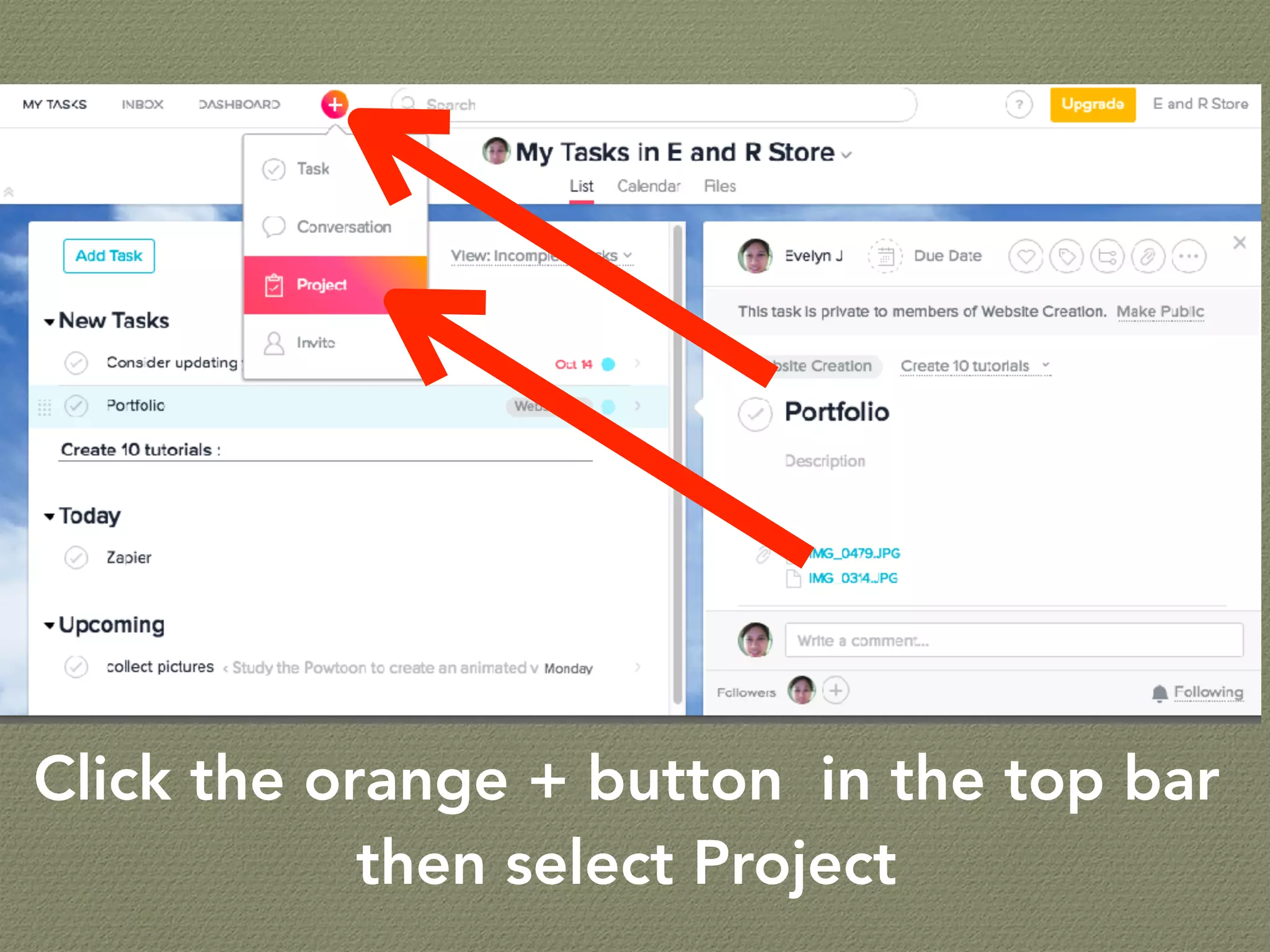
Click the orange + button in the top bar
then select Project
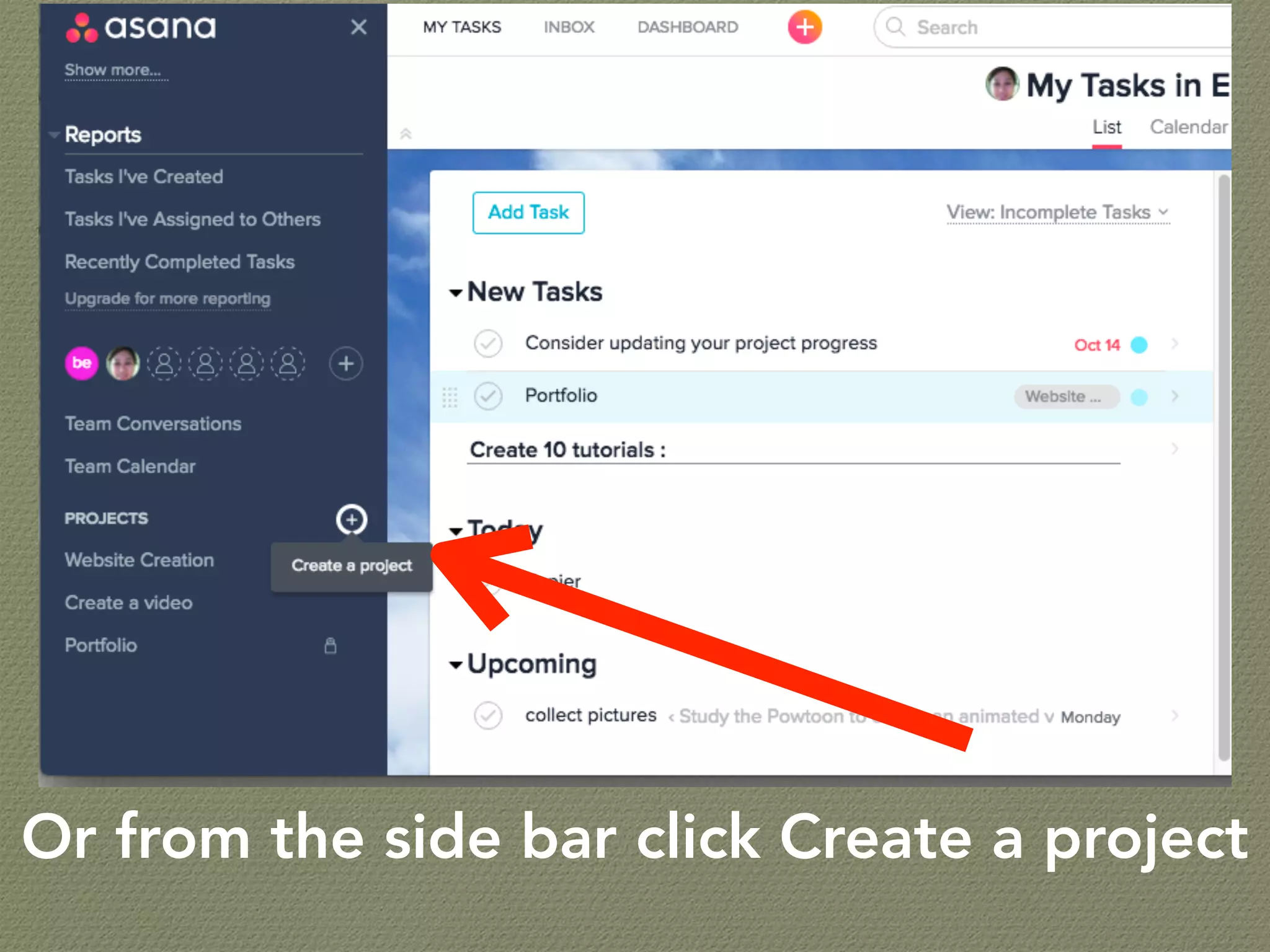
Or from the side bar click Create a project
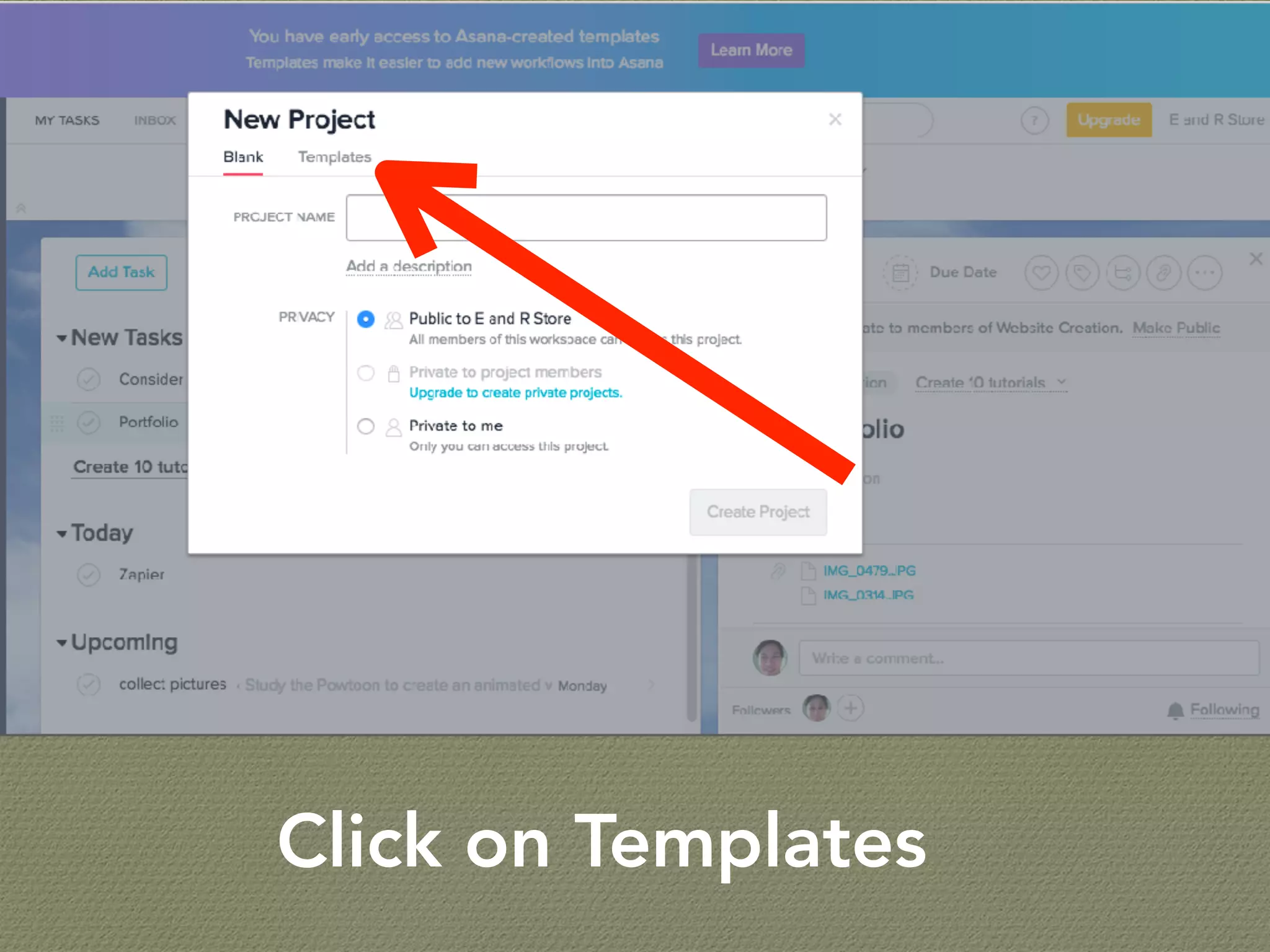
Click on Templates
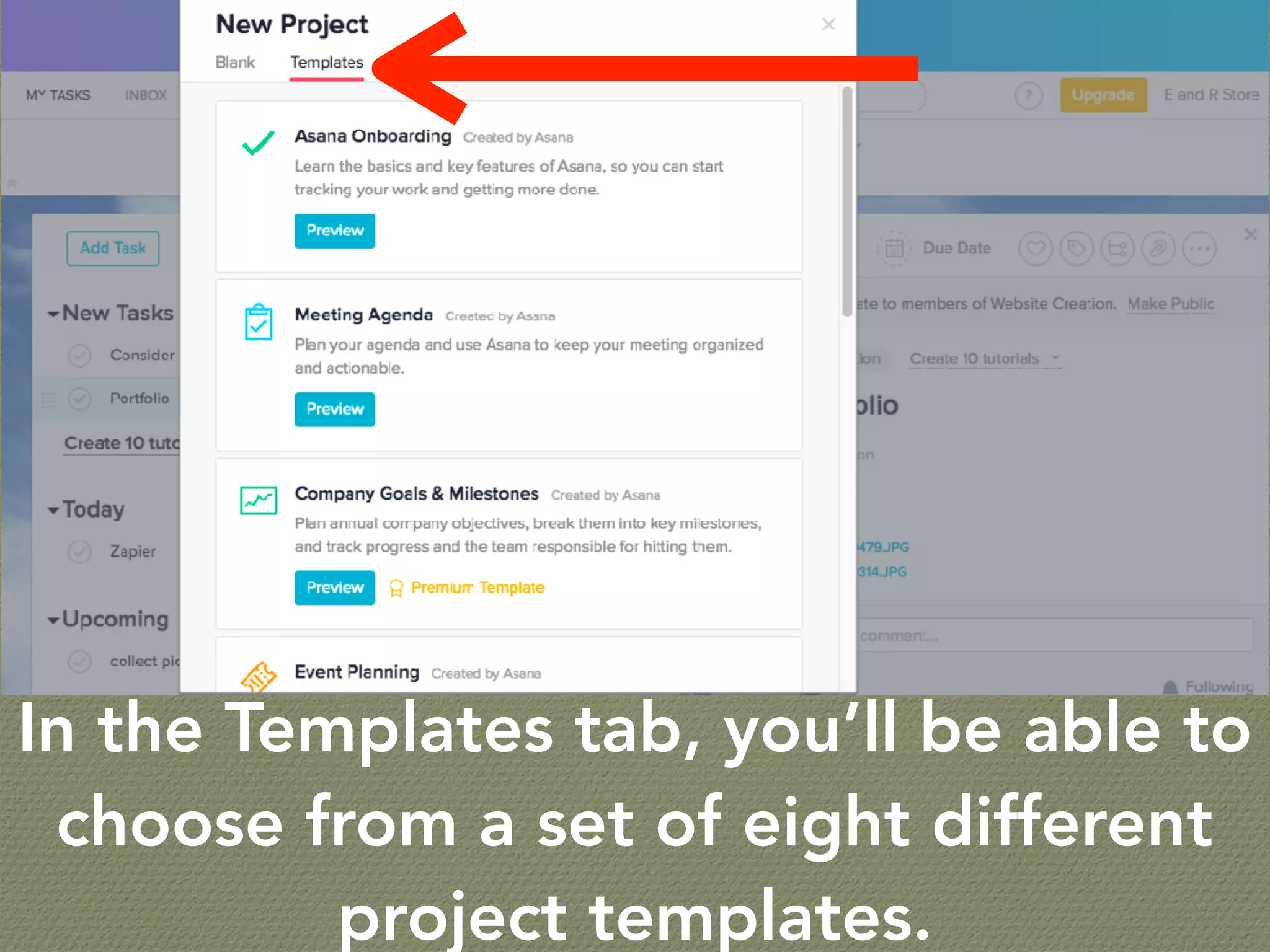
In the Templates tab, you’ll be able to
choose from a set of eight different
project templates.
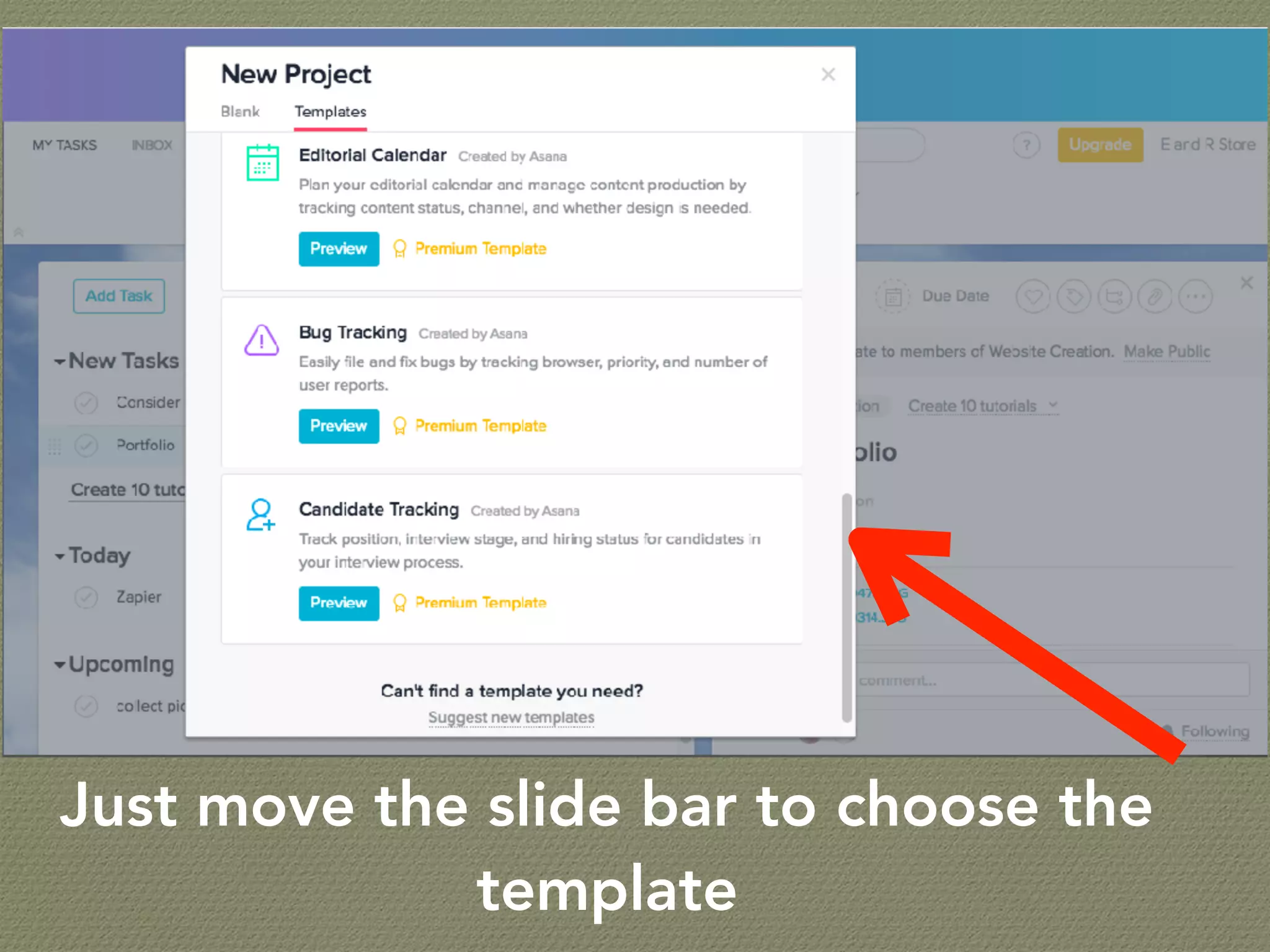
Just move the slide bar to choose the
template
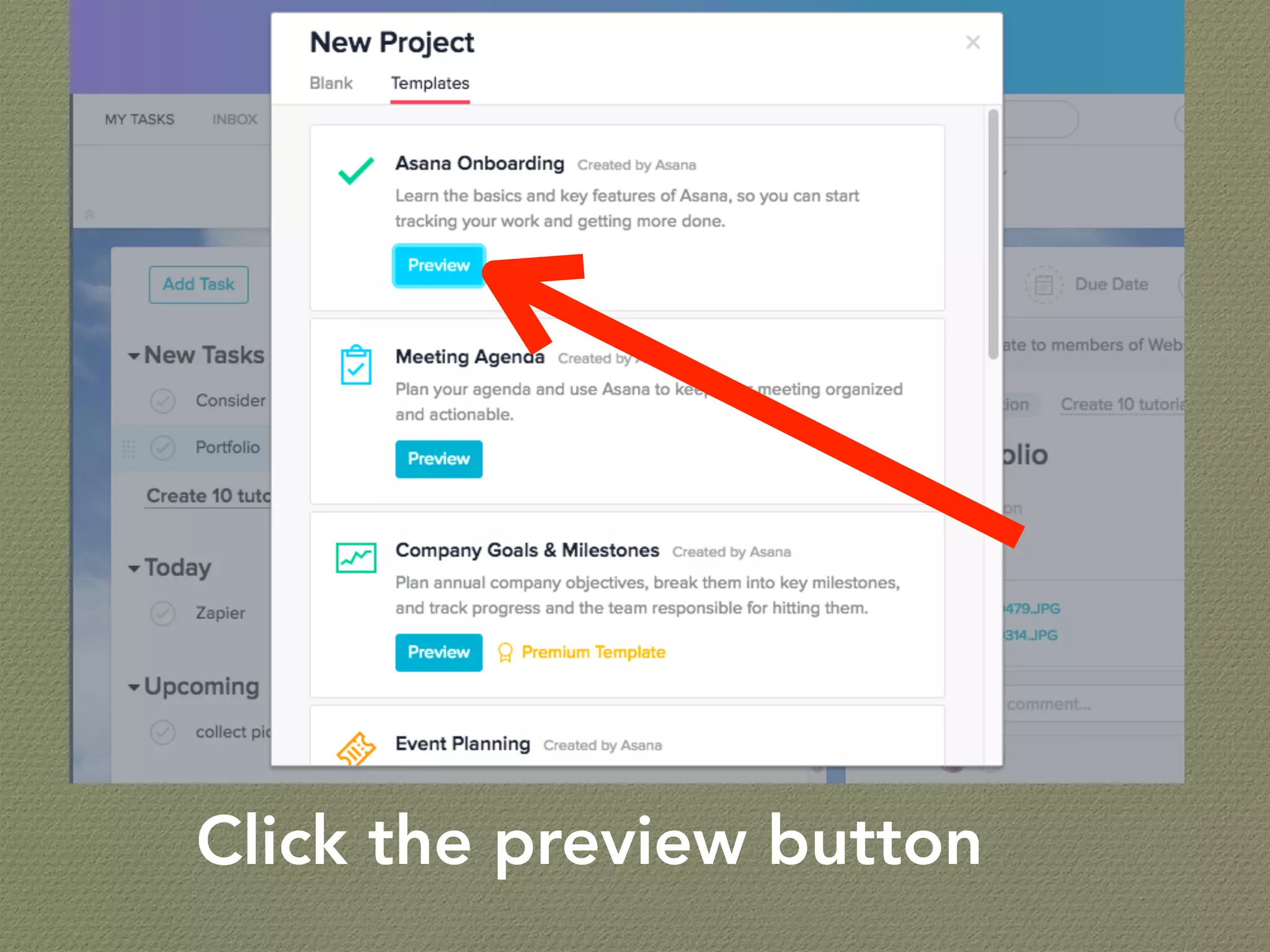
Click the preview button
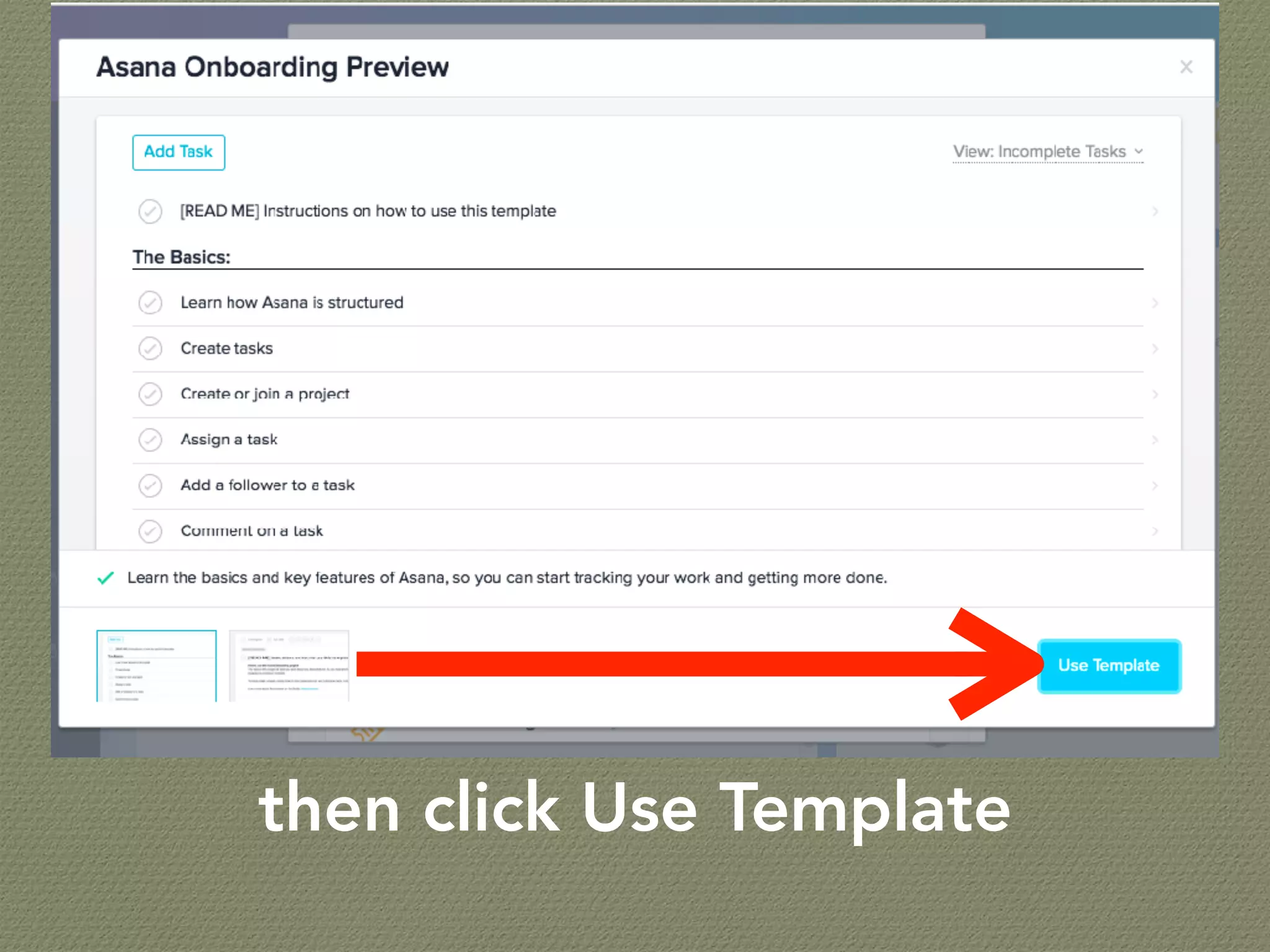
then click Use Template
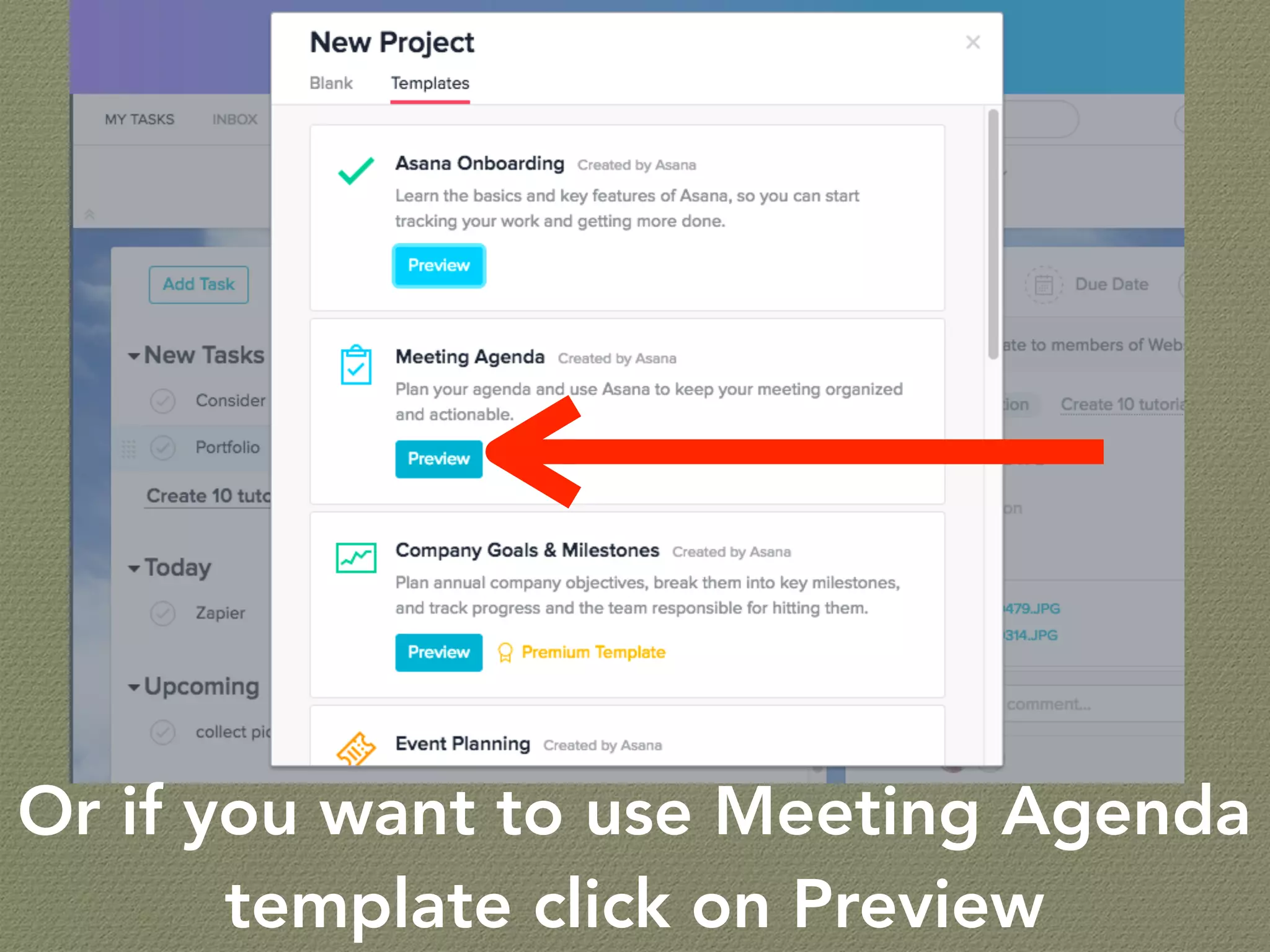
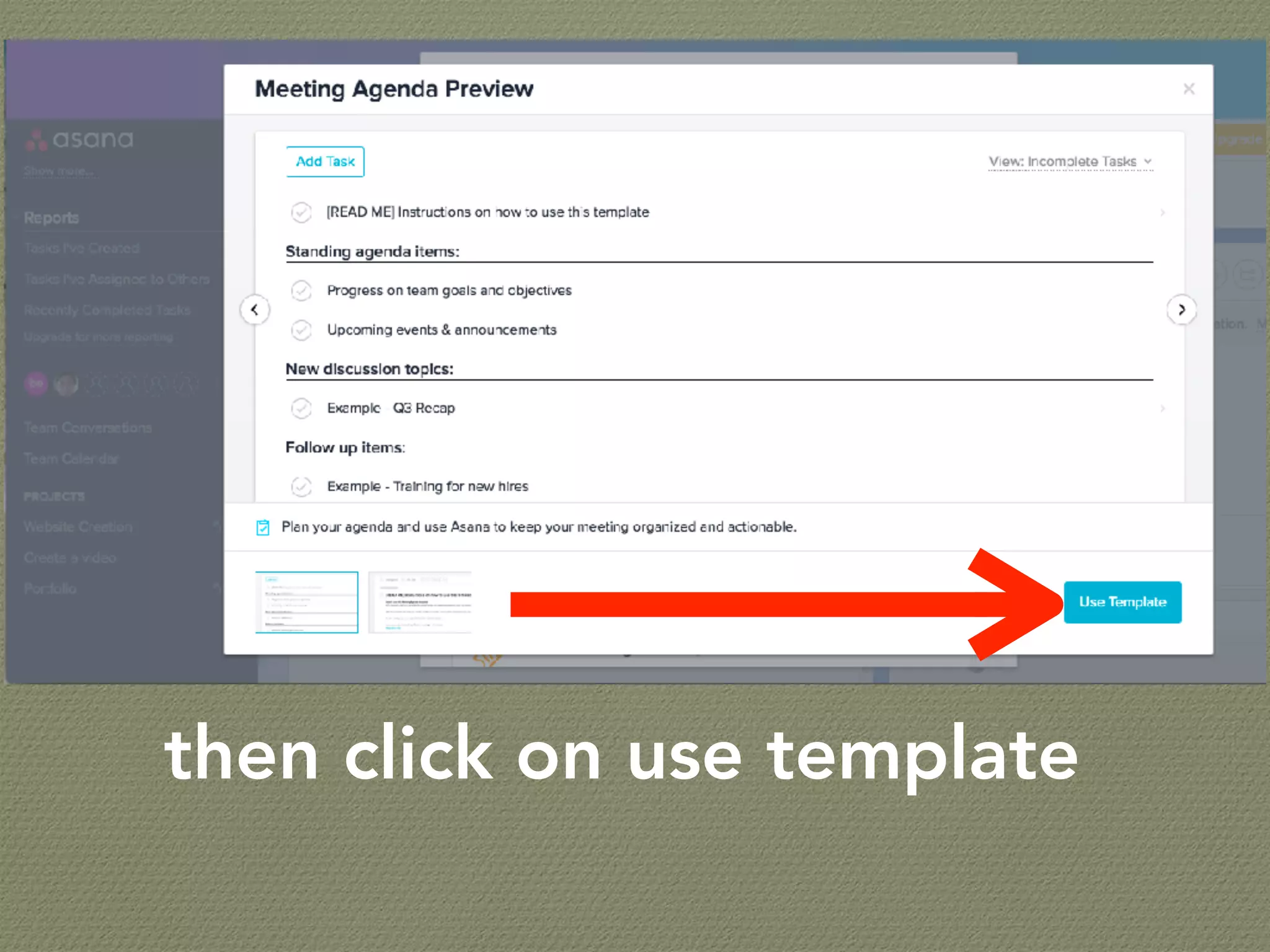
Or if you want to use Meeting Agenda
template click on Preview
then click on use template
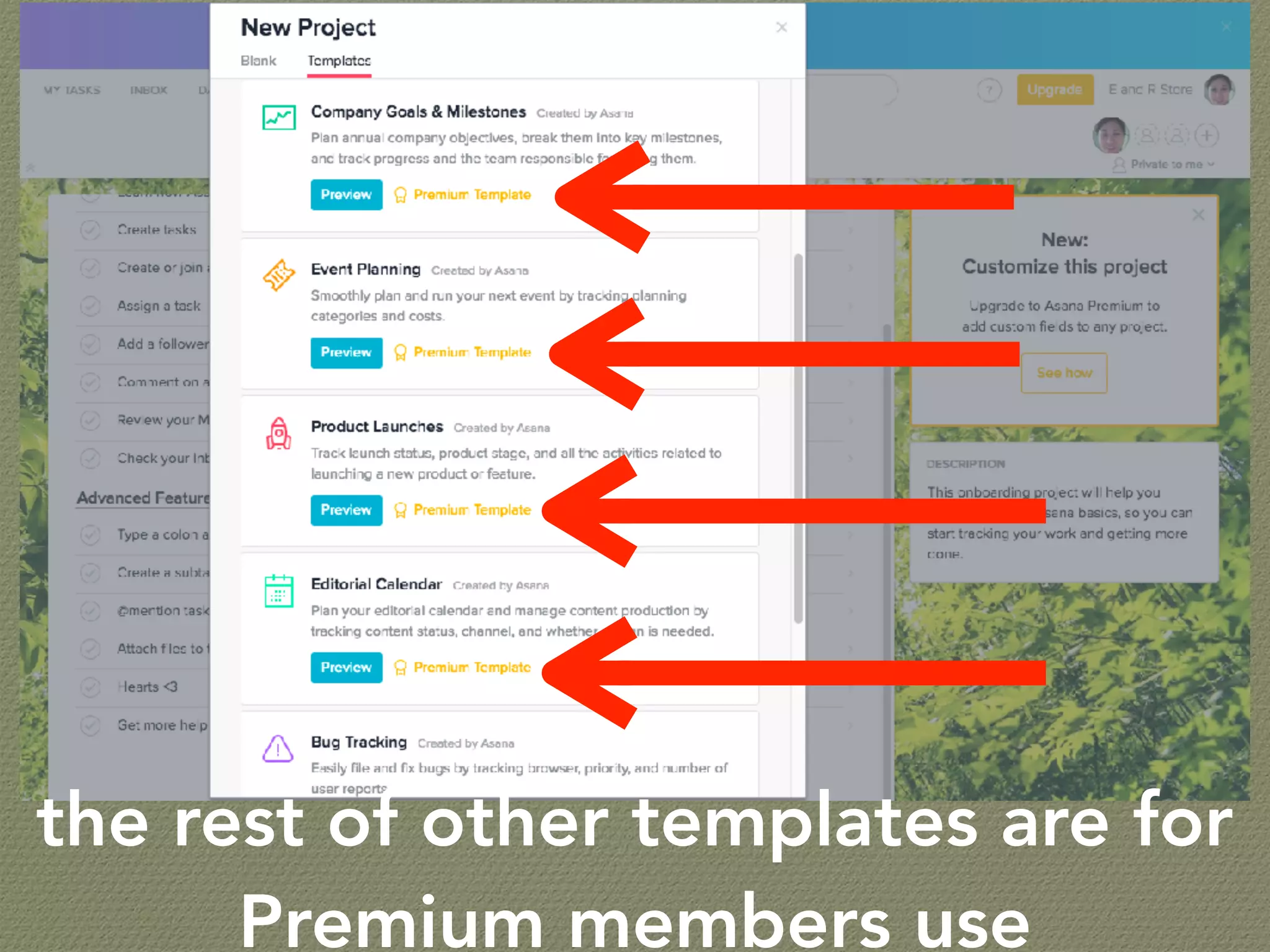
the rest of other templates are for
Premium members use
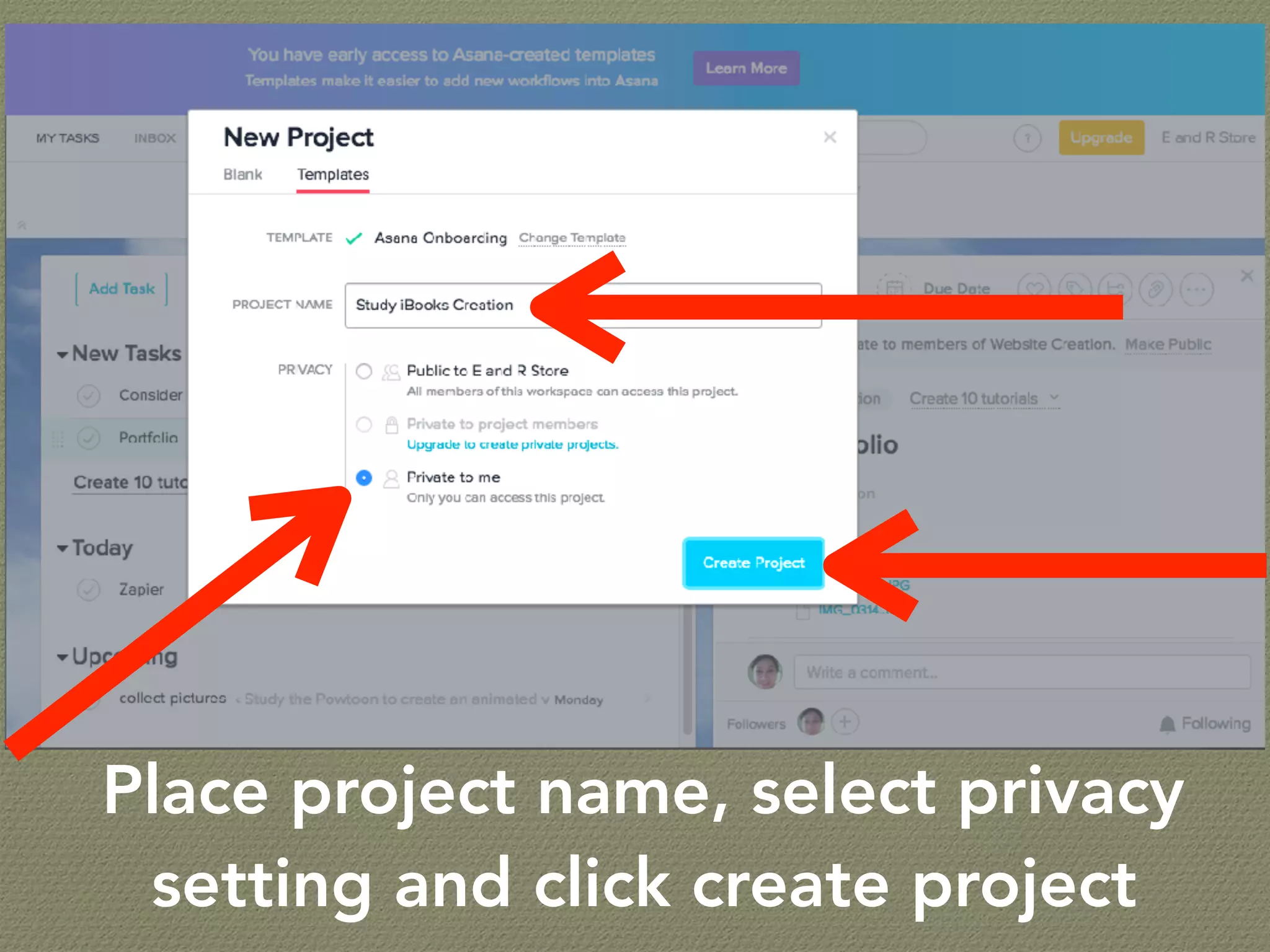
Place project name, select privacy
setting and click create project
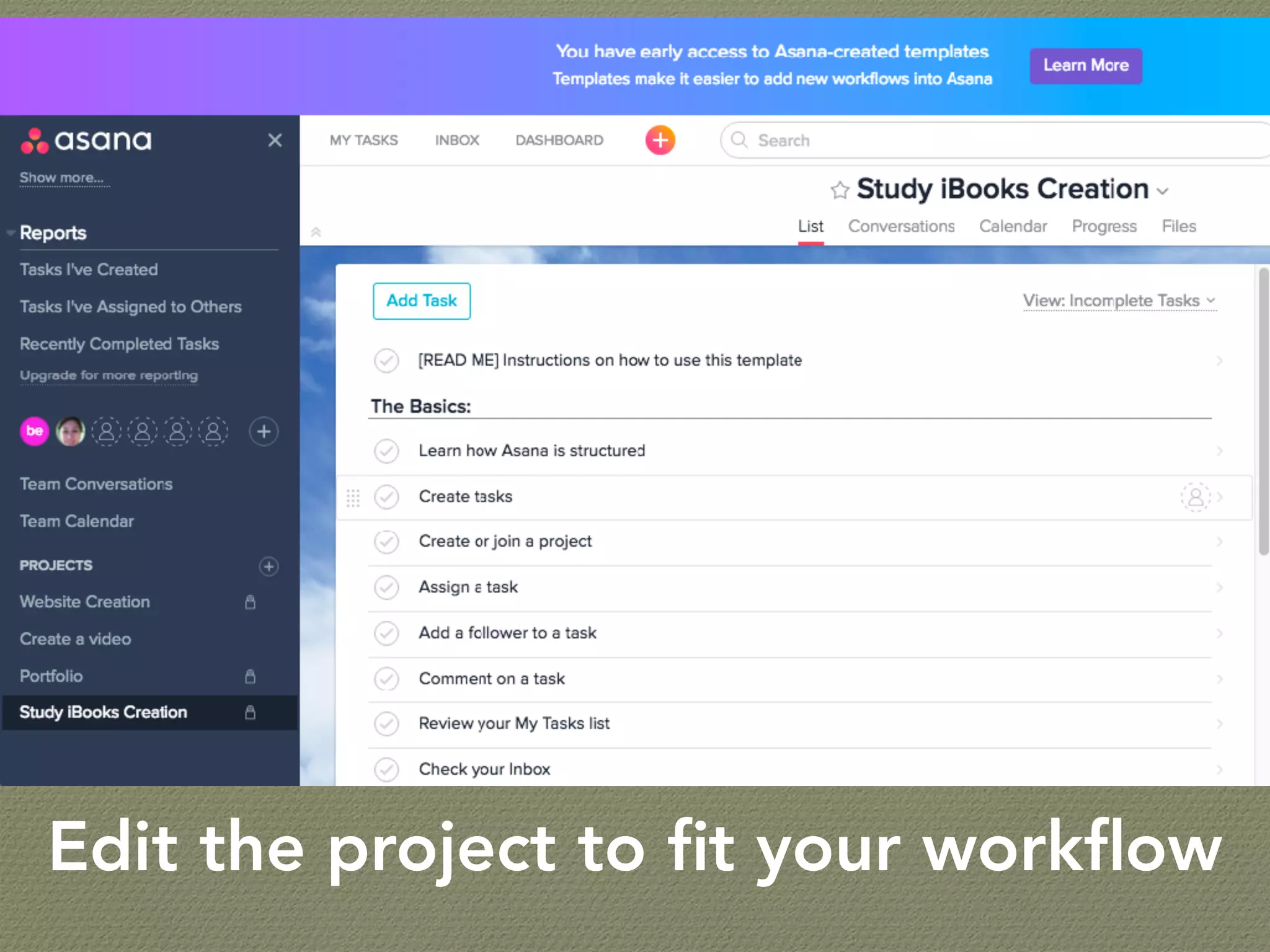
Edit the project to fit your workflow

How to use asana? evelyn jara-vp with a heart