Animoto… “ the end of the slideshow” Presented By: Gail Potratz & Brian Gannon
Getting Started Animoto Animoto for Educators   Note: Registering for Education takes few days Getting Started
Click CREATE VIDEO to get started Choose a background – black? Sign up for free account screens Free:  30 second short videos Educators: Full-length videos free! Click Create Video – again. Create Video
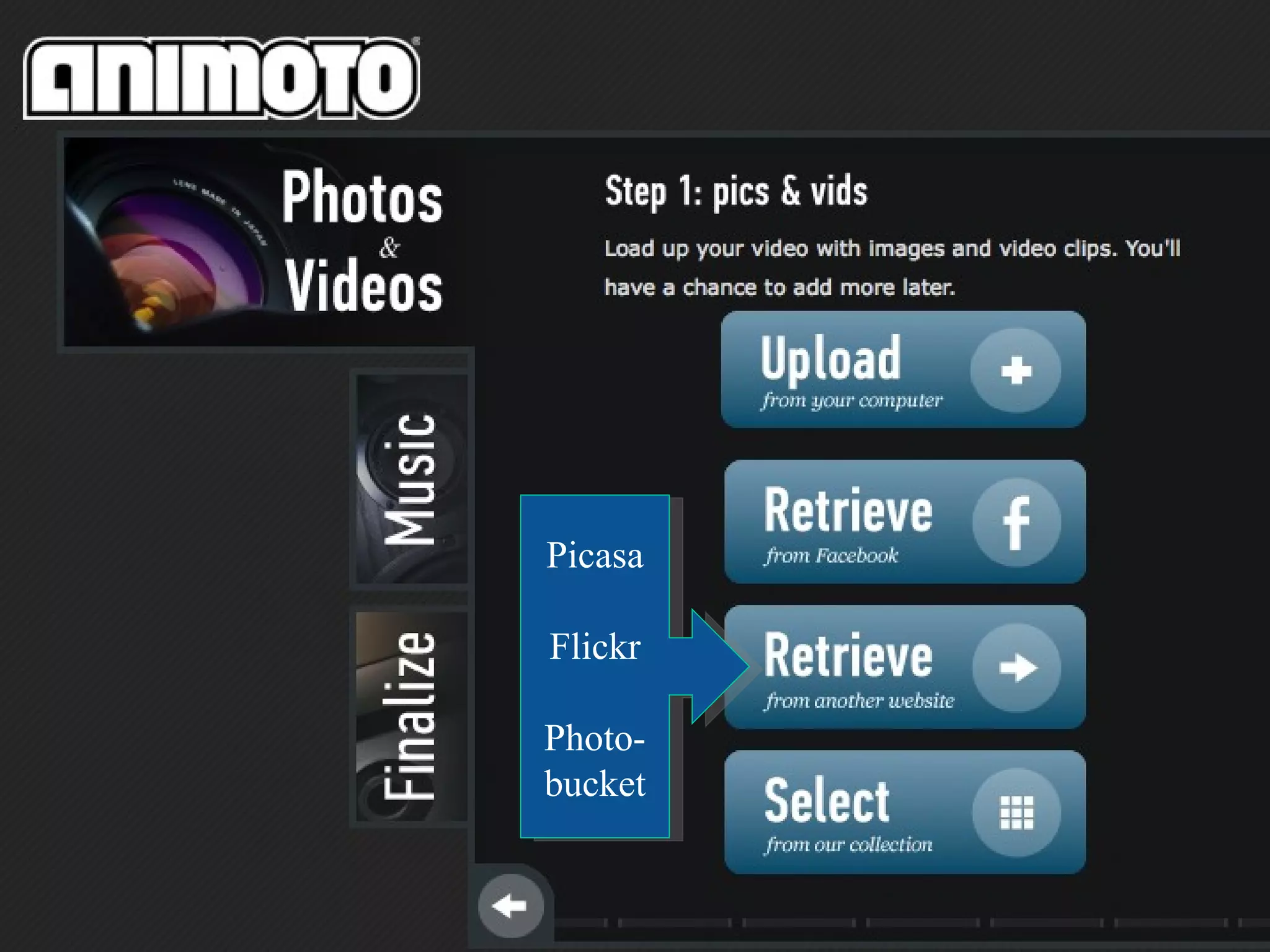
Picasa Flickr Photo-bucket
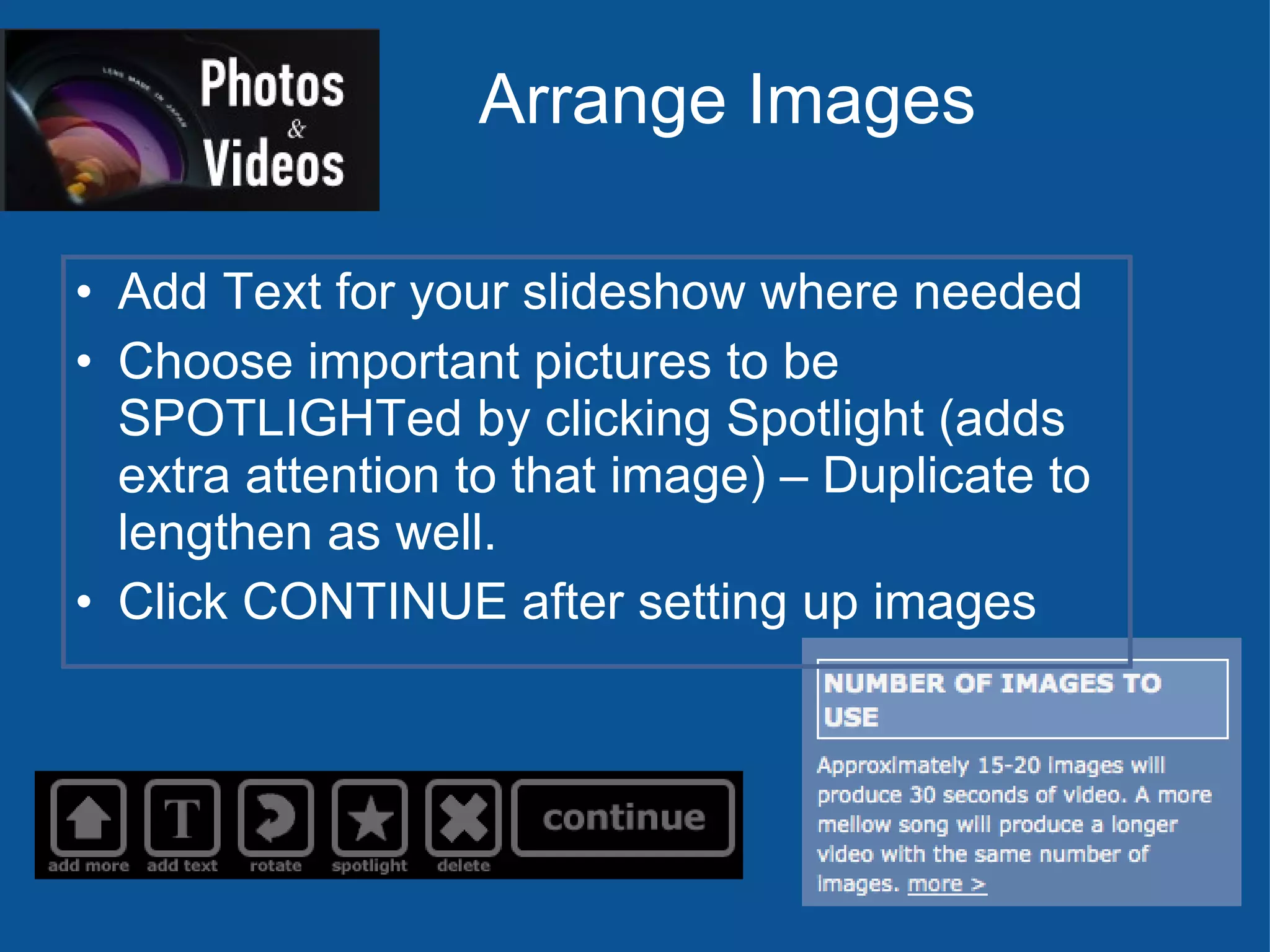
Arrange Images Add Text for your slideshow where needed Choose important pictures to be SPOTLIGHTed by clicking Spotlight (adds extra attention to that image) – Duplicate to lengthen as well. Click CONTINUE after setting up images
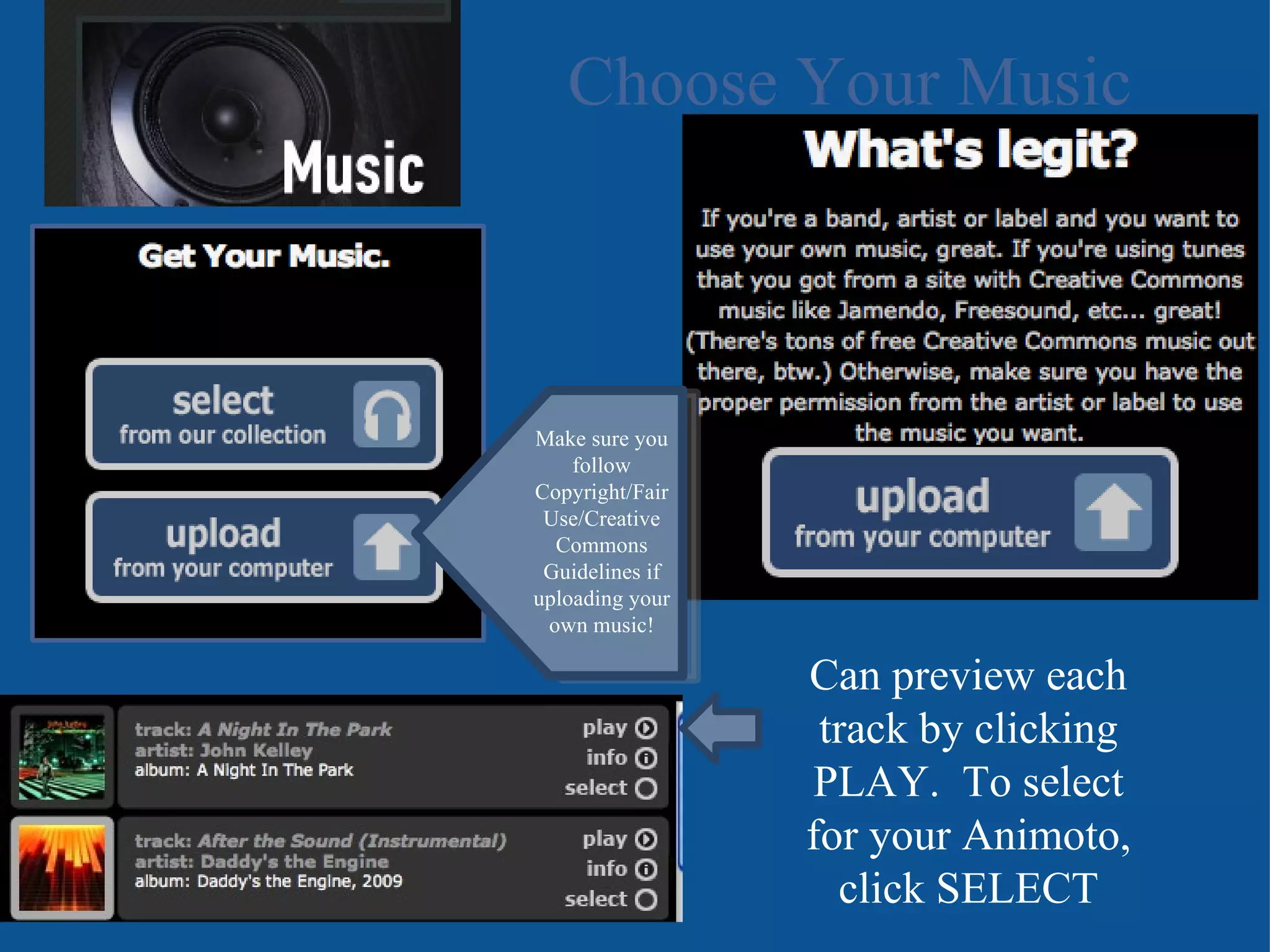
Choose Your Music Make sure you follow Copyright/Fair Use/Creative Commons Guidelines if uploading your own music! Can preview each track by clicking PLAY.  To select for your Animoto, click SELECT
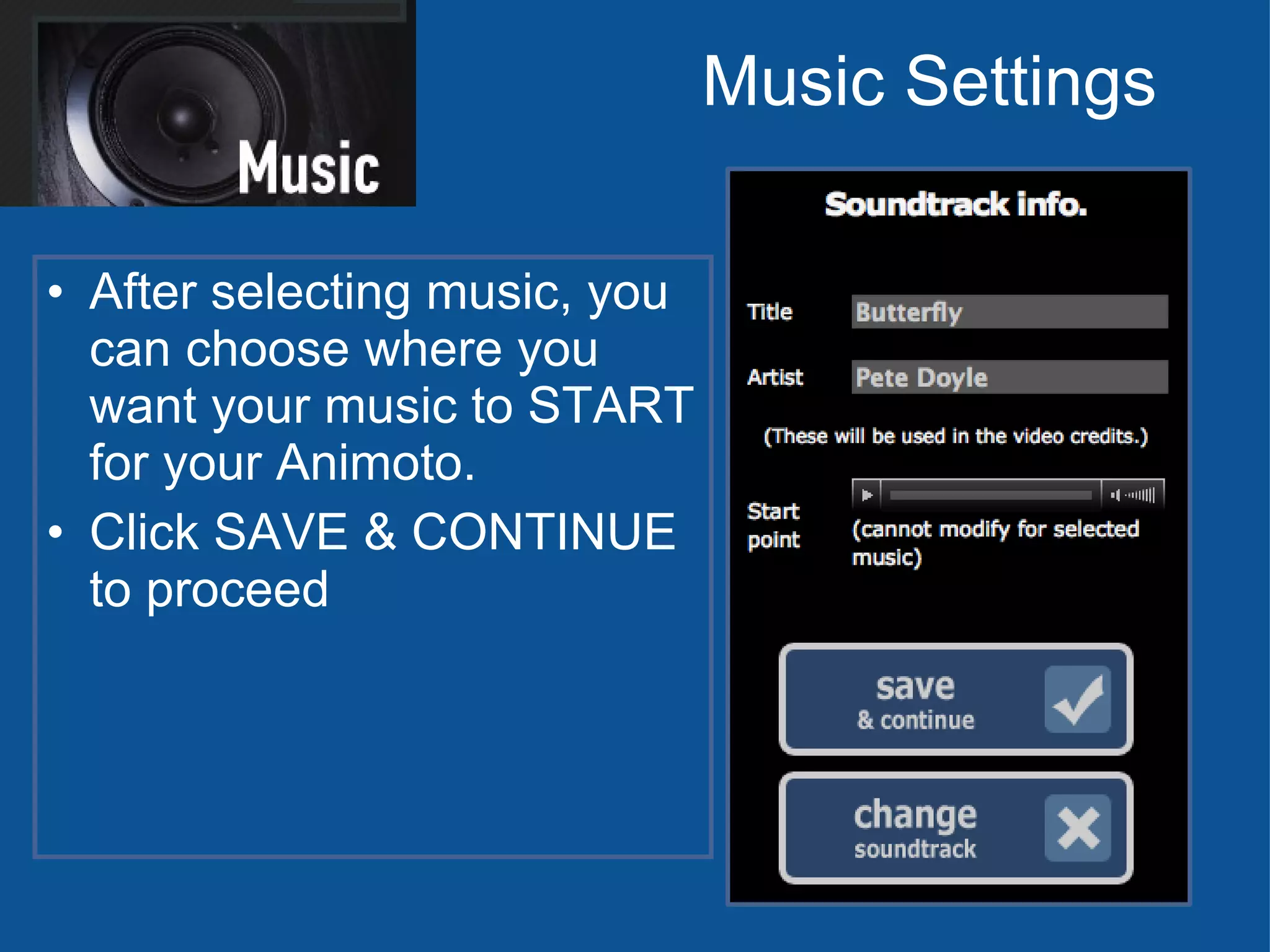
Music Settings After selecting music, you can choose where you want your music to START for your Animoto. Click SAVE & CONTINUE to proceed
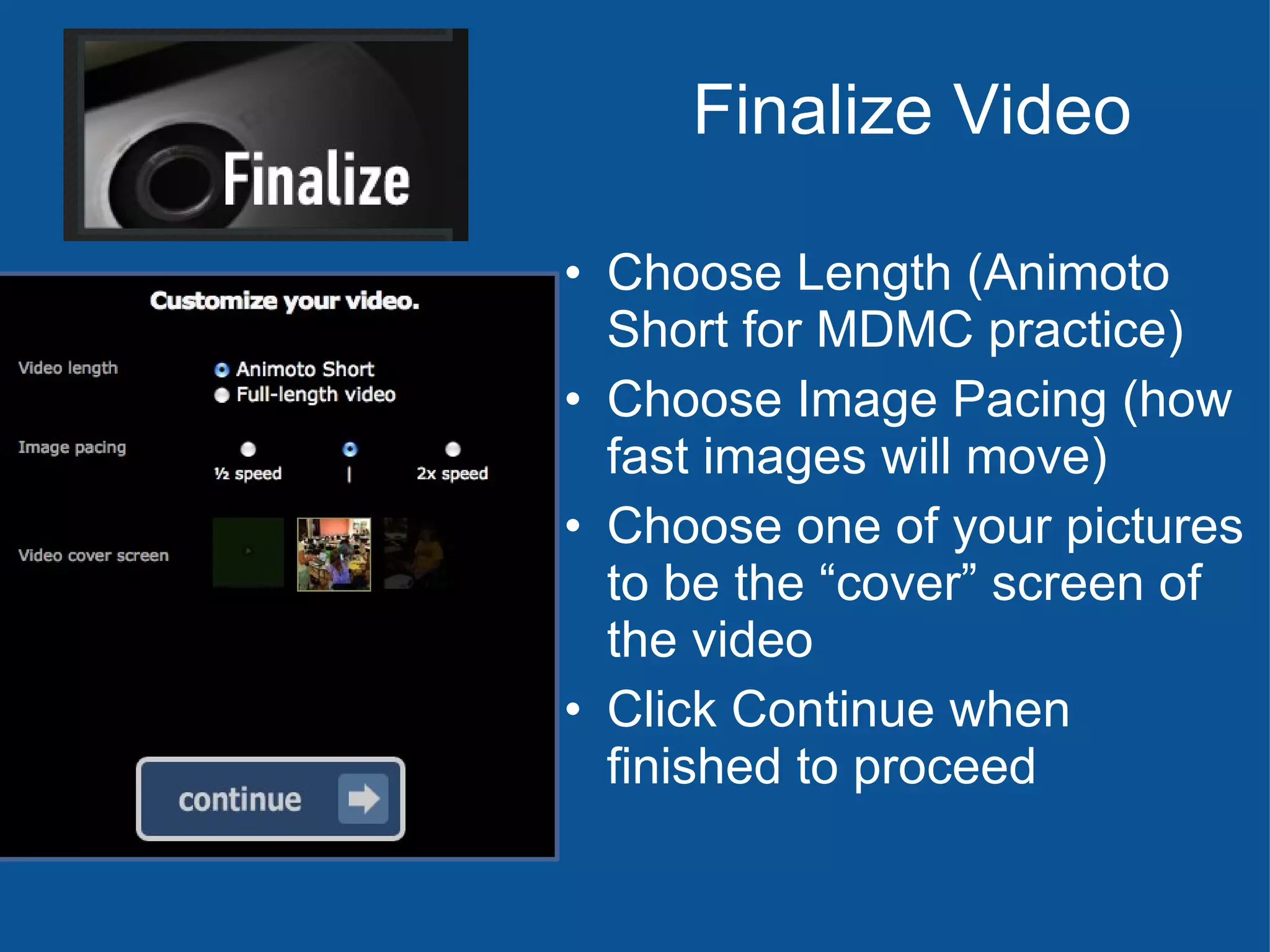
Finalize Video Choose Length (Animoto Short for MDMC practice) Choose Image Pacing (how fast images will move) Choose one of your pictures to be the “cover” screen of the video Click Continue when finished to proceed
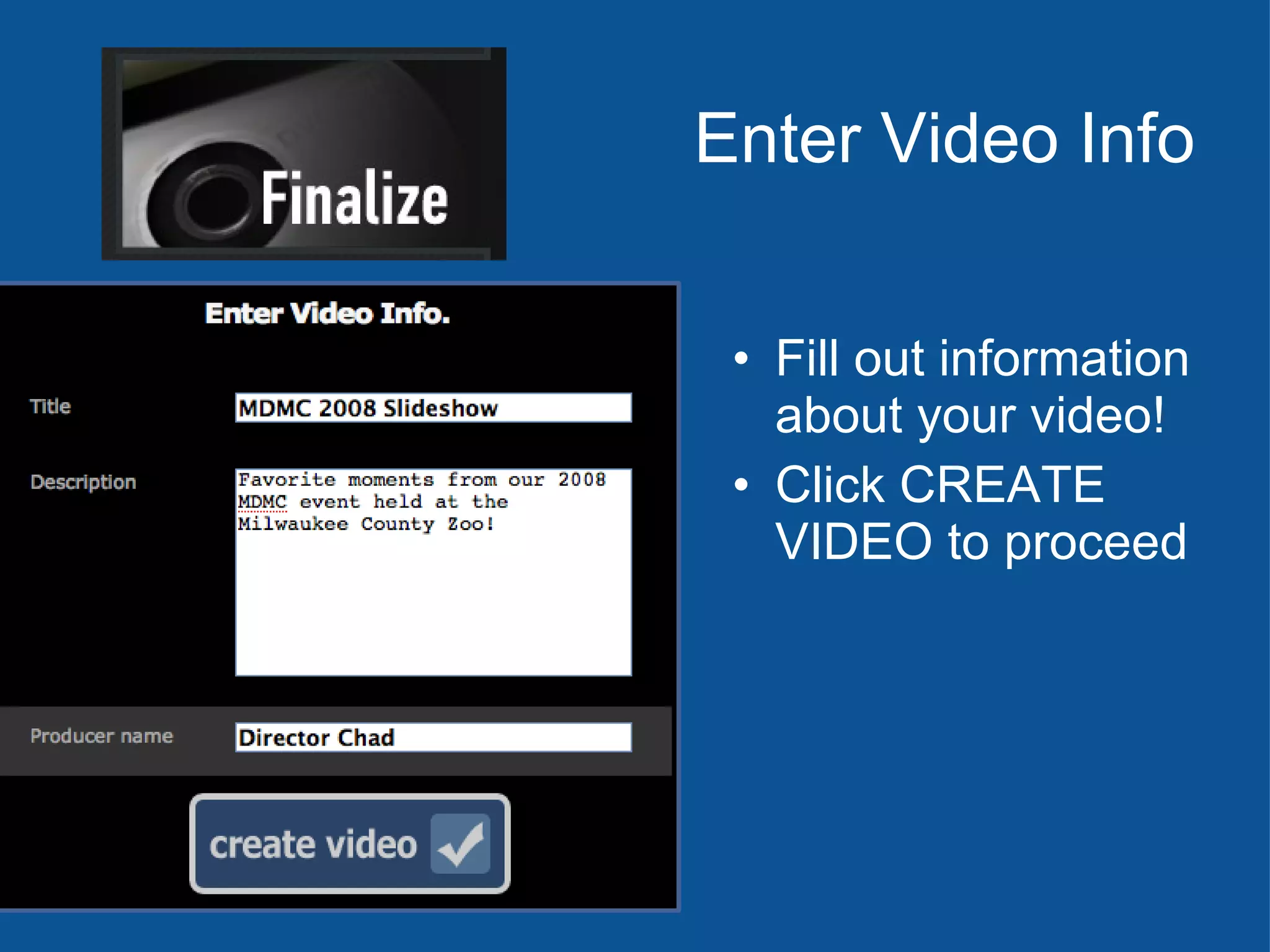
Enter Video Info Fill out information about your video! Click CREATE VIDEO to proceed
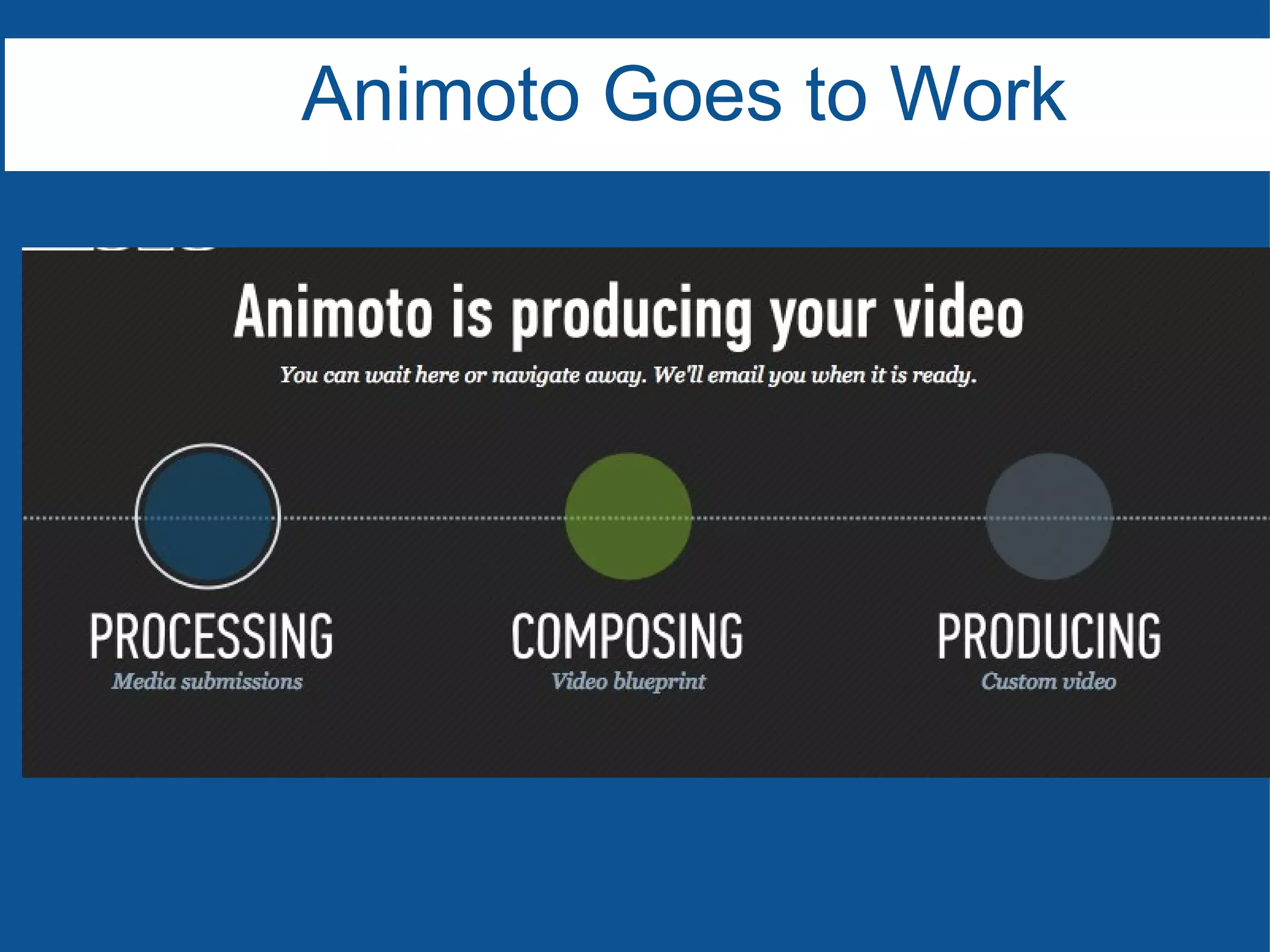
Animoto Goes to Work
Create and Post and Animoto Video of MDMC 2011 Animoto
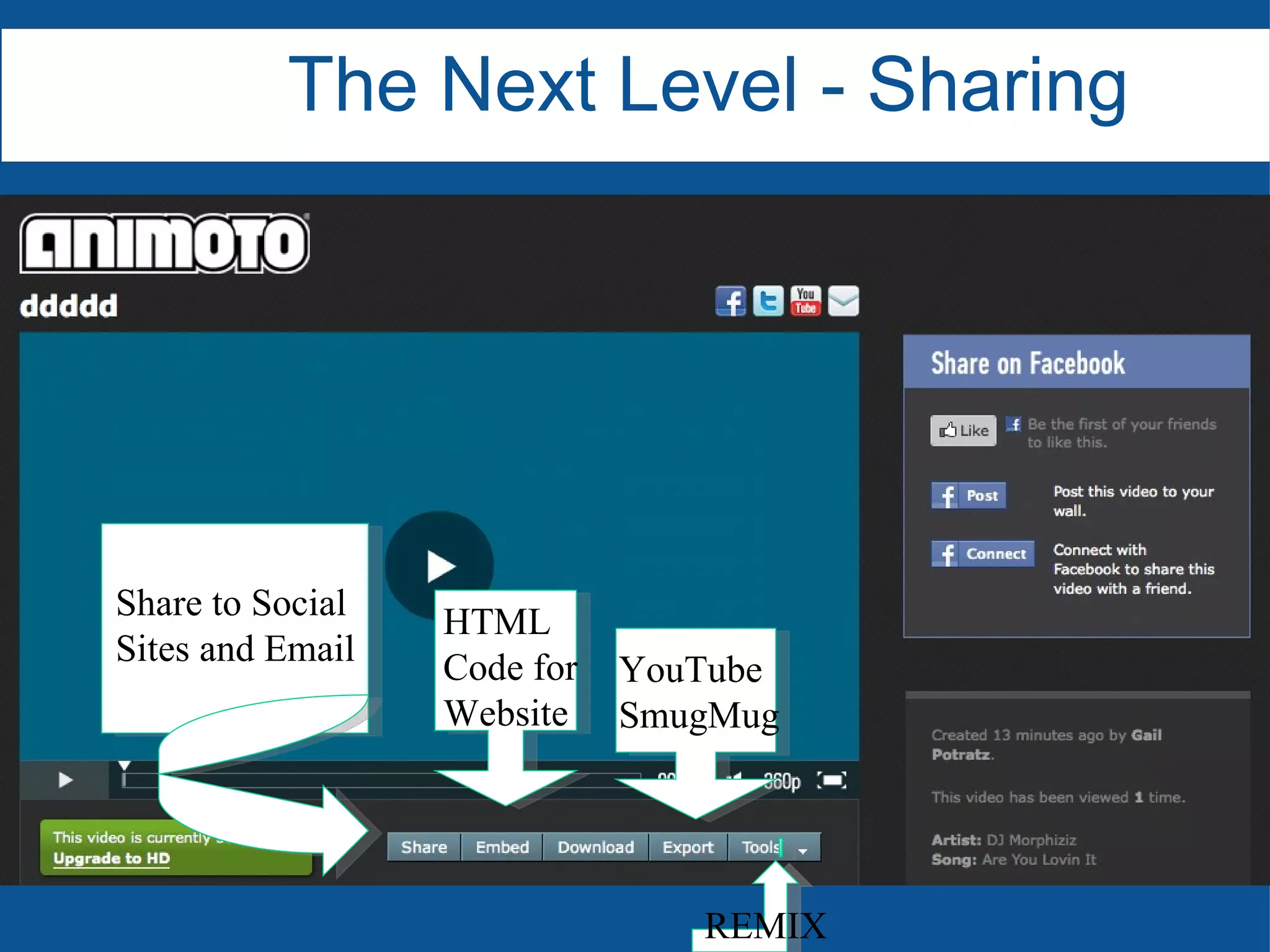
The Next Level - Sharing REMIX YouTube SmugMug HTML Code for Website Share to Social  Sites and Email
if you don’t like- REMIX Select multiple pics at once when images Mac:  Hold  Command  (  or ⌘) while clicking PC: Hold  CTRL  while clicking Student Accounts – Use a newly created Gmail account Four yourself and add students there. Do Not use your normal Gmail account Final Tips
How can we use this in the classroom? How can this kind of service ENHANCE what you are already doing? How can students use this? Discussion

How to Use Animoto

  • 1.
    Animoto… “ theend of the slideshow” Presented By: Gail Potratz & Brian Gannon
  • 2.
    Getting Started AnimotoAnimoto for Educators Note: Registering for Education takes few days Getting Started
  • 3.
    Click CREATE VIDEOto get started Choose a background – black? Sign up for free account screens Free: 30 second short videos Educators: Full-length videos free! Click Create Video – again. Create Video
  • 4.
  • 5.
    Arrange Images AddText for your slideshow where needed Choose important pictures to be SPOTLIGHTed by clicking Spotlight (adds extra attention to that image) – Duplicate to lengthen as well. Click CONTINUE after setting up images
  • 6.
    Choose Your MusicMake sure you follow Copyright/Fair Use/Creative Commons Guidelines if uploading your own music! Can preview each track by clicking PLAY. To select for your Animoto, click SELECT
  • 7.
    Music Settings Afterselecting music, you can choose where you want your music to START for your Animoto. Click SAVE & CONTINUE to proceed
  • 8.
    Finalize Video ChooseLength (Animoto Short for MDMC practice) Choose Image Pacing (how fast images will move) Choose one of your pictures to be the “cover” screen of the video Click Continue when finished to proceed
  • 9.
    Enter Video InfoFill out information about your video! Click CREATE VIDEO to proceed
  • 10.
  • 11.
    Create and Postand Animoto Video of MDMC 2011 Animoto
  • 12.
    The Next Level- Sharing REMIX YouTube SmugMug HTML Code for Website Share to Social Sites and Email
  • 13.
    if you don’tlike- REMIX Select multiple pics at once when images Mac: Hold Command (  or ⌘) while clicking PC: Hold CTRL while clicking Student Accounts – Use a newly created Gmail account Four yourself and add students there. Do Not use your normal Gmail account Final Tips
  • 14.
    How can weuse this in the classroom? How can this kind of service ENHANCE what you are already doing? How can students use this? Discussion