Ironically, a slideshow on eliminating slide shows.
 A web application that allows users to upload
photos or video, add music and relax while
the application creates a video for you.
Click to see Animoto’s 60 second description
 Turnhere.com (charges professional to do it)
 YouTube editor (just video)
 Flip Camera (must have the flip camera)
 Microsoft Movie Maker/ iMovie (just movie)
 Vuvox, Scrapblog and Slide.com (just photo,
no video or music)
 Flextor and Onimosio (similar but were
eliminated several years ago.)
 A 30 second video can be created in 20
minutes
 If you are prepared with the content you wish to
upload.
 Unique
 No two videos are alike!
 Professional look
 People will be amazed at the quality.
 The video is tailored to the speed of the
music you choose.
 No two Animoto videos are alike!
 You can have them remix it several times
 Easy to upload or export anywhere!
“750,000 people sign up
in three days. At the
peak, almost 25,000
people tried Animoto in
a single hour.”
"[The technology] takes a body of
music, looks at all the nuances--like the
beat, the tempo and the energy--and
figures out how to juxtapose the
imagery on top of that so the whole
thing feels like one consolidated piece
that evokes the intended emotional
experience."
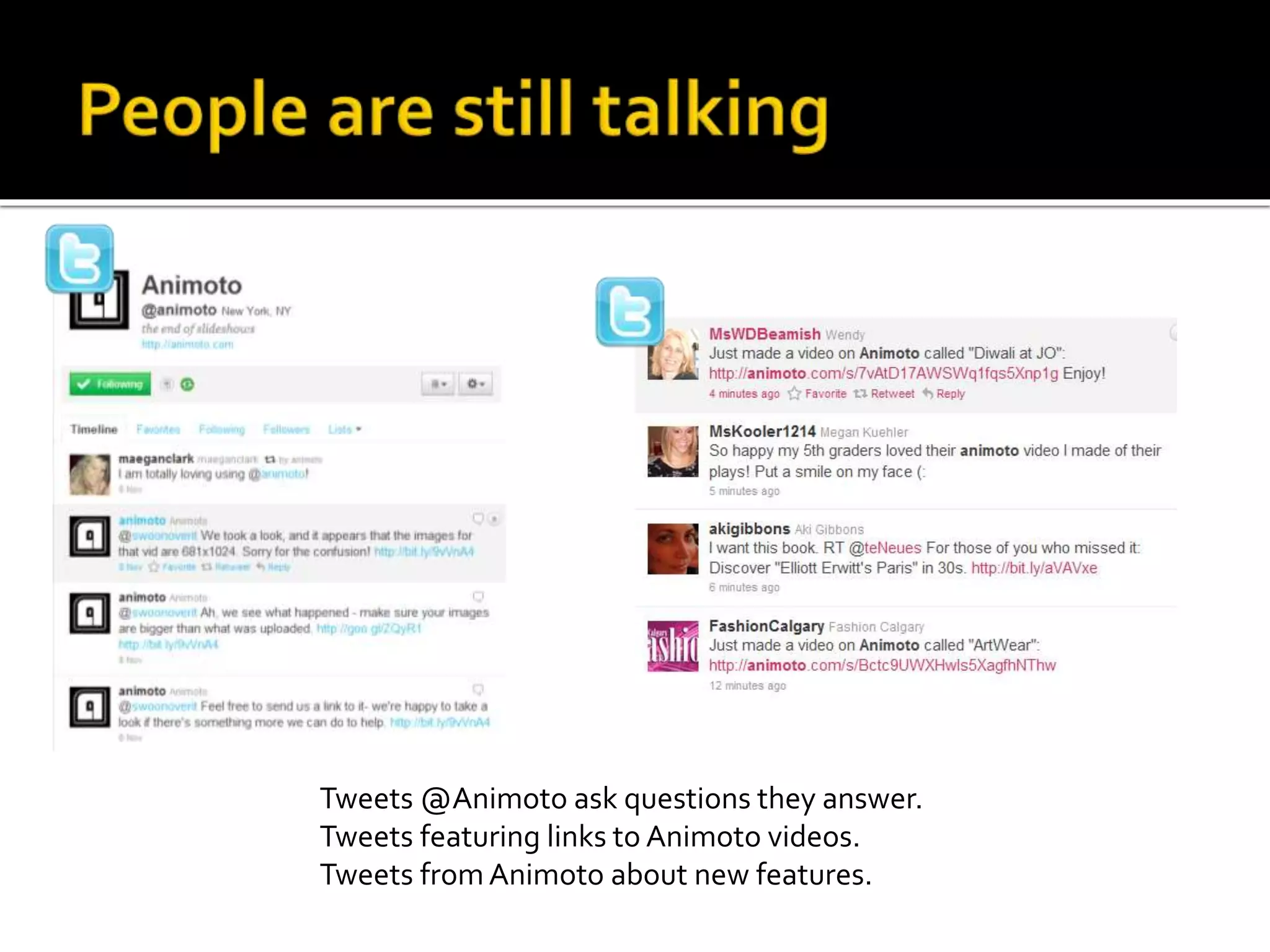
Tweets @Animoto ask questions they answer.
Tweets featuring links to Animoto videos.
Tweets from Animoto about new features.
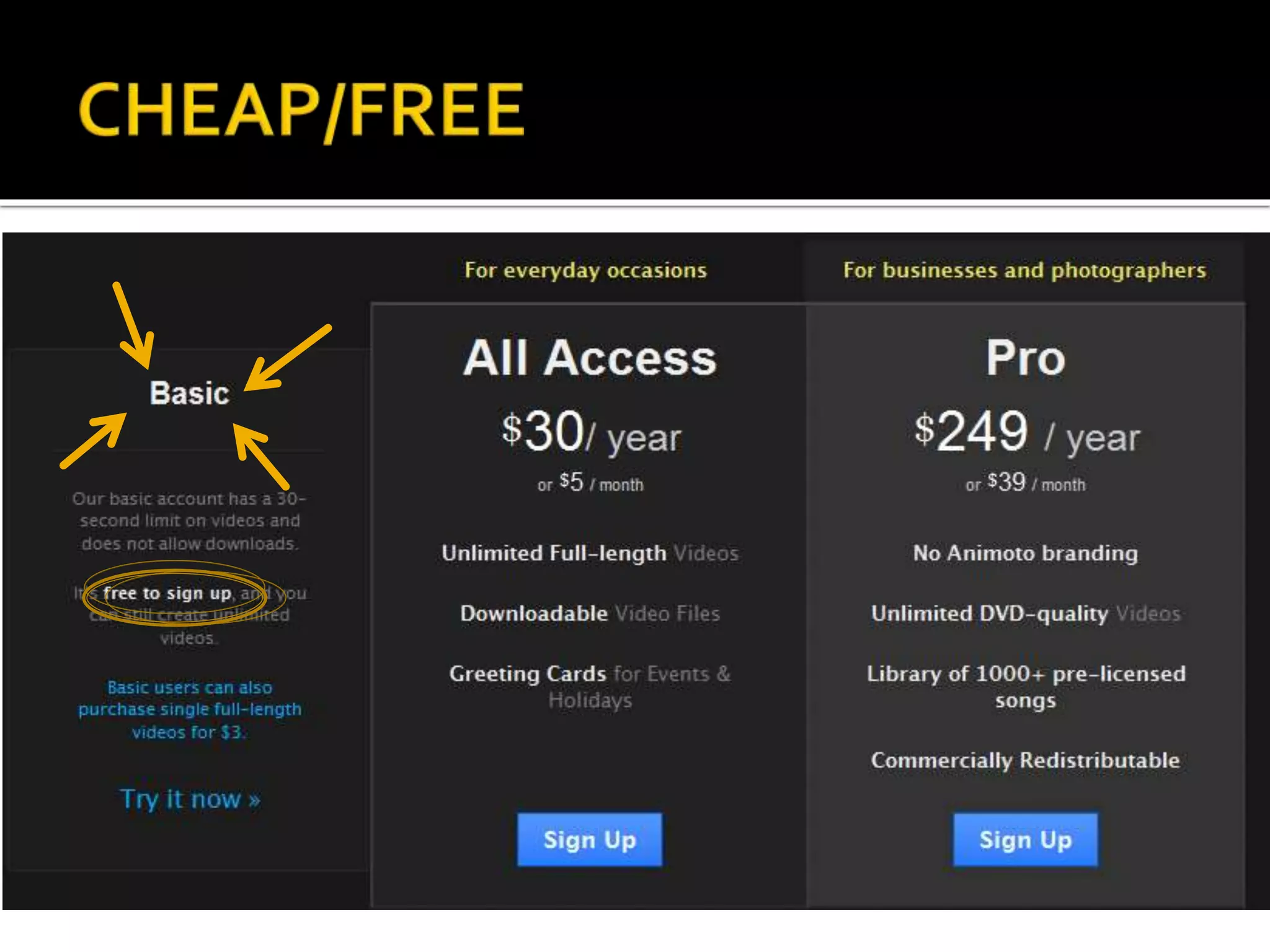
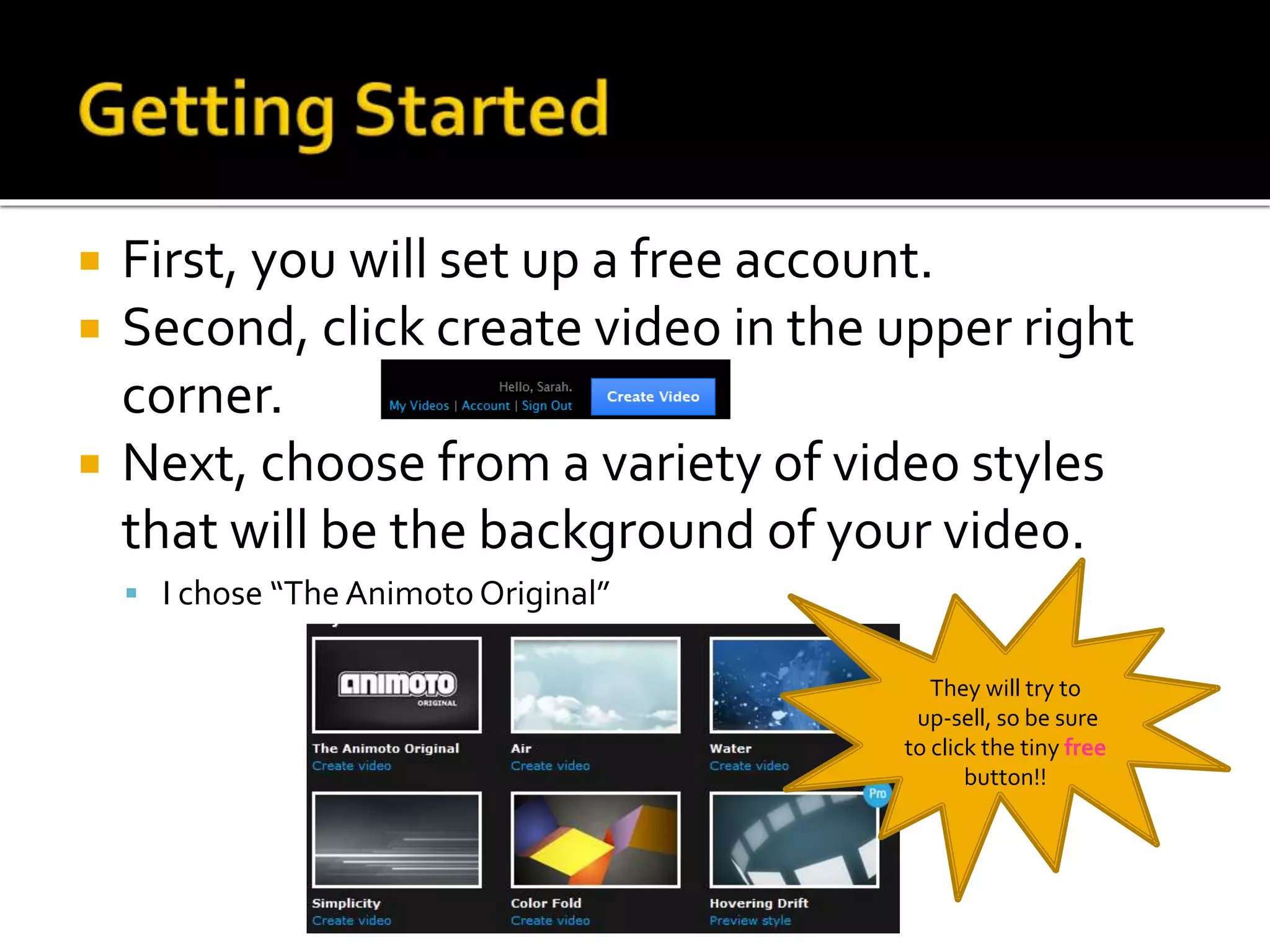
 First, you will set up a free account.
 Second, click create video in the upper right
corner.
 Next, choose from a variety of video styles
that will be the background of your video.
 I chose “The Animoto Original”
They will try to
up-sell, so be sure
to click the tiny free
button!!
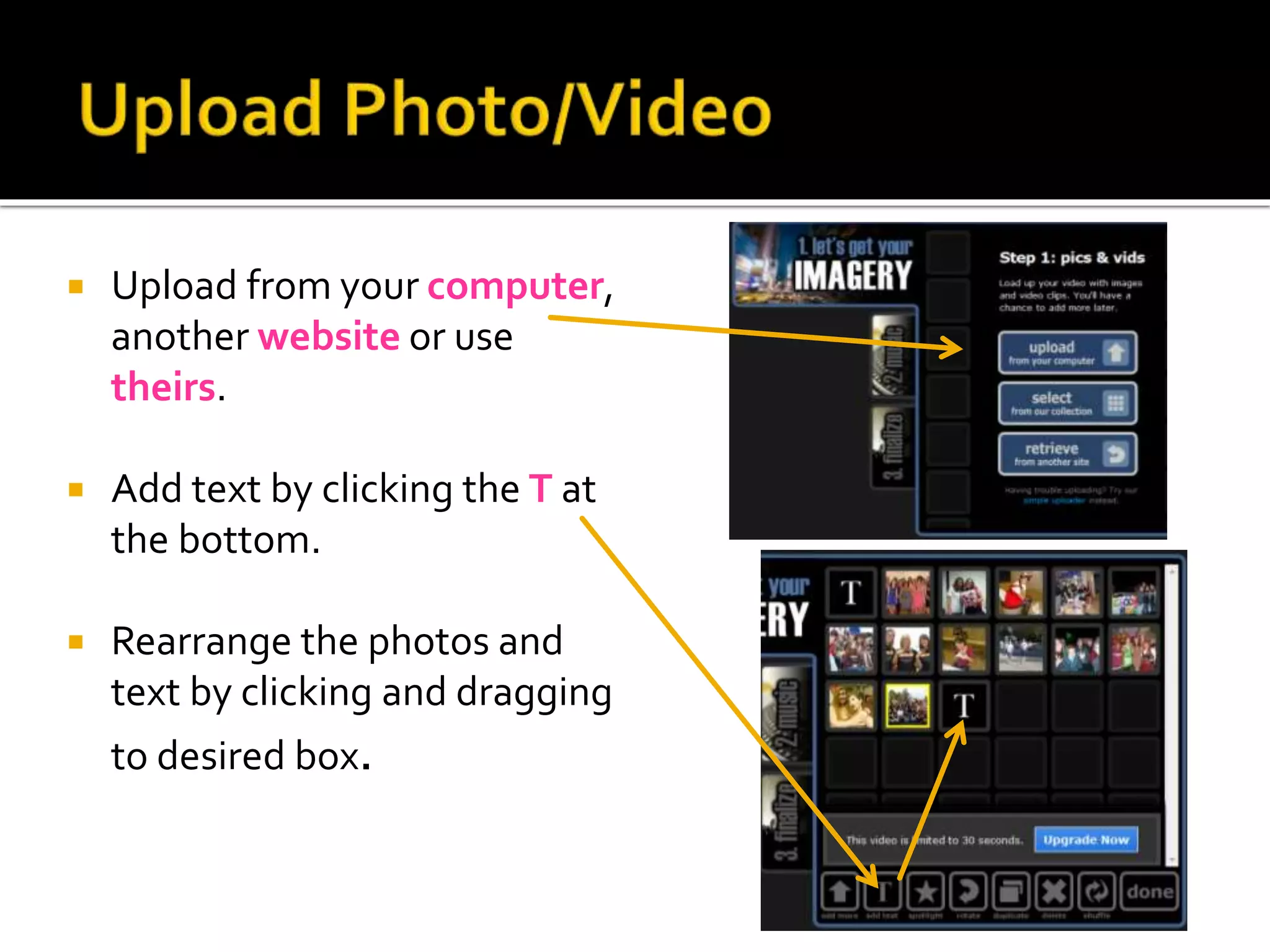
 Upload from your computer,
another website or use
theirs.
 Add text by clicking the T at
the bottom.
 Rearrange the photos and
text by clicking and dragging
to desired box.
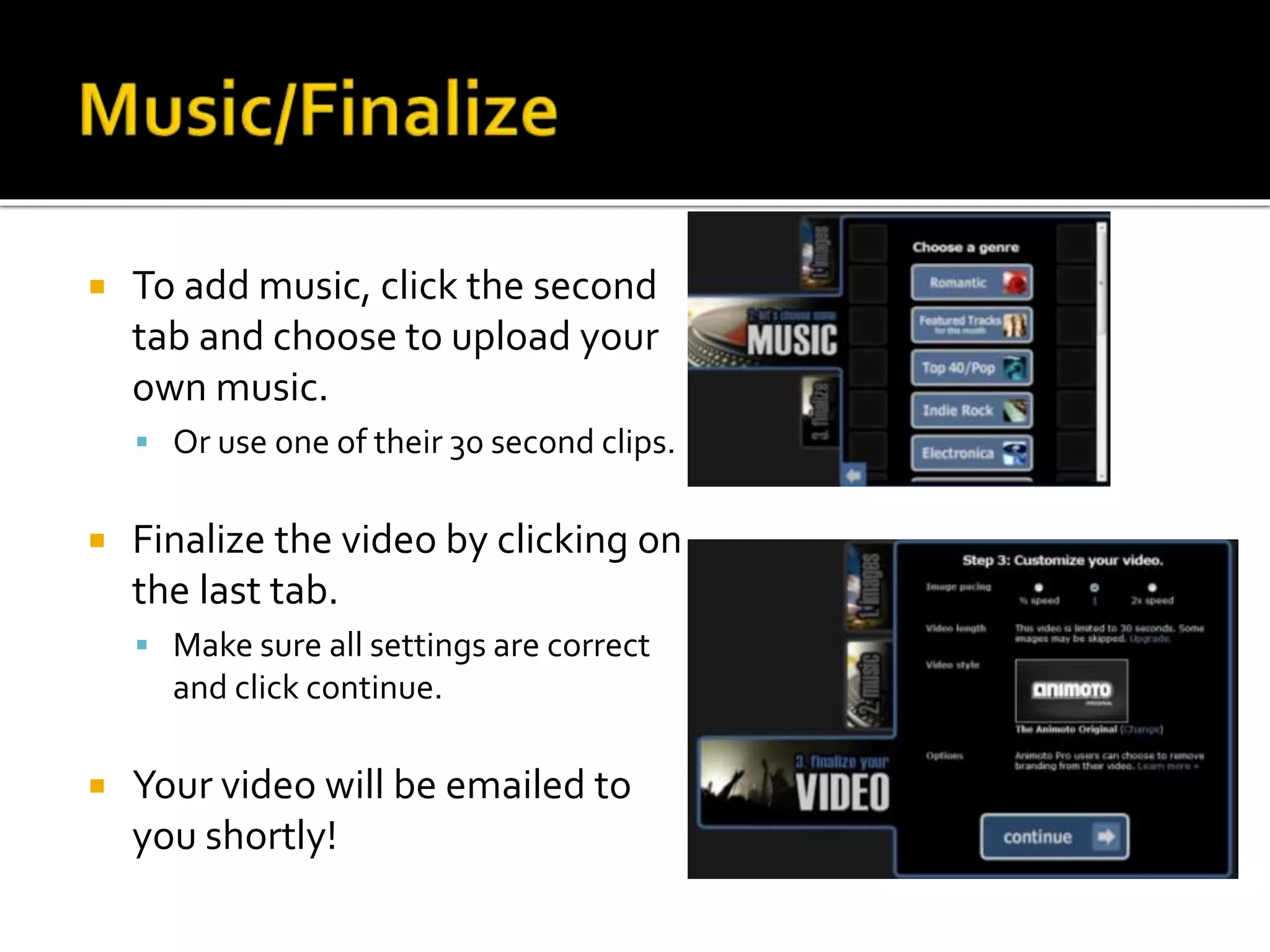
 To add music, click the second
tab and choose to upload your
own music.
 Or use one of their 30 second clips.
 Finalize the video by clicking on
the last tab.
 Make sure all settings are correct
and click continue.
 Your video will be emailed to
you shortly!
Animoto (How To)
Animoto (How To)

Animoto (How To)

  • 1.
    Ironically, a slideshowon eliminating slide shows.
  • 2.
     A webapplication that allows users to upload photos or video, add music and relax while the application creates a video for you. Click to see Animoto’s 60 second description
  • 4.
     Turnhere.com (chargesprofessional to do it)  YouTube editor (just video)  Flip Camera (must have the flip camera)  Microsoft Movie Maker/ iMovie (just movie)  Vuvox, Scrapblog and Slide.com (just photo, no video or music)  Flextor and Onimosio (similar but were eliminated several years ago.)
  • 5.
     A 30second video can be created in 20 minutes  If you are prepared with the content you wish to upload.  Unique  No two videos are alike!  Professional look  People will be amazed at the quality.
  • 6.
     The videois tailored to the speed of the music you choose.  No two Animoto videos are alike!  You can have them remix it several times  Easy to upload or export anywhere!
  • 8.
    “750,000 people signup in three days. At the peak, almost 25,000 people tried Animoto in a single hour.” "[The technology] takes a body of music, looks at all the nuances--like the beat, the tempo and the energy--and figures out how to juxtapose the imagery on top of that so the whole thing feels like one consolidated piece that evokes the intended emotional experience."
  • 9.
    Tweets @Animoto askquestions they answer. Tweets featuring links to Animoto videos. Tweets from Animoto about new features.
  • 11.
     First, youwill set up a free account.  Second, click create video in the upper right corner.  Next, choose from a variety of video styles that will be the background of your video.  I chose “The Animoto Original” They will try to up-sell, so be sure to click the tiny free button!!
  • 12.
     Upload fromyour computer, another website or use theirs.  Add text by clicking the T at the bottom.  Rearrange the photos and text by clicking and dragging to desired box.
  • 13.
     To addmusic, click the second tab and choose to upload your own music.  Or use one of their 30 second clips.  Finalize the video by clicking on the last tab.  Make sure all settings are correct and click continue.  Your video will be emailed to you shortly!