How to turn your
presentation into a
conversation
“Let’s chat”
vs
“I’m going to stand and talk at
you for 30 minutes”
Which one catches your interest?
“Any questions?”
How many times have you
asked “Any questions?” but the
room remained silent?
At Spiral, we’ve built a
tool that sparks
conversation from your
presentations.
Here’s a run-through of how that works…
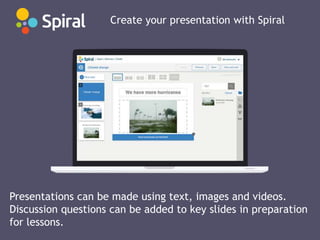
Create your presentation with Spiral
Presentations can be made using text, images and videos.
Discussion questions can be added to key slides in preparation
for lessons.
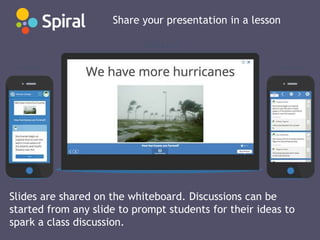
Share your presentation in a lesson
Slides are shared on the whiteboard. Discussions can be
started from any slide to prompt students for their ideas to
spark a class discussion.
Start the discussion in your classroom
Students can see, and respond to, anonymous comments from
the class. The teacher can review students' comments on their
mobile device, starring good ideas and managing discussion
points.
Share discussion highlights
The teacher can pause the discussion to bring students’
attention back to the board – where high level ideas can be
celebrated, triggering a verbal discussion. Common
misconceptions can also be addressed.
For more tips in how to use Spiral
in your classroom,
email billy@spiral.ac
http://spiral.ac/r/slideshare

How to turn your presentation into a conversation

  • 1.
    How to turnyour presentation into a conversation
  • 2.
    “Let’s chat” vs “I’m goingto stand and talk at you for 30 minutes” Which one catches your interest?
  • 3.
    “Any questions?” How manytimes have you asked “Any questions?” but the room remained silent?
  • 4.
    At Spiral, we’vebuilt a tool that sparks conversation from your presentations. Here’s a run-through of how that works…
  • 5.
    Create your presentationwith Spiral Presentations can be made using text, images and videos. Discussion questions can be added to key slides in preparation for lessons.
  • 6.
    Share your presentationin a lesson Slides are shared on the whiteboard. Discussions can be started from any slide to prompt students for their ideas to spark a class discussion.
  • 7.
    Start the discussionin your classroom Students can see, and respond to, anonymous comments from the class. The teacher can review students' comments on their mobile device, starring good ideas and managing discussion points.
  • 8.
    Share discussion highlights Theteacher can pause the discussion to bring students’ attention back to the board – where high level ideas can be celebrated, triggering a verbal discussion. Common misconceptions can also be addressed.
  • 9.
    For more tipsin how to use Spiral in your classroom, email billy@spiral.ac http://spiral.ac/r/slideshare