SlideShare: Amazing Resource for Educators Rene M. Lafayette, M.Ed. May 17, 2011
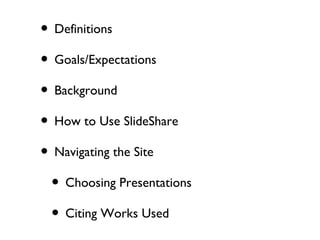
Definitions Goals/Expectations Background How to Use SlideShare Navigating the Site Choosing Presentations Citing Works Used
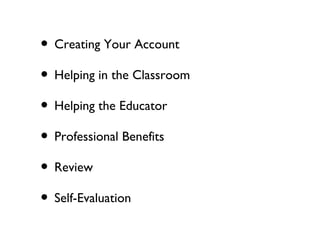
Creating Your Account Helping in the Classroom Helping the Educator Professional Benefits Review Self-Evaluation
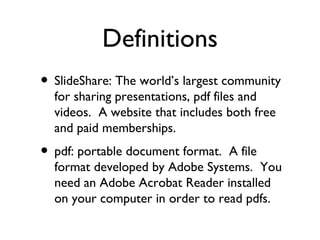
SlideShare: The world’s largest community for sharing presentations, pdf files and videos.  A website that includes both free and paid memberships. pdf: portable document format.  A file format developed by Adobe Systems.  You need an Adobe Acrobat Reader installed on your computer in order to read pdfs. Definitions
Goals/Expectations Participants will familiarize themselves with the SlideShare website ( www.slideshare.net ). Participants will be able to review, compare and select presentations for their use. Participants will learn how to download presentations for future use. Participants will create an account for further use.
Background Founded October 2006. 50 million visitors per month. Corporate HQ New Delhi, India. American HQ San Francisco, CA. Allied with Twitter, Linkedin, XING, freeconference.com Current employees 30.
McGraw-Hill IBM Pfizer Bill & Melinda Gates Foundation NASA The White House Who Uses SlideShare?
Shouldn’t You?
How to Use SlideShare Go to  www.slideshare.net Take a few moments to review the home page Scroll down, find the “Learn About Us” and click on “About” Click on the presentation: “SlideShare why you should use it”
Choosing Presentations After you have viewed the presentation, go back to the home page and surf any of the sections in the middle of the page “Top Presentations of the Day” or “Featured” or “Hot on Facebook” or “Hot on Twitter” or “Hot on Linkedin.” Alternately, enter a subject in the search box.
SlideShare in the Classroom The obvious application is using a presentation you have found and sharing it with your students. Additionally, you can download most presentations then remix or revise them to fit your class. By uploading your presentations you can share your findings with the world.
Create an Account From the home page click on “create an account” and follow the directions. Now you can upload your powerpoint. Once completed, congratulations, you are now published on the Internet!
Professional Benefits Published – your presentation counts as a publication. Marketing your knowledge and interests (globally). Validates you as a “life-long learner.”
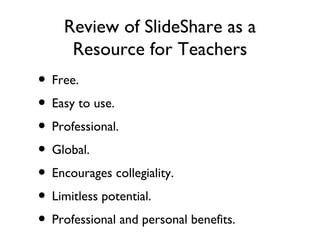
Review of SlideShare as a Resource for Teachers Free. Easy to use. Professional. Global. Encourages collegiality. Limitless potential. Professional and personal benefits.
Thank You for Participating in this Workshop Before leaving, please take a moment to complete the survey.  (Your ticket to leave.)

Slide share workshop

  • 1.
    SlideShare: Amazing Resourcefor Educators Rene M. Lafayette, M.Ed. May 17, 2011
  • 2.
    Definitions Goals/Expectations BackgroundHow to Use SlideShare Navigating the Site Choosing Presentations Citing Works Used
  • 3.
    Creating Your AccountHelping in the Classroom Helping the Educator Professional Benefits Review Self-Evaluation
  • 4.
    SlideShare: The world’slargest community for sharing presentations, pdf files and videos. A website that includes both free and paid memberships. pdf: portable document format. A file format developed by Adobe Systems. You need an Adobe Acrobat Reader installed on your computer in order to read pdfs. Definitions
  • 5.
    Goals/Expectations Participants willfamiliarize themselves with the SlideShare website ( www.slideshare.net ). Participants will be able to review, compare and select presentations for their use. Participants will learn how to download presentations for future use. Participants will create an account for further use.
  • 6.
    Background Founded October2006. 50 million visitors per month. Corporate HQ New Delhi, India. American HQ San Francisco, CA. Allied with Twitter, Linkedin, XING, freeconference.com Current employees 30.
  • 7.
    McGraw-Hill IBM PfizerBill & Melinda Gates Foundation NASA The White House Who Uses SlideShare?
  • 8.
  • 9.
    How to UseSlideShare Go to www.slideshare.net Take a few moments to review the home page Scroll down, find the “Learn About Us” and click on “About” Click on the presentation: “SlideShare why you should use it”
  • 10.
    Choosing Presentations Afteryou have viewed the presentation, go back to the home page and surf any of the sections in the middle of the page “Top Presentations of the Day” or “Featured” or “Hot on Facebook” or “Hot on Twitter” or “Hot on Linkedin.” Alternately, enter a subject in the search box.
  • 11.
    SlideShare in theClassroom The obvious application is using a presentation you have found and sharing it with your students. Additionally, you can download most presentations then remix or revise them to fit your class. By uploading your presentations you can share your findings with the world.
  • 12.
    Create an AccountFrom the home page click on “create an account” and follow the directions. Now you can upload your powerpoint. Once completed, congratulations, you are now published on the Internet!
  • 13.
    Professional Benefits Published– your presentation counts as a publication. Marketing your knowledge and interests (globally). Validates you as a “life-long learner.”
  • 14.
    Review of SlideShareas a Resource for Teachers Free. Easy to use. Professional. Global. Encourages collegiality. Limitless potential. Professional and personal benefits.
  • 15.
    Thank You forParticipating in this Workshop Before leaving, please take a moment to complete the survey. (Your ticket to leave.)