
Manage users with
                     Docebo tools


Customize the organization chart
Course purpose and index


                    This course is useful to learn how to manage a
                     database with all the information about your
                                         users.

                           The course is divided in 3 lessons:
                            • Create an organization chart
                              • Additional fields usage
                                   • Groups usage
Create an organization chart


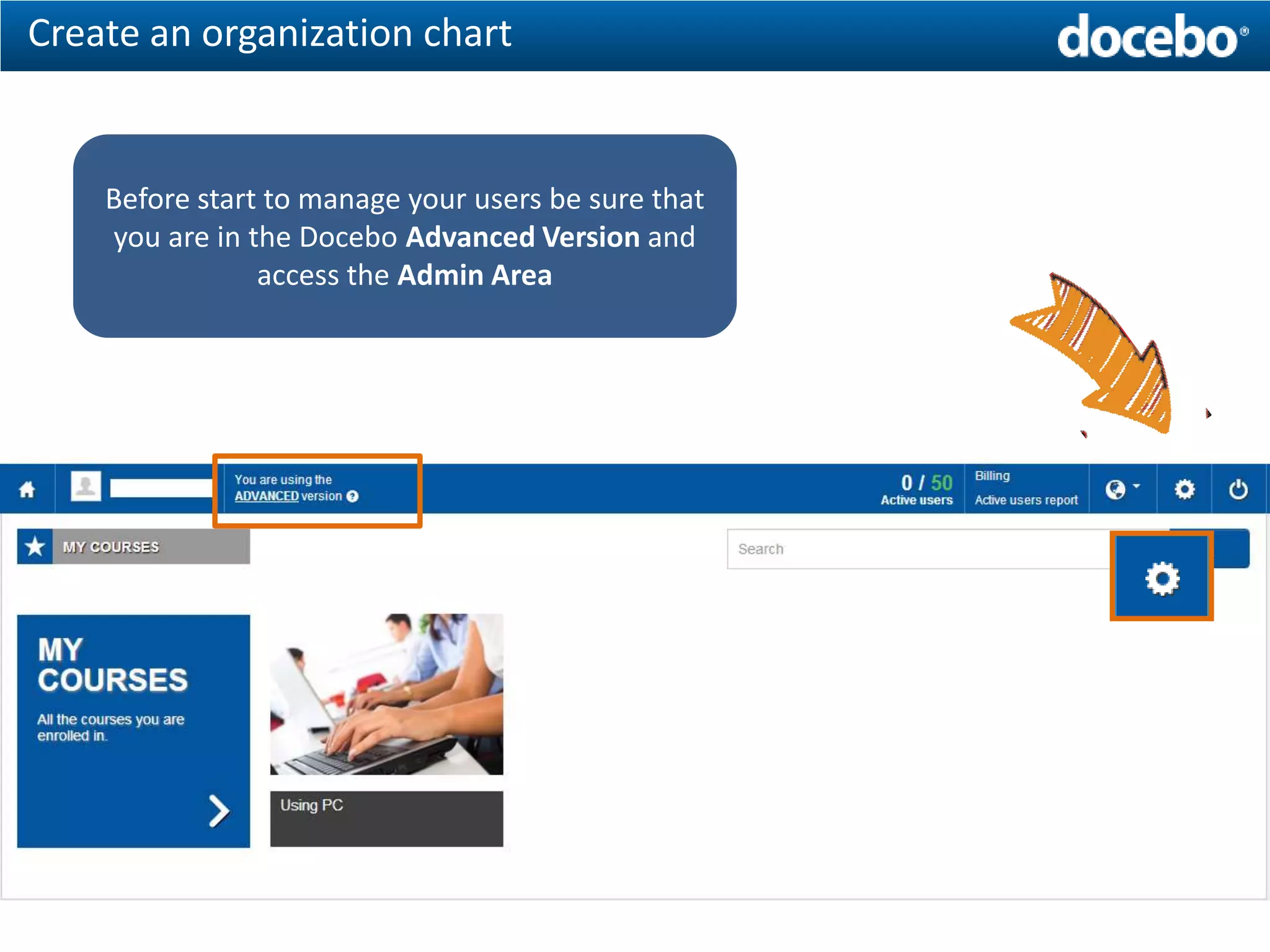
    Before start to manage your users be sure that
    you are in the Docebo Advanced Version and
                access the Admin Area
Create an organization chart


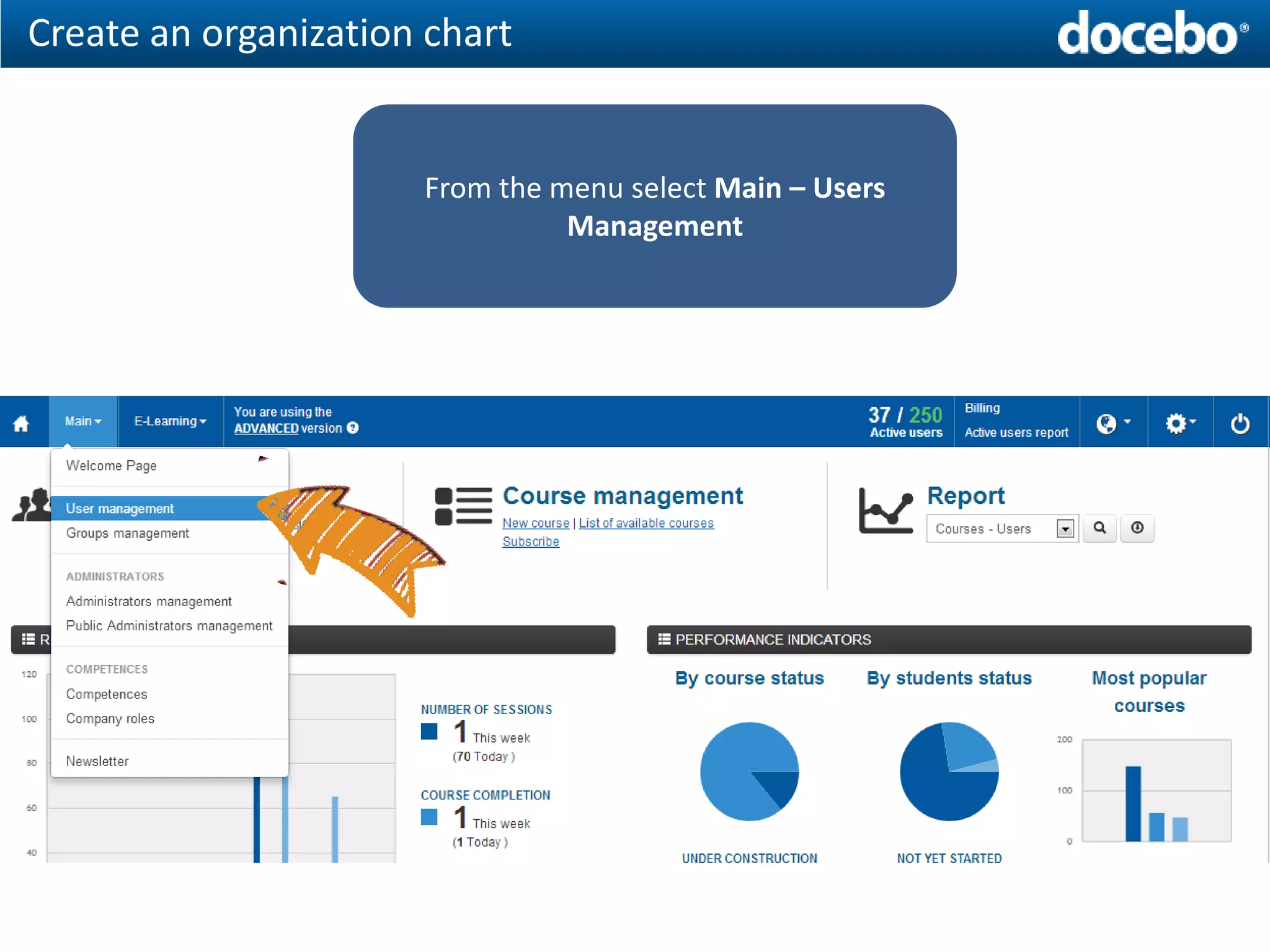
                      From the menu select Main – Users
                                Management
Create an organization chart


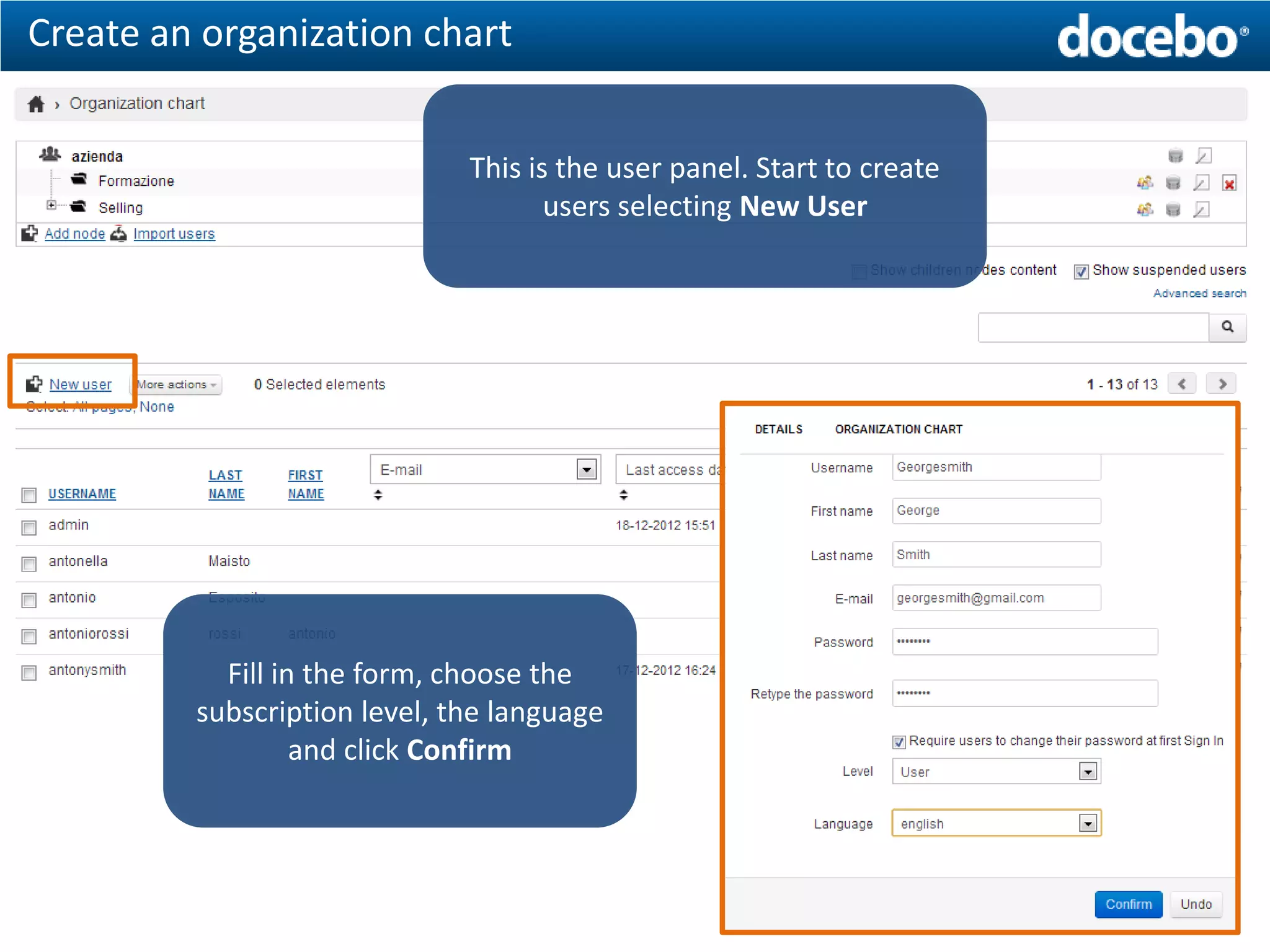
                              This is the user panel. Start to create
                                     users selecting New User


           Fill in the form, choose the
         subscription level, the language
                  and click Confirm
Create an organization chart


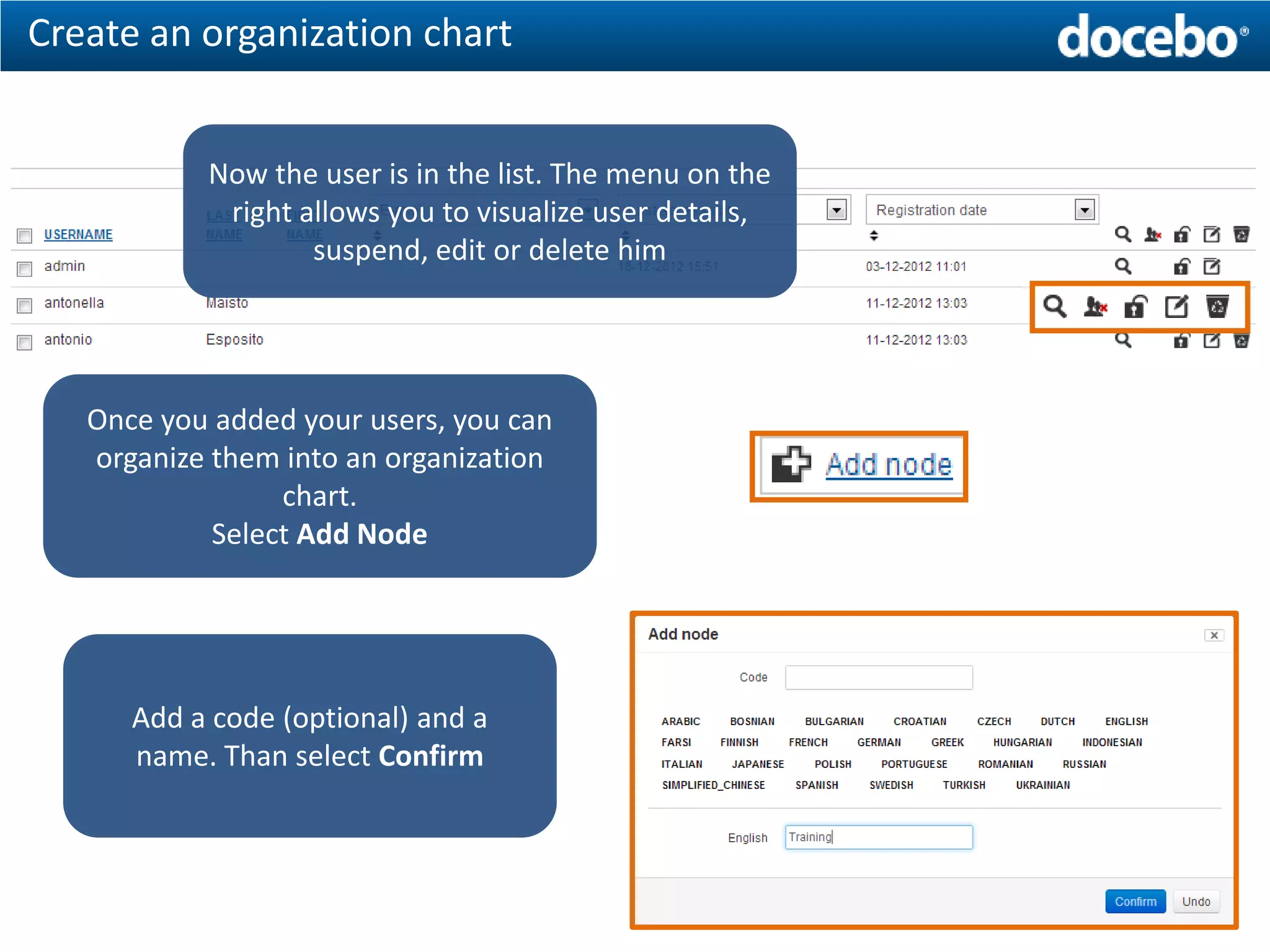
           Now the user is in the list. The menu on the
            right allows you to visualize user details,
                   suspend, edit or delete him


   Once you added your users, you can
   organize them into an organization
                 chart.
            Select Add Node


      Add a code (optional) and a
      name. Than select Confirm
Create an organization chart

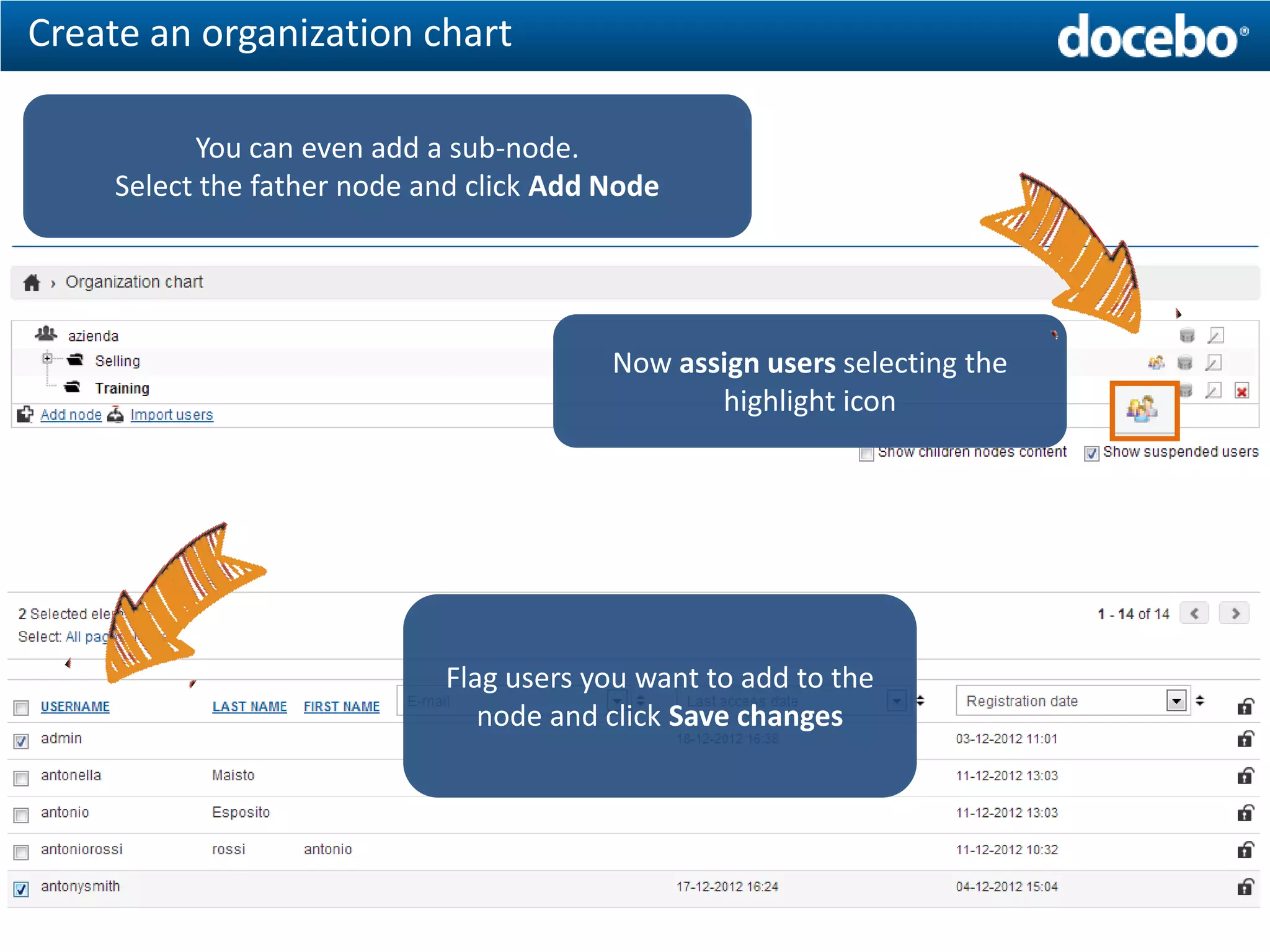
           You can even add a sub-node.
     Select the father node and click Add Node


                                          Now assign users selecting the
                                                 highlight icon


                             Flag users you want to add to the
                                node and click Save changes
Import users


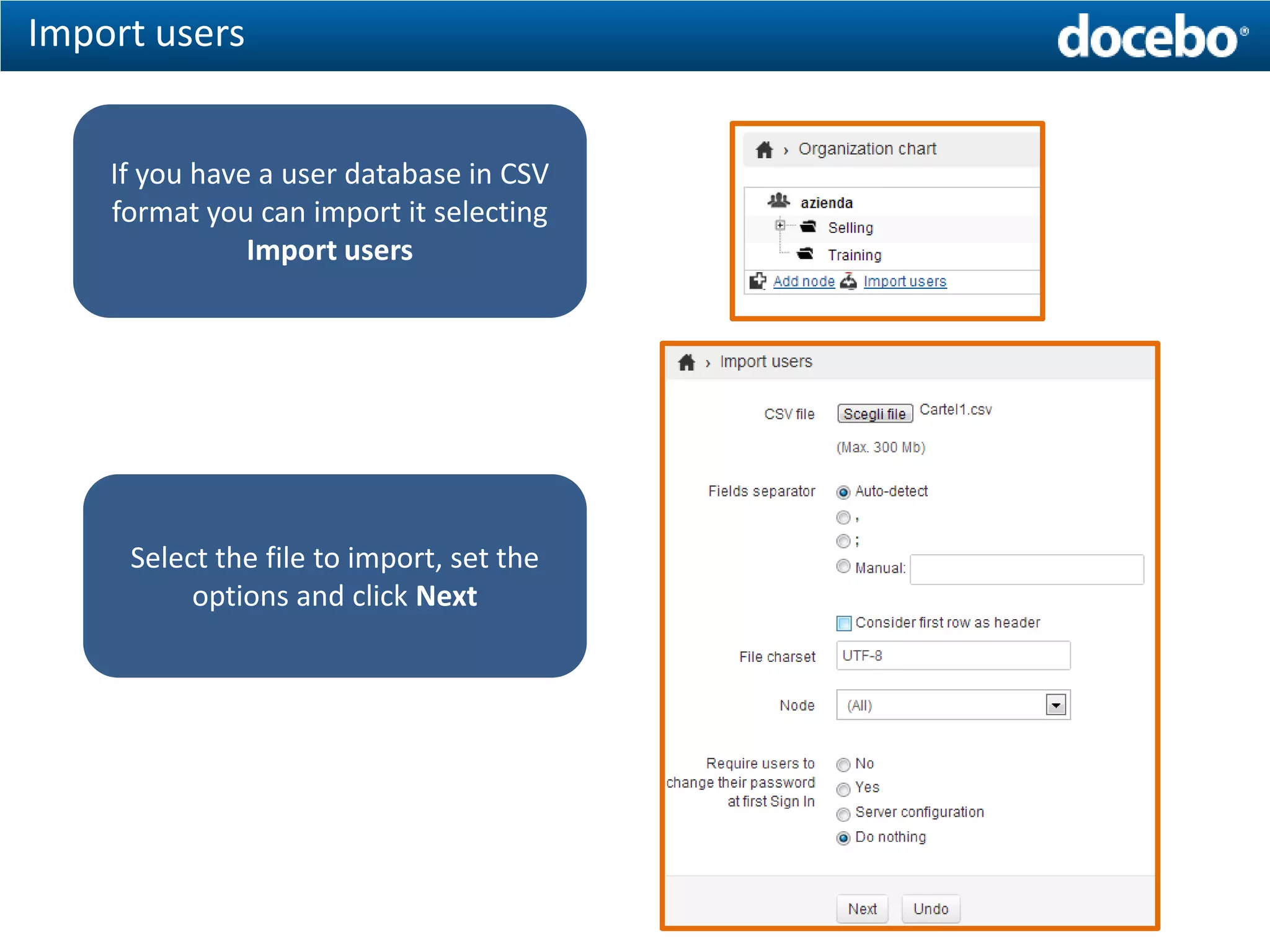
    If you have a user database in CSV
    format you can import it selecting
               Import users


     Select the file to import, set the
          options and click Next
Import users


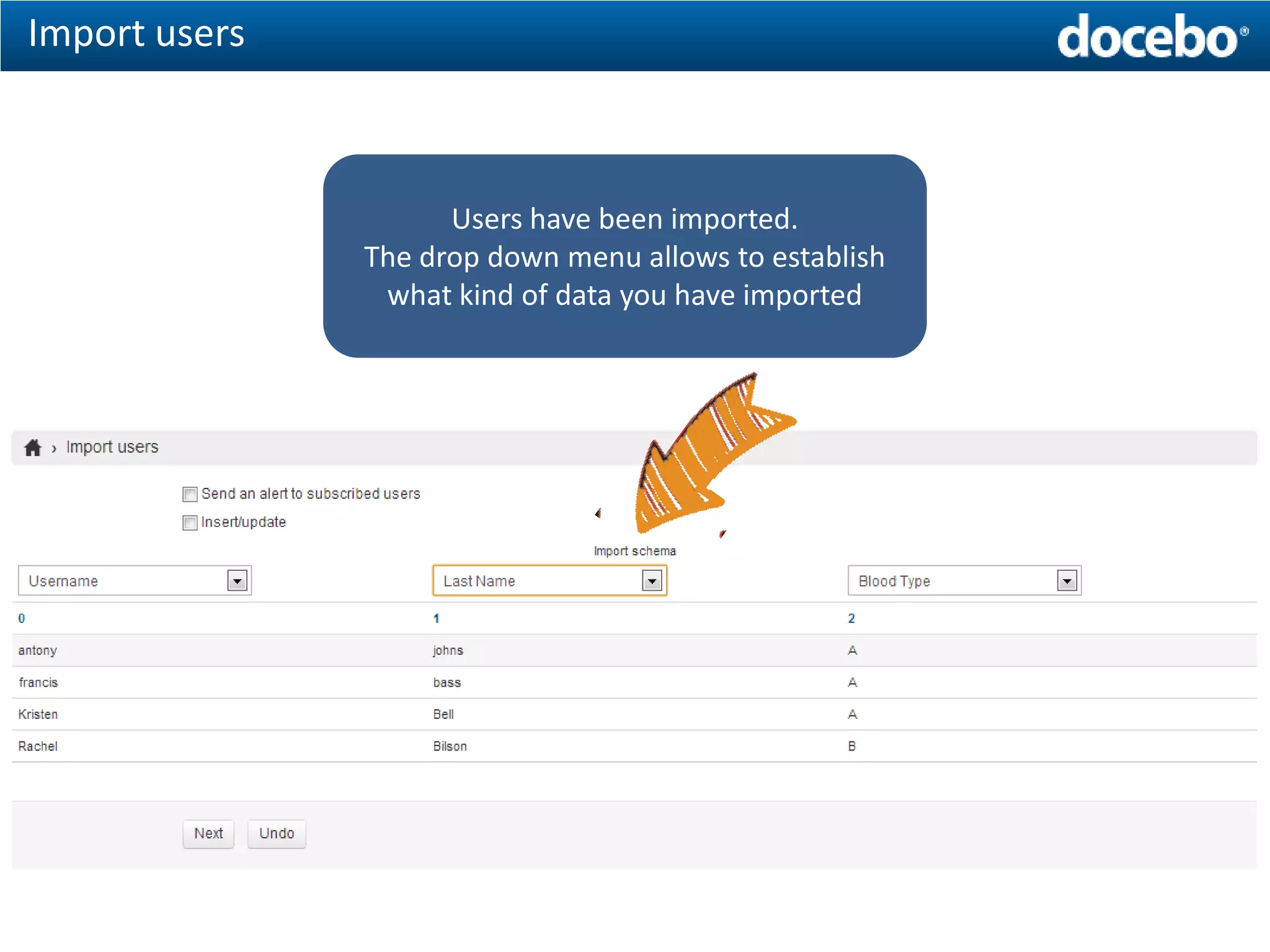
                     Users have been imported.
               The drop down menu allows to establish
                what kind of data you have imported
In the next lesson: Additional Fields

How to manage Users information with the Docebo E-Learning platform - Part 01: Organization Chart

  • 1.
    Manage users with Docebo tools Customize the organization chart
  • 2.
    Course purpose andindex This course is useful to learn how to manage a database with all the information about your users. The course is divided in 3 lessons: • Create an organization chart • Additional fields usage • Groups usage
  • 3.
    Create an organizationchart Before start to manage your users be sure that you are in the Docebo Advanced Version and access the Admin Area
  • 4.
    Create an organizationchart From the menu select Main – Users Management
  • 5.
    Create an organizationchart This is the user panel. Start to create users selecting New User Fill in the form, choose the subscription level, the language and click Confirm
  • 6.
    Create an organizationchart Now the user is in the list. The menu on the right allows you to visualize user details, suspend, edit or delete him Once you added your users, you can organize them into an organization chart. Select Add Node Add a code (optional) and a name. Than select Confirm
  • 7.
    Create an organizationchart You can even add a sub-node. Select the father node and click Add Node Now assign users selecting the highlight icon Flag users you want to add to the node and click Save changes
  • 8.
    Import users If you have a user database in CSV format you can import it selecting Import users Select the file to import, set the options and click Next
  • 9.
    Import users Users have been imported. The drop down menu allows to establish what kind of data you have imported
  • 10.
    In the nextlesson: Additional Fields