AutomatedVoting System
v.1.0
Hardware Requirements
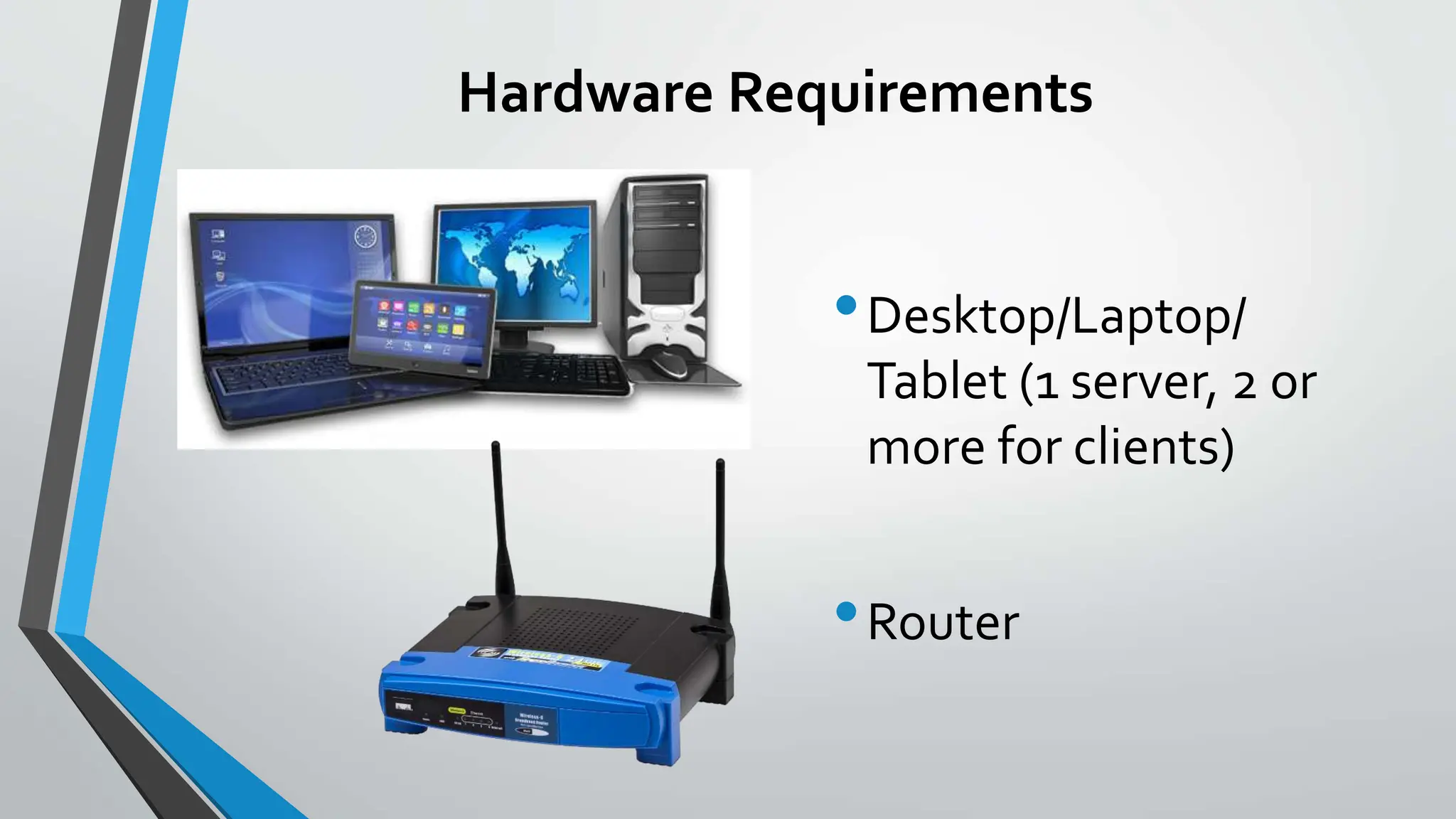
•Desktop/Laptop/
Tablet (1 server, 2 or
more for clients)
•Router
Software Requirements
Parts of AutomatedVoting System
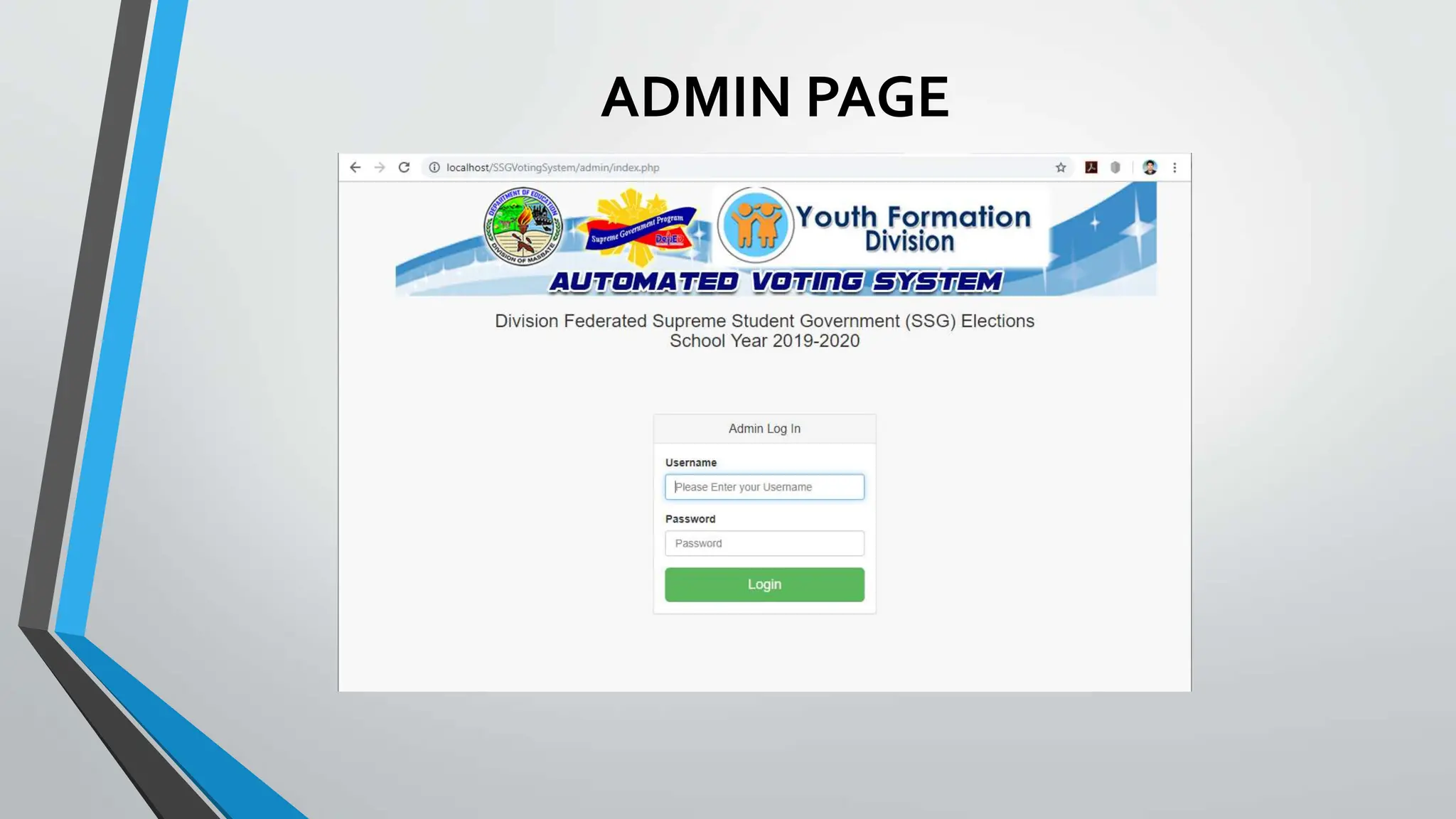
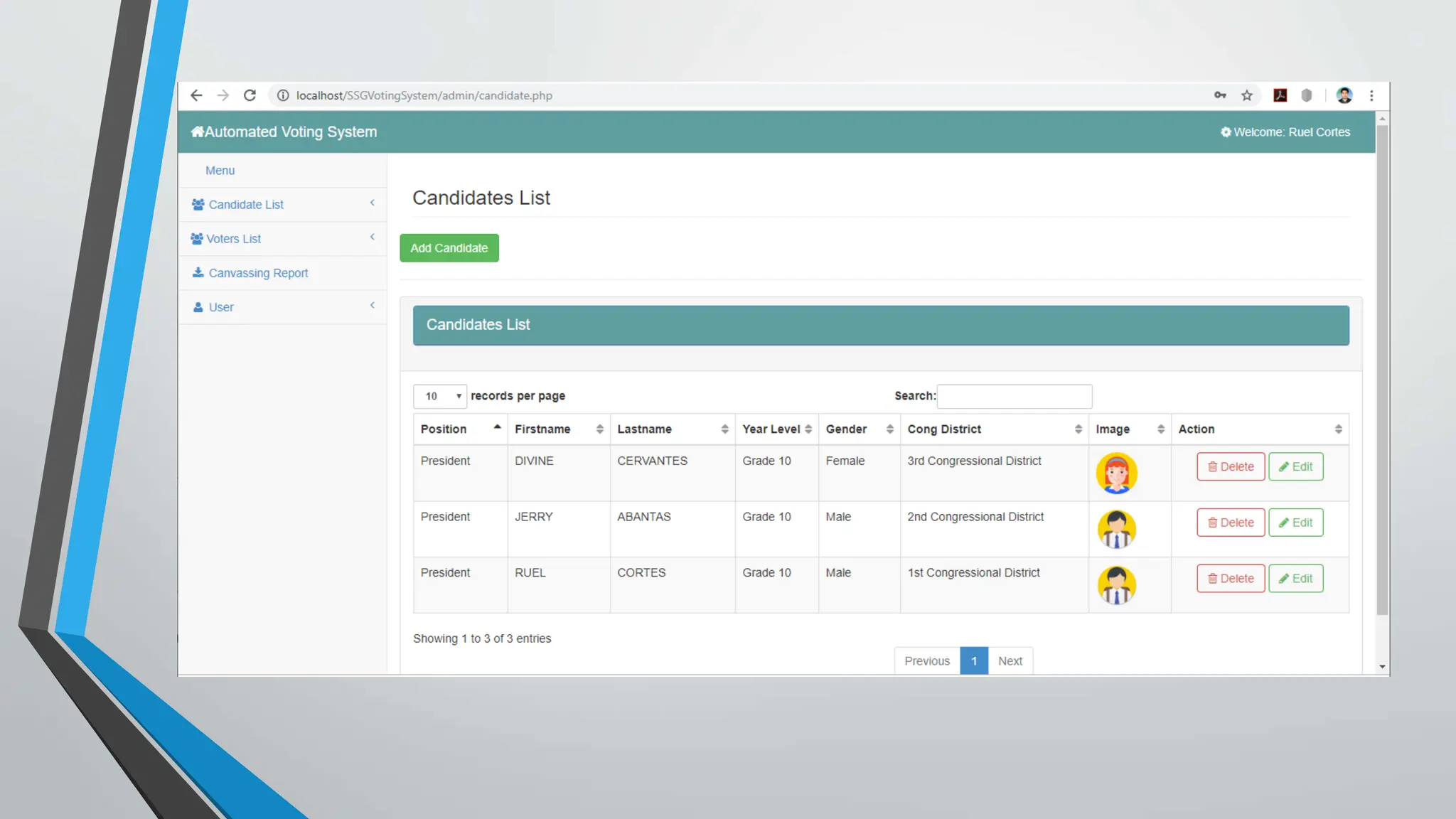
•Administrative (Server-side)
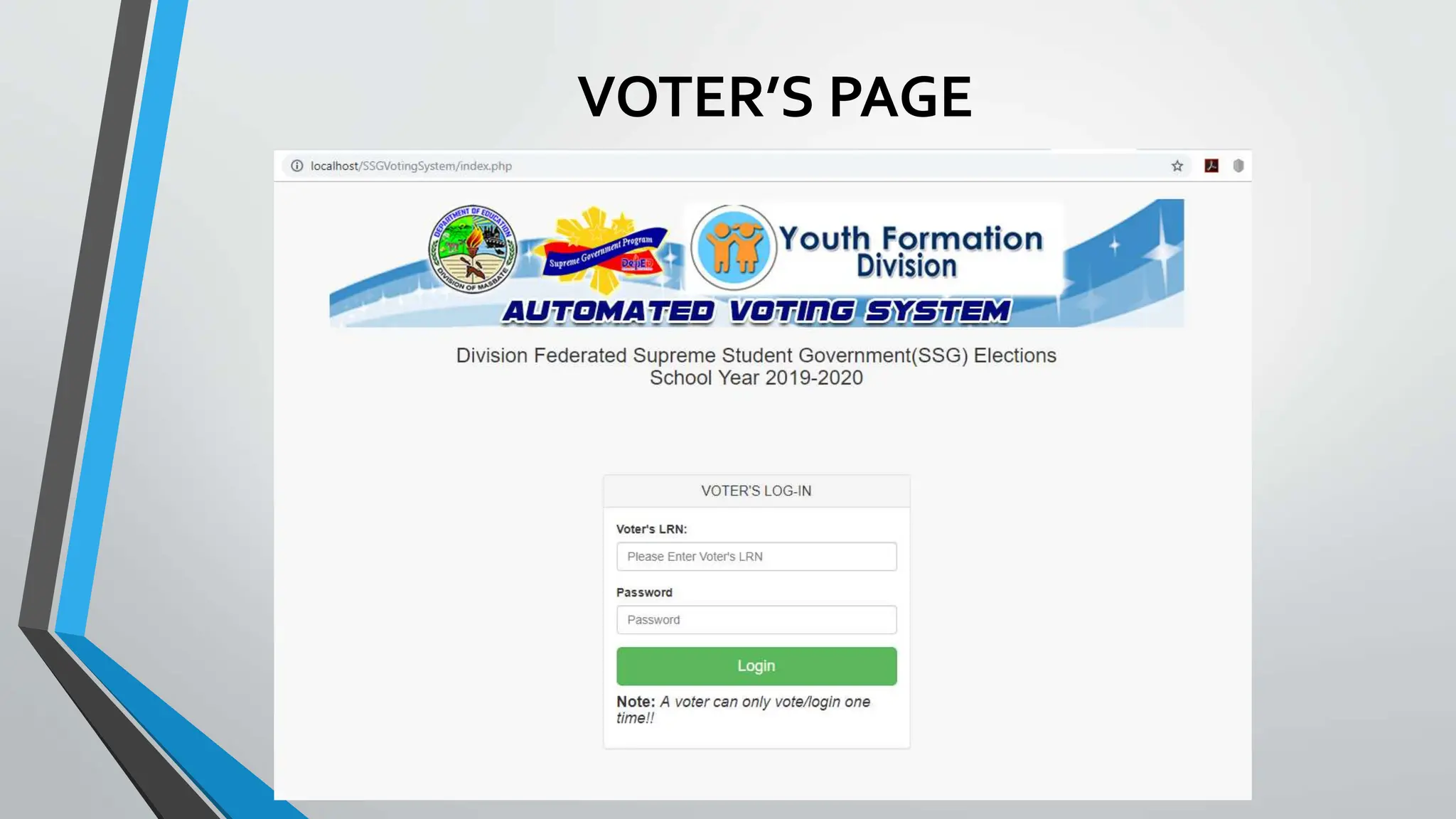
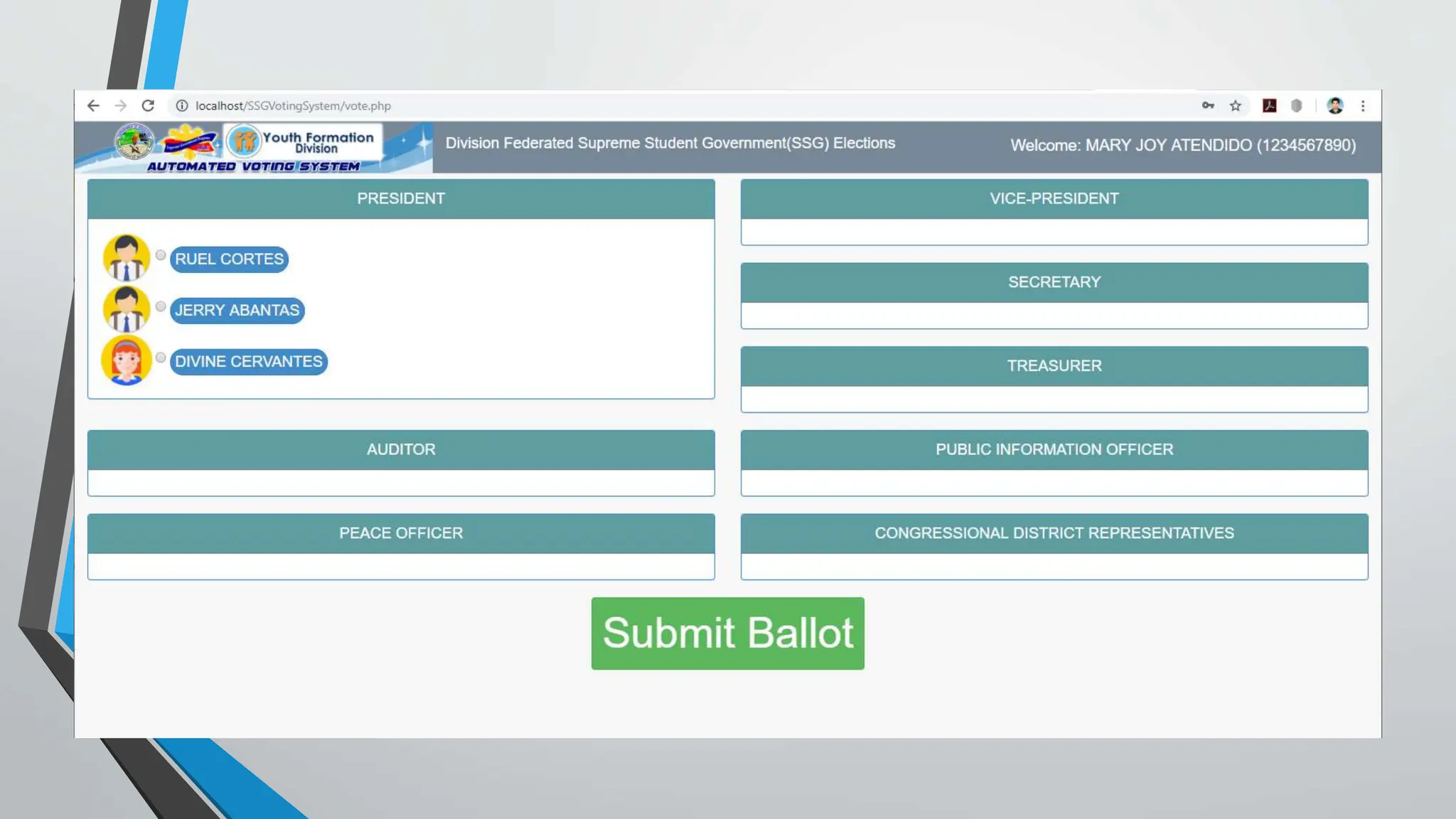
•Voting (Client-side)
ADMIN PAGE
VOTER’S PAGE
How to Install XAMPP forWindows
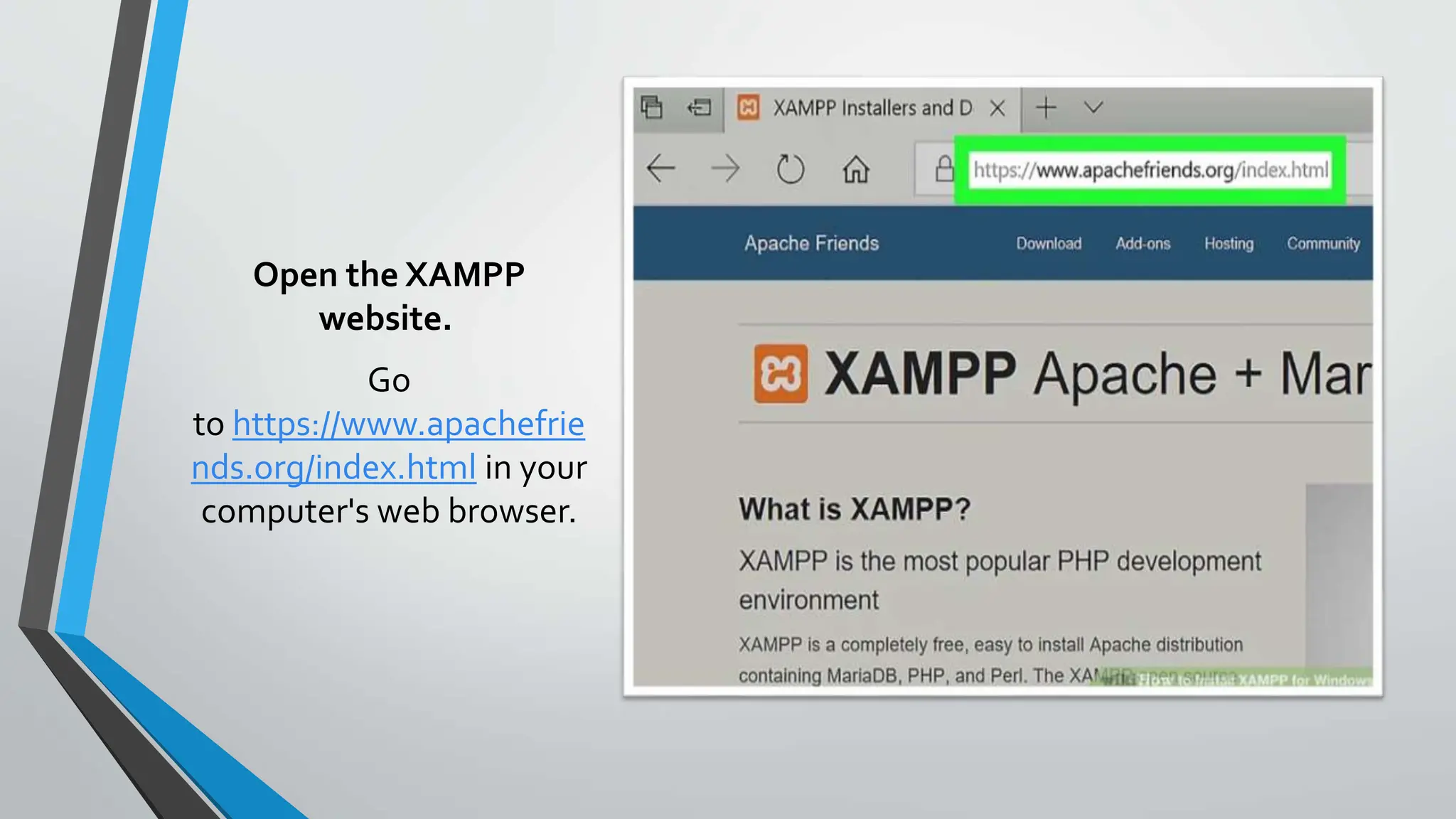
Open the XAMPP
website.
Go
to https://www.apachefrie
nds.org/index.html in your
computer's web browser.
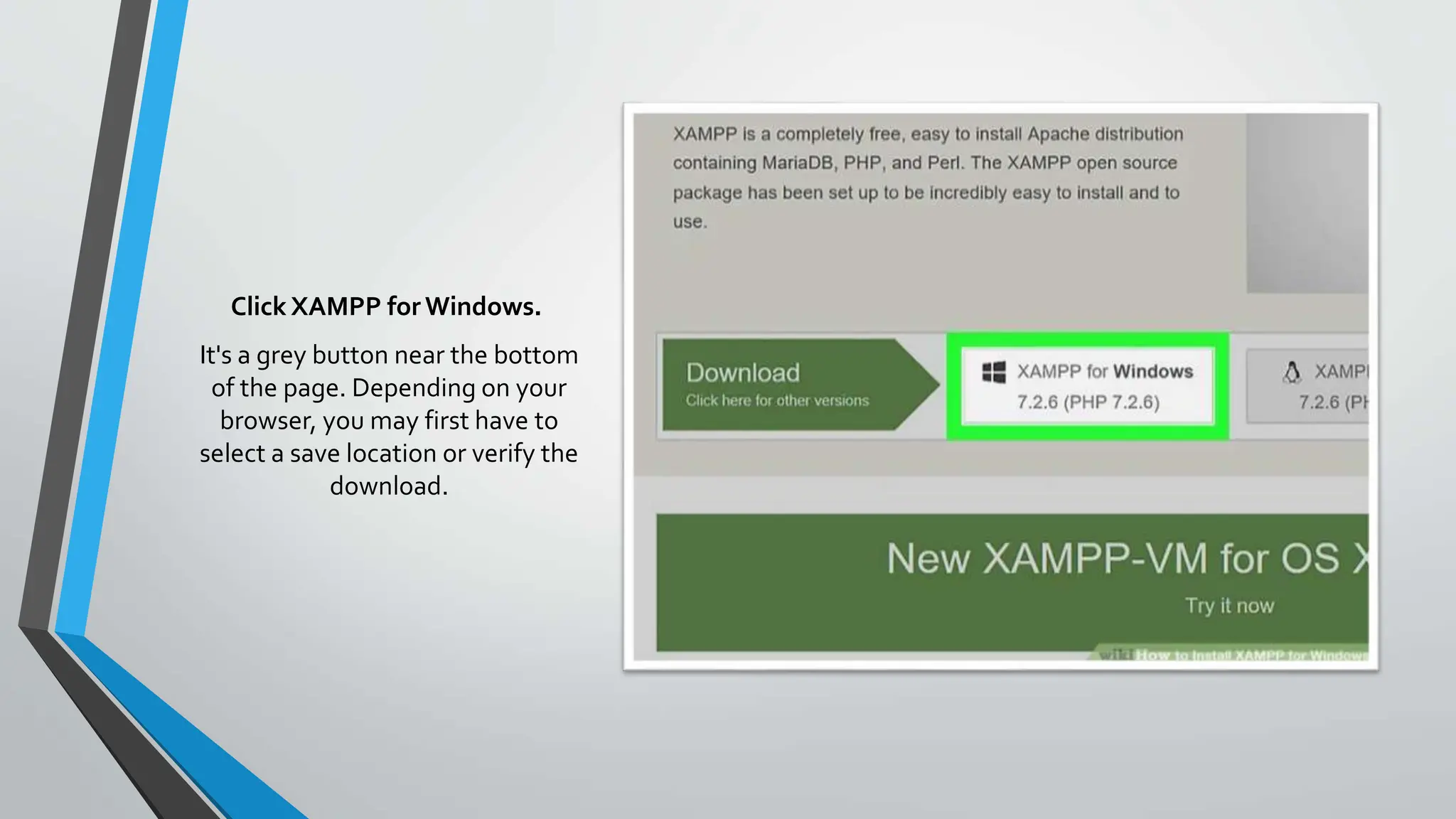
Click XAMPP for Windows.
It's a grey button near the bottom
of the page. Depending on your
browser, you may first have to
select a save location or verify the
download.
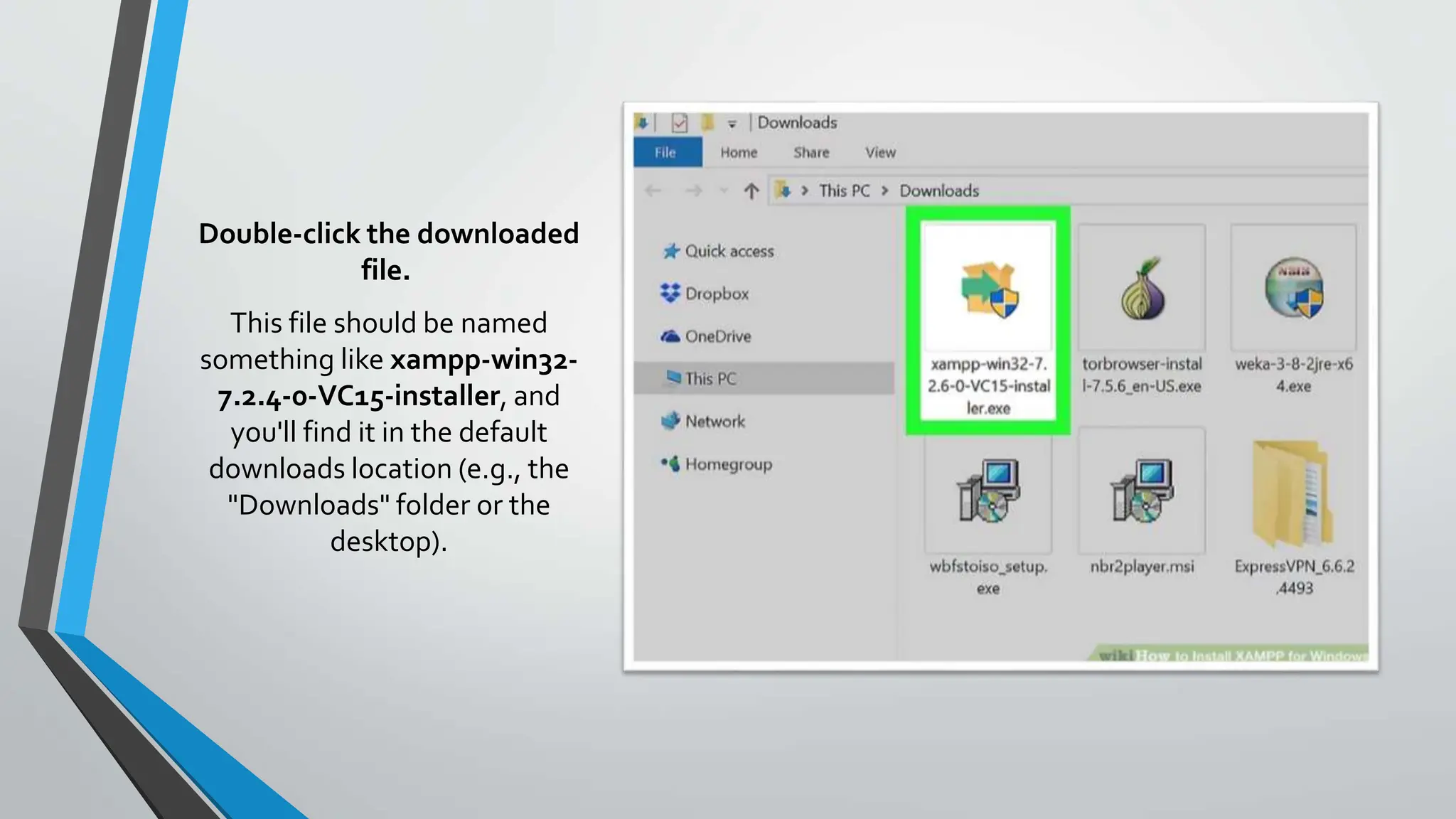
Double-click the downloaded
file.
This file should be named
something like xampp-win32-
7.2.4-0-VC15-installer, and
you'll find it in the default
downloads location (e.g., the
"Downloads" folder or the
desktop).
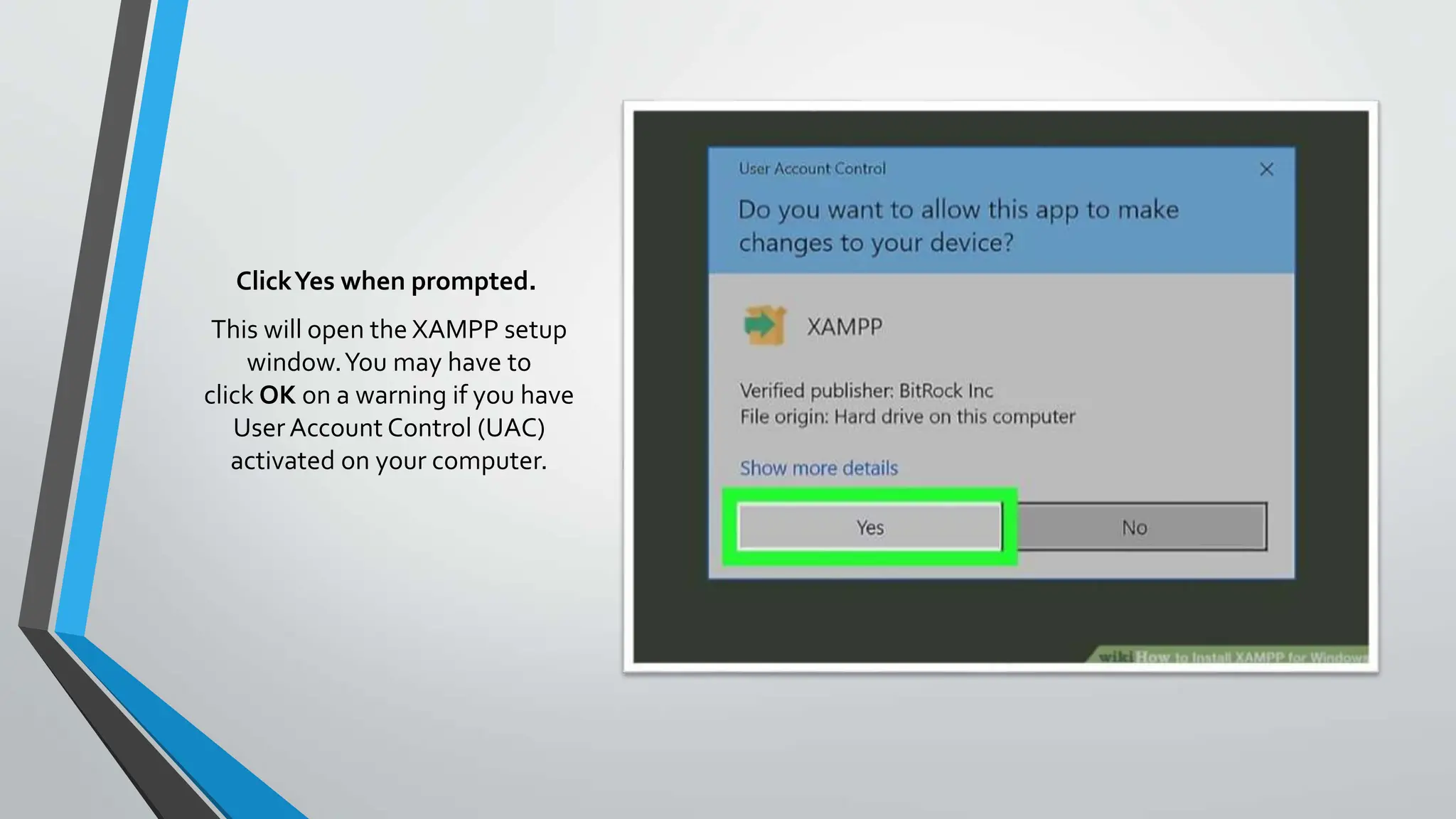
ClickYes when prompted.
This will open the XAMPP setup
window.You may have to
click OK on a warning if you have
User Account Control (UAC)
activated on your computer.
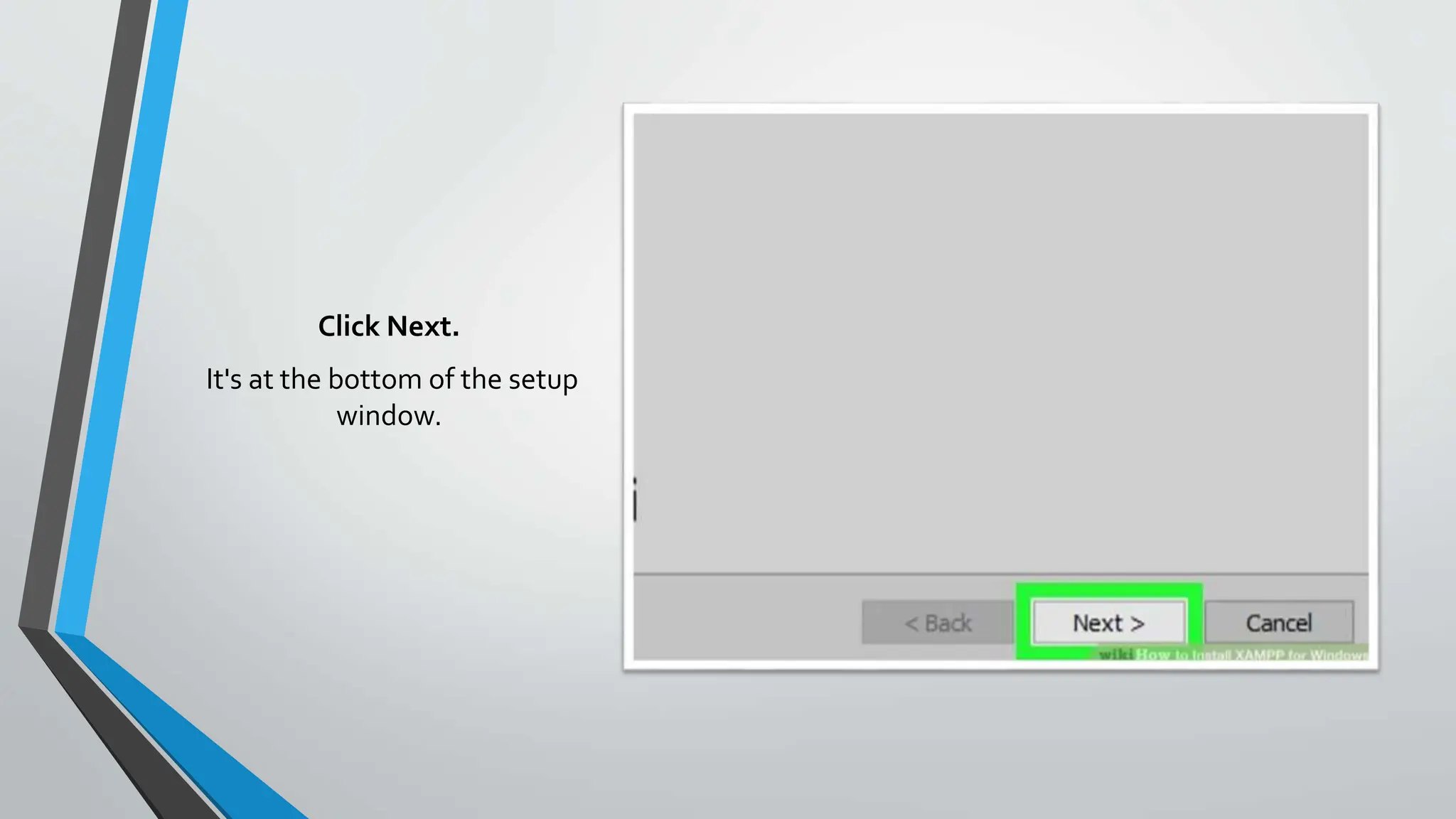
Click Next.
It's at the bottom of the setup
window.
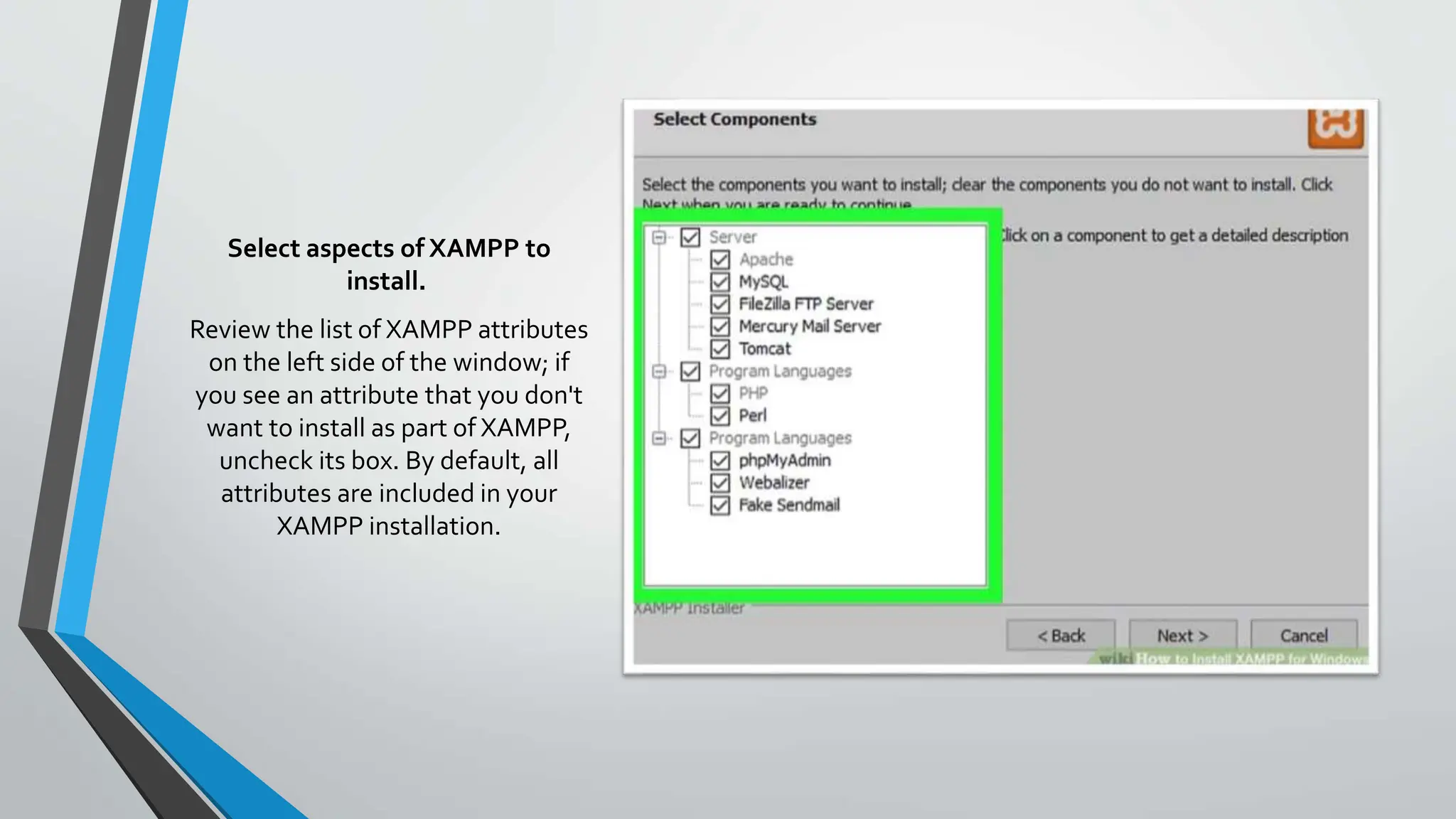
Select aspects of XAMPP to
install.
Review the list of XAMPP attributes
on the left side of the window; if
you see an attribute that you don't
want to install as part of XAMPP,
uncheck its box. By default, all
attributes are included in your
XAMPP installation.
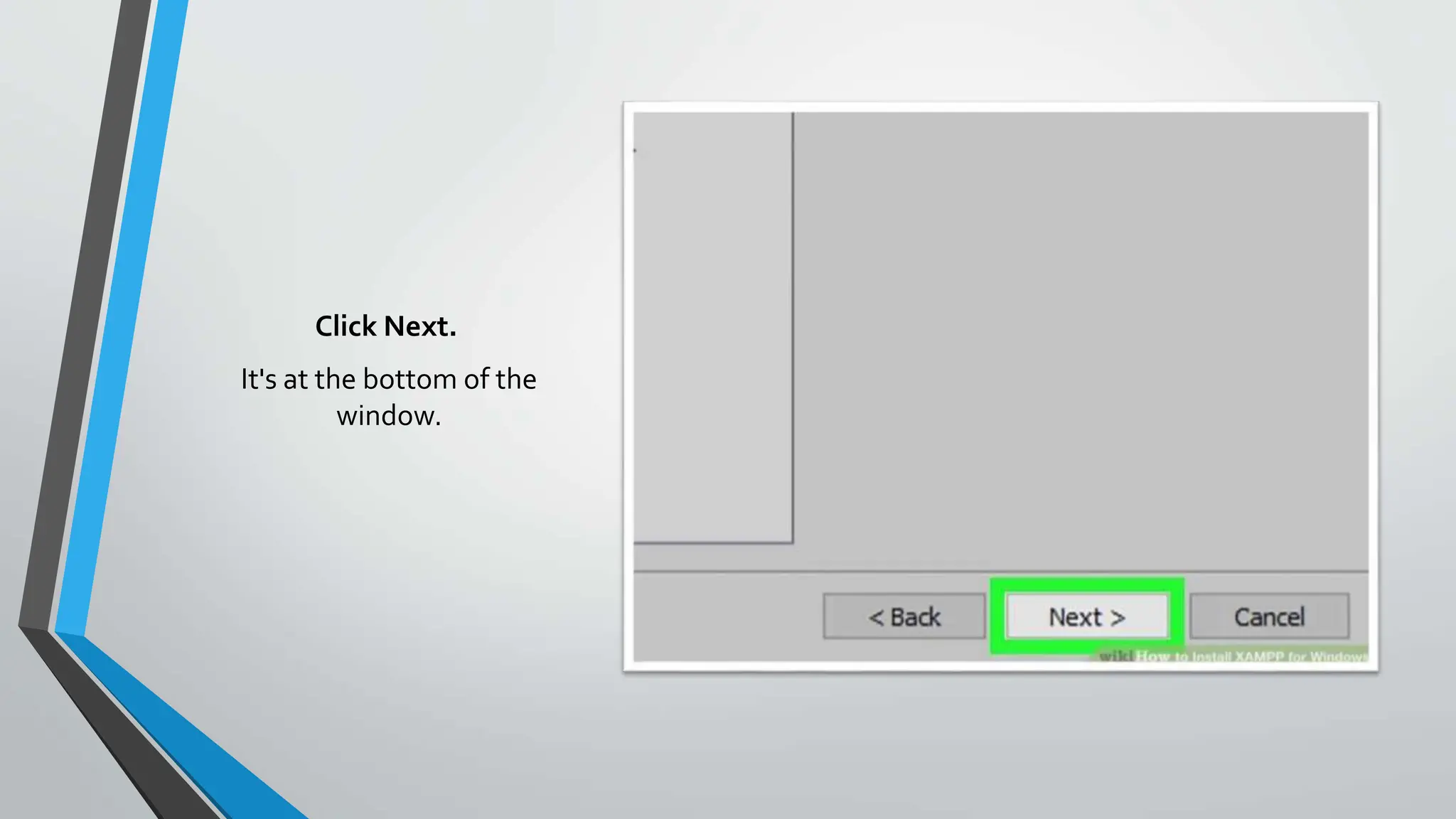
Click Next.
It's at the bottom of the
window.
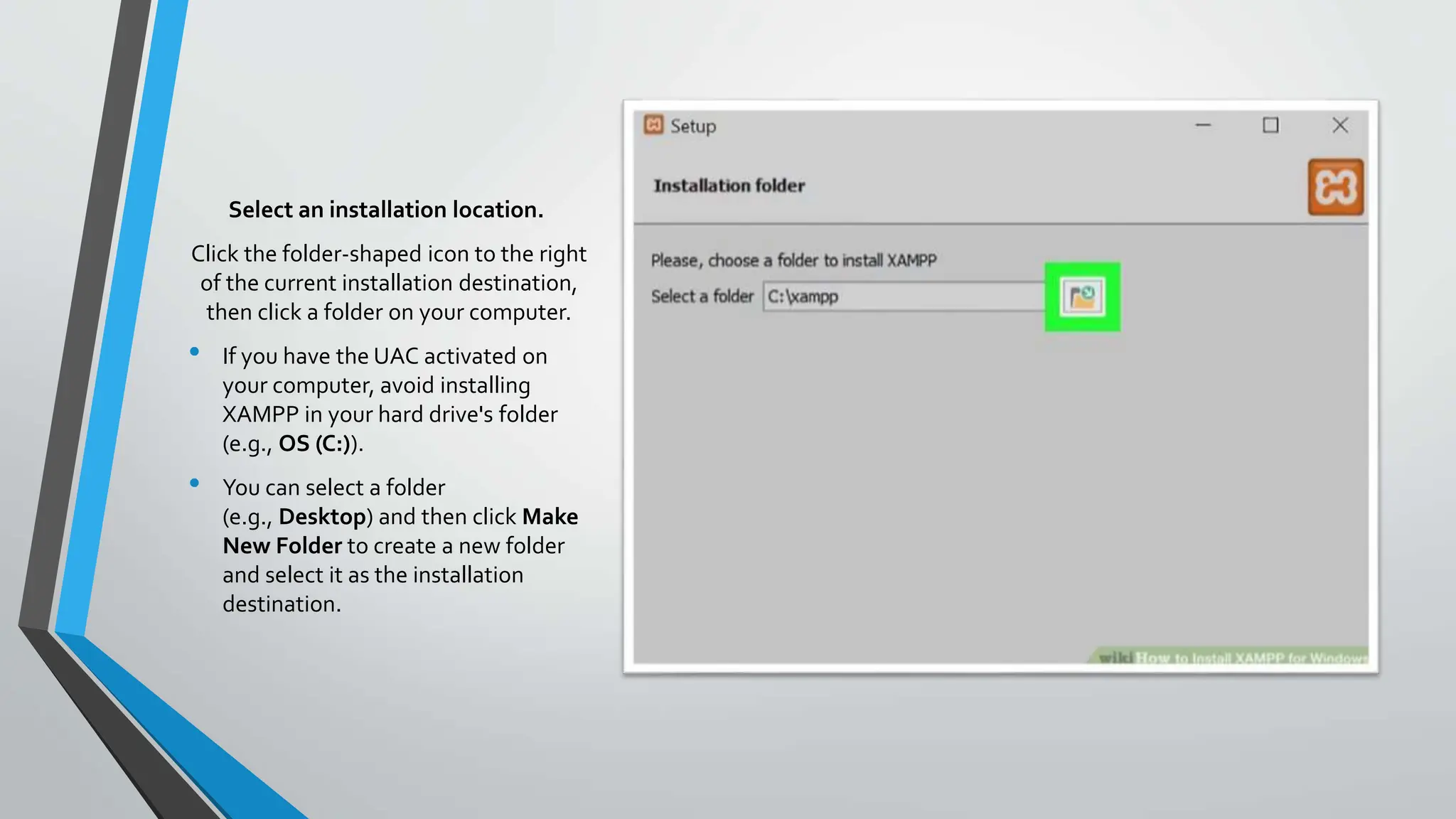
Select an installation location.
Click the folder-shaped icon to the right
of the current installation destination,
then click a folder on your computer.
• If you have the UAC activated on
your computer, avoid installing
XAMPP in your hard drive's folder
(e.g., OS (C:)).
• You can select a folder
(e.g., Desktop) and then click Make
New Folder to create a new folder
and select it as the installation
destination.
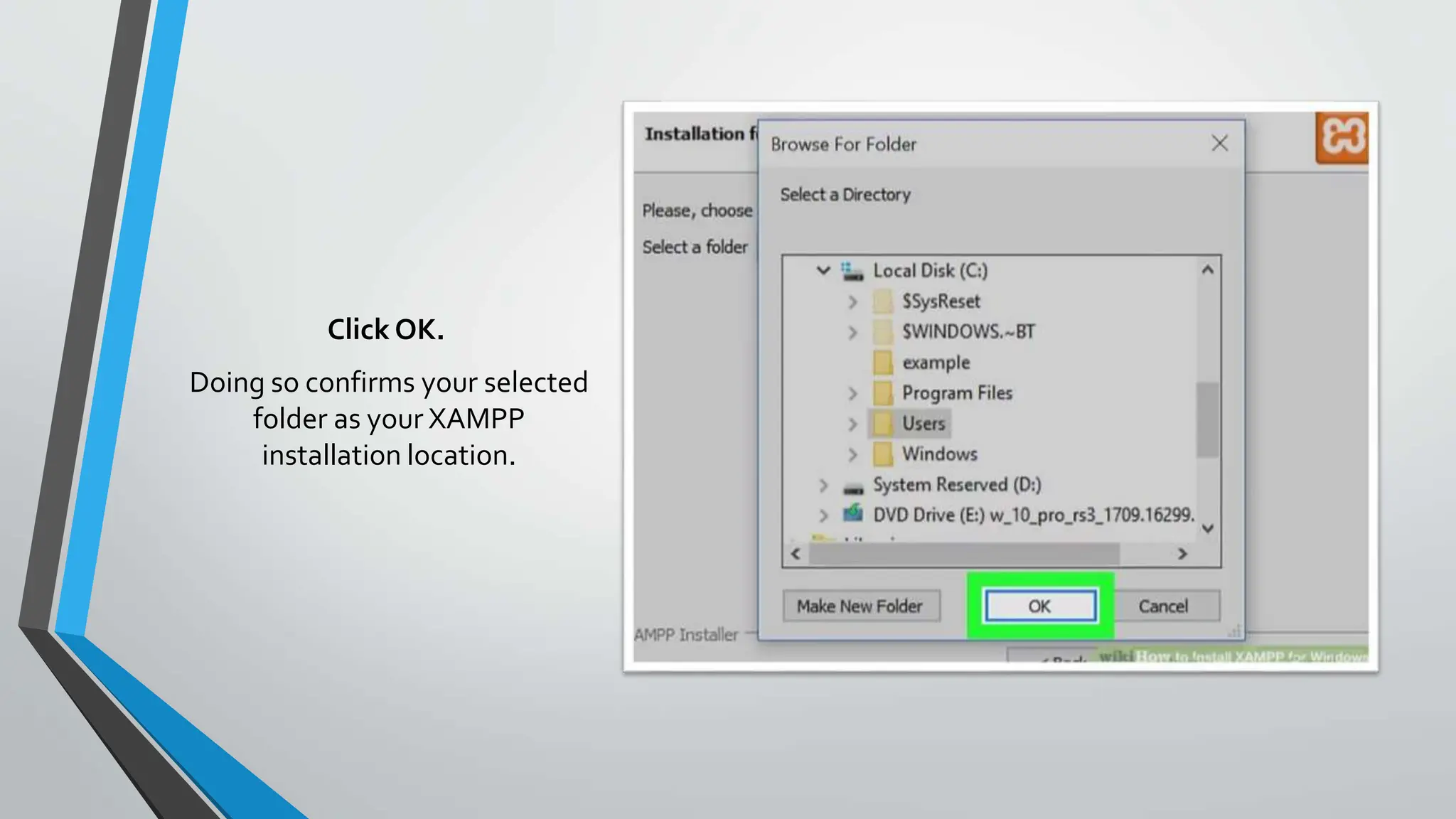
Click OK.
Doing so confirms your selected
folder as your XAMPP
installation location.
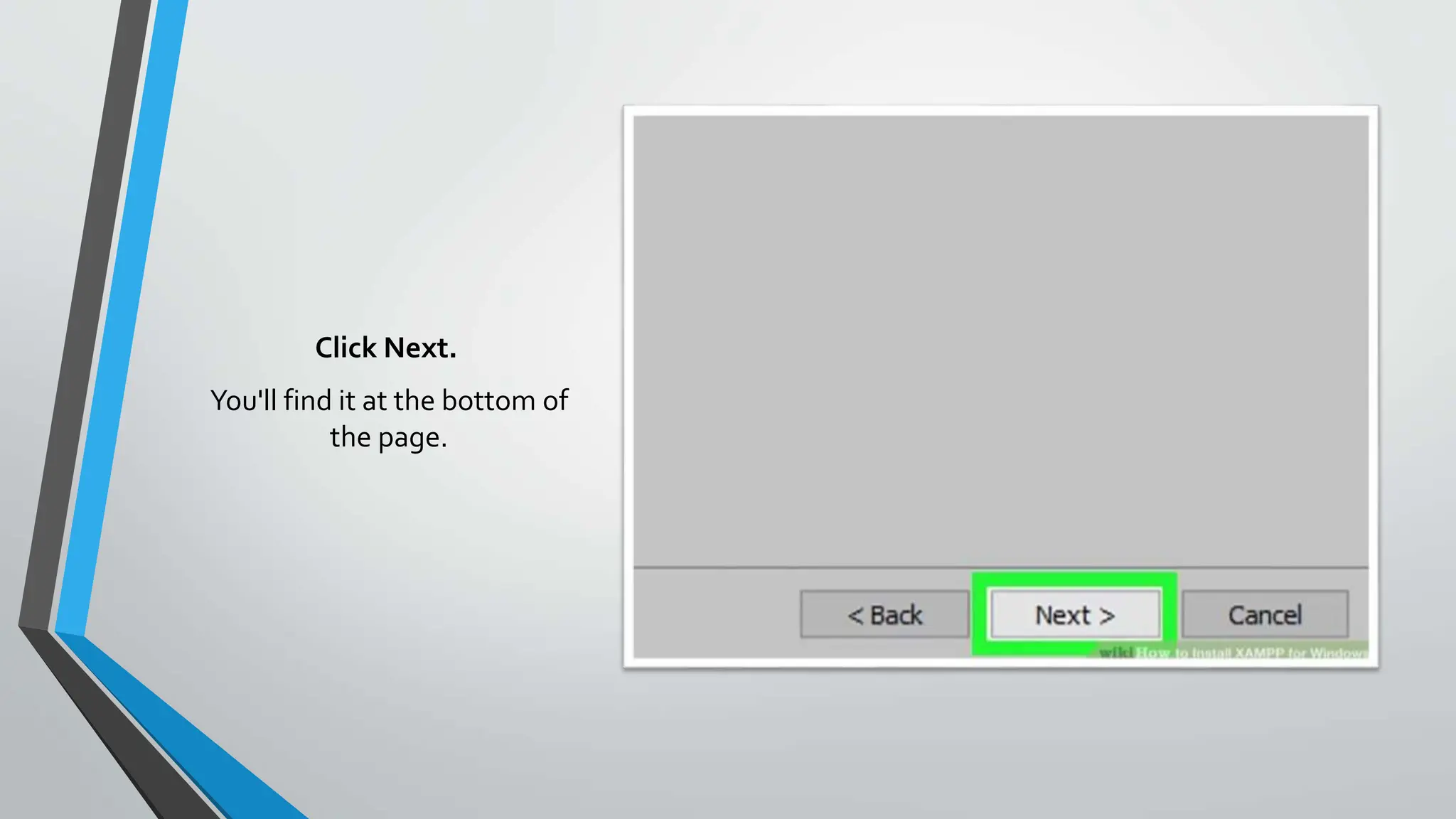
Click Next.
You'll find it at the bottom of
the page.
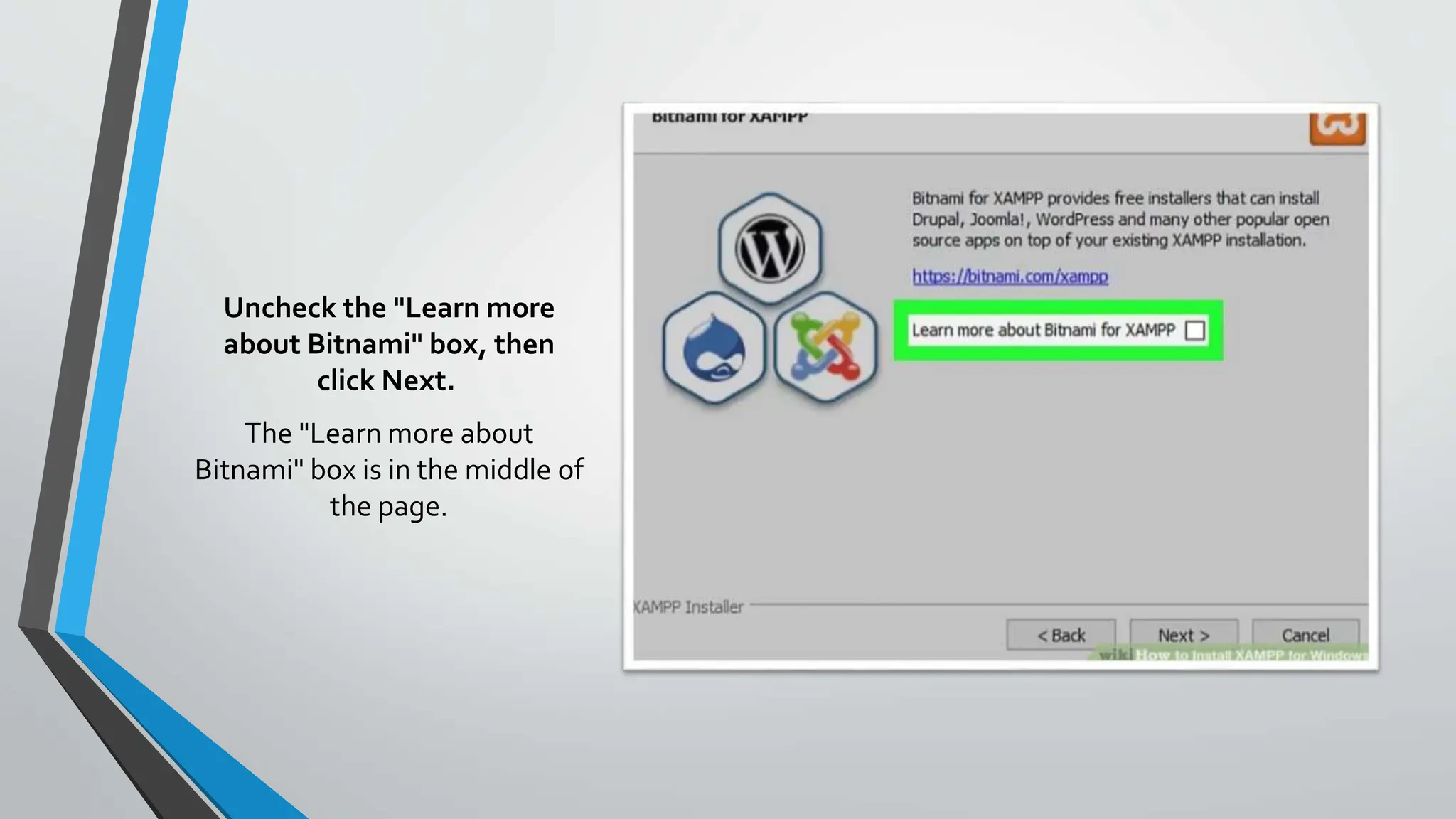
Uncheck the "Learn more
about Bitnami" box, then
click Next.
The "Learn more about
Bitnami" box is in the middle of
the page.
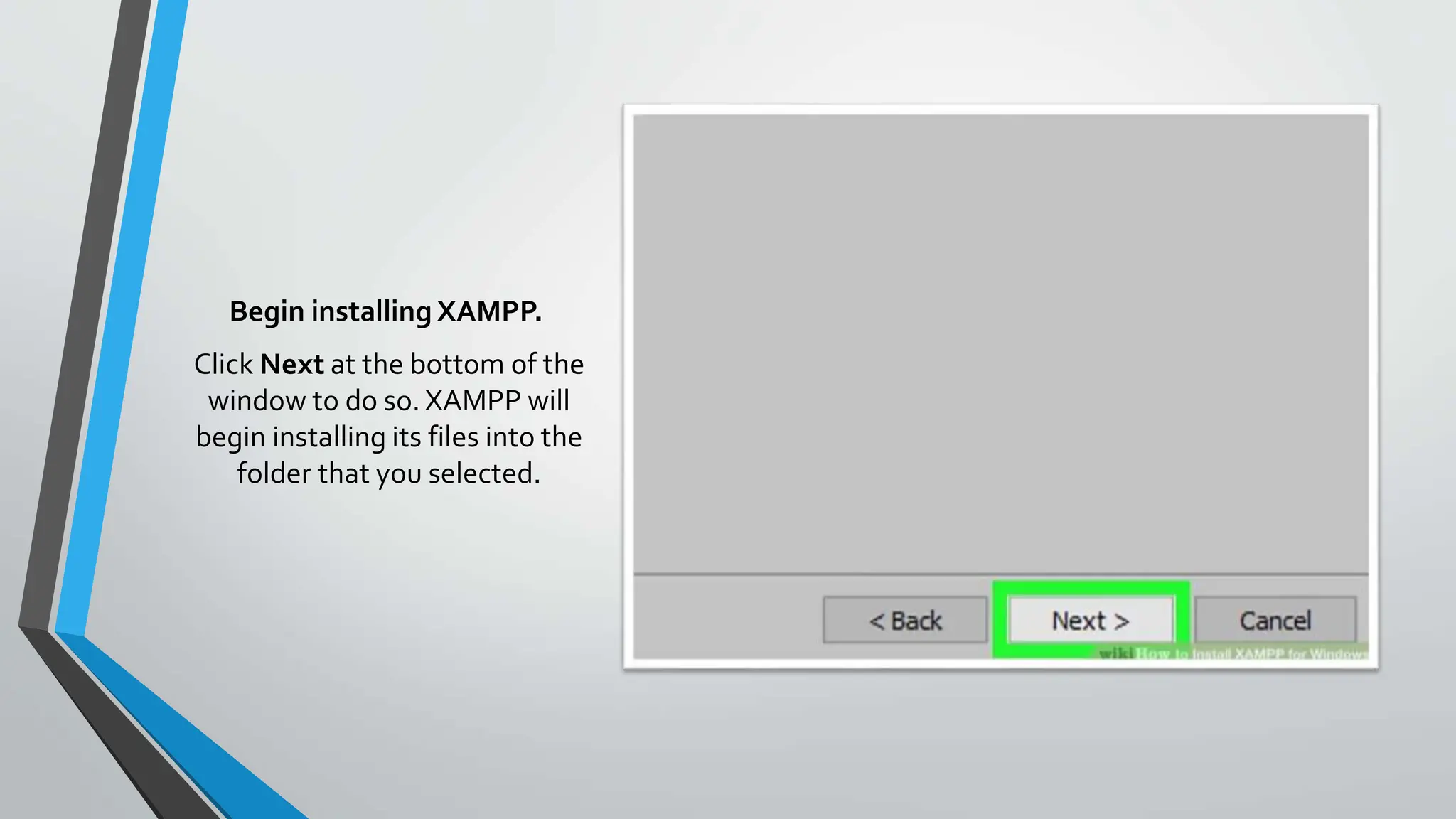
Begin installing XAMPP.
Click Next at the bottom of the
window to do so. XAMPP will
begin installing its files into the
folder that you selected.
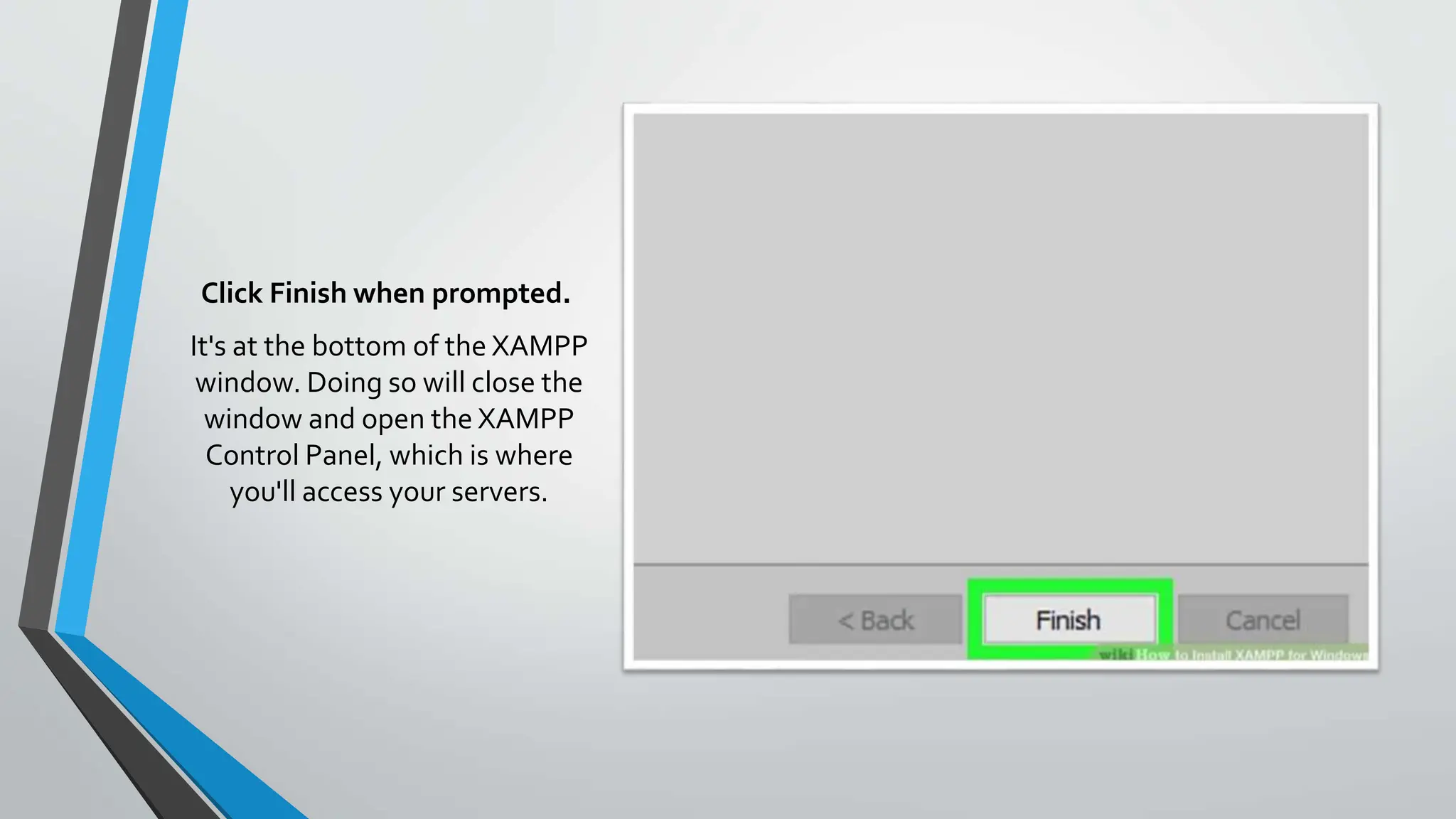
Click Finish when prompted.
It's at the bottom of the XAMPP
window. Doing so will close the
window and open the XAMPP
Control Panel, which is where
you'll access your servers.
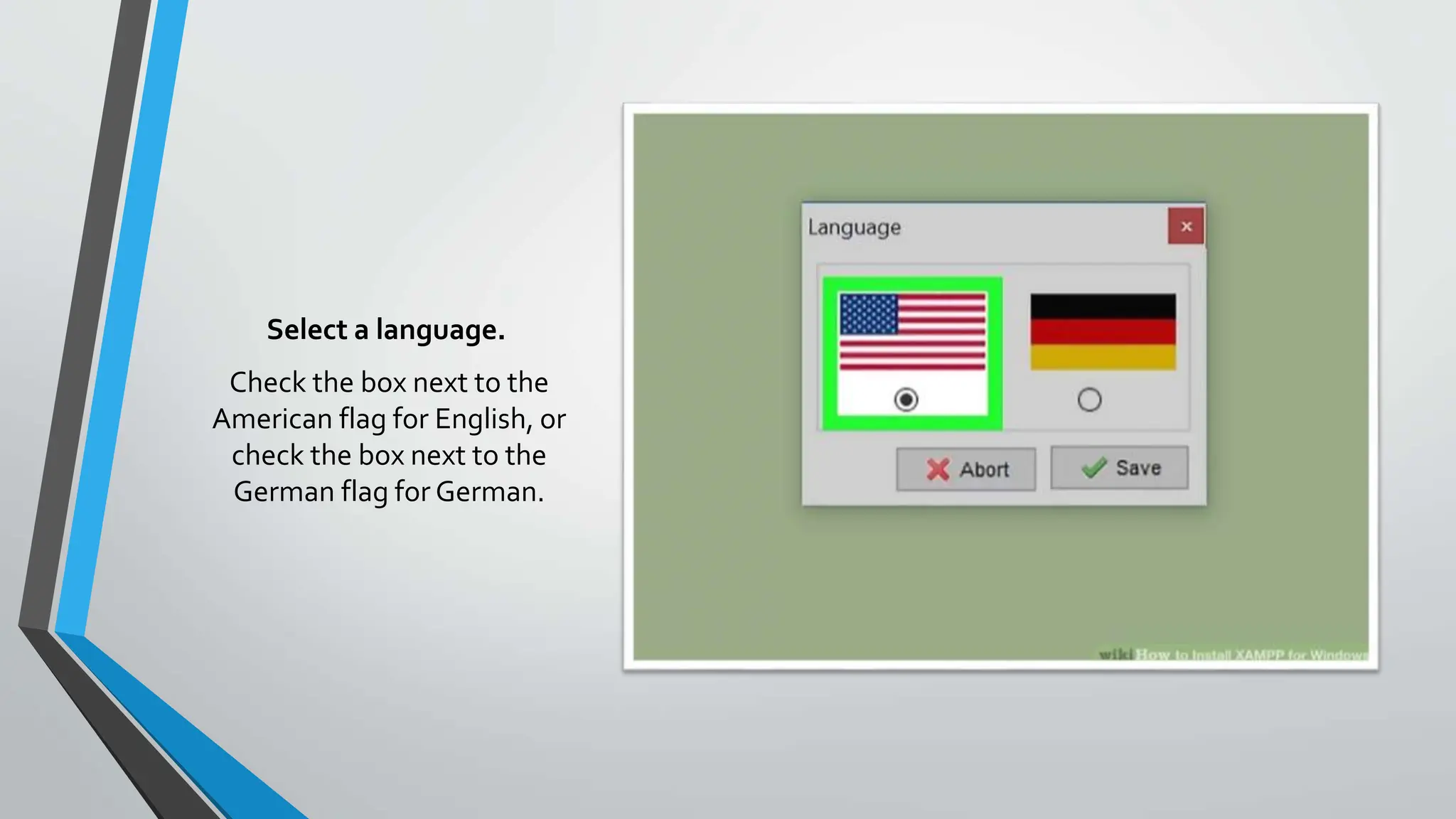
Select a language.
Check the box next to the
American flag for English, or
check the box next to the
German flag for German.
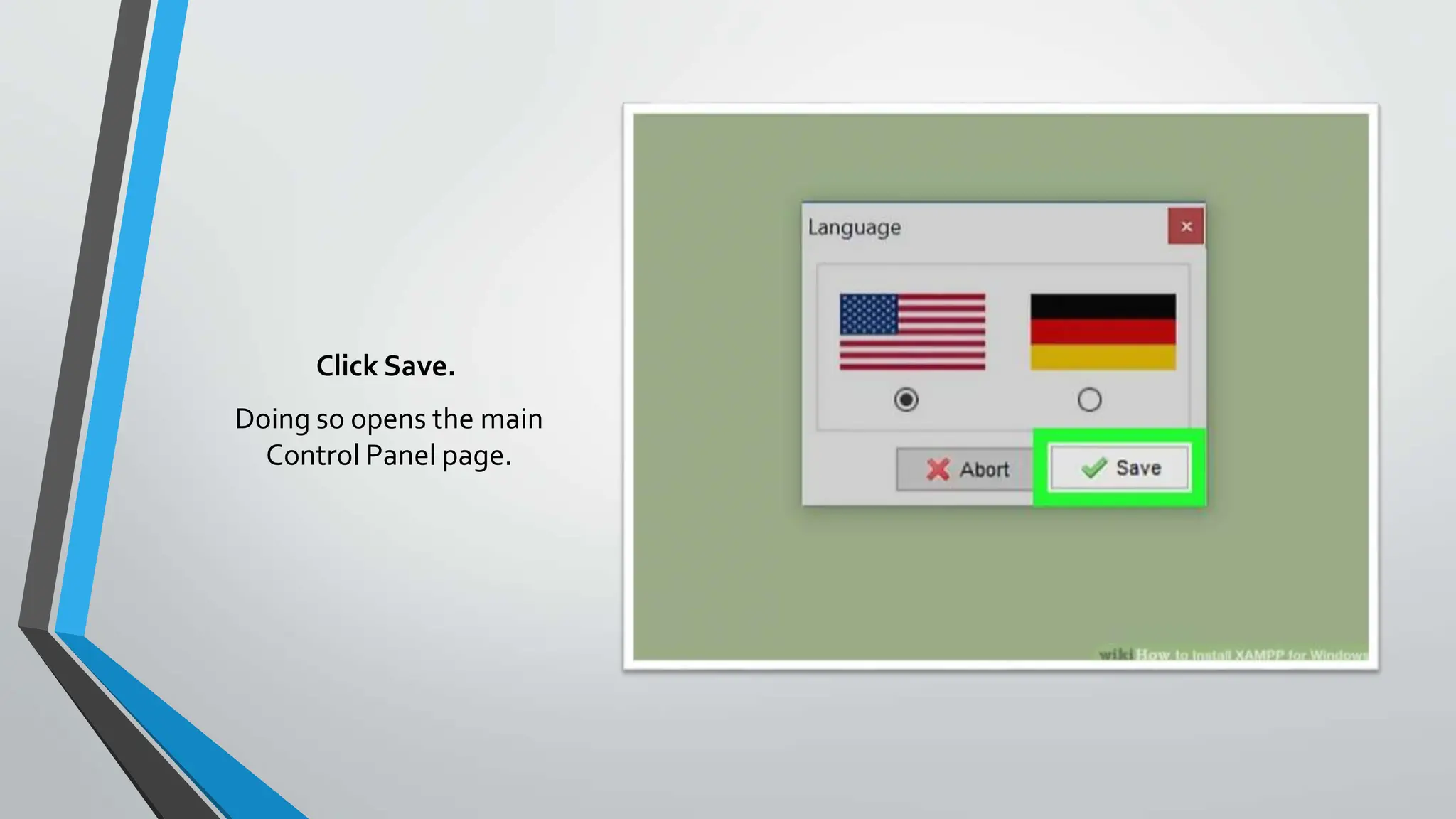
Click Save.
Doing so opens the main
Control Panel page.
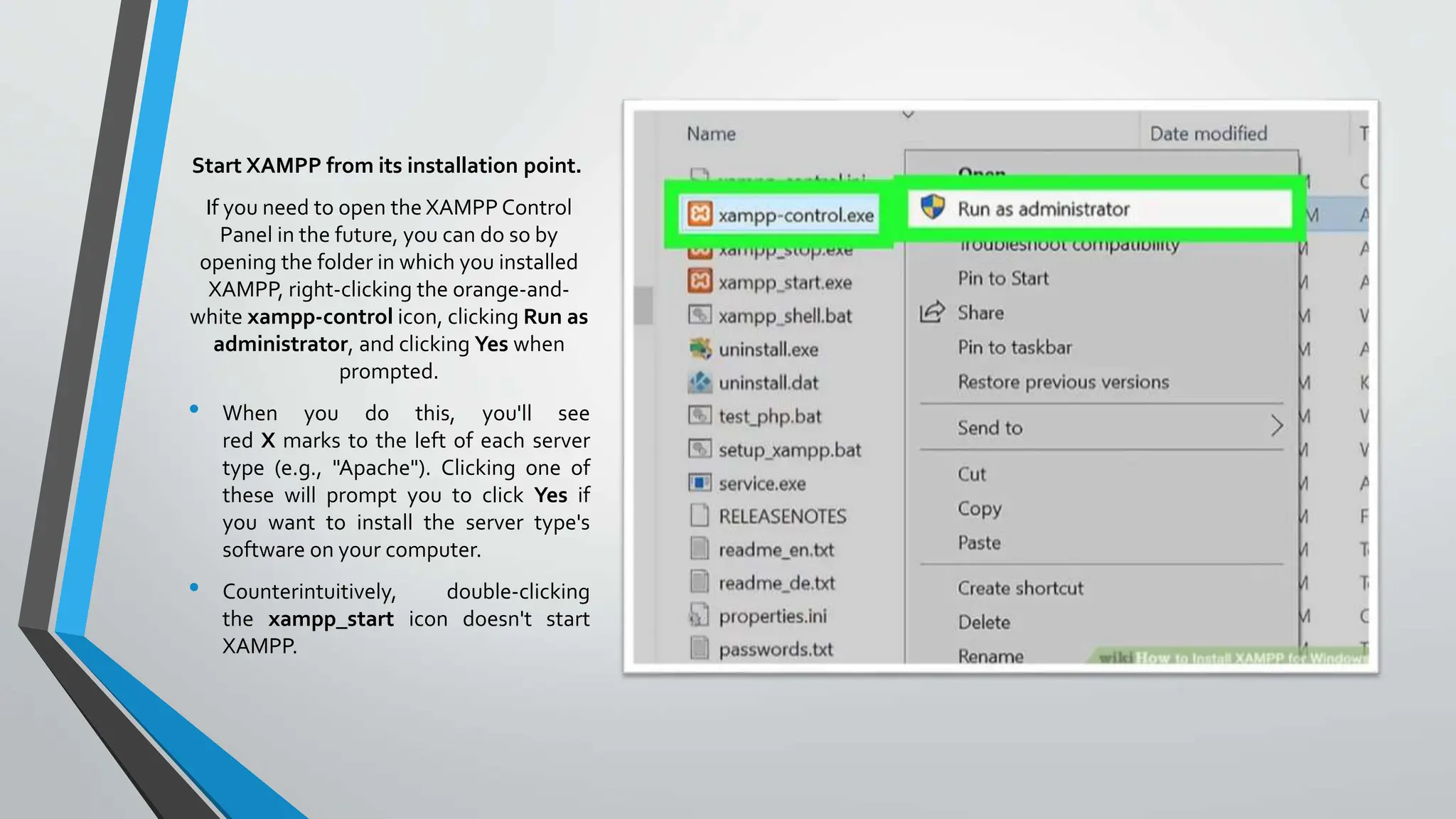
Start XAMPP from its installation point.
If you need to open the XAMPP Control
Panel in the future, you can do so by
opening the folder in which you installed
XAMPP, right-clicking the orange-and-
white xampp-control icon, clicking Run as
administrator, and clicking Yes when
prompted.
• When you do this, you'll see
red X marks to the left of each server
type (e.g., "Apache"). Clicking one of
these will prompt you to click Yes if
you want to install the server type's
software on your computer.
• Counterintuitively, double-clicking
the xampp_start icon doesn't start
XAMPP.
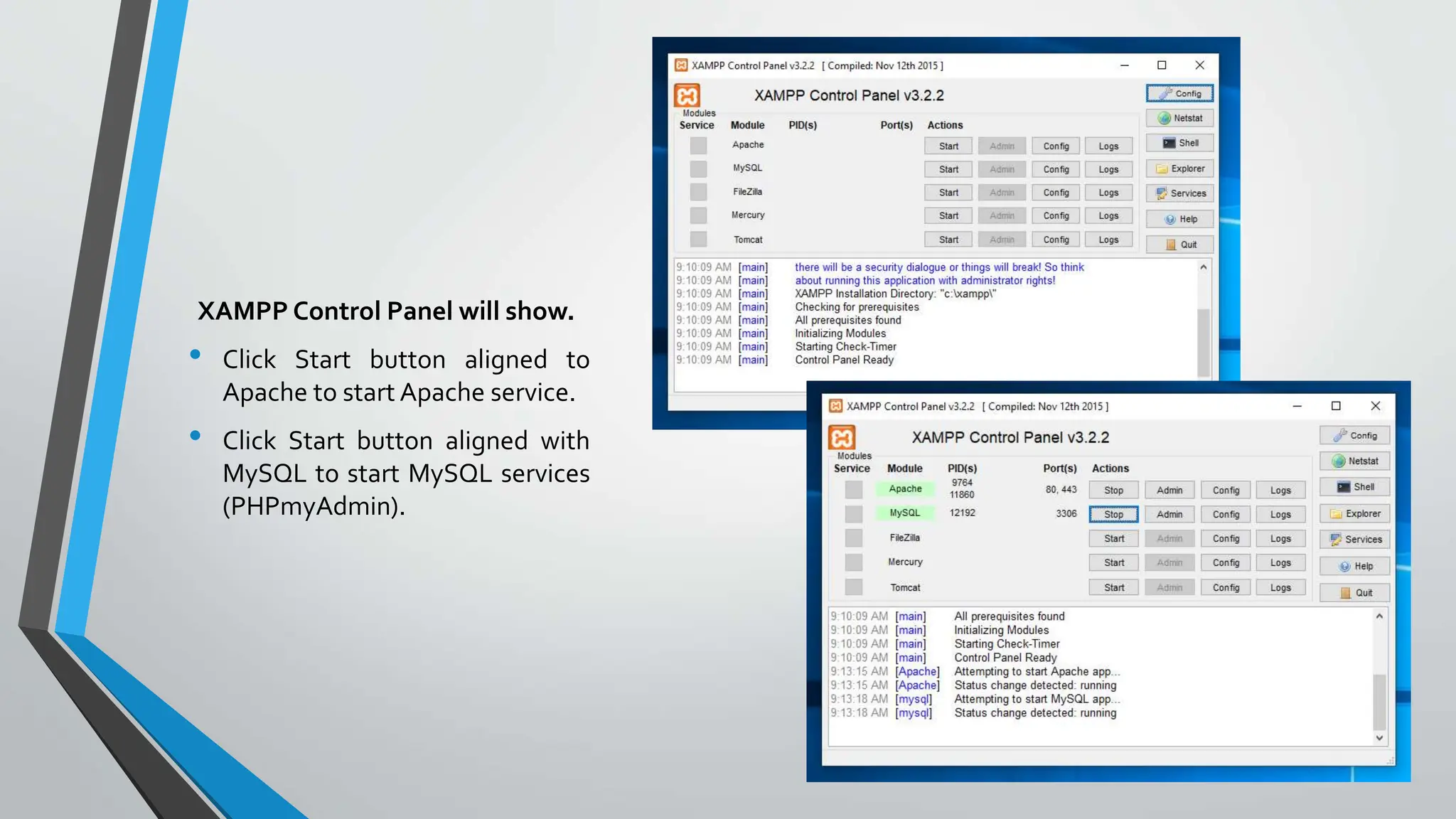
XAMPP Control Panel will show.
• Click Start button aligned to
Apache to start Apache service.
• Click Start button aligned with
MySQL to start MySQL services
(PHPmyAdmin).
ImportingTables in
PHPMyAdmin
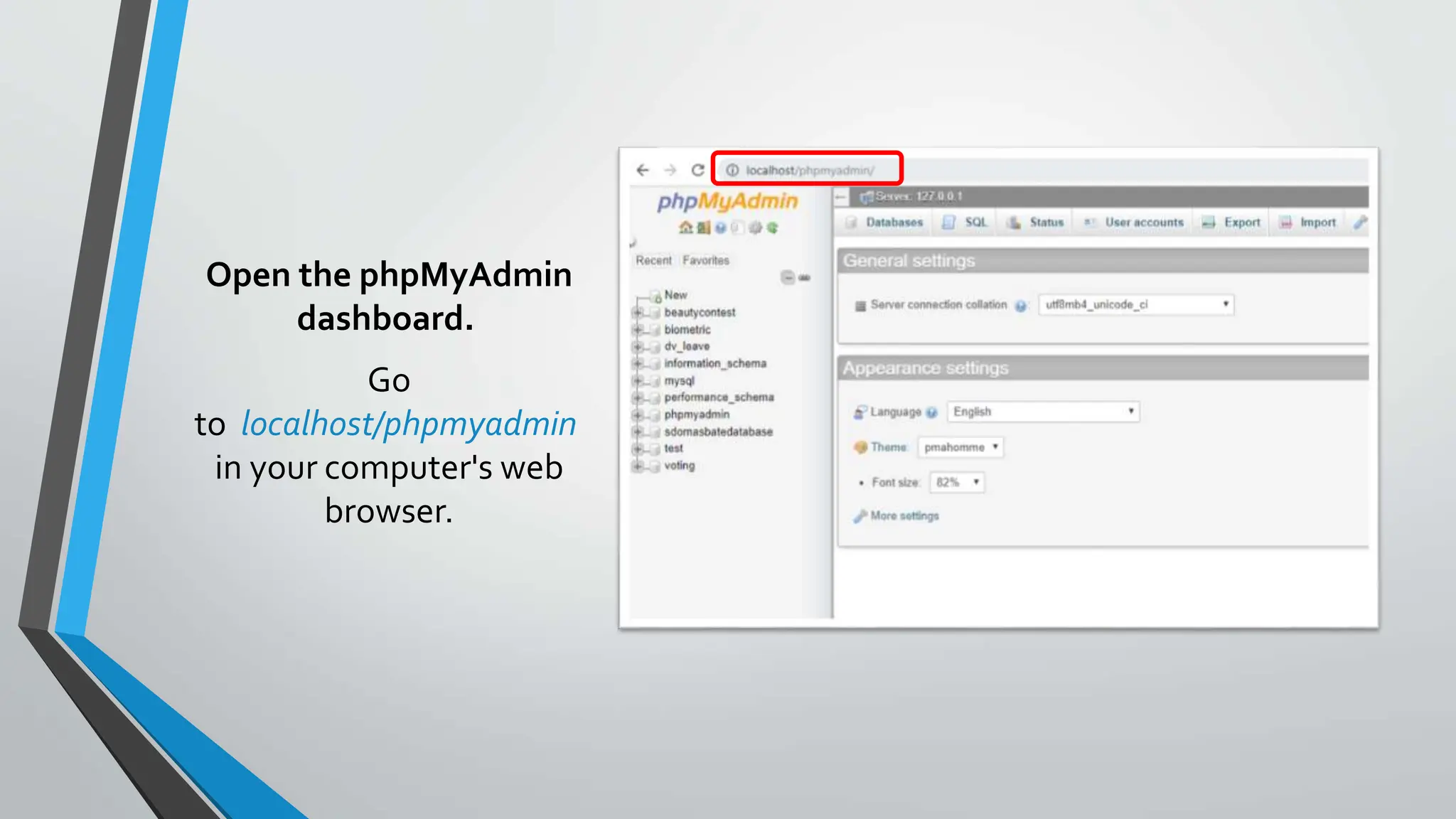
Open the phpMyAdmin
dashboard.
Go
to localhost/phpmyadmin
in your computer's web
browser.
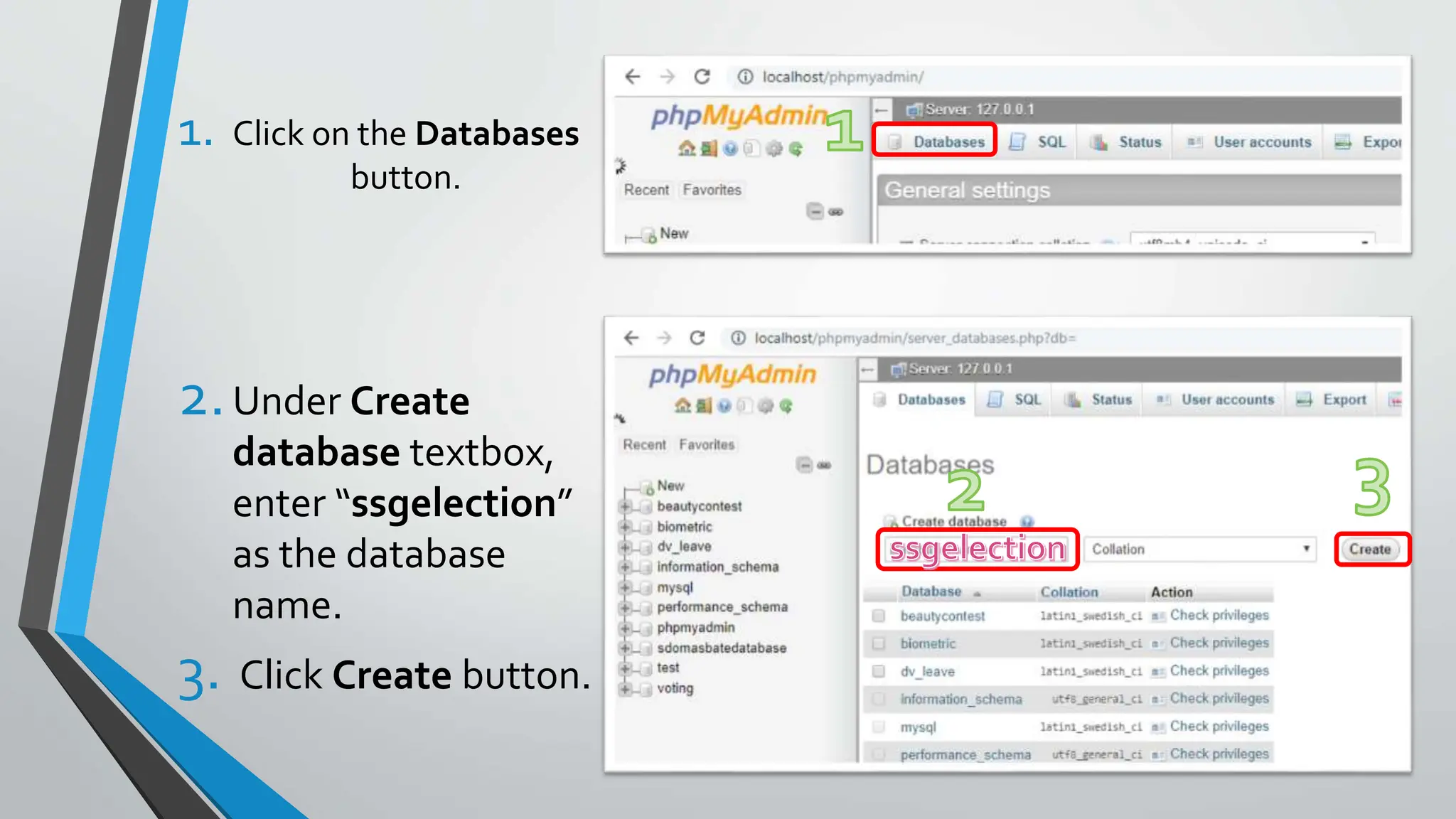
1. Click on the Databases
button.
2.Under Create
database textbox,
enter “ssgelection”
as the database
name.
3. Click Create button.
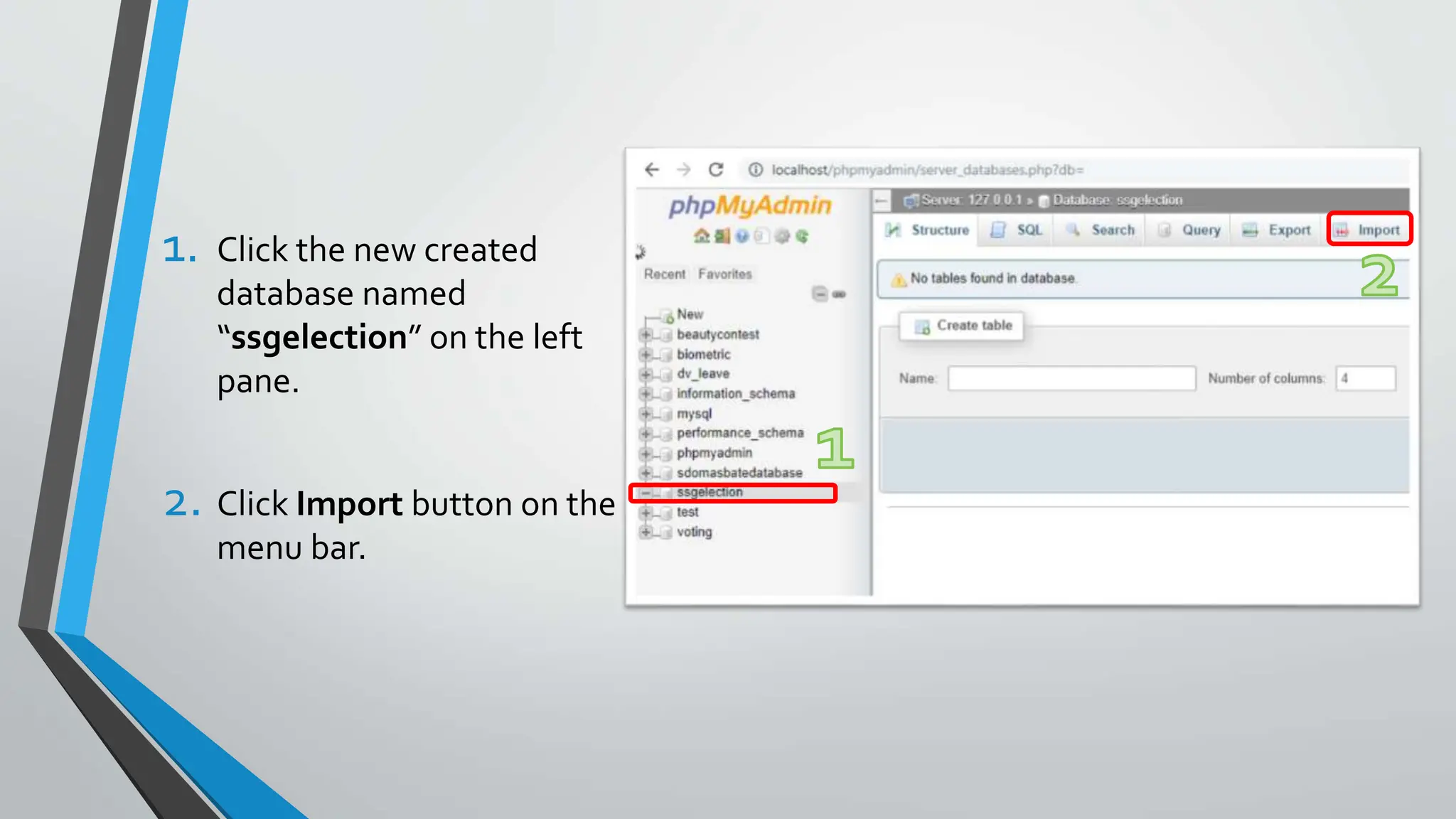
1. Click the new created
database named
“ssgelection” on the left
pane.
2. Click Import button on the
menu bar.
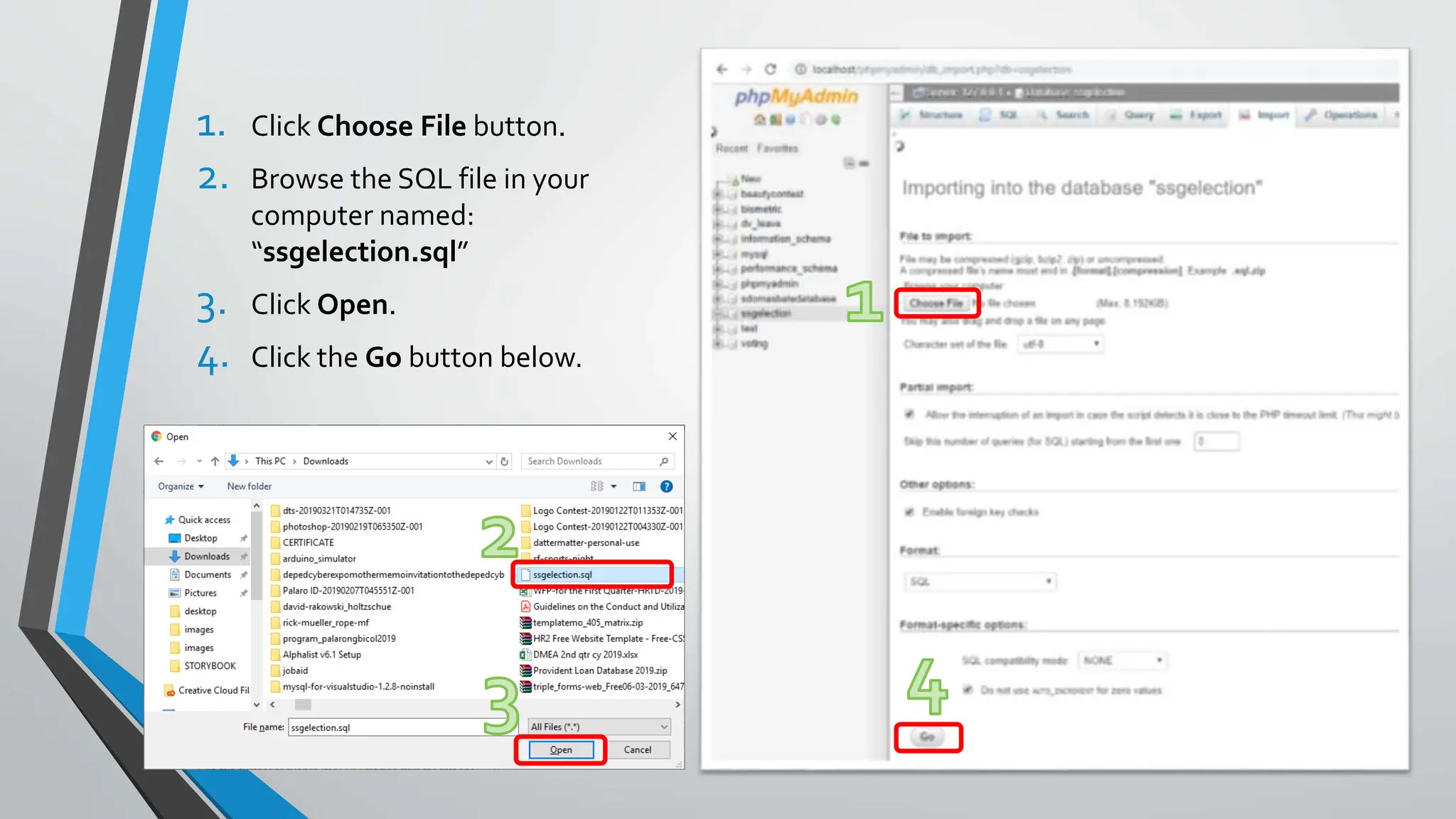
1. Click Choose File button.
2. Browse the SQL file in your
computer named:
“ssgelection.sql”
3. Click Open.
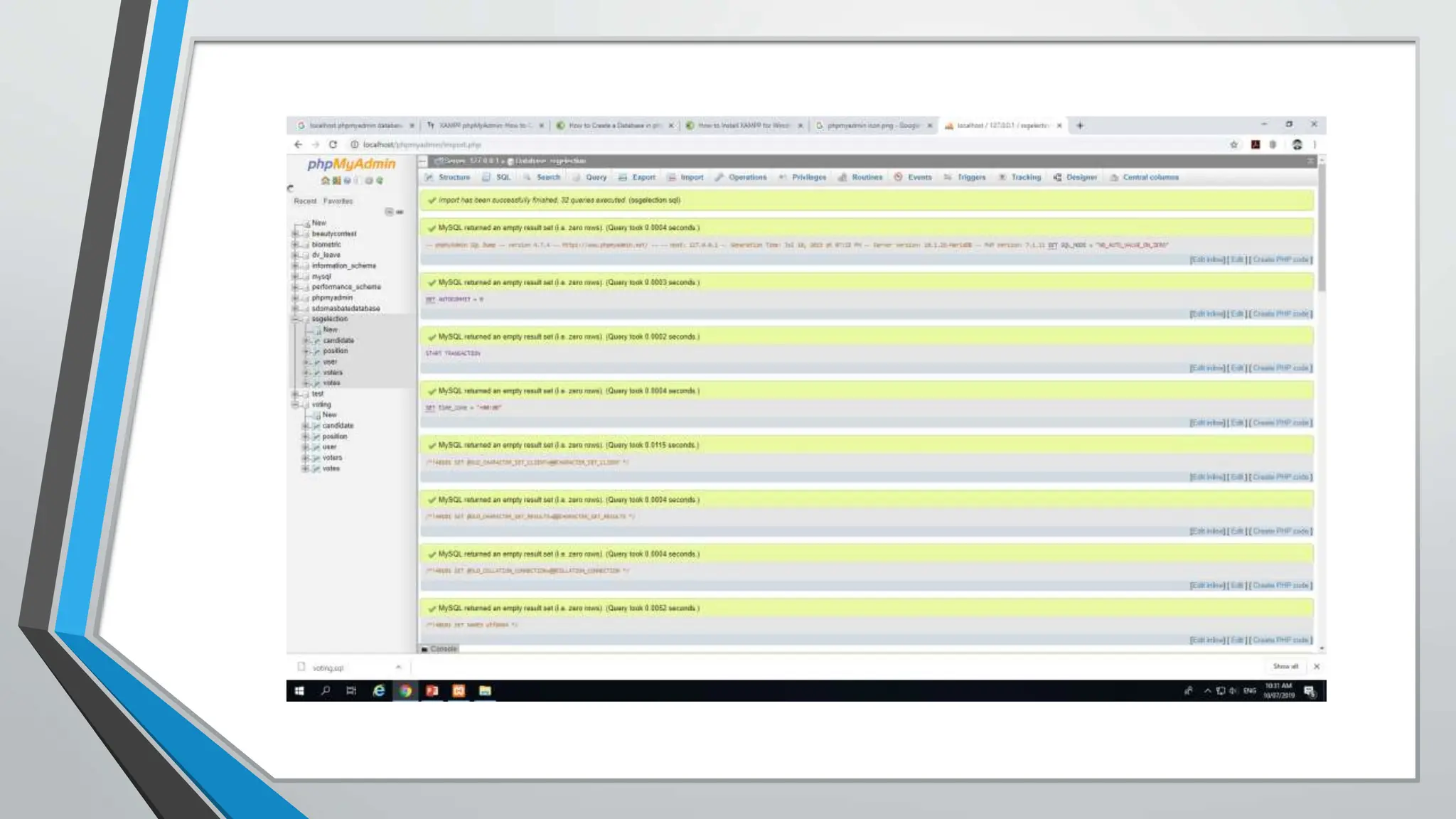
4. Click the Go button below.
Installation of Automated
Voting System
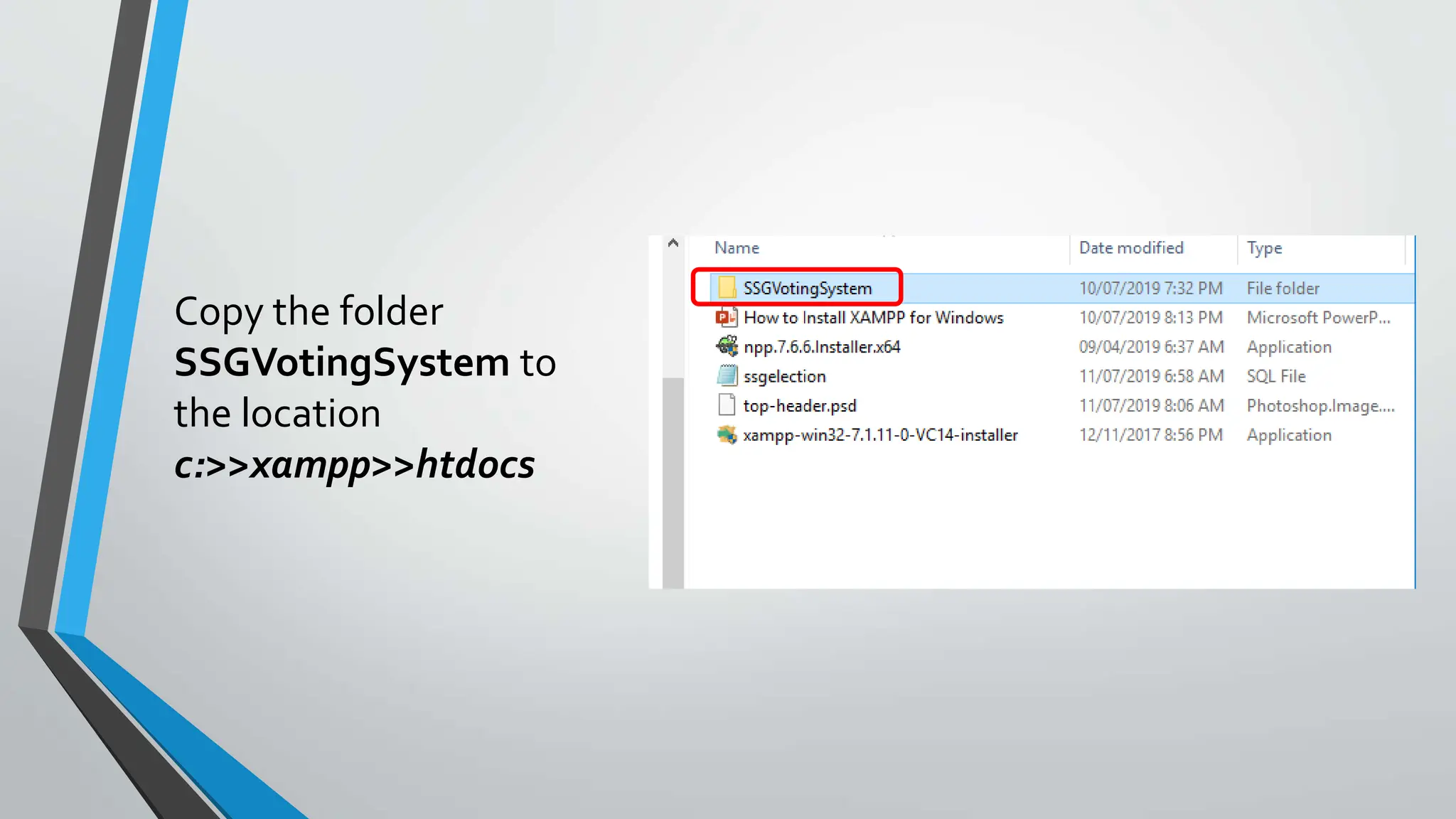
Copy the folder
SSGVotingSystem to
the location
c:>>xampp>>htdocs
How to Install XAMPP for Windows.pptx

How to Install XAMPP for Windows.pptx

  • 1.
  • 2.
    Hardware Requirements •Desktop/Laptop/ Tablet (1server, 2 or more for clients) •Router
  • 3.
  • 4.
    Parts of AutomatedVotingSystem •Administrative (Server-side) •Voting (Client-side)
  • 5.
  • 7.
  • 9.
    How to InstallXAMPP forWindows
  • 10.
    Open the XAMPP website. Go tohttps://www.apachefrie nds.org/index.html in your computer's web browser.
  • 11.
    Click XAMPP forWindows. It's a grey button near the bottom of the page. Depending on your browser, you may first have to select a save location or verify the download.
  • 12.
    Double-click the downloaded file. Thisfile should be named something like xampp-win32- 7.2.4-0-VC15-installer, and you'll find it in the default downloads location (e.g., the "Downloads" folder or the desktop).
  • 13.
    ClickYes when prompted. Thiswill open the XAMPP setup window.You may have to click OK on a warning if you have User Account Control (UAC) activated on your computer.
  • 14.
    Click Next. It's atthe bottom of the setup window.
  • 15.
    Select aspects ofXAMPP to install. Review the list of XAMPP attributes on the left side of the window; if you see an attribute that you don't want to install as part of XAMPP, uncheck its box. By default, all attributes are included in your XAMPP installation.
  • 16.
    Click Next. It's atthe bottom of the window.
  • 17.
    Select an installationlocation. Click the folder-shaped icon to the right of the current installation destination, then click a folder on your computer. • If you have the UAC activated on your computer, avoid installing XAMPP in your hard drive's folder (e.g., OS (C:)). • You can select a folder (e.g., Desktop) and then click Make New Folder to create a new folder and select it as the installation destination.

  • 18.
    Click OK. Doing soconfirms your selected folder as your XAMPP installation location.
  • 19.
    Click Next. You'll findit at the bottom of the page.
  • 20.
    Uncheck the "Learnmore about Bitnami" box, then click Next. The "Learn more about Bitnami" box is in the middle of the page.
  • 21.
    Begin installing XAMPP. ClickNext at the bottom of the window to do so. XAMPP will begin installing its files into the folder that you selected.
  • 22.
    Click Finish whenprompted. It's at the bottom of the XAMPP window. Doing so will close the window and open the XAMPP Control Panel, which is where you'll access your servers.
  • 23.
    Select a language. Checkthe box next to the American flag for English, or check the box next to the German flag for German.
  • 24.
    Click Save. Doing soopens the main Control Panel page.
  • 25.
    Start XAMPP fromits installation point. If you need to open the XAMPP Control Panel in the future, you can do so by opening the folder in which you installed XAMPP, right-clicking the orange-and- white xampp-control icon, clicking Run as administrator, and clicking Yes when prompted. • When you do this, you'll see red X marks to the left of each server type (e.g., "Apache"). Clicking one of these will prompt you to click Yes if you want to install the server type's software on your computer. • Counterintuitively, double-clicking the xampp_start icon doesn't start XAMPP.
  • 26.
    XAMPP Control Panelwill show. • Click Start button aligned to Apache to start Apache service. • Click Start button aligned with MySQL to start MySQL services (PHPmyAdmin).
  • 27.
  • 28.
    Open the phpMyAdmin dashboard. Go tolocalhost/phpmyadmin in your computer's web browser.
  • 29.
    1. Click onthe Databases button. 2.Under Create database textbox, enter “ssgelection” as the database name. 3. Click Create button.
  • 30.
    1. Click thenew created database named “ssgelection” on the left pane. 2. Click Import button on the menu bar.
  • 31.
    1. Click ChooseFile button. 2. Browse the SQL file in your computer named: “ssgelection.sql” 3. Click Open. 4. Click the Go button below.
  • 33.
  • 34.
    Copy the folder SSGVotingSystemto the location c:>>xampp>>htdocs

Editor's Notes

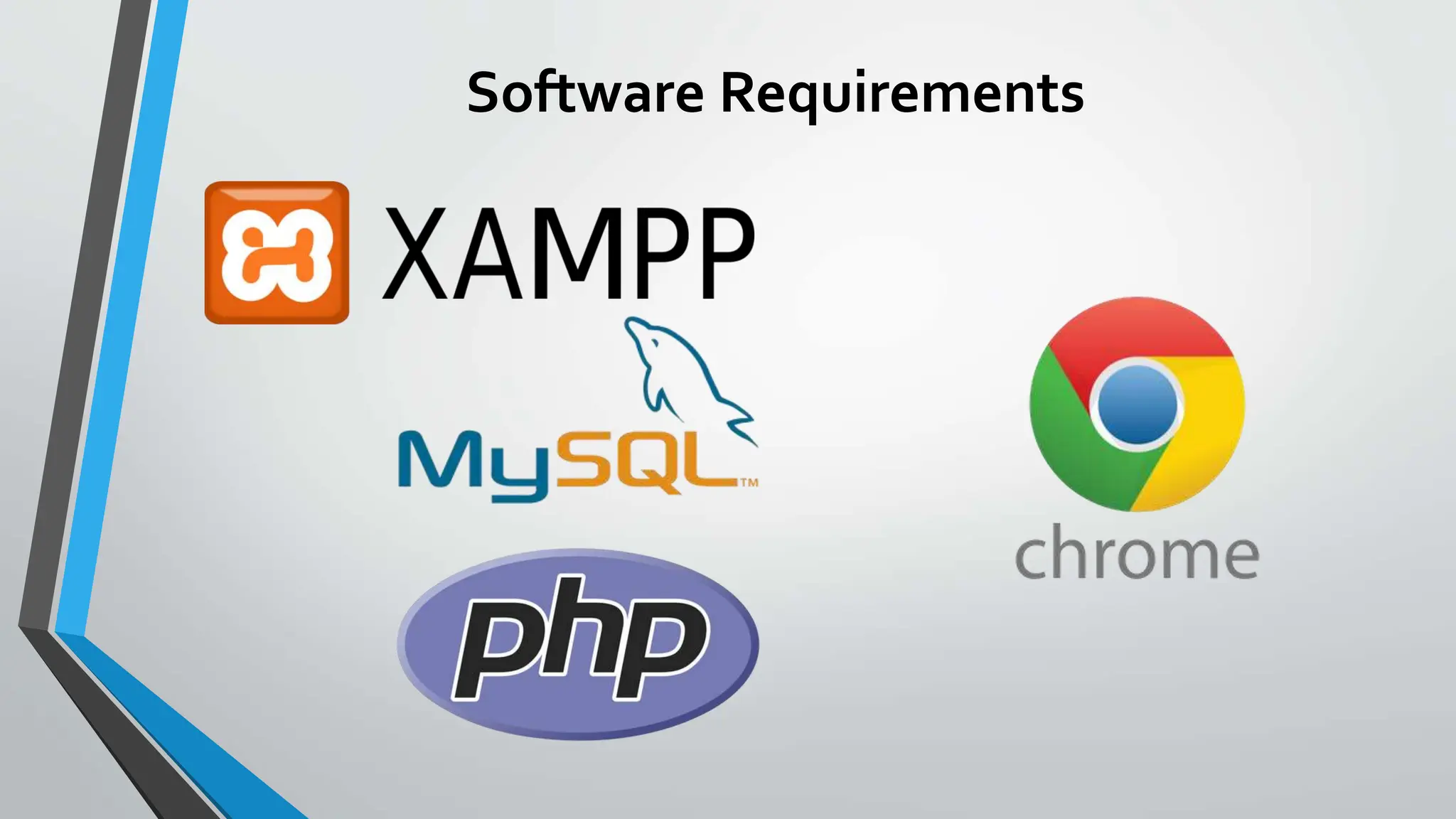
  • #4 XAMPP - is a free and open-source cross-platform web server solution stack package developed by Apache Friends,[2] consisting mainly of the Apache HTTP Server, MariaDB database, and interpreters for scripts written in the PHP and Perl programming languages. MYSQL - is an Oracle-backed open source relational database management system (RDBMS) based on Structured Query Language (SQL). MySQL runs on virtually all platforms, including Linux, UNIX and Windows. Although it can be used in a wide range of applications, MySQL is most often associated with web applications and online publishing. PHP is a server side scripting language. that is used to develop Static websites or Dynamic websites or Web applications. PHP stands for Hypertext Pre-processor, that earlier stood for Personal Home Pages. PHP scripts can only be interpreted on a server that has PHP installed. The client computers accessing the PHP scripts require a web browser only. A PHP file contains PHP tags and ends with the extension ".php". Google Chrome (commonly known simply as Chrome) is a cross-platform web browser developed by Google. It was first released in 2008 for Microsoft Windows, and was later ported to Linux, macOS, iOS, and Android. The browser is also the main component of Chrome OS, where it serves as the platform for web apps.
  • #5 Administrative (Server-side), This is where the Registration and canvassing took place. Only the administrator of the Automated Voting System can access this page. Voting (Client-side), This is where the voters cast their vote electronically. This page is intended for voters only.