Embedding a document from
Slideshare.com in your post on
Enterprising.IN
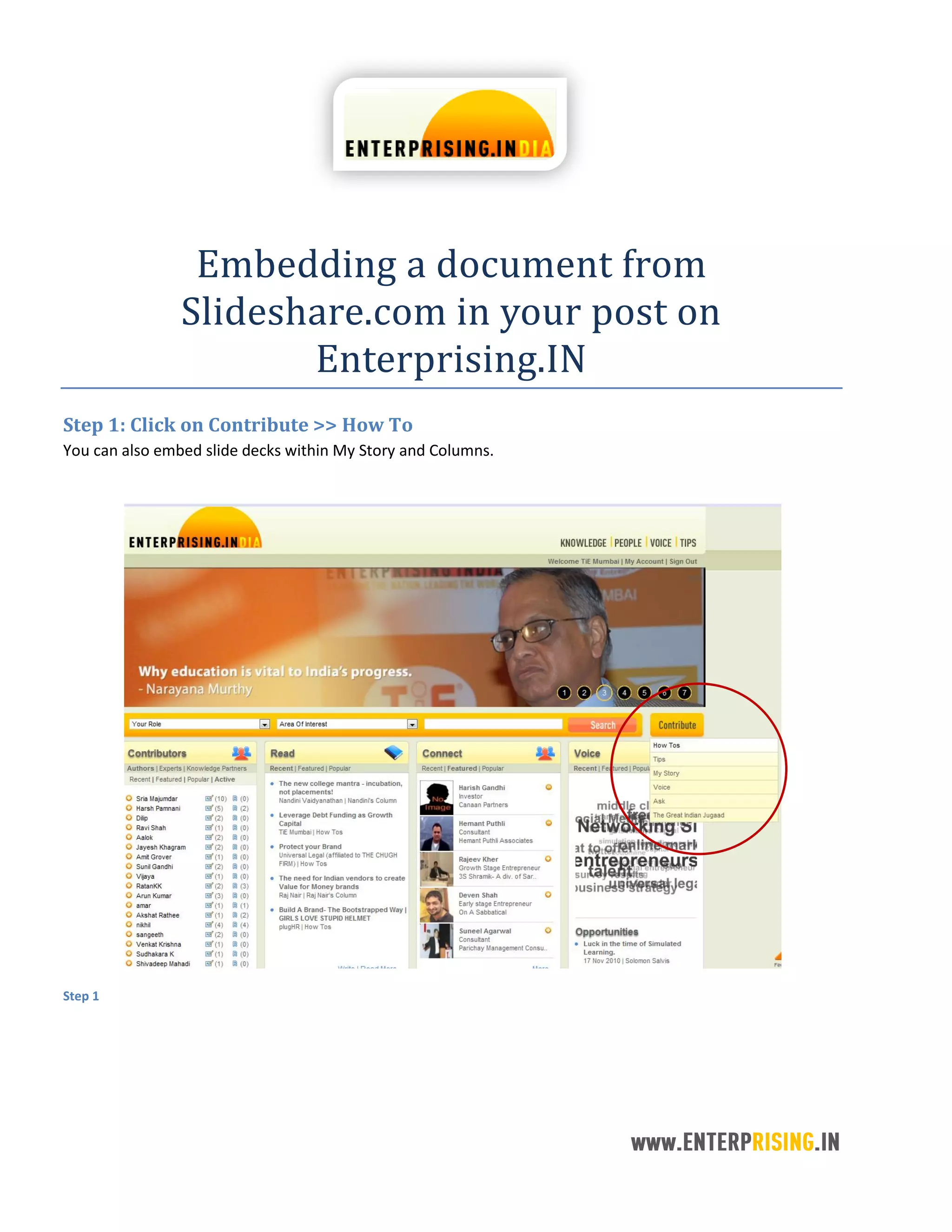
Step 1: Click on Contribute >> How To
You can also embed slide decks within My Story and Columns.
Step 1
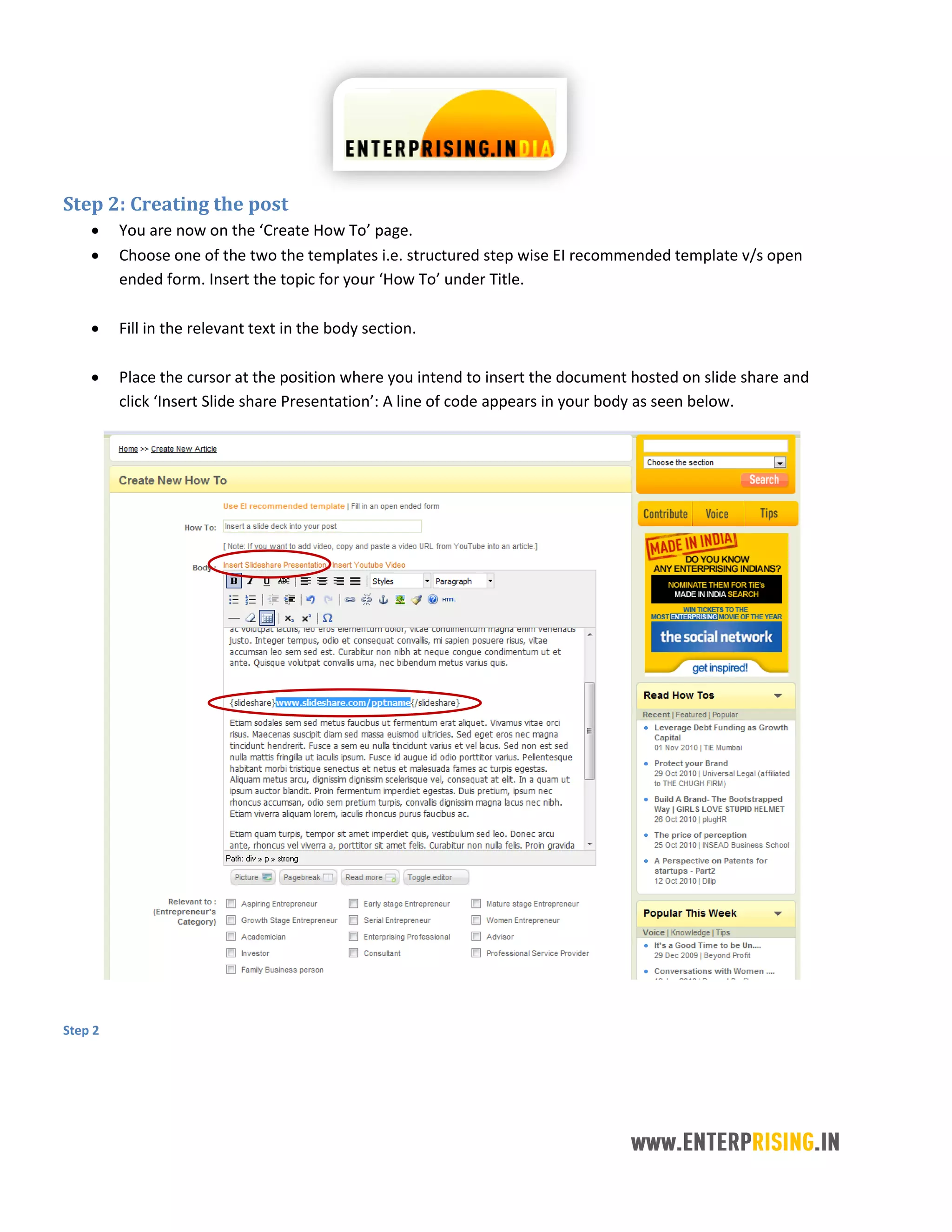
Step 2: Creating the post
 You are now on the ‘Create How To’ page.
 Choose one of the two the templates i.e. structured step wise EI recommended template v/s open
ended form. Insert the topic for your ‘How To’ under Title.
 Fill in the relevant text in the body section.
 Place the cursor at the position where you intend to insert the document hosted on slide share and
click ‘Insert Slide share Presentation’: A line of code appears in your body as seen below.
Step 2
Step 3: Pasting the code
 Go to the corresponding webpage of your slideshare presentation (you don’t have to own this
presentation to embed it in your post)
 Click on ‘Wordpress’ on the panel to the left of the presentation (as seen below)
 Select the text included under ‘Wordpress Self Hosted blogs’ as seen below.
 Paste this in place of the text highlighted in the screen above. The final result will look like:
{slideshare} [slideshare id=5120271&doc=tiebizworldoverview-100903030208-phpapp01]
{/slideshare}
 Publish your article.
Step 3
How to embed a slideshare presentation in your post on enterprising.in

How to embed a slideshare presentation in your post on enterprising.in

  • 1.
    Embedding a documentfrom Slideshare.com in your post on Enterprising.IN Step 1: Click on Contribute >> How To You can also embed slide decks within My Story and Columns. Step 1
  • 2.
    Step 2: Creatingthe post  You are now on the ‘Create How To’ page.  Choose one of the two the templates i.e. structured step wise EI recommended template v/s open ended form. Insert the topic for your ‘How To’ under Title.  Fill in the relevant text in the body section.  Place the cursor at the position where you intend to insert the document hosted on slide share and click ‘Insert Slide share Presentation’: A line of code appears in your body as seen below. Step 2
  • 3.
    Step 3: Pastingthe code  Go to the corresponding webpage of your slideshare presentation (you don’t have to own this presentation to embed it in your post)  Click on ‘Wordpress’ on the panel to the left of the presentation (as seen below)  Select the text included under ‘Wordpress Self Hosted blogs’ as seen below.  Paste this in place of the text highlighted in the screen above. The final result will look like: {slideshare} [slideshare id=5120271&doc=tiebizworldoverview-100903030208-phpapp01] {/slideshare}  Publish your article. Step 3