SLIDESHARE
Ma. Glicel Joy G. Bobier
11-Gauss
Mr. Richard Domanico
Subject Adviser
SLIDESHARE
 I - What is SLIDESHARE?
→ History → Definition → Features
 II – How to use Slideshare?
A. Making a slideshow for slideshare
B. Uploading slideshow to slideshare
C. Embedding a slideshow from slideshare
 III – Why should you use Slideshare?
 Benefits
WHAT IS SLIDESHARE?
I - What is SLIDESHARE?
A.HISTORY
SlideShare was officially launched on October 4, 2006. Rashmi Sinha,
the CEO and co-founder of SlideShare is responsible for partnerships and product
strategy. She was named amongst the world's Top 10 Women Influencers in Web
2.0 by FastCompany. Jonathan Boutelle is the CTO of SlideShare and came up with
the initial idea behind the website. He wrote the first version of the site. Amit
Ranjan, the COO, heads SlideShare's development team in India and focuses on
product management, content and community.
On May 3, 2012, SlideShare announced that it was to be acquired by LinkedIn. It is
reported that the deal was $118.75 million. In December 2013, SlideShare
revamped its site offering more of a visual spin on the homepage, including larger
images.
I - What is SLIDESHARE?
B. DEFINITION
SlideShare is a slide hosting service, acquired by LinkedIn in 2012. It allows users to
upload files (PowerPoint, PDF, Keynote, or OpenDocument presentations) either
privately or publicly. The slide decks can then be viewed on the site itself or can be
embedded on other sites. Just as YouTube allows users to upload and share videos,
SlideShare allows users to upload and share slideshows.
Although the site was originally intended for businesses to share slides amongst
employees, it has expanded and now hosts a huge number of slideshows which have
been uploaded for anybody to view.
I - What is SLIDESHARE?
C. FEATURES
• Easy presentation sharing online.
• Upload your own presentations (ppt, pdf, odp, pps formats).
• Maximum presentation size is 100mb.
• Users are able to view presentations online and download them.
• Option to embed presentations on other websites.
• Create events and send conference invites.
• Search and browse presentations shared by others.
• Showcase presentations on LinkedIn profile.
• Similar website: Slidelive.
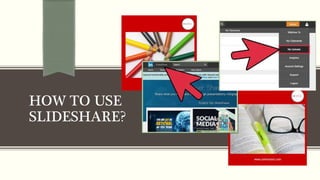
HOW TO USE
SLIDESHARE?
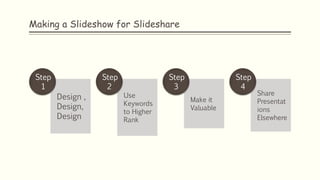
Making a Slideshow for Slideshare
Design ,
Design,
Design
Step
1
Use
Keywords
to Higher
Rank
Step
2
Make it
Valuable
Step
3
Share
Presentat
ions
Elsewhere
Step
4
1. Design , Design, Design
SlideShare’s users expect high-quality content. Meet this
requirement, and you can expect to be rewarded by clicks
and shares. Ignore it and prepare to watch your content sit
around not doing an awful lot.
SlideShare itself has written about what makes for a well-
designed presentation. In short, presentations should:
• Not use overwhelming background images, since this
can make text hard to read. Instead, use a light-
coloured, subtle background so that people can read
what you have to say clearly.
• Not centre-align all text and images, since this can create
a chaotic, disjointed effect. Rather, only align some of your
text centrally. Move supporting text to the left for a more
balanced look.
• Not consist of only one font size. Draw attention to the
more important parts (words or sentences) of your slide
with larger fonts and use smaller fonts for less important
information of a slide.
1. Design , Design, Design
• Not overuse drop shadows. Drop shadows, especially thin,
dark shadows against a white background, look blurry and
cluttered. If you need to use a drop shadow, only ever use
it on the header (never the body).
• Not use poor quality images. Nothing looks as
unprofessional as a poor quality or low-resolution image. If
you want to use an image for the background, make sure it
is in the 1000 pixels size range. Anything smaller should
only be used as part of a slide, never a background.
• Not use tacky or cheap fonts. Fonts which appear childish
or tawdry will put viewers off instantly (I’m looking at
you, Comic Sans). But this doesn’t mean you can’t
experiment with fonts.
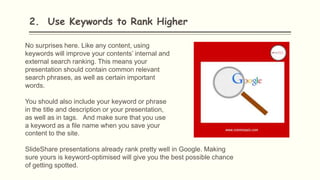
2. Use Keywords to Rank Higher
No surprises here. Like any content, using
keywords will improve your contents’ internal and
external search ranking. This means your
presentation should contain common relevant
search phrases, as well as certain important
words.
You should also include your keyword or phrase
in the title and description or your presentation,
as well as in tags. And make sure that you use
a keyword as a file name when you save your
content to the site.
SlideShare presentations already rank pretty well in Google. Making
sure yours is keyword-optimised will give you the best possible chance
of getting spotted.
3. Make it Valuable
It can be tempting to create slideshows that harp on
about how great you or your product/service is. But
generally, such presentations do not perform very well.
Like any good content, your slideshows have to give
readers valuable industry information. This may be the
results of a survey, a summary of a white paper,
speculative industry insights, or market reports.
Whatever information you choose to use as the basis of
your presentation should be relevant to your target
audience and give them insights and information they
haven’t seen before and can’t get elsewhere.
If you can consistently deliver such information, your
account will take off big time.
4. Share Presentations Elsewhere
If you’re just starting out on SlideShare, a great way to drive initial traffic to your content is
to direct it from other social channels.
Of course, LinkedIn is a safe bet, since the content you’re likely to be sharing will be
detailed and in-depth information, and such information will go down best with
professionals.
The best way to do this is to post the presentation to LinkedIn (easy, since the two
platforms are well integrated) and then share it as a status update from your personal
account, your employees’ personal accounts, and your company page. It’s also possible to
add SlideShare content to your LinkedIn profile’s summary page.
And other social platforms can do their part too. There’s no reason why you can’t post your
slideshow to Facebook and Twitter. It might not perform as well here as on LinkedIn, but all
traffic is good traffic.
B. Uploading Slideshow To
Slideshare
Whether your slideshow is saved to your hard drive or the cloud, it's easy to upload it to
SlideShare. After signing in to Slideshare.net, click "Upload," then choose "Select files to
upload" (if the file is on your computer) or "Upload files from the cloud" (if it's saved to
Google Docs, Box, Dropbox, Gmail, or OneDrive). After uploading, you can choose to
keep your presentation private or share it with the world.
Uploading from Your Hard Drive
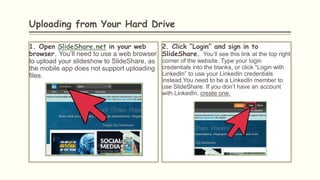
1. Open SlideShare.net in your web
browser. You’ll need to use a web browser
to upload your slideshow to SlideShare, as
the mobile app does not support uploading
files.
2. Click “Login” and sign in to
SlideShare. You’ll see this link at the top right
corner of the website. Type your login
credentials into the blanks, or click “Login with
LinkedIn” to use your LinkedIn credentials
instead.You need to be a LinkedIn member to
use SlideShare. If you don’t have an account
with LinkedIn, create one.
Uploading from Your Hard Drive
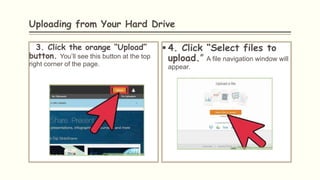
3. Click the orange “Upload”
button. You’ll see this button at the top
right corner of the page.
 4. Click “Select files to
upload.” A file navigation window will
appear.
Uploading from Your Hard Drive
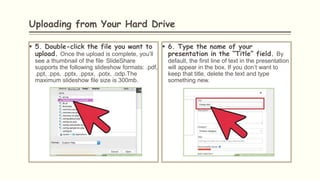
 5. Double-click the file you want to
upload. Once the upload is complete, you’ll
see a thumbnail of the file. SlideShare
supports the following slideshow formats: .pdf,
.ppt, .pps, .pptx, .ppsx, .potx, .odp.The
maximum slideshow file size is 300mb.
 6. Type the name of your
presentation in the “Title” field. By
default, the first line of text in the presentation
will appear in the box. If you don’t want to
keep that title, delete the text and type
something new.
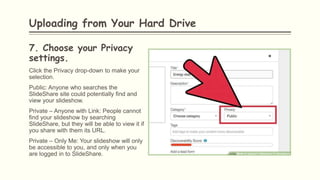
7. Choose your Privacy
settings.
Click the Privacy drop-down to make your
selection.
Public: Anyone who searches the
SlideShare site could potentially find and
view your slideshow.
Private – Anyone with Link: People cannot
find your slideshow by searching
SlideShare, but they will be able to view it if
you share with them its URL.
Private – Only Me: Your slideshow will only
be accessible to you, and only when you
are logged in to SlideShare.
Uploading from Your Hard Drive
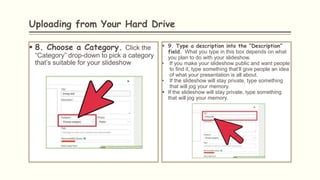
 8. Choose a Category. Click the
“Category” drop-down to pick a category
that’s suitable for your slideshow
 9. Type a description into the “Description”
field. What you type in this box depends on what
you plan to do with your slideshow.
• If you make your slideshow public and want people
to find it, type something that’ll give people an idea
of what your presentation is all about.
• If the slideshow will stay private, type something
that will jog your memory.
 If the slideshow will stay private, type something
that will jog your memory.
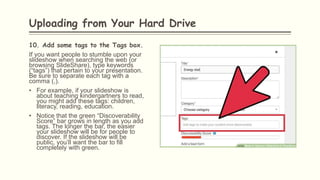
10. Add some tags to the Tags box.
If you want people to stumble upon your
slideshow when searching the web (or
browsing SlideShare), type keywords
(“tags”) that pertain to your presentation.
Be sure to separate each tag with a
comma (,).
• For example, if your slideshow is
about teaching kindergartners to read,
you might add these tags: children,
literacy, reading, education.
• Notice that the green “Discoverability
Score” bar grows in length as you add
tags. The longer the bar, the easier
your slideshow will be for people to
discover. If the slideshow will be
public, you’ll want the bar to fill
completely with green.
Uploading from Your Hard Drive
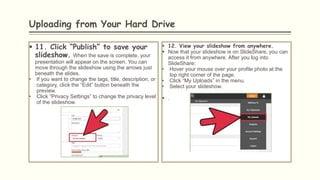
 11. Click “Publish” to save your
slideshow. When the save is complete, your
presentation will appear on the screen. You can
move through the slideshow using the arrows just
beneath the slides.
• If you want to change the tags, title, description, or
category, click the “Edit” button beneath the
preview.
• Click “Privacy Settings” to change the privacy level
of the slideshow.
 12. View your slideshow from anywhere.
 Now that your slideshow is on SlideShare, you can
access it from anywhere. After you log into
SlideShare:
• Hover your mouse over your profile photo at the
top right corner of the page.
• Click “My Uploads” in the menu.
• Select your slideshow.
 .
C. Embedding A Slideshow
From Slideshare
Embedding a Slideshow from Slideshare
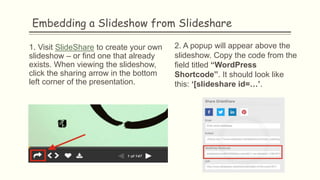
1. Visit SlideShare to create your own
slideshow – or find one that already
exists. When viewing the slideshow,
click the sharing arrow in the bottom
left corner of the presentation.
2. A popup will appear above the
slideshow. Copy the code from the
field titled “WordPress
Shortcode”. It should look like
this: ‘[slideshare id=…’.
Embedding a Slideshow from Slideshare
3. Paste the code into
a post or page on your blog
and publish it. The
slideshow will look similar
to the one below.
Customizing
You can also change the width and height of your
slideshow by adding these parameters &w=650&h=500 to
the end of the shortcode.
Example: If you use this shortcode your slideshow will be
displayed at 650px wide and 500px high.
[slideshare id=8874930&doc=sotw2011-as-delivered-
110816213106-phpapp01&w=650&h=500]
III- Slideshare Benefits
Slideshare Benefits
Here are some of the benefits of using SlideShare:
• Using SlideShare means you won’t have to worry about hosting content on
your own site since you can just embed content from SlideShare.
• A far more practical and less time-consuming process. Using it means you
will be able to tap into the large number of SlideShare visitors and raise your
own profile.
• It is low cost since there is both a free account option and the option to go
pro.
• It is easy to use since most people are already familiar with PowerPoint and
so are able to generate content relatively quickly.
• Using it will allow you to grow your brand and is perhaps the platform which
can best accommodate more detailed and in-depth content – i.e., content that
may not be appropriate for sharing on other social channels.

Slideshare

  • 1.
    SLIDESHARE Ma. Glicel JoyG. Bobier 11-Gauss Mr. Richard Domanico Subject Adviser
  • 2.
    SLIDESHARE  I -What is SLIDESHARE? → History → Definition → Features  II – How to use Slideshare? A. Making a slideshow for slideshare B. Uploading slideshow to slideshare C. Embedding a slideshow from slideshare  III – Why should you use Slideshare?  Benefits
  • 3.
  • 4.
    I - Whatis SLIDESHARE? A.HISTORY SlideShare was officially launched on October 4, 2006. Rashmi Sinha, the CEO and co-founder of SlideShare is responsible for partnerships and product strategy. She was named amongst the world's Top 10 Women Influencers in Web 2.0 by FastCompany. Jonathan Boutelle is the CTO of SlideShare and came up with the initial idea behind the website. He wrote the first version of the site. Amit Ranjan, the COO, heads SlideShare's development team in India and focuses on product management, content and community. On May 3, 2012, SlideShare announced that it was to be acquired by LinkedIn. It is reported that the deal was $118.75 million. In December 2013, SlideShare revamped its site offering more of a visual spin on the homepage, including larger images.
  • 5.
    I - Whatis SLIDESHARE? B. DEFINITION SlideShare is a slide hosting service, acquired by LinkedIn in 2012. It allows users to upload files (PowerPoint, PDF, Keynote, or OpenDocument presentations) either privately or publicly. The slide decks can then be viewed on the site itself or can be embedded on other sites. Just as YouTube allows users to upload and share videos, SlideShare allows users to upload and share slideshows. Although the site was originally intended for businesses to share slides amongst employees, it has expanded and now hosts a huge number of slideshows which have been uploaded for anybody to view.
  • 6.
    I - Whatis SLIDESHARE? C. FEATURES • Easy presentation sharing online. • Upload your own presentations (ppt, pdf, odp, pps formats). • Maximum presentation size is 100mb. • Users are able to view presentations online and download them. • Option to embed presentations on other websites. • Create events and send conference invites. • Search and browse presentations shared by others. • Showcase presentations on LinkedIn profile. • Similar website: Slidelive.
  • 7.
  • 8.
    Making a Slideshowfor Slideshare Design , Design, Design Step 1 Use Keywords to Higher Rank Step 2 Make it Valuable Step 3 Share Presentat ions Elsewhere Step 4
  • 9.
    1. Design ,Design, Design SlideShare’s users expect high-quality content. Meet this requirement, and you can expect to be rewarded by clicks and shares. Ignore it and prepare to watch your content sit around not doing an awful lot. SlideShare itself has written about what makes for a well- designed presentation. In short, presentations should: • Not use overwhelming background images, since this can make text hard to read. Instead, use a light- coloured, subtle background so that people can read what you have to say clearly. • Not centre-align all text and images, since this can create a chaotic, disjointed effect. Rather, only align some of your text centrally. Move supporting text to the left for a more balanced look. • Not consist of only one font size. Draw attention to the more important parts (words or sentences) of your slide with larger fonts and use smaller fonts for less important information of a slide.
  • 10.
    1. Design ,Design, Design • Not overuse drop shadows. Drop shadows, especially thin, dark shadows against a white background, look blurry and cluttered. If you need to use a drop shadow, only ever use it on the header (never the body). • Not use poor quality images. Nothing looks as unprofessional as a poor quality or low-resolution image. If you want to use an image for the background, make sure it is in the 1000 pixels size range. Anything smaller should only be used as part of a slide, never a background. • Not use tacky or cheap fonts. Fonts which appear childish or tawdry will put viewers off instantly (I’m looking at you, Comic Sans). But this doesn’t mean you can’t experiment with fonts.
  • 11.
    2. Use Keywordsto Rank Higher No surprises here. Like any content, using keywords will improve your contents’ internal and external search ranking. This means your presentation should contain common relevant search phrases, as well as certain important words. You should also include your keyword or phrase in the title and description or your presentation, as well as in tags. And make sure that you use a keyword as a file name when you save your content to the site. SlideShare presentations already rank pretty well in Google. Making sure yours is keyword-optimised will give you the best possible chance of getting spotted.
  • 12.
    3. Make itValuable It can be tempting to create slideshows that harp on about how great you or your product/service is. But generally, such presentations do not perform very well. Like any good content, your slideshows have to give readers valuable industry information. This may be the results of a survey, a summary of a white paper, speculative industry insights, or market reports. Whatever information you choose to use as the basis of your presentation should be relevant to your target audience and give them insights and information they haven’t seen before and can’t get elsewhere. If you can consistently deliver such information, your account will take off big time.
  • 13.
    4. Share PresentationsElsewhere If you’re just starting out on SlideShare, a great way to drive initial traffic to your content is to direct it from other social channels. Of course, LinkedIn is a safe bet, since the content you’re likely to be sharing will be detailed and in-depth information, and such information will go down best with professionals. The best way to do this is to post the presentation to LinkedIn (easy, since the two platforms are well integrated) and then share it as a status update from your personal account, your employees’ personal accounts, and your company page. It’s also possible to add SlideShare content to your LinkedIn profile’s summary page. And other social platforms can do their part too. There’s no reason why you can’t post your slideshow to Facebook and Twitter. It might not perform as well here as on LinkedIn, but all traffic is good traffic.
  • 14.
    B. Uploading SlideshowTo Slideshare Whether your slideshow is saved to your hard drive or the cloud, it's easy to upload it to SlideShare. After signing in to Slideshare.net, click "Upload," then choose "Select files to upload" (if the file is on your computer) or "Upload files from the cloud" (if it's saved to Google Docs, Box, Dropbox, Gmail, or OneDrive). After uploading, you can choose to keep your presentation private or share it with the world.
  • 15.
    Uploading from YourHard Drive 1. Open SlideShare.net in your web browser. You’ll need to use a web browser to upload your slideshow to SlideShare, as the mobile app does not support uploading files. 2. Click “Login” and sign in to SlideShare. You’ll see this link at the top right corner of the website. Type your login credentials into the blanks, or click “Login with LinkedIn” to use your LinkedIn credentials instead.You need to be a LinkedIn member to use SlideShare. If you don’t have an account with LinkedIn, create one.
  • 16.
    Uploading from YourHard Drive 3. Click the orange “Upload” button. You’ll see this button at the top right corner of the page.  4. Click “Select files to upload.” A file navigation window will appear.
  • 17.
    Uploading from YourHard Drive  5. Double-click the file you want to upload. Once the upload is complete, you’ll see a thumbnail of the file. SlideShare supports the following slideshow formats: .pdf, .ppt, .pps, .pptx, .ppsx, .potx, .odp.The maximum slideshow file size is 300mb.  6. Type the name of your presentation in the “Title” field. By default, the first line of text in the presentation will appear in the box. If you don’t want to keep that title, delete the text and type something new.
  • 18.
    7. Choose yourPrivacy settings. Click the Privacy drop-down to make your selection. Public: Anyone who searches the SlideShare site could potentially find and view your slideshow. Private – Anyone with Link: People cannot find your slideshow by searching SlideShare, but they will be able to view it if you share with them its URL. Private – Only Me: Your slideshow will only be accessible to you, and only when you are logged in to SlideShare. Uploading from Your Hard Drive
  • 19.
    Uploading from YourHard Drive  8. Choose a Category. Click the “Category” drop-down to pick a category that’s suitable for your slideshow  9. Type a description into the “Description” field. What you type in this box depends on what you plan to do with your slideshow. • If you make your slideshow public and want people to find it, type something that’ll give people an idea of what your presentation is all about. • If the slideshow will stay private, type something that will jog your memory.  If the slideshow will stay private, type something that will jog your memory.
  • 20.
    10. Add sometags to the Tags box. If you want people to stumble upon your slideshow when searching the web (or browsing SlideShare), type keywords (“tags”) that pertain to your presentation. Be sure to separate each tag with a comma (,). • For example, if your slideshow is about teaching kindergartners to read, you might add these tags: children, literacy, reading, education. • Notice that the green “Discoverability Score” bar grows in length as you add tags. The longer the bar, the easier your slideshow will be for people to discover. If the slideshow will be public, you’ll want the bar to fill completely with green. Uploading from Your Hard Drive
  • 21.
    Uploading from YourHard Drive  11. Click “Publish” to save your slideshow. When the save is complete, your presentation will appear on the screen. You can move through the slideshow using the arrows just beneath the slides. • If you want to change the tags, title, description, or category, click the “Edit” button beneath the preview. • Click “Privacy Settings” to change the privacy level of the slideshow.  12. View your slideshow from anywhere.  Now that your slideshow is on SlideShare, you can access it from anywhere. After you log into SlideShare: • Hover your mouse over your profile photo at the top right corner of the page. • Click “My Uploads” in the menu. • Select your slideshow.  .
  • 22.
    C. Embedding ASlideshow From Slideshare
  • 23.
    Embedding a Slideshowfrom Slideshare 1. Visit SlideShare to create your own slideshow – or find one that already exists. When viewing the slideshow, click the sharing arrow in the bottom left corner of the presentation. 2. A popup will appear above the slideshow. Copy the code from the field titled “WordPress Shortcode”. It should look like this: ‘[slideshare id=…’.
  • 24.
    Embedding a Slideshowfrom Slideshare 3. Paste the code into a post or page on your blog and publish it. The slideshow will look similar to the one below. Customizing You can also change the width and height of your slideshow by adding these parameters &w=650&h=500 to the end of the shortcode. Example: If you use this shortcode your slideshow will be displayed at 650px wide and 500px high. [slideshare id=8874930&doc=sotw2011-as-delivered- 110816213106-phpapp01&w=650&h=500]
  • 26.
  • 27.
    Slideshare Benefits Here aresome of the benefits of using SlideShare: • Using SlideShare means you won’t have to worry about hosting content on your own site since you can just embed content from SlideShare. • A far more practical and less time-consuming process. Using it means you will be able to tap into the large number of SlideShare visitors and raise your own profile. • It is low cost since there is both a free account option and the option to go pro. • It is easy to use since most people are already familiar with PowerPoint and so are able to generate content relatively quickly. • Using it will allow you to grow your brand and is perhaps the platform which can best accommodate more detailed and in-depth content – i.e., content that may not be appropriate for sharing on other social channels.

Editor's Notes

  • #2 NOTE: To change the image on this slide, select the picture and delete it. Then click the Pictures icon in the placeholder to insert your own image.