How To Do
Desktop Publishing
Have a Plan, Make a Sketch
• Have an idea of where you are
going with your design
• Even the roughest sketches
can be useful
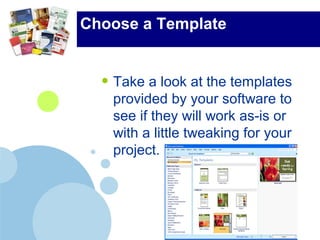
Choose a Template
• Take a look at the templates
provided by your software to
see if they will work as-is or
with a little tweaking for your
project.
Set Up Your Document
• If using a template, you may need
to tweak some of the template
settings.
• If starting from scratch, set the size
and orientation of your document.
• Set the margins.
• If you’ll be doing text in columns,
set up text columns.
Place Text in Your Document
• If your document is mostly text,
place it in your layout by:
• Importing it from a file,
• Copying it from another program,
or
• Typing it directly in your program
(not the best choice if it is a
substantial amount of text.
Format Your Text
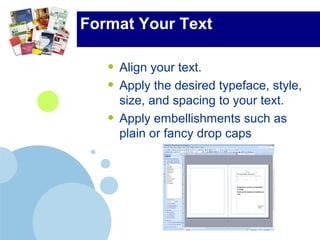
• Align your text.
• Apply the desired typeface, style,
size, and spacing to your text.
• Apply embellishments such as
plain or fancy drop caps
Place Graphics in Your
Document
• If your document is mostly
graphics-based, you may want to
place the images before adding bits
of text.
• Import your graphics from a file,
copy them from another program,
or create them directly in your page
layout software (simple boxes,
rules, etc.)
Tweak Your Graphics
Placement
• Move your graphics around so that
they line up the way you want
them.
• Set up your graphics so that text
wraps around them.
• Crop or resize graphics, if
necessary.
Apply the Rules of Desktop
Publishing
• Drop typewritten conventions such
as two spaces after periods and
double hard returns between
paragraphs;
• Use fewer fonts;
• Less clip art;
• Leave white space in the layout; and
• Avoid most centered and justified
text.
Print a Draft and Proofread It
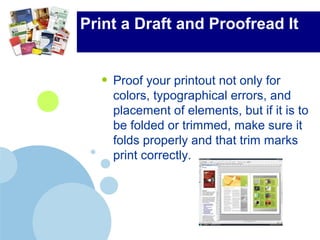
• Proof your printout not only for
colors, typographical errors, and
placement of elements, but if it is to
be folded or trimmed, make sure it
folds properly and that trim marks
print correctly.
Print Your Project!
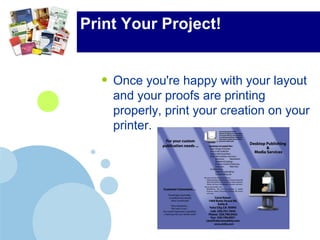
• Once you're happy with your layout
and your proofs are printing
properly, print your creation on your
printer.

How To Do Desktop Publishing

  • 1.
  • 2.
    Have a Plan,Make a Sketch • Have an idea of where you are going with your design • Even the roughest sketches can be useful
  • 3.
    Choose a Template •Take a look at the templates provided by your software to see if they will work as-is or with a little tweaking for your project.
  • 4.
    Set Up YourDocument • If using a template, you may need to tweak some of the template settings. • If starting from scratch, set the size and orientation of your document. • Set the margins. • If you’ll be doing text in columns, set up text columns.
  • 5.
    Place Text inYour Document • If your document is mostly text, place it in your layout by: • Importing it from a file, • Copying it from another program, or • Typing it directly in your program (not the best choice if it is a substantial amount of text.
  • 6.
    Format Your Text •Align your text. • Apply the desired typeface, style, size, and spacing to your text. • Apply embellishments such as plain or fancy drop caps
  • 7.
    Place Graphics inYour Document • If your document is mostly graphics-based, you may want to place the images before adding bits of text. • Import your graphics from a file, copy them from another program, or create them directly in your page layout software (simple boxes, rules, etc.)
  • 8.
    Tweak Your Graphics Placement •Move your graphics around so that they line up the way you want them. • Set up your graphics so that text wraps around them. • Crop or resize graphics, if necessary.
  • 9.
    Apply the Rulesof Desktop Publishing • Drop typewritten conventions such as two spaces after periods and double hard returns between paragraphs; • Use fewer fonts; • Less clip art; • Leave white space in the layout; and • Avoid most centered and justified text.
  • 10.
    Print a Draftand Proofread It • Proof your printout not only for colors, typographical errors, and placement of elements, but if it is to be folded or trimmed, make sure it folds properly and that trim marks print correctly.
  • 11.
    Print Your Project! •Once you're happy with your layout and your proofs are printing properly, print your creation on your printer.