Ghanshyam
makwana
          Sr. Engineer
          C&I maintenance
Over view
 Basic
 How to create unplanned work order?
 How to close work order?
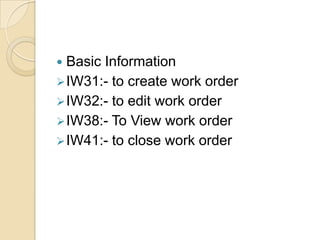
 Basic Information
 IW31:- to create work order
 IW32:- to edit work order
 IW38:- To View work order
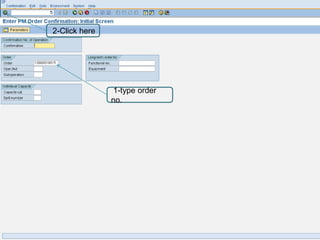
 IW41:- to close work order
How to Create work order?
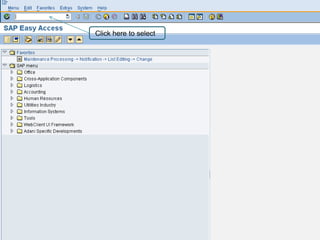
Click here to select
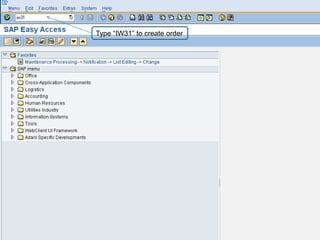
Type “IW31” to create order
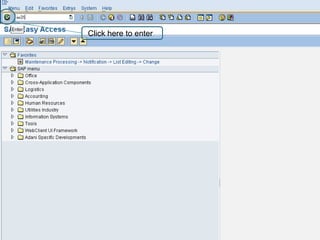
Click here to enter
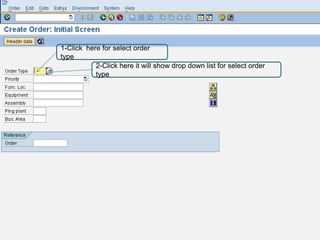
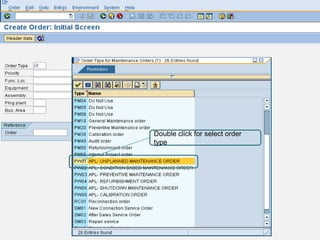
1-Click here for select order
type
           2-Click here it will show drop down list for select order
           type
Double click for select order
type
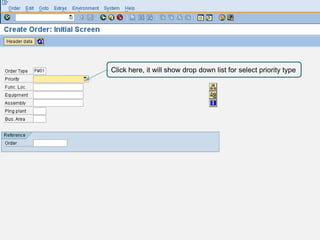
Click here, it will show drop down list for select priority type
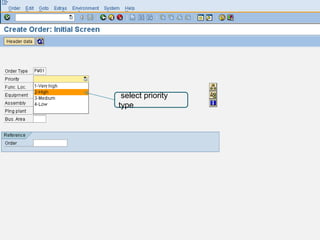
select priority
type
4
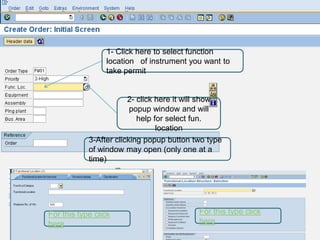
                 1- Click here to select function
                 location of instrument you want to
                 take permit


                        2- click here it will show
                         popup window and will
                           help for select fun.
                                 location
            3-After clicking popup button two type
            of window may open (only one at a
            time)


For this type click                        For this type click
here                                       here
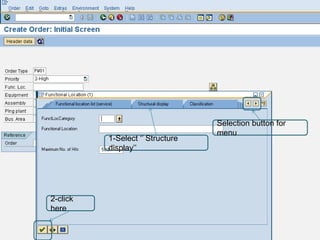
Selection button for
                                  menu
          1-Select „‟ Structure
          display‟‟


2-click
here
`
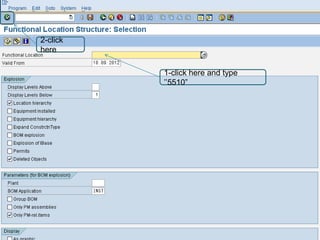
2-click
here

          1-click here and type
          ‟‟5510”
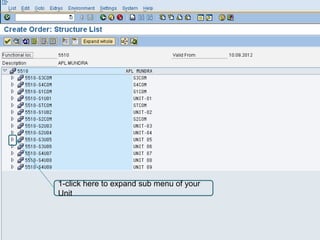
1-click here to expand sub menu of your
Unit
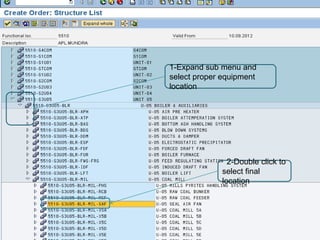
1-Expand sub menu and
select proper equipment
location


               2-Double click to
             select final
             location
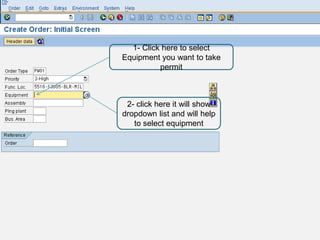
1- Click here to select
Equipment you want to take
          permit


 2- click here it will show
dropdown list and will help
   to select equipment
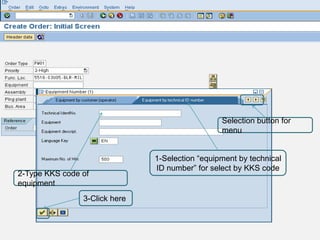
Selection button for
                                                 menu


                               1-Selection “equipment by technical
                               ID number” for select by KKS code
2-Type KKS code of
equipment
                3-Click here
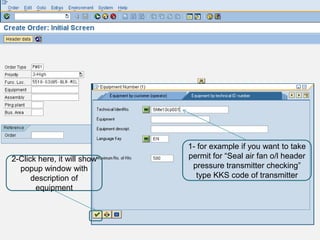
1- for example if you want to take
2-Click here, it will show   permit for “Seal air fan o/l header
  popup window with           pressure transmitter checking”
      description of           type KKS code of transmitter
       equipment
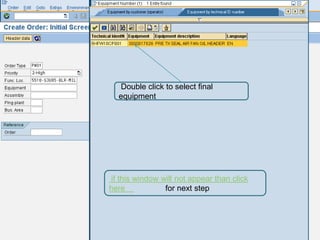
Double click to select final
  equipment


if this window will not appear than click
here            for next step
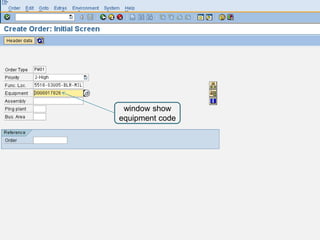
window show
equipment code
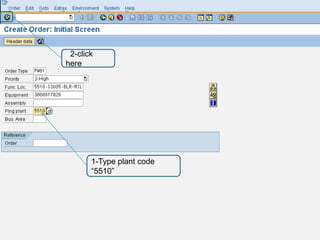
2-click
here


       1-Type plant code
       “5510”
1


2
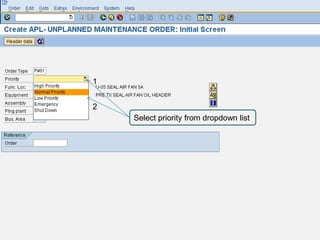
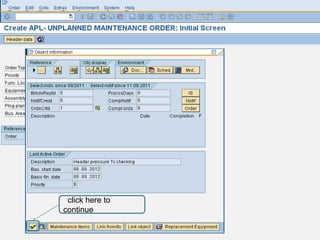
    Select priority from dropdown list
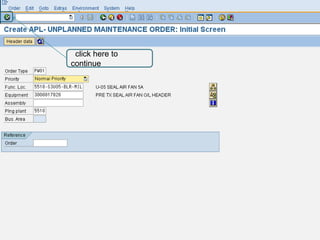
click here to
continue
click here to
continue
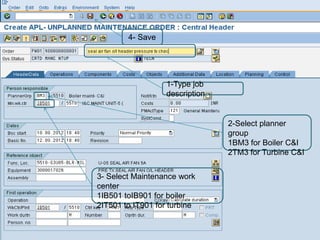
4- Save


                   1-Type job
                   description


                                 2-Select planner
                                 group
                                 1BM3 for Boiler C&I
                                 2TM3 for Turbine C&I


3- Select Maintenance work
center
1IB501 toIB901 for boiler
2IT501 to IT901 for turbine
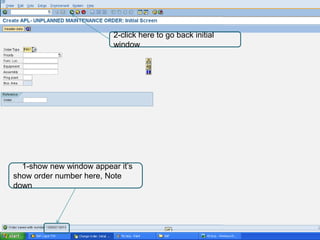
2-click here to go back initial
                          window


  1-show new window appear it‟s
show order number here, Note
down
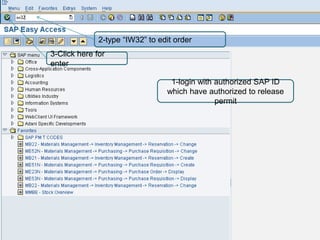
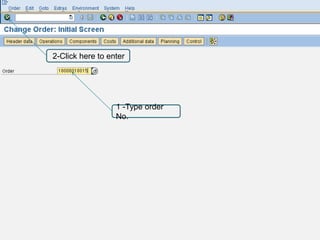
2-type “IW32” to edit order
3-Click here for
enter

                                  1-login with authorized SAP ID
                                 which have authorized to release
                                               permit
2-Click here to enter


                  1 -Type order
                  No.
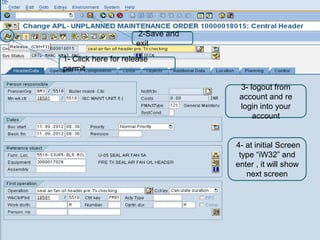
2-Save and
                     exit
1- Click here for release
permit

                                   3- logout from
                                   account and re
                                   login into your
                                       account


                                  4- at initial Screen
                                   type “iW32” and
                                  enter , it will show
                                     next screen
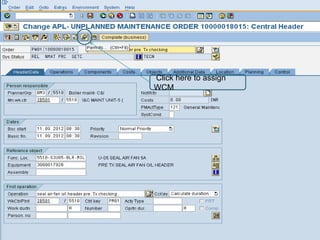
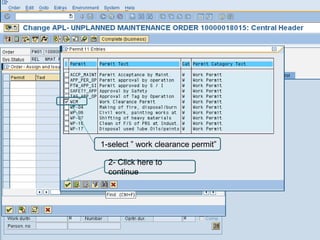
Click here to assign
WCM
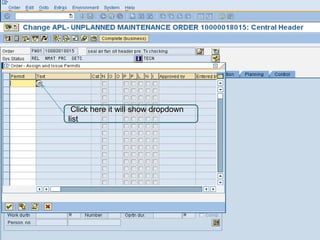
Click here it will show dropdown
list
1-select ” work clearance permit”

  2- Click here to
  continue
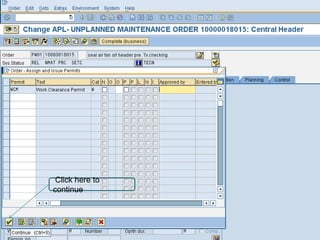
Click here to
continue
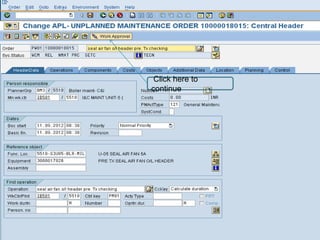
Click here to
continue
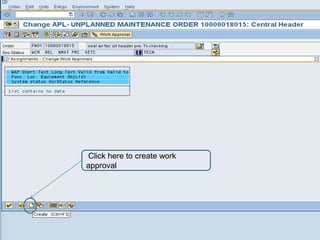
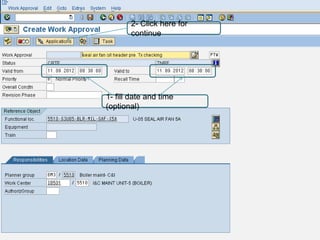
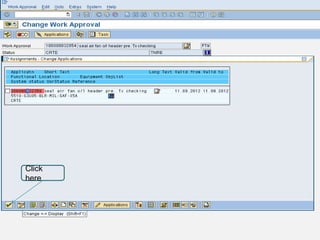
Click here to create work
approval
2- Click here for
       continue


1- fill date and time
(optional)
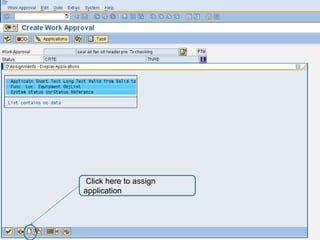
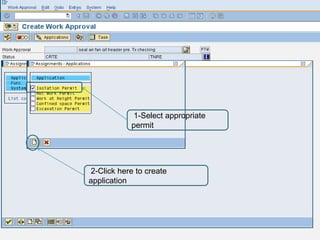
Click here to assign
application
1-Select appropriate
            permit


2-Click here to create
application
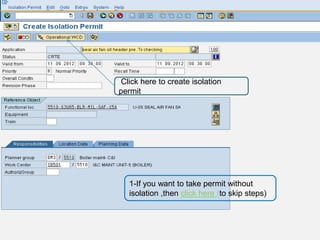
Click here to create isolation
permit


   1-If you want to take permit without
   isolation ,then click here (to skip steps)
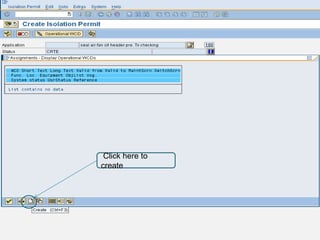
Click here to
create
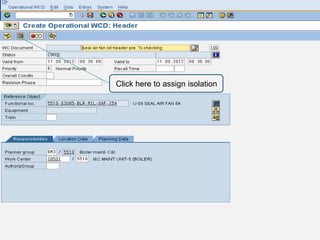
Click here to assign isolation
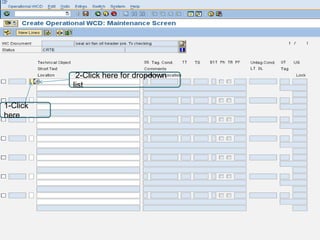
2-Click here for dropdown
          list

1-Click
here
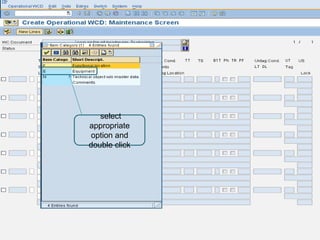
select
appropriate
 option and
double click
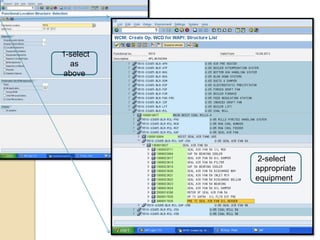
1-select
  as
above


           2-select
           appropriate
           equipment
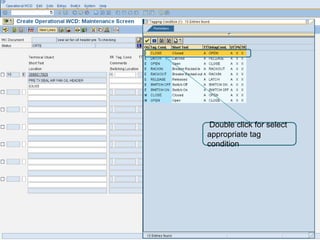
Double click for select
appropriate tag
condition
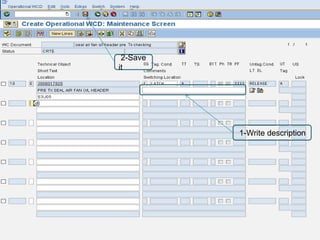
2-Save
it


          1-Write description
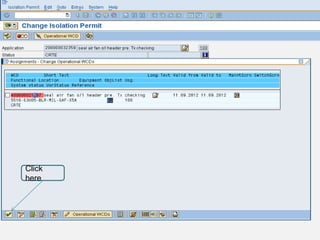
Click
here
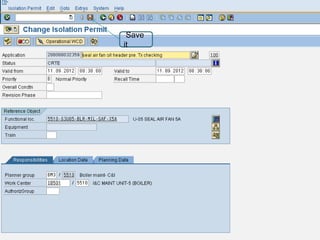
Save
it
Click
here
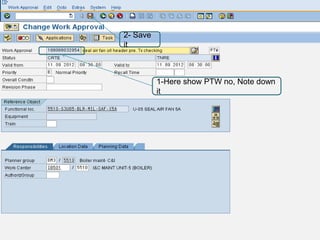
2- Save
it


          1-Here show PTW no, Note down
          it
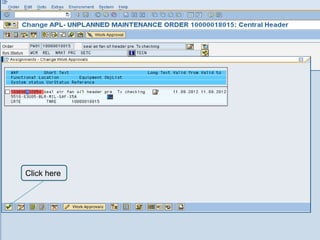
Click here
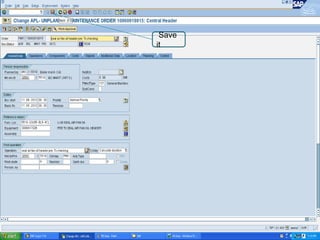
Save
it
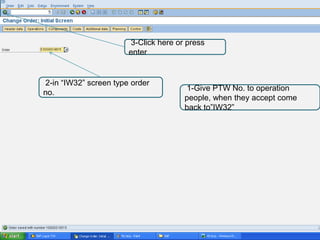
3-Click here or press
                       enter


2-in “IW32” screen type order
                                      1-Give PTW No. to operation
no.
                                      people, when they accept come
                                      back to”IW32”
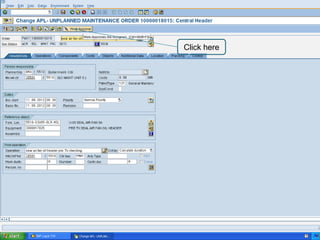
Click here
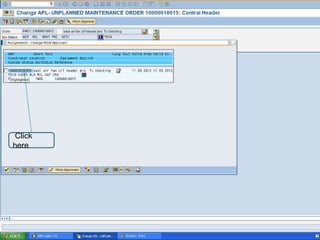
Click
here
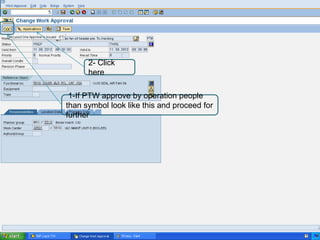
2- Click
      here

 1-If PTW approve by operation people
than symbol look like this and proceed for
further
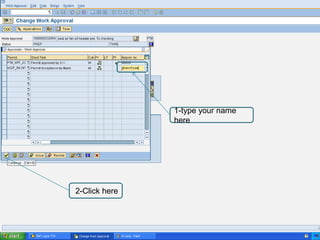
1-type your name
               here


2-Click here
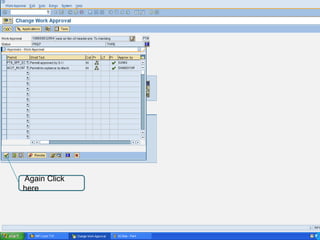
Again Click
here
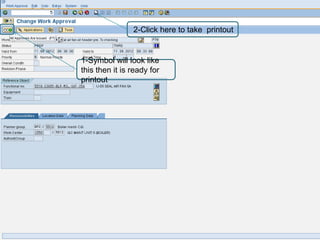
2-Click here to take printout


1-Symbol will look like
this then it is ready for
printout
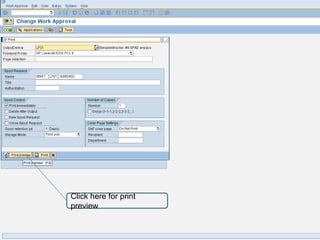
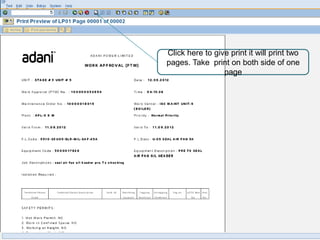
Click here for print
preview
Click here to give print it will print two
pages. Take print on both side of one
                 page
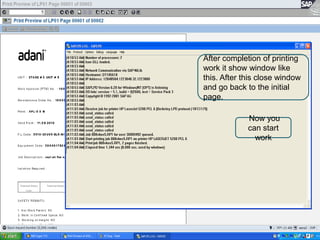
After completion of printing
work it show window like
this. After this close window
and go back to the initial
page.

             Now you
             can start
               work
How to close PTW ?
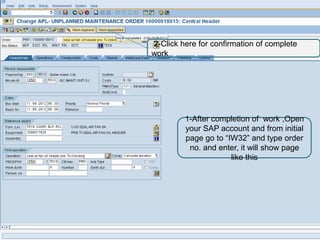
2-Click here for confirmation of complete
work


         1-After completion of work ,Open
         your SAP account and from initial
         page go to “IW32” and type order
          no. and enter, it will show page
                      like this
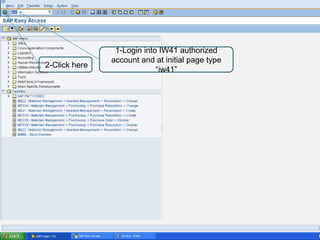
1-Login into IW41 authorized
               account and at initial page type
2-Click here
                            “iw41”
2-Click here


               1-type order
               no.
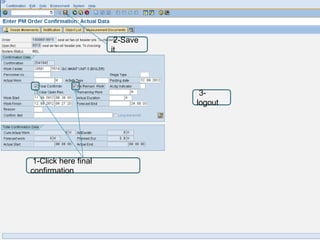
2-Save
                      it


                                 3-
                                logout


 1-Click here final
confirmation
How to create work order

How to create work order