Page 1
Plant Maintenance Course
For Engineering Staff
Page 2
Agenda
PM Overview
Create Notification
Create Order
Confirm Order
View Stores Stock
Page 3
Objectives
At the end of this unit students should be able to:
Understand SAP µSpeak
Understand the Plant Maintenance process
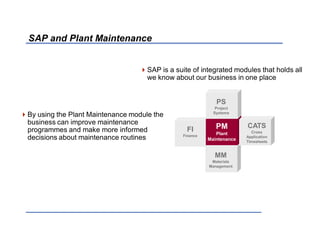
SAP and Plant Maintenance
SAP is a suite of integrated modules that holds all
we know about our business in one place
By using the Plant Maintenance module the
business can improve maintenance
programmes and make more informed
decisions about maintenance routines
FI
Finance
MM
Materials
Management
PM
Plant
Maintenance
PS
Project
Systems
CATS
Cross
Application
Timesheets
Page 5
SAP µSpeak
Plant: is a physical location such as a factory
Functional location: is permanent or fixed location that rarely moves in a
Plant such as a turbine and is identified by a unique code in SAP, for example,
1000-TUR01-LINE01
Equipment: is the equipment associated with a functional location such as a
rotor, which is also given a unique SAP code, for example, 10004864
Bill of Materials (BOM): is used to group the spare parts required for
maintenance work
Work Center: is the group of people who will do maintenance work; each
group is identified by a unique name in SAP, for example, MECH (Mechanic),
ELEC (Electrician), and CONT (Contractor)
Page 6
SAP µSpeak
Plant Maintenance: is the SAP module used for engineering maintenance
Notification: is the initial request for maintenance in SAP and holds technical
details (not costs) and also provides useful history
Work Order: is typically created from a Notification, and is used to plan the
required work
± Typically there are two types of work order
 One for planned work (every week or month and so on), which is automatically
created by the system.
 And one for unplanned work (such as a breakdown), which is created manually.
Page 7
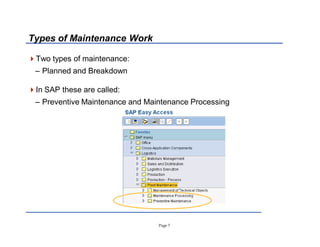
Types of Maintenance Work
Two types of maintenance:
± Planned and Breakdown
In SAP these are called:
± Preventive Maintenance and Maintenance Processing
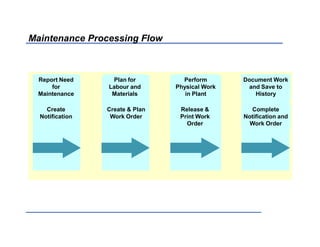
Maintenance Processing Flow
Report Need
for
Maintenance
Create
Notification
Plan for
Labour and
Materials
Create  Plan
Work Order
Perform
Physical Work
in Plant
Release 
Print Work
Order
Document Work
and Save to
History
Complete
Notification and
Work Order
Page 9
Report the Need for Maintenance
 Maintenance requirements are identified using Notifications, for example:
± Which functional location and equipment
± Description of the problem
± Priority, for example is the work urgent or can it be done during a shutdown period
 Work orders are then created manually, using the Notification as a reference
document
Page 10
Plan for Labour and Materials
 The labour and the actual work must be planned
± Details of individual work times and material costs are held in the work order
± A Work Centre is assigned to each operation
 The materials used for the work must be planned and made available
± Stocked materials are reserved via the work order
± Non-stock materials and external services are requisitioned via the work order
Page 11
Perform Work in the Plant
 After the labour and materials have been planned the work order is released
 Then, the system automatically:
± Prints out the work order and any other required documents such as Permits for
Work
± Generates reservations for stock, which appear in the Material Management
module
Page 12
Document Work and Maintenance History
 When the work is completed several pieces of information must be confirmed
± Actual time taken to do the work
± Actual quantities of materials used
± Damage found during maintenance
± Cause of the damage
± Additional information or lessons learned
 Once recorded and saved, the information becomes a part of the equipment
history
 In SAP both PM notifications and PM work orders are used to capture this
information
Page 13
Document Work and Maintenance History (cont.)
 Notifications save technical history
± Codes specifying the damage found
± Codes specifying the cause of the damage
± Additional comments by the workers or supervisor
 Work orders save financial history
± Actual labour costs
± Actual material costs
± Costs are typically attributed to Work Breakdown Structure (WBS) elements in the
Project Systems module or to Cost Centres in the Finance module
Page 14
Questions ?
Page 15
What Will the Engineers Do In SAP?
IW21 Create a Notification
IW22 Create a PM Order from a Notification
IW28 List Change Notifications
IW38 List Change PM Orders
IW41 or IW48 Confirm PM Order
MMBE Display Stock Overview
Page 16
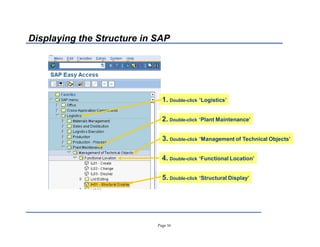
Displaying the Structure in SAP
1. Double-click µLogistics
2. Double-click µPlant Maintenance
3. Double-click µManagement of Technical Objects
4. Double-click µFunctional Location
5. Double-click µStructural Display
Page 17
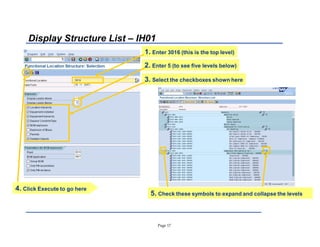
Display Structure List ± IH01
1. Enter 3016 (this is the top level)
4. Click Execute to go here
2. Enter 5 (to see five levels below)
5. Check these symbols to expand and collapse the levels
3. Select the checkboxes shown here
Page 18
Agenda
Create Notification
Create Order
Confirm Order
View Stores Stock
Page 19
Objectives
At the conclusion of this topic, you will be able to:
Create a Notification
Page 20
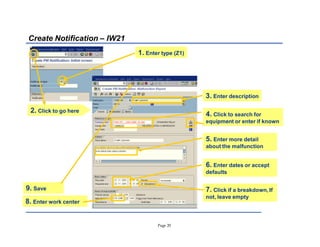
Create Notification ± IW21
1. Enter type (Z1)
2. Click to go here
3. Enter description
4. Click to search for
equipment or enter if known
7. Click if a breakdown, If
not, leave empty
6. Enter dates or accept
defaults
9. Save
5. Enter more detail
about the malfunction
8. Enter work center
Page 21
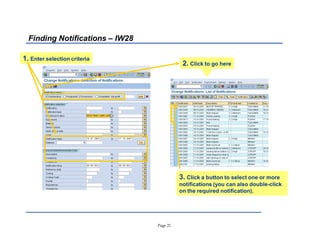
Finding Notifications ± IW28
1. Enter selection criteria
3. Click a button to select one or more
notifications (you can also double-click
on the required notification).
2. Click to go here
Page 22
Create Notification IW21
Change Notification IW22
List Editing Change Notification IW28
Demonstration  Exercise
Page 23
Agenda
Create Notification
Create Order
Confirm Order
View Stores Stock
Page 24
Objectives
At the conclusion of this topic, you will be able to:
Create an Order
Page 25
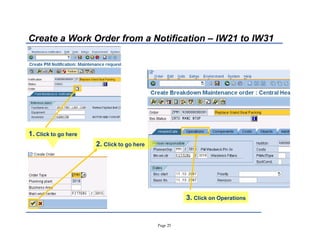
Create a Work Order from a Notification ± IW21 to IW31
1. Click to go here
2. Click to go here
3. Click on Operations
Page 26
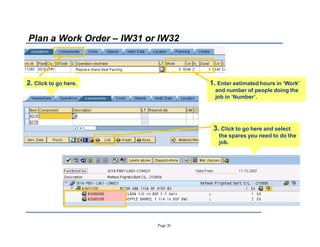
Plan a Work Order ± IW31 or IW32
2. Click to go here. 1. Enter estimated hours in µWork
and number of people doing the
job in µNumber¶.
3. Click to go here and select
the spares you need to do the
job.
Page 27
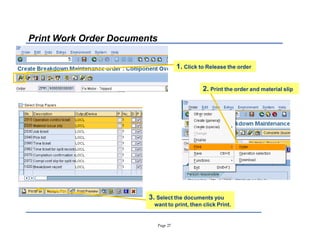
Print Work Order Documents
2. Print the order and material slip
1. Click to Release the order
3. Select the documents you
want to print, then click Print.
Page 28
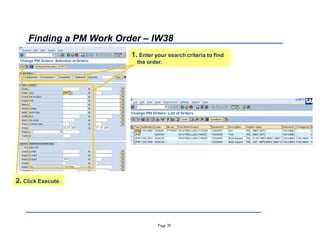
Finding a PM Work Order ± IW38
1. Enter your search criteria to find
the order.
2. Click Execute.
Page 29
List Editing Change Notification IW28
List Editing Change Order IW38
Demonstration  Exercise
Page 30
Agenda
Create Notification
Create Order
Confirm Order
View Stores Stock
Page 31
Objectives
At the conclusion of this topic, you will be able to:
Confirm a PM Work Order.
Complete a Notification.
Page 32
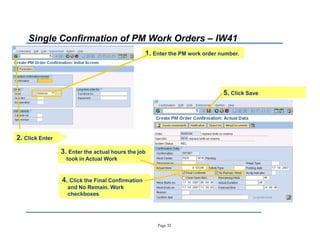
Single Confirmation of PM Work Orders ± IW41
3. Enter the actual hours the job
took in Actual Work
1. Enter the PM work order number.
2. Click Enter
4. Click the Final Confirmation
and No Remain. Work
checkboxes
5. Click Save
Page 33
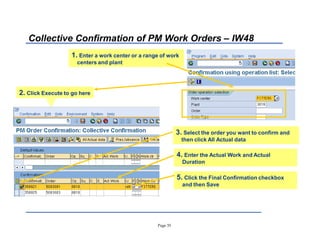
Collective Confirmation of PM Work Orders ± IW48
3. Select the order you want to confirm and
then click All Actual data
1. Enter a work center or a range of work
centers and plant
2. Click Execute to go here
4. Enter the Actual Work and Actual
Duration
5. Click the Final Confirmation checkbox
and then Save
Page 34
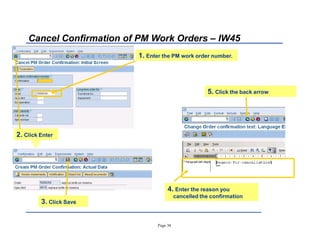
Cancel Confirmation of PM Work Orders ± IW45
4. Enter the reason you
cancelled the confirmation
1. Enter the PM work order number.
2. Click Enter
5. Click the back arrow
3. Click Save
Page 35
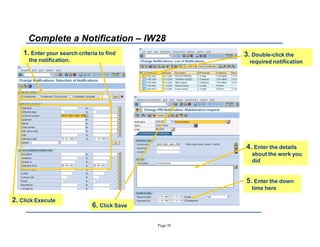
Complete a Notification ± IW28
4. Enter the details
about the work you
did
1. Enter your search criteria to find
the notification.
3. Double-click the
required notification
6. Click Save
5. Enter the down
time here
2. Click Execute
Page 36
PM Order Confirmation IW41 and IW48
Cancel PM Order Confirmation IW45
Complete PM Notification IW28
Demonstration  Exercise
Page 37
Agenda
SAP Navigation
Create Notification
Create Order
Complete Order
View Stores Stock
Page 38
Objectives
At the conclusion of this topic, you will be able to:
Search and View Stores Stock Items.
Page 39
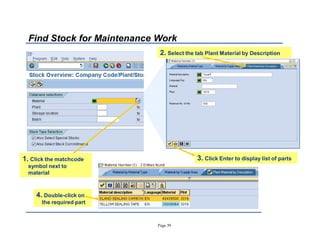
Find Stock for Maintenance Work
1. Click the matchcode
symbol next to
material
2. Select the tab Plant Material by Description
4. Double-click on
the required part
3. Click Enter to display list of parts
Page 40
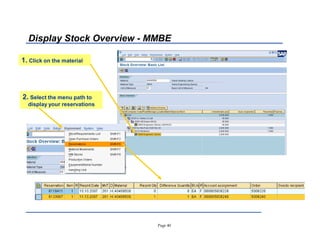
Display Stock Overview - MMBE
1. Click on the material
2. Select the menu path to
display your reservations
Page 41
Stores Stock Overview MMBE
Demonstration  Exercise
Page 42
Questions ?

30632830 plant-maintenance-basics-course

  • 1.
    Page 1 Plant MaintenanceCourse For Engineering Staff
  • 2.
    Page 2 Agenda PM Overview CreateNotification Create Order Confirm Order View Stores Stock
  • 3.
    Page 3 Objectives At theend of this unit students should be able to: Understand SAP µSpeak¶ Understand the Plant Maintenance process
  • 4.
    SAP and PlantMaintenance SAP is a suite of integrated modules that holds all we know about our business in one place By using the Plant Maintenance module the business can improve maintenance programmes and make more informed decisions about maintenance routines FI Finance MM Materials Management PM Plant Maintenance PS Project Systems CATS Cross Application Timesheets
  • 5.
    Page 5 SAP µSpeak¶ Plant:is a physical location such as a factory Functional location: is permanent or fixed location that rarely moves in a Plant such as a turbine and is identified by a unique code in SAP, for example, 1000-TUR01-LINE01 Equipment: is the equipment associated with a functional location such as a rotor, which is also given a unique SAP code, for example, 10004864 Bill of Materials (BOM): is used to group the spare parts required for maintenance work Work Center: is the group of people who will do maintenance work; each group is identified by a unique name in SAP, for example, MECH (Mechanic), ELEC (Electrician), and CONT (Contractor)
  • 6.
    Page 6 SAP µSpeak¶ PlantMaintenance: is the SAP module used for engineering maintenance Notification: is the initial request for maintenance in SAP and holds technical details (not costs) and also provides useful history Work Order: is typically created from a Notification, and is used to plan the required work ± Typically there are two types of work order One for planned work (every week or month and so on), which is automatically created by the system. And one for unplanned work (such as a breakdown), which is created manually.
  • 7.
    Page 7 Types ofMaintenance Work Two types of maintenance: ± Planned and Breakdown In SAP these are called: ± Preventive Maintenance and Maintenance Processing
  • 8.
    Maintenance Processing Flow ReportNeed for Maintenance Create Notification Plan for Labour and Materials Create Plan Work Order Perform Physical Work in Plant Release Print Work Order Document Work and Save to History Complete Notification and Work Order
  • 9.
    Page 9 Report theNeed for Maintenance Maintenance requirements are identified using Notifications, for example: ± Which functional location and equipment ± Description of the problem ± Priority, for example is the work urgent or can it be done during a shutdown period Work orders are then created manually, using the Notification as a reference document
  • 10.
    Page 10 Plan forLabour and Materials The labour and the actual work must be planned ± Details of individual work times and material costs are held in the work order ± A Work Centre is assigned to each operation The materials used for the work must be planned and made available ± Stocked materials are reserved via the work order ± Non-stock materials and external services are requisitioned via the work order
  • 11.
    Page 11 Perform Workin the Plant After the labour and materials have been planned the work order is released Then, the system automatically: ± Prints out the work order and any other required documents such as Permits for Work ± Generates reservations for stock, which appear in the Material Management module
  • 12.
    Page 12 Document Workand Maintenance History When the work is completed several pieces of information must be confirmed ± Actual time taken to do the work ± Actual quantities of materials used ± Damage found during maintenance ± Cause of the damage ± Additional information or lessons learned Once recorded and saved, the information becomes a part of the equipment history In SAP both PM notifications and PM work orders are used to capture this information
  • 13.
    Page 13 Document Workand Maintenance History (cont.) Notifications save technical history ± Codes specifying the damage found ± Codes specifying the cause of the damage ± Additional comments by the workers or supervisor Work orders save financial history ± Actual labour costs ± Actual material costs ± Costs are typically attributed to Work Breakdown Structure (WBS) elements in the Project Systems module or to Cost Centres in the Finance module
  • 14.
  • 15.
    Page 15 What Willthe Engineers Do In SAP? IW21 Create a Notification IW22 Create a PM Order from a Notification IW28 List Change Notifications IW38 List Change PM Orders IW41 or IW48 Confirm PM Order MMBE Display Stock Overview
  • 16.
    Page 16 Displaying theStructure in SAP 1. Double-click µLogistics¶ 2. Double-click µPlant Maintenance¶ 3. Double-click µManagement of Technical Objects¶ 4. Double-click µFunctional Location¶ 5. Double-click µStructural Display
  • 17.
    Page 17 Display StructureList ± IH01 1. Enter 3016 (this is the top level) 4. Click Execute to go here 2. Enter 5 (to see five levels below) 5. Check these symbols to expand and collapse the levels 3. Select the checkboxes shown here
  • 18.
    Page 18 Agenda Create Notification CreateOrder Confirm Order View Stores Stock
  • 19.
    Page 19 Objectives At theconclusion of this topic, you will be able to: Create a Notification
  • 20.
    Page 20 Create Notification± IW21 1. Enter type (Z1) 2. Click to go here 3. Enter description 4. Click to search for equipment or enter if known 7. Click if a breakdown, If not, leave empty 6. Enter dates or accept defaults 9. Save 5. Enter more detail about the malfunction 8. Enter work center
  • 21.
    Page 21 Finding Notifications± IW28 1. Enter selection criteria 3. Click a button to select one or more notifications (you can also double-click on the required notification). 2. Click to go here
  • 22.
    Page 22 Create NotificationIW21 Change Notification IW22 List Editing Change Notification IW28 Demonstration Exercise
  • 23.
    Page 23 Agenda Create Notification CreateOrder Confirm Order View Stores Stock
  • 24.
    Page 24 Objectives At theconclusion of this topic, you will be able to: Create an Order
  • 25.
    Page 25 Create aWork Order from a Notification ± IW21 to IW31 1. Click to go here 2. Click to go here 3. Click on Operations
  • 26.
    Page 26 Plan aWork Order ± IW31 or IW32 2. Click to go here. 1. Enter estimated hours in µWork¶ and number of people doing the job in µNumber¶. 3. Click to go here and select the spares you need to do the job.
  • 27.
    Page 27 Print WorkOrder Documents 2. Print the order and material slip 1. Click to Release the order 3. Select the documents you want to print, then click Print.
  • 28.
    Page 28 Finding aPM Work Order ± IW38 1. Enter your search criteria to find the order. 2. Click Execute.
  • 29.
    Page 29 List EditingChange Notification IW28 List Editing Change Order IW38 Demonstration Exercise
  • 30.
    Page 30 Agenda Create Notification CreateOrder Confirm Order View Stores Stock
  • 31.
    Page 31 Objectives At theconclusion of this topic, you will be able to: Confirm a PM Work Order. Complete a Notification.
  • 32.
    Page 32 Single Confirmationof PM Work Orders ± IW41 3. Enter the actual hours the job took in Actual Work 1. Enter the PM work order number. 2. Click Enter 4. Click the Final Confirmation and No Remain. Work checkboxes 5. Click Save
  • 33.
    Page 33 Collective Confirmationof PM Work Orders ± IW48 3. Select the order you want to confirm and then click All Actual data 1. Enter a work center or a range of work centers and plant 2. Click Execute to go here 4. Enter the Actual Work and Actual Duration 5. Click the Final Confirmation checkbox and then Save
  • 34.
    Page 34 Cancel Confirmationof PM Work Orders ± IW45 4. Enter the reason you cancelled the confirmation 1. Enter the PM work order number. 2. Click Enter 5. Click the back arrow 3. Click Save
  • 35.
    Page 35 Complete aNotification ± IW28 4. Enter the details about the work you did 1. Enter your search criteria to find the notification. 3. Double-click the required notification 6. Click Save 5. Enter the down time here 2. Click Execute
  • 36.
    Page 36 PM OrderConfirmation IW41 and IW48 Cancel PM Order Confirmation IW45 Complete PM Notification IW28 Demonstration Exercise
  • 37.
    Page 37 Agenda SAP Navigation CreateNotification Create Order Complete Order View Stores Stock
  • 38.
    Page 38 Objectives At theconclusion of this topic, you will be able to: Search and View Stores Stock Items.
  • 39.
    Page 39 Find Stockfor Maintenance Work 1. Click the matchcode symbol next to material 2. Select the tab Plant Material by Description 4. Double-click on the required part 3. Click Enter to display list of parts
  • 40.
    Page 40 Display StockOverview - MMBE 1. Click on the material 2. Select the menu path to display your reservations
  • 41.
    Page 41 Stores StockOverview MMBE Demonstration Exercise
  • 42.