Google Maps:  My Maps Daniella Peting CMUN  371 SEC 201 November 10, 2009
Google Maps:  My Maps Create and share your own maps. Map places and routes you know.  Add text, photos or video and share the results.  Browse a directory of interactive content to add to your Google Maps.
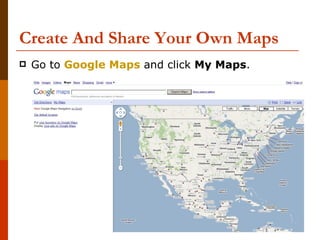
Create And Share Your Own Maps Go to  Google Maps  and click  My Maps .
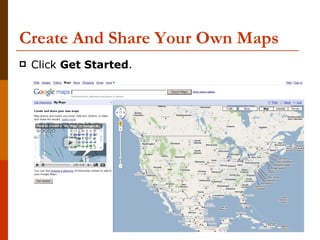
Create And Share Your Own Maps Click  Get Started .
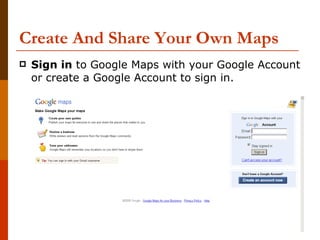
Create And Share Your Own Maps Sign in  to Google Maps with your Google Account or create a Google Account to sign in.
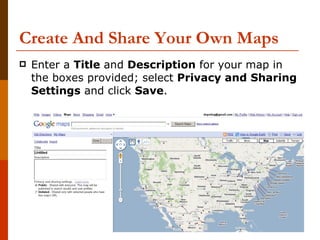
Create And Share Your Own Maps Enter a  Title  and  Description  for your map in the boxes provided; select  Privacy and Sharing Settings  and click  Save .
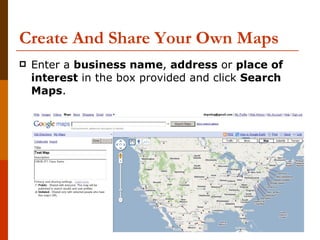
Create And Share Your Own Maps Enter a  business name ,  address  or  place of interest  in the box provided and click  Search Maps .
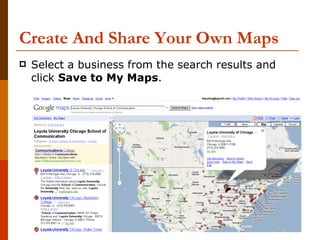
Create And Share Your Own Maps Select a business from the search results and click  Save to My Maps .
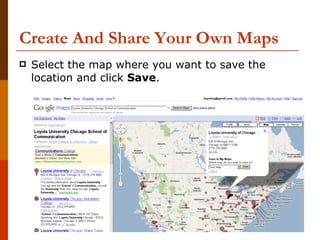
Create And Share Your Own Maps Select the map where you want to save the location and click  Save .
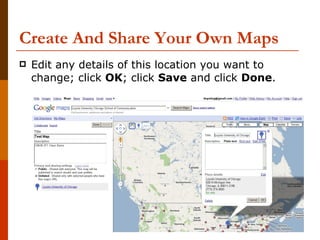
Create And Share Your Own Maps Edit any details of this location you want to change; click  OK ; click  Save  and click  Done .
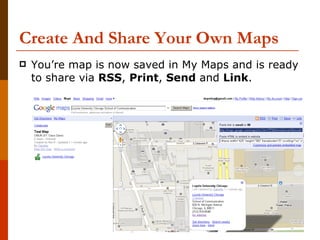
Create And Share Your Own Maps You’re map is now saved in My Maps and is ready to share via  RSS ,  Print ,  Send  and  Link .
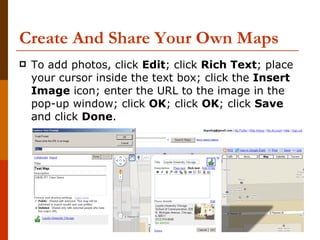
Create And Share Your Own Maps To add photos, click  Edit ; click  Rich Text ; place your cursor inside the text box; click the  Insert Image  icon; enter the URL to the image in the pop-up window; click  OK ; click  OK ; click  Save  and click  Done .
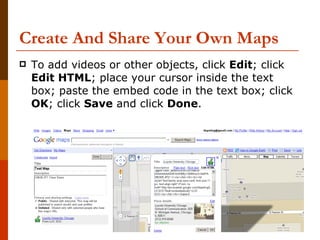
Create And Share Your Own Maps To add videos or other objects, click  Edit ; click  Edit HTML ; place your cursor inside the text box; paste the embed code in the text box; click  OK ; click  Save  and click  Done .
Create And Share Your Own Maps To learn more about My Maps, visit Google’s  Maps User Guide .

Google Maps Presentation

  • 1.
    Google Maps: My Maps Daniella Peting CMUN 371 SEC 201 November 10, 2009
  • 2.
    Google Maps: My Maps Create and share your own maps. Map places and routes you know. Add text, photos or video and share the results. Browse a directory of interactive content to add to your Google Maps.
  • 3.
    Create And ShareYour Own Maps Go to Google Maps and click My Maps .
  • 4.
    Create And ShareYour Own Maps Click Get Started .
  • 5.
    Create And ShareYour Own Maps Sign in to Google Maps with your Google Account or create a Google Account to sign in.
  • 6.
    Create And ShareYour Own Maps Enter a Title and Description for your map in the boxes provided; select Privacy and Sharing Settings and click Save .
  • 7.
    Create And ShareYour Own Maps Enter a business name , address or place of interest in the box provided and click Search Maps .
  • 8.
    Create And ShareYour Own Maps Select a business from the search results and click Save to My Maps .
  • 9.
    Create And ShareYour Own Maps Select the map where you want to save the location and click Save .
  • 10.
    Create And ShareYour Own Maps Edit any details of this location you want to change; click OK ; click Save and click Done .
  • 11.
    Create And ShareYour Own Maps You’re map is now saved in My Maps and is ready to share via RSS , Print , Send and Link .
  • 12.
    Create And ShareYour Own Maps To add photos, click Edit ; click Rich Text ; place your cursor inside the text box; click the Insert Image icon; enter the URL to the image in the pop-up window; click OK ; click OK ; click Save and click Done .
  • 13.
    Create And ShareYour Own Maps To add videos or other objects, click Edit ; click Edit HTML ; place your cursor inside the text box; paste the embed code in the text box; click OK ; click Save and click Done .
  • 14.
    Create And ShareYour Own Maps To learn more about My Maps, visit Google’s Maps User Guide .