(origin)MasteringGIT
git init
Iván Palma | ipalma@mobaires.com
Index
● Git Basics
● Useful when collaborating
● More advanced stuff
Gitbasics
Basics and prerequisites to follow this guide:
● Try Git: https://try.github.io/
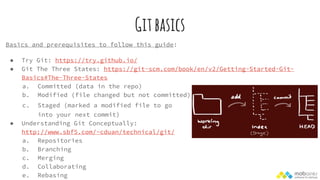
● Git The Three States: https://git-scm.com/book/en/v2/Getting-Started-Git-
Basics#The-Three-States
a. Committed (data in the repo)
b. Modified (file changed but not committed)
c. Staged (marked a modified file to go
into your next commit)
● Understanding Git Conceptually:
http://www.sbf5.com/~cduan/technical/git/
a. Repositories
b. Branching
c. Merging
d. Collaborating
e. Rebasing
USefulwhencollaborating
1. Fork
2. Pull Requests
3. Remotes
4. Merge vs Rebase
1. fork
A fork is a copy of a repository, that allows you to freely experiment without
affecting the original project.
Usual workflow:
● Fork the repository.
● Make the fix.
● Submit a pull request to the project owner.
More info: https://help.github.com/articles/fork-a-repo/
2.pullrequests
Pull requests let you tell others about changes you've pushed to a repository
on GitHub. A pull request let pull your fix from your fork into the original
repository.
It allows:
● Review proposed changes
● Discuss changes
● Merge changes
More info: https://help.github.com/articles/using-pull-requests/
3.Remotes
Remote repositories are versions of your project that are hosted on the
network. Collaborating with others involves managing these remote
repositories.
Useful commands:
● Show remotes: git remote -v
● Add remote: git remote add [shortname] [url]
● Rename remote: git remote rename [shortname] [newname]
● Remove remote: git remote rm [shortname]
More info: https://git-scm.com/book/en/v2/Git-Basics-Working-with-Remotes
4.mergevsRebase
Both of these commands are designed to integrate changes from one branch into
another branch—they just do it in very different ways.
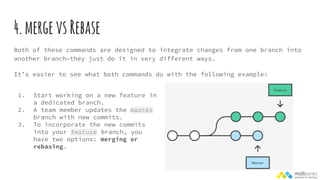
It’s easier to see what both commands do with the following example:
1. Start working on a new feature in
a dedicated branch.
2. A team member updates the master
branch with new commits.
3. To incorporate the new commits
into your feature branch, you
have two options: merging or
rebasing.
4.mergevsRebase
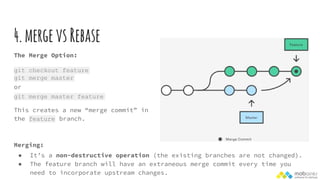
The Merge Option:
git checkout feature
git merge master
or
git merge master feature
This creates a new “merge commit” in
the feature branch.
Merging:
● It’s a non-destructive operation (the existing branches are not changed).
● The feature branch will have an extraneous merge commit every time you
need to incorporate upstream changes.
4.mergevsRebase
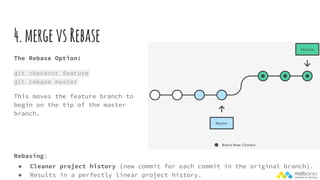
The Rebase Option:
git checkout feature
git rebase master
This moves the feature branch to
begin on the tip of the master
branch.
Rebasing:
● Cleaner project history (new commit for each commit in the original branch).
● Results in a perfectly linear project history.
4.mergevsRebase
Important things for Rebase
● The Golden Rule of Rebasing: never use it on public branches.
● Force-Pushing: git push --force. This overwrites the remote master branch
to match the rebased one from your repository.
More info:
https://www.atlassian.com/git/tutorials/merging-vs-rebasing
https://www.atlassian.com/git/articles/git-team-workflows-merge-or-rebase/
Moreadvancedstuff
1. Reset
2. Checkout
3. Revert
4. Reflog
5. Log
6. Stash
7. Other commands
8. Git Autocomplete
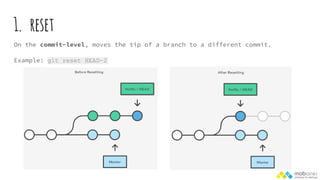
1. reset
On the commit-level, moves the tip of a branch to a different commit.
Example: git reset HEAD~2
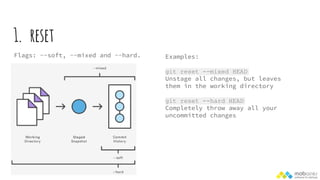
1. reset
Flags: --soft, --mixed and --hard. Examples:
git reset --mixed HEAD
Unstage all changes, but leaves
them in the working directory
git reset --hard HEAD
Completely throw away all your
uncommitted changes
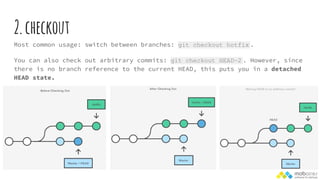
2.checkout
Most common usage: switch between branches: git checkout hotfix .
You can also check out arbitrary commits: git checkout HEAD~2 . However, since
there is no branch reference to the current HEAD, this puts you in a detached
HEAD state.
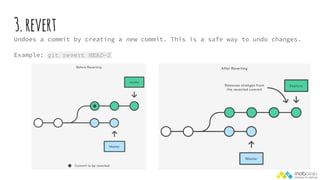
3.revert
Undoes a commit by creating a new commit. This is a safe way to undo changes.
Example: git revert HEAD~2
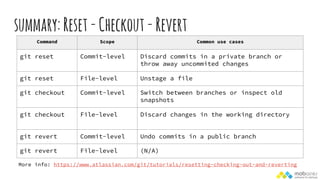
summary:Reset-Checkout-Revert
Command Scope Common use cases
git reset Commit-level Discard commits in a private branch or
throw away uncommited changes
git reset File-level Unstage a file
git checkout Commit-level Switch between branches or inspect old
snapshots
git checkout File-level Discard changes in the working directory
git revert Commit-level Undo commits in a public branch
git revert File-level (N/A)
More info: https://www.atlassian.com/git/tutorials/resetting-checking-out-and-reverting
4.reflog
It records almost every change you make in your repository.
You can think of it is a chronological history of everything you’ve done in
your local repo.
Example: you can use this to revert to a state that would otherwise be lost,
like restoring some lost commits.
git reflog
5.Log
Shows the commit logs.
There are some useful flags that let you format or filter the output:
● --oneline
● --decorate (display all of the references)
● --graph
● --max-count=
● --author=<pattern>
● --grep=<pattern>
More info: http://git-scm.com/docs/git-log
6.stash
Let you pause what you’re currently working on and come back to it later.
Useful stash commands:
● git stash / git stash save <message>
● git stash apply / git stash pop
● git stash list
● git stash drop <id>
More info:
http://gitready.com/beginner/2009/01/10/stashing-your-changes.html
http://gitready.com/beginner/2009/03/13/smartly-save-stashes.html
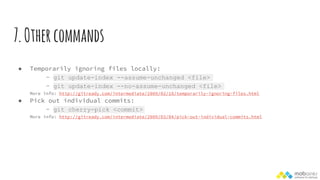
7.Othercommands
● Temporarily ignoring files locally:
- git update-index --assume-unchanged <file>
- git update-index --no-assume-unchanged <file>
More info: http://gitready.com/intermediate/2009/02/18/temporarily-ignoring-files.html
● Pick out individual commits:
- git cherry-pick <commit>
More info: http://gitready.com/intermediate/2009/03/04/pick-out-individual-commits.html
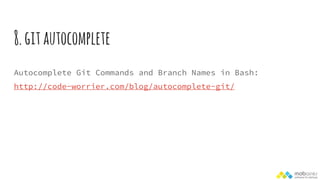
8.gitautocomplete
Autocomplete Git Commands and Branch Names in Bash:
http://code-worrier.com/blog/autocomplete-git/
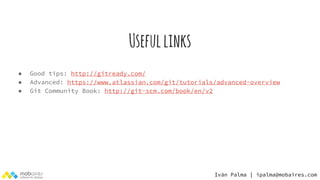
Usefullinks
● Good tips: http://gitready.com/
● Advanced: https://www.atlassian.com/git/tutorials/advanced-overview
● Git Community Book: http://git-scm.com/book/en/v2
Iván Palma | ipalma@mobaires.com

Git tutorial

  • 1.
  • 2.
    Index ● Git Basics ●Useful when collaborating ● More advanced stuff
  • 3.
    Gitbasics Basics and prerequisitesto follow this guide: ● Try Git: https://try.github.io/ ● Git The Three States: https://git-scm.com/book/en/v2/Getting-Started-Git- Basics#The-Three-States a. Committed (data in the repo) b. Modified (file changed but not committed) c. Staged (marked a modified file to go into your next commit) ● Understanding Git Conceptually: http://www.sbf5.com/~cduan/technical/git/ a. Repositories b. Branching c. Merging d. Collaborating e. Rebasing
  • 4.
    USefulwhencollaborating 1. Fork 2. PullRequests 3. Remotes 4. Merge vs Rebase
  • 5.
    1. fork A forkis a copy of a repository, that allows you to freely experiment without affecting the original project. Usual workflow: ● Fork the repository. ● Make the fix. ● Submit a pull request to the project owner. More info: https://help.github.com/articles/fork-a-repo/
  • 6.
    2.pullrequests Pull requests letyou tell others about changes you've pushed to a repository on GitHub. A pull request let pull your fix from your fork into the original repository. It allows: ● Review proposed changes ● Discuss changes ● Merge changes More info: https://help.github.com/articles/using-pull-requests/
  • 7.
    3.Remotes Remote repositories areversions of your project that are hosted on the network. Collaborating with others involves managing these remote repositories. Useful commands: ● Show remotes: git remote -v ● Add remote: git remote add [shortname] [url] ● Rename remote: git remote rename [shortname] [newname] ● Remove remote: git remote rm [shortname] More info: https://git-scm.com/book/en/v2/Git-Basics-Working-with-Remotes
  • 8.
    4.mergevsRebase Both of thesecommands are designed to integrate changes from one branch into another branch—they just do it in very different ways. It’s easier to see what both commands do with the following example: 1. Start working on a new feature in a dedicated branch. 2. A team member updates the master branch with new commits. 3. To incorporate the new commits into your feature branch, you have two options: merging or rebasing.
  • 9.
    4.mergevsRebase The Merge Option: gitcheckout feature git merge master or git merge master feature This creates a new “merge commit” in the feature branch. Merging: ● It’s a non-destructive operation (the existing branches are not changed). ● The feature branch will have an extraneous merge commit every time you need to incorporate upstream changes.
  • 10.
    4.mergevsRebase The Rebase Option: gitcheckout feature git rebase master This moves the feature branch to begin on the tip of the master branch. Rebasing: ● Cleaner project history (new commit for each commit in the original branch). ● Results in a perfectly linear project history.
  • 11.
    4.mergevsRebase Important things forRebase ● The Golden Rule of Rebasing: never use it on public branches. ● Force-Pushing: git push --force. This overwrites the remote master branch to match the rebased one from your repository. More info: https://www.atlassian.com/git/tutorials/merging-vs-rebasing https://www.atlassian.com/git/articles/git-team-workflows-merge-or-rebase/
  • 12.
    Moreadvancedstuff 1. Reset 2. Checkout 3.Revert 4. Reflog 5. Log 6. Stash 7. Other commands 8. Git Autocomplete
  • 13.
    1. reset On thecommit-level, moves the tip of a branch to a different commit. Example: git reset HEAD~2
  • 14.
    1. reset Flags: --soft,--mixed and --hard. Examples: git reset --mixed HEAD Unstage all changes, but leaves them in the working directory git reset --hard HEAD Completely throw away all your uncommitted changes
  • 15.
    2.checkout Most common usage:switch between branches: git checkout hotfix . You can also check out arbitrary commits: git checkout HEAD~2 . However, since there is no branch reference to the current HEAD, this puts you in a detached HEAD state.
  • 16.
    3.revert Undoes a commitby creating a new commit. This is a safe way to undo changes. Example: git revert HEAD~2
  • 17.
    summary:Reset-Checkout-Revert Command Scope Commonuse cases git reset Commit-level Discard commits in a private branch or throw away uncommited changes git reset File-level Unstage a file git checkout Commit-level Switch between branches or inspect old snapshots git checkout File-level Discard changes in the working directory git revert Commit-level Undo commits in a public branch git revert File-level (N/A) More info: https://www.atlassian.com/git/tutorials/resetting-checking-out-and-reverting
  • 18.
    4.reflog It records almostevery change you make in your repository. You can think of it is a chronological history of everything you’ve done in your local repo. Example: you can use this to revert to a state that would otherwise be lost, like restoring some lost commits. git reflog
  • 19.
    5.Log Shows the commitlogs. There are some useful flags that let you format or filter the output: ● --oneline ● --decorate (display all of the references) ● --graph ● --max-count= ● --author=<pattern> ● --grep=<pattern> More info: http://git-scm.com/docs/git-log
  • 20.
    6.stash Let you pausewhat you’re currently working on and come back to it later. Useful stash commands: ● git stash / git stash save <message> ● git stash apply / git stash pop ● git stash list ● git stash drop <id> More info: http://gitready.com/beginner/2009/01/10/stashing-your-changes.html http://gitready.com/beginner/2009/03/13/smartly-save-stashes.html
  • 21.
    7.Othercommands ● Temporarily ignoringfiles locally: - git update-index --assume-unchanged <file> - git update-index --no-assume-unchanged <file> More info: http://gitready.com/intermediate/2009/02/18/temporarily-ignoring-files.html ● Pick out individual commits: - git cherry-pick <commit> More info: http://gitready.com/intermediate/2009/03/04/pick-out-individual-commits.html
  • 22.
    8.gitautocomplete Autocomplete Git Commandsand Branch Names in Bash: http://code-worrier.com/blog/autocomplete-git/
  • 23.
    Usefullinks ● Good tips:http://gitready.com/ ● Advanced: https://www.atlassian.com/git/tutorials/advanced-overview ● Git Community Book: http://git-scm.com/book/en/v2 Iván Palma | ipalma@mobaires.com