“GIT-ING”
OUT OF
TROUBLE
H O W TO G O B A C K I N T I M E W I T H O U T E R A S I N G
Y O U R S E L F F R O M T H E F U T U R E
OUTLINE
• Basic Foundations of Git
• Fixes for Common Issues
• Other Useful Commands
• Recovering from
Catastrophic Failures
BASIC GIT
FOUNDATIONS
D O E S A N Y O N E R E A L LY G I T G E T ?
WHAT IS GIT ANYWAY?
Key-value data store
• Value: object being stored
• Key: SHA-1 hash of object
COMMIT
5 basic pieces of data
• Reference to top-level tree (folder) of snapshot
– Files/folders at the time of the commit
• Reference to parent commit
• Author with timestamp
• Committer with timestamp
• Commit message
FILE LOCATIONS IN GIT
• Working Directory
• Index (Staging Area)
• Repository
Working
Directory
Index
Repository
git add
git commit
FIXES FOR
COMMON
ISSUES
FIXING TYPOS/SMALL MISTAKES
• Typo in branch name
– git branch –m [new_name]
• Typo in your commit message
• Forgot to include a file
• Found a small bug after committing
– git commit --amend (--no-edit)
• Accidentally included changes
– git reset HEAD~1 (--soft)
ADDED TO WRONG BRANCH
• Need change from another branch
– git checkout [branch_to_add_to]
– git cherry-pick [commit_hash]
• Accidentally committed to `develop`
– git branch [new_name]
– git reset origin –hard
– git checkout [new_name]
CLEANING UP HISTORY BEFORE
PUSHING
CLEANING UP HISTORY BEFORE
PUSHING
• Use cases:
– Condense history
– Split commit
– Pretend things never happened
• Commands:
– git rebase –i origin
GOLDEN RULE OF REBASING
“Never rebase a shared branch.”
• Practical Golden Rule:
1. Determine the base commit
2. Do not rebase if anything past base commit is shared
B
A
D
C Pushed to
Origin
INTERACTIVE REBASE
Basic Syntax:
git rebase –i [<commit>]
Shows each commit ahead of the root commit and lets you decide what to do with them.
• Reorder commits
• Execute command against commit.
– pick: keep commit as-is
– drop: remove commit from history
– reword: keep contents of commit, but change message
– squash/fixup: amend previous commit with this one
– edit: pause rebase after commit to allow for amending
• git rebase –continue
– …
RECOVERING
FROM
CATASTROPHIC
FAILURE
Remember the Git
fundamentals
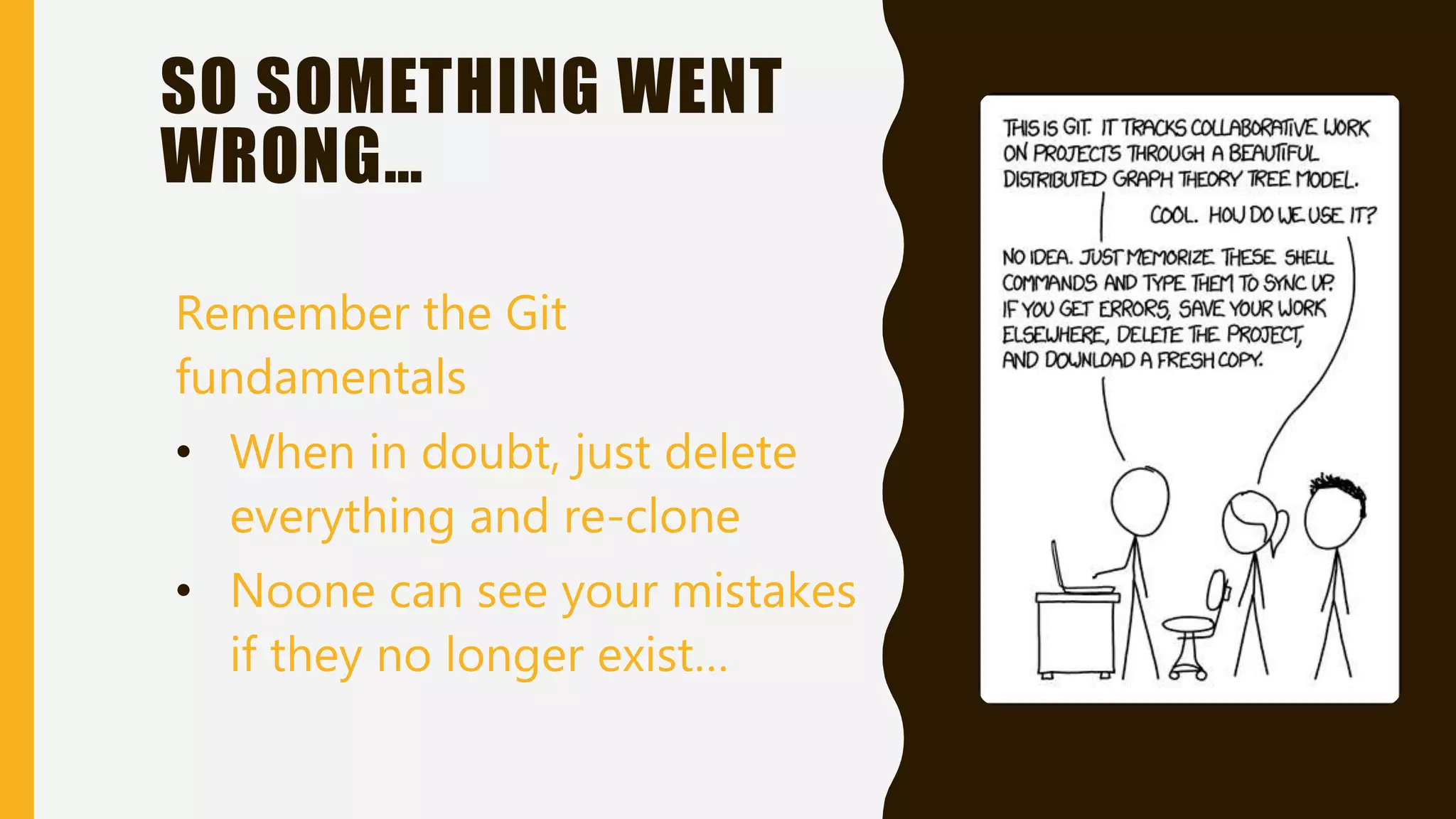
• When in doubt, just delete
everything and re-clone
• Noone can see your mistakes
if they no longer exist…
SO SOMETHING WENT
WRONG…
Remember the Git
fundamentals
• When in doubt, just delete
everything and re-clone
• Noone can see your mistakes
if they no longer exist…
SO SOMETHING WENT
WRONG…
Remember the Git
fundamentals
• Every commit is just an
object in the repository with
a hash
• Commits are read-only. You
cannot change a commit, you
can only create new ones.
SO SOMETHING WENT
WRONG…
GIT REFLOG
Basic Syntax:
git reflog [-n <number>]
• See entries in the “Reference Log”, along with their hashes
• You can reset a branch back to a “pre-catastrophic-
failure” hash
SUMMARY
H O W D O I R E M E M B E R A L L T H A T ?
CHEAT SHEET (FIXING COMMITS)
• Rename Branch
– git branch –m [new_name]
• Adjust previous commit
– git commit --amend --no-edit
• Copy commit from another branch
– git cherry-pick [commit]
• Accidental commits on `develop`
– git branch [new_branch]
– git reset origin --hard
– git checkout [new_branch]
• Clean up history
– git rebase –i origin
– move, fixup, squash, drop
• Split commit
– git rebase –I origin
– “edit”
– git reset HEAD~1
– Make new commits
– git rebase --continue
• Catastrophic failure
– git reflog
– get reset [some_commit_in_past]
CHEAT SHEET (USEFUL COMMANDS)
• Create new local branch
– git checkout –b [new_branch]
• Push locally created branch to BitBucket
– git push –u origin HEAD
• Update with latest from develop (add to end)
– git pull origin develop
• Update with latest from develop (add to beginning)
– git pull origin develop --rebase

Gitting out of trouble

  • 1.
    “GIT-ING” OUT OF TROUBLE H OW TO G O B A C K I N T I M E W I T H O U T E R A S I N G Y O U R S E L F F R O M T H E F U T U R E
  • 2.
    OUTLINE • Basic Foundationsof Git • Fixes for Common Issues • Other Useful Commands • Recovering from Catastrophic Failures
  • 3.
    BASIC GIT FOUNDATIONS D OE S A N Y O N E R E A L LY G I T G E T ?
  • 4.
    WHAT IS GITANYWAY? Key-value data store • Value: object being stored • Key: SHA-1 hash of object
  • 5.
    COMMIT 5 basic piecesof data • Reference to top-level tree (folder) of snapshot – Files/folders at the time of the commit • Reference to parent commit • Author with timestamp • Committer with timestamp • Commit message
  • 6.
    FILE LOCATIONS INGIT • Working Directory • Index (Staging Area) • Repository Working Directory Index Repository git add git commit
  • 7.
  • 8.
    FIXING TYPOS/SMALL MISTAKES •Typo in branch name – git branch –m [new_name] • Typo in your commit message • Forgot to include a file • Found a small bug after committing – git commit --amend (--no-edit) • Accidentally included changes – git reset HEAD~1 (--soft)
  • 9.
    ADDED TO WRONGBRANCH • Need change from another branch – git checkout [branch_to_add_to] – git cherry-pick [commit_hash] • Accidentally committed to `develop` – git branch [new_name] – git reset origin –hard – git checkout [new_name]
  • 10.
    CLEANING UP HISTORYBEFORE PUSHING
  • 11.
    CLEANING UP HISTORYBEFORE PUSHING • Use cases: – Condense history – Split commit – Pretend things never happened • Commands: – git rebase –i origin
  • 12.
    GOLDEN RULE OFREBASING “Never rebase a shared branch.” • Practical Golden Rule: 1. Determine the base commit 2. Do not rebase if anything past base commit is shared B A D C Pushed to Origin
  • 13.
    INTERACTIVE REBASE Basic Syntax: gitrebase –i [<commit>] Shows each commit ahead of the root commit and lets you decide what to do with them. • Reorder commits • Execute command against commit. – pick: keep commit as-is – drop: remove commit from history – reword: keep contents of commit, but change message – squash/fixup: amend previous commit with this one – edit: pause rebase after commit to allow for amending • git rebase –continue – …
  • 14.
  • 15.
    Remember the Git fundamentals •When in doubt, just delete everything and re-clone • Noone can see your mistakes if they no longer exist… SO SOMETHING WENT WRONG…
  • 16.
    Remember the Git fundamentals •When in doubt, just delete everything and re-clone • Noone can see your mistakes if they no longer exist… SO SOMETHING WENT WRONG…
  • 17.
    Remember the Git fundamentals •Every commit is just an object in the repository with a hash • Commits are read-only. You cannot change a commit, you can only create new ones. SO SOMETHING WENT WRONG…
  • 18.
    GIT REFLOG Basic Syntax: gitreflog [-n <number>] • See entries in the “Reference Log”, along with their hashes • You can reset a branch back to a “pre-catastrophic- failure” hash
  • 19.
    SUMMARY H O WD O I R E M E M B E R A L L T H A T ?
  • 20.
    CHEAT SHEET (FIXINGCOMMITS) • Rename Branch – git branch –m [new_name] • Adjust previous commit – git commit --amend --no-edit • Copy commit from another branch – git cherry-pick [commit] • Accidental commits on `develop` – git branch [new_branch] – git reset origin --hard – git checkout [new_branch] • Clean up history – git rebase –i origin – move, fixup, squash, drop • Split commit – git rebase –I origin – “edit” – git reset HEAD~1 – Make new commits – git rebase --continue • Catastrophic failure – git reflog – get reset [some_commit_in_past]
  • 21.
    CHEAT SHEET (USEFULCOMMANDS) • Create new local branch – git checkout –b [new_branch] • Push locally created branch to BitBucket – git push –u origin HEAD • Update with latest from develop (add to end) – git pull origin develop • Update with latest from develop (add to beginning) – git pull origin develop --rebase

Editor's Notes

  • #2 Ken is here to evaluate
  • #5 XKCD image “content-addressable filesystem” – key-value data store Insert an object and it gives you back a hash to retrieve it with.
  • #6 Author is the one who originally wrote the commit Committer is the one who most recently applied it (e.g. rewriting others’ history) Note: hash is based on all of these – if a commit has the same values, it has the same hash. If any value is different, it is a different commit.
  • #7 Working Directory – Files currently on your local FS Git shows differences between WD and Index Index – build a set of changes you want to commit Git shows differences between Index and Repsotory You can add “hunks” (partial changes to a file) to the index Repository – where all of your history is tracked