
Source code management
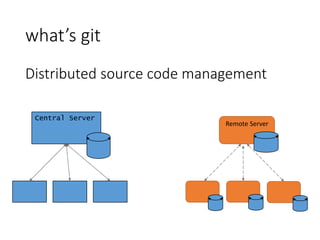
what’s git
Distributed source code management
Central Server
Remote Server
Distributed
•Everyone has the complete history
•Everything is done offline
•No central authority
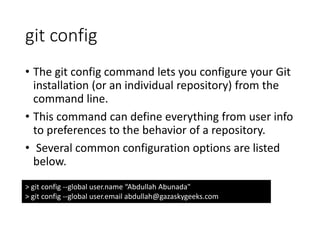
git config
• The git config command lets you configure your Git
installation (or an individual repository) from the
command line.
• This command can define everything from user info
to preferences to the behavior of a repository.
• Several common configuration options are listed
below.
> git config --global user.name “Abdullah Abunada"
> git config --global user.email abdullah@gazaskygeeks.com
git init
The git init command creates a new Git repository.
It can be used to convert an existing, un versioned
project to a Git repository or initialize a new empty
repository.
> git init
git init
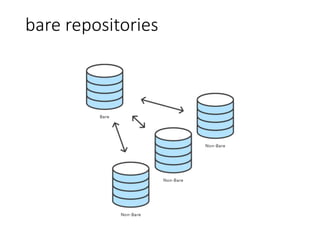
Initialize an empty Git repository, but omit the
working directory.
Shared repositories should always be created with
the --bare flag.
Conventionally, repositories initialized with the --bare
flag end in .git. For example, the bare version of a
repository called my-project should be stored in a
directory called my-project.git.
> git init --bare
bare repositories
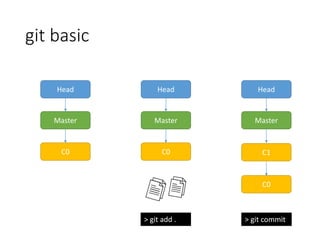
git basic
Head
Master
C0
Head
Master
C0
Head
Master
C0
C1
> git add . > git commit
Collaborative
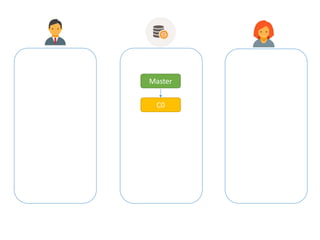
Master
C0
Master
C0
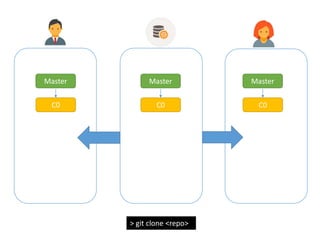
> git clone <repo>
Master
C0
Master
C0
git clone
• The git clone command copies an existing Git
repository. This is a Git repository—it has its own
history, manages its own files, and is a completely
isolated environment from the original repository.
• As a convenience, cloning automatically creates a
remote connection called origin pointing back to
the original repository. This makes it very easy to
interact with a central repository.
> git clone <repo>
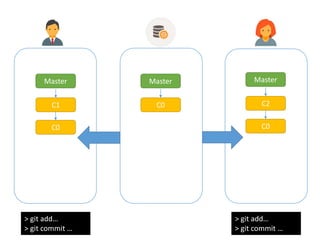
Master
C0
> git add…
> git commit …
Master
C2
Master
C1
> git add…
> git commit …
C0 C0
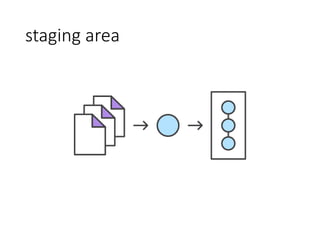
git add
• The git add command adds a change in the working
directory to the staging area. It tells Git that you
want to include updates to a particular file in the
next commit. However, git add doesn't really affect
the repository in any significant way—changes are
not actually recorded until you run git commit.
• In conjunction with these commands, you'll also
need git status to view the state of the working
directory and the staging area.
> git add .
staging area
git commit
• The git commit command commits the staged
snapshot to the project history. Committed
snapshots can be thought of as “safe” versions of a
project—Git will never change them unless you
explicity ask it to. Along with git add, this is one of
the most important Git commands.
> git commit -m "<message>"
Master
C0
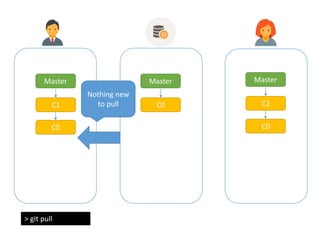
> git pull
Master
C2
Master
C1
C0 C0
Nothing new
to pull
Master
C1
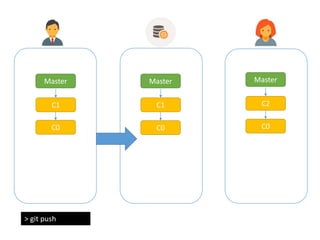
> git push
Master
C2
Master
C1
C0 C0C0
Master
C1
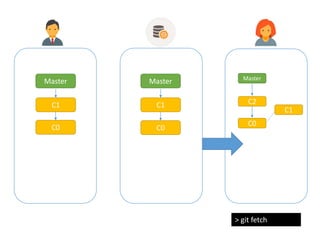
> git fetch
Master
C2
Master
C1
C0
C0
C0
C1
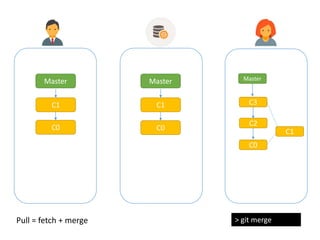
Master
C1
> git merge
Master
C2
Master
C1
C0
C0
C0 C1
C3
Pull = fetch + merge
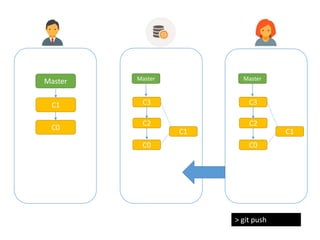
> git push
Master
C2
Master
C1
C0
C0
C1
C3
Master
C2
C0
C1
C3
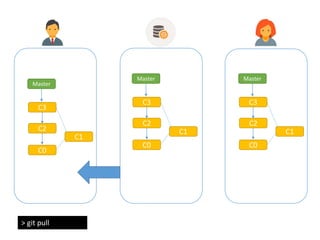
> git pull
Master
C2
C0
C1
C3
Master
C2
C0
C1
C3
Master
C2
C0
C1
C3
Inspecting a repository
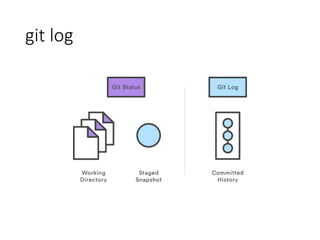
git log
git log usage
> git log
• Display the entire commit history using the default formatting. If the
output takes up more than one screen, you can use Space to scroll and q
to exit.
> git log –n <limit>
• Limit the number of commits by <limit>. For example, git log -n 3 will
display only 3 commits.
git log usage
> git log --oneline
• Condense each commit to a single line. This is useful for getting a high-
level overview of the project history.
> git log --stat
• Along with the ordinary git log information, include which files were
altered and the relative number of lines that were added or deleted
from each of them.
More filters in referencing.
Viewing old commits
git checkout
• The git checkout command serves three distinct
functions: checking out files, checking out commits,
and checking out branches. In this module, we’re
only concerned with the first two configurations.
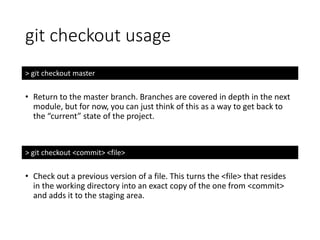
git checkout usage
> git checkout master
• Return to the master branch. Branches are covered in depth in the next
module, but for now, you can just think of this as a way to get back to
the “current” state of the project.
> git checkout <commit> <file>
• Check out a previous version of a file. This turns the <file> that resides
in the working directory into an exact copy of the one from <commit>
and adds it to the staging area.
Undoing changes
git revert
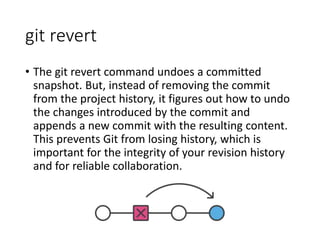
• The git revert command undoes a committed
snapshot. But, instead of removing the commit
from the project history, it figures out how to undo
the changes introduced by the commit and
appends a new commit with the resulting content.
This prevents Git from losing history, which is
important for the integrity of your revision history
and for reliable collaboration.
git revert usage
git revert <commit>
• Generate a new commit that undoes all of the changes introduced in
<commit>, then apply it to the current branch.
git reset
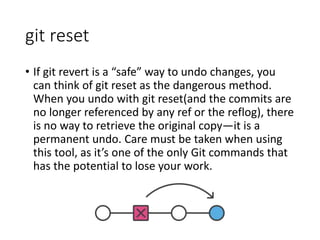
• If git revert is a “safe” way to undo changes, you
can think of git reset as the dangerous method.
When you undo with git reset(and the commits are
no longer referenced by any ref or the reflog), there
is no way to retrieve the original copy—it is a
permanent undo. Care must be taken when using
this tool, as it’s one of the only Git commands that
has the potential to lose your work.
git clean
• The git clean command removes untracked files
from your working directory.
• This is really more of a convenience command,
since it’s trivial to see which files are untracked
with git status and remove them manually.
• Like an ordinary rm command, git clean is not
undoable, so make sure you really want to delete
the untracked files before you run it.
Reference
• https://www.atlassian.com/git/tutorials/setting-up-
a-repository
• https://git-scm.com/book/en/v2/Getting-Started-
Git-Basics
• https://git-scm.com/
• https://github.com/
• https://bitbucket.org/

Git hub abduallah abu nada

  • 1.
  • 2.
    what’s git Distributed sourcecode management Central Server Remote Server
  • 3.
    Distributed •Everyone has thecomplete history •Everything is done offline •No central authority
  • 4.
    git config • Thegit config command lets you configure your Git installation (or an individual repository) from the command line. • This command can define everything from user info to preferences to the behavior of a repository. • Several common configuration options are listed below. > git config --global user.name “Abdullah Abunada" > git config --global user.email abdullah@gazaskygeeks.com
  • 5.
    git init The gitinit command creates a new Git repository. It can be used to convert an existing, un versioned project to a Git repository or initialize a new empty repository. > git init
  • 6.
    git init Initialize anempty Git repository, but omit the working directory. Shared repositories should always be created with the --bare flag. Conventionally, repositories initialized with the --bare flag end in .git. For example, the bare version of a repository called my-project should be stored in a directory called my-project.git. > git init --bare
  • 7.
  • 8.
  • 9.
  • 10.
  • 11.
    Master C0 > git clone<repo> Master C0 Master C0
  • 12.
    git clone • Thegit clone command copies an existing Git repository. This is a Git repository—it has its own history, manages its own files, and is a completely isolated environment from the original repository. • As a convenience, cloning automatically creates a remote connection called origin pointing back to the original repository. This makes it very easy to interact with a central repository. > git clone <repo>
  • 13.
    Master C0 > git add… >git commit … Master C2 Master C1 > git add… > git commit … C0 C0
  • 14.
    git add • Thegit add command adds a change in the working directory to the staging area. It tells Git that you want to include updates to a particular file in the next commit. However, git add doesn't really affect the repository in any significant way—changes are not actually recorded until you run git commit. • In conjunction with these commands, you'll also need git status to view the state of the working directory and the staging area. > git add .
  • 15.
  • 16.
    git commit • Thegit commit command commits the staged snapshot to the project history. Committed snapshots can be thought of as “safe” versions of a project—Git will never change them unless you explicity ask it to. Along with git add, this is one of the most important Git commands. > git commit -m "<message>"
  • 17.
  • 18.
  • 19.
  • 20.
  • 21.
  • 22.
  • 23.
  • 24.
  • 25.
    git log usage >git log • Display the entire commit history using the default formatting. If the output takes up more than one screen, you can use Space to scroll and q to exit. > git log –n <limit> • Limit the number of commits by <limit>. For example, git log -n 3 will display only 3 commits.
  • 26.
    git log usage >git log --oneline • Condense each commit to a single line. This is useful for getting a high- level overview of the project history. > git log --stat • Along with the ordinary git log information, include which files were altered and the relative number of lines that were added or deleted from each of them. More filters in referencing.
  • 27.
  • 28.
    git checkout • Thegit checkout command serves three distinct functions: checking out files, checking out commits, and checking out branches. In this module, we’re only concerned with the first two configurations.
  • 29.
    git checkout usage >git checkout master • Return to the master branch. Branches are covered in depth in the next module, but for now, you can just think of this as a way to get back to the “current” state of the project. > git checkout <commit> <file> • Check out a previous version of a file. This turns the <file> that resides in the working directory into an exact copy of the one from <commit> and adds it to the staging area.
  • 30.
  • 31.
    git revert • Thegit revert command undoes a committed snapshot. But, instead of removing the commit from the project history, it figures out how to undo the changes introduced by the commit and appends a new commit with the resulting content. This prevents Git from losing history, which is important for the integrity of your revision history and for reliable collaboration.
  • 32.
    git revert usage gitrevert <commit> • Generate a new commit that undoes all of the changes introduced in <commit>, then apply it to the current branch.
  • 33.
    git reset • Ifgit revert is a “safe” way to undo changes, you can think of git reset as the dangerous method. When you undo with git reset(and the commits are no longer referenced by any ref or the reflog), there is no way to retrieve the original copy—it is a permanent undo. Care must be taken when using this tool, as it’s one of the only Git commands that has the potential to lose your work.
  • 34.
    git clean • Thegit clean command removes untracked files from your working directory. • This is really more of a convenience command, since it’s trivial to see which files are untracked with git status and remove them manually. • Like an ordinary rm command, git clean is not undoable, so make sure you really want to delete the untracked files before you run it.
  • 35.

Editor's Notes

  • #8 The --bare flag creates a repository that doesn’t have a working directory, making it impossible to edit files and commit changes in that repository. Central repositories should always be created as bare repositories because pushing branches to a non-bare repository has the potential to overwrite changes. Think of --bare as a way to mark a repository as a storage facility, opposed to a development environment. This means that for virtually all Git workflows, the central repository is bare, and developers local repositories are non-bare.
  • #16 The staging area is one of Git's more unique features, instead of committing all of the changes you've made since the last commit, the stage lets you group related changes into highly focused snapshots before actually committing it to the project history.
  • #25 The git log command displays committed snapshots. It lets you list the project history, filter it, and search for specific changes. While git status lets you inspect the working directory and the staging area, git log only operates on the committed history.