of every day
Notions and more
Alan Descoins
Tryolabs, 2014
Goals
● Better understand what we do every day
● Ask less questions (understand the man)
● Improve some practices
● Make fewer mistakes
● Do something super specific ;)
● 2005, Linux kernel
● Efficiency, simple design
● Non-linear development
(thousands of parallel
branches)
● Completely distributed
Origins and philosophy
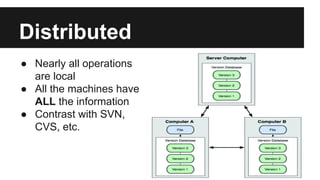
Distributed
● Nearly all operations
are local
● All the machines have
ALL the information
● Contrast with SVN,
CVS, etc.
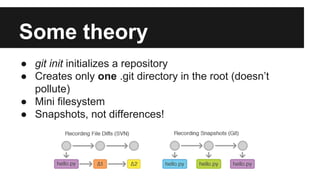
Some theory
● git init initializes a repository
● Creates only one .git directory in the root (doesn’t
pollute)
● Mini filesystem
● Snapshots, not differences!
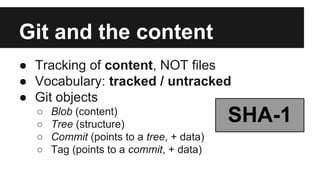
Git and the content
● Tracking of content, NOT files
● Vocabulary: tracked / untracked
● Git objects
○ Blob (content)
○ Tree (structure)
○ Commit (points to a tree, + data)
○ Tag (points to a commit, + data)
SHA-1
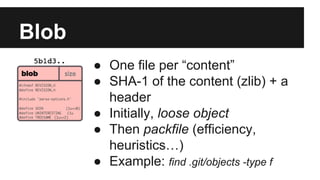
● One file per “content”
● SHA-1 of the content (zlib) + a
header
● Initially, loose object
● Then packfile (efficiency,
heuristics…)
● Example: find .git/objects -type f
Blob
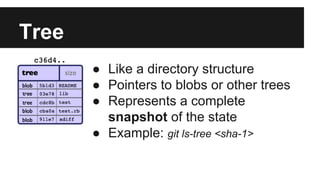
Tree
● Like a directory structure
● Pointers to blobs or other trees
● Represents a complete
snapshot of the state
● Example: git ls-tree <sha-1>
Commit
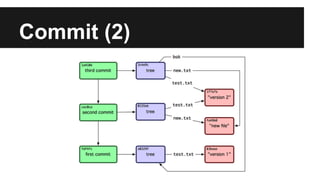
● Information about the trees
● Who, when, why saved the tree
● Points to the top level tree of the project
● Tree hierarchy
● Also SHA-1, different hash than the tree it
points to
Commit (2)
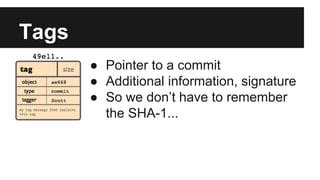
Tags
● Pointer to a commit
● Additional information, signature
● So we don’t have to remember
the SHA-1...
The Holy Trinity
A content may be in three states:
● Committed
● Modified
● Staged
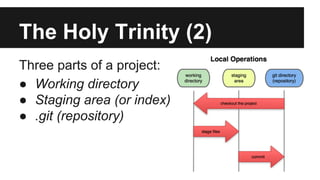
The Holy Trinity (2)
Three parts of a project:
● Working directory
● Staging area (or index)
● .git (repository)
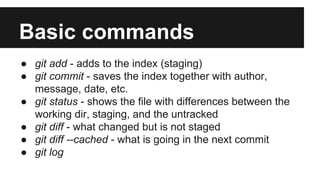
Basic commands
● git add - adds to the index (staging)
● git commit - saves the index together with author,
message, date, etc.
● git status - shows the file with differences between the
working dir, staging, and the untracked
● git diff - what changed but is not staged
● git diff --cached - what is going in the next commit
● git log
Avoiding the staging
● Sometimes, it may be easier to avoid the
staging area
● git commit -a | git commit <archivo>
● Automatically add to the staging, then
commit
Branches
● Simply a pointer to a commit
● As fast as it is to write 41 characters to a file
(SHA-1 + n)
● By default master
● Special pointer HEAD (current branch)
● Example: cat .git/HEAD
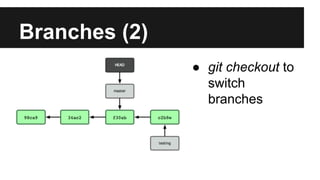
Branches (2)
● git checkout to
switch
branches
References
● The HEAD pointer is a special case
● Tags too: “an unmovable branch”
(lightweight tags)
Example: find .git/refs
Remotes
● No central server
● Can add several remotes, external copies of
the repo (URL)
● The famous origin :)
Remote branches
● Save the state of branches in remote repositories
● They are local, but cannot be moved, only when you do
network operations (eg. git fetch).
● The form is <remote>/<branch>
Example: cat .git/refs/remotes/origin/master
Fetch, push
● git fetch - sync and update remote branches (moves
pointers)
● Eg. git fetch <remote>
● git pull - equivalent to git fetch and the git merge,
merges the local branch with the changes in the remote
● git push - update the remote branch with the local data
● Eg. git push <remote> <branch>
Tracking branches
● Local branches can “track” remote ones
● Two possibilities:
○ git checkout --track <remote>/<branch>
○ git push --set-upstream <remote> <branch>
● Now, when pushing you don’t have to type
the name of the remote and the branch :)
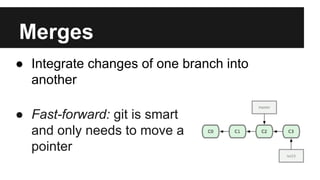
Merges
● Fast-forward: git is smart
and only needs to move a
pointer
● Integrate changes of one branch into
another
Merges (2)
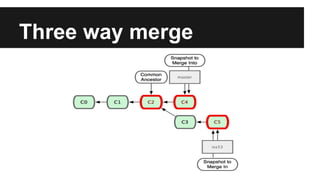
● Three way merge: commit not direct
ancestor of what I am merging in (non linear)
● Git determines the best common ancestor
● A merge commit is created, special because
it has more than one parent
● Conflicts...
Three way merge
Rebasing
● Another way to introduce changes of one
branch into another
● Rewind & replay, rewrites the commits
● From a common ancestor
● History is always linear, even though it was
work originally done in parallel
Rebasing (2)
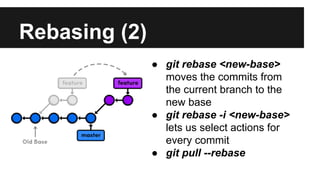
● git rebase <new-base>
moves the commits from
the current branch to the
new base
● git rebase -i <new-base>
lets us select actions for
every commit
● git pull --rebase
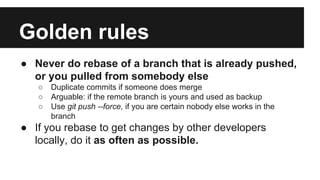
● Never do rebase of a branch that is already pushed,
or you pulled from somebody else
○ Duplicate commits if someone does merge
○ Arguable: if the remote branch is yours and used as backup
○ Use git push --force, if you are certain nobody else works in the
branch
● If you rebase to get changes by other developers
locally, do it as often as possible.
Golden rules
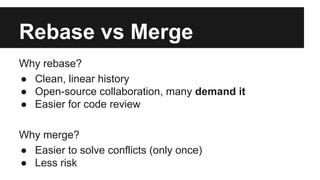
Rebase vs Merge
Why rebase?
● Clean, linear history
● Open-source collaboration, many demand it
● Easier for code review
Why merge?
● Easier to solve conflicts (only once)
● Less risk
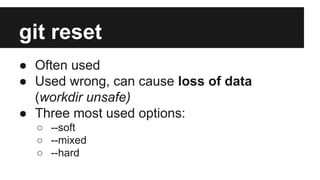
git reset
● Often used
● Used wrong, can cause loss of data
(workdir unsafe)
● Three most used options:
○ --soft
○ --mixed
○ --hard
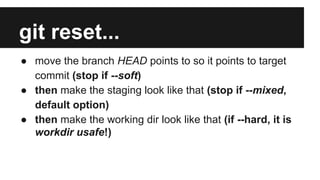
git reset...
● move the branch HEAD points to so it points to target
commit (stop if --soft)
● then make the staging look like that (stop if --mixed,
default option)
● then make the working dir look like that (if --hard, it is
workdir usafe!)
Examples of git reset
● With HEAD in dev branch, do git reset master
○ now dev y master point to the same commit
● With HEAD in branch master, do git reset --hard
origin/master
○ now my local master branch is identical to the
remote (discard local changes)
● git reset --soft HEAD~
○ Undo the last commit without losing changes
Unstaging files
● When doing git reset <file> we don’t specify
a branch or commit SHA
● Equivalent to git reset --mixed HEAD <file>
● Moves a particular file out of staging,
opposite of git add :)
git checkout
● git checkout <branch> is superficially similar
to git reset --hard <branch>
● Two differences:
○ Workdir safe! :D Checks to avoid data loss.
○ reset moves the branch that HEAD points to,
checkout moves the HEAD pointer itself.
git checkout of a file
● git checkout <branch> <file>
○ As with reset, now it doesn’t make sense for it to
move HEAD. Replaces only <file> in the workdir
(workdir usafe!).
○ Would be the same as git reset --hard <branch>
<file>
○ But that command does not exist :)
Common situations (1)
● “I need to pull but there are changes I am
working on, and I don’t want to commit yet”
○ git stash
○ It’s a stack
○ Apply with git stash pop.
Common situations (2)
● “There is a bug in a branch, I need to know
what commit introduced it”
○ git bisect
○ Binary search, driven by git. Very easy!
○ git bisect start
git bisect bad <commit>
git bisect good <commit>
● Test on every step (git makes a checkout)
Common situations (3)
● “I made one (or several) commits in the
wrong branch, haven’t yet pushed though!”
○ If the correct branch does not yet exist
■ git checkout -b <correct branch>
■ git reset over the old branch
○ If the branch already existed
■ git cherry-pick (or git rebase --onto)
■ git reset over the old branch
Common situations (4)
● “I have many changes in a file and only want
to commit some of them”
○ git add -p or git commit -p
○ git will ask for every part, whether to add it or not
Common situations (5)
● “I need to change some commits”
● “I need to delete some commits”
● “I need to change the order of some
commits”
○ git rebase -i (--interactive)
○ Easy to use
○ Rewrites history, asking us what to do for each
commit
Common situations (6)
● “I am doing a merge with many conflicts and
I want to stop it and get back to where I was
before”
○ git merge --abort
(Images from git-scm and others ;) )
Didn’t learn git

Git of every day

  • 1.
    of every day Notionsand more Alan Descoins Tryolabs, 2014
  • 2.
    Goals ● Better understandwhat we do every day ● Ask less questions (understand the man) ● Improve some practices ● Make fewer mistakes ● Do something super specific ;)
  • 3.
    ● 2005, Linuxkernel ● Efficiency, simple design ● Non-linear development (thousands of parallel branches) ● Completely distributed Origins and philosophy
  • 4.
    Distributed ● Nearly alloperations are local ● All the machines have ALL the information ● Contrast with SVN, CVS, etc.
  • 5.
    Some theory ● gitinit initializes a repository ● Creates only one .git directory in the root (doesn’t pollute) ● Mini filesystem ● Snapshots, not differences!
  • 6.
    Git and thecontent ● Tracking of content, NOT files ● Vocabulary: tracked / untracked ● Git objects ○ Blob (content) ○ Tree (structure) ○ Commit (points to a tree, + data) ○ Tag (points to a commit, + data) SHA-1
  • 7.
    ● One fileper “content” ● SHA-1 of the content (zlib) + a header ● Initially, loose object ● Then packfile (efficiency, heuristics…) ● Example: find .git/objects -type f Blob
  • 8.
    Tree ● Like adirectory structure ● Pointers to blobs or other trees ● Represents a complete snapshot of the state ● Example: git ls-tree <sha-1>
  • 9.
    Commit ● Information aboutthe trees ● Who, when, why saved the tree ● Points to the top level tree of the project ● Tree hierarchy ● Also SHA-1, different hash than the tree it points to
  • 10.
  • 11.
    Tags ● Pointer toa commit ● Additional information, signature ● So we don’t have to remember the SHA-1...
  • 12.
    The Holy Trinity Acontent may be in three states: ● Committed ● Modified ● Staged
  • 13.
    The Holy Trinity(2) Three parts of a project: ● Working directory ● Staging area (or index) ● .git (repository)
  • 14.
    Basic commands ● gitadd - adds to the index (staging) ● git commit - saves the index together with author, message, date, etc. ● git status - shows the file with differences between the working dir, staging, and the untracked ● git diff - what changed but is not staged ● git diff --cached - what is going in the next commit ● git log
  • 15.
    Avoiding the staging ●Sometimes, it may be easier to avoid the staging area ● git commit -a | git commit <archivo> ● Automatically add to the staging, then commit
  • 16.
    Branches ● Simply apointer to a commit ● As fast as it is to write 41 characters to a file (SHA-1 + n) ● By default master ● Special pointer HEAD (current branch) ● Example: cat .git/HEAD
  • 17.
    Branches (2) ● gitcheckout to switch branches
  • 18.
    References ● The HEADpointer is a special case ● Tags too: “an unmovable branch” (lightweight tags) Example: find .git/refs
  • 19.
    Remotes ● No centralserver ● Can add several remotes, external copies of the repo (URL) ● The famous origin :)
  • 20.
    Remote branches ● Savethe state of branches in remote repositories ● They are local, but cannot be moved, only when you do network operations (eg. git fetch). ● The form is <remote>/<branch> Example: cat .git/refs/remotes/origin/master
  • 21.
    Fetch, push ● gitfetch - sync and update remote branches (moves pointers) ● Eg. git fetch <remote> ● git pull - equivalent to git fetch and the git merge, merges the local branch with the changes in the remote ● git push - update the remote branch with the local data ● Eg. git push <remote> <branch>
  • 22.
    Tracking branches ● Localbranches can “track” remote ones ● Two possibilities: ○ git checkout --track <remote>/<branch> ○ git push --set-upstream <remote> <branch> ● Now, when pushing you don’t have to type the name of the remote and the branch :)
  • 23.
    Merges ● Fast-forward: gitis smart and only needs to move a pointer ● Integrate changes of one branch into another
  • 24.
    Merges (2) ● Threeway merge: commit not direct ancestor of what I am merging in (non linear) ● Git determines the best common ancestor ● A merge commit is created, special because it has more than one parent ● Conflicts...
  • 25.
  • 26.
    Rebasing ● Another wayto introduce changes of one branch into another ● Rewind & replay, rewrites the commits ● From a common ancestor ● History is always linear, even though it was work originally done in parallel
  • 27.
    Rebasing (2) ● gitrebase <new-base> moves the commits from the current branch to the new base ● git rebase -i <new-base> lets us select actions for every commit ● git pull --rebase
  • 28.
    ● Never dorebase of a branch that is already pushed, or you pulled from somebody else ○ Duplicate commits if someone does merge ○ Arguable: if the remote branch is yours and used as backup ○ Use git push --force, if you are certain nobody else works in the branch ● If you rebase to get changes by other developers locally, do it as often as possible. Golden rules
  • 29.
    Rebase vs Merge Whyrebase? ● Clean, linear history ● Open-source collaboration, many demand it ● Easier for code review Why merge? ● Easier to solve conflicts (only once) ● Less risk
  • 30.
    git reset ● Oftenused ● Used wrong, can cause loss of data (workdir unsafe) ● Three most used options: ○ --soft ○ --mixed ○ --hard
  • 31.
    git reset... ● movethe branch HEAD points to so it points to target commit (stop if --soft) ● then make the staging look like that (stop if --mixed, default option) ● then make the working dir look like that (if --hard, it is workdir usafe!)
  • 32.
    Examples of gitreset ● With HEAD in dev branch, do git reset master ○ now dev y master point to the same commit ● With HEAD in branch master, do git reset --hard origin/master ○ now my local master branch is identical to the remote (discard local changes) ● git reset --soft HEAD~ ○ Undo the last commit without losing changes
  • 33.
    Unstaging files ● Whendoing git reset <file> we don’t specify a branch or commit SHA ● Equivalent to git reset --mixed HEAD <file> ● Moves a particular file out of staging, opposite of git add :)
  • 34.
    git checkout ● gitcheckout <branch> is superficially similar to git reset --hard <branch> ● Two differences: ○ Workdir safe! :D Checks to avoid data loss. ○ reset moves the branch that HEAD points to, checkout moves the HEAD pointer itself.
  • 35.
    git checkout ofa file ● git checkout <branch> <file> ○ As with reset, now it doesn’t make sense for it to move HEAD. Replaces only <file> in the workdir (workdir usafe!). ○ Would be the same as git reset --hard <branch> <file> ○ But that command does not exist :)
  • 36.
    Common situations (1) ●“I need to pull but there are changes I am working on, and I don’t want to commit yet” ○ git stash ○ It’s a stack ○ Apply with git stash pop.
  • 37.
    Common situations (2) ●“There is a bug in a branch, I need to know what commit introduced it” ○ git bisect ○ Binary search, driven by git. Very easy! ○ git bisect start git bisect bad <commit> git bisect good <commit> ● Test on every step (git makes a checkout)
  • 38.
    Common situations (3) ●“I made one (or several) commits in the wrong branch, haven’t yet pushed though!” ○ If the correct branch does not yet exist ■ git checkout -b <correct branch> ■ git reset over the old branch ○ If the branch already existed ■ git cherry-pick (or git rebase --onto) ■ git reset over the old branch
  • 39.
    Common situations (4) ●“I have many changes in a file and only want to commit some of them” ○ git add -p or git commit -p ○ git will ask for every part, whether to add it or not
  • 40.
    Common situations (5) ●“I need to change some commits” ● “I need to delete some commits” ● “I need to change the order of some commits” ○ git rebase -i (--interactive) ○ Easy to use ○ Rewrites history, asking us what to do for each commit
  • 41.
    Common situations (6) ●“I am doing a merge with many conflicts and I want to stop it and get back to where I was before” ○ git merge --abort
  • 42.
    (Images from git-scmand others ;) ) Didn’t learn git