Initiation to
Mouad.elfakir@gmail.com
Mouad EL Fakir
Why ?
• Easy code source management.
• Easy project management.
• Keep history of modifications (commits).
• Branches facilitates parallel tasks.
Version Control Solutions
• SCCS (1972)
• RCS (1982)
• CSV (1990)
• SVN (2000)
• GIT (2005)
• Mercurial (2005)
GIT vs SVN
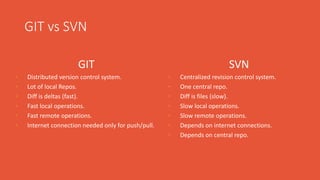
GIT
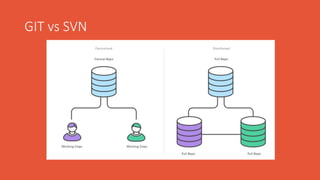
• Distributed version control system.
• Lot of local Repos.
• Diff is deltas (fast).
• Fast local operations.
• Fast remote operations.
• Internet connection needed only for push/pull.
SVN
• Centralized revision control system.
• One central repo.
• Diff is files (slow).
• Slow local operations.
• Slow remote operations.
• Depends on internet connections.
• Depends on central repo.
GIT vs SVN
GIT vs SVN
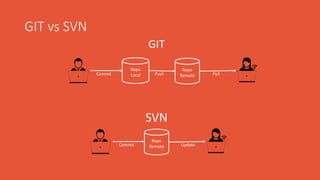
GIT
SVN
Repo
Local
Repo
RemoteCommit Push Pull
Repo
RemoteCommit Update
Download & Install GIT
• On Windows
https://git-for-windows.github.io/
• On Linux / Mac
http://www.alexgirard.com/git-book/commencement/installer-git/
Setting Up a Repository
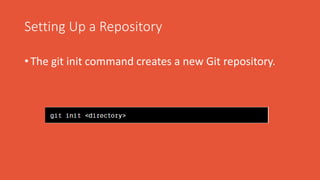
• The git init command creates a new Git repository.
Setting Up a Repository
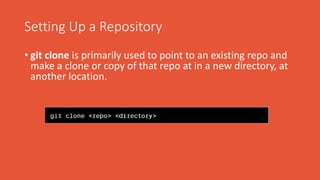
• git clone is primarily used to point to an existing repo and
make a clone or copy of that repo at in a new directory, at
another location.
Setting Up a Repository
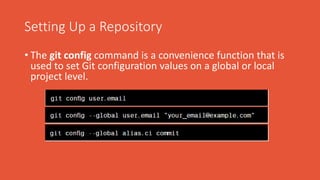
• The git config command is a convenience function that is
used to set Git configuration values on a global or local
project level.
Saving Changes
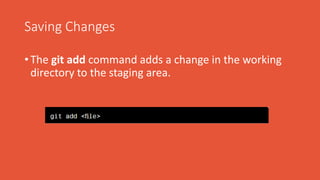
• The git add command adds a change in the working
directory to the staging area.
Saving Changes
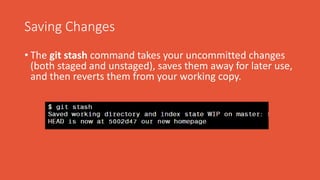
• The git stash command takes your uncommitted changes
(both staged and unstaged), saves them away for later use,
and then reverts them from your working copy.
Inspecting a Depository
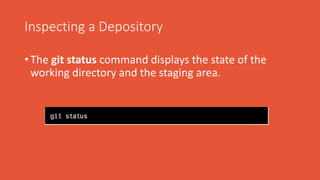
• The git status command displays the state of the
working directory and the staging area.
Inspecting a Depository
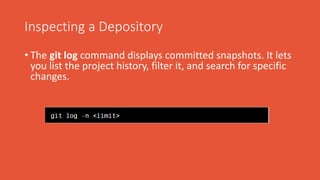
• The git log command displays committed snapshots. It lets
you list the project history, filter it, and search for specific
changes.
Undoing Changes
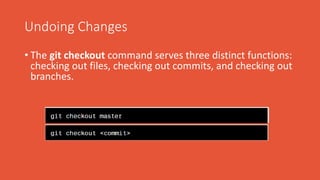
• The git checkout command serves three distinct functions:
checking out files, checking out commits, and checking out
branches.
Undoing Changes
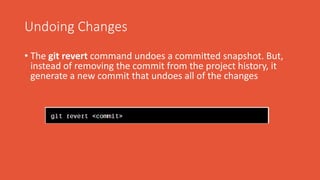
• The git revert command undoes a committed snapshot. But,
instead of removing the commit from the project history, it
generate a new commit that undoes all of the changes
Undoing Changes
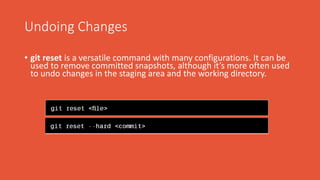
• git reset is a versatile command with many configurations. It can be
used to remove committed snapshots, although it’s more often used
to undo changes in the staging area and the working directory.
Undoing Changes
• The git clean command removes untracked files from
your working directory.
Rewriting History
• The git commit --amend command is a convenient way to fix up the
most recent commit. It lets you combine staged changes with the

previous commit instead of committing it as an entirely new
snapshot.
Rewriting History
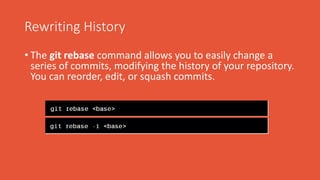
• The git rebase command allows you to easily change a
series of commits, modifying the history of your repository.
You can reorder, edit, or squash commits.
Syncing
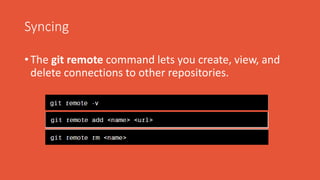
• The git remote command lets you create, view, and
delete connections to other repositories.
Syncing
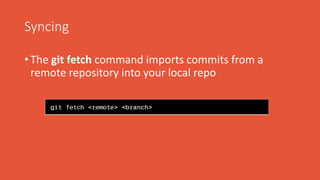
• The git fetch command imports commits from a
remote repository into your local repo
Syncing
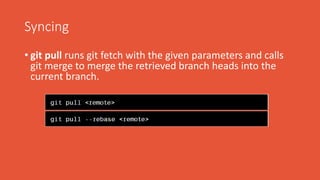
• git pull runs git fetch with the given parameters and calls
git merge to merge the retrieved branch heads into the
current branch.
Syncing
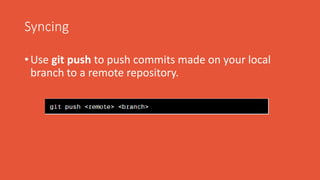
• Use git push to push commits made on your local
branch to a remote repository.
Branches
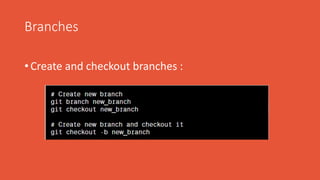
• Create and checkout branches :
Branches
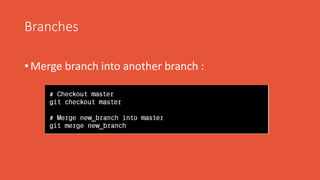
• Merge branch into another branch :
Branches
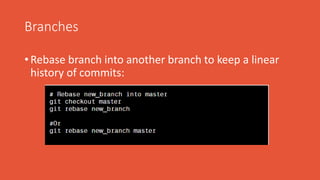
• Rebase branch into another branch to keep a linear
history of commits:
Branches
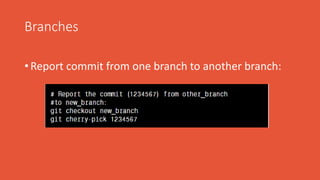
• Report commit from one branch to another branch:
Branches
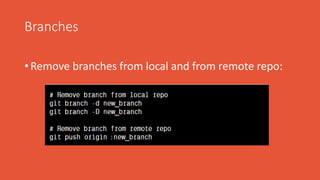
• Remove branches from local and from remote repo:
Tags
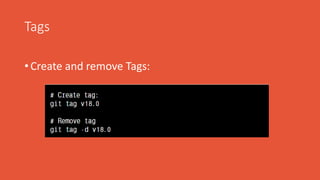
• Create and remove Tags:
Good Practices
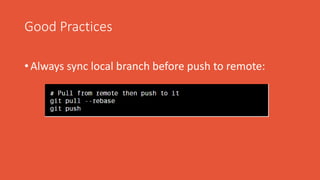
• Always sync local branch before push to remote:
Good Practices
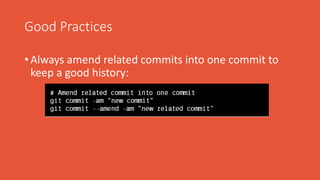
• Always amend related commits into one commit to
keep a good history:
Good Practices
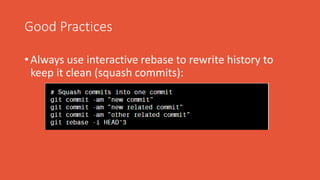
• Always use interactive rebase to rewrite history to
keep it clean (squash commits):
Good Practices
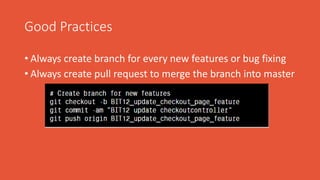
• Always create branch for every new features or bug fixing
• Always create pull request to merge the branch into master
References
• https://www.atlassian.com/git/tutorials
• https://help.github.com
• https://www.atlassian.com/dam/jcr:8132028b-024f-
4b6b-953e-e68fcce0c5fa/atlassian-git-cheatsheet.pdf
DEMO

Git

  • 1.
  • 2.
    Why ? • Easycode source management. • Easy project management. • Keep history of modifications (commits). • Branches facilitates parallel tasks.
  • 3.
    Version Control Solutions •SCCS (1972) • RCS (1982) • CSV (1990) • SVN (2000) • GIT (2005) • Mercurial (2005)
  • 4.
    GIT vs SVN GIT •Distributed version control system. • Lot of local Repos. • Diff is deltas (fast). • Fast local operations. • Fast remote operations. • Internet connection needed only for push/pull. SVN • Centralized revision control system. • One central repo. • Diff is files (slow). • Slow local operations. • Slow remote operations. • Depends on internet connections. • Depends on central repo.
  • 5.
  • 6.
    GIT vs SVN GIT SVN Repo Local Repo RemoteCommitPush Pull Repo RemoteCommit Update
  • 7.
    Download & InstallGIT • On Windows https://git-for-windows.github.io/ • On Linux / Mac http://www.alexgirard.com/git-book/commencement/installer-git/
  • 8.
    Setting Up aRepository • The git init command creates a new Git repository.
  • 9.
    Setting Up aRepository • git clone is primarily used to point to an existing repo and make a clone or copy of that repo at in a new directory, at another location.
  • 10.
    Setting Up aRepository • The git config command is a convenience function that is used to set Git configuration values on a global or local project level.
  • 11.
    Saving Changes • Thegit add command adds a change in the working directory to the staging area.
  • 12.
    Saving Changes • Thegit stash command takes your uncommitted changes (both staged and unstaged), saves them away for later use, and then reverts them from your working copy.
  • 13.
    Inspecting a Depository •The git status command displays the state of the working directory and the staging area.
  • 14.
    Inspecting a Depository •The git log command displays committed snapshots. It lets you list the project history, filter it, and search for specific changes.
  • 15.
    Undoing Changes • Thegit checkout command serves three distinct functions: checking out files, checking out commits, and checking out branches.
  • 16.
    Undoing Changes • Thegit revert command undoes a committed snapshot. But, instead of removing the commit from the project history, it generate a new commit that undoes all of the changes
  • 17.
    Undoing Changes • gitreset is a versatile command with many configurations. It can be used to remove committed snapshots, although it’s more often used to undo changes in the staging area and the working directory.
  • 18.
    Undoing Changes • Thegit clean command removes untracked files from your working directory.
  • 19.
    Rewriting History • Thegit commit --amend command is a convenient way to fix up the most recent commit. It lets you combine staged changes with the previous commit instead of committing it as an entirely new snapshot.
  • 20.
    Rewriting History • Thegit rebase command allows you to easily change a series of commits, modifying the history of your repository. You can reorder, edit, or squash commits.
  • 21.
    Syncing • The gitremote command lets you create, view, and delete connections to other repositories.
  • 22.
    Syncing • The gitfetch command imports commits from a remote repository into your local repo
  • 23.
    Syncing • git pullruns git fetch with the given parameters and calls git merge to merge the retrieved branch heads into the current branch.
  • 24.
    Syncing • Use gitpush to push commits made on your local branch to a remote repository.
  • 25.
    Branches • Create andcheckout branches :
  • 26.
    Branches • Merge branchinto another branch :
  • 27.
    Branches • Rebase branchinto another branch to keep a linear history of commits:
  • 28.
    Branches • Report commitfrom one branch to another branch:
  • 29.
    Branches • Remove branchesfrom local and from remote repo:
  • 30.
    Tags • Create andremove Tags:
  • 31.
    Good Practices • Alwayssync local branch before push to remote:
  • 32.
    Good Practices • Alwaysamend related commits into one commit to keep a good history:
  • 33.
    Good Practices • Alwaysuse interactive rebase to rewrite history to keep it clean (squash commits):
  • 34.
    Good Practices • Alwayscreate branch for every new features or bug fixing • Always create pull request to merge the branch into master
  • 35.
    References • https://www.atlassian.com/git/tutorials • https://help.github.com •https://www.atlassian.com/dam/jcr:8132028b-024f- 4b6b-953e-e68fcce0c5fa/atlassian-git-cheatsheet.pdf
  • 36.