Distributed Version Control with git
Andrew Danner, SWICS
22 November 2013
gti-scm book License
Review of local git
• Do this once per network
o check git config -l
o if no user.name:
 git config --global user.name “My Name”
 git config --global user.email “me@place.com”
• Global options apply to all git repositories on
the current system, e.g., CS network, your
laptop, your future job
See also https://help.github.com/articles/set-up-git
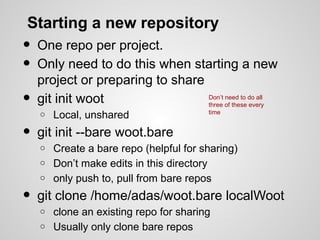
Starting a new repository
• One repo per project.
• Only need to do this when starting a new
project or preparing to share
• git init woot
o Local, unshared
• git init --bare woot.bare
o Create a bare repo (helpful for sharing)
o Don’t make edits in this directory
o only push to, pull from bare repos
• git clone /home/adas/woot.bare localWoot
o clone an existing repo for sharing
o Usually only clone bare repos
Don’t need to do all
three of these every
time
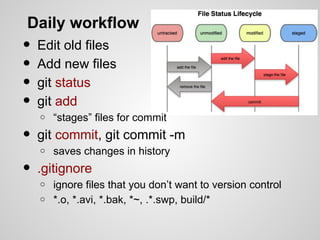
Daily workflow
• Edit old files
• Add new files
• git status
• git add
o “stages” files for commit
• git commit, git commit -m
o saves changes in history
• .gitignore
o ignore files that you don’t want to version control
o *.o, *.avi, *.bak, *~, .*.swp, build/*
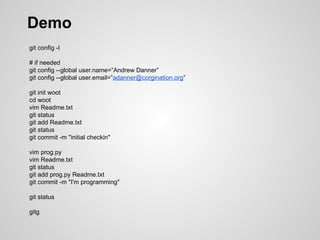
Demo
git config -l
# if needed
git config --global user.name=”Andrew Danner”
git config --global user.email=”adanner@corgination.org”
git init woot
cd woot
vim Readme.txt
git status
git add Readme.txt
git status
git commit -m "initial checkin"
vim prog.py
vim Readme.txt
git status
git add prog.py Readme.txt
git commit -m "I'm programming"
git status
gitg
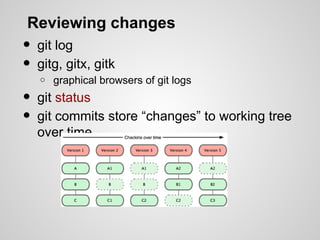
Reviewing changes
• git log
• gitg, gitx, gitk
o graphical browsers of git logs
• git status
• git commits store “changes” to working tree
over time
Some git repo terminology
• Working Directory
o what your directory currently looks like
o pretend git wasn't there
• Stage (Index)
o Things that are added to be part of next commit
o Not committed yet
• History (Local repository)
o Committed from staging area
o Part of git history
• Stash
• Upstream (Remote repository)
See also Git cheatsheet Link
Git Branching and Merging
• Use branches to work on multiple features in
parallel
• Test out new ideas, fix bugs
• You should do most of your development
work in a branch
• There seems to be a lot of branching FUD
surrounding git. These folks probably were
burned by some other VCS in the past that
had poor branch support
• Git has great branch support
Demo - Branching
git status
#create and switch to new branch
git checkout -b devel
git status
vim prog.py
python prog.py
git status
git add prog.py
git commit -m "awesome feature"
#move to existing branch
git checkout master
vim prog.py
git commit -a -m "documented code"
git status
git branch
gitg &
#fixing conflicts
git merge devel
vim prog.py
git status
git add prog.py
git commit
#fast forward merge after conflict
git checkout devel
git merge master
#not all merges result in conflict
master
HEAD
master
HEAD
devel
master
HEAD
devel
master
HEAD
devel
master
HEAD
devel
master
HEAD
devel
master
HEAD
devel
master
HEAD
devel
Git Branching and Merging
• git branch newfeature
• git checkout newfeature
• add some changes
• git checkout master
• use gitg to view repo history
• add changes. branch divergence!!!
• git merge <frombranch>
• merge conflicts and resolutions
o do not blindly add conflicted files back into git
o you will most likely break your code
• git branch lists, creates, deletes branches
Undoing changes
• git mv
• git rm removes from git and working tree
• git rm --cached only removes from git
• git checkout --
• git revert, the anti-commit
• git rebase
o helpful when collaborating
o only use on local repos
o do not rebase remotes
o not really an undo. more of a redo
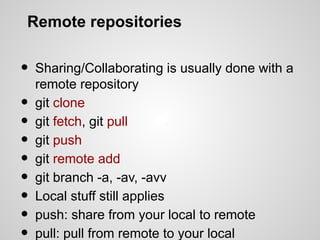
Remote repositories
• Sharing/Collaborating is usually done with a
remote repository
• git clone
• git fetch, git pull
• git push
• git remote add
• git branch -a, -av, -avv
• Local stuff still applies
• push: share from your local to remote
pull: pull from remote to your local
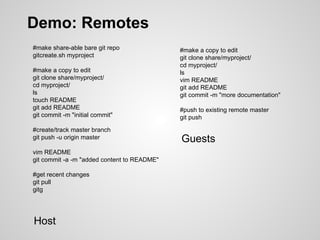
Demo: Remotes
#make share-able bare git repo
gitcreate.sh myproject
#make a copy to edit
git clone share/myproject/
cd myproject/
ls
touch README
git add README
git commit -m "initial commit"
#create/track master branch
git push -u origin master
vim README
git commit -a -m "added content to README"
#get recent changes
git pull
gitg
#make a copy to edit
git clone share/myproject/
cd myproject/
ls
vim README
git add README
git commit -m "more documentation"
#push to existing remote master
git push
Host
Guests
Remotes
• gitcreate.sh is CS only
o uses ACLs. OK, not great
• CS git server
o can work with people off campus
o need ssh keys
o talk to me or Jeff for repo setup
• Github
o create free public accounts
o not great for class project (public)
o private accounts for a fee
• After git clone, can ignore most of these
Other tools
• Swarthmore git server
• github for more public projects
• git svn clone
Other commands
• git cherry-pick
• git stash
• git help
Git resources
• Pro Git book
• Git @ Swat
• Git Terminology See also git help glossary
• Git Ready learn git one feature at a time
• Git Immersion
• Understanding Git
• Visual Git Reference
• Git Cheatsheet

Git-guidance for beginner- IT support.pptx.pptx

  • 1.
    Distributed Version Controlwith git Andrew Danner, SWICS 22 November 2013 gti-scm book License
  • 2.
    Review of localgit • Do this once per network o check git config -l o if no user.name:  git config --global user.name “My Name”  git config --global user.email “me@place.com” • Global options apply to all git repositories on the current system, e.g., CS network, your laptop, your future job See also https://help.github.com/articles/set-up-git
  • 3.
    Starting a newrepository • One repo per project. • Only need to do this when starting a new project or preparing to share • git init woot o Local, unshared • git init --bare woot.bare o Create a bare repo (helpful for sharing) o Don’t make edits in this directory o only push to, pull from bare repos • git clone /home/adas/woot.bare localWoot o clone an existing repo for sharing o Usually only clone bare repos Don’t need to do all three of these every time
  • 4.
    Daily workflow • Editold files • Add new files • git status • git add o “stages” files for commit • git commit, git commit -m o saves changes in history • .gitignore o ignore files that you don’t want to version control o *.o, *.avi, *.bak, *~, .*.swp, build/*
  • 5.
    Demo git config -l #if needed git config --global user.name=”Andrew Danner” git config --global user.email=”adanner@corgination.org” git init woot cd woot vim Readme.txt git status git add Readme.txt git status git commit -m "initial checkin" vim prog.py vim Readme.txt git status git add prog.py Readme.txt git commit -m "I'm programming" git status gitg
  • 6.
    Reviewing changes • gitlog • gitg, gitx, gitk o graphical browsers of git logs • git status • git commits store “changes” to working tree over time
  • 7.
    Some git repoterminology • Working Directory o what your directory currently looks like o pretend git wasn't there • Stage (Index) o Things that are added to be part of next commit o Not committed yet • History (Local repository) o Committed from staging area o Part of git history • Stash • Upstream (Remote repository) See also Git cheatsheet Link
  • 8.
    Git Branching andMerging • Use branches to work on multiple features in parallel • Test out new ideas, fix bugs • You should do most of your development work in a branch • There seems to be a lot of branching FUD surrounding git. These folks probably were burned by some other VCS in the past that had poor branch support • Git has great branch support
  • 9.
    Demo - Branching gitstatus #create and switch to new branch git checkout -b devel git status vim prog.py python prog.py git status git add prog.py git commit -m "awesome feature" #move to existing branch git checkout master vim prog.py git commit -a -m "documented code" git status git branch gitg & #fixing conflicts git merge devel vim prog.py git status git add prog.py git commit #fast forward merge after conflict git checkout devel git merge master #not all merges result in conflict master HEAD master HEAD devel master HEAD devel master HEAD devel master HEAD devel master HEAD devel master HEAD devel master HEAD devel
  • 10.
    Git Branching andMerging • git branch newfeature • git checkout newfeature • add some changes • git checkout master • use gitg to view repo history • add changes. branch divergence!!! • git merge <frombranch> • merge conflicts and resolutions o do not blindly add conflicted files back into git o you will most likely break your code • git branch lists, creates, deletes branches
  • 11.
    Undoing changes • gitmv • git rm removes from git and working tree • git rm --cached only removes from git • git checkout -- • git revert, the anti-commit • git rebase o helpful when collaborating o only use on local repos o do not rebase remotes o not really an undo. more of a redo
  • 12.
    Remote repositories • Sharing/Collaboratingis usually done with a remote repository • git clone • git fetch, git pull • git push • git remote add • git branch -a, -av, -avv • Local stuff still applies • push: share from your local to remote pull: pull from remote to your local
  • 13.
    Demo: Remotes #make share-ablebare git repo gitcreate.sh myproject #make a copy to edit git clone share/myproject/ cd myproject/ ls touch README git add README git commit -m "initial commit" #create/track master branch git push -u origin master vim README git commit -a -m "added content to README" #get recent changes git pull gitg #make a copy to edit git clone share/myproject/ cd myproject/ ls vim README git add README git commit -m "more documentation" #push to existing remote master git push Host Guests
  • 14.
    Remotes • gitcreate.sh isCS only o uses ACLs. OK, not great • CS git server o can work with people off campus o need ssh keys o talk to me or Jeff for repo setup • Github o create free public accounts o not great for class project (public) o private accounts for a fee • After git clone, can ignore most of these
  • 15.
    Other tools • Swarthmoregit server • github for more public projects • git svn clone Other commands • git cherry-pick • git stash • git help
  • 16.
    Git resources • ProGit book • Git @ Swat • Git Terminology See also git help glossary • Git Ready learn git one feature at a time • Git Immersion • Understanding Git • Visual Git Reference • Git Cheatsheet