VERSION CONTROL
AND GIT
Sreedevi Vedula
Terms used
• VCS – Version Control System
• Check-in – Storing files in the VCS Central Repo
• Check-out – Getting files from the VCS Central Repo
• Commit – Git’s term for check-in
What does version control do?
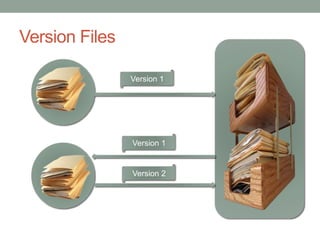
• Version files
• Manage changes from multiple users
• Store the versions in a central repository
Version Files
Version 1
Version 2
Version 1
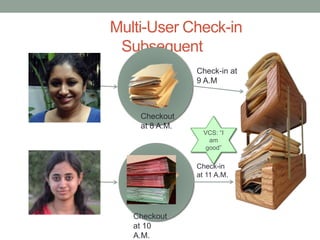
Multi-User Check-in
Subsequent
Check-in at
9 A.M
Checkout
at 8 A.M.
Checkout
at 10
A.M.
Check-in
at 11 A.M.
VCS: “I
am
good”
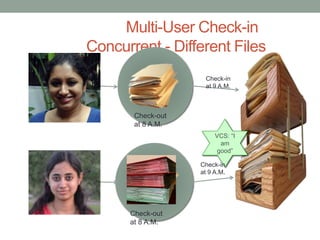
Multi-User Check-in
Concurrent - Different Files
Check-in
at 9 A.M.
Check-out
at 8 A.M.
Check-out
at 8 A.M.
VCS: “I
am
good”
Check-in
at 9 A.M.
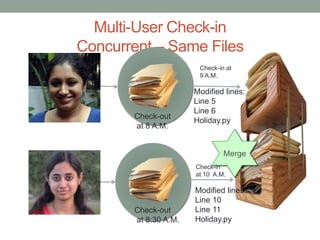
Multi-User Check-in
Concurrent – Same Files
Check-in at
9 A.M.
Check-out
at 8 A.M.
Modified lines:
Line 5
Line 6
Holiday.py
Modified lines:
Line 10
Line 11
Holiday.py
Merge
Check-in
at 10 A.M.
Check-out
at 8:30 A.M.
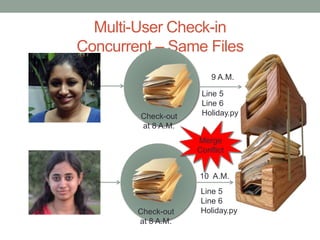
Multi-User Check-in
Concurrent – Same Files
9 A.M.
Merge
Conflict
Line 5
Line 6
Holiday.py
Line 5
Line 6
Holiday.py
10 A.M.
Check-out
at 8 A.M.
Check-out
at 8 A.M.
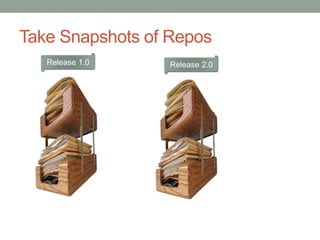
Take Snapshots of Repos
Release 1.0 Release 2.0
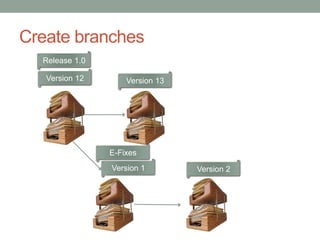
Create branches
Release 1.0
E-Fixes
Version 12 Version 13
Version 1 Version 2
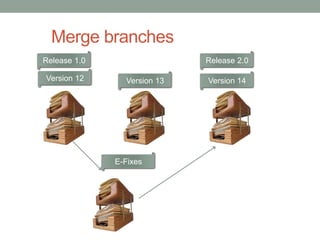
Merge branches
Release 1.0
E-Fixes
Version 12 Version 13 Version 14
Release 2.0
Git – How is it different
• Repository is seen as a whole and not as files
• Commit a repo and not files
• Go back to a specific version of a repo and not a file
• Repository is local and not remote
• Entire repository can be accessed locally
• No need to be connected to the remote server
• Branches are also versions of the repo and not copies of it
• Create a new branches in the same filesystem
• Pull branches from remote server into the same filesystem
• Work on two branches simultaneously in the same file system
• Forking user repo is inherent
• Github server provides you option to fork your copy of the repo which
helps collaboration initiated from the user side
• Free github account to host experimental projects
Git Repository
• git init
• Creates a git local repository
• .git directory
• A hidden directory in the repository which has the repo information
like version history of all the files, branch information
• git clone <url>
• Download the remote repository at <url> and create a local
repository for it
Git – Working with files
• The four states for a file
• Untracked – The files that are not never added to git are in this stage
• Unmodified – Files that are in the git repo, but not edited.
• Modified – Files edited by you after getting changes from the repo
• Staged –Files that are staged for commit
• git add
• Moves untracked files / modified files to staged state
• git rm
• Move staged files to modified / untracked files
• git diff
• Show changes made to files in modified state
• git diff –cached
• Show changes made to files in staged state
• git commit
• Save changes to the local repository
• git checkout – <file>
• discard changes in working directory
• git reset
• Reset or revert to an earlier commit
• git log
• Show the commit history of the
Git – Working with branches
• git checkout –b
• Create a new branch and switch to it
• git branch
• List all the branches
• git merge <branch>
• Merge the current branch with the changes from <branch>
• git rebase <branch>
• Modify the development history of the current branch by pulling the
commits from it since the common latest commit <A> of the two
branches, apply the commit history of <branch> since <A> to the
latest commit to the current branch and re-apply the pulled-out
commits on top of it.
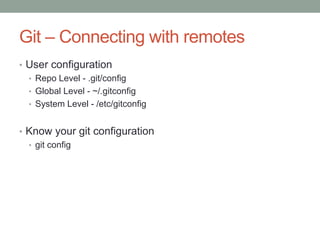
Git – Connecting with remotes
• User configuration
• Repo Level - .git/config
• Global Level - ~/.gitconfig
• System Level - /etc/gitconfig
• Know your git configuration
• git config
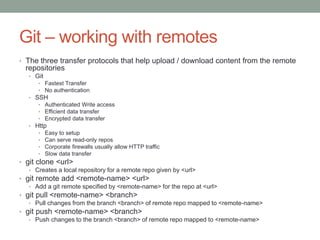
Git – working with remotes
• The three transfer protocols that help upload / download content from the remote
repositories
• Git
• Fastest Transfer
• No authentication
• SSH
• Authenticated Write access
• Efficient data transfer
• Encrypted data transfer
• Http
• Easy to setup
• Can serve read-only repos
• Corporate firewalls usually allow HTTP traffic
• Slow data transfer
• git clone <url>
• Creates a local repository for a remote repo given by <url>
• git remote add <remote-name> <url>
• Add a git remote specified by <remote-name> for the repo at <url>
• git pull <remote-name> <branch>
• Pull changes from the branch <branch> of remote repo mapped to <remote-name>
• git push <remote-name> <branch>
• Push changes to the branch <branch> of remote repo mapped to <remote-name>
References
• http://git-scm.com/book

Git

  • 1.
  • 2.
    Terms used • VCS– Version Control System • Check-in – Storing files in the VCS Central Repo • Check-out – Getting files from the VCS Central Repo • Commit – Git’s term for check-in
  • 3.
    What does versioncontrol do? • Version files • Manage changes from multiple users • Store the versions in a central repository
  • 4.
  • 5.
    Multi-User Check-in Subsequent Check-in at 9A.M Checkout at 8 A.M. Checkout at 10 A.M. Check-in at 11 A.M. VCS: “I am good”
  • 6.
    Multi-User Check-in Concurrent -Different Files Check-in at 9 A.M. Check-out at 8 A.M. Check-out at 8 A.M. VCS: “I am good” Check-in at 9 A.M.
  • 7.
    Multi-User Check-in Concurrent –Same Files Check-in at 9 A.M. Check-out at 8 A.M. Modified lines: Line 5 Line 6 Holiday.py Modified lines: Line 10 Line 11 Holiday.py Merge Check-in at 10 A.M. Check-out at 8:30 A.M.
  • 8.
    Multi-User Check-in Concurrent –Same Files 9 A.M. Merge Conflict Line 5 Line 6 Holiday.py Line 5 Line 6 Holiday.py 10 A.M. Check-out at 8 A.M. Check-out at 8 A.M.
  • 9.
    Take Snapshots ofRepos Release 1.0 Release 2.0
  • 10.
    Create branches Release 1.0 E-Fixes Version12 Version 13 Version 1 Version 2
  • 11.
    Merge branches Release 1.0 E-Fixes Version12 Version 13 Version 14 Release 2.0
  • 12.
    Git – Howis it different • Repository is seen as a whole and not as files • Commit a repo and not files • Go back to a specific version of a repo and not a file • Repository is local and not remote • Entire repository can be accessed locally • No need to be connected to the remote server • Branches are also versions of the repo and not copies of it • Create a new branches in the same filesystem • Pull branches from remote server into the same filesystem • Work on two branches simultaneously in the same file system • Forking user repo is inherent • Github server provides you option to fork your copy of the repo which helps collaboration initiated from the user side • Free github account to host experimental projects
  • 13.
    Git Repository • gitinit • Creates a git local repository • .git directory • A hidden directory in the repository which has the repo information like version history of all the files, branch information • git clone <url> • Download the remote repository at <url> and create a local repository for it
  • 14.
    Git – Workingwith files • The four states for a file • Untracked – The files that are not never added to git are in this stage • Unmodified – Files that are in the git repo, but not edited. • Modified – Files edited by you after getting changes from the repo • Staged –Files that are staged for commit • git add • Moves untracked files / modified files to staged state • git rm • Move staged files to modified / untracked files • git diff • Show changes made to files in modified state • git diff –cached • Show changes made to files in staged state • git commit • Save changes to the local repository • git checkout – <file> • discard changes in working directory • git reset • Reset or revert to an earlier commit • git log • Show the commit history of the
  • 15.
    Git – Workingwith branches • git checkout –b • Create a new branch and switch to it • git branch • List all the branches • git merge <branch> • Merge the current branch with the changes from <branch> • git rebase <branch> • Modify the development history of the current branch by pulling the commits from it since the common latest commit <A> of the two branches, apply the commit history of <branch> since <A> to the latest commit to the current branch and re-apply the pulled-out commits on top of it.
  • 16.
    Git – Connectingwith remotes • User configuration • Repo Level - .git/config • Global Level - ~/.gitconfig • System Level - /etc/gitconfig • Know your git configuration • git config
  • 17.
    Git – workingwith remotes • The three transfer protocols that help upload / download content from the remote repositories • Git • Fastest Transfer • No authentication • SSH • Authenticated Write access • Efficient data transfer • Encrypted data transfer • Http • Easy to setup • Can serve read-only repos • Corporate firewalls usually allow HTTP traffic • Slow data transfer • git clone <url> • Creates a local repository for a remote repo given by <url> • git remote add <remote-name> <url> • Add a git remote specified by <remote-name> for the repo at <url> • git pull <remote-name> <branch> • Pull changes from the branch <branch> of remote repo mapped to <remote-name> • git push <remote-name> <branch> • Push changes to the branch <branch> of remote repo mapped to <remote-name>
  • 18.