Content
 Version control
 Advantages & disadvantages of GIT
 GIT basics
2
Version Control
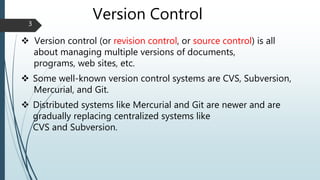
 Version control (or revision control, or source control) is all
about managing multiple versions of documents,
programs, web sites, etc.
 Some well-known version control systems are CVS, Subversion,
Mercurial, and Git.
 Distributed systems like Mercurial and Git are newer and are
gradually replacing centralized systems like
CVS and Subversion.
3
Local Version Control
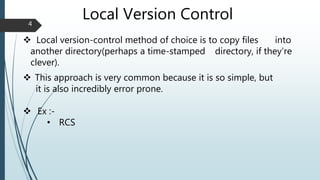
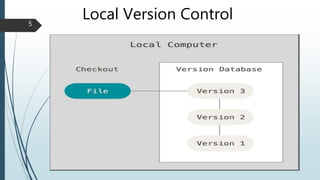
 Local version-control method of choice is to copy files into
another directory(perhaps a time-stamped directory, if they’re
clever).
 This approach is very common because it is so simple, but
it is also incredibly error prone.
 Ex :-
• RCS
4
Local Version Control5
Centralized Version Control
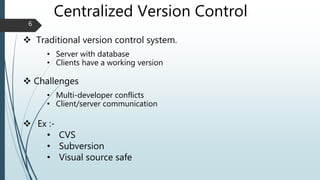
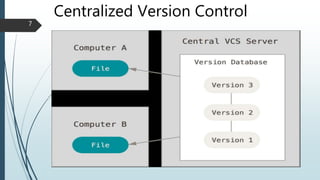
 Traditional version control system.
• Server with database
• Clients have a working version
 Challenges
• Multi-developer conflicts
• Client/server communication
 Ex :-
• CVS
• Subversion
• Visual source safe
6
Centralized Version Control
7
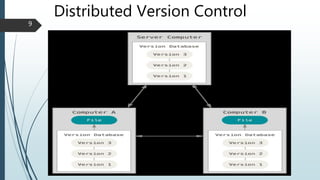
Distributed Version Control
 Authoritative server by convention only.
 Every working checkout is a repository.
 Get version control even when detached.
 Backups are trivial.
 Ex :-
• Mercurial
• BitKeeper
• Darcs
• Bazaar
8
Distributed Version Control
9
Advantages of GIT
 Resilience
• No one repository has more data than any other
 Speed
• Very fast operations compared to other VCS (I’m looking at
you CVS and Subversion)
 Space
• Compression can be done across repository not just per file
• Minimizes local size as well as push/pull data transfers
 Simplicity
• Object model is very simple
 Large user base with robust tools
10
Disadvantages of GIT
 Definite learning curve, especially for those used to centralized
systems.
• Can sometimes seem overwhelming to learn
 Conceptual difference
 Huge amount of commends
11
GIT Basics
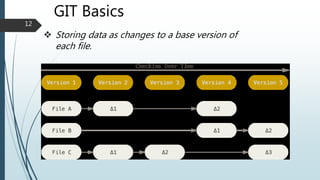
 Storing data as changes to a base version of
each file.
12
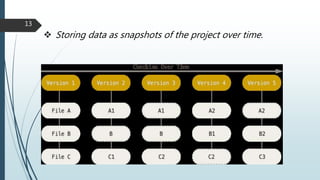
 Storing data as snapshots of the project over time.
13
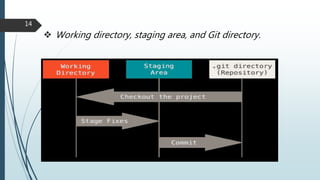
 Working directory, staging area, and Git directory.
14
Introduce yourself to GIT
 Enter these lines (with appropriate changes):
• git config --global user.name "John Smith"
• git config --global user.email
jsmith@seas.upenn.edu
 You only need to do this once.
 If you want to use a different name/email address for a particular
project, you can change it for just that project.
• cd to the project directory.
• Use the above commands, but leave out the --global
15
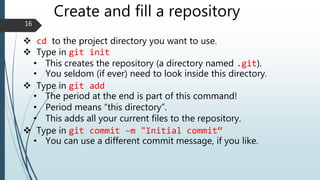
Create and fill a repository
 cd to the project directory you want to use.
 Type in git init
• This creates the repository (a directory named .git).
• You seldom (if ever) need to look inside this directory.
 Type in git add
• The period at the end is part of this command!
• Period means “this directory”.
• This adds all your current files to the repository.
 Type in git commit –m "Initial commit“
• You can use a different commit message, if you like.
16
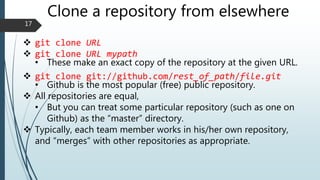
Clone a repository from elsewhere
 git clone URL
 git clone URL mypath
• These make an exact copy of the repository at the given URL.
 git clone git://github.com/rest_of_path/file.git
• Github is the most popular (free) public repository.
 All repositories are equal,
• But you can treat some particular repository (such as one on
Github) as the “master” directory.
 Typically, each team member works in his/her own repository,
and “merges” with other repositories as appropriate.
17
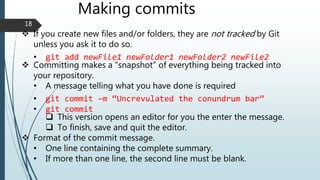
Making commits
 If you create new files and/or folders, they are not tracked by Git
unless you ask it to do so.
• git add newFile1 newFolder1 newFolder2 newFile2
 Committing makes a “snapshot” of everything being tracked into
your repository.
• A message telling what you have done is required
• git commit –m “Uncrevulated the conundrum bar”
• git commit
 This version opens an editor for you the enter the message.
 To finish, save and quit the editor.
 Format of the commit message.
• One line containing the complete summary.
• If more than one line, the second line must be blank.
18
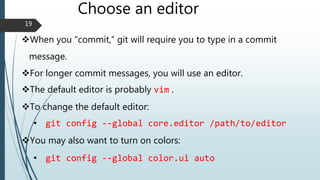
Choose an editor
When you “commit,” git will require you to type in a commit
message.
For longer commit messages, you will use an editor.
The default editor is probably vim .
To change the default editor:
• git config --global core.editor /path/to/editor
You may also want to turn on colors:
• git config --global color.ui auto
19
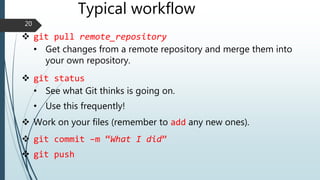
Typical workflow
 git pull remote_repository
• Get changes from a remote repository and merge them into
your own repository.
 git status
• See what Git thinks is going on.
• Use this frequently!
 Work on your files (remember to add any new ones).
 git commit –m “What I did”
 git push
20
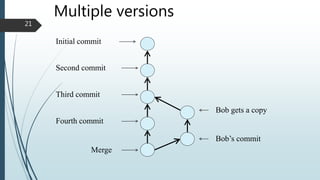
Multiple versions
Initial commit
Second commit
Third commit
Bob gets a copy
Fourth commit
Merge
Bob’s commit
21
Source control

Source control

  • 2.
    Content  Version control Advantages & disadvantages of GIT  GIT basics 2
  • 3.
    Version Control  Versioncontrol (or revision control, or source control) is all about managing multiple versions of documents, programs, web sites, etc.  Some well-known version control systems are CVS, Subversion, Mercurial, and Git.  Distributed systems like Mercurial and Git are newer and are gradually replacing centralized systems like CVS and Subversion. 3
  • 4.
    Local Version Control Local version-control method of choice is to copy files into another directory(perhaps a time-stamped directory, if they’re clever).  This approach is very common because it is so simple, but it is also incredibly error prone.  Ex :- • RCS 4
  • 5.
  • 6.
    Centralized Version Control Traditional version control system. • Server with database • Clients have a working version  Challenges • Multi-developer conflicts • Client/server communication  Ex :- • CVS • Subversion • Visual source safe 6
  • 7.
  • 8.
    Distributed Version Control Authoritative server by convention only.  Every working checkout is a repository.  Get version control even when detached.  Backups are trivial.  Ex :- • Mercurial • BitKeeper • Darcs • Bazaar 8
  • 9.
  • 10.
    Advantages of GIT Resilience • No one repository has more data than any other  Speed • Very fast operations compared to other VCS (I’m looking at you CVS and Subversion)  Space • Compression can be done across repository not just per file • Minimizes local size as well as push/pull data transfers  Simplicity • Object model is very simple  Large user base with robust tools 10
  • 11.
    Disadvantages of GIT Definite learning curve, especially for those used to centralized systems. • Can sometimes seem overwhelming to learn  Conceptual difference  Huge amount of commends 11
  • 12.
    GIT Basics  Storingdata as changes to a base version of each file. 12
  • 13.
     Storing dataas snapshots of the project over time. 13
  • 14.
     Working directory,staging area, and Git directory. 14
  • 15.
    Introduce yourself toGIT  Enter these lines (with appropriate changes): • git config --global user.name "John Smith" • git config --global user.email jsmith@seas.upenn.edu  You only need to do this once.  If you want to use a different name/email address for a particular project, you can change it for just that project. • cd to the project directory. • Use the above commands, but leave out the --global 15
  • 16.
    Create and filla repository  cd to the project directory you want to use.  Type in git init • This creates the repository (a directory named .git). • You seldom (if ever) need to look inside this directory.  Type in git add • The period at the end is part of this command! • Period means “this directory”. • This adds all your current files to the repository.  Type in git commit –m "Initial commit“ • You can use a different commit message, if you like. 16
  • 17.
    Clone a repositoryfrom elsewhere  git clone URL  git clone URL mypath • These make an exact copy of the repository at the given URL.  git clone git://github.com/rest_of_path/file.git • Github is the most popular (free) public repository.  All repositories are equal, • But you can treat some particular repository (such as one on Github) as the “master” directory.  Typically, each team member works in his/her own repository, and “merges” with other repositories as appropriate. 17
  • 18.
    Making commits  Ifyou create new files and/or folders, they are not tracked by Git unless you ask it to do so. • git add newFile1 newFolder1 newFolder2 newFile2  Committing makes a “snapshot” of everything being tracked into your repository. • A message telling what you have done is required • git commit –m “Uncrevulated the conundrum bar” • git commit  This version opens an editor for you the enter the message.  To finish, save and quit the editor.  Format of the commit message. • One line containing the complete summary. • If more than one line, the second line must be blank. 18
  • 19.
    Choose an editor Whenyou “commit,” git will require you to type in a commit message. For longer commit messages, you will use an editor. The default editor is probably vim . To change the default editor: • git config --global core.editor /path/to/editor You may also want to turn on colors: • git config --global color.ui auto 19
  • 20.
    Typical workflow  gitpull remote_repository • Get changes from a remote repository and merge them into your own repository.  git status • See what Git thinks is going on. • Use this frequently!  Work on your files (remember to add any new ones).  git commit –m “What I did”  git push 20
  • 21.
    Multiple versions Initial commit Secondcommit Third commit Bob gets a copy Fourth commit Merge Bob’s commit 21

Editor's Notes

  • #4 What is “version control”, and why should you care? Version control is a system that records changes to a file or set of files over time so that you can recall specific versions later.
  • #5 It is easy to forget which directory you’re in and accidentally write to the wrong file or copy over files you don’t mean to. To deal with this issue, programmers long ago developed local VCSs that had a simple database that kept all the changes to files under revision control.
  • #11 A distributed version control system
  • #13 The major difference between Git and any other VCS (Subversion and friends included) is the way Git thinks about its data. Conceptually, most other systems store information as a list of file-based changes. These systems (CVS, Subversion, Perforce, Bazaar, and so on) think of the information they keep as a set of files and the changes made to each file over time.
  • #14 Git doesn’t think of or store its data this way. Instead, Git thinks of its data more like a set of snapshots of a miniature filesystem. Every time you commit, or save the state of your project in Git, it basically takes a picture of what all your files look like at that moment and stores a reference to that snapshot. To be efficient, if files have not changed, Git doesn’t store the file again, just a link to the previous identical file it has already stored. Git thinks about its data more like a stream of snapshots.
  • #15 1. You modify files in your working directory. 2. You stage the files, adding snapshots of them to your staging area. 3. You do a commit, which takes the files as they are in the staging area and stores that snapshot permanently to your Git directory.
  • #16 Git echo ‘my project’ > sac
  • #17 Your top-level working directory contains everything about your project The working directory probably contains many subdirectories—source code, binaries, documentation, data files, etc. One of these subdirectories, named .git, is your repository At any time, you can take a “snapshot” of everything (or selected things) in your project directory, and put it in your repository When you said git init in your project directory, or when you cloned an existing project, you created a repository The repository is a subdirectory named .git containing various files The dot indicates a “hidden” directory You do not work directly with the contents of that directory; various git commands do that for you You do need a basic understanding of what is in the repository
  • #19 A commit is when you tell git that a change (or addition) you have made is ready to be included in the project