Graphing Perspective
The Graphing
Perspective
includes
the Algebra
View
and
the Graphics
View.
Algebra View Graphics View
Graphing Perspective
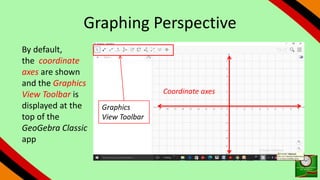
By default,
the coordinate
axes are shown
and the Graphics
View Toolbar is
displayed at the
top of the
GeoGebra Classic
app
Graphics
View Toolbar
Coordinate axes
Graphing Perspective
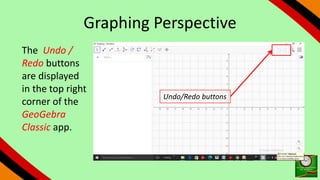
The Undo /
Redo buttons
are displayed
in the top right
corner of the
GeoGebra
Classic app.
Undo/Redo buttons
Graphing Perspective
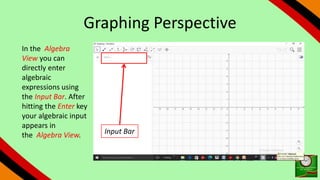
In the Algebra
View you can
directly enter
algebraic
expressions using
the Input Bar. After
hitting the Enter key
your algebraic input
appears in
the Algebra View. Input Bar
Graphing Perspective
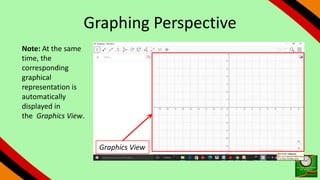
Note: At the same
time, the
corresponding
graphical
representation is
automatically
displayed in
the Graphics View.
Graphics View
Graphing Perspective
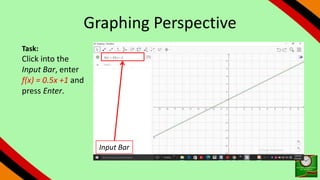
Task:
Click into the
Input Bar, enter
f(x) = 0.5x +1 and
press Enter.
Input Bar
Graphing Perspective
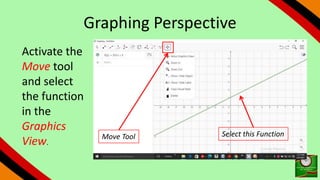
Activate the
Move tool
and select
the function
in the
Graphics
View.
Move Tool Select this Function
Graphing Perspective
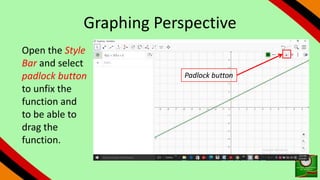
Open the Style
Bar and select
padlock button
to unfix the
function and
to be able to
drag the
function.
Padlock button
Graphing Perspective
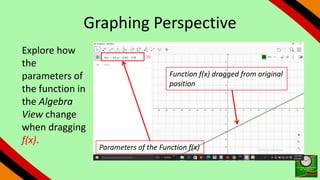
Explore how
the
parameters of
the function in
the Algebra
View change
when dragging
f(x).
Parameters of the Function f(x)
Function f(x) dragged from original
position
Graphing Perspective
Undo and then
Enter the
quadratic
function
g(x) = x^2 -1
into the Input
Bar and press
Enter.
Input Bar
Graphing Perspective
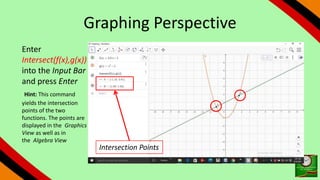
Enter
Intersect(f(x),g(x))
into the Input Bar
and press Enter
Hint: This command
yields the intersection
points of the two
functions. The points are
displayed in the Graphics
View as well as in
the Algebra View
Intersection Points
Graphing Perspective
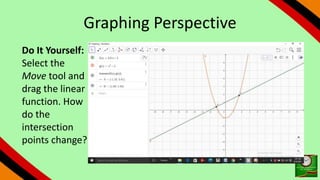
Do It Yourself:
Select the
Move tool and
drag the linear
function. How
do the
intersection
points change?
Graphing Perspective
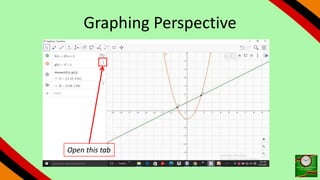
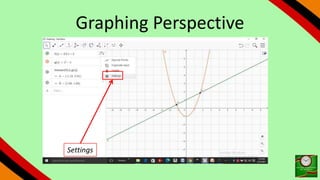
Hiding Mathematical Objects in the Algebra View
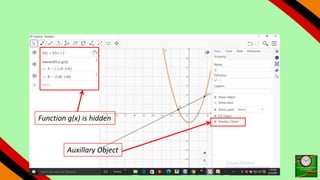
If you want to hide the algebraic representation of an
object in the Algebra View, you may specify the object
as an Auxiliary Object. Open the tab Basic of the
Properties Dialog and check Auxiliary Object.
Graphing Perspective
Open this tab
Graphing Perspective
Settings
Auxillary Object
Function g(x) is hidden
By default, Auxiliary Objects are not shown in the
Algebra View. You can change this setting by
selecting Auxiliary Objects from the Context
Menu or by selecting on the appropriate icon in
the Algebra View Style Bar.
Task
Try to work out as many
functions as possible and
provide feedback. Are you
facing any challenges?
END
NEXT TOPIC:
Functions and Coordinates

Geo gebra 2