/AutoCAD Adda
BASIC AUTOCAD
TRAINING
TUTORIAL#4
BY AUTOCAD ADDA
1
/AutoCAD Adda
Line 2
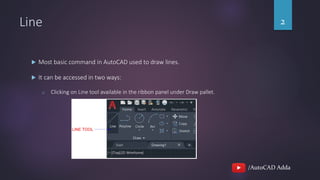
 Most basic command in AutoCAD used to draw lines.
 It can be accessed in two ways:
o Clicking on Line tool available in the ribbon panel under Draw pallet.
/AutoCAD Adda
Line 3
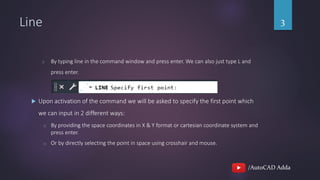
o By typing line in the command window and press enter. We can also just type L and
press enter.
 Upon activation of the command we will be asked to specify the first point which
we can input in 2 different ways:
o By providing the space coordinates in X & Y format or cartesian coordinate system and
press enter.
o Or by directly selecting the point in space using crosshair and mouse.
/AutoCAD Adda
Line 4
 It will then ask us the next point till which the line will be drawn.
 It keeps repeating the next point.
 Press enter or esc key to exit from the command.
/AutoCAD Adda
Polyline 5
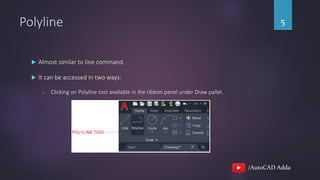
 Almost similar to line command.
 It can be accessed in two ways:
o Clicking on Polyline tool available in the ribbon panel under Draw pallet.
/AutoCAD Adda
Polyline 6
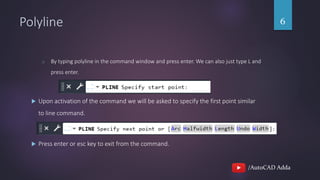
o By typing polyline in the command window and press enter. We can also just type L and
press enter.
 Upon activation of the command we will be asked to specify the first point similar
to line command.
 Press enter or esc key to exit from the command.
/AutoCAD Adda
Line vs Polyline 7
Line Polyline
We have to select multiple line for selecting
the entire object.
All the line gets selected which are
connected end to end.
The line acts as different object and are not
stitched together.
All the line in the polyline are stitched
together end to end.
Width of the line cannot be changed. Width of the line can be changed.
The line cannot be curved. The polyline can be curved and turned into
an arc.
/AutoCAD Adda
THANKS FOR WATCHING.
8

Tutorial 4 - Line & Polyline command in AutoCAD.

  • 1.
  • 2.
    /AutoCAD Adda Line 2 Most basic command in AutoCAD used to draw lines.  It can be accessed in two ways: o Clicking on Line tool available in the ribbon panel under Draw pallet.
  • 3.
    /AutoCAD Adda Line 3 oBy typing line in the command window and press enter. We can also just type L and press enter.  Upon activation of the command we will be asked to specify the first point which we can input in 2 different ways: o By providing the space coordinates in X & Y format or cartesian coordinate system and press enter. o Or by directly selecting the point in space using crosshair and mouse.
  • 4.
    /AutoCAD Adda Line 4 It will then ask us the next point till which the line will be drawn.  It keeps repeating the next point.  Press enter or esc key to exit from the command.
  • 5.
    /AutoCAD Adda Polyline 5 Almost similar to line command.  It can be accessed in two ways: o Clicking on Polyline tool available in the ribbon panel under Draw pallet.
  • 6.
    /AutoCAD Adda Polyline 6 oBy typing polyline in the command window and press enter. We can also just type L and press enter.  Upon activation of the command we will be asked to specify the first point similar to line command.  Press enter or esc key to exit from the command.
  • 7.
    /AutoCAD Adda Line vsPolyline 7 Line Polyline We have to select multiple line for selecting the entire object. All the line gets selected which are connected end to end. The line acts as different object and are not stitched together. All the line in the polyline are stitched together end to end. Width of the line cannot be changed. Width of the line can be changed. The line cannot be curved. The polyline can be curved and turned into an arc.
  • 8.