Information in Context Embedding useful Web 2.0 content into library websites
Information in Context Libraries have been encouraged to participate in Web 2.0 by uploading their content to flickr, YouTube, and other websites In addition to hosting content, another function Web 2.0 websites offer is easily embedding this content on your own website
Information in Context Libraries can provide “Information in Context” by embedding uploaded content back into the library’s website, thus giving patrons content for the information we are uploading This presentation is a demonstration for creating dynamic subject guides using the delicious.com, and to embed individual photos and a photo “badge” from flickr.com
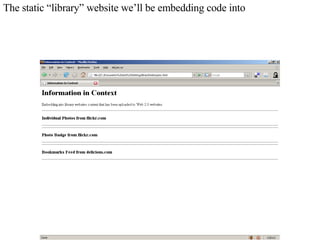
The static “library” website we’ll be embedding code into
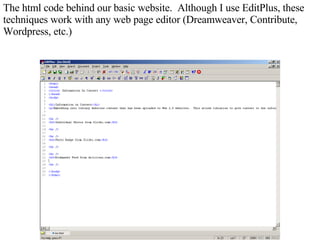
The html code behind our basic website.  Although I use EditPlus, these techniques work with any web page editor (Dreamweaver, Contribute, Wordpress, etc.)
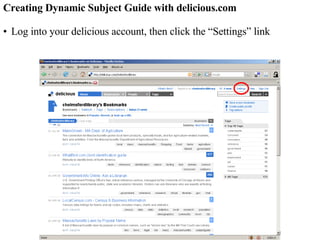
Creating Dynamic Subject Guide with delicious.com Log into your delicious account, then click the “Settings” link
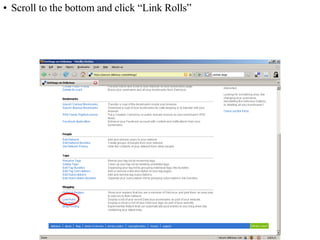
Scroll to the bottom and click “Link Rolls”
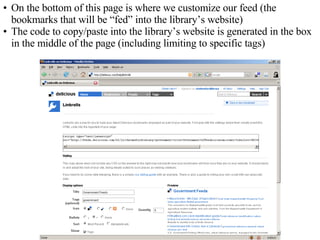
On the bottom of this page is where we customize our feed (the bookmarks that will be “fed” into the library’s website) The code to copy/paste into the library’s website is generated in the box in the middle of the page (including limiting to specific tags)
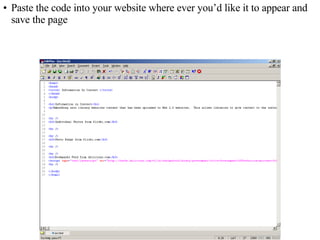
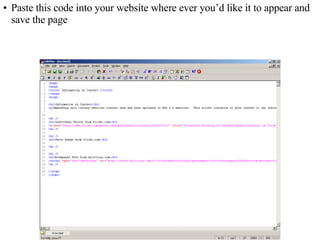
Paste the code into your website where ever you’d like it to appear and save the page
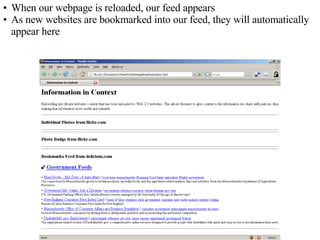
When our webpage is reloaded, our feed appears As new websites are bookmarked into our feed, they will automatically appear here
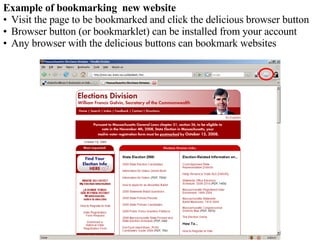
Example of bookmarking  new website Visit the page to be bookmarked and click the delicious browser button Browser button (or bookmarklet) can be installed from your account Any browser with the delicious buttons can bookmark websites
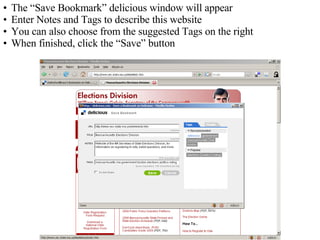
The “Save Bookmark” delicious window will appear Enter Notes and Tags to describe this website You can also choose from the suggested Tags on the right When finished, click the “Save” button
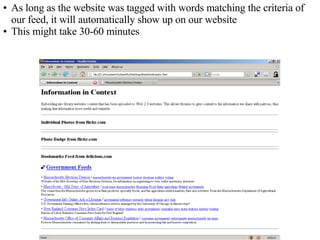
As long as the website was tagged with words matching the criteria of our feed, it will automatically show up on our website This might take 30-60 minutes
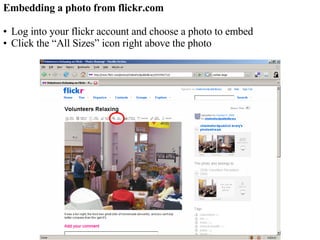
Embedding a photo from flickr.com Log into your flickr account and choose a photo to embed Click the “All Sizes” icon right above the photo
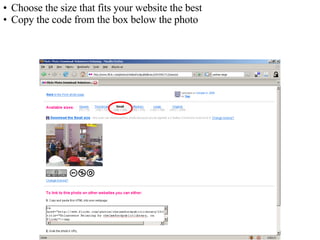
Choose the size that fits your website the best Copy the code from the box below the photo
Paste this code into your website where ever you’d like it to appear and save the page
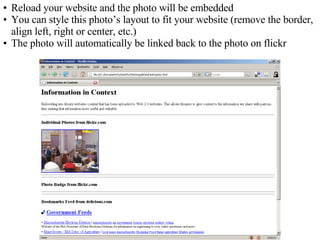
Reload your website and the photo will be embedded You can style this photo’s layout to fit your website (remove the border, align left, right or center, etc.) The photo will automatically be linked back to the photo on flickr
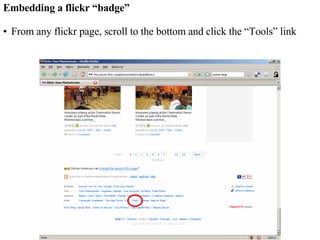
Embedding a flickr “badge” From any flickr page, scroll to the bottom and click the “Tools” link
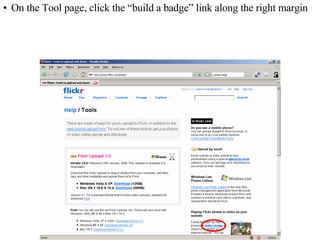
On the Tool page, click the “build a badge” link along the right margin
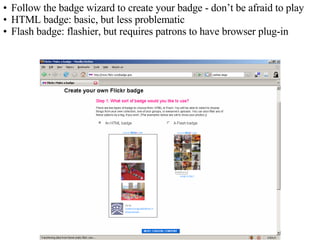
Follow the badge wizard to create your badge - don’t be afraid to play HTML badge: basic, but less problematic Flash badge: flashier, but requires patrons to have browser plug-in
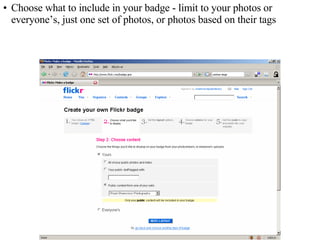
Choose what to include in your badge - limit to your photos or everyone’s, just one set of photos, or photos based on their tags
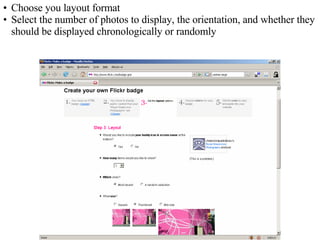
Choose you layout format Select the number of photos to display, the orientation, and whether they should be displayed chronologically or randomly
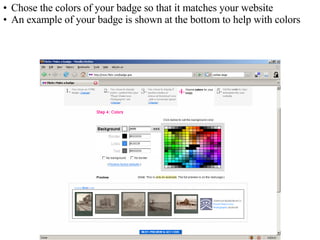
Chose the colors of your badge so that it matches your website An example of your badge is shown at the bottom to help with colors
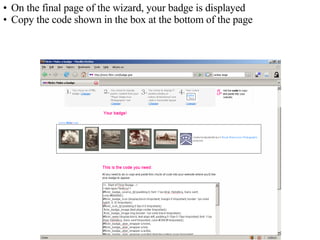
On the final page of the wizard, your badge is displayed Copy the code shown in the box at the bottom of the page
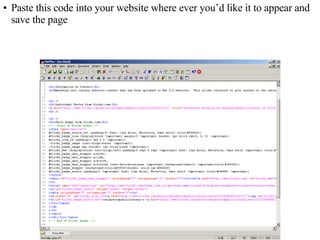
Paste this code into your website where ever you’d like it to appear and save the page
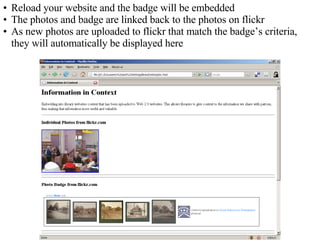
Reload your website and the badge will be embedded The photos and badge are linked back to the photos on flickr As new photos are uploaded to flickr that match the badge’s criteria, they will automatically be displayed here
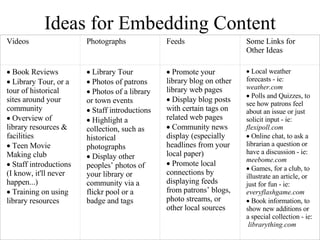
Ideas for Embedding Content Videos Photographs Feeds Some Links for Other Ideas    Book Reviews    Library Tour, or a tour of historical sites around your community    Overview of library resources & facilities    Teen Movie Making club    Staff introductions (I know, it'll never happen...)    Training on using library resources    Library Tour    Photos of patrons    Photos of a library or town events    Staff introductions    Highlight a collection, such as historical photographs    Display other peoples’ photos of your library or community via a flickr pool or a badge and tags    Promote your library blog on other library web pages    Display blog posts with certain tags on related web pages    Community news display (especially headlines from your local paper)    Promote local  connections by displaying feeds from patrons’ blogs, photo streams, or other local sources    Local weather forecasts - ie:  weather.com    Polls and Quizzes, to see how patrons feel about an issue or just solicit input - ie:  flexipoll.com    Online chat, to ask a librarian a question or have a discussion - ie:  meebome.com    Games, for a club, to illustrate an article, or just for fun - ie:  everyflashgame.com    Book information, to show new additions or a special collection - ie:  librarything.com
What to Keep in Mind Hosting content on other web servers means if that website goes away, so too might your content Connecting to other web servers might also cause your website to load slower, depending on the connection between your website and those remote servers If you use other peoples’ content, remember that you don’t control the content of it, nor its availability (if they delete it, you lose it) Always read the Terms of Service of the websites you use, and abide by them
Information in Content Experiment! Brian Herzog [email_address] http://www.swissarmylibrarian.net

Information in Context

  • 1.
    Information in ContextEmbedding useful Web 2.0 content into library websites
  • 2.
    Information in ContextLibraries have been encouraged to participate in Web 2.0 by uploading their content to flickr, YouTube, and other websites In addition to hosting content, another function Web 2.0 websites offer is easily embedding this content on your own website
  • 3.
    Information in ContextLibraries can provide “Information in Context” by embedding uploaded content back into the library’s website, thus giving patrons content for the information we are uploading This presentation is a demonstration for creating dynamic subject guides using the delicious.com, and to embed individual photos and a photo “badge” from flickr.com
  • 4.
    The static “library”website we’ll be embedding code into
  • 5.
    The html codebehind our basic website. Although I use EditPlus, these techniques work with any web page editor (Dreamweaver, Contribute, Wordpress, etc.)
  • 6.
    Creating Dynamic SubjectGuide with delicious.com Log into your delicious account, then click the “Settings” link
  • 7.
    Scroll to thebottom and click “Link Rolls”
  • 8.
    On the bottomof this page is where we customize our feed (the bookmarks that will be “fed” into the library’s website) The code to copy/paste into the library’s website is generated in the box in the middle of the page (including limiting to specific tags)
  • 9.
    Paste the codeinto your website where ever you’d like it to appear and save the page
  • 10.
    When our webpageis reloaded, our feed appears As new websites are bookmarked into our feed, they will automatically appear here
  • 11.
    Example of bookmarking new website Visit the page to be bookmarked and click the delicious browser button Browser button (or bookmarklet) can be installed from your account Any browser with the delicious buttons can bookmark websites
  • 12.
    The “Save Bookmark”delicious window will appear Enter Notes and Tags to describe this website You can also choose from the suggested Tags on the right When finished, click the “Save” button
  • 13.
    As long asthe website was tagged with words matching the criteria of our feed, it will automatically show up on our website This might take 30-60 minutes
  • 14.
    Embedding a photofrom flickr.com Log into your flickr account and choose a photo to embed Click the “All Sizes” icon right above the photo
  • 15.
    Choose the sizethat fits your website the best Copy the code from the box below the photo
  • 16.
    Paste this codeinto your website where ever you’d like it to appear and save the page
  • 17.
    Reload your websiteand the photo will be embedded You can style this photo’s layout to fit your website (remove the border, align left, right or center, etc.) The photo will automatically be linked back to the photo on flickr
  • 18.
    Embedding a flickr“badge” From any flickr page, scroll to the bottom and click the “Tools” link
  • 19.
    On the Toolpage, click the “build a badge” link along the right margin
  • 20.
    Follow the badgewizard to create your badge - don’t be afraid to play HTML badge: basic, but less problematic Flash badge: flashier, but requires patrons to have browser plug-in
  • 21.
    Choose what toinclude in your badge - limit to your photos or everyone’s, just one set of photos, or photos based on their tags
  • 22.
    Choose you layoutformat Select the number of photos to display, the orientation, and whether they should be displayed chronologically or randomly
  • 23.
    Chose the colorsof your badge so that it matches your website An example of your badge is shown at the bottom to help with colors
  • 24.
    On the finalpage of the wizard, your badge is displayed Copy the code shown in the box at the bottom of the page
  • 25.
    Paste this codeinto your website where ever you’d like it to appear and save the page
  • 26.
    Reload your websiteand the badge will be embedded The photos and badge are linked back to the photos on flickr As new photos are uploaded to flickr that match the badge’s criteria, they will automatically be displayed here
  • 27.
    Ideas for EmbeddingContent Videos Photographs Feeds Some Links for Other Ideas  Book Reviews  Library Tour, or a tour of historical sites around your community  Overview of library resources & facilities  Teen Movie Making club  Staff introductions (I know, it'll never happen...)  Training on using library resources  Library Tour  Photos of patrons  Photos of a library or town events  Staff introductions  Highlight a collection, such as historical photographs  Display other peoples’ photos of your library or community via a flickr pool or a badge and tags  Promote your library blog on other library web pages  Display blog posts with certain tags on related web pages  Community news display (especially headlines from your local paper)  Promote local connections by displaying feeds from patrons’ blogs, photo streams, or other local sources  Local weather forecasts - ie: weather.com  Polls and Quizzes, to see how patrons feel about an issue or just solicit input - ie: flexipoll.com  Online chat, to ask a librarian a question or have a discussion - ie: meebome.com  Games, for a club, to illustrate an article, or just for fun - ie: everyflashgame.com  Book information, to show new additions or a special collection - ie: librarything.com
  • 28.
    What to Keepin Mind Hosting content on other web servers means if that website goes away, so too might your content Connecting to other web servers might also cause your website to load slower, depending on the connection between your website and those remote servers If you use other peoples’ content, remember that you don’t control the content of it, nor its availability (if they delete it, you lose it) Always read the Terms of Service of the websites you use, and abide by them
  • 29.
    Information in ContentExperiment! Brian Herzog [email_address] http://www.swissarmylibrarian.net