Finding Articles in GPRC LibraryDatabaseshttp://www.gprc.ab.ca/library
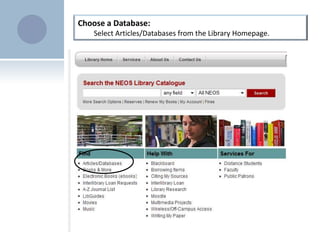
Choose a Database:Select Articles/Databases from the Library Homepage.
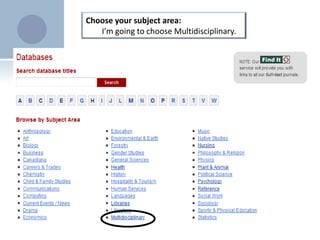
Choose your subject area: I’m going to choose Multidisciplinary.
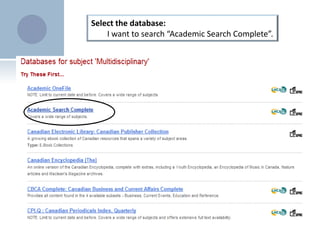
Select the database: I want to search “Academic Search Complete”.
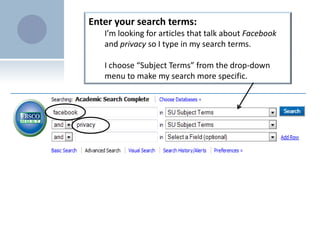
Enter your search terms: I’m looking for articles that talk about Facebookand privacy so I type in my search terms.I choose “Subject Terms” from the drop-down menu to make my search more specific.
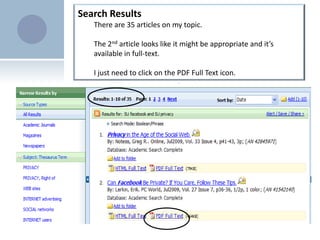
Search ResultsThere are 35 articles on my topic.  The 2nd article looks like it might be appropriate and it’s available in full-text.  I just need to click on the PDF Full Text icon.
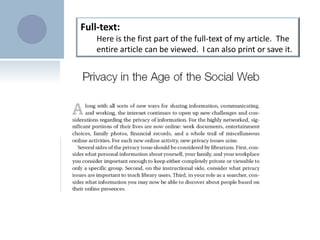
Full-text: Here is the first part of the full-text of my article.  The entire article can be viewed.  I can also print or save it.
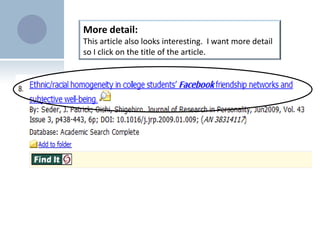
More detail: This article also looks interesting.  I want more detail so I click on the title of the article.
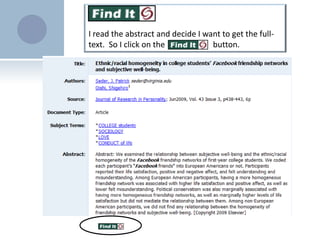
I read the abstract and decide I want to get the full-text.  So I click on the                        button.
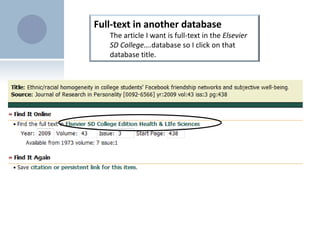
Full-text in another databaseThe article I want is full-text in the Elsevier SD College….database so I click on that database title.
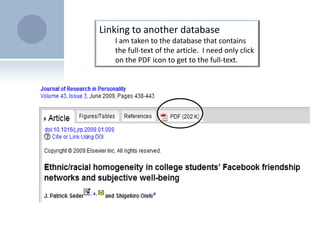
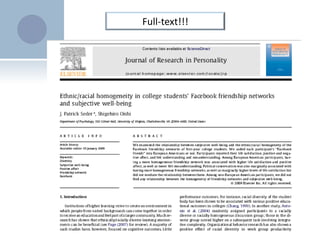
Linking to another databaseI am taken to the database that contains the full-text of the article. I need only click on the PDF icon to get to the full-text.
Full-text!!!
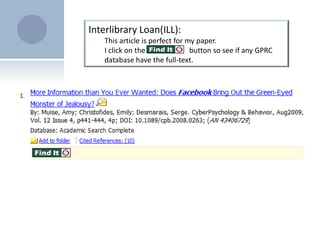
Interlibrary Loan(ILL): This article is perfect for my paper.  I click on the                        button so see if any GPRC database have the full-text.
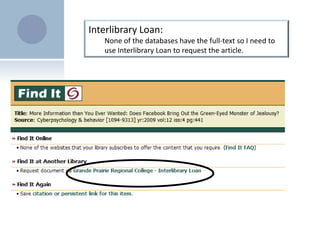
Interlibrary Loan:None of the databases have the full-text so I need to use Interlibrary Loan to request the article.
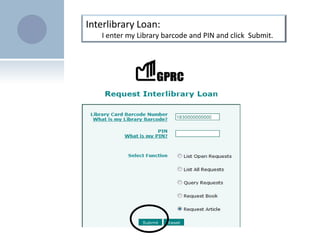
Interlibrary Loan: I enter my Library barcode and PIN and click  Submit.
Interlibrary Loan: My article information is automatically entered into the ILL form. When my article arrives I will receive an email in my GPRC email account letting me know that I can pick up the article at the Circulation Desk.
Now it’s time for you to try.

Find Articles

  • 1.
    Finding Articles inGPRC LibraryDatabaseshttp://www.gprc.ab.ca/library
  • 2.
    Choose a Database:SelectArticles/Databases from the Library Homepage.
  • 3.
    Choose your subjectarea: I’m going to choose Multidisciplinary.
  • 4.
    Select the database:I want to search “Academic Search Complete”.
  • 5.
    Enter your searchterms: I’m looking for articles that talk about Facebookand privacy so I type in my search terms.I choose “Subject Terms” from the drop-down menu to make my search more specific.
  • 6.
    Search ResultsThere are35 articles on my topic. The 2nd article looks like it might be appropriate and it’s available in full-text. I just need to click on the PDF Full Text icon.
  • 7.
    Full-text: Here isthe first part of the full-text of my article. The entire article can be viewed. I can also print or save it.
  • 8.
    More detail: Thisarticle also looks interesting. I want more detail so I click on the title of the article.
  • 9.
    I read theabstract and decide I want to get the full-text. So I click on the button.
  • 10.
    Full-text in anotherdatabaseThe article I want is full-text in the Elsevier SD College….database so I click on that database title.
  • 11.
    Linking to anotherdatabaseI am taken to the database that contains the full-text of the article. I need only click on the PDF icon to get to the full-text.
  • 12.
  • 13.
    Interlibrary Loan(ILL): Thisarticle is perfect for my paper. I click on the button so see if any GPRC database have the full-text.
  • 14.
    Interlibrary Loan:None ofthe databases have the full-text so I need to use Interlibrary Loan to request the article.
  • 15.
    Interlibrary Loan: Ienter my Library barcode and PIN and click Submit.
  • 16.
    Interlibrary Loan: Myarticle information is automatically entered into the ILL form. When my article arrives I will receive an email in my GPRC email account letting me know that I can pick up the article at the Circulation Desk.
  • 17.
    Now it’s timefor you to try.