A Doherty Library Information Literacy Tutorial
Goals
Upon completing this tutorial, you will be able to get
  article full text by using:
1. Database full text links
2. The UST button
3. CitationLinker
4. Google Scholar
5. Interlibrary Loan
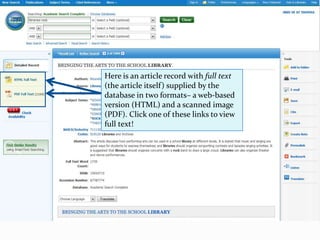
Here is an article record with full text
(the article itself) supplied by the
database in two formats– a web-based
version (HTML) and a scanned image
(PDF). Click one of these links to view
full text!
Goals
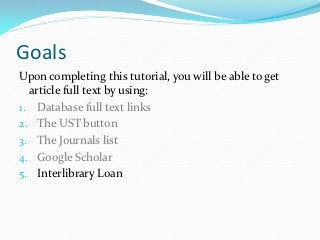
Upon completing this tutorial, you will be able to get
  article full text by using:
1. Database full text links
2. The UST button
3. CitationLinker
4. Google Scholar
5. Interlibrary Loan
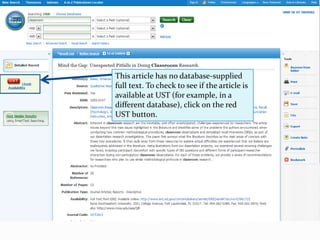
This article has no database-supplied
full text. To check to see if the article is
available at UST (for example, in a
different database), click on the red
UST button.
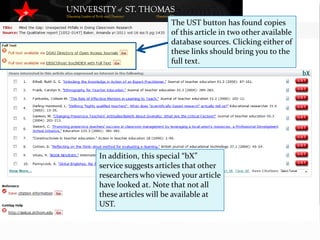
The UST button has found copies
                     of this article in two other available
                     database sources. Clicking either of
                     these links should bring you to the
                     full text.


In addition, this special “bX”
service suggests articles that other
researchers who viewed your article
have looked at. Note that not all
these articles will be available at
UST.
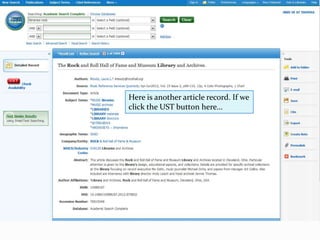
Here is another article record. If we
click the UST button here…
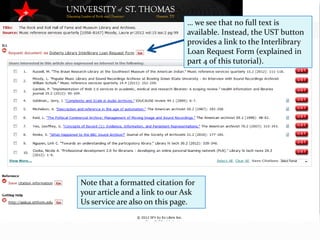
… we see that no full text is
                               available. Instead, the UST button
                               provides a link to the Interlibrary
                               Loan Request Form (explained in
                               part 5 of this tutorial).


Note that a formatted citation for
your article and a link to our Ask
Us service are also on this page.
Goals
Upon completing this tutorial, you will be able to get
  article full text by using:
1. Database full text links
2. The UST button
3. CitationLinker
4. Google Scholar
5. Interlibrary Loan
3. Full text using CitationLinker
Often, you will want to look up full text for an article
  based on that article’s citation information.
Perhaps your professor has given you a citation and
  asked you to look up the article.
Or, perhaps you have read the list of references at the
  end of an article, and found a citation there you want
  to look up. That can be a great way to find new sources
  for your research!
3. Full text using CitationLinker
For this example, we’ll use the article citation below.
  First, what is the name of the journal where the article
  was published?

Ghaphery, J., & White, E. (2012). Library Use of Web-
 based Research Guides. Information Technology &
 Libraries, 31(1), 21-31.
3. Full text using CitationLinker
Ghaphery, J., & White, E. (2012). Library Use of Web-
 based Research Guides. Information Technology &
 Libraries, 31(1), 21-31.

If you said Information Technology & Libraries, you’re
   right! In addition, we’re looking for Volume 31, Issue 1,
   pages 21-31, published in 2012. Practice finding this
   info in the citation– it’s all important.
To find a copy of this article, use the information from
   the citation to fill out the CitationLinker form.
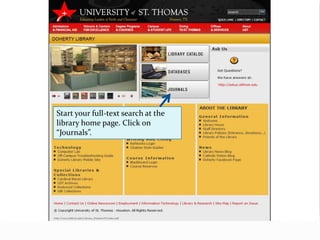
Start your full-text search at the
library home page. Click on
“Journals”.
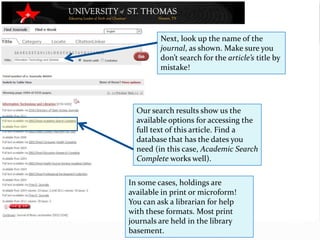
On the “Find Journals” page, select
“CitationLinker”.
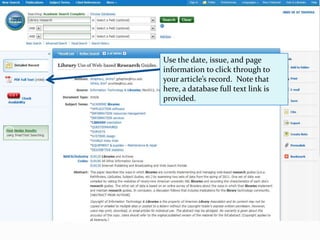
Fill out the CitationLinker form with the
information you have and click “Go”.

Note that CitationLinker may give you several
results; you will need to select from these to reach
an article record with full text.
Goals
Upon completing this tutorial, you will be able to get
  article full text by using:
1. Database full text links
2. The UST button
3. CitationLinker
4. Google Scholar
5. Interlibrary Loan
Google Scholar, at scholar.google.com, can be set up to
show links to UST full text. Follow the instructions at
campusguides.stthom.edu/googlescholar to learn
how.
Once you’re set up, search for the
article’s full title.
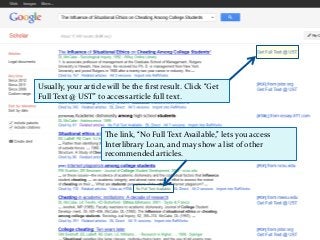
Usually, your article will be the first result. Click “Get
Full Text @ UST” to access article full text.


                     The link, “No Full Text Available,” lets you access
                     Interlibrary Loan, and may show a list of other
                     recommended articles.
Goals
Upon completing this tutorial, you will be able to get
  article full text by using:
1. Database full text links
2. The UST button
3. CitationLinker
4. Google Scholar
5. Interlibrary Loan
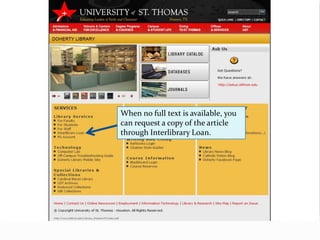
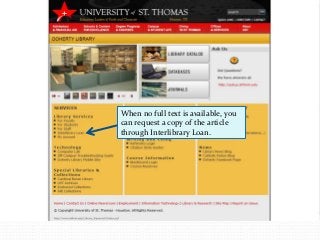
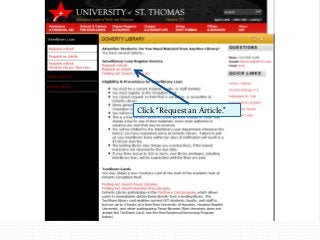
When no full text is available, you
can request a copy of the article
through Interlibrary Loan.
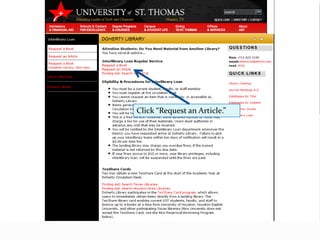
Click “Request an Article.”
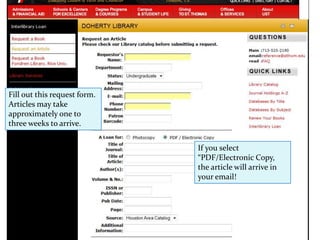
Fill out this request form.
Articles may take
approximately one to
three weeks to arrive.


                              If you select
                              “PDF/Electronic Copy”,
                              the article will arrive in
                              your email!
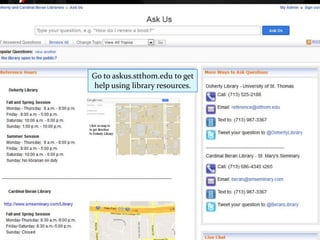
Go to askus.stthom.edu to get
help using library resources.

Finding Full Text Articles

  • 1.
    A Doherty LibraryInformation Literacy Tutorial
  • 2.
    Goals Upon completing thistutorial, you will be able to get article full text by using: 1. Database full text links 2. The UST button 3. CitationLinker 4. Google Scholar 5. Interlibrary Loan
  • 3.
    Here is anarticle record with full text (the article itself) supplied by the database in two formats– a web-based version (HTML) and a scanned image (PDF). Click one of these links to view full text!
  • 4.
    Goals Upon completing thistutorial, you will be able to get article full text by using: 1. Database full text links 2. The UST button 3. CitationLinker 4. Google Scholar 5. Interlibrary Loan
  • 5.
    This article hasno database-supplied full text. To check to see if the article is available at UST (for example, in a different database), click on the red UST button.
  • 6.
    The UST buttonhas found copies of this article in two other available database sources. Clicking either of these links should bring you to the full text. In addition, this special “bX” service suggests articles that other researchers who viewed your article have looked at. Note that not all these articles will be available at UST.
  • 7.
    Here is anotherarticle record. If we click the UST button here…
  • 8.
    … we seethat no full text is available. Instead, the UST button provides a link to the Interlibrary Loan Request Form (explained in part 5 of this tutorial). Note that a formatted citation for your article and a link to our Ask Us service are also on this page.
  • 9.
    Goals Upon completing thistutorial, you will be able to get article full text by using: 1. Database full text links 2. The UST button 3. CitationLinker 4. Google Scholar 5. Interlibrary Loan
  • 10.
    3. Full textusing CitationLinker Often, you will want to look up full text for an article based on that article’s citation information. Perhaps your professor has given you a citation and asked you to look up the article. Or, perhaps you have read the list of references at the end of an article, and found a citation there you want to look up. That can be a great way to find new sources for your research!
  • 11.
    3. Full textusing CitationLinker For this example, we’ll use the article citation below. First, what is the name of the journal where the article was published? Ghaphery, J., & White, E. (2012). Library Use of Web- based Research Guides. Information Technology & Libraries, 31(1), 21-31.
  • 12.
    3. Full textusing CitationLinker Ghaphery, J., & White, E. (2012). Library Use of Web- based Research Guides. Information Technology & Libraries, 31(1), 21-31. If you said Information Technology & Libraries, you’re right! In addition, we’re looking for Volume 31, Issue 1, pages 21-31, published in 2012. Practice finding this info in the citation– it’s all important. To find a copy of this article, use the information from the citation to fill out the CitationLinker form.
  • 13.
    Start your full-textsearch at the library home page. Click on “Journals”.
  • 14.
    On the “FindJournals” page, select “CitationLinker”.
  • 15.
    Fill out theCitationLinker form with the information you have and click “Go”. Note that CitationLinker may give you several results; you will need to select from these to reach an article record with full text.
  • 16.
    Goals Upon completing thistutorial, you will be able to get article full text by using: 1. Database full text links 2. The UST button 3. CitationLinker 4. Google Scholar 5. Interlibrary Loan
  • 17.
    Google Scholar, atscholar.google.com, can be set up to show links to UST full text. Follow the instructions at campusguides.stthom.edu/googlescholar to learn how.
  • 18.
    Once you’re setup, search for the article’s full title.
  • 19.
    Usually, your articlewill be the first result. Click “Get Full Text @ UST” to access article full text. The link, “No Full Text Available,” lets you access Interlibrary Loan, and may show a list of other recommended articles.
  • 20.
    Goals Upon completing thistutorial, you will be able to get article full text by using: 1. Database full text links 2. The UST button 3. CitationLinker 4. Google Scholar 5. Interlibrary Loan
  • 21.
    When no fulltext is available, you can request a copy of the article through Interlibrary Loan.
  • 22.
  • 23.
    Fill out thisrequest form. Articles may take approximately one to three weeks to arrive. If you select “PDF/Electronic Copy”, the article will arrive in your email!
  • 24.
    Go to askus.stthom.eduto get help using library resources.