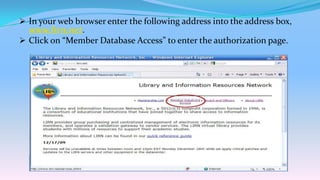
 In your web browser enter the following address into the address box,
  www.lirn.net.
 Click on “Member Database Access” to enter the authorization page.
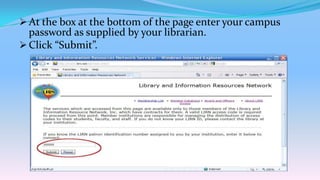
 At the box at the bottom of the page enter your campus
  password as supplied by your librarian.
 Click “Submit”.
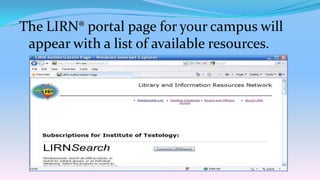
The LIRN® portal page for your campus will
 appear with a list of available resources.
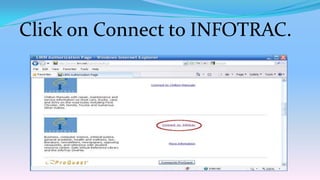
Click on Connect to INFOTRAC.
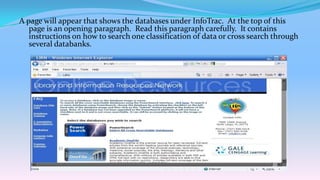
A page will appear that shows the databases under InfoTrac. At the top of this
   page is an opening paragraph. Read this paragraph carefully. It contains
   instructions on how to search one classification of data or cross search through
   several databanks.
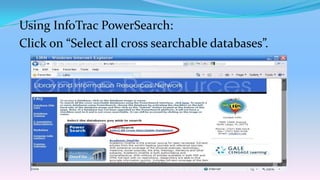
Using InfoTrac PowerSearch:
Click on “Select all cross searchable databases”.
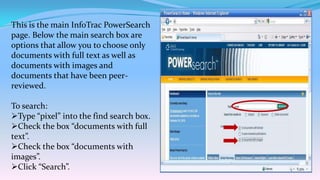
This is the main InfoTrac PowerSearch
page. Below the main search box are
options that allow you to choose only
documents with full text as well as
documents with images and
documents that have been peer-
reviewed.

To search:
Type “pixel” into the find search box.
Check the box “documents with full
text”.
Check the box “documents with
images”.
Click “Search”.
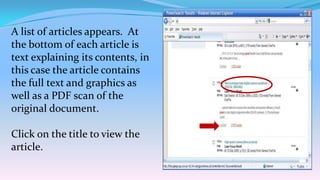
A list of articles appears. At
the bottom of each article is
text explaining its contents, in
this case the article contains
the full text and graphics as
well as a PDF scan of the
original document.

Click on the title to view the
article.
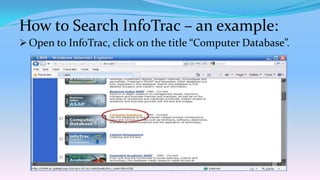
How to Search InfoTrac – an example:
 Open to InfoTrac, click on the title “Computer Database”.
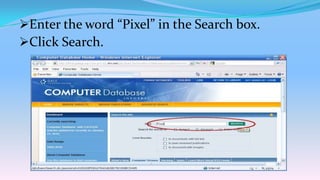
Enter the word “Pixel” in the Search box.
Click Search.
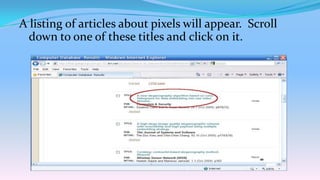
A listing of articles about pixels will appear. Scroll
  down to one of these titles and click on it.
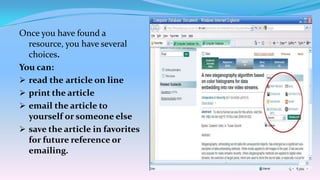
Once you have found a
  resource, you have several
  choices.
You can:
 read the article on line
 print the article
 email the article to
  yourself or someone else
 save the article in favorites
  for future reference or
  emailing.
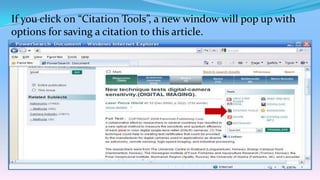
If you click on “Citation Tools”, a new window will pop up with
options for saving a citation to this article.
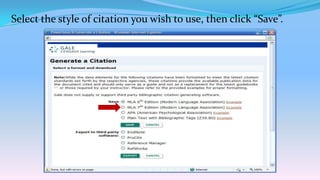
Select the style of citation you wish to use, then click “Save”.
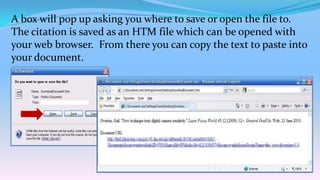
A box will pop up asking you where to save or open the file to.
The citation is saved as an HTM file which can be opened with
your web browser. From there you can copy the text to paste into
your document.
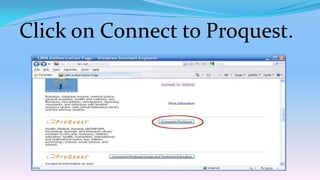
Click on Connect to Proquest.
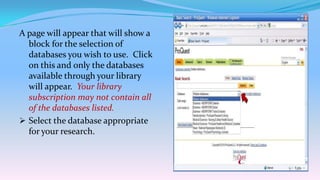
A page will appear that will show a
  block for the selection of
  databases you wish to use. Click
  on this and only the databases
  available through your library
  will appear. Your library
  subscription may not contain all
  of the databases listed.
 Select the database appropriate
  for your research.
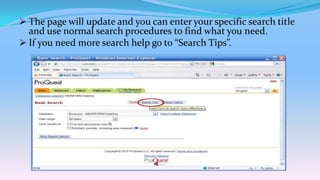
 The page will update and you can enter your specific search title
  and use normal search procedures to find what you need.
 If you need more search help go to “Search Tips”.
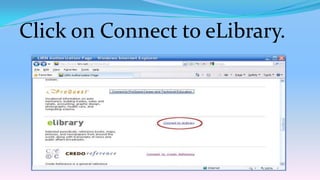
Click on Connect to eLibrary.
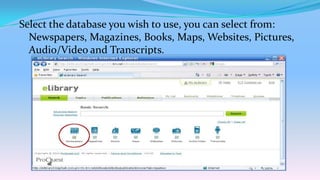
Select the database you wish to use, you can select from:
  Newspapers, Magazines, Books, Maps, Websites, Pictures,
  Audio/Video and Transcripts.
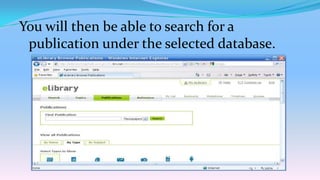
You will then be able to search for a
 publication under the selected database.
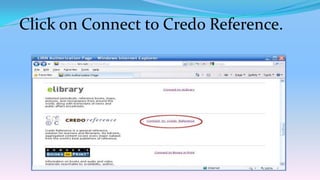
Click on Connect to Credo Reference.
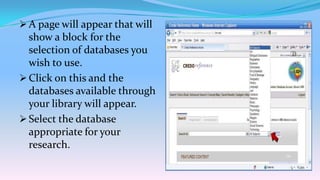
 A page will appear that will
  show a block for the
  selection of databases you
  wish to use.
 Click on this and the
  databases available through
  your library will appear.
 Select the database
  appropriate for your
  research.
Created by Douglas Devaux / Mark Wilson, LIRN® Office

Using lirn revised

  • 2.
     In yourweb browser enter the following address into the address box, www.lirn.net.  Click on “Member Database Access” to enter the authorization page.
  • 3.
     At thebox at the bottom of the page enter your campus password as supplied by your librarian.  Click “Submit”.
  • 4.
    The LIRN® portalpage for your campus will appear with a list of available resources.
  • 6.
    Click on Connectto INFOTRAC.
  • 7.
    A page willappear that shows the databases under InfoTrac. At the top of this page is an opening paragraph. Read this paragraph carefully. It contains instructions on how to search one classification of data or cross search through several databanks.
  • 8.
    Using InfoTrac PowerSearch: Clickon “Select all cross searchable databases”.
  • 9.
    This is themain InfoTrac PowerSearch page. Below the main search box are options that allow you to choose only documents with full text as well as documents with images and documents that have been peer- reviewed. To search: Type “pixel” into the find search box. Check the box “documents with full text”. Check the box “documents with images”. Click “Search”.
  • 10.
    A list ofarticles appears. At the bottom of each article is text explaining its contents, in this case the article contains the full text and graphics as well as a PDF scan of the original document. Click on the title to view the article.
  • 11.
    How to SearchInfoTrac – an example:  Open to InfoTrac, click on the title “Computer Database”.
  • 12.
    Enter the word“Pixel” in the Search box. Click Search.
  • 13.
    A listing ofarticles about pixels will appear. Scroll down to one of these titles and click on it.
  • 14.
    Once you havefound a resource, you have several choices. You can:  read the article on line  print the article  email the article to yourself or someone else  save the article in favorites for future reference or emailing.
  • 15.
    If you clickon “Citation Tools”, a new window will pop up with options for saving a citation to this article.
  • 16.
    Select the styleof citation you wish to use, then click “Save”.
  • 17.
    A box willpop up asking you where to save or open the file to. The citation is saved as an HTM file which can be opened with your web browser. From there you can copy the text to paste into your document.
  • 19.
    Click on Connectto Proquest.
  • 20.
    A page willappear that will show a block for the selection of databases you wish to use. Click on this and only the databases available through your library will appear. Your library subscription may not contain all of the databases listed.  Select the database appropriate for your research.
  • 21.
     The pagewill update and you can enter your specific search title and use normal search procedures to find what you need.  If you need more search help go to “Search Tips”.
  • 23.
    Click on Connectto eLibrary.
  • 24.
    Select the databaseyou wish to use, you can select from: Newspapers, Magazines, Books, Maps, Websites, Pictures, Audio/Video and Transcripts.
  • 25.
    You will thenbe able to search for a publication under the selected database.
  • 27.
    Click on Connectto Credo Reference.
  • 28.
     A pagewill appear that will show a block for the selection of databases you wish to use.  Click on this and the databases available through your library will appear.  Select the database appropriate for your research.
  • 29.
    Created by DouglasDevaux / Mark Wilson, LIRN® Office