
ENOVIA V6 R2013x
Tips & Tricks
Michael Craffey, Brian Lau
Razorleaf Corporation
ENOVIA V6 R2013x Tips & Tricks
• User – Tips
• Admin – System Tweaks
• Bonus
» Many work in 2014x and 2015x
USER TIPS
ENOVIA V6 R2013x
Search by Type & all Attributes (not just TNR)
• Search > Find Like…
» Only if you have Engineering Central
» ‘Find Like’ could be called ‘Attribute Search’?
- Any type searchable
• …even non Engineering Central types
• Default Type = Part
- All attributes are searchable
• Many operators
• Combo box of possible values
» Save your search!
Find only the CAD objects (not the Versioned objects!)
• Search only the latest Revision of CAD objects
» Filter out the ‘Versioned’ objects
• Use the ‘?’ single character wildcard
» Rev = ?
- Results: A, B, C, 1, 2, 3 (single value)
• Filtered out Versioned revs: ---, A.0, 0.1, C.3
» Rev = C.?
• Results: C.3
• All revs
» Includes
Versioned
objects
• Filter out
Versioned
objects
» Rev = ?
• Filter to latest
» Rev = ?
» Highest only
Notification and subscription services
• Subscribe to any object on any or all type specific
events
• Push a subscription to other people, so they will
get notifications on object events
» This is a great way to make sure people who need to
be involved in a project are getting notified when
content gets added to a folder or when a key document
changes.
• Subscribe to an
object from many
places
» Properties page
» Search results list
» List page
• Different types have
different subscription
events
Push subscription to others
Export to CSV
• Export the columns as set/seen to a CSV file
» Use for report
» Use for export to ERP input
- CSV file names are unique for each and every export
View & filter the history of every Business
Object
• Categories > History
» Filter
- Action
- FTS on all
other columns
Set Task Escalation
• Task due date notifications
» Route owner can have ENOVIA notify people of tasks
» Define relative time before or after the task due
date/time that notifications should be sent
Set Task Escalation
» Groups of people
- Task Assignee
• Original or a delegate
- Route Owner
- Workspace Lead(s)
• Workspace owner and all leads
- Project Lead(s)
• Project owner and all leads
» Times
- ‘-’ = Before due date
- ‘+’ = After due date
ADMIN TIPS
System Tweaks
ENOVIA V6 R2013x
Drag and drop new files into ENOVIA
• Enabling Drag and Drop Functionality
» For a better user experience in Document
Management
Drag and drop new files into ENOVIA
» C:TomcatwebappsenoviaWEB-INFclasses
- Create a file called emxFrameworkCustom.properties for these
properties
• emxFramework.UseApplet=true (allow drag and drop on Upload
Documents)
• emxFramework.UseDownloadApplet=true
» Modify the emxSystem.properties
- C:TomcatwebappsenoviaWEB-INFclasses
- add an entry
emxFramework.CustomProperties.Filename=emxFrameworkC
ustom.properties
» Stop/restart Tomcat
Increase login timeout from 30 to 60
minutes
• With a simple configuration change, you can
change the timeout to 60 minutes
» C:enovia2013xserverdistribenoviaWEB-
INFweb.xml
• Session-timeout = 60
» C:enovia2013xserverWin_b64ResourcesWarutilfra
gmentENOLiveCollaborationServer.liveCollaborationS
erver.web.xml.part
Accessing MQL Prompt from the UI
• Admin users can run MQL from the ‘Tools’ menu
on the top bar in the Enovia UI
» This is very useful to quickly run scripts,
add/view/modify/delete objects and schema, and
allows you to perform almost all Admin Tasks without
leaving the Web App
Some Interesting Commands
• List out all Workspaces
» temp query bus Workspace* * * select description;
• Quickly get a list of BO, ie Part
» temp query bus Part * *;
• Print out license details, dependencies, etc.
» print product DEC;
Control Search options
• emxSystem.properties
Configuring AutoVue to operate
• Some AutoVue pages may popup ok with the file,
but other places it won’t (no AV toolbars or file)
» Look closely at the url in the popup window
- It will show ‘ematrix’, the old default
acme.enovia.com/ematrix/servlet/C3DControllerSer…
Configuring AutoVue to operate
» Fix the file ‘emxSystem.properties’ in both:
- C:enoviaV6R2013serverSTAGINGematrixproperties
- C:enoviaV6R2013xserverdistribenoviaWEB-INFclasses
» emxFramework.Viewer.ServletPreFix=/ematrix/servlet/
» emxFramework.Viewer.ServletPreFix=/enovia/servlet/
Column Name Edit After Adding New Attribute
• The column name will change when a new
‘customer driven’ attribute is put in to place
» This displays as:
- Displays as ‘emxFramework.Attribute.Customer_PN’
• …propertiesemxFrameworkStringResource_en.properties
• Add: emxFramework.Attribute.Customer_PN=Customer_PN
Admin can change the default ‘Document’ TYPE to all
‘DOCUMENTS’ when searching to add content to a Route
• Change the file ‘emxComponents.properties’
• …properties
• …WEB-INFclasses
• Settings
• emxComponents.Routes.DefaultContentType = type_Document
• To
• emxComponents.Routes.DefaultContentType = type_DOCUMENTS
Set the ‘User Agent’ email to the corporate
email format, so it won’t be blocked
• The ‘User Agent’ is used to send notifications to users
from ENOVIA for subscriptions, routes, etc. Some
companies find that the emails are blocked if not using the
corporate email domain.
• In MQL
» mod person ‘User Agent’ email user_agent@acme.com
- Note: You don’t actually need a Windows ‘User Agent’
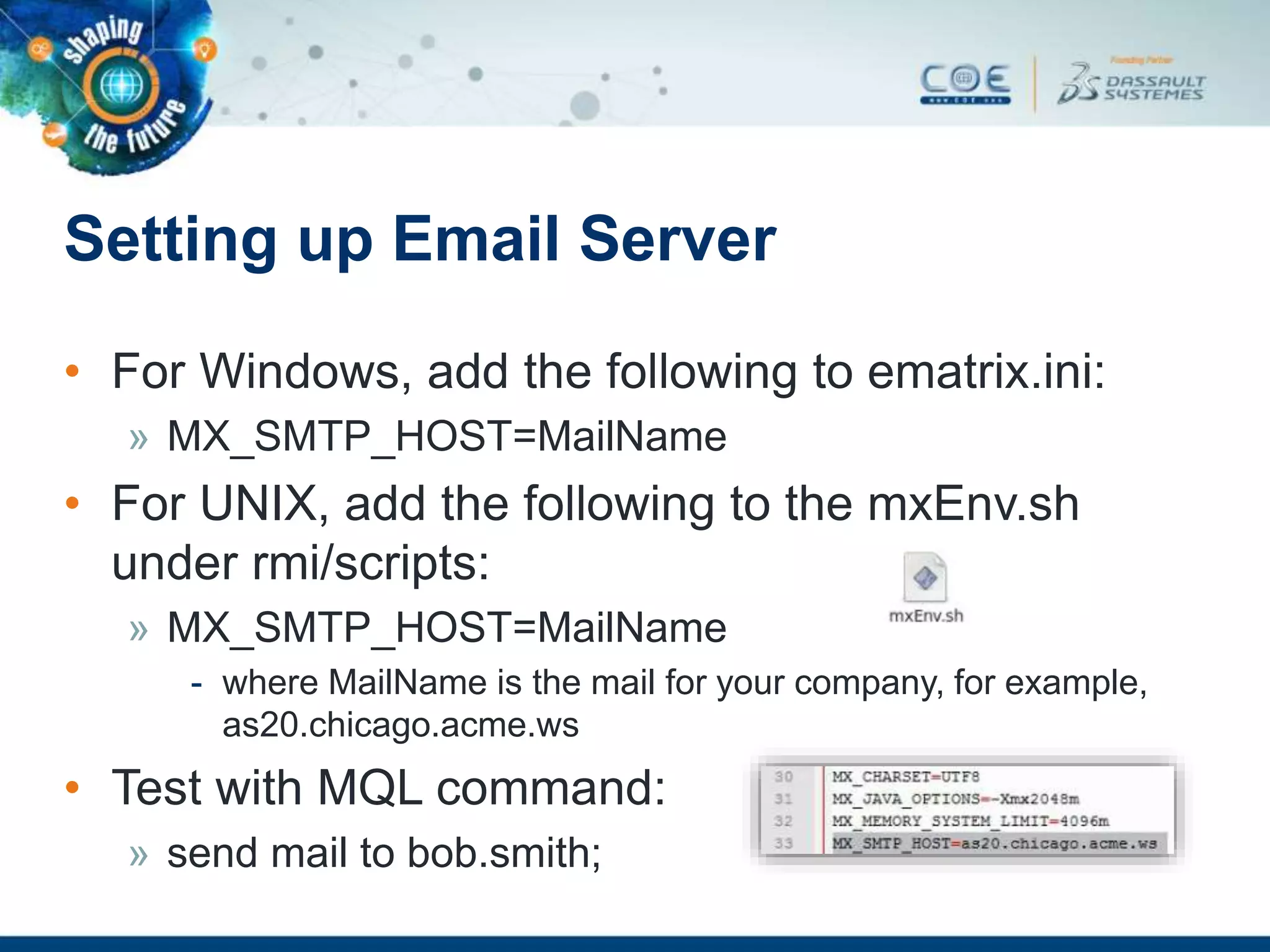
Setting up Email Server
• For Windows, add the following to ematrix.ini:
» MX_SMTP_HOST=MailName
• For UNIX, add the following to the mxEnv.sh
under rmi/scripts:
» MX_SMTP_HOST=MailName
- where MailName is the mail for your company, for example,
as20.chicago.acme.ws
• Test with MQL command:
» send mail to bob.smith;
NX GCO CGR Size Control
• The default mesh is too fine, and takes too long to generate
» cgr|surface_dist_tolerance=0.0001,surface_angular_tolerance=0.0,curve_
dist_tolerance=0.0001,curve_angular_tolerance=0.0,delete_on_checkin=
yes
• Change the values for less detail, but faster
» cgr|surface_dist_tolerance=0.01,surface_angular_tolerance=0.1,curve_di
st_tolerance=0.01, curve_angular_tolerance=0.1,delete_on_checkin=yes
Q&A

ENOVIA v6 R2013x Tips and Tricks

  • 1.
    ENOVIA V6 R2013x Tips& Tricks Michael Craffey, Brian Lau Razorleaf Corporation
  • 2.
    ENOVIA V6 R2013xTips & Tricks • User – Tips • Admin – System Tweaks • Bonus » Many work in 2014x and 2015x
  • 3.
  • 4.
    Search by Type& all Attributes (not just TNR) • Search > Find Like… » Only if you have Engineering Central » ‘Find Like’ could be called ‘Attribute Search’? - Any type searchable • …even non Engineering Central types • Default Type = Part - All attributes are searchable • Many operators • Combo box of possible values » Save your search!
  • 6.
    Find only theCAD objects (not the Versioned objects!) • Search only the latest Revision of CAD objects » Filter out the ‘Versioned’ objects • Use the ‘?’ single character wildcard » Rev = ? - Results: A, B, C, 1, 2, 3 (single value) • Filtered out Versioned revs: ---, A.0, 0.1, C.3 » Rev = C.? • Results: C.3
  • 7.
    • All revs »Includes Versioned objects • Filter out Versioned objects » Rev = ? • Filter to latest » Rev = ? » Highest only
  • 8.
    Notification and subscriptionservices • Subscribe to any object on any or all type specific events • Push a subscription to other people, so they will get notifications on object events » This is a great way to make sure people who need to be involved in a project are getting notified when content gets added to a folder or when a key document changes.
  • 9.
    • Subscribe toan object from many places » Properties page » Search results list » List page • Different types have different subscription events
  • 10.
  • 11.
    Export to CSV •Export the columns as set/seen to a CSV file » Use for report » Use for export to ERP input - CSV file names are unique for each and every export
  • 13.
    View & filterthe history of every Business Object • Categories > History » Filter - Action - FTS on all other columns
  • 16.
    Set Task Escalation •Task due date notifications » Route owner can have ENOVIA notify people of tasks » Define relative time before or after the task due date/time that notifications should be sent
  • 17.
    Set Task Escalation »Groups of people - Task Assignee • Original or a delegate - Route Owner - Workspace Lead(s) • Workspace owner and all leads - Project Lead(s) • Project owner and all leads » Times - ‘-’ = Before due date - ‘+’ = After due date
  • 18.
  • 19.
    Drag and dropnew files into ENOVIA • Enabling Drag and Drop Functionality » For a better user experience in Document Management
  • 20.
    Drag and dropnew files into ENOVIA » C:TomcatwebappsenoviaWEB-INFclasses - Create a file called emxFrameworkCustom.properties for these properties • emxFramework.UseApplet=true (allow drag and drop on Upload Documents) • emxFramework.UseDownloadApplet=true » Modify the emxSystem.properties - C:TomcatwebappsenoviaWEB-INFclasses - add an entry emxFramework.CustomProperties.Filename=emxFrameworkC ustom.properties » Stop/restart Tomcat
  • 21.
    Increase login timeoutfrom 30 to 60 minutes • With a simple configuration change, you can change the timeout to 60 minutes » C:enovia2013xserverdistribenoviaWEB- INFweb.xml • Session-timeout = 60 » C:enovia2013xserverWin_b64ResourcesWarutilfra gmentENOLiveCollaborationServer.liveCollaborationS erver.web.xml.part
  • 23.
    Accessing MQL Promptfrom the UI • Admin users can run MQL from the ‘Tools’ menu on the top bar in the Enovia UI » This is very useful to quickly run scripts, add/view/modify/delete objects and schema, and allows you to perform almost all Admin Tasks without leaving the Web App
  • 25.
    Some Interesting Commands •List out all Workspaces » temp query bus Workspace* * * select description; • Quickly get a list of BO, ie Part » temp query bus Part * *; • Print out license details, dependencies, etc. » print product DEC;
  • 26.
    Control Search options •emxSystem.properties
  • 27.
    Configuring AutoVue tooperate • Some AutoVue pages may popup ok with the file, but other places it won’t (no AV toolbars or file) » Look closely at the url in the popup window - It will show ‘ematrix’, the old default acme.enovia.com/ematrix/servlet/C3DControllerSer…
  • 28.
    Configuring AutoVue tooperate » Fix the file ‘emxSystem.properties’ in both: - C:enoviaV6R2013serverSTAGINGematrixproperties - C:enoviaV6R2013xserverdistribenoviaWEB-INFclasses » emxFramework.Viewer.ServletPreFix=/ematrix/servlet/ » emxFramework.Viewer.ServletPreFix=/enovia/servlet/
  • 29.
    Column Name EditAfter Adding New Attribute • The column name will change when a new ‘customer driven’ attribute is put in to place » This displays as: - Displays as ‘emxFramework.Attribute.Customer_PN’ • …propertiesemxFrameworkStringResource_en.properties • Add: emxFramework.Attribute.Customer_PN=Customer_PN
  • 30.
    Admin can changethe default ‘Document’ TYPE to all ‘DOCUMENTS’ when searching to add content to a Route • Change the file ‘emxComponents.properties’ • …properties • …WEB-INFclasses • Settings • emxComponents.Routes.DefaultContentType = type_Document • To • emxComponents.Routes.DefaultContentType = type_DOCUMENTS
  • 31.
    Set the ‘UserAgent’ email to the corporate email format, so it won’t be blocked • The ‘User Agent’ is used to send notifications to users from ENOVIA for subscriptions, routes, etc. Some companies find that the emails are blocked if not using the corporate email domain. • In MQL » mod person ‘User Agent’ email user_agent@acme.com - Note: You don’t actually need a Windows ‘User Agent’
  • 32.
    Setting up EmailServer • For Windows, add the following to ematrix.ini: » MX_SMTP_HOST=MailName • For UNIX, add the following to the mxEnv.sh under rmi/scripts: » MX_SMTP_HOST=MailName - where MailName is the mail for your company, for example, as20.chicago.acme.ws • Test with MQL command: » send mail to bob.smith;
  • 33.
    NX GCO CGRSize Control • The default mesh is too fine, and takes too long to generate » cgr|surface_dist_tolerance=0.0001,surface_angular_tolerance=0.0,curve_ dist_tolerance=0.0001,curve_angular_tolerance=0.0,delete_on_checkin= yes • Change the values for less detail, but faster » cgr|surface_dist_tolerance=0.01,surface_angular_tolerance=0.1,curve_di st_tolerance=0.01, curve_angular_tolerance=0.1,delete_on_checkin=yes
  • 34.