SolidWorks Strategies for
Designing Durable
                            Robert Mengel, Design Automation Consultant
Master Models for           Paul Gimbel, Business Process Sherpa
Accurate Automation         Razorleaf Corporation
BACKGROUND


 • Razorleaf Corporation
       SolidWorks Service Partner
       Services ONLY (we’re not trying to sell you any products, we’re neutral)
       Data Management (EPDM, Enovia, SmarTeam, Aras, V6, MatrixOne)
       Design Automation (DriveWorks, Tacton, Custom Programmed API)
       Workflow Automation (Microsoft SharePoint and Tools)
 • Bob Mengel
       Mechanical Engineer and Automation Developer/Implementer
 • Paul Gimbel (aka “The Sherpa”)
       Mechanical Engineer, SolidWorks Demojock, Automation Implementer


        All Razorleaf presentations will be available at www.razorleaf.com
                           and on www.slideshare.net
Presentation Focus


 Design models that can be automated


 Little or no user intervention


 Either via API programming or a
  Solution Partner Product
 (for example        or           )
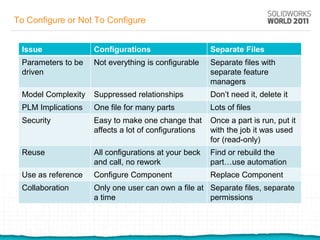
To Configure or Not To Configure


 Issue              Configurations                    Separate Files
 Parameters to be   Not everything is configurable    Separate files with
 driven                                               separate feature
                                                      managers
 Model Complexity   Suppressed relationships          Don’t need it, delete it
 PLM Implications   One file for many parts           Lots of files
 Security           Easy to make one change that      Once a part is run, put it
                    affects a lot of configurations   with the job it was used
                                                      for (read-only)
 Reuse              All configurations at your beck   Find or rebuild the
                    and call, no rework               part…use automation
 Use as reference   Configure Component               Replace Component
 Collaboration      Only one user can own a file at Separate files, separate
                    a time                          permissions
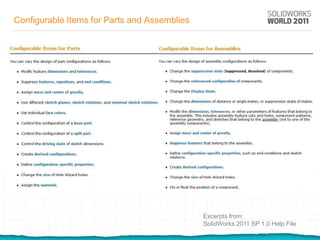
Configurable Items for Parts and Assemblies


                                              Excerpts from:
                                              SolidWorks 2011 SP 1.0 Help File
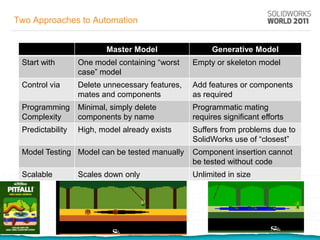
Two Approaches to Automation


                         Master Model                 Generative Model
 Start with       One model containing “worst    Empty or skeleton model
                  case” model
 Control via      Delete unnecessary features,   Add features or components
                  mates and components           as required
 Programming      Minimal, simply delete         Programmatic mating
 Complexity       components by name             requires significant efforts
 Predictability   High, model already exists     Suffers from problems due to
                                                 SolidWorks use of “closest”
 Model Testing Model can be tested manually      Component insertion cannot
                                                 be tested without code
 Scalable         Scales down only               Unlimited in size
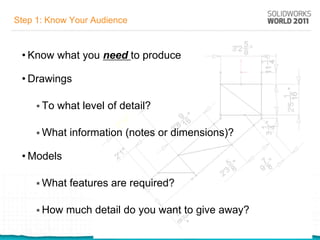
Step 1: Know Your Audience


 • Know what you need to produce

 • Drawings

      To   what level of detail?

      What   information (notes or dimensions)?

 • Models

      What   features are required?

      How   much detail do you want to give away?
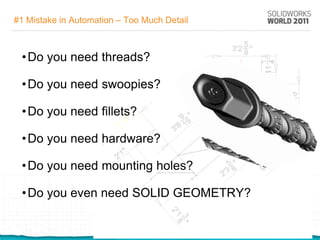
#1 Mistake in Automation – Too Much Detail


 • Do you need threads?

 • Do you need swoopies?

 • Do you need fillets?

 • Do you need hardware?

 • Do you need mounting holes?

 • Do you even need SOLID GEOMETRY?
Simplified Models and Automation


 • Why are you building a model?
 • Visualization?
     •   Model is to it LOOKS right
 • Simulation?
     •   Model it so it WORKS right
 • Calculation?
     •   Model it so it gives you the right result
 • Drawings?
     •   Model it so that the drawings are correct
 • To win that SolidWorks model contest?
     •   OK, fine. Go for it.
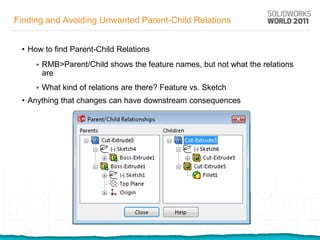
Finding and Avoiding Unwanted Parent-Child Relations


 • How to find Parent-Child Relations
        RMB>Parent/Child shows the feature names, but not what the relations
         are
        What kind of relations are there? Feature vs. Sketch
 • Anything that changes can have downstream consequences
Sources of Parent-Child Relationships in Parts


  • 1) If you have sub-features, query them first
  • 2) In sketches, look for:
         Sketch plane reference
         Dimension references
         Relations (Display/Delete Relations -> External)
         Remember that SolidWorks can add relations automatically
         Extraneous relations will only cause overdefining if they are in conflict
  • 3) In the feature, use EDIT FEATURE
         ANY entity selection control could potentially create a relationship
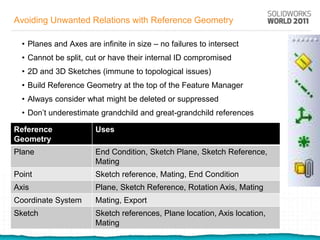
Avoiding Unwanted Relations with Reference Geometry

  • Planes and Axes are infinite in size – no failures to intersect
  • Cannot be split, cut or have their internal ID compromised
  • 2D and 3D Sketches (immune to topological issues)
  • Build Reference Geometry at the top of the Feature Manager
  • Always consider what might be deleted or suppressed
  • Don’t underestimate grandchild and great-grandchild references

Reference               Uses
Geometry
Plane                   End Condition, Sketch Plane, Sketch Reference,
                        Mating
Point                   Sketch reference, Mating, End Condition
Axis                    Plane, Sketch Reference, Rotation Axis, Mating
Coordinate System       Mating, Export
Sketch                  Sketch references, Plane location, Axis location,
                        Mating
Top-Down Assembly Modeling (TDAM)


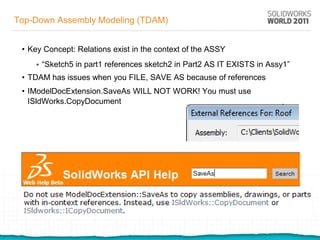
 • Key Concept: Relations exist in the context of the ASSY
       “Sketch5 in part1 references sketch2 in Part2 AS IT EXISTS in Assy1”
 • TDAM has issues when you FILE, SAVE AS because of references
 • IModelDocExtension.SaveAs WILL NOT WORK! You must use
   ISldWorks.CopyDocument
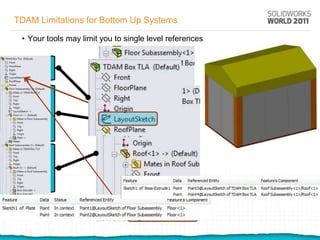
TDAM Limitations for Bottom Up Systems

 • Your tools may limit you to single level references
Mating Issues


 • Replace Components
        Issues with internal identifiers not matching swapped components
        Build base references then File, Save As method
 • Avoid mates to geometry when you can mate to planes or other ref
   geometry
 • Try using the default datum planes whenever possible
 • For complex mating, ask yourself, “Do you REALLY need that?”
        Assembly motion
                                                           It looks like you are trying
        Complex mating schemes for drawing purposes       to mate a new component
Mating Generative Assemblies


 • Add two entities to the SelectionManager the create Mate entity
        The API highly recommends that you use SelectByID2 (mark = 1)
        Use NAMED ENTITIES
        Make the name identical on the part to be installed
Sketching


 • Reduce the number of entities and relations in a sketch.
        We’re taught to reduce feature count because it’s faster. What do you
         care? Your machine is doing the work, you’re probably not even going
         to be there. Spending an extra 5% or even 15% in rebuild time to gain
         stability is time well spent.
 • Avoid large value changes, they can be unpredictable
        See if I can come up with an example of changing from 1 to 2000 that
         freaks out, but it does not freak out if you go from 1 to 100 to 700 to
         1500 to 2000.
 • Beware of conditions that have multiple solutions, ex. Tangency.
 • Beware of dimensions that may flip.
 • Do not rely on negative dimensions, because you can’t always guarantee
   what direction it’s facing to start with. And you can’t guarantee child dims.
 • Minimize external relations. Ex. Multiple references to the same external
   reference. Make one line coincident to the model edge, then make all of the
   other relationships to that line.
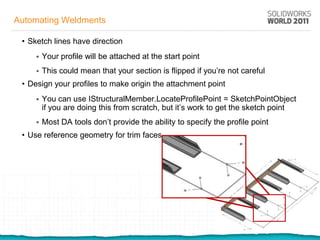
Automating Weldments

 • Sketch lines have direction
        Your profile will be attached at the start point
        This could mean that your section is flipped if you’re not careful
 • Design your profiles to make origin the attachment point
        You can use IStructuralMember.LocateProfilePoint = SketchPointObject
         if you are doing this from scratch, but it’s work to get the sketch point
        Most DA tools don’t provide the ability to specify the profile point
 • Use reference geometry for trim faces
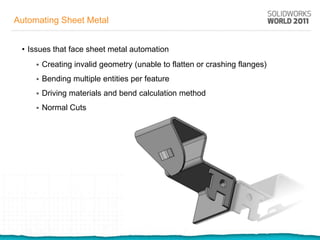
Automating Sheet Metal


 • Issues that face sheet metal automation
        Creating invalid geometry (unable to flatten or crashing flanges)
        Bending multiple entities per feature
        Driving materials and bend calculation method
        Normal Cuts
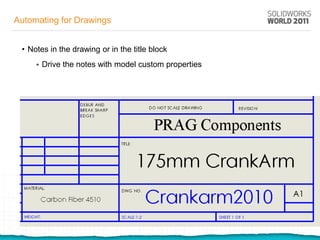
Automating for Drawings


 • Notes in the drawing or in the title block
        Drive the notes with model custom properties
Automating for Drawings


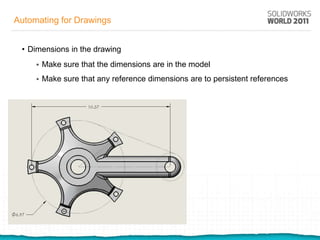
 • Dimensions in the drawing
        Make sure that the dimensions are in the model
        Make sure that any reference dimensions are to persistent references
Automating for Drawings


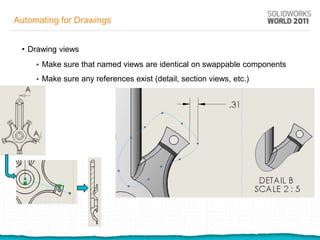
 • Drawing views
        Make sure that named views are identical on swappable components
        Make sure any references exist (detail, section views, etc.)
Automating for Drawings


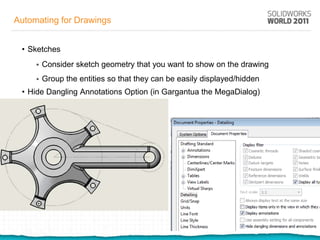
 • Sketches
        Consider sketch geometry that you want to show on the drawing
        Group the entities so that they can be easily displayed/hidden
 • Hide Dangling Annotations Option (in Gargantua the MegaDialog)
Automating for Simulation


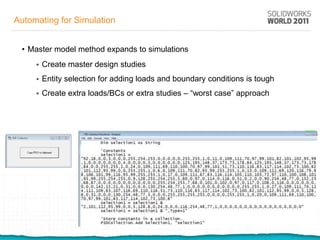
 • Master model method expands to simulations
        Create master design studies
        Entity selection for adding loads and boundary conditions is tough
        Create extra loads/BCs or extra studies – “worst case” approach
External References Of Another Kind


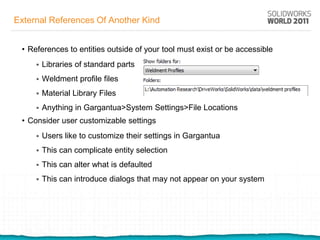
 • References to entities outside of your tool must exist or be accessible
        Libraries of standard parts
        Weldment profile files
        Material Library Files
        Anything in Gargantua>System Settings>File Locations
 • Consider user customizable settings
        Users like to customize their settings in Gargantua
        This can complicate entity selection
        This can alter what is defaulted
        This can introduce dialogs that may not appear on your system
Brute Force Method


 • We’re engineers. We WANT the elegant solution. Brute force is ugly. It’s
   inefficient. Well, you’re only being inefficient once. The computer is doing
   the work the rest of the time.
 • Create five separate features and control them all rather than making one
   megalithic feature that has additional levels of complexity
 • Insert multiple options and delete the ones that you don’t need instead of
   swapping or trying complex drives
 • If your automation tool is creating one model, what’s it to your machine if it
   creates more than one? Consider models specialized for different purposes.
   One detailed one for manufacturing, a simplified rep for sales, a pretty one
   for animation and 3DVIA…
Testing


 • Test extremes in values
 • Keep in mind that your master model will always reside in the same principal
   state. So your changes must drive from there. Changing from 1 to 10 to 30
   to 90 is not the same as testing those four values separately.
 • Test value pairs. Changing one dim may not cause a problem. Changing
   two dims in opposite directions may.
 • Always reset your model after testing.
Thank You


                                                        !!PLEASE!!
        Let’s see if they really read the evaluation forms (I know that
         WE do)…In the comments section (after your comments)…
                                 Everyone write…


                                                                     “A cabernet?
                                                                      …with fish?
Sauteed Fillet of Atlantic Halibut
                                                                          Really?”
Sunchokes, King Trumpet Mushrooms, Watercress and
“Sauce Genevoise” from Thomas Keller’s French Laundry


   For the complete version of the presentation, including presenter notes, full
      code and models, visit www.razorleaf.com after the show! Yes, it’s free.

SolidWorks Modeling for Design Automation

  • 1.
    SolidWorks Strategies for DesigningDurable Robert Mengel, Design Automation Consultant Master Models for Paul Gimbel, Business Process Sherpa Accurate Automation Razorleaf Corporation
  • 2.
    BACKGROUND • RazorleafCorporation  SolidWorks Service Partner  Services ONLY (we’re not trying to sell you any products, we’re neutral)  Data Management (EPDM, Enovia, SmarTeam, Aras, V6, MatrixOne)  Design Automation (DriveWorks, Tacton, Custom Programmed API)  Workflow Automation (Microsoft SharePoint and Tools) • Bob Mengel  Mechanical Engineer and Automation Developer/Implementer • Paul Gimbel (aka “The Sherpa”)  Mechanical Engineer, SolidWorks Demojock, Automation Implementer All Razorleaf presentations will be available at www.razorleaf.com and on www.slideshare.net
  • 3.
    Presentation Focus Designmodels that can be automated Little or no user intervention Either via API programming or a Solution Partner Product (for example or )
  • 4.
    To Configure orNot To Configure Issue Configurations Separate Files Parameters to be Not everything is configurable Separate files with driven separate feature managers Model Complexity Suppressed relationships Don’t need it, delete it PLM Implications One file for many parts Lots of files Security Easy to make one change that Once a part is run, put it affects a lot of configurations with the job it was used for (read-only) Reuse All configurations at your beck Find or rebuild the and call, no rework part…use automation Use as reference Configure Component Replace Component Collaboration Only one user can own a file at Separate files, separate a time permissions
  • 5.
    Configurable Items forParts and Assemblies Excerpts from: SolidWorks 2011 SP 1.0 Help File
  • 6.
    Two Approaches toAutomation Master Model Generative Model Start with One model containing “worst Empty or skeleton model case” model Control via Delete unnecessary features, Add features or components mates and components as required Programming Minimal, simply delete Programmatic mating Complexity components by name requires significant efforts Predictability High, model already exists Suffers from problems due to SolidWorks use of “closest” Model Testing Model can be tested manually Component insertion cannot be tested without code Scalable Scales down only Unlimited in size
  • 7.
    Step 1: KnowYour Audience • Know what you need to produce • Drawings  To what level of detail?  What information (notes or dimensions)? • Models  What features are required?  How much detail do you want to give away?
  • 8.
    #1 Mistake inAutomation – Too Much Detail • Do you need threads? • Do you need swoopies? • Do you need fillets? • Do you need hardware? • Do you need mounting holes? • Do you even need SOLID GEOMETRY?
  • 9.
    Simplified Models andAutomation • Why are you building a model? • Visualization? • Model is to it LOOKS right • Simulation? • Model it so it WORKS right • Calculation? • Model it so it gives you the right result • Drawings? • Model it so that the drawings are correct • To win that SolidWorks model contest? • OK, fine. Go for it.
  • 10.
    Finding and AvoidingUnwanted Parent-Child Relations • How to find Parent-Child Relations  RMB>Parent/Child shows the feature names, but not what the relations are  What kind of relations are there? Feature vs. Sketch • Anything that changes can have downstream consequences
  • 11.
    Sources of Parent-ChildRelationships in Parts • 1) If you have sub-features, query them first • 2) In sketches, look for:  Sketch plane reference  Dimension references  Relations (Display/Delete Relations -> External)  Remember that SolidWorks can add relations automatically  Extraneous relations will only cause overdefining if they are in conflict • 3) In the feature, use EDIT FEATURE  ANY entity selection control could potentially create a relationship
  • 12.
    Avoiding Unwanted Relationswith Reference Geometry • Planes and Axes are infinite in size – no failures to intersect • Cannot be split, cut or have their internal ID compromised • 2D and 3D Sketches (immune to topological issues) • Build Reference Geometry at the top of the Feature Manager • Always consider what might be deleted or suppressed • Don’t underestimate grandchild and great-grandchild references Reference Uses Geometry Plane End Condition, Sketch Plane, Sketch Reference, Mating Point Sketch reference, Mating, End Condition Axis Plane, Sketch Reference, Rotation Axis, Mating Coordinate System Mating, Export Sketch Sketch references, Plane location, Axis location, Mating
  • 13.
    Top-Down Assembly Modeling(TDAM) • Key Concept: Relations exist in the context of the ASSY  “Sketch5 in part1 references sketch2 in Part2 AS IT EXISTS in Assy1” • TDAM has issues when you FILE, SAVE AS because of references • IModelDocExtension.SaveAs WILL NOT WORK! You must use ISldWorks.CopyDocument
  • 14.
    TDAM Limitations forBottom Up Systems • Your tools may limit you to single level references
  • 15.
    Mating Issues •Replace Components  Issues with internal identifiers not matching swapped components  Build base references then File, Save As method • Avoid mates to geometry when you can mate to planes or other ref geometry • Try using the default datum planes whenever possible • For complex mating, ask yourself, “Do you REALLY need that?”  Assembly motion It looks like you are trying  Complex mating schemes for drawing purposes to mate a new component
  • 16.
    Mating Generative Assemblies • Add two entities to the SelectionManager the create Mate entity  The API highly recommends that you use SelectByID2 (mark = 1)  Use NAMED ENTITIES  Make the name identical on the part to be installed
  • 17.
    Sketching • Reducethe number of entities and relations in a sketch.  We’re taught to reduce feature count because it’s faster. What do you care? Your machine is doing the work, you’re probably not even going to be there. Spending an extra 5% or even 15% in rebuild time to gain stability is time well spent. • Avoid large value changes, they can be unpredictable  See if I can come up with an example of changing from 1 to 2000 that freaks out, but it does not freak out if you go from 1 to 100 to 700 to 1500 to 2000. • Beware of conditions that have multiple solutions, ex. Tangency. • Beware of dimensions that may flip. • Do not rely on negative dimensions, because you can’t always guarantee what direction it’s facing to start with. And you can’t guarantee child dims. • Minimize external relations. Ex. Multiple references to the same external reference. Make one line coincident to the model edge, then make all of the other relationships to that line.
  • 18.
    Automating Weldments •Sketch lines have direction  Your profile will be attached at the start point  This could mean that your section is flipped if you’re not careful • Design your profiles to make origin the attachment point  You can use IStructuralMember.LocateProfilePoint = SketchPointObject if you are doing this from scratch, but it’s work to get the sketch point  Most DA tools don’t provide the ability to specify the profile point • Use reference geometry for trim faces
  • 19.
    Automating Sheet Metal • Issues that face sheet metal automation  Creating invalid geometry (unable to flatten or crashing flanges)  Bending multiple entities per feature  Driving materials and bend calculation method  Normal Cuts
  • 20.
    Automating for Drawings • Notes in the drawing or in the title block  Drive the notes with model custom properties
  • 21.
    Automating for Drawings • Dimensions in the drawing  Make sure that the dimensions are in the model  Make sure that any reference dimensions are to persistent references
  • 22.
    Automating for Drawings • Drawing views  Make sure that named views are identical on swappable components  Make sure any references exist (detail, section views, etc.)
  • 23.
    Automating for Drawings • Sketches  Consider sketch geometry that you want to show on the drawing  Group the entities so that they can be easily displayed/hidden • Hide Dangling Annotations Option (in Gargantua the MegaDialog)
  • 24.
    Automating for Simulation • Master model method expands to simulations  Create master design studies  Entity selection for adding loads and boundary conditions is tough  Create extra loads/BCs or extra studies – “worst case” approach
  • 25.
    External References OfAnother Kind • References to entities outside of your tool must exist or be accessible  Libraries of standard parts  Weldment profile files  Material Library Files  Anything in Gargantua>System Settings>File Locations • Consider user customizable settings  Users like to customize their settings in Gargantua  This can complicate entity selection  This can alter what is defaulted  This can introduce dialogs that may not appear on your system
  • 26.
    Brute Force Method • We’re engineers. We WANT the elegant solution. Brute force is ugly. It’s inefficient. Well, you’re only being inefficient once. The computer is doing the work the rest of the time. • Create five separate features and control them all rather than making one megalithic feature that has additional levels of complexity • Insert multiple options and delete the ones that you don’t need instead of swapping or trying complex drives • If your automation tool is creating one model, what’s it to your machine if it creates more than one? Consider models specialized for different purposes. One detailed one for manufacturing, a simplified rep for sales, a pretty one for animation and 3DVIA…
  • 27.
    Testing • Testextremes in values • Keep in mind that your master model will always reside in the same principal state. So your changes must drive from there. Changing from 1 to 10 to 30 to 90 is not the same as testing those four values separately. • Test value pairs. Changing one dim may not cause a problem. Changing two dims in opposite directions may. • Always reset your model after testing.
  • 28.
    Thank You !!PLEASE!! Let’s see if they really read the evaluation forms (I know that WE do)…In the comments section (after your comments)… Everyone write… “A cabernet? …with fish? Sauteed Fillet of Atlantic Halibut Really?” Sunchokes, King Trumpet Mushrooms, Watercress and “Sauce Genevoise” from Thomas Keller’s French Laundry For the complete version of the presentation, including presenter notes, full code and models, visit www.razorleaf.com after the show! Yes, it’s free.