Email
‘Electronic mail’
Digital message sent over the internet
Primarily text but can include pictures, sound or
other ‘attachments’
Instant
Additional resources from Workforce Center
URL vs. Email address
www.google.com
No @
Includes www. Or http://
steve@google.com
Personalized (steve)
Includes @ sign
No www.
Google.com is the domain name
We recommend using a professional e-mail
address (for example, your full name)
Passwords
Most importantly, make sure you can remember it!
Must be at least 8 characters
To be safest, include at least one lowercase letter,
UPPERCASE letter, $ymbol, and number
Ex: T3@mwork, H3ll02U!
Types of Email Accounts
Assigned:
By internet provider: Comcast, att
 ex: name@comcast.net
By work/website:
 Ex: georgen.charnes@vc.edu
Will be discontinued if you change your provider
Created on internet site:
Gmail.com
Yahoo.com
Hotmail.com
How to Get Your Email
Software program on your computer
Ex: outlook
Internet on any computer
Phone app
All messages are not all “email”
Facebook messages
Text messages
Comments on websites
Forums like reddit or listservs
Blog posts
Phone message voicemails
Basic navigation
Inbox: where your mail arrives
Gmail now has three inboxes
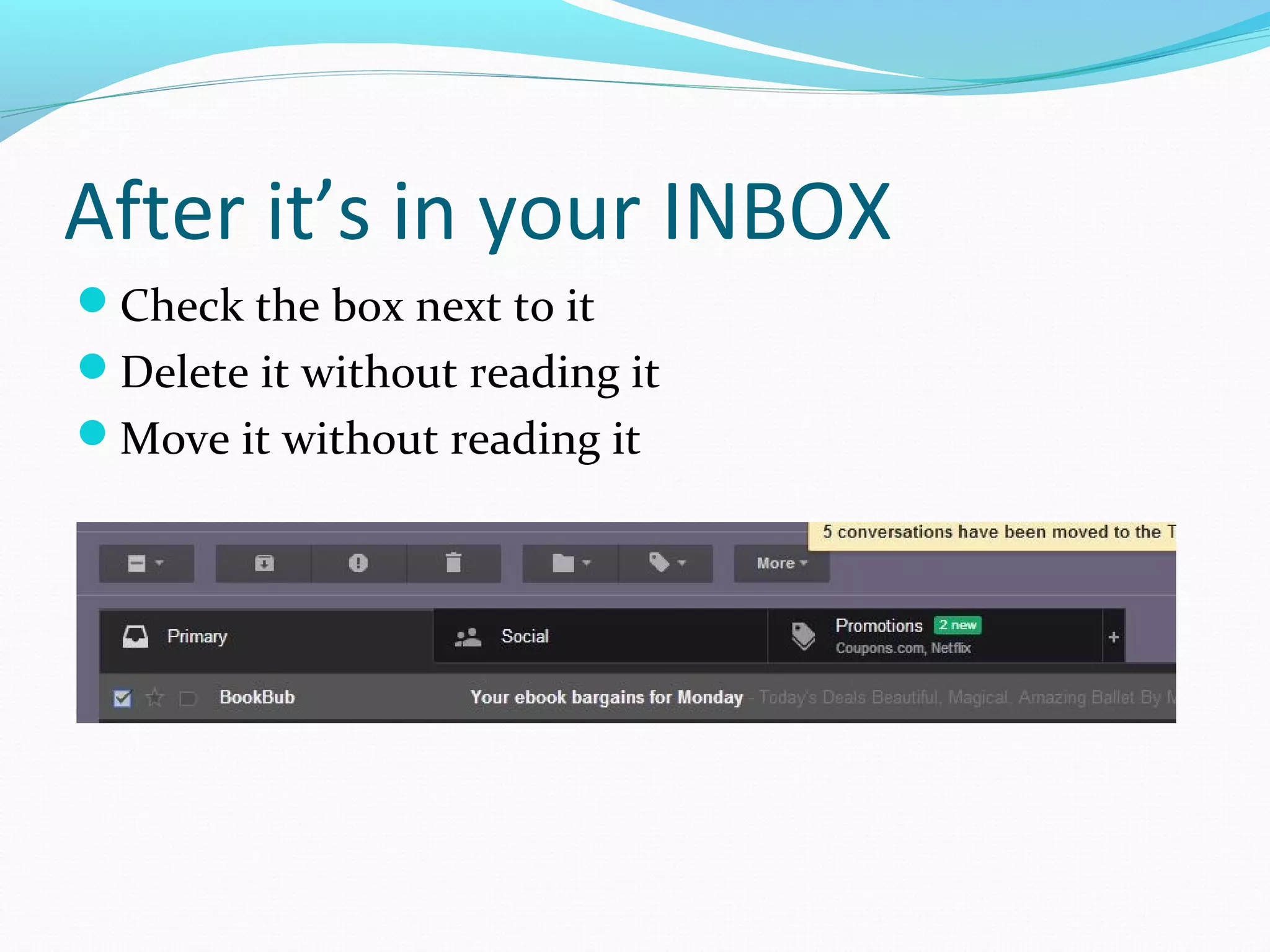
After it’s in your INBOX
Check the box next to it
Delete it without reading it
Move it without reading it
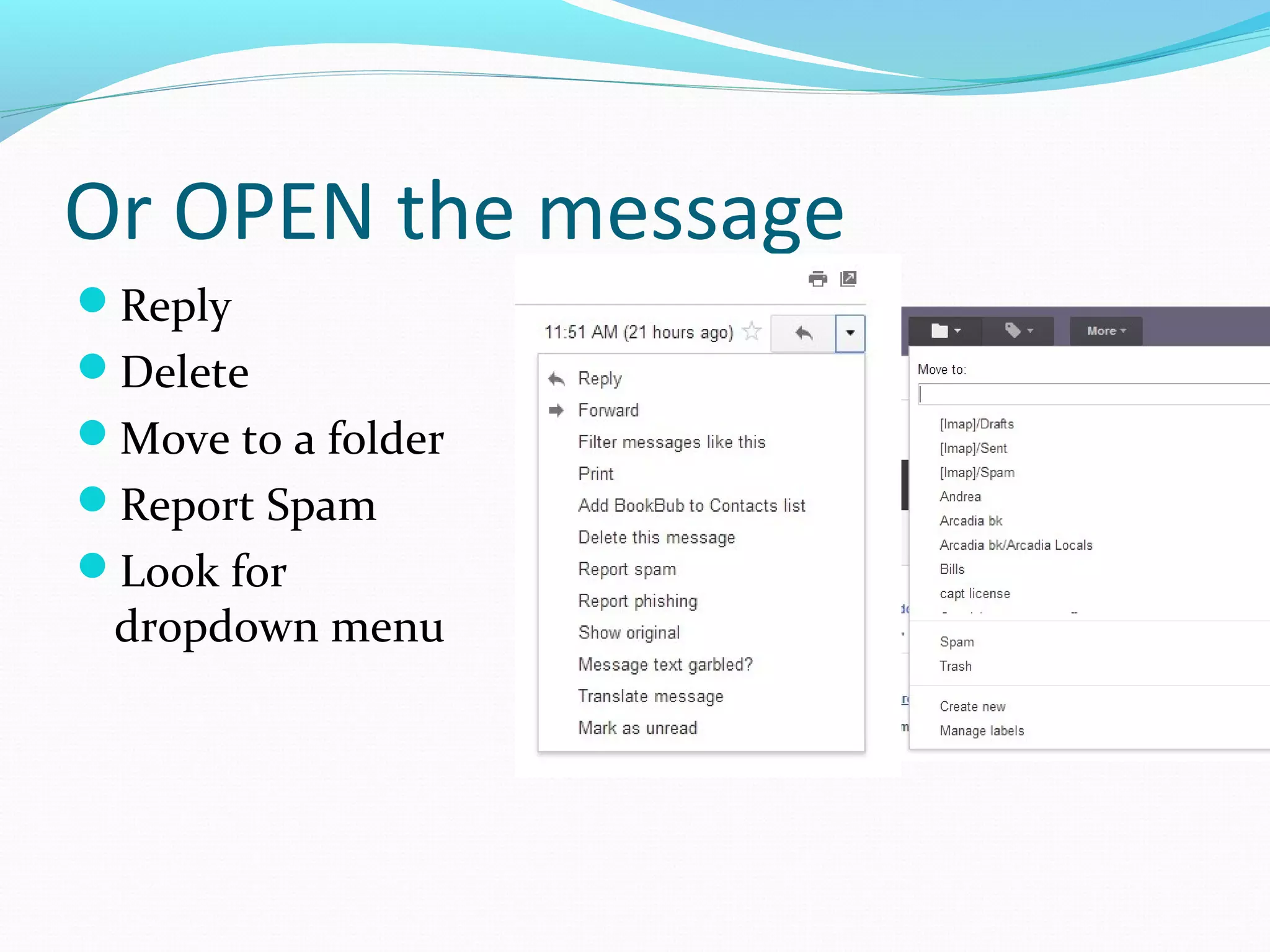
Or OPEN the message
Reply
Delete
Move to a folder
Report Spam
Look for
dropdown menu
Other common functions
Forwarding: sends on a message that you received
to someone else
Automatically inserts “FW” into subject field (this is the
polite way to forward)
Reply
Reply all (sends a message to all recipients as well
as sender)
Be careful with this one…
Folders, trash, organizing
“Threads”
Your old email is automatically at the bottom if you
reply.
Results in long lists of responses, called “threads”
Start a new thread with a different topic!
Writing a new message
Compose, New, pencil
icon
To: one or more valid
email addresses
Subject: a title, short and
meaningful
CC: also send to
Bcc: also send to, but no
one can see the other
email addresses
Attachments
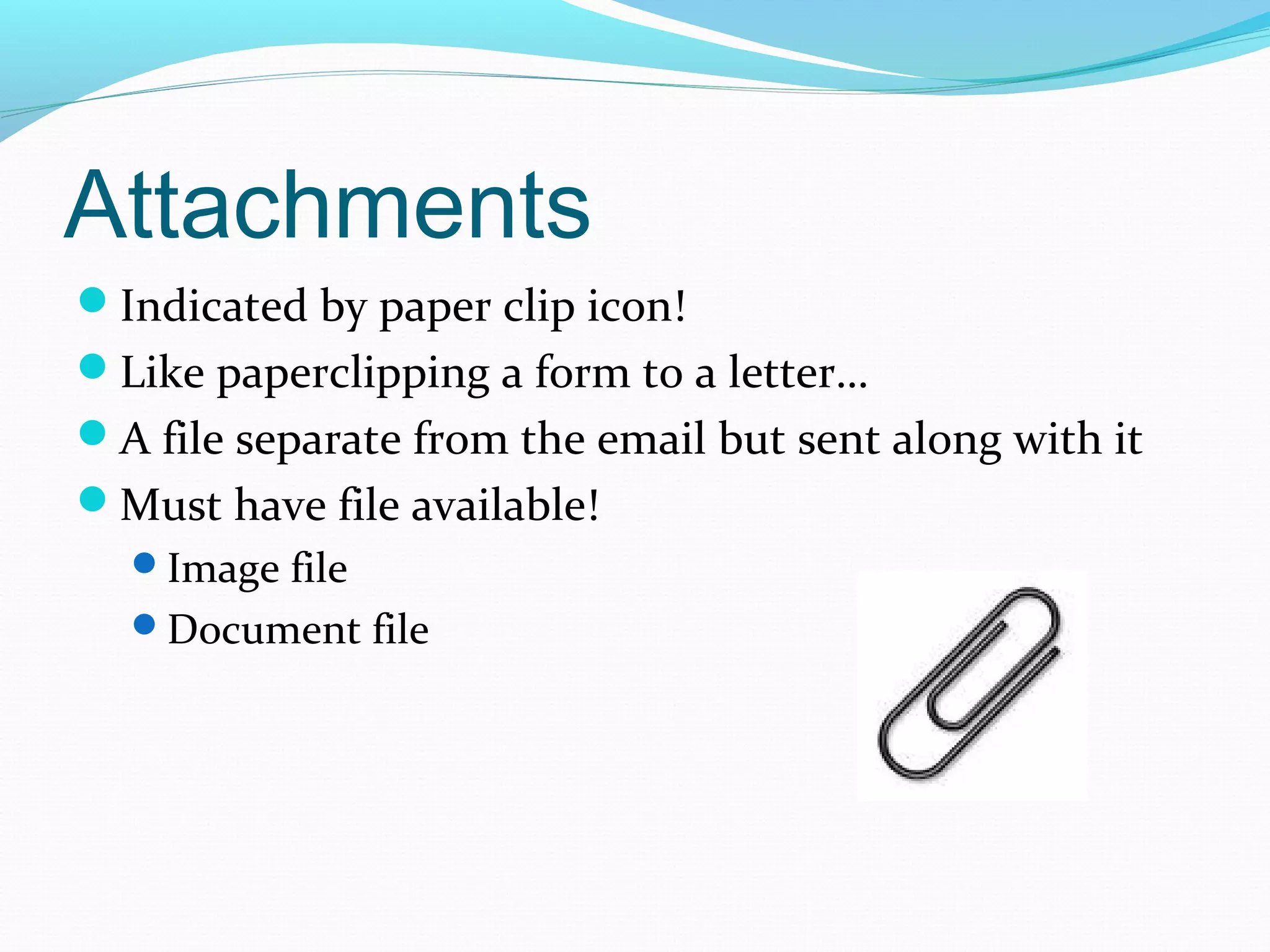
Indicated by paper clip icon!
Like paperclipping a form to a letter…
A file separate from the email but sent along with it
Must have file available!
Image file
Document file
Email Etiquette
Don’t use all CAPITALS!
Fill in subject line
Use correct capitalization, grammar, punctuation
Professional greetings and closings (Dear ___, Thank
you, Best, etc.)
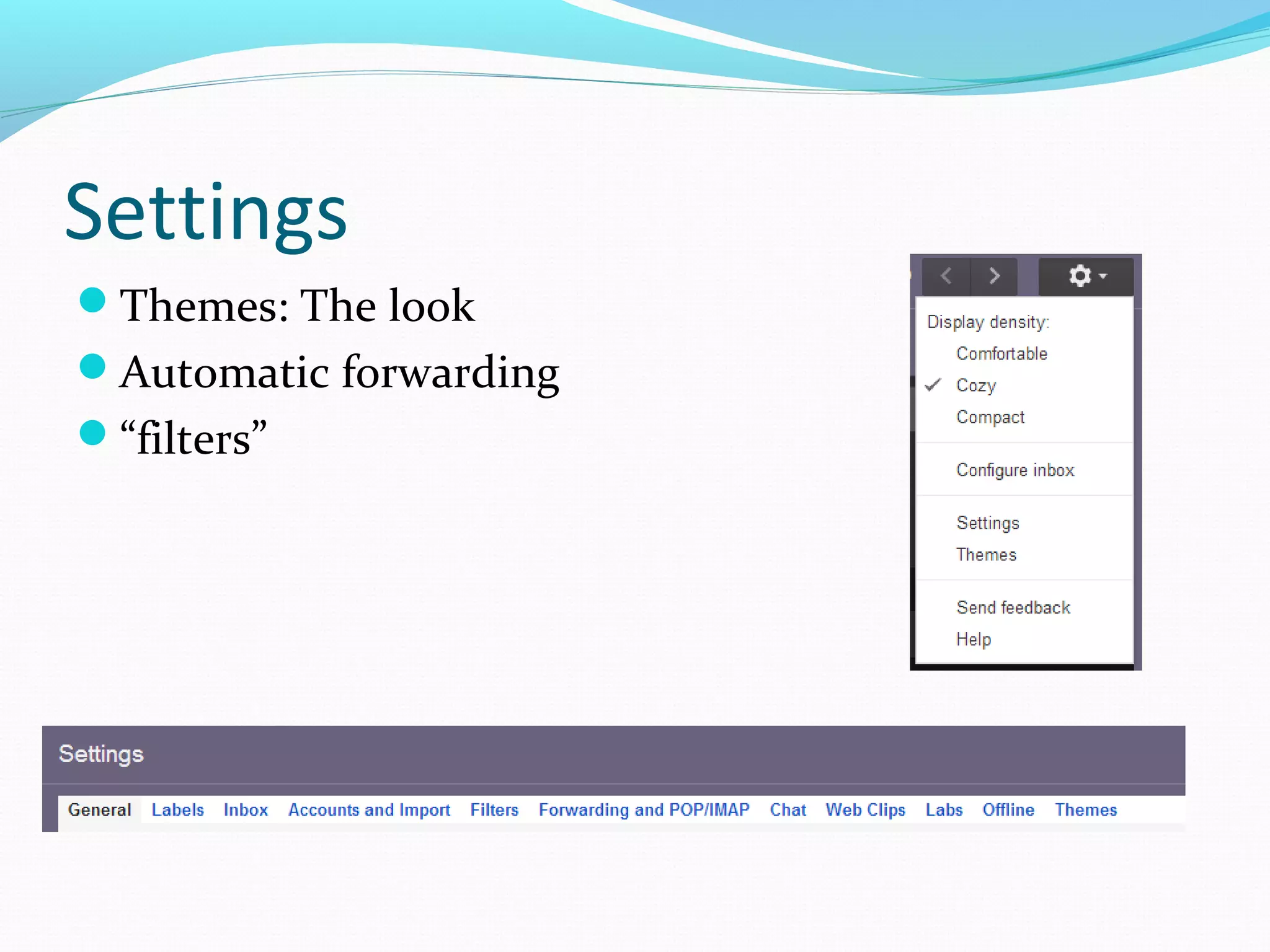
Settings
Themes: The look
Automatic forwarding
“filters”
Contacts
Lists of email addresses
used
Syncing
Unwanted Email
Three types:
Phishing
Spam
Bulk mail from companies
Beware!
You receive an email from a Nigerian prince who
needs you to help get $50 million out of Nigeria. He
must leave in secret and transfer the money to your
account. He promises you $5 million after he gets to
safety.
You get an email from PayPal wanting to confirm
your information is correct.
You get an email from your credit card company or
bank threatening to cut you off unless you click or the
link below.
Phishing
Phishing: a trick to get you to enter personal
information such as:
Credit card information
Banking info
Social security number
Passwords
Email or physical address
Legitimate businesses should NEVER ask you for
your personal or financial information via email.
Do not send your
personal information
via email.
Spam
Spam is unsolicited commercial emails—
unwanted ads in your inbox
May be to phish for information or transmit a
virus
Sample subjects:
RE: Pharmacy sale 80% off!
Ama-zingly fresh sk!n with n0 wrinkles
We renamed your account
From an old friend
Your mistake
Don’t even open these emails
Anti-spam
Delete without opening!
If you open it, don’t click and don’t reply
Gmail has really good spam filters that catch most
spam. (Demo)
Spam filters include “mark as spam” buttons: future
email from that address will be filtered out
Don’t buy anything from companies that email you
randomly! Especially not medicine!
Bulk Mail
Actual companies sending you an electronic catalog
Newsletters from companies you actually purchased
something from
Be careful – someplace you clicked “send me updates”
Unsubscribe?
The CAN-SPAM Act of 2003 mandates that
companies include an unsubscribe link or clear
instructions on how to do so in every commercial e-
mail. Thanks to the law and policing by e-mail
services, clicking on “Unsubscribe Me” is a safe and
effective way to remove yourself from a list. (If an e-
mail strikes you as fraudulent or is unfamiliar, drag it
to your spam folder.)
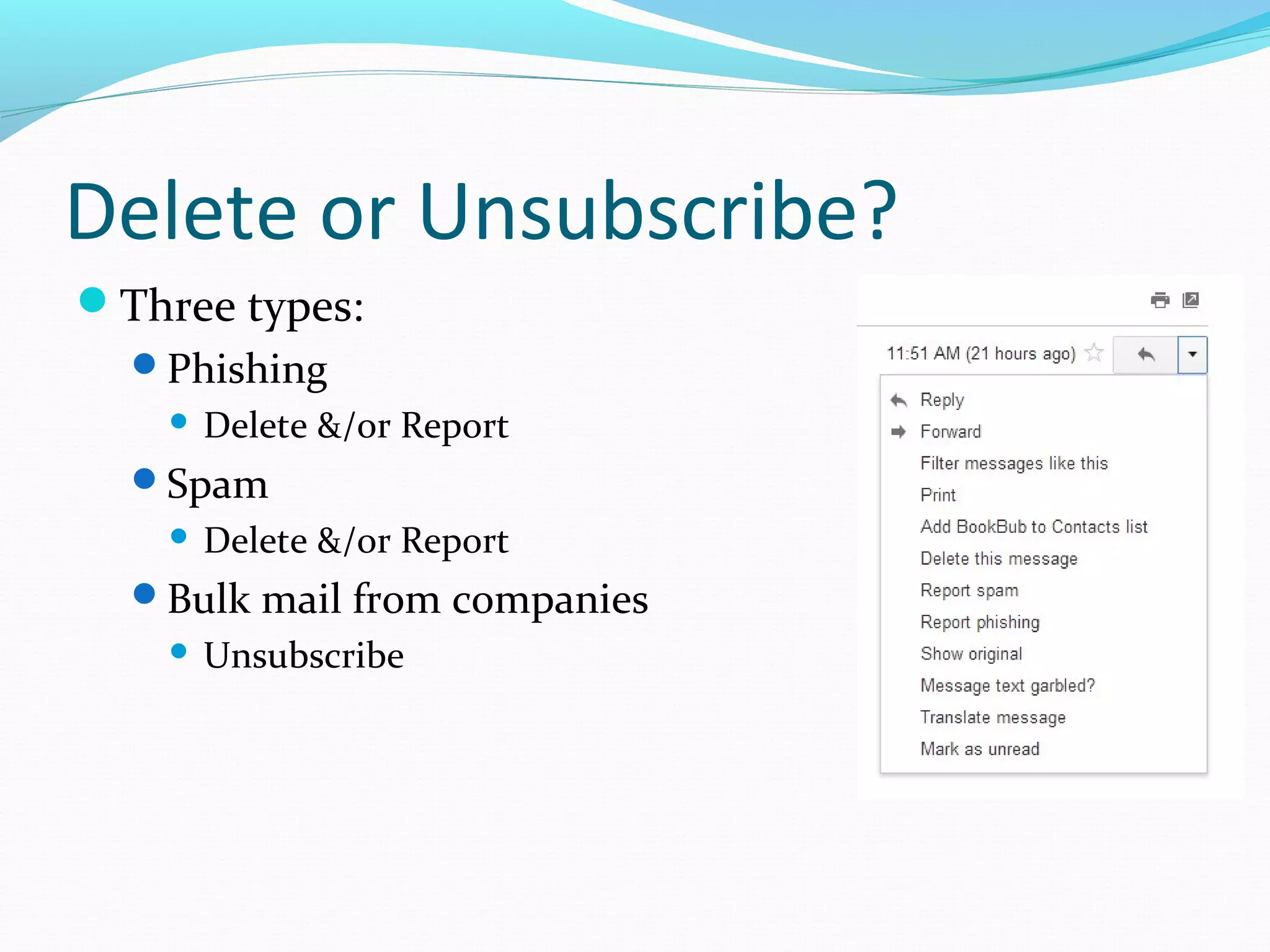
Delete or Unsubscribe?
Three types:
Phishing
 Delete &/or Report
Spam
 Delete &/or Report
Bulk mail from companies
 Unsubscribe
You’re on your way

Email

  • 2.
    Email ‘Electronic mail’ Digital messagesent over the internet Primarily text but can include pictures, sound or other ‘attachments’ Instant Additional resources from Workforce Center
  • 3.
    URL vs. Emailaddress www.google.com No @ Includes www. Or http:// steve@google.com Personalized (steve) Includes @ sign No www. Google.com is the domain name We recommend using a professional e-mail address (for example, your full name)
  • 4.
    Passwords Most importantly, makesure you can remember it! Must be at least 8 characters To be safest, include at least one lowercase letter, UPPERCASE letter, $ymbol, and number Ex: T3@mwork, H3ll02U!
  • 5.
    Types of EmailAccounts Assigned: By internet provider: Comcast, att  ex: name@comcast.net By work/website:  Ex: georgen.charnes@vc.edu Will be discontinued if you change your provider Created on internet site: Gmail.com Yahoo.com Hotmail.com
  • 6.
    How to GetYour Email Software program on your computer Ex: outlook Internet on any computer Phone app
  • 7.
    All messages arenot all “email” Facebook messages Text messages Comments on websites Forums like reddit or listservs Blog posts Phone message voicemails
  • 8.
    Basic navigation Inbox: whereyour mail arrives Gmail now has three inboxes
  • 9.
    After it’s inyour INBOX Check the box next to it Delete it without reading it Move it without reading it
  • 10.
    Or OPEN themessage Reply Delete Move to a folder Report Spam Look for dropdown menu
  • 11.
    Other common functions Forwarding:sends on a message that you received to someone else Automatically inserts “FW” into subject field (this is the polite way to forward) Reply Reply all (sends a message to all recipients as well as sender) Be careful with this one… Folders, trash, organizing
  • 12.
    “Threads” Your old emailis automatically at the bottom if you reply. Results in long lists of responses, called “threads” Start a new thread with a different topic!
  • 13.
    Writing a newmessage Compose, New, pencil icon To: one or more valid email addresses Subject: a title, short and meaningful CC: also send to Bcc: also send to, but no one can see the other email addresses
  • 14.
    Attachments Indicated by paperclip icon! Like paperclipping a form to a letter… A file separate from the email but sent along with it Must have file available! Image file Document file
  • 15.
    Email Etiquette Don’t useall CAPITALS! Fill in subject line Use correct capitalization, grammar, punctuation Professional greetings and closings (Dear ___, Thank you, Best, etc.)
  • 16.
    Settings Themes: The look Automaticforwarding “filters”
  • 17.
    Contacts Lists of emailaddresses used Syncing
  • 18.
  • 19.
    Beware! You receive anemail from a Nigerian prince who needs you to help get $50 million out of Nigeria. He must leave in secret and transfer the money to your account. He promises you $5 million after he gets to safety. You get an email from PayPal wanting to confirm your information is correct. You get an email from your credit card company or bank threatening to cut you off unless you click or the link below.
  • 20.
    Phishing Phishing: a trickto get you to enter personal information such as: Credit card information Banking info Social security number Passwords Email or physical address Legitimate businesses should NEVER ask you for your personal or financial information via email.
  • 21.
    Do not sendyour personal information via email.
  • 22.
    Spam Spam is unsolicitedcommercial emails— unwanted ads in your inbox May be to phish for information or transmit a virus Sample subjects: RE: Pharmacy sale 80% off! Ama-zingly fresh sk!n with n0 wrinkles We renamed your account From an old friend Your mistake Don’t even open these emails
  • 23.
    Anti-spam Delete without opening! Ifyou open it, don’t click and don’t reply Gmail has really good spam filters that catch most spam. (Demo) Spam filters include “mark as spam” buttons: future email from that address will be filtered out Don’t buy anything from companies that email you randomly! Especially not medicine!
  • 24.
    Bulk Mail Actual companiessending you an electronic catalog Newsletters from companies you actually purchased something from Be careful – someplace you clicked “send me updates”
  • 25.
    Unsubscribe? The CAN-SPAM Actof 2003 mandates that companies include an unsubscribe link or clear instructions on how to do so in every commercial e- mail. Thanks to the law and policing by e-mail services, clicking on “Unsubscribe Me” is a safe and effective way to remove yourself from a list. (If an e- mail strikes you as fraudulent or is unfamiliar, drag it to your spam folder.)
  • 26.
    Delete or Unsubscribe? Threetypes: Phishing  Delete &/or Report Spam  Delete &/or Report Bulk mail from companies  Unsubscribe
  • 27.