User Guide: Zoom Pro Page 1
Zoom Pro
Magento Extension
User Guide
Copyright © 2013 amasty.com
Support: http://amasty.com/support.html
Table of contents:
1. Zoomer for main image and thumbnails .....………………………...…….... 3
2. Zoomer with type “Outside” ..…………………...…………..…………………... 5
3. Zoomer on category page ………………………………………..………………... 6
4. Lightbox settings ..…………………………….…………………..…………………. 7
5. Example of lightbox ………………………………………………………………….. 8
6. Carousel feature for thumbnails ………………………………………………... 9
7. Image size settings ….……..……………………………………..…………………. 10
Copyright © 2013 amasty.com
Page 2
Support: http://amasty.com/support.html
User Guide: Zoom Pro
Copyright © 2013 amasty.com
Page 3
Support: http://amasty.com/support.html
1. Zoomer for main image and thumbnails
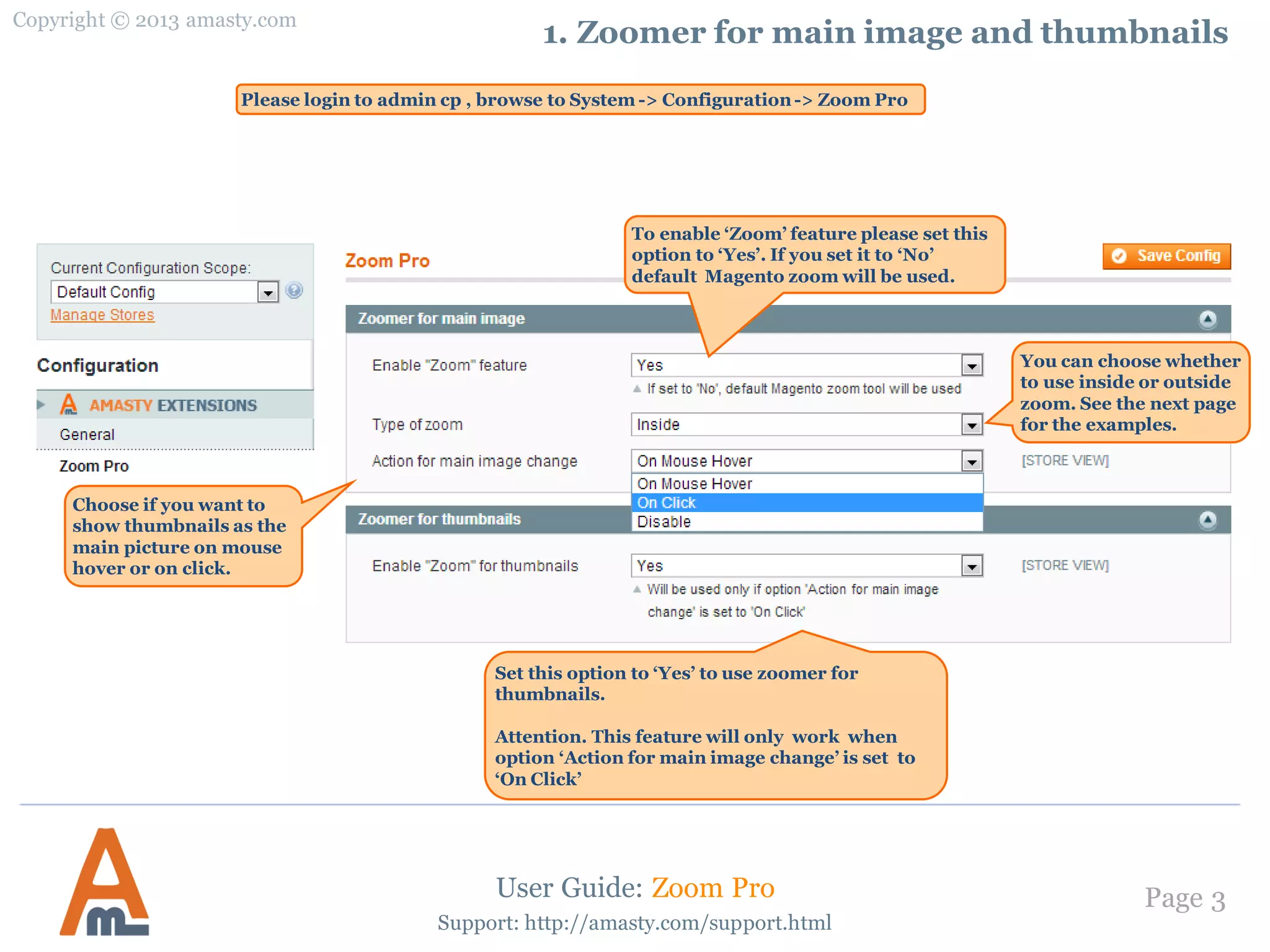
To enable ‘Zoom’ feature please set this
option to ‘Yes’. If you set it to ‘No’
default Magento zoom will be used.
User Guide: Zoom Pro
Please login to admin cp , browse to System -> Configuration-> Zoom Pro
You can choose whether
to use inside or outside
zoom. See the next page
for the examples.
Set this option to ‘Yes’ to use zoomer for
thumbnails.
Attention. This feature will only work when
option ‘Action for main image change’ is set to
‘On Click’
Choose if you want to
show thumbnails as the
main picture on mouse
hover or on click.
Copyright © 2013 amasty.com
Page 4
Support: http://amasty.com/support.html
1. Zoomer for main image and thumbnails
User Guide: Zoom Pro
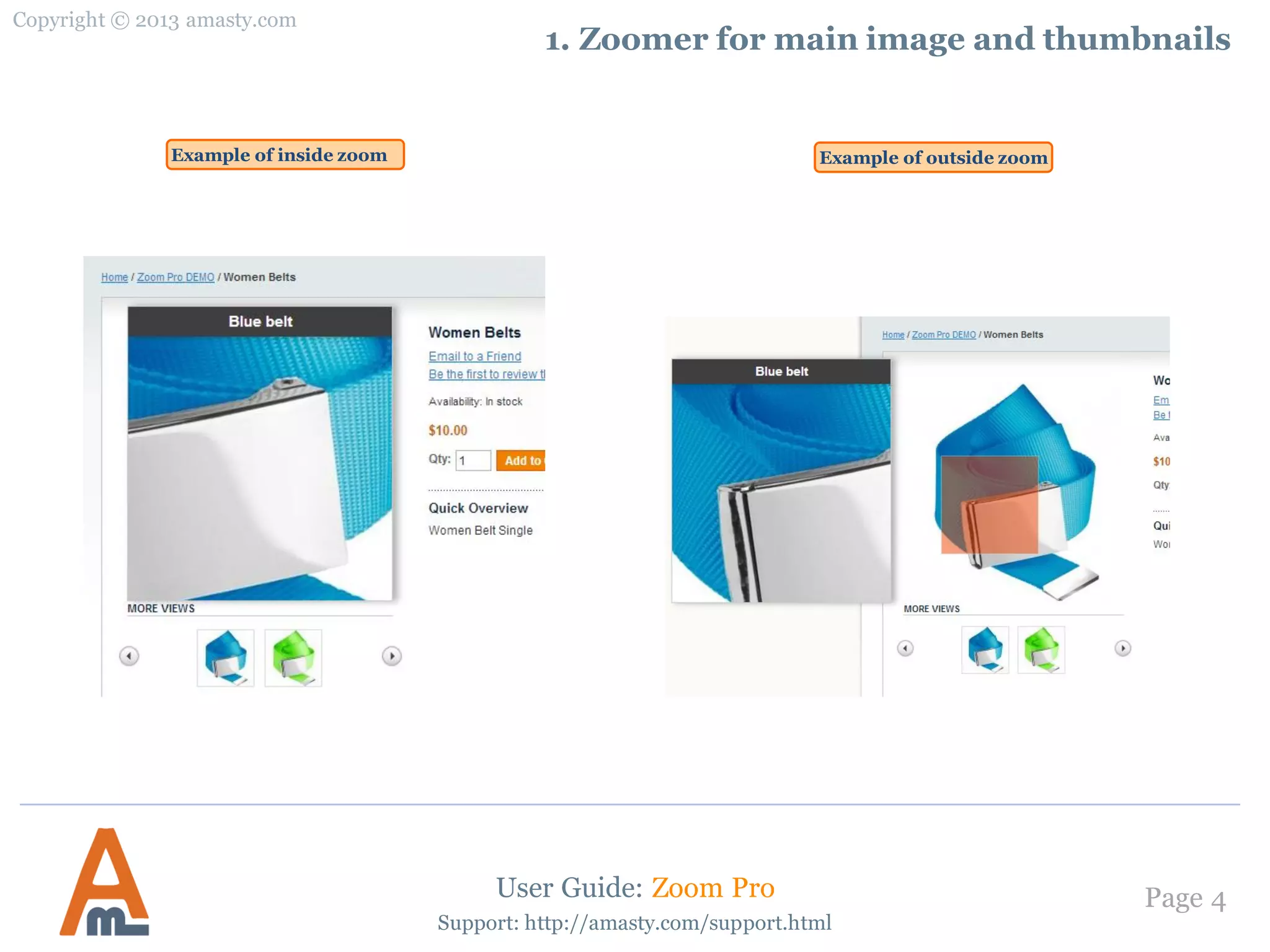
Example of inside zoom Example of outside zoom
Copyright © 2013 amasty.com
Page 5
Support: http://amasty.com/support.html
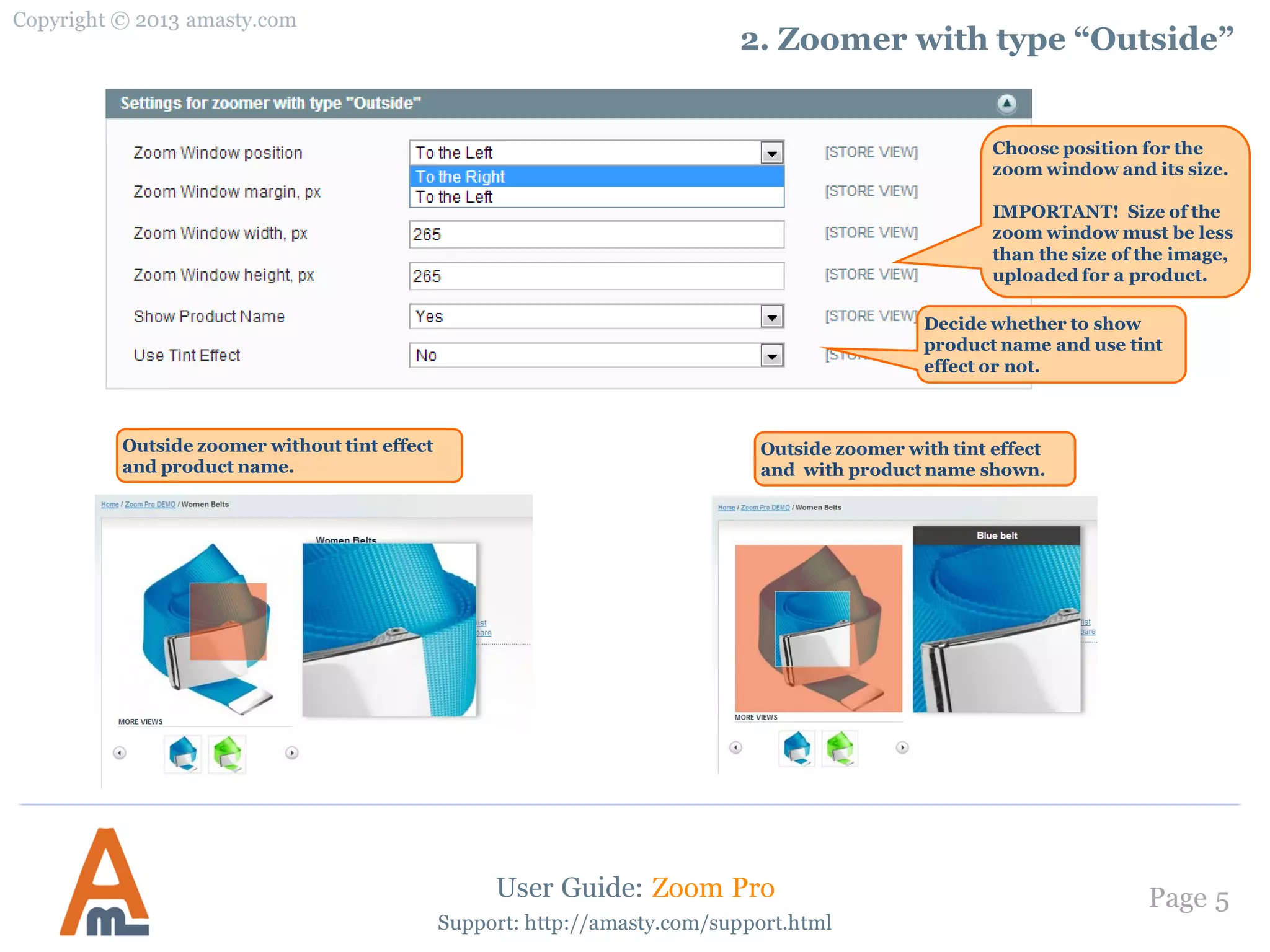
2. Zoomer with type “Outside”
User Guide: Zoom Pro
Choose position for the
zoom window and its size.
IMPORTANT! Size of the
zoom window must be less
than the size of the image,
uploaded for a product.
Outside zoomer without tint effect
and product name.
Outside zoomer with tint effect
and with product name shown.
Decide whether to show
product name and use tint
effect or not.
Copyright © 2013 amasty.com
Page 6
Support: http://amasty.com/support.html
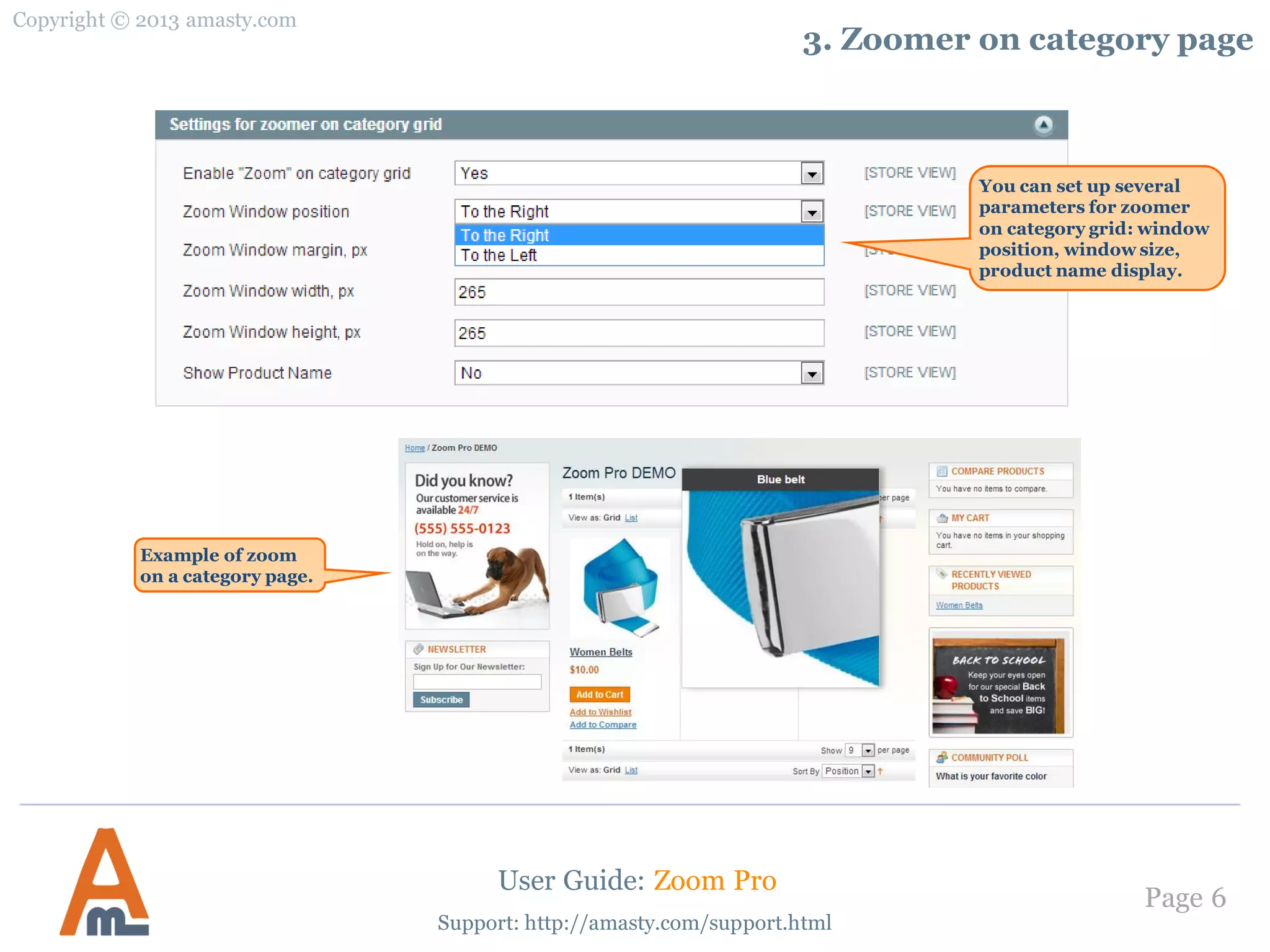
3. Zoomer on category page
User Guide: Zoom Pro
You can set up several
parameters for zoomer
on category grid: window
position, window size,
product name display.
Example of zoom
on a category page.
Copyright © 2013 amasty.com
Page 7
Support: http://amasty.com/support.html
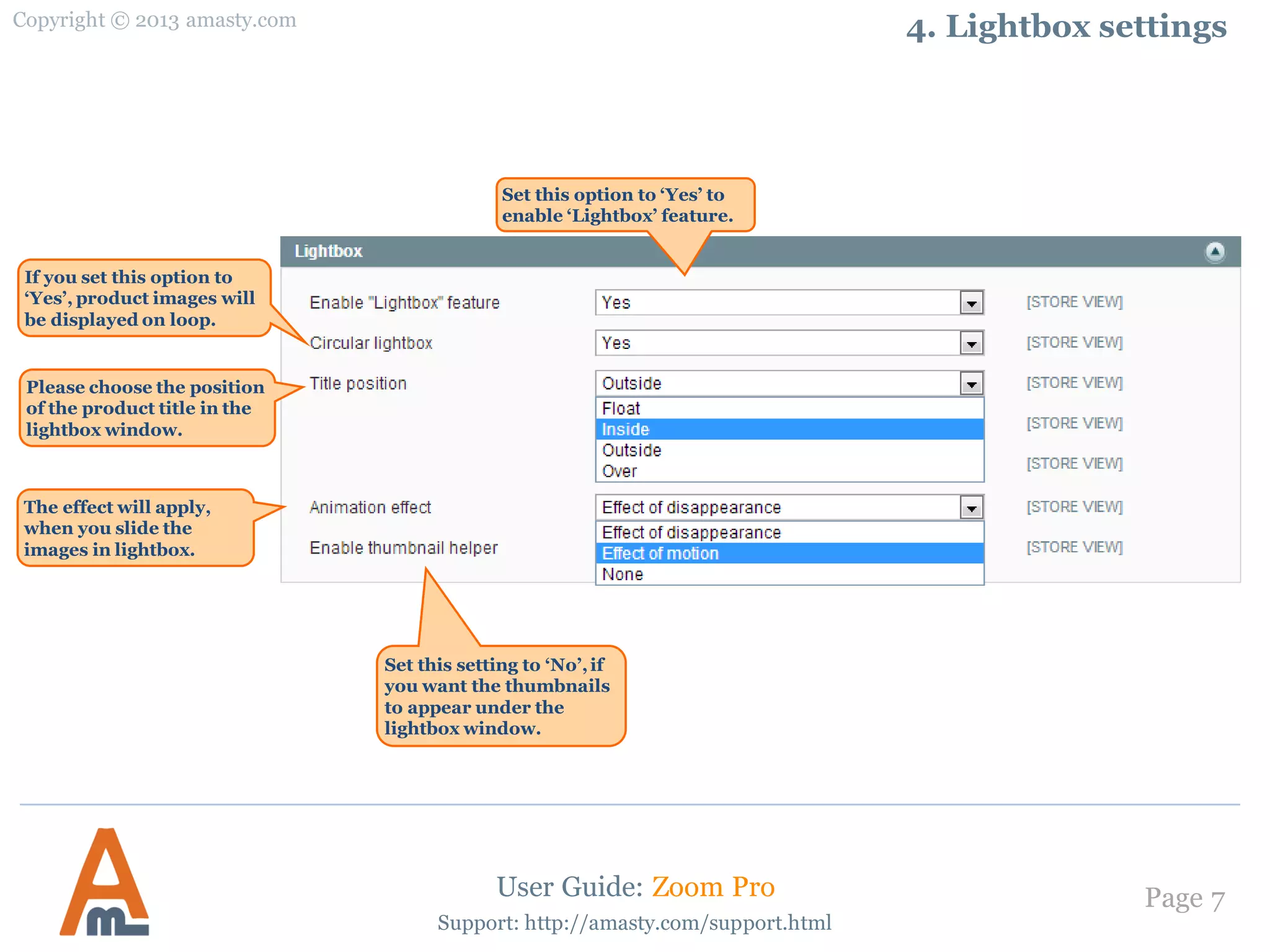
4. Lightbox settings
User Guide: Zoom Pro
Set this option to ‘Yes’ to
enable ‘Lightbox’ feature.
If you set this option to
‘Yes’, product images will
be displayed on loop.
Please choose the position
of the product title in the
lightbox window.
The effect will apply,
when you slide the
images in lightbox.
Set this setting to ‘No’,if
you want the thumbnails
to appear under the
lightbox window.
Copyright © 2013 amasty.com
Page 8
Support: http://amasty.com/support.html
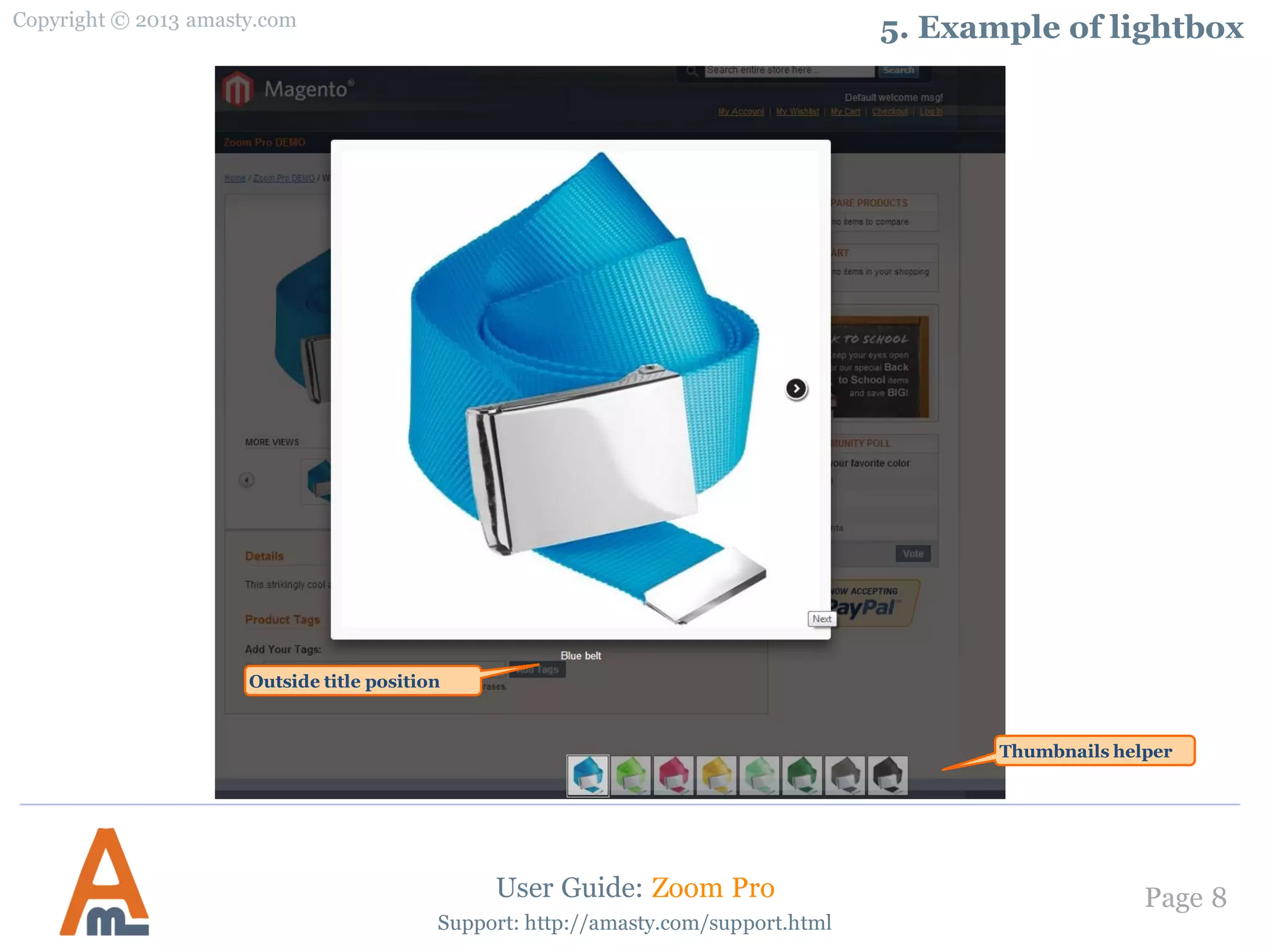
5. Example of lightbox
User Guide: Zoom Pro
Outside title position
Thumbnails helper
Copyright © 2013 amasty.com
Page 9
Support: http://amasty.com/support.html
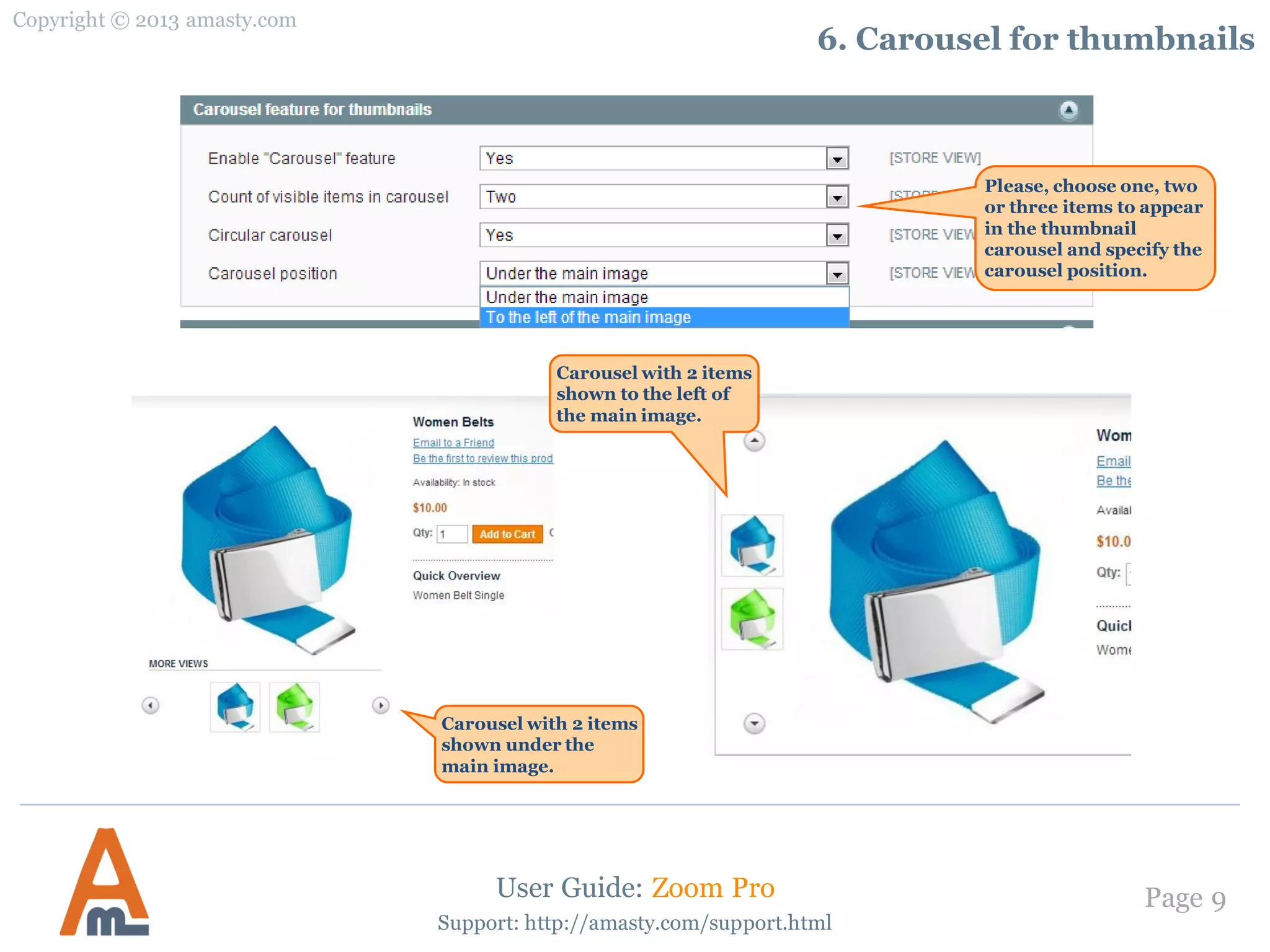
6. Carousel for thumbnails
User Guide: Zoom Pro
Carousel with 2 items
shown under the
main image.
Please, choose one, two
or three items to appear
in the thumbnail
carousel and specify the
carousel position.
Carousel with 2 items
shown to the left of
the main image.
Copyright © 2013 amasty.com
Page 10
Support: http://amasty.com/support.html
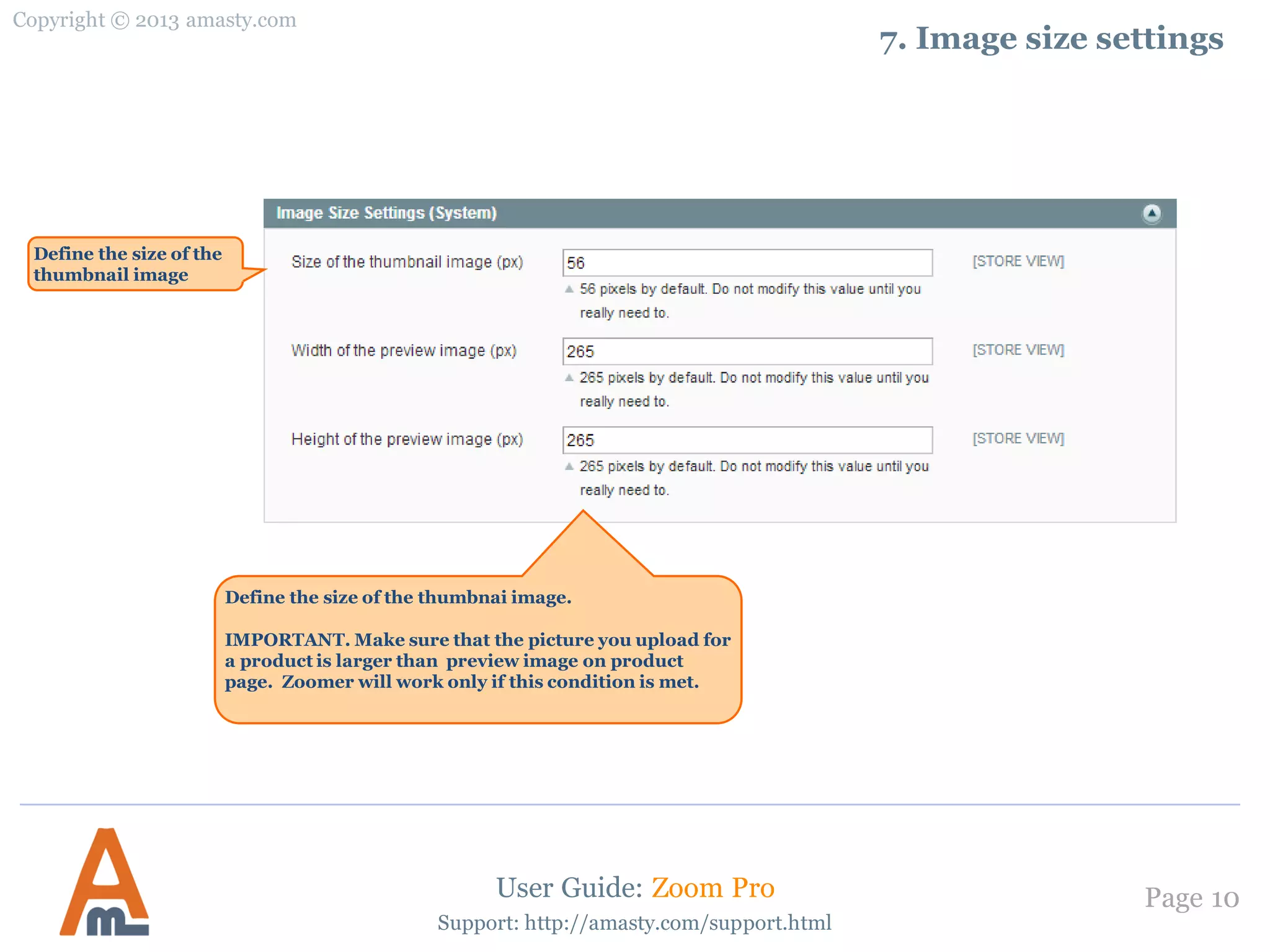
7. Image size settings
User Guide: Zoom Pro
Define the size of the
thumbnail image
Define the size of the thumbnai image.
IMPORTANT. Make sure that the picture you upload for
a product is larger than preview image on product
page. Zoomer will work only if this condition is met.
Thank you!
Your feedback is absolutely welcome!
Copyright © 2013 amasty.com
Page 11
Should you have any questions or feature suggestions, please contact us at:
http://amasty.com/support.html
Support: http://amasty.com/support.html
User Guide: Zoom Pro

Zoom Pro: Magento extension by Amasty. User Guide.

  • 1.
    User Guide: ZoomPro Page 1 Zoom Pro Magento Extension User Guide Copyright © 2013 amasty.com Support: http://amasty.com/support.html
  • 2.
    Table of contents: 1.Zoomer for main image and thumbnails .....………………………...…….... 3 2. Zoomer with type “Outside” ..…………………...…………..…………………... 5 3. Zoomer on category page ………………………………………..………………... 6 4. Lightbox settings ..…………………………….…………………..…………………. 7 5. Example of lightbox ………………………………………………………………….. 8 6. Carousel feature for thumbnails ………………………………………………... 9 7. Image size settings ….……..……………………………………..…………………. 10 Copyright © 2013 amasty.com Page 2 Support: http://amasty.com/support.html User Guide: Zoom Pro
  • 3.
    Copyright © 2013amasty.com Page 3 Support: http://amasty.com/support.html 1. Zoomer for main image and thumbnails To enable ‘Zoom’ feature please set this option to ‘Yes’. If you set it to ‘No’ default Magento zoom will be used. User Guide: Zoom Pro Please login to admin cp , browse to System -> Configuration-> Zoom Pro You can choose whether to use inside or outside zoom. See the next page for the examples. Set this option to ‘Yes’ to use zoomer for thumbnails. Attention. This feature will only work when option ‘Action for main image change’ is set to ‘On Click’ Choose if you want to show thumbnails as the main picture on mouse hover or on click.
  • 4.
    Copyright © 2013amasty.com Page 4 Support: http://amasty.com/support.html 1. Zoomer for main image and thumbnails User Guide: Zoom Pro Example of inside zoom Example of outside zoom
  • 5.
    Copyright © 2013amasty.com Page 5 Support: http://amasty.com/support.html 2. Zoomer with type “Outside” User Guide: Zoom Pro Choose position for the zoom window and its size. IMPORTANT! Size of the zoom window must be less than the size of the image, uploaded for a product. Outside zoomer without tint effect and product name. Outside zoomer with tint effect and with product name shown. Decide whether to show product name and use tint effect or not.
  • 6.
    Copyright © 2013amasty.com Page 6 Support: http://amasty.com/support.html 3. Zoomer on category page User Guide: Zoom Pro You can set up several parameters for zoomer on category grid: window position, window size, product name display. Example of zoom on a category page.
  • 7.
    Copyright © 2013amasty.com Page 7 Support: http://amasty.com/support.html 4. Lightbox settings User Guide: Zoom Pro Set this option to ‘Yes’ to enable ‘Lightbox’ feature. If you set this option to ‘Yes’, product images will be displayed on loop. Please choose the position of the product title in the lightbox window. The effect will apply, when you slide the images in lightbox. Set this setting to ‘No’,if you want the thumbnails to appear under the lightbox window.
  • 8.
    Copyright © 2013amasty.com Page 8 Support: http://amasty.com/support.html 5. Example of lightbox User Guide: Zoom Pro Outside title position Thumbnails helper
  • 9.
    Copyright © 2013amasty.com Page 9 Support: http://amasty.com/support.html 6. Carousel for thumbnails User Guide: Zoom Pro Carousel with 2 items shown under the main image. Please, choose one, two or three items to appear in the thumbnail carousel and specify the carousel position. Carousel with 2 items shown to the left of the main image.
  • 10.
    Copyright © 2013amasty.com Page 10 Support: http://amasty.com/support.html 7. Image size settings User Guide: Zoom Pro Define the size of the thumbnail image Define the size of the thumbnai image. IMPORTANT. Make sure that the picture you upload for a product is larger than preview image on product page. Zoomer will work only if this condition is met.
  • 11.
    Thank you! Your feedbackis absolutely welcome! Copyright © 2013 amasty.com Page 11 Should you have any questions or feature suggestions, please contact us at: http://amasty.com/support.html Support: http://amasty.com/support.html User Guide: Zoom Pro