Date: 22.04.14
File: Client_Server.1
SIMATIC HMI
Siemens AG 2003. All rights reserved.©
SITRAIN Training for
Automation and Drives
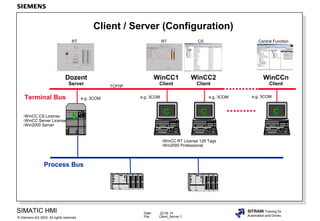
Client / Server (Configuration)
Dozent
Server
WinCC1
Client
Process Bus
C
WinCC2
Client
C
S
WinCCn
Client
C
Terminal Bus
-WinCC CS License
-WinCC Server License
-Win2000 Server
-WinCC RT License 128 Tags
-Win2000 Professional
e.g. 3COM e.g. 3COM e.g. 3COM e.g. 3COM
TCP/IP
RT RT CS Central Function
Date: 22.04.14
File: Client_Server.2
SIMATIC HMI
Siemens AG 2003. All rights reserved.©
SITRAIN Training for
Automation and Drives
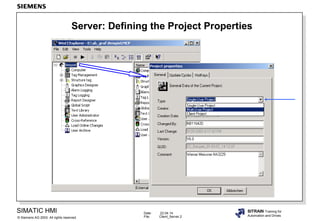
Server: Defining the Project Properties
Date: 22.04.14
File: Client_Server.3
SIMATIC HMI
Siemens AG 2003. All rights reserved.©
SITRAIN Training for
Automation and Drives
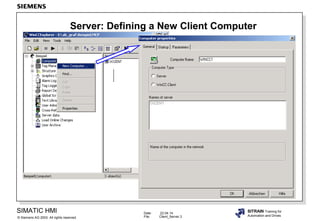
Server: Defining a New Client Computer
Date: 22.04.14
File: Client_Server.4
SIMATIC HMI
Siemens AG 2003. All rights reserved.©
SITRAIN Training for
Automation and Drives
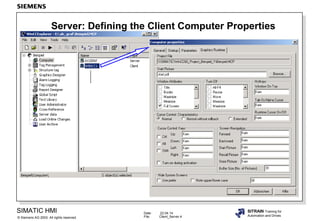
Server: Defining the Client Computer Properties
Date: 22.04.14
File: Client_Server.5
SIMATIC HMI
Siemens AG 2003. All rights reserved.©
SITRAIN Training for
Automation and Drives
Server: Defining Enables for Client Sharing
Date: 22.04.14
File: Client_Server.6
SIMATIC HMI
Siemens AG 2003. All rights reserved.©
SITRAIN Training for
Automation and Drives
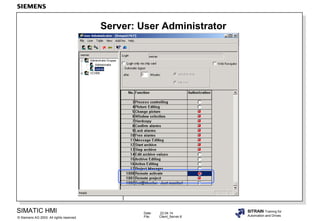
Server: User Administrator
Date: 22.04.14
File: Client_Server.7
SIMATIC HMI
Siemens AG 2003. All rights reserved.©
SITRAIN Training for
Automation and Drives
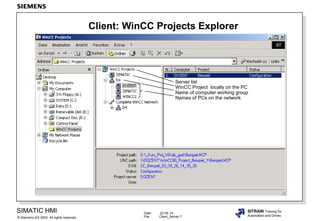
Client: WinCC Projects Explorer
Server list
WinCC Project locally on the PC
Name of computer working group
Names of PCs on the network
Date: 22.04.14
File: Client_Server.8
SIMATIC HMI
Siemens AG 2003. All rights reserved.©
SITRAIN Training for
Automation and Drives
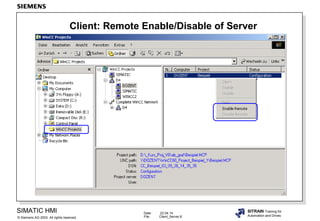
Client: Remote Enable/Disable of Server
Date: 22.04.14
File: Client_Server.9
SIMATIC HMI
Siemens AG 2003. All rights reserved.©
SITRAIN Training for
Automation and Drives
Client: Interconnect???? with Server
Shortcut menu
WinCC System Login using User
Administrator password from
the server.
Date: 22.04.14
File: Client_Server.10
SIMATIC HMI
Siemens AG 2003. All rights reserved.©
SITRAIN Training for
Automation and Drives
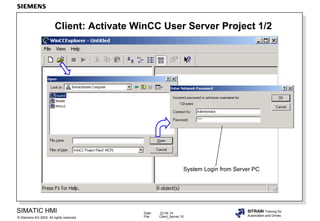
Client: Activate WinCC User Server Project 1/2
System Login from Server PC
Date: 22.04.14
File: Client_Server.11
SIMATIC HMI
Siemens AG 2003. All rights reserved.©
SITRAIN Training for
Automation and Drives
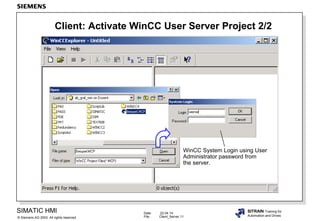
Client: Activate WinCC User Server Project 2/2
WinCC System Login using User
Administrator password from
the server.
Date: 22.04.14
File: Client_Server.12
SIMATIC HMI
Siemens AG 2003. All rights reserved.©
SITRAIN Training for
Automation and Drives
Client: Remote Configuration of the Server
Date: 22.04.14
File: Client_Server.13
SIMATIC HMI
Siemens AG 2003. All rights reserved.©
SITRAIN Training for
Automation and Drives
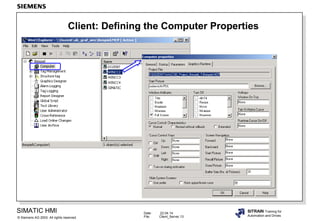
Client: Defining the Computer Properties

E client server_wincc60engl

Editor's Notes

  • #2 General InformationA client configuration is only required if you configure a distributed system in which clients can display views from several servers. If you configure a multi-user system in which clients only display data from exactly one server, a separate client configuration is not necessary. The clients receive all their data and their Runtime environment from the server project. The distributed system in WinCC contains one or more WinCC servers running with Windows 2000 Server and WinCC clients that can run either with Windows 2000 or Windows XP Professional. 1st. Step: Configure PCs and Windows -set up a PC network.-select computer names.-install TCP/IP network with unique addresses or NetBEUI network.-enable drive on the Server.-user does not need to have Administrator authorization. 2nd. Step:Automation components-install and configure communication hardware/software.-install WinCC and options.-WinCC configuration. 3rd. Step:Make the Server settings. 4th. Step:Make the Client settings. NoteThe WinCC Server Option is necessary to set up a WinCC station with Win2000 Server as server for a WinCC multi-user system. Licenses on the Server Server: WinCC CS, for example, 64K Tags Licenses on the WinCC RT 128 Tags Client:
  • #3 NoteAfter you change the type to Multi-User Project, WinCC has to be restarted.
  • #4 What to DoEnter the computer name of your client computer.
  • #5 What to DoHere, you can parameterize the client properties, such as: * the computer name* the Startup list (all necessary WinCC program parts have to be entered here)* the Start Picture* Window Attributes and other parameters.
  • #6 What to Do Here you have to enable the WinCC Project for network sharing. In enabling, you can define different attributes for network sharing (see slide above).
  • #7 What to DoIn the “User Administrator“ Editor, create a user who may operate this client. This user requires the authorization “1001 Remote project“, in order to be able to open the server project. If you want to activate the server project with the same user, then he also requires the authorization “1000 Remote activate“.
  • #8 FunctionWith the WinCC Projects Explorer on the client, the clients can be connected with the server.With remote access from the client, the server can be centrally activated and deactivated (enabled and disabled).
  • #9 FunctionWith this function, the server can be centrally controlled after a system login.
  • #10 1st. PossibilityIn the Windows Explorer, select the directory WinCC Projects. The computers communicating through the network are displayed. After logging in, the WinCC Explorer and RT are started on the client.
  • #11 2nd. PossibilityActivate WinCC and navigate to the server project through the network. After logging in, the WinCC Explorer and RT are started.
  • #12 What to DoUser-dependent login with the rights from the WinCC User Administrator.
  • #13 What to Do On the client, the server project can now be edited (multi configuration).
  • #14 What to DoDefine the client computer properties with Start picture and other parameters.