

Important Notes,
Contents
System Overview 1
General Overview of the
Editors of the Options 2
Basic Process Control 3
Picture Tree Manager 4
Storage 5
Chipcard 6
Video 7
Appendix
8
Index
SIMATIC
PCS 7
WinCC Basic Process Control
Manual
02/2000
C79000-G7076-C777
Edition 02
www.dienhathe.vn
www.dienhathe.com
Copyright © Siemens AG 1999 All rights reserved
The reproduction, transmission or use of this document or its
contents is not permitted without express written authority.
Offenders will be liable for damages. All rights, including rights
created by patent grant or registration of a utility model or design,
are reserved.
Siemens AG
Bereich Automatisierungs- und Antriebstechnik
Geschaeftsgebiet Industrie-Automatisierungssysteme
Postfach 4848, D- 90327 Nuernberg
Disclaimer of Liability
We have checked the contents of this manual for agreement with
the hardware and software described. Since deviations cannot be
precluded entirely, we cannot guarantee full agreement. However,
the data in this manual are reviewed regularly and any necessary
corrections included in subsequent editions. Suggestions for
improvement are welcomed.
©Siemens AG 1999
Technical data subject to change.
Siemens Aktiengesellschaft C79000-G7076-C777
Safety Guidelines
This manual contains notices which you should observe to ensure your own personal safety, as well as to
protect the product and connected equipment. These notices are highlighted in the manual by a warning
triangle and are marked as follows according to the level of danger:
!
Danger
indicates that death, severe personal injury or substantial property damage will result if proper
precautions are not taken.
! Warning
indicates that death, severe personal injury or substantial property damage can result if proper
precautions are not taken.
! Caution
indicates that minor personal injury or property damage can result if proper precautions are not taken.
Note
draws your attention to particularly important information on the product, handling the product, or to a
particular part of the documentation.
Qualified Personnel
Only qualified personnel should be allowed to install and work on this equipment. Qualified persons are
defined as persons who are authorized to commission, to ground, and to tag circuits, equipment, and
systems in accordance with established safety practices and standards.
Correct Usage
Note the following:
!
Warning
This device and its components may only be used for the applications described in the catalog or the
technical descriptions, and only in connection with devices or components from other manufacturers
which have been approved or recommended by Siemens.
This product can only function correctly and safely if it is transported, stored, set up, and installed
correctly, and operated and maintained as recommended.
Trademarks
SIMATIC®, SIMATIC HMI® and SIMATIC NET® are registered trademarks of SIEMENS AG.
Some of other designations used in these documents are also registered trademarks; the owner’s rights may
be violated if they are used by third parties for their own purposes.
www.dienhathe.vn
www.dienhathe.com
PCS 7 WinCC Basic Process Control iii
C79000-G7076-C777-02
Important Notes
Purpose
The WinCC User Guide®
describes:
• the structure and function of WinCC and its components
• how to set up system-specific WinCC projects
• how to use WinCC at runtime
The User Guide is for WinCC V5.
Position within the Information Environment
The User Guide is part of the documentation on SIMATIC HMI®
. All the documentation
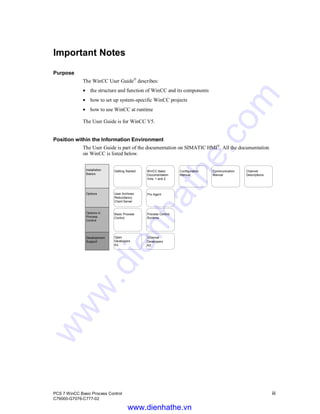
on WinCC is listed below.
Installation
Basics
Open
Developers
Kit
Channel
Developers
Kit
Development
Support
Options in
Process
Control
Basic Process
Control
Options User Archives
Redundancy
Client Server
Getting Started WinCC Basic
Documentation
Vols. 1 and 2
Configuration
Manual
Communication
Manual
Pro Agent
Process Control
Runtime
Channel
Descriptions
www.dienhathe.vn
www.dienhathe.com
Important Notes
iv PCS 7 WinCC Basic Process Control
C79000-G7076-C777-02
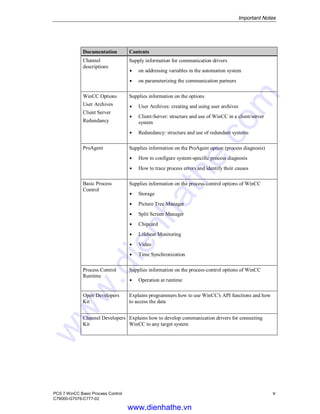
Documentation Contents
Getting Started Uses a configuration example to show beginners how to proceed step
by step through a project, and introduces WinCC’s overall
functionality.
WinCC V5
Volume 1:
System Overview
Software Protection
ControlCenter
Server Data
Channels
Report Designer
User Administrator
Volume 2:
Graphics Designer
Alarm Logging
Tag Logging
Text Library
Global Scripts
CrossReference
Supplies information
Á on interrelationships in WinCC
Á on how software protection works
Á on the structure, method of operation and use of WinCC
Explorer
Á on variables and variable groups
Á on communication between WinCC and the process
Á on creating and editing layouts for printing in Report
Designer
Á on assigning user rights in User Administrator
Á on generating process maps in Graphics Designer
Á on configuring, processing and archiving messages in Alarm
Logging
Á on configuring, processing and archiving measured values
in Tag Logging
Á on configuring multiple-language texts in Text Library
Á on compiling C functions and actions in Global Script
Á on generating lists of cross-references with Cross
Reference
Configuration
Manual
Volumes 1, 2 and 3
Supplies information
Á on configuring in WinCC, with examples for illustration
Á on special aspects of configuring
Á on the development environment for scripts, C functions and
actions (C course)
Á on the graphics objects in Global Library
Communication
Manual
Volumes 1 and 2
Supplies information
Á on links to SIMATIC via PROFIBUS, Industrial Ethernet
and OPC
Á on communication drivers and how they are configured, using
examples for general links by way of illustration
Á on special aspects of configuring
www.dienhathe.vn
www.dienhathe.com
Important Notes
PCS 7 WinCC Basic Process Control v
C79000-G7076-C777-02
Documentation Contents
Channel
descriptions
Supply information for communication drivers
Á on addressing variables in the automation system
Á on parameterizing the communication partners
WinCC Options
User Archives
Client Server
Redundancy
Supplies information on the options
Á User Archives: creating and using user archives
Á Client-Server: structure and use of WinCC in a client/server
system
Á Redundancy: structure and use of redundant systems
ProAgent Supplies information on the ProAgent option (process diagnosis)
Á How to configure system-specific process diagnosis
Á How to trace process errors and identify their causes
Basic Process
Control
Supplies information on the process-control options of WinCC
Á Storage
Á Picture Tree Manager
Á Split Screen Manager
Á Chipcard
Á Lifebeat Monitoring
Á Video
Á Time Synchronization
Process Control
Runtime
Supplies information on the process-control options of WinCC
Á Operation at runtime
Open Developers
Kit
Explains programmers how to use WinCC’s API functions and how
to access the data
Channel Developers
Kit
Explains how to develop communication drivers for connecting
WinCC to any target system
www.dienhathe.vn
www.dienhathe.com
Important Notes
vi PCS 7 WinCC Basic Process Control
C79000-G7076-C777-02
Additional Support
Please do not hesitate to contact use if you encounter problems in operation. Call + 49 911
895-7000 if you need assistance in solving problems. Remember to have the software ID
number at hand to streamline the process: this number is on the software product card.
Lost or defective authorization can be "repaired" on the phone by our Customer Support.
The number to dial is + 49 911 895-7200.
Information about SIMATIC Products
SIMATIC Customer Support offers you wide-ranging additional information on SIMATIC
products by way of its online services:
• You can obtain general up-to-date information
- on the Internet at http://www.ad.siemens.com/wincc
- from the fax polling no. + 49 8765 93 02 77 95 00
• Up-to-date product information and downloads which may be of assistance during
operation:
- on the Internet at http://www.ad.siemens.de/support/html-00/Index.shtml
- from the Bulletin Board System in Nuremberg (SIMATIC Customer Support
Mailbox): the number to dial is + 49 911 895-7100.
To dial into our mailbox, use a modem with a maximum baud rate that does not
exceed 28,800 bps (i.e. up to V.34) and set its parameters to 8, N, 1, ANSI or dial
yourself in via ISDN (x.75, 64 Kbit).
www.dienhathe.vn
www.dienhathe.com
PCS 7 WinCC Basic Process Control vii
C79000-G7076-C777-02
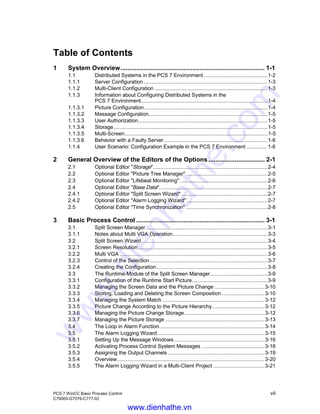
Table of Contents
1 System Overview.................................................................................. 1-1
1.1 Distributed Systems in the PCS 7 Environment ..........................................1-2
1.1.1 Server Configuration ..................................................................................1-3
1.1.2 Multi-Client Configuration ...........................................................................1-3
1.1.3 Information about Configuring Distributed Systems in the
PCS 7 Environment....................................................................................1-4
1.1.3.1 Picture Configuration..................................................................................1-4
1.1.3.2 Message Configuration...............................................................................1-5
1.1.3.3 User Authorization......................................................................................1-5
1.1.3.4 Storage......................................................................................................1-5
1.1.3.5 Multi-Screen...............................................................................................1-5
1.1.3.6 Behavior with a Faulty Server.....................................................................1-6
1.1.4 User Scenario: Configuration Example in the PCS 7 Environment ..............1-6
2 General Overview of the Editors of the Options................................ 2-1
2.1 Optional Editor "Storage"............................................................................2-4
2.2 Optional Editor "Picture Tree Manager" ......................................................2-5
2.3 Optional Editor "Lifebeat Monitoring" ..........................................................2-6
2.4 Optional Editor "Base Data"........................................................................2-7
2.4.1 Optional Editor "Split Screen Wizard" .........................................................2-7
2.4.2 Optional Editor "Alarm Logging Wizard"......................................................2-7
2.5 Optional Editor "Time Synchronization" ......................................................2-8
3 Basic Process Control ......................................................................... 3-1
3.1 Split Screen Manager.................................................................................3-1
3.1.1 Notes about Multi VGA Operation...............................................................3-3
3.2 Split Screen Wizard....................................................................................3-4
3.2.1 Screen Resolution......................................................................................3-5
3.2.2 Multi VGA ..................................................................................................3-6
3.2.3 Control of the Selection ..............................................................................3-7
3.2.4 Creating the Configuration..........................................................................3-8
3.3 The Runtime-Module of the Split Screen Manager......................................3-9
3.3.1 Configuration of the Runtime Start Picture..................................................3-9
3.3.2 Managing the Screen Data and the Picture Change .................................3-10
3.3.3 Storing, Loading and Deleting the Screen Composition ............................3-10
3.3.4 Managing the System Match ....................................................................3-12
3.3.5 Picture Change According to the Picture Hierarchy...................................3-12
3.3.6 Managing the Picture Change Storage .....................................................3-12
3.3.7 Managing the Picture Storage ..................................................................3-13
3.4 The Loop in Alarm Function......................................................................3-14
3.5 The Alarm Logging Wizard.......................................................................3-15
3.5.1 Setting Up the Message Windows............................................................3-16
3.5.2 Activating Process Control System Messages ..........................................3-18
3.5.3 Assigning the Output Channels ................................................................3-19
3.5.4 Overview..................................................................................................3-20
3.5.5 The Alarm Logging Wizard in a Multi-Client Project ..................................3-21
www.dienhathe.vn
www.dienhathe.com
Table of Contents
viii PCS 7 WinCC Basic Process Control
C79000-G7076-C777-02
3.6 Signal Module.......................................................................................... 3-23
3.6.1 General Information about the Signal Module:.......................................... 3-24
3.6.2 Function Characteristics of the Signal Module .......................................... 3-25
3.6.3 Installation of the Signal Module............................................................... 3-29
3.6.3.1 Arrangement and Meaning of the Switches and Plug-in Jumpers ............. 3-31
3.6.3.2 Addressing the Signal Module.................................................................. 3-32
3.6.3.3 Pin Assingment of the External Interface.................................................. 3-33
3.6.3.4 Testing the Signal Module........................................................................ 3-35
3.6.4 Important Settings within the WinCC System............................................ 3-37
4 Picture Tree Manager........................................................................... 4-1
4.1 Structure.................................................................................................... 4-1
4.1.1 Menu Bar................................................................................................... 4-2
4.1.1.1 Project Menu ............................................................................................. 4-3
4.1.1.2 Edit Menu .................................................................................................. 4-5
4.1.1.3 View Menu................................................................................................. 4-7
4.1.1.4 Menu Options ............................................................................................ 4-8
4.1.1.5 Help Menu ................................................................................................. 4-8
4.1.2 Standard Toolbar ....................................................................................... 4-9
4.1.3 Data Window ........................................................................................... 4-10
4.1.4 Status Bar................................................................................................ 4-10
4.2 Working with the Picture Tree Manager.................................................... 4-11
4.2.1 Display Picture Properties........................................................................ 4-12
4.2.2 Using a Drag-and-Drop Operation to Insert New Containers..................... 4-12
4.2.3 Using a Drag-and-Drop Operation to Insert Pictures................................. 4-13
4.3 The Hierarchy .......................................................................................... 4-14
4.3.1 Creating a Hierarchy ................................................................................ 4-15
4.3.2 Changing the Hierarchy............................................................................ 4-17
4.3.3 Deleting the Hierarchy.............................................................................. 4-18
4.4 Effects on Other Programs....................................................................... 4-20
4.4.1 Effects on the User Administrator............................................................. 4-20
4.4.2 Effects on the Group Display.................................................................... 4-20
4.4.3 Effects on the Text Library ....................................................................... 4-21
4.5 3D-Bar Graph Object ............................................................................... 4-21
4.5.1 3D-Bar Graph Properties ......................................................................... 4-21
4.6 Group display object ................................................................................ 4-23
4.7 Picture Selection by Measurement Point .................................................. 4-27
4.7.1 General Information ................................................................................. 4-27
4.7.2 Procedure................................................................................................ 4-27
4.7.3 Dialog Description.................................................................................... 4-28
4.8 Picture Selection by Name....................................................................... 4-29
4.8.1 General Information ................................................................................. 4-29
4.8.2 Procedure................................................................................................ 4-29
4.8.3 Dialog Description.................................................................................... 4-30
4.9 Opening Graphics Pictures Directly.......................................................... 4-30
4.10 Lifebeat Monitoring .................................................................................. 4-31
4.10.1 Function Principle of Lifebeat Monitoring.................................................. 4-32
4.10.2 Lifebeat Monitoring by Means of OPC Connection.................................... 4-33
4.10.2.1 The Dialog Window of the Lifebeat Monitoring Editor................................ 4-35
4.10.2.1.1 The Device List of the Lifebeat Monitoring Editor...................................... 4-37
www.dienhathe.vn
www.dienhathe.com
Table of Contents
PCS 7 WinCC Basic Process Control ix
C79000-G7076-C777-02
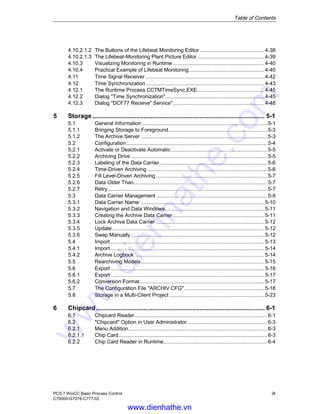
4.10.2.1.2 The Buttons of the Lifebeat Monitoring Editor ...........................................4-38
4.10.2.1.3 The Lifebeat-Monitoring Plant Picture Editor.............................................4-39
4.10.3 Visualizing Monitoring in Runtime.............................................................4-40
4.10.4 Practical Example of Lifebeat Monitoring..................................................4-40
4.11 Time Signal Receiver ...............................................................................4-42
4.12 Time Synchronization...............................................................................4-43
4.12.1 The Runtime Process CCTMTimeSync.EXE ............................................4-45
4.12.2 Dialog "Time Synchronization"..................................................................4-45
4.12.3 Dialog "DCF77 Receive" Service".............................................................4-48
5 Storage .................................................................................................. 5-1
5.1 General Information ...................................................................................5-1
5.1.1 Bringing Storage to Foreground..................................................................5-3
5.1.2 The Archive Server ....................................................................................5-3
5.2 Configuration..............................................................................................5-4
5.2.1 Activate or Deactivate Automatic................................................................5-5
5.2.2 Archiving Drive...........................................................................................5-5
5.2.3 Labeling of the Data Carrier........................................................................5-6
5.2.4 Time-Driven Archiving................................................................................5-6
5.2.5 Fill Level-Driven Archiving ..........................................................................5-7
5.2.6 Data Older Than.........................................................................................5-7
5.2.7 Retry..........................................................................................................5-7
5.3 Data Carrier Management..........................................................................5-8
5.3.1 Data Carrier Name: ..................................................................................5-10
5.3.2 Navigation and Data Windows..................................................................5-11
5.3.3 Creating the Archive Data Carrier.............................................................5-11
5.3.4 Lock Archive Data Carrier ........................................................................5-12
5.3.5 Update.....................................................................................................5-12
5.3.6 Swap Manually.........................................................................................5-12
5.4 Import ......................................................................................................5-13
5.4.1 Import ......................................................................................................5-14
5.4.2 Archive Logbook ......................................................................................5-14
5.5 Rearchiving Models..................................................................................5-15
5.6 Export ......................................................................................................5-16
5.6.1 Export ......................................................................................................5-17
5.6.2 Conversion Format...................................................................................5-17
5.7 The Configuration File "ARCHIV.CFG" .....................................................5-18
5.8 Storage in a Multi-Client Project ...............................................................5-23
6 Chipcard................................................................................................ 6-1
6.1 Chipcard Reader........................................................................................6-1
6.2 "Chipcard" Option in User Administrator .....................................................6-3
6.2.1 Menu Addition............................................................................................6-3
6.2.1.1 Chip Card...................................................................................................6-3
6.2.2 Chip Card Reader in Runtime.....................................................................6-4
www.dienhathe.vn
www.dienhathe.com
Table of Contents
x PCS 7 WinCC Basic Process Control
C79000-G7076-C777-02
7 Video...................................................................................................... 7-1
8 Appendix............................................................................................... 8-1
8.1 Functions of the Basic Packages................................................................ 8-1
Index .......................................................................................................Index-1
www.dienhathe.vn
www.dienhathe.com
PCS 7 WinCC Basic Process Control 1-1
C79000-G7076-C777-02
1 System Overview
Described in the following section are differences which need to be taken into consideration
by the person who configures the system when upgrading from WinCC Version 4.0 to 5.0.
WinCC Version 5.0 is forwards compatible with Version 4.0.
Upgrading an existing operator-station configuration (single-user or client-server system)
from Version 4.0 to Version 5.0 can be completed in just a few easy steps.
It is not necessary to reconfigure the operator station except Lifebeat Monitoring is
used!
You can upgrade each client-server system individually and independently of one another.
Proceed as follows:
1. Deactivate the WinCC project on the server
2. Install WinCC V5 on all operator stations
3. Convert configuration data
4. Activate the WinCC project on the server
Note
Mixed operation of client and server (client V4.0x - server V5.0) is not possible.
Your system can then be operated as before. All functions are available as usual.
www.dienhathe.vn
www.dienhathe.com
System Overview
1-2 PCS 7 WinCC Basic Process Control
C79000-G7076-C777-02
1.1 Distributed Systems in the PCS 7 Environment
The principle picture structure (overview area, workspace and button area) as well as the
base data are generated in the server or multi-client projects as before by the Process
Control System Wizard.
With PCS 7, WinCC is included in the Engineering System (Simatic Manager) for operator
station configuration. The multi-clients can be created in the ES. Tags are imported from
the ES into the operator stations (WinCC server) with the map process. Mapping is only
performed from the ES onto the operator stations. Packages are only created on the WinCC
servers. It is not possible to create the packages on the ES. The created packages can
subsequently be loaded into the multi-client projects.
Picture: Hardware components, maps and packages
WinCC
OS
Profibus-Interface)
(MPI-Interfaces/
PCS7
Wired Connection
Wired Connection
Commands
Process Values
Process Values
Internal Connection
Internal Connection
IPCS 7 Compact
IPCS 7 Compact
Automation
System
CPU
Load Program
AS
Engineering-
System-Station
Simatik Manager
Software Components:
Simatic Step 7
Simatic AS-OS-Engineering
Mapping
fromES to OS
Multi-Client1 Multi-Client2 Multi-Client3
Serverproject
ES
Generate Packages
Load
packages
from server
Project Project Project
Load Packages Load Packages Load Packages
Note
When mapping onto an operator station, the configuration data are not available on the
multi-client until the package has been created on the operator station (WinCC server) and
loaded onto the multi-clients.
www.dienhathe.vn
www.dienhathe.com
System Overview
PCS 7 WinCC Basic Process Control 1-3
C79000-G7076-C777-02
1.1.1 Server Configuration
In the PCS 7 environment, distribution occurs according to the technological hierarchy.
One or more areas of the hierarchy are configured in each server project. Configuration is
performed as before.
Base data are created – as before – with the wizards of the Process Control System options
(BaseData editor in the WinCC Explorer).
The statements made in the chapter "Picture Configuration" apply to the configuration of
tags.
1.1.2 Multi-Client Configuration
To copy identical multi-client projects onto other multi-clients, copy the project folder and
paste it in the appropriate location on the target computer. The computer name must then be
changed.
Many multi-client project settings, such as tag links, must be made directly on the multi-
client. If this is not accessible, the settings may be made via "Laplink" or "PC anywhere".
Packages must be loaded onto the multi-client on-site.
It is not possible to configure the picture hierarchy on the multi-client. Instead, an overview
of all hierarchies of all server projects imported as packages is presented in Runtime.
www.dienhathe.vn
www.dienhathe.com
System Overview
1-4 PCS 7 WinCC Basic Process Control
C79000-G7076-C777-02
1.1.3 Information about Configuring Distributed Systems in the PCS 7
Environment
1.1.3.1 Picture Configuration
Overview pictures (option BPC) contain 16 boxes. On the client side, it is not necessary to
note which boxes are assigned in the clients in order to set them up with little effort. The
base data takes into account the behavior of the client and multi-client and are delivered
with the product. The user does not need to assign any boxes. The areas of the picture
hierarchy of all server projects imported as packages are automatically displayed for the
customer in Runtime.
The order of the areas on the multi-client takes into account the order of the areas within the
server projects. The user has no influence on the order of the server projects. The system
ensures that the hierarchy is identically presented on all multi-clients.
Note
It is recommended to configure picture change via the standard functions of the Split
Screen Managers.
Example:
Server project A:
Customer configured (either via Picture Tree Manager on the operator station, or by
mapping the technological hierarchy) a picture hierarchy with the areas X1, X2 and X3.
Server project B:
Customer configured a picture hierarchy which consists of the areas Y1 and Y2. Now, he
creates packages on both server project and imports them onto:
Multi-client A in the order: first server project A, then server project B.
Multi-client B in reverse order.
No picture hierarchy is configured on the multi-client in V5.0. Instead, an overview of the
entire hierarchy covering all server projects is displayed in Runtime.
The areas (including the subordinate hierarchy) appear on both multi-clients in Runtime in
the order: X1, X2, X3, Y1, Y2.
Note
An order is assigned by the system which is identical on all multi-clients and cannot be
changed.
Pictures from multi-clients cannot be included in the overview pictures, as they are not
contained in any picture hierarchy. They can be opened in the workspace or process
window using the function "Picture via name".
www.dienhathe.vn
www.dienhathe.com
System Overview
PCS 7 WinCC Basic Process Control 1-5
C79000-G7076-C777-02
1.1.3.2 Message Configuration
All required data are provided by the Alarm Logging Wizard and the base data.
Configuration of the alarm controls is not necessary.
To open a measuring point screen as a process window, the WinCC standard function
"Loop in Alarm" is integrated into the function of the same name on the PCS 7 system. The
WinCC standard function "OpenPicture" cannot be employed in this case.
Additional information pertaining to this topic can be found in the chapter "The Loop in
Alarm Function".
1.1.3.3 User Authorization
Pictures and tags are created in the same manner as in WinCC.
Note
The user authorizations must be configured on the server project and multi-client project.
The user authorization matrix on the multi-client is possible only after the packages of all
server projects with configured picture hierarchies (Picture Tree Manager) have been
imported. The areas of a server project are only displayed in the columns of the user
authorization matrix on the multi-client when the package of the server project has been
loaded onto the multi-client project.
If configuration changes are made to the server project on the area level of the hierarchy of
the Picture Tree Manager, the package of the server project must be re-created, loaded onto
the multi-client and the appropriate changes made to the authorization matrix.
1.1.3.4 Storage
The functions of "Storage" continue to be configured on the server or a client, the multi-
client is not a configuration station. Unlike the "Storage" dialog box in a server project, the
"Storage" dialog box in a multi-client project only includes the "Data Carrier" tab. During
runtime, the "Storage" function can be accessed by the multi-client.
1.1.3.5 Multi-Screen
The multi-client is multi-screen capable without restriction. This means that with 16 multi-
clients each with 4 screens, a total of 64 screens are permitted.
Note
The recommended maximum number of screens is 16.
www.dienhathe.vn
www.dienhathe.com
System Overview
1-6 PCS 7 WinCC Basic Process Control
C79000-G7076-C777-02
1.1.3.6 Behavior with a Faulty Server
The areas of all server projects are displayed in the overview of the base-data picture.
Should a server fail, all areas of this server are deactivated. The order of the areas is not
changed as a result of this deactivation. Following a successful switchover to the redundant
server, the areas are again displayed as operable.
The configuration of Life Beat Monitoring in the server projects is performed as in WinCC
V4.02. In addition to operator stations and PLCs, multi-clients can also be monitored. No
manual configuration of Life Beat Monitoring is possible on the multi-client itself. Instead,
all server projects are displayed in the system picture of Life Beat Monitoring whose
packages have been imported into the multi-client. Should one of the operator stations or
PLCs monitored by the server project fail, the system picture of the multi-client will reflect
this failure in the accustomed manner. Click on the operator station icon of the respective
server project to execute a picture change to the system picture of the server project. The
operator station/PLC which has failed can be viewed there.
If a complete overview picture is open on the multi-client and the affected server fails, the
pictures coming in from the failed server are no longer displayed. After shifting to the
stand-by server, they are displayed again. The switchover procedure is performed
automatically.
In Life Beat Monitoring (sign-of-life monitoring), during the period between failure and
switch to the stand-by server, the monitored operator station/PLC is displayed as failed.
1.1.4 User Scenario: Configuration Example in the PCS 7 Environment
The following steps illustrate the configuration of a distributed system in the PCS 7
environment.
1. Create a server project using the Split Screen Wizard and the Alarm Logging Wizard.
2. Configure the picture hierarchy using the Picture Tree Manager.
3. Configure the user authorizations in the User Administrator.
4. Generate the packages on the servers.
5. Create a multi-client project using the Split Screen Wizard.
6. Load the packages.
7. Configure the Life Beat Monitoring functions on the multi-client.
8. Configure the user authorizations in the User Administrator of the multi-client.
www.dienhathe.vn
www.dienhathe.com
PCS 7 WinCC Basic Process Control 2-1
C79000-G7076-C777-02
2 General Overview of the Editors of the Options
The extent of the performance of the WinCC system can be expanded by adding option
packages. In order to effectively use the individual packages, the Basic Process Control
option package must be installed.
How to Install Optional Editors:
While you are installing WinCC, you must click on the "User-Defined" button in the "Setup
Variations" dialog window. After you have selected the desired languages for the WinCC
system in the "Select Language" dialog, you enter the "User-Defined Selection" dialog
window. Select the box "Options" in this dialog and then use the "Change" button to open
the "Select Subcomponents" dialog window. This window contains the following selection
boxes:
Selection Box Installs the Following Modules
Basic Process Control Base data, Split Screen Manager, management view,
Message Wizard (Alarm Logging Wizard), signal
outputs via a signal module, picture hierarchy (Picture
Tree Manager) group display and sign-of-life monitoring
(Lifebeat Monitoring)
Storage Archive/rearchive (Storage). The archive functions
support automatic swapping of data from the hard disk to
long-term data carriers as well as the deletion of data
from the hard disk.
Chipcard Chipcard functionality for user authorization. If you
install WinCC with the chipcard option, the functionality
of the User Administrator expands. The Chipcard
Reader option adds a "Chipcard" item and its
corresponding functions to the menu bar.
Video Camera OCX. By connecting this module, you can create
a window with an OLE Control Object in the "Graphics
Designer". A video picture that is taken by a video
camera is displayed in this window.
Click the mouse to select the components you want to use in your project management and
then click the "Next" button to continue the installation.
www.dienhathe.vn
www.dienhathe.com
General Overview of the Editors of the Options
2-2 PCS 7 WinCC Basic Process Control
C79000-G7076-C777-02
How to Install the S7DOS Communication Driver:
While you are installing WinCC, you must click on the "User-Defined" button in the "Setup
Variations" dialog window. After you have selected the desired languages for the WinCC
system in the "Select Language" dialog, you enter the "User-Defined Selection" dialog
window. Select the "Connections" box in this dialog and then use the "Change" button to
open the "Select Subcomponents" dialog window. This window contains the following
selection box:
Selection Box Installs the Following Module
S7Dos Communication driver for the S7 connection. You can find further
information in the STEP 7 manual.
Notice: This communication driver is NOT available under
Windows NT.
If you want to install the S7DOS communication driver, click on this box to activate it.
Then click the "Next" button to continue the installation.
The WinCC System Offers the Following Optional Editors:
If you selected all of the selection boxes in the "Select Subcomponents" dialog window, the
following additional editors/wizards are available to you in the Project Navigation Window:
Editor Meaning
Storage The storage functions support the automatic swapping of
data from the hard disk to long-term data media as well as
the deleting of data on the hard disk.
Picture Tree Manager The Picture Tree Manager is used to manage a hierarchy of
systems, subsystems, function names, and Graphics
Designer pictures.
Time Synchronization Time synchronization is a function for systems with Profibus
and industrial Ethernet bus systems. A WinCC-OS, as the
active time master, is therefore responsible for
synchronizing all of the other operator stations and PLCs on
the system bus with the current time. The current time of the
internal clock in the system bus is used as the clock slave for
the synchronization.
Lifebeat Monitoring Lifebeat Monitoring takes over permanent monitoring of the
individual systems (operator stations and PLCs) and makes
the results visible in the form of screen outputs in the
runtime system. It triggers the horn module automatically
and generates the process control system messages.
Base Data Configuration of the WinCC base data by means of wizards.
Split Screen Wizard The Split Screen Wizard is a part of the Split Screen
Manager and helps to configure and initialize the monitor
and picture settings for the current WinCC project. You
should execute this initialization as soon as you load a
project because other applications (such as runtime and
group display) access these data.
www.dienhathe.vn
www.dienhathe.com
General Overview of the Editors of the Options
PCS 7 WinCC Basic Process Control 2-3
C79000-G7076-C777-02
Editor Meaning
Alarm Logging Wizard The Alarm Logging Wizard is used for configuring and
initializing the message window, messages, message classes
and systems of the process control messages as well as
signal output via a signal component for the current WinCC
project.
Note
As an additional WinCC expansion, you can purchase the optional SFC (sequential function
chart) editor separately. Refer to the SIEMENS Ordering Information Catalog ST 80 for
information about the components for WinCC. The SFC is a control-flow-oriented
sequential control system that is implemented to control processes.
Sequential control is a control with a mandatory step-by-step sequence that switches from
one state to the next depending on operations.
www.dienhathe.vn
www.dienhathe.com
General Overview of the Editors of the Options
2-4 PCS 7 WinCC Basic Process Control
C79000-G7076-C777-02
2.1 Optional Editor "Storage"
General Information About the "Storage" Editor:
The optional Storage editor supports the automatic swapping of data from the hard disk to
long-term data media as well as the deletion of data on the hard disk.
The automatic swapping can be controlled by the following two factors:
• Time-driven archiving triggered by date or time input.
• Fill level-driven archiving triggered by the fill level of the storage medium.
Note
You cannot use the Storage function to edit data that are stored in continuous archives!
www.dienhathe.vn
www.dienhathe.com
General Overview of the Editors of the Options
PCS 7 WinCC Basic Process Control 2-5
C79000-G7076-C777-02
2.2 Optional Editor "Picture Tree Manager"
General Information About the "Picture Tree Manager" Editor:
The Picture Tree Manager is used to manage a hierarchy of system names, subsystem
names, function names and pictures contained in the Graphics Designer.
All processes and changes that you make in the Picture Tree Manager relate to the current
WinCC project.
You can carry out the following activities with the Picture Tree Manager:
• Create and edit the hierarchy of a project by using the Picture Tree Manager editor
(CS).
• Support the definition of systems.
• Support the assignment of pictures to these systems and create a relationship between
the pictures created in Graphics Designer.
• Synchronize between the CS and RT components of the Picture Tree Manager as well
as of the group display and of the Picture Tree Navigator.
• This synchronization includes the entire network.
• Edit with the drag-and-drop function.
• The Picture Tree Manager has its own on-line help
How to Open the Picture Tree Manager:
1. Double click on the "Editor" project component in the Project Navigation Window to
view a list of all of the installed editors.
2. Click the right mouse button on the "Picture Tree Manager" editor.
3. In the pop-up menu that appears, select the menu item "Open".
4. The "Picture Tree Manager" starts and you can edit it.
www.dienhathe.vn
www.dienhathe.com
General Overview of the Editors of the Options
2-6 PCS 7 WinCC Basic Process Control
C79000-G7076-C777-02
2.3 Optional Editor "Lifebeat Monitoring"
The "Lifebeat Monitoring" editor offers:
• the possibility to dispatch process control messages
• the possibility to initiate the signal component
• its own on-line help
How to Open Lifebeat Monitoring:
1. Click the right mouse button in the project navigation window on the "Lifebeat
Monitoring" project component.
2. In the pop-up menu that appears, select the "Open" menu item.
3. "Lifebeat Monitoring" starts and you can initialize Lifebeat Monitoring.
www.dienhathe.vn
www.dienhathe.com
General Overview of the Editors of the Options
PCS 7 WinCC Basic Process Control 2-7
C79000-G7076-C777-02
2.4 Optional Editor "Base Data"
General Information About the "Base Data" Editor:
Contained in this editor are the Split Screen Wizard and the Alarm Logging Wizard, which
are necessary for configuring and initializing the base data of a WinCC project. After
creating a new project, run the Split Screen Wizard first and then the Alarm Logging
Wizard. This also applies to an existing project, if the WinCC version has been upgraded.
Note
The Wizards must not be started while in runtime.
2.4.1 Optional Editor "Split Screen Wizard"
The Task of the Split Screen Wizard:
The Split Screen Wizard is a component of the Split Screen Manager.
The wizard helps to configure and initialize the monitor and picture settings for the current
WinCC project.
Running the Split Screen Wizard will (as a default) ready the user interface for PCS 7. This
includes the automatic parameterization of the start screen. To be able to use the full
functionality of the Basic Process Control for PCS 7, no other start screen must be entered
manually.
You should execute this initialization as soon as you load a project because other
applications (such as Runtime and Group Display) access these data.
2.4.2 Optional Editor "Alarm Logging Wizard"
The Alarm Logging Wizard is used for configuring and initializing the message window,
messages, message classes and the signal-transmitter tags for the current WinCC project.
You can make certain settings in the wizard over several pages. After you have completed
all of the pages in the wizard, the generation is started. In this case, the Wizard creates data
that will be used in the PCS 7 environment - this data must not be deleted manually.
www.dienhathe.vn
www.dienhathe.com
General Overview of the Editors of the Options
2-8 PCS 7 WinCC Basic Process Control
C79000-G7076-C777-02
2.5 Optional Editor "Time Synchronization"
General Information about the "Time Synchronization" Editor:
Time synchronization is a function for systems with Profibus and industrial Ethernet bus
systems. A WinCC operator station, as the active time master, is therefore responsible for
synchronizing all of the other operator stations and PLCs on the system bus with the current
time. The current time of the internal clock in the system bus is used as the clock slave for
the synchronization.
"Time Synchronization" offers the following:
• Chronological coordination of messages for an entire system
• Synchronization of all OSs and PLCs on the system bus with the current time
• its own on-line help
www.dienhathe.vn
www.dienhathe.com
PCS 7 WinCC Basic Process Control 3-1
C79000-G7076-C777-02
3 Basic Process Control
If you selected the option package Basic Process Control during the user-defined
installation of the WinCC system, the following modules will be integrated into WinCC:
Base data, Split Screen Manager, Message Wizard, (Alarm Logging Wizard), signal outputs
via a signal component, picture hierarchy (Picture Tree Manager), 3D-Bar Graph, group
display and sign-of-life monitoring (Lifebeat Monitoring)
3.1 Split Screen Manager
The Split Screen Manager is divided into two parts:
Á Split Screen Wizard: is used for configuring and initializing the screen and picture
settings for the current WinCC project.
This initialization should be executed as soon as a project is loaded, as other
applications (such as Runtime and Group Display) access these data.
The wizard defines the newly created picture (@Screen.PDL) as the start picture.
Á Split Screen Runtime: The runtime system of the Split Screen Manager manages the
screen data and picture changes. You can also switch the language to a language set in
the Text Library.
Note
The Split Screen Manager is a WinCC option and is only available to you if you select the
option package "Basic Process Control" during installation.
www.dienhathe.vn
www.dienhathe.com
Basic Process Control
3-2 PCS 7 WinCC Basic Process Control
C79000-G7076-C777-02
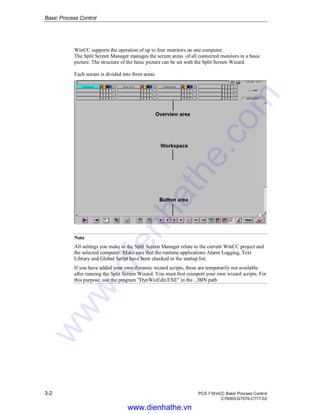
WinCC supports the operation of up to four monitors on one computer.
The Split Screen Manager manages the screen areas of all connected monitors in a basic
picture. The structure of the basic picture can be set with the Split Screen Wizard.
Each screen is divided into three areas.
Note
All settings you make in the Split Screen Manager relate to the current WinCC project and
the selected computer. Make sure that the runtime applications Alarm Logging, Text
Library and Global Script have been checked in the startup list.
If you have added your own dynamic wizard scripts, these are temporarily not available
after running the Split Screen Wizard. You must first reimport your own wizard scripts. For
this purpose, use the program "DynWizEdit.EXE" in the ../BIN path
www.dienhathe.vn
www.dienhathe.com
Basic Process Control
PCS 7 WinCC Basic Process Control 3-3
C79000-G7076-C777-02
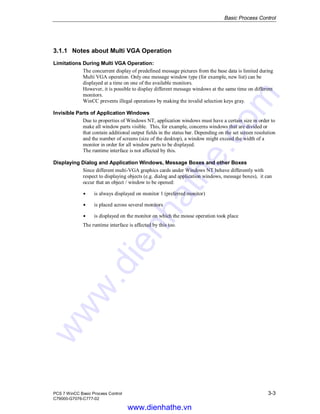
3.1.1 Notes about Multi VGA Operation
Limitations During Multi VGA Operation:
The concurrent display of predefined message pictures from the base data is limited during
Multi VGA operation. Only one message window type (for example, new list) can be
displayed at a time on one of the available monitors.
However, it is possible to display different message windows at the same time on different
monitors.
WinCC prevents illegal operations by making the invalid selection keys gray.
Invisible Parts of Application Windows
Due to properties of Windows NT, application windows must have a certain size in order to
make all window parts visible. This, for example, concerns windows that are divided or
that contain additional output fields in the status bar. Depending on the set screen resolution
and the number of screens (size of the desktop), a window might exceed the width of a
monitor in order for all window parts to be displayed.
The runtime interface is not affected by this.
Displaying Dialog and Application Windows, Message Boxes and other Boxes
Since different multi-VGA graphics cards under Windows NT behave differently with
respect to displaying objects (e.g. dialog and application windows, message boxes), it can
occur that an object / window to be opened:
Á is always displayed on monitor 1 (preferred monitor)
Á is placed across several monitors
Á is displayed on the monitor on which the mouse operation took place
The runtime interface is affected by this too.
www.dienhathe.vn
www.dienhathe.com
Basic Process Control
3-4 PCS 7 WinCC Basic Process Control
C79000-G7076-C777-02
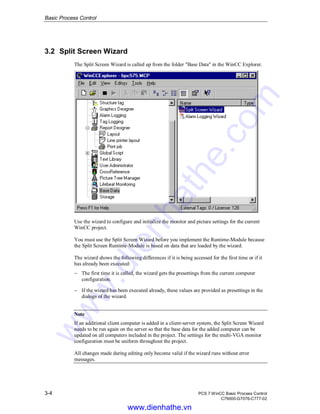
3.2 Split Screen Wizard
The Split Screen Wizard is called up from the folder "Base Data" in the WinCC Explorer.
Use the wizard to configure and initialize the monitor and picture settings for the current
WinCC project.
You must use the Split Screen Wizard before you implement the Runtime-Module because
the Split Screen Runtime-Module is based on data that are loaded by the wizard.
The wizard shows the following differences if it is being accessed for the first time or if it
has already been executed:
− The first time it is called, the wizard gets the presettings from the current computer
configuration.
− If the wizard has been executed already, these values are provided as presettings in the
dialogs of the wizard.
Note
If an additional client computer is added in a client-server system, the Split Screen Wizard
needs to be run again on the server so that the base data for the added computer can be
updated on all computers included in the project. The settings for the multi-VGA monitor
configuration must be uniform throughout the project.
All changes made during editing only become valid if the wizard runs without error
messages.
www.dienhathe.vn
www.dienhathe.com
Basic Process Control
PCS 7 WinCC Basic Process Control 3-5
C79000-G7076-C777-02
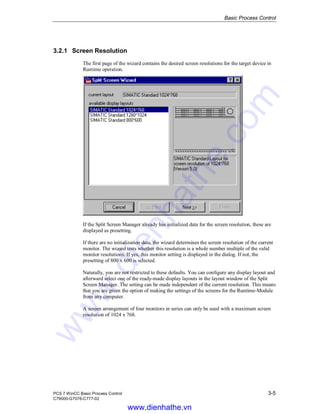
3.2.1 Screen Resolution
The first page of the wizard contains the desired screen resolutions for the target device in
Runtime operation.
If the Split Screen Manager already has initialized data for the screen resolution, these are
displayed as presetting.
If there are no initialization data, the wizard determines the screen resolution of the current
monitor. The wizard tests whether this resolution is a whole number multiple of the valid
monitor resolutions. If yes, this monitor setting is displayed in the dialog. If not, the
presetting of 800 x 600 is selected.
Naturally, you are not restricted to these defaults. You can configure any display layout and
afterward select one of the ready-made display layouts in the layout window of the Split
Screen Manager. The setting can be made independent of the current resolution. This means
that you are given the option of making the settings of the screens for the Runtime-Module
from any computer.
A screen arrangement of four monitors in series can only be used with a maximum screen
resolution of 1024 x 768.
www.dienhathe.vn
www.dienhathe.com
Basic Process Control
3-6 PCS 7 WinCC Basic Process Control
C79000-G7076-C777-02
3.2.2 Multi VGA
On the second page of the wizard, set the desired screen configuration for the target unit in
the Runtime-Module operation.
If the Split Screen Manager already has installed data for the screen configuration, these are
displayed as presetting.
If no initialization data are available, the presetting "One monitor" is used.
You are, of course, not restricted to these defaults. The setting may be made independent of
the current screen. This means that you are given the option to make the settings of the
screen configuration for the Runtime-Module from any computer.
www.dienhathe.vn
www.dienhathe.com
Basic Process Control
PCS 7 WinCC Basic Process Control 3-7
C79000-G7076-C777-02
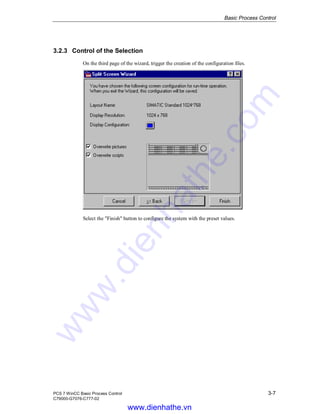
3.2.3 Control of the Selection
On the third page of the wizard, trigger the creation of the configuration files.
Select the "Finish" button to configure the system with the preset values.
www.dienhathe.vn
www.dienhathe.com
Basic Process Control
3-8 PCS 7 WinCC Basic Process Control
C79000-G7076-C777-02
3.2.4 Creating the Configuration
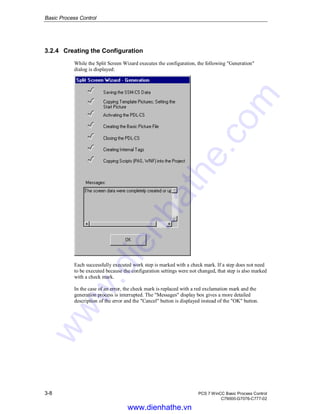
While the Split Screen Wizard executes the configuration, the following "Generation"
dialog is displayed:
Each successfully executed work step is marked with a check mark. If a step does not need
to be executed because the configuration settings were not changed, that step is also marked
with a check mark.
In the case of an error, the check mark is replaced with a red exclamation mark and the
generation process is interrupted. The "Messages" display box gives a more detailed
description of the error and the "Cancel" button is displayed instead of the "OK" button.
www.dienhathe.vn
www.dienhathe.com
Basic Process Control
PCS 7 WinCC Basic Process Control 3-9
C79000-G7076-C777-02
3.3 The Runtime-Module of the Split Screen Manager
The Split Screen Manager Runtime-Module offers, in the form of a DLL and some project-
specific AP functions, an interface for managing pictures as well as controlling picture
changes.
The Split Screen Manager has the following significant performance features:
− Managing the screen data and picture change.
− Saving the screen composition.
− Managing the system match of all displayed pictures.
− Supporting picture changes according to the picture hierarchy set in the configuration
system of the Picture Tree Manager.
− Managing a picture change storage (Picture Storage).
− Managing a picture storage (Picture Store).
The Split Screen Manager is called up by activating Runtime. This can be performed, for
example, via the "Activate" icon in the toolbar or the menu item "File / Activate" in the
WinCC Explorer. Afterwards, the basic picture of the Split Screen Managers appears. In the
upper part of the basic picture are buttons via which the WinCC pictures of the current
project can be opened. These pictures must first be set up with the Picture Tree Manager.
The Picture Tree Manager is also responsible for the hierarchy of the WinCC pictures.
3.3.1 Configuration of the Runtime Start Picture
The Split Screen Wizard creates up a start picture for Runtime. The appearance of this start
picture is set in the @Screen.PDL file. In the Graphics Designer, the @Screen.PDL file can
be preconfigured project specifically.
The Runtime screen is divided into an overview, work, and button area. The workspace is
required for Runtime, whereas the overview and button areas are optional.
Á For the overview and button areas, several preconfigured PDL graphic files are
available, e.g. @Overview1.PDL for the overview area. Instead of these preconfigured
PDL graphic files, other PDL graphic files can be used for the overview and button
areas.
Á The workspace contains the PDL graphic file @1001.PDL. It already contains all the
elements needed for Runtime, e.g. @Login.PDL for logging in and @Top01.PDL for
the bottom page 0.
The three areas of the @Screen.PDL can be sized and moved in the Graphics Designer - the
overview and button areas can also be omitted completely.
www.dienhathe.vn
www.dienhathe.com
Basic Process Control
3-10 PCS 7 WinCC Basic Process Control
C79000-G7076-C777-02
3.3.2 Managing the Screen Data and the Picture Change
The Split Screen Manager supports a maximum of four monitors that can each have a
workspace, a button area, a maximum of eight process windows (Top Windows) and any
number of preconfigured boxes with permanently assigned pictures (Special fields).
You can access and scan the individual screen areas by means of the API functions of the
Split Screen Manager.
3.3.3 Storing, Loading and Deleting the Screen Composition
The Runtime-Module of the Split Screen Manager manages the screen composition.
The buttons for storing, loading and deleting a screen composition are located in the button
bar:
Á The buttons are active only when a user is logged in.
Á The screen compositions are assigned to the logged-in user on saving.
Á Any number of screen compositions can be stored for each user.
Note:
Every user who has logged on can save a screen composition called "Default". This screen
composition is opened automatically when the user logs on and is what might be called the
user’s personal start picture.
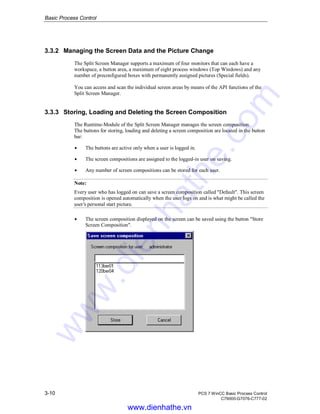
Á The screen composition displayed on the screen can be saved using the button "Store
Screen Composition".
www.dienhathe.vn
www.dienhathe.com
Basic Process Control
PCS 7 WinCC Basic Process Control 3-11
C79000-G7076-C777-02
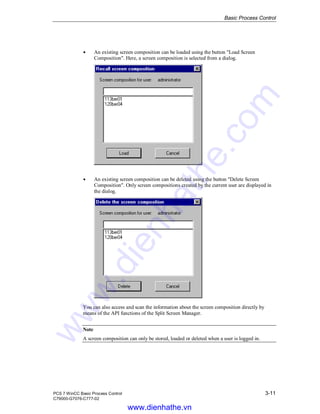
Á An existing screen composition can be loaded using the button "Load Screen
Composition". Here, a screen composition is selected from a dialog.
Á An existing screen composition can be deleted using the button "Delete Screen
Composition". Only screen compositions created by the current user are displayed in
the dialog.
You can also access and scan the information about the screen composition directly by
means of the API functions of the Split Screen Manager.
Note
A screen composition can only be stored, loaded or deleted when a user is logged in.
www.dienhathe.vn
www.dienhathe.com
Basic Process Control
3-12 PCS 7 WinCC Basic Process Control
C79000-G7076-C777-02
3.3.4 Managing the System Match
Each picture change is executed by means of the Runtime-Module of the Split Screen
Manager.
This means that the Split Screen Manager Runtime-Module can always provide information
about the association of the currently displayed pictured to the system at any time (system
hierarchy).
This information is required for the system-specific, user-authorization check and can be
addressed and queried using global scripts and the appropriate API functions of the Split
Screen Manager.
Appropriate Global Scripts are available for the configuration of the graphic objects.
3.3.5 Picture Change According to the Picture Hierarchy
Prerequisite for this function is an existing system picture hierarchy which was created
using the Picture Tree Manager.
You can execute the picture change directly by means of the Split Screen Manager
Runtime-Module.
The API functions of the Split Screen Manager must be used in order to do so. The
Runtime-Module of the Split Screen Manager then works with the Graphics Designer
Runtime-Module to execute the picture change according to the created picture hierarchy.
3.3.6 Managing the Picture Change Storage
The Split Screen Manager reports each picture change in the workspace and enables you to
call up all of the pictures that were displayed earlier.
A picture change storage is managed for each workspace in the basic picture. Stored in
these memories are the eight most recently selected picture names for each workspace.
The previous picture is selected using the button shown in the margin.
Note
The authorizations for the pictures in the picture change storage are user-dependent.
This means that every time the user is changed (relogged) in WinCC, the picture change
storage of all monitors is deleted.
You can use the API functions of the Split Screen Manager to query the contents of the
picture memory.
www.dienhathe.vn
www.dienhathe.com
Basic Process Control
PCS 7 WinCC Basic Process Control 3-13
C79000-G7076-C777-02
3.3.7 Managing the Picture Storage
In the Split Screen Manager, each workspace in the base picture has its own picture storage.
The picture storage helps load a picture in the workspace easily.
This picture can always be called up (even several times).
If you save a new picture, it overwrites the original picture in the picture storage.
A unique picture storage is managed for every workspace in the base picture.
The picture is stored and loaded into the picture storage using the buttons shown in the
margin.
Note
The authorizations for the pictures in the picture storage are user dependent.
This means that every time the user is changed (relogged) in WinCC, the picture storage of
all monitors is deleted.
You can use the API functions of the Split Screen Manager to scan, change, or delete the
contents of the picture storage.
www.dienhathe.vn
www.dienhathe.com
Basic Process Control
3-14 PCS 7 WinCC Basic Process Control
C79000-G7076-C777-02
3.4 The Loop in Alarm Function
Via the "Loop in Alarm" function, a screen of the associated measuring point can be
opened if an alarm is reported. For the configuration of the "Loop in Alarm", the Alarm
Logging editor is opened. The "Loop in Alarm" function can be found in the "Tag/Action"
tab of the properties dialog of the individual messages. As the standard function,
"OpenPicture" has been set - in the PCS 7 environment, this value must not be used since a
screen called by this standard function will cover the entire runtime interface making
additional inputs impossible. For the "Loop in Alarm" function, the PCS 7 system provides
three screen opening options:
1. Opening a measuring point screen as the process window by indicating an instance
name of a measuring point, the corresponding function is named:
Á "LoopInAlarm"
2. Opening a measuring point screen in the work area by indicating a screen name, the
corresponding function is named:
Á "SSMChangeWorkField"
3. Opening a measuring point screen as the top window by indicating a screen name, the
corresponding function is named:
Á "SSMOpenTopField"
For option 1, note that the standard function sets the instance name of the measuring point
as the call parameter. In the PCS 7 system, this task is carried out by the mapper. A
selection of the call parameters via the function browser is not possible.
If accessing the "LoopInAlarm" function should result in the display of a certain screen,
this can be specified in the "Screen Name" editing field of option 2 and 3.
The standard functions can be found by clicking on the "…" button to the right of the
"Function Name" field, which will open the function browser. In the "Standard Functions" /
"Split Screen Manager" folder, the functions mentioned above can be selected.
For the call of the "Loop in Alarm" function in runtime, select the respective message from
the message list and activate the "Loop in Alarm" button.
www.dienhathe.vn
www.dienhathe.com
Basic Process Control
PCS 7 WinCC Basic Process Control 3-15
C79000-G7076-C777-02
3.5 The Alarm Logging Wizard
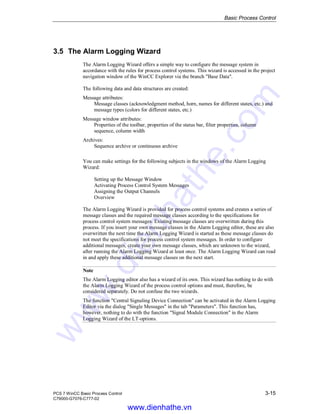
The Alarm Logging Wizard offers a simple way to configure the message system in
accordance with the rules for process control systems. This wizard is accessed in the project
navigation window of the WinCC Explorer via the branch "Base Data".
The following data and data structures are created:
Message attributes:
Message classes (acknowledgment method, horn, names for different states, etc.) and
message types (colors for different states, etc.)
Message window attributes:
Properties of the toolbar, properties of the status bar, filter properties, column
sequence, column width
Archives:
Sequence archive or continuous archive
You can make settings for the following subjects in the windows of the Alarm Logging
Wizard:
Setting up the Message Window
Activating Process Control System Messages
Assigning the Output Channels
Overview
The Alarm Logging Wizard is provided for process control systems and creates a series of
message classes and the required message classes according to the specifications for
process control system messages. Existing message classes are overwritten during this
process. If you insert your own message classes in the Alarm Logging editor, these are also
overwritten the next time the Alarm Logging Wizard is started as these message classes do
not meet the specifications for process control system messages. In order to configure
additional messages, create your own message classes, which are unknown to the wizard,
after running the Alarm Logging Wizard at least once. The Alarm Logging Wizard can read
in and apply these additional message classes on the next start.
Note
The Alarm Logging editor also has a wizard of its own. This wizard has nothing to do with
the Alarm Logging Wizard of the process control options and must, therefore, be
considered separately. Do not confuse the two wizards.
The function "Central Signaling Device Connection" can be activated in the Alarm Logging
Editor via the dialog "Single Messages" in the tab "Parameters". This function has,
however, nothing to do with the function "Signal Module Connection" in the Alarm
Logging Wizard of the LT-options.
www.dienhathe.vn
www.dienhathe.com
Basic Process Control
3-16 PCS 7 WinCC Basic Process Control
C79000-G7076-C777-02
3.5.1 Setting Up the Message Windows
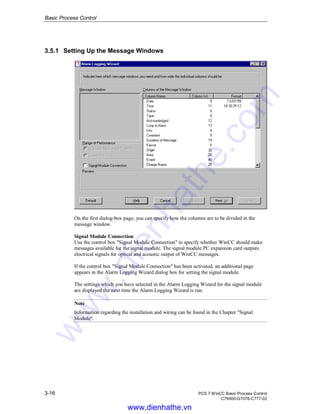
On the first dialog-box page, you can specify how the columns are to be divided in the
message window.
Signal Module Connection
Use the control box "Signal Module Connection" to specify whether WinCC should make
messages available for the signal module. The signal module PC expansion card outputs
electrical signals for optical and acoustic output of WinCC messages.
If the control box "Signal Module Connection" has been activated, an additional page
appears in the Alarm Logging Wizard dialog box for setting the signal module.
The settings which you have selected in the Alarm Logging Wizard for the signal module
are displayed the next time the Alarm Logging Wizard is run.
Note
Information regarding the installation and wiring can be found in the Chapter "Signal
Module".
www.dienhathe.vn
www.dienhathe.com
Basic Process Control
PCS 7 WinCC Basic Process Control 3-17
C79000-G7076-C777-02
Message Window Columns
All message windows are provided with presettings for setting up the columns. These
presettings can be viewed in the window "Message Window Columns".
Click the right mouse button on the columns "Date" and "Time" to open a dialog in which
the output format can be changed. The column width is automatically changed according to
the format you select.
The column widths of the other columns can be freely changed by ...
− clicking the right mouse button on the column element and entering the column width
using the keyboard
Note
You cannot change the order of the columns.
www.dienhathe.vn
www.dienhathe.com
Basic Process Control
3-18 PCS 7 WinCC Basic Process Control
C79000-G7076-C777-02
3.5.2 Activating Process Control System Messages
Use this dialog to enable or disable individual process control system messages. A control
box displays the status of the messages.
Use the control box "System Messages" to incorporate predefined messages in the system.
These messages are imported into the alarm system upon activation of the control box.
By selecting the "Filter messages area-specific" check box, you can have messages filtered
at runtime in accordance with the release of user authorizations in User Administrator. If
the control box is activated, messages are filtered according to user. If the control box is
deactivated, all messages are displayed.
Use the control box "Do not display the warning for the area-specific filtering again" to
activate or deactivate the following dialog:
Note
In normal use, all process control system messages should be activated. The system may
otherwise not function correctly.
www.dienhathe.vn
www.dienhathe.com
Basic Process Control
PCS 7 WinCC Basic Process Control 3-19
C79000-G7076-C777-02
3.5.3 Assigning the Output Channels
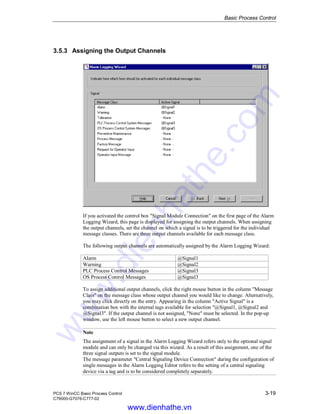
If you activated the control box "Signal Module Connection" on the first page of the Alarm
Logging Wizard, this page is displayed for assigning the output channels. When assigning
the output channels, set the channel on which a signal is to be triggered for the individual
message classes. There are three output channels available for each message class.
The following output channels are automatically assigned by the Alarm Logging Wizard:
Alarm @Signal1
Warning @Signal2
PLC Process Control Messages @Signal3
OS Process Control Messages @Signal3
To assign additional output channels, click the right mouse button in the column "Message
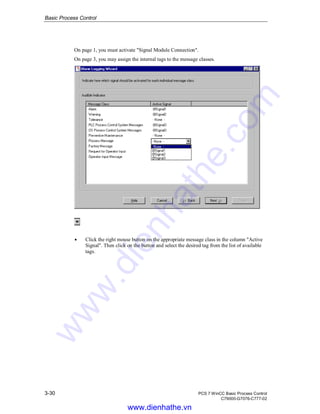
Class" on the message class whose output channel you would like to change. Alternatively,
you may click directly on the entry. Appearing in the column "Active Signal" is a
combination box with the internal tags available for selection "@Signal1, @Signal2 and
@Signal3". If the output channel is not assigned, "None" must be selected. In the pop-up
window, use the left mouse button to select a new output channel.
Note
The assignment of a signal in the Alarm Logging Wizard refers only to the optional signal
module and can only be changed via this wizard. As a result of this assignment, one of the
three signal outputs is set to the signal module.
The message parameter "Central Signaling Device Connection" during the configuration of
single messages in the Alarm Logging Editor refers to the setting of a central signaling
device via a tag and is to be considered completely separately.
www.dienhathe.vn
www.dienhathe.com
Basic Process Control
3-20 PCS 7 WinCC Basic Process Control
C79000-G7076-C777-02
3.5.4 Overview
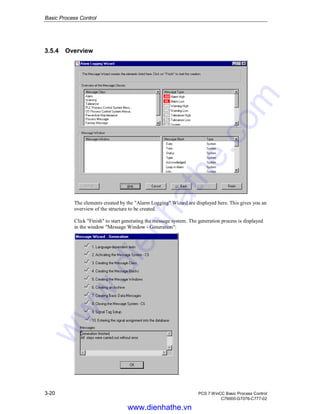
The elements created by the "Alarm Logging" Wizard are displayed here. This gives you an
overview of the structure to be created.
Click "Finish" to start generating the message system. The generation process is displayed
in the window "Message Window - Generation":
www.dienhathe.vn
www.dienhathe.com
Basic Process Control
PCS 7 WinCC Basic Process Control 3-21
C79000-G7076-C777-02
3.5.5 The Alarm Logging Wizard in a Multi-Client Project
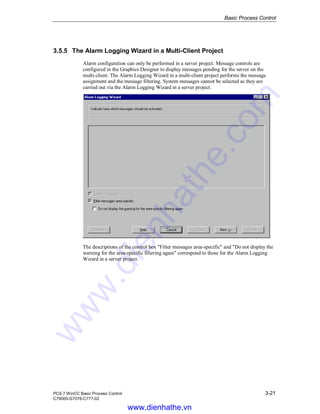
Alarm configuration can only be performed in a server project. Message controls are
configured in the Graphics Designer to display messages pending for the server on the
multi-client. The Alarm Logging Wizard in a multi-client project performs the message
assignment and the message filtering. System messages cannot be selected as they are
carried out via the Alarm Logging Wizard in a server project.
The descriptions of the control box "Filter messages area-specific" and "Do not display the
warning for the area-specific filtering again" correspond to those for the Alarm Logging
Wizard in a server project.
www.dienhathe.vn
www.dienhathe.com
Basic Process Control
3-22 PCS 7 WinCC Basic Process Control
C79000-G7076-C777-02
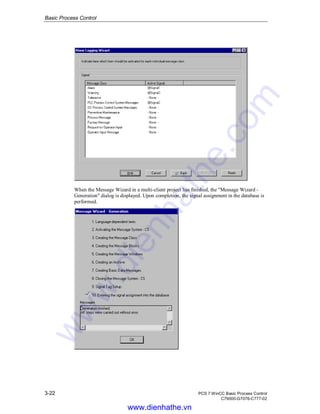
When the Message Wizard in a multi-client project has finished, the "Message Wizard -
Generation" dialog is displayed. Upon completion, the signal assignment in the database is
performed.
www.dienhathe.vn
www.dienhathe.com
Basic Process Control
PCS 7 WinCC Basic Process Control 3-23
C79000-G7076-C777-02
3.6 Signal Module
Hardware Option
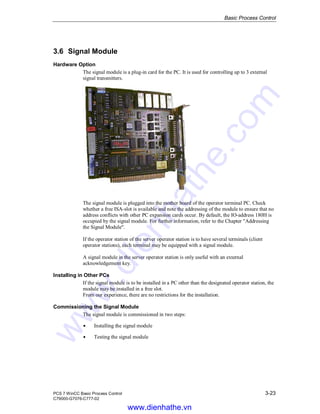
The signal module is a plug-in card for the PC. It is used for controlling up to 3 external
signal transmitters.
The signal module is plugged into the mother board of the operator terminal PC. Check
whether a free ISA-slot is available and note the addressing of the module to ensure that no
address conflicts with other PC expansion cards occur. By default, the IO-address 180H is
occupied by the signal module. For further information, refer to the Chapter "Addressing
the Signal Module".
If the operator station of the server operator station is to have several terminals (client
operator stations), each terminal may be equipped with a signal module.
A signal module in the server operator station is only useful with an external
acknowledgement key.
Installing in Other PCs
If the signal module is to be installed in a PC other than the designated operator station, the
module may be installed in a free slot.
From our experience, there are no restrictions for the installation.
Commissioning the Signal Module
The signal module is commissioned in two steps:
Á Installing the signal module
Á Testing the signal module
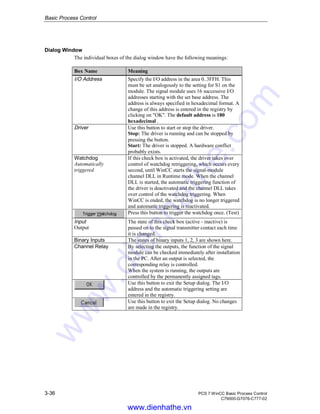
www.dienhathe.vn
www.dienhathe.com
Basic Process Control
3-24 PCS 7 WinCC Basic Process Control
C79000-G7076-C777-02
3.6.1 General Information about the Signal Module:
The signal module is used to trigger up to three different signaling units (such as horns,
buzzers, and lights) and can be connected by means of a hardware acknowledgment key. It
also contains a hardware timer (watchdog). The timer is triggered cyclically by WinCC
Runtime by means of an API driver call in order to avoid triggering an alarm. In addition, it
contains 3 binary inputs that can be used universally. The signal module is a PC module
with an 8-bit ISA bus interface that was specially developed for implementation in
operating systems.
The signal module is a hardware option of the WinCC system that is offered as an option
package. The following figure shows the general structure of a system as well as the
installation possibilities for the signal module within the system.
www.dienhathe.vn
www.dienhathe.com
Basic Process Control
PCS 7 WinCC Basic Process Control 3-25
C79000-G7076-C777-02
3.6.2 Function Characteristics of the Signal Module
The signal module fulfills the functions
Á Control of three acoustic or optical signal transmitters
Á Watchdog
Á 3 binary inputs
Á Acknowledging/resetting the horns through software control or external wiring.
A 25-pole and a 9-pole Sub-D-plug are located on the front plate of the module. The
watchdog and signal transmitter functions are led onto the 25-pole Sub-D-plug. The 9-pole
plug is not used.
When controlled via the software, the three signal outputs and the group
alarm will be reset.
When the acknowledgement is, for example, carried out via a button, only the
group audible indicator will be reset. The software queries this status and
forwards it to the audible indicators, so that an external acknowledgement
resets all horns as well.
www.dienhathe.vn
www.dienhathe.com
Basic Process Control
3-26 PCS 7 WinCC Basic Process Control
C79000-G7076-C777-02
The function characteristics of the signal module are illustrated in the figure below.
All signals sent over the two plugs are sent potential free via contact assemblies or optical
couplers.
The 24 V DC supply voltage, which is provided externally by the contact assemblies or
optical couplers of the signal module, must be protected with 1 A by the customer.
www.dienhathe.vn
www.dienhathe.com
Basic Process Control
PCS 7 WinCC Basic Process Control 3-27
C79000-G7076-C777-02
K1
K1
K2
K2
K3
K3
K4
K4
K5
K5
X114
1 2
X114
1 2
3 4
3 4
RE
RE
RA
RA
Watchdog
Watchdog
Output1
Output1
Output2
Output2
Output3
Output3
1. Signal Module
10. Signal Module
24VDC Outputs
M 0V R 1 2 3 4
Signaling Device
Suppressor Diode
for inuctive loads
External Acknowledgment Key
External Distributor
K1 = Main Contact
RE = Reset Input
RA = Reset Output
K2 = Watchdog
K3 = Output1
K4 = Output2
K5 = Output3
K3-K5 = Detail Contacts
www.dienhathe.vn
www.dienhathe.com
Basic Process Control
3-28 PCS 7 WinCC Basic Process Control
C79000-G7076-C777-02
Function Characteristics of the Signal Transmitter Output
The make contact of the signal transmitter output is open when the operator terminal is
switched off. If the operator station is switched on, the contact assembly is opened. If a
classified event occurs during process execution, the contact is closed. Other events result
in the closing of the signal transmitter output only when an acknowledgement was made
first. This acknowledgement can be performed either internally through WinCC or by
means of an external acknowledgment key. It is possible to invert the function of the signal
transmitter via the break contact.
Acknowledging the Signal Transmitter
The following acknowledgements are possible:
With the mouse, when the signal transmitter is controlled only from one operator terminal:
Jumper X114: 1-3 and 2-4 closed (state on delivery).
With the mouse or externally with the acknowlegement key when several operator
terminals are connected, as shown in the figure above.
Jumper X114: 1-2 and 3-4 closed.
The acknowledgement signal is, in this case, passed through several signal modules.
The function of the signal transmitter can be switched off by removing jumper X114: 5-6
(see figure on previous page).
Watchdog
The watchdog function is used for monitoring the proper operating status of the OS
(operator station).
After switching on the mains voltage, the operator station cyclically sets a monostable
multivibrator on the signal module. The monostable multivibrator is retriggered fast enough
that it does not drop out.
If the process control of the operator terminal malfunctions, the monostable multivibrator
on the signal module is deactivated 3.5 seconds after the last trigger impulse. Depending on
how jumper X116 is set, the watchdog function can be inverted. Jumper X116: 2-3 is
plugged in on delivery.
If an external signal transmitter (e.g. audible signal) is to be connected, a miniature
contactor can be connected to the contact. This miniature contactor switches the signal
transmitter. (Install an anti-surge diode with inductive loads!)
Binary Inputs
The signal module is provided with three binary inputs, isolated by optical couplers, for
querying external binary signals.
These are intended for individual extensions and can be freely configured by the user using
the tags @SignalInput1... @SignalInput3.
www.dienhathe.vn
www.dienhathe.com
Basic Process Control
PCS 7 WinCC Basic Process Control 3-29
C79000-G7076-C777-02
3.6.3 Installation of the Signal Module
Procedure
The installation is broken down into several steps. Procede as follows:
1. Hardware Installation:
The signal-module hardware (plug-in card) is plugged into the base unit (mother
board) of the operator station. The plug-in card requires a free ISA-slot within the
operator station. If the operator station being used as the the server operator station is
to have several terminals (client operator stations), each terminal may also be
equipped with an additional signal module. Before you install the card, you should
first check whether the addresses used by the card (default settings) are still free on
your PC. If the default settings are no longer available, the card must be set by means
of DIP switches. The preset address assignment of the signal module is 180H to 190H
in the IO area. If you must set a different address area to avoid address conflicts with
other PC expansion cards, refer to Chapter "Addressing the Signal Module" for
information on how to accomplish this task.
2. Hardware Setup:
After you have installed the signal module plug-in card, the functionality of the card
can be tested in the Windows NT4.x "Control Panel". To do this, you must double
click on the icon within the "Control Panel". The "Signal Module Hardware Setup"
dialog then opens. The hardware setup for the signal module plug-in card can be
executed from this dialog.
3. Configuring via the "Alarm Logging Wizard":
The "Alarm Logging Wizard" generates the internal tags "@Signal1"..."@Signal3" for
controlling the external signal transmitter and "@SignalInput1"..."@SignalInput3" as
images of the binary inputs of the signal module. The wizard registers the Runtime-
Module of the signal module (HMRT.EXE) in the start-up list of the computer.
Á Double click on the "Base Data" project component in the project navigation window.
All components which you have installed are then listed.
Á Use the right mouse button to click in the project navigation window on the editor
"Alarm Logging Wizard".
In the pop-up menu that appears, select the "Open" menu item.
www.dienhathe.vn
www.dienhathe.com
Basic Process Control
3-30 PCS 7 WinCC Basic Process Control
C79000-G7076-C777-02
On page 1, you must activate "Signal Module Connection".
On page 3, you may assign the internal tags to the message classes.
Á Click the right mouse button on the appropriate message class in the column "Active
Signal". Then click on the button and select the desired tag from the list of available
tags.
www.dienhathe.vn
www.dienhathe.com
Basic Process Control
PCS 7 WinCC Basic Process Control 3-31
C79000-G7076-C777-02
3.6.3.1 Arrangement and Meaning of the Switches and Plug-in Jumpers
Overview
The following figure shows a simplified representation of the spatial arrangement and the
pin numbering of the plug-in jumpers and the switches (viewed from the component side).
Their uses are explained below.
The factory settings of the jumpers and preset switch positions are shown in the figure.
These presettings are indicated in the following table with "*)".
Structure/Meaning of the Plug-in Jumpers/ Switches/Interfaces
The desired functions of the signal transmitter, watchdog, plug controls and addressing are
set via the plug-in jumpers.
Slot Jumper Meaning
X114 1-3*) 2-4*)
1-2 3-4
Acknowledge signal transmitter via bus interface
Acknowledge signal transmitter via external signal
5-6*) Signal transmitter function on
7-8*) Watchdog function on
X115 1-2*)
2-3
Signal transmitter relay picks up on event
Signal transmitter relay drops out on event
X116 2-3*) Signal transmitter relay picks up on event
2-3 Signal transmitter relay drops out on event
X10 Plugged in*)
Not plugged in
Addressing in IO area
Addressing in memory area
X1 25-pole watchdog and signal transmitter interface.
X2 9-pole hardcopy interface
S1 DIP-switch for addressing the signal module in IO or
memory area of the PC.
The jumper settings marked with *) are the default settings. The plug connections X117 (1-
2-3) are not used by WinCC.
www.dienhathe.vn
www.dienhathe.com
Basic Process Control
3-32 PCS 7 WinCC Basic Process Control
C79000-G7076-C777-02
3.6.3.2 Addressing the Signal Module
Overview
The signal module can be addressed in either the I/O area or in the memory area of the PCs.
The base address for both addressing types is set using DIL switch S1. It assigns 16 bytes in
the I/O area 0000H-03FFH and 1 Kbyte in the memory area C0000H-FFFFFH. The kernel
driver uses only I/O addressing.
Slot Jumper Meaning
X10 Plugged in Addressing in IO area
Not plugged in Addressing in memory area
Signal-Module Address Busses
The signal module manages 12 address busses in the I/O addressing mode, the four lowest
of which (A0 - A3) are used for switching the 16 required individual addresses. These four
address busses cannot, therefore, be set with DIP switches. The following (as described
above in general form) assignment of switch to address bus results.
Possible Settings of the Address Busses
Switch 8 7 6 5 4 3 2 1
Bus A 1
1
1
0
9 8 7 6 5 4 3 2 1 0
Setting the
I/O Address
The I/O address is now to be set using the existing switches as follow:
Á Select I/O address (e.g. 180h); the address must not already be in use on the respective
PC, an I/O address conflict will otherwise result.
Á Conversion to binary notation (0001 1000 0000); the conversion is simplified by
considering each HEX digit as a 4-bit block.
Á Set and delete the individual bits for the address (ATTENTION: the 4 lowest value
bits are not covered by the DIP switches).
The following switch positions for the given example (180h) are thus (default setting):
Default Settings (Address 180H)
Switch Pin 8 7 6 5 4 3 2 1
Address Pin 11 10 9 8 7 6 5 4
Position OFF OFF OFF ON ON OFF OFF OFF
Example for the Address 100H (0001 0000 0000)
Switch Pin 8 7 6 5 4 3 2 1
Address Pin 11 10 9 8 7 6 5 4
Position OFF OFF OFF ON OFF OFF OFF OFF
www.dienhathe.vn
www.dienhathe.com
Basic Process Control
PCS 7 WinCC Basic Process Control 3-33
C79000-G7076-C777-02
3.6.3.3 Pin Assingment of the External Interface
Pin Assingment, Interface (X1)
The external wiring of the signal transmitter output and the channel outputs is made
directly, i.e. each contact controls a messaging device. In the event of an error message, the
main contact and the assigned detail contact are always set. An acknowledgement always
results in the control software resetting the main contact and all detail contacts. The
acknowledgement may occur externally by means of an acknowledgement input or may be
triggered by the software.
The following table shows the wiring of the 25-pole Sub-D plug, which is used for
connecting external devices (lights, buzzers, bells, buttons, etc.).
Pin Signal Description Port
*G *S
1 Signal
transmitter M
Relay, center contact
2 + Reset output Optical coupler
3 - Reset output Optical coupler
4 + Reset input Optical coupler
5 - Reset input Optical coupler
6 Signal
transmitter R
Relay, break contact
7 Signal
transmitter A
Relay, make contact
8 Watchdog M Relay, center contact
9 Watchdog R Relay, break contact
10 Watchdog A Relay, make contact
11 + BE 1 *BE
12 - BE 1 *BE
13 + BE 2 *BE Optical coupler
14 + BE 3 *BE
15 - BE 3 *BE
16 Output 1 M Relay, center contact
17 Output 1 A Relay, make contact
18 Output 1 R Relay, break contact
19 Output 2 M Relay, center contact
20 Output 2 A Relay, make contact
21 Output 2 R Relay, break contact
22 Output 3 M Relay, center contact
23 Output 3 A Relay, make contact
24 Output 3 R Relay, break contact
25 - BE 2 *BE
*G = Housing
*S = Shield
*BE = Binary inputs
www.dienhathe.vn
www.dienhathe.com
Basic Process Control
3-34 PCS 7 WinCC Basic Process Control
C79000-G7076-C777-02
25-pole subminiature plug connector (pin contact strip with screw locking)
Remarks
Á The primary signaling device, i.e. the horn, signal lamp or similar, is to be connected
to the main contact of the signal module. The primary signaling device responds every
time a detail contact is set, i.e. each time an alarm reports via the signal module.
Á The detail contacts can be connected to any messaging devices (lights, buzzers or
similar).
Á One device can be connected to the watchdog alarm output which responds when the
respective signal module no longer triggers. This occurs when the respective operator
station fails.
Á The signal module can by default only be reset by either the control software (driver)
or an external acknowledgment key.
If both variants are to be possible simultaneously, you must:
Á Connect together pins 1-2 and 3-4 on jumper X114 (see corresponding
description above), which enables acknowledgement by means of an external
key.
Á The external key is then to be connected with the reset input. The corresponding
wiring for the reset output is then to be connected in parallel with this key.
www.dienhathe.vn
www.dienhathe.com
Basic Process Control
PCS 7 WinCC Basic Process Control 3-35
C79000-G7076-C777-02
3.6.3.4 Testing the Signal Module
Procedure
In order to test the installed signal module plug-in card, proceed as follows:
Á Open the folder "Control Panel".
This folder can be reached under Windows NT via "Start", "Settings" and "Control
Panel".
Á Double click on the object to open the "Signal Module Hardware Setup" dialog .
Á Within the "Signal Module Hardware Setup" dialog you can now test the signal
module configuration.
Á Structure of the "Signal Module Hardware Setup" dialog window.
Á The function of the signal module can be tested immediately by selecting outputs 1
through 3.
www.dienhathe.vn
www.dienhathe.com
Basic Process Control
3-36 PCS 7 WinCC Basic Process Control
C79000-G7076-C777-02
Dialog Window
The individual boxes of the dialog window have the following meanings:
Box Name Meaning
I/O Address Specify the I/O address in the area 0..3FFH. This
must be set analogously to the setting for S1 on the
module. The signal module uses 16 successive I/O
addresses starting with the set base address. The
address is always specified in hexadecimal format. A
change of this address is entered in the registry by
clicking on "OK". The default address is 180
hexadecimal .
Driver Use this button to start or stop the driver.
Stop: The driver is running and can be stopped by
pressing the button.
Start: The driver is stopped. A hardware conflict
probably exists.
Watchdog
Automatically
triggered
If this check box is activated, the driver takes over
control of watchdog retriggering, which occurs every
second, until WinCC starts the signal-module
channel DLL in Runtime mode. When the channel
DLL is started, the automatic triggering function of
the driver is deactivated and the channel DLL takes
over control of the watchdog triggering. When
WinCC is ended, the watchdog is no longer triggered
and automatic triggering is reactivated.
Press this button to trigger the watchdog once. (Test)
Input
Output
The state of this check box (active - inactive) is
passed on to the signal transmitter contact each time
it is changed.
Binary Inputs The states of binary inputs 1, 2, 3 are shown here.
Channel Relay By selecting the outputs, the function of the signal
module can be checked immediately after installation
in the PC. After an output is selected, the
corresponding relay is controlled.
When the system is running, the outputs are
controlled by the permanently assigned tags.
Use this button to exit the Setup dialog. The I/O
address and the automatic triggering setting are
entered in the registry.
Use this button to exit the Setup dialog. No changes
are made in the registry.
www.dienhathe.vn
www.dienhathe.com
Basic Process Control
PCS 7 WinCC Basic Process Control 3-37
C79000-G7076-C777-02
3.6.4 Important Settings within the WinCC System
In order to signal messages (acoustically) within the WinCC system (by means of the
audible indicator module) at specific operator terminals, the signal module Runtime-
Module (HMRT.EXE) must be loaded in the start-up list of the client computer.
Note
The Runtime-Module of the signal module (HMRT.EXE) must not be connected within the
start-up list of the server computer.
The integration or removal of the Runtime-Module of the signal module (HMRT.EXE) in
the start-up list of each computer is performed using the "Alarm Logging Wizard" and
should not be carried out manually. This wizard is located in the WinCC Explorer under the
project component "Base Data". When using the Alarm Logging Wizards, you must
activate the control box "Signal Module Connection" in order to integrate the signal
transmitter functionality.
www.dienhathe.vn
www.dienhathe.com
Basic Process Control
3-38 PCS 7 WinCC Basic Process Control
C79000-G7076-C777-02
www.dienhathe.vn
www.dienhathe.com
PCS 7 WinCC Basic Process Control 4-1
C79000-G7076-C777-02
4 Picture Tree Manager
Installation Note:The Picture Tree Manager is a WinCC option and is only available to
you if you selected the option package "Basic Process Control" during installation.
The Picture Tree Manager is used to manage a hierarchy of systems, subsystems and
pictures contained in the Graphics Designer and makes available the following functions:
Á Create and change a project’s hierarchy.
Á Support during the definition of systems and subsystems.
Á Supports the assignment of pictures to the system and creates an order between the
pictures that are created in Graphics Designer.
Á In Runtime, picture selection by means of navigation through the hierarchy tree is
supported.
Note
When creating new WinCC projects, a screen hierarchy should be created along with the
Picture Tree Manager and stored.
All procedures and changes, that you undertake in the Picture Tree Manager affect the
current WinCC project.
Actions that cross projects (copying/moving pictures and systems across multiple projects)
are not possible.
On switching the language in the WinCC Explorer the language in the opened Picture Tree
Manager is switched too. The container names are only switched to the newly set language
after starting the Picture Tree Manager.
It is not possible to configure the picture hierarchy on the multi-client. Instead, an overview
of all hierarchies of all server projects imported as packages is presented in runtime.
4.1 Structure
The user interface of the Picture Tree Managers contains:
− a menu bar
− the standard toolbar
− a data window with three areas
− a status bar
www.dienhathe.vn
www.dienhathe.com
Picture Tree Manager
4-2 PCS 7 WinCC Basic Process Control
C79000-G7076-C777-02
4.1.1 Menu Bar
In the menu bar, all the commands of the Picture Tree Manager are divided into groups and
assigned to menus. To execute a command, open the corresponding menu, click on the
command, and, if applicable, set the desired parameters in the displayed dialog box.
All commands are available from the menus:
Menu Project
Save
Project Documentation Print Hierarchy
Project Documentation View Hierarchy
Project Documentation Setup Hierarchy...
Project Documentation Print Group Display
Project Documentation View Group Display
Project Documentation Setup Group Display...
Exit
Edit Menu
Edit Picture
Edit Container Name
Cut Picture
Cut Container
Copy
Paste
Insert Picture Into Container
Insert After
Insert Before
Insert Into Node
New Container
Delete Picture
Delete Container
Properties
View Menu
Standard Toolbar
Status Bar
Preview
Arrange Picture Icons Alphabetically
Arrange Picture Icons Automatically
Menu Options
Confirm For Replace Pictures
Confirm For Delete Hierarchy
Calculating the Group Display Hierarchy Over Again While Saving
Help Menu
Contents and Index
Direct Help
Using Help
Info...
www.dienhathe.vn
www.dienhathe.com
Picture Tree Manager
PCS 7 WinCC Basic Process Control 4-3
C79000-G7076-C777-02
4.1.1.1 Project Menu
Save
The command "Save" stores the current hierarchy of the containers and pictures. Changes
in the hierarchy affect all applications that are registered as RT clients of the Picture Tree
Manager (that also includes the group display).
The data will be stored in the database of the project.
Note
All changes made while editing the "Picture Tree Manager" are only temporary. The
changes will only be accepted after saving the Picture Tree Manager.
A few menu functions are disabled during the save operation ("Project" menu). However,
the hierarchy can still be edited.
Print Project Documentation Hierarchy
Use the command "Print Project Documentation Hierarchy..." to print the hierarchy on the
standard printer. The print settings set in "Setup Project Documentation Hierarchy..." apply.
View Project Documentation Hierarchy
Use the command "View Project Documentation Hierarchy" to display a preview of the
project documentation for the hierarchy.
Setup Project Documentation Hierarchy...
Use the function "Setup Project Documentation Hierarchy" to add special settings to a print
job when printing the hierarchy tree. The dialog contains three tabs.
Tab Description
Print Job General settings for the print job can be set in this
tab.
Selection Settings for the page area as well as the time range
for the print data can be set in this tab.
Printer Selection The output device for the print job can be set in this
tab. The print job can also be directed to a file.
The appropriate system layout from the Report Designer is used for the printout.
Print Project Documentation Group Display
Use the command "Print Project Documentation Group Display..." to print the group
displays on the standard printer. The print settings set in "Setup Project Documentation
Group Display..." apply.
www.dienhathe.vn
www.dienhathe.com
Picture Tree Manager
4-4 PCS 7 WinCC Basic Process Control
C79000-G7076-C777-02
View Project Documentation Group Display
Use the command "View Project Documentation Group Display" to display a preview of
the project documentation for the group display.
Setup Project Documentation Group Display...
Use the function "Setup Project Documentation Group Display" to to add special settings to
a print job when printing the group displays. The dialog contains three tabs.
Tab Description
Print Job General settings for the print job can be set in this
tab.
Selection Settings for the page area as well as the time range
for the print data can be set in this tab.
Printer Selection The output device for the print job can be set in this
tab. The print job can also be directed to a file.
The appropriate system layout from the Report Designer is used for the printout.
Exit
Exit the "Picture Tree Manager" via the "Exit" command.
If you have made changes and have not yet saved them, a dialog appears asking if you
would like to save the changes.
www.dienhathe.vn
www.dienhathe.com
Picture Tree Manager
PCS 7 WinCC Basic Process Control 4-5
C79000-G7076-C777-02
4.1.1.2 Edit Menu
Edit Picture
Use the command "Edit Picture" to start the "Graphics Designer". The picture can
subsequently be edited. This menu item is only enabled if a picture is selected.
Edit Container Name
The command "Edit Container Name" allows you to edit the container description. The
name of the root container (WinCC Project Name) cannot be changed.
Note
While in (container) editing mode, the picture name is hidden.
Cut Picture
Use the command "Cut Picture" to copy a selected picture into the clipboard. This
command is only enabled if a picture has been selected.
The content of the clipboard is stored until it is replaced by a new entry (via the command
"Cut" or "Copy").
The picture name remains visible in the container and is enclosed by pointed brackets <<
PictureName.PDL>>. The picture can then be inserted at another location.
Cut Container
The command "Cut Container" marks a container, including the entire connected
subhierarchy and the pictures, and copies it into the clipboard. The command is only
enabled if a container has been selected from the hierarchy window.
The content of the clipboard remains stored until it is replaced by a new entry (via the
command "Cut" or "Copy").
The container remains visible at the cut location until it is inserted at another location.
Copy
Use the command "Copy" to create a copy of the empty container in the selection window
and place it in the clipboard. The content of the clipboard will remain stored until it is
replaced by a new entry (using the command "Cut" or "Copy"). After copying, the content
of the clipboard can be inserted into the hierarchy.
Note
Inserting a new container into an existing node expands the hierarchy by one level.
If you insert a container before or after a container, the affected hierarchy level is expanded
by one container.
www.dienhathe.vn
www.dienhathe.com
Picture Tree Manager
4-6 PCS 7 WinCC Basic Process Control
C79000-G7076-C777-02
Paste
This command is only available when pictures or containers have been placed in the
clipboard and are to be copied into the selection window.
If the clipboard contains a picture, it is inserted in the selection window with this command.
If the clipboard contains a container (with or without subcontainer), this command inserts
this container and any pictures contained therein into the selection window. The container
name and the structure of the subhierarchy, though, will be lost. You will be notified of
possible loss of hierarchy information as a result of this action by means of an info box.
Insert Picture Into Container
The command "Insert Into Container" copies the contents of the clipboard into a selected
container. The command is only enabled if the clipboard contains a picture.
If the container already contains a picture, it will be replaced by the new picture.
Use the option "Confirm For Replace Picture" to change the behavior of the "Picture Tree
Manager" (with or without confirmation).
Insert After
The command "Insert After" copies the contents of the clipboard after the selected
container. The command is only enabled if a container (not the root-node) has been
selected, and one or more containers have been copied into the clipboard.
Note
A container cannot be inserted before or after the root-node.
Insert Before
Use the command "Insert Before" to copy the contents of the clipboard before the selected
container. This command is only enabled if a container (not the root-node) has been
selected, and one or more containers have been copied into the clipboard.
Note
A container cannot be inserted before the root-node.
Insert Into Node
The command "Insert Into Node" copies the contents of the clipboard into the selected
container. Each container in the clipboard is inserted as a new node of an underlying
hierarchy level. This command is only enabled if a container (not the root-node) has been
selected, and one or more containers have been copied into the clipboard.
New Container
Use the command "New Container" to insert a new container before, after or in the selected
node.
After inserting the new container, the Picture Tree Manager will assign the name
"Container" plus a running number to it (e.g. Container23).
www.dienhathe.vn
www.dienhathe.com
Picture Tree Manager
PCS 7 WinCC Basic Process Control 4-7
C79000-G7076-C777-02
Delete Picture
The command "Delete Picture" removes the selected picture from the hierarchy. The
picture will automatically be moved into the selection window. This command is only
enabled if a picture has been selected in the hierarchy window.
Note
The picture deleted from the hierarchy can be inserted again at a later time.
Delete Container
The command "Delete Container" removes a selected container from the hierarchy. All
pictures contained in the deleted subhierarchy will automatically be moved to the selection
window. This command is only enabled, if a container (with or without subcontainers or
pictures) has been selected in the hierarchy window.
Properties
The "Properties" menu item of the "Edit" menu displays the properties of a picture.
4.1.1.3 View Menu
Preview
The "Preview" command allows you to turn the picture preview on or off.
If the option has been selected, the preview window will automatically display the picture
selected from the hierarchy window. If the container does not contain a picture, the preview
window remains empty.
Independent of whether this option has been selected or not, the header line of the preview
window will always display the name of the picture contained in the container.
If the preview window is resized, the displayed picture will adapt to the new dimensions.
A check mark next to the menu entry indicates that the picture preview has been activated.
Arrange Picture Icons Alphabetically
Use the command "Arrange Picture Icons Alphabetically" to alphabetically sort the pictures
in the selection window. This option can not be set permanently.
Arrange Picture Icons Automatically
The command "Arrange Picture Icons Automatically" allows you to turn on the automatic
arrangement of the pictures in the selection window.
If the option is activated, the pictures will be arranged automatically. The gaps will
automatically be filled.
A check mark next to the menu entry indicates that the automatic picture arrangement has
been activated.
www.dienhathe.vn
www.dienhathe.com
Picture Tree Manager
4-8 PCS 7 WinCC Basic Process Control
C79000-G7076-C777-02
4.1.1.4 Menu Options
Confirm for Replace Picture
Use the command "Confirm for Replace Picture" to specify whether the user must
acknowledge the replacement of a picture in the hierarchy.
A check mark next to the menu entry indicates that the acknowledgment for replacing
pictures has been activated.
Confirm for Delete Hierarchy
Use the command "Confirm for Delete Hierarchy" to specify whether the user must
acknowledge the deletion of the hierarchy.
A check mark next to the menu entry indicates that the acknowledgment for replacing
pictures has been activated.
Recalculating the Group Display Hierarchy when Saving
If the option "Calculating the Group Display Hierarchy Over Again while Saving" has been
activated, the group display hierarchy of all WinCC pictures will be calculated over again
every time the Picture Tree Manager is saved. If no group displays are used, this function
can be deactivated to allow for a faster saving.
If, during the start-up of runtime, WinCC detects that the group display hierarchy is no
longer current, the control system message "The Group Display Hierarchy has not been
updated..." will be displayed. If the option "Calculating the Group Display Hierarchy Over
Again while Saving" has been activated, then the picture hierarchy of the Picture Tree
Manager must be saved again.
4.1.1.5 Help Menu
Contents and Index
The command "Contents and Index" allows you to access the on-line help of the Picture
Tree Manager.
For further information about the process, see the Windows NT description.
Using Help
Use the "Using Help" command to obtain information about how to use on-line help.
About
Use the command "About" to obtain additional information about the Picture Tree Manager
program and its platform.
www.dienhathe.vn
www.dienhathe.com
Picture Tree Manager
PCS 7 WinCC Basic Process Control 4-9
C79000-G7076-C777-02
4.1.2 Standard Toolbar
The standard toolbar contains icons with which you can carry out common commands.
Use the menu command "View / Standard Toolbar" to display or hide the toolbar.
Icon Description
"Project" "Save"
"Project" "Print Project Documentation Hierarchy"
"Edit" "Properties"
"Help" "Direct Help"
"View" "Large Symbols"
"View" "Small Symbols"
"View" "List"
www.dienhathe.vn
www.dienhathe.com
Picture Tree Manager
4-10 PCS 7 WinCC Basic Process Control
C79000-G7076-C777-02
4.1.3 Data Window
The data window of the Picture Tree Manager is divided into three areas.
Á Displayed in the upper left part of the hierarchy window is the hierarchy of the
systems, subsystems and pictures as a tree. The first container (the highest in the
hierarchy) has the name of the WinCC project and can neither be moved nor deleted.
A container can be empty or, with the exception of the root container, can contain a
picture.
Á The preview window, located in the upper right, displays the contents of the picture
selected in the hierarchy window.
Á All pictures available in the WinCC project which have not yet been assigned in the
hierarchy, as well as the icon of an empty container, are displayed at the bottom of the
selection window. (System pictures that begin with @ are not displayed).
Each area has information about its contents in the title bar.
You can change the size of the individual operating areas with the mouse.
4.1.4 Status Bar
The status bar provides you with the following information:
− Displays an appropriate help text for a selected function.
− Displays the key status (e.g. the Num Lock key).
− Click on the size box to change the window size of the application.
www.dienhathe.vn
www.dienhathe.com
Picture Tree Manager
PCS 7 WinCC Basic Process Control 4-11
C79000-G7076-C777-02
4.2 Working with the Picture Tree Manager
To work with the Picture Tree Manager, start it via the pop-up menu in the WinCC
Explorer.
The editor has only one dialog for editing the hierarchy. You can access all of the editing
possibilities in this dialog. The most effective way to work with the editor is the drag-and-
drop function.
Á Use the clipboard and the "Cut," "Copy," and "Paste" functions to create and change
the hierarchy.
Á You can access editing functions by using the Menu Bar, the pop-up menu, or drag-
and-drop.
Á Insert the empty container from the selection window to expand the hierarchy by one
container.
Á Cut and paste a picture from the selection window or move it using drag-and-drop to
insert a picture into a container in the hierarchy.
Á You can also move subhierarchies (subtrees) within the hierarchy.
Á Pictures that you remove from the hierarchy (hierarchy window) are inserted in the
selection window automatically.
Á Picture properties, such as change date and size of a selected picture, can be displayed.
Note
None of the changes you make while editing take effect until you save.
www.dienhathe.vn
www.dienhathe.com
Picture Tree Manager
4-12 PCS 7 WinCC Basic Process Control
C79000-G7076-C777-02
4.2.1 Display Picture Properties
Information can be called up for each picture, e.g. change date or picture size.
How to Display the Picture Properties:
1. Select the desired picture and open the pop-up menu.
2. Select the "Properties" menu item to display the picture properties.
4.2.2 Using a Drag-and-Drop Operation to Insert New Containers
You can use drag-and-drop to insert new containers in the hierarchy window. The Picture
Tree Manager supports drag-and-drop with the left as well as the right mouse button (drag-
and-drop with the pop-up menu). This is possible in the hierarchy window as well as in the
selection window.
How to Use Drag-and-Drop to Insert a New Container in the Hierarchy Window:
1. Click on the container icon in the selection window.
2. While holding down the left mouse button, drag the container icon to the hierarchy
window located above the selection window.
As soon as the mouse pointer assumes the (+) icon, you can release the mouse button.
The container is inserted after the highlighted container.
or
While holding down the right mouse button, drag the container icon to the hierarchy
window located above the selection window.
As soon as the mouse pointer assumes the (+) icon, you can release the mouse button.
www.dienhathe.vn
www.dienhathe.com
Picture Tree Manager
PCS 7 WinCC Basic Process Control 4-13
C79000-G7076-C777-02
3. After releasing the mouse, the pop-up menu for specifying where the new container is
to be inserted is displayed.
Note
When you insert new containers into an existing node, the subhierarchy of that node is
expanded by one level.
If you insert a container before or after a container, the affected hierarchy level is expanded
by one container.
You cannot insert a new container before or after the root container!
4.2.3 Using a Drag-and-Drop Operation to Insert Pictures
You can use drag-and-drop to insert pictures in the hierarchy window. The Picture Tree
Manager supports drag-and-drop with the left as well as the right mouse button (drag-and-
drop with the pop-up menu).
You can work with the Picture Tree Manager using drag-and-drop in the hierarchy window
as well as in the selection window.
How to Use Drag-and-Drop to Insert Pictures in the Hierarchy Window:
1. Click on the icon of the desired picture in the selection window.
2. While holding down the left mouse button, drag the picture icon to the hierarchy
window located above the selection window.
As soon as the mouse pointer assumes the (+) icon, you can release the mouse button.
− If the selected container is empty, the picture is inserted.
− If the selected container is not empty, you must confirm the replacement of the
existing picture.
or
3. While holding down the right mouse button, drag the picture icon to the hierarchy
window located above the selection window.
As soon as the mouse pointer assumes the (+) icon, you can release the mouse button.
4. After releasing the mouse, the pop-up menu for acknowledging that the new picture is
to be inserted is displayed:
www.dienhathe.vn
www.dienhathe.com
Picture Tree Manager
4-14 PCS 7 WinCC Basic Process Control
C79000-G7076-C777-02
4.3 The Hierarchy
In WinCC, the dependencies among containers and pictures is pictured in the form of a
hierarchy.
The nodes of the hierarchy are always made up of containers.
Each container can be basically empty or contain a picture (Graphics Designer).
You can assign any name to the container. However, the container name must be unique
and checked by the Picture Tree Manager.
Picture names cannot be changed in the Picture Tree Manager.
Only existing pictures may be included in the hierarchy.
The structure of the hierarchy is open, which means there is no height or width limit
prescribed for the hierarchy (tree).
This hierarchy is displayed in the following table:
Container Name Picture Name Father Left Neighbor
New.MCP
Pretreatment Pretreatment.PDL New.MCP
Distillery1 Distil1.PDL Pretreatment
Distillery2 Distil2.PDL Pretreatment Distillery1
Distillery3 Distil3.PDL Pretreatment Distillery2
BoilerRoom Boiler room.PDL New.MCP
Boiler1 Boiler1.PDL BoilerRoom
www.dienhathe.vn
www.dienhathe.com
Picture Tree Manager
PCS 7 WinCC Basic Process Control 4-15
C79000-G7076-C777-02
Container Name Picture Name Father Left Neighbor
Boiler2 Boiler2.PDL BoilerRoom Boiler1
Boiler3 Boiler3.PDL BoilerRoom Boiler2
Posttreatment Posttreatment.PDL New.MCP
Cooling1 Cooler1.PDL Posttreatment
Cooling2 Cooler2.PDL Posttreatment Cooling1
Cooling3 Cooler3.PDL Posttreatment Cooling2
Note
It is also possible to insert empty pictures in the hierarchy. However, the pictures must
already be loaded in WinCC.
4.3.1 Creating a Hierarchy
All pictures of the projects are in the selection window when you start to build a hierarchy.
The hierarchy window contains a root node that contains the name of the project.
You cannot load a picture in the root node.
You can create the hierarchy in the following ways:
− Create the hierarchy by means of drag&drop
− Create the hierarchy via the pop-up menu
− Create the hierarchy via the menu bar
− Create the hierarchy - change the container name
Attention:
− Modifications to the hierarchy in the Picture Tree Editor are initially local. If you exit
the Picture Tree Manager without saving, these changes are lost.
− The "Save" command saves all changes and also notifies all Picture Tree Manager
clients that are running in the Runtime-Module (for example, the group display) so that
they can read the new hierarchy.
How to Create the Hierarchy by Means of Drag-and-Drop:
1. Click on the icon of the empty container in the selection window.
2. While holding down the left mouse button, drag the container to the hierarchy
window.
3. Select the container after which the new container should be inserted. The target
container is displayed with a colored background.
4. When you release the mouse button, the new container is inserted in the same level
after the selected container.
www.dienhathe.vn
www.dienhathe.com
Picture Tree Manager
4-16 PCS 7 WinCC Basic Process Control
C79000-G7076-C777-02
How to Create the Hierarchy by Means of the Pop-Up Menu:
1. Select a container in the hierarchy window.
2. Open the corresponding pop-up menu.
3. You can insert the new container after, before, or in the selected node.
How to Create the Hierarchy by Means of the Menu Bar:
1. Select a container in the hierarchy window.
2. Use the "Edit" "New Container" menu item to insert a new container.
3. You can insert the new container after, before, or beneath the selected node.
Note
If you insert a new container in an existing node, the hierarchy expands by one level.
If you insert a container before or after a container, the affected hierarchy level is expanded
by one container.
How to Change the Name of a Container:
1. In the hierarchy window, select the container whose name you want to change.
2. Click the left mouse button on the selected container to activate the edit mode.
or
Open the pop-up menu and use the "Edit Container Name" menu item to activate the
edit mode.
or
Use the key combination "CTRL+E" to activate the editing mode.
3. You can then change the container name.
www.dienhathe.vn
www.dienhathe.com
Picture Tree Manager
PCS 7 WinCC Basic Process Control 4-17
C79000-G7076-C777-02
4.3.2 Changing the Hierarchy
The hierarchy can be changed by moving individual nodes or entire parts of the hierarchy.
This can be performed within a level or the levels may be changed.
The root node (WinCC project name) cannot be moved.
You can use the following means to change the hierarchy:
− Change by drag&drop
− Change via the pop-up menu
− Change via the menu bar
Note
Inserting a new container into an existing node expands the hierarchy by one level.
Attention:
− Modifications to the hierarchy in the Picture Tree Editor are at first local. If you exit the
Picture Tree Manager without "Saving", these changes are lost.
− The "Save" command saves all changes and also notifies all of the Picture Tree
Manager clients that are running in the Runtime-Module (for example, the group
display) so that they can read the new hierarchy.
How to Change the Existing Hierarchy by Means of Drag-and-Drop:
1. In the hierarchy window, click on the container (node) you want to move.
2. While holding down the left mouse button, drag the container and its subordinate
containers to the new position.
3. When you release the mouse button, the new container with its subordinate containers
is inserted in the same level after the selected container.
or
While holding down the right mouse button, drag the container and its subordinate
containers to the new position.
After releasing the mouse, the pop-up menu for specifying where the new container
and its underlying containers are to be inserted is displayed.
www.dienhathe.vn
www.dienhathe.com
Picture Tree Manager
4-18 PCS 7 WinCC Basic Process Control
C79000-G7076-C777-02
How to Change the Existing Hierarchy by Means of the Pop-Up Menu:
1. Select a container in the hierarchy window.
2. Open the corresponding pop-up menu.
3. Use the "Cut Container" menu item to move the container and all of its subordinate
containers to the clipboard. The affected containers are displayed in gray.
4. Select the target container in which you want to insert the cut container.
5. Open the corresponding pop-up menu.
6. You can insert the contents of the clipboard into the new position with the "Insert
After", "Insert Before" or "Insert Into Node" menu commands.
How to Change the Existing Hierarchy by Means of the Menu Bar:
1. Select a container in the hierarchy window.
2. Use the "Cut Container" menu item or the keystroke combination "CTRL + X" to
move the container and all its subordinate containers to the clipboard. The affected
containers are displayed in gray.
3. Select the target container in which you want to insert the container.
4. You can insert the contents of the clipboard into the new position with the "Edit"
menu commands: "Insert After", "Insert Before" or "Insert Into Node".
4.3.3 Deleting the Hierarchy
In this context, deleting the hierarchy means removing individual containers with all of
their subordinate containers from the hierarchy window and thereby, from the hierarchy.
You can use the following means to delete the hierarchy:
− by Drag&Drop
− via the pop-up menu
− via the menu bar
Note
With the "Confirm When Hierarchy Deleted" option, you change the behavior of the
Picture Tree Manager when you delete the hierarchy (with or without confirmation)
The pictures deleted from the hierarchy are moved to the selection window and can be
reinserted into the hierarchy at a later time.
www.dienhathe.vn
www.dienhathe.com
Picture Tree Manager
PCS 7 WinCC Basic Process Control 4-19
C79000-G7076-C777-02
How to Delete Containers from the Existing Hierarchy by Means of Drag-and-Drop:
1. In the hierarchy window, click on the container (node) you want to move.
2. With the mouse button pressed (right or left), drag the selected container and its
underlying containers into the selection window.
3. When you release the mouse button, the pictures are moved to the selection window.
All information of the deleted and underlying containers are lost in this process.
How to Delete Containers from the Existing Hierarchy by Means of the Pop-Up
Menu:
1. In the hierarchy window, click on the container (node) you want to delete.
2. Open the corresponding pop-up menu.
3. Use the "Delete Container" menu item and confirm the inquiry to remove the
appropriate container with all of its subordinate containers from the hierarchy.
All pictures are moved to the selection window. All information of the deleted and
underlying containers is lost in this process.
How to Delete Containers from the Existing Hierarchy by Means of the Menu Bar:
1. In the hierarchy window, click on the container (node) you want to delete.
2. Use the "Delete Container" menu item or the keystroke combination "CTRL + L" to
delete the appropriate container with its subordinate containers from the hierarchy.
Note
All pictures are moved to the selection window. All information of the deleted and
underlying containers is lost in this process.
www.dienhathe.vn
www.dienhathe.com
Picture Tree Manager
4-20 PCS 7 WinCC Basic Process Control
C79000-G7076-C777-02
4.4 Effects on Other Programs
The hierarchy created in the Picture Tree Manager directly or indirectly affects the
following applications:
− the User Administrator
− the group display and
− the Text Library
4.4.1 Effects on the User Administrator
For newly loaded containers, the entries about the user authorization are missing in the User
Administrator. After you save the hierarchy, these new system sections are available in the
User Administrator.
Containers that are deleted from the hierarchy are also deleted in the User Administrator.
Upon deletion of this container, all corresponding information contained in the User
Administrator is also lost.
Movements within the hierarchy do not affect the User Administrator.
4.4.2 Effects on the Group Display
In certain cases, the hierarchy affects the group display.
The objects of the group display can only receive and relay messages if the pictures are
arranged appropriately in the hierarchy.
Receiving Messages:
The pictures from which you want to receive messages must be on or beneath the level of
the corresponding group object in the hierarchy.
Relaying Messages:
The pictures to which you want to relay messages must be on or above the level of the
corresponding group object in the hierarchy.
www.dienhathe.vn
www.dienhathe.com
Picture Tree Manager
PCS 7 WinCC Basic Process Control 4-21
C79000-G7076-C777-02
4.4.3 Effects on the Text Library
The container names are managed in the Text Library.
If you load a new container, the name of the container is entered in this Text Library in the
current language.
Switching Languages:
Á After you switch languages, all of the container names available in the selected
language are displayed in that language. Container names for which there are no
corresponding names are displayed in the language in which they were loaded.
Á The language switch affects the Picture Tree Manager the next time it is called up.
Á If the language is switched in Runtime, the names of all of the containers that have not
been translated remain empty.
4.5 3D-Bar Graph Object
4.5.1 3D-Bar Graph Properties
3D-Bar Graph
The 3D-bar is assigned to the smart objects group. Its properties (attributes) influence its
appearance and functionality.
It displays values graphically relative to a high and low limit. The user can freely configure
the type of the 3D display.
All object attributes of the selected object are displayed in the "Object Properties" dialog
window in the "Properties" tab.
Note:
If color values are assigned dynamically by means of tags, 32-bit tags should be used to
ensure proper display of colors.
The "3D-bar graph" object is described using the following attributes:
Basis Object Name
Layer
Geometry Position X
Position Y
Width
Height
Base X
Base Y
Alpha
Beta
Angle Settings
Bar Height
Bar Width
Bar Depth
www.dienhathe.vn
www.dienhathe.com
Picture Tree Manager
4-22 PCS 7 WinCC Basic Process Control
C79000-G7076-C777-02
Geometry Bar Direction
Display Axis
Colors Border Color
Background Color
Styles Border Weight
Border Style
Background
Light Effect
Miscellaneous Operator-Control Enable
Authorization
Display
Tooltip Text
Maximum Value
Zero Point Value
Minimum Value
Process Driver Connection
Limits Limit 0
Monitoring 0
Bar Color 0
Limit 1
Monitoring 1
Bar Color 1
Limit 2
Monitoring 2
Bar Color 2
Limit 3
Monitoring 3
Bar Color 3
Limit 4
Monitoring 4
Bar Color 4
Limit 5
Monitoring 5
Bar Color 5
Limit 6
Monitoring 6
Bar Color 6
Limit 7
Monitoring 7
Bar Color 7
Limit 8
Monitoring 8
Bar Color 8
Limit 9
Monitoring 9
Bar Color 9
Limit 10
Monitoring 10
Bar Color 10
www.dienhathe.vn
www.dienhathe.com
Picture Tree Manager
PCS 7 WinCC Basic Process Control 4-23
C79000-G7076-C777-02
4.6 Group display object
The group display object provides a hierarchically concentrated display of the current
states of certain message types. There is, however, no connection to the message system
within WinCC.
Use the group display in runtime mode to execute a picture change to the picture in which
the error source is displayed. This opportunity for rapid navigation to an error source is a
very significant function for the user.
Value Assignment
In order to prepare the operator function and other settings in the group display one time
and then to make a quick configuration possible in all pictures, configure the object the way
you need it and load it into the picture library (global or project-related). You can then use
Drag&Drop to insert the group display you prepared from the library into all of the pictures
configured thereafter. You then only need to execute the link with a measurement point or a
picture. Use the Dynamic Wizard to execute this configuration.
Dynamic Wizard
For simple configuration of this link, select the group display and activate the Dynamic
Wizard via the “View - Toolbars” menu. You start the Dynamic Wizard itself via the points
"Group display linked with picture" or "Group display linked with PCS 7 measurement
points" on the "Default Dynamics" panel. Create the link by selecting a picture (usually a
picture that is located in the next layer down in the hierarchy tree) and by entering
additional parameters in the Dynamic Wizard.
If you want to link the group display with a 32-Bit data manager variable, then proceed as
follows:
Open the properties dialog for the group display and dynamise the property "Other/Group
Values" with the desired 32-Bit tag. The tag should be initialized with the value 65535
(0x0000FFFF). In this manner, you can ensure that at the start - from the view of the group
display - there are no unacknowledged messages.
The individual bits of this tag interpreted as follows:
www.dienhathe.vn
www.dienhathe.com
Picture Tree Manager
4-24 PCS 7 WinCC Basic Process Control
C79000-G7076-C777-02
• Status Information
Bit in Double Word Message Class Message Type
Bit 31 (MS-Bit) Alarm AH
Bit 30 Alarm AL
Bit 29 Warning WH
Bit 28 Warning WL
Bit 27 Tolerance TH
Bit 26 Tolerance TL
Bit 25 Process Control Message 1 PLC - Error
Bit 24 Process Control Message 1 PLC - Box
Bit 23 Process Control Message 2 Operator Station - Error
Bit 22
Bit 21
Bit 20 Operator Input Request Operator Request
Bit 19
Bit 18
Bit 17
Bit 16 Measurement Point Locked
• Acknowledgment Information
Bit in Double Word Message Class Message Type
Bit 15 Alarm AH acknowledged
Bit 14 Alarm AL acknowledged
Bit 13 Warning WH acknowledged
Bit 12 Warning WL acknowledged
Bit 11 Tolerance TH acknowledged
Bit 10 Tolerance TL acknowledged
Bit 9 Process Control Message 1 Fault acknowledged
Bit 8 Process Control Message 1 Field acknowledged
Bit 7 Process Control Message 2 Fault acknowledged
Bit 6
Bit 5
Bit 4 Operator Input Request Operator Requestacknowledged
Bit 3
Bit 2
Bit 1
Bit 0 (LS-Bit)
www.dienhathe.vn
www.dienhathe.com
Picture Tree Manager
PCS 7 WinCC Basic Process Control 4-25
C79000-G7076-C777-02
This information is necessary to prepare the information source for the group display
creation in WinCC in the respective control.
The group display object displays the message types in four adjacent display areas. They
are displayed using colored areas, flashing, and text displays. The colors and flashing
modes preset in the object correspond to the standard displays used in process engineering.
The system differentiates between the following message types:
1. Display Area: Alarm High, Alarm Low
2. Display Area: Warning High, Warning Low, Tolerance High, Tolerance Low
3. Display Area: PLC process control error, operator station process control error
4. Display Area: Operator Input Request
To configure the properties of the group display object for the individual message types, set
the message type for which you want to set the parameters in the "Message Type" property.
Then set the properties for this selected message type. After you set up another message
type, the properties that belong to it are displayed and you can also set the parameters for
them.
All object attributes of the selected object are displayed in the "Object Properties" dialog
window in the "Properties" tab. The value assignment of the group display is configured
using the "Dynamic Wizard".
The "Group Display" object is described using the following attributes:
Basis Object Name
Layer
Geometry Position X
Position Y
Width
Height
Button 1 Width
Button 2 Width
Button 3 Width
Button 4 Width
Same Size
Colors Background Color
Styles 3D Border Weight
Font Font
Font Size
Bold
Italic
Underline
X Alignment
Y Alignment
Flashing Blinkfrequenz
www.dienhathe.vn
www.dienhathe.com
Picture Tree Manager
4-26 PCS 7 WinCC Basic Process Control
C79000-G7076-C777-02
Miscellaneous Operator-Control Enable
Authorization
Display
Tooltip Text
Group Value
Group Relevant
Bit Pattern Group Display
User Value 1
User Value 2
User Value 3
User Value 4
Message Types Message Type
Display Text
Came In - Text Flashing
Came In - Text Color On Attribute
Came In - Text Color Off
Came in - Background Flashing
Came In - Background Color On
Came In - Background Color Off
Came In Acknowledged - Text Flashing
Came In Acknowledged - Text Color On
Came In Acknowledged - Text Color Off
Came In Acknowledged - Background Flashing
Came In Acknowledged - Background Color On
Came In Acknowledged - Background Color Off
Went Out Unacknowledged - Text Flashing
Went Out Unacknowledged - Text Color On
Went Out Unacknowledged - Text Color Off
Went Out Unacknowledged - Background Flashing
Went Out Unacknowledged - Background Color On
Went Out Unacknowledged - Background Color Off
Lock Lock Display
Lock Display Text
Lock Text Color
Lock Background Color
www.dienhathe.vn
www.dienhathe.com
Picture Tree Manager
PCS 7 WinCC Basic Process Control 4-27
C79000-G7076-C777-02
4.7 Picture Selection by Measurement Point
4.7.1 General Information
Apart from being able to switch between pictures, you are able to select graphics pictures
for display based on names and on measurement points. These are two separate functions.
The tags in the list of measurement points may be selected and displayed in the workspace,
a process window, or as part of a group display. The existence of the area authorizations
granted in the User Administrator is verified.
4.7.2 Procedure
In the runtime system, click on "Picture by measurement point" in button set 1. This
opens the dialog "Picture selection by measurement point".
www.dienhathe.vn
www.dienhathe.com
Picture Tree Manager
4-28 PCS 7 WinCC Basic Process Control
C79000-G7076-C777-02
4.7.3 Dialog Description
Functionality Description
Server selection box This selection box is only active if you are opening the dialog from
within a Multi-Client project. In addition, it is necessary to load the
package onto the Multi-Client from the selected server.
Tag type
selection box
This selection box determines the types of tags that are to be
displayed. By default, "<All>" tags are shown.
Tag filter A filter criterion may be entered in the filter function. Only the tags
that satisfy the search criterion are displayed.
Display mode Three display modes are available in the in the "Show as" area.
Workspace: The selected picture is displayed in the workspace
Process window: The selected picture is displayed in a process
window.
Group: The selected picture is displayed in a group display.
Note
Measurement points that have not been assigned to an area and for which no group
messages have been configured will not be offered by the dialog "Open Picture via
Measurement Points", if area-specific user authorizations have been configured for the
currently logged in user.
www.dienhathe.vn
www.dienhathe.com
Picture Tree Manager
PCS 7 WinCC Basic Process Control 4-29
C79000-G7076-C777-02
4.8 Picture Selection by Name
4.8.1 General Information
You may select pictures from a list of all graphics pictures that belong to the current project
and are stored in the project directory, and display them in the workspace or as a process
window. The existence of area authorizations granted in the User Administrator is verified.
4.8.2 Procedure
In the runtime system, click on the button "Picture by name" in button set 1. This
opens the dialog "Picture selection by name".
www.dienhathe.vn
www.dienhathe.com
Picture Tree Manager
4-30 PCS 7 WinCC Basic Process Control
C79000-G7076-C777-02
4.8.3 Dialog Description
Functionality Description
Server
selection box
This selection box is only active if you are opening the dialog from
within a Multi-Client project. In addition, it is necessary to load the
package onto the Multi-Client from the server selected.
Tag filter A filter criterion may be entered in the filter function. Only the tags
that satisfy the search criterion are displayed.
Display mode Two display modes are available in the in the "Show as" box.
Workspace: The selected picture is displayed in the workspace
Process window: The selected picture is displayed in a process
window.
Preview If you activate the checkbox "Display", the picture to be displayed is
shown in the preview window.
(only “local” pictures)
4.9 Opening Graphics Pictures Directly
Selection options
There are several ways in which graphics pictures can be directly opened:
Opening Graphics Pictures
The following table explains how to open graphics pictures directly.
Icon Description
The previously displayed graphics picture is redisplayed. This
button is colored as long as there is a previous picture. You may go
back up to 16 pictures.
The graphics picture currently on display is saved so that it can
be displayed again later.
Display the graphics picture that has been saved. This may be
performed from any plant view.
www.dienhathe.vn
www.dienhathe.com
Picture Tree Manager
PCS 7 WinCC Basic Process Control 4-31
C79000-G7076-C777-02
4.10 Lifebeat Monitoring
General Information About Lifebeat Monitoring
Lifebeat Monitor – Lifebeat Object
The sign-of-life monitoring is carried out centrally from a Lifebeat Monitor computer. The
Lifebeat Monitor monitors all server -, client and multi-client computers and the automation
devices, which can be reached via the PC network and the industrial network and are
assigned to the Lifebeat Monitor (Lifebeat objects).
The above diagram illustrates an example of the structure of a Lifebeat Monitoring system
with computers on the process control level and the underlying process level.
The configuration of the lifebeat monitoring is carried out via an OPC connection OPC –
Connection, the NetDDE is no longer supported.
Note
Prerequisites for Lifebeat Monitoring are:
1. MS-Windows NT operating system on both the Lifebeat-Monitor computer as well
as the Lifebeat-object computer
2. The Lifebeat Monitor must possess administrator privileges.
www.dienhathe.vn
www.dienhathe.com
Picture Tree Manager
4-32 PCS 7 WinCC Basic Process Control
C79000-G7076-C777-02
4.10.1 Function Principle of Lifebeat Monitoring
The monitored components are operator stations (servers, clients and multi-clients)
belonging to WinCC projects and the associated automation devices. A monitoring program
runs on each server and multi-client which both views the components belonging to a
project as well as monitors "foreign components". In order to perform this task, all system
sections must be connected to a continuous network.
Tasks of the Server
The tasks of the control system are divided among several PCs. The tasks are divided
according to a server-client structure:
• Servers record the process images and messages from the automation devices.
• A server computer executes the sign-of-life monitoring (Lifebeat Monitor).
• In order to record the data, the servers are connected to the automation devices via
industrial networks (Profibus etc.).
• Servers make the process data available to the clients and multi-clients and manage
processing states.
Tasks of the Multi-Clients
The tasks of the multi-clients are:
• Multi-clients record the process images of the server.
• Multi-clients fetch all states of the respective servers via PC networks.
Tasks of the Clients
The tasks of the clients are:
• The client stations are used for operating and monitoring the entire system.
• Clients fetch all states of the respective servers via PC networks.
Tasks of the Automation Devices
The tasks of the automation devices are:
• The automation devices execute on-site the measurement tasks, control tasks and
regulation tasks.
• All process-image tags which WinCC can access are located in the automation
systems.
• All PLCs connected to the process bus can be monitored.
Monitoring
For monitoring, the following operating states are relevant:
• Connection made
• Connection not made
www.dienhathe.vn
www.dienhathe.com
Picture Tree Manager
PCS 7 WinCC Basic Process Control 4-33
C79000-G7076-C777-02
Monitoring Cycle
You can set the monitoring cycle to the values 5 s, 10 s, or 1 min within the "Lifebeat
Monitoring" dialog window. A default monitoring cycle of 10 seconds is preset.
Project
A project is assigned a group of automation devices, a single-user computer and/or server
computer with one or more client computers.
4.10.2 Lifebeat Monitoring by Means of OPC Connection
The communication between WinCC and the specific types of automation devices or
automation systems is established via one channel.
As the software for the OPC server and the OPC client are contained in the WinCC basis
system, WinCC can simultaneously be used as OPC server and OPC client. As a client, the
computer can connect simultaneously to several servers.
The software required for OPC is installed during WinCC installation.
The OPC client utilizes a channel unit. A general configuration of the channel unit is not
required.
Adding a New Driver
1. Start WinCC and add a new driver "OPC.CHN" in tag management.
2. Establish a connection to the server via the entry "New Connection" in the "OPC Unit
#1" pop-up menu.
www.dienhathe.vn
www.dienhathe.com
Picture Tree Manager
4-34 PCS 7 WinCC Basic Process Control
C79000-G7076-C777-02
3. In the pop-up menu select the newly created connection, the entry "Properties" and
activate the tab "OPC Connection".
• In the area "OPC Server Name", enter the name "OPCServer.WinCC".
• In the box "Start the Server on this Computer", enter the computer name from which
the monitoring is to be performed.
• Click on the button "Test Server" to determine whether the corresponding OPC
connection can be established.
Note
Additional help can be found in the WinCC on-line help for the OPC channel.
www.dienhathe.vn
www.dienhathe.com
Picture Tree Manager
PCS 7 WinCC Basic Process Control 4-35
C79000-G7076-C777-02
4.10.2.1 The Dialog Window of the Lifebeat Monitoring Editor
This picture shows you the structure of the "Lifebeat Monitoring" dialog window.
The following work steps are necessary to open the "Lifebeat Monitoring" dialog window:
How To Open the "Lifebeat Monitoring" Dialog Window:
1. Use the right mouse button to click in the project navigation window on "Lifebeat
Monitoring".
2. In the pop-up menu that appears, select the menu item "Open".
3. This selection opens the "Lifebeat Monitoring" dialog window in which you can
create or change the desired configuration.
Within this dialog window you can configure the complete Lifebeat Monitoring.
www.dienhathe.vn
www.dienhathe.com
Picture Tree Manager
4-36 PCS 7 WinCC Basic Process Control
C79000-G7076-C777-02
Structure of the Dialog Window
The dialog window is divided into the following areas:
• Device List:
The device name refers to the Lifebeat object. All connections to the Lifebeat object
are entered in the device list. As a default, the device list contains five lines. You can
change the number of input lines with the "Add" and "Delete" buttons.
In a multi-client project, the number of lines in the device list corresponds to the
number of monitored servers. The device names and device type are predefined. No
input lines can be added or deleted.
• Buttons:
The buttons are used for adding, deleting, printing, etc. the devices in the device list.
The buttons Add and Delete cannot be activated in a multi-client.
• System Picture:
All of the configured connections are displayed as a schematic plant picture in this
area.
• Monitoring Cycle:
Use this selection box to set the monitoring cycle of the connection. Ten seconds is set
as a default.
How to Enter a Lifebeat Object (not with multi-client)
Open the Lifebeat Monitoring editor and make the following entries:
Á Device Name should refer to the Lifebeat object.
Á Under Device Type, select the operator station PC.
Á Under Connection, select the previously created connection.
Á Click on Update and then on Close to exit the dialog.
If several objects are to be monitored, these must be entered as described.
After the configuration, one tag must be entered for each OPC connection. The tags must
start with @ and be followed by the device name assigned above. In addition,
"CCLBMRTServer.exe" must be entered in the WinCC start-up list.
Note
If a connection is added or edited in Tag Management, this connection must be reassigned
in the Lifebeat Monitoring editor. Otherwise, the alarm system cannot be opened.
Troubleshooting Tips
Following a failure, the Lifebeat Monitor cannot be opened.
Check whether the temporary file Lbmcs.tmp is present in your WinCC project folder (in
which the corresponding .MCP file is also located). If yes, then delete this file. Now start
the Lifebeat Monitor.
www.dienhathe.vn
www.dienhathe.com
Picture Tree Manager
PCS 7 WinCC Basic Process Control 4-37
C79000-G7076-C777-02
4.10.2.1.1 The Device List of the Lifebeat Monitoring Editor
General Information about the Device List
Lifebeat Monitoring is configured by means of the device list. Each device name is stored
as a tag within the WinCC Explorer. The tag name has the following structure:
"@<Devicename>." If this tag exists already, its parameters are changed. For Lifebeat
Monitoring, the data type of the tags is of secondary significance as the status of the tags is
the only thing that is scanned.
Note
It is sufficient for Lifebeat Monitoring to set a device name in the device list for every
connection to be monitored.
Structure of the Device List Table
Area Name Meaning
Device Name Enter a unique device name in this box. The name can have a
maximum of 15 characters. The following naming conventions exist
for assigning device names:
• No key words (according to C conventions), e.g.: float, type, main,
void
• No special characters or coupling characters ( @ + - / & ’" [ ] * { } .
: < > ; =  )
• No spaces
The device names are predefined in a multi-client project.
Device Type Use this box to set the device type. Double click on the box to open a
selection box. The following device types are available:
OS-OP Operator Panel
OS-PC Office PC
OS Industry PC
PLC-4xx S7-4xx
PLC-3xx S7-3xx
PLC-2xx S7-2xx
MC
S7-EDC
The device type is predefined in a multi-client project.
Connection Double click on the box to open a selection box. Select one of the
available configured connections in this box.
www.dienhathe.vn
www.dienhathe.com
Picture Tree Manager
4-38 PCS 7 WinCC Basic Process Control
C79000-G7076-C777-02
4.10.2.1.2 The Buttons of the Lifebeat Monitoring Editor
Button Meaning
Close Use this button to close the dialog window.
Help Use this button to open the on-line help for Lifebeat Monitoring.
Print To print the Lifebeat Monitor area picture.
Printer Setup Use this button to set the printer settings.
View Use this button to display a print preview on the screen.
Add Use this button to create an empty line within the device list. This button
is not available in a multi-client project.
Delete Use this button to delete a line within the device list. You must pay
attention to the following:
• The device name is only deleted from the device list, but not from the
tag list of the corresponding connection in the WinCC Explorer. This is
due to the fact that other modules of the WinCC system can access this
tag.
• If you want to delete a line, you must highlight the entire line and
then use the "Delete" button. To highlight a line, activate the button with
the device number.
• When you use the "Delete" button, the system does not ask you to
confirm if you really want to delete the selected line.
• You can only delete individual lines. You cannot highlight multiple
lines at the same time to delete them.
This button is not available in a multi-client project.
Update Use this button to create/update the system picture. As a default, the
system picture is created and stored under the name "@CONFIG.PDL"
in the project-related picture directory. The geometry of the picture
corresponds to the settings that were made with the Split Screen Wizard.
If you receive an error message "Picture could not be created! Cause:
Necessary object types not available" while you are creating the plant
picture, this is due to a missing object OLL "BITMAP.OLL". This
missing OLL file can be linked via the "Object-OLL" (WinCC Explorer)
dialog window.
Note
If the "Text Library" editor is open, you cannot create a new system picture. You must first
close the "Text Library."
www.dienhathe.vn
www.dienhathe.com
Picture Tree Manager
PCS 7 WinCC Basic Process Control 4-39
C79000-G7076-C777-02
4.10.2.1.3 The Lifebeat-Monitoring Plant Picture Editor
All components to be monitored are displayed in graphic form within the system picture.
The components that are currently not ready to function (for example, due to an error) are
crossed out in the graphic with a red line.
The graphic structure of a plant picture
This picture shows you an example of a plant picture "@CONFIG.PDL".
If multiple PLCs are connected to an operator station, they are displayed in a consecutive
sequence.
Note
The status box of the operator station or the PLC displays the status RUN or ERROR. The
ERROR status is indicated by a red line.
The message "Server failure" is also possible in a multi-client project.
www.dienhathe.vn
www.dienhathe.com
Picture Tree Manager
4-40 PCS 7 WinCC Basic Process Control
C79000-G7076-C777-02
4.10.3 Visualizing Monitoring in Runtime
Visualizing Lifebeat Monitoring
• Like any created picture, the visualization of the system picture can be called by means
of the appropriate configuration, for example, buttons with a picture selection of
"@CONFIG.PDL".
• In the preconfigured basic data that are present in the current project when you use the
Split Screen Wizard, the picture selection for the plant picture is already available for a
button in the set of key commands.
• With a multi-client project, click on the picture to display the server configuration. This
is not possible if the server has failed.
4.10.4 Practical Example of Lifebeat Monitoring
Displayed in the figure below is a WinCC operating and monitoring system in which
Lifebeat Monitoring is being run.
Monitoring of Several Projects
The Lifebeat Monitor is Server2, which was configured for Project B. The monitor
monitors Client3 and PLC3, both of which belong to Project B, as well as Server1, Client2
and PLC2, which belong to Project A.
PLC4 and PLC5 continue to be monitored. These PLCs are monitored via the existing
Profibus connection. It is not possible to monitor Server3 and Client4, as no PC network
connection to these computers exists.
www.dienhathe.vn
www.dienhathe.com
Picture Tree Manager
PCS 7 WinCC Basic Process Control 4-41
C79000-G7076-C777-02
Error-Free Monitoring Operation
The monitoring of the Lifebeat objects is carried out via the internal tag generated
by the Lifebeat Monitoring editor. The Lifebeat Monitor Server2 sends the status of
this tags to all configured Lifebeat objects using the set cycle time, e.g. every 10
seconds. During error-free operation, the addressed Lifebeat objects reply each
time to the Lifebeat Monitor Server2. Through the tag status, the Lifebeat Monitor
recognizes the error-free operation of all Lifebeat objects configured for Lifebeat
Monitoring.
Failure of Server1
Let’s assume an error occurs on Server1, for example due to a power failure. After
the Lifebeat Monitor Server2 has sent the status of the tag to Server1, no reply will
be returned due to the failure of Server1. This is recognized by the Lifebeat Monitor
Server2. After that, a corresponding message is sent to the Client3 configured for
Server2.
www.dienhathe.vn
www.dienhathe.com
Picture Tree Manager
4-42 PCS 7 WinCC Basic Process Control
C79000-G7076-C777-02
4.11 Time Signal Receiver
DCF77-Receiver DCFRS
The DCF77 receiver is an external receiver station for time signals used for synchronizing
the computer clock. The receiver is connected to the COM2 serial interface.
The signals originate from the long-wave transmitter DCF77, which has been broadcasting
encoded time information for over 20 years at frequency 77.5 kHz. Because of its central
location in Central Europe (Mainflingen near Frankfurt) and its extensive range (up to
2000 km), this transmitter is significant far beyond Germany.
DCFRS Driver
A driver is supplied for the DCFRS receiver. This must be loaded before the DCFRS
receiver is put into operation. The driver and the description are included in the scope of
delivery for the DCFRS.
GPS-Receiver WINGGPS
The GPS receiver is an external receiver station for satellite signals used for synchronizing
the computer clock. The receiver is connected to the COM2 serial interface.
WINGPS Driver
A driver is supplied for the WINGPS receiver. This must be loaded before the WINGPS
receiver is put in operation. The driver and the description are included in the scope of
delivery for the WINGPS.
www.dienhathe.vn
www.dienhathe.com
Picture Tree Manager
PCS 7 WinCC Basic Process Control 4-43
C79000-G7076-C777-02
4.12 Time Synchronization
General Information about the "Time Synchronization" Editor:
On the one hand, time synchronization is implemented as a Windows NT system driver and
on the other hand, as a WinCC application function for systems with a SINEC L2/L2 bus
system. WinCC-OS as the active time master, is therefore responsible for synchronizing all
the other operator stations and PLCs on the system bus with the current time. This allows a
system-wide chronological coordination of messages.
Depending on your selection, the time is taken from the following:
• A GPS unit connected by means of RS232
• A DCF77 unit connected by means of RS232
• The internal operator station clock
.A kernel driver operates the serial interface and synchronizes the internal operating system
time. Based on the driver API, the actual time synchronization handles the master-slave
administration and the distribution function (sending and receiving time message frames as
well as synchronizing) of the time. You can also use the driver API to access various
diagnostics functions that you can use for installing or servicing the hardware. You assign
parameters to the kernel driver by means of an object in the Windows NT Control Panel
("DCF-77"). You can set such items as the serial interface, the synchronization interval, or
the maximum deviation permitted for the internal time. You assign parameters for time
synchronization by means of the Time Synchronization Editor in the WinCC Explorer.
The DCF77 receiver is used primarily in the Federal Republic of Germany and bordering
countries (within a radius of 1500 km to 2000 km around Frankfurt/Mainflingen). It
provides the exact official time of the Federal Republic of Germany with a maximum
deviation of 1 s in 1 million years, provided that reception is undisturbed. If this is not
available, or if the place of use is outside the transmitting range of the DCF77, a GPS
(Global Positioning System) unit can be used. With respect to the accuracy of the absolute
time information, the same statements can be made as for the DCF77 receiver. For systems
in which the absolute time is not important, you can use the internal clock of the active time
master for synchronizing. You assign parameters to the DCF77 receiver by means of the
DCF77 object in the Windows Control Panel.
www.dienhathe.vn
www.dienhathe.com
Picture Tree Manager
4-44 PCS 7 WinCC Basic Process Control
C79000-G7076-C777-02
Functional Principle of Time Synchronization:
Time synchronization is a WinCC application that is operated as a master-slave system with
optional redundant masters. This means that there are two or more time masters in one
redundant system. You can configure each operator station as the time master (availability
of a radio time reception service is not necessary; reference time is then provided by the
RTC). The master that powers up first sends a time message frame over the network
(including the set synchronization interval) to the other masters and all slaves. In this way,
this master becomes the active master; all the other operator stations and PLCs on the bus
become slaves.
During power up, all masters have to check to see if a master is already active on the bus
and is sending time message frames (the waiting time for a time message frame to arrive
after power up is derived by multiplying the set synchronization interval by four). When the
master that has powered up in this manner receives a time message frame, it acts
immediately like a slave (in the manner described below). If this master receives no time
message frame after the waiting time has elapsed, it begins sending time message frames
(as described above).
By receiving the time message frame, the redundant masters recognize their slave setting
and synchronize their clock to the time contained in the time message frame. With the help
of a timer, they now check (according to the synchronization interval contained in the time
message frame) the cyclic receipt of the time message frames from the active master. If
three consecutive time message frames fail, the first redundant master that notices the
failure begins to send time message frames itself. This mechanism guarantees that only one
master transmits time message frames. Where a DCF77-/GPS unit is also intact, the
redundant masters use the received time message frames only to check the function of the
active master. No comparison (check) is made between the time of their own DCF77-/GPS
units and the time of the received time message frames. Therefore all redundant masters
behave like time slaves.
All time slaves and redundant masters on the system bus synchronize their internal clock
when they receive a time message frame.
The time-zone-dependent time offsets of the system time and the switchover between
daylight saving time / standard time are performed automatically by the time zone set in
Windows and the daylight saving time / standard time switchover. In this way, the correct
time display and switchover are also possible when there is interference in time reception.
If you are using a DCF77 module, every time the system is powered up, a warning is
entered in the event report if time zone and DST / ST switchover (CET / CEDST) do not
match. From a GPS system, the UTC is provided, regardless of the time zone and standard
time/daylight saving time. For this reason, the system time must be corrected by the driver
by means of the time zone and daylight saving time adjustment set in Windows.
If the time synchronization is realized via an H1 time transmitter, the time transmitter must
be set to the standard time of the local time zone. The summer time switch must not be
activated on the H1 time transmitter. The operator station receives the time telegram from
the connected system bus of the PLC and carries out the summer time/winter time switch
according to the settings of the operating system.
www.dienhathe.vn
www.dienhathe.com
Picture Tree Manager
PCS 7 WinCC Basic Process Control 4-45
C79000-G7076-C777-02
4.12.1 The Runtime Process CCTMTimeSync.EXE
During the Runtime process CCTMTimeSync.EXE, the following must be noted:
With a CP1413, it is not possible to write the time. Therefore, the initial adjustment is
dropped. This means, you have to wait until the CP reports that the time in DP-RAM is
valid. Until this takes place, the Runtime process of the time synchronization will not adjust
the RTC of the operator station. During this phase, no synchronization takes place. The
synchronization can only start if the time has been validated in the CP.
4.12.2 Dialog "Time Synchronization"
You can set parameters for time synchronization in the WinCC Explorer. To open the
necessary dialog, proceed as follows:
1. Use the right mouse button to click in the project navigation window on the editor
"Time Synchronization".
2. In the pop-up menu that appears, select the "Open" menu item.
3. This action opens the dialog window "Time Synchronization" and you can make all
the necessary settings.
www.dienhathe.vn
www.dienhathe.com
Picture Tree Manager
4-46 PCS 7 WinCC Basic Process Control
C79000-G7076-C777-02
Structure of the Dialog Window:
Box Meaning
Time Function Group Box
Master Indicates that the operator station in question can be a
master. The station does in fact become a master if no
other master is active on the bus.
Note: No provision has been made for an operator
station to become a master automatically when a time
reception module is present.
Slave Indicates that the operator station in question is being
operated as a slave.
Use Time
Receive Utility
When activated, this check box indicates that an
available time receive utility should be included in the
configuration. This has consequences during
Master/Backup-Master switchovers if the control of
the RTC is to be disabled/enabled by the receive
service. The check box is active only if "Master" was
selected in the group box "Time Function".
Deactivate
Time Synchronization
If this parameter is set, time synchronization is
temporarily deactivated. The settings which have been
made are retained.
System Bus Group Box
Logical Device A logical interface, over which the time
synchronization of the system bus is to be carried out,
can be selected from this field.
If a logical device is selected for industrial Ethernet,
the dialog will change, so that only the setting Slave is
possible, since for industrial Ethernet, one operator
station cannot take over the time synchronization.
Then, it is only possible to set the frequency of the
control system messages as previously done. If a
device is selected for the PROFIBUS, the remaining
settings can still be selected.
Redundant Device If a redundant device is available, (e.g. 2 CP1413 were
installed), this device can be selected here. If the
synchronization in Runtime via the logical device
fails, the systems switches to the redundant device and
a process control message is triggered. If a redundant
device is selected, only slave operation is possible for
this operating station.
Synchronization interval Time interval in which an active master transmits its
cyclic synchronization telegram or in which a slave
expects its telegram. Range of 15 s to 60 s, default
15 s. The unit of measure for this box is "Seconds."
Process Control Messages Group Box
Issue only once A process control message is set only once. If this
setting is activated, the box "all nn intervals" cannot
be operated.
www.dienhathe.vn
www.dienhathe.com
Picture Tree Manager
PCS 7 WinCC Basic Process Control 4-47
C79000-G7076-C777-02
Box Meaning
all nn intervals You are prompted to enter a value nn" for the
frequency of process control system messages (or to
accept the default value). This value is precalculated
in each case from the specified synchronization
interval. In the event of a continual malfunction (for
example, "Cannot transmit time message frame"), the
value is to be interpreted such that an appropriate
message is transmitted only on every nth
synchronization cycle. You now have the infinitely
adjustable input capability in a range of values that,
when converted, always has a frequency between
approximately one minute and one hour. The default
value is always calculated to give a frequency of
approximately one minute.
Example:
A synchronization interval of 30 s was set and the
message interval was set to 4. The DCF77 signal
quality falls beneath the permitted value. The master
immediately sends the corresponding process control
system message.
If the signal quality remains poor, the next message is
not transmitted until the fourth subsequent
synchronization interval, that is, after approximately
two minutes. If the signal quality improves again, an
internal message counter is reset. The message cycle
begins again the next time the signal is bad.
The following context applies for the slaves:
The checking period for the time messages always
corresponds to 4 times the synchronization time set.
This results in a time span of min. 4 to max. 8
synchronization intervals until a possible error
message is displayed.
Example:
The synchronization interval is set to 15s. This results
in a checking period of 4x15s. If, e.g. no more time
message is received after 2x15s, another 2x15s pass
until the check is performed. Since the messages have
arrived during the first two intervals, TimeSync
declares synchronization valid. During the next
checking period of 4x15s, no more time messages are
received and synchronization is invalid. In this case,
the corresponding error message is displayed after
6x15s, that is, after 1.5 checking cycles.
www.dienhathe.vn
www.dienhathe.com
Picture Tree Manager
4-48 PCS 7 WinCC Basic Process Control
C79000-G7076-C777-02
4.12.3 Dialog "DCF77 Receive" Service"
The DCF77 long-wave transmitter broadcasts time information in coded form at frequency
77.5 kHz. Because of its central location in Central Europe and its extensive range (up to
2000 km), this transmitter is significant far beyond Germany. The time information that is
broadcast is picked up by the two atomic clocks CS1 and CS2 of the "Physikalisch-
technischen Bundesanstalt" in Mainflingen near Frankfurt, Germany, and represents the
official time according to the Time Law of 1978 of the Federal Republic of Germany.The
time corresponds to Central European Time (CET) or Central European Daylight Saving
Time (CEDST) and is derived directly from the internationally established time scale UTC
(Universal Time Coordinated):
CET = UTC + 1hr or CEDST = UTC + 2hr
You can use the object DCF77 in the Windows Control Panel to assign parameters to time
synchronization. To open the necessary dialog, proceed as follows:
1. In the Windows taskbar, click on "Start".
2. From the menu items "Settings" and "Control Panel" open the "Control Panel" folder.
3. In the "Control Panel" folder, double click on the object "DCF77" to open the dialog
window "DCF77 Receive Service."
4. In this dialog window, you can make all the necessary settings.
Structure of the Dialog Window:
Box Meaning
Signal Source This box displays the entry "Serial" by default. You
cannot edit this box.
Port Indication of the COM interface to which the external
DCF77 or GPS unit is connected. The recommended
default is COM2.
Signal Shape In this box, you must set the signal shape prescribed by
the manufacturer of the card (for example, "DCF77
demodulated").
Signal Source Provides UTC Depending on which signal source is being used,
DCF77 or GPS, this check box must be active (GPS) or
inactive (DCF77). The time signals of the GPS
transmitter are broadcast according to GMT (Greenwich
Mean Time).
Suppress Synchronization When this check box is activated, synchronization of the
system time is suppressed.
Balance Deviations Smoothly When this check box is activated, the system time is
adjusted to the current time smoothly, as long as the
deviation is under the maximum value permitted
("tolerance"). For this to be accomplished, the internal
passage of time is either slowed down or speeded up a
maximum of 1 ms per 1 s or 60 ms per 1 min.
First update after Indicates how many correctly decoded time message
frames must occur before the system time should be
updated. The unit of measurement for this box is
"Minutes".
www.dienhathe.vn
www.dienhathe.com
Picture Tree Manager
PCS 7 WinCC Basic Process Control 4-49
C79000-G7076-C777-02
Box Meaning
Update Interval Indicates how many time message frames (= minutes)
must occur following the initial update before a renewed
comparison to the system time or, where appropriate, a
correction of the system time is made.
Permitted Deviation Indicates the maximum time difference permitted (in
milliseconds) until an update of the system time is
made.
Event Report If you are using Windows NT 4.x, the events are kept
directly in the event report. You can open this event
report as follows: in the taskbar, click on "Start". Then
select the menu items "Programs", "Administration
(General)", and "Event Display".
Time Comparisons If the check box is activated, all time comparisons will
be entered in the event report.
Every Valid Time
Message Frame
If the check box is activated, every valid time message
frame will be entered in the event report.
Changes in Signal
Quality
If the check box is activated, every change in signal
quality will be entered in the event report.
www.dienhathe.vn
www.dienhathe.com
Picture Tree Manager
4-50 PCS 7 WinCC Basic Process Control
C79000-G7076-C777-02
www.dienhathe.vn
www.dienhathe.com
PCS 7 WinCC Basic Process Control 5-1
C79000-G7076-C777-02
5 Storage
If you selected the option package Storage during the User-Defined Installation of WinCC,
you will be able to use the archive functions of the WinCC system.
5.1 General Information
The archive functions support automatic swapping of data from the hard disk to long-term
data carriers as well as the deletion of data from the hard disk.
The automatic archiving can be controlled by means of the following two factors:
• Time-driven archiving triggered by date or time entries
• Fill level-driven archiving triggered by the fill level of the storage medium
With automatic archiving, an archive server monitors the archive functions. The automatic
swapping can be activated or deactivated.
As long as the data are stored in sequence archives, you can use the "Archive" functions to
edit the following data types in the WinCC database:
• Messages from the "Alarm Logging" module
• Measurement values from the "Tag Logging" module
• Reports from the "Report Designer"
In addition to the automatic archiving of your data, you can use the archive functions to
execute the following two types of manual swaps:
• Manual swap forces the swap of all of the stored data carriers.
• The Export dialog allows you to manually export individual data and time ranges.
Note:
You cannot edit data that are stored in short-term archives with the Archive function!
In the event of an incomplete data swap onto a data carrier, the following automation
system message is output the next time the system is started:
"Swap could not be completed".
Saving the Configuration
Changes made in the individual tabs of the "Storage" configuration dialog must be saved -
in each tab - by clicking on the "Apply" button, otherwise any changes made will be lost
and not applied.
www.dienhathe.vn
www.dienhathe.com
Storage
5-2 PCS 7 WinCC Basic Process Control
C79000-G7076-C777-02
Accessing the "Storage" User Interface in WinCC Runtime
To access the user interface of the "Storage" application via user-defined buttons in WinCC
runtime, an operator action script with the following formulation has to be configured:
ProgramExecute ("archive.exe").
This selection has already been made on the system-side, if the "Alarm Logging Wizard"
and the "Split Screen Wizard" are used to generate the base data.
Changing the Storage Data Carrier
A change of the storage data carrier by applications other than "Storage" is not permitted.
Manipulation of the data carriers, for example the deletion/creation of export folders or
"ini" files, is not permitted. In such case, correct operation is not guaranteed.
Overwriting existing Swappings
If another version of the project data is accessed (e.g. backup), the project environment
(data carrier, drive settings, ...) must be matched as well.
This means: If a project of a certain configuration stage has exported data in runtime, it
forms an inseparable unit with this data and the corresponding data carrier. A mixed
operation with data and data carriers from different project versions is not permitted.
Example:
A project is created and saved as a backup. The project is activated, generates data and
exports the data, while you continue the configuration with the backup. Later you replace
the original project with the project that has been configured further.
Data-technically you now have two different projects, even if the project name has not been
changed. The data carriers already written to are part of the original project and must only
be imported there. It is best to secure the complete project on an additional data carrier and
to mark and store all data carriers as a related unit. Without influencing the running process
operation, this old project version can be copied to any computer with the corresponding
WinCC version and also exported data be imported again whenever desired.
As soon as the further configured/changed backup is activated, it starts generating new data
and exports it. In this case, the data carrier and the export folders are numbered beginning
with 1, as has been done earlier with the original project. The new export folders with the
new data carriers are part of the new project and must only be imported there.
If - for configuration purposes - you make no backup of a project that exports data, then the
running project continues to generate and export data while you work, and in the end you
would have 3 data-technically different projects. Inconsistencies in the data maintenance
would arise, since the running project would have progressed further with the data carrier
and export count than your modified project.
Storage in a redundant System
If each server in a redundant operation performs separate exports, the data carriers from one
server must not be used on the other, neither for the export nor for the import.
If servers are deactivated unequally in a redundant operation, the data carrier and export
counts can have different values, i.e. one server uses more data carriers that its partner.
www.dienhathe.vn
www.dienhathe.com
Storage
PCS 7 WinCC Basic Process Control 5-3
C79000-G7076-C777-02
5.1.1 Bringing Storage to Foreground
Under certain circumstances, Storage cannot be brought from the background to the
foreground. Use the call parameter "/o" to keep Storage permanently in the foreground. A
script call from Storage with the "/o" parameter could be as follows:
#include "apdefap.h"
void OnLButtonDown ( char* lpszPictureName,
char* lpszObjectName,
char* lpszPropertyName,
UINT nFlags, int x, int y )
{
ProgramExecute( "archiv.exe /o" );
}
5.1.2 The Archive Server
In order for the archive server to monitor archiving in Runtime mode, the server must be
linked to the start-up list of the computer.
Archive Server States
The following archive server states are displayed at the bottom left corner of the "Storage"
dialog box:
• "Ready": The archive server is running and monitoring the automatic archiving.
• "Ready (Off line)": The archive server is running and monitoring the automatic
archiving according to the rules; the client, however, cannot establish a connection to
the server. The client, therefore, cannot operate or influence the server.
• "Server not running": When the archive server started, errors occurred. This means you
have only limited access to the archive functions.
• "Data export time-driven": The archiving occurs in a time-driven manner and the
archive server swaps data to the archiving drive.
• "Data export level-driven": The archiving occurs in a fill level-driven manner and the
archive server swaps data to the archiving drive.
• "Data export triggered manually": Data are exported from the database manually.
• "Wait for retry": An error occurred during the last archive access. The archive server
sent a process control system message. After the wait time that was set during
configuration expires, a new archiving attempt is executed. A manual "storage",
"retrieval" or "export" is not possible while the "Waiting for Retrial" status is active -
even if the automatic has been turned off.
• "Startup of the archive server": This message appears if you start the archive server with
the archive dialog open.
To correct the network error with the message "Ready (Off line)", it is recommended to exit
"Storage" and start it again.
www.dienhathe.vn
www.dienhathe.com
Storage
5-4 PCS 7 WinCC Basic Process Control
C79000-G7076-C777-02
Automatic Swapping
The automatic swapping is activated/deactivated in the "Configuration" tab using the
"Activate" or "Deactivate" buttons. The current active/inactive status of the archive server
is displayed at the bottom right corner of the "Storage" dialog box:
• Automatic active
• Automatic inactive
5.2 Configuration
For automatic archiving and dearchiving, a configuration must occur.
The storage intervals in the "Configuration" tab should be set as small as possible (e.g. 1
day), since a retrieval of this data in runtime can only be performed using this unit - which
will affect the memory required and increase the system load.
www.dienhathe.vn
www.dienhathe.com
Storage
PCS 7 WinCC Basic Process Control 5-5
C79000-G7076-C777-02
5.2.1 Activate or Deactivate Automatic
The automatic swapping is activated/deactivated using the buttons "Activate" or
"Deactivate". If the automatic is deactivated, no automatic swapping will be performed.
The functions of the archive server, though, are still available, e.g. creating data carrier,
manual swapping, importing and exporting, etc. The dialog tabs display the current status
and the active/inactive status of the archive server.
5.2.2 Archiving Drive
Archiving can only be executed on data carriers that are accessible as drives under
Windows and that allow reading and writing of files.
Note:
The archiving drive should be used only for archiving. Otherwise, conflicts could arise,
especially during automatic archiving. The archiving function may recognize a false data
carrier, but cannot allow the automatic archiving to run.
When STORAGE is used in combination with REDUNDANCY and the archives are to be
swapped on a mutual third computer, the archiving drive specified for the two redundant
computers must not, under any circumstances, be the same drive.
For client/server projects, the archiving drive must be a mapped network drive and
entered as a UNC-name e.g."computernamereleasename".
Icon Description
Activate or deactivate automatic Specifies whether or not automatic archiving is to be
active.
Archiving drive Displays the drive used for archiving purposes.
Fill level-driven archiving Settings to control the automatic archiving via the fill
level of the storage medium.
Data older than Specifies the minimum age of data so that they can be
edited by the archive function.
Server status Provides the status of the archive server.
Labeling of the data carrier Labeling of the data carrier
Apply The changes made are accepted as default templates.
Retry Sets the waiting time between two archiving attempts.
Time-driven archiving Settings to control the automatic archiving in a time-
driven manner.
www.dienhathe.vn
www.dienhathe.com
Storage
5-6 PCS 7 WinCC Basic Process Control
C79000-G7076-C777-02
5.2.3 Labeling of the Data Carrier.
When a new data carrier is created, each data carrier receives a unique name. This name
consists of two parts. You can change the first part of the name. "SIMATIC CONTROL" is
suggested as a default name. The second part of the name is a 4 digit number that is
assigned by the system.
5.2.4 Time-Driven Archiving
You must make the following entries for "Time-Driven Archiving":
Start Time:
Specifies the point in time at which the archive function is to edit the data for the first time.
When specifying the start time, the date and time are entered in the language dependent
format:
Date: Day - Month - Year
Time: Hours in 24/12-format - minutes
Repeat Time:
Specifies the time intervals at which the archive function should be active. If the cycle time
is zero, the archive function is only executed once.
Action:
For all data types, you can specify separately how data are to be edited when they reach this
point in time. It is possible to delete, swap or not edit the data. All data which fulfill the
criterion "Date older than" are edited by the selected action.
Note:
Only full hours are regarded during the execution of an action. Example: Data are
configured to be archived until 9:45. In reality the data will be archived until 9:00.
www.dienhathe.vn
www.dienhathe.com
Storage
PCS 7 WinCC Basic Process Control 5-7
C79000-G7076-C777-02
5.2.5 Fill Level-Driven Archiving
You must make the following entries for "Fill Level-Driven Archiving":
Fill Level:
The archive function is executed when the disk fill level of the disk being monitored
exceeds the percentage given. The current disk fill level is also displayed for your
information.
Action:
For all data types, you can specify separately how data are edited when they reach this point
in time. It is possible to delete, swap or not edit the data. All data which fulfill the criterion
"Date older than" are edited by the selected action. Note in particular that when deleting,
this can lead to undesired data loss: when overwriting the configured fill level, all data are
deleted which satisfy the criterion "Date older than". Fill-level-triggered monitoring should
only be used to prevent the hard disk from running out of space, and thus a WinCC crash.
This method is not suitable for cyclic actions!
Note:
Only full hours are regarded during the execution of an action. Example: Data are
configured to be archived until 9:45. In reality the data will be archived until 9:00.
5.2.6 Data Older Than
The offset specifies how old the data must be in order to be handled by the archive
functions.
5.2.7 Retry
If the automatic archiving failed because there was insufficient space in the archive data
carrier, or because there was either no data carrier or no valid data carrier in the drive, a
process control message is generated. Following the time provided here, the system tries to
execute the automatic archive function again.
If you enter a zero in the box "In case of faulty archiving, repeat every n minutes", the retry
cycle will be interrupted in the event of faulty archiving.
www.dienhathe.vn
www.dienhathe.com
Storage
5-8 PCS 7 WinCC Basic Process Control
C79000-G7076-C777-02
5.3 Data Carrier Management
In preparation for the archive function, the data carrier name and the creation date are
written on the data carrier. This task is executed by the "Create data carrier" function,
which is available in the "Data Carrier" tab of the archive application.
Previously used data carriers can be used for the archiving of additional data. A data carrier
can also be locked to prevent swapping of additional data.
www.dienhathe.vn
www.dienhathe.com
Storage
PCS 7 WinCC Basic Process Control 5-9
C79000-G7076-C777-02
Icon Description
Updating Rereads the data carrier that is loaded in the archiving
drive. If changes are made to a tab, they will only be
displayed in the other tabs after the "Update" button
has been pressed.
Create archive data carrier Creates a new archive data carrier.
Lock archive data carrier Locks an archive data carrier for additional swapping
Archiving drive Displays the drive used for archiving purposes.
Data darrier name Provides information about the data carrier loaded in
the archiving drive.
Date created Displays the creation date of the loaded data carrier.
Memory available Displays the available memory capacity of the data
carrier loaded in the archiving drive.
Swap manually Use this function to force the swapping of stored data.
Server status Provides the status of the archive server.
Memory capacity Displays the maximum memory capacity of the data
carrier loaded in the archiving drive.
Note:
"OK" exits the dialog and saves only the changes made in the current tab.
www.dienhathe.vn
www.dienhathe.com
Storage
5-10 PCS 7 WinCC Basic Process Control
C79000-G7076-C777-02
Export medium does not have sufficient storage capacity
If, after a failure, a blank export medium does not have sufficient storage capacity due to
the large amount of data accrued, proceed as follows:
Á In the "Storage" dialog box, deactivate the automatic (button located in the first tab).
Á Lock data carrier (button in the second tab) and remove it from the drive.
Á In the "Storage" dialog box, define another drive (additional hard disk drive or other
hard disk drive on the network), setup the data carrier and activate the automatic in the
first tab again. Wait for the data package to be exported. Wait until the subsequent,
normal export is complete. The "CSV" files should then have the usual size again.
Only the second correct/normal export, will correct the failure. Without this additional
export, Storage would assume the space requirement as too high on the data carrier,
which could lead back to the initial state.
Á In the Windows Explorer, transfer the data 1:1 from the replacement drive to a
properly sized medium such as a Jaz drive. Appropriately label this data carrier.
Á In the "Storage" dialog box, select the initial drive again, insert a new data carrier and
set it up.
When triggered the next time, Storage will export properly again.
These steps ensure that the continuous, automatic assignment of data carrier numbers
remains intact.
5.3.1 Data Carrier Name:
This box provides you with information about the data carrier loaded on the archiving
drive. The following displays are possible:
• "No data carrier in archiving drive": The "Memory Capacity" and "Date Created" boxes
remain empty, and "No data carrier" is provided as the data carrier name.
• "Unformatted data carrier in archiving drive": The "Memory Capacity" and "Date
Created" boxes remain empty, and "No data carrier" is provided as the data carrier
name.
• "Empty data carrier in archiving drive": A data carrier without data carrier information
is in the archiving drive. The memory capacity and the available memory are
transmitted. The "Date Created" box remains empty, and "Empty data carrier" is
provided as the data carrier name.
• "Unsuitable data carrier in the archiving drive": The memory capacity and the available
memory are transmitted. The "Date Created" box remains empty. "Invalid data carrier"
is provided as the data carrier name.
• "Archive data carrier in archiving drive": The memory capacity and the available
memory are transmitted. The data carrier name and the date created are read from the
data carrier and displayed.
www.dienhathe.vn
www.dienhathe.com
Storage
PCS 7 WinCC Basic Process Control 5-11
C79000-G7076-C777-02
5.3.2 Navigation and Data Windows
The bottom part of the dialog window contains information about the data stored on the
data carrier.
In the root, the navigation window contains the project name, nodes, and the types of the
data parts (messages, measurement values, reports). The corresponding files are displayed
as a list (including size and date) in the data window.
5.3.3 Creating the Archive Data Carrier
After calling the "Create Archive Data Carrier" function, the system requests that you load
a new data carrier.
Depending on the type of the data carrier you load, the following messages may appear:
• "No data carrier in archiving drive": The creation of a new archive data carrier is
canceled and the message "Unsuitable data carrier in archiving drive" is output.
• "Unformatted data carrier in archiving drive": The creation of a new archive data carrier
is canceled and the message "Unsuitable data carrier in archiving drive" is output.
• "Unsuitable data carrier in the archiving drive": The creation of a new archive data
carrier is canceled and the message "Unsuitable data carrier in archiving drive" is
output.
• "Archive data carrier in archiving drive": The creation of a new archive data carrier is
canceled and the message "Unsuitable data carrier in archiving drive" is output.
• "Empty, formatted data carrier in archiving drive": The system opens a dialog for the
creation of the data carrier. The name provided in the "Configuration" tab is used as a
default for the data carrier name. You can change this name to anything you want. The
four digit number is assigned automatically. If a valid name or the default is assigned,
the data carrier is then created.
Note:
You can only access this function if the archive server monitors the archiving functions.
This is identified in the "Server Status" box by the phrase "Archive server running (ready)."
www.dienhathe.vn
www.dienhathe.com
Storage
5-12 PCS 7 WinCC Basic Process Control
C79000-G7076-C777-02
5.3.4 Lock Archive Data Carrier
Previously used data carriers can be used to archive additional data. A data carrier can also
be locked, via the "Lock" button, to prevent swapping of additional data. A locked data
carrier can be unlocked by clicking on the "Share" button - the button will be labeled either
"Lock" or "Share", depending on the status.
5.3.5 Update
This function rereads the data from the data carrier that is loaded in the archiving drive. In
addition to "Data Carrier Name", "Date Created" and information about the memory space,
the data window is rebuilt. If changes are made to a tab, they will only be displayed in the
other tabs after the "Update" button has been pressed.
5.3.6 Swap Manually
Use the Swap Manually function to force the swapping of data.
In the dialog window for manual swapping, you can determine the manner in which the
data are to be handled for each data type separately. Use the offset to determine how old the
data must be in order to be edited by the "Swap Manually" function.
Note:
This function should only be used as an exception.
www.dienhathe.vn
www.dienhathe.com
Storage
PCS 7 WinCC Basic Process Control 5-13
C79000-G7076-C777-02
5.4 Import
Data that are no longer available from the database and have been swapped automatically
can be reimported. The rearchiving function is available from the "Import" tab.
Icon Description
Update Rereads the data carrier that is loaded in the archiving drive. If
changes are made to a tab, they will only be displayed in the other
tabs after the "Update" button has been pressed.
Archive Logbook Informs you when and how your data have been edited by the
automatic archiving.
Data carrier name Provides information about the data carrier loaded in the archiving
drive.
Date created Displays the creation date of the loaded data carrier.
Import Used for the manual rearchiving of swapped data.
Server status Displays the status of the archive server.
Note:
"OK" exits the dialog and saves only the changes made in the current tab.
www.dienhathe.vn
www.dienhathe.com
Storage
5-14 PCS 7 WinCC Basic Process Control
C79000-G7076-C777-02
In order to rearchive swapped data, you must first select the data type you want to import.
In the archive logbook, highlight the time range in which you are interested by clicking the
left mouse button on the starting time. Use the "Import" function for manual rearchiving to
access the "Import" dialog.
5.4.1 Import
The archive logbook records the dearchived parts of the data already saved. During the next
automatic archive function in which original data are deleted, the dearchived parts of the
data are also deleted!
By means of the inquiries about deleting the imported data, you can determine how these
data are to be handled during delete processes in automatic archiving.
Note:
You can only access this function if the archive server monitors the archiving functions.
This is identified in the "Server Status" box by the phrase "Archive server running (ready)."
Note:
If the option "Do not delete" has been selected, the data cannot be deleted with the regular
methods. The data can only be removed with aids from the database.
5.4.2 Archive Logbook
In order to be able to dearchive data again, an archive logbook is kept for the data that are
swapped automatically. This logbook documents the data carriers on which the parts of the
data are located. As long as the database was processed with the automatic archiving
function, you can obtain the following information from the archive logbook for the
different data types:
• Time frame of the processed data
• How the data were processed
• Data carrier on which the data were stored
The data carrier also contains all the necessary information to update the archive server
logbook.
www.dienhathe.vn
www.dienhathe.com
Storage
PCS 7 WinCC Basic Process Control 5-15
C79000-G7076-C777-02
5.5 Rearchiving Models
Manual Rearchiving
If you wish to view messages in the message system that were already swapped completely
or partially, the message system provides a notice that the data are no longer in the
database. The message system then interrupts the selection.
Use the WinCC Explorer to start the archive application and select the "Import" tab. In the
archive logbook, find the line with the correct time frame and load the appropriate data
carrier in the archiving drive. Use "Update" to display the contents of the data carrier. You
can then select the data in which you are interested from the desired time frame and start
the dearchiving function.
If you loaded the correct data carrier in the archiving drive, the rearchiving function begins.
The files are imported into the WinCC database.
If the entire desired time frame is not on a data carrier, you must repeat the process several
times.
Do not forget to reload the original data carrier into the archiving drive, so as not to disturb
the automatic archive function, after the data dearchiving function has been executed.
It is recommended to deactivate the automatic swapping during the manual rearchiving
process. This prevents an accidental storing of data.
In the message system, you can select the desired time frame again and view the loaded
data.
Reconstructing the Log from the Data Carrier
To rearchive a data carrier, it must be registered in the logbook. If rearchiving is required
and the entry for the data carrier is missing in the logbook, there is a possibility to update
the logbook via the data carrier.
To do so, click on the button "Update logbook from data carrier". This will initiate the
reconstruction process. After the logbook has been updated, the rearchiving can be
performed.
www.dienhathe.vn
www.dienhathe.com
Storage
5-16 PCS 7 WinCC Basic Process Control
C79000-G7076-C777-02
5.6 Export
Archiving can also be executed manually using the "Export" tab. However, in contrast to
the automatic execution and to manual swapping, it is only possible to store the data, not to
swap or delete it.
The export function can write data to any drive. If the data are to be archived on the
archiving drive, you cannot use a data carrier that is also used for automatic archiving.
Icon Description
Update Rereads the data from the database. If changes are made to a tab,
they will only be displayed in the other tabs after the "Update"
button has been pressed.
Export Data from the database is copied and saved in the set format.
Convert Sets the format in which your data are stored.
Server status Displays the status of the archive server.
Apply The changes made are accepted as default templates.
"OK" exits the dialog and saves only the changes made in the current tab.
www.dienhathe.vn
www.dienhathe.com
Storage
PCS 7 WinCC Basic Process Control 5-17
C79000-G7076-C777-02
5.6.1 Export
Use the "Export" function to copy data from the database and save them in various file
formats.
After activating the function, use a Windows standard dialog to specify the file name under
which the data are to be stored.
5.6.2 Conversion Format
Use the conversion format to specify the format in which your data are to be stored on the
data carrier.
Note:
You cannot convert reports from the Report Designer.
Currently, the data can only be loaded in ASCII format or in CSV (Comma Separated
Value) format.
Archives which are to be further processed in Excel must not exceed the specified file sizes:
Excel, Version 8, (Excel’97) can only read in archives containing no more than 65535
entries; Excel, Version 7, can read in no more than 32767 entries.
An example:
With an archiving cycle time of 1 sec, an archive will contain 86400 entries after one day
( 60 sec * 60 min * 24 h ). This archive is too large to be processed with Excel.
www.dienhathe.vn
www.dienhathe.com
Storage
5-18 PCS 7 WinCC Basic Process Control
C79000-G7076-C777-02
5.7 The Configuration File "ARCHIV.CFG"
The Folder "ARCHIV"
When a new WinCC project is created, the folder "ARCHIV" is created in the project
folder. The folder "ARCHIV" is also automatically created when projects originally created
in older versions of WinCC are opened for the first time.
The Configuration File "ARCHIV.CFG"
The configuration file "ARCHIV.CFG" must be located in the folder "ARCHIV".
"ARCHIV.CFG" allows numerous Storage setting options. "ARCHIV.CFG" can be created
with a text editor. To call up a text editor, you can, for example, activate the menu item
"File - New" in MS-Explorer and select "Text File".
With the "ARCHIV.CFG" file, Storage parameters, which can otherwise only be changed
in the registry, can be set directly from the user interface. Moreover, by linking this file to
the project, all customer-specific settings are transferred to each computer onto which the
project is imported.
When Runtime is started, the entries in the registry and the ARCHIV.CFG file are checked
in parallel. The ARCHIV.CFG file has higher priority here and determines the values
accepted from the archive server.
Structure of the Configuration File "ARCHIV.CFG"
The configuration file "ARCHIV.CFG" must begin with the expression "[Archiv-RT]".
Each line contains a keyword, followed by an equal sign and a numerical value (decimal
number). The equal sign is preceded and followed by a blank space. A typical configuration
file follows:
Typical Configuration File "ARCHIV.CFG"
[Archiv-RT]
CalculateRequiredSizeForExport = 1
SplitJobInterval = 180
WaitBetweenSplitJobIntervals = 250
WaitBeforeStartup = 500
If entries are missing in "ARCHIV.CFG" or if "ARCHIV.CFG" is missing completely,
WinCC falls back on internal settings with useful values. In case of doubt, entries in
"ARCHIV.CFG" should, therefore, be omitted.
Note:
All numerical entries must always be in decimal format. Negative numbers are permitted.
www.dienhathe.vn
www.dienhathe.com
Storage
PCS 7 WinCC Basic Process Control 5-19
C79000-G7076-C777-02
The entries listed in the following table can be set in "ARCHIV.CFG". The preset default
values are listed in the column "Values". All entries are based on 32-bit tags. Maximum
values of up to 4 times 10 to the power of 9 = 4 billion are possible. Further information
can be found following this table.
Entries in "ARCHIV.CFG"
N
o.
Entry Values Description
1 CalculateRequired
SizeForExport
0 Forced caclulation of memory space for swapping
"1" = forced calculation of the required memory space
prior to each pending swap and comparison with
memory on the data carrier. The actual memory
space required is determined, not including a 50-
60% safety margin. The prerequisite here is that
"RequiredSizeForExport" is set to "0".
"0" = no forced calculation of the required memory
space
2 EstimateRequired
SizeForExportBy
History
150 With this setting, a "safety margin" can be added to
the calculated value. The entry is specified in %
(150% = calculated memory space + 50 %). The
prerequisite here is that the settings of 1 and 3 are "0"
and that the percentage value is within the "Trust
Ratios" of item 6 .
>100 = safety margin in %. Calculated as described
above.
"0" = function deactivated
For further information, see below
3 RequiredSizeFor
Export
0 Setting a fixed memory space requirement. The entry
is specified in bytes.
> 0 = memory space requirement in bytes. All other
mechanisms for memory space determination are
deactivated.
"0" = function deactivated.
For further information, see below
www.dienhathe.vn
www.dienhathe.com
Storage
5-20 PCS 7 WinCC Basic Process Control
C79000-G7076-C777-02
Entries in "ARCHIV.CFG"
4 RetryTimeBefore
Delete
-1 This entry can be used to specify whether and when
data which could not be swapped due to an error
should, instead, be deleted. Unnecessary
mushrooming of the database can, in this way, be
prevented.
"-1" = data are never deleted.
"0" = data are deleted immediately following the
unsuccessful attempt to swap the pending record
(alarms, measurement values and reports).
"1"..."X" = with this setting, a factor is specified by
which the swap cycle is to be multiplied. The
entry is made in %, i.e. a factor of, for example,
0.5 is entered as 50.
For further information, see below
5 SplitJobInterval 30 Specifying the time spans over which archive tags are
to be deleted. The entry is specified in minutes.
For further information, see below
6 TrustRatioFor
EstimateByHistory
5 Setting the ’Trust Ratio’when calculating the required
memory space.
Value "1" = time spans must be the same size
Value > 1, i.e. value="5" => permissible deviation
max. 500 % (5 times the time span)
Value "-1" = all deviations permitted
For further information, see below
7 WaitBeforeStartup 30000 Waiting period in msec before the archive server
"ARCHSERV.EXE" is activated after WinCC
Runtime is started.
8 WaitBetweenSplit
JobIntervals
100 This parameter specifies the waiting period in msec
between two delete jobs of an archive.
For further information, see below
EstimateRequired SizeForExportBy History
Following a successful swap, the required memory space on the data carrier is calculated.
This value is used as the basis for the next swap. For the next pending swap, the time span
to be swapped is compared with the value from the previous swap. An example: Same time
span => same memory space requirement, double time span => double memory space
requirement.
www.dienhathe.vn
www.dienhathe.com
Storage
PCS 7 WinCC Basic Process Control 5-21
C79000-G7076-C777-02
RequiredSizeForExport
It may be useful to set a fixed memory space requirement with "RequiredSizeForExport"
under the following boundary conditions:
1 Swaps are performed in very short intervals, the swap sizes vary greatly under certain
conditions, you would like to optimize use of the data carrier. A small value should be
entered for this purpose. Here, the last swap which does not fit on the data carrier
(swap interrupted with LTM) is simply repeated on the next data carrier.
2 Large time intervals are swapped, where a new data carrier is to be used for each
swap. A large value should be entered for this purpose, i.e. 99% of the selected data
carrier’s capacity. This entry ensures that only one swap is packed onto a data carrier.
Moreover, an undesired second swap is not started, as the data carrier no longer
exhibits the required maximum capacity. As a result, swap time is reduced, since no
double swapping is performed.
RetryTimeBeforeDelete
"-1" = data are never deleted.
The data are temporarily stored in the database until the cause of the error (i.e. full data
carrier) has been corrected and swaps function again correctly. As of this moment, all
accumulated swaps are performed. If the cause of the error cannot be rectified, the database
will grow until fill-level-triggered deletion is activated. If fill-level-triggering has been
inappropriately configured, the hard disk may overflow, which may result in loss of ability
to operate or crash of WinCC and unintended data loss.
"1"..."X" = multiplication factor for swap cycle
With this setting, the data are deleted after 0.5 times the swap cycle if the error is not
corrected in good time. With a swap cycle of 12 hours, the data would thus be deleted 6
hours after the faulty start of the swap!
Formula for Determining the Time Shift
The shift of the start of the time counter relative to the trigger time point can be determined
using the following formula (only positive results are of significance!) :
DTS = (n-1) * (deletion time + (cycle * (factor - 1)))
where:
DTS => delay of time counter start, relative to the trigger time point (minimum value)
in hours
n => number of swaps which could not be completed
deletion time => the time required by STORAGE to delete the pending swap;
specified in hours.
cycle => swap cycle specified in STORAGE
factor => factor specified in the registry, as decimal number (e.g. 0.5)
www.dienhathe.vn
www.dienhathe.com
Storage
5-22 PCS 7 WinCC Basic Process Control
C79000-G7076-C777-02
SplitJobInterval
The entries "SplitJobInterval" and "WaitBetweenSplitJobIntervals" are used to specify into
what size pieces the deletion procedure splits the archive which is to be deleted (alarms /
measurement values) and how long the pauses during deletion are to be. The following
example illustrates the functionality of "SplitJobInterval" and
"WaitBetweenSplitJobIntervals".
Period of time to be deleted = 6 hours
SplitJobInterval = 60 minutes
The 6 hours which are to be deleted are split into 6 equal parts of 60 minutes each; the
length of the resulting interruption is set with the entry "WaitBetweenSplitJobIntervals".
TrustRatioFor EstimateByHistory
When the required memory space is determined using previous swaps, large variations may
occur in the calculated time intervals. This registry entry gives the user the option of
influencing the ’Trust Ratio’of this comparison.
The differences in the time spans could, for example, arise due to the fact that the computer
was not in Runtime for a period of time equal to a multiple of the swap cycle.
WaitBetweenSplit JobIntervals
This function is used to give the PC time to process any other pending PC tasks.
The longer the selected time, the smaller the effect the deletion process has on the
performance of other applications.
With extremely long archives with very many interruptions (24-hour archives, interrupted
every 30 minutes), excessively long interruptions considerably prolong the overall deletion
process.
ArchiveDriveLevel
This function specifies the percentage of the assignment of the currently active archive data
carrier. If the value is exceeded, a corresponding process control message is output.
www.dienhathe.vn
www.dienhathe.com
Storage
PCS 7 WinCC Basic Process Control 5-23
C79000-G7076-C777-02
5.8 Storage in a Multi-Client Project
A multi-client is not a configuration station, the configuration of Storage can only be
performed on a server or a client. Unlike the Storage dialog in a server project, the Storage
dialog in a multi-client project contains only the tab "Data Carrier". Via this dialog you can
operate the archive server running on this server, provided the server’s package has been
loaded. If the editor "Storage" is opened in a multi-client project, the following dialog
appears.
On a multi-client, the operation of Storage is limited. Because of this, an operator station
must be set up on the server. Monitor, mouse and keyboard must be permanently
connected. For the server, the layout "SIMATIC_Server_1024x768" or
"SIMATIC_Server_1280x1024" is recommended for the configuration employing the Split
Screen Wizard.
Box Value/Meaning
Server
Selection
This function is used to confirm the server selection and establish the
connection.
Selection
Box
Displayed in the selection box are the servers (computer names) from
which a package has been loaded onto the multi-client.
The archive server must be entered on the server in the startup list
(archsrv.exe). The server project must be started in Runtime. Storage
configuration must be configured via the Storage dialog on the server.
Server state Displays the current state of the archive server. The archive server states
described in Chapter "The Archive Server" in a server project are
applicable.
Data carrier
status
The connection status is displayed in this box.
Archiving
drive
The archiving drive configured on the server is displayed.
www.dienhathe.vn
www.dienhathe.com
Storage
5-24 PCS 7 WinCC Basic Process Control
C79000-G7076-C777-02
Box Value/Meaning
Create
archive data
carrier
This function is identical to the corresponding function in a server project.
You can create an archive data carrier from the multi-client. The archiving
drive which was configured on the server is, however, used.
If no connection to the archive server has been established or if the creation
of an archive volume is not possible, for example because the old volume
has not been removed from the drive, the warning dialog "The archive
volume could not be created" will be displayed.
Update When you press this button, the entries you have made for data carrier code,
data carrier status and data carrier assignment are updated and displayed in
the display boxes.
Volume
Name / No.
Supplies information about the volume contained in the archiving drive as
well as the volume number. The volume name and volume number are
provided by the server and cannot be changed on the multi-client.
Volume
Status and
Used Space
Supplies information about the volume status and the space used in KB.
This information is provided by the server and cannot be changed on the
multi-client.
Swap
manually
Use this function to force the swapping of stored data. If no connection to
the archive server exists, the following dialog is displayed.
Activate
automatic
This function is identical to the corresponding function in Storage in a
server project. Use this function to specify whether automatic archiving is
to be active or inactive. The current status is indicated in the display box.
Abort retry
cycle
Press this button to interrupt the retry cycle of faulty swaps.
www.dienhathe.vn
www.dienhathe.com
PCS 7 WinCC Basic Process Control 6-1
C79000-G7076-C777-02
6 Chipcard
6.1 Chipcard Reader
The chipcard reader is an external device for reading and writing to chipcards. To read or
write to chipcards, you will need a hardware expansion that must be installed according to
the manufacturer’s specifications. The chipcard reader is connected to a serial interface. The
following chipcard readers are supported:
Á Siemens Nixdorf Chipcard Reader B1
Á Siemens Nixdorf Chipcard Reader B1 Snuggle
Chipcard reader B1 with separate power supply
Chipcard reader B1 Snuggle is powered by the PS2 port
The PS2 connection is made between the computer and the keyboard/mouse.
www.dienhathe.vn
www.dienhathe.com
Chipcard
6-2 PCS 7 WinCC Basic Process Control
C79000-G7076-C777-02
Note
The hardware connections between the chipcard reader and the computer must be made
before powering up the computer.
Setting the Interface
In order to use WinCC with the "Chipcard" option:
Á the "Chipcard" option must be installed and
Á the chipcard reader must be assigned an interface (e.g. COM1 or COM2).
To set the interface, perform the following steps after installing the WinCC option:
1. In the Windows NT Control Panel, click on the "WinCC Chipcard Terminal" icon.
The "WinCC Chipcard Terminal Configuration" dialog requires the current user to
have administrator rights.
2. In the opened "WinCC Chipcard Terminal Configuration" dialog, activate the
"Terminal active" radio button
3. Under "Connection", select the desired interface and click on the OK button to exit the
dialog.
When User Administrator is now opened, the "Chipcard" option is displayed in the menu
bar. If the radio button "Terminal disabled" is activated in the "WinCC Chipcard Terminal
Configuration" dialog (control panel), the "Chipcard" option is removed from the menu bar
as soon as User Administrator is restarted.
For the operation of WinCC, the writing of chipcards and the use of chipcards in runtime,
administrator rights are not required.
www.dienhathe.vn
www.dienhathe.com
Chipcard
PCS 7 WinCC Basic Process Control 6-3
C79000-G7076-C777-02
6.2 "Chipcard" Option in User Administrator
If WinCC is installed with the options, the functionality of the User Administrator is
expanded.
For example, the Split Screen Wizard ("Basic Process Control" option) changes the number
of authorizations displayed in the table window.
The "chip card reader" option adds the menu "Chipcard" to the menu bar together with its
associated functions and the "Login only via chip card" check box in the table window can
also be activated.
6.2.1 Menu Addition
6.2.1.1 Chip Card
The User Administrator provides functions to control a chip card reader/writer. You can
write and check chip cards in the configuration system.
Note:
This menu can only be activated, if WinCC has been installed with the “Chipcard” option
and an interface (COM1 or COM2) has been assigned via the "WinCC Chipcard Terminal"
dialog in the Windows Control Panel.
How to set the interface is described under Chipcard Reader.
www.dienhathe.vn
www.dienhathe.com
Chipcard
6-4 PCS 7 WinCC Basic Process Control
C79000-G7076-C777-02
Write To Chip Card
When you write to a chip card, all of the data on the card are deleted. The user (login name)
and the password are stored on the chip card.
Note:
You can only activate this menu if WinCC has been installed with the "Chip Card" option.
Check Chip Card
To check whether the data was entered correctly, you can read from the chip card.
The login identification for the card user is entered after "Name" and the text "Card is
valid" also appears. If there is an error when reading the chip card, it is noted in this dialog.
No user name is provided.
Note:
You can only activate this menu if WinCC has been installed with the "Chip Card" option.
6.2.2 Chip Card Reader in Runtime
When you log on to Graphics Designer run time, insert your chip card in the reader and the
necessary data are read. When the card is inserted, you cannot log on to the system
manually. You remain logged on the system until you remove your card from the reader.
The time switch does not log you out when you are working with a chip card.
www.dienhathe.vn
www.dienhathe.com
PCS 7 WinCC Basic Process Control 7-1
C79000-G7076-C777-02
7 Video
If you selected the option package "Video" during the user-defined installation of WinCC,
an additional control object is available. The WinCC Win/TV Cinema Pro Control
generates a window in which you can display a video that has been recorded with a video
camera.
This option is described in the WinCC documentation.
www.dienhathe.vn
www.dienhathe.com
Video
7-2 PCS 7 WinCC Basic Process Control
C79000-G7076-C777-02
www.dienhathe.vn
www.dienhathe.com
PCS 7 WinCC Basic Process Control 8-1
C79000-G7076-C777-02
8 Appendix
8.1 Functions of the Basic Packages
Function SIMATIC
Standard
1280*1024
SIMATIC
Standard
1024*768
SIMATIC
Standard
800*600
Overview Picture
(Overall) Overview picture with up to 16 areas l l l
Hardcopy key l l l
Message line in the overview picture l l l
Message acknowledgment l l l
Display the current user l l l
Group display for the areas l l l
Picture selection via group display l l l
Area marking l l l
Analog clock l l l
Digital clock with date display l l l
Keysets
Selection: Login dialog l l l
Selection: Message display (new page) l l l
Selection: Display of the print jobs l l l
Selection: Configuring/Opening trends online l l l
Selection: Picture selection via names l l l
Selection: Picture selection via measurement
points
l l l
Navigation keys for picture hierarchy l l l
Selection: Previous picture l l l
Memorize current picture l l l
Selection: Select memorized picture l l l
Memorize/call up/delete screen compositions l l l
Selection: System configuration picture l l l
Display picture information l l l
Acknowledge the signal module l l l
Acknowledge the group display 1) l l l
Group acknowledgment in the message
picture
l l l
Selection: Language-switch dialog l l l
Selection: Online-Help l l l
Selection: BATCH applications 2) l l l
www.dienhathe.vn
www.dienhathe.com
Appendix
8-2 PCS 7 WinCC Basic Process Control
C79000-G7076-C777-02
Function SIMATIC
Standard
1280*1024
SIMATIC
Standard
1024*768
SIMATIC
Standard
800*600
Selection: SFC visualization 2) l l l
Selection: SAP connection 2) l l l
Selection: Display camera pictures l l l
Selection: Storage dialog l l l
Selection: User Administrator l l l
Selection: Dialog for deactivating runtime l l l
Selection: Select the previously displayed
graphic picture
l l l
Selection: New page l l l
Selection: Old page l l l
Selection: “Went out” list l l l
Selection: Control system list l l l
Selection: Operation list l l l
Selection: Chronicle list l l l
1) Effective only for event tags with S7PMC connection
2) The mentioned packages must be installed
www.dienhathe.vn
www.dienhathe.com
PCS 7 WinCC Basic Process Control Index-1
C79000-G7076-C777-02
Index
3
3D-bar 4-21
3D-Bar Graph 4-21
A
Authorization 3-13
B
Base Picture 3-13
Basic Picture 3-2, 3-12
Button Area 3-10
C
Change Name 4-16
Changes in the PTM 4-1
Changing User 3-12
Chip Card 6-3
Checking 6-4
Operation at Runtime 6-4
Writing 6-3
Chipcard
Activating the Option in the Menu Bar 6-2
Assigning Interface 6-2
Client 4-3
Configuration 3-1, 3-4
Configuration File "ARCHIV.CFG" 5-18
Container
Change Name 4-16
Delete 4-18
Insert 4-11, 4-12
Create Configuration 3-7
D
Delete 4-18
Drag&Drop 4-11, 4-12, 4-13
Dynamic-Wizard 4-23
E
Editors 2-1
Base Data 2-7
Alarm Logging Wizard 2-7
Split Screen Wizard 2-7
Install via... 2-1
Lifebeat Monitoring 2-6
Picture Tree Manager 2-5
Storage 2-4
Time Synchronization 2-8
Empty pictures 4-15
G
Generation Process 3-8
Global Scripts 3-12
Graphics Designer 4-5
Graphics Pictures 4-30
Group Display 3-1, 4-3, 4-17, 4-20, 4-23, 4-25
H
H1 time transmitter 4-44
Hierarchy
Change 4-11, 4-17
Change by Means of Drag&Drop 4-17
Change by Means of the Menu Bar 4-18
Change by Means of the Pop-Up Menu 4-18
Container 4-14
Create 4-15
Create by Means of Drag&Drop 4-15
Create by Means of the Menu Bar 4-16
Creating by Means of the Pop-Up Menu
4-16
Delete 4-18
Delete by Means of Drag&Drop 4-19
Delete by Means of the Pop-Up Menu 4-19
Deleting by Means of the Menu Bar 4-19
Edit 4-11
Effects 4-20
Limitations 4-14
Managing 4-1
Nodes 4-14
Root Node 4-15
Hierarchy Window 4-10
I
Initialization 3-1, 3-4
Interface 3-9
www.dienhathe.vn
www.dienhathe.com
Index
Index-2 PCS 7 WinCC Basic Process Control
C79000-G7076-C777-02
L
Language Switch 4-1, 4-21
Loop in Alarm 3-14
M
Message picture display 3-3
Message Window 3-3
Messages
Receive 4-20
Relay 4-20
Modifications 4-15
Monitor 3-2
Multi VGA
Displaying Windows and Objects 3-3
Invisible Parts of Application Windows 3-3
Limitations During Operation 3-3
Multi-Client 4-1
N
New List 3-3
Node
Move 4-17
O
Opening Pictures via Measurement Points 4-27
P
Picture
Base Picture 3-13
Change 3-9
Change Storage 3-9
Delete 4-18
Display 3-9
Hierarchy 3-12
Information 4-12
Insert 4-13, 4-14
Management 3-9
Opening Directly 4-30
Picture Data 3-9
Screen area 3-10
Screen resolution 3-5
Storage 3-9
Picture Change 3-12
Picture Memory 3-12
Picture Preview 4-7
Picture Selection by Name 4-29
Presettings 3-4
Preview Window 4-10
Process Window 3-10
R
Root Node 4-15, 4-17
Root-Container 4-5
S
S7DOS (Communication Driver) 2-2
Saving 4-17
Screen
Composition 3-9
Configuration 3-6
Setting 3-5
Screen Area 3-2
Screen Composition
Default 3-10
Delete 3-11
Load 3-11
Store 3-10
Selection Window 4-10
Setup Project Documentation Group Display
4-4
Setup Project Documentation Hierarchy 4-3
Split Screen Wizard
Execution time 3-4
Presettings 3-4
Subhierarchy 4-11
System Match 3-9
System Pictures 4-10
Systems 4-1
www.dienhathe.vn
www.dienhathe.com
Index
PCS 7 WinCC Basic Process Control Index-3
C79000-G7076-C777-02
T
Text Library 4-21
Time Synchronization 4-45
Daylight Saving Time/Standard Time 4-44
DCF77 Receiver 4-43
Dialog ’Time Synchronization’ 4-45
Functional Principle of Time
Synchronization 4-44
GPS Unit (Global Positioning System) 4-43
Internal OS-Clock 4-43
Long-Wave Transmitter DCF77 4-48
Master/Slave 4-43, 4-46
Process Control Messages 4-46
Redundant Master 4-44
Reference Time 4-44
RS232 4-43
SINEC L2/L2R-Bus System 4-43
Time Frame 4-43
Time Synchronization 4-43
Time Zone 4-44
UTC (Universal Time Coordinated) 4-44,
4-48
Timesynchronization
H1 time transmitter 4-44
U
User 3-11
Check Authorization 3-12
User Administrator 4-20
V
Value Assignment of the Group Display 4-23
W
Watchdog 3-28
WinCC Chip Card Terminal 6-3
Workspace 3-10, 3-13
www.dienhathe.vn
www.dienhathe.com
Index
Index-4 PCS 7 WinCC Basic Process Control
C79000-G7076-C777-02
www.dienhathe.vn
www.dienhathe.com
PCS 7 Basic Process Control 1
C79000-G7076-C777-02
Siemens AG
A&D AS E 81
Oestliche Rheinbrueckenstr. 50
D-76181 Karlsruhe
Federal Republic of Germany
From:
Your Name:...............................................................................................................................
Your Title: .................................................................................................................................
Company Name:.........................................................................................................................
Street: .................................................................................................................................
City, Zip Code .....................................................................................................................
Country: ..............................................................................................................................
Phone: ................................................................................................................................
Please check any industry that applies to you:
Ë Automotive Ë Pharmaceutical
Ë Chemical Ë Plastic
Ë Electrical Machinery Ë Pulp and Paper
Ë Food Ë Textiles
Ë Instrument and Control Ë Transportation
Ë Nonelectrical Machinery Ë Other....................................................
Ë Petrochemical
www.dienhathe.vn
www.dienhathe.com
Remarks Form
2 PCS 7 Basic Process Control
C79000-G7076-C777-02
Remarks Form
Your comments and recommendations will help us to improve the quality and usefulness of our
publications. Please take the first available opportunity to fill out this questionnaire and return it
to Siemens.
Please give each of the following questions your own personal mark within the range from 1
(very good) to 5 (poor).
1. Do the contents meet your requirements? o
2. Is the information you need easy to find? o
3. Is the text easy to understand? o
4. Does the level of technical detail meet your requirements? o
5. Please rate the quality of the graphics/tables: o
Additional comments:
..............................................................................................................................................
..............................................................................................................................................
..............................................................................................................................................
..............................................................................................................................................
..............................................................................................................................................
..............................................................................................................................................
..............................................................................................................................................
..............................................................................................................................................
..............................................................................................................................................
..............................................................................................................................................
..............................................................................................................................................
.............................................................................................................................................................................................
www.dienhathe.vn
www.dienhathe.com

Siemens win cc manual pcs 7 wincc basic process control

  • 1.
    Important Notes, Contents System Overview1 General Overview of the Editors of the Options 2 Basic Process Control 3 Picture Tree Manager 4 Storage 5 Chipcard 6 Video 7 Appendix 8 Index SIMATIC PCS 7 WinCC Basic Process Control Manual 02/2000 C79000-G7076-C777 Edition 02 www.dienhathe.vn www.dienhathe.com
  • 2.
    Copyright © SiemensAG 1999 All rights reserved The reproduction, transmission or use of this document or its contents is not permitted without express written authority. Offenders will be liable for damages. All rights, including rights created by patent grant or registration of a utility model or design, are reserved. Siemens AG Bereich Automatisierungs- und Antriebstechnik Geschaeftsgebiet Industrie-Automatisierungssysteme Postfach 4848, D- 90327 Nuernberg Disclaimer of Liability We have checked the contents of this manual for agreement with the hardware and software described. Since deviations cannot be precluded entirely, we cannot guarantee full agreement. However, the data in this manual are reviewed regularly and any necessary corrections included in subsequent editions. Suggestions for improvement are welcomed. ©Siemens AG 1999 Technical data subject to change. Siemens Aktiengesellschaft C79000-G7076-C777 Safety Guidelines This manual contains notices which you should observe to ensure your own personal safety, as well as to protect the product and connected equipment. These notices are highlighted in the manual by a warning triangle and are marked as follows according to the level of danger: ! Danger indicates that death, severe personal injury or substantial property damage will result if proper precautions are not taken. ! Warning indicates that death, severe personal injury or substantial property damage can result if proper precautions are not taken. ! Caution indicates that minor personal injury or property damage can result if proper precautions are not taken. Note draws your attention to particularly important information on the product, handling the product, or to a particular part of the documentation. Qualified Personnel Only qualified personnel should be allowed to install and work on this equipment. Qualified persons are defined as persons who are authorized to commission, to ground, and to tag circuits, equipment, and systems in accordance with established safety practices and standards. Correct Usage Note the following: ! Warning This device and its components may only be used for the applications described in the catalog or the technical descriptions, and only in connection with devices or components from other manufacturers which have been approved or recommended by Siemens. This product can only function correctly and safely if it is transported, stored, set up, and installed correctly, and operated and maintained as recommended. Trademarks SIMATIC®, SIMATIC HMI® and SIMATIC NET® are registered trademarks of SIEMENS AG. Some of other designations used in these documents are also registered trademarks; the owner’s rights may be violated if they are used by third parties for their own purposes. www.dienhathe.vn www.dienhathe.com
  • 3.
    PCS 7 WinCCBasic Process Control iii C79000-G7076-C777-02 Important Notes Purpose The WinCC User Guide® describes: • the structure and function of WinCC and its components • how to set up system-specific WinCC projects • how to use WinCC at runtime The User Guide is for WinCC V5. Position within the Information Environment The User Guide is part of the documentation on SIMATIC HMI® . All the documentation on WinCC is listed below. Installation Basics Open Developers Kit Channel Developers Kit Development Support Options in Process Control Basic Process Control Options User Archives Redundancy Client Server Getting Started WinCC Basic Documentation Vols. 1 and 2 Configuration Manual Communication Manual Pro Agent Process Control Runtime Channel Descriptions www.dienhathe.vn www.dienhathe.com
  • 4.
    Important Notes iv PCS7 WinCC Basic Process Control C79000-G7076-C777-02 Documentation Contents Getting Started Uses a configuration example to show beginners how to proceed step by step through a project, and introduces WinCC’s overall functionality. WinCC V5 Volume 1: System Overview Software Protection ControlCenter Server Data Channels Report Designer User Administrator Volume 2: Graphics Designer Alarm Logging Tag Logging Text Library Global Scripts CrossReference Supplies information Á on interrelationships in WinCC Á on how software protection works Á on the structure, method of operation and use of WinCC Explorer Á on variables and variable groups Á on communication between WinCC and the process Á on creating and editing layouts for printing in Report Designer Á on assigning user rights in User Administrator Á on generating process maps in Graphics Designer Á on configuring, processing and archiving messages in Alarm Logging Á on configuring, processing and archiving measured values in Tag Logging Á on configuring multiple-language texts in Text Library Á on compiling C functions and actions in Global Script Á on generating lists of cross-references with Cross Reference Configuration Manual Volumes 1, 2 and 3 Supplies information Á on configuring in WinCC, with examples for illustration Á on special aspects of configuring Á on the development environment for scripts, C functions and actions (C course) Á on the graphics objects in Global Library Communication Manual Volumes 1 and 2 Supplies information Á on links to SIMATIC via PROFIBUS, Industrial Ethernet and OPC Á on communication drivers and how they are configured, using examples for general links by way of illustration Á on special aspects of configuring www.dienhathe.vn www.dienhathe.com
  • 5.
    Important Notes PCS 7WinCC Basic Process Control v C79000-G7076-C777-02 Documentation Contents Channel descriptions Supply information for communication drivers Á on addressing variables in the automation system Á on parameterizing the communication partners WinCC Options User Archives Client Server Redundancy Supplies information on the options Á User Archives: creating and using user archives Á Client-Server: structure and use of WinCC in a client/server system Á Redundancy: structure and use of redundant systems ProAgent Supplies information on the ProAgent option (process diagnosis) Á How to configure system-specific process diagnosis Á How to trace process errors and identify their causes Basic Process Control Supplies information on the process-control options of WinCC Á Storage Á Picture Tree Manager Á Split Screen Manager Á Chipcard Á Lifebeat Monitoring Á Video Á Time Synchronization Process Control Runtime Supplies information on the process-control options of WinCC Á Operation at runtime Open Developers Kit Explains programmers how to use WinCC’s API functions and how to access the data Channel Developers Kit Explains how to develop communication drivers for connecting WinCC to any target system www.dienhathe.vn www.dienhathe.com
  • 6.
    Important Notes vi PCS7 WinCC Basic Process Control C79000-G7076-C777-02 Additional Support Please do not hesitate to contact use if you encounter problems in operation. Call + 49 911 895-7000 if you need assistance in solving problems. Remember to have the software ID number at hand to streamline the process: this number is on the software product card. Lost or defective authorization can be "repaired" on the phone by our Customer Support. The number to dial is + 49 911 895-7200. Information about SIMATIC Products SIMATIC Customer Support offers you wide-ranging additional information on SIMATIC products by way of its online services: • You can obtain general up-to-date information - on the Internet at http://www.ad.siemens.com/wincc - from the fax polling no. + 49 8765 93 02 77 95 00 • Up-to-date product information and downloads which may be of assistance during operation: - on the Internet at http://www.ad.siemens.de/support/html-00/Index.shtml - from the Bulletin Board System in Nuremberg (SIMATIC Customer Support Mailbox): the number to dial is + 49 911 895-7100. To dial into our mailbox, use a modem with a maximum baud rate that does not exceed 28,800 bps (i.e. up to V.34) and set its parameters to 8, N, 1, ANSI or dial yourself in via ISDN (x.75, 64 Kbit). www.dienhathe.vn www.dienhathe.com
  • 7.
    PCS 7 WinCCBasic Process Control vii C79000-G7076-C777-02 Table of Contents 1 System Overview.................................................................................. 1-1 1.1 Distributed Systems in the PCS 7 Environment ..........................................1-2 1.1.1 Server Configuration ..................................................................................1-3 1.1.2 Multi-Client Configuration ...........................................................................1-3 1.1.3 Information about Configuring Distributed Systems in the PCS 7 Environment....................................................................................1-4 1.1.3.1 Picture Configuration..................................................................................1-4 1.1.3.2 Message Configuration...............................................................................1-5 1.1.3.3 User Authorization......................................................................................1-5 1.1.3.4 Storage......................................................................................................1-5 1.1.3.5 Multi-Screen...............................................................................................1-5 1.1.3.6 Behavior with a Faulty Server.....................................................................1-6 1.1.4 User Scenario: Configuration Example in the PCS 7 Environment ..............1-6 2 General Overview of the Editors of the Options................................ 2-1 2.1 Optional Editor "Storage"............................................................................2-4 2.2 Optional Editor "Picture Tree Manager" ......................................................2-5 2.3 Optional Editor "Lifebeat Monitoring" ..........................................................2-6 2.4 Optional Editor "Base Data"........................................................................2-7 2.4.1 Optional Editor "Split Screen Wizard" .........................................................2-7 2.4.2 Optional Editor "Alarm Logging Wizard"......................................................2-7 2.5 Optional Editor "Time Synchronization" ......................................................2-8 3 Basic Process Control ......................................................................... 3-1 3.1 Split Screen Manager.................................................................................3-1 3.1.1 Notes about Multi VGA Operation...............................................................3-3 3.2 Split Screen Wizard....................................................................................3-4 3.2.1 Screen Resolution......................................................................................3-5 3.2.2 Multi VGA ..................................................................................................3-6 3.2.3 Control of the Selection ..............................................................................3-7 3.2.4 Creating the Configuration..........................................................................3-8 3.3 The Runtime-Module of the Split Screen Manager......................................3-9 3.3.1 Configuration of the Runtime Start Picture..................................................3-9 3.3.2 Managing the Screen Data and the Picture Change .................................3-10 3.3.3 Storing, Loading and Deleting the Screen Composition ............................3-10 3.3.4 Managing the System Match ....................................................................3-12 3.3.5 Picture Change According to the Picture Hierarchy...................................3-12 3.3.6 Managing the Picture Change Storage .....................................................3-12 3.3.7 Managing the Picture Storage ..................................................................3-13 3.4 The Loop in Alarm Function......................................................................3-14 3.5 The Alarm Logging Wizard.......................................................................3-15 3.5.1 Setting Up the Message Windows............................................................3-16 3.5.2 Activating Process Control System Messages ..........................................3-18 3.5.3 Assigning the Output Channels ................................................................3-19 3.5.4 Overview..................................................................................................3-20 3.5.5 The Alarm Logging Wizard in a Multi-Client Project ..................................3-21 www.dienhathe.vn www.dienhathe.com
  • 8.
    Table of Contents viiiPCS 7 WinCC Basic Process Control C79000-G7076-C777-02 3.6 Signal Module.......................................................................................... 3-23 3.6.1 General Information about the Signal Module:.......................................... 3-24 3.6.2 Function Characteristics of the Signal Module .......................................... 3-25 3.6.3 Installation of the Signal Module............................................................... 3-29 3.6.3.1 Arrangement and Meaning of the Switches and Plug-in Jumpers ............. 3-31 3.6.3.2 Addressing the Signal Module.................................................................. 3-32 3.6.3.3 Pin Assingment of the External Interface.................................................. 3-33 3.6.3.4 Testing the Signal Module........................................................................ 3-35 3.6.4 Important Settings within the WinCC System............................................ 3-37 4 Picture Tree Manager........................................................................... 4-1 4.1 Structure.................................................................................................... 4-1 4.1.1 Menu Bar................................................................................................... 4-2 4.1.1.1 Project Menu ............................................................................................. 4-3 4.1.1.2 Edit Menu .................................................................................................. 4-5 4.1.1.3 View Menu................................................................................................. 4-7 4.1.1.4 Menu Options ............................................................................................ 4-8 4.1.1.5 Help Menu ................................................................................................. 4-8 4.1.2 Standard Toolbar ....................................................................................... 4-9 4.1.3 Data Window ........................................................................................... 4-10 4.1.4 Status Bar................................................................................................ 4-10 4.2 Working with the Picture Tree Manager.................................................... 4-11 4.2.1 Display Picture Properties........................................................................ 4-12 4.2.2 Using a Drag-and-Drop Operation to Insert New Containers..................... 4-12 4.2.3 Using a Drag-and-Drop Operation to Insert Pictures................................. 4-13 4.3 The Hierarchy .......................................................................................... 4-14 4.3.1 Creating a Hierarchy ................................................................................ 4-15 4.3.2 Changing the Hierarchy............................................................................ 4-17 4.3.3 Deleting the Hierarchy.............................................................................. 4-18 4.4 Effects on Other Programs....................................................................... 4-20 4.4.1 Effects on the User Administrator............................................................. 4-20 4.4.2 Effects on the Group Display.................................................................... 4-20 4.4.3 Effects on the Text Library ....................................................................... 4-21 4.5 3D-Bar Graph Object ............................................................................... 4-21 4.5.1 3D-Bar Graph Properties ......................................................................... 4-21 4.6 Group display object ................................................................................ 4-23 4.7 Picture Selection by Measurement Point .................................................. 4-27 4.7.1 General Information ................................................................................. 4-27 4.7.2 Procedure................................................................................................ 4-27 4.7.3 Dialog Description.................................................................................... 4-28 4.8 Picture Selection by Name....................................................................... 4-29 4.8.1 General Information ................................................................................. 4-29 4.8.2 Procedure................................................................................................ 4-29 4.8.3 Dialog Description.................................................................................... 4-30 4.9 Opening Graphics Pictures Directly.......................................................... 4-30 4.10 Lifebeat Monitoring .................................................................................. 4-31 4.10.1 Function Principle of Lifebeat Monitoring.................................................. 4-32 4.10.2 Lifebeat Monitoring by Means of OPC Connection.................................... 4-33 4.10.2.1 The Dialog Window of the Lifebeat Monitoring Editor................................ 4-35 4.10.2.1.1 The Device List of the Lifebeat Monitoring Editor...................................... 4-37 www.dienhathe.vn www.dienhathe.com
  • 9.
    Table of Contents PCS7 WinCC Basic Process Control ix C79000-G7076-C777-02 4.10.2.1.2 The Buttons of the Lifebeat Monitoring Editor ...........................................4-38 4.10.2.1.3 The Lifebeat-Monitoring Plant Picture Editor.............................................4-39 4.10.3 Visualizing Monitoring in Runtime.............................................................4-40 4.10.4 Practical Example of Lifebeat Monitoring..................................................4-40 4.11 Time Signal Receiver ...............................................................................4-42 4.12 Time Synchronization...............................................................................4-43 4.12.1 The Runtime Process CCTMTimeSync.EXE ............................................4-45 4.12.2 Dialog "Time Synchronization"..................................................................4-45 4.12.3 Dialog "DCF77 Receive" Service".............................................................4-48 5 Storage .................................................................................................. 5-1 5.1 General Information ...................................................................................5-1 5.1.1 Bringing Storage to Foreground..................................................................5-3 5.1.2 The Archive Server ....................................................................................5-3 5.2 Configuration..............................................................................................5-4 5.2.1 Activate or Deactivate Automatic................................................................5-5 5.2.2 Archiving Drive...........................................................................................5-5 5.2.3 Labeling of the Data Carrier........................................................................5-6 5.2.4 Time-Driven Archiving................................................................................5-6 5.2.5 Fill Level-Driven Archiving ..........................................................................5-7 5.2.6 Data Older Than.........................................................................................5-7 5.2.7 Retry..........................................................................................................5-7 5.3 Data Carrier Management..........................................................................5-8 5.3.1 Data Carrier Name: ..................................................................................5-10 5.3.2 Navigation and Data Windows..................................................................5-11 5.3.3 Creating the Archive Data Carrier.............................................................5-11 5.3.4 Lock Archive Data Carrier ........................................................................5-12 5.3.5 Update.....................................................................................................5-12 5.3.6 Swap Manually.........................................................................................5-12 5.4 Import ......................................................................................................5-13 5.4.1 Import ......................................................................................................5-14 5.4.2 Archive Logbook ......................................................................................5-14 5.5 Rearchiving Models..................................................................................5-15 5.6 Export ......................................................................................................5-16 5.6.1 Export ......................................................................................................5-17 5.6.2 Conversion Format...................................................................................5-17 5.7 The Configuration File "ARCHIV.CFG" .....................................................5-18 5.8 Storage in a Multi-Client Project ...............................................................5-23 6 Chipcard................................................................................................ 6-1 6.1 Chipcard Reader........................................................................................6-1 6.2 "Chipcard" Option in User Administrator .....................................................6-3 6.2.1 Menu Addition............................................................................................6-3 6.2.1.1 Chip Card...................................................................................................6-3 6.2.2 Chip Card Reader in Runtime.....................................................................6-4 www.dienhathe.vn www.dienhathe.com
  • 10.
    Table of Contents xPCS 7 WinCC Basic Process Control C79000-G7076-C777-02 7 Video...................................................................................................... 7-1 8 Appendix............................................................................................... 8-1 8.1 Functions of the Basic Packages................................................................ 8-1 Index .......................................................................................................Index-1 www.dienhathe.vn www.dienhathe.com
  • 11.
    PCS 7 WinCCBasic Process Control 1-1 C79000-G7076-C777-02 1 System Overview Described in the following section are differences which need to be taken into consideration by the person who configures the system when upgrading from WinCC Version 4.0 to 5.0. WinCC Version 5.0 is forwards compatible with Version 4.0. Upgrading an existing operator-station configuration (single-user or client-server system) from Version 4.0 to Version 5.0 can be completed in just a few easy steps. It is not necessary to reconfigure the operator station except Lifebeat Monitoring is used! You can upgrade each client-server system individually and independently of one another. Proceed as follows: 1. Deactivate the WinCC project on the server 2. Install WinCC V5 on all operator stations 3. Convert configuration data 4. Activate the WinCC project on the server Note Mixed operation of client and server (client V4.0x - server V5.0) is not possible. Your system can then be operated as before. All functions are available as usual. www.dienhathe.vn www.dienhathe.com
  • 12.
    System Overview 1-2 PCS7 WinCC Basic Process Control C79000-G7076-C777-02 1.1 Distributed Systems in the PCS 7 Environment The principle picture structure (overview area, workspace and button area) as well as the base data are generated in the server or multi-client projects as before by the Process Control System Wizard. With PCS 7, WinCC is included in the Engineering System (Simatic Manager) for operator station configuration. The multi-clients can be created in the ES. Tags are imported from the ES into the operator stations (WinCC server) with the map process. Mapping is only performed from the ES onto the operator stations. Packages are only created on the WinCC servers. It is not possible to create the packages on the ES. The created packages can subsequently be loaded into the multi-client projects. Picture: Hardware components, maps and packages WinCC OS Profibus-Interface) (MPI-Interfaces/ PCS7 Wired Connection Wired Connection Commands Process Values Process Values Internal Connection Internal Connection IPCS 7 Compact IPCS 7 Compact Automation System CPU Load Program AS Engineering- System-Station Simatik Manager Software Components: Simatic Step 7 Simatic AS-OS-Engineering Mapping fromES to OS Multi-Client1 Multi-Client2 Multi-Client3 Serverproject ES Generate Packages Load packages from server Project Project Project Load Packages Load Packages Load Packages Note When mapping onto an operator station, the configuration data are not available on the multi-client until the package has been created on the operator station (WinCC server) and loaded onto the multi-clients. www.dienhathe.vn www.dienhathe.com
  • 13.
    System Overview PCS 7WinCC Basic Process Control 1-3 C79000-G7076-C777-02 1.1.1 Server Configuration In the PCS 7 environment, distribution occurs according to the technological hierarchy. One or more areas of the hierarchy are configured in each server project. Configuration is performed as before. Base data are created – as before – with the wizards of the Process Control System options (BaseData editor in the WinCC Explorer). The statements made in the chapter "Picture Configuration" apply to the configuration of tags. 1.1.2 Multi-Client Configuration To copy identical multi-client projects onto other multi-clients, copy the project folder and paste it in the appropriate location on the target computer. The computer name must then be changed. Many multi-client project settings, such as tag links, must be made directly on the multi- client. If this is not accessible, the settings may be made via "Laplink" or "PC anywhere". Packages must be loaded onto the multi-client on-site. It is not possible to configure the picture hierarchy on the multi-client. Instead, an overview of all hierarchies of all server projects imported as packages is presented in Runtime. www.dienhathe.vn www.dienhathe.com
  • 14.
    System Overview 1-4 PCS7 WinCC Basic Process Control C79000-G7076-C777-02 1.1.3 Information about Configuring Distributed Systems in the PCS 7 Environment 1.1.3.1 Picture Configuration Overview pictures (option BPC) contain 16 boxes. On the client side, it is not necessary to note which boxes are assigned in the clients in order to set them up with little effort. The base data takes into account the behavior of the client and multi-client and are delivered with the product. The user does not need to assign any boxes. The areas of the picture hierarchy of all server projects imported as packages are automatically displayed for the customer in Runtime. The order of the areas on the multi-client takes into account the order of the areas within the server projects. The user has no influence on the order of the server projects. The system ensures that the hierarchy is identically presented on all multi-clients. Note It is recommended to configure picture change via the standard functions of the Split Screen Managers. Example: Server project A: Customer configured (either via Picture Tree Manager on the operator station, or by mapping the technological hierarchy) a picture hierarchy with the areas X1, X2 and X3. Server project B: Customer configured a picture hierarchy which consists of the areas Y1 and Y2. Now, he creates packages on both server project and imports them onto: Multi-client A in the order: first server project A, then server project B. Multi-client B in reverse order. No picture hierarchy is configured on the multi-client in V5.0. Instead, an overview of the entire hierarchy covering all server projects is displayed in Runtime. The areas (including the subordinate hierarchy) appear on both multi-clients in Runtime in the order: X1, X2, X3, Y1, Y2. Note An order is assigned by the system which is identical on all multi-clients and cannot be changed. Pictures from multi-clients cannot be included in the overview pictures, as they are not contained in any picture hierarchy. They can be opened in the workspace or process window using the function "Picture via name". www.dienhathe.vn www.dienhathe.com
  • 15.
    System Overview PCS 7WinCC Basic Process Control 1-5 C79000-G7076-C777-02 1.1.3.2 Message Configuration All required data are provided by the Alarm Logging Wizard and the base data. Configuration of the alarm controls is not necessary. To open a measuring point screen as a process window, the WinCC standard function "Loop in Alarm" is integrated into the function of the same name on the PCS 7 system. The WinCC standard function "OpenPicture" cannot be employed in this case. Additional information pertaining to this topic can be found in the chapter "The Loop in Alarm Function". 1.1.3.3 User Authorization Pictures and tags are created in the same manner as in WinCC. Note The user authorizations must be configured on the server project and multi-client project. The user authorization matrix on the multi-client is possible only after the packages of all server projects with configured picture hierarchies (Picture Tree Manager) have been imported. The areas of a server project are only displayed in the columns of the user authorization matrix on the multi-client when the package of the server project has been loaded onto the multi-client project. If configuration changes are made to the server project on the area level of the hierarchy of the Picture Tree Manager, the package of the server project must be re-created, loaded onto the multi-client and the appropriate changes made to the authorization matrix. 1.1.3.4 Storage The functions of "Storage" continue to be configured on the server or a client, the multi- client is not a configuration station. Unlike the "Storage" dialog box in a server project, the "Storage" dialog box in a multi-client project only includes the "Data Carrier" tab. During runtime, the "Storage" function can be accessed by the multi-client. 1.1.3.5 Multi-Screen The multi-client is multi-screen capable without restriction. This means that with 16 multi- clients each with 4 screens, a total of 64 screens are permitted. Note The recommended maximum number of screens is 16. www.dienhathe.vn www.dienhathe.com
  • 16.
    System Overview 1-6 PCS7 WinCC Basic Process Control C79000-G7076-C777-02 1.1.3.6 Behavior with a Faulty Server The areas of all server projects are displayed in the overview of the base-data picture. Should a server fail, all areas of this server are deactivated. The order of the areas is not changed as a result of this deactivation. Following a successful switchover to the redundant server, the areas are again displayed as operable. The configuration of Life Beat Monitoring in the server projects is performed as in WinCC V4.02. In addition to operator stations and PLCs, multi-clients can also be monitored. No manual configuration of Life Beat Monitoring is possible on the multi-client itself. Instead, all server projects are displayed in the system picture of Life Beat Monitoring whose packages have been imported into the multi-client. Should one of the operator stations or PLCs monitored by the server project fail, the system picture of the multi-client will reflect this failure in the accustomed manner. Click on the operator station icon of the respective server project to execute a picture change to the system picture of the server project. The operator station/PLC which has failed can be viewed there. If a complete overview picture is open on the multi-client and the affected server fails, the pictures coming in from the failed server are no longer displayed. After shifting to the stand-by server, they are displayed again. The switchover procedure is performed automatically. In Life Beat Monitoring (sign-of-life monitoring), during the period between failure and switch to the stand-by server, the monitored operator station/PLC is displayed as failed. 1.1.4 User Scenario: Configuration Example in the PCS 7 Environment The following steps illustrate the configuration of a distributed system in the PCS 7 environment. 1. Create a server project using the Split Screen Wizard and the Alarm Logging Wizard. 2. Configure the picture hierarchy using the Picture Tree Manager. 3. Configure the user authorizations in the User Administrator. 4. Generate the packages on the servers. 5. Create a multi-client project using the Split Screen Wizard. 6. Load the packages. 7. Configure the Life Beat Monitoring functions on the multi-client. 8. Configure the user authorizations in the User Administrator of the multi-client. www.dienhathe.vn www.dienhathe.com
  • 17.
    PCS 7 WinCCBasic Process Control 2-1 C79000-G7076-C777-02 2 General Overview of the Editors of the Options The extent of the performance of the WinCC system can be expanded by adding option packages. In order to effectively use the individual packages, the Basic Process Control option package must be installed. How to Install Optional Editors: While you are installing WinCC, you must click on the "User-Defined" button in the "Setup Variations" dialog window. After you have selected the desired languages for the WinCC system in the "Select Language" dialog, you enter the "User-Defined Selection" dialog window. Select the box "Options" in this dialog and then use the "Change" button to open the "Select Subcomponents" dialog window. This window contains the following selection boxes: Selection Box Installs the Following Modules Basic Process Control Base data, Split Screen Manager, management view, Message Wizard (Alarm Logging Wizard), signal outputs via a signal module, picture hierarchy (Picture Tree Manager) group display and sign-of-life monitoring (Lifebeat Monitoring) Storage Archive/rearchive (Storage). The archive functions support automatic swapping of data from the hard disk to long-term data carriers as well as the deletion of data from the hard disk. Chipcard Chipcard functionality for user authorization. If you install WinCC with the chipcard option, the functionality of the User Administrator expands. The Chipcard Reader option adds a "Chipcard" item and its corresponding functions to the menu bar. Video Camera OCX. By connecting this module, you can create a window with an OLE Control Object in the "Graphics Designer". A video picture that is taken by a video camera is displayed in this window. Click the mouse to select the components you want to use in your project management and then click the "Next" button to continue the installation. www.dienhathe.vn www.dienhathe.com
  • 18.
    General Overview ofthe Editors of the Options 2-2 PCS 7 WinCC Basic Process Control C79000-G7076-C777-02 How to Install the S7DOS Communication Driver: While you are installing WinCC, you must click on the "User-Defined" button in the "Setup Variations" dialog window. After you have selected the desired languages for the WinCC system in the "Select Language" dialog, you enter the "User-Defined Selection" dialog window. Select the "Connections" box in this dialog and then use the "Change" button to open the "Select Subcomponents" dialog window. This window contains the following selection box: Selection Box Installs the Following Module S7Dos Communication driver for the S7 connection. You can find further information in the STEP 7 manual. Notice: This communication driver is NOT available under Windows NT. If you want to install the S7DOS communication driver, click on this box to activate it. Then click the "Next" button to continue the installation. The WinCC System Offers the Following Optional Editors: If you selected all of the selection boxes in the "Select Subcomponents" dialog window, the following additional editors/wizards are available to you in the Project Navigation Window: Editor Meaning Storage The storage functions support the automatic swapping of data from the hard disk to long-term data media as well as the deleting of data on the hard disk. Picture Tree Manager The Picture Tree Manager is used to manage a hierarchy of systems, subsystems, function names, and Graphics Designer pictures. Time Synchronization Time synchronization is a function for systems with Profibus and industrial Ethernet bus systems. A WinCC-OS, as the active time master, is therefore responsible for synchronizing all of the other operator stations and PLCs on the system bus with the current time. The current time of the internal clock in the system bus is used as the clock slave for the synchronization. Lifebeat Monitoring Lifebeat Monitoring takes over permanent monitoring of the individual systems (operator stations and PLCs) and makes the results visible in the form of screen outputs in the runtime system. It triggers the horn module automatically and generates the process control system messages. Base Data Configuration of the WinCC base data by means of wizards. Split Screen Wizard The Split Screen Wizard is a part of the Split Screen Manager and helps to configure and initialize the monitor and picture settings for the current WinCC project. You should execute this initialization as soon as you load a project because other applications (such as runtime and group display) access these data. www.dienhathe.vn www.dienhathe.com
  • 19.
    General Overview ofthe Editors of the Options PCS 7 WinCC Basic Process Control 2-3 C79000-G7076-C777-02 Editor Meaning Alarm Logging Wizard The Alarm Logging Wizard is used for configuring and initializing the message window, messages, message classes and systems of the process control messages as well as signal output via a signal component for the current WinCC project. Note As an additional WinCC expansion, you can purchase the optional SFC (sequential function chart) editor separately. Refer to the SIEMENS Ordering Information Catalog ST 80 for information about the components for WinCC. The SFC is a control-flow-oriented sequential control system that is implemented to control processes. Sequential control is a control with a mandatory step-by-step sequence that switches from one state to the next depending on operations. www.dienhathe.vn www.dienhathe.com
  • 20.
    General Overview ofthe Editors of the Options 2-4 PCS 7 WinCC Basic Process Control C79000-G7076-C777-02 2.1 Optional Editor "Storage" General Information About the "Storage" Editor: The optional Storage editor supports the automatic swapping of data from the hard disk to long-term data media as well as the deletion of data on the hard disk. The automatic swapping can be controlled by the following two factors: • Time-driven archiving triggered by date or time input. • Fill level-driven archiving triggered by the fill level of the storage medium. Note You cannot use the Storage function to edit data that are stored in continuous archives! www.dienhathe.vn www.dienhathe.com
  • 21.
    General Overview ofthe Editors of the Options PCS 7 WinCC Basic Process Control 2-5 C79000-G7076-C777-02 2.2 Optional Editor "Picture Tree Manager" General Information About the "Picture Tree Manager" Editor: The Picture Tree Manager is used to manage a hierarchy of system names, subsystem names, function names and pictures contained in the Graphics Designer. All processes and changes that you make in the Picture Tree Manager relate to the current WinCC project. You can carry out the following activities with the Picture Tree Manager: • Create and edit the hierarchy of a project by using the Picture Tree Manager editor (CS). • Support the definition of systems. • Support the assignment of pictures to these systems and create a relationship between the pictures created in Graphics Designer. • Synchronize between the CS and RT components of the Picture Tree Manager as well as of the group display and of the Picture Tree Navigator. • This synchronization includes the entire network. • Edit with the drag-and-drop function. • The Picture Tree Manager has its own on-line help How to Open the Picture Tree Manager: 1. Double click on the "Editor" project component in the Project Navigation Window to view a list of all of the installed editors. 2. Click the right mouse button on the "Picture Tree Manager" editor. 3. In the pop-up menu that appears, select the menu item "Open". 4. The "Picture Tree Manager" starts and you can edit it. www.dienhathe.vn www.dienhathe.com
  • 22.
    General Overview ofthe Editors of the Options 2-6 PCS 7 WinCC Basic Process Control C79000-G7076-C777-02 2.3 Optional Editor "Lifebeat Monitoring" The "Lifebeat Monitoring" editor offers: • the possibility to dispatch process control messages • the possibility to initiate the signal component • its own on-line help How to Open Lifebeat Monitoring: 1. Click the right mouse button in the project navigation window on the "Lifebeat Monitoring" project component. 2. In the pop-up menu that appears, select the "Open" menu item. 3. "Lifebeat Monitoring" starts and you can initialize Lifebeat Monitoring. www.dienhathe.vn www.dienhathe.com
  • 23.
    General Overview ofthe Editors of the Options PCS 7 WinCC Basic Process Control 2-7 C79000-G7076-C777-02 2.4 Optional Editor "Base Data" General Information About the "Base Data" Editor: Contained in this editor are the Split Screen Wizard and the Alarm Logging Wizard, which are necessary for configuring and initializing the base data of a WinCC project. After creating a new project, run the Split Screen Wizard first and then the Alarm Logging Wizard. This also applies to an existing project, if the WinCC version has been upgraded. Note The Wizards must not be started while in runtime. 2.4.1 Optional Editor "Split Screen Wizard" The Task of the Split Screen Wizard: The Split Screen Wizard is a component of the Split Screen Manager. The wizard helps to configure and initialize the monitor and picture settings for the current WinCC project. Running the Split Screen Wizard will (as a default) ready the user interface for PCS 7. This includes the automatic parameterization of the start screen. To be able to use the full functionality of the Basic Process Control for PCS 7, no other start screen must be entered manually. You should execute this initialization as soon as you load a project because other applications (such as Runtime and Group Display) access these data. 2.4.2 Optional Editor "Alarm Logging Wizard" The Alarm Logging Wizard is used for configuring and initializing the message window, messages, message classes and the signal-transmitter tags for the current WinCC project. You can make certain settings in the wizard over several pages. After you have completed all of the pages in the wizard, the generation is started. In this case, the Wizard creates data that will be used in the PCS 7 environment - this data must not be deleted manually. www.dienhathe.vn www.dienhathe.com
  • 24.
    General Overview ofthe Editors of the Options 2-8 PCS 7 WinCC Basic Process Control C79000-G7076-C777-02 2.5 Optional Editor "Time Synchronization" General Information about the "Time Synchronization" Editor: Time synchronization is a function for systems with Profibus and industrial Ethernet bus systems. A WinCC operator station, as the active time master, is therefore responsible for synchronizing all of the other operator stations and PLCs on the system bus with the current time. The current time of the internal clock in the system bus is used as the clock slave for the synchronization. "Time Synchronization" offers the following: • Chronological coordination of messages for an entire system • Synchronization of all OSs and PLCs on the system bus with the current time • its own on-line help www.dienhathe.vn www.dienhathe.com
  • 25.
    PCS 7 WinCCBasic Process Control 3-1 C79000-G7076-C777-02 3 Basic Process Control If you selected the option package Basic Process Control during the user-defined installation of the WinCC system, the following modules will be integrated into WinCC: Base data, Split Screen Manager, Message Wizard, (Alarm Logging Wizard), signal outputs via a signal component, picture hierarchy (Picture Tree Manager), 3D-Bar Graph, group display and sign-of-life monitoring (Lifebeat Monitoring) 3.1 Split Screen Manager The Split Screen Manager is divided into two parts: Á Split Screen Wizard: is used for configuring and initializing the screen and picture settings for the current WinCC project. This initialization should be executed as soon as a project is loaded, as other applications (such as Runtime and Group Display) access these data. The wizard defines the newly created picture (@Screen.PDL) as the start picture. Á Split Screen Runtime: The runtime system of the Split Screen Manager manages the screen data and picture changes. You can also switch the language to a language set in the Text Library. Note The Split Screen Manager is a WinCC option and is only available to you if you select the option package "Basic Process Control" during installation. www.dienhathe.vn www.dienhathe.com
  • 26.
    Basic Process Control 3-2PCS 7 WinCC Basic Process Control C79000-G7076-C777-02 WinCC supports the operation of up to four monitors on one computer. The Split Screen Manager manages the screen areas of all connected monitors in a basic picture. The structure of the basic picture can be set with the Split Screen Wizard. Each screen is divided into three areas. Note All settings you make in the Split Screen Manager relate to the current WinCC project and the selected computer. Make sure that the runtime applications Alarm Logging, Text Library and Global Script have been checked in the startup list. If you have added your own dynamic wizard scripts, these are temporarily not available after running the Split Screen Wizard. You must first reimport your own wizard scripts. For this purpose, use the program "DynWizEdit.EXE" in the ../BIN path www.dienhathe.vn www.dienhathe.com
  • 27.
    Basic Process Control PCS7 WinCC Basic Process Control 3-3 C79000-G7076-C777-02 3.1.1 Notes about Multi VGA Operation Limitations During Multi VGA Operation: The concurrent display of predefined message pictures from the base data is limited during Multi VGA operation. Only one message window type (for example, new list) can be displayed at a time on one of the available monitors. However, it is possible to display different message windows at the same time on different monitors. WinCC prevents illegal operations by making the invalid selection keys gray. Invisible Parts of Application Windows Due to properties of Windows NT, application windows must have a certain size in order to make all window parts visible. This, for example, concerns windows that are divided or that contain additional output fields in the status bar. Depending on the set screen resolution and the number of screens (size of the desktop), a window might exceed the width of a monitor in order for all window parts to be displayed. The runtime interface is not affected by this. Displaying Dialog and Application Windows, Message Boxes and other Boxes Since different multi-VGA graphics cards under Windows NT behave differently with respect to displaying objects (e.g. dialog and application windows, message boxes), it can occur that an object / window to be opened: Á is always displayed on monitor 1 (preferred monitor) Á is placed across several monitors Á is displayed on the monitor on which the mouse operation took place The runtime interface is affected by this too. www.dienhathe.vn www.dienhathe.com
  • 28.
    Basic Process Control 3-4PCS 7 WinCC Basic Process Control C79000-G7076-C777-02 3.2 Split Screen Wizard The Split Screen Wizard is called up from the folder "Base Data" in the WinCC Explorer. Use the wizard to configure and initialize the monitor and picture settings for the current WinCC project. You must use the Split Screen Wizard before you implement the Runtime-Module because the Split Screen Runtime-Module is based on data that are loaded by the wizard. The wizard shows the following differences if it is being accessed for the first time or if it has already been executed: − The first time it is called, the wizard gets the presettings from the current computer configuration. − If the wizard has been executed already, these values are provided as presettings in the dialogs of the wizard. Note If an additional client computer is added in a client-server system, the Split Screen Wizard needs to be run again on the server so that the base data for the added computer can be updated on all computers included in the project. The settings for the multi-VGA monitor configuration must be uniform throughout the project. All changes made during editing only become valid if the wizard runs without error messages. www.dienhathe.vn www.dienhathe.com
  • 29.
    Basic Process Control PCS7 WinCC Basic Process Control 3-5 C79000-G7076-C777-02 3.2.1 Screen Resolution The first page of the wizard contains the desired screen resolutions for the target device in Runtime operation. If the Split Screen Manager already has initialized data for the screen resolution, these are displayed as presetting. If there are no initialization data, the wizard determines the screen resolution of the current monitor. The wizard tests whether this resolution is a whole number multiple of the valid monitor resolutions. If yes, this monitor setting is displayed in the dialog. If not, the presetting of 800 x 600 is selected. Naturally, you are not restricted to these defaults. You can configure any display layout and afterward select one of the ready-made display layouts in the layout window of the Split Screen Manager. The setting can be made independent of the current resolution. This means that you are given the option of making the settings of the screens for the Runtime-Module from any computer. A screen arrangement of four monitors in series can only be used with a maximum screen resolution of 1024 x 768. www.dienhathe.vn www.dienhathe.com
  • 30.
    Basic Process Control 3-6PCS 7 WinCC Basic Process Control C79000-G7076-C777-02 3.2.2 Multi VGA On the second page of the wizard, set the desired screen configuration for the target unit in the Runtime-Module operation. If the Split Screen Manager already has installed data for the screen configuration, these are displayed as presetting. If no initialization data are available, the presetting "One monitor" is used. You are, of course, not restricted to these defaults. The setting may be made independent of the current screen. This means that you are given the option to make the settings of the screen configuration for the Runtime-Module from any computer. www.dienhathe.vn www.dienhathe.com
  • 31.
    Basic Process Control PCS7 WinCC Basic Process Control 3-7 C79000-G7076-C777-02 3.2.3 Control of the Selection On the third page of the wizard, trigger the creation of the configuration files. Select the "Finish" button to configure the system with the preset values. www.dienhathe.vn www.dienhathe.com
  • 32.
    Basic Process Control 3-8PCS 7 WinCC Basic Process Control C79000-G7076-C777-02 3.2.4 Creating the Configuration While the Split Screen Wizard executes the configuration, the following "Generation" dialog is displayed: Each successfully executed work step is marked with a check mark. If a step does not need to be executed because the configuration settings were not changed, that step is also marked with a check mark. In the case of an error, the check mark is replaced with a red exclamation mark and the generation process is interrupted. The "Messages" display box gives a more detailed description of the error and the "Cancel" button is displayed instead of the "OK" button. www.dienhathe.vn www.dienhathe.com
  • 33.
    Basic Process Control PCS7 WinCC Basic Process Control 3-9 C79000-G7076-C777-02 3.3 The Runtime-Module of the Split Screen Manager The Split Screen Manager Runtime-Module offers, in the form of a DLL and some project- specific AP functions, an interface for managing pictures as well as controlling picture changes. The Split Screen Manager has the following significant performance features: − Managing the screen data and picture change. − Saving the screen composition. − Managing the system match of all displayed pictures. − Supporting picture changes according to the picture hierarchy set in the configuration system of the Picture Tree Manager. − Managing a picture change storage (Picture Storage). − Managing a picture storage (Picture Store). The Split Screen Manager is called up by activating Runtime. This can be performed, for example, via the "Activate" icon in the toolbar or the menu item "File / Activate" in the WinCC Explorer. Afterwards, the basic picture of the Split Screen Managers appears. In the upper part of the basic picture are buttons via which the WinCC pictures of the current project can be opened. These pictures must first be set up with the Picture Tree Manager. The Picture Tree Manager is also responsible for the hierarchy of the WinCC pictures. 3.3.1 Configuration of the Runtime Start Picture The Split Screen Wizard creates up a start picture for Runtime. The appearance of this start picture is set in the @Screen.PDL file. In the Graphics Designer, the @Screen.PDL file can be preconfigured project specifically. The Runtime screen is divided into an overview, work, and button area. The workspace is required for Runtime, whereas the overview and button areas are optional. Á For the overview and button areas, several preconfigured PDL graphic files are available, e.g. @Overview1.PDL for the overview area. Instead of these preconfigured PDL graphic files, other PDL graphic files can be used for the overview and button areas. Á The workspace contains the PDL graphic file @1001.PDL. It already contains all the elements needed for Runtime, e.g. @Login.PDL for logging in and @Top01.PDL for the bottom page 0. The three areas of the @Screen.PDL can be sized and moved in the Graphics Designer - the overview and button areas can also be omitted completely. www.dienhathe.vn www.dienhathe.com
  • 34.
    Basic Process Control 3-10PCS 7 WinCC Basic Process Control C79000-G7076-C777-02 3.3.2 Managing the Screen Data and the Picture Change The Split Screen Manager supports a maximum of four monitors that can each have a workspace, a button area, a maximum of eight process windows (Top Windows) and any number of preconfigured boxes with permanently assigned pictures (Special fields). You can access and scan the individual screen areas by means of the API functions of the Split Screen Manager. 3.3.3 Storing, Loading and Deleting the Screen Composition The Runtime-Module of the Split Screen Manager manages the screen composition. The buttons for storing, loading and deleting a screen composition are located in the button bar: Á The buttons are active only when a user is logged in. Á The screen compositions are assigned to the logged-in user on saving. Á Any number of screen compositions can be stored for each user. Note: Every user who has logged on can save a screen composition called "Default". This screen composition is opened automatically when the user logs on and is what might be called the user’s personal start picture. Á The screen composition displayed on the screen can be saved using the button "Store Screen Composition". www.dienhathe.vn www.dienhathe.com
  • 35.
    Basic Process Control PCS7 WinCC Basic Process Control 3-11 C79000-G7076-C777-02 Á An existing screen composition can be loaded using the button "Load Screen Composition". Here, a screen composition is selected from a dialog. Á An existing screen composition can be deleted using the button "Delete Screen Composition". Only screen compositions created by the current user are displayed in the dialog. You can also access and scan the information about the screen composition directly by means of the API functions of the Split Screen Manager. Note A screen composition can only be stored, loaded or deleted when a user is logged in. www.dienhathe.vn www.dienhathe.com
  • 36.
    Basic Process Control 3-12PCS 7 WinCC Basic Process Control C79000-G7076-C777-02 3.3.4 Managing the System Match Each picture change is executed by means of the Runtime-Module of the Split Screen Manager. This means that the Split Screen Manager Runtime-Module can always provide information about the association of the currently displayed pictured to the system at any time (system hierarchy). This information is required for the system-specific, user-authorization check and can be addressed and queried using global scripts and the appropriate API functions of the Split Screen Manager. Appropriate Global Scripts are available for the configuration of the graphic objects. 3.3.5 Picture Change According to the Picture Hierarchy Prerequisite for this function is an existing system picture hierarchy which was created using the Picture Tree Manager. You can execute the picture change directly by means of the Split Screen Manager Runtime-Module. The API functions of the Split Screen Manager must be used in order to do so. The Runtime-Module of the Split Screen Manager then works with the Graphics Designer Runtime-Module to execute the picture change according to the created picture hierarchy. 3.3.6 Managing the Picture Change Storage The Split Screen Manager reports each picture change in the workspace and enables you to call up all of the pictures that were displayed earlier. A picture change storage is managed for each workspace in the basic picture. Stored in these memories are the eight most recently selected picture names for each workspace. The previous picture is selected using the button shown in the margin. Note The authorizations for the pictures in the picture change storage are user-dependent. This means that every time the user is changed (relogged) in WinCC, the picture change storage of all monitors is deleted. You can use the API functions of the Split Screen Manager to query the contents of the picture memory. www.dienhathe.vn www.dienhathe.com
  • 37.
    Basic Process Control PCS7 WinCC Basic Process Control 3-13 C79000-G7076-C777-02 3.3.7 Managing the Picture Storage In the Split Screen Manager, each workspace in the base picture has its own picture storage. The picture storage helps load a picture in the workspace easily. This picture can always be called up (even several times). If you save a new picture, it overwrites the original picture in the picture storage. A unique picture storage is managed for every workspace in the base picture. The picture is stored and loaded into the picture storage using the buttons shown in the margin. Note The authorizations for the pictures in the picture storage are user dependent. This means that every time the user is changed (relogged) in WinCC, the picture storage of all monitors is deleted. You can use the API functions of the Split Screen Manager to scan, change, or delete the contents of the picture storage. www.dienhathe.vn www.dienhathe.com
  • 38.
    Basic Process Control 3-14PCS 7 WinCC Basic Process Control C79000-G7076-C777-02 3.4 The Loop in Alarm Function Via the "Loop in Alarm" function, a screen of the associated measuring point can be opened if an alarm is reported. For the configuration of the "Loop in Alarm", the Alarm Logging editor is opened. The "Loop in Alarm" function can be found in the "Tag/Action" tab of the properties dialog of the individual messages. As the standard function, "OpenPicture" has been set - in the PCS 7 environment, this value must not be used since a screen called by this standard function will cover the entire runtime interface making additional inputs impossible. For the "Loop in Alarm" function, the PCS 7 system provides three screen opening options: 1. Opening a measuring point screen as the process window by indicating an instance name of a measuring point, the corresponding function is named: Á "LoopInAlarm" 2. Opening a measuring point screen in the work area by indicating a screen name, the corresponding function is named: Á "SSMChangeWorkField" 3. Opening a measuring point screen as the top window by indicating a screen name, the corresponding function is named: Á "SSMOpenTopField" For option 1, note that the standard function sets the instance name of the measuring point as the call parameter. In the PCS 7 system, this task is carried out by the mapper. A selection of the call parameters via the function browser is not possible. If accessing the "LoopInAlarm" function should result in the display of a certain screen, this can be specified in the "Screen Name" editing field of option 2 and 3. The standard functions can be found by clicking on the "…" button to the right of the "Function Name" field, which will open the function browser. In the "Standard Functions" / "Split Screen Manager" folder, the functions mentioned above can be selected. For the call of the "Loop in Alarm" function in runtime, select the respective message from the message list and activate the "Loop in Alarm" button. www.dienhathe.vn www.dienhathe.com
  • 39.
    Basic Process Control PCS7 WinCC Basic Process Control 3-15 C79000-G7076-C777-02 3.5 The Alarm Logging Wizard The Alarm Logging Wizard offers a simple way to configure the message system in accordance with the rules for process control systems. This wizard is accessed in the project navigation window of the WinCC Explorer via the branch "Base Data". The following data and data structures are created: Message attributes: Message classes (acknowledgment method, horn, names for different states, etc.) and message types (colors for different states, etc.) Message window attributes: Properties of the toolbar, properties of the status bar, filter properties, column sequence, column width Archives: Sequence archive or continuous archive You can make settings for the following subjects in the windows of the Alarm Logging Wizard: Setting up the Message Window Activating Process Control System Messages Assigning the Output Channels Overview The Alarm Logging Wizard is provided for process control systems and creates a series of message classes and the required message classes according to the specifications for process control system messages. Existing message classes are overwritten during this process. If you insert your own message classes in the Alarm Logging editor, these are also overwritten the next time the Alarm Logging Wizard is started as these message classes do not meet the specifications for process control system messages. In order to configure additional messages, create your own message classes, which are unknown to the wizard, after running the Alarm Logging Wizard at least once. The Alarm Logging Wizard can read in and apply these additional message classes on the next start. Note The Alarm Logging editor also has a wizard of its own. This wizard has nothing to do with the Alarm Logging Wizard of the process control options and must, therefore, be considered separately. Do not confuse the two wizards. The function "Central Signaling Device Connection" can be activated in the Alarm Logging Editor via the dialog "Single Messages" in the tab "Parameters". This function has, however, nothing to do with the function "Signal Module Connection" in the Alarm Logging Wizard of the LT-options. www.dienhathe.vn www.dienhathe.com
  • 40.
    Basic Process Control 3-16PCS 7 WinCC Basic Process Control C79000-G7076-C777-02 3.5.1 Setting Up the Message Windows On the first dialog-box page, you can specify how the columns are to be divided in the message window. Signal Module Connection Use the control box "Signal Module Connection" to specify whether WinCC should make messages available for the signal module. The signal module PC expansion card outputs electrical signals for optical and acoustic output of WinCC messages. If the control box "Signal Module Connection" has been activated, an additional page appears in the Alarm Logging Wizard dialog box for setting the signal module. The settings which you have selected in the Alarm Logging Wizard for the signal module are displayed the next time the Alarm Logging Wizard is run. Note Information regarding the installation and wiring can be found in the Chapter "Signal Module". www.dienhathe.vn www.dienhathe.com
  • 41.
    Basic Process Control PCS7 WinCC Basic Process Control 3-17 C79000-G7076-C777-02 Message Window Columns All message windows are provided with presettings for setting up the columns. These presettings can be viewed in the window "Message Window Columns". Click the right mouse button on the columns "Date" and "Time" to open a dialog in which the output format can be changed. The column width is automatically changed according to the format you select. The column widths of the other columns can be freely changed by ... − clicking the right mouse button on the column element and entering the column width using the keyboard Note You cannot change the order of the columns. www.dienhathe.vn www.dienhathe.com
  • 42.
    Basic Process Control 3-18PCS 7 WinCC Basic Process Control C79000-G7076-C777-02 3.5.2 Activating Process Control System Messages Use this dialog to enable or disable individual process control system messages. A control box displays the status of the messages. Use the control box "System Messages" to incorporate predefined messages in the system. These messages are imported into the alarm system upon activation of the control box. By selecting the "Filter messages area-specific" check box, you can have messages filtered at runtime in accordance with the release of user authorizations in User Administrator. If the control box is activated, messages are filtered according to user. If the control box is deactivated, all messages are displayed. Use the control box "Do not display the warning for the area-specific filtering again" to activate or deactivate the following dialog: Note In normal use, all process control system messages should be activated. The system may otherwise not function correctly. www.dienhathe.vn www.dienhathe.com
  • 43.
    Basic Process Control PCS7 WinCC Basic Process Control 3-19 C79000-G7076-C777-02 3.5.3 Assigning the Output Channels If you activated the control box "Signal Module Connection" on the first page of the Alarm Logging Wizard, this page is displayed for assigning the output channels. When assigning the output channels, set the channel on which a signal is to be triggered for the individual message classes. There are three output channels available for each message class. The following output channels are automatically assigned by the Alarm Logging Wizard: Alarm @Signal1 Warning @Signal2 PLC Process Control Messages @Signal3 OS Process Control Messages @Signal3 To assign additional output channels, click the right mouse button in the column "Message Class" on the message class whose output channel you would like to change. Alternatively, you may click directly on the entry. Appearing in the column "Active Signal" is a combination box with the internal tags available for selection "@Signal1, @Signal2 and @Signal3". If the output channel is not assigned, "None" must be selected. In the pop-up window, use the left mouse button to select a new output channel. Note The assignment of a signal in the Alarm Logging Wizard refers only to the optional signal module and can only be changed via this wizard. As a result of this assignment, one of the three signal outputs is set to the signal module. The message parameter "Central Signaling Device Connection" during the configuration of single messages in the Alarm Logging Editor refers to the setting of a central signaling device via a tag and is to be considered completely separately. www.dienhathe.vn www.dienhathe.com
  • 44.
    Basic Process Control 3-20PCS 7 WinCC Basic Process Control C79000-G7076-C777-02 3.5.4 Overview The elements created by the "Alarm Logging" Wizard are displayed here. This gives you an overview of the structure to be created. Click "Finish" to start generating the message system. The generation process is displayed in the window "Message Window - Generation": www.dienhathe.vn www.dienhathe.com
  • 45.
    Basic Process Control PCS7 WinCC Basic Process Control 3-21 C79000-G7076-C777-02 3.5.5 The Alarm Logging Wizard in a Multi-Client Project Alarm configuration can only be performed in a server project. Message controls are configured in the Graphics Designer to display messages pending for the server on the multi-client. The Alarm Logging Wizard in a multi-client project performs the message assignment and the message filtering. System messages cannot be selected as they are carried out via the Alarm Logging Wizard in a server project. The descriptions of the control box "Filter messages area-specific" and "Do not display the warning for the area-specific filtering again" correspond to those for the Alarm Logging Wizard in a server project. www.dienhathe.vn www.dienhathe.com
  • 46.
    Basic Process Control 3-22PCS 7 WinCC Basic Process Control C79000-G7076-C777-02 When the Message Wizard in a multi-client project has finished, the "Message Wizard - Generation" dialog is displayed. Upon completion, the signal assignment in the database is performed. www.dienhathe.vn www.dienhathe.com
  • 47.
    Basic Process Control PCS7 WinCC Basic Process Control 3-23 C79000-G7076-C777-02 3.6 Signal Module Hardware Option The signal module is a plug-in card for the PC. It is used for controlling up to 3 external signal transmitters. The signal module is plugged into the mother board of the operator terminal PC. Check whether a free ISA-slot is available and note the addressing of the module to ensure that no address conflicts with other PC expansion cards occur. By default, the IO-address 180H is occupied by the signal module. For further information, refer to the Chapter "Addressing the Signal Module". If the operator station of the server operator station is to have several terminals (client operator stations), each terminal may be equipped with a signal module. A signal module in the server operator station is only useful with an external acknowledgement key. Installing in Other PCs If the signal module is to be installed in a PC other than the designated operator station, the module may be installed in a free slot. From our experience, there are no restrictions for the installation. Commissioning the Signal Module The signal module is commissioned in two steps: Á Installing the signal module Á Testing the signal module www.dienhathe.vn www.dienhathe.com
  • 48.
    Basic Process Control 3-24PCS 7 WinCC Basic Process Control C79000-G7076-C777-02 3.6.1 General Information about the Signal Module: The signal module is used to trigger up to three different signaling units (such as horns, buzzers, and lights) and can be connected by means of a hardware acknowledgment key. It also contains a hardware timer (watchdog). The timer is triggered cyclically by WinCC Runtime by means of an API driver call in order to avoid triggering an alarm. In addition, it contains 3 binary inputs that can be used universally. The signal module is a PC module with an 8-bit ISA bus interface that was specially developed for implementation in operating systems. The signal module is a hardware option of the WinCC system that is offered as an option package. The following figure shows the general structure of a system as well as the installation possibilities for the signal module within the system. www.dienhathe.vn www.dienhathe.com
  • 49.
    Basic Process Control PCS7 WinCC Basic Process Control 3-25 C79000-G7076-C777-02 3.6.2 Function Characteristics of the Signal Module The signal module fulfills the functions Á Control of three acoustic or optical signal transmitters Á Watchdog Á 3 binary inputs Á Acknowledging/resetting the horns through software control or external wiring. A 25-pole and a 9-pole Sub-D-plug are located on the front plate of the module. The watchdog and signal transmitter functions are led onto the 25-pole Sub-D-plug. The 9-pole plug is not used. When controlled via the software, the three signal outputs and the group alarm will be reset. When the acknowledgement is, for example, carried out via a button, only the group audible indicator will be reset. The software queries this status and forwards it to the audible indicators, so that an external acknowledgement resets all horns as well. www.dienhathe.vn www.dienhathe.com
  • 50.
    Basic Process Control 3-26PCS 7 WinCC Basic Process Control C79000-G7076-C777-02 The function characteristics of the signal module are illustrated in the figure below. All signals sent over the two plugs are sent potential free via contact assemblies or optical couplers. The 24 V DC supply voltage, which is provided externally by the contact assemblies or optical couplers of the signal module, must be protected with 1 A by the customer. www.dienhathe.vn www.dienhathe.com
  • 51.
    Basic Process Control PCS7 WinCC Basic Process Control 3-27 C79000-G7076-C777-02 K1 K1 K2 K2 K3 K3 K4 K4 K5 K5 X114 1 2 X114 1 2 3 4 3 4 RE RE RA RA Watchdog Watchdog Output1 Output1 Output2 Output2 Output3 Output3 1. Signal Module 10. Signal Module 24VDC Outputs M 0V R 1 2 3 4 Signaling Device Suppressor Diode for inuctive loads External Acknowledgment Key External Distributor K1 = Main Contact RE = Reset Input RA = Reset Output K2 = Watchdog K3 = Output1 K4 = Output2 K5 = Output3 K3-K5 = Detail Contacts www.dienhathe.vn www.dienhathe.com
  • 52.
    Basic Process Control 3-28PCS 7 WinCC Basic Process Control C79000-G7076-C777-02 Function Characteristics of the Signal Transmitter Output The make contact of the signal transmitter output is open when the operator terminal is switched off. If the operator station is switched on, the contact assembly is opened. If a classified event occurs during process execution, the contact is closed. Other events result in the closing of the signal transmitter output only when an acknowledgement was made first. This acknowledgement can be performed either internally through WinCC or by means of an external acknowledgment key. It is possible to invert the function of the signal transmitter via the break contact. Acknowledging the Signal Transmitter The following acknowledgements are possible: With the mouse, when the signal transmitter is controlled only from one operator terminal: Jumper X114: 1-3 and 2-4 closed (state on delivery). With the mouse or externally with the acknowlegement key when several operator terminals are connected, as shown in the figure above. Jumper X114: 1-2 and 3-4 closed. The acknowledgement signal is, in this case, passed through several signal modules. The function of the signal transmitter can be switched off by removing jumper X114: 5-6 (see figure on previous page). Watchdog The watchdog function is used for monitoring the proper operating status of the OS (operator station). After switching on the mains voltage, the operator station cyclically sets a monostable multivibrator on the signal module. The monostable multivibrator is retriggered fast enough that it does not drop out. If the process control of the operator terminal malfunctions, the monostable multivibrator on the signal module is deactivated 3.5 seconds after the last trigger impulse. Depending on how jumper X116 is set, the watchdog function can be inverted. Jumper X116: 2-3 is plugged in on delivery. If an external signal transmitter (e.g. audible signal) is to be connected, a miniature contactor can be connected to the contact. This miniature contactor switches the signal transmitter. (Install an anti-surge diode with inductive loads!) Binary Inputs The signal module is provided with three binary inputs, isolated by optical couplers, for querying external binary signals. These are intended for individual extensions and can be freely configured by the user using the tags @SignalInput1... @SignalInput3. www.dienhathe.vn www.dienhathe.com
  • 53.
    Basic Process Control PCS7 WinCC Basic Process Control 3-29 C79000-G7076-C777-02 3.6.3 Installation of the Signal Module Procedure The installation is broken down into several steps. Procede as follows: 1. Hardware Installation: The signal-module hardware (plug-in card) is plugged into the base unit (mother board) of the operator station. The plug-in card requires a free ISA-slot within the operator station. If the operator station being used as the the server operator station is to have several terminals (client operator stations), each terminal may also be equipped with an additional signal module. Before you install the card, you should first check whether the addresses used by the card (default settings) are still free on your PC. If the default settings are no longer available, the card must be set by means of DIP switches. The preset address assignment of the signal module is 180H to 190H in the IO area. If you must set a different address area to avoid address conflicts with other PC expansion cards, refer to Chapter "Addressing the Signal Module" for information on how to accomplish this task. 2. Hardware Setup: After you have installed the signal module plug-in card, the functionality of the card can be tested in the Windows NT4.x "Control Panel". To do this, you must double click on the icon within the "Control Panel". The "Signal Module Hardware Setup" dialog then opens. The hardware setup for the signal module plug-in card can be executed from this dialog. 3. Configuring via the "Alarm Logging Wizard": The "Alarm Logging Wizard" generates the internal tags "@Signal1"..."@Signal3" for controlling the external signal transmitter and "@SignalInput1"..."@SignalInput3" as images of the binary inputs of the signal module. The wizard registers the Runtime- Module of the signal module (HMRT.EXE) in the start-up list of the computer. Á Double click on the "Base Data" project component in the project navigation window. All components which you have installed are then listed. Á Use the right mouse button to click in the project navigation window on the editor "Alarm Logging Wizard". In the pop-up menu that appears, select the "Open" menu item. www.dienhathe.vn www.dienhathe.com
  • 54.
    Basic Process Control 3-30PCS 7 WinCC Basic Process Control C79000-G7076-C777-02 On page 1, you must activate "Signal Module Connection". On page 3, you may assign the internal tags to the message classes. Á Click the right mouse button on the appropriate message class in the column "Active Signal". Then click on the button and select the desired tag from the list of available tags. www.dienhathe.vn www.dienhathe.com
  • 55.
    Basic Process Control PCS7 WinCC Basic Process Control 3-31 C79000-G7076-C777-02 3.6.3.1 Arrangement and Meaning of the Switches and Plug-in Jumpers Overview The following figure shows a simplified representation of the spatial arrangement and the pin numbering of the plug-in jumpers and the switches (viewed from the component side). Their uses are explained below. The factory settings of the jumpers and preset switch positions are shown in the figure. These presettings are indicated in the following table with "*)". Structure/Meaning of the Plug-in Jumpers/ Switches/Interfaces The desired functions of the signal transmitter, watchdog, plug controls and addressing are set via the plug-in jumpers. Slot Jumper Meaning X114 1-3*) 2-4*) 1-2 3-4 Acknowledge signal transmitter via bus interface Acknowledge signal transmitter via external signal 5-6*) Signal transmitter function on 7-8*) Watchdog function on X115 1-2*) 2-3 Signal transmitter relay picks up on event Signal transmitter relay drops out on event X116 2-3*) Signal transmitter relay picks up on event 2-3 Signal transmitter relay drops out on event X10 Plugged in*) Not plugged in Addressing in IO area Addressing in memory area X1 25-pole watchdog and signal transmitter interface. X2 9-pole hardcopy interface S1 DIP-switch for addressing the signal module in IO or memory area of the PC. The jumper settings marked with *) are the default settings. The plug connections X117 (1- 2-3) are not used by WinCC. www.dienhathe.vn www.dienhathe.com
  • 56.
    Basic Process Control 3-32PCS 7 WinCC Basic Process Control C79000-G7076-C777-02 3.6.3.2 Addressing the Signal Module Overview The signal module can be addressed in either the I/O area or in the memory area of the PCs. The base address for both addressing types is set using DIL switch S1. It assigns 16 bytes in the I/O area 0000H-03FFH and 1 Kbyte in the memory area C0000H-FFFFFH. The kernel driver uses only I/O addressing. Slot Jumper Meaning X10 Plugged in Addressing in IO area Not plugged in Addressing in memory area Signal-Module Address Busses The signal module manages 12 address busses in the I/O addressing mode, the four lowest of which (A0 - A3) are used for switching the 16 required individual addresses. These four address busses cannot, therefore, be set with DIP switches. The following (as described above in general form) assignment of switch to address bus results. Possible Settings of the Address Busses Switch 8 7 6 5 4 3 2 1 Bus A 1 1 1 0 9 8 7 6 5 4 3 2 1 0 Setting the I/O Address The I/O address is now to be set using the existing switches as follow: Á Select I/O address (e.g. 180h); the address must not already be in use on the respective PC, an I/O address conflict will otherwise result. Á Conversion to binary notation (0001 1000 0000); the conversion is simplified by considering each HEX digit as a 4-bit block. Á Set and delete the individual bits for the address (ATTENTION: the 4 lowest value bits are not covered by the DIP switches). The following switch positions for the given example (180h) are thus (default setting): Default Settings (Address 180H) Switch Pin 8 7 6 5 4 3 2 1 Address Pin 11 10 9 8 7 6 5 4 Position OFF OFF OFF ON ON OFF OFF OFF Example for the Address 100H (0001 0000 0000) Switch Pin 8 7 6 5 4 3 2 1 Address Pin 11 10 9 8 7 6 5 4 Position OFF OFF OFF ON OFF OFF OFF OFF www.dienhathe.vn www.dienhathe.com
  • 57.
    Basic Process Control PCS7 WinCC Basic Process Control 3-33 C79000-G7076-C777-02 3.6.3.3 Pin Assingment of the External Interface Pin Assingment, Interface (X1) The external wiring of the signal transmitter output and the channel outputs is made directly, i.e. each contact controls a messaging device. In the event of an error message, the main contact and the assigned detail contact are always set. An acknowledgement always results in the control software resetting the main contact and all detail contacts. The acknowledgement may occur externally by means of an acknowledgement input or may be triggered by the software. The following table shows the wiring of the 25-pole Sub-D plug, which is used for connecting external devices (lights, buzzers, bells, buttons, etc.). Pin Signal Description Port *G *S 1 Signal transmitter M Relay, center contact 2 + Reset output Optical coupler 3 - Reset output Optical coupler 4 + Reset input Optical coupler 5 - Reset input Optical coupler 6 Signal transmitter R Relay, break contact 7 Signal transmitter A Relay, make contact 8 Watchdog M Relay, center contact 9 Watchdog R Relay, break contact 10 Watchdog A Relay, make contact 11 + BE 1 *BE 12 - BE 1 *BE 13 + BE 2 *BE Optical coupler 14 + BE 3 *BE 15 - BE 3 *BE 16 Output 1 M Relay, center contact 17 Output 1 A Relay, make contact 18 Output 1 R Relay, break contact 19 Output 2 M Relay, center contact 20 Output 2 A Relay, make contact 21 Output 2 R Relay, break contact 22 Output 3 M Relay, center contact 23 Output 3 A Relay, make contact 24 Output 3 R Relay, break contact 25 - BE 2 *BE *G = Housing *S = Shield *BE = Binary inputs www.dienhathe.vn www.dienhathe.com
  • 58.
    Basic Process Control 3-34PCS 7 WinCC Basic Process Control C79000-G7076-C777-02 25-pole subminiature plug connector (pin contact strip with screw locking) Remarks Á The primary signaling device, i.e. the horn, signal lamp or similar, is to be connected to the main contact of the signal module. The primary signaling device responds every time a detail contact is set, i.e. each time an alarm reports via the signal module. Á The detail contacts can be connected to any messaging devices (lights, buzzers or similar). Á One device can be connected to the watchdog alarm output which responds when the respective signal module no longer triggers. This occurs when the respective operator station fails. Á The signal module can by default only be reset by either the control software (driver) or an external acknowledgment key. If both variants are to be possible simultaneously, you must: Á Connect together pins 1-2 and 3-4 on jumper X114 (see corresponding description above), which enables acknowledgement by means of an external key. Á The external key is then to be connected with the reset input. The corresponding wiring for the reset output is then to be connected in parallel with this key. www.dienhathe.vn www.dienhathe.com
  • 59.
    Basic Process Control PCS7 WinCC Basic Process Control 3-35 C79000-G7076-C777-02 3.6.3.4 Testing the Signal Module Procedure In order to test the installed signal module plug-in card, proceed as follows: Á Open the folder "Control Panel". This folder can be reached under Windows NT via "Start", "Settings" and "Control Panel". Á Double click on the object to open the "Signal Module Hardware Setup" dialog . Á Within the "Signal Module Hardware Setup" dialog you can now test the signal module configuration. Á Structure of the "Signal Module Hardware Setup" dialog window. Á The function of the signal module can be tested immediately by selecting outputs 1 through 3. www.dienhathe.vn www.dienhathe.com
  • 60.
    Basic Process Control 3-36PCS 7 WinCC Basic Process Control C79000-G7076-C777-02 Dialog Window The individual boxes of the dialog window have the following meanings: Box Name Meaning I/O Address Specify the I/O address in the area 0..3FFH. This must be set analogously to the setting for S1 on the module. The signal module uses 16 successive I/O addresses starting with the set base address. The address is always specified in hexadecimal format. A change of this address is entered in the registry by clicking on "OK". The default address is 180 hexadecimal . Driver Use this button to start or stop the driver. Stop: The driver is running and can be stopped by pressing the button. Start: The driver is stopped. A hardware conflict probably exists. Watchdog Automatically triggered If this check box is activated, the driver takes over control of watchdog retriggering, which occurs every second, until WinCC starts the signal-module channel DLL in Runtime mode. When the channel DLL is started, the automatic triggering function of the driver is deactivated and the channel DLL takes over control of the watchdog triggering. When WinCC is ended, the watchdog is no longer triggered and automatic triggering is reactivated. Press this button to trigger the watchdog once. (Test) Input Output The state of this check box (active - inactive) is passed on to the signal transmitter contact each time it is changed. Binary Inputs The states of binary inputs 1, 2, 3 are shown here. Channel Relay By selecting the outputs, the function of the signal module can be checked immediately after installation in the PC. After an output is selected, the corresponding relay is controlled. When the system is running, the outputs are controlled by the permanently assigned tags. Use this button to exit the Setup dialog. The I/O address and the automatic triggering setting are entered in the registry. Use this button to exit the Setup dialog. No changes are made in the registry. www.dienhathe.vn www.dienhathe.com
  • 61.
    Basic Process Control PCS7 WinCC Basic Process Control 3-37 C79000-G7076-C777-02 3.6.4 Important Settings within the WinCC System In order to signal messages (acoustically) within the WinCC system (by means of the audible indicator module) at specific operator terminals, the signal module Runtime- Module (HMRT.EXE) must be loaded in the start-up list of the client computer. Note The Runtime-Module of the signal module (HMRT.EXE) must not be connected within the start-up list of the server computer. The integration or removal of the Runtime-Module of the signal module (HMRT.EXE) in the start-up list of each computer is performed using the "Alarm Logging Wizard" and should not be carried out manually. This wizard is located in the WinCC Explorer under the project component "Base Data". When using the Alarm Logging Wizards, you must activate the control box "Signal Module Connection" in order to integrate the signal transmitter functionality. www.dienhathe.vn www.dienhathe.com
  • 62.
    Basic Process Control 3-38PCS 7 WinCC Basic Process Control C79000-G7076-C777-02 www.dienhathe.vn www.dienhathe.com
  • 63.
    PCS 7 WinCCBasic Process Control 4-1 C79000-G7076-C777-02 4 Picture Tree Manager Installation Note:The Picture Tree Manager is a WinCC option and is only available to you if you selected the option package "Basic Process Control" during installation. The Picture Tree Manager is used to manage a hierarchy of systems, subsystems and pictures contained in the Graphics Designer and makes available the following functions: Á Create and change a project’s hierarchy. Á Support during the definition of systems and subsystems. Á Supports the assignment of pictures to the system and creates an order between the pictures that are created in Graphics Designer. Á In Runtime, picture selection by means of navigation through the hierarchy tree is supported. Note When creating new WinCC projects, a screen hierarchy should be created along with the Picture Tree Manager and stored. All procedures and changes, that you undertake in the Picture Tree Manager affect the current WinCC project. Actions that cross projects (copying/moving pictures and systems across multiple projects) are not possible. On switching the language in the WinCC Explorer the language in the opened Picture Tree Manager is switched too. The container names are only switched to the newly set language after starting the Picture Tree Manager. It is not possible to configure the picture hierarchy on the multi-client. Instead, an overview of all hierarchies of all server projects imported as packages is presented in runtime. 4.1 Structure The user interface of the Picture Tree Managers contains: − a menu bar − the standard toolbar − a data window with three areas − a status bar www.dienhathe.vn www.dienhathe.com
  • 64.
    Picture Tree Manager 4-2PCS 7 WinCC Basic Process Control C79000-G7076-C777-02 4.1.1 Menu Bar In the menu bar, all the commands of the Picture Tree Manager are divided into groups and assigned to menus. To execute a command, open the corresponding menu, click on the command, and, if applicable, set the desired parameters in the displayed dialog box. All commands are available from the menus: Menu Project Save Project Documentation Print Hierarchy Project Documentation View Hierarchy Project Documentation Setup Hierarchy... Project Documentation Print Group Display Project Documentation View Group Display Project Documentation Setup Group Display... Exit Edit Menu Edit Picture Edit Container Name Cut Picture Cut Container Copy Paste Insert Picture Into Container Insert After Insert Before Insert Into Node New Container Delete Picture Delete Container Properties View Menu Standard Toolbar Status Bar Preview Arrange Picture Icons Alphabetically Arrange Picture Icons Automatically Menu Options Confirm For Replace Pictures Confirm For Delete Hierarchy Calculating the Group Display Hierarchy Over Again While Saving Help Menu Contents and Index Direct Help Using Help Info... www.dienhathe.vn www.dienhathe.com
  • 65.
    Picture Tree Manager PCS7 WinCC Basic Process Control 4-3 C79000-G7076-C777-02 4.1.1.1 Project Menu Save The command "Save" stores the current hierarchy of the containers and pictures. Changes in the hierarchy affect all applications that are registered as RT clients of the Picture Tree Manager (that also includes the group display). The data will be stored in the database of the project. Note All changes made while editing the "Picture Tree Manager" are only temporary. The changes will only be accepted after saving the Picture Tree Manager. A few menu functions are disabled during the save operation ("Project" menu). However, the hierarchy can still be edited. Print Project Documentation Hierarchy Use the command "Print Project Documentation Hierarchy..." to print the hierarchy on the standard printer. The print settings set in "Setup Project Documentation Hierarchy..." apply. View Project Documentation Hierarchy Use the command "View Project Documentation Hierarchy" to display a preview of the project documentation for the hierarchy. Setup Project Documentation Hierarchy... Use the function "Setup Project Documentation Hierarchy" to add special settings to a print job when printing the hierarchy tree. The dialog contains three tabs. Tab Description Print Job General settings for the print job can be set in this tab. Selection Settings for the page area as well as the time range for the print data can be set in this tab. Printer Selection The output device for the print job can be set in this tab. The print job can also be directed to a file. The appropriate system layout from the Report Designer is used for the printout. Print Project Documentation Group Display Use the command "Print Project Documentation Group Display..." to print the group displays on the standard printer. The print settings set in "Setup Project Documentation Group Display..." apply. www.dienhathe.vn www.dienhathe.com
  • 66.
    Picture Tree Manager 4-4PCS 7 WinCC Basic Process Control C79000-G7076-C777-02 View Project Documentation Group Display Use the command "View Project Documentation Group Display" to display a preview of the project documentation for the group display. Setup Project Documentation Group Display... Use the function "Setup Project Documentation Group Display" to to add special settings to a print job when printing the group displays. The dialog contains three tabs. Tab Description Print Job General settings for the print job can be set in this tab. Selection Settings for the page area as well as the time range for the print data can be set in this tab. Printer Selection The output device for the print job can be set in this tab. The print job can also be directed to a file. The appropriate system layout from the Report Designer is used for the printout. Exit Exit the "Picture Tree Manager" via the "Exit" command. If you have made changes and have not yet saved them, a dialog appears asking if you would like to save the changes. www.dienhathe.vn www.dienhathe.com
  • 67.
    Picture Tree Manager PCS7 WinCC Basic Process Control 4-5 C79000-G7076-C777-02 4.1.1.2 Edit Menu Edit Picture Use the command "Edit Picture" to start the "Graphics Designer". The picture can subsequently be edited. This menu item is only enabled if a picture is selected. Edit Container Name The command "Edit Container Name" allows you to edit the container description. The name of the root container (WinCC Project Name) cannot be changed. Note While in (container) editing mode, the picture name is hidden. Cut Picture Use the command "Cut Picture" to copy a selected picture into the clipboard. This command is only enabled if a picture has been selected. The content of the clipboard is stored until it is replaced by a new entry (via the command "Cut" or "Copy"). The picture name remains visible in the container and is enclosed by pointed brackets << PictureName.PDL>>. The picture can then be inserted at another location. Cut Container The command "Cut Container" marks a container, including the entire connected subhierarchy and the pictures, and copies it into the clipboard. The command is only enabled if a container has been selected from the hierarchy window. The content of the clipboard remains stored until it is replaced by a new entry (via the command "Cut" or "Copy"). The container remains visible at the cut location until it is inserted at another location. Copy Use the command "Copy" to create a copy of the empty container in the selection window and place it in the clipboard. The content of the clipboard will remain stored until it is replaced by a new entry (using the command "Cut" or "Copy"). After copying, the content of the clipboard can be inserted into the hierarchy. Note Inserting a new container into an existing node expands the hierarchy by one level. If you insert a container before or after a container, the affected hierarchy level is expanded by one container. www.dienhathe.vn www.dienhathe.com
  • 68.
    Picture Tree Manager 4-6PCS 7 WinCC Basic Process Control C79000-G7076-C777-02 Paste This command is only available when pictures or containers have been placed in the clipboard and are to be copied into the selection window. If the clipboard contains a picture, it is inserted in the selection window with this command. If the clipboard contains a container (with or without subcontainer), this command inserts this container and any pictures contained therein into the selection window. The container name and the structure of the subhierarchy, though, will be lost. You will be notified of possible loss of hierarchy information as a result of this action by means of an info box. Insert Picture Into Container The command "Insert Into Container" copies the contents of the clipboard into a selected container. The command is only enabled if the clipboard contains a picture. If the container already contains a picture, it will be replaced by the new picture. Use the option "Confirm For Replace Picture" to change the behavior of the "Picture Tree Manager" (with or without confirmation). Insert After The command "Insert After" copies the contents of the clipboard after the selected container. The command is only enabled if a container (not the root-node) has been selected, and one or more containers have been copied into the clipboard. Note A container cannot be inserted before or after the root-node. Insert Before Use the command "Insert Before" to copy the contents of the clipboard before the selected container. This command is only enabled if a container (not the root-node) has been selected, and one or more containers have been copied into the clipboard. Note A container cannot be inserted before the root-node. Insert Into Node The command "Insert Into Node" copies the contents of the clipboard into the selected container. Each container in the clipboard is inserted as a new node of an underlying hierarchy level. This command is only enabled if a container (not the root-node) has been selected, and one or more containers have been copied into the clipboard. New Container Use the command "New Container" to insert a new container before, after or in the selected node. After inserting the new container, the Picture Tree Manager will assign the name "Container" plus a running number to it (e.g. Container23). www.dienhathe.vn www.dienhathe.com
  • 69.
    Picture Tree Manager PCS7 WinCC Basic Process Control 4-7 C79000-G7076-C777-02 Delete Picture The command "Delete Picture" removes the selected picture from the hierarchy. The picture will automatically be moved into the selection window. This command is only enabled if a picture has been selected in the hierarchy window. Note The picture deleted from the hierarchy can be inserted again at a later time. Delete Container The command "Delete Container" removes a selected container from the hierarchy. All pictures contained in the deleted subhierarchy will automatically be moved to the selection window. This command is only enabled, if a container (with or without subcontainers or pictures) has been selected in the hierarchy window. Properties The "Properties" menu item of the "Edit" menu displays the properties of a picture. 4.1.1.3 View Menu Preview The "Preview" command allows you to turn the picture preview on or off. If the option has been selected, the preview window will automatically display the picture selected from the hierarchy window. If the container does not contain a picture, the preview window remains empty. Independent of whether this option has been selected or not, the header line of the preview window will always display the name of the picture contained in the container. If the preview window is resized, the displayed picture will adapt to the new dimensions. A check mark next to the menu entry indicates that the picture preview has been activated. Arrange Picture Icons Alphabetically Use the command "Arrange Picture Icons Alphabetically" to alphabetically sort the pictures in the selection window. This option can not be set permanently. Arrange Picture Icons Automatically The command "Arrange Picture Icons Automatically" allows you to turn on the automatic arrangement of the pictures in the selection window. If the option is activated, the pictures will be arranged automatically. The gaps will automatically be filled. A check mark next to the menu entry indicates that the automatic picture arrangement has been activated. www.dienhathe.vn www.dienhathe.com
  • 70.
    Picture Tree Manager 4-8PCS 7 WinCC Basic Process Control C79000-G7076-C777-02 4.1.1.4 Menu Options Confirm for Replace Picture Use the command "Confirm for Replace Picture" to specify whether the user must acknowledge the replacement of a picture in the hierarchy. A check mark next to the menu entry indicates that the acknowledgment for replacing pictures has been activated. Confirm for Delete Hierarchy Use the command "Confirm for Delete Hierarchy" to specify whether the user must acknowledge the deletion of the hierarchy. A check mark next to the menu entry indicates that the acknowledgment for replacing pictures has been activated. Recalculating the Group Display Hierarchy when Saving If the option "Calculating the Group Display Hierarchy Over Again while Saving" has been activated, the group display hierarchy of all WinCC pictures will be calculated over again every time the Picture Tree Manager is saved. If no group displays are used, this function can be deactivated to allow for a faster saving. If, during the start-up of runtime, WinCC detects that the group display hierarchy is no longer current, the control system message "The Group Display Hierarchy has not been updated..." will be displayed. If the option "Calculating the Group Display Hierarchy Over Again while Saving" has been activated, then the picture hierarchy of the Picture Tree Manager must be saved again. 4.1.1.5 Help Menu Contents and Index The command "Contents and Index" allows you to access the on-line help of the Picture Tree Manager. For further information about the process, see the Windows NT description. Using Help Use the "Using Help" command to obtain information about how to use on-line help. About Use the command "About" to obtain additional information about the Picture Tree Manager program and its platform. www.dienhathe.vn www.dienhathe.com
  • 71.
    Picture Tree Manager PCS7 WinCC Basic Process Control 4-9 C79000-G7076-C777-02 4.1.2 Standard Toolbar The standard toolbar contains icons with which you can carry out common commands. Use the menu command "View / Standard Toolbar" to display or hide the toolbar. Icon Description "Project" "Save" "Project" "Print Project Documentation Hierarchy" "Edit" "Properties" "Help" "Direct Help" "View" "Large Symbols" "View" "Small Symbols" "View" "List" www.dienhathe.vn www.dienhathe.com
  • 72.
    Picture Tree Manager 4-10PCS 7 WinCC Basic Process Control C79000-G7076-C777-02 4.1.3 Data Window The data window of the Picture Tree Manager is divided into three areas. Á Displayed in the upper left part of the hierarchy window is the hierarchy of the systems, subsystems and pictures as a tree. The first container (the highest in the hierarchy) has the name of the WinCC project and can neither be moved nor deleted. A container can be empty or, with the exception of the root container, can contain a picture. Á The preview window, located in the upper right, displays the contents of the picture selected in the hierarchy window. Á All pictures available in the WinCC project which have not yet been assigned in the hierarchy, as well as the icon of an empty container, are displayed at the bottom of the selection window. (System pictures that begin with @ are not displayed). Each area has information about its contents in the title bar. You can change the size of the individual operating areas with the mouse. 4.1.4 Status Bar The status bar provides you with the following information: − Displays an appropriate help text for a selected function. − Displays the key status (e.g. the Num Lock key). − Click on the size box to change the window size of the application. www.dienhathe.vn www.dienhathe.com
  • 73.
    Picture Tree Manager PCS7 WinCC Basic Process Control 4-11 C79000-G7076-C777-02 4.2 Working with the Picture Tree Manager To work with the Picture Tree Manager, start it via the pop-up menu in the WinCC Explorer. The editor has only one dialog for editing the hierarchy. You can access all of the editing possibilities in this dialog. The most effective way to work with the editor is the drag-and- drop function. Á Use the clipboard and the "Cut," "Copy," and "Paste" functions to create and change the hierarchy. Á You can access editing functions by using the Menu Bar, the pop-up menu, or drag- and-drop. Á Insert the empty container from the selection window to expand the hierarchy by one container. Á Cut and paste a picture from the selection window or move it using drag-and-drop to insert a picture into a container in the hierarchy. Á You can also move subhierarchies (subtrees) within the hierarchy. Á Pictures that you remove from the hierarchy (hierarchy window) are inserted in the selection window automatically. Á Picture properties, such as change date and size of a selected picture, can be displayed. Note None of the changes you make while editing take effect until you save. www.dienhathe.vn www.dienhathe.com
  • 74.
    Picture Tree Manager 4-12PCS 7 WinCC Basic Process Control C79000-G7076-C777-02 4.2.1 Display Picture Properties Information can be called up for each picture, e.g. change date or picture size. How to Display the Picture Properties: 1. Select the desired picture and open the pop-up menu. 2. Select the "Properties" menu item to display the picture properties. 4.2.2 Using a Drag-and-Drop Operation to Insert New Containers You can use drag-and-drop to insert new containers in the hierarchy window. The Picture Tree Manager supports drag-and-drop with the left as well as the right mouse button (drag- and-drop with the pop-up menu). This is possible in the hierarchy window as well as in the selection window. How to Use Drag-and-Drop to Insert a New Container in the Hierarchy Window: 1. Click on the container icon in the selection window. 2. While holding down the left mouse button, drag the container icon to the hierarchy window located above the selection window. As soon as the mouse pointer assumes the (+) icon, you can release the mouse button. The container is inserted after the highlighted container. or While holding down the right mouse button, drag the container icon to the hierarchy window located above the selection window. As soon as the mouse pointer assumes the (+) icon, you can release the mouse button. www.dienhathe.vn www.dienhathe.com
  • 75.
    Picture Tree Manager PCS7 WinCC Basic Process Control 4-13 C79000-G7076-C777-02 3. After releasing the mouse, the pop-up menu for specifying where the new container is to be inserted is displayed. Note When you insert new containers into an existing node, the subhierarchy of that node is expanded by one level. If you insert a container before or after a container, the affected hierarchy level is expanded by one container. You cannot insert a new container before or after the root container! 4.2.3 Using a Drag-and-Drop Operation to Insert Pictures You can use drag-and-drop to insert pictures in the hierarchy window. The Picture Tree Manager supports drag-and-drop with the left as well as the right mouse button (drag-and- drop with the pop-up menu). You can work with the Picture Tree Manager using drag-and-drop in the hierarchy window as well as in the selection window. How to Use Drag-and-Drop to Insert Pictures in the Hierarchy Window: 1. Click on the icon of the desired picture in the selection window. 2. While holding down the left mouse button, drag the picture icon to the hierarchy window located above the selection window. As soon as the mouse pointer assumes the (+) icon, you can release the mouse button. − If the selected container is empty, the picture is inserted. − If the selected container is not empty, you must confirm the replacement of the existing picture. or 3. While holding down the right mouse button, drag the picture icon to the hierarchy window located above the selection window. As soon as the mouse pointer assumes the (+) icon, you can release the mouse button. 4. After releasing the mouse, the pop-up menu for acknowledging that the new picture is to be inserted is displayed: www.dienhathe.vn www.dienhathe.com
  • 76.
    Picture Tree Manager 4-14PCS 7 WinCC Basic Process Control C79000-G7076-C777-02 4.3 The Hierarchy In WinCC, the dependencies among containers and pictures is pictured in the form of a hierarchy. The nodes of the hierarchy are always made up of containers. Each container can be basically empty or contain a picture (Graphics Designer). You can assign any name to the container. However, the container name must be unique and checked by the Picture Tree Manager. Picture names cannot be changed in the Picture Tree Manager. Only existing pictures may be included in the hierarchy. The structure of the hierarchy is open, which means there is no height or width limit prescribed for the hierarchy (tree). This hierarchy is displayed in the following table: Container Name Picture Name Father Left Neighbor New.MCP Pretreatment Pretreatment.PDL New.MCP Distillery1 Distil1.PDL Pretreatment Distillery2 Distil2.PDL Pretreatment Distillery1 Distillery3 Distil3.PDL Pretreatment Distillery2 BoilerRoom Boiler room.PDL New.MCP Boiler1 Boiler1.PDL BoilerRoom www.dienhathe.vn www.dienhathe.com
  • 77.
    Picture Tree Manager PCS7 WinCC Basic Process Control 4-15 C79000-G7076-C777-02 Container Name Picture Name Father Left Neighbor Boiler2 Boiler2.PDL BoilerRoom Boiler1 Boiler3 Boiler3.PDL BoilerRoom Boiler2 Posttreatment Posttreatment.PDL New.MCP Cooling1 Cooler1.PDL Posttreatment Cooling2 Cooler2.PDL Posttreatment Cooling1 Cooling3 Cooler3.PDL Posttreatment Cooling2 Note It is also possible to insert empty pictures in the hierarchy. However, the pictures must already be loaded in WinCC. 4.3.1 Creating a Hierarchy All pictures of the projects are in the selection window when you start to build a hierarchy. The hierarchy window contains a root node that contains the name of the project. You cannot load a picture in the root node. You can create the hierarchy in the following ways: − Create the hierarchy by means of drag&drop − Create the hierarchy via the pop-up menu − Create the hierarchy via the menu bar − Create the hierarchy - change the container name Attention: − Modifications to the hierarchy in the Picture Tree Editor are initially local. If you exit the Picture Tree Manager without saving, these changes are lost. − The "Save" command saves all changes and also notifies all Picture Tree Manager clients that are running in the Runtime-Module (for example, the group display) so that they can read the new hierarchy. How to Create the Hierarchy by Means of Drag-and-Drop: 1. Click on the icon of the empty container in the selection window. 2. While holding down the left mouse button, drag the container to the hierarchy window. 3. Select the container after which the new container should be inserted. The target container is displayed with a colored background. 4. When you release the mouse button, the new container is inserted in the same level after the selected container. www.dienhathe.vn www.dienhathe.com
  • 78.
    Picture Tree Manager 4-16PCS 7 WinCC Basic Process Control C79000-G7076-C777-02 How to Create the Hierarchy by Means of the Pop-Up Menu: 1. Select a container in the hierarchy window. 2. Open the corresponding pop-up menu. 3. You can insert the new container after, before, or in the selected node. How to Create the Hierarchy by Means of the Menu Bar: 1. Select a container in the hierarchy window. 2. Use the "Edit" "New Container" menu item to insert a new container. 3. You can insert the new container after, before, or beneath the selected node. Note If you insert a new container in an existing node, the hierarchy expands by one level. If you insert a container before or after a container, the affected hierarchy level is expanded by one container. How to Change the Name of a Container: 1. In the hierarchy window, select the container whose name you want to change. 2. Click the left mouse button on the selected container to activate the edit mode. or Open the pop-up menu and use the "Edit Container Name" menu item to activate the edit mode. or Use the key combination "CTRL+E" to activate the editing mode. 3. You can then change the container name. www.dienhathe.vn www.dienhathe.com
  • 79.
    Picture Tree Manager PCS7 WinCC Basic Process Control 4-17 C79000-G7076-C777-02 4.3.2 Changing the Hierarchy The hierarchy can be changed by moving individual nodes or entire parts of the hierarchy. This can be performed within a level or the levels may be changed. The root node (WinCC project name) cannot be moved. You can use the following means to change the hierarchy: − Change by drag&drop − Change via the pop-up menu − Change via the menu bar Note Inserting a new container into an existing node expands the hierarchy by one level. Attention: − Modifications to the hierarchy in the Picture Tree Editor are at first local. If you exit the Picture Tree Manager without "Saving", these changes are lost. − The "Save" command saves all changes and also notifies all of the Picture Tree Manager clients that are running in the Runtime-Module (for example, the group display) so that they can read the new hierarchy. How to Change the Existing Hierarchy by Means of Drag-and-Drop: 1. In the hierarchy window, click on the container (node) you want to move. 2. While holding down the left mouse button, drag the container and its subordinate containers to the new position. 3. When you release the mouse button, the new container with its subordinate containers is inserted in the same level after the selected container. or While holding down the right mouse button, drag the container and its subordinate containers to the new position. After releasing the mouse, the pop-up menu for specifying where the new container and its underlying containers are to be inserted is displayed. www.dienhathe.vn www.dienhathe.com
  • 80.
    Picture Tree Manager 4-18PCS 7 WinCC Basic Process Control C79000-G7076-C777-02 How to Change the Existing Hierarchy by Means of the Pop-Up Menu: 1. Select a container in the hierarchy window. 2. Open the corresponding pop-up menu. 3. Use the "Cut Container" menu item to move the container and all of its subordinate containers to the clipboard. The affected containers are displayed in gray. 4. Select the target container in which you want to insert the cut container. 5. Open the corresponding pop-up menu. 6. You can insert the contents of the clipboard into the new position with the "Insert After", "Insert Before" or "Insert Into Node" menu commands. How to Change the Existing Hierarchy by Means of the Menu Bar: 1. Select a container in the hierarchy window. 2. Use the "Cut Container" menu item or the keystroke combination "CTRL + X" to move the container and all its subordinate containers to the clipboard. The affected containers are displayed in gray. 3. Select the target container in which you want to insert the container. 4. You can insert the contents of the clipboard into the new position with the "Edit" menu commands: "Insert After", "Insert Before" or "Insert Into Node". 4.3.3 Deleting the Hierarchy In this context, deleting the hierarchy means removing individual containers with all of their subordinate containers from the hierarchy window and thereby, from the hierarchy. You can use the following means to delete the hierarchy: − by Drag&Drop − via the pop-up menu − via the menu bar Note With the "Confirm When Hierarchy Deleted" option, you change the behavior of the Picture Tree Manager when you delete the hierarchy (with or without confirmation) The pictures deleted from the hierarchy are moved to the selection window and can be reinserted into the hierarchy at a later time. www.dienhathe.vn www.dienhathe.com
  • 81.
    Picture Tree Manager PCS7 WinCC Basic Process Control 4-19 C79000-G7076-C777-02 How to Delete Containers from the Existing Hierarchy by Means of Drag-and-Drop: 1. In the hierarchy window, click on the container (node) you want to move. 2. With the mouse button pressed (right or left), drag the selected container and its underlying containers into the selection window. 3. When you release the mouse button, the pictures are moved to the selection window. All information of the deleted and underlying containers are lost in this process. How to Delete Containers from the Existing Hierarchy by Means of the Pop-Up Menu: 1. In the hierarchy window, click on the container (node) you want to delete. 2. Open the corresponding pop-up menu. 3. Use the "Delete Container" menu item and confirm the inquiry to remove the appropriate container with all of its subordinate containers from the hierarchy. All pictures are moved to the selection window. All information of the deleted and underlying containers is lost in this process. How to Delete Containers from the Existing Hierarchy by Means of the Menu Bar: 1. In the hierarchy window, click on the container (node) you want to delete. 2. Use the "Delete Container" menu item or the keystroke combination "CTRL + L" to delete the appropriate container with its subordinate containers from the hierarchy. Note All pictures are moved to the selection window. All information of the deleted and underlying containers is lost in this process. www.dienhathe.vn www.dienhathe.com
  • 82.
    Picture Tree Manager 4-20PCS 7 WinCC Basic Process Control C79000-G7076-C777-02 4.4 Effects on Other Programs The hierarchy created in the Picture Tree Manager directly or indirectly affects the following applications: − the User Administrator − the group display and − the Text Library 4.4.1 Effects on the User Administrator For newly loaded containers, the entries about the user authorization are missing in the User Administrator. After you save the hierarchy, these new system sections are available in the User Administrator. Containers that are deleted from the hierarchy are also deleted in the User Administrator. Upon deletion of this container, all corresponding information contained in the User Administrator is also lost. Movements within the hierarchy do not affect the User Administrator. 4.4.2 Effects on the Group Display In certain cases, the hierarchy affects the group display. The objects of the group display can only receive and relay messages if the pictures are arranged appropriately in the hierarchy. Receiving Messages: The pictures from which you want to receive messages must be on or beneath the level of the corresponding group object in the hierarchy. Relaying Messages: The pictures to which you want to relay messages must be on or above the level of the corresponding group object in the hierarchy. www.dienhathe.vn www.dienhathe.com
  • 83.
    Picture Tree Manager PCS7 WinCC Basic Process Control 4-21 C79000-G7076-C777-02 4.4.3 Effects on the Text Library The container names are managed in the Text Library. If you load a new container, the name of the container is entered in this Text Library in the current language. Switching Languages: Á After you switch languages, all of the container names available in the selected language are displayed in that language. Container names for which there are no corresponding names are displayed in the language in which they were loaded. Á The language switch affects the Picture Tree Manager the next time it is called up. Á If the language is switched in Runtime, the names of all of the containers that have not been translated remain empty. 4.5 3D-Bar Graph Object 4.5.1 3D-Bar Graph Properties 3D-Bar Graph The 3D-bar is assigned to the smart objects group. Its properties (attributes) influence its appearance and functionality. It displays values graphically relative to a high and low limit. The user can freely configure the type of the 3D display. All object attributes of the selected object are displayed in the "Object Properties" dialog window in the "Properties" tab. Note: If color values are assigned dynamically by means of tags, 32-bit tags should be used to ensure proper display of colors. The "3D-bar graph" object is described using the following attributes: Basis Object Name Layer Geometry Position X Position Y Width Height Base X Base Y Alpha Beta Angle Settings Bar Height Bar Width Bar Depth www.dienhathe.vn www.dienhathe.com
  • 84.
    Picture Tree Manager 4-22PCS 7 WinCC Basic Process Control C79000-G7076-C777-02 Geometry Bar Direction Display Axis Colors Border Color Background Color Styles Border Weight Border Style Background Light Effect Miscellaneous Operator-Control Enable Authorization Display Tooltip Text Maximum Value Zero Point Value Minimum Value Process Driver Connection Limits Limit 0 Monitoring 0 Bar Color 0 Limit 1 Monitoring 1 Bar Color 1 Limit 2 Monitoring 2 Bar Color 2 Limit 3 Monitoring 3 Bar Color 3 Limit 4 Monitoring 4 Bar Color 4 Limit 5 Monitoring 5 Bar Color 5 Limit 6 Monitoring 6 Bar Color 6 Limit 7 Monitoring 7 Bar Color 7 Limit 8 Monitoring 8 Bar Color 8 Limit 9 Monitoring 9 Bar Color 9 Limit 10 Monitoring 10 Bar Color 10 www.dienhathe.vn www.dienhathe.com
  • 85.
    Picture Tree Manager PCS7 WinCC Basic Process Control 4-23 C79000-G7076-C777-02 4.6 Group display object The group display object provides a hierarchically concentrated display of the current states of certain message types. There is, however, no connection to the message system within WinCC. Use the group display in runtime mode to execute a picture change to the picture in which the error source is displayed. This opportunity for rapid navigation to an error source is a very significant function for the user. Value Assignment In order to prepare the operator function and other settings in the group display one time and then to make a quick configuration possible in all pictures, configure the object the way you need it and load it into the picture library (global or project-related). You can then use Drag&Drop to insert the group display you prepared from the library into all of the pictures configured thereafter. You then only need to execute the link with a measurement point or a picture. Use the Dynamic Wizard to execute this configuration. Dynamic Wizard For simple configuration of this link, select the group display and activate the Dynamic Wizard via the “View - Toolbars” menu. You start the Dynamic Wizard itself via the points "Group display linked with picture" or "Group display linked with PCS 7 measurement points" on the "Default Dynamics" panel. Create the link by selecting a picture (usually a picture that is located in the next layer down in the hierarchy tree) and by entering additional parameters in the Dynamic Wizard. If you want to link the group display with a 32-Bit data manager variable, then proceed as follows: Open the properties dialog for the group display and dynamise the property "Other/Group Values" with the desired 32-Bit tag. The tag should be initialized with the value 65535 (0x0000FFFF). In this manner, you can ensure that at the start - from the view of the group display - there are no unacknowledged messages. The individual bits of this tag interpreted as follows: www.dienhathe.vn www.dienhathe.com
  • 86.
    Picture Tree Manager 4-24PCS 7 WinCC Basic Process Control C79000-G7076-C777-02 • Status Information Bit in Double Word Message Class Message Type Bit 31 (MS-Bit) Alarm AH Bit 30 Alarm AL Bit 29 Warning WH Bit 28 Warning WL Bit 27 Tolerance TH Bit 26 Tolerance TL Bit 25 Process Control Message 1 PLC - Error Bit 24 Process Control Message 1 PLC - Box Bit 23 Process Control Message 2 Operator Station - Error Bit 22 Bit 21 Bit 20 Operator Input Request Operator Request Bit 19 Bit 18 Bit 17 Bit 16 Measurement Point Locked • Acknowledgment Information Bit in Double Word Message Class Message Type Bit 15 Alarm AH acknowledged Bit 14 Alarm AL acknowledged Bit 13 Warning WH acknowledged Bit 12 Warning WL acknowledged Bit 11 Tolerance TH acknowledged Bit 10 Tolerance TL acknowledged Bit 9 Process Control Message 1 Fault acknowledged Bit 8 Process Control Message 1 Field acknowledged Bit 7 Process Control Message 2 Fault acknowledged Bit 6 Bit 5 Bit 4 Operator Input Request Operator Requestacknowledged Bit 3 Bit 2 Bit 1 Bit 0 (LS-Bit) www.dienhathe.vn www.dienhathe.com
  • 87.
    Picture Tree Manager PCS7 WinCC Basic Process Control 4-25 C79000-G7076-C777-02 This information is necessary to prepare the information source for the group display creation in WinCC in the respective control. The group display object displays the message types in four adjacent display areas. They are displayed using colored areas, flashing, and text displays. The colors and flashing modes preset in the object correspond to the standard displays used in process engineering. The system differentiates between the following message types: 1. Display Area: Alarm High, Alarm Low 2. Display Area: Warning High, Warning Low, Tolerance High, Tolerance Low 3. Display Area: PLC process control error, operator station process control error 4. Display Area: Operator Input Request To configure the properties of the group display object for the individual message types, set the message type for which you want to set the parameters in the "Message Type" property. Then set the properties for this selected message type. After you set up another message type, the properties that belong to it are displayed and you can also set the parameters for them. All object attributes of the selected object are displayed in the "Object Properties" dialog window in the "Properties" tab. The value assignment of the group display is configured using the "Dynamic Wizard". The "Group Display" object is described using the following attributes: Basis Object Name Layer Geometry Position X Position Y Width Height Button 1 Width Button 2 Width Button 3 Width Button 4 Width Same Size Colors Background Color Styles 3D Border Weight Font Font Font Size Bold Italic Underline X Alignment Y Alignment Flashing Blinkfrequenz www.dienhathe.vn www.dienhathe.com
  • 88.
    Picture Tree Manager 4-26PCS 7 WinCC Basic Process Control C79000-G7076-C777-02 Miscellaneous Operator-Control Enable Authorization Display Tooltip Text Group Value Group Relevant Bit Pattern Group Display User Value 1 User Value 2 User Value 3 User Value 4 Message Types Message Type Display Text Came In - Text Flashing Came In - Text Color On Attribute Came In - Text Color Off Came in - Background Flashing Came In - Background Color On Came In - Background Color Off Came In Acknowledged - Text Flashing Came In Acknowledged - Text Color On Came In Acknowledged - Text Color Off Came In Acknowledged - Background Flashing Came In Acknowledged - Background Color On Came In Acknowledged - Background Color Off Went Out Unacknowledged - Text Flashing Went Out Unacknowledged - Text Color On Went Out Unacknowledged - Text Color Off Went Out Unacknowledged - Background Flashing Went Out Unacknowledged - Background Color On Went Out Unacknowledged - Background Color Off Lock Lock Display Lock Display Text Lock Text Color Lock Background Color www.dienhathe.vn www.dienhathe.com
  • 89.
    Picture Tree Manager PCS7 WinCC Basic Process Control 4-27 C79000-G7076-C777-02 4.7 Picture Selection by Measurement Point 4.7.1 General Information Apart from being able to switch between pictures, you are able to select graphics pictures for display based on names and on measurement points. These are two separate functions. The tags in the list of measurement points may be selected and displayed in the workspace, a process window, or as part of a group display. The existence of the area authorizations granted in the User Administrator is verified. 4.7.2 Procedure In the runtime system, click on "Picture by measurement point" in button set 1. This opens the dialog "Picture selection by measurement point". www.dienhathe.vn www.dienhathe.com
  • 90.
    Picture Tree Manager 4-28PCS 7 WinCC Basic Process Control C79000-G7076-C777-02 4.7.3 Dialog Description Functionality Description Server selection box This selection box is only active if you are opening the dialog from within a Multi-Client project. In addition, it is necessary to load the package onto the Multi-Client from the selected server. Tag type selection box This selection box determines the types of tags that are to be displayed. By default, "<All>" tags are shown. Tag filter A filter criterion may be entered in the filter function. Only the tags that satisfy the search criterion are displayed. Display mode Three display modes are available in the in the "Show as" area. Workspace: The selected picture is displayed in the workspace Process window: The selected picture is displayed in a process window. Group: The selected picture is displayed in a group display. Note Measurement points that have not been assigned to an area and for which no group messages have been configured will not be offered by the dialog "Open Picture via Measurement Points", if area-specific user authorizations have been configured for the currently logged in user. www.dienhathe.vn www.dienhathe.com
  • 91.
    Picture Tree Manager PCS7 WinCC Basic Process Control 4-29 C79000-G7076-C777-02 4.8 Picture Selection by Name 4.8.1 General Information You may select pictures from a list of all graphics pictures that belong to the current project and are stored in the project directory, and display them in the workspace or as a process window. The existence of area authorizations granted in the User Administrator is verified. 4.8.2 Procedure In the runtime system, click on the button "Picture by name" in button set 1. This opens the dialog "Picture selection by name". www.dienhathe.vn www.dienhathe.com
  • 92.
    Picture Tree Manager 4-30PCS 7 WinCC Basic Process Control C79000-G7076-C777-02 4.8.3 Dialog Description Functionality Description Server selection box This selection box is only active if you are opening the dialog from within a Multi-Client project. In addition, it is necessary to load the package onto the Multi-Client from the server selected. Tag filter A filter criterion may be entered in the filter function. Only the tags that satisfy the search criterion are displayed. Display mode Two display modes are available in the in the "Show as" box. Workspace: The selected picture is displayed in the workspace Process window: The selected picture is displayed in a process window. Preview If you activate the checkbox "Display", the picture to be displayed is shown in the preview window. (only “local” pictures) 4.9 Opening Graphics Pictures Directly Selection options There are several ways in which graphics pictures can be directly opened: Opening Graphics Pictures The following table explains how to open graphics pictures directly. Icon Description The previously displayed graphics picture is redisplayed. This button is colored as long as there is a previous picture. You may go back up to 16 pictures. The graphics picture currently on display is saved so that it can be displayed again later. Display the graphics picture that has been saved. This may be performed from any plant view. www.dienhathe.vn www.dienhathe.com
  • 93.
    Picture Tree Manager PCS7 WinCC Basic Process Control 4-31 C79000-G7076-C777-02 4.10 Lifebeat Monitoring General Information About Lifebeat Monitoring Lifebeat Monitor – Lifebeat Object The sign-of-life monitoring is carried out centrally from a Lifebeat Monitor computer. The Lifebeat Monitor monitors all server -, client and multi-client computers and the automation devices, which can be reached via the PC network and the industrial network and are assigned to the Lifebeat Monitor (Lifebeat objects). The above diagram illustrates an example of the structure of a Lifebeat Monitoring system with computers on the process control level and the underlying process level. The configuration of the lifebeat monitoring is carried out via an OPC connection OPC – Connection, the NetDDE is no longer supported. Note Prerequisites for Lifebeat Monitoring are: 1. MS-Windows NT operating system on both the Lifebeat-Monitor computer as well as the Lifebeat-object computer 2. The Lifebeat Monitor must possess administrator privileges. www.dienhathe.vn www.dienhathe.com
  • 94.
    Picture Tree Manager 4-32PCS 7 WinCC Basic Process Control C79000-G7076-C777-02 4.10.1 Function Principle of Lifebeat Monitoring The monitored components are operator stations (servers, clients and multi-clients) belonging to WinCC projects and the associated automation devices. A monitoring program runs on each server and multi-client which both views the components belonging to a project as well as monitors "foreign components". In order to perform this task, all system sections must be connected to a continuous network. Tasks of the Server The tasks of the control system are divided among several PCs. The tasks are divided according to a server-client structure: • Servers record the process images and messages from the automation devices. • A server computer executes the sign-of-life monitoring (Lifebeat Monitor). • In order to record the data, the servers are connected to the automation devices via industrial networks (Profibus etc.). • Servers make the process data available to the clients and multi-clients and manage processing states. Tasks of the Multi-Clients The tasks of the multi-clients are: • Multi-clients record the process images of the server. • Multi-clients fetch all states of the respective servers via PC networks. Tasks of the Clients The tasks of the clients are: • The client stations are used for operating and monitoring the entire system. • Clients fetch all states of the respective servers via PC networks. Tasks of the Automation Devices The tasks of the automation devices are: • The automation devices execute on-site the measurement tasks, control tasks and regulation tasks. • All process-image tags which WinCC can access are located in the automation systems. • All PLCs connected to the process bus can be monitored. Monitoring For monitoring, the following operating states are relevant: • Connection made • Connection not made www.dienhathe.vn www.dienhathe.com
  • 95.
    Picture Tree Manager PCS7 WinCC Basic Process Control 4-33 C79000-G7076-C777-02 Monitoring Cycle You can set the monitoring cycle to the values 5 s, 10 s, or 1 min within the "Lifebeat Monitoring" dialog window. A default monitoring cycle of 10 seconds is preset. Project A project is assigned a group of automation devices, a single-user computer and/or server computer with one or more client computers. 4.10.2 Lifebeat Monitoring by Means of OPC Connection The communication between WinCC and the specific types of automation devices or automation systems is established via one channel. As the software for the OPC server and the OPC client are contained in the WinCC basis system, WinCC can simultaneously be used as OPC server and OPC client. As a client, the computer can connect simultaneously to several servers. The software required for OPC is installed during WinCC installation. The OPC client utilizes a channel unit. A general configuration of the channel unit is not required. Adding a New Driver 1. Start WinCC and add a new driver "OPC.CHN" in tag management. 2. Establish a connection to the server via the entry "New Connection" in the "OPC Unit #1" pop-up menu. www.dienhathe.vn www.dienhathe.com
  • 96.
    Picture Tree Manager 4-34PCS 7 WinCC Basic Process Control C79000-G7076-C777-02 3. In the pop-up menu select the newly created connection, the entry "Properties" and activate the tab "OPC Connection". • In the area "OPC Server Name", enter the name "OPCServer.WinCC". • In the box "Start the Server on this Computer", enter the computer name from which the monitoring is to be performed. • Click on the button "Test Server" to determine whether the corresponding OPC connection can be established. Note Additional help can be found in the WinCC on-line help for the OPC channel. www.dienhathe.vn www.dienhathe.com
  • 97.
    Picture Tree Manager PCS7 WinCC Basic Process Control 4-35 C79000-G7076-C777-02 4.10.2.1 The Dialog Window of the Lifebeat Monitoring Editor This picture shows you the structure of the "Lifebeat Monitoring" dialog window. The following work steps are necessary to open the "Lifebeat Monitoring" dialog window: How To Open the "Lifebeat Monitoring" Dialog Window: 1. Use the right mouse button to click in the project navigation window on "Lifebeat Monitoring". 2. In the pop-up menu that appears, select the menu item "Open". 3. This selection opens the "Lifebeat Monitoring" dialog window in which you can create or change the desired configuration. Within this dialog window you can configure the complete Lifebeat Monitoring. www.dienhathe.vn www.dienhathe.com
  • 98.
    Picture Tree Manager 4-36PCS 7 WinCC Basic Process Control C79000-G7076-C777-02 Structure of the Dialog Window The dialog window is divided into the following areas: • Device List: The device name refers to the Lifebeat object. All connections to the Lifebeat object are entered in the device list. As a default, the device list contains five lines. You can change the number of input lines with the "Add" and "Delete" buttons. In a multi-client project, the number of lines in the device list corresponds to the number of monitored servers. The device names and device type are predefined. No input lines can be added or deleted. • Buttons: The buttons are used for adding, deleting, printing, etc. the devices in the device list. The buttons Add and Delete cannot be activated in a multi-client. • System Picture: All of the configured connections are displayed as a schematic plant picture in this area. • Monitoring Cycle: Use this selection box to set the monitoring cycle of the connection. Ten seconds is set as a default. How to Enter a Lifebeat Object (not with multi-client) Open the Lifebeat Monitoring editor and make the following entries: Á Device Name should refer to the Lifebeat object. Á Under Device Type, select the operator station PC. Á Under Connection, select the previously created connection. Á Click on Update and then on Close to exit the dialog. If several objects are to be monitored, these must be entered as described. After the configuration, one tag must be entered for each OPC connection. The tags must start with @ and be followed by the device name assigned above. In addition, "CCLBMRTServer.exe" must be entered in the WinCC start-up list. Note If a connection is added or edited in Tag Management, this connection must be reassigned in the Lifebeat Monitoring editor. Otherwise, the alarm system cannot be opened. Troubleshooting Tips Following a failure, the Lifebeat Monitor cannot be opened. Check whether the temporary file Lbmcs.tmp is present in your WinCC project folder (in which the corresponding .MCP file is also located). If yes, then delete this file. Now start the Lifebeat Monitor. www.dienhathe.vn www.dienhathe.com
  • 99.
    Picture Tree Manager PCS7 WinCC Basic Process Control 4-37 C79000-G7076-C777-02 4.10.2.1.1 The Device List of the Lifebeat Monitoring Editor General Information about the Device List Lifebeat Monitoring is configured by means of the device list. Each device name is stored as a tag within the WinCC Explorer. The tag name has the following structure: "@<Devicename>." If this tag exists already, its parameters are changed. For Lifebeat Monitoring, the data type of the tags is of secondary significance as the status of the tags is the only thing that is scanned. Note It is sufficient for Lifebeat Monitoring to set a device name in the device list for every connection to be monitored. Structure of the Device List Table Area Name Meaning Device Name Enter a unique device name in this box. The name can have a maximum of 15 characters. The following naming conventions exist for assigning device names: • No key words (according to C conventions), e.g.: float, type, main, void • No special characters or coupling characters ( @ + - / & ’" [ ] * { } . : < > ; = ) • No spaces The device names are predefined in a multi-client project. Device Type Use this box to set the device type. Double click on the box to open a selection box. The following device types are available: OS-OP Operator Panel OS-PC Office PC OS Industry PC PLC-4xx S7-4xx PLC-3xx S7-3xx PLC-2xx S7-2xx MC S7-EDC The device type is predefined in a multi-client project. Connection Double click on the box to open a selection box. Select one of the available configured connections in this box. www.dienhathe.vn www.dienhathe.com
  • 100.
    Picture Tree Manager 4-38PCS 7 WinCC Basic Process Control C79000-G7076-C777-02 4.10.2.1.2 The Buttons of the Lifebeat Monitoring Editor Button Meaning Close Use this button to close the dialog window. Help Use this button to open the on-line help for Lifebeat Monitoring. Print To print the Lifebeat Monitor area picture. Printer Setup Use this button to set the printer settings. View Use this button to display a print preview on the screen. Add Use this button to create an empty line within the device list. This button is not available in a multi-client project. Delete Use this button to delete a line within the device list. You must pay attention to the following: • The device name is only deleted from the device list, but not from the tag list of the corresponding connection in the WinCC Explorer. This is due to the fact that other modules of the WinCC system can access this tag. • If you want to delete a line, you must highlight the entire line and then use the "Delete" button. To highlight a line, activate the button with the device number. • When you use the "Delete" button, the system does not ask you to confirm if you really want to delete the selected line. • You can only delete individual lines. You cannot highlight multiple lines at the same time to delete them. This button is not available in a multi-client project. Update Use this button to create/update the system picture. As a default, the system picture is created and stored under the name "@CONFIG.PDL" in the project-related picture directory. The geometry of the picture corresponds to the settings that were made with the Split Screen Wizard. If you receive an error message "Picture could not be created! Cause: Necessary object types not available" while you are creating the plant picture, this is due to a missing object OLL "BITMAP.OLL". This missing OLL file can be linked via the "Object-OLL" (WinCC Explorer) dialog window. Note If the "Text Library" editor is open, you cannot create a new system picture. You must first close the "Text Library." www.dienhathe.vn www.dienhathe.com
  • 101.
    Picture Tree Manager PCS7 WinCC Basic Process Control 4-39 C79000-G7076-C777-02 4.10.2.1.3 The Lifebeat-Monitoring Plant Picture Editor All components to be monitored are displayed in graphic form within the system picture. The components that are currently not ready to function (for example, due to an error) are crossed out in the graphic with a red line. The graphic structure of a plant picture This picture shows you an example of a plant picture "@CONFIG.PDL". If multiple PLCs are connected to an operator station, they are displayed in a consecutive sequence. Note The status box of the operator station or the PLC displays the status RUN or ERROR. The ERROR status is indicated by a red line. The message "Server failure" is also possible in a multi-client project. www.dienhathe.vn www.dienhathe.com
  • 102.
    Picture Tree Manager 4-40PCS 7 WinCC Basic Process Control C79000-G7076-C777-02 4.10.3 Visualizing Monitoring in Runtime Visualizing Lifebeat Monitoring • Like any created picture, the visualization of the system picture can be called by means of the appropriate configuration, for example, buttons with a picture selection of "@CONFIG.PDL". • In the preconfigured basic data that are present in the current project when you use the Split Screen Wizard, the picture selection for the plant picture is already available for a button in the set of key commands. • With a multi-client project, click on the picture to display the server configuration. This is not possible if the server has failed. 4.10.4 Practical Example of Lifebeat Monitoring Displayed in the figure below is a WinCC operating and monitoring system in which Lifebeat Monitoring is being run. Monitoring of Several Projects The Lifebeat Monitor is Server2, which was configured for Project B. The monitor monitors Client3 and PLC3, both of which belong to Project B, as well as Server1, Client2 and PLC2, which belong to Project A. PLC4 and PLC5 continue to be monitored. These PLCs are monitored via the existing Profibus connection. It is not possible to monitor Server3 and Client4, as no PC network connection to these computers exists. www.dienhathe.vn www.dienhathe.com
  • 103.
    Picture Tree Manager PCS7 WinCC Basic Process Control 4-41 C79000-G7076-C777-02 Error-Free Monitoring Operation The monitoring of the Lifebeat objects is carried out via the internal tag generated by the Lifebeat Monitoring editor. The Lifebeat Monitor Server2 sends the status of this tags to all configured Lifebeat objects using the set cycle time, e.g. every 10 seconds. During error-free operation, the addressed Lifebeat objects reply each time to the Lifebeat Monitor Server2. Through the tag status, the Lifebeat Monitor recognizes the error-free operation of all Lifebeat objects configured for Lifebeat Monitoring. Failure of Server1 Let’s assume an error occurs on Server1, for example due to a power failure. After the Lifebeat Monitor Server2 has sent the status of the tag to Server1, no reply will be returned due to the failure of Server1. This is recognized by the Lifebeat Monitor Server2. After that, a corresponding message is sent to the Client3 configured for Server2. www.dienhathe.vn www.dienhathe.com
  • 104.
    Picture Tree Manager 4-42PCS 7 WinCC Basic Process Control C79000-G7076-C777-02 4.11 Time Signal Receiver DCF77-Receiver DCFRS The DCF77 receiver is an external receiver station for time signals used for synchronizing the computer clock. The receiver is connected to the COM2 serial interface. The signals originate from the long-wave transmitter DCF77, which has been broadcasting encoded time information for over 20 years at frequency 77.5 kHz. Because of its central location in Central Europe (Mainflingen near Frankfurt) and its extensive range (up to 2000 km), this transmitter is significant far beyond Germany. DCFRS Driver A driver is supplied for the DCFRS receiver. This must be loaded before the DCFRS receiver is put into operation. The driver and the description are included in the scope of delivery for the DCFRS. GPS-Receiver WINGGPS The GPS receiver is an external receiver station for satellite signals used for synchronizing the computer clock. The receiver is connected to the COM2 serial interface. WINGPS Driver A driver is supplied for the WINGPS receiver. This must be loaded before the WINGPS receiver is put in operation. The driver and the description are included in the scope of delivery for the WINGPS. www.dienhathe.vn www.dienhathe.com
  • 105.
    Picture Tree Manager PCS7 WinCC Basic Process Control 4-43 C79000-G7076-C777-02 4.12 Time Synchronization General Information about the "Time Synchronization" Editor: On the one hand, time synchronization is implemented as a Windows NT system driver and on the other hand, as a WinCC application function for systems with a SINEC L2/L2 bus system. WinCC-OS as the active time master, is therefore responsible for synchronizing all the other operator stations and PLCs on the system bus with the current time. This allows a system-wide chronological coordination of messages. Depending on your selection, the time is taken from the following: • A GPS unit connected by means of RS232 • A DCF77 unit connected by means of RS232 • The internal operator station clock .A kernel driver operates the serial interface and synchronizes the internal operating system time. Based on the driver API, the actual time synchronization handles the master-slave administration and the distribution function (sending and receiving time message frames as well as synchronizing) of the time. You can also use the driver API to access various diagnostics functions that you can use for installing or servicing the hardware. You assign parameters to the kernel driver by means of an object in the Windows NT Control Panel ("DCF-77"). You can set such items as the serial interface, the synchronization interval, or the maximum deviation permitted for the internal time. You assign parameters for time synchronization by means of the Time Synchronization Editor in the WinCC Explorer. The DCF77 receiver is used primarily in the Federal Republic of Germany and bordering countries (within a radius of 1500 km to 2000 km around Frankfurt/Mainflingen). It provides the exact official time of the Federal Republic of Germany with a maximum deviation of 1 s in 1 million years, provided that reception is undisturbed. If this is not available, or if the place of use is outside the transmitting range of the DCF77, a GPS (Global Positioning System) unit can be used. With respect to the accuracy of the absolute time information, the same statements can be made as for the DCF77 receiver. For systems in which the absolute time is not important, you can use the internal clock of the active time master for synchronizing. You assign parameters to the DCF77 receiver by means of the DCF77 object in the Windows Control Panel. www.dienhathe.vn www.dienhathe.com
  • 106.
    Picture Tree Manager 4-44PCS 7 WinCC Basic Process Control C79000-G7076-C777-02 Functional Principle of Time Synchronization: Time synchronization is a WinCC application that is operated as a master-slave system with optional redundant masters. This means that there are two or more time masters in one redundant system. You can configure each operator station as the time master (availability of a radio time reception service is not necessary; reference time is then provided by the RTC). The master that powers up first sends a time message frame over the network (including the set synchronization interval) to the other masters and all slaves. In this way, this master becomes the active master; all the other operator stations and PLCs on the bus become slaves. During power up, all masters have to check to see if a master is already active on the bus and is sending time message frames (the waiting time for a time message frame to arrive after power up is derived by multiplying the set synchronization interval by four). When the master that has powered up in this manner receives a time message frame, it acts immediately like a slave (in the manner described below). If this master receives no time message frame after the waiting time has elapsed, it begins sending time message frames (as described above). By receiving the time message frame, the redundant masters recognize their slave setting and synchronize their clock to the time contained in the time message frame. With the help of a timer, they now check (according to the synchronization interval contained in the time message frame) the cyclic receipt of the time message frames from the active master. If three consecutive time message frames fail, the first redundant master that notices the failure begins to send time message frames itself. This mechanism guarantees that only one master transmits time message frames. Where a DCF77-/GPS unit is also intact, the redundant masters use the received time message frames only to check the function of the active master. No comparison (check) is made between the time of their own DCF77-/GPS units and the time of the received time message frames. Therefore all redundant masters behave like time slaves. All time slaves and redundant masters on the system bus synchronize their internal clock when they receive a time message frame. The time-zone-dependent time offsets of the system time and the switchover between daylight saving time / standard time are performed automatically by the time zone set in Windows and the daylight saving time / standard time switchover. In this way, the correct time display and switchover are also possible when there is interference in time reception. If you are using a DCF77 module, every time the system is powered up, a warning is entered in the event report if time zone and DST / ST switchover (CET / CEDST) do not match. From a GPS system, the UTC is provided, regardless of the time zone and standard time/daylight saving time. For this reason, the system time must be corrected by the driver by means of the time zone and daylight saving time adjustment set in Windows. If the time synchronization is realized via an H1 time transmitter, the time transmitter must be set to the standard time of the local time zone. The summer time switch must not be activated on the H1 time transmitter. The operator station receives the time telegram from the connected system bus of the PLC and carries out the summer time/winter time switch according to the settings of the operating system. www.dienhathe.vn www.dienhathe.com
  • 107.
    Picture Tree Manager PCS7 WinCC Basic Process Control 4-45 C79000-G7076-C777-02 4.12.1 The Runtime Process CCTMTimeSync.EXE During the Runtime process CCTMTimeSync.EXE, the following must be noted: With a CP1413, it is not possible to write the time. Therefore, the initial adjustment is dropped. This means, you have to wait until the CP reports that the time in DP-RAM is valid. Until this takes place, the Runtime process of the time synchronization will not adjust the RTC of the operator station. During this phase, no synchronization takes place. The synchronization can only start if the time has been validated in the CP. 4.12.2 Dialog "Time Synchronization" You can set parameters for time synchronization in the WinCC Explorer. To open the necessary dialog, proceed as follows: 1. Use the right mouse button to click in the project navigation window on the editor "Time Synchronization". 2. In the pop-up menu that appears, select the "Open" menu item. 3. This action opens the dialog window "Time Synchronization" and you can make all the necessary settings. www.dienhathe.vn www.dienhathe.com
  • 108.
    Picture Tree Manager 4-46PCS 7 WinCC Basic Process Control C79000-G7076-C777-02 Structure of the Dialog Window: Box Meaning Time Function Group Box Master Indicates that the operator station in question can be a master. The station does in fact become a master if no other master is active on the bus. Note: No provision has been made for an operator station to become a master automatically when a time reception module is present. Slave Indicates that the operator station in question is being operated as a slave. Use Time Receive Utility When activated, this check box indicates that an available time receive utility should be included in the configuration. This has consequences during Master/Backup-Master switchovers if the control of the RTC is to be disabled/enabled by the receive service. The check box is active only if "Master" was selected in the group box "Time Function". Deactivate Time Synchronization If this parameter is set, time synchronization is temporarily deactivated. The settings which have been made are retained. System Bus Group Box Logical Device A logical interface, over which the time synchronization of the system bus is to be carried out, can be selected from this field. If a logical device is selected for industrial Ethernet, the dialog will change, so that only the setting Slave is possible, since for industrial Ethernet, one operator station cannot take over the time synchronization. Then, it is only possible to set the frequency of the control system messages as previously done. If a device is selected for the PROFIBUS, the remaining settings can still be selected. Redundant Device If a redundant device is available, (e.g. 2 CP1413 were installed), this device can be selected here. If the synchronization in Runtime via the logical device fails, the systems switches to the redundant device and a process control message is triggered. If a redundant device is selected, only slave operation is possible for this operating station. Synchronization interval Time interval in which an active master transmits its cyclic synchronization telegram or in which a slave expects its telegram. Range of 15 s to 60 s, default 15 s. The unit of measure for this box is "Seconds." Process Control Messages Group Box Issue only once A process control message is set only once. If this setting is activated, the box "all nn intervals" cannot be operated. www.dienhathe.vn www.dienhathe.com
  • 109.
    Picture Tree Manager PCS7 WinCC Basic Process Control 4-47 C79000-G7076-C777-02 Box Meaning all nn intervals You are prompted to enter a value nn" for the frequency of process control system messages (or to accept the default value). This value is precalculated in each case from the specified synchronization interval. In the event of a continual malfunction (for example, "Cannot transmit time message frame"), the value is to be interpreted such that an appropriate message is transmitted only on every nth synchronization cycle. You now have the infinitely adjustable input capability in a range of values that, when converted, always has a frequency between approximately one minute and one hour. The default value is always calculated to give a frequency of approximately one minute. Example: A synchronization interval of 30 s was set and the message interval was set to 4. The DCF77 signal quality falls beneath the permitted value. The master immediately sends the corresponding process control system message. If the signal quality remains poor, the next message is not transmitted until the fourth subsequent synchronization interval, that is, after approximately two minutes. If the signal quality improves again, an internal message counter is reset. The message cycle begins again the next time the signal is bad. The following context applies for the slaves: The checking period for the time messages always corresponds to 4 times the synchronization time set. This results in a time span of min. 4 to max. 8 synchronization intervals until a possible error message is displayed. Example: The synchronization interval is set to 15s. This results in a checking period of 4x15s. If, e.g. no more time message is received after 2x15s, another 2x15s pass until the check is performed. Since the messages have arrived during the first two intervals, TimeSync declares synchronization valid. During the next checking period of 4x15s, no more time messages are received and synchronization is invalid. In this case, the corresponding error message is displayed after 6x15s, that is, after 1.5 checking cycles. www.dienhathe.vn www.dienhathe.com
  • 110.
    Picture Tree Manager 4-48PCS 7 WinCC Basic Process Control C79000-G7076-C777-02 4.12.3 Dialog "DCF77 Receive" Service" The DCF77 long-wave transmitter broadcasts time information in coded form at frequency 77.5 kHz. Because of its central location in Central Europe and its extensive range (up to 2000 km), this transmitter is significant far beyond Germany. The time information that is broadcast is picked up by the two atomic clocks CS1 and CS2 of the "Physikalisch- technischen Bundesanstalt" in Mainflingen near Frankfurt, Germany, and represents the official time according to the Time Law of 1978 of the Federal Republic of Germany.The time corresponds to Central European Time (CET) or Central European Daylight Saving Time (CEDST) and is derived directly from the internationally established time scale UTC (Universal Time Coordinated): CET = UTC + 1hr or CEDST = UTC + 2hr You can use the object DCF77 in the Windows Control Panel to assign parameters to time synchronization. To open the necessary dialog, proceed as follows: 1. In the Windows taskbar, click on "Start". 2. From the menu items "Settings" and "Control Panel" open the "Control Panel" folder. 3. In the "Control Panel" folder, double click on the object "DCF77" to open the dialog window "DCF77 Receive Service." 4. In this dialog window, you can make all the necessary settings. Structure of the Dialog Window: Box Meaning Signal Source This box displays the entry "Serial" by default. You cannot edit this box. Port Indication of the COM interface to which the external DCF77 or GPS unit is connected. The recommended default is COM2. Signal Shape In this box, you must set the signal shape prescribed by the manufacturer of the card (for example, "DCF77 demodulated"). Signal Source Provides UTC Depending on which signal source is being used, DCF77 or GPS, this check box must be active (GPS) or inactive (DCF77). The time signals of the GPS transmitter are broadcast according to GMT (Greenwich Mean Time). Suppress Synchronization When this check box is activated, synchronization of the system time is suppressed. Balance Deviations Smoothly When this check box is activated, the system time is adjusted to the current time smoothly, as long as the deviation is under the maximum value permitted ("tolerance"). For this to be accomplished, the internal passage of time is either slowed down or speeded up a maximum of 1 ms per 1 s or 60 ms per 1 min. First update after Indicates how many correctly decoded time message frames must occur before the system time should be updated. The unit of measurement for this box is "Minutes". www.dienhathe.vn www.dienhathe.com
  • 111.
    Picture Tree Manager PCS7 WinCC Basic Process Control 4-49 C79000-G7076-C777-02 Box Meaning Update Interval Indicates how many time message frames (= minutes) must occur following the initial update before a renewed comparison to the system time or, where appropriate, a correction of the system time is made. Permitted Deviation Indicates the maximum time difference permitted (in milliseconds) until an update of the system time is made. Event Report If you are using Windows NT 4.x, the events are kept directly in the event report. You can open this event report as follows: in the taskbar, click on "Start". Then select the menu items "Programs", "Administration (General)", and "Event Display". Time Comparisons If the check box is activated, all time comparisons will be entered in the event report. Every Valid Time Message Frame If the check box is activated, every valid time message frame will be entered in the event report. Changes in Signal Quality If the check box is activated, every change in signal quality will be entered in the event report. www.dienhathe.vn www.dienhathe.com
  • 112.
    Picture Tree Manager 4-50PCS 7 WinCC Basic Process Control C79000-G7076-C777-02 www.dienhathe.vn www.dienhathe.com
  • 113.
    PCS 7 WinCCBasic Process Control 5-1 C79000-G7076-C777-02 5 Storage If you selected the option package Storage during the User-Defined Installation of WinCC, you will be able to use the archive functions of the WinCC system. 5.1 General Information The archive functions support automatic swapping of data from the hard disk to long-term data carriers as well as the deletion of data from the hard disk. The automatic archiving can be controlled by means of the following two factors: • Time-driven archiving triggered by date or time entries • Fill level-driven archiving triggered by the fill level of the storage medium With automatic archiving, an archive server monitors the archive functions. The automatic swapping can be activated or deactivated. As long as the data are stored in sequence archives, you can use the "Archive" functions to edit the following data types in the WinCC database: • Messages from the "Alarm Logging" module • Measurement values from the "Tag Logging" module • Reports from the "Report Designer" In addition to the automatic archiving of your data, you can use the archive functions to execute the following two types of manual swaps: • Manual swap forces the swap of all of the stored data carriers. • The Export dialog allows you to manually export individual data and time ranges. Note: You cannot edit data that are stored in short-term archives with the Archive function! In the event of an incomplete data swap onto a data carrier, the following automation system message is output the next time the system is started: "Swap could not be completed". Saving the Configuration Changes made in the individual tabs of the "Storage" configuration dialog must be saved - in each tab - by clicking on the "Apply" button, otherwise any changes made will be lost and not applied. www.dienhathe.vn www.dienhathe.com
  • 114.
    Storage 5-2 PCS 7WinCC Basic Process Control C79000-G7076-C777-02 Accessing the "Storage" User Interface in WinCC Runtime To access the user interface of the "Storage" application via user-defined buttons in WinCC runtime, an operator action script with the following formulation has to be configured: ProgramExecute ("archive.exe"). This selection has already been made on the system-side, if the "Alarm Logging Wizard" and the "Split Screen Wizard" are used to generate the base data. Changing the Storage Data Carrier A change of the storage data carrier by applications other than "Storage" is not permitted. Manipulation of the data carriers, for example the deletion/creation of export folders or "ini" files, is not permitted. In such case, correct operation is not guaranteed. Overwriting existing Swappings If another version of the project data is accessed (e.g. backup), the project environment (data carrier, drive settings, ...) must be matched as well. This means: If a project of a certain configuration stage has exported data in runtime, it forms an inseparable unit with this data and the corresponding data carrier. A mixed operation with data and data carriers from different project versions is not permitted. Example: A project is created and saved as a backup. The project is activated, generates data and exports the data, while you continue the configuration with the backup. Later you replace the original project with the project that has been configured further. Data-technically you now have two different projects, even if the project name has not been changed. The data carriers already written to are part of the original project and must only be imported there. It is best to secure the complete project on an additional data carrier and to mark and store all data carriers as a related unit. Without influencing the running process operation, this old project version can be copied to any computer with the corresponding WinCC version and also exported data be imported again whenever desired. As soon as the further configured/changed backup is activated, it starts generating new data and exports it. In this case, the data carrier and the export folders are numbered beginning with 1, as has been done earlier with the original project. The new export folders with the new data carriers are part of the new project and must only be imported there. If - for configuration purposes - you make no backup of a project that exports data, then the running project continues to generate and export data while you work, and in the end you would have 3 data-technically different projects. Inconsistencies in the data maintenance would arise, since the running project would have progressed further with the data carrier and export count than your modified project. Storage in a redundant System If each server in a redundant operation performs separate exports, the data carriers from one server must not be used on the other, neither for the export nor for the import. If servers are deactivated unequally in a redundant operation, the data carrier and export counts can have different values, i.e. one server uses more data carriers that its partner. www.dienhathe.vn www.dienhathe.com
  • 115.
    Storage PCS 7 WinCCBasic Process Control 5-3 C79000-G7076-C777-02 5.1.1 Bringing Storage to Foreground Under certain circumstances, Storage cannot be brought from the background to the foreground. Use the call parameter "/o" to keep Storage permanently in the foreground. A script call from Storage with the "/o" parameter could be as follows: #include "apdefap.h" void OnLButtonDown ( char* lpszPictureName, char* lpszObjectName, char* lpszPropertyName, UINT nFlags, int x, int y ) { ProgramExecute( "archiv.exe /o" ); } 5.1.2 The Archive Server In order for the archive server to monitor archiving in Runtime mode, the server must be linked to the start-up list of the computer. Archive Server States The following archive server states are displayed at the bottom left corner of the "Storage" dialog box: • "Ready": The archive server is running and monitoring the automatic archiving. • "Ready (Off line)": The archive server is running and monitoring the automatic archiving according to the rules; the client, however, cannot establish a connection to the server. The client, therefore, cannot operate or influence the server. • "Server not running": When the archive server started, errors occurred. This means you have only limited access to the archive functions. • "Data export time-driven": The archiving occurs in a time-driven manner and the archive server swaps data to the archiving drive. • "Data export level-driven": The archiving occurs in a fill level-driven manner and the archive server swaps data to the archiving drive. • "Data export triggered manually": Data are exported from the database manually. • "Wait for retry": An error occurred during the last archive access. The archive server sent a process control system message. After the wait time that was set during configuration expires, a new archiving attempt is executed. A manual "storage", "retrieval" or "export" is not possible while the "Waiting for Retrial" status is active - even if the automatic has been turned off. • "Startup of the archive server": This message appears if you start the archive server with the archive dialog open. To correct the network error with the message "Ready (Off line)", it is recommended to exit "Storage" and start it again. www.dienhathe.vn www.dienhathe.com
  • 116.
    Storage 5-4 PCS 7WinCC Basic Process Control C79000-G7076-C777-02 Automatic Swapping The automatic swapping is activated/deactivated in the "Configuration" tab using the "Activate" or "Deactivate" buttons. The current active/inactive status of the archive server is displayed at the bottom right corner of the "Storage" dialog box: • Automatic active • Automatic inactive 5.2 Configuration For automatic archiving and dearchiving, a configuration must occur. The storage intervals in the "Configuration" tab should be set as small as possible (e.g. 1 day), since a retrieval of this data in runtime can only be performed using this unit - which will affect the memory required and increase the system load. www.dienhathe.vn www.dienhathe.com
  • 117.
    Storage PCS 7 WinCCBasic Process Control 5-5 C79000-G7076-C777-02 5.2.1 Activate or Deactivate Automatic The automatic swapping is activated/deactivated using the buttons "Activate" or "Deactivate". If the automatic is deactivated, no automatic swapping will be performed. The functions of the archive server, though, are still available, e.g. creating data carrier, manual swapping, importing and exporting, etc. The dialog tabs display the current status and the active/inactive status of the archive server. 5.2.2 Archiving Drive Archiving can only be executed on data carriers that are accessible as drives under Windows and that allow reading and writing of files. Note: The archiving drive should be used only for archiving. Otherwise, conflicts could arise, especially during automatic archiving. The archiving function may recognize a false data carrier, but cannot allow the automatic archiving to run. When STORAGE is used in combination with REDUNDANCY and the archives are to be swapped on a mutual third computer, the archiving drive specified for the two redundant computers must not, under any circumstances, be the same drive. For client/server projects, the archiving drive must be a mapped network drive and entered as a UNC-name e.g."computernamereleasename". Icon Description Activate or deactivate automatic Specifies whether or not automatic archiving is to be active. Archiving drive Displays the drive used for archiving purposes. Fill level-driven archiving Settings to control the automatic archiving via the fill level of the storage medium. Data older than Specifies the minimum age of data so that they can be edited by the archive function. Server status Provides the status of the archive server. Labeling of the data carrier Labeling of the data carrier Apply The changes made are accepted as default templates. Retry Sets the waiting time between two archiving attempts. Time-driven archiving Settings to control the automatic archiving in a time- driven manner. www.dienhathe.vn www.dienhathe.com
  • 118.
    Storage 5-6 PCS 7WinCC Basic Process Control C79000-G7076-C777-02 5.2.3 Labeling of the Data Carrier. When a new data carrier is created, each data carrier receives a unique name. This name consists of two parts. You can change the first part of the name. "SIMATIC CONTROL" is suggested as a default name. The second part of the name is a 4 digit number that is assigned by the system. 5.2.4 Time-Driven Archiving You must make the following entries for "Time-Driven Archiving": Start Time: Specifies the point in time at which the archive function is to edit the data for the first time. When specifying the start time, the date and time are entered in the language dependent format: Date: Day - Month - Year Time: Hours in 24/12-format - minutes Repeat Time: Specifies the time intervals at which the archive function should be active. If the cycle time is zero, the archive function is only executed once. Action: For all data types, you can specify separately how data are to be edited when they reach this point in time. It is possible to delete, swap or not edit the data. All data which fulfill the criterion "Date older than" are edited by the selected action. Note: Only full hours are regarded during the execution of an action. Example: Data are configured to be archived until 9:45. In reality the data will be archived until 9:00. www.dienhathe.vn www.dienhathe.com
  • 119.
    Storage PCS 7 WinCCBasic Process Control 5-7 C79000-G7076-C777-02 5.2.5 Fill Level-Driven Archiving You must make the following entries for "Fill Level-Driven Archiving": Fill Level: The archive function is executed when the disk fill level of the disk being monitored exceeds the percentage given. The current disk fill level is also displayed for your information. Action: For all data types, you can specify separately how data are edited when they reach this point in time. It is possible to delete, swap or not edit the data. All data which fulfill the criterion "Date older than" are edited by the selected action. Note in particular that when deleting, this can lead to undesired data loss: when overwriting the configured fill level, all data are deleted which satisfy the criterion "Date older than". Fill-level-triggered monitoring should only be used to prevent the hard disk from running out of space, and thus a WinCC crash. This method is not suitable for cyclic actions! Note: Only full hours are regarded during the execution of an action. Example: Data are configured to be archived until 9:45. In reality the data will be archived until 9:00. 5.2.6 Data Older Than The offset specifies how old the data must be in order to be handled by the archive functions. 5.2.7 Retry If the automatic archiving failed because there was insufficient space in the archive data carrier, or because there was either no data carrier or no valid data carrier in the drive, a process control message is generated. Following the time provided here, the system tries to execute the automatic archive function again. If you enter a zero in the box "In case of faulty archiving, repeat every n minutes", the retry cycle will be interrupted in the event of faulty archiving. www.dienhathe.vn www.dienhathe.com
  • 120.
    Storage 5-8 PCS 7WinCC Basic Process Control C79000-G7076-C777-02 5.3 Data Carrier Management In preparation for the archive function, the data carrier name and the creation date are written on the data carrier. This task is executed by the "Create data carrier" function, which is available in the "Data Carrier" tab of the archive application. Previously used data carriers can be used for the archiving of additional data. A data carrier can also be locked to prevent swapping of additional data. www.dienhathe.vn www.dienhathe.com
  • 121.
    Storage PCS 7 WinCCBasic Process Control 5-9 C79000-G7076-C777-02 Icon Description Updating Rereads the data carrier that is loaded in the archiving drive. If changes are made to a tab, they will only be displayed in the other tabs after the "Update" button has been pressed. Create archive data carrier Creates a new archive data carrier. Lock archive data carrier Locks an archive data carrier for additional swapping Archiving drive Displays the drive used for archiving purposes. Data darrier name Provides information about the data carrier loaded in the archiving drive. Date created Displays the creation date of the loaded data carrier. Memory available Displays the available memory capacity of the data carrier loaded in the archiving drive. Swap manually Use this function to force the swapping of stored data. Server status Provides the status of the archive server. Memory capacity Displays the maximum memory capacity of the data carrier loaded in the archiving drive. Note: "OK" exits the dialog and saves only the changes made in the current tab. www.dienhathe.vn www.dienhathe.com
  • 122.
    Storage 5-10 PCS 7WinCC Basic Process Control C79000-G7076-C777-02 Export medium does not have sufficient storage capacity If, after a failure, a blank export medium does not have sufficient storage capacity due to the large amount of data accrued, proceed as follows: Á In the "Storage" dialog box, deactivate the automatic (button located in the first tab). Á Lock data carrier (button in the second tab) and remove it from the drive. Á In the "Storage" dialog box, define another drive (additional hard disk drive or other hard disk drive on the network), setup the data carrier and activate the automatic in the first tab again. Wait for the data package to be exported. Wait until the subsequent, normal export is complete. The "CSV" files should then have the usual size again. Only the second correct/normal export, will correct the failure. Without this additional export, Storage would assume the space requirement as too high on the data carrier, which could lead back to the initial state. Á In the Windows Explorer, transfer the data 1:1 from the replacement drive to a properly sized medium such as a Jaz drive. Appropriately label this data carrier. Á In the "Storage" dialog box, select the initial drive again, insert a new data carrier and set it up. When triggered the next time, Storage will export properly again. These steps ensure that the continuous, automatic assignment of data carrier numbers remains intact. 5.3.1 Data Carrier Name: This box provides you with information about the data carrier loaded on the archiving drive. The following displays are possible: • "No data carrier in archiving drive": The "Memory Capacity" and "Date Created" boxes remain empty, and "No data carrier" is provided as the data carrier name. • "Unformatted data carrier in archiving drive": The "Memory Capacity" and "Date Created" boxes remain empty, and "No data carrier" is provided as the data carrier name. • "Empty data carrier in archiving drive": A data carrier without data carrier information is in the archiving drive. The memory capacity and the available memory are transmitted. The "Date Created" box remains empty, and "Empty data carrier" is provided as the data carrier name. • "Unsuitable data carrier in the archiving drive": The memory capacity and the available memory are transmitted. The "Date Created" box remains empty. "Invalid data carrier" is provided as the data carrier name. • "Archive data carrier in archiving drive": The memory capacity and the available memory are transmitted. The data carrier name and the date created are read from the data carrier and displayed. www.dienhathe.vn www.dienhathe.com
  • 123.
    Storage PCS 7 WinCCBasic Process Control 5-11 C79000-G7076-C777-02 5.3.2 Navigation and Data Windows The bottom part of the dialog window contains information about the data stored on the data carrier. In the root, the navigation window contains the project name, nodes, and the types of the data parts (messages, measurement values, reports). The corresponding files are displayed as a list (including size and date) in the data window. 5.3.3 Creating the Archive Data Carrier After calling the "Create Archive Data Carrier" function, the system requests that you load a new data carrier. Depending on the type of the data carrier you load, the following messages may appear: • "No data carrier in archiving drive": The creation of a new archive data carrier is canceled and the message "Unsuitable data carrier in archiving drive" is output. • "Unformatted data carrier in archiving drive": The creation of a new archive data carrier is canceled and the message "Unsuitable data carrier in archiving drive" is output. • "Unsuitable data carrier in the archiving drive": The creation of a new archive data carrier is canceled and the message "Unsuitable data carrier in archiving drive" is output. • "Archive data carrier in archiving drive": The creation of a new archive data carrier is canceled and the message "Unsuitable data carrier in archiving drive" is output. • "Empty, formatted data carrier in archiving drive": The system opens a dialog for the creation of the data carrier. The name provided in the "Configuration" tab is used as a default for the data carrier name. You can change this name to anything you want. The four digit number is assigned automatically. If a valid name or the default is assigned, the data carrier is then created. Note: You can only access this function if the archive server monitors the archiving functions. This is identified in the "Server Status" box by the phrase "Archive server running (ready)." www.dienhathe.vn www.dienhathe.com
  • 124.
    Storage 5-12 PCS 7WinCC Basic Process Control C79000-G7076-C777-02 5.3.4 Lock Archive Data Carrier Previously used data carriers can be used to archive additional data. A data carrier can also be locked, via the "Lock" button, to prevent swapping of additional data. A locked data carrier can be unlocked by clicking on the "Share" button - the button will be labeled either "Lock" or "Share", depending on the status. 5.3.5 Update This function rereads the data from the data carrier that is loaded in the archiving drive. In addition to "Data Carrier Name", "Date Created" and information about the memory space, the data window is rebuilt. If changes are made to a tab, they will only be displayed in the other tabs after the "Update" button has been pressed. 5.3.6 Swap Manually Use the Swap Manually function to force the swapping of data. In the dialog window for manual swapping, you can determine the manner in which the data are to be handled for each data type separately. Use the offset to determine how old the data must be in order to be edited by the "Swap Manually" function. Note: This function should only be used as an exception. www.dienhathe.vn www.dienhathe.com
  • 125.
    Storage PCS 7 WinCCBasic Process Control 5-13 C79000-G7076-C777-02 5.4 Import Data that are no longer available from the database and have been swapped automatically can be reimported. The rearchiving function is available from the "Import" tab. Icon Description Update Rereads the data carrier that is loaded in the archiving drive. If changes are made to a tab, they will only be displayed in the other tabs after the "Update" button has been pressed. Archive Logbook Informs you when and how your data have been edited by the automatic archiving. Data carrier name Provides information about the data carrier loaded in the archiving drive. Date created Displays the creation date of the loaded data carrier. Import Used for the manual rearchiving of swapped data. Server status Displays the status of the archive server. Note: "OK" exits the dialog and saves only the changes made in the current tab. www.dienhathe.vn www.dienhathe.com
  • 126.
    Storage 5-14 PCS 7WinCC Basic Process Control C79000-G7076-C777-02 In order to rearchive swapped data, you must first select the data type you want to import. In the archive logbook, highlight the time range in which you are interested by clicking the left mouse button on the starting time. Use the "Import" function for manual rearchiving to access the "Import" dialog. 5.4.1 Import The archive logbook records the dearchived parts of the data already saved. During the next automatic archive function in which original data are deleted, the dearchived parts of the data are also deleted! By means of the inquiries about deleting the imported data, you can determine how these data are to be handled during delete processes in automatic archiving. Note: You can only access this function if the archive server monitors the archiving functions. This is identified in the "Server Status" box by the phrase "Archive server running (ready)." Note: If the option "Do not delete" has been selected, the data cannot be deleted with the regular methods. The data can only be removed with aids from the database. 5.4.2 Archive Logbook In order to be able to dearchive data again, an archive logbook is kept for the data that are swapped automatically. This logbook documents the data carriers on which the parts of the data are located. As long as the database was processed with the automatic archiving function, you can obtain the following information from the archive logbook for the different data types: • Time frame of the processed data • How the data were processed • Data carrier on which the data were stored The data carrier also contains all the necessary information to update the archive server logbook. www.dienhathe.vn www.dienhathe.com
  • 127.
    Storage PCS 7 WinCCBasic Process Control 5-15 C79000-G7076-C777-02 5.5 Rearchiving Models Manual Rearchiving If you wish to view messages in the message system that were already swapped completely or partially, the message system provides a notice that the data are no longer in the database. The message system then interrupts the selection. Use the WinCC Explorer to start the archive application and select the "Import" tab. In the archive logbook, find the line with the correct time frame and load the appropriate data carrier in the archiving drive. Use "Update" to display the contents of the data carrier. You can then select the data in which you are interested from the desired time frame and start the dearchiving function. If you loaded the correct data carrier in the archiving drive, the rearchiving function begins. The files are imported into the WinCC database. If the entire desired time frame is not on a data carrier, you must repeat the process several times. Do not forget to reload the original data carrier into the archiving drive, so as not to disturb the automatic archive function, after the data dearchiving function has been executed. It is recommended to deactivate the automatic swapping during the manual rearchiving process. This prevents an accidental storing of data. In the message system, you can select the desired time frame again and view the loaded data. Reconstructing the Log from the Data Carrier To rearchive a data carrier, it must be registered in the logbook. If rearchiving is required and the entry for the data carrier is missing in the logbook, there is a possibility to update the logbook via the data carrier. To do so, click on the button "Update logbook from data carrier". This will initiate the reconstruction process. After the logbook has been updated, the rearchiving can be performed. www.dienhathe.vn www.dienhathe.com
  • 128.
    Storage 5-16 PCS 7WinCC Basic Process Control C79000-G7076-C777-02 5.6 Export Archiving can also be executed manually using the "Export" tab. However, in contrast to the automatic execution and to manual swapping, it is only possible to store the data, not to swap or delete it. The export function can write data to any drive. If the data are to be archived on the archiving drive, you cannot use a data carrier that is also used for automatic archiving. Icon Description Update Rereads the data from the database. If changes are made to a tab, they will only be displayed in the other tabs after the "Update" button has been pressed. Export Data from the database is copied and saved in the set format. Convert Sets the format in which your data are stored. Server status Displays the status of the archive server. Apply The changes made are accepted as default templates. "OK" exits the dialog and saves only the changes made in the current tab. www.dienhathe.vn www.dienhathe.com
  • 129.
    Storage PCS 7 WinCCBasic Process Control 5-17 C79000-G7076-C777-02 5.6.1 Export Use the "Export" function to copy data from the database and save them in various file formats. After activating the function, use a Windows standard dialog to specify the file name under which the data are to be stored. 5.6.2 Conversion Format Use the conversion format to specify the format in which your data are to be stored on the data carrier. Note: You cannot convert reports from the Report Designer. Currently, the data can only be loaded in ASCII format or in CSV (Comma Separated Value) format. Archives which are to be further processed in Excel must not exceed the specified file sizes: Excel, Version 8, (Excel’97) can only read in archives containing no more than 65535 entries; Excel, Version 7, can read in no more than 32767 entries. An example: With an archiving cycle time of 1 sec, an archive will contain 86400 entries after one day ( 60 sec * 60 min * 24 h ). This archive is too large to be processed with Excel. www.dienhathe.vn www.dienhathe.com
  • 130.
    Storage 5-18 PCS 7WinCC Basic Process Control C79000-G7076-C777-02 5.7 The Configuration File "ARCHIV.CFG" The Folder "ARCHIV" When a new WinCC project is created, the folder "ARCHIV" is created in the project folder. The folder "ARCHIV" is also automatically created when projects originally created in older versions of WinCC are opened for the first time. The Configuration File "ARCHIV.CFG" The configuration file "ARCHIV.CFG" must be located in the folder "ARCHIV". "ARCHIV.CFG" allows numerous Storage setting options. "ARCHIV.CFG" can be created with a text editor. To call up a text editor, you can, for example, activate the menu item "File - New" in MS-Explorer and select "Text File". With the "ARCHIV.CFG" file, Storage parameters, which can otherwise only be changed in the registry, can be set directly from the user interface. Moreover, by linking this file to the project, all customer-specific settings are transferred to each computer onto which the project is imported. When Runtime is started, the entries in the registry and the ARCHIV.CFG file are checked in parallel. The ARCHIV.CFG file has higher priority here and determines the values accepted from the archive server. Structure of the Configuration File "ARCHIV.CFG" The configuration file "ARCHIV.CFG" must begin with the expression "[Archiv-RT]". Each line contains a keyword, followed by an equal sign and a numerical value (decimal number). The equal sign is preceded and followed by a blank space. A typical configuration file follows: Typical Configuration File "ARCHIV.CFG" [Archiv-RT] CalculateRequiredSizeForExport = 1 SplitJobInterval = 180 WaitBetweenSplitJobIntervals = 250 WaitBeforeStartup = 500 If entries are missing in "ARCHIV.CFG" or if "ARCHIV.CFG" is missing completely, WinCC falls back on internal settings with useful values. In case of doubt, entries in "ARCHIV.CFG" should, therefore, be omitted. Note: All numerical entries must always be in decimal format. Negative numbers are permitted. www.dienhathe.vn www.dienhathe.com
  • 131.
    Storage PCS 7 WinCCBasic Process Control 5-19 C79000-G7076-C777-02 The entries listed in the following table can be set in "ARCHIV.CFG". The preset default values are listed in the column "Values". All entries are based on 32-bit tags. Maximum values of up to 4 times 10 to the power of 9 = 4 billion are possible. Further information can be found following this table. Entries in "ARCHIV.CFG" N o. Entry Values Description 1 CalculateRequired SizeForExport 0 Forced caclulation of memory space for swapping "1" = forced calculation of the required memory space prior to each pending swap and comparison with memory on the data carrier. The actual memory space required is determined, not including a 50- 60% safety margin. The prerequisite here is that "RequiredSizeForExport" is set to "0". "0" = no forced calculation of the required memory space 2 EstimateRequired SizeForExportBy History 150 With this setting, a "safety margin" can be added to the calculated value. The entry is specified in % (150% = calculated memory space + 50 %). The prerequisite here is that the settings of 1 and 3 are "0" and that the percentage value is within the "Trust Ratios" of item 6 . >100 = safety margin in %. Calculated as described above. "0" = function deactivated For further information, see below 3 RequiredSizeFor Export 0 Setting a fixed memory space requirement. The entry is specified in bytes. > 0 = memory space requirement in bytes. All other mechanisms for memory space determination are deactivated. "0" = function deactivated. For further information, see below www.dienhathe.vn www.dienhathe.com
  • 132.
    Storage 5-20 PCS 7WinCC Basic Process Control C79000-G7076-C777-02 Entries in "ARCHIV.CFG" 4 RetryTimeBefore Delete -1 This entry can be used to specify whether and when data which could not be swapped due to an error should, instead, be deleted. Unnecessary mushrooming of the database can, in this way, be prevented. "-1" = data are never deleted. "0" = data are deleted immediately following the unsuccessful attempt to swap the pending record (alarms, measurement values and reports). "1"..."X" = with this setting, a factor is specified by which the swap cycle is to be multiplied. The entry is made in %, i.e. a factor of, for example, 0.5 is entered as 50. For further information, see below 5 SplitJobInterval 30 Specifying the time spans over which archive tags are to be deleted. The entry is specified in minutes. For further information, see below 6 TrustRatioFor EstimateByHistory 5 Setting the ’Trust Ratio’when calculating the required memory space. Value "1" = time spans must be the same size Value > 1, i.e. value="5" => permissible deviation max. 500 % (5 times the time span) Value "-1" = all deviations permitted For further information, see below 7 WaitBeforeStartup 30000 Waiting period in msec before the archive server "ARCHSERV.EXE" is activated after WinCC Runtime is started. 8 WaitBetweenSplit JobIntervals 100 This parameter specifies the waiting period in msec between two delete jobs of an archive. For further information, see below EstimateRequired SizeForExportBy History Following a successful swap, the required memory space on the data carrier is calculated. This value is used as the basis for the next swap. For the next pending swap, the time span to be swapped is compared with the value from the previous swap. An example: Same time span => same memory space requirement, double time span => double memory space requirement. www.dienhathe.vn www.dienhathe.com
  • 133.
    Storage PCS 7 WinCCBasic Process Control 5-21 C79000-G7076-C777-02 RequiredSizeForExport It may be useful to set a fixed memory space requirement with "RequiredSizeForExport" under the following boundary conditions: 1 Swaps are performed in very short intervals, the swap sizes vary greatly under certain conditions, you would like to optimize use of the data carrier. A small value should be entered for this purpose. Here, the last swap which does not fit on the data carrier (swap interrupted with LTM) is simply repeated on the next data carrier. 2 Large time intervals are swapped, where a new data carrier is to be used for each swap. A large value should be entered for this purpose, i.e. 99% of the selected data carrier’s capacity. This entry ensures that only one swap is packed onto a data carrier. Moreover, an undesired second swap is not started, as the data carrier no longer exhibits the required maximum capacity. As a result, swap time is reduced, since no double swapping is performed. RetryTimeBeforeDelete "-1" = data are never deleted. The data are temporarily stored in the database until the cause of the error (i.e. full data carrier) has been corrected and swaps function again correctly. As of this moment, all accumulated swaps are performed. If the cause of the error cannot be rectified, the database will grow until fill-level-triggered deletion is activated. If fill-level-triggering has been inappropriately configured, the hard disk may overflow, which may result in loss of ability to operate or crash of WinCC and unintended data loss. "1"..."X" = multiplication factor for swap cycle With this setting, the data are deleted after 0.5 times the swap cycle if the error is not corrected in good time. With a swap cycle of 12 hours, the data would thus be deleted 6 hours after the faulty start of the swap! Formula for Determining the Time Shift The shift of the start of the time counter relative to the trigger time point can be determined using the following formula (only positive results are of significance!) : DTS = (n-1) * (deletion time + (cycle * (factor - 1))) where: DTS => delay of time counter start, relative to the trigger time point (minimum value) in hours n => number of swaps which could not be completed deletion time => the time required by STORAGE to delete the pending swap; specified in hours. cycle => swap cycle specified in STORAGE factor => factor specified in the registry, as decimal number (e.g. 0.5) www.dienhathe.vn www.dienhathe.com
  • 134.
    Storage 5-22 PCS 7WinCC Basic Process Control C79000-G7076-C777-02 SplitJobInterval The entries "SplitJobInterval" and "WaitBetweenSplitJobIntervals" are used to specify into what size pieces the deletion procedure splits the archive which is to be deleted (alarms / measurement values) and how long the pauses during deletion are to be. The following example illustrates the functionality of "SplitJobInterval" and "WaitBetweenSplitJobIntervals". Period of time to be deleted = 6 hours SplitJobInterval = 60 minutes The 6 hours which are to be deleted are split into 6 equal parts of 60 minutes each; the length of the resulting interruption is set with the entry "WaitBetweenSplitJobIntervals". TrustRatioFor EstimateByHistory When the required memory space is determined using previous swaps, large variations may occur in the calculated time intervals. This registry entry gives the user the option of influencing the ’Trust Ratio’of this comparison. The differences in the time spans could, for example, arise due to the fact that the computer was not in Runtime for a period of time equal to a multiple of the swap cycle. WaitBetweenSplit JobIntervals This function is used to give the PC time to process any other pending PC tasks. The longer the selected time, the smaller the effect the deletion process has on the performance of other applications. With extremely long archives with very many interruptions (24-hour archives, interrupted every 30 minutes), excessively long interruptions considerably prolong the overall deletion process. ArchiveDriveLevel This function specifies the percentage of the assignment of the currently active archive data carrier. If the value is exceeded, a corresponding process control message is output. www.dienhathe.vn www.dienhathe.com
  • 135.
    Storage PCS 7 WinCCBasic Process Control 5-23 C79000-G7076-C777-02 5.8 Storage in a Multi-Client Project A multi-client is not a configuration station, the configuration of Storage can only be performed on a server or a client. Unlike the Storage dialog in a server project, the Storage dialog in a multi-client project contains only the tab "Data Carrier". Via this dialog you can operate the archive server running on this server, provided the server’s package has been loaded. If the editor "Storage" is opened in a multi-client project, the following dialog appears. On a multi-client, the operation of Storage is limited. Because of this, an operator station must be set up on the server. Monitor, mouse and keyboard must be permanently connected. For the server, the layout "SIMATIC_Server_1024x768" or "SIMATIC_Server_1280x1024" is recommended for the configuration employing the Split Screen Wizard. Box Value/Meaning Server Selection This function is used to confirm the server selection and establish the connection. Selection Box Displayed in the selection box are the servers (computer names) from which a package has been loaded onto the multi-client. The archive server must be entered on the server in the startup list (archsrv.exe). The server project must be started in Runtime. Storage configuration must be configured via the Storage dialog on the server. Server state Displays the current state of the archive server. The archive server states described in Chapter "The Archive Server" in a server project are applicable. Data carrier status The connection status is displayed in this box. Archiving drive The archiving drive configured on the server is displayed. www.dienhathe.vn www.dienhathe.com
  • 136.
    Storage 5-24 PCS 7WinCC Basic Process Control C79000-G7076-C777-02 Box Value/Meaning Create archive data carrier This function is identical to the corresponding function in a server project. You can create an archive data carrier from the multi-client. The archiving drive which was configured on the server is, however, used. If no connection to the archive server has been established or if the creation of an archive volume is not possible, for example because the old volume has not been removed from the drive, the warning dialog "The archive volume could not be created" will be displayed. Update When you press this button, the entries you have made for data carrier code, data carrier status and data carrier assignment are updated and displayed in the display boxes. Volume Name / No. Supplies information about the volume contained in the archiving drive as well as the volume number. The volume name and volume number are provided by the server and cannot be changed on the multi-client. Volume Status and Used Space Supplies information about the volume status and the space used in KB. This information is provided by the server and cannot be changed on the multi-client. Swap manually Use this function to force the swapping of stored data. If no connection to the archive server exists, the following dialog is displayed. Activate automatic This function is identical to the corresponding function in Storage in a server project. Use this function to specify whether automatic archiving is to be active or inactive. The current status is indicated in the display box. Abort retry cycle Press this button to interrupt the retry cycle of faulty swaps. www.dienhathe.vn www.dienhathe.com
  • 137.
    PCS 7 WinCCBasic Process Control 6-1 C79000-G7076-C777-02 6 Chipcard 6.1 Chipcard Reader The chipcard reader is an external device for reading and writing to chipcards. To read or write to chipcards, you will need a hardware expansion that must be installed according to the manufacturer’s specifications. The chipcard reader is connected to a serial interface. The following chipcard readers are supported: Á Siemens Nixdorf Chipcard Reader B1 Á Siemens Nixdorf Chipcard Reader B1 Snuggle Chipcard reader B1 with separate power supply Chipcard reader B1 Snuggle is powered by the PS2 port The PS2 connection is made between the computer and the keyboard/mouse. www.dienhathe.vn www.dienhathe.com
  • 138.
    Chipcard 6-2 PCS 7WinCC Basic Process Control C79000-G7076-C777-02 Note The hardware connections between the chipcard reader and the computer must be made before powering up the computer. Setting the Interface In order to use WinCC with the "Chipcard" option: Á the "Chipcard" option must be installed and Á the chipcard reader must be assigned an interface (e.g. COM1 or COM2). To set the interface, perform the following steps after installing the WinCC option: 1. In the Windows NT Control Panel, click on the "WinCC Chipcard Terminal" icon. The "WinCC Chipcard Terminal Configuration" dialog requires the current user to have administrator rights. 2. In the opened "WinCC Chipcard Terminal Configuration" dialog, activate the "Terminal active" radio button 3. Under "Connection", select the desired interface and click on the OK button to exit the dialog. When User Administrator is now opened, the "Chipcard" option is displayed in the menu bar. If the radio button "Terminal disabled" is activated in the "WinCC Chipcard Terminal Configuration" dialog (control panel), the "Chipcard" option is removed from the menu bar as soon as User Administrator is restarted. For the operation of WinCC, the writing of chipcards and the use of chipcards in runtime, administrator rights are not required. www.dienhathe.vn www.dienhathe.com
  • 139.
    Chipcard PCS 7 WinCCBasic Process Control 6-3 C79000-G7076-C777-02 6.2 "Chipcard" Option in User Administrator If WinCC is installed with the options, the functionality of the User Administrator is expanded. For example, the Split Screen Wizard ("Basic Process Control" option) changes the number of authorizations displayed in the table window. The "chip card reader" option adds the menu "Chipcard" to the menu bar together with its associated functions and the "Login only via chip card" check box in the table window can also be activated. 6.2.1 Menu Addition 6.2.1.1 Chip Card The User Administrator provides functions to control a chip card reader/writer. You can write and check chip cards in the configuration system. Note: This menu can only be activated, if WinCC has been installed with the “Chipcard” option and an interface (COM1 or COM2) has been assigned via the "WinCC Chipcard Terminal" dialog in the Windows Control Panel. How to set the interface is described under Chipcard Reader. www.dienhathe.vn www.dienhathe.com
  • 140.
    Chipcard 6-4 PCS 7WinCC Basic Process Control C79000-G7076-C777-02 Write To Chip Card When you write to a chip card, all of the data on the card are deleted. The user (login name) and the password are stored on the chip card. Note: You can only activate this menu if WinCC has been installed with the "Chip Card" option. Check Chip Card To check whether the data was entered correctly, you can read from the chip card. The login identification for the card user is entered after "Name" and the text "Card is valid" also appears. If there is an error when reading the chip card, it is noted in this dialog. No user name is provided. Note: You can only activate this menu if WinCC has been installed with the "Chip Card" option. 6.2.2 Chip Card Reader in Runtime When you log on to Graphics Designer run time, insert your chip card in the reader and the necessary data are read. When the card is inserted, you cannot log on to the system manually. You remain logged on the system until you remove your card from the reader. The time switch does not log you out when you are working with a chip card. www.dienhathe.vn www.dienhathe.com
  • 141.
    PCS 7 WinCCBasic Process Control 7-1 C79000-G7076-C777-02 7 Video If you selected the option package "Video" during the user-defined installation of WinCC, an additional control object is available. The WinCC Win/TV Cinema Pro Control generates a window in which you can display a video that has been recorded with a video camera. This option is described in the WinCC documentation. www.dienhathe.vn www.dienhathe.com
  • 142.
    Video 7-2 PCS 7WinCC Basic Process Control C79000-G7076-C777-02 www.dienhathe.vn www.dienhathe.com
  • 143.
    PCS 7 WinCCBasic Process Control 8-1 C79000-G7076-C777-02 8 Appendix 8.1 Functions of the Basic Packages Function SIMATIC Standard 1280*1024 SIMATIC Standard 1024*768 SIMATIC Standard 800*600 Overview Picture (Overall) Overview picture with up to 16 areas l l l Hardcopy key l l l Message line in the overview picture l l l Message acknowledgment l l l Display the current user l l l Group display for the areas l l l Picture selection via group display l l l Area marking l l l Analog clock l l l Digital clock with date display l l l Keysets Selection: Login dialog l l l Selection: Message display (new page) l l l Selection: Display of the print jobs l l l Selection: Configuring/Opening trends online l l l Selection: Picture selection via names l l l Selection: Picture selection via measurement points l l l Navigation keys for picture hierarchy l l l Selection: Previous picture l l l Memorize current picture l l l Selection: Select memorized picture l l l Memorize/call up/delete screen compositions l l l Selection: System configuration picture l l l Display picture information l l l Acknowledge the signal module l l l Acknowledge the group display 1) l l l Group acknowledgment in the message picture l l l Selection: Language-switch dialog l l l Selection: Online-Help l l l Selection: BATCH applications 2) l l l www.dienhathe.vn www.dienhathe.com
  • 144.
    Appendix 8-2 PCS 7WinCC Basic Process Control C79000-G7076-C777-02 Function SIMATIC Standard 1280*1024 SIMATIC Standard 1024*768 SIMATIC Standard 800*600 Selection: SFC visualization 2) l l l Selection: SAP connection 2) l l l Selection: Display camera pictures l l l Selection: Storage dialog l l l Selection: User Administrator l l l Selection: Dialog for deactivating runtime l l l Selection: Select the previously displayed graphic picture l l l Selection: New page l l l Selection: Old page l l l Selection: “Went out” list l l l Selection: Control system list l l l Selection: Operation list l l l Selection: Chronicle list l l l 1) Effective only for event tags with S7PMC connection 2) The mentioned packages must be installed www.dienhathe.vn www.dienhathe.com
  • 145.
    PCS 7 WinCCBasic Process Control Index-1 C79000-G7076-C777-02 Index 3 3D-bar 4-21 3D-Bar Graph 4-21 A Authorization 3-13 B Base Picture 3-13 Basic Picture 3-2, 3-12 Button Area 3-10 C Change Name 4-16 Changes in the PTM 4-1 Changing User 3-12 Chip Card 6-3 Checking 6-4 Operation at Runtime 6-4 Writing 6-3 Chipcard Activating the Option in the Menu Bar 6-2 Assigning Interface 6-2 Client 4-3 Configuration 3-1, 3-4 Configuration File "ARCHIV.CFG" 5-18 Container Change Name 4-16 Delete 4-18 Insert 4-11, 4-12 Create Configuration 3-7 D Delete 4-18 Drag&Drop 4-11, 4-12, 4-13 Dynamic-Wizard 4-23 E Editors 2-1 Base Data 2-7 Alarm Logging Wizard 2-7 Split Screen Wizard 2-7 Install via... 2-1 Lifebeat Monitoring 2-6 Picture Tree Manager 2-5 Storage 2-4 Time Synchronization 2-8 Empty pictures 4-15 G Generation Process 3-8 Global Scripts 3-12 Graphics Designer 4-5 Graphics Pictures 4-30 Group Display 3-1, 4-3, 4-17, 4-20, 4-23, 4-25 H H1 time transmitter 4-44 Hierarchy Change 4-11, 4-17 Change by Means of Drag&Drop 4-17 Change by Means of the Menu Bar 4-18 Change by Means of the Pop-Up Menu 4-18 Container 4-14 Create 4-15 Create by Means of Drag&Drop 4-15 Create by Means of the Menu Bar 4-16 Creating by Means of the Pop-Up Menu 4-16 Delete 4-18 Delete by Means of Drag&Drop 4-19 Delete by Means of the Pop-Up Menu 4-19 Deleting by Means of the Menu Bar 4-19 Edit 4-11 Effects 4-20 Limitations 4-14 Managing 4-1 Nodes 4-14 Root Node 4-15 Hierarchy Window 4-10 I Initialization 3-1, 3-4 Interface 3-9 www.dienhathe.vn www.dienhathe.com
  • 146.
    Index Index-2 PCS 7WinCC Basic Process Control C79000-G7076-C777-02 L Language Switch 4-1, 4-21 Loop in Alarm 3-14 M Message picture display 3-3 Message Window 3-3 Messages Receive 4-20 Relay 4-20 Modifications 4-15 Monitor 3-2 Multi VGA Displaying Windows and Objects 3-3 Invisible Parts of Application Windows 3-3 Limitations During Operation 3-3 Multi-Client 4-1 N New List 3-3 Node Move 4-17 O Opening Pictures via Measurement Points 4-27 P Picture Base Picture 3-13 Change 3-9 Change Storage 3-9 Delete 4-18 Display 3-9 Hierarchy 3-12 Information 4-12 Insert 4-13, 4-14 Management 3-9 Opening Directly 4-30 Picture Data 3-9 Screen area 3-10 Screen resolution 3-5 Storage 3-9 Picture Change 3-12 Picture Memory 3-12 Picture Preview 4-7 Picture Selection by Name 4-29 Presettings 3-4 Preview Window 4-10 Process Window 3-10 R Root Node 4-15, 4-17 Root-Container 4-5 S S7DOS (Communication Driver) 2-2 Saving 4-17 Screen Composition 3-9 Configuration 3-6 Setting 3-5 Screen Area 3-2 Screen Composition Default 3-10 Delete 3-11 Load 3-11 Store 3-10 Selection Window 4-10 Setup Project Documentation Group Display 4-4 Setup Project Documentation Hierarchy 4-3 Split Screen Wizard Execution time 3-4 Presettings 3-4 Subhierarchy 4-11 System Match 3-9 System Pictures 4-10 Systems 4-1 www.dienhathe.vn www.dienhathe.com
  • 147.
    Index PCS 7 WinCCBasic Process Control Index-3 C79000-G7076-C777-02 T Text Library 4-21 Time Synchronization 4-45 Daylight Saving Time/Standard Time 4-44 DCF77 Receiver 4-43 Dialog ’Time Synchronization’ 4-45 Functional Principle of Time Synchronization 4-44 GPS Unit (Global Positioning System) 4-43 Internal OS-Clock 4-43 Long-Wave Transmitter DCF77 4-48 Master/Slave 4-43, 4-46 Process Control Messages 4-46 Redundant Master 4-44 Reference Time 4-44 RS232 4-43 SINEC L2/L2R-Bus System 4-43 Time Frame 4-43 Time Synchronization 4-43 Time Zone 4-44 UTC (Universal Time Coordinated) 4-44, 4-48 Timesynchronization H1 time transmitter 4-44 U User 3-11 Check Authorization 3-12 User Administrator 4-20 V Value Assignment of the Group Display 4-23 W Watchdog 3-28 WinCC Chip Card Terminal 6-3 Workspace 3-10, 3-13 www.dienhathe.vn www.dienhathe.com
  • 148.
    Index Index-4 PCS 7WinCC Basic Process Control C79000-G7076-C777-02 www.dienhathe.vn www.dienhathe.com
  • 149.
    PCS 7 BasicProcess Control 1 C79000-G7076-C777-02 Siemens AG A&D AS E 81 Oestliche Rheinbrueckenstr. 50 D-76181 Karlsruhe Federal Republic of Germany From: Your Name:............................................................................................................................... Your Title: ................................................................................................................................. Company Name:......................................................................................................................... Street: ................................................................................................................................. City, Zip Code ..................................................................................................................... Country: .............................................................................................................................. Phone: ................................................................................................................................ Please check any industry that applies to you: Ë Automotive Ë Pharmaceutical Ë Chemical Ë Plastic Ë Electrical Machinery Ë Pulp and Paper Ë Food Ë Textiles Ë Instrument and Control Ë Transportation Ë Nonelectrical Machinery Ë Other.................................................... Ë Petrochemical www.dienhathe.vn www.dienhathe.com
  • 150.
    Remarks Form 2 PCS7 Basic Process Control C79000-G7076-C777-02 Remarks Form Your comments and recommendations will help us to improve the quality and usefulness of our publications. Please take the first available opportunity to fill out this questionnaire and return it to Siemens. Please give each of the following questions your own personal mark within the range from 1 (very good) to 5 (poor). 1. Do the contents meet your requirements? o 2. Is the information you need easy to find? o 3. Is the text easy to understand? o 4. Does the level of technical detail meet your requirements? o 5. Please rate the quality of the graphics/tables: o Additional comments: .............................................................................................................................................. .............................................................................................................................................. .............................................................................................................................................. .............................................................................................................................................. .............................................................................................................................................. .............................................................................................................................................. .............................................................................................................................................. .............................................................................................................................................. .............................................................................................................................................. .............................................................................................................................................. .............................................................................................................................................. ............................................................................................................................................................................................. www.dienhathe.vn www.dienhathe.com